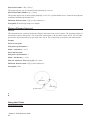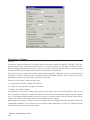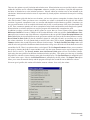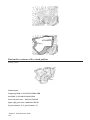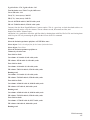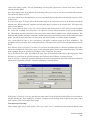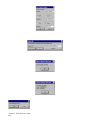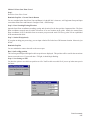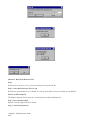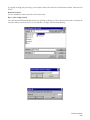
1
Carlson Field 2006 Carlson Software Inc. User’s manual July 18, 2005 ii Contents Chapter 1. Introduction 1 Introduction . . . . . . . . . . . . . . . . . . . . . . . . . . . . . . . . . . . . . . . . . . . . . . . 2 Carlson Field Directory Structure . . . . . . . . . . . . . . . . . . . . . . . . . . . . . . . . . . . . 2 System Requirements . . . . . . . . . . . . . . . . . . . . . . . . . . . . . . . . . . . . . . . . . . 2 Installing Carlson Field . . . . . . . . . . . . . . . . . . . . . . . . . . . . . . . . . . . . . . . . . 3 Carlson Field Configuration . . . . . . . . . . . . . . . . . . . . . . . . . . . . . . . . . . . . . . 4 Carlson Field Registration . . . . . . . . . . . . . . . . . . . . . . . . . . . . . . . . . . . . . . . 4 Starting Carlson Field . . . . . . . . . . . . . . . . . . . . . . . . . . . . . . . . . . . . . . . . . . 4 Command Entry . . . . . . . . . . . . . . . . . . . . . . . . . . . . . . . . . . . . . . . . . . . . . 4 Carlson Field File Types . . . . . . . . . . . . . . . . . . . . . . . . . . . . . . . . . . . . . . . . 4 Standard Report Viewer . . . . . . . . . . . . . . . . . . . . . . . . . . . . . . . . . . . . . . . . . 5 Chapter 2. Field Reference Guide 7 File Commands . . . . . . . . . . . . . . . . . . . . . . . . . . . . . . . . . . . . . . . . . . . . . 8 Set Data Directory . . . . . . . . . . . . . . . . . . . . . . . . . . . . . . . . . . . . . . . 8 Drawing Explorer . . . . . . . . . . . . . . . . . . . . . . . . . . . . . . . . . . . . . . . . 9 Project Explorer . . . . . . . . . . . . . . . . . . . . . . . . . . . . . . . . . . . . . . . . 13 Display-Edit File . . . . . . . . . . . . . . . . . . . . . . . . . . . . . . . . . . . . . . . . 14 Import DXF File . . . . . . . . . . . . . . . . . . . . . . . . . . . . . . . . . . . . . . . . 14 Export DXF file . . . . . . . . . . . . . . . . . . . . . . . . . . . . . . . . . . . . . . . . 14 Toolbars . . . . . . . . . . . . . . . . . . . . . . . . . . . . . . . . . . . . . . . . . . . . . 15 Preferences . . . . . . . . . . . . . . . . . . . . . . . . . . . . . . . . . . . . . . . . . . . 15 Configure . . . . . . . . . . . . . . . . . . . . . . . . . . . . . . . . . . . . . . . . . . . . 15 Command Prompt . . . . . . . . . . . . . . . . . . . . . . . . . . . . . . . . . . . . . . . 16 Edit Commands . . . . . . . . . . . . . . . . . . . . . . . . . . . . . . . . . . . . . . . . . . . . . 16 Undo . . . . . . . . . . . . . . . . . . . . . . . . . . . . . . . . . . . . . . . . . . . . . . 16 Erase . . . . . . . . . . . . . . . . . . . . . . . . . . . . . . . . . . . . . . . . . . . . . . 16 Delete Layer . . . . . . . . . . . . . . . . . . . . . . . . . . . . . . . . . . . . . . . . . . 16 Copy/Move . . . . . . . . . . . . . . . . . . . . . . . . . . . . . . . . . . . . . . . . . . . 17 Explode . . . . . . . . . . . . . . . . . . . . . . . . . . . . . . . . . . . . . . . . . . . . . 17 Align . . . . . . . . . . . . . . . . . . . . . . . . . . . . . . . . . . . . . . . . . . . . . . 18 Trim . . . . . . . . . . . . . . . . . . . . . . . . . . . . . . . . . . . . . . . . . . . . . . . 18 iii Scale . . . . . . . . . . . . . . . . . . . . . . . . . . . . . . . . . . . . . . . . . . . . . . 19 Extend . . . . . . . . . . . . . . . . . . . . . . . . . . . . . . . . . . . . . . . . . . . . . 19 Break . . . . . . . . . . . . . . . . . . . . . . . . . . . . . . . . . . . . . . . . . . . . . . 21 Change Properties . . . . . . . . . . . . . . . . . . . . . . . . . . . . . . . . . . . . . . . 21 Change Elevation . . . . . . . . . . . . . . . . . . . . . . . . . . . . . . . . . . . . . . . . 23 Rotate . . . . . . . . . . . . . . . . . . . . . . . . . . . . . . . . . . . . . . . . . . . . . . 24 Text . . . . . . . . . . . . . . . . . . . . . . . . . . . . . . . . . . . . . . . . . . . . . . . 26 Polyline Utilities . . . . . . . . . . . . . . . . . . . . . . . . . . . . . . . . . . . . . . . . 26 Offset Polyline . . . . . . . . . . . . . . . . . . . . . . . . . . . . . . . . . . . . . . . . . 29 Join Nearest . . . . . . . . . . . . . . . . . . . . . . . . . . . . . . . . . . . . . . . . . . . 30 3D Entity to 2D . . . . . . . . . . . . . . . . . . . . . . . . . . . . . . . . . . . . . . . . . 30 Image . . . . . . . . . . . . . . . . . . . . . . . . . . . . . . . . . . . . . . . . . . . . . . 31 Image Clip . . . . . . . . . . . . . . . . . . . . . . . . . . . . . . . . . . . . . . . . . . . 31 Image Adjust . . . . . . . . . . . . . . . . . . . . . . . . . . . . . . . . . . . . . . . . . . 32 View Commands . . . . . . . . . . . . . . . . . . . . . . . . . . . . . . . . . . . . . . . . . . . . 32 Window . . . . . . . . . . . . . . . . . . . . . . . . . . . . . . . . . . . . . . . . . . . . . 33 Dynamic . . . . . . . . . . . . . . . . . . . . . . . . . . . . . . . . . . . . . . . . . . . . 33 Previous . . . . . . . . . . . . . . . . . . . . . . . . . . . . . . . . . . . . . . . . . . . . . 33 Center . . . . . . . . . . . . . . . . . . . . . . . . . . . . . . . . . . . . . . . . . . . . . . 33 Extents . . . . . . . . . . . . . . . . . . . . . . . . . . . . . . . . . . . . . . . . . . . . . 34 Zoom In . . . . . . . . . . . . . . . . . . . . . . . . . . . . . . . . . . . . . . . . . . . . . 34 Zoom Out . . . . . . . . . . . . . . . . . . . . . . . . . . . . . . . . . . . . . . . . . . . . 34 Pan . . . . . . . . . . . . . . . . . . . . . . . . . . . . . . . . . . . . . . . . . . . . . . . 34 3D Viewer Window . . . . . . . . . . . . . . . . . . . . . . . . . . . . . . . . . . . . . . . 35 Viewpoint 3D . . . . . . . . . . . . . . . . . . . . . . . . . . . . . . . . . . . . . . . . . . 35 Zoom Point(s) . . . . . . . . . . . . . . . . . . . . . . . . . . . . . . . . . . . . . . . . . 36 Redraw . . . . . . . . . . . . . . . . . . . . . . . . . . . . . . . . . . . . . . . . . . . . . 37 Regen . . . . . . . . . . . . . . . . . . . . . . . . . . . . . . . . . . . . . . . . . . . . . . 37 Set UCS to World . . . . . . . . . . . . . . . . . . . . . . . . . . . . . . . . . . . . . . . . 37 Twist Screen Standard . . . . . . . . . . . . . . . . . . . . . . . . . . . . . . . . . . . . . 37 Twist Screen Line . . . . . . . . . . . . . . . . . . . . . . . . . . . . . . . . . . . . . . . 37 Twist Screen Surveyor . . . . . . . . . . . . . . . . . . . . . . . . . . . . . . . . . . . . . 38 Restore Due North . . . . . . . . . . . . . . . . . . . . . . . . . . . . . . . . . . . . . . . 38 Layer/Linetype Control . . . . . . . . . . . . . . . . . . . . . . . . . . . . . . . . . . . . . 39 Set Layer . . . . . . . . . . . . . . . . . . . . . . . . . . . . . . . . . . . . . . . . . . . . 39 Change Layer . . . . . . . . . . . . . . . . . . . . . . . . . . . . . . . . . . . . . . . . . . 39 Contents iv Freeze/Thaw Layer . . . . . . . . . . . . . . . . . . . . . . . . . . . . . . . . . . . . . . . 40 Isolate Layer . . . . . . . . . . . . . . . . . . . . . . . . . . . . . . . . . . . . . . . . . . 40 Restore Layer . . . . . . . . . . . . . . . . . . . . . . . . . . . . . . . . . . . . . . . . . . 40 Draw Commands . . . . . . . . . . . . . . . . . . . . . . . . . . . . . . . . . . . . . . . . . . . . 41 Line . . . . . . . . . . . . . . . . . . . . . . . . . . . . . . . . . . . . . . . . . . . . . . . 41 2D Polyline . . . . . . . . . . . . . . . . . . . . . . . . . . . . . . . . . . . . . . . . . . . 41 3D Polyline . . . . . . . . . . . . . . . . . . . . . . . . . . . . . . . . . . . . . . . . . . . 42 Circle . . . . . . . . . . . . . . . . . . . . . . . . . . . . . . . . . . . . . . . . . . . . . . 42 Insert . . . . . . . . . . . . . . . . . . . . . . . . . . . . . . . . . . . . . . . . . . . . . . 43 Text . . . . . . . . . . . . . . . . . . . . . . . . . . . . . . . . . . . . . . . . . . . . . . . 43 Hatch . . . . . . . . . . . . . . . . . . . . . . . . . . . . . . . . . . . . . . . . . . . . . . 44 Curves . . . . . . . . . . . . . . . . . . . . . . . . . . . . . . . . . . . . . . . . . . . . . 45 2 Tangents, Arc Length . . . . . . . . . . . . . . . . . . . . . . . . . . . . . . . . . . . . . 45 2 Tangents, Chord Length . . . . . . . . . . . . . . . . . . . . . . . . . . . . . . . . . . . 46 3 Point Curve . . . . . . . . . . . . . . . . . . . . . . . . . . . . . . . . . . . . . . . . . . 46 PC, PT, Radius Point . . . . . . . . . . . . . . . . . . . . . . . . . . . . . . . . . . . . . . 46 PC, Radius, Chord . . . . . . . . . . . . . . . . . . . . . . . . . . . . . . . . . . . . . . . 46 Raster Image . . . . . . . . . . . . . . . . . . . . . . . . . . . . . . . . . . . . . . . . . . 47 Place Image by World File . . . . . . . . . . . . . . . . . . . . . . . . . . . . . . . . . . . 49 Inquiry & Settings Commands . . . . . . . . . . . . . . . . . . . . . . . . . . . . . . . . . . . . . 49 List . . . . . . . . . . . . . . . . . . . . . . . . . . . . . . . . . . . . . . . . . . . . . . . 49 Point ID . . . . . . . . . . . . . . . . . . . . . . . . . . . . . . . . . . . . . . . . . . . . . 50 Layer ID . . . . . . . . . . . . . . . . . . . . . . . . . . . . . . . . . . . . . . . . . . . . 50 Bearing & Distance . . . . . . . . . . . . . . . . . . . . . . . . . . . . . . . . . . . . . . . 50 Curve Info . . . . . . . . . . . . . . . . . . . . . . . . . . . . . . . . . . . . . . . . . . . 51 Polyline Info . . . . . . . . . . . . . . . . . . . . . . . . . . . . . . . . . . . . . . . . . . 51 Drawing Setup . . . . . . . . . . . . . . . . . . . . . . . . . . . . . . . . . . . . . . . . . 52 Text Style . . . . . . . . . . . . . . . . . . . . . . . . . . . . . . . . . . . . . . . . . . . . 52 Units Control . . . . . . . . . . . . . . . . . . . . . . . . . . . . . . . . . . . . . . . . . . 53 Object Snap . . . . . . . . . . . . . . . . . . . . . . . . . . . . . . . . . . . . . . . . . . . 54 Set Environment Variables . . . . . . . . . . . . . . . . . . . . . . . . . . . . . . . . . . . 57 Points Commands . . . . . . . . . . . . . . . . . . . . . . . . . . . . . . . . . . . . . . . . . . . . 57 Point Defaults . . . . . . . . . . . . . . . . . . . . . . . . . . . . . . . . . . . . . . . . . . 57 Draw-Locate Points . . . . . . . . . . . . . . . . . . . . . . . . . . . . . . . . . . . . . . 59 List Points . . . . . . . . . . . . . . . . . . . . . . . . . . . . . . . . . . . . . . . . . . . 62 Import Text/ASCII File . . . . . . . . . . . . . . . . . . . . . . . . . . . . . . . . . . . . . 63 Contents v Export Text/ASCII File . . . . . . . . . . . . . . . . . . . . . . . . . . . . . . . . . . . . . 65 Set Coordinate File . . . . . . . . . . . . . . . . . . . . . . . . . . . . . . . . . . . . . . . 66 CooRDinate File Utilities . . . . . . . . . . . . . . . . . . . . . . . . . . . . . . . . . . . 66 Coordinate File Utilities Options . . . . . . . . . . . . . . . . . . . . . . . . . . . . . . . . 66 Edit Points . . . . . . . . . . . . . . . . . . . . . . . . . . . . . . . . . . . . . . . . . . . 76 Erase Points . . . . . . . . . . . . . . . . . . . . . . . . . . . . . . . . . . . . . . . . . . . 76 Move Points . . . . . . . . . . . . . . . . . . . . . . . . . . . . . . . . . . . . . . . . . . 77 Edit Point Attributes . . . . . . . . . . . . . . . . . . . . . . . . . . . . . . . . . . . . . . 77 Scale Point Attributes . . . . . . . . . . . . . . . . . . . . . . . . . . . . . . . . . . . . . 77 Convert Points to Softdesk . . . . . . . . . . . . . . . . . . . . . . . . . . . . . . . . . . . 78 Convert Softdesk to Points . . . . . . . . . . . . . . . . . . . . . . . . . . . . . . . . . . . 78 Convert Points to Eagle Point . . . . . . . . . . . . . . . . . . . . . . . . . . . . . . . . . 78 Convert Eagle Point to Points . . . . . . . . . . . . . . . . . . . . . . . . . . . . . . . . . 78 Convert LDD MDB to CRD . . . . . . . . . . . . . . . . . . . . . . . . . . . . . . . . . . 78 Convert CRD to LDD MDB . . . . . . . . . . . . . . . . . . . . . . . . . . . . . . . . . . 79 Convert CRD to TDS CR5 / TDS CR5 to CRD . . . . . . . . . . . . . . . . . . . . . . . . 79 Convert Wild/Leica to Points . . . . . . . . . . . . . . . . . . . . . . . . . . . . . . . . . . 79 COGO Commands . . . . . . . . . . . . . . . . . . . . . . . . . . . . . . . . . . . . . . . . . . . 79 Inverse . . . . . . . . . . . . . . . . . . . . . . . . . . . . . . . . . . . . . . . . . . . . . 79 Occupy Point . . . . . . . . . . . . . . . . . . . . . . . . . . . . . . . . . . . . . . . . . . 80 Traverse . . . . . . . . . . . . . . . . . . . . . . . . . . . . . . . . . . . . . . . . . . . . . 81 Side Shots . . . . . . . . . . . . . . . . . . . . . . . . . . . . . . . . . . . . . . . . . . . 82 Enter-Assign Point . . . . . . . . . . . . . . . . . . . . . . . . . . . . . . . . . . . . . . . 83 Locate at Intersect . . . . . . . . . . . . . . . . . . . . . . . . . . . . . . . . . . . . . . . 83 Bearing-Bearing Intersect . . . . . . . . . . . . . . . . . . . . . . . . . . . . . . . . . . . 84 Bearing-Distance Intersect . . . . . . . . . . . . . . . . . . . . . . . . . . . . . . . . . . . 85 Distance-Distance Intersect . . . . . . . . . . . . . . . . . . . . . . . . . . . . . . . . . . 86 Interpolate Points . . . . . . . . . . . . . . . . . . . . . . . . . . . . . . . . . . . . . . . . 86 Interpolate Entity . . . . . . . . . . . . . . . . . . . . . . . . . . . . . . . . . . . . . . . . 87 Create Points from Entities . . . . . . . . . . . . . . . . . . . . . . . . . . . . . . . . . . . 88 SurvCE/SurvStar Data Trans. . . . . . . . . . . . . . . . . . . . . . . . . . . . . . . . . . 89 Edit-Process Raw File . . . . . . . . . . . . . . . . . . . . . . . . . . . . . . . . . . . . . 91 Field to Finish . . . . . . . . . . . . . . . . . . . . . . . . . . . . . . . . . . . . . . . . . 116 Insert Symbols . . . . . . . . . . . . . . . . . . . . . . . . . . . . . . . . . . . . . . . . . 132 Edit Symbol Library . . . . . . . . . . . . . . . . . . . . . . . . . . . . . . . . . . . . . . 133 4 Sided Building . . . . . . . . . . . . . . . . . . . . . . . . . . . . . . . . . . . . . . . . 134 Contents vi Inverse with Area . . . . . . . . . . . . . . . . . . . . . . . . . . . . . . . . . . . . . . . . 135 Station Polyline/Centerline . . . . . . . . . . . . . . . . . . . . . . . . . . . . . . . . . . . 137 Offset Point Entry . . . . . . . . . . . . . . . . . . . . . . . . . . . . . . . . . . . . . . . 139 Calculate Offsets . . . . . . . . . . . . . . . . . . . . . . . . . . . . . . . . . . . . . . . . 140 Cut Sheet . . . . . . . . . . . . . . . . . . . . . . . . . . . . . . . . . . . . . . . . . . . . 142 DTM Commands . . . . . . . . . . . . . . . . . . . . . . . . . . . . . . . . . . . . . . . . . . . . 145 Elevation Difference . . . . . . . . . . . . . . . . . . . . . . . . . . . . . . . . . . . . . . 145 List Elevation . . . . . . . . . . . . . . . . . . . . . . . . . . . . . . . . . . . . . . . . . . 148 Assign Contour Elevations . . . . . . . . . . . . . . . . . . . . . . . . . . . . . . . . . . . 148 Make 3D Grid File . . . . . . . . . . . . . . . . . . . . . . . . . . . . . . . . . . . . . . . 149 Plot 3D Grid File . . . . . . . . . . . . . . . . . . . . . . . . . . . . . . . . . . . . . . . . 153 Two Surface Volumes . . . . . . . . . . . . . . . . . . . . . . . . . . . . . . . . . . . . . 154 Final surface contours with a closed polyline . . . . . . . . . . . . . . . . . . . . . . . . . 156 Triangulate & Contour . . . . . . . . . . . . . . . . . . . . . . . . . . . . . . . . . . . . . 159 Plot Triangular Mesh . . . . . . . . . . . . . . . . . . . . . . . . . . . . . . . . . . . . . . 164 Road Commands . . . . . . . . . . . . . . . . . . . . . . . . . . . . . . . . . . . . . . . . . . . . 164 Centerline Position . . . . . . . . . . . . . . . . . . . . . . . . . . . . . . . . . . . . . . . 164 Offset Stakeout . . . . . . . . . . . . . . . . . . . . . . . . . . . . . . . . . . . . . . . . . 167 Slope Staking . . . . . . . . . . . . . . . . . . . . . . . . . . . . . . . . . . . . . . . . . . 171 Slope Inspector . . . . . . . . . . . . . . . . . . . . . . . . . . . . . . . . . . . . . . . . . 176 Prepare Story Stake . . . . . . . . . . . . . . . . . . . . . . . . . . . . . . . . . . . . . . . 177 Story Stake By Points . . . . . . . . . . . . . . . . . . . . . . . . . . . . . . . . . . . . . 179 Story Stake By Polyline . . . . . . . . . . . . . . . . . . . . . . . . . . . . . . . . . . . . 180 Input-Edit Centerline File . . . . . . . . . . . . . . . . . . . . . . . . . . . . . . . . . . . 181 Polyline to Centerline File . . . . . . . . . . . . . . . . . . . . . . . . . . . . . . . . . . . 192 Draw Centerline File . . . . . . . . . . . . . . . . . . . . . . . . . . . . . . . . . . . . . . 193 Centerline Conversion . . . . . . . . . . . . . . . . . . . . . . . . . . . . . . . . . . . . . 193 Input-Edit Profile . . . . . . . . . . . . . . . . . . . . . . . . . . . . . . . . . . . . . . . . 193 Draw Profile . . . . . . . . . . . . . . . . . . . . . . . . . . . . . . . . . . . . . . . . . . 194 Design Template . . . . . . . . . . . . . . . . . . . . . . . . . . . . . . . . . . . . . . . . 197 Draw Typical Template . . . . . . . . . . . . . . . . . . . . . . . . . . . . . . . . . . . . . 205 Template Transition . . . . . . . . . . . . . . . . . . . . . . . . . . . . . . . . . . . . . . 207 Input-Edit Super Elevation . . . . . . . . . . . . . . . . . . . . . . . . . . . . . . . . . . . 210 Input-Edit Section File . . . . . . . . . . . . . . . . . . . . . . . . . . . . . . . . . . . . . 212 Draw Section File . . . . . . . . . . . . . . . . . . . . . . . . . . . . . . . . . . . . . . . 215 Section Conversion . . . . . . . . . . . . . . . . . . . . . . . . . . . . . . . . . . . . . . . 220 Contents vii Field Commands . . . . . . . . . . . . . . . . . . . . . . . . . . . . . . . . . . . . . . . . . . . . 220 Carlson Field Icon Menu . . . . . . . . . . . . . . . . . . . . . . . . . . . . . . . . . . . . 220 Configure Field . . . . . . . . . . . . . . . . . . . . . . . . . . . . . . . . . . . . . . . . . 221 Equipment Setup . . . . . . . . . . . . . . . . . . . . . . . . . . . . . . . . . . . . . . . . 230 Align GPS To Local Coordinates . . . . . . . . . . . . . . . . . . . . . . . . . . . . . . . 252 Typical Alignment Scenarios . . . . . . . . . . . . . . . . . . . . . . . . . . . . . . . . . . 256 Point Store . . . . . . . . . . . . . . . . . . . . . . . . . . . . . . . . . . . . . . . . . . . 257 Stakeout . . . . . . . . . . . . . . . . . . . . . . . . . . . . . . . . . . . . . . . . . . . . . 265 Auto Points At Interval . . . . . . . . . . . . . . . . . . . . . . . . . . . . . . . . . . . . . 269 Track Position . . . . . . . . . . . . . . . . . . . . . . . . . . . . . . . . . . . . . . . . . 270 Satellite SkyPlot . . . . . . . . . . . . . . . . . . . . . . . . . . . . . . . . . . . . . . . . 271 Monitor GPS Position . . . . . . . . . . . . . . . . . . . . . . . . . . . . . . . . . . . . . 272 Benchmark . . . . . . . . . . . . . . . . . . . . . . . . . . . . . . . . . . . . . . . . . . . 273 Resection . . . . . . . . . . . . . . . . . . . . . . . . . . . . . . . . . . . . . . . . . . . . 274 Building Face Surface . . . . . . . . . . . . . . . . . . . . . . . . . . . . . . . . . . . . . 275 Pattern Point Survey . . . . . . . . . . . . . . . . . . . . . . . . . . . . . . . . . . . . . . 275 Point Check By Robotics . . . . . . . . . . . . . . . . . . . . . . . . . . . . . . . . . . . . 275 GIS Commands . . . . . . . . . . . . . . . . . . . . . . . . . . . . . . . . . . . . . . . . . . . . . 276 Input-Edit GIS Data . . . . . . . . . . . . . . . . . . . . . . . . . . . . . . . . . . . . . . 276 GIS Data Inspector . . . . . . . . . . . . . . . . . . . . . . . . . . . . . . . . . . . . . . . 277 GIS Inspector Settings . . . . . . . . . . . . . . . . . . . . . . . . . . . . . . . . . . . . . 278 GIS Query/Report . . . . . . . . . . . . . . . . . . . . . . . . . . . . . . . . . . . . . . . 279 Create Links . . . . . . . . . . . . . . . . . . . . . . . . . . . . . . . . . . . . . . . . . . 281 Erase Links . . . . . . . . . . . . . . . . . . . . . . . . . . . . . . . . . . . . . . . . . . . 282 Audit Links . . . . . . . . . . . . . . . . . . . . . . . . . . . . . . . . . . . . . . . . . . . 283 Import SHP File . . . . . . . . . . . . . . . . . . . . . . . . . . . . . . . . . . . . . . . . 284 Export SHP File . . . . . . . . . . . . . . . . . . . . . . . . . . . . . . . . . . . . . . . . 285 Image Inspector . . . . . . . . . . . . . . . . . . . . . . . . . . . . . . . . . . . . . . . . . 285 Attach Image to Entity . . . . . . . . . . . . . . . . . . . . . . . . . . . . . . . . . . . . . 286 Define Template Database . . . . . . . . . . . . . . . . . . . . . . . . . . . . . . . . . . . 287 Define Note File Prompts . . . . . . . . . . . . . . . . . . . . . . . . . . . . . . . . . . . 288 Note File Utilities . . . . . . . . . . . . . . . . . . . . . . . . . . . . . . . . . . . . . . . . 290 Help Commands . . . . . . . . . . . . . . . . . . . . . . . . . . . . . . . . . . . . . . . . . . . . 292 On-Line Help . . . . . . . . . . . . . . . . . . . . . . . . . . . . . . . . . . . . . . . . . . 292 Training Movies . . . . . . . . . . . . . . . . . . . . . . . . . . . . . . . . . . . . . . . . 293 About Carlson Software . . . . . . . . . . . . . . . . . . . . . . . . . . . . . . . . . . . . 293 Contents viii Chapter 3. Field User Guide 295 Introduction . . . . . . . . . . . . . . . . . . . . . . . . . . . . . . . . . . . . . . . . . . . . . . . 296 Introduction . . . . . . . . . . . . . . . . . . . . . . . . . . . . . . . . . . . . . . . . . . . 296 Slope Staking . . . . . . . . . . . . . . . . . . . . . . . . . . . . . . . . . . . . . . . . . . . . . . 296 Field To Finish . . . . . . . . . . . . . . . . . . . . . . . . . . . . . . . . . . . . . . . . . . . . . 300 GIS Data Collection . . . . . . . . . . . . . . . . . . . . . . . . . . . . . . . . . . . . . . . . . . . 305 Depth Sounder . . . . . . . . . . . . . . . . . . . . . . . . . . . . . . . . . . . . . . . . . . . . . 317 Depth Sounder . . . . . . . . . . . . . . . . . . . . . . . . . . . . . . . . . . . . . . . . . 317 Settings . . . . . . . . . . . . . . . . . . . . . . . . . . . . . . . . . . . . . . . . . . . . . 317 Starting Out . . . . . . . . . . . . . . . . . . . . . . . . . . . . . . . . . . . . . . . . . . . 318 Chapter 4. Equipment Reference 319 Apache Lightbar . . . . . . . . . . . . . . . . . . . . . . . . . . . . . . . . . . . . . . . . . . . . 320 CSI GBX Pro . . . . . . . . . . . . . . . . . . . . . . . . . . . . . . . . . . . . . . . . . . . . . . 320 Geodimeter . . . . . . . . . . . . . . . . . . . . . . . . . . . . . . . . . . . . . . . . . . . . . . . 321 Impulse Laser . . . . . . . . . . . . . . . . . . . . . . . . . . . . . . . . . . . . . . . . . . . . . . 322 InnerSpace Tech depth sounder . . . . . . . . . . . . . . . . . . . . . . . . . . . . . . . . . . . . . 323 Laser Atlanta . . . . . . . . . . . . . . . . . . . . . . . . . . . . . . . . . . . . . . . . . . . . . . 323 Leica Disto . . . . . . . . . . . . . . . . . . . . . . . . . . . . . . . . . . . . . . . . . . . . . . . 323 Leica GPS System 500 . . . . . . . . . . . . . . . . . . . . . . . . . . . . . . . . . . . . . . . . . 323 Leica TC Series . . . . . . . . . . . . . . . . . . . . . . . . . . . . . . . . . . . . . . . . . . . . . 325 Manual Total Station . . . . . . . . . . . . . . . . . . . . . . . . . . . . . . . . . . . . . . . . . . 326 Mikrofyn Lightbar . . . . . . . . . . . . . . . . . . . . . . . . . . . . . . . . . . . . . . . . . . . 327 Navcom GPS Setup . . . . . . . . . . . . . . . . . . . . . . . . . . . . . . . . . . . . . . . . . . . 327 Navcom Configuration Guide . . . . . . . . . . . . . . . . . . . . . . . . . . . . . . . . . 331 Nikon Total Stations . . . . . . . . . . . . . . . . . . . . . . . . . . . . . . . . . . . . . . . . . . 333 OmniStar Otto . . . . . . . . . . . . . . . . . . . . . . . . . . . . . . . . . . . . . . . . . . . . . . 334 Simulation (GPS) . . . . . . . . . . . . . . . . . . . . . . . . . . . . . . . . . . . . . . . . . . . . 335 Sokkia . . . . . . . . . . . . . . . . . . . . . . . . . . . . . . . . . . . . . . . . . . . . . . . . . . 335 Topcon Total Stations . . . . . . . . . . . . . . . . . . . . . . . . . . . . . . . . . . . . . . . . . . 337 Trimble . . . . . . . . . . . . . . . . . . . . . . . . . . . . . . . . . . . . . . . . . . . . . . . . . 340 Contents ix Contents x Introduction 1 1 Introduction Carlson Field is an AutoCAD-based data collection software package. It creates maps as you survey directly in an AutoCAD drawing. The program collects data by interacting directly with a total station, impulse laser, or real-time kinematic Global Positioning System (RTK GPS) equipment. Carlson Field runs with AutoCAD v14, 2000 and standalone AutoCAD OEM. In the field, Carlson Field is typically run on a ruggedized laptop computer. Carlson Field Directory Structure The figure below shows the default directory structure for Carlson Field. The EXEC, LSP, and SUP sub-directories have files that are accessed by Carlson Field. You should never need to access these files directly yourself. The DATA and WORK sub-directories are the users directories, which will contain drawing and data files you will be using and creating. ROOT \SURV \EXEC Executables - Programs (.EXE, .DTA) \SUP Support - Drawing blocks (.DWG) \LSP Lisp & ADS - Programs (.LSP, .DLL, .DCL) \DATA User data files - Survey files (.RAW, .CRD, etc) \WORK - Startup directory, user drawings (.DWG) System Requirements Operating System Windows XP, Windows 2000 Professional, or Windows NT 4.0 with SP 6.0 or later. NOTES: • It is recommended that you install and run Carlson Field on an English version of the operating system. • Users of Windows NT 4.0 or Windows 2000 Professional must have Administrator permissions to install Carlson Survey. Not assigning these permissions can cause Carlson Field to perform incorrectly. See Windows Help for information about assigning user permissions. Chapter 1. Introduction 2 • Carlson OEM 2004 based products do not support Windows 95, 98 and ME (all editions). Processor Intel® Pentium® III, IV or AMD-K6® III PC, 450MHz or higher RAM 128 MB Video VGA display 1024 x 768 Hard disk 500MB free disk space Pointing device Mouse CD-ROM Any speed (for installation only) Optional hardware Printer or plotter Digitizer Modem or access to an Internet connection Open GL-compatible 3D video card The OpenGL driver that comes with the 3D graphics card must have the following: Full support of OpenGL or later. An OpenGL Installable Client Driver (ICD). The graphics card must have an ICD in its OpenGL driver software. The ''miniGL'' driver provided with some cards is not sufficient for use with this Autodesk CAD engine. Web browser Microsoft Internet Explorer 6.0 Netscape Navigator 4.5 or later Installing Carlson Field Insert the Carlson Field CD into the CD drive. Then run SETUP.EXE on the CD. Select Run under Start button and then enter X:setup.exe where X is the CD drive letter. The install program will prompt for the drive letter to install to. The install program will propose different directories to install the Carlson Field files in. You can press [Enter] to use the defaults or type in your preference. To complete the Carlson Field installation, set up the Carlson Field configuration and registration as explained in the following sections. Installing Carlson Field 3 Carlson Field Configuration To set the Carlson Field instrument and data collection settings, run the Configure Field command in the Field menu. This routine sets the instrument model (total station, GPS or laser) and data collection options. To set the Carlson Field CAD defaults, choose the Configure command from the File pulldown menu after starting Carlson Field. Configure allows you to set some variables such that the default parameters are set at startup. These values are stored in the files SURVCADD.INI, SURV.INI and COGO.INI in the SURV main directory. Carlson Field Registration Each Carlson Field is licensed for use on only one computer, which must be registered. The registration records your company name and serial number. To register your copy of Carlson Field, run About Carlson Software under the Help dropdown menu. Click on the Change Registration button and enter your company name in the Carlson Software registration box. In this dialog , there would be a two number registration code such as 39-403. At this point, call Carlson Software at 606-564-5028 or email [email protected] to receive your change key. After installing Carlson Field, there is a grace period of 100 Carlson Software function calls before you must do this registration. After this time, the program will enter a demo mode which displays a message each time a command is run. Starting Carlson Field In Windows, double click on the Carlson Field icon . This will start Carlson Field with the default directory as x:\surv\work. Alternatively, you could start Carlson Field from DOS by changing to x:\surv (the directory where all the files have been installed) and typing surv [Enter] at the DOS prompt. This should startup your Carlson Field with all the default toolbars and the prototype drawing and the Carlson Field menus. Command Entry Commands may be issued by selecting a pulldown menu or clicking on the icon for that command from the toolbar, if available. A limited number of Carlson Field commands have icons in a toolbar, which makes it very convenient to run them. The standard toolbar has the most useful icons available for use right at startup. Other toolbars can be made available on screen for the length of the current drawing session. To do this, run the Toolbars command from the File pulldown menu and choose which of the toolbars will be required. Highlight that toolbar by clicking on it. Then, click on the Show or Hide button. Pressing Enter at the command prompt repeats the last command used. The Pulldown menus are the primary method for Site Manager command selection. The various sections of this manual are arranged such that each section explains all the commands available under one of the pulldown menus in the Carlson Field Module of Carlson Software. Pulldown menus are sometimes also referred to as dropdown menus. You can also start commands by typing the command name at the ''Command>'' prompt. The command names can be listed by type ''?'' at the command prompt. This command prompt is not always active. To turn on the command prompt, choose Command Prompt from the File menu. Carlson Field File Types .CL Centerline file .CRD Coordinate file (point number, northing, easting, elevation, description) in binary form .DCL Program dialogs Chapter 1. Introduction 4 .DWG Drawing files .EXE Executable programs .FLT Triangulation mesh .GFU Grid File Utilities macro command recorder file .GRD Grid file - a DTM surface model .INI Program user preferences settings .LSP Lisp programs .MNC Compiled menus .MNR Compiled menus .MNS Compiled menus .MXS Cross section alignment .NOT Note file - additional descriptions for points in corresponding .CRD file .PLN Plan view polyline file for Dozer 2000 .PRO Profile (station, elevation, descriptions) .RW5 Raw file of traverse data .SCT Cross section data (station, offset, elevation, descriptions) .SLB Slide library .SLD Slide image Standard Report Viewer Many Carlson Field routines display the output in a report viewer as shown below. The report can be edited from the report viewer. To draw the report in the drawing, click the Screen button. The program will then prompt you for the starting point for the text and the text height, rotation and layer. The File button stores the report to a specified file. There is a File option to create a new report file or append an existing file. The Print button sends the report to the printer. The Find button will search for text in the report. You can use the Hide button to put the Report Viewer window to the side of the desktop and give focus back to the drawing. This option allows you to return to working in the drawing without closing the report. You can re-activate the report by picking on the minimized report viewer icon. Standard Report Viewer 5 Chapter 1. Introduction 6 Field Reference Guide 2 7 File Commands The following are the self-explanatory commands in the ''File'' pulldown menu. New Creates a new drawing. Open Opens an existing drawing. Close Closes the current drawing Save Saves the current drawing with its current name or as ''unnamed.dwg'' if no name is specified. Save As Gives the option of saving the current drawing with a different name. Print Prints or plots the current drawing. Exit Exits Carlson Field. The other commands are explained in greater detail below. Project Contains management controls for data, drawing and project files. This command has a sub-menu, consisting of three items, as follows: Set Data Directory Drawing Explorer Project Explorer Display-Edit File Import DXF File Export DXF file Toolbars Preferences Configure Command Prompt Set Data Directory Function This command sets the data directory to use as the default directory for creating Carlson data files such as coordinate (.crd) and profile (.pro) files. The routine shows the tree structure of existing directories available on your computer. The display is set to the current data directory. To set the data directory, highlight the directory name and then click OK. To create a new data directory, first highlight the parent directory to create the new one inside and then pick the Create Directory button. Then the program will prompt you for the new directory name. The Remove Directory button allows you to delete directories that have no files inside. Pulldown Menu Location: File> Project Prerequisite: None Chapter 2. Field Reference Guide 8 Drawing Explorer Function The Drawing Explorer command presents a list of all Carlson data files that are made in association with a drawing. The ''knowledge'' of these files is contained in the ''.ini'' file that shares the drawing name (e.g. Estates.dwg, Estates.ini). If a drawing was not made in Carlson or does not have a companion ''.ini'' file, then Drawing Explorer will display ''No Files''. If Configure, General Settings, Save Drawing INI Files is clicked off, then Drawing Explorer will again display ''No Files''. Drawing Explorer will also not show any data files where the drawing name starts with the 7 letters ''Drawing''. In any other file name, once data files are created such as a coordinate (''.crd'') file, then Drawing Explorer will track these files in the order that they are created. Drawing Explorer helps manage drawing-related data. Example 1 If we are working in a drawing called Estates.dwg and create a coordinate file Estates.crd, then later create a second coordinate file called Estates-GPS.crd, Drawing Explorer would display the following: The coordinate file created or modified last appears at the top of the list. All data files are displayed in the order of most recent to oldest. If the Estates.crd file is ''set'' as current by the command Set Coordinate File, then added to or revised, Estates.crd will move to the top of the list. Thus ''old'', relatively unused files will gravitate to the bottom of the list. Files are displayed by category. So far, we have only the Coordinate Files category. There are also Raw Field Note files (.rw5), profiles (.pro), section files (.sct)-in fact dozens of file type categories that will display once these files are actually created. If a data file is selected and highlighted, the Up and Down keys will ''unghost'', and the user can move files up to the top of the list or otherwise alter their position. The position of files affects only the reporting of the files using the ''Report'' option in the lower left of the dialog. When highlighted, a file can be ''removed'' from the list (but it won't be deleted from the hard drive!). The Add option will add other older or non-referenced data files to the list of files associated with the drawing. File Commands 9 Example 2 As we do more work in the file Estates.dwg, data files will begin to proliferate and will appear in Drawing Explorer. Shown below is a more comprehensive list of files, with occasional examples of multiple files within the same category. Categories themselves ''float'' to the top of the list if any of their data files have been used more recently than data files in other categories. Note that there is even a Miscellaneous Files category, that includes ASCII point files created by the command Export Text/ASCII File. Chapter 2. Field Reference Guide 10 When many data files are involved, the Report option becomes very useful. Here you can use the Report Formatter to display, in any order, the File Name, File Type, Date last modified, Time last modified, Size in bytes, and whether it is Found (i.e. exists) in the specified directory. For example, if a file was created in a certain directory but moved using Windows Explorer to another directory without being further altered in Carlson, it would show up here as ''not found''. (''No'' would appear in the Found column). The Report Formatter can be used to move to the right side all items that are desired for reporting, with the up-down options used to set the report order (e.g. File type first, File name second, etc.). Click the Display button that appears at the bottom of the Report Formatting Options dialog, to obtain the report. File Commands 11 Shown here is a summary of our data files by size, with reporting of the ''found'' status. In this case, the Estates.Lot file has been moved or deleted. A deleted or missing file such as Estates.Lot will appear in Drawing Explorer with a special red ''no entry'' symbol as shown here. Chapter 2. Field Reference Guide 12 Pull-Down Menu Location: File, Project Prerequisite: None Project Explorer Function This tool is used for management of a complete project. A project can contain numerous drawings, and each drawing within that project can contain numerous related files. Think of the Project Explorer as the trunk of the hierarchical tree structure that develops into a project. While within each drawing, the program keeps track of the files that you create (such as grids and coordinates). These are related to the drawing and you can use the ‘Drawing Explorer' to manage them. When management reaches the top level, the Project Explorer is used to tie these together. Prompts When you initiate the Project Explorer, you will be prompted to select an existing or create a new Project File. Project files end in the PRJ extension. Once a project file is open, the following dialog will appear. Add When you choose the add button you will be presented with a dialog to select a drawing to add to the project. Once a drawing is selected, it will be added to the project tree along with any files related to the drawing. Remove When any ‘branch' of the tree structure (except the top root) is selected, you have the ability to remove it. Keep in mind that removing any node of a tree structure will obviously remove any nodes that are contained under it. File Commands 13 Up/Down When you select any ‘branch' of the tree structure that can be moved, the Up and Down buttons will be available. This allows you to rearrange the items vertically. Pulldown Menu Location: File> Project Keyboard Command: prjxplore Display-Edit File Function This command allows you to edit or review an ASCII/Text file generated by any program. The file contents are displayed in the Standard Report Viewer. From this routine, you can edit the text or print the file. Pull-Down Menu Location: File Prerequisite: A file to edit. Import DXF File Function This command allows the user to import a DXF file (Data eXchange File) into the current drawing. Drawings or objects created in other CAD systems can be used in Carlson Software by importing them using this command. (AutoCAD DWG files need not be imported; they can be directly opened in Carlson Software). Export DXF file Function This command allows the user to create a DXF file from the current drawing. It gives the option to create a DXF file from the entire drawing or selected objects. The degree of precision for numbers can be selected. Whether a binary Chapter 2. Field Reference Guide 14 file needs to be used can also be selected. These DXF files can be used by other CAD systems to open up Carlson Software drawings. Toolbars Function This command brings up a list of all the toolbars available, classified under various menu sections. When a toolbar is selected, a dialog box appears, that gives the option to have the toolbar hidden or available to the user during the drawing session, through a toggle box. Pull-Down Menu Location: File Prerequisite: None Preferences Function This command allows the user to set up a number of options, pertaining to the directory file system, color combinations for the display screen, text fonts, workspace utitlities like shortcut keys etc. Pull-Down Menu Location: File Prerequisite: None Configure Function This command allows you to set up the default settings used each time you start a new drawing or load an existing drawing. These settings are stored in files called SURVCADD.INI and COGO.INI in the Carlson Survey root directory. Configure will restore the current drawing settings to these default settings. The Report Print Specifications settings apply to the Standard Report Viewer. Use Degree Symbol in Reports chooses between using the degree circle symbol and a 'd' for degree angles in the report. The 'd' can be used for printers that don't handle the degree circle symbol. The Use Page# option will add a page number to the bottom of each page in the report. The CRD File Pt# Format option sets point number format for coordinate files as either numeric only or alphanumeric. Numeric point numbers are numbers like 5,6,7 whereas alphanumeric point numbers can also contain characters such as 5A,5B,5C. The settings under Drawing Setup only apply to new drawings because the Drawing Setup settings are automatically stored in existing drawings in a block called SURVSETV. This allows drawings to have individual defaults settings for Drawing Setup. Pull-Down Menu Location: File Prerequisites: None File Commands 15 Command Prompt Function The Comand Prompt routine brings up a command prompt so that you can type in commands in the text window. This is another method for starting commands besides picking them from the menu or toolbars. To list the command names, enter ''?'' at the ''Command>'' prompt. To exit command prompting, press the Esc key or type Ctrl-C. Pull-Down Menu Location: File Prerequisites: None Edit Commands Undo Function The ''Undo'' command can undo com-mands sequentially in the reverse order. Erase Function The ''Erase'' command erases all objects lying within a user-specified window.The command prompts the user to choose the window to select objects to be erased. Delete Layer Function This command will ERASE all the entities on the specified layers and will delete these layers from the drawing. The command prompts for the layer name to erase and then erases all entities on that layer. In addition to typing in the layer name, you can also specify a layer to delete by picking an entity on that layer. To select layers by picking, first click the Select Layers from Screen button and then select the entities on the layers to be deleted. The Select Layers by Name button allows you to choose a layer name from a list of layers in the drawing. You can also specify which types of entities to erase. For instance, if you have both linework and points on the same layer and you want to erase only the linework, you can click off All and check Line and Polyline. Pull-Down Menu Location: Edit Chapter 2. Field Reference Guide 16 Prerequisite: Something to erase Copy/Move Function The ''Copy'' and ''Move'' commands are similar in function. The only difference is that the ''Move'' command erases the original source object after placing a copy of the object in place, while the ''Copy'' command doesn't. For both commands, the user is prompted to select objects by picking individual objects or a group of objects using a selection window. The new position for the copy can be specified by entering the displacement and direction for the shift, or alternatively, the source point and second point for the shift. For the ''Copy'' command, the user has the option of doing a multiple copy, where the same object is copied multiple times. Prompts Select objects: pick object or enclose objects in a selection window(press <ENTER> after selecting required objects, to end selection) Base point or displacement: pick base point of shift by clicking on the drawing with the mouse Second point of displacement : pick base a point so that these two points define the distance and direction of shift. Pull-Down Menu Location: Edit Prerequisite: Entities to Copy(Move) Explode Function The ''Explode'' command splits an objects into its components. However, it has no visual effect. For example, exploding forms simple lines and arcs from polylines and other grouped objects, though there is no shifting of these component objects. The properties associated with the complex objects are lost (like the width of polylines, area of Edit Commands 17 closed polygons etc.), while the properties of individual lines or arcs may appear (like the line colors or lengths of individual lines). Prompts Select objects: pick object or enclose objects in a selection window(press <ENTER> after selecting required objects, to end selection) Pull-Down Menu Location: Edit Prerequisite: Complex Entities to explode (polylines, polygons, grouped objects etc.) Align Function This command aligns objects by mapping points from source point(s) to destination point(s). The user is prompted for the object to be aligned. Once the object is selected, the user needs to specify what points in the selected object must be mapped to what points in the final position. The user can do this using 1, 2 or 3 points to specify the type of alignment. Selecting just one source and destina-tion point causes linear translation of the object. Twopoint specification can cause objects to be rotated in the plane of the drawing before they are placed in their final position. Three-point specification can cause three dimensional alignment.Scaling is not achieved by this command; the aligned object needs to be scaled explicitly. Prompts Select object: pick an object to be scaled (press <ENTER> after selecting required objects, to end selection) 1st source point: pick first point that is intended to be a tag point for the alignment. 1st destination point: pick the point that the first source point is intended to go to. 2nd source point: pick second point that is intended to be a tag point for the alignment.(If you press<Enter> at this point, linear alignment is executed) 2nd destination point: pick the point that the second source point is intended to go to. 3rd source point: pick third point that is intended to be a tag point for the alignment.(If you press<Enter> at this point, the user is prompted to confirm whether it is a 2d or 3d alignment. If 2d is selected, which is the default selection, planar alignment is executed. If 3d is selected, then further prompts as below will be seen. ) A third souce point is needed only in the case of three-dimansional alignment. 3rd destination point: pick the point that the third source point is intended to go to. Pull-Down Menu Location: Edit Prerequisite: Text entities to be changed. Trim Function The ''Trim'' command allows the user to cutoff an object precisely at an intersection or an implied intersection with other objects. Prompts Select cutting objects: pick cutting edges or enclose cutting edges in a selection window(press <ENTER> after selecting required edges, to end selection) Select objects to trim/project/edge/undo: pick objects that intersect the selected cutting edge. The portion of the selected object will be erased upto its intersection with the cutting edge. If more than one cutting edge is selected, Chapter 2. Field Reference Guide 18 then the portion of the object between the selected cutting edges will be erased.The ''project'' option allows user to select projection mode (UCS, View or none). The ''undo'' option cancels the last action of trimming. Select objects to trim/project/edge/undo: select ‘e' for ''edge'', to cut by an implied edge; that is,at a possible point of intersection of the cutting edge. Extend/No extend : select ‘e' for ''extend'' option, so that the current cutting edge is extended to a possible point of intersection with objects to be cut. Pull-Down Menu Location: Edit Prerequisite: Object to trim and an edge (or implied edge) where it cuts(or might cut) other objects Scale Function This command changes all the dimensions of a selected object. Scaling changes dimensions equally in the x and y directions; hence, scaling cannot change the aspect ratio of an object. Prompts Select boundary object: pick an object to be scaled (press <ENTER> after selecting required objects, to end selection) Base point: pick base point <Scale Factor>/Reference : 2 (objects will be scaled to 2 times their original size and placement will be such that the distance of each point to the base point will also be increased by the same scale; fractional scale factors like 0.3 will reduce the size of objects. The scale factor must be a positive real number.) <Scale Factor>/Reference : type ‘ref' to choose scaling by reference. Reference length <1> : Choose the length to be the reference. It can be entred in two ways: from the keyboard or by entering the endpoints of a line that needs to be scaled (the reference option is more useful for the second situation) New length : Choose the new length that the reference length has to change to. The scale factor will then be the new length divided by the old length. Once again, the new length can be specified in two ways : from the keyboard and by two points in the drawing. The ''reference'' option is most useful in the situation where a line or an object needs to be made exactly the size of an existing line in the drawing. Extend Function This command can extend objects to precise points defined by intersection with other objects, or points of intersection of other objects. Objects to be extended can be lines and arcs as well as polylines. This command has a sub-menu, consisting of three items, as follows : To Edge The ''Extend- To Edge'' command allows the user to extend an object precisely to an edge with an object. Prompts Select boundary object: pick an object to be the boundary to which objets need to be extended to (press <ENTER> after selecting required objects, to end selection) Edit Commands 19 Select objects to extend/project/edge/undo: pick objectsto be extended to the selected boundary. Objects are automatically extended to the possible points of intersection of selected objects with the selected boundary.The ''project'' option allows user to select projection mode (UCS, View or none). The ''undo'' option cancels the last action of extension. Pull-Down Menu Location: Edit, Extend > Prerequisite: Object to trim and an edge (or implied edge) where it cuts(or might cut) other objects By Distance This command extends a line or polyline, or creates new lines or polylines off of an existing one. By specifiying a distance, a new segment of the line or polyline can be drawn from the current position. The current position and direction along the line or polyline is indicated by an arrowhead. Extend by Distance starts by selecting an existing line or polyline. Initially, the current position will be the closest vertice to where the line or polyline was selected. Extending from the endpoint of a polyline will add a new point to that polyline, while extending from any other point will create a new polyline. There are two modes of operation: draw mode and move mode. When in draw mode, extending will draw line or polyline segments. In move mode, the current position arrowhead can be moved without drawing segments. The orientation of the current position arrowhead can be changed with the Right, Left, and Angle commands. Here is a list of the Extend by Distance commands: D - Draw Mode Actions draw or extend the line or polyline M - Move Mode Actions only move the pointer # - Number Distance to draw or extend R - Right rotate Rotates clockwise 90 degrees L - Left rotate Rotates counter-clockwise 90 degrees E - Extend to Edge Extends to intersection with a selected line or polyline T# - Total distance Sets current segment to specified distance A# - Angle change Rotates pointer by specified number of degrees A - Align Rotates pointer to align with segment B - Bearing Sets pointer direction by bearing in format: Qdd.mmss with Q-quadrant, d-deg, m-min, s-sec (eg 130.1005 is NE 30 deg, 10 min, and 5 sec) S - Switch Reverses pointer direction F - Forward move Moves pointer to next point B - Backward move Moves pointer to previous point U - Undo Undo the last Extend by Distance command C - Close Closes the polyline O - Open Opens the polyline Prompts Select line or pline to extend: select line or polyline near the place to extend Enter or pick distance to draw (A,B,C,E,L,M,N,O,P,R,S,T,U,Help): 50 The line is extended by 50 units. Use the Pick option to pick a distance. Pick/Horizontal Distance to Extend ([Enter] for new line): R Rotate right 90 degrees. Chapter 2. Field Reference Guide 20 Enter or pick distance to draw (A,B,C,E,L,M,N,O,P,R,S,T,U,Help): 50 The line is extended by 50 units. Use the Pick option to pick a distance. Enter or pick distance to draw (A,B,C,E,L,M,N,O,P,R,S,T,U,Help): Press Enter Extend another (<Yes>/No)? No (Note: R50 and L10 can be used to go right 50, left 10, etc.) Pull-Down Menu Location: Edit, Extend > Prerequisite: An existing line or polyline with at least one segment from which to start. Break By Closed Polyline This command forces a break where all lines and polylines cross the ''break'' polyline. This allows you to carve out a part of the drawing which could then be Write Blocked out. Besides breaking the lines and polylines, this command can also put the segments into new layers based on whether the segments are inside or outside the break polyline. Polylines with arc segments are not handled. To later reconnect the broken lines and polylines, use the ''Join Nearest'' command, which is explained later in this section. Prompts Select the clip edge polyline: pick a closed polyline Select the polylines and lines to be clipped. Select Objects: pick the entities to break Specify layer names for inside segments (Yes/ <No>)? Yes Enter a layer name for the inside segments <0>: Press Enter Specify layer names for outside segments (Yes/ <No>)? Yes Enter a layer name for the outside segments <0>: Final At Intersection Function This command allows the user to break a line, arc or polyline at the intersection of another line, arc or polyline. In many cases, this command is used in conjunction with the Area by Lines&Arcs command. Many times, to get the correct area of a figure, it is necessary to break it from adjoining lines. Prompts Select Line, Arc, or Polyline to Break Select object: (select object to break) [int on] Pick Intersection to break at: (pick intersection point) Pull-Down Menu Location: Edit, Break > Change Properties Function This command allows the user to change properties of lines, polylines, arec and curves.The user can select more than one object and set the properties of all the selected objects at the same time. Edit Commands 21 Chapter 2. Field Reference Guide 22 Prompts Select object: pick objects to be changed (press <ENTER> after selecting required objects, to end selection) The dialog box above is opened up, and allows the user to set the color, layer and linetype for the selected objects. These three options open up another dialog box each, as shown above. Pull-Down Menu Location: Edit Prerequisite: Objects to be changed Change Elevation Function This command will change the elevation of selected entities. It can move the entity to a specified elevation from it's current elevation (absolute) or do a differential change by adding or subtracting a value from it's current elevation. Edit Commands 23 If points are selected, their attribute text and z axis coordinate are changed. Prompts Ignore zero elevations (<Yes>/No)? Press Enter. If you answer No, then entities with elevation 0 will be changed. [A]bsolute or [D]ifferential Change <A>: A Elevation to change to: 125 By using the Absolute option all entities selected are changed to the elevation 125. Select Entities for elevation change. Select objects: C First corner: (pick point) Other corner: (pick point) Select objects: [Enter] If point objects are selected, the command warns: This command DOES NOT change the elevations in the CooRDinate file! Use CooRDinate File Utilities menu option F to update the file. Pull-Down Menu Location: Edit Prerequisite: Something to change elevation Rotate Function This command changes the display angle of objects by rotating them. This command has a sub-menu consisting of two items, as described below : By Bearing Function This command allows the user to rotate the coordinate database of all or part of the drawing. To translate the coordinate database, use the MOVE command. Prompts Select entities to rotate. Select objects: W First corner: (pick point) Other corner: (pick point) Select objects: [Enter] Base pivot point ? Number/<Pick point>: N By responding with N the program switches to point number input. Pick point/<point number>: 2 The program then reads the coordinate value from the current CooRDinate file. Reference Bearing point ? Pick point/<point number>: P Chapter 2. Field Reference Guide 24 By responding with P the program then switches back to screen picking mode. Number/<Pick point:>: (pick point) Reference Bearing N 44d31'1'' E The program then displays the reference bearing defined by the two points selected. Azimuth/<Bearing (Qdd.mmss)>: 245.3030 Enter an A to input an Azimuth or enter the bearing. The above response defines a bearing of South 45 degrees, 30 minutes, and 30 seconds East. The program then changes the database to the new bearing. If point objects are selected the program warns: This command DOES NOT change the coordinates in the CooRDinate file! Use CooRDinate File Utilities menu option F to update the file. Standard Rotate Function This command allows the user to choose objects and then prompts for a base point. It then prompts the user to choose whether to rotate by rotation angle (default) or by reference angle. As the mouse is moved around, the rotated position of the object keeps changing, giving an idea of its final position. The user can then click on a point to select the angle of rotation and thereby, the final position of the object. The angle of rotation can be also be entered from the keyboard. The object is rotated through that angle, relative to its current inclination to the coordinate axes. Whether the rotation is clockwise or counter-clockwise can be set using the ''Units Control'' command under the ''Inq-Set'' pulldown menu. Alternatively, the rotation can be achieved by reference angle. This is done by first choosing the ''Reference'' option after entering the base point. The user then has to select the reference angle, whose orientation needs to be changed. The user can either enter this at the keyboard or choose a line on the object by selecting two points on it. The user is then prompted to choose the new angle, which can again be entered at the keyboard or selected by choosing two points on an exisiting object. This option of rotating by reference is particularly useful when objects need to be aligned by rotation. Prompts Select objects: pick an objects to be rotated (press <ENTER> after selecting required objects, to end selection) Base point : pick base point <Rotation Angle>/Reference : 40 (objects will be rotated by 40 units about the base point, the units and direction depending on the settings in the Units Control dialog box.) <Rotation Angle>/Reference : type ‘ref' to choose rotation by reference angle Reference angle <E> : Choose the direction which is meant to be the reference angle. For example, if a line at 45o to the horizontal needs to be at 120o in the resultant figure, then, the reference angle needs to be chosen as 45o . This can be done in two ways : typing 45o at the keyboard or choosing two points on the reference line which is oriented in the required angle ( 45o in this case.) New angle : Choose the direction that the reference angle previously chosen needs to be oriented. In the example under consideration, the new angle will be 120o . Once again, it can be specified in two ways : from the keyboard or by specifying two points on the drawing. Edit Commands 25 Text Function This command allows a wide range of modifications to existing text. It has a sub-menu consisting of the following items : Edit Text Function This command allows user to select a text object. Only one text object can be selected at a given time. A dialog box appears with the selected text. It allows the user to change the content of the selected text. Prompts Select object: pick a text object to edit (press <ENTER> after selecting required objects, to end selection). Change the contents of the text object as desired and press ‘OK' on the dialog box to effect changes. Text Enlarge/Reduce Function This command will scale text entities up or down in size. The routine prompts for a scale multiplier and a selection set of text objects. If you want to enlarge the text enter a value greater than one. If you want to reduce text enter a decimal fraction such as .5. This would reduce the text size by 50%. This command is very useful if you have set up your drawing for one plotting scale and decide to change to a new plotting scale. Polyline Utilities Function This is the generic command for modifying Polylines. It has a sub-menu consisting of the following items: Entities to Polylines Function This command converts selected lines and arcs into individual polylines. Use the Join Nearest command of the same sub-menu to convert adjoining lines and arcs into continuous polylines. Pull-Down Menu Location: Edit, Polyline Utilities> Prerequisite: lines or arcs File Name: \lsp\poly3d.arx Reverse Polyline Function This command reverses the order of the line and/or arc segments of a POLYLINE. This can be useful in conjunction with the commands Station Polyline, Profile from Surface Entities or CL File from Polyline since the polyline must be plotted in the direction of increasing stations. If it is more convenient to draft a polyline in one direction, one could do so and then use the Reverse Polyline command to change it's order. This command can also be used to reverse a 3D Polyline Barrier or a 3D Pad Template. Prompts Select the Polyline to Reverse: (pick point on polyline) Pull-Down Menu Location: Edit, Polyline Utilities> Prerequisite: A polyline. Chapter 2. Field Reference Guide 26 Reduce Polyline Vertices Function This command removes points from a polyline without significantly changing the polyline. The offset cutoff is the maximum amount that the polyline can move when removing a point. For example, in a polyline with three points in a straight line, the middle point can be removed without changing the polyline. Prompts Enter the offset cutoff <0.1>: .5 Select polylines to reduce. Select objects: pick polylines Tested PolyLines> 1 Total number of vertices: 10 Number of vertices removed: 1 Pull-Down Menu Location: Edit, Polyline Utilities> Prerequisite: A polyline. Smooth Polyline Function This command smooths the selected polylines using a modified bezier method that makes the smooth polyline pass through all the original points and only smooths between the original points. The looping factor controls smoothing amount. A higher factor gives more looping. Prompts Enter the looping factor (1-10) <5>: 7 Enter the offset cutoff <0.05>: Press Enter. This is the same reducing filter described above. Select polylines to smooth. Select objects: pick polylines Smoothed 1 PolyLines Total original vertices: 9 Total final vertices: 50 Pull-Down Menu Location: Edit, Polyline Utilities> Prerequisite: A polyline. Add Polyline Vertex Function This command adds points into a polyline. First you select the polyline to modify. Then you can pick or enter the coordinates for the new point. The new point is inserted into the polyline at the nearest polyline segment. Prompts Select polyline to add to: pick a polyline Pick or enter point to add: pick a point Select polyline to add to: Press Enter to end Pull-Down Menu Location: Edit, Polyline Utilities> Prerequisite: A polyline. Edit Commands 27 Edit Polyline Vertex Function This command modifies the X,Y position and/or Z elevation of a point in a polyline. The first step is to pick the polyline at the point to edit. The program shows the X,Y coordinate for the point and you can either press Enter to keep the position or pick or enter a new position. Next the point elevation is shown and you can enter a new elevation. This command is useful for editing the elevations on a 3D polyline. Prompts Select polyline vertex to edit: pick a polyline at the point to be modified Pick or enter position <5264.23,5048.21>: pick a point Enter elevation <0.00>: Press Enter Select polyline vertex to edit: Press Enter to end Pull-Down Menu Location: Edit, Polyline Utilities> Prerequisite: A polyline. Remove Polyline Arcs Function This command replaces arc segments in polylines with chords. Arcs need to be removed before converting a 2D polyline into a 3D polyline because AutoCad does not allow arcs in 3D polylines. Removing arcs is also a prerequisite to some Leica Site Manager commands that don't handle arcs such as Break by Closed Polyline and Make 3D Grid file. This process can add many vertices to the polyline. Prompts Select polylines to remove arcs from. Select objects: pick polylines Offset cutoff <0.5>: Press Enter. This is the max that any point on the arc will be allowed to shift. Pull-Down Menu Location: Edit, Polyline Utilities> Prerequisite: A polyline Remove Polyline Segment Function Chapter 2. Field Reference Guide 28 This command removes the user specified segment from a polyline. A polyline segment is the section between two vertices of the polyline. There are two options for removing the segment. Either the two vertices of the removed segments are averaged together to keep polyline continuous, or the segment is left missing in the polyline, which creates two separate polylines. The key-words Continuous and Break respectively identify these two options. Prompts Break polyline at removal or keep continuous (Break/<Continuous>)? Press Enter Select polyline segment to remove: (pick point on polyline) Select polyline segment to remove: Press Enter to end Pull-Down Menu Location: Edit, Polyline Utilities> Prerequisite: A polyline. Remove Polyline Vertex Function This command removes the user specified vertex from a polyline. Prompts Select polyline vertex to remove: (pick point on polyline) Select polyline vertex to remove: Press Enter to end Pull-Down Menu Location: Edit, Polyline Utilities> Prerequisite: A polyline. Offset Polyline Function This command allows you to offset a polyline entity in both the horizontal and vertical directions. There are three offset methods. The Interval method applies one horizontal and one vertical offset to all the vertices of the polyline. The Constant method has a horizontal offset and sets the elevation of the polyline to one constant elevation. The Variable method allows you to specify each horizontal and vertical offset individually either by polyline segment or for each point. The vertical offset can be specified by actual vertical distance, percent slope or slope ratio. Prompts Enter the offset method (<Interval>,Constant,Variable): [Enter] Enter the horizontal offset amount: 15 Percent/Ratio/Vertical offset amount <0>: 10 Select a polyline to offset (Enter for none): (select 3D POLY) Select side to offset: (pick point) Select a point on the graphics screen that is in the direction of the side of line to offset. Select a polyline to offset (Enter for none): [Enter] Pull-Down Menu Location: Edit Prerequisite: Polylines to offset Edit Commands 29 Join Nearest Function This command joins lines or polylines together. Join Nearest allows you to join lines that do not exactly meet. The maximum distance to join along with other options are specified by the user in the dialog box. Join Nearest also allows you to join many entities at once. Other alternatives to this command with dif-ferent effects would be to use the 2 Tangents, Radius command on the Curves menu using a zero radius, or the Extend commands explained above. Pull-Down Menu Location: Edit Prerequisite: Lines or polylines to be joined 3D Entity to 2D Function This command changes a 3D Line or Polyline to a 2D Line or Polyline, i.e. a line with the elevations of the endpoints at the same Z coordinate. When the program detects a 3D polyline with all vertices with the same elevation, there is an option to convert to a 2D polyline with this elevation. Otherwise the entered New Elevation is used. Prompts New Elevation <0.00>: [Enter] Select Lines or Polylines for elevation change. Select objects: C Chapter 2. Field Reference Guide 30 First corner: (pick point) Other corner: (pick point) 1 found Select objects: [Enter] Image Image Frame Function This command controls whether Carlson Field displays the image frame or hides it from view Because you select an image by clicking its frame, setting IMAGEFRAME to off prevents you from selecting an image. Prompts Enter image frame setting [ON/OFF] <current>: Enter an option or press ENTER On: Displays image frames so you can select images. Off: Hides image frames so you cannot select images. Pull-Down Menu Location: Edit, Image> Prerequisite: An image in the drawing Image Clip Function This command allows you to create new clipping boundaries for an image object. Prompts Select image to clip: Select an edge of an image Enter image clipping option [ON/OFF/Delete/New boundary] <New>: Enter an option or press ENTER The boundary you specify must be in a plane parallel to the image object. On: Turns on clipping and displays the image clipped to the previously defined boundary. Off: Turns off clipping and displays the entire image and frame. If you reclip the image while clipping is turned off, Carlson Field automatically turns clipping back on. Carlson Field prompts you to delete the old boundary even when clipping is turned off and the clipping boundary is not visible. Delete: Removes a predefined clipping boundary and redisplays the full original image. New Boundary: Specifies a new clipping boundary. The boundary can be rectangular or polygonal, and consists only of straight line segments. When defining a clipping boundary, specify vertices within the image boundary. Self-intersecting vertices are valid. Rectangular is the default option. If you use the pointing device to specify a point at the Enter Clipping Type prompt, Carlson Field interprets the point as the first corner of a rectangle. Enter clipping type [Polygonal/Rectangular] <Rectangular>: Enter p or press ENTER Polygonal: Uses specified points to define a polygonal boundary. Specify first point: Specify a point Edit Commands 31 Specify next point or [Undo]: Specify a point or enter u Specify next point or [Undo]: Specify a point or enter u Specify next point or [Close/Undo]: Specify a point, or enter c or u You must specify at least three points to define a polygon. If the image already has a clipping boundary defined, Carlson Field displays the following prompt: Delete old boundary? [No/Yes] <Yes>: Enter n or press ENTER If you choose Yes, Carlson Field redraws the entire image and the command continues; if you choose No, the command ends. Rectangular: Specifies a rectangular boundary by its opposite corners. Carlson Field always draws the rectangle parallel to the edges of the image. Specify first corner point: Specify a point Specify opposite corner point: Specify a point Pull-Down Menu Location: Edit, Image> Prerequisite: An Image in the drawing Image Adjust Function This command controls the image display of the brightness, contrast, and fade values of images. The Image Adjust dialog box controls how the image is displayed by adjusting the brightness, contrast and fade settings of the selected image. Adjusting these values changes the display of the image but does not change the image file itself. Brightness: Controls the brightness, and indirectly the contrast, of the image. Values range from 0 through 100. The greater the value, the brighter the image and the more pixels that become white when you increase contrast. Moving the slider to the left decreases the value; moving the slider to the right increases the value. Contrast: Controls the contrast, and indirectly the fading effect, of the image. Values range from 0 through 100. The greater the value, the more each pixel is forced to its primary or secondary color. Moving the slider to the left decreases the value; moving the slider to the right increases the value. Fade: Controls the fading effect of the image. Values range from 0 through 100. The greater the value, the more the image blends with the current background color. A value of 100 blends the image completely into the background. Changing the screen background color causes the image to fade to the new color. In plotting, the background color for fade is white. Moving the slider to the left decreases the value; moving the slider to the right increases the value. Image Preview: Displays a preview of the selected image. The preview image updates dynamically to reflect changes to the brightness, contrast, and fade settings. Reset: Resets values for brightness, contrast, and fade to default settings (50, 50, and 0, respectively). Pull-Down Menu Location: Edit, Image> Prerequisite: An Image in the drawing View Commands The commands in the ''View'' menu allow the user to control the appearance of the drawing screen while working on it. It is useful in making changes in drawings in closer detail,conveniently selecting objects for modification, Chapter 2. Field Reference Guide 32 reviewing the general appearance of the drawing etc.The commands in the top section effect the screen display, size and location, and the bottom section commands change drawing layers. Window Function This command prompts the user to specify a window by defining the two corners of a rectangular window. The view the shifts to the contents of the window. If the aspect ratio of the selection window is not the same as the display, the region specified by the window is centered in the new display. Hence, the shape of the selection window need not necessarily correspond to the new view. Prompts First Corner : Select one corner of the window required to be zoomed to Other corner : Select the opposite corner Pull-Down Menu Location: View Prerequisite: Objects to be zoomed to. Dynamic Function This command allows the user to zoom to a particular portion of a drawing without regenerating the drawing. ''Zoom Dynamic'' displays the extents of the drawing in a blue dashed box and the present view is represented by a green dotted box. ''Zoom Dynamic'' gives a view box that selects the new view. This view box can be moved (to pan the view) or resized (to zoom the view). The pick button on the pointing device can be pressed to change between moving (when an ‘x' appears in the middle of the view box) or resizing (when an arrow appears inisde the view box). The aspect ratio of the view box is maintained while resizing it. After positioning the view box at the desired position in the drawing and selecting the required size, press ENTER to change the view to the selected view box. Previous Function This command allows the user to zoom to the last view. This feature is particularly useful when the user would like to see an overview of the work while working with details. Upto 10 previous views can be restored in succession. These views include include not only zoomed views but also views that have been panned, restored or set to perspective or panned view. However, it may be remembered that only the magnification and position of the previous views would be stored and not the contents of the previously selected views. Pull-Down Menu Location: View Prerequisite: A previous view. Center Function This command allows the user to move to a view in which a desired point is the center of the view. It also has an option where the user can specify the size of the objects in the new view. Object size can be changed with two options : magnification or height. If magnification is to be chosen, the scale factor must be followed by an ‘x'. If drawing units are chosen (height option), it must be remembered that if units are chosen to be greater than the current size (default height indicated), objects will appear smaller in the current view and vice versa. Prompts View Commands 33 Center Point : Select point which is the desired center point in the new view Magnification or Height <3>: 2x (Objects will be scaled up by a factor of two; if the user input was 0.4, objects will be scaled down by a factor of 0.4) Magnification or Height <3>: 2 (Objects will be scaled up by a factor of 3 over 2; if the user input were 5, objects would have been scaled down by a factor of 3 over 5) Pull-Down Menu Location: View Prerequisite: None Extents Function This command zooms to encompass the extents of all the objects or entities in the current drawing. If the drawing objects are beyond the limits of the current drawing or if there are no objects in the drawing , then the view zooms to the drawing limits. Zoom In Function This command zooms the view by a factor of 2, relative to the current view. The center of the view remains the same while objects appear twice their original size. Zoom Out Function This command zooms the view by a factor of 0.5, relative to the current view. The center of the view remains the same while objects appear half their original size. Pan Function This command moves the view based on user-specification, to cover a different portion of the drawing. The user can specify the displacement and direction in which to move the display. Prompts Displacement : Select a point on the drawing to be the starting point of the line which defines the pan. If a displacement is entered here from the keyboard, the last point drawn will be taken as the default starting point and the displacement will be taken to be the one entered. The user is still prompted for a second point, to define the direction of the pan. Second point : Choose second point to define the displacement and direction of the pan. The effect of panning is like dragging a large drawing sheet in various directions while being able to see only portions within a view window. Pull-Down Menu Location: View Prerequisite: None Chapter 2. Field Reference Guide 34 3D Viewer Window Function This command views in 3D the selected 3D faces, polylines, lines and points. This routine uses the OpenGL graphics library for rendering, which gives it superior performance. You have the ability to zoom in and out, pan, rotate around X,Y,Z axis and shade in user-positioned lighting. The window below is displayed after selecting the entities to be shown. The ''Zoom In'' and ''Zoom Out'' buttons change the zoom by a fixed increment. To pan the display, click on the image and drag the pointer. Use X,Y,Z scrollbars near the bottom to rotate the view. The range of these scrollbars is -180 to +180 degrees with middle being 0 which is the default position when the viewer starts. By default all the lines are shown as a framework, but it can be shaded to allow better visualization of the surface. The color of the shade depends on the lighting of the surface which may be adjusted using ''sky and sun'' control in the middle of the controls window. This control represents position of the sun in the sky if looked from above. Therefore the position of the sun in the center means sun in a zenith and position near the edge of the circle means the sun near horizon. To move sun simply drag it to new location or just click there. To return to the AutoCad screen, click on the Exit button. Pull-Down Menu Location: Display Prerequisite: Entities to display Keyboard Command: cube File Name: \lsp\cube.arx Viewpoint 3D Function This command allows the user to view the drawing from any position in 3D space. The command comes up with a dialog box which allows the user to select the point of view. This can be defined by selecting two parameters - the View Commands 35 angle of view relative to the X axis and the inclination of view relative to the XY plane. The first parameter can be selected to be an angle between 0 and 360 degrees and stands for the cir-cular angle around the W axis from where the drawing is being viewed. By default, this angle is 270 degrees, which means that the default view is from the negative Y axis. This parameter can be selected by directly entering the angle in the edit box or by using the pick tool on the pointing device to select the angle. The selection will be shown as a line in the selected direction in the dialog box. The second parameter that can be set is the position above or below the XY plan. This angle varies from -90 degrees to 90 degrees. By default, the value is 90 degrees, which means the view is from the positive W axis or in other words, from directly above. Other values from 0 to 90 degress give slanting views from that particular inclination, while negative angles give a view as if looking up at the XY plane. The ''Set to plan view'' button in the dialog box restores the view to the default plan view of 270 degrees relative to the X axis and 90 degrees to the XY plane. The user can select the units. Pull-Down Menu Location: View Prerequisite: None Zoom Point(s) Function This command centers the screen to a user-specified point. The point can be specified by either the point number or description. The command searches the current Coordinate file which can be set with the Set Coordinate File routine in the Inq-Set menu. Besides centering the screen, the magnification can also be changed. The default value is the current magnification. To zoom in, enter a smaller value and to zoom out, enter a greater value. Prompts Find by point [N]umber or [D]escription <N>: Press Enter Chapter 2. Field Reference Guide 36 Point number or range of point numbers to find <1>: 8 8 4856.75 4747.20 0.00 Magnification or Height <500.00>: Press Enter Pull-Down Menu Location: Display Prerequisite: A .CRD file. Keyboard Command: zoompnt File Name: \lsp\fpoint.lsp & \lsp\crdutil.exp Redraw Function This command redraws the graphics window. This will clear out any ''blip'' marks on the screen. Regen Function This command makes the program regenerate the graphics view by re-processing all the drawing entities. This will completely update the graphics for any drawing change such as freezing/thawing layers, changing linetype scaling or changing zoom levels. Set UCS to World Function This command sets the User Coordinate System to world coordinates. Site Manager needs to work in world coordinates. Other programs that use AutoCAD may set the drawing to another coordinate system. This command can be used to bring the drawing to world coordinates from these other systems. Twist Screen Standard Function This command will ''twist'' the screen's orientation to where something other than the north direction is toward the top of the screen/drawing. It does not do a coordinate rotation and leaves the database unchanged. The ROTATE and MOVE commands in the Edit pulldown or Side-bar menu can be used to do a coordinate rotation and translation. This routine prompts for the twist angle then adjusts the screen and cross-hairs to that angle. The twist angle is always measured counterclockwise with 0 degrees being to the east/right. Pull-Down Menu Location: View Prerequisite: None Twist Screen Line Function This is a variation of the previous command that allows you to select a line in your drawing that you want to be aligned parallel to the east-west direction of the graphics screen. Think of the line you select as a pointer or arrow that will point in the east direction of the screen after you select it. Select the line closest to the end point which you want to be the horizontal or east direction of the screen. View Commands 37 Prompts Pick a line to make horizontal: (select line) Pull-Down Menu Location: View Prerequisite: None Twist Screen Surveyor Function This is another variation of ''twisting'' the screen that allows you to input an angle/azimuth that you want to be aligned parallel to the east-west direction of the graphics screen. Prompts Angle to set to horizontal: 0 This would align due north with respect to real world coordinates to the east or horizontal direction of the graphics screen. Pull-Down Menu Location: View Prerequisite: None Restore Due North Function This command twists the screen to make due north vertical. Pull-Down Menu Location: View Prerequisite: None Chapter 2. Field Reference Guide 38 Layer/Linetype Control Function This command allows the user to control the appearance and status of the various layers and linetypes in the current drawing. The command comes up with a dialog box which indicates the current layer and lists all the layers in the drawing. It also allows the user to change the name, linetype and line color of each layer individually. In addition, the status of the layer (whether it is locked or unlocked, frozen or thawed and whether it is on or off) can also be controlled. More than one layer can be selected at a time to make changes to multiple layers simultaneously. Pull-Down Menu Location: View Prerequisite: None Set Layer Function Allows the user to change the current layer to a different layer by picking an entity on that layer. Pull-Down Menu Location: View Prerequisite: None Change Layer Function This command allows you to change the layer of a group of entities by selecting the group of entities. The layer name to assign can be either typed in or read from an existing entity by picking an entity that is on the layer that you want to change the group to. Prompts Select entities to be changed. Select objects: pick entities Enter new layer name or pick entity with layer (Enter/<Pick>)? Press Enter View Commands 39 Pick entity with layer to change to: pick another entity (assigns the selected entities to the layer of this entity) or Enter new layer name or pick entity with layer (Enter/<Pick>)? E for Enter Enter new layer name: FINAL (assigns the selected entities to the FINAL layer) Pull-Down Menu Location: View Prerequisite: None Freeze/Thaw Layer Function This command will freeze or thaw a particular layer by picking entities on that layer. Pull-Down Menu Location: View Prerequisite: None Isolate Layer Function This command freezes all the layers except the ones you select an entity on. The program prompts to see if you would like to retain the PNT layers which keeps the Site Manager point layers from freezing. These layers include PNT∗, PNTMARK, PNTELEV, PNTDESC and PNTELEV. Pull-Down Menu Location: View Prerequisite: None Isolate the wall layer by picking one wall line. Restore Layer Function This command thaws the layers that were frozen by the Isolate Layer command. Pull-Down Menu Location: View Prerequisite: None Chapter 2. Field Reference Guide 40 Draw Commands The Draw Menu commands allow the user to draw entities in the drawing. These commands constitute the basic tools for drawing objects and entities in Carlson Field. The commands underthe Draw Menu are described in this section. Line Function This command creates a line entity by either picking points on the screen or you can supply the coordinate values by using point number/coordinates stored in the current CooRDinate file. This command always draws 2D lines with a zero elevation. With links active, changing a point with a command like Move Points will automatically update the line. This option is set under General Settings in the Configure command. Prompts Pick point or point numbers: 1-3 At this prompt you can pick a point from the graphics sceen, or input a single point number, or enter a range of points. The above example would draw line segments from point number 1, 2 and 3. Undo/+/-/Close/<Pick point or point numbers>: 16 PtNo. North(y) East(x) Elev(z) Description 16 4582.00 4538.00 100.00 IP1 Undo/+/-/Close/<Pick To point or point numbers>: [Enter] Press [Enter] to end the command. Pull-Down Menu Location: Draw Prerequisite: None 2D Polyline Function This command draws a POLYLINE entity. You can provide points numbers from the current CooRDinate file or pick points on the screen to define coordinates. Basically, a PolyLINE is a series of line and/or arc segments joined together in one entity or object. The polyline is always created at zero elevation. Prompts Pick point or point numbers: (pick point) Undo/Arc/Length/<Pick point or point numbers>: 3 Undo/+/-/Arc/Close/Length/<Pick point or point numbers>: + An additional prompt line option is provided that allows you to plot line segments at a 90 degree deflection angle from the last line. This can be very useful for plotting buildings. Similarly, a response of ‘-' at the above prompt would have drawn a line at 90 degrees to the left of the current line. Perpendicular Distance Right: 50 Arc/Length/+/-/Close/Undo/<Pick To point or point number>: C This closes the polyline and ends the command. Pull-Down Menu Location: Draw Prerequisite: None Draw Commands 41 3D Polyline Function This command draws a 3D POLYLINE entity. You can provide points numbers from the current CooRDinate file or pick points on the screen to define coordinates. Basically, a PolyLINE is a series of line and/or arc segments joined together in one entity or object. If a .CRD file is not already open in the program, the user will be prompted for one. The user also needs to specify what layer to place the object in, which defaults to BARRIER for 3D polylines. Since a 3D polyline can have vertices with different elevations (Z coordinates), the command has an option where the user can specify whether to be prompted for a Z coordinate for each point. Alternatively, the user can specify that an exisiting model file be used so that exisiting polyline features may be used and modifed as needed. In this case, the user must specify what mesh/grid file to use (.GRD) for the model. Prompts Layer Name for 3DPoly <BARRIER>: Specify layer name to use Prompt for elevations (.XY filter) (<Yes>/No) ? : This simply means that if the user picks a point on the screen for one of the vertices of the 3D polyline, then the X, Y coordinates of the picked point will be the X,Y coordinates of the vertex of the 3D polyline and the user will then be prompted for the elevation. Use surface model from file (Yes/<No>)? If you answer ''Yes'' at this prompt, you will need to specify a file of type .GRD, from which a pre-defined model surface will be used by the program. Also, at this stage, if no coordinate file is available to the program, the user will be prompted to provide a .crd file for processing the vertices of the 3D polyline. Undo/<Pick point or point numbers>: Specify vertices for the 3D polyline by giving the X,Y, Z coordinates directly or picking a point on the screen. If 3 coordinates are specified, the vertex will be located directly; if a point is picked from the screen and the user had responded ''Yes'' at the ''Prompt for Elevations...'' prompt, then the program will give the following prompt: Elevation <0.0>: Specify elevation of this particular vertex. Note that the program does not accept zero elevations. If the user had responded ''No'' at the ''Prompt for Elevations...'' prompt, then the polyline is treated as a 2D polyline and will be drawn likewise. Undo/Close/<Pick point or point numbers>: After two vertices are specified, the prompt also includes an option where the user can ask the polyline to be closed, that is, the next vertex, which will also be the last, will be located at the very first vertex. Specify as many vertices are needed for the polyline and press ''Enter'' whenever the polyline needs to be closed. Draw another 3D polyline (Yes/<No>)? The user has the option of drawing another 3D polyline, but the settings and options will be the same as for the previous polyline. Pull-Down Menu Location: Draw Prerequisite: None Circle Function This command draws a Circle entity by 4 methods : 3P/2P/TTR/Center Point. The 3P option prompts for 3 points through which the circle passes. The 2P option prompts for 2 diametric points. The TTR option prompts for 2 entities (circles, lines or Polylines) to which the circle must be tangential to. The user needs to have the ''Tangent'' osnap option on in this case and choose either a line, polyline or circle segment at which the circle needs to be tangential to this entity. The third prompt is for the radius of the circle. The final method of drawing a circle is the simple Center and radius(or diameter) option. Chapter 2. Field Reference Guide 42 Prompts 3P/2P/TTR/<Center point>: ttr Enter Tangent spec: ∗Requires a TAN object-snap and selection of Circle, Arc, or Line. Enter Tangent spec: tan to (Choose an entity to which the circle must be tangential to) Enter second Tangent spec: (Choose an entity to which the circle must be tangential to) Radius <36.87>: Enter the desired radius of the circle. Insert Function This command allows the user to insert blocks or entire files at a specified location. The command comes up with a dialog box where the user can choose whether to insert a block or a file. If a block is to be inserted, the name of the block to be inserted can be directly entered in the edit box or one of the defined blocks can be selected by pressing the ''Block'' button in the dialog box. Similarly, a file can be directly entered or selected by pressing the ''File'' button. The user can choose to specify the positioning and size of the inserted block on screen, by checking that option. If that option is not checked in the dialog box, then the user needs to specify the insertion parameters for the block by giving the coordinates of the insertion point, the scale in all three directions and the angle of rotation. By default, the insertion point is (0,0,0) , the scale on each axis is 1 and the angle of rotation is zero with respect to the positive X axis. The user can also choose to explode the block after insertion. Pull-Down Menu Location: Draw Prerequisite: None. Text Function Draw Commands 43 This is the basic command for inserting text in the drawing. The user is prompted for a base point, justification or text style. The ''Justification'' option allows the user to choose how text flows with respect to the base point selected for writing the text. The style option allows the user only to know the current text style. A desired text style can be set or selected using the ''Text'' command under the ''Inq-Set'' pulldown menu. The text appears on screen as it is typed, but is not placed at its final location until the user presses ''Enter''. Location of the text object placement can be changed even during typing. After pressing ''Enter'' at the end of one line of text, the routine prompts the user for another line of text below the insertion point of the last text object. The user can enter another line of text or end the command by pressing ''Enter''. Each line of text will be treated as a separate text object and can be edited and shifted independently. Prompts Justify/Style/<Start point> : Type ‘j' to choose ''Justify'' Align/Fit/Center/Middle/Right/TL/TC/TR/ML/MC/MR/BL/BC/BR: Choose any one option. In the options with two letters, the T stands for Top, M for Middle and B for Bottom; the L for Left, R for Right and C for Center. The Align option allows the user to choose the direction of the text; the Fit option takes two points as options and fits text between those points. The other options are self explanatory. Justify/Style/<Start point> : Select start point Rotation Angle <E> : Select the angle of rotation for the text Height <0.2> : Select text size Text : Write the text to be inserted Pull-Down Menu Location: Draw Prerequisite: None. Hatch Function Chapter 2. Field Reference Guide 44 This command fills selected closed polylines and objects with hatchings. It comes up with a dialog box that allows the user to choose the type of pattern (whether it is pre-defined, user defined or custom defined). For predefined patterns, the specific pattern to be used in the hatch can be chosen from a list of available patterns. The scale of the hatch and the angle of inclination of the patterns can also be specified. For ISO patterns, the pen-width can be specified. If the pattern is selected to be user-defined, then the hatch is primarily lines, whose spacing and angle of inclination can be speci-fied. For user-defined patterns, the ''Doubled'' option causes the hatch to be done in both the user specified angle and the angle perpendicular to it. If the pattern is to be custom-defined, then the name of the pattern file to be used must be specified. For all the patterns, the user can choose whether the hatch will be exploded or not after it is placed. Exploding the hatch causes hatch patterns (like lines, dots, dashes, crosses etc.) to be treated as individual objects after hatching the specified region. After selecting the hatch type, the user has to select the way the boundary of the object to be hatched will be selected. This can be done in two ways : by picking points inside the objects or by selecting objects by using the pointing device to pick the boundaries. When one of these two choices is selected, the dialog box disappears and objects for hatching should be selected at this point. Press ''Enter'' to end selection. The dialog box reappears and the user can now view selected objects, exclude islands (objects enclosed within selected objects), preview the hatching in the selected objects or even change the pattern type. The ''Advanced'' button allows further fine tuning of the boundary selection. The ''Inherit Properties'' button allows the user to select a hatch type that is already applied in existing objects in the drawing, so that previously set hatchings can be reused easily. Pull-Down Menu Location: Draw Prerequisite: Closed polylines or objects to hatch Curves 2 Tangents, Radius Function This command fits a curve between two tangent lines by entering a known radius. It prompts for the radius and then prompts to pick points on the two tangent lines. Pull-Down Menu Location: Draw, Curves > Prerequisite: Tangent lines should be drawn before execution 2 Tangents, Arc Length Function This command fits a curve between two tangent lines and a known arc length. It prompts for the arc length then pick the P.I. (intersection of tangent lines) and points on the two tangent lines. Prompts Arc Length: (enter or pick distance) [int on] Pick P.I. of curve: (pick intersection of tangent lines) [nea on] Pick pnt on 1st Tangent Line: (pick pt) [nea on] Pick pnt on 2nd Tangent Line: (pick pt) Pull-Down Menu Location: Draw Curves > Prerequisite: Tangent lines should be drawn before execution Draw Commands 45 2 Tangents, Chord Length Function This command fits a curve between two tangent lines and a known Chord length. It prompts for the chord length, the P.I. and points on the two tangent lines. Pull-Down Menu Location: Draw, Curves > Prerequisite: Tangent lines should be drawn before execution 3 Point Curve Function This command draws an arc between three points. The first point is the PC, the second is a point on the arc and the third is the PT. The points can either by picked on-screen or specified by point number. Prompts Pick PC point or point numbers: 101 (for point number 101) Pick Second point or point number: 102 Pick PT point or point number: 103 Pull-Down Menu Location: Draw, Curves > Prerequisite: None. PC, PT, Radius Point Function This command draws an arc between the PC point, radius point and PT point. The points can either by picked on-screen or specified by point number. Given these points, the arc can be drawn clockwise or counterclockwise. The program shows one direction and asks if it is correct. If you need the arc to go the other direction, enter No. Prompts Pick PC point or point number: 101 (for point number 101) Pick Radius point or point number: 102 Pick PT point or point number: 103 Is the direction of this arc correct ? No/<Yes>: N for no Pull-Down Menu Location: Draw, Curves > Prerequisite: None. PC, Radius, Chord Function This command draws an arc given the PC point, radius length, chord length and chord bearing. The PC point can either by picked on-screen or specified by point number. Given these points, the arc can be drawn clockwise or counterclockwise. The program shows one direction and asks if it is correct. If you need the arc to go the other direction, enter No. Prompts Radius of Arc <-40.00>: 500 Chapter 2. Field Reference Guide 46 PC Start Point ? Pick point or point number: pick a point Chord bearing or chord endpoint (<Bearing>/Point)? Press Enter Enter Bearing (Qdd.mmss) <90.0000>: 145.1041 (for NE 45d10'41'') Chord Length <200.46>: 200 Is this arc in the correct direction (<Yes>/No)? Press Enter Pull-Down Menu Location: Draw, Curves > Prerequisite: None. Raster Image Function This command allows you to manage raster images. 1 The Image Manager dialog box lists all the image files attached to the current drawing. You can view the parameters and details for selected images. You can attach new image files and detach, locate, reload, and unload existing images. List View: This button lists the image definitions attached to the drawing. Each image name appears only once regardless of how many times you attach (insert) the image. You can sort the list of images by name, status (loaded, unloaded, or not found), type (TIFF, for example), date, size, or the saved path and file name. By default, Carlson Field displays the list alphabetically by image name. To select multiple images, hold down SHIFT or CTRL while selecting items. To sort the list alphabetically or numerically by a specific column, click that column's heading. To change the width of the column, drag the line between the column headings to the right or left. Carlson Field saves and restores the settings when you reopen the dialog box. To change an image name, select it and then click it again, or select it and then press F2. You cannot edit names of images that reside in external references (xrefs). Image names can include up to 255 characters and can contain letters, digits, spaces, and any special characters not used by Microsoft® Windows® or Carlson Field. The image name can be identical to the file name, but changing the image name does not change the file name. Tree View: This button displays all the image definitions and the levels of nesting of images within xrefs. The top level of the tree view shows images that you attached directly to the drawing, images nested in block references, and the names of externally referenced drawings containing images. The names of the images attached to the externally referenced drawings appear nested within the drawing at the next tree level. To insert a copy of an already attached image, select it, and then choose Attach. Tree view lists the image names only (not file names) and lists the image name just once, regardless of how many times you attach (insert) the image. You can edit an image name by selecting it and then clicking it again, or by selecting it and then pressing F2. However, you cannot select more than one image at a time. Attach: This option displays the Select Image File dialog box. When you unload and then reload an image, Carlson Field draws that image on top. Images remain loaded or unloaded from one drawing session to the next. Draw Commands 47 Detach: This option removes the selected image definitions from the drawing database and erases all the associated image objects from the drawing and from the display. Reload: This option loads the most recent version of an image or reloads an image that was previously unloaded. Reloading does not control whether the image is displayed, but it ensures display of the most current image. Unload: This option unloads image data from working memory without erasing the image objects from the drawing. It is recommended that you unload images no longer needed for editing to improve performance. An unloaded image cannot be displayed or plotted. You can selectively load and unload individual images from a working list of images associated with the drawing file. Details: This option opens the Image File Details dialog box, which displays the image name, saved path, active path, file creation date and time, file size and type, color system, color depth, width and height in pixels, resolution, default size in units, and a preview image. Image Found At: This field shows the path of the selected image. If you select multiple images, this field remains blank. The path shown is the actual path where the image resides. Browse: This option opens the Select Image File dialog box (a standard file selection dialog box). The path you select appears under Image Found At. See ''Attaching an Image'' below. Save Path: This option stores the new path information. Press ESC while editing the path to restore the old path. If Carlson Field cannot find the referenced image in the new path, the image's status changes to Not Found. If you do not choose Save Path after editing the path, Carlson Field uses the original image path the next time you load the drawing. 2 Under the Image dialog box, you can attach an image. 3 In the Image dialog box, you must first identify the image and the path. Name: This field identifies the image you have selected to attach, either from the Select Image File dialog box (an unattached image) or from the list of previously attached images. To add another instance of an image file that is already attached, select the image name from the list and choose OK. Browse: This option opens the Select Image File dialog box (a standard file selection dialog box). If Show Preview is selected, Carlson Field displays a preview of the selected file. Retain Path: This option saves the path of the image file with the image definition. If Retain Path is not selected, only the image name is saved and Carlson Field searches the Support File Search Path. 4 Under Insertion Point, you must specify the insertion point for the selected image. Specify On-Screen is the default. The default insertion point is 0,0. Specify On-Screen: This option directs input to the command line or the pointing device. If Specify On-Screen is cleared, enter the insertion point in X, Y, and Z. X: This field sets the X coordinate value. Y: This field sets the Y coordinate value. Z: This field sets the Z coordinate value. 5 Under Scale, you must specify the scale factor of the selected image. Specify On-Screen directs input to the command line or the pointing device. If Specify On-Screen is cleared, enter a value for the scale factor. The default scale factor is 1. 6 Under Rotation, you must specify the rotation angle of the selected image. If Specify On-Screen is selected, you may wait until you exit the dialog box to rotate the object with your pointing device or enter a rotation angle value Chapter 2. Field Reference Guide 48 on the command line. If Specify On-Screen is cleared, enter the rotation angle value in the dialog box. The default rotation angle is 0. Pull-Down Menu Location: Draw Prerequisite: An image file Place Image by World File Function This routine is intended for users of AutoCAD based products that do not have the Map extension. If you have the Map extension available, it is recommended that you use the tool provided. This function allows you to insert Geo-Referenced TIF files into AutoCAD drawings. This process requires the presence of an accompanying TFW file. The TFW file contains information about the location and scaling of the actual raster image TIF file. This eliminates the guesswork in inserting, moving, and rotating raster images to the project area. Prompts Select File Begin by selecting the TFW file to process. If the related TIF file is present in the same directory, the image will be inserted into the proper coordinates. Pulldown Menu Location: Tools Keyboard Command: geotiff Inquiry & Settings Commands The top section of the Inquiry-Settings menu contains the inquiry commands. Carlson Field settings commands are in the bottom section. Many of these settings commands are prerequisite to proper Carlson Field operation. Since only a few of the settings are set automatically by the Carlson Field configuration file, the rest of the settings are specified with the commands in this section. List Function This command displays information regarding any selected drawing object. Information displayed depends on the selected object. The listing can be alternately viewed in a large text window or the smaller window by pressing ''F2''. All listings display the following common information : Object type XYZ position relative to the current UCS Layer Depending on the object and settings, the following additional information may also be displayed : Thickness (if greater than zero) UCS coordinates, if the object's extrusion direction differs from the Z axis (0,0,1)of the current UCS How color, linetype and line weight are specified (if they are not specified by layer) Other information is object specific. Examples include areas and perimeters of closed objects, lengths of linear objects etc. The following example shows the listing for a simple closed polygon. Inquiry & Settings Commands 49 Point ID Function This command reports the coordinate (x,y,z) of the selected point. Pull-Down Menu Location: Inq-Set Prerequisite: An entity to select. Layer ID Function This command reports the layer name of the selected entity. Prompts Pick entity to read layer: pick an entity Layer: FINAL Pick entity to read layer: Press Enter to end Pull-Down Menu Location: Inq-Set Prerequisite: None. Bearing & Distance Function This command reports the slope distance, slope ratio, bearing, azimuth and vertical angle between two 3D points. Pick or enter the coordinates of two points or select a line or polyline segment to calculate between the segment endpoints. Prompts Pick point, line or polyline or enter point number: pick a point Pick second point or point number: pick a point Chapter 2. Field Reference Guide 50 Horiz Dist: 233.4 Slope Dist: 233.4 Elev Diff: 0.0 Vert Ang: 0d0'0'' Slope: 0.0% 0.0:1 Bearing: S 71d15'37'' W Azimuth: 198d44'23'' Pull-Down Menu Location: Inq-Set Prerequisite: None. Curve Info Function This command displays information about a curve/arc. Prompts Define arc by, Points/<select arc or polyline>: (pick arc or polyline arc segment) Pick a point on the arc somewhere near it's midpoint. The program displays the Curve Data, as shown in this example. If the user responds with [P] above then the command prompts: Select points in a clockwise manner. Pick endpoint of arc: (pick point) [nea on] Pick point between endpoints on arc: (pick point) Pick a point on the arc somewhere near its midpoint. Pick Other endpoint arc: (pick point) The above figure shows a graphical examples of this command. After the arc is defined the curve information is displayed in the standard edit window, as in the List command. Polyline Info Function This command reports the length and elevation of the selected line or polyline. Inquiry & Settings Commands 51 Drawing Setup Function This command displays a dialog for the plotting scale, size of symbols, label annotation size and the drawing mode. Text Size and Symbol Size are not the actual size in drawing units. Instead these values are scalers that represent the size on the plot. The drawing units are determined by multiplying the scaler by the horizontal scale. In English mode the symbol and text scalers represent the plotted size in inches. In metric mode, these values are the plotted size in centimeters. To plot the drawing at the scales set in Drawing Setup, run the Print command and set Inches for English mode or MM for metric in the upper right of the dialog. Then for English mode, set the Inches=Drawing Units to 1=horizontal scale (1=50 in this example). In Drawing Setup, the metric scale can be set as either 1cm=?m or 1m=?m. For the first case, set the MM=Drawing Units to 100=horizontal scale. For the second case, set MM=Drawing Units to 1000=horizontal scale. In this example, text and symbols will appear .08 inches high if the drawing is plotted as 1''=50'. The size of the text and symbols in drawing units will be 5 (50 ∗ 0.08). When working a drawing in English units, one drawing unit equals one foot. In metric one drawing unit equals one meter. The English or Metric button in Drawing Setup tells Carlson which unit mode to use. This effects the prompting and reports. Drawing Setup also sets the dimension scale (DIMSCALE) to the Horizontal Scale. The drawing linetype scale (LTSCALE) is set to the Horizontal Scale multiplied by the Line Type Scaler. Pull-Down Menu Location: Inq-Set Prerequisite: None Text Style Function Chapter 2. Field Reference Guide 52 This command allows the user to change the current text style to one of the available text styles. The font style can be given any name by the user, following which the user is prompted to select the specific font file to be used and the text orientation, inclination, height, width etc. If the ''?'' option is entered, the current text style and its details are listed. Prompts Text style name (or ?) <STANDARD>: Roman New style. Height <0.00>: 5 Width factor <1.00>: ENTER Obliquing angle <0d0'0''>: ENTER Backwards? <N> : ENTER Upside-down? <N> : ENTER Vertical? <N> : ENTER ROMAN is now the current text style. Pull-Down Menu Location: Inq-Set Prerequisite: None. Units Control Function This is one of the most important settings in Site Manager. It controls the units of angles and distances, their precision and the directional conventions for displacement and rotations. The units for displacement can be set to any one of those shown in the dialog box below. Similarly, any of the units for angles can be chosen. The corresponding precision can also be specified. The ''Direction'' button allows the user to select the default direction of the X axis. This angle can be selected out of the standard East, West, North or South directions or any other can be specified by entering the value directly or specifying two points on the drawing to indicate the direction of the X axis. The default direction for angle measurement can be set to be clockwise or counter-clockwise. Inquiry & Settings Commands 53 Pull-Down Menu Location: Inq-Set Prerequisite: None Object Snap Function Using object snaps is a quick and efficient way of locating exact positions on objects, without having to know their Chapter 2. Field Reference Guide 54 coordinates or drawing construction lines. Example include drawing a line to the center of a circle or drawing a perpendicular wall at the mid-point of an existing wall. The command comes up with a dialog box which allows the user to select the type of snap and the aperture size within which the snap should work. Prompts Running Object Snaps Dialog Box Options : All the options for this command are controlled by this dialog. The point on the object to which the command snaps is set by selecting one or more of the boxes in the ''Select Settings'' area. If more than one are selected, the commans snaps to the setting nearest to the selection point. Endpoint Endpoint snaps to the closest end-point of objects such as lines or arcs. If objects have thickness, it snaps to the edges. For 3D objects, it snaps to their edges and vertices. Midpoint Midpoint snaps to the midpoints of lines or arcs. For infinite lines, it snaps to the first point defined. Center Center snaps to the centers of circles, arcs or ellipses. It also snaps to the centers of the above objects that are parts of other objects. Node Node snaps to a point object drawn with the ''Locate Points'' command under the ''Points'' pulldown menu. Quadrant Quadrant snaps to the closest quad-rant of a circle, arc or ellipse (the 0, 90, 180 and 270 degree points on the perimeter). It may be remembered that the quadrant points are relative to the current orientation of the UCS. If the circle or arc is part of a rotated block, the quadrant points rotate with the block. Intersection Intersection snaps to the point of intersection of objects or to the edges of thick objects. Inquiry & Settings Commands 55 Insertion Insertion snaps to the point of insertion of blocks, text, attributes or attribute definitions. Perpendicular Perpendicular snaps to the point on an object that forms a normal or perpendicular with another object. Tangent Tangent snaps to a point on a circle or arc which would form a tangent to this object if selected as the second point of a line, arc or polyline. Nearest Nearest snaps to the nearest point object (that which is created by the ''Locate Points'' command) or the point on other objects nearest to the selection point. Apparent Intersection Apparent Intersection snaps to the apparent point of intersection of objects that do not actually intersect in 3D space but appear to intersect on screen. Quick When multiple snap options are in action, Quick snaps to the first eligible point on the first object that the routine finds. If Quick were not selected, then the command would search for the point nearest to the center of the crosshairs. Since this can take a long time in complex drawings, Quick can be useful in those cases. Clear All The ''Clear All'' button clears all selection boxes so that a fresh selection or set of selections can be made. Aperture Size Chapter 2. Field Reference Guide 56 When atleast one of the Object snap modes is on, the cursor turns to an aperture box if the user is in the draw mode, that is, when drawing lines, polylines, curves etc. The points for these curves to be drawn are picked automatically, depending on the nature of snap selected and where the selection point is picked on the screen. Whether a point is snapped to or not depends on whether the point comes within the aperture box or not. The size of the aperture box can be changed : made smaller for finer selection or made bigger to find points easily. Set Environment Variables Function This command setsvarious system variables for the AutoCAD engine. Type ''?'' to see a list of the variable names and their current settings. Points Commands All the routines in this menu operate on points in a Carlsoncoordinate file (∗.crd). Coordinate files are binary files that contains point numbers, northings, eastings, elevations anddescriptions. The first time a command references a coordinate file, the program prompts for thename of the coordinate file to use. From then on that coordinate file is the current coordinatefile. Another coordinate file can be used by choosing Set Coordinate File or Open CoordinateFile in Coordinate File Utilities. Whenever asked for point numbers you can enter any combination with commas and dashesor All to use all points. For example 1-3,7,20-23 would use 1,2,3,7,20,21,22,23. Coordinatefiles have either numeric or alphanumeric point numbers.Alphanumeric point numbers consist of nine or less digits and letters (i.e. point# 7A). The type ofpoint number format is set when the coordinate file is created. This setting is found under General Settings in Configure. Each point is drawn by three entities: point block, point node and symbol. The point block isa BLOCK with PNTNO, PNTELEV and PNTDESC attributes. These attributes represent thepoint number, elevation and description respectively. The point node is a POINT entity and is usedfor picking the point with the NODE snap. The point node is also used as the X, Y, Z coordinatein surface modeling. The symbol is one of the Carlson point symbols with a name starting withSPT followed by a number ranging from 0 to 119. These symbols can be customized with theIcon Point Symbols command. SPT0.DWG is used for no symbol. The points in the drawing can be linked to their coordinates in the coordinate file. Thelink updates the coordinate file when a point is modified in the drawing. For example, whenpoints are moved with the ROTATE command, their coordinates will be automatically updated inthe coordinate file. To update the coordinate file without this automatic link, you can runthe command Update From Drawing in Coordinate File Utilities. Whether to use theautomatic updating is an option that is set in Configure under General Settings. The option is calledLink Points with Coordinate File. This link option applies when the points are drawn. With theoption active, a link will be established. Otherwise there will be no link. Each point in the coordinate file has room for a 32 character description. To have alonger description, an associated point note file can be used. The note file has the same file name asthe coordinate file with a .NOT extension and is stored in the same directory. Forexample, survey.not would be the note file for survey.crd. The note file is a text file that stores apoint number together with the additional description for the point. There is no limit to the lengthof the note. Notes can be added to points in Coordinate File Utilities under Input-Edit Point.The List Points command can be used to print out the notes. Point Defaults Function This command sets the point options. Descriptions determine whether you are prompted for a point description when creating points and whether the point descriptions are labeled in the point block. Likewise Elevations sets prompting Points Commands 57 and labeling for point elevations. Locate on Real Z Axis switches between locating points at zero elevation and at the actual stored elevations. Instrument & Rod Height turns on prompting for instrument and rod heights when creating points. Symbol Numbers will prompt for a symbol number as each point is drawn. Otherwise the Symbol Number set in this dialog will automatically be used. The point Attribute Layout ID controls the location of the point number, elevation and description. If you want to change the default position then edit the drawing \SURV\SUP\SRVPNO1. You can use the MOVE command to arrange the point attributes. Then you can save as a different setup by changing the last number of this file name to a different number or letter and then setting this letter or number as the layout ID in Point Defaults. Point Number Settings control whether you will be prompted for point numbers by any of the routines that locate points. When the Point Numbers toggle is off (no X in the box), points that are inserted have no point number plotted and no coordinate is stored in the ∗.CRD file. If the Automatic Point Numbering toggle is off, commands that locate a point will prompt for a point number. If you have point numbering turned off and the point symbol number set to 0, no point will be plotted. An exception to this is when you use the Locate Points command and use the Range option, then a point entity is plotted. Vertical Angle Prompting applies to creating points with commands such as Traverse. The vertical angle is used to calculate the point elevation. Separate Attribute Layers will attribute layer names based on the current point layer instead of the default attribute layer names. Without this option, the point The following truth table illustrates the effects of elevation settings: Elevations Yes Real Z No Picked Point Labels point, Prompts for elevation, uses 0 for z coordinate Chapter 2. Field Reference Guide 58 Point Number Labels point, No Prompt, uses 0 for z coordinate Elevations Yes Real Z Yes Picked Point Labels point, Prompts for elevation for z coordinate Point Number Labels point, No Prompt, uses z coordinate from file Elevations No Real Z No Picked Point No Label, No Prompt, uses 0 for z coordinate Point Number No Label, No Prompt, uses 0 for z coordinate Elevations No Real Z Yes Picked Point Labels point, No Prompt, uses z coordinate of picked point Point Number Labels point, No Prompt, uses z coordinate from file symbol, point number, elevation and description use the layer names PNTMARK, PNTNO, PNTELEV and PNTDESC. With this option, the layers for these attributes will start will the current point layer followed by the attribute name. For example, if the point layer is UTIL then the attribute layers will be UTILMARK, UTILNO, UTILELEV and UTILDESC. This option applies when new points are drawn with commands such as Locate Point and Traverse. Another commands that for attribute layers is Change Point Layer/Color. The Automatic Zoom Center for New Points option will zoom center when a new point is drawn. This is useful for keeping the display centered around the current working area. The default value for this option can be saved in Configure under General Settings. The Layer Name for Points is the layer assigned to points drawn by any command. The Field to Finish Table option allows you to use the code definitions from Field to Finish for the point symbols and/or layers when creating new points with commands such as Traverse. For example when creating a point with description ''EP'', this option will lookup ''EP'' in the Field to Finish table and will use the symbol and layer defined in this code table instead of the symbol and layer set in Point Defaults. The GIS File option specifies a GIS file to be used when creating new points. The GIS file contains a list of fields to prompt for. For each point that is created, the program will prompt for these fields and store the results to the note file (.not) associated with the current CRD file. Pull-Down Menu Location: Points Prerequisite: None Draw-Locate Points Function This command inserts either new or existing points into the drawing. New points are created by picking points or by entering northing and easting coordinates. Existing points are placed by entering the points numbers which reference the current coordinate file. You will be prompted to choose a coordinate file if no coordinate file is current. The routine Coordinate File Utilities can be used to view the current coordinate file or to select a new one. For creating new points, the Descriptions and Elevations toggles control whether you are prompted for elevations and descriptions for each point. For placing both new and existing points, Descriptions and Elevations determine whether these attribute are labeled with the point inserts. The Locate on Real Z Axis toggle determines if the points are placed at their elevations or at zero elevation. There are more options for locating points in the Point Defaults and Drawing Setup commands. Points Commands 59 The Point Numbers option controls whether the complete point block is drawn or just the symbol and node. When creating new points with Point Numbers off, no points are stored in the CRD file and only the point symbol and node are drawn. When drawing existing points with Point Numbers off, the point attribute block is not drawn and only the point symbol and node are drawn. The Automatic Point Numbering option applies to creating new points. With this option active, the program will use the Starting Point Number for the first new point. The next point number will be automatically incremented. Before storing the point, the program will check whether the point number is used. If the point number is used and point protect is on (set in Coordinate File Utilities), then the program will prompt for another point number or to overwrite the point. With Automatic Point Numbering off, the program will prompt for the point numbers. Use the Draw Range or Draw All buttons to draw existing points from the current CRD file. The Draw Range button will prompt for the point numbers to draw. The Draw All button will draw all the points in the CRD file and then the program will zoom extents the display to show the points. When drawing existing points, the Wildcard match of point descriptions can be used to filter the points to be drawn. For example, entering ''EP'' for the wildcard would drawn only points with a description of ''EP''. The Enter & Assign button can be used to create new points by typing in the point northing and easting. The Screen Pick Point button allows you to create points by picking the point coordinate on the screen. For example, you could set the Object Snap to EndPoint and pick the end point of a building polyline to create a point at the building corner. Carlson points consist of a block insert with attributes, a point symbol and an AutoCAD Point entity which is used for picking the point by OSNAP Node in other commands. The point insert includes a point number, elevation, and description. These attributes are in the PNTMARK, PNTNO, PNTELEV, and PNTDESC layers. The Carlson points are also in an overall layer as specified in the dialog. This layer setup allows you to freeze a group of points by the main layer name or freeze point attributes for all the points in the drawing. For example, freezing layer ''PNTS'' Chapter 2. Field Reference Guide 60 would freeze all the points in this layer. Freezing layer ''PNTELEV'' would freeze the point elevation attribute for all the points. The Symbol Rotation Azimuth is the rotation angle that will be used for the point symbols. This angle is used in a counterclockwise direction relative to the current twist screen . The Notes option works with the note file (.not) associated with the current CRD file. The note file contains unlimited point descriptions in addition to the fixed 32 character point descriptions in the CRD file. When creating points with Notes on, the program will prompt for point notes to be stored with the point. When drawing existing point with Notes on, any notes for the points are drawn as text entities below the point description. The Layer by Description option inserts the points in the layer named by the point description. Using Layer by Description organizes the points by description and allows for layer management such as doing Isolate Layers to show only points on a certain layer. If there is a space or other invalid layer character in the description, the layer name stops at the bad character. For example, a point description of ''UP / 105'' would use layer ''UP''. The Field to Finish command is a more powerful method to insert points by description. The Layer Prefix is added to the beginning of the layer name. For example, a Layer Prefix of ''PNT '' and a point with the description ''EP'' would use the layer ''PNT EP''. Layer Prefix is optional. It allows all the point layers to be grouped so that you can select all the point layers by PNT∗. Locate within Polyline inserts only the points that are inside a closed polyline. The program prompts you to select a closed polyline. Then all the points in the current coordinate file are checked whether they are located within the closed polyline. Any points that are found inside are drawn. Locate within Distance inserts only the points that are within a distance from a reference point. First the program asks from the reference point and then the search distance. Then all the points in the current coordinate file are checked whether they are located within the search distance. Any points that are found inside are drawn. Locate within Coordinate Range inserts only the points that are within the specified range of northing, easting and elevation. The program prompts for the minimum and maximum northing, easting and elevations. These values default to the actual min and max in the CRD file. Then the program prompts for the point number range of points to check. The points that are found in the point number and coordinate range are drawn. Draw Nodes Only inserts only the AutoCad Point entity and not the point block and symbol. This option is most useful when there are a lot of points to insert because inserting the nodes only is much faster. Carlson routines like Triangulate & Contour and Make 3D Grid File can use these points and do not need the point block and symbol. Elevation Text Only draws text of the point elevation without the point block, symbol or node. The decimal place of elevation text is placed at the northing and easting point location. For elevations Use '+' labels the positive elevations with a leading '+'. For example, ''+159.43''. Use '-' labels the negative elevations with a leading '-'. The Label Zeros option will label points with zero elevation when the Elevations option is on. Otherwise only points with nonzero elevation will be labeled. Prompts To create a new point. Locate Point dialog Choose Screen Pick Point. Pick point to create: (pick point) Enter Point Elevation <500>: 498.43 This prompt only appears if elevation prompting is turned on. Enter point description: HUBThis prompt only appears if description prompting is turned on. To locate a point in the coordinate file (point number 3 in this example). Points Commands 61 Locate Point dialog Choose Draw Range. Point numbers to draw: 3 PtNo. North(y) East(x) Elev(z) Description 3 4154.28 4147.35 0.00 Point numbers to draw: 1-2. Locates a range of points. From 1 to 2. PtNo. North(y) East(x) Elev(z) Description 1 4252.76 4158.32 0.00 RADPT 2 4258.11 4059.38 0.00 Point numbers to draw: Press Enter. This ends the routine. Pull-Down Menu Location: Point Prerequisite: You may want to execute Drawing Setup to set the scale and size List Points Function This command lists point numbers, northings, eastings, elevations and descriptions. The points to list can be specified by point number (Range method) and selected from the screen (Selection Set method). You can also select a closed polyline to list all the points inside the polyline area (Area method). Description Match can be used to only list points that match a specified description. A '∗' means match any characters. The Report Coordinate Range option will report the minimum and maximum northing, easting and elevation for the points listed. The List Point Notes option will list any additional descriptions assigned to the points. Point notes can be entered in Coordinate File Utilities under Input-Edit Point. The Use Report Formatter option allows you to customize the fields and layout of the point report. Also the Report Formatter can be used to export the point report to Excel or Access. The point list report is displayed in the standard report viewer which can print, draw and save the report file. This report viewer cannot be used to edit the coordinate file. Instead use the Edit Points command in the Points menu. Pull-Down Menu Location: Points Prerequisite: points in a coordinate file or on the screen Chapter 2. Field Reference Guide 62 List Points Report File> c:\user\northpark.crd Job Description> Job Number> 0.000 Job Date> 06/18/1998 PointNo. Northing(Y) Easting(X) Elev(Z) Description 1 5355.240 5000.000 91.8 CP2 2 5000.000 5000.000 90.0 CP2 1000 5355.236 5000.000 91.8 CK 1001 4941.911 4622.029 91.4 FPC 1002 4952.629 4642.818 90.6 FH 1003 4959.931 4634.440 89.8 TOE1 Example of List Points report Import Text/ASCII File Function This command converts point data from an ASCII text file into the current Carlson coordinate file (.CRD). Each line of the text file can contain any combination of point number, northing, easting, elevation and description. All this information of a point should be on one line with the values separated by a comma, space or other delimiter. Under the Source File Format setting you can choose from some specific formats or User-Defined. For User-Defined, Points Commands 63 the format of the text file is specified in the Coordinate Order field where the value identifiers are listed with the appropriate delimiters. For example: For a text file with northing, easting, elevation and comma delimiters: 5100.0,5150.5,485.1 5127.1,5190.3,487.3 The Coordinate Order would be: Y,X,Z For a text file with point number, easting, northing, elevation, description and space delimiters: 1 5000.0 5000.0 490.3 TRAV 2 5030.4 4930.5 495.5 TRAV The Coordinate Order would be: PXYZD Common formats can be selected from the Common Format List. All the lines in the text file should contain only point data and any header lines should be removed. To read the text file, pick the Select Text/ASCII File button and choose the file to read. Then the selected file is displayed in the Preview Window to help with filling out the Coordinate Order. When the Coordinate Order is set, click OK to read the text file. The Wild Card Descriptions Match allows for only point with matching descriptions to be imported. With Point Protect active, the program will check if a point number already exists in the CRD before importing the point. If a point conflict is found, you can either assign a new point number or overwrite the old point. The Value to Add to Point Numbers allows you to renumber the points as they are imported. The Header Lines to Skip value is the number of lines not to be processed at the start of the text file. Chapter 2. Field Reference Guide 64 Multiple files can be imported at once. In the Select Text/ASCII Files routine, you can select multiple files by using the Shift or Ctrl keys while picking files. You can also run Select Text/ASCII Files multiple times. The files to import are listed in the top scroll display window. The point data from all the import files can be stored to the current CRD file or to separate files for each import file. The separate file option will name the CRD files by the import file with a .CRD file extension. For example, the import file job125.txt would create job125.crd. The special formats of Leica ∗.gsi files, TDS ∗.cr5 files, Geodimeter ∗.obs/∗.raw files, Laser Atlanta ∗.txt files, Trimble ∗.pos files, Zeiss ∗.txt files, Traverse PC ∗.trv files, Maptech and Benchmark ∗.dat files can be directly imported by choosing that File Format at the top of the dialog. Pull-Down Menu Location: Points Prerequisite: A text file to read Export Text/ASCII File Function This command outputs point data from the current Carlson coordinate file to an ASCII text file. Specify the type of file you want to write with the Coordinate Order radio buttons. There are several variations on point number, northing, easting, elevation and descriptions as well as specific formats for Leica, Geodimeter, Zeiss, Maptech and D45 format. You can specify the range of point numbers to export and filter the output by description matching. After selecting the OK button, another dialog appears that allows you to specify a new text/ASCII file or to append data into an existing file. Then the standard file selection dialog allows you to specify the export file name. Pull-Down Menu Location: Points Prerequisite: A Coordinate File (.CRD) Points Commands 65 Set Coordinate File Function This command allows the user to set the name of the current coordinate file. This file is used by different commands that compute, store and recall the coordinates. The file has an extension of .CRD and by default is stored in the configured data subdirectory. When prompted for the name, if you type in a path name the file will be stored in the specified path. If you don't specify a path then the default path that is configured in the Configure command will be used. The Existing button is the default and can be selected by pressing [Enter] (note the thicker highlighting around the button) or select either button by clicking on it with your pointing device. The underlined characters are the short cut keys that can be selected by the character and pressing [Enter]. Pull-Down Menu Location: Points Prerequisite: None CooRDinate File Utilities Function This command allows you to manipulate the coordinates stored in a .CRD file. One of the most important options is the Update CRD File from Drawing which allows you to update the file after editing the drawing with commands such as Erase, Move, Rotate or Change Elevations. Another handy option is the Draw Entities by Point Number which allows the user to input point number ranges and plot Lines, Arcs, Polylines or 3DPolys. Coordinate files have either numeric or alphanumeric point numbers. Alphanumeric point numbers consist of nine or less digits and letters (i.e. point number 7A). The type of point number format is displayed at the top title bar of the dialog shown on the next page. Use the Copy CRD File option to change the point number format. Coordinate File Utilities Options Point Protect Toggle Toggles point protection on and off. You may want to toggle point protect off before executing the F option explained previously. This way you are not prompted for overwriting each time a coordinate is updated. Open CRD File Allows the user to switch to another file. When you exit Coordinate File Utilities this will be the current or logged file that you work with in Carlson. Chapter 2. Field Reference Guide 66 Copy/Merge CRD File Copies a coordinate file to another file name. This can be used to make a backup of your coordinate file. Also there is an option to specify the copied file format as either numeric or alphanumeric so that you can change the format of the original. Map Points from 2nd File This routine adds point to the current CRD file from points stored in a second CRD file. The points to copy are specified by numbers one at a time. Destination Point Number: 55 This is the point number to create in the current CRD file. Source Point Number: 25 This is the point number to copy from the second CRD file. Point# Northing Easting Elevation 25 52.516 13.328 0.000 Destination Point Number: Press Enter to end Import Text/ASCII File This routine converts point data from a text file into the current Carlson CRD file. See the page referring the Import Text/ASCII File command for more information. Export Text/ASCII Text File This routine outputs point data from the Carlson CRD file to a ASCII Text file. See the page referring the Export Text/ASCII File command for more information. Edit Header Enter or edit the job information associated with the coordinate file. Fields include Job Description, Job Number and Job Date. Points Commands 67 Compress CRD File Removes unused point numbers by renumbering high point numbers into the unused spaces. For example, for an original file with points 1,2,105,107,108,109 would be compressed to 1,2,3,4,5,6. Coordinate Transformation Transforms coordinates between local, state plane 27, state plane 83, latitude/longitude, and Universal Transverse Mercator (UTM). Works on individually entered coordinates, by range of point numbers and with on-screen entities. For converting between state plane 27 and 83, Carlson calls upon NADCON from the National Geodetic Survey to apply the latitude/longitude adjustment. The NADCON program, ndcon210.exe, is stored in the Carlson EXEC directory. The Enter Coordinates input option transforms one coordinate at a time. The coordinates can be typed in or use the Input Point Number option. Output Point Number is an option to store the results in the coordinate file. When transforming a local coordinate system, there are three methods as shown in this dialog. The Align by Two Pairs of Points option uses two pairs of source and destination coordinates. The first pair defines the translation as the difference between the source and destination northing and easting. This destination point is also the pivot point for rotation. Rotation can be entered directly or defined by a second pair of points where the bearing between the first and second source points is rotated to align with the bearing from the first and second destination points. There is an option to also apply scaling. The scaling holds the angle between points and adjusts the distances by the scale factor. The scale factor is calculated for each point as the elevation factor at the first source point times the grid factor at the first destination point averaged with the elevation factor at the transform point times the grid factor at the transform point. The other local transformation options are used when there are more than two pairs for translation points. Since two Chapter 2. Field Reference Guide 68 pairs of points are sufficient to define the translation and rotation, more than two pairs of points provides more than enough information. Over Determination by Plane Similarity is used to find the least squares best fit transformation for all the given source and destination points. Besides doing a translation and rotation, this option will also scales the points during the transformation. The Rigid Body Transformation also does a best fit least squares transformation but applies only translation and rotation with no scale. When running Carlson with AutoCad Map, the Coordinate Transformation dialog has an option called ''Other'' which activates all the AutoCad Map transformations. With the Other option, the program displays the dialog shown here for selecting the coordinate system. First choose the system Category and then select a system from the available list. Draw Entities by Point#'s Draw Lines, Arcs, 3DLines, Polylines or 3DPolys by defining a range of point numbers. Example Prompts: Enter Menu Option? <L>: P Plot Entities by Point Number Type of entity, Arc/Polyline/3dpoly/2dline/Exit/<Line>: P This response causes the program to plot polylines. Example: ‘1∗4-7-10∗12-5-8' would draw lines from point number's 1 through 4 then to 7, to 10 through 12, then to 5 to 8. (limit 132 characters) Undo/<Enter point numbers or ranges>: 1∗10-20∗30 The program draws a polyline from point number 1 through 10 to point number 20 through 30. New Last Point Number This option sets the highest point number in the CRD file. All points above this number are erased. Update Drawing from CRD File This function moves Carlson points in the drawing if necessary to match the coordinates stored in the CRD file. Also this command has options toerase and draw points. For the erase option, point are erased from the drawing if the point number does not exist in the coordinate file. For the draw option, if a point number in the CRD file does not exist in the drawing, then this point is drawn using the settings from the dialog. The number of points modified, erased and drawn is reported at the end of the command. Points Commands 69 Update CRD File from Drawing This function allows you to select all or some of the points in the drawing and add or update them to the .CRD file. The points can be filtered with AutoCad's Select Objects: selection mechanism and/or wild card matching of the point descriptions. The Update Point Descriptions option determines whether the point descriptions from the drawing will be stored to the CRD file. Use this command to update the file after a global edit such as Move, Rotate, Renumber Points, Change Elevations, Erase, etc. This routine directly reads Leica (Wildsoft), Softdesk, Geodimeter, InRoads and Eagle Point point blocks. List Points List the points stored in the .CRD file by point number range and description matching. Delete Points Deletes points in the file by defining a range of point numbers to delete or by picking a polyline that defines a perimeter from which points inside or outside the perimeter are deleted. Screen Pick Point Pick a point on the graphics screen and add or update it's coordinate values to the .CRD file. This command does not plot a point, point attributes or point symbol. Use the Locate Point command to do this. Scale Points This command scales points in a coordinate file. The northing, easting and optionally the elevation are multiplied by the specified scale factor. You can use this routine for metric-English conversion or a specific conversion by choosing the Use Customized Scale Factor option and specifying the desired Scale Factor in the edit box. The Scale command in the Edit menu can be used to scale points on the screen from a reference point but this does not update the coordinate file. To update the coordinate file using the points on the screen, use the Update from Drawing option in Coordinate File Utilities. Chapter 2. Field Reference Guide 70 Translate Points This command translates points in a coordinate file. The delta X, Y, and Z can be entered directly or calculated from original and destination coordinates. The coordinates can be entered directly or specified by point number. Any points in the drawing will be updated automatically in addition to updating the coordinate file. The MOVE command can be used to translate points on the screen but this does not update the coordinate file. To update the coordinate file using the points on the screen, use the Update from Drawing option in Coordinate File Utilities. Rotate Points This command rotates points in a coordinate file. The degrees of rotation can be entered directly or calculated from original and destination bearings or azimuths. The bearings and azimuths can be entered directly or specified by point numbers. Any points in the drawing will be updated automatically in addition to updating the coordinate file. The rotate commands under the Edit menu can be used to rotate points on the screen but this does not update the coordinate file. To update the coordinate file using the points on the screen, Points Commands 71 use the Update from Drawing option in Coordinate File Utilities. Align Points Chapter 2. Field Reference Guide 72 This command translates based on a source point and destination point and then rotates to align the first source point and a second source point with the first destination point and a second destination point. The Align command in the Edit menu can be used to align points on the screen but this does not update the coordinate file. To update the coordinate file using the points on the screen, use the Update from Drawing option in Coordinate File Utilities. Pull-Down Menu Location: Points Prerequisite: points in a coordinate file Before Align 11 with 2 and 12 with 3 After Align Points Commands 73 Description for Points This option sets the point description field with the user-specified text for a range of point numbers. Point Number Report This routine list the used and unused point numbers in the .CRD file. Duplicate Points This function searches the CRD file for points with the same northing, easting and elevation. The tolerances for considering points to have the same coordinate are set in the dialog separately for northing/easting and elevation. To be counted the same coordinate, both the northing/easting and elevation must be within the tolerance distance. The duplicate points can be erased or only reported. For the erase option, the first point number is kept and any higher point numbers with duplicate coordinates are erased from the CRD file. Compare Points This function compares the coordinates in the .CRD file with either the coordinates for the matching point numbers in the drawing file, with matching point numbers from another CRD file or with different point numbers from the same CRD file. A report is created for any differences that shows the point numbers and the differences. The difference can be reported as a bearing and distance between the two points, as distance North/South and East/West or as the delta-X and delta-Y. There is an option whether to include the point coordinates in the report. Chapter 2. Field Reference Guide 74 Renumber Points This option renumbers points in the user-specified range starting from a new point number. The old point numbers are erased. The condense points will renumber such that there are no unused point numbers in the renumbered range. Otherwise the spaces between the points is maintained. In the example shown, renumbering 1-25 with points 1,2,24,25 to starting point number 101 will result in points 101,102,103,104 if condense is on or 101,102,124,125 if condense is off. Input-Edit Point Enter or edit the coordinate values or the description of a point. The Notes section is for adding optional point notes which are additional point descriptions. The standard description field is limited to 32 characters. Under notes, any number of lines of text can be assigned to the point. A list box shows the lines of notes. To add a note line, pick a blank line in the list box and then type in the note in the edit box belong the list box and press Enter. To edit a note, highlight the line in the list box and edit the text in the edit box. Points Commands 75 Edit Points Function This command edits point data in the current coordinate file. The current coordinate file can be set with the Set Coordinate File command. Edit Points shows all the points in the coordinate file. New points can be added and points can be deleted by using the Insert and Delete keys. Pull-Down Menu Location: Points Prerequisite: None Erase Points Function This command erases Carlson points inserts from the drawing. The points to erase can either be selected from the screen or specified by point number. Erasing a point will erase the point symbol, point attributes, and point node. The points may optionally be erased from the coordinate file. As long as the points are not deleted from the coordinate file, they can be redrawn with Locate Points. Prompts Select points from screen or by point number (Screen/<Number>)? Press Enter Point numbers to erase: 1-5 Delete points from coordinate file (Yes/<No>)? Press Enter Erasing Carlson Points .... Number of points erased> 5 Pull-Down Menu Location: Points Prerequisite: Points to be erased Chapter 2. Field Reference Guide 76 Move Points Function This command moves the entire Carlson point by selecting any part of the point. Each Carlson point is made of three entities: a point node, a symbol and a point block with the point number, elevation and description. All these parts of the point are moved together with this routine. The point is only moved in the drawing and the coordinate file is not updated unless point reactors are turned on. The option for Point Reactors is set under General Settings in the Configure command in the File menu. Without reactors you can update the coordinate file with the new point position in the drawing by using the Update from Drawing function in Coordinate File Utilities. Pull-Down Menu Location: Points Prerequisite: Points Edit Point Attributes Function This command will edit the features/attributes of a Carlson point such as the symbol type, point number, elevation and description. The command prompts for the user to Select Objects:. The user could select the point symbol by picking the first and second corners of a window that should include the symbol, point number, elevation and description. You can also select these entities by picking each one. The command then displays/prompts for any attributes you would like to change. For example, if you want to change the description of the point but not the symbol, number or elevation then just press [Enter] to these prompts and input the new description. Though you are not prompted for a new label size or attribute locations. If these values are set differently, the edited point will take on the new settings. Pull-Down Menu Location: Points Prerequisite: Points Scale Point Attributes Function This command will scale point attribute text (number, elevation and descriptions) and point symbols up or down in size. The routine prompts for a scale multiplier and a selection set of objects. If you want to enlarge enter a value greater than one. If you want to reduce enter a decimal fraction such as .5. This would reduce the text size by 50%. This command is very useful if you have set up your drawing for one plotting scale and decide to change to a new plotting scale. This command has the added benefit that it will adjust the point attributes and symbols to a new screen twist angle. Prompts Scaling Multiplier : 2.5 This response would enlarge the point attributes and symbols by 250 percent. This command will adjust the point attributes to the current screen twist ! Select Carlson Point Attributes & Symbols to Enlarge/Reduce. Select objects: C First corner: (pick point) Other corner: (pick point) Select objects: [Enter] Points Commands 77 Number of entities changed 30 Pull-Down Menu Location: Points Prerequisite: Points Convert Points to Softdesk Function This command converts Carlson point blocks in the drawing to Softdesk point blocks. These point block formats are similar and converting only requires reordering and renaming the attributes. Pull-Down Menu Location: Points Prerequisite: Carlson points Convert Softdesk to Points Function This command converts Softdesk point blocks in the drawing to Carlson point blocks. These point block formats are similar and converting only requires reordering and renaming the attributes. The Update from Drawing option in Coordinate File Utilities can be directly used on Softdesk points without using this command. Pull-Down Menu Location: Points Prerequisite: Softdesk points Convert Points to Eagle Point Function This command converts Carlson point blocks in the drawing to Eagle Point point blocks. These point block formats are similar and converting only requires reordering and renaming the attributes. Pull-Down Menu Location: Points Prerequisite: Carlson points Convert Eagle Point to Points Function This command converts Eagle Point point blocks in the drawing to Carlson point blocks. These point block formats are similar and converting only requires reordering and renaming the attributes. The Update from Drawing option in Coordinate File Utilities can be directly used on Eagle Point points without using this command. Pull-Down Menu Location: Points Prerequisite: Eagle Point points Convert LDD MDB to CRD Function This command converts an Autodesk Land Development Desktop (LDD) point database file into a Carlson CRD file. The LDD point database always has the file name of POINTS.MDB and is stored in the LDD project directory. Pull-Down Menu Location: Points Chapter 2. Field Reference Guide 78 Prerequisite: an LDD point database file Convert CRD to LDD MDB Function This command converts a Carlson CRD file into an Autodesk Land Development Desktop (LDD) point database file in Access MDB format. The LDD point database always has the file name of POINTS.MDB. So to specify the LDD file to create, you only need to specify the directory/path and not the file name. This path corresponds to the LDD project directory. The conversion program has point protect so that if a point number from the CRD file already exists in the LDD file then you will be prompted to skip or replace the point. Pull-Down Menu Location: Points Prerequisite: a .CRD file Convert CRD to TDS CR5 / TDS CR5 to CRD Function These commands convert coordinate file formats between a Carlson CRD file and a TDS CR5 file. Both of these file formats are binary which require these special routines instead of using the Import/Export Text File commands. These commans will prompt for the file names to process. Pull-Down Menu Location: Points Prerequisite: A CRD or CR5 file Convert Wild/Leica to Points Function This command converts LisCad or Leica point blocks in the drawing to Carlson point blocks. These point block formats are similar and converting only requires reordering and renaming the attributes. The Update from Drawing option in Coordinate File Utilities can be directly used on LisCad/Leica points without using this command. Pull-Down Menu Location: Points Prerequisite: Leica points COGO Commands The commands of the COGO Menu contain many routines that layout traverses (top part ofthe menu) and work with them (bottom part of the menu). TheDraw-Locate Points command is already explained under thePoints menu. Inverse Function This command returns/inverses the bearing/azimuth and horizontal distance between two points. The command prompts for series of points. Use the appropriate object snap mode to select the points from the screen or use the point numbers to reference coordinates stored in the current coordinate file. The results are then displayed. This command is also used in conjunction with the Traverse and Sideshot commands to occupy and backsight two points. The last two points you Inverse to are the Backsight and the Occupied point for the Traverse and Sideshot commands. Press [Enter] at the point prompt to end the command. COGO Commands 79 You can also inverse around an arc by inversing to the PC and then entering A for Arc option. The program will ask for the radius point, the curve direction left or right and the PT point. The curve data is then reported. There is an unequal PC-Radius and PT-Radius distance check. The tolerance for this is set in the Area Label Defaults command. There are several input options for Inverse that are set by entering O for Options. Sideshot inverse holds the current occupied point and calculates the bearing/distance to each entered point. The Pairs option reports the bearing/distance between pairs of points and not for every entered point. For example, if points 1,2,11,12 were entered, the bearing/distance would be reported for 1,2 and 11,12 but not 2,11. The Auto Increment option uses the next point number by just pressing Enter. To exit the routine with Auto Increment active, End must be entered. There are also several angle output options that are set at the second prompt in the Options. The angle can be reported as either Bearing, Azimuth or Angle Right. Prompts Command: I Calculate Bearing & Distance from starting point? Traverse/Sideshot/Options/Arc/Point number or pick point: (pick point) Traverse/Sideshot/Options/Arc/Point number or pick point: 9 Use point number 9. PtNo. North(y) East(x) Elev(z) Description 9 4909.25 4648.37 0.00 Bearing: N 81d8'54'' E Azimuth: 81d8'54'' Horizontal Distance: 261.17407461 Pull-Down Menu Location: COGO Prerequisite: None Occupy Point Function This command sets the occupied point and backsight angle for other COGO commands such as Traverse. For setting the occupied point, you have the option of picking a point on the screen, entering coordinates at the command line or typing in a point number that will be read from the current coordinate file. Four options are available for determining the backsight direction: Azimuth, Bearing, Point and None. For the ''Point'' option, you may pick a point on the screen, input coordinates, or type a point number that will be read from the current coordinate file. For the ''Azimuth'' and ''Bearing'' option, you enter the backsight angle in the selected format. The ''None'' option sets the backsight to an azimuth of 0 (north). You can also set the occupied point by using the Inverse command. If you inverse from point 3 to point 1, you have set point 1 as the occupied point and point 3 as the backsight. For more information, see the Inverse command. The current occupied point and backsight are shown in the lower right hand corner of the AutoCAD status bar just below the command line. Prompts Set Occupied Point Pick point or point number: pick a point (5000 5000 0.0) Set backsight method [Azimuth/Bearing/None/<Point>]? Press Enter to accept the ''Point'' default value. To select a different option, enter the first letter of the desired option and press enter. Chapter 2. Field Reference Guide 80 Set Backsight Point Pick point or point number: pick a point (5184.76 5381.3 0.0) Pull-Down Menu Location: Cogo Prerequisite: None Traverse Function This command allows the user to input any combination of turned angles, azimuths or bearings to define a traverse or figure. The command prompts for an Angle-Bearing Code which defines the angle or bearing type. Codes 1 through 4 define the bearing quadrants; 1 being North-East, 2 South-East, 3 South-West, and 4 North-West. Code 5 is a north based azimuth, 6 an angle turned to the left, 7 an angle turned to the right, 8 a deflection angle left and 9 a deflection angle right. The command draws lines between located points (if the Line On/Off is set to on) and plots the points calculated and stores them in the current CooRDinate File if point numbering is On. If Point Protect is turned On, Traverse checks if the point numbers are already stored in the file. This command always occupies the last point it calculated and backsights the point before that. There are Angle-Bearing code input options for Traverse that are set by entering O for Options. The Angle Right option prompts for the angle right and skips the angle-bearing code prompt. The Azimuth option prompts for the azimuth and skips the angle-bearing code prompt. Prompts Occupied Point ? Pick point or point number: (pick point) You will only be prompted for the occupied point the first time you use the command. Use the Inverse command to set the occupied and backsight points. Exit/Options/Line/Side Shot/Inverse/<Angle-Bearing Code <7>: [Enter] Pressing [Enter] uses the default angle right code. Enter Angle (dd.mmss) <90.0000>: 88.1324 You can also enter L or R to define an angle 90 degrees Left or Right. Backsight Point ? Pick point or point number: (pick point) Number inverse/<Distance>: 100 ∗.CRD File to process <c:/sc/data/LOT.crd>: [Enter] This prompt comes up only if you have not set a current CooRDinate file with another command. Exit/Options/Line/Side Shot/Inverse/<Angle-Bearing Code <7>>: 14∗9-45.2045 Uses the bearing defined by point numbers 14 & 9 and subtracts the angle 45 degrees, 20 minutes, and 45 seconds. You can use a + or - in this type of entry. Number inverse/<Distance>: N Point number inverse (i.e. 10∗20): 14∗9/2 Causes the command to recall the distance from point number 14 to 9 and divide it by 2. COGO Commands 81 Exit/Options/Line/Side Shot/Inverse/<Angle-Bearing Code <7>>: L Select Line or Polyline that defines Bearing: (select line that defines bearing) Number inverse/<Distance>: 100 Exit/Options/Line/Side Shot/Inverse/<Angle-Bearing Code <7>>: E Input an E to end the command. Enter S to execute the Side Shots command or I to execute the Inverse command. Pull-Down Menu Location: COGO Prerequisite: None Side Shots Function This command allows the user to input any combination of turned angles, azimuths or bearings to define a traverse or figure. The command prompts for an Angle-Bearing Code which defines the angle or bearing type. Codes 1 through 4 define the bearing quadrants; 1 being North-East, 2 South-East, 3 South-West, and 4 North-West. Code 5 is a north based azimuth, 6 an angle turned to the left, 7 an angled turned to the right, 8 a deflection angle left and 9 a deflection angle right. The command plots the points calculated and stores them in the current CooRDinate File if point numbering is On. If Point Protect is turned On, Side Shots checks if the point numbers are already stored in the file. All points calculated radiate from the occupied point. Use the Inverse command explained previously to define the occupied and backsight points. Prompts Exit/Line/Traverse/Inverse/<Angle-Bearing Code <7>: 6 Code 6 for angle turned to left. Enter Angle (dd.mmss) <45.5413>: 22.3524 Angle of 22 degrees, 35 minutes, 24 seconds. Chapter 2. Field Reference Guide 82 Number inverse/<Distance>: 120.91 Enter Vertical Angle (dd.mmss) <90.0000>: 88.2548 This prompt only comes up if you have Vertical angle prompting set to 1 or 2. Instrument Height <5.0>: 5.12 Rod-Target Height <5.0>: 5.12 These prompts only come up if you have Instrument and Rod height prompting turned on. Hz Distance> 120.86 Enter Point Elevation <1033.31>: [Enter] Press [Enter] to use this elevation calculated by the command. Enter point description: Topo Shot Exit/Line/Traverse/Inverse/<Angle-Bearing Code <6>>: E Pull-Down Menu Location: COGO Prerequisite: None Enter-Assign Point Function This command creates a point at the user-entered coordinates. The point is both stored to the current CRD file and drawn on the screen. The program will prompt for the northing and easting. Whether the program prompts for point number, elevation and description depends on the settings in the Point Defaults command. Point Defaults also sets the point symbol and layer. Prompts Enter North(y): 5000 Enter East(x): 5000 Enter Point Elevation <>: 100 Enter point description <>: START Enter North(y): Press Enter to end the routine Pull-Down Menu Location: Cogo Prerequisite: None Locate at Intersect Pick Intersection Points Function This command locates points at picked line or polyline intersections. The object snap mode (OSMODE) is set to intersection. This routine is similar to the Locate Point command with an additional check that makes sure there is an intersection at the picked point. If there is not an intersection or interior polyline vertice at the point, no point is created. Prompts Pick Intersections dialog COGO Commands 83 [int on[ Pick intersection point: (pick point) [int on[ Pick intersection point: Press Enter to end Pull-Down Menu Location: Cogo, Locate at Intersect > Prerequisite: None Bearing-Bearing Intersect Function This command locates a point at the intersection of two lines. The lines can be defined by picking two points, selecting a line or typing in a bearing. After the lines are defined a point symbol is located at the point of intersection. The figure below shows a graphical example of this command. Prompts [Enter] to use preview point/or select 1st Base point ? Point number or pick point>: [Enter] Pressing [Enter] causes the program to use the point coordinates highlighted by the preview arrow. Define 1st angle by (Line/Points?Right/Azimuth/Bearing) <Bearing>: L Select Line or Polyline that Defines 1st Bearing: (select line) 2nd Base point ? Point number or pick point: (pick point) Define 2nd bearing by (Line/Points/Right/Azimuth/Bearing) <Line>: [Enter] to use preview point/or pick 1st point that defines 2nd bearing. Pick point or Point number: (pick point) 2nd point that defines 2nd bearing ? Chapter 2. Field Reference Guide 84 Pick point or Point number: (pick point) The point is then located at the computed point of intersection. Pull-Down Menu Location: Cogo, Locate at Intersect > Prerequisite: Execute Drawing Setup to set Defaults. Bearing-Bearing Intersect Bearing-Distance Intersect Bearing-Distance Intersect Function The Bearing-Distance Intersection command prompts the user for a base point from which the known bearing intersects. Then define the bearing by one of three methods. The bearing can be defined by picking two points, selecting a line with the same bearing or by typing in the bearing in the form of Qdd.mmss (similar to the Locate by Bearing command). Next the user is prompted for a base point from which the known distance radiates. After entering the known distance a circle is drawn radiating from the selected base point and a line defined by the bearing is extended to intersect the circle. The user then picks the correct point for the solution desired and a point symbol is located at the selected intersection. The command then erases the temporary circle and line. NOTE: Except where noted, most of the Carlson routines leave the selection of the appropriate osnap mode up to the user. If a command turns on an osnap the prompt line of a command will notate which osnap is on by enclosing it in brackets. For example if the MIDpoint Osnap is on: [mid on] will appear in the point prompt line. Each of the predefined point symbols have a POINT entity at the center of the symbol, therefore the NODE ObjectSNAP mode should be used when snapping lines or other drawing entities to point symbols. Prompts [Enter] to use preview point/or select known Bearing base point ? Pick point or Point number: (pick point) Define bearing by (Line/Points/Bearing <P>: L Select Line that defines Bearing: (select line) Known distance base point ? Pick point or Point number: (pick point) Enter/Pick Distance: 40.41 [int on] Pick Intersection point ([Enter] to cancel): (pick point) COGO Commands 85 Enter Point Number <55>: [Enter] This prompt appears only if Automatic Point Numbering is set to No. Enter Point Symbol Number <4>: [Enter] This prompt appears only if point symbol prompting is set to Yes. Symbol number four is located at the computed coordinate and labeled point number 55. Pull-Down Menu Location: Cogo, Locate at Intersect > Prerequisite: Run Drawing Setup to set defaults. Distance-Distance Intersect Function This command creates a point at the distance-distance intersection from two base points. The program prompts for two distances and two base points. The two possible intersections (A,B) are shown on the screen. You can either pick near the desired intersection or type in the letter A or B. The A intersection is clockwise from the first point. Prompts Select 1st base point Pick point or point number: 1 Points/<1st distance>: 46.72 Select 2nd base point Pick point or point number: 2 Points/<2nd distance>: 38.96 Pick near solution or Enter [A] or [B]: pick a point Pull-Down Menu Location: Cogo, Locate at Intersect> Prerequisite: None A B Interpolate Points Divide Between Points Chapter 2. Field Reference Guide 86 Function This command divides the distance between two points and inserts one of the point symbols at the specified distances. It can also interpolate elevations (To interpolate elevations the points picked must be at their real z axis elevation). Prompts Interpolate Elevations <Y>: [Enter] Selected points must be 3D points (must be at an acad elevation) Point w/elevation to calculate from? Pick point or point number: 3 2nd Point w/elevation? Pick point or point number: (pick point) Number of Segments/Divisions: 5 The command then locates 4 points. Pull-Down Menu Location: COGO Prerequisite: Execute Drawing Setup to set defaults. Locate two points to divide between and if you want to interpolate elevation they should have a real Z axis elevation. Keyboard Command: divlin File Name: \lsp\divlin.lsp Interpolate Entity Function This command divides the distance of a LINE, ARC or PolyLINE and locates points at the computed distances. It also interpolates elevations (To interpolate elevations the points picked must have an AutoCad or real Z/elevation). The figure below shows a graphical example. Prompts Interpolate Elevations <Y>: [Enter] Point w/elevation to calculate from? Pick point or point number: 1 2nd Point w/elevation? Pick point or point number: 2 These points don't have to be on the entity selected to divide. Select Entity to Divide: (pick point on entity) COGO Commands 87 After selecting the points above new points are located along the selected entity. Create Points from Entities Function This command will create Carlson points at end coordinates stored in the selected entities. The points are both stored to the current CRD file and drawn on the screen. The entities to process are selected from the drawing and can include polylines, lines, arcs, points, faces, inserts and text. For arcs and polylines with arc segments, points are created at the radius points of the arcs. This dialog appears for setting the options for creating points. To create points automatically using the elevation of the entities and not getting prompted for each point elevation, turn Elevations off and click on Locate on Real Z Axis. The types of entities to process are specified in the dialog shown below. The Entity Layer for Description option will use the layer name of the entities as the descriptions for the created points. The Avoid Duplicates with Existing Points option will not create a point if a point with the same coordinates already exists in the current CRD file. If you have used one of the Street Intersection commands to draw and calculate the intersection, use this routine to locate points on the arcs that make up the corner radii of the intersection. Prompts Entities to Points dialog Choose the point settings Entities to Process Choose the types of entities to process Chapter 2. Field Reference Guide 88 Select arcs, points, lines and/or polylines. Select objects: (select entities) Pull-Down Menu Location: Cogo Prerequisite: Entities (Points, lines, polylines, etc.) to locate points on. SurvCE/SurvStar Data Trans. Before starting this routine, the SurvStar or Dozer 2000 program should be in file transfer mode. In SurvStar, go to File Utilities and choose File Transfer. In Dozer 2000, go to Transfer and choose Transfer with Computer. COGO Commands 89 When selecting the routine for the first time the Options dialog will appear. From this first popup window, make sure that all of your communication and transfer settings are correct. Especially check that your COM Port is set correctly, as this is the most critical and most often incorrect setting. If you plan to transfer large files, you may wish to increase the baud rate setting for faster transfer. SurvStar will automatically adjust on the data collector end and reconnect at the new baud rate. Be sure to click Save Options before going on so that all settings are remembered the next time and you can bypass this options screen. Also, keep in mind that you can always bring this window back and modify your settings later by clicking the Options button from the File Transfer Utility screen. The main screen displays files from your local PC directory on the left and filesfrom your data collector on the right. If you wish to change the directory of either system, click the Set Path button. Select Local PC or Remote, then type in the path name of the desired directory. Click OK. You may also choose to make a new directory or delete an existing directory from either computer by using the Make Directory and Remove Directory buttons. Click on the file you wish to transfer and you will see it highlighted in the screen. You may select multiple files at once by holding the Ctrl key and clicking on additional file names. Once you have highlighted your files, simply click the Transfer button to copy them from one machine to the other. Once the transfer is complete, the Transfer Complete message will appear. If you do not get this message, the transfer was not successful. Check all your cables, COM Port settings and available Disk Space (displayed on the File Transfer Utility screen). You may also choose to Delete highlighted files. To avoid accidental deletion of files, ensure that the Confirm Delete prompt is set to YES. Finally, when you have finished your file transfer session, click Quit to return to Carlson. Chapter 2. Field Reference Guide 90 Edit-Process Raw File Function This program reads or creates a raw file (.RW5) that contains various lines of data (records) that could be likened to a surveyor's field book. You can specify point coordinates, job information, notes, and the angles and distances that make up traverse or sideshots records. Once the raw data is created or read it can be processed/reduced to coordinates that are stored in the current coordinate file (.CRD file). The raw file can also be created or appended using the Locate Point, Traverse, Sideshot, and Inverse commands on the COGO menu. To store the data inputs from these commands into a raw file, first run the Raw File ON/OFF command on the COGO menu. The raw files created by TDS data collector programs are also compatible without conversion. The file name extension of the raw file is RW5. The command Data Collectors on the Tools pulldown menu of Cogo module has options for reading other data collectors native file formats and converting them to RW5 files. Also under the File menu for Edit-Process Raw File, there is an Import menu for converting raw data from other formats. When you select the Edit-Process Raw File command you are prompted to specify the name of the raw file (.RW5). The current coordinate file is used automatically. To change the current coordinate file, use the Set Coordinate File command in the Points menu. If no coordinate file is current, the program will prompt for a coordinate file (.CRD) that you want to work with. Edit-Process Raw File uses a spreadsheet for editing the raw data as shown below. Each row of the spreadsheet represents one record of data. There are 14 types of data records. The type of data record is shown in the first column. Different record types use different numbers of columns. Whenever the data record type changes between rows, a record header is added to the spreadsheet that describes each column of data in the following row. To edit the raw data, simply highlight the cell and type in the new value. To change the type of record, pick on the down arrow in the first column and choose a new data type from the list. To delete a row, highlight any cell in the row and hit the Delete key or choose Delete Row from the Edit menu. Records can be added pressing the Insert key, pressing the down arrow key from the last line in the spreadsheet, or by choosing one of the add records from the Add menu. The types of records are the following: COGO Commands 91 TR (Traverse): The traverse record contains the occupied point number, foresight point number, angle mode, horizontal angle, distance, vertical angle and description. When processed, this record will calculate and store the coordinates for the foresight point. Traversing also moves the setup by making the traverse foresight point the next occupied point and the traverse occupied point becomes the next backsight point. The different angle modes are NE for northeast bearing, SE for southeast, SW for southwest, NW for northwest, AZ for azimuth, AL for angle left, AR for angle right, DL for deflection angle left and DR for deflection angle right. To set the angle code, pick on the Code down arrow and choose from the list. The horizontal and vertical angles should be entered as dd.mmss. For example, 45.2305 is 45 degrees, 23 minutes and 5 seconds. The vertical angle can be shown as vertical angle (0 degrees level), zenith angle (90 degrees level) or elevation difference. The vertical angle mode is set in the Display menu. The distance mode is also set in the Display menu as either slope or horizontal distance. The description field is used as the foresight point description. SS (SideShot): The sideshot record is the same as the traverse record except that sideshot does not move the setup. HI (Instrument and Rod Height): This record sets the instrument and rod heights used in elevation calculations. This record should precede any traverse and sideshot records that you want the heights applied to. BK (BackSight): The backsight record contains the occupied point number, backsight point number, backsight azimuth and the set azimuth. This record should precede any traverse and sideshot records that use this setup. If no backsight point is entered, the program uses the backsight azimuth to turn angles from. The Set Azimuth is the circle reading of the instrument when sighting the backsight. A Set Azimuth of zero is the default. PT (Store Point): The store point record consists of a point number, northing, easting, elevation and description. When processing, this data will be stored as a point in the coordinate file. DS (Description): The description record is an additional note appears in the spreadsheet editor and printouts. This record is not used in processing. Chapter 2. Field Reference Guide 92 CL (Closing Shot): The closing shot record is the traverse record where the foresight point is the closing point for the traverse. This record is used by the adjustment commands in the Process menu. There should be only one CL record in the raw file. If there is no CL record, the process adjustment routines will prompt for which shot is the closing shot. AB (Angle Balance): The Angle Balance is the traverse record that the Angle Balance routine in the Process menu uses to compare the angle between the occupied point and foresight point of this record with a user-specified reference angle. There should be only one AB record in the raw Raw File> c:\sc14\data\survey.rw5 CRD File> c:\sc14\data\survey.crd Note Survey Example PntNo Northing Easting Elevation Desc 1 5000 5000 100 START OcPt BsPt SetAzi 1 InstHgt RodHgt 5.32 6.0 OcPt FsPt HorzAngle SlopeDist ZenithAng Desc TR 1 2 AR 268.5330 711.420 89.4050 P2 InstHgt RodHgt 5.43 6.0 OcPt FsPt HorzAngle SlopeDist ZenithAng Desc TR 2 3 AR 262.5448 457.760 89.3236 P3 InstHgt RodHgt 5.4 6.0 OcPt FsPt HorzAngle SlopeDist ZenithAng Desc TR 3 4 AR 208.5710 201.310 89.1803 P4 TR 4 5 AR 247.1657 497.120 88.5235 P5 TR 5 6 AR 277.4835 223.980 90.2926 P6 TR 6 7 AR 92.4113 233.880 90.2746 P7 InstHgt RodHgt 5.42 6.0 OcPt FsPt HorzAngle SlopeDist ZenithAng Desc TR 7 8 AR 261.2756 387.250 91.4405 CLOSE SS 7 19 AR 289.3456 112.450 91.3423 SS1 Example Printout file. If there is no AB record, then the Angle Balance routine will prompt for which shot to use as the angle balance. COGO Commands 93 CL + AB (Closing Shot and Angle Balance): This record is used as both the closing shot and angle balance records. FD (Foresight Direct): The foresight direct is a traverse record used in a direct and reverse set. When the program finds one the of direct-reverse measurement records, it will look for the other three records to complete the set. FR (Foresight Reverse): The foresight reverse is a traverse record used in a direct and reverse set. BD (Backsight Direct): The backsight direct is a traverse record used in a direct and reverse set. BR (Backsight Reverse): The backsight reverse is a traverse record used in a direct and reverse set. NAME (Traverse Name): This record acts as an identifier for the group of records that make up a traverse. All the records after the NAME record belong to that traverse up to the next NAME record or the end of the file. This record allows you to have multiple traverses in one raw file. When running one of the Process commands, the program will bring up a list of all the traverse names. Simply choose which traverse to process. If you have only one traverse in the raw file, then you don't need the NAME record. File> Print This routine brings up the raw file data in the standard Carlson report viewer which can print the report, draw in the drawing or save it to a file. File> Import These routines convert raw data from other formats into the current Edit-Process RW5 file. The converted raw data will be added to the end of the existing data in the current RW5 file. In many cases, the raw file to import can be downloaded directly from the data collector or instrument using the Data Collector routine. In other cases, the file to import is output from another software program. The following formats are supported: Sokkia/Leitz (.raw): Several data collectors generate this format including the SDR series collectors. Wild/Leica (.gsi or .raw): This reads the Leica raw file in Wildsoft, Liscad or 10-20-30-40 format. There is an option to specify for direct-reverse shot order if any. SMI (.raw) Geodimeter (.obs or .raw) Nikon (.raw) MDL Laser (.cds) Fieldbook (.fbk): From Softdesk or Land Development Desktop. SurvCOGO (.raw or .txt) PC Cogo (.bat) Survis (.raw) 00NMSDR20 V03-05 Jan-22-98 19:14 122211 10NMW970709A 13CPSea level crn: N 02TP00015000.000005000.0000085.63500005.22000000PK-FD 08KI00035000.000005192.9200081.7450000MN-SET 07TP0001000390.00000000.00000000 09F100010003193.10000092.40416660.00000000MN-SET 09F100010100193.00000091.31388880.00000000SN-REC Chapter 2. Field Reference Guide 94 Part of Sokkia/SDR raw file 410001+000000SB 42....+00000000 43....+00000000 44....+00000000 45....+00000000 110002+00000002 21.124+35959590 22.104+08748240 31...1+00000000 51..0.+0012+000 110003+00000003 21.124+00000000 22.104+08748240 31...1+00267075 51..0.+0012+000 110004+00000004 21.124+00420390 22.104+08702570 31...1+00168234 51..0.+0012+000 110005+00000005 21.124+26029130 22.104+09311370 31...1+00206133 51..0.+0012+000 410006+000000IP 42....+00000000 43....+00000000 44....+00000000 45....+00000000 110007+00000006 21.124+25827090 22.104+09504550 31...1+00106228 51..0.+0012+000 110008+00000007 21.124+27151500 22.104+09312240 31...1+00106066 51..0.+0012+000 Part of a Wild/Leica raw file CM Definitions: SS: Side Shot; TR: Traverse; OC: Occupied Coordinates; PC: Point Coordinates; CM: Comment; OS: Occupied Station; TS = time stamp; e = electronic; m = manual; CM TS TUE 04/09/91 09:41:25P PC 1 5000.00000 5000.00000 0.00000 SS e HI:4.000 HR:5.000 PIPE/F 0 1 2 BAZ:0.00000 AR:0.00040 ZA:91.24330 SD:92.020 SS e HI:0.000 HR:0.000 BC/BR FRAME 1ST 0 1 3 BAZ:0.00000 AR:28.47220 ZA:91.20250 SD:65.240 Part of SMI raw file ∗ NEW SET UP INST. AT 1 359 59 59 ON 4 L ANG 1000 4 1 77 18 52 4.44 ∗ 1000 WALL# 283.22 L ANG 1001 4 1 55 44 28 9.8 ∗ 1001 WALL# 283.28 L ANG 1002 4 1 38 37 8 15.89 ∗ 1002 WALL# 283.48 L ANG 1008 4 1 27 18 34 123.82 ∗ 1008 WALL# 287.75 Part of PC COGO raw file 50=HAWTHORN 54=19398 23=3222 2=1 37=1000.00 38=5000.00 39=700.000 D052097F04P52I494P01P02 H32473V-0639R016202P03 H06687V-0706R014936P91 H03840V-0483R017380 Part of MDL Laser raw file COGO Commands 95 Part of Geodimeter raw file MP,NOR,,5000.0000,5000.0000,100.0000,1 CO,Temp:111F Press:29.9inHg Prism:666 23-May-2000 10:30:36 ST,NOR,,1,,5.0000,0.0000,0.0000 SS,1,5.0000,131.0605,91.3744,88.4935,10:36:15,CL1 SS,2,5.0000,137.6770,90.2923,88.5236,10:36:50,CL1 Part of Nikon raw file NE 32 10696.4141 10043.5613 ''SN-SET'' AZ 32 27 0 STN 32 BS 27 AD 27 0.00000 NULL ''SN-SET'' AD 33 183.23250 183.660 ''SN-SET'' Part of Fieldbook raw file OCCUPY PNT 621 616 5.140 148.36076 10255015.7245 3790987.2398 87.6695 ir 10255535.8009 3790669.8100 100.3900 ir COMMENT Thu Apr 08 08:14:14 1999 BACKSIGHT 0.00000 90.33400 609.4200 11.900 ir SIDESHOT 100 18.47550 90.55000 17.4200 5.300 TP:gps1 Part of Survis raw file 19100 , 0 , 19101 , 5 , 5.25 , 4.7 , 35.15 , 550 , 91.23 ,START 19101 , 19100 , 19102 , 5 , 5.15 , 4.7 , 35.15 , 120.23 , 88.34 , 19102 , 19101 , 19103 , 5 , 5.2 , 4.7 , 125.1444 , 180.41 , 90 , 19103 , 19102 , 19104 , 5 , 5.2 , 4.7 , 125.15 , 240.03 , 90 , 19104 , 19103 , 19105 , 5 , 5.3 , 4.7 , 315.15 , 305.5 , 90 ,IRON PIN 19105 , 19104 , 19106 , 5 , 5.4 , 4.7 , 215.15 , 140.35 , 90 ,IRON PIN 19106 , 19105 , 19107 , 5 , 5.05 , 4.7 , 215.15 , 200 , 90 ,TACK IN FENCE 19107 , 19106 , 19108 , 5 , 5.2 , 4.7 , 300.23 , 400 , 90 , Part of SurvCOGO Chapter 2. Field Reference Guide 96 raw file Process> No Adjust This routine processes the raw file and stores the calculated coordinates to the CRD file. The No Adjust means that no angle balance or traverse adjustment will be applied. First a dialog prompts for some options. For any direct-reverse raw data, there is the option to process the direct-reverse shots and use only the foresight direct shot. The Report Angle Format setting specifies the angle format for the report. The By File format makes the report use the angle format in the RW5 file. The Calculate Elevations option controls for which points elevations will be calculated. For example, if the traverse point elevations have already been adjusted and you need to recalculate the sideshot elevations, then use the SideShots Only option. The Report SideShots is an option whether to include the sideshot data in the process results report. The Point Protect option will check the coordinate file for existing point data before processing. If the foresight point number for any traverse or sideshot record already is a stored coordinate in the CRD file, then the program shows a list of conflicting point numbers. You can either continue processing and overwrite the CRD file coordinates with the calculated raw file coordinates or cancel the processing to go back to the editor to change foresight numbers. The Create Point Notes option will generate a note file (.NOT) named after the coordinate COGO Commands 97 file. The note file contains additional descriptions for points. With this option active, the text from all note records (DS records) will be stored to the note file for the foresight point number preceding the note records. The Use Report Formatter option allows you to customize the process results report by selecting the layout of the fields to display. The report formatter can also output the report to Excel and Access. Without the report formatter, the program generates a standard results report. The Scale Factor is multiplied by the slope distance for the traverse and sideshot records. The Calculate State Plane Scale Factor at Each Setup option will calculate a scale factor for each TR and SS record. This scale factor is calculated as the average of the scale factors at the occupied and foresights points. At these points the scale factor is calculated as the state plane grid factor minus the elevation divided by the earth radius [SF = Grid Factor - (Elev/Earth Radius)]. In order to calculate these state plane scale factors, the traverse coordinates must be in state plane coordinates. When this option is selected, the program will prompt for the state plane zone to use. The Correct for Earth Curvature adjusts the calculated points for the effect of the Earth's curvature. Typically this adjustment is small and adjusts the elevation more than the horizontal. The Reference Closing Point is an optional field for entering the coordinates to compare the ending traverse point with. This reference closing point is used to calculate the closure. Without using this option the program will by default use the starting coordinate as the reference closing point. After picking OK for the first dialog, a Traverse Points dialog appears for entering the starting and ending point numbers. The program reads the raw file to set the defaults for these point numbers which are used to calculate the closure. The difference between the ending point and the reference closing point is the closure error and the sum of the traverse distances from the starting to the ending point is used as the total distance traversed. After picking OK for the second dialog, the program starts processing the raw file from the top record down. The result is displayed in the standard report viewer which can save, print or draw the report. Process> Angle Balance This process method applies an angle balance to the traverse lines when calculating the coordinates. The angle balance takes the angular error divided by the number of traverse lines and adjusts the angle of each traverse line by this amount. The angular error is the difference Chapter 2. Field Reference Guide 98 Process Results Raw file> d:/sc14/data/survey.rw5 CRD file> d:\sc14\data\simo2.crd Point Horizontal Vertical Slope Inst Rod North East Elev No. Angle Angle Dist HT HT Description 2 AR268.5330 89.4050 711.4200 5.320 6.000 5038.5219 5710.3379 91.9322 P2 3 AR262.5448 89.3236 457.7600 5.430 6.000 4588.0149 5791.3222 85.9583 P3 4 AR208.5710 89.1803 201.3100 5.400 6.000 4397.4215 5726.5800 82.4784 P4 5 AR247.1657 88.5235 497.1200 5.400 6.000 4363.1405 5230.8089 69.0691 P5 6 AR277.4835 90.2926 223.9800 5.400 6.000 4586.6110 5245.8641 69.6130 P6 COGO Commands 99 7 AR92.4113 90.2746 233.8800 5.400 6.000 4613.2535 5013.5092 70.1339 P7 8 AR261.2756 91.4405 387.2500 5.420 6.000 5000.1469 5000.0439 79.2889 CLOSE P1 19 AR289.3456 91.3423 112.4500 5.420 6.000 4719.1705 5051.1876 72.1880 SS1 Closure Results Traverse Lines> 7 SideShots> 1 Starting Coordinates: N 5000.0000 E 5000.0000 Z 100.0000 Ending Coordinates: N 5000.1469 E 5000.0439 Z 79.2889 Azimuth Error : 16ø38'57'' North Error : 0.14689 East Error : 0.04393 Vertical Error: -20.71113 Hz Dist Error : 0.15332 Sl Dist Error : 20.71170 Total Hz Dist Traversed: 2712.33610 Total Sl Dist Traversed: 2712.72000 Closure Precision: 1 in 17691 Example Process Results Report between the angle balance shot and a reference angle. The angle balance shot is specified as a type AB or CL+AB record in the raw file. If no AB record is found in the raw file, then the program will prompt for which traverse shot to use as the angle balance shot. The angle from the angle balance shot is calculated as the angle from the occupied point to the foresight point. The reference angle can be specified as a bearing, azimuth or by two point numbers in the dialog shown. The angle balance report shows the unadjusted points, the unadjusted closure, the angular error, the adjusted points and then the adjusted closure. Typically but not always, applying the angle balance correction will improve the traverse closure. Process> Compass, Crandall, Transit These process methods apply the selected rule to the traverse lines when calculating the coordinates. After adjusting the traverse, the sideshots are also recalculated. The closure error is calculated as the difference between the closing shot and a reference point. The closing shot is specified as a type CL or CL+AB record in the raw file. If no CL record is found in the raw file, then the program will prompt for which traverse shot to use as the closing shot. The foresight point is used as the closing coordinate. The reference point can be specified by point number or by entering the northing, easting and elevation. The process results report shows the unadjusted points, closure error, adjustments to each traverse point and adjusted point Process> Prepare Least Squares Data From the raw file data, this routine makes initial calculations for the coordinate points in the traverse. This data along with the control point coordinates and angle and distance measurements is stored to a data file with the same Chapter 2. Field Reference Guide 100 name as the current RW5 file except with a .LSQ extension (ie survey.lsq goes with survey.rw5). The constraints of the routine are: ∗ All angle readings must be in ''angle right'' mode. ∗ The coordinates of the starting and the ending points must be known. The routine begins with a dialog for specifying the reference closing coordinates and any scale factors to COGO Commands 101 apply to the distance measurements. The Reference Closing Point is the last point in the traverse, whose coordinates must be known. If an angle balance shot is used in the traverse, the Reference Angle Balance Angle must also be specified, either as a value or as the angle between known points. Since angles and distances have errors of different magnitudes, they are normalized using weights, based on the accuracy and confidence with which these quantities have been measured. There is a dialog for specifying the estimated measurement errors. The Reading Error is the horizontal angular error in the instrument. For example, for a ''5-second'' instrument this error would be 5. The Pointing Error accounts for several factors in the horizontal angle reading including accuracy lining up the crosshairs on the target, the target size and the optical quality of the instrument. The Target and Instrument Centering Errors are the distance off the point due to faulty centering. The EDM Constant Error is the accuracy of the instrument distance measurements. The EDM Scaler Error is entered in parts per million for the increased error in longer measurements. The program will calculate the weights for each distance and angle measurement using these measurement errors. The control points, points to adjust, distance and angle measurements with weights are reported. You can edit these measurements and weights using the Edit Least-Squares Data routine or go directly to the Process Least-Squares Data routine. Process> Edit Least Squares Data This routine edits the points, measurements and weights stored in the .LSQ file associated with the current RW5 file. The editor works through the dialog shown. You can edit, add or remove the control points, adjust points, angle measurements or distance measurements. The program does not check that the editing is valid. So you need to make sure that your changes keep a good set of least-squares data (i.e. don't delete a needed control point). The Distance Error button allows you to set the distance standard error weights for all the distance measurements to the same value. Likewise the Chapter 2. Field Reference Guide 102 Angle Error button sets the standard error weights for all the angle measurements. Process> Process Least Squares Data This routine applies a least-squares adjustment to the data stored in the .LSQ associated with the current RW5 file. The closing errors are distributed among the other points, using the ''Method of Least Squares'' (Ref : Wolf, P.R. and Ghilani, C.D., 1996, ''Adjustment Computations'', John Wiley and Sons, NY,Third Edition). After the adjustment, the rest of the raw file is processed to recalculate the sideshots. There is an option to draw standard error ellipses around the adjusted points. The ellipse axes are multiplied by Ellipse Scale Factor to make the ellipse larger for easier viewing. The least-squares process report shows the input data and the results. For each point, the amount adjusted and the standard error in X and Y are reported. The Reference Standard Deviation is based on the sum of the residuals and the initial estimated standard errors. The Chi-Squares test is a goodness-of-fit test that checks the reference standard deviation with the least-squares model. Control Points Point# Northing Easting 1 5000.000 5000.000 8 5000.000 5000.000 Distance Observations Occupy FSight Distance StdErr 1 2 711.409 0.018 2 3 457.745 0.017 3 4 201.295 0.017 4 5 497.024 0.018 5 6 223.972 0.017 6 7 233.872 0.017 7 8 387.073 0.017 Angle Observations BSight Occupy FSight Angle StdErr 7 1 2 268d53'30'' 7.617'' 1 2 3 262d54'48'' 6.869'' COGO Commands 103 2 3 4 208d57'10'' 15.194'' 3 4 5 247d16'57'' 14.222'' 4 5 6 277d48'35'' 12.262'' 5 6 7 92d41'13'' 15.818'' 6 7 8 261d27'56'' 12.991'' 7 1 S 01d59'18'' E 0.001'' Least-Squares Input Data Adjusted Point Comparison Original Adjusted Point# Northing Easting Northing Easting Dist Bearing 2 5038.431 5710.370 5038.431 5710.372 0.002 S 87d33'04'' E 3 4587.896 5791.299 4587.893 5791.306 0.008 S 65d24'21'' E 4 4397.306 5726.530 4397.297 5726.545 0.017 S 59d17'31'' E 5 4363.085 5230.685 4363.045 5230.704 0.044 S 25d10'33'' E 6 4586.548 5245.769 4586.505 5245.775 0.043 S 07d59'10'' E 7 4613.220 5013.423 4613.164 5013.430 0.056 S 07d16'24'' E Adjusted Points Point# Northing Easting N-StdErr E-StdErr 2 5038.431 5710.372 0.012 0.008 3 4587.893 5791.306 0.015 0.010 4 4397.297 5726.545 0.015 0.012 5 4363.045 5230.704 0.012 0.011 6 4586.505 5245.775 0.010 0.008 7 4613.164 5013.430 0.009 0.000 Solution Converged in 2 Iterations Reference Standard Deviation: 0.520 Chi-Square statistic: 0.811 Adjustment Passes Chi-Square test at 95% confidence level Least Squares Adjustment Report If this test fails, there may be a blunder in the measurement data or the initial estimated standard errors were too low or too high. Tools> Direct-Reverse Report This routine creates a report of direct and reverse shots along with the resulting averaged shots. The residuals are the difference between the measurement and the final average. Tools> Reduce Direct-Reverse Chapter 2. Field Reference Guide 104 This routine processes the direct and reverse shots and simplifies the raw file by replacing the sets of direct and reverse shots with the resulting average traverse record. Tools> Update Raw from Points This option updates the horizontal angle, distance and vertical angle data in the raw file using the coordinates from the CRD file. This routine can be used to generate a raw file from just point numbers. To create raw data from points, first create rows of Traverse and/or SideShot records in the spreadsheet containing only the occupied and foresight point numbers. You can also set the angle code to the desired format. Then run Update Raw from Points and all the angles and distances will be filled in. Observations Type Setup FSight HorzAngle Distance Vertical BD 2 1 359.5950 173.8240 89.5308 BR 2 1 180.0000 173.8310 270.0654 FR 2 3 84.3443 176.9730 269.2822 FD 2 3 264.3439 177.0150 90.3142 BD 2 1 359.5953 173.8290 89.4920 BR 2 1 179.5957 173.8500 270.1059 FR 2 3 84.3536 177.0080 269.3238 FD 2 3 264.3524 177.0190 90.2722 Reduced Sets HorzAngle Residual FS Diff. BK Diff. 264.3446 0.0024 0.0004 0.0010 264.3535 0.0024 0.0012 0.0004 Vertical Residual Diff. Distance Residual Diff. 90.3140 0.0209 0.0004 176.9940 0.0098 0.0420 90.2722 0.0209 0.0000 177.0135 0.0097 0.0110 Means HorzAngle SD Distance SD Vertical SD 264.3510 0.0024 177.0038 0.0098 90.2931 0.0209 Direct-Reverse Report Tools> Find Bad Angle This routine applies the angular error to each traverse record one at a time. The adjusted traverse record that improves the closure the most is reported as the Bad Angle. The angular error is the difference between the angle balance shot and a reference angle. Tools> Append Another Raw File This routine prompts for another raw file (.rw5) which is read and the data added to the end of the existing raw file. For example, if you are editing the raw file from the first days work and have a separate raw file with a second days work, you can use this routine to add the second raw data to the first raw file. Tools> Draw Traverse-Sideshot Lines COGO Commands 105 This routine draws lines for all the traverse and sideshot records. Sideshot Traverses are traverses that do not lead to the closing or ending point. There are different layers so that the lines can be drawn with different colors. This command does not process the raw file. Instead it reads the raw file and for each traverse and sideshot record, the program looks up the coordinates for the occupied and foresight points in the CRD file. So it may be necessary to run Process->No Adjust before running this routine. Tools> Renumber Points This routine renumbers points in the raw file. This applies to all point numbers including: TR, SS, and PT records. The range of point numbers to change and the amount to change is specified in the dialog. Format of the raw file (.RW5 extension) Supported record header codes with their field headers. BK > Backsight OP > Occupy Point Number BP > Backsight Point Number (if 0 the next field's azimuth will be used for) BS > Back Azimuth BC > Back Circle DS > Description LS > Line of Sight HI > Height of Instrument HR > Height of Rod/Target SP > Store Point PN > Point Number N > North Coordinate E > East Coordinate EL > Elevation - > Point Description/Note TR > Traverse SS > Side Shot Chapter 2. Field Reference Guide 106 CL > Closure Record AB > Angle Balance Record OP > Occupy Point Number FP > Foresight Point Number (one of the following 6) AZ > Azimuth (angle code 5) BR > Bearing (angle code 1 = NE, 2 = SE, 3 = SW, 4 = NW) AR > Angle Right (angle code 7) AL > Angle Left (angle code 6) DR > Deflection Angle Right (angle code 9) DL > Deflection Angle Left (angle code 8) (one of the following 3) ZE > Zenith Angle (90 degrees level) VA > Vertical Angle (0 degrees level) CE > Change/Difference in Elevation from Instrument Point SD > Slope Distance (if ZE or VA above) HD > Horizontal Distance (if CE above) - > Point Description/Note Traverse Examples This first example is a closed traverse with an internal backsight of azimuth 178d0'42''. Use the functions under the Add menu to create and fill out the raw file as shown below. Notice that the record from point 7 to 8 is set as a CL+AB record. This tells the program that point 8 is the closing point and that the angle from 7 to 8 is the closing angle. For traverse adjustment, the closing reference point is 1 and COGO Commands 107 Chapter 2. Field Reference Guide 108 the closure error is the difference between point 1 and point 8. For angle balance, the reference closing angle is 358d0'42'' (178d0'42'' + 180). The angle balance error is the difference between this reference angle and the angle from points 7 to 8. Now let's process using Compass adjustment with Angle Balance. Choose Compass under the Process menu and fill out the dialogs as shown. COGO Commands 109 Process Results Raw file> d:/scdev/data/tsurvey.rw5 CRD file> d:/scdev/data/tsurvey.crd Scale Factor: 1.00000000 Correct for Earth Curvature: OFF Starting Point 1: N 5000.00 E 5000.00 Z 100.00 BackSight Azimuth: 178d00'42'' Angle Balance Angular Error: 0.0039 for 7 traverse sides Adjusting Each Angle: 0.0006 Point Horizontal Vertical Slope Inst Rod Northing Easting Elev No. Angle Angle Dist HT HT Description 2 AR268.5324 89.4050 711.32 5.32 6.00 5038.44 5710.27 103.29 3 AR262.5442 89.3236 457.76 5.43 6.00 4587.91 5791.22 106.36 4 AR208.5704 89.1803 201.31 5.40 6.00 4397.32 5726.47 108.22 5 AR247.1651 88.5235 497.12 5.40 6.00 4363.04 5230.63 117.37 19 AR289.3456 91.4405 112.45 5.40 6.00 4471.29 5260.91 113.36 6 AR277.4829 90.2926 223.98 5.40 6.00 4586.51 5245.68 114.85 7 AR92.4137 90.2746 233.88 5.40 6.00 4613.18 5013.33 112.36 8 AR261.2750 91.4405 387.25 5.42 6.00 5000.02 4999.90 100.06 Close P1 Closure Results (After Angle Balance) Traverse Lines> 7 SideShots> 1 Chapter 2. Field Reference Guide 110 Starting Coordinates: N 5000.00 E 5000.00 Z 100.00 Closing Reference Point 1: N 5000.00 E 5000.00 Z 100.00 Ending Coordinates: N 5000.02 E 4999.90 Z 100.06 Azimuth Error : 280d13'52'' North Error : 0.01720 East Error : -0.09528 Vertical Error: 0.05953 Hz Dist Error : 0.09682 Sl Dist Error : 0.11365 Total Hz Dist Traversed: 2712.29051 Total Sl Dist Traversed: 2712.62000 Closure Precision: 1 in 28015 Compass Closure Adjusted Point Comparison Original Adjusted Point# Northing Easting Northing Easting Distance Bearing 2 5038.44 5710.27 5038.44 5710.29 0.025 S 79d46'08'' E 3 4587.91 5791.22 4587.91 5791.26 0.042 S 79d46'08'' E 4 4397.32 5726.47 4397.31 5726.52 0.049 S 79d46'08'' E 5 4363.04 5230.63 4363.03 5230.69 0.067 S 79d46'08'' E 6 4586.51 5245.68 4586.50 5245.75 0.075 S 79d46'08'' E 7 4613.18 5013.33 4613.16 5013.42 0.083 S 79d46'08'' E 8 5000.02 4999.90 5000.00 5000.00 0.097 S 79d46'08'' E Point Horizontal Vertical Slope Inst Rod Northing Easting Elev No. Angle Angle Dist HT HT Description 2 AR268.5326 89.4050 711.34 5.32 6.00 5038.44 5710.29 103.29 3 AR262.5434 89.3236 457.76 5.43 6.00 4587.91 5791.26 106.36 4 AR208.5704 89.1803 201.30 5.40 6.00 4397.31 5726.52 108.22 5 AR247.1657 88.5235 497.09 5.40 6.00 4363.03 5230.69 117.37 19 AR289.3456 91.4405 112.47 5.40 6.00 4471.28 5260.97 113.36 6 AR277.4839 90.2926 223.99 5.40 6.00 4586.50 5245.75 114.85 7 AR92.4130 90.2746 233.88 5.40 6.00 4613.16 5013.42 112.36 8 AR261.2758 91.4405 387.27 5.42 6.00 5000.00 5000.00 100.06 Close P1 COGO Commands 111 Shown above is the resulting process report. The angle balance had an error of 39 seconds which was divided among the 7 traverse sides. The Compass Closure shows how each traverse point was adjusted and then the resulting adjusted angles and distances. Here is another layout of the last example that shows an external backsight setup. In this case there are two known points. Point 1is the starting point and point 21 is the initial backsight. The setup could also use a backsight azimuth (ie north azimuth for example) instead of a backsight point number. The closing record setup has changed from the last example. In this example, the shot from 7 to 8 is the closing shot with point 8 as the closing point. The closing reference point is still point 1. The angle balance shot is from 8 to 9 and the reference angle is from 1 to 21. Chapter 2. Field Reference Guide 112 Here is an example of an open traverse. The traverse starts from the known point 1 and ends at the known point 14. In this case there is no angle balance shot. The closing shot is from 3 to 4 with point 4 being the closing point. Point 14 is the closing reference point. COGO Commands 113 Chapter 2. Field Reference Guide 114 Process Results Raw file> d:/scdev/data/tsurvey.rw5 CRD file> d:/scdev/data/tsurvey.crd Compass Closure Adjusted Point Comparison Original Adjusted Point# Northing Easting Northing Easting Distance Bearing 2 5013.76 5711.18 5013.78 5711.13 0.047 N 63d21'19'' W 3 4560.69 5776.42 4560.72 5776.35 0.078 N 63d21'19'' W 4 4372.46 5705.08 4372.50 5705.00 0.091 N 63d21'19'' W Point Horizontal Vertical Slope Inst Rod Northing Easting Elev No. Angle Angle Dist HT HT Description 2 AR133.5324 89.4050 711.27 5.32 6.00 5013.78 5711.13 103.29 3 AR262.5506 89.3236 457.74 5.43 6.00 4560.72 5776.35 106.36 4 AR208.5712 89.1803 201.30 5.40 6.00 4372.50 5705.00 108.22 Compass Report from Open-Traverse example Pull-Down Menu Location: COGO COGO Commands 115 Prerequisite: None Field to Finish Function This command turns data collector field notes into a final AutoCad drawing by matching the descriptions of the field points with user-defined codes. The points are brought into the drawing with attributes defined by the code including layer, symbol, size, line type, etc. Two files are used in Field to Finish - a data file and a code file. The data file consists of x,y,z points with text description fields. The description fields contain codes for the Field to Finish processing. The data file can be either a .CRD file or an ASCII file. The code file defines the layer, symbol, size and other actions to apply with each code. These file names are displayed at the top line of the Field to Finish dialog box. Field to Finish can translate the field points into Carlson points with a symbol, layer, and size defined by the code. The point settings of whether to label the description, point number, and elevation and whether to locate the point at zero or at the real Z are defined in the Point Defaults routine under the Points menu. The Locate Point command is another method for drawing points that is more simple than Field to Finish. There are two different methods for connecting linework. One method creates line work by connecting points with the same code. The line type is defined by the code as either points only (no line work), lines, 2D polylines, or 3D polylines (barrier lines). Distinct lines with the same code are defined by adding a group number to the end of the code name in the data file. With this method, all points with the description CODE1 will be one line while points with CODE2 will be another line. Both CODE1 and CODE2 use the definition for CODE. For example, the code EP could be a code for edge of pavement that is to be connected as 3D polylines. If there are two Chapter 2. Field Reference Guide 116 separate edge of pavement lines on the left and right sides of a road, all the points for the left side could have the description EP1 and the points on the right side could be EP2. The second method is the PointCAD format. This method also connects points with the same code. The difference is that instead of using a number after the code for distinct lines, you use the same code with an additional code for starting and ending the line. These additional special codes are defined in the following graphic. For example, +0 is used to start a line and -0 to end. So the coding for a segment of edge of pavement could be EP+0, EP, EP, EP-0. Another special code that has been added to Field to Finish is +7, -7. This 7 code will use the line type definition of line, 2D polyline or 3D polyline defined by the Field to Finish code. For example, if EP is defined as a 3D polyline, then the coding EP+7, EP, EP, EP-7 will create a 3D polyline. Otherwise codes like +0, -0, which is defined as start and end line, will draw EP as a line. The advantage to the PointCad method is that you don't have to keep track of line numbers. For example, if you are surveying 50 curb lines, the first method would require you to use 50 distinct curb numbers. The advantage to the first method is that you don't have to use the start and end codes. Also the Nearest Found connection option applies to the first method. Carlson points in the drawing have point attributes including a description. When Field-to-Finish draws the points, the point description from the data file is processed to match a code. The code then defines the description that is drawn with the point. For example, consider a code of ''UP'' with a description of ''POLE'' and a data point with the description ''UP''. The data point description ''UP'' would be matched with the code ''UP'' and the point would end up being drawn with the description ''POLE''. A special character ''/'' (the divide key) can be used for an unprocessed description to append. Everything after the ''/'' is added directly to the point description and is not considered a code. For example, a data point with the description ''UP / 150'' with the same code ''UP'' definition above would be drawn with the description ''POLE 150''. Multiple codes are defined by including each code in the point description field separated by a space. A single data point can be used in different lines by assigning it multiple codes. For instance, a point might be part of both a curb line and a driveway line with a description of ''CURB DRW''. See point 10 in the example. Since Field-to-Finish processes spaces in the description as multiple codes, you should avoid spaces in the descriptions except for where multiple codes are intended or after the ''/'' character. Also codes can't have spaces because they would get spilt into multiple codes. For example, a code for light post could not be ''LGT POST'' but instead could be ''LGTPOST''. When Field-to-Finish detects spaces in the descriptions at start up, there is an option of whether to process the multiple codes. COGO Commands 117 There are the following special codes that can be added after a code: PC, PT, CLO, NE, OH, OV, SZ, ROT, SCA, AZI, DIST and COAL. A special code comes after the regular code. A space separates the codes. The special code ''PC'' begins a three point arc. The point with this special code is the first point on the arc. The next point with the code is considered a point on the arc, and third point with the code is the arc endpoint. For example (in point number, X, Y, Z, description format), 10, 500, 500, 0, EP PC - start curve 11, 525, 527, 0, EP - second point on curve 12, 531, 533, 0, EP - end point of curve ''PT'' is a special code that can be used with ''PC'' to define a curve with more than three points. Starting at the point with the ''PC'', the program will look for a ''PT''. If the ''PT'' is found, all the points between the ''PC'' and ''PT'' are used for the curve which is drawn as a smoothed polyline that passes through all points and only curves the polyline between points. If no ''PT'' is found, then the regular three point arc is applied as explained above. The special code ''CLO'' forces the lines drawn between a series of points with the same code to close back to the first point with the same code. For example, shots 1-4 all have the bld description with the exception of point 4. Its description is ''bld clo''. This will force the linework drawn for the bld code, to close back to point 1 which is the first point with the description of bld. The special code ''NE'' represents ''no elevation''. A point with this special code is located at zero elevation. The code ''ROT'' is used to set the rotation of the point symbol. If a point number follows the ROT code, then angle from the current point to this point number is used for the rotation. For example, ''ROT45'' would rotate the symbol towards point number 45. If there is no point number after the ROT code, then the rotation point is the next point number with the same code as the current point. The special code ''COAL'' creates a coal section for use in the Mining module. The ''SCA'' special code is used to control multi-point symbols described in a later section. The ''SZ'' special code is used to set a different symbol size. The value of the new symbol size is specified after the SZ (i.e. ''SZ2.5''). This value is the actual symbol size in drawing units. The ''AZI'' and ''DIST'' codes are used together to locate an offset point. The ''AZI'' sets the offset azimuth and ''DIST'' sets the distance. The values Chapter 2. Field Reference Guide 118 should directly follow the code. For example, ''AZI25 DIST4.2'' would draw the point offset 4.2 at an azimuth of 25 degrees. The codes ''OH'' and ''OV'' stand for offset horizontal and offset vertical. These offset codes apply to 2D and 3D polylines. A single set of offset codes can be used to offset the polyline a set amount. For example, 10, 500, 500, 100, EP OH2.5 OV-.5 11, 525, 527, 101, EP 12, 531, 533, 103, EP This would create a polyline connecting points 10,11 and 12 and an offset polyline with a 2.5 horizontal and -0.5 vertical offset. The direction of the horizontal offset is determined by the direction of the polyline. A positive horizontal offset goes right from the polyline direction and a negative goes left. Polyline without smoothing Polyline with smoothing The horizontal and vertical offset amounts apply starting at the point with the offset codes until a new offset code or the end of the polyline. Only one horizontal and vertical offset can be applied to 2D polylines. For 3D polylines, multiple offset codes can be used to make a variable offset. For example, 10, 500, 500, 100, EP OH2.5 OV-.5 11, 525, 527, 101, EP OH5.5 OV-.75 12, 531, 533, 103, EP OH7.5 This would offset the first point horizontal 2.5 and vertical -0.5, the second point horizontal 5.5 and vertical -0.75 and the third point horizontal 7.5 and vertical -0.75. When a point from the data file has a description that does not match any of the defined codes, the point will be drawn with a default method. This default is to draw a point in the ''MISC'' layer with no linework. To set your own default, define a code called ''SC DFLT''. The unmatched points will then use the code ''SC DFLT'' definition. COGO Commands 119 A good way to check the data file for unmatched descriptions is to use the Print Table command and choose the Data Points and Distinct Code options. This command will print the different codes in the data file and identify any undefined codes. Field-to-Finish will layerize the points and linework according to the code definitions. If the layers to use are not already defined, Field-to-Finish will create the necessary layers and assign different colors. To have the same colors for these layers in all your drawings, define the layers in the prototype drawing. For example, the ''BLDG'' layer could be defined as magenta. The prototype drawing is the default drawing that is loaded whenever a new drawing is created. To define layers in the prototype drawing, save your current drawing and then start a new drawing with the New command. Don't give the new drawing a name, just click OK. Then define the layers as desired with the Layer command or Layer Control under the Display pulldown menu. When done creating layers, use the SAVEAS command and change to Drawing Template (.dwt) under Save as Type. In Carlson Field, the default drawing template that the Field icon uses is Field.DWT. So you can overwrite this template or make a new drawing template. If you make a new one, you may want to edit the Carlson Field icon to use the new one. To edit the icon, highlight the icon with one click and then click the right mouse button. Choose Properties and then Shortcut and change the drawing template name. The main Field to Finish dialog box allows you to load the data and code files, view and edit the code definitions, and then process the files. The top section displays the code definitions. The middle section has two rows of buttons for changing the selected code definitions in a similar way to the Layer Control command. The bottom section has three columns of functions. To process Field to Finish, choose Draw Points & Lines, Draw Points Only or Draw Lines only. These commands bring up a dialog to specify the range of points to process, the point attributes to draw and a layer prefix which is added at the beginning of all layer names. The default layer prefix is blank. The Point Notes option will draw text below the points for any notes contained in the .NOT file that is associated with the .CRD file. The Locate on Real Z Axis options choose between locating all the points at real Z, all at zero elevation or to use the real Z setting as defined in the individual codes. The Label Zeros option will label the elevations of points with z=0. The PC-PT Curve Type sets the method for drawing curves with more than 3 points. The Bezier option draws a smooth polyline through all the curve points. The Tangent Arcs method draws multiple arcs with arc end points at each of the curve points. These arcs are tangent to the preceding line segment. The Erase Existing Field to Finish Entites option will erase from the drawing any old entities created by previous Field-To-Finish runs before drawing the new entities. The Preview Only option will temporarily draw the points and linework and allow you to review it with zoom and pan. Sequences Sequences are a way to simplify field entry of a sequence of codes. For example, a road cross-section could be SHD1 EP1 CL EP2 SHD2. Instead of entering these different descriptions, one sequence definition can store these descriptions in order. Then just the sequence code (such as RD) is used in the field. The cross-section can be shot in left to right then left right order, right to left then right to left order, or alternating left to right then right to left order. The alternating method is known as the Zorro style. The one restriction is that the shots always start from a right or left edge. To set up a sequence, choose the Sequence toggle in the Edit Code dialog. Then pick the Define Code Sequence button. This brings up a dialog for entering the sequence codes in order. These sequence codes should be defined as normal codes somewhere else in the Field to Finish code table (ie SHD as a 3D polyline). In the field, the one template code is used for all the cross-sections shots (ie RD for all the points). Then Field to Finish will substitute this template code with the sequence codes (ie substitute RD with SHD). Symbol Points For each code definition, the symbol insertion points Chapter 2. Field Reference Guide 120 COGO Commands 121 1,5000.00,5000.00,0.00,TP 2,5173.74,5058.92,0.00,BLC2 3,5173.50,5037.12,0.00,BLC2 4,5215.13,5058.21,0.00,BLC2 5,5214.89,5036.41,0.00,BLC2 6,5129.71,5075.05,0.00,GAR2/GARAGE 7,5151.77,5074.93,0.00,GAR2 8,5125.42,4983.58,0.00,SHD1 9,5125.39,4974.92,0.00,SHD1/SHED 10,5125.16,4968.97,0.00,FPC1 FPC2 11,5166.79,4995.08,0.00,BLC1 12,5133.85,4983.55,0.00,SHD1 13,5230.78,4999.14,0.00,TP 14,5228.66,4965.99,0.00,FPC2 15,5227.78,4966.82,0.00,FPC3 16,5227.69,4983.04,0.00,FPC3 17,5227.66,4988.08,0.00,FPC4 18,5223.96,5014.21,0.00,FPW4 19,5215.13,4974.04,0.00,BLC1 20,5215.32,4994.61,0.00,BLC1 22,5155.30,5004.17,0.00,POOL 23,5152.01,5009.80,0.00,POOL 24,5133.17,5009.85,0.00,POOL 25,5138.99,5014.57,0.00,26T/MAPLE 26,5125.35,5014.63,0.00,FPC1 FPW4 27,5151.76,5063.97,0.00,GAR2 28,5148.58,5015.25,0.00,DECK 29,5164.50,5014.90,0.00,DECK 30,5245.09,5081.15,0.00,RC 31,5246.17,4902.27,0.00,RC 32,5257.09,5081.15,0.00,EL 33,5233.09,5081.15,0.00,ER 34,5232.09,5081.15,0.00,CWL 35,5228.09,5081.15,0.00,CWR 36,5232.52,5010.11,0.00,CWL DWL1 37,5233.51,5011.48,0.00,DWL1 ER 38,5210.88,5009.85,0.00,DWL1 39,5210.90,4998.11,0.00,DWR1 40,5228.60,4997.00,0.00,DWR1 41,5228.52,5009.99,0.00,DWL1 42,5173.74,4948.98,0.00,BLC3 43,5173.50,4927.18,0.00,BLC3 44,5215.13,4948.26,0.00,BLC3 45,5214.89,4926.46,0.00,BLC3 46,5232.60,4996.52,0.00,DWR1 47,5233.61,4995.29,0.00,DWR1 ER 48,5215.20,4981.54,0.00,PAT1 49,5217.70,4981.51,0.00,PAT1 50,5217.77,4989.51,0.00,PAT1 51,5133.81,4974.90,0.00,SHD1 Chapter 2. Field Reference Guide 122 52,5215.27,4989.54,0.00,PAT1 53,5227.61,4995.56,0.00,FPC4 54,5227.51,5010.26,0.00,FPC5 55,5227.51,5014.27,0.00,FPC5 56,5258.17,4902.27,0.00,EL 57,5234.17,4902.27,0.00,ER 58,5233.17,4902.27,0.00,CWL 59,5229.17,4902.27,0.00,CWR 60,5151.84,5064.50,0.00,DWR2 61,5151.78,5074.50,0.00,DWL2 62,5233.26,5064.99,0.00,DWR2 63,5233.20,5074.99,0.00,DWL2 64,5217.71,4983.04,0.00,CWL1 65,5217.85,4988.19,0.00,CWR1 66,5228.69,4983.04,0.00,CWL1 67,5228.66,4988.07,0.00,CWR1 68,5159.10,4974.58,0.00,PAT2 69,5159.17,4982.08,0.00,PAT2 70,5166.67,4982.00,0.00,PAT2 71,5259.63,5067.73,0.00,UP/W123 72,5259.63,4986.12,0.00,UP/W124 73,5260.12,4905.97,0.00,UP/W125 74,5251.86,4890.91,0.00,W 75,5246.52,4989.52,0.00,W 76,5238.76,5085.22,0.00,W 77,5166.60,4974.50,0.00,BLC1 PAT2 78,5166.60,4974.50,0.00,BLC1 79,5129.70,5064.09,0.00,GAR2 80,5130.52,5004.18,0.00,POOL 81,5133.12,4998.30,0.00,POOL 82,5151.75,4997.88,0.00,POOL 83,5230.71,4891.73,0.00,TP 84,5095.18,4880.30,0.00,TL 85,5104.45,4911.84,0.00,TL 86,5110.48,4956.38,0.00, 87,5110.48,4956.85,0.00,TL Example Field Notes: Point number, northing, easting, elevation, description 101 4992.790 4950.148 0.0 RD 102 4983.801 4971.888 0.0 RD 103 4977.247 4992.316 0.0 RD 104 4969.757 5014.056 0.0 RD 105 4961.891 5035.796 0.0 RD 106 4989.981 5047.041 0.0 RD 107 5001.030 5022.302 0.0 RD 108 5009.831 5000.750 0.0 RD 109 5018.446 4981.633 0.0 RD 110 5025.000 4959.706 0.0 RD 111 5047.659 4967.765 0.0 RD COGO Commands 123 112 5043.539 4990.254 0.0 RD 113 5034.925 5009.746 0.0 RD 114 5024.438 5032.423 0.0 RD 115 5013.390 5056.599 0.0 RD Resulting points and linework showing Zorro style template Original field points for template RD can be defined with up to three points. To define the symbol insertion points, choose the Symbol Pts button in the Edit Code Definition dialog box. By default, the symbol insertion is defined by one point at the symbol center (0,0). A one point insertion definition can be used to insert a symbol offset from the center. With a two insertion point definitions, the program will rotate and scale the symbol. For example, two insertion points can be used to insert a tree symbol to size the tree, where the first point is for the tree center and the second is for the drip line. With three insertion point definitions, the program will rotate and scale the symbol in both X and Y. For example, three points can be used to insert a car symbol with the first point being the front drivers side, the second point as the back driver side (to rotate and scale the length) and the third as the back passenger side (to scale the width). Besides the insertion point coordinates, you can define a description for each point which is used for the drawn point description and is used for prompting in the Insert Multi-Point Symbol command and in Carlson Software's SurvStar and Carlson Field data collection. The coordinates for the insertion point definitions are for the symbol at unit size. To figure these coordinates, you will need to open the symbol drawing (.dwg). By default, the symbols are located in the Carlson SUP directory. For example to make an insertion point for the tree drip line, open the tree symbol drawing and find the coordinate at the edge of the tree symbol Chapter 2. Field Reference Guide 124 Three point symbol example (in this case 0.5,0.0). Not all of the symbol insertion points need to be used when drawing the points. If a code definition has a three insertion points, it is possible to use just the first two or first one. There are special codes to associate multiple points to the same symbol. The first code point is used as the first symbol insertion point. The ''ROT'' code is used to specify the second symbol insertion point. A point number can follow the ''ROT'' to identify a specific point. Otherwise without the point number, the program will use the next point with the current code. The ''SCA'' code is used to specify the third symbol insertion point and similar to the ''ROT'' code, a point number after the ''SCA'' is optional. The ''ROT'' and ''SCA'' codes should be assigned to the first point. For example, consider a code of ''CAR'' with a three point symbol insertion definition. If point #1 has a description of ''CAR ROT SCA'', then point #1 will be used as the first symbol insertion point and the next two points with the ''CAR'' description will be used as the second and third symbol insertion points. COGO Commands 125 Two point symbol example Chapter 2. Field Reference Guide 126 Multi-point symbol example drawing PointNo. Northing(Y) Easting(X) Elev(Z) Description 1 5110.680 4931.807 0.0 CAR ROT SCA 2 5073.786 4873.500 0.0 CAR 3 5045.884 4887.552 0.0 CAR 4 5120.388 5147.544 0.0 TREE ROT 5 5133.788 5167.829 0.0 TREE 6 5040.777 5019.268 0.0 CAR ROT 7 4968.932 5021.212 0.0 CAR 8 5034.951 5151.431 0.0 TREE ROT 9 5029.126 5184.472 0.0 TREE 10 5122.330 5046.478 0.0 TREE 11 5175.120 4998.846 0.0 TREE ROT 12 5161.731 4976.121 0.0 TREE Multi-point symbol example source points Code Definitions Category - This is an optional field that can to used to help organize your codes. A category is not used for processing and only is useful in viewing and printing. Sequence - This specifies a sequence type code. COGO Commands 127 Define Code Sequence - This sets the code names that make up the sequence. Processing ON - This toggle controls whether this code will be processed. Code Name - This is the key name that identities the code and is matched with the field data descriptions. Layer - The point and line work for the code will be created in this layer. Full Name - This is an optional field that describes the code for viewing. Description - This value is assigned to the point description field. An additional description can be added to a point by entering it after a forward slash in the data description field. See point 25 in the example. Use Code - This option turns off the Description field described above. with their original unprocessed descriptions. Instead the points will be drawn Linetype - Line work can be drawn in any of the 48 special line types or with the line type for the layer (''BYLAYER''). The spacing and size of the special line types is determined by the LTSCALE variable and by the line type settings from the Defaults command under Annotate. Symbol - This is the point symbol for the code. To avoid drawing a symbol, use spt0. Color - The line work will be drawn in this color. The default is BYLAYER. Symbol Size - This is a scaler value that is multiplied by the horizontal scale to obtain the actual size in the drawing. The horizontal scale can be set in Drawing Setup. Text Size - This is also a scaler value that is multiplied by the horizontal scale to obtain the actual size. Unit Symbol - This option will draw the point symbol at unit (1:1) scale. For example, this option could be used for a symbol that is already drawn to actual dimensions such as a car symbol. Chapter 2. Field Reference Guide 128 Set Template - For 3D polyline codes, this option allows you to assign a template (.tpl) file to the code. The code points act as the centerline for the template and the program will drawn parallel 3D polylines for each break point in the template. The template file is defined in the Section-Profile module. Entity Type - This defines the line type to be created. Points only does not create any line work. 3D Polyline can be used for barrier lines. - STRUCTURES BLC spt0 0.08 0.04 BLDG 3DPolyline Close BYLAYER DECK spt0 0.08 0.04 DECK 2DPolyline Close BYLAYER CWL spt0 0.08 0.04 SIDEWALK 2DPolyline Open BYLAYER CWR spt34 0.08 0.04 SIDEWALK 2DPolyline Open BYLAYER DWL spt10 0.08 0.04 DRIVEWAY 2DPolyline Open BYLAYER DWR spt0 0.08 0.04 DRIVEWAY 2DPolyline Open BYLAYER - FENCES & WALLS PAT spt0 0.08 0.04 PATIO 2DPolyline Close BYLAYER FPC spt0 0.08 0.04 FENCE 2DPolyline Open guard FPW spt0 0.08 0.04 FENCE 2DPolyline Open gas line 26T 26'' TREE spt61 0.26 0.04 TREE Point Open continuous EL spt0 0.08 0.04 EOP 2DPolyline Open BYLAYER ER spt0 0.08 0.04 EOP 2DPolyline Open BYLAYER GAR spt0 0.08 0.04 GARAGE 2DPolyline Close BYLAYER POOL spt0 0.08 0.04 POOL Smooth 2D Close BYLAYER RC spt0 0.08 0.04 CLINE 2DPolyline Open BYLAYER SC DFLT spt0 0.08 0.04 PNTS-MIS Point Open continuous SHD spt0 0.08 0.04 SHED 2DPolyline Close BYLAYER TL spt0 0.08 0.04 TREE Smooth 2D Open BYLAYER TP TRAVERSE POINT spt15 0.08 0.04 TRAVERSE 2DPolyline Close BYLAYER UP POLE spt20 0.13 0.04 UTILITY 2DPolyline Open electric W spt5 0.13 0.04 UTILITY 2DPolyline Open water Example Code Definitions Hard Barrier - This will tag the 3D polylines created with this code as ''hard'' barriers. In Triangulate & Contour, contours are not smoothed as they cross hard barriers. Separate Layers - This controls the layers of the point and symbol attributes. With ''None'' the point layers are the standard layers, ''PNTNO'', ''PNTELEV'' and ''PNTDESC'', and the symbol layer is ''PNTMARK''. With ''Points'' or ''Both'' the point attribute layers begin with the layer for the code followed by the attribute type. For example, the ''DWL'' code shown in this dialog has a layer name ''DRIVEWAY''. The point attributes would then be ''DRIVEWAYNO'', ''DRIVEWAYELEV'' and ''DRIVEWAYDESC''. With ''Symbols'' or ''Both'' the symbol attribute layer begins with the layer for the code followed by ''MARK''. COGO Commands 129 Smooth Polyline - This applies a modified bezier smoothing to the polyline. The smoothed polyline will pass through all the original points. Connection Order - The points of a distinct code can be connected in their point number order or by nearest found which makes the line by adding the next closest point. Tie - This specifies whether the line in open or closed. Precision - This is the number of decimal places to use for the elevation label. Locate Pts on Real Z Axis - This option will draw the points at the point elevation. Otherwise the points are drawn at zero elevation. For example, you could turn this option off for the FH for fire hydrant code to drawn them at zero. Then the GND code could have this option on to draw the ground shots at their elevations. Random Rotate - This option will randomly rotate the symbol. For example, this option could be used for tree symbols to have the trees drawn in various orientations. Line Width - This is the width for the line work. Distinct Point Layer - When this toggle is selected, the line work is created in the layer defined in the Layer field and the points are created in the specified distinct point layer. For example, you could have DRIVEWAY for linework and DRIVEWAY PNT for the points. Points from ‘D:\scdev\DATA\nugent2.crd' Highest point number... 207 26T 25 BLC1 BUILDING 11,19-20,77-78 BLC3 BUILDING 42-45 CWL 34,36,58 CWL1 64,66 CWR 35,59 CWR1 65,67 DECK 28-29 DWL1 DRIVEWAY LEFT 36-38,41 DWL2 DRIVEWAY LEFT 61,63 DWR1 39-40,46-47 DWR2 60,62 EL 32,56 ER 33,37,47,57 FPC1 CHAIN LINK FENC 10,26 FPC2 CHAIN LINK FENC 10,14 FPC3 CHAIN LINK FENC 15-16 FPC4 CHAIN LINK FENC 17,53 FPC5 CHAIN LINK FENC 54-55 FPW4 WOOD FENCE 18,26 GAR2 6-7,27,79 Chapter 2. Field Reference Guide 130 PAT1 48-50,52 PAT2 68-70,77 POOL 22-24,80-82 RC 30-31 SHD1 8-9,12,51 TL 84,87-92 TP 13,83 UP UTILITY POLE 71-73 W 74-76 100 points have 32 distinct codes. Example Sort by Codes point report Code Table Settings Select Code Table - This command allows you to select the code table file to use and replacement characters. To choose a different code table, pick the Select button in the upper left corner. Sort Table - This sorts the code table by either code name or layer. Report Codes/Points - This routine prints the code table or the data file to the screen, file, or printer. A useful option here is to print the data file (CRD Points) and choose Sort by Codes which will group the data points by distinct codes. Code Table by CRD - This command will create code table definitions based on the data file field descriptions. COGO Commands 131 Example drawing results using the example points and example code definitions. Code Definitions Edit - To edit a code definition, highlight just one of the definitions in the list. Then select the Edit button. Add - The new code definition is inserted in the list in the position after the currently selected one. If none are selected for positioning, the new code is placed at the top. Only one code definition may be highlighted before running this routine. Cut - This command will remove the highlighted code definitions from the list and puts them in a buffer for retrieval with Paste. Paste - This command will insert the code definitions put in the buffer by the Cut command. These codes will be inserted after the row of the currently highlighted code or at the top. Set/Process Data File Set CRD File - This command loads the coordinate file to be processed. CRD File Utilities - This command allows you to view and edit the data file. Draw Points/Lines - This command applies the code table definitions to the data file to create the points and line work. Draw Points Only - This command creates only the points. Draw Lines Only - This command creates only the line work. Pulldown Menu Location: Cogo Prerequisite: A data file of points with descriptions. Insert Symbols Function This command inserts point and map symbols into the drawing. The locations for the symbols can be specified by picking points, by point numbers that reference the current coordinate file or by entering the northing and easting. Selecting the ''Enter coords'' option allows you to insert the symbol by entering a northing and easting. Using the Select entities option, symbols can also be placed on arcs, points, lines or polylines. Under the Options command, you can turn prompting for rotation on or off. With rotation off, the symbol will be inserted horizontal to the current twist screen. The symbol to insert is selected from the table shown below by double clicking on the symbol. Symbols can be grouped by category. One of the default categories is North Arrows. The current symbol category is shown at the top of the dialog. To view the symbol table for a different category, pick the down arrow on the right side on the category and select a category name. Within a category use the scroll bar to view more symbols. The symbols and categories can be customized by the Edit Symbol Library command. After selecting the symbol, you are prompted for Layer and Size of the symbol. Chapter 2. Field Reference Guide 132 Prompts Layer name for symbols <PNTS>: Press Enter Options/Select entities/Enter coords/<Point numbers or pick point>: (pick point) Options/Select entities/Enter coords/<Point numbers or pick point>: 5-10 Inserts symbols at points 5-10 from the current coordinate file. Options/Select entities/Enter coords/<Point numbers or pick point>: S for Select entities Entities to Process Choose the types of entities to place symbols on. Select arcs, points, line or polylines. Select objects: pick a polyline Options/Select entities/Enter coords/<Point numbers or pick point>: Press Enter to end Pull-Down Menu Location: Cogo Prerequisite: None Edit Symbol Library Function This command allows you to customize the symbol library including the symbol drawing files, symbol categories and symbol names. Categories are a way for grouping symbols by type for your own convenience in symbol selection. A new category is added by clicking on the ''Add Category'' button. An edit field then appears in the tree view on the left and waits for you to enter the category name. The input is finished by pressing the Enter key. COGO Commands 133 The category may be populated by creating a new symbol from selected entities in the drawing, by importing symbol drawing files on the your computer or by moving existing symbols from one category to another. To create a new symbol, open a drawing which has the entities to be used in the symbol. The symbol should be drawn at unit size (scale 1:1) because Carlson will scale the symbol by the current drawing scale when the symbol is used. Highlight the category for the symbol and click on the ''Create Symbol'' button. A dialog appears for entering the new symbol name. Next specify the file name for the symbol. The file name has a .DWG extension and would usually reside in the Carlson SUP directory, but you may use another path. Then the program will prompt you to select the entities from the drawing for the symbol. An insertion point for the symbol must also be picked. The ''Import symbols'' button brings up a file selection dialog which allows you to select multiple files to be added to the current category (to select multiple files use Shift or Control keys along with the mouse). If the files being imported are not in SUP directory, the program will offer an option of copying them there or referring to the current location. By default the symbol description is the same as file name. The description for the symbol or category name may be changed by highlighting that name and clicking on ''Rename'' button, the name being edited is then placed into edit mode To move a symbol into a different category, select the symbol to be moved on the tree and click an ''Up'' or ''Down'' button as many times a needed to reach the desired category. The symbols are sorted alphabetically within each category, while categories are remaining in the order placed to allow the more frequently accessed categories be on top. Pull-Down Menu Location: Cogo Prerequisite: None 4 Sided Building Function Chapter 2. Field Reference Guide 134 Often only two sides of a building are surveyed in the field. This routine completes the building by drawing the other two sides. 4 Sided Building creates a parallelogram given two connecting lines or given a polyline with two segments. With two lines, there is an option to make the parallelogram as a polyline or as 4 lines. Prompts Pick a 2-sided building: pick a line Pick another side: pick an adjoining line Convert the lines into a polyline (<Y>/N)? (Press Enter) Enter a width for the polyline <1.00>: (Press Enter) Pick a 2-sided building: pick a polyline Enter a width for the polyline <0.00>: (Press Enter) Pick a 2-sided building: (Press Enter) Pull-Down Menu Location: Cogo Keyboard Command: 4sided Prerequisite: A polyline with two segments or two adjoining lines. File Name: \lsp\poly3d.exp Inverse with Area Function This command generates a report of the bearing and horizontal distance between a series of points and calculates the area of the closed figure defined by the points. Curve data can also be entered and reported. The points can be either picked on the screen or entered by point number. You can also enter a range of point numbers (i.e. 1-9). The closure is reported using the total distance inversed and the difference between the starting and ending points as the closure error. There is an option in Area Label Defaults to report the distances in both feet and meters. The area can be labeled in the drawing using the settings from the Area Label Defaults command. If you don't want to label the area, press Enter at the pick label point prompt. This command creates a polyline of the figure which can be erased or kept in the drawing. Prompts Starting point number: pick a point COGO Commands 135 Point number (R-RadiusPt,U-Undo,Enter to end): pick a point Point number (R-RadiusPt,U-Undo,Enter to end): R for radius Radius point number or pick point: pick a point Curve direction (Left/<Right>)? Press Enter End of Arc point number (U-Undo,Enter to end): pick a point Point number (R-RadiusPt,U-Undo,Enter to end): pick a point Inverse with Area PNTNO BEARING DISTANCE NORTHING EASTING STATION PP 5039.0449 4884.7516 0.0000 N 72d28'12'' E 102.5847 PP 5069.9438 4982.5722 102.5847 CHORD BEARING: S 62d41'50'' E RADIUS: 67.7503 CHORD: 95.5331 DEGREE: 85d LENGTH: 106.0261 DELTA: 89d39'55'' TANGENT: 67.3556 PP 5026.1236 5067.4625 208.6107 S 17d51'53'' E 32.1815 PP 4995.4937 5077.3348 240.7923 S 77d32'11'' W 173.0496 PP 4958.1461 4908.3635 413.8418 N 16d16'15'' W 84.2742 PP 5039.0449 4884.7516 498.1161 Closure Error Distance> 0.0000 Total Distance Inversed> 498.12 AREA: 14761.5406 SQ FT OR 0.3389 ACRES Point number (R-RadiusPt,U-Undo,Enter to end): pick a point Point number (R-RadiusPt,U-Undo,Enter to end): pick a point Point number (R-RadiusPt,U-Undo,Enter to end): Press Enter SQ. FEET: 27247.4 SQ. YARDS: 3027.5 SQ. MILES: 0.0 ACRES: 0.63 PERIMETER: 668.35 Pick area label centering point: pick a point Erase Polyline Yes/No <Yes>: Press Enter The command plots a polyline that represents the figure you defined if you want to keep the polyline respond with No. Pull-Down Menu Location: Cogo Keyboard Command: IA Prerequisite: None Chapter 2. Field Reference Guide 136 File Name: \lsp\ia.lsp Station Polyline/Centerline Function This command will station a polyline or centerline file at a given interval distance. The options for this command are set in the dialog shown below. After setting the options, click OK on the dialog and then pick the polyline or select the centerline file. Locate Even Stations: This labels the stations at the distance interval (i.e. 2+00, 3+00 ...). Locate Odd Stations: This labels the non-interval stations at the polyline/centerline end points and PC and PT points. Locate User-Entered: This will prompt you for individual stations to label. Increment Station Labels from Beginning Station: Without this option, the program increments the station labels from zero. For example, if the station interval is 100 and the polyline starting station is 145, then the program will label 2+00, 3+00, etc. With this option active, the station labels are incremented from the starting station. In this example, the program would then label 2+45, 3+45, etc. Locate Centerline Points: When checked, the command will locate points and store them in the current CooRDinate file. Locate Radius Points: When checked the program will locate the radius points of any arc segments. Locate Offset Points: This option will create points at the specified left and right offset distances from the centerline. Label Station Text :When checked, this command places station text along the polyline at the angle of the corresponding segment. The text is plotted with the current style and on the current layer. Label intermediate stations: If the intermediate distance is the same as the station distance then no intermediate station ticks or labels will be drawn. For example, with the above entries and 0+00 for the first station the stations will be labeled COGO Commands 137 with descriptions as follows: 0+00 0+50 1+00 1+50 and so on... Station + at Tick Mark: labels the station text along the polyline with the '+' of the station text at the station's location on the polyline. Centerline By: This chooses between using a polyline or a centerline file (.cl). Plot PC Lines: draws perpendicular lines at the starting and ending (PC and PT) stations of an arc of the polyline/centerline. The lines are drawn up to the radius point of the arc or to the distance set in the Max Length field. Prompts Station Polyline Dialog Polyline should have been drawn in direction of increasing stations. Select polyline that represents centerline: (select polyline) Keyboard Command: stapl Pull-Down Menu Location: Tools Prerequisite: A polyline or CL file. File Name: \lsp\staent.lsp Chapter 2. Field Reference Guide 138 Closeup of Station + at Tick Mark option Offset Point Entry Function This command creates points along a centerline at specified stations and left and right offsets. The centerline can be defined by a polyline, centerline file (.CL) or two points. Locate points on centerline: Check this box if you would like to locate points along centerline otherwise just the offset points will be plotted. Label Stations & Offsets: Check this option to label the station-offset as the point description attribute. Input Station-Offset from: The Manual Entry option will prompt for the station and offset distances. The Read File option will read the stations and offsets from a text file. The text file format is comma delimited with point number, station, offset and elevation. The station should be just the station number without the '+' (e.g. 250 instead of 2+50). The elevation is optional. The Read File option is a quick routine to convert a station-offset data file into coordinates. Offset Prompt: With Both Left-Right, the program will prompt for left and right offsets. When prompted for the left and right offset distances and you respond with a zero value, no point will be located in that direction. The Single Offset option will prompt for one offset per station. Enter a right offset with a positive value and a left offset as negative. Prompts COGO Commands 139 Offset Point Settings Dialog Polyline should have been drawn in direction of increasing stations. Select Polyline near endpoint which defines first station. [nea on] Select Polyline to Station-Measure: (select polyline) (5309.0 4845.0) Station: 0.00 (5526.0 4917.0) Station: 228.63 Distance from beginning station along centerline (Enter to end): 110 Starting Segment Station: 0.0 Ending Segment Station: 228.633 Working Line segment...(5413.4 4879.64 0.0) Left offset distance <10.0>: 15 Right offset distance <15.0>: 20 Distance from beginning station along centerline (Enter to end): [Enter] Pressing [Enter] with a blank response ends the command. Pull-Down Menu Location: Cogo Prerequisite: If locating points off a polyline, the polyline must be drawn prior to execution. Calculate Offsets Function Chapter 2. Field Reference Guide 140 This command calculates the station and offsets of point coordinates from a centerline. The points to calculate the offsets of can be stored in a .CRD file or picked on the screen. When picking points, the station and offset of the current position of the crosshairs is displayed in the lower screen menu. The centerline can be defined by either a polyline, by two point numbers or by centerline file (.cl). The Display Offsets Ahead/Behind Line Segments option shows offsets for points or picked points located before the beginning station and after the ending station of the centerline. There are options to store the station and offset values in the point descriptions of a coordinate file and to draw station-offset labels. The Sort Report by Stations option will report the station-offsets in station order no matter what order the points were calculated. The Report Point Coordinates option will include the point northing and easting in the report. The Report Formatter option allows you to customize the layout of the report fields and can be used to output the data to Excel or Access. The Report Grade Elevation From option will calculate an elevation for each point from a 3D polyline, grid file (.grd) or triangulation (.flt) file. To Use this option, the Report Formatter must be toggled on. The grade elevation is reported and compared with the point elevation to report the cut/fill. For the 3D polyline option, the grade elevation is calculated by finding the elevation at the point on the 3D polyline that is the nearest perpendicular position from the offset point. The 3D polyline that is used for elevations does not need to be the same polyline that is used as the centerline for the station-offset calculations. Prompts Calculate Offset Settings Dialog Polyline should have been drawn in direction of increasing stations. Select Polyline near endpoint which defines first station. [nea on] Select Polyline Centerline: (select polyline centerline) COGO Commands 141 (5309.0 4845.0) Station: 0.00 (5526.0 4917.0) Station: 228.63 PtNo. North(y) East(x) Elev(z) Description 140 4889.13 5410.25 0.00 1+10.00L10.00 Station on Line> 1+10.00 Offset> 10.00 Left PtNo. North(y) East(x) Elev(z) Description 141 4870.15 5416.55 0.00 1+10.00R10.00 Station on Line> 1+10.00 Offset> 10.00 Right + before station denotes point is ahead of line segment, - denotes beyond. Pick point or point numbers (Enter to End): 22-28 Station Offset Description Elev Pt# North East 4+95.89 L 15.48 Catch Basin 0.00 22 4811.00 4454.00 5+78.43 L 58.18 Power Pole 0.00 23 4839.00 4548.00 6+77.26 L 57.28 Power Pole 0.00 24 4868.00 4656.00 9+01.55 R 16.81 Catch Basin 0.00 25 4745.00 4887.00 10+50.51 L 25.39 Traffic Sign 0.00 27 4872.00 5043.00 4+03.48 R 22.15 Light Pole 0.00 28 4657.00 4454.00 Pick point or point numbers (Enter to End): Press Enter Keyboard Command: calcoff Pull-Down Menu Location: COGO Prerequisite: A polyline that represents the centerline or a centerline file (.cl) File Name: \lsp\pstaoff.lsp Cut Sheet Function This command creates a report of the elevation difference between points and a design elevation which can be defined by a grid file, triangulation file, 3D polyline, section file, note file, road template file or design points. The station and offset of the points can also be reported if a centerline is specified. The Report Formatter option can be used to customize the report layout and to output the report data to Excel or Access. When using a 3D polyline for the grade elevation, the program calculates the elevation along the polyline at the position perpendicular from the point. For grid and triangulation surface files, the design elevation is determined by the surface file at the point. With section files, the grade elevation is interpolated from the offset-elevation data in the section file based on the station-offset of the point along the centerline. The Note File option reads the grade elevation from the note file (.not) that is associated with the current coordinate file. For example, if the current CRD file is job3.crd then the note file name is job3.not. In Configure Field in Stakeout Settings, there is an option to store stakeout data to the note file. When storing a point in the stakeout routines, the target point number, coordinates and elevation can be stored to the Chapter 2. Field Reference Guide 142 Cut Sheet Centerline Polyline Starting Point: N: 4974.232 E: 4937.148 Coordinate File: d:\scdev\data\pile.crd Grid File: D:\scdev\DATA\pile.grd Pt# Station Offset Elevation Grade Cut/Fill Desc 16 0+44.1045 R6.937 570.200 569.333 C=0.867 24 0+89.8227 R32.104 573.100 573.401 F=0.301 34 1+37.3988 L9.167 597.200 596.772 C=0.428 Example Cut Sheet Report note file. This results with the as-staked coordinate stored in the CRD file and the target coordinate stored in the associated note file. The Cut Sheet report can display this stakeout data using the Stakeout Point Comparison report option. The horizontal difference between the staked point and the target point can be reported in BearingDistance, Delta X-Y or North-South-East-West format. Also the elevation difference routines can record the design grade elevation and station-offset to the note file when a point is stored to the CRD file. This grade data can be reported using the Grade Elevation Report option. COGO Commands 143 Survey Survey Design Design Pt# Elevation Pt# Elevation HzDiff Bearing Cut/Fill Desc 4 1002.810 21 587.300 3.877 S54d59'35''E C415.510 Pick Cut Sheet Report Example from Note File by Stakeout Point Comparison Pt# Station Offset Elevation Grade Cut/Fill Desc 5 5+79.128 R27.215 1006.460 972.296 C=34.164 ROW 6 5+86.466 R24.029 1004.160 972.975 C=31.185 ROW Cut Sheet Report Example from Note File by Grade Elevation Report The Template Design option defines the grade elevation using road design files. For each point, the program finds the station-offset for the point along the centerline and then applies the road design at that station to determine the grade elevation. The required design files include a centerline (.cl), template (.tpl) and profile (.pro). There are also several optional design files such as superelevation. The Points option reports the horizontal distance and cut/fill between two points. The points to compare can be in the same CRD file or separate files. For the same CRD file option, two ranges of point numbers are compared. Chapter 2. Field Reference Guide 144 For the separate file option, the point numbers are used to match points between the files. Survey Survey Design Design Pt# Station Offset Elevation Pt# Elevation HzDiff Bearing Cut/Fill 1 1+10.315 R13.674 1007.410 4 1002.810 0.657 N71d28'57''E C4.600 2 0+77.654 R32.404 1001.180 5 1006.460 0.394 N39d12'34''W F5.280 3 1+00.150 R27.617 1005.120 6 1004.160 0.147 S49d37'22''W C0.960 Cut Sheet report example using Points option Pull-Down Menu Location: Cogo Prerequisite: A coordinate file (.CRD file) with points DTM Commands Elevation Difference Function This command reports the cut or fill between your current position and a design surface. The design surface can be one flat elevation, a grid file, a triangulation file, a road design file, or a section file. DTM Commands 145 The type of design surface is set in the dialog shown. The Vertical Offset in this dialog can be used to modify the design surface by adding this value to the design surface. For example, if you have a design surface for the top of a road and you want to get cut/fill values to a 1.5 subgrade, then enter -1.5 in the Vertical Offset field. The Use Centerline For Station-Offset option will report the station-offset of your current position in addition to the cut/fill. When this option is active, the program will prompt you for the centerline file (.CL) to reference. For GPS and robotic total stations, the Auto Store Points At Interval will creates points whenever your position moves by more than the specified distance or time interval. This option is similar to the Auto Points At Interval command with the addition that the default description will include to cut/fill to the design surface. When all the options are set, pick OK and the program will then prompt you for a grid file or triangulation file if you have selected these types of design surface. Elevation Difference with GPS Carlson Field will continually read your current position from the GPS receiver. A dialog box appears displaying your current position. Carlson Field finds the design elevation for this point and compares it to the elevation being reported by the GPS receiver. It then tells you how much cut or fill is required to reach the design elevation from your current position. An arrow icon will appear on the drawing showing your location. You can move around the site while in Elevation Difference mode and Carlson Field will report the nescessary cut or fill in real-time. If you move off the area covered by the design surface, then the program will stop reporting cut/fill and instead will report ''Off Surface''. Chapter 2. Field Reference Guide 146 The Store button will create a point at the current position. The default description will include the current cut/fill. When Store is selected, a dialog box will appear for entering the point number and description. Elevation Difference with Total Stations Elevation Difference uses a dialog box that is very similar to the Point Store dialog. Under the Setup button, make sure that the occupied point, backsight and instrument height are set. Then have your rodman set the prism over the point you are interested in. Pick Read(F1) or Read & Store(F5) and the total station will take a shot. After the shot is taken, the dialog box looks like the one at right. Carlson Field found the design elevation for this point (557.535) and compared it to the actual current elevation (530.0). Based on the current and design elevations, Carlson Field reports to how much cut or fill is required to get to design elevation. In this case, it is fill 27.535. The cut/fill also appears in the Desc box. If you click Store, Carlson Field will record this point and plot it on the drawing, including the Desc as a label. Pull-Down Menu Location: DTM Prerequisite: None DTM Commands 147 List Elevation Function This command displays the elevation of a polyline or line. With a 3D polyline, the elevation of the 3D polyline at the pick point is reported along with the elevation of each vertex. Pull-Down Menu Location: DTM Keyboard Command: LSTELEV Prerequisite: a polyline or line File Name: \lsp\lstelev.lsp Assign Contour Elevations Function This command changes the elevations of polylines and can be used to set the elevations of contour polylines. The routine begins at a specified elevation and prompts for a selection set of polylines to set to the elevation. Then the routine repeats using the last elevation plus the elevation increment. Enter an empty selection set to exit the routine. Prompts Starting elevation <0.0>: 500.0 Contour interval (negative for down) <1.0>: 5.0 Select polylines to set to elevation 500.0. Select objects: pick the polylines Select polylines to set to elevation 505.0. Select objects: pick the polylines Chapter 2. Field Reference Guide 148 Select polylines to set to elevation 510.0. Select objects: Press Enter Pull-Down Menu Location: DTM Prerequisite: polylines Keyboard Command: setcelev File Name: \lsp\poly3d.arx Make 3D Grid File Function This command creates a .GRD file which can serve as a surface model for the Elevation Difference command. The program internally makes a triangular network of the data points and then interpolates the elevation values of a rectangular grid at the specified grid resolution. Data points can be either points, inserts, lines, or polylines. Lines and polylines are treated as breaklines in the triangulation. The grid location is specified by first picking a lower left corner and then an upper right corner. The screen cannot be twisted when this is done. Then a dialog box sets the range of elevations to process, the modeling method and the grid resolution. Entities with elevations outside the range to process are ignored. The modeling method almost always should be triangulation. Polynomial, inverse distance and kriging apply to random data points for surfaces like undergound features. The grid resolution is specified by either the number of grid cells or by the size for each grid cell. The grid location and resolution can also be specified by using the settings from an existing grid file. In this case, the location and resolution of the new grid will match those of the selected grid file. There are four triangulation modes: AutoDetect, Triangulation Only, Intersection with Triangulation and Intersection Only. The Triangulation Only method builds a triangulation surface out of all the selected points, lines and polylines. All lines and polylines are treated as barrier lines. Grid node elevations are calculated based on the triangulation. The Intersection with Triangulation will triangulate all the selected points and the only end points of the lines and polylines. Then a ''Steepest Intersection'' method is used to assign the grid node elevations from the linework of the triangulation lines and the selected lines and polylines. This ''Steepest Intersection'' method is described in the Grid from Contour Maps section. The Auto Detect method automatically DTM Commands 149 chooses between the Triangulation Only and Intersection with Triangulation methods. If the selected surface entities are primarily made of polylines, then the Intersection with Triangulation method is used. Otherwise the Triangulation Only method is used. The Intersection Only method goes directly to the ''Steepest Intersection'' method using the selected lines and polylines. The triangulation step is skipped and any selected point data is not used. This method can be used for making grids out of polylines such as a contour map as long as the surface is defined just by contour polylines without needing spot elevation points. Skipping the triangulation step makes this method a lot faster especially for large files. No elevations are calculated on grid cells that extend beyond the extent of the data. Extrapolation can be used to calculate elevations for the grid cells that are beyond the data limits. Extrapolation fills in all the grid cells. The method to extrapolate uses a safe calculation that tends to average out or level the extrapolated values. So extrapolated grid areas are not as accurate as grid areas within the limits of the data. The .GRD file has the following format: Line 1 is the lower left Y coordinate Line 2 is the lower left X coordinate Line 3 is the upper right Y coordinate Line 4 is the upper right X coordinate Line 5 is the X direction grid resolution Line 6 is the Y direction grid resolution The rest of the lines are the Z values of the grid intersects starting from the lower left moving in the left to right direction and ending at the upper right. If the intersect has no value, the letter 'N' is saved instead of the Z value. Chapter 2. Field Reference Guide 150 Grids from Contour Maps A grid file can be created from contours represented as polylines with elevation. The program calculates the elevation of each grid corner by looking for contour intersections in eight directions (N, S, E, W, NE, SE, SW, NW) and then interpolating the elevation between the two steepest intersections. To accurately model the surface, it might be necessary to add entities in addition to the contour polylines. For one, spot elevation points can be added for the high and low points. Otherwise the grid model will plateau at the last contour. Also 3D barrier polylines need to be added on long narrow ridge and valley contours because in these areas the program will find the same contour when it looks for intersections in the eight directions. When all eight intersections are the same contour, the interpolated grid elevation equals the contour elevation instead of rising up the ridge or dipping in the valley. The 3D barrier polylines force interpolation along the ridge or valley. To draw these polylines, set the OSNAP to Nearest and run 3D Polyline under Draw. Then draw the polyline by picking the contour polylines where the barrier polyline crosses them. Prompts GRiD File to Create File Selection Dialog Enter a name for the grid file. The default directory is the Carlson Field data directory. Use position from another file or pick grid position (File/<Pick>)? Press Enter Using the position from another file will apply the lower left and upper right corners and the grid resolution of the another grid file to the current one. Pick the Lower Left grid corner: pick a point for the lower left limit of the grid. Pick the Upper Right grid corner: pick a point Make GRiD File dialog box In this dialog, you specify the grid resolution and whether or not to include data points with zero elevations. You can specify the resolution by entering the number of grid cells in the X and Y directions. By the Dimensions option, you to set the X and Y size for each grid cell. Select the points, lines, and polylines to grid from. Select objects: pick the objects that will define the surface model Pull-Down Menu Location: DTM Prerequisite: Entities that define the surface DTM Commands 151 Extrapolated and drawn grid file in plan view Chapter 2. Field Reference Guide 152 Same GRiD file plotted and viewed with Viewpoint 3D Plot 3D Grid File Function This command draws the 3D grid mesh of the choosen .GRD file. This command can be used to check the accuracy of a grid model by plotting the grid and then viewing it in 3D using the Viewpoint 3D command. Each grid cell can be drawn as a 3D Face entity, Polymesh, Text or temporary lines. 3D Faces and Polymesh can be viewed from different directions using the Viewpoint 3D command in the View menu. The Text option will label the grid elevation at the grid corner. The text is placed center justified over the grid corner. To reduce clutter, there is an option to skip rows and columns. The Preview Only option draws the grid as temporary ''ghost'' lines. The advantage with this method is that it is a much faster way to view the grid. However as soon as you do a zoom, redraw, regen or plot, this plot will disappear. The Vertical Exaggeration option multiplies the grid elevations by this value. The View option can change the view to one of these 3D viewing directions. Color by Elevation will color the grid based on a table of user-defined elevation ranges and the assigned colors. This is similar to the Elevation Zone Analysis command. Draw Side Faces is an option to draw vertical faces around the perimeter of the grid. The side faces will be drawn vertically from the grid perimeter to the Sides Base Elevation. Draw Corners Only will draw the side lines only at the grid corners. Otherwise side lines are drawn down each perimeter grid cell. Use Inclusion/Exclusion Perimeters will bring up a prompt to select closed polylines for inclusion and exclusion areas. Only grid cells inside the inclusion polylines will be drawn. Grid cells inside the exclusion polylines will not be drawn. Subdivide Grid Around Inclusion Perimeter will subdivide grid cells that are partially inside and outside the perimeter into smaller resolution grid cells. Pull-Down Menu Location: DTM Prerequisite: a .GRD File DTM Commands 153 Two Surface Volumes Function Two Surface Volumes calculates the cut and fill volumes between two surfaces modelled by .GRD files. These two grid files must have the same location and resolution. To create the grid files, use the Make 3D Grid File routine. When creating the second grid file, choose Use position of another file and select the first grid file. Using the position of the first grid file sets the location and resolution of second grid to match the first. There are several other routines that calculate volumes based on grid files. Grid based volumes can be calculated by One Surface Volumes, Volumes by Layer, Stockpile Volumes, and Pond/Pit Volumes. These routines have special prompting and calculate the grid surfaces and volume in one step. Volumes by Two Surface Volumes has three steps: 1. Creating the first grid file with Make 3D Grid File 2. Creating the second grid file with Make 3D Grid File 3. Running Two Surface Volumes One advantage to Two Surface Volumes is that you have more control in the creation of the grid files. Also you can draw the grid files with the Plot 3D GRiD File routine so that you can view exactly what is being compared. Another way to verify that the grid files model the surfaces correctly is to run the Contour From Grid routine and review the contours. Two Surface Volumes also has more output options to check volumes. Besides grid based volumes, volumes can also be calculated between triangulation surfaces using the Volumes by Triangulation command. Cross section end area is another volume method that is used by the Calculate Sections Volume command in the Section-Profile module. Chapter 2. Field Reference Guide 154 There are also options to specify inclusion and exclusion areas. When inclusion areas are specified, only the volume within this inclusion area is calculated. Important: whenever possible you should use a polyline that represents the limits of disturbed area as the inclusion perimeter. Volumes within an exclusion area are not included in the calculations. Inclusion and exclusion areas are represented by closed polylines and must be drawn prior to calling this routine. If the grid contains grid cells that have no elevations, you have the option to extrapolate elevations from the grid cells with elevations. When you choose not to extrapolate, no volume is calculated for the grid cells left without elevations. In general, extrapolation is not very accurate and should be avoided whenever possible. Sometimes you may get small amounts of cut in stockpiles that should only be fill, or small amounts of fill in pits that should only be cut. These extraneous quantities are due to extrapolation at the border and should be small enough to be ignored. When inclusion or exclusion polylines are used, the program will automatically extrapolate the grids. In addition to writing a volume report to the file, printer or screen, there are several volume report options. Write Difference Grid File will create a .GRD file of the elevation difference of the two grid files. Draw Difference Contours will create a contour map of the difference or depth between the two grid files. Draw Elevation Difference in Each Cell will plot the elevation difference at the grid corners which is the same as the Elevation Difference routine. Draw Volume in Each Cell will plot the calculated volume for each grid cell and is an excellent way to verify the volume calculation. If a cell contains both cut and fill, both values will be plotted. Calculate Elevation Zone Volumes calculates the cut and fill between different elevation ranges. The Draw Cut/Fill Color Map routine will solid fill color each grid cell with different shades based on the average cut or fill in the cell. Red shades are used for cut and blue for fill. There is an option to draw a color legend. The Use Report Formatter allows you to customize the report by choosing the fields to report and their order. Also the report formatter can be used to output the report data to Excel or Access. The Process Another Area with Current Grids option will run Two Surface Volumes again using the same grid files but different inclusion/exclusion polylines. This option saves the step of reloading the grid files to calculate volumes from the same grids for multiple areas. The Cut Swell Factor is multiplied by the cut volume in the report. Likewise the Fill Swell Factor is multiplied by the fill volume. The Report Tons option allows you to enter the material density and the program will report the cut and fill tons in addition to volume. Given two good .grd files, this routine will calculate accurate volumes. So to verify the volume DTM Commands 155 Final surface contours with a closed polyline Existing surface Volume Report Comparing GRiD: C:/SC14/DATA/SIMO.GRD and GRiD: C:/SC14/DATA/BASE.GRD Lower left grid corner : 186551.67,57624.98 Upper right grid corner: 186828.81,57897.09 X grid resolution: 75, Y grid resolution: 75 Chapter 2. Field Reference Guide 156 X grid cell size: 3.70, Y grid cell size: 3.63 Total inclusion area: 37016.71 sq ft, 0.850 acres Cut to Fill ratio: 1.14 Cut (C.Y) / Area (acres): 3642.35 Fill (C.Y) / Area (acres): 3182.70 Cut vol: 83570.89 cubic ft, 3095.22 cubic yards Fill vol: 73024.56 cubic ft, 2704.61 cubic yards Contours from the Draw Depth/Difference Contours option. This is a good way to check that both surfaces are modeled correctly and to verify the volumes. The cut contours are red, fill contours are blue, and Sample Two Surface Volumes report calculation, it is a good idea to check the .grd files either by drawing them with Plot 3D Grid File and viewing them with Viewpoint 3D or by contouring the grids with the Contour Grid File command. Prompts Select the Inclusion perimeter polylines or ENTER for none: Select objects: Pick a closed polyline for the limits of disturbed area Select objects: Press Enter Select the Exclusion perimeter polylines or Volumes by elevation zone Zone 20.00 to 30.00 Cut volume : 0.30 cubic ft, 0.01 cubic yards Fill volume: 107.90 cubic ft, 4.00 cubic yards Zone 30.00 to 40.00 Cut volume : 4.88 cubic ft, 0.18 cubic yards Fill volume: 73021.14 cubic ft, 2704.49 cubic yards Running total: Cut volume : 5.18 cubic ft, 0.19 cubic yards Fill volume: 73129.05 cubic ft, 2708.48 cubic yards Zone 40.00 to 50.00 Cut volume : 65044.26 cubic ft, 2409.05 cubic yards Fill volume: 0.25 cubic ft, 0.01 cubic yards Running total: Cut volume : 65049.44 cubic ft, 2409.24 cubic yards Fill volume: 73129.29 cubic ft, 2708.49 cubic yards Zone 50.00 to 60.00 Cut volume : 17786.85 cubic ft, 658.77 cubic yards Fill volume: 0.00 cubic ft, 0.00 cubic yards Running total: DTM Commands 157 Cut volume : 82836.29 cubic ft, 3068.01 cubic yards Report from the Calculate Elevation Zone Volumes option which calculates the cut and fill in different elevation ranges at a user-specified interval and beginning at a user-specified starting elevation. ENTER for none: Select objects: Press Enter Specify Base Grid File Selection Dialog Choose a .GRD file to process. Extrapolate grid to full grid size (Yes/<No>)? Press Enter. If you enter Yes to this prompt, surface elevations will be computed for any grid cells that have null elevations. Specify Final Grid File Selection Dialog Choose a .GRD file to process. Extrapolate grid to full grid size (Yes/<No>)? Press Enter. Volume Report Options Pull-Down Menu Location: DTM Prerequisite: Two grid files Keyboard Command: volcalc2 File Name: \lsp\volcalc.lsp & \lsp\volcalc.arx This shows a grid drawn by Plot 3D Grid File and volume values drawn by the Draw Volume in Each Cell option of the Two Surface Volumes routine. Cut appears as negative and fill as positive. Notice that cells bordering Chapter 2. Field Reference Guide 158 cut and fill regions contain a little of both. Triangulate & Contour Function Triangulate & Contour provides all the functionality related to contouring in one routine. Also, besides contouring this command can create a triangulation file (.flt) that can be used in the Elevation Difference command. Given data points that represent the surface, this command can create a final contour map with labeled, smoothed, and highlighted contours. The data points can be points, inserts, lines, polylines, and points from ASCII or .CRD files. In order to force Triangulate & Contour to interpolate elevations between two points that define a straight line in the surface, such as points on a rigde, wall, or road, a barrier line must exist between the points. A barrier line can be specified as a 3D polyline or line. In fact, all lines and polylines are treated as barrier lines. Triangulate & Contour has many options which are specified in the dialog box shown here. With this command, you can do any combination of drawing the triangulation network lines, drawing the contours, drawing triangulation network 3D Faces, and writing a triangulation file. The triangulation options are in the top section of the dialog while the contouring options are at the bottom. All the Triangulate & Contour options can be set in Configure Carlson Survey as defaults. Configure Carlson Survey also has an Auto-run Contour option which skips the dialogs when running Triangulate & Contour. If Triangulate & Contour reports zero points found and fails to do anything when you're using points, then those points are probably located at zero elevation. To fix this problem, you can either choose Specify Selection Set Options and then select Point Inserts which will read the elevation from the elevation attribute of the point. Or you can go to Drawing Setup and select Locate on Real Z Axis and then call Locate Points to replot the points. Prompts Triangulate & Contour Options Dialog Box All the options for this command are controlled by this dialog. Draw Contours When this box is marked, the program will draw contour lines after triangulating. Otherwise, only the trian DTM Commands 159 gulation is performed. Draw Triangulation Lines When this box is marked, the program will draw the triangulation as 3D lines. Triangulation Lines Layer This setting is the name of the layer in which the triangulation network lines will be drawn. Draw Triangulation Faces When this box is marked, the program will draw each triangle in the triangulation network as a 3D Face. Triangulation Faces Layer This setting is the name of the layer in which the triangulation network faces will be drawn. Write Triangulation File This option stores the triangulation surface model as an .flt file which is a text file of the edges in the triangulation network. This triangulation file can be used by several commands such as Volumes By Triangulation, Spot Elevations, and Profile from FLT File. The .flt file is in a Softdesk fault file format. Highlight Barriers This option highlights barrier lines in the triangulation network by drawing the triangulation lines along barriers in yellow. Max Triangulation Line Length This value limits the length of the triangulation network lines. Any triangulation line that exceeds this limit will not be drawn or included in contouring. This allows you to avoid abnormally long triangulation lines where you have relatively too few data points and on the outskirts of your data points. Chapter 2. Field Reference Guide 160 Ignore Zero Elevations When activated, this setting will filter out all data points at an elevation of zero from the data set. Pick Reference Plane The triangulation network is based on the x,y position of the points. This option allows you to contour an overhang or cliff by changing the reference plane to a side view. The reference plane can be specified by first using the Viewpoint 3D command and then using the View option, or you can specify three data points on the cliff (two along the bottom and one at the top). Specify Starting & Ending Elevations The program can automatically contour from the lowest elevation in the data set up to the highest at the increment specified in Contour Interval. If you would like to manually set the range over which to contour, select this option. Specify Selection Set Options This toggle allows you to control what type of entities Triangulate & Contour uses. After you click OK on this dialog, the next dialog will be the Selection Set Options dialog box shown below. Use Inclusion/Exclusion Areas When this box is activated, the program will later prompt you for inclusion and exclusion polylines which are used to trim the contours. The inclusion and exclusion polylines must be closed polylines and must be drawn before starting Triangulate & Contour. Only the parts of the contour lines that are within the inclusion polylines will be drawn. For example, an inclusion could be the perimeter of the site. The parts of contour lines that are inside the exclusion polylines are not drawn. Exclusion polylines can be used for areas where you don't want contours such as within buildings. Contour Layer This setting is the name of the layer in which the contour polylines will be drawn. Contour Interval This value determines the increment between contour lines. Minimum Contour Line Length Contour lines whose total length is less than this value will not be drawn. Draw Index Contours This option allows you to highlight contours at a specified interval. The dialog box shown here will be activated. Label Contours This selection leads to the Labeling Options dialog box shown below, after OK is selected on the current dialog box. Hatch Zones This option will hatch the area between the contours sequentially. Draw Triangulation Network This selection toggles between drawing and not drawing the triangulation network. While the program always calculates a triangulation network, you have the choice of not drawing it. Smooth Contour This option activates smoothing on the contour lines. Bezier smoothing holds all the contour points calculated from the triangulation and only smooths between the calculated points. The Low-High scale effects the smoothing bulge. Polynomial smoothing applies a fifth degree polynomial for smooth transition between the triangulation faces. DTM Commands 161 Loop Factor This setting is an integer value that controls the smoothing and can range from 1 to 10. Lower integers have less looping or less freedom to curve between contour line points. Likewise, higher integers increase the looping effect. Reduce Vertices This option attempts to remove extra vertices from the contour polylines which has the advantages of a faster drawing and smaller drawing size. Offset Distance This value is the maximum tolerance for shifting the original contour line in order to reduce vertices. The reduced contour polyline will shift no more than this value, at any point, away from the original contour line. A lower value will decrease the number of vertices removed and keep the contour line closer to the original. A higher value will remove more vetices and allows the contour line to shift more from the original. Choose Types to Triangulate Dialog This dialog sets what types of entities are to be included in triangulation. This dialog only appears if the Specify Selection Set Options in the main dialog is set. Points, 3D Polylines, 2D Polylines, Lines, Inserts These are the standard entities that contain elevations. Carlson Survey Point Inserts This option will include Carlson Survey point inserts such as the insert SRVPNO1 with the point number, elevation, and description attributes. Bottom Elevation Inserts This option will read the elevation in text entities that start with 'X'. These text entities are created by the Bottom Elevation routine in the Mine module. From File This option allows you to triangulate from the points in a .CRD or ASCII file. Value to Process This allows you to choose what value to contour from the coordinate file. The available keywords are Z for the coordinate elevation, DESC for the point description and NOTE for the point note fields. The NOTE keyword can be followed by a note line number. For example, to contour the third line from the note field, use NOTE3. Equations can also be entered in this field. For example, (Z+DESC)/2.0. Index Contour Options This dialog is activated if the Draw Index Contours option is set. The settings here specify the contour interval, line thickness, and layer name for the index contours. Contour Label Options This dialog appears if the Label Contours option is on. Prompts Pick the clip edge polyline: pick a polyline. This must be a closed polyline. It serves as the trim edge when drawing the contour lines. This prompt only appears if the Use Inclusion Perimeter option is set. Select the point and barrier lines to Triangulate. Select object: select the objects that represent the surface Reading points 53 ... Chapter 2. Field Reference Guide 162 Triangulating points 53 ... Starting contour elevation <542.0000>: Press Enter. This value is the elevation to begin contouring at. The default is the lowest elevation in the triangulation network. This prompt appears if the Specify Starting & Ending Elevations option is on. Ending contour elevation <597.2000>: Press Enter. This value is the highest elevation to contour. Contouring elevation 597 Inserted 1459 contour vertices. Pull-Down Menu Location: DTM Prerequisite: Data points of the surface Triangulation network without contouring Original data points with one 3D polyline DTM Commands 163 Contours without triangulation network. The contours are smoothed, reduced, drawn at an interval of 2, and highlighted at an interval of 10 with labeling on the index contours. Plot Triangular Mesh Function This command draws 3D lines for a triangulation that is stored in a triangulation file (.flt). The triangulation file can be created by Triangulate & Contour. This command can be used to check the accuracy of a triangulation model by plotting the grid and then viewing it in 3D using the Viewpoint 3D command. Prompts Select TMESH File to Draw Choose a triangulation file (.flt) Layer name <TMESH>: Press Enter Drawing edges ... 2515 Pull-Down Menu Location: DTM Prerequisite: A triangulation file (.flt) Road Commands Centerline Position Function This function determines the station and offset relative to a centerline for a point. The centerline can be defined by a centerline file (.CL), a points, or by a polyline. The centerline file can be created with commands in the Roads menu. One advantage of centerline files is that it allows you to use profile files which can report cut/fills. For the points method, you can either give two points or a starting point and azimuth. The points can be defined by a point number from the current coordinate file or by simply entering the northing and easting. The first dialog for Centerline Position has the choice for centerline file or points method. With the centerline file option, the dialog shows the last centerline file name used. If this file is correct, then click OK. Otherwise use the Select button to choose the centerline file name. Light bars are useful for left-right guidance. To enable the light bar option go to Configure Field, then to Centerline Position Settings and pick Use Light Bar. Chapter 2. Field Reference Guide 164 Centerline Position with GPS Carlson Field will continually read your current position from the GPS receiver. A dialog box appears displaying your current position. Carlson Field finds and displays in the dialog the station/offset for this point. An arrow icon Road Commands 165 will appear on the drawing showing your location. You can move along the centerline and Carlson Field will report the station/offset in real-time. If you move beyond the ends of the centerline, then the program will stop reporting station/offset and instead will report ''Off CL''. The Store button will create a point at the current position. The default description will include the current station/offset. When Store is selected, a dialog box will appear for entering the point number and description. Centerline Position with Total Stations Centerline Position uses a dialog box that is very similar to the Point Store dialog. Under the Setup button, make sure that the occupied point, backsight and instrument height are set. Then have your rodman set the prism over the point you are interested in. Pick Read(F1) or Read & Store(F5) and the total station will take a shot. After the shot is taken, the dialog box looks like the one at right. Carlson Field reports the current coordinates and the station/offset. The station/offset also appears in the Desc box. If you click Store, Carlson Field will record this point and plot it on the drawing, including the Desc as a label. Pull-Down Menu Location: Roads Prerequisite: None Chapter 2. Field Reference Guide 166 Offset Stakeout Function This function stakeouts a point at a given station and offset of a centerline and reports the cut or fill to a design elevation. The centerline and design elevation can be defined by four methods as set in the dialog show. The Design Files method uses a centerline file (.CL) for the horizontal alignment and a profile file (.PRO) for the vertical alignment. A template file (.TPL) for the design cross section is optional for the cross slope. Without a template file, the program will use the elevation of the profile along the centerline. A superelevation file (.SUP) and a template transition file are optional. These design files can be created with the routines in the Roads menu. The Section File method uses a centerline file for the horizontal alignment and a section file (.SCT) for the design elevation. The section file consists of cross sections of offset/elevation points for a series of stations. Section files can be used instead of the Design Files method when a road design is too complicated to model using design files. For example, if the road contains special ditches at various offsets and varying lane widths, then it may be easier to enter a final section file than to define the template and template transitions. The Points method uses two points to define both the horizontal alignment and design elevations. The design elevation is linearly interpolated between the points. The points to used are specified in the next dialog by entering point numbers from the current coordinate file or by directly entering the coordinates. The 3D Polyline method uses a 3D polyline for both the horizontal and vertical alignment. With this method, the program will prompt you to select the 3D polyline from the drawing. For both the Points and 3D Polyline methods, you can specify the starting station of the horizontal alignment. When using the Design Files and Section File methods, the horizontal alignment starting station comes from the centerline file. Road Commands 167 Chapter 2. Field Reference Guide 168 After specifying the offset stakeout method, Carlson Field prompts for the station and offset to stakeout as shown in the dialog. The station should be entered as a number without the ''+'' symbol. The Next Interval field is used to increment the stakeout station for the next stakeout point. In addition to incrementing to the next interval, Carlson Field will also pick up special profile or centerline points between intervals. Centerline special points include: start point, end point, cuvre (PC, PT) and spiral (TS, SC, CS, ST). Profile special points include: start, end, vertical curve (VC, VT), high points and low points. For example, if the current station is 100 and the interval is 50 and there is a centerline PC at 112.4, then the next station after 100 will be 112.5 followed by 150. The Station List button brings up a list of all the station intervals and special stations. You can select a station to stakeout by selecting the station from the list and pressing OK. There are two offsets to allow for separate offsets for the design elevation and stake location. The Side For Stakeout toggle selects between left and right offsets. The Design Offset is where the stake point elevation is calculated. The Stake Offset determines X,Y position of the stakeout point by finding this offset at the stakeout station along the horizontal alignment. Having Design and Stake offsets applies, for example, to staking the back of a curb, where the Design Offset is 12, but the stake offset is 17 (5' behind the back of curb, with the elevation reference to the actual back of curb design elevation). The Stake Offset can be specified either as an offset from the design point or as an offset from the centerline. There is also an optional vertical offset that applies to the elevation of the design point. With the Design Files and Section File methods, the vertical offset works as an offset from the template or cross section surface. For example, a vertical offset of -0.5 could be used to stakeout the bottom of a 0.5 subgrade. With the 3D Polyline and Points methods, the vertical offset adjusts the elevation from the along the centerline at the stakeout station. The Read Current Position button will take a measurement from the GPS or total station to find the station of your current position. This current station is put in the Station field. The Pick Point Road Commands 169 button will prompt you to pick a point in the drawing view. The station and offset of this point are used to fill out the Station and Offset fields. After specfiying the stakeout stations and offsets, Carlson Field uses the same stakeout function as used in the Stakeout command. This stakeout function guides you to the stakeout point and reports the cut/fill to the design elevation. You can store the stakeout point. When the stakeout is done, the station/offset dialog appears for staking the next point. Either enter the next station/offset or pick Exit to end Template Stakeout. For total stations, you should run the Equipment Setup command before Template Stakeout to set the occupied point, backsight and instrument height. Pull-Down Menu Location: Roads Prerequisite: None Chapter 2. Field Reference Guide 170 Stakeout dialog for total stations Stakeout dialog for GPS Slope Staking Function This command guides you to the catch point where the cut/fill slope intersects the existing ground. Coordinates from the GPS receiver or total station are used to model the existing ground. There are four methods for defining the cut/fill slopes: Design Files Section File User Entry 3D Polyline Design files include a centerline file (.cl), profile file (.pro) and template file (.tpl). The centerline defines the horizontal alignment, the profile defines the vertical alignment and the template defines the cross slopes and cut/fill slopes. Superelevation (.sup) and template transitions (.tpt) files can also be used. Using the design files, any station along the centerline can be slope staked. These design files can be created with commands in the Roads menu. Section files (.sct) can be used instead of design files when the road is too complicated to model using design files. For example, if the road contains special ditches at various offsets and varying lane widths, then it may be easier to enter a final section file than to define the template and template transitions. A section file consists of offset-elevation points at different stations. At a minimum, each station should contain the pivot point offset-elevations. The slope staking routine will start the cut/fill slope from the furthest offset point in the section. For Road Commands 171 example, when staking the right side, the right most offset will be used as the pivot point. The section file can optionally contain additional offsets such as centerline and edge of pavement. The program can then report the horizontal and vertical distances from the catch point to these additional offsets. The section pivot offsets can also be assigned a description which the program reports before starting the slope staking. For example, a pivot offset could be ''2:1 from flat bottom ditch'' which is reported to the operator. When using section files, a centerline file is also required to establish the horizontal alignment. Any station along the centerline can be slope staked because the program will interpolate between entered section stations. The cut/fill slopes from the section can be either User-Entered or Continue Last Slope. The User-Entered option will use the cut/fill slope ratios as entered in the dialog. The Continue Last Slope option will use the last two points in the section file as the cut/fill slope. This Continue Last Slope option applies to section files that contain pivot point to ground segments whereas the User-Entered option is for section files that end at the pivot points. User entry is a simple method for slope staking that only requires a centerline file. With this method, the program prompts for the cut/fill slopes and the pivot offset and elevation. The program finds this offset-elevation for the stake station along the centerline and begins the cut/fill slope from this point. The 3D Polyline method uses a 3D polyline for both the horizontal and vertical alignments. The program will prompt you to select the 3D polyline from the drawing. There are two polyline methods. The Station Along Polyline method does slope staking perpendicular to the polyline like the other slope staking methods. The Endpoint Projection is a special method that slope stakes from the selected end of the polyline. This method is described at the end of this section. The first dialog in Slope Staking chooses the design method. For Design Files method, the files are specified in this dialog. For the other methods, the cut and fill slope ratios are also defined in this dialog. The next dialog sets the station to slope stake. The station should be entered as a number without the ''+'' symbol. Chapter 2. Field Reference Guide 172 For the 3D Polyline method, the starting station of the polyline is specified in the first dialog. For all the other methods, the starting station of the alignment is set in the centerline file. The Next Interval field is used to increment the stakeout station for the next stakeout point. The Read Current Position button will take a measurement from the GPS or total station to find the station of your current position. This current station is put in the Station field. The Pick Point button will prompt you to pick a point in the drawing view. The station of this point is used to fill out the Station field. For the User-Defined method, this dialog also contains the offset and elevation of the pivot point. For the 3D Polyline method, this dialog also contains the pivot point offset and vertical offset from the 3D polyline to the pivot point. For the design file method, the centerline elevation at the stake out station is calculated using the design profile and then the template is applied to calculate the pivot point. Road Commands 173 For the section file method, the pivot offset is interpolated from the section file. For example, if the stakeout station is 75 with offset right and the section file has offset-elevation of 18.0 right, 100.0 elevation at station 50 and has 20 right, 102.0 elevation at station 100, then the pivot offset for station 75 would be 19.0 right, 101.0 elevation. For the user entry and 3D polyline methods, the pivot point is specified Station For Slope Stake dialog. After the slope stake station and pivot point are specified, Carlson Field begins to read the GPS receiver or total station to get the current position. The existing surface to tie into is defined by the elevations from these current position coordinates. The point where the cut or fill slope from the pivot point intersects the existing ground is called the catch point. As each coordinate is read, an existing surface cross section is built and the catch point is calculated. Carlson Field will automatically determine whether to find the catch point on the right side or left side of the centerline depending on the side of your current position. The program displays, in real-time as you move, the northing-easting and station-offset-elevation of your current position and the offset of the catch point. The distance from the current position to the catch point is reported as the offset difference as either ''IN'' or ''OUT''. The OUT means you should move out from the centerline. The IN means that the catch point is closer to the centerline. Based on this offset difference, you move perpendicular to the centerline either towards or away from the centerline to reach a new offset from the centerline while maintaining approximately the same station. The difference between your current station and the stakeout station is reported as the ''UP'' or ''DOWN'' distance. The UP means that your current station is less than the stakeout station and you should move up the centerline. Likewise, the DOWN means that your current station is greater than the stakeout station and you should move back down the centerline. When the catch point is located, press the Store button to end the slope staking. A report dialog is then displayed. The Catch Pt is the actual station, offset and elevation of the target catch point. The Stake Pt is the as-staked station, offset and elevation of your current position. The dialog also reports the horizontal and vertical distances from the catch point to the pivot point and the other template points. The Store Catch Point option will record Chapter 2. Field Reference Guide 174 the as-staked coordinates of the catch point to the current coordinate file. The Stake Offset Point is an option to locate an offset point. The offset to stake can be entered as a distance from the catch point or as an offset from the centerline. To locate the offset point, the same stakeout function from the Stakeout command is used. This function will guide you to the offset point. When the offset is reached, pick the Store button. Then an Offset Point Report dialog pops up containing the station, offset and elevation of the offset point and the horizontal distance, vertical distance and slopes from the offset point to the catch point, from the catch point to the pivot point and from the pivot point to the template points. After locating the offset point, the station to stakeout dialog appears. You can enter the next station to stakeout or pick the Exit button to end Slope Staking. Endpoint Projection This is a special case of the 3D Polyline method that slope stakes from the end of the polyline. The program will prompt to pick a polyline and the end to stake from is the end nearest to the pick position. The direction of slope staking is in the direction of the polyline as if extending the polyline. The program prompts for the elevation of the pivot point which defaults to the elevation at the polyline endpoint. There is also an option to offset the pivot point along the polyline back from the endpoint. After the pivot point is specified, the program starts the stakeout routine to guide you to the catch point. Then there is a report to show the difference between the staked and the calculated catch point. Pull-Down Menu Location: Roads Prerequisite: a centerline file or 3D polyline Road Commands 175 Slope Inspector Function This command reports the azimuth, distance and slope between your current position and a starting point. The command starts by prompting you to move to the starting point and take a reading. This sets the starting point. Slope Inspector with GPS Carlson Field will continually read your current position from the GPS receiver. A dialog box appears displaying your current position and the azimuth, distance and slope from the starting point to your current position. An arrow icon will appear on the drawing showing your location. Pick the New Start button to set a new starting point. Slope Inspector with Total Stations Before running Slope Inspector, make sure that the occupied point, backsight and instrument height are set correctly in the Equipment Setup command. Then start Slope Inspector and read a measurement for the starting point. A dialog box appears displaying your current position. Pick the Read button to take another measurement. Carlson Field will calculate the new point and report the azimuth, distance and slope from the starting point to the new point. An arrow icon will appear on the drawing showing your location. Pick the New Start button to set a new starting point. Chapter 2. Field Reference Guide 176 Prepare Story Stake Function This command creates points with cut/fill information stored in the note fields for the points. Beginning at a point and facing a specified direction, the cut/fill information describes a design surface that is defined by contours and 3D polylines in the drawing. The program prompts you to pick the starting point followed by a direction point. Then the intersections for all the contours and 3D polylines between these two pointsare calculated and the resulting horizontal distances and slopes are shown in a dialog. In this dialog, you can edit, add or remove these slopes descriptions. The Point Description can also be specified. When OK is clicked, a point in the coordinate file is created at the starting point with this information stored in the note file. An offset point is also created at the specified offset distance back from the starting point. At the end of Prepare Story Stake, a report of all the created points and the corresponding cut/fill data is shown if the Create Report option was set. Prepare Story Stake does not draw the points in the drawing. These points can be drawn using the Draw-Locate Points command. The cut/fill information in the note file can be used in the Stakeout routine. In Configure Field->Stakeout Settings there is an option to Display Point Notes in Stakeout Report. With this option active, the cut/fill data in the note file will be displayed when the point is staked out. Prepare Story Stake is not a prerequiste for Story Stake By Points or Story Stake By Polyline. In fact, working in combination with Stakeout, Prepare Story Stake is an alternative to these other routines. Road Commands 177 Chapter 2. Field Reference Guide 178 Story Stake By Points Function This command creates a report of cut/fill slopes and distances of a design surface from a starting point. First you move to the starting point and then take a reading from the instrument to get the starting point coordinates. This starting position is shown in the drawing. Next you pick a point in the drawing to define the direction. The drawing should contain the design surface entities. The program will then calculate all the intersections with contours and 3D polylines between these two points. The resulting horizontal distances and slopes are shown in a report dialog. From this dialog, there is an option to stakeout one or two offset points set back from the starting point at the specified offsets. Road Commands 179 Story Stake By Polyline Function This command creates a report of cut/fill slopes and distances of a line across a design surface. The line is defined as perpendicular from a polyline starting at a specified station and going a specified distance. The drawing should contain design surface entities. The program will calculate all the intersections with drawing contours and 3D polylines along the line. For example, the polyline could be a toe of slope and this routine would be used to create story stakes at an interval along this polyline. The routine starts by selecting a 3D polyline from the drawing. Then there is a dialog to specify the settings. The Station is the distance along the polyline for the starting point of the story stake. The Next Interval is used to increment the station for the next default station. The Story Offset is the length of the story stake line from the starting point. To have the story stake line go perpendicular right from the polyline, enter a positive offset value. To go left, enter a negative offset. The Read Current Position button will take a measurement from the instrument to find the station of your current position. This current station is put in the Station field. The Pick Point button will prompt you to pick a point in the drawing view. The station of this point is used to fill out the Station field. After specifying the stakeout station and story offset, then program runs the stakeout routine to guide you to that station on the polyline. When that point is staked, the program calculates the story stake and the resulting horizontal distances, cut/fill and slopes are shown in a report dialog. From this dialog, there is an option to stakeout one or two offset points set back from the starting point at the specified offsets. Chapter 2. Field Reference Guide 180 Input-Edit Centerline File Function This command can be used to input a new centerline or edit an existing one (.cl file). It is a dialog-based alternative to Design Centerline and has the advantage of accepting whatever information you have on your centerlines (coordinates, stationing, length of tangents and arcs, etc.). For creating a new centerline, it is ideal for entering data straight from highway design plans. For editing, this command allows you to change any of the geometric properties of any of the elements of the centerline (lines, curves and spirals), including the starting coordinates and station. The program starts by asking for a coordinate file if one is not already specified. This is the file from where coordinates of points are taken when point numbers are entered in the program. This would also be the file where new point numbers are created and stored in the course of the program. Once the .CRD file is specified, the main dialog of the program appears which shows a list of the centerline elements. The ''Load'' button loads an existing .CL file for review or editing. The listbox in the dialog shows a list of all the elements in the centerline, identifying them as either a line, curve or spiral element and reporting the ending station, northing and easting of the element. The ''Add'' button adds a new element after the highlighted element, while the ''Edit'' button edits the highlighted element. The ''Remove'' button removes the highlighted element from the centerline. The ''Save'' button allows the user to save the .CL file currently being edited. The Save button always prompts you for the file name to save; hence, it works like the ''Save As'' button in most routines. The ''Quit'' button checks whether the file currently being edited is saved or not and quits the routine. When the ''Add'' button is clicked, the routine prompts the user for the type of the element to be added. Currently, there are three choices available : a Line, a Curve or a Spiral. The dialog for every type of element shows the point ID, the northing, easting and station of the start point of the element. It then allows the user to modify or define the parameters specific to the type of element. The following are some of the things to remember about data entry in the centerline editor. These are valid for lines, curves and spirals. Road Commands 181 ∗ Wherever length of the element is to be entered, entering an expression of the type ''123.5 - 93.7'' would evaluate the difference of the values. This is particularly convenient where only the stations of the start and end points of the element are known. ∗ When the station is specified, the program takes the length of the element as the difference between the station of the start point of the element and the station specified. ∗ All bearings are to be specified by entering the angle between 0 and 90 degree (in dd.mmss format) and selecting the quadrant. ∗ When entering the delta angle of a curve, only the absolute value (between 0 and 360 degree) is to be entered. The direction of the curve is to be explicitly set as ''right'' or ''left'', the default being ''left''. All angles are entered in degrees, minutes and seconds as dd.mmss. ∗ Point numbers, when used, access their coordinates in the current .CRD file. If the point number specified has no coordinates stored in the coordinate file, the point number is remembered for that particular location (say the radius point of a curve or the SC point of a spiral). Then, when the .CL file is saved, the program creates points for that location and stores them to the .CRD file with the specified point number. The dialog for a Line allows the user to specify the line primarily by its length or station and its bearing. The line can also be defined by its end point number or its coordinates. The bearing of a line can be changed if it's ''Non-tangential to the previous element'' option is checked. By default, any line which follows a curve element is defaulted to be tangential to it (the check box is turned off); otherwise, the checkbox is on. To use a bearing different than that of the previous element, make sure that the checkbox is on and enter the bearing. The dialog for the Curve allows the user to define the curve primarily by its radius and delta angle. The other parameters of the curve that can be edited are the arc length and the bearing of tangent-out. The curve can also be specified by entering the coordinates or point numbers of its end point (PT) and the radius point. Another way to specify the curve would be to enter the chord length or PT point station and chord bearing. If the central PI point and a point on the forward tangent are known, then the curve can be defined by entering both of these Chapter 2. Field Reference Guide 182 points and at least one other property of the curve (like radius, arc length, delta angle). The point on the forward tangent can be any point that defines the tangent out direction including the next PI point. If only the central PI point is known, then the tangent-out can be entered by bearing instead of by forward tangent point. Central PI and forward tangent points are not displayed from the .CL file. They have to be entered by the user and are valid only for that particular edit session; that is, they are not remembered the next time the file is loaded. The ''Curve Edit Mode'' option defines how the curve is accepted in the centerline. If the ''Hold PC point'' is checked on, the radius is taken as fixed and the delta angle of the curve is calculated based on some additional parameter. Hence, the extent of the curve is unlimited. However, if the ''Hold PI points'' option is checked on, the bearing of tangent-out of the curve is taken as fixed and the radius is calculated based on some other parameter. In this case, the curve is completely restricted within the central PI point and the bearing of tangent out. Hence, when the ''Hold PI points'' option is checked on, the above parameters should also be defined to carry out the calculations. The dialog for the Spiral allows the user to define the spiral by entering either the various parameters of the spiral (like the angles and lengths) or the coordinates or point numbers of its defining points: the TS (Tangent-to-Spiral), SC (Spiral-to-Curve), Radius point, CS (Curve-to-Spiral), ST (Spiral-to-Tangent) and end point (optional). While defining the spiral by its geometric properties, the program will accept the data even if the information for the simple Road Commands 183 curve is given with zero spiral lengths. In this method, however, the central PI point of the spiral MUST be specified (that is, it is always in ''Hold PI Points'' mode). The tangent out can be defined by entering bearing or by specifying a point on the forward tangent. This forward tangent point can be the next PI coordinates. The direction of the spiral-in and spiral-out elements would be the same as the direction of the simple curve (left or right). The spiral can be defined by several different parameters and the order that you enter data into the spiral dialog can be important. There are two main sequences for entering data. The method to use depends on the spiral data that you have. The first method is to enter the radius of the simple Chapter 2. Field Reference Guide 184 curve, the spiral in and out lengths, the tangent bearing out and the PI station. The second method is to make a Line segment coming up to the TS (tangent to spiral) point. This Line segment should be added before creating the Spiral element. Then with the Spiral In point set to the TS point, enter the radius of the simple curve, the spiral in and out lengths, the curve direction (left or right) and the arc length of the simple curve. Then the rest of the spiral points will be calculated. Once all the elements of the centerline are defined, the file can be saved and then plotted using the ''Centerline to Polyline'' command. Prompts Here is an example of a highway interchange ramp that involves a starting tangent and a spiral curve that goes abruptly into a simple curve and then a final tangent. Starting Dialog: You start by entering a starting Northing and Easting and starting Station. The Start Point# is optional. Then the concept is that you click Add to add each subsequent element (line, curve or spiral). Line (Tangent) Segment: We want to enter the tangent segment length up to the TS (tangent to spiral). Enter in the length (200.0), bearing (88.0732) and then the bearing quadrant (NW). Since the next spiral element has a PI station, it is not necessary for this line segment to go up to the TS point. The purpose of this line segment is to establish the tangent-in direction. When OK is clicked, the routine will add the Line element as the first in the list of complete centerline elements. Next up is Spiral. Click Add. Spiral Segment: Though the dialog is complex (for total flexibility), enter the four items shown, which can be done in the clockwise order shown. The key on a typical spiral curve is to enter four things: (1)the radius of the simple curve, (2)the spiral in and out lengths, (3)the tangent bearing and (4) the PI station. Everything else will calculate when you press Enter for the PI station. Curve Segment: Add the next element and select curve. The Curve dialog appears. The key is to enter the Radius Length (255), the Arc Length (150) and the Curve Direction. Everything else will calculate. Road Commands 185 Final Line Segment: All you need to enter in the final Chapter 2. Field Reference Guide 186 Road Commands 187 dialog for the line (tangent) segment is its length. All other items will calculate when you press Enter. The completed centerline will appear as shown in the dialog and each element can be edited. Pick the Save button to store this centerline data to a .CL file. Chapter 2. Field Reference Guide 188 Here is an additional example of entering a spiral curve using with metric configurations from a typical set of HWY plans for a DOT. The centerline begins at station 17+522.845 with a tangent bearing of 27.2123 (dd.mmss). Begin by picking Imput-Edit Centerline File from the Design menu. Enter the northing (162024.8614) and easting (475415.4005) and station (17522.8454) in the start dialog, then pick Add and choose line. See the plan view on the following page to fill in the line element dialog. All the information needed is a length (a short distance to get the line started, exp. 100m) and the bearing quadrant in dd.mmss. The northing and easting will automatically be calculated. The information on the plans gives the PI station and the bearing in and out of the simple curve. Also the spiral curve Road Commands 189 information is posted on the plan. Fill out the line Element Dialog as shown. Choose OK, then Add, and click Spiral. The Spiral Element dialog will appear when you click OK. Use the information posted on the plan view to fill out the key elements. (1) the radius of the simple curve - 600m, (2) the spiral in and spiral out lengths - 75m for both, (3) the tangent bearing out - 30.2625, (4) the PI station - 18+078.641. The dialog will appear as follows, and be added to your element list when you select OK. Simply add an additional line element with a length of 200m and save the cl file. If CAD files are available, Carlson points can be established for the key positions of the line, curve and spiral elements. Locate points on the points menu can be used to pick their positions using the object snap feature of AutoCAD. They will be stored in the current CRD file. The Elements of the Input-Edit Centerline file can be filled out by simply placing the proper point number in the appropriat box. Chapter 2. Field Reference Guide 190 Road Commands 191 Polyline to Centerline File Function This command writes a centerline file from a polyline. The northing and easting of each vertex of the polyline is written to the centerline file and each arc in the polyline becomes a circular curve. Prompts Chapter 2. Field Reference Guide 192 Centerline file to Write Enter the .CL file name to create. Beginning station <0+00>: Press Enter. Select polyline or 3dpoly that represents centerline: pick a polyline Pull-Down Menu Location: Roads Prerequisite: a polyline Draw Centerline File Function This command reads a .CL file and plots it as a 2D polyline in your current drawing session at the proper coordinates. You will be prompted for the desired layer you would llike the polyline to reside. The default layer name is CLINE. Once you choose Enter, you will be prompted for the file name of the centerline you would like to plot in the Centerline File to Plot dialog box. If a spiral exists in the .CL file, the spiral will be represented by polyline segments. The .CL file can be made with the Polyline to CL File or Input-Edit Centelrine commands. Drawing the centerline file is a way to check the .CL file data graphically for correctness. Prompts Layer Name for Centerline <CLINE>: [Enter] Enter the layer name to plot the polyline on. Centerline File to Plot file selection dialog Select the .CL file name to read and plot. Pull-Down Menu Location: Roads Prerequisite: a centerline file Centerline Conversion Function These command converts centerlines between Carlson and other formats including Softdesk, Leica and Sokkia. Pull-Down Menu Location: Roads, Centerline Conversion> Prerequisite: A centerline file Input-Edit Profile Function This command is a spreadsheet editor for profile files (.PRO files in the data directory). Besides editing a profile, this routine can be used to just view the contents of a profile. Also, a new profile can be entered by editing a previously empty or non-existing file. The dialog below shows the layout of this editor. In the upper left corner is the Top Row number which is the number of the row at the top of the display. Next to Top Row is Current Row which is the number of the row that is currently being edited. To set the current row, locate the cursor in one of the edit boxes in the row and press Enter. Road Commands 193 Then there are six columns for the possible fields in a profile. Which columns are active depends on the type of profile: generic, road, pipe, sewer or crossing. Six rows are visable at a time. To view different rows, use the scroll bar on the right. The Profile Name edit box is an optional identification name used by multiple profiles in Draw Profile. On the right is a column for Check Stations which report the elevation at the specified stations. The Check Stations are not stored in the profile. This is a design tool for viewing the elevations at certain stations while adjusting the profile data. The last line has seven action bottons. Insert adds a new row into the profile after the current row. Delete removes the current row. The Translate option adds or subtracts to stations or elevations. Next and Previous are used for multiple profiles only. Next goes to the next profile in the profile file while previous moves to the previous profile. Profile Number, in the upper right, displays the sequential number of the active profile for multple profile files. SaveAs is for saving the profile under a different profile file name. Save File will save the profile using the current profile file name. The current profile file name is displayed in the top title bar of the dialog box. Quit exits the routine without saving anything. Draw Profile Function Draw Profile is a flexible routine for drawing a profile anywhere in the drawing. The profile may be drawn with or without a grid or with just tick markers. The vertical curve annotations, for a road profile, and manhole annotations, for a sewer profile, may also be drawn. Draw Profile uses the profile information that is stored in .PRO files. Once the profile is drawn using Draw Profile, the design and labeling routines of the Profiles dropdown are applicable to the profile. The first step in Draw Profile is to choose a PRO file from the data directory (e.g. C:/SCAD/DATA). After selecting what to draw, a Profile Settings dialog box appears which defines how to draw the profile. The range of the stations in the selected PRO file is shown at the bottom of the dialog, and you may specify a subset of this range if you wish to draw only part of the profile. Otherwise, the default is to draw the entire range. At the top are toggle buttons to choose between drawing the profile from left to right or from right to left, whether to draw a grid or not, and whether to draw the grid lines as ticks only or completely across. Then there are edit boxes for entering the horizontal and vertical scales, grid text intervals, and grid line intervals. For example, to exaggerate the vertical scale, enter a horizontal scale, text interval, and grid interval of 50, 50, and 50, and enter a vertical scale, text interval, and grid Chapter 2. Field Reference Guide 194 interval of 5, 5, and 5. Default values for these scales can be saved in Configure Field under Section-Profile. At the bottom is a text scale factor which directly controls the size of the grid and vertical curve text. Also, the layer name for the vertical curve annotations may be specified. The Offset Station Text and Offset Elevation Text options control whether the grid station and elevation text are offset away from the profile grid. The Match Line Elevations option lets you set a maximum elevation range for the profile. When a portion of the profile exceeds this elevation range, the program reassigns and relabels the profile elevation grid for the next elevation range. Draw Profile result with vertical curve annotations using the options shown in the following dialogs Now that you've entered what to draw and how to draw, Draw Profile asks you where to draw the profile. Just pick a point in the drawing to specify the lower corner of the grid, or use the default which draws the grid at the real world coordinates. If the profile being drawn is already in the drawing, then the program will prompt whether to erase the existing profile. For example, consider a road profile that is drawn and then you use Input-Edit Profile to change a vertical curve length. When you run Draw Profile to redraw the profile, the program will detect that this profile is already in the drawing. If you select to erase the existing profile, then the program will erase all the entities used to draw the old profile including the grid and annotation. When the profile contains a vertical curve, the vertical curve annotations can be drawn. Likewise, the manhole annotations may be drawn for a sewer profile. First, either a Vertical Curve Text Road Commands 195 Options or Profile Sewer Settings dialog box appears which has some simple content and appearance options. See the Design Sewer command for a description of the sewer options. Select the OK button when you are done making changes and then pick the vertical position for the vertical curve or manholes. The horizontal alignment is determined by the profile. Plan & Profile sheets can be drawn using the Draw Sheet and Draw Plan options. The Block Name is the name of the drawing file in the Carlson support directory that is used for the profile sheet. You can use a customized profile sheet by specifying a different Block Name or by editing profile.dwg in the support directory. The Sheet Width is the profile width in inches on the sheet. The View Lower Y and Top Y control the size of the plan view window on the profile sheet. The Lower Y sets the bottom position of the plan view window and the Top Y sets the top of the window. These values are entered as plotted inches relative to the bottom of the sheet. With Draw Plan on, the program will prompt for a centerline polyline from the plan view. A plan view display window around this centerline is fitted into the plan & profile sheet. The plan & profile is drawn in Paper Space. The Scale 1:1 option will draw the profile at scale 1 in paperspace. Otherwise the profile will be drawn at the Horizontal Scale. The Overlap STA option controls whether multiple profile sheets have overlapping stations of one station interval. Use the Tilemode command to switch between paper space and model space. The viewport in the profile sheet can be modified with standard commands such as Pan and Freeze Layer. To work on the profile viewport, use the MSPACE command. To return to the ''paper'', use the PSPACE command. The program will draw multiple sheets if the profile is longer than one sheet. There are three approaches for drawing multiple profiles. For one, up to three profiles can be specified in the Profiles to Draw section of the dialog. Another method is to call Draw Profile multiple times. To draw multiple profiles on the same grid, create a grid with the first profile and then turn off the draw grid option of Draw Profile when drawing each additional profile. The third approach is to create a single .PRO file that contains multiple profiles by using the append option in Profile from 2D Polyline, 3D Points, Surface Model, or Input-Edit Profile File commands. Then, one call to Draw Profile will draw all the profiles in this PRO file either on the same grid or on separate grids that Chapter 2. Field Reference Guide 196 are drawn one above the other. Prompts Profile File Selection Dialog Select the profile to draw. Profile Settings Dialog Do your thing. Bottom Elevation of Profile: <790.0>: Press Enter. This specifies the bottom elevation for the vertical axis. Top Elevation of Profile: <870.0>: Press Enter. This specifies the top elevation for the vertical axis. Pick Starting Point For Axis <300.0, 790.0>: Pick a point. This specifies the corner point of where the profile grid will be drawn. Pull-Down Menu Location: Profiles Prerequisite: A .PRO file. Design Template Function This command creates a template definition file (.tpl file). The template file can then be applied in the Template Stakeout and Slope Staking commands.The template is designed using the dialog shown below. The top portion shows the template as you create it. In the middle is a row of icons which are the building blocks of the template. They can be choosen in any order by clicking on the icon. In the bottom of the dialog are four list boxes that list the elements of the template. The surface elements are listed in order starting from the center. The subgrades are listed from top to bottom order. To add a template element, highlight the position in the list above where to insert the element. Then pick one of the element icons. To change the order of an element, highlight the element and pick the Move Up or Move Down buttons. The Edit button edits the dimensions of the highlighted element. The Remove button erases the highlighted element from the list. There is no limit to the number of surface or subgrade elements. Note that there is a Right Side Same as Left option. When active this option only requires template design for the left side and will automatically mirror the design for the right side. The template surface can be composed of three types of elements: medians, grades and curbs. The median is a flexible closed figure defined in a clockwise direction. Each median point consists of an X and Y offset. The median must be closed and the program will automatically Road Commands 197 Chapter 2. Field Reference Guide 198 create the closing segment. In the Median Design dialog, the median is shown in the top display and bottom has a list of median points. The display shows the median in magenta and the grade lines in and out in green. For the display the grade in comes from the left and the grade out goes to the right. The median must define the Grade In point which is the point that ties into the incoming surface grade. Also the Grade Out point must be specified for where the surface grade continues out from the median. Surface grades can be entered by selecting the Grades icon which brings up the dialog shown. Downhill slopes are negative and the Distance is the horizontal distance. The text ID serves 4 purposes: (1) The ID will be applied as a description to all final template points generated in the form of a coordinate ''.CRD'' file, (2) The ID can be used as a design point, as in EP+5 indicating 5 feet or meters right of edge of pavement, (3) Points of common ID may be connected by 3D polylines as an output option of Earthwork & Final Contours and (4) Quantities can be generated with reference to the ID and material (gravel, concrete, etc.) entered elsewhere within Design Template. To add a curb, select the Curb icon. The dialog box below appears where you can fill in the curb dimensions. There are three curb types to choose from. The curb dimensions can be specified in feet, inches or meters in metric mode. The Rounding option will smooth the surface of the Road Commands 199 Integral and separate curbs Straight & rounded curbs Chapter 2. Field Reference Guide 200 curb which only shows when the template is applied in commands such as Earthwork & Final Contours. The Integral/Separate option determines whether to draw the front line of the curb to separate the curb from the subgrade. The slope of the curb can either be flat, set to the slope of the incoming grade or set to a user-specified slope. The material name is used in the Earthworks & Final Contours report. To specify cut treatment, pick the Cut icon. There is room to specify up to five cut slopes which can be slopes in series or slopes to use at different depths. In a simple case of one cut slope, you can just enter the one slope value and leave the depth and other slope boxes blank. For Slopes in Series, each slope is used up to the specified depth until an intersection with the ground. If the intersection is not reached by the first slope, then the next slope continues from where the first ended. If you have more than five slopes, pick the Repeat Slopes option which will repeat the sequence of entered slopes until the ground is reached. With Slopes in Series off, just one of the slopes is used depending on the depth. For example, set the dialog as shown to use 4 to 1 slopes at depths up to 4 feet, 3:1 up to 10 and 2:1 if deeper. The effect is 4:1 if shallow and, by contrast, 2:1 if the fill is deep. The Smooth Transitions option will gradually transition the slopes from one range to the next. In this example, if the depth is 5 feet the slope will be between 4:1 and 3:1. The Pivot at Subgrade option will position the cut pivot point where the bottom subgrade intersects the template grade. The Tie to Existing Point will draw the cut slope from Road Commands 201 Three cut slopes in series the cut pivot point to either the outside offset-elevation or an offset-elevation point with a specified description from the existing section file. The Slope to Rock applies in Earthwork & Final Contours when using a Rock Section File. The cut slope will be the Slope to Rock up to the rock surface. After reaching the rock surface, the regular cut slopes apply. Ditch Grades continue the template surface grades when in cut. The Ditch Grades list contains each ditch grade in order from the regular template. Any number of ditch grades can be added by picking the Add Ditch button. To create a V ditch, add just one ditch grade such as slope ratio -1, distance 1. This makes one side of the V. The pivot point for the cut slopes will be the bottom of the V and the other side of the V will be made be the cut slope. For a ditch with a flat bottom, you could have two ditch grades such as slope ratio -1, distance 1 and then slope percent 0, distance 1. Fill treatment is similar to cut. Up to five slopes for different depths can be specified. Slopes in Series and Smooth Transitions work the same way as cut. Berm Grades are the fill equivalent to Ditch Grades. Fill treatment does have some extra options. Guardrail Expansion will extend the last template surface grade the specified Shoulder Distance when the fill is greater than the Min Depth. The Force Ditch option will apply the Ditch Grades from cut when the fill depth is less than the Max Depth. The Minimum Depth for Berm Grades will only draw the Berm Grades when the fill depth is greater than the specified value. The Right of Way icon brings up the dialog shown which allows you to specify whether to use a retaining wall to keep the cut/fill slopes from crossing the right of way. The right of way data is stored in a centerline file (.cl file) as stations and offsets for the left and right sides of a centerline. When the retaining wall option is active, the cut or fill slope will go at the design slope up to the right of way and then the slope will tie into the ground by going straight up or down. Without the retaining wall option, the cut or fill slope will be become steeper in order to tie into the ground at the right of way. For example, if the cut slope is 50% but this slope ties into the ground past the right of way, then the slope will be modified to something steeper such as 65%. The Offset ROW options will force the tie in the offset distance before the right of way. Chapter 2. Field Reference Guide 202 The Shoulder Super Elevation icon specifies where on the template that the slopes transition between super elevation slopes and normal slopes. The transition point is identified under Pivot Point by the template id for the grade, curb or median. Starting from the center, the template grades will be in super up through this template segment. For example, based on the template shown in the first dialog of this command, the EOP Pivot Point the the Super Elevation Settings dialog will create the first EOP grade in super while the curb and grade S Road Commands 203 Example of super elevation of 4% to the right for a divided road with a Max Difference of 7%. The normal template is shown above. The Normal to Super Pivot Point is MED and the Super to Normal Pivot Point is EP. The result is that the EP segment is in super and the SH and MED segments are at normal slope. On the left, the SH segment is at the normal -10%, the EP segment is at the super elevation slope of -4% and the MED segment wants to be at 4% but ends up at 3% because this meets the Max Difference requirement. On the right side, the MED segment starts at the normal -4%, then the EP segment transitions into the super -4% and then the SH transitions back to normal which results in a 3% slope because of the Max Difference requirement. will be at normal grade. The High and Low Pivot Point options allow for different transition points depending on which side is raised by the super elevation. The Max Percent Slope Difference is the maximum difference between the super elevation grade and the normal grade at the pivot point. For example with a Max Percent Slope Difference of 7%, if the super elevation grade is 6% and is followed by grade returns to normal slope, then the normal slope will be -1% or higher even if the normal design slope is less than -1%. If the grades do not start from the center in super, then the Divided Roads option can be used. With this option, the grades start from the center as normal and then transition to super at the Normal to Super Pivot Point. To add subgrades, click the SubGrades icon which brings up the dialog shown. The subgrades are areas below the template surface. There can be any number of subgrades stacked one below another or side by side. The subgrade starts from the surface at the distance from the center set under Horizontal Offset. To start from the centerline, enter 0 in Horizontal Offset. First the subgrade moves straight down from this Horizontal Offset. The depth down is specified in Vertical Offset in feet units or meters in metric mode. The Vertical Offset normally should be set as a negative number. The bottom of the subgrade then either moves away from or towards the center depending in the Direction In or Out setting. The distance to move is specified under Distance. The Slope Type for Chapter 2. Field Reference Guide 204 the subgrade bottom can be either set to a specified slope or set to match the grades of the surface. After moving the specified distance, the subgrade will tie back into the template surface either by going straight up, by continuing at the subgrade slope until intersecting the surface or by wraping around. The Material field is an optional description that is used in the Earthwork & Final Contours report. Special super elevation pivot points may optionally be specified. The values for Horizontal Offset, Distance and Pivot Offset can be specified by template ID. For example, EP could be used in Distance to have the subgrade have a width of the EP grade. Also expressions can be used such as EP+5 to go the distance of the EP segment plus 5. This is especially useful for template transitions so that if the EP grade varies the subgrade width will automatically adjust. Pull-Down Menu Location: Roads Prerequisite: None Example of Wrap Around Subgrade Draw Typical Template Function This command draws and labels a template. The fill treatment is shown on the left and cut on the right. All the cut/fill slopes are shown for the different depths when multiple slopes are defined. There are options to draw the normal template, super elevation or details of different sections. First pick a template file to draw. Then choose which type to draw and the dimensioning option. Next click the Draw button and pick a blank area on the screen to draw the template. Prompts Template File to Read Specify a template file Typical Section dialog Choose your options and click Draw Pick Starting Position: pick a point Pull-Down Menu Location: Roads Prerequisite: A template file (.tpl file) Curb Detail Road Commands 205 Chapter 2. Field Reference Guide 206 Normal Typical Template Typical Template with Left Super Elevation Template Transition Function This command creates a template transition file (.tpt file) that can be used in the Template Stakeout and Slope Staking commands. The template transition is associated with a template design file (.tpl file). The template transition file defines changes in grade distances or slopes during a specified range of stations. The types of transitions is limited to only modifying existing template grades. Template Transition does not allow curbs, medians, subgrades or cut/fill treatment to be modified. Also new template elements cannot be added and existing elements cannot be removed. The first Template Transition dialog shows a list of the transitions. To add a transition, click the Add button. This brings up the second Template Transition dialog which shows the transition template at the top. The middle sections list the template grades that can be changed. To modify a grade, highlight the grade and click the Edit button. For example to Road Commands 207 change the EP grade from 12 feet to 18 feet, highlight EP, click Edit and change the distance to 18. The Begin Transition Station is where the normal template begins to transition to the modified template. The Begin Full Template Station is where the modified template is used entirely. The End Full Template Station is where the template starts to transition back to normal. The End Transition Station is where the template has returned to normal. Consider the stations shown below with a normal 12' EOP grade and a modified 18' EOP grade. At station 500 EOP would be 12 feet. Between 500 and 550 the EOP distance is interpolated from 12 to 18. So at 525 EOP would be 15 feet. From 550 to 800 EOP would be 18 feet. From 800 to 850, EOP Chapter 2. Field Reference Guide 208 transitions from 18 back to 12 feet. Cut and Fill slopes can also be transitioned by picking the Cut and Fill buttons. Ditch and Berm grades can also be modified here. Transitions can also be applied to the left, right or both sides. This allows you to have separate overlapping transitions for the left and right sides. The Link to Next Transition option joins the current transition to the next transition without returning to the normal template. For example, consider a normal template with an EOP width of 12 feet. Then this template transitions starting at station 100 to 18 feet at station 200. Then starting at station 500, the template widens to 24 feet at station 600. Next the begins transitioning back to normal at station 800 and reaches normal 12 feet at station 900. For this dual transition, make the following two transitions: Transition #1: Set EOP to 18 feet Begin Transition 100 Begin Full 200 Link to next transition ON Transition #2: Set EOP to 24 feet Begin Transition 500 Begin Full 600 End Full 800 End Transition 900 Link to next transition OFF Prompts New or Existing Choose New to create a transition file or Edit to modify a transition file Template File to Edit Specify a transition file Road Commands 209 Template Transition dialog Pull-Down Menu Location: Design Prerequisite: A template file Input-Edit Super Elevation Function This command is an editor for super elevation stationing. The super elevation data is stored in new or existing super elevation files. These files have a .sup extension. When creating a new super elevation file, there is an option to read a centerline file and build the super elevation stationing based on the curves and spirals in the centerline by using either the Aashto-based stationing or the Virginia DOT method. The main superelevation dialog displays a list of each super elevation transition. These entries should be sequentially entered from lowest to highest stations. To edit the super elevation stationing, highlight the entry line and click Edit. The Add button creates a new entry below the current highlighted row or at the top of the list if no row is highlighted. The Delete button removes the highlighted row from the list. The Save button saves the super elevation file. To exit the program without saving, click the Cancel button. Chapter 2. Field Reference Guide 210 The super elevation stationing is entered in the Input/Edit Superelevation dialog. The View Table button shows a table of the super elevation slope for the delta angle and radius at different design speeds. The Calc Super button calculates the slope of full super given the design speed. The station entries are defined as follows: Station to begin transition: where normal crown rate begins to transition Station to begin super run-in: where slope becomes flat Station for super at normal crown rate in: where slope equals negative of normal crown rate Station to begin full super: where slope reaches full super slope Station to end full super: where slopes begins to transition from full super back to normal Station for super at normal crown rate out: where slope equals negative of normal crown Station to end super runoff: where slope becomes flat Station to end transition: where slope returns to normal crown rate The Calculate Stations button calculates the stations for begin run-in, normal crown rate in, normal crown rate out and end super run-out. To calculate these stations the values with an ''∗'' must be entered. These values are the begin transition, begin full super, end full super, end transition, normal grade slope and slope of super full must be entered. The Compound Curve option allows you to specify a second superelevation slope for a compound curve. In addition to specifying the second slope, the starting and ending stations for this slope must also be entered. Road Commands 211 Input-Edit Section File Function This program can be used to enter or edit data stored in a section file (.SCT file). The section data consists of stations, offsets, elevations and descriptions. This command also has utilities for translating the offsets and elevations, deleting stations from the file, intersecting the outslopes of one section file with another, combining multiple occurrences of the same station and sorting the stations, offsets and elevations. While editing the section file, a second section file can be used as reference. To choose this file, pick the 2nd button. For example when editing the proposed section file, you can view the ground section file. The program begins by prompting for a New or Existing file. Use the new option to create a new file. Use the existing option to edit the offsets and elevations for station/sections that you have already created or append new stations to a file. The standard file dialog appears allowing you to specify the file that you want to operate on. The program defaults to a section file the same name as the drawing or a name that you specified using another section command. After specifying the file name the program displays any stations currently in the file in the Stations List box of the Section Edit and Utilities dialog box. If you specified a new file the Stations List box will be blank. To edit and display the offset and elevation data at a station you can double click on the station in the list box or input the station in the Station to Edit edit box at the bottom of the dialog. To add a station to a new file or existing file you must enter the station in the Station to Edit edit box. After selecting a station number the program will display a dialog arranged in two columns, one of the left and one of the right offsets and elevations. The Edit button brings up the Edit Station dialog which shows a graphic of the section on top, a list of the offsetelevation points in the middle, and the function buttons on the bottom. To add an offset point, pick the Insert button Chapter 2. Field Reference Guide 212 and then type in the offset, elevation and description in the edit boxes. Left offsets are entered as negative numbers. To edit an offset point, highlight Road Commands 213 the point from the list and then edit the values in the Offset, Elev and Desc edit boxes. The Sort button will sort the list of offsets from lowest to highest, left to right. The Up button will move the highlighted offset point up in the list. Likewise the Down button moves the highlighted offset point down in the list. The Delete button erases the highlighted offset and elevation from the list. After inputting or editing press the OK button to return to the Stations List dialog and keep any changes you have made. Select the Cancel button if you want to cancel changes made to the current station. When focus returns to the Stations List Dialog you can select any of the buttons on the left side of the dialog to process the stations as explained below. The Translate option allows you to add or subtract a distance from the offsets to adjust or shift the centerline. You can also adjust the elevations up or down. When using this option you are prompted for the range of stations to operate on and the values to adjust the offsets and elevations. If for example you want to shift the centerline but not the elevations, enter the plus or minus amount you want to translate and when prompted for the elevation enter zero. The Delete Stations option will remove a station or range of stations from the in memory Stations List. When prompted by the dialog above enter a single station or enter a range by entering the smallest or lowest station number separated by a dash or any non numeric character, and the largest or highest station number. After specifying the range select the OK button to proceed with the removal or select the Cancel button to abort the deletion process. Since the station editor data is stored in virtual memory, if you accidentally delete a range, Quit the editor with out saving the stations to disk. Then recall the original file. Select the Sort button option to sort the station numbers into ascending order and sort the offsets and elevations in the individual station records (offsets are sorted from left to right). When sections are derived from the Sections from Surface Model command they are already sorted, but when sections are digitized or input manually they occur in the order that you digitized them, so for proper plotting and earthworks you may want to run the sort option before processing. The Combine button option is used to bring together in one record slot multiple occurrences of the same station number. This can occur when using the Digitize Sections (XSec) command and the section that you are digitizing has match/break lines which forces you to digitize the station in two or more parts. The Scale button will scale the station, offsets and/or elevations by the specified scale factor. This function can be used to convert between English and metric units. The Interpolate button option allows you to add or overwrite a station between two stations or projecting forward from two stations. When the dialog appears specify the two known stations in the From and To Station edit boxes and the new station to interpolate in the Interpolate Station edit box. Select the OK button to execute the function with the current settings or select the Cancel button to abort the process. The Copy Station button allows you to copy a station that already exists to a new or existing station number. Specify the existing From Station in the edit box then the new station number in the To Station edit box. Select the OK button to execute the function with the current settings or select the Cancel button to abort the process. The Tie Station button allows you to tie the outslopes into the reference second section file. This routine first brings up a dialog to specify the range of stations to process. Next there is a dialog to set the slope to tie with. The program will start from the left most offset and use this slope to find the intersection with the reference section file. Then the intersection from the right most offset is calculated with this slope. These intersection points are the tie points. The slope can be defined by ratio, percent, width/offset, horizontal, vertical and to continue the last slope. The View File button brings up a list box dialog that shows an image of the current file that you are editing. This can be different that the data you have stored in the virtual memory of the editor, depending upon when you last saved the file to disk. Chapter 2. Field Reference Guide 214 Pull-Down Menu Location: Roads Prerequisite: None Draw Section File Function This command will plot the section data from up to six section files (.sct file) at once. The section file can be created by the Input-Edit SeCTion Section Conversion commands. A range of sections can be plotted in a vertical stack, on section sheets, or by selecting a point that corresponds to the grid bottom elevation. When drawing sheets format in metric mode, be sure to set metric on in the Drawing Setup command. Then in the Sheet Parameters dialog, set the Block Name to sctsht2 and set your metric sizes. Prompts Section Files for Drawing dialog Draw Section File dialog The edit boxes in the upper left corner of the dialog allow you to define the horizontal and vertical scales and the text size that will be used to label the grid. The Type of Plot radio buttons let you select the way the sections will be plotted, either as a vertical stack, or by selecting the datum point of each section, or the sheets option, which will plot the sections on a block section sheet. If you would like to calculate the end areas and volumes of the section file you have selected then toggle the Calculate 1 Surface Earthworks to ON. For example, if you have cross sections for a stock pile this will calculate the volume from the toe of the cross sections. You can choose the Scan File to Set Defaults button if you want the program to set the minimum and maximum parameters. If you choose this option the program will automatically set the range of stations, vertical spacing distance, right and left grid distances and starting/datum elevation. This option writes a file called ''sectsort.tmp'' that is read and used to set the defaults the next time you use the program. Therefore, if you are selecting a different .SCT file to plot you should use this option to update the .tmp file. The Range of Stations to Plot edit box defines the range of stations from the file which will be drawn. The Interval of Stations to Plot edit box defines whether all the stations in the file will be drawn. For Road Commands 215 example, perhaps you sampled every 25 feet with the SeCTions from Surface Model command for more accurate quantities but only want to plot 50 foot stations. The Vertical Spacing Distance edit box value controls the distance the sections are stacked above the last one plotted when drawing multiple sections. The Starting/Datum Elevation edit box defines the beginning elevation that each section grid will start at when the Vertical Stack plotting option is used. The Plot Grid toggle determines whether grid lines and labels will be drawn. If set to Off the toggle and edit boxes explained below will be grayed out. For example, you may have derived final sections with the Earthworks command on the Profiles pulldown menu and want to plot these overlaid on the existing ground sections that you have already plotted with a grid. Use this toggle to turn off grid plotting so you don't get duplicate lines and text. The Vertical Blank Space edit box allows you to specify the amount of blank space you want between each section that it is plotted with the Vertical Stack Option. The Vert. Datum Subtractor is the distance that will be subtracted from the lowest elevation of the section before it is rounded by the Vertical Rounder. The Vertical Grid Adder is the distance that will be added to the highest elevation of the section for the sheets and pick location options. Chapter 2. Field Reference Guide 216 The Circle Station Label option will draw the station number with a circle around it on the left and right sides of the section grid. The Draw Break Pt Elevations - Offsets - Descriptions options will label these values along the section line above each point in the section. The Draw Elevation at Zero Offset will label the section elevation at offset zero. The label is drawn on the section grid just above the section line. There is an option to draw this elevation on a 45 degree diagonal. Otherwise the elevation label is draw vertically. The Text Only toggle can be turned On to plot just the cross section polyline and the grid text. This can be useful for plotting on a section sheet that has pre-plotted grid lines and you want to plot only the section and text. The Right Grid Limit edit box value defines the length the grid lines are plotted to the right from the centerline or zero offset. The Left Grid Limit edit box value defines the length the grid lines are plotted to the left from the centerline or zero offset. The Horizontal Axis Spacing Grid edit box defines the distance the vertical lines of the grid will be spaced. The Text edit box controls the interval that text will be plotted below the grid lines. The Vertical Axis Spacing Grid edit box defines the distance the horizontal lines of the grid will be spaced. The Text edit box controls the interval that text will be plotted to the left and right of the grid lines. Select the OK button at the bottom of the dialog to begin plotting. For the Vertical Stack and Pick Location options, another dialog appears where you can select additional section files to plot. For example, you can plot the existing and final section files at the same time. The Pick Location type of plotting has the following prompts: Station> 4000.000 Min Elev> 462.849 Max Elev> 472.091 Change datum elev/<Select point that represents 0 offset elev 460.0>: C Road Commands 217 Starting-Datum Elevation: 450 The program scans the station data and determines the minimum and maximum elevations and proposes a datum elevation. If you have pre-plotted a grid sheet and want to reference another local grid coordinate then change the datum elevation appropriately. Change datum elev/<Select point that represents 0 offset elev 450.0>: (pick point) Station> 4025.000 Min Elev> 463.332 Max Elev> 472.385 Change datum elev/<Select point that represents 0 offset elev 460.0>: (pick point) The program continues to prompt until the last station in the range specified is drawn. You can use the Cancel function ([Ctrl] + [C]) to stop plotting if necessary. If you chose the Vertical Stack option you will be prompted for the starting point for the row of sections. If you selected the Sheets option and press the OK button the dialog on the next page appears allowing you to set up how you want the section sheets plotted. The Rows of Sections Per Sheet controls how many sections will be stacked on top of each other on a sheet. The Distance Between controls how much space will be placed between the top of the last section plotted and the bottom of the next section. The distance between and other values in this dialog are in AutoCAD units. In our above example we are set to 20 horizontal scale so 20 would equal 1 inch when plotted. It is recommended that you set the horizontal and vertical scales in the previous dialog before accessing the sheet parameters dialog so that reasonable defaults will be set automatically. The Columns of Sections Per Sheet controls how many rows of sections will be plotted on each sheet. The Distance Between controls the distance that the rows of section will have between the centerline of the one section row and the next centerline of rows. This edit box can only be accessed if you have a number of columns greater than one. In your example we want 15 inches between the columns so we specify 300 (15 x 20). In the sheet parameters area of the dialog the Block Name edit box specifies the Drawing name that will be inserted for each sheet. The default is SCTSHT1 which is included with Carlson, and is stored in the \SUP directory. You can use this or use a sheet block of your own design. The block should be drawn at a 1 = 1 scale since the program inserts it at the horizontal scale setting from the previous dialog. The Distance Between edit box in the sheet parameters area controls the distance from the bottom of one sheet and the bottom of the next. The Check If Rows Fit Sheet toggle determines Chapter 2. Field Reference Guide 218 whether the program will check to see if the number of rows you specified will fit on the sheet. If toggled off (no X) the program will plot the number of rows specified regardless of the sheet size. The Fit Check Height edit box specifies the height of the sheet to check against. The block SCTSHT1 is 22 inches (units) tall so in our example dialog we specify 420 units or 21 inches since our horizontal to vertical scale ratio is two to one or 20 and 10 (21 x 10 x 2 = 420). The 1st Section Offset from Lower Left of Sheet to CL X and Y edit boxes allows you to specify where the first section of the first row will be placed relative to the lower left of the section sheet. In our example we specified 160 (8 inches at 20 scale) and 15 (1.5 inches at 20 scale). The Block SCTSHT1 has a half inch border before the 1st grid line and we want to plot starting at the second grid line, which is another inch from the bottom of the sheet. We want the centerline of the first section to be slightly left of the center of the sheet which is 33.5 inches wide so we specify 15 inches (300 at 20 scale). The SCT Files for Plotting area allows you to specify up to 4 four files for plotting. When you select the 1st..., 2nd..., 3rd..., or 4th... buttons the file dialog appears. The order of the files you specify is typically the existing ground sections in the 1st file and the final or proposed sections in the 2nd, 3rd, and 4th. The 1st and 2nd are scanned to determine the vertical height of the section grid that is plotted, and if the Plot End Area toggle is on, they are used for the end area calculations and plotting. When you select the Layers button this dialog appears allowing you to specify the layer that the files are plotted on. If you are specifying a new layer to create, type the name into the edit box. If you want to select a layer that already exists from the layer list, then click on the Select... button to the right of the edit box. The Label End Areas in Table will draw the cut and fill areas and ground and final elevations for each station in a table. The Plot End Areas 1st & 2nd toggle switches on and off the plotting and calculation of the end areas of the sections defined in the first and second file slots. Road Commands 219 The Extend Shorter Ends to Longer toggle how the end area will be computed if the section end points do not intersect The Previous button allows you to return focus to the main dialog and make changes to settings or cancel the program. One thing to remember when plotting sheets with grid lines on them is to switch on the Text Only toggle on so you don't get duplicate grid lines. The Save Settings button allows you to save all the parameters settings to a file so you can easily recall them for another project. The Load Settings button allows you to recall the settings saved with the option explained above. When you select the OK button the program prompts for the starting point for the row of sheets. The default is coordinate 0, 0 though you can select any point you like. With the settings shown in the example dialogs the sections would be plotted as shown below. Drawing Metric Section Sheets First be sure that you are set to metric mode in Drawing Setup under the Inq-Set menu. Then set the scales and spacing as shown in the dialog below. This example is 1:1000 scale. When the first dialog is set, click OK to reach the second dialog. There is a different block name for metric sections called schsht2.dwg. This file is located in the Carlson SUP directory. Choose the parameters for the second dialog as shown on the next page. In this case the sheets will have two rows and two columns of sections. Pull-Down Menu Location: Roads Prerequisite: An ∗.SCT file. Section Conversion Function These command converts from other formats to Carlson .SCT format. The formats that can be imported include Agtek, RoadCalc, SMI and Softdesk. Pull-Down Menu Location: Roads, Section Conversion> Prerequisite: A file to import Field Commands The Field menu contains the commands for interfacing to total stations, GPS and lasers. Carlson Field Icon Menu Function The Carlson Field Icon Menu lets you select Carlson Field functions by pressing a function key F1-F10 or by picking the icon button. The set of commands that are available in this menu depends of the type of survey equipment that you are configured to. Before running these Carlson Field functions, you need to run Configure Field to set the equipment type and communication parameters. There are two ways to bring up the icon menu. One way is by picking the Start Carlson Field icon. This start icon is displayed in the lower right of your screen when the Show Startup Icon option is on as set in Configure Field under General Settings. You can close the Start Carlson Field icon for the current drawing session by clicking the X in the icon title bar. To bring back the Start Carlson Field icon you can use the F11 key. The Start Carlson Field icon is only displayed when no commands are running. The other way to show the Carlson Field function menu is to pick the Menu(F11) button while running other Carlson Field commands. This method allows you to switch between Carlson Field functions without having to exit back to the CAD menu. For example, you can switch from Point Store directly to Stakeout. Chapter 2. Field Reference Guide 220 Configure Field Function This command sets the equipment type, communication parameters and other Carlson Field options. Make sure the Equipment Type box shows the correct GPS or Total Station equipment that you'll be using. The down triangle button to the right of this box brings up a list of the equipment types to choose from. The eight buttons in Configure bring up the dialog boxes which are used to change Carlson Field's default settings. Explanations for each are shown below. Field Commands 221 General Settings If you are using a total station, Rod Height is the distance from the prism to the ground. For GPS, Rod Height is the distance from the center of the GPS antenna to the ground. The Show Carlson Field Startup Icon controls whether the Carlson Field Startup Icon is displayed in the lower right of the screen. This startup icon brings up the Carlson Field function menu for launching Carlson Field commands without having to pick them from the pulldown menu. The Use Bold Font toggles between using standard or bold font for the Carlson Field dialogs. The Twist Screen In Direction Of Movement will rotate the drawing view so that your current direction of movement is facing straight up in the view. This rotate is for the view only and does not change the coordinates. This option only applies to GPS and robotic total stations in commands that show the arrow icon such as Track Position. The Station Type chooses the format of centerline station labels. Typically 1+00 is used for feet units, 1+000 is used for metric and 100 has no plus symbol in the number. Serial COM Port - The GPS receiver or total station attaches to your Carlson Field computer using a serial cable. This cable is plugged into a serial COM port on your computer called 1, 2, 3 or 4 . Check the circle denoting the COM Port to be used. The Baud Rate, Parity, Char Length and Stop Bits are the serial port communication parameters for the Carlson Field computer. These parameters need to match the parameters on the instrument that you are using. The Defaults button will set these communication parameters to the standard parameters for the current equipment type. GPS Settings Chapter 2. Field Reference Guide 222 The RMS Tolerance checks the RMS values when reading GPS positions. The RMS is the accuracy value reported by the GPS receiver. There are separate settings for the horizontal and vertical RMS values. The RMS (root meaned squared) value means that the reported coordinate is within +/- the RMS value of the true coordinate to a certain confidence level. The confidence level depends on the GPS receiver. Typically it is a 98% confidence. If either RMS value exceeds the user-definedtolerance while storing points, Carlson Field will default to ''No'' when it asks if you want to store the point. You are required to choose yes to override the tolerance check and store the point. Suggestion: When GPS RTK systems loose lock and go ''Float'', both the horizontal and vertical RMS values typically jump up to sub-meter (1' or higher) values. In Carlson Field, one foot is the default for the GPS RMS Tolerance . Some operators set the GPS RMS Tolerance low to 0.2 to check for high RMS values while still ''Fixed''. Store Fixed Only - The position of the GPS rover is considered either ''Autonomous'', ''Float'' or ''Fixed'' based on the solution status from the GPS base corrections. When you are storing points and the Store Fixed Only box is checked, Carlson Field will only store points if your position is ''Fixed''. We suggest you leave this box checked. It ensures that you do not record inaccurate points. Suggestion: When walking in light to heavy canopy, the rover might remain ''Float'' and display RMS accuracies of over a foot, sub-meter or more. Setting your GPS RMS Tolerance high and turning off Store Fixed Only will allow storing wetland and LOD (limits of disturbance) points under canopy that require only sub-meter tolerances. (USCG beacon DGPS sub-meter RTK GPS will always use these settings.) Projection Type defines the datum coordinate system to be used for converting the latitude/longitude from the GPS receiver into cartesian coordinates. For the United States two separate horizontal control systems have been developed by the Federal Government: State Plane 1927 and State Plane 1983. For international use the UTM (Universal Transverse and Mecator System) should be selected. The Lat/Lon option will convert the latitude/longitude from degrees minutes seconds format into decimal degrees. This option is useful when working in a decimal degrees lat/lon coordinate system. Zone - For State Plane projections, you must select the correct state zone that you are working in. For UTM, the Automatic Zone option will have the program automatically use the correct UTM zone for your location. Otherwise for UTM, you can manually set a specific UTM zone. This manual option applies to working on the border between zones and you want to force the program to always use one of those zones. Important: Coordinates of surveyed points will be inaccurate if the Projection Type and Zone settings are wrong. If you have done survey work and then realize that they are set wrong, then your point coordinates are wrong, but your work is not wasted. Carlson Field records the latitude, longitude and height of every point in a ∗.RW5 file. You can input the correct projection zone settings later and reprocess your data using the Edit-Process Raw File command. Model - For UTM, this option sets the ellipsoid constants for converting the lat/lon to UTM coordinates. The following is a list of the models: Field Commands 223 Model Earth Radius(m) Flattening factor Airy 1830 6377563.396 0.00334085064038 Modified Airy 6377340.189 0.00334085064038 Bessel 1841 6377397.155 0.00334277318217 Clarke 1866 ellipsoid 6378206.4 0.00339007530409 Clarke 1880 6378249.145 0.00340756137870 Everest(EA-India 1830) 6377276.345 0.00332444929666 Everest(EB - Brunei & E.Malaysia) 6377298.556 0.00332444929666 Everest(ED - W.Malaysia & Singapore) 6377304.063 0.00332444929666 International 1924 6378388.0 0.00336700336700 Helmert 1906 6378200.0 0.00335232986926 Hough 1960 6378270.0 0.00336700336700 Geodetic Reference System 1980 6378137.0 0.00335281068118 South American 1969 and Australian National 6378160.0 0.00335289186924 World Geodetic System 1972 6378135.0 0.00335277945417 World Geodetic System 1984 6378137.0 0.00335281066475 Transformation - The transformation in the Align Local Coordinates command can either be by plane similarity or rigid body methods. Both methods use a best-fit least squares transformation. The difference is that the rigid body method does a transformation with a translation and rotation and without a scale. The plane similarity does a rotation, translation and scale. This option only applies when two or more points are used in Align Local Coordinates. One Pt Align Azimuth - This option applies to the rotation when using one point in Align Local Coordinates. For this alignment method, the state plane coordinate is translated to the local coordinate. Then the rotation can use either the state plane grid or the geodetic as north. No scale is applied in this transformation. The state plane and geodetic true north diverge slightly in the east and west edges of the state plane zone. This option allows you to choose which north to use. Two Point Align Method - This option applies only two point alignments. Possible values are Fit & Rotate and Rotate Only. Fit & Rotate (the default) will use the second alignment point for rotation, translation, and scale (depending on the value set for Transformation). The Rotate Only option will use the second point of a two point alignment for rotation only. Geoid To Apply - This option will account for the geoid undulation in determining the orthometric elevation of the measurement. The definition of the geoid model as currently adopted by the National Geodetic Survey is the equipotential surface of the Earth's gravity field which best fits, in a least squares sense, global mean sea level. Orthometric elevation measurements are used in survey calculations. In order to convert ellipsoid heights (He) as measured by GPS into orthometric elevations (Eo), you must provide for a correction between the GPS-measured ellipsoid (reference ellipsoid) and a constant level gravitational surface, the geoid. This correction is the geoid undulation (Ug). The formula is He=Eo + Ug. The Geoid models are essentially large elevation difference models in grid format. Carlson Field has two geoid models available. Geoid99 covers the United States at 1 minute grid intervals. EGM96 covers the entire globe at 15 minute intervals. These Geoid models are huge and take a lot of disk space and memory. The Geoid model files are not installed automatically and instead need to be installed by going to the Geoid folder on the Carlson Field installation CD. Once installed onto Carlson Field, you then need to specify your location by lat/lon so that the program only needs to load a local portion of the Geoid model. To set your local Geoid area, pick the Set Geoid Area button. Setting the Geoid area will carve out a Geoid model around the specified lat/lon covering a square area of 2 degrees by 2 degrees which is about 100 miles by 100 miles. Carlson Field applies the Geoid model by subtracting the Geoid undulation from the GPS elevation. The resulting elevation is then used and displayed. In the Monitor function, the Geoid undulation is displayed. Chapter 2. Field Reference Guide 224 In practice, the Geoid model is most applicable to two types of alignment scenarios. One of these types is when setting up the base over a known point and having no alignment control points. The other is when there is one alignment control point. When using multiple alignment control points, the Geoid model is not as important because Carlson Field can model the elevation difference which can generally pick up the local Geoid undulation. Project Scale Factor - After converting the LAT/LONG from the GPS to the state plane coordinates and applying the Align Local Coordinates, the Project Scale Factor is applied as the final adjustment to the coordinates. This adjustment is used on the X,Y and not the Z. The Project Scale Factor is applied by dividing the distance between the coordinate and a base point by the Project Scale Factor. The coordinate is then set by starting from the base point and moving in the direction to the coordinate for the adjusted distance. The base point is the first point in Align Local Coordinates. If there are no points specified in Align Local Coordinates, then 0,0 is used as base point. The Project Scale Factor can be entered directly or calculated using the grid factor and elevation for the current position. When using the current position, the program will read the LAT/LONG from the GPS receiver. The scale factor is then calculated as: (State Plane Grid Factor - (Elevation/Earth Radius)). Laser Offset Settings - There is an option to use a laser for reading the distance and angle for offset points. When this option is enabled, you can choose the laser equipment type and communication parameters. The serial port for the laser must be different than the GPS which requires at least two serial ports on the computer. When using a laser for offsets, the program will read the current position from the GPS and then read the laser for the distance and angle to the point. This combination allows you to calculate points that cannot be directly reached by the GPS. There are two methods in the Point Store command to use the laser when this option is enabled. The Point Store dialog will have a new Laser button which will bring up another dialog that allows you to take multiple shots from the laser. The other method is to click on the Offset toggle in the Point Store dialog. Then when you do the Read function, the program will read the GPS position and then pop-up a dialog for taking one offset shot. Point Settings Beep for Store Point - This option will make a triple beep to indicate when a point is stored in the coordinate file. User-Entered Point Notes - Point Notes are additional descriptions that can be stored with a point. A regular point consists of a point number, northing, easting, elevation and 32 character description. These points are stored in a .CRD file. Point Notes are a way to add an unlimited number of lines of text to a point number. With Point Notes ON in the Store Point command, the program will prompt for notes after collecting a point. The notes are stored in a file that uses the name of the coordinate file with a .NOT extension. For example, a coordinate file called JOB5.CRD would have a note file called JOB5.NOT. Coordinates in Point Notes - When storing a point, this option will store the point number, northing, easting, elevation and description in the point notes as well. This may be used as a backup or reference to coordinate data as it Field Commands 225 was originally stored. GPS RMS in Point Notes - When storing a point, this option will store the horizontal and vertical RMS values in the note field for the point. This offers a good check on the quality of the shot. GPS DOPs in Point Notes - When storing a point, this option will store the DOP (dilution of precision) values as reported from the GPS receiver. Rod Height in Point Notes - When storing a point, this option will store the rod height value in the note field for the point. Project Scaler in Point Notes - When storing a point, this option will store the project scale factor in the note field for the point. Time/Date in Point Notes - This option will store the time and date that the point was stored in the note file. Carlson Field will read the time from the computer. Drawing Options control how points are drawn by default. It controls the layer, symbol number and whether points will be drawn with descriptions and elevations. Carlson Field's Field to Finish code table can override these defaults. The symbol used for default points is displayed. You can choose another symbol by changing the Symbol name or by selecting one from the table that the Select Symbol button brings up. Default point settings are used for points whose descriptions don't correspond to any category on the Field to Finish code table. Label Descriptions and Label Elevations Control whether these two items of information appear on your drawing next to each point. Locate on Real Z Axis will record points with their true elevations. If this setting is off, all points recorded will have an elevation of zero. Layer for Points indicates the layer where all default points will be drawn. For points using a code on the code table, the code table will determine their layer. Number of Readings specifies how many times Carlson Field will read from the instrument in the Read function of the Point Store command. This applies to both GPS and total stations. The readings will be averaged to find a more accurate position. Direct-Reverse Tolerances are used with total stations to check the pairs of direct and reverse horizontal angles, vertical angles and distances. When these values are off by more than the tolerance, the program will display a warning. Field to Finish is explained fully in the Field to Finish command definition. Basically it uses a code table which holds information on types of points (i.e. Man Hole or Edge of Pavement). When the settings Use Code Table...For Symbols, For Layers and For Descriptions are selected, Carlson Field will look to the code table for how to draw points of a particular code description. The file containing the active code table appears after Code File: You can change this with the button Select File. The Split Multiple Codes option will draw multiple points from the same point when that point description has multiple codes. For example, a point with description ''EP DR'' will draw the point twice: once with the properties of code EP and a second time using code DR. When this option is off, the program will use the first code and draw the point once. The Check Descriptions With Code Table option will display a warning before storing a point if that point description is not found in the code table. With this option off, the program will go ahead and store the point and the point will be drawn using the default point properties. Stakeout Settings Display GPS RMS in Stakeout causes Carlson Field to report the constantly updating horizontal RMS accuracy Chapter 2. Field Reference Guide 226 values while staking a point. The only disadvantage to having this option active is that it slows down a little the stakeout position update. Draw Trail displays a line in the stakeout screen showing where you've been as you move towards the stakeout point. This option only applies to GPS. Auto Zoom will zoom the drawing display in or out so that both your current position and stakeout target are visible on the screen. Zero Horizontal Angle To Target will set the horizontal angle of the total station to zero in the direction towards the stakeout point. When stakeout is completed, the horizontal angle is set back to the original value. This option only applies to total stations. Store Cutsheet/Stakeout Data in Note File will store stakeout data in the note file (.NOT) for the current coordinate file. At the end of staking out a point, there is an option to store the staked coordinates in the current coordinate file. This stakeout note file option allows you to store more stakeout data in addition to the staked coordinates. This additional data includes the target coordinates and horizontal and vertical difference between the staked and target points. This stakeout note data can be used in reports with the List Points or CutSheet Report commands. Store Cutsheet/Stakeout Data in Excel Spreadsheet will display a cutsheet report in an Excel spreadsheet. The spreadsheet will pop-up at the end of each point stakeout. The report can be saved in Excel format and processed by Excel. Store Stakeout Points To Separate Coordinate File will store the staked points to a different coordinate file besides the current coordinate file. This allows you to use the same point number for the target and staked points. The staked point coordinate file can be specified by picking the Select Coordinate File button. Check Total Station Turn Angle will compare the angle from the instrument and the angle to the target point. If this difference is greater than the specified tolerance, then Carlson Field will display a warning message. Stakeout Tolerance controls the maximum difference between the target location and actual staked point. When the staked point is beyond the tolerance, Carlson Field displays a warning dialog. GPS Number of Reads for Final Avg specifies how many times Carlson Field will read the GPS receiver position for the final staked point. These reading are averaged. Averaging several readings while occupying one point yields a more accurate result, but inevitably takes longer. Total Station Scale Settings These settings apply only to total stations. The Project Scale Factor is multiplied by the measured distance from Field Commands 227 the total station when calculating the foresight point coordinates. A typical project scale factor for working in state plane coordinates is slightly less than one. Factors greater than 2.0 or less than 0.5 are not allowed. The Project Scale Factor can be entered directly or choose the Calculate button. The Calculate function takes a state plane coordinate and calculates the project scale factor as the state plane grid factor minus the elevation factor (Grid Factor - elevation/earth radius). The state plane coordinate is specified by a point number from the current coordinate file. The Calculate State Plane Scale Factor At Each Setup option will calculate the scale factor for each shot as the combined grid and elevation factors (see above equation). The scale factor is calculated at both the occupied and foresight points and then averaged. To use this option, you must be working in state plane coordinates and set the state plane zone in this dialog. The Correct For Earth Curvature option adjusts the horizontal distance and vertical difference to the foresight point to account for the earth curvature. Depth Sounder Settings Carlson Field can use depth sounders in combination with GPS to collect points of underwater surfaces. Carlson Field supports depth sounders that output standard NMEA data, the Odom Digitrace model and the Hydrotrac model. For the Odom Digitrace, you also need to specify the depth unit mode that the instrument is set to. The depth sounder must be connected to a separate serial port than the GPS. The Baud Rate between the computer serial port and the depth sounder is also specified here. The Store Depth In Notes option will record the water depth in the current note file (.NOT) when a point is stored to the coordinate file. The Debug number can be used when contacting technical support if the depth sounder is not communicating to Carlson Field. Chapter 2. Field Reference Guide 228 Elevation Difference Settings These setting apply to the Elevation Difference command. Grading Tolerance is the target difference between the actual elevation and the design surface. Carlson Field can use an external Light Bar to indicate whether your current position is in cut, fill or on-grade. Currently Carlson Field supports light bars made by Apache and Mikrofyn. The Light Bar must be connected to a separate serial port than the GPS. GIS Settings A standard point is stored in the coordinate file with a maximum 32 character description. The GIS Settings allow you to store more data with each point. The Store Data In Note File option will record additional fields for each point in the note file. The note file has the same name as the current coordinate file except with a .NOT instead of .CRD file extension. The fields that are recorded are defined by the GIS File (.GIS). This file defines a sequence of field names and prompts. For example, a GIS file for manholes could contain Location, Depth and Condition fields. Choose the Select File button to choose the GIS file to use. Or use the Select GIS File Automatically by Point Description to use different GIS files depending on the point description. With this option, the program will look for a GIS file with the same name as the point description. For example, if the point description is MH, then the GIS file will be MH.GIS. See the Define Note File Prompts command for more information. The Store Data Direct To Database option will store additional fields for each point in a Microsoft Access database. The database to store the data is set in the Output File line. The Template File is a database that defines the fields to record. See the Define Template Database command for more information. Field Commands 229 Equipment Setup Function with Total Stations Selecting the Equipment Setup command will send the user directly to a settings window that corresponds with the instrument selected in Configure Field. Equipment Setup for total stations will be discussed first, followed by GPS equipment. This function for Total Stations lets you tell Carlson Field how you have positioned your total station. The setup information in this command is required before taking shots. Besides running this command from the Field pulldown menu, you can also reach this command with the Setup(F3) button from many of the other Carlson Field functions. Occupied Point refers to the point your total station is setup on. This point is defined by a point number that references the current coordinate file. The coordinates and description of this point are displayed below the point number. The List button will bring up a list of the points in the coordinate file which you can review or select from. If the coordinates for the occupied point are not yet in the coordinate file, then you can pick the Create Point button to enter these coordinates. The backsight can reference either a point or an azimuth. Backsight Point is only used if Point Number is selected as your Backsight Method. If you want to use an azimuth instead of a backsight point, select the Azimuth toggle and specify the azimuth in the Bksight Azi box. Set the Instrument Height and Rod Height. These values will use whatever units your drawing uses: feet or meters. Carlson Field expects the instrument to have the horizontal angle zeroed on the backsight. Part of the station setup procedure needs to include zeroing the instrument on the backsight. To do this, first specify the occupy point and backsight in this dialog. Then orient the instrument to the backsight and pick Zero Hz to zero the gun. The BS Check button runs a backsight check. The program will take a shot and compare the calculated point to the expected backsight point and report the results to you. This will help you establish if the point you are using as the backsight point is really the point that you think it is. For some robotic total stations, the Backsight Check routine has an option to automatically turn the instrument to the backsight. Then after the check is done, the instrument Chapter 2. Field Reference Guide 230 can be automatically turned back to the previous direction. The purpose of this auto turn is to speed up the steps to check the backsight in the middle of surveying points in a different direction. For some types of total stations, the Total Station Setup dialog will also contain different options that are specific to that type of total station. Geodimeter Total Station Setup The three methods of connecting to the Geodimeter include: Station, RPU and GeoRadio. The Station option is for connecting directly to the instrument. The RPU is a remote control panel. The GeoRadio is a radio for remote control of the instrument. For the GeoRadio, the Station Address and Remote Address set the radio addresses and the Radio Channel sets the radio channel. The intensity of the instrument Tracklight can be set to Off, Low or High. The Geodimeter On and Off buttons are for putting the instrument in sleep mode to save power. There are four different read methods. STD mode has a 3.5 second measurement time for each point. It is usually used when a normal degree of angle and distance accuracy is required. TRK mode uses automatic, measured values that are updated 0.4 seconds after making a contact with the prism. Rep STD mode measures distance automatically every 4 seconds. Fast STD mode measures distance in 1.3 seconds. It is used when the demands on precision are low. Leica Total Station Setup The Connection Mode chooses between connecting Carlson Field directly to the instrument or to a radio for remote control. The EDM Mode sets the instrument distance measurement mode for standard shots. All the possible modes are listed in this dialog including tracking and reflectorless. Be sure to choose a mode that is supported by your instrument. Field Commands 231 When using the reflectorless mode, the Rod Height should typically be set to zero. When tracking is selected in Carlson Field functions, the program will automatically put the instrument in IR Rapid Tracking mode during tracking and then return to the specified EDM Mode when tracking is done. The intensity of the instrument Tracklight can be set to Off, Low, Medium or High. Topcon 800 Remote Total Station Setup The Radio Type can either be Satel 3AS, Satel 2AS or Other. With Other, Carlson Field does not send any radio setup commands. So these radios must be configured before running Carlson Field. For the Satel 3AS radios, you can set the radio frequency by Channel ID or by manually typing a frequency between 468.5 and 470.5. The EDM Mode sets the instrument distance measurement mode for standard shots. When tracking is selected in Carlson Field functions, the program will automatically put the instrument in Coarse mode during tracking and then return to the specified EDM Mode when tracking is done. Wait Time is switched on when the instrument cannot track a prism due to an obstruction. If after the wait time have elapsed the instrument does not switch back to tracking mode, then searching mode is set. Vertical range and Horizontal range set the search area. Vertical range can be anywhere from 0-90 degrees, and horizontal range can be anywhere from 0-180 degrees. Track Indicator On if checked turns on the light which is mounted below the telescope. Joystick Speed sets the instrument turning speed from the arrow keys in Robotic control. Chapter 2. Field Reference Guide 232 Equipment Setup with GPS Carlson Field works with the following RTK GPS manufacturers: Ashtech, Javad, Leica, Novatel, Sokkia and Trimble. Each RTK GPS brand has its own GPS Setup control window. To get the window which matches the GPS equipment you are using, go to Configure Field and under the Equipment Type pulldown menu select the correct equipment. A brief explanation is given below for each brands's controls. For RTK (real-time kinematic) GPS work, the base sends GPS corrections to the rover. To setup a base receiver, you should attach the computer running Carlson Field to the base receiver and run the Equipment Setup. After this is done and the base is outputting corrections, you should unattach the base receiver and attach the rover receiver and do Equipment Setup again. If your base radio has a TX light, it should be flashing while it's sending out corrections. This is a convenient way to tell if the base is configured. Asthech GPS Setup The Ashtech Type specifies the model of Ashtech equipment to be used. Carlson Field works with the following Ashtech high precision, centimeter accurate RTK GPS equipment: Z12/Sensor, Z-Surveyor, GG24 and Z-Extreme. Carlson Field also works with the Ashtech Reliance USCG/DGPS RTCM sub-meter RTK GPS receivers. Field Commands 233 The pervious Ashtech Control settings are default. Changing these settings will change the internal settings of the Ashtech receiver. Ashtech Data Port is the port on the GPS receiver where the Carlson Field computer is connected, usually Port A. Ashtech Radio Port is the port on the receiver where the radio modem is connected, usually Port B. Message Type for high precision centimeter RTK GPS set message type to Ashtech (CPD). If you are using the USCG/RTCM DGPS message type for sub-meter accuracy then set the message type to RTCM (USCG). Multipath Type is used to filter out interferance in the satellite signals caused by nearby objects. The choices are No Multipath, Low: Open Field, Medium: Default, High: Building and Severe: Forest, Urban. Dynamics settings are Static, Quasistatic, Walking and Automobile. Static is selected only when the Rover receiver is stationary. The default is Walking. Elevation Mask is the cutoff vertical angle above the horizon. Any satellites below this angle will be left out of calculations. Site Name and Record Interval are all setting for post processing use only, not for use with RTK GPS. Site Name is the Point ID name for post processing. Record Interval is the epoch interval to record post processing information. RTK GPS updates every second but post processing epochs are usually 5, 10, 15, 20 or 30 second intervals. Ambiguity Fixing Parameter (90 - 99.9): controls the confidence level of fixed positions. The default is 99.0. At a lower confidence interval the system solves much faster. If the system incorrectly solves the position, then the position error will be much greater than the reported RMS value. Position Update Rate is the frequency that GPS positions are calculated and reported. Fast CPD is a toggle On or Off. Fast CPD toggled On will allow approximating the rover's position if your position is lost briefly. Off is the default. Fast CPD is generally toggled on when Dynamics is set to Automobile. When Carlson Field functions start, the program uses the settings specified in Equipment Setup to configure the GPS receiver. The Save Settings to Receiver uploads the settings in the Carlson Field dialog to the receiver so that the next time the receiver is turned on these settings are still set even without connecting to Carlson Field. Otherwise, Chapter 2. Field Reference Guide 234 Carlson Field must be connected to the receiver to setup these options. Send Command to Receiver allows experienced users to type in commands using Ashtech GPS receiver commands to set or report internal settings. (See the Ashtech operations manuals for a complete list of Ashtech GPS receiver commands.) Reset Sensor Memory will reset the receiver memory, reinitialize the communications ports and reset the modem. Saved settings on the receiver will be returned to their default values. Radio Baud Rate allows you to change Pacific Crest radio baud settings through the receiver. The default baud rate is 9600. (Note: If there are communication problems with either port A or B on the Ashtech ZSurveyor receiver, turn off receiver and turn it back on with both keys depressed to reset receiver to factory defaults.) For the Z-Extreme, the Configure Internal Radio button allows you to change the radio channel and settings. This function will attempt to establish a connection with the internal radio, reporting an error if it is unable to do so. Otherwise, it will open a dialog which will display the current radio channel as well as the valid range of radio channels. Enter the desired radio channel in the edit box and then click on ''Program Radio'' to set the changes to the radio. Carlson Field will communicate with the radio for a few seconds, and will then request that you power the receiver down, then turn it on again before continuing. It is very important that this is done, or else Carlson Field will be unable to communicate with the ZExtreme. Also note that if the programming of the radio is cancelled for any reason, the receiver will still need to be powered down, then powered up again in order for Carlson Field to be able to communicate with it. Create Base REF File takes a reading from the GPS receiver and stores this lat/lon to a reference file (.ref) that can be used later in Configure Base Station. The purpose is to allow moving the base station based on the current base setup. In this case, Create Base REF File would be run from the rover receiver while in ''fixed'' position. Then the base could be moved to this point without having to redo the local coordinate alignment. Configure Base Station initiates the receiver connected to Carlson Field to be a base and begin broadcasting its stationary position and satellite corrections to the rover. (See Configure Base Station for All GPS Brands at end of this section.) Topcon GNSS/Javad GPS Setup Radio Port on the Javad base and rover receiver is usually C. Data Port is always A. When using Pacific Crest radios, Javad recommends the new PDL Pacific Crest radios. These must be set to 38,400 baud rate. Javad also uses Spread Sprectrum radios which work at 119,200 baud rate. Receiver Model selects between Legacy, Odyssey and Regency. Currently the Receiver Model does not effect the Carlson Field interface except to determine the default Antenna Type. Position Update Rate sets the frequency that the receiver calculates and reports position. The faster rates are an option that must be purchased for the receiver. Antenna Type chooses between an internal and external GPS antennas. This option applies to receivers with built-in antennas. The RTK Message Type determines the format of the GPS correction message that is used from the base to the rover. RTK Calculation Mode chooses between Delay and Extrapolate. The Extrapolate mode is needed for fast Position Update Rates. Satellite Elevation Cutoff is the cutoff vertical angle above the horizon. Any satellites below this angle will be left out of calculations. Ambiguity Fixing Parameter (95 - 99.9): controls the confidence level of fixed positions. The default is 99.0. At a lower confidence interval the system solves much faster. If the system incorrectly solves the position, then the position error will be much greater than the reported RMS value. Power Cycle Receiver is the same as turning the Javad receiver off and then on. Field Commands 235 Restore Factory Defaults resets the Javad receiver to factory settings the receiver stops acting as base or rover. The baud rate of Port A will be set to 115,200. Reset this to 9600 by turning the receiver off and then on while holding down the FN button. Watch the REC light go from orange to green to red and then let up the FN button. This method can be used if Carlson Field cannot establish communications at any time. Clear Non-Volatile Memory does everything Restore Factory Defaults does and also wipes out the almanac data that tells it where to look for the satellites. The receiver then downloads a new almanac from the satellites. Send Command to Receiver allows experienced users to type in commands using Javad GPS receiver commands to set or report internal settings. (See the Javad operations manuals for a complete list of Javad GPS receiver commands.) Create Base REF File takes a reading from the GPS receiver and stores this lat/lon to a reference file (.ref) that can be used later in Configure Base Station. The purpose is to allow moving the base station based on the current base setup. In this case, Create Base REF File would be run from the rover receiver while in ''fixed'' position. Then the base could be moved to this point without having to redo the local coordinate alignment. Configure Base Station initiates the receiver attached to be a base and begin broadcasting its stationary position and satellite corrections to the rover. (See Configure Base Station for All GPS Brands at end of this section.) Leica GPS Setup Carlson Field works with the following Leica GPS receivers: System 500, GS50, MC1000 and MK31. The type of Leica receiver is set in the Configure Field command. The options available in the GPS Setup dialog depend on the current type of receiver. Leica Radio Port is the port on the receiver where the radio is attached, usually 2 or 3. Port 1 is usually the one attached to the computer. For the System 500 receivers, you can also set the Chapter 2. Field Reference Guide 236 radio baud rate, stop bits and parity parameters. For the system 500 receivers, you need to specify the antenna types used at both the base and rover receivers. This antenna type sets the phase center offsets for the antennas which can effect the reported elevations by as much as 0.25 foot if not set properly. Field Commands 237 Cell phones can also be used with Leica GPS equipment instead of radios for RTK work. For GS50 receivers, you can choose between US Coast Guard or Racal for the corrections. Power Cycle Receiver shuts the receiver off and turns it back on. This forces the receiver to reinitialize tracking satellites and the position solution. This routine is useful if the receiver is stuck in float solution. Send Command to Receiver allows experienced users to type in Leica commands or send a file to set or report internal settings. (See the Leica operations manuals for a complete list of Leica GPS receiver commands.) Create Base REF File takes a reading from the GPS receiver and stores this lat/lon to a reference file (.ref) that can be used later in Configure Base Station. The purpose is to allow moving the base station based on the current base setup. In this case, Create Base REF File would be run from the rover receiver while in ''fixed'' position. Then the base could be moved to this point without having to redo the local coordinate alignment. Configure Rover sets the receiver to rover mode. Configure Base Station initiates the receiver attached to be a base and begin broadcasting its stationary position and satellite corrections to the rover. (See Configure Base Station for All GPS Brands at end of this section.) Novatel GPS Setup Carlson Field works with the original Novatel Outriders and the just released Outrider DL's includ ing the centimeter accurate RT-2 RTK receivers and the sub-meter accurate Gismo USCG/satellite RTCM/DGPS beacon receivers. Radio Port for external radio connection is typically COM 2 on the receiver. The Data Port connected to Carlson Field is typically COM 1. Differential Mode toggles the Novatel GPS receiver to use RTCA, RTCM or CMR message types. RTCA is propreitary to Novatel and is used only for centimeter accuracy RTK GPS surveying. RTCM can be used with USCG/DGPS beacon signals for sub-meter accuracy. Novatel receivers work with Trimble CMR propreitary message signal type and can be either a base or rover working with Trimble RTK GPS receivers. Dynamics toggles the rover between Kinematic or Static. The base is always in Kinematic mode. Kinematic is used for surveying while walking with the receiver. Static is for stationary use only at the rover and gives better Chapter 2. Field Reference Guide 238 accuracies. Since Static mode is for more precise measurements, it can be used for GPS alignment points and for any control points. The receiver should not be moved while in Static mode. Elevation Cutoff is the vertical cut-off angle above the horizon. Any satellites below this limit will be ignored in calculations. 15 is a common setting. Elevation Type chooses between Mean Sea Level or Ellipsoid for the elevation model used by the receiver. Solution Reset (Soft Reboot) resets the Novatel receiver in a few seconds. This is used when the rover receiver is locked up or not properly reporting its position in the Monitor function. Receiver Reset (Full Initialize) essentially does a factory reset and a power off and on cycle. A Receiver Reset (Full Initialize) takes three to five minutes to get back on line and become fixed after a full initialize. Set Radio Channel allows you to change Pacific Crest radio channels through the receiver. The base and rover must operate using the same radio channel. Send Command to Receiver allows experienced users to type in commands using Novatel GPS receiver commands to set or report internal settings. (See the Novatel operations manuals for a complete list of Novatel GPS receiver commands.) Check Communication Status checks the radio port operation and reports the status as working or not communicating. Configure Base Station initiates the receiver connected to be a base and begin broadcasting its stationary position and satellite corrections to the rover. (See Configure Base Station for All GPS Brands at end of this section.) Sokkia Radian GPS Setup Radio Port for external radio connection is typically COM 2 on the receiver. The Data Port connected to Carlson Field is typically COM 1. Field Commands 239 Differential Mode toggles the Sokkia GPS receiver to use RTCA, RTCM or CMR message types. RTCA is propreitary to Sokkia and is used only for centimeter accuracy RTK GPS surveying. RTCM can be used with USCG/DGPS beacon signals for sub-meter accuracy. Sokkia receivers work with Trimble CMR propreitary message signal type and can be either a base or rover working with Trimble RTK GPS receivers. Dynamics toggles the rover between Kinematic or Static. The base is always in Kinematic mode. Kinematic is used for surveying while walking with the receiver. Static is for stationary use only at the rover and gives better accuracies. Since Static mode is for more precise measurements, it can be used for GPS alignment points and for any control points. The receiver should not be moved while in Static mode. Elevation Cutoff is the vertical cut-off angle above the horizon. Any satellites below this limit will be ignored in calculations. 15 is a common setting. Solution Reset (Soft Reboot) resets the Novatel receiver in a few seconds. This is used when the rover receiver is locked up or not properly reporting its position in the Monitor function. Receiver Reset (Full Initialize) essentially does a factory reset and a power off and on cycle. A Receiver Reset (Full Initialize) takes three to five minutes to get back on line and become fixed after a full initialize. Set Radio Channel allows you to change Pacific Crest radio channels through the receiver. The base and rover must operate using the same radio channel. Send Command to Receiver allows experienced users to type in commands using Sokkia GPS receiver commands to set or report internal settings. (See the Sokkia operations manuals for a complete list of Sokkia GPS receiver commands.) Check Communication Status checks the radio port operation and reports the status as working or not communicating. Configure Base Station initiates the receiver connected to be a base and begin broadcasting its stationary position and satellite corrections to the rover. (See Configure Base Station for All GPS Brands at end of this section.) Trimble Controls Chapter 2. Field Reference Guide 240 Carlson Field works with the following Trimble receivers: 4000 series, 4700, 4800, 7400, NT300D, GeoExplorer and Pathfinder. The type of receiver is set in the Configure Field command. The options available in the GPS Setup dialog depend on the current type of receiver. For the Pathfinder and GeoExplorer, the Altitude Measurement Type chooses between using Ellipsoid or Mean Sea Level as the elevation model in the receiver. With the Pathfinder, Carlson Field will activate the receiver when the first Carlson Field command is run and the receiver will stay active until Carlson Field is exited. The reason is that the Pathfinder will turn off as soon as the COM port is turned off. If you need to make Carlson Field turn off the receiver, then use the Close Communication With Pathfinder button. With the Pathfinder, DGPS Correction Source selects whether the Pathfinder will get its Corrections from a local Coast Guard Radio Beacon or from the Racal Satellite Correction ser vice. Note that the Racal option must be enabled on the receiver in order to use Racal satellite corrections (See your dealer for details as to how to do so). If Racal Service is selected as the correction source, the Racal Region selection will be enabled. The region corresponding to the relative location of the receiver should be selected to ensure proper reception of corrections. The Pathfinder and 4700/4800 also feature the ability to select a Satellite Elevation Cutoff . All satellites with elevations below this setting will not be used in the final position calculations, even if they are otherwise visible to the reciever. For 4700/4800 series receivers, the Receiver Type option must be set to the correct model in order for Carlson Field to communicate with the receiver. RTK Correction Type selects what format of RTK corrections between the Base and Rover receivers. CMR and RTCM formats are available. Radio Baud Rate should be set to the same setting as the communication port of the radio connected to the reciever. 4800 bps, 9600 bps, 19,200 bps and 38,400 bps rates are supported. Configure Base Station will configure the reciever as a base and begin transmitting corrections via the radio. Configure Base for All RTK GPS Brands Within Equipment Setup, the Configure Base Station button is the command that starts the base receiver broadcasting GPS corrections to the rover. You must click the Configure Base Station button in Equipment Setup while your are connected to the base receiver. The base needs a set of coordinates to use as its stationary position. There are five methods to set the stationary base position: Read from GPS, Enter Lat/Lon, Enter State Plane Coord, and Read From Reference File and Read From Alignment File. Read from GPS - This method takes one GPS reading from the base receivers autonomous position and uses it as its ''true'' position. The autonomous position can be off of the actual position by 200 feet. The base will calculate corrections based on this autonomous position. If you set up the base with this method, the rovers must be aligned since the corrections they are using are based on a ''true'' position that is not really true. Enter Lat/Lon - requires you to enter the latitude and longitude for the position of the base antenna. This is useful if you Field Commands 241 Chapter 2. Field Reference Guide 242 are setting up over a USGS monument whose lat/lon you know. whose position is known from GPS post-processing. It can also be used over a control point Enter State Plane Coord - requires you to enter the State Plane northing and easting for the point that the base is occupying. This is useful if you are setting up over a USGS monument whose coordinates you know. Read From Reference File - reads a previously saved base position file. All of the other methods of setting up the base let you save the base position at the end of setup. If you return to a site, set up the base in exactly the same position, use Read From Reference File to use the same base position and you don't have to re-align the rover: the old alignment is still valid. Read From Alignment File - reads a position file from one of the control points in an alignment file. This allows you to setup the base on one of the control points from the alignment. Then you don't have to re-align the rover: the old alignment is still valid. Field Commands 243 Method 1 - Read from GPS Step 1 Pick Read from GPS Step 2 - Station ID (Optional) If you plan on doing post-processing, you can input a Station ID for the base GPS Antenna location. Otherwise just hit OK. Reminder Pop-Box You are reminded to connect the radio to the correct port. Base GPS receiver's autonomous position Carlson Field takes a reading and displays the latitude, langitude and ellipsoid height. This is the position that the base will use as its ''true'' position. The base is now configured. If you are using Pacific Crest radios, the TX light on the radio should begin blinking. Error Message if incorrect If the GPS receiver is not properly connected, is turned off, or hasn't determined a position yet, you will see an error message. Check all connections and try again. Step 3 - Save Settings to File? You have the option to save this base position as a file. You'll be able to use this file if you set up in the same spot in the future. Chapter 2. Field Reference Guide 244 Method 2 - Enter Lat/Lon Step 1 Pick Enter Lat/Lon. Step 2 - Enter Lat/Long/Ellispsoid Height Input the Latitude, Longitude and Ellispsoid Height for the base position. Pick North or South for the Latitude and East or West for Longitude. Important Note: The Latitude and Longitude entered must be within 100 meters of its true location on the globe. Ideally the entered base position should be a Latitude, Longitude and Ellispsoid Height from an accurate post processed static GPS point or a published NGS monument. Step 3 - Station ID (Optional) If you plan on doing post-processing, you can input a Station ID for the base GPS Antenna location. Otherwise just hit OK. Reminder Pop-Box You are reminded to connect the radio to the proper port. Base's Lat/Lon/Hgt position The Lat/Long and Ellispsoid Height for the base position are displayed. These will be used for corrections and broadcast to the rover. If your radio has a TX light, it should begin flashing. Step 4 - Save Settings to File? You have the option to save this base position as a file. You'll be able to use this file if you set up in the same spot in the future. Field Commands 245 Chapter 2. Field Reference Guide 246 Method 3 -Enter State Plane Coord Step 1 Pick Enter State Plane Coord. Reminder Pop-Box - Current Zone & Datum You are reminded what State Plane Zone and Datum is loaded.If this is incorrect, exit Equipment Setup and input correctState Plane Zone and Datum in Configure Field->GPS Settings. Step 2 - Enter Northing/Easting/Elevation Input the State Plane coordinates (northing, easting and elevation) for the base position. Important Note: The State Plane coordinates entered must be within 100 meters of its true location on the globe. Ideally, the entered State Plane coordinates (N,E,Z) should be from an accurate post processed static GPS survey point or from a published NGS monument data sheet. Step 3 - Station ID (Optional) If you plan on doing post-processing, you can input a Station ID for the base GPS Antenna location. Otherwise just hit OK. Reminder Pop-Box You are reminded to connect the radio to the correct port. Base's Lat/Lon/Hgt position The Lat/Long and Ellispsoid Height for the base position are displayed. This position will be used for the corrections that are sent to the rover. If your radio has a TX light, it should begin flashing. Step 4 - Save Settings to File? You have the option to save this base position as a file. You'll be able to use this file if you set up in the same spot in the future. Field Commands 247 Method 4 - Read From Reference File Step 1 Pick Read From Reference File to select an existing base position REF file. Step 2 - Select Base Reference File to Load Pick the base position REF file to be loaded. Use the up arrow folder to browse elsewhere for the REF file. Position as Read from File The latitude, longitude and elevation are read from the selected file and displayed. Step 3 - Base Antenna Height Enter the vertical height of the base antenna. Step 4 - Station ID (Optional) Chapter 2. Field Reference Guide 248 If you plan on doing post-processing, you can input a Station ID for the base GPS Antenna location. Otherwise just hit OK. Reminder Pop-Box You are reminded to connect the radio to the selected port. Base's Lat/Lon/Hgt Position The Lat/Long and Ellispsoid Height for the base position are displayed. This position will be used to calculate the correction that are sent to the rover. If your radio has a TX light, it should begin flashing. Field Commands 249 Method 5 - Read From Alignment File Step 1 Pick Read From Alignment File. Step 2 - Select Alignment File to Load Pick the alignment DAT file to be loaded. Use the up arrow folder to browse elsewhere for the DAT file. Step 3 - Select Alignment Point The program will display a list of points in the alignment file. Pick the point from this list. Step 4 - Base Antenna Height Enter the vertical height of the base antenna. Step 5 - Station ID (Optional) If you plan on doing post-processing, you can input a Station ID for the base GPS Antenna location. Otherwise just hit OK. Reminder Pop-Box You are reminded to connect the radio to the selected port. Base's Lat/Lon/Hgt Position The Lat/Long and Ellispsoid Height for the base position are displayed. This position will be used to calculate the correction that are sent to the rover. If your radio has a TX light, it should begin flashing. Chapter 2. Field Reference Guide 250 Field Commands 251 Saving Base Settings to a File It is always recommended to save the base position to a file if you are going to return to the same site survey again. You can setup on the same base position, recall the base REF file and enter the new antenna height. Then you can use the alignment file from the first day in the rover and not have to re-align. When you save the base antenna position to a file it is stored with a REF extension denoting base reference file. By default, it goes in the Data directory. Input reference filename and pick Save and OK. Configuring the Rover After the base is configured, unplug the base receiver from the Carlson Field computer and plug in the rover receiver. In Equipment Setup, toggle the Station Type from Base to Rover. Then pick Exit. This will configure the receiver as a rover. From the Field dropdown, pick the command Monitor GPS Position. The Status is reported as either Autonomous, Float or Fixed. If the rover is Autonomous, it is not getting any corrections from the base. If the status is Float, the rover is receiving corrections, but has not found the fixed solution. Once the solution becomes Fixed, the rover is locked on to the base corrections and is calculating an accurate position. Align GPS To Local Coordinates Function Carlson Field reads a latitude, longitude and height position from the GPS rover receiver and converts these values to State Plane or UTM coordinates for the current zone as set in Configure Field. Using local coordinates and their corresponding GPS position, Align Local Coordinates applies a transformation to convert the state plane or UTM coordinate to the local. Carlson Field can operate in three different modes depending on the Align Local Coordinate settings: 1) No points - No Adjustment Chapter 2. Field Reference Guide 252 2) One point - Translation Only 3) Two or more points - Translate, Rotate and Scale Without any alignment points set, Carlson Field will operate with no alignment which directly uses the state plane or UTM coordinates. In order for the coordinates to be the true state plane coordinates in this alignment mode, the GPS base receiver must be set up over a known point and the true Lat/Long for the point must be entered in the base as the base position. Otherwise, if the base is set over an arbitrary point, then the coordinates will not be true state plane. In one point alignment mode, one pair of GPS and local coordinates is specified. The differences between the GPS and local northing, easting and elevation for these points are used as the translation distances in the transformation. The rotation will use either the state plane grid or the geodetic as north. No scale is applied in this transformation. A two or more point alignment is used to align to an existing local coordinate system. At least two pairs of local and Field Commands 253 GPS coordinates must be entered. In addition to the northing and easting transformation, SurvStar will also translate the elevation from the GPS system to the local. The elevation difference between the two systems is modeled by a best-fit plane. An alignment is only valid if the base receiver setup has not changed since the alignment points were recorded. In order to use an alignment when returning to a site, you must set up the base receiver in the same position and enter the same LAT/LONG coordinates for the base. The Align GPS to Local Crds menu item brings up the alignment dialog box. There is more information than to fit in one window, so use the View button to switch between viewing the local coordinates and the GPS Lat/Lon. Each line in the box represents one alignment point. Each point in an alignment file relates a specific Lat/Lon/Elv to a specific Northing/Easting/Elevation for your local coordinate system. Carlson Field will use the current alignment file every time that the GPS is read. It provides the necessary adjustment to properly convert that position to your coordinate system. In the local points view, the HRes column shows the horizontal residual and the VRes column shows the vertical residual. The residual is the difference between the actual point and the point calculated using the alignment transformation. In GPS points view, the HRMS and VRMS columns show the horizontal and vertical RMS values when that point was recorded. The On/Off buttons allow you to switch whether the highlighted point is used for the horizontal and/or vertical alignment. The HV column shows a ‘Y' if this point is used in the calculations. Otherwise it shows an ‘N'. The H column represents horizontal control and the V column vertical control. For example, you may wish to use 2 points for horizontal alignment and one for vertical. The Optimize button will find the combination of turning alignment points on/off for horizontal and vertical such that the horizontal and vertical residuals are minimized. The Desc field shows an optional description of the alignment points. The scale factor and average horizontal and vertical residuals appear at the top of the window. These values serve as a check that the alignment is valid. The scale factor factor should be closed to 1.0 (in range of 0.9 to 1.1). The average residuals should be less than 0.2. XY On/Off toggles the highlighted alignment point horizontal component off or on. Alignment points with the horizontal component toggled off will not use the northing and easting of that point for adjustment calculations. Z On/Off toggles the highlighted alignment point vertical component off or on. Alignment points with the vertical component toggled off will not use the elevation of that point for adjustment calculations. Note: When you toggle either the XY or Z component off or on for any alignment point the scale factor and Horiz/Vert residuals are recalculated automatically. Breifly toggling XY or Z components off or on and reviewing the scale factor and residuals changes is a quick approach to finding the best alignment points. Carlson Field can handle an unlimited number of alignment points. Highlight an existing alignment point entry and pick Delete to delete that alignment point. Pick the Add button to create an alignment point. The Add Alignment Point dialog box appears. There are two ways to enter the local coordinate points: by entering the N, E, Z, or by using an existing point number stored in the current coordinate CRD file. The GPS values can also be specified by two methods: by entering in the Latitude, Longitude and Height or by occupying the control point with the rover and taking a GPS reading at this location. Manually entering the Lat/Lon can only be done when the base is setup on a known location using a true lat/lon position. Otherwise Carlson Field needs to use the Read GPS method. For this method, the base can be setup with a lat/lon that only needs to be close (within 100 feet) of the actual lat/lon. This type of position can be read from an autonomous GPS posiiton. With the base setup on this approximate lat/lon, go with the rover to the control points and use the Read GPS option in the Add function. The rover GPS solution must be in ''fixed'' status when the Chapter 2. Field Reference Guide 254 alignment point is added. By reading the rover GPS position for the alignment points, the alignment will transform the coordinates from the GPS system of the current base setup to your local coordinate system. Load allows you to open an existing alignment file. Only one alignment file can be open at a time. Alignment files have a DAT extension and stored in the Data directory by default. Save stores alignment files (DAT extensions) to a file. Files are by default stored to the Data subdirectory. The OK button will set the current alignment to the settings in the dialog. Alignment Methods Carlson Field can operate by the following Alignment methods: Alignment Method 1) - No alignment points Alignment Method 2) - One point alignment Alignment Method 3) - Two or more alignment points Alignment Method 1 With no alignment of the rover, Carlson Field will report Northing and Easting as State Plane or UTM coordinates. In order for this method to give accurate State Plane or UTM coordinate values, the GPS base receiver must be set up over a known point and configured using the true Lat/Long/Hgt or true State Plane coordinates. If the base is set over an arbitrary point, configured by reading the GPS, the RTK GPS stored coordinates will be translated up to a 200 feet but accurate in relation to each other. When using this method, you can skip Align GPS to Local Crds and start surveying immediately once the base is configured and transmitting its position and the rover is fixed. In most cases, you cannot use Method 1 because you will not have setup the base on a point whose exact true position you know. Therefore the base corrections are going to be off a certain distance north/south and a certain distance east/west. This is why you want to do an alignment. You are showing Carlson Field how to correct for the north/south and east/west offsets. Any points surveyed with the alignment file active will be translated to their proper position. To gather alignment points, you put the GPS antenna over a point with known coordinates and Carlson Field records the GPS Lat/Lon/Elv and the Northing/Easting/Elevation you give it. This point can be a local coordinate, for example a stake you are calling 5000,5000. It can also be a true State Plane point. Using one or more State Plane points will give you an alignment to true State Plane (even if your base is not using its own true position.) Alignment Mehtod 2 This method uses one alignment point to translate the GPS coordinates to local or true State Plane coordinates. Remember that if the base is set up over an arbitrary point, the GPS coordinates can be off from true state plane by up to 200 feet. This alignment method can be used to correct for this by translating the system onto true state plane coordinates. You can choose if you want the coordinate system North to be Geodetic North or State Plane Grid North under Configure Field>GPS Settings. If you specify a scale factor in that dialog box, it will be applied to all points recorded. One point alignment is useful for data collection on a new site. In this case you can set up the GPS base receiver anywhere convenient. Then position the rover over a point (preferably one you can find again) and add this point as your one alignment point by reading the GPS point and entering a local coordinate like 5000,5000,100. point at 5000,5000,100. Now the local coordinate system is set around this first Field Commands 255 This method is commonly used for small topo or stockpile RTK GPS surveys. When collecting or staking data at distances greater than 2 miles from the base, both the horizontal and vertical errors will begin to increase gradually. Therefore, you should use a multiple point alignment for large projects. Alignment Method 3 This method is useful if you are arriving on a job which has already been surveyed. It assures that your survey is in the same coordinate system as the original survey. Using control points, this method transforms the GPS coordinates to an existing local coordinate system. This method takes pairs of GPS coordinates and the corresponding local coordinates to define the translation, rotation and scale of the alignment. In Configure Field>GPS Settings, there is a choice for the transformation as Plane Similarity or Rigid Body. Plane Similarity will apply a scale factor to the transformation. The scale factor will be based on the alignment points and should always be very near 1.0 to be correct. The Rigid Body option will align by translate and rotate but no scale. Any difference in scale between the GPS and local coordinate systems will be distributed equally between the two alignment points. These differences will appear as horizontal residuals in the Alignment dialog. Two pairs of points are sufficient to define the translation, rotation and scale for the transformation. But adding more alignment points yields the most accurate results for aligning to existing coordinate systems. Since two pairs of coordinates are sufficient to define the transformation, there is extra data when there are three or more pairs. The program uses a least-squares best-fit routine to find the transformation that minimizes the residuals. This one best-fit transformation is used to convert from the GPS to the local coordinate system for all the points. The residuals are the differences between the transformed GPS coordinates and the actual local coordinates. A multiple point alignment is especially helpful on a survey which covers a large area. The error in raw GPS coordinates increases as you get farther from the base. Taking alignment points around the perimeter of your job site as alignment points will give you the best geometry for the alignment. Typical Alignment Scenarios Scenario: New site. In this case, there are no established coordinates on the site. Alignment: Choose a point on site and do a one point alignment. For the local alignment point, enter the coordinates that you would like to use (ie 5000,5000,100). Under Configure Field->GPS Settings, The One Pt Align Azimuth option chooses between using true north (geodetic) or state plane north (grid). To use real world ground distances, set the Project Scale Factor under Configure Field->GPS Settings. Otherwise the default scale factor of 1.0 will collect points on state plane distances. Scenario: One known state plane coordinate and you want to work in the state plane coordinate system. Alignment: Either setup the base over the known state plane coordinate or do a one point alignment on this known state plane point. In Configure Field->GPS Settings, set the One Point Align Azimuth to Grid and set the scale factor to 1.0. Scenario: Multiple known control points. Alignment: Choose two or more control points to align to. It is best to use control points around the perimeter of the site. Use as many control points as are available or enough to envelope the site. In Configure Field->GPS Settings, set the Transformation to Plane Similarity to fit the GPS points onto the control points and set the Project Scale Factor to 1.0. After making the alignment, stake out another control point (ideally one the is not used in the alignment) to make sure the alignment is good. Chapter 2. Field Reference Guide 256 Point Store Function This function creates points by reading from GPS or total station equipment. The new points are stored in the current coordinate and simultaneously drawn in the drawing. The measurement data is also stored to the current raw file which has the same name as the coordinate file except with a .RW5 instead of .CRD file extension. The Point Store dialog docks on the side of the drawing window. This allows you to see the drawing view as you collect points. You can use the arrow keys to pan the drawing and the Page Up/Page Down keys to zoom out and in. There are also icons for the pan and zoom functions at the top of the dialog. Also, besides clicking the function buttons, most buttons have an associated function key such as F1 that you can use to run the routine. Before taking measurements, make sure that the rod height is correct. To take a measurement from the survey equipment, pick the Read button. The calculated northing, easting and elevation will be displayed in the dialog and a temporary icon will be shown in the drawing at the point location. Field Commands 257 Point Store dialog for GPS Point Store dialog for total stations Before storing the point, make sure that the point number and description are set in the Point Number and Description fields. The point number is a required field for storing to the current coordinate file. If the point number specified already exists in the coordinate file, then a dialog will pop-up with options to overwrite the existing point number, to use another point number or to cancel storing the new point. The Point Number field will automatically increment after storing the point. The Description is an optional field for identifying the point. The maximum length of the description is 32 characters. Besides naming the point, the description can also be used to with Field-To-Finish to draw linework and to determine the symbol of the point in the drawing. When the Field-To-Finish option is set on in Options, the program will lookup the description in the current code table. If the description matches one of the codes, then the code can determine the symbol, layer, format of the point when it is drawn. Otherwise the defaults in the Point Setting section of the Options dialog are used for the point symbol, layer and format. To store the new point to the coordinate file and draw the point, pick the Store button. At the time that Store is applied, the program uses the point number, description, linework options and special options currently set in the dialog. You can also use the Read & Store button to do both functions in one step. With this method, the program will take a measurement and if the measurement is successful, then the point will be stored immediately. The Code button brings up a list of point descriptions from the current Field-To-Finish code table. You can select a code from the list to set this code as the current point description. This function also shows a list of all the descriptions of currently active linework. You can end a currently active linework by highlightly the linework description from the Active Linework list and pressing the End Linework button. Many of the options for storing points can be set in the Configure Field->Point Settings command. The Options button in this dialog is a shortcut to these point settings. If you want lines or polylines to connect the points that you are about to record, select the Start button under Chapter 2. Field Reference Guide 258 Linework. After the first point, the Linework selection will change itself to Cont meaning continue. Leave this selected while you are recording points in the same line. Before shooting the last point in your line, change it to End. If you want the line to close itself onto its first point, check the Close button. The Field-To-Finish Linework option is an automatic way to start linework. The program will lookup the point description in the code table. If the description matches a code and the code is defined to create linework, then the Start toggle in the Linework options is turned on. Otherwise you can begin new linework by toggling on Start manually. When a point is stored and Start is on, Carlson Field pops-up a dialog for choosing between a line, 2D polyline or 3D polyline. A 3D polyline can contain points with different elevations, but a 2D polyline always has an elevation of zero. The Smooth Polyline option will create Bezier smooth polyline through the points. Carlson Field can keep track of several lines being drawn at once. Each line corresponds to a set of points with a Field Commands 259 different description. Let's say you are shooting a line of points called ''fence'' and you want to shoot some points on a curb, but you're not finished with the fence. You change the Desc box from ''fence'' to ''curb''. Carlson Field lets the fence line go for now. It changes the Linework selection to No. You want a line for your curb, so you select Start. The points you shoot now will form a new curb line. To go back to recording fence points, change the description back to ''fence''. The fence line you were working on will continue to include any new fence points you shoot. If you want to end this fence line, select End under Linework and Carlson Field will not connect any future ''fence'' points to this line. If you start a new linework with a description that already has linework, then Carlson Field pops-up a dialog with three options as shown. The Continue Existing Code option is the same as using Cont instead of Start. The End Existing and Start New option will end the active linework and start the new linework with the same description. The Use New Description option will keep the existing linework and start another linework with another description. For example if you are surveying two edge of pavement lines, you can have one with the description ''EP'' and the other with ''EP2''. The PC and PT options are for drawing curves. If you want to plot a curve, check the PC box before recording the first point on your curve. Shoot as many points along the curve as you need. Carlson Field can handle compound curves as well as simple curves with this function. Before shooting the last point on the curve, check the PT button. If you don't specify a PT, Carlson Field will assume a three point curve. The Undo button will remove the last point number created. The point is removed from both the coordinate file and the drawing. For GPS and tracking total stations, there is a Start Continuous button which makes Carlson Field continuously read from the instrument. The coordinates are displayed in the dialog and your position is shown with an arrow icon in the graphics view. To store a point, you can use the Store button without using the Read button first. Once continuous reading is active, the button changes to Stop Continuous which will put you back in standard reading mode. Point Store with GPS When using GPS equipment, Carlson Field will also report the RMS values and solution status when you take a reading. If Carlson Field gives you a message that your RMS values are too high when you try to read a point, you can click on the Monitor button to bring up the Monitor window which will give you information on how accurately your position is determined and how many satellites you are tracking. The Skyplot button will bring up the window showing you where in the sky the satellites are. For points that are hard to reach directly by GPS, you can use the Offset option. This option can be used in areas of limited satellite communication such as high walls or under a tree. This allows you to setup the rover in a clear area and read the coordinate. The point that is actually stored is offset from the rover position. To create an offset point, Chapter 2. Field Reference Guide 260 turn on the Offset toggle and then choose Read. The offset direction can be entered as left, right or azimuth. The left and right offset is relative to the rover position at the previous read. The offset distance is entered in the dialog. A Vertical Offset can also be specified. Choose Store to strore this point after the offset is done. Offsets can also be done with laser guns when the laser option is setup in Configure Field->GPS Settings. There are two methods for taking laser offsets. One method is to use the Offset toggle and the Read button. In the Offset dialog, there is button for Read Laser for using the laser measurement for the offset distance and/or angle. This method creates a single offset point. The other method is to use the Laser button which can create many offset points. This method brings up another dialog. The Setup button can be used to set the Laser Alignment Azimuth. This alignment applies to laser guns that use a magnetic compass for the horizontal angle. The magnetic north can vary from the north of your coordinate system. The Laser Alignment Azimuth is added to the measured laser azimuth to adjust for the difference. To set the alignment azimuth, specify a reference backsight direction by either entering an azimuth or by Field Commands 261 point number. Then choose the Read Laser For Alignment button and take a laser shot towards the backsight. The program will compare the azimuth from the laser with the reference backsight to figure the alignment azimuth. When the alignment azimuth is set, pick the Go button. Carlson Field then listens for measurements on the laser gun port. To take a shot, sight the target point and press the laser trigger. Carlson Field will read the laser measurement and read the GPS position. The laser angle and distance are combined with the GPS position for the new point coordinates. To return to regular GPS Point Store, choose the Exit button. Point Store with Total Stations Before taking measurements with total stations, you need to specify the occupied point coordinates of the instrument, the backsight and the height of the instrument. This current setup data is shown in the ''OC:# BK:# HI:#'' line in the dialog. Also icons are draw to show the occupied point and backsight direction in the drawing view The Setup button at the top of this dialog brings up the Total Station Setup dialog, where you can change your occupied point, backsight and instrument height. For robotic total stations, there is also a Joystick button to turn the instrument, search for the prism and set tracking or standby mode. Carlson Field can shoot points with offsets. To shoot a point with an offset, check the Offset button on the Point Store dialog box. Click Read or press F1. A window appears to let you choose the type of offset to shoot. The choices are Distance/Angle and Enter Offset Distances. The Offset Vertical option will prompt for an elevation difference to apply to the point. To do a Distance/Angle offset, you first take a distance shot and then angle shot. For the distance measurement, have the rodman stand to the side of the point. The prism and the point Chapter 2. Field Reference Guide 262 should both be the same distance from the total station. Carlson Field takes the first shot and gets the distance from it. It then prompts you to read the angle. Turn the gun so that it is aimed at the point. The prism is not needed for this step. Click OK and Carlson Field reads the horizontal angle from the gun and combines this with the distance from earlier to calculate the coordinates of the point. Also for combining these shots, there is an option whether to use the vertical angle from the distance or from the angle shot. With the Enter Offset Distances method, you can supply both a left/right offset and an in/out offset. To do a In/Out offset, have the rodman stand a measured distance in front of or behind the point. The total station will take the shot and then Carlson Field will ask you how to move the point: in or out and the distance. If the prism is in front of the point, choose out. If it's behind the point, choose in. To do a Left/Right offset, have the rodman stand a measured distance to one side of the point. After taking the shot, Carlson Field will ask whether to offset right or left. If you are at the total station, looking at the prism, and the point you are after is to the right of the prism as you're looking at them, choose right offset. Otherwise, choose left offset. Choose Store to strore this point after the offset is done. The D&R option stands for Direct and Reverse. When this box is checked, Carlson Field will take sets of four shots to determine the coordinates of the next point. Two shots are taken for both the backsight point and the foresight point: one direct shot, one shot with the total station reversed. This yields a more accurate reading. Two options are available for the order of shots when doing a D&R. The first is Backsight Direct, Backsight Reverse, Foresight Reverse, Foresight Direct. The other option is Backsight Direct, Foresight Direct, Foresight Reverse, Backsight Reverse. Carlson Field also offers the option of shooting multiple sets of Direct & Reverse for even greater accuracy. The Shoot Distances For Reverse Shots option determines whether to take distance measurements on the foresight reverse and backsight reverse shots. When this option is off, the program will still use the reverse shots to mean the angles. Otherwise the program will also use the reverse shots to mean the distances. The Use Robotics To Auto Flip Instrument option applies to robotic total stations to have the program automatically turn the instrument for reverse shots. To shoot a point as a Direct & Reverse, check the D&R box and click on Read. A dialog box appears, offering the choice of orders for the shots. Before each shot, Carlson Field tells you what kind of shot is being taken. After each shot, Carlson Field reports the measurements and allows you to confirm the measurement or to re-shoot. After all four shots are taken, Carlson Field does the Field Commands 263 math and reports the accuracy of each part of the measurement. Choose Store after completing the Direct & Reverse to store this new point. Chapter 2. Field Reference Guide 264 Stakeout Function The Stakeout function is used to find a specific point in the field. Once you tell Carlson Field the point that you are looking for, pick Start and the program draws an X-marks-the-spot bullseye on that point in the drawing. Carlson Field also draws a triangle on the drawing for where you are currently standing. These icons help to guide to to the target point graphically. Carlson Field also reports in the dialog box how far you need to move to reach the point. There are several options for Stakeout defined in Configure Field->Stakeout Settings. These options should be set by Configure Field before running Stakeout. See the Configure Field section of the manual for a description of the stakeout options. There are four ways to define the target point for stakeout. The first method is to specify a point number from the current coordinate file. To do this, click on the Point Number button and type in the point number in the dialog. The second method is to give a station and an offset from a centerline. The program will prompt for a centerline file (.CL) and then the station and offset. You can also specify the station interval for automatically incrementing to the next stakeout point. See the Roads section of this manual for how to create centerline files. The third method is to graphically pick the point from the drawing. Select Pick Point and a dialog box allows you to pick different snaps: endpoint, midpoint, center, node (point), or intersection. This will help you pick your desired point more accurately. For example, you can select endpoint and then pick on a polyline corner to stakeout that the polyline endpoint. See the Object Snap command is this manual for more on snaps. The fourth method is to simply type in the target point coordinates in the Northing, Easting and Elevation fields. Once the stakeout point is set, click the Start button and Carlson Field begins the stakeout routine. The format of the stakeout screen that appears depends on whether you are using total stations or GPS as described below. When you reach the target point, click the Store button. Carlson Field reports the difference between your current position and your target position. At this point you can choose to store this staked-out point as a new point in the coordinate file. Field Commands 265 When the target stakeout point has an elevation, Carlson Field also reports the elevation difference between the target and current elevations. This cut/fill is also in an edit box that allows you to change the value for labeling. For example, you may want to round the cut/fill number to an even number to label on the stake with a mark to indicate where this even number occurs. When you change the cut/fill label from the original value, Carlson Field will report the offset for this mark. For total stations, Carlson Field will also report the zenith angle for locating Chapter 2. Field Reference Guide 266 this mark. There are also fields in the report dialog for entering vertical offsets to get additional cut/fill values. For example, if the target point is for the road surface and you want to also get the cut/fill to an 18 inch subgrade, then enter -1.5 as the vertical offset. GPS Stakeout After you click Start to begin staking the point, Carlson Field changes the dialog box to the one shown below. The dialog shows the target point, the current position northing, easting and elevation and the GPS HRMS/VRMS. The distance, azimuth and cut/fill from the current position to the target are also reported. Carlson Field also breaks down this distance into how far north/south and how far east/west to go. Finally based on your current heading, the program tells you whether to turn right, turn left or that you are on-line. In the graphics view, the large ''X'' shows the point being staked-out and the triangle represents your position. A temporary line is drawn between your current position and the target. In Configure Field->Stakeout Settings, there is an option to auto zoom in as you approach the target point. Otherwise you can use the arrow keys to pan the display and the Page Up/Down keys to zoom out and in. Field Commands 267 Total Station Stakeout Before starting the stakeout, be sure that the instrument is setup with correct occupied point, backsight and instrument height. This setup data is displayed in the third line of the dialog. You can pick the Setup button to change the instrument setup. After you click Start to begin staking the point, Carlson Field changes the dialog box to the one shown below. The dialog shows the angle to turn the gun and the horizontal distance to the target. Turn the instrument to this angle and position the rodman at this angle and distance. Then pick the Read button to take a measurement. Carlson Field will then report the horizontal distance and cut/fill from the current position to the target. This distance is also reported as how far north/south and how far east/west to go and as how far in/out and left/right to go. To in/out and left/right distances are relative to the rodman facing the instrument. Keep moving the rodman and picking the Read button until you reach the point. Then pick the Store button. For robotic total stations operating remotely, there is a Continuous button that puts the instrument in tracking mode with continous measurements. In the graphics view, the large ''X'' shows the point being staked-out and the triangle represents your position. Also the location of the instrument is shown with an icon and the backsight is shown as temporary line. Chapter 2. Field Reference Guide 268 Auto Points At Interval Function This command stores a point whenever the distance or time from the previous point exceeds the user-specified interval. This command only applies to GPS and robotic total stations. If you will be collecting a large number of points at once, Auto Points at Interval can be a useful tool. For example, you may want to plot the edge of a road. Once you start Auto Points, you can walk along that edge of road and let Carlson Field record your position automatically. The Auto Points at Interval dialog box resembles the Point Store dialog box with the addition that you can set the interval to record points. You can set it to store a point every time you move a certain distance by selecting Distance and entering the distance you choose in the Interval box. The distance will be taken in feet if your project is using English units, or meters if your project is in Metric. If you select Time, the number in the Interval box will refer to the number of seconds between creating points. Check the Draw Linework box to have your points connected by a line or polyline. You can enter a description or choose from the code table just like in Point Store. The Offset toggle will apply an offset to the calculated coordinates. The horizontal offset is applied perpendicular either left or right to the direction of movement. There is also an option for a vertical offset. Pick Start to begin storing points. Carlson Field will take a reading and store the first point. Then Carlson Field will continuously read the GPS or total station. For distance interval method, as each point is read the distance from the last point is calculated. When the distance is greater than the specified interval, a point is created and the point number is displayed in the dialog. In practice, the actual distance between stored points will be greater than the distance interval. For example, if the distance interval is 10 and the current distance is 8.9, then no point is stored. Then you keep moving and the next distance is 11.4 which will store a point. For time interval point storing, after reading and storing the first point, Carlson Field will wait for the interval time to pass, then read and store again. Field Commands 269 The new points are both stored to the current coordinate file and drawn in the drawing. When using GPS, if the RMS values of the position read are above the tolerance set in Configure Field, then the point will not be stored. Carlson Field will continue to record points until you click on Stop. Track Position Function This command shows the coordinates of your current position in a dialog and draws an arrow icon in the drawing view. This command only applies to GPS and robotic total stations. As you move along, the arrow icon will move Chapter 2. Field Reference Guide 270 through your drawing showing your position in real-time. If the arrow icon gets near the edge of the screen, Carlson Field will automatically pan over. A dialog box also appears in Track mode. The dialog shows your current northing, easting and elevation. For GPS mode, the dialog displays the HRMS and VRMS values and solution status. There are buttons to take you to Monitor and Skyplot. There is also a Store button which will store your current location as a point and plot it, similar to the Point Store function. Satellite SkyPlot Function When using GPS, it is important to know how many satellites you are tracking and their position in the sky. Satellite Skyplot's visual and graphical screen aids in identifying when satelites are being masked by surronding structures, trees and mountains. Satellites close to the horizon, under fifteen degrees, are less helpful resolving the rover position because of extra atmospheric interference. If there are too few satellites present, the receiver will be unable to resolve its position. Typically five satellites are required to resolve position and four are needed to maintain locked solution. Satellite Skyplot can be an invaluable tool to help you monitor the current satellite configuration. The skyplot screen appears at left. The top half of this window displays the visible satellite information in chart form. PRN is the satellite identification number. Azi is an abbreviation for azimuth; the horizontal angle from due north, in degrees measured clockwise, to the satellite position (0 to 360 degrees). Elv is an abbreviation for elevation; the vertical angle above the horizon where the satellite can be found (0 to 90 degrees). One entry appears for each satellite that the receiver is tracking. The image on the lower half of the window displays the same information graphically. It shows a map of the sky with North at the top, East to the right. The centerpoint, where the lines cross, is straight up. Each satellite appears as a symbol resembling an ''H''. As you can see, most of the visible satellites were in the Northeast when this image was captured. The inner circle represnts an elevation of sixty degrees. The outer circle is the horizon. Roughly Field Commands 271 speaking, any ''H'' touching this circle is too low in the sky to be of much use. For GPS receivers that support GLONAS satellites, Skyplot will show these satellites with a ''G'' symbol. For some types of GPS receivers, the receiver will report which satellites are being used for calculating the position and which are only being tracked. A satellite might be only tracked and not part of the solution if the satellite is too low on the horizon or when the signal is not clear. The skyplot will highlight the satellites that are part of the calculations. Monitor GPS Position Function This command reports the current GPS Lat/Lon, local coordinates and GPS solution status. The latitude and longitude are reported in the DD.MMSSSSSS format. In this example, the latitude is 42 degrees, 21minutes, 46.4414 seconds north. The longitude is 71 degrees, 8 minutes and 31.5699 seconds west. Negative longitudes indicate longitudes west. The next three items are state plane or local coordinates depending on the transformation in the Align Local Coordinates command. The HRMS and VRMS are measures of the reliability of the position that the receiver has calculated. They correspond to the position horizontally and vertically, respectively. If the receiver is autonomous, not receiving corrections from a base, the RMS can be up to a few hundred feet. If this rover is computing a ''Fixed'' position, the RMS values should be less than one foot, probably close to a tenth of a foot. If the receiver looses the fix and becomes ''Float'', the RMS values will jump to between one and ten feet. Depending on the type of GPS receiver, the Monitor screen will also show more values like radio link status and receiver battery status. The Skyplot button will jump you to that window so you can see the satellites the receiver is using. Chapter 2. Field Reference Guide 272 Benchmark Function This command takes a measurement to a benchmark point with a known elevation in order to calculate the elevation at the occupied point. This command only applies to total stations. In the Benchmark dialog, fill in the instrument and rod heights. The benchmark elevation is specified in the Target Elevation field. This field can be filled out by entering a target point number which reads the elevation from the current coordinate file for the specified point. Or you can simply type in the target elevation directly. There is a choice between calculating the occupied point elevation or the instrument height. For calculating the instrument height, you need to enter the occupied point elevation. When calculating the occupied point elevation, there is an option to store this elevation to the coordinate file for the occupied point number. When all the options are set and the target benchmark is sighted, pick the Read button to take a measurement. After the reading, the program will display in the dialog the calculated occupied point elevation or instrument height depending on the calculation mode. Field Commands 273 Resection Function This command calculates point coordinates given the angle and distance measurements to two or three reference points. This command only applies to total stations. The reference points are specified by point number. These reference points need to be stored in the current CRD file before running this command. This function can be used when setting up the Total Station on an unknown point. The command starts with a dialog to choose between using two or three reference points. Then for each reference point, there is a dialog to enter the reference point number, instrument height and target height. After entering this data and sighting the target, pick the Read Gun button to take a measurement. The measurement angles and distance are reported for a check in a dialog. When all the measurements are done, the results are show in a dialog. The results include the calcuated coordinates and the residuals. The program calculates the coordinate by averaging the distancedistance and angle-angle solutions. Since there is redundant data, the final calculated coordinate will differ slightly from the individual measurements. For example in a 3-point resection, there are two different distance-distance solutions (between the first-second point and between the second-third points). The program reports the difference between the final coordinate and the individual solutions as the residuals which act as an indicator whether the data is good. High residuals suggest a problem with the input data. In the dialog that displays the final coordinates and residuals, there is a button to store the coordinates to the current CRD file with a specified point number. Chapter 2. Field Reference Guide 274 Building Face Surface Function Used to project all points onto a surface or plane. Upon executing the function, a menu will open, prompting the selection of three points to define the plane/surface. Note that there must already be three points along the plane in the CRD file in order for this function to work properly. After selecting the three points (the ''List'' buttons will bring up a list of available points), select ''OK'' to proceed. A screen similar to the Store Points dialog will now open. Every point which is read will be plotted along the plane defined by the three points selected, even if it is at a different distance. When finished, simply exit out of the menu as with any other function. Pattern Point Survey Function Used with a reflectorless Total Station. This function is used to shoot a regular, rectangular ''pattern'' of points across an area. It is useful when periodic measurements of an area are required. Upon starting the function, a querry box will ask for two point defining a rectangle, the lower left corner and the upper right corner. For each of these, aim the gun at the corner of the area to be scanned and click ''Read''. After reading both points, a menu will prompt for several other parameters. Enter the first point number to shoot, as well as any desired description for the points, and both horizontal and vertical increments. These are angle increments, given in seconds. Once all of the above is entered, select ''OK'' to begin the survey. The total station will now begin turning automatically to the bottom-left corner of the area, and will begin shooting points. Upon reaching the right-hand limit of the area, it will begin a new row of points, starting at the left. Point Check By Robotics Function This command works with robotic Total Stations made by Leica, Topcon or Geodimeter. This function is used to shoot and record a series of known target points. Before running this command, the instrument setup must be set (occupy point, backsight) with the Equipment Setup commands. After selecting Point Check by Robotics you will be prompted with a dialog box. Choose the points you want to check and click process. The Total Station will Field Commands 275 then go from point to point and take new measurements. When it is all done, a report will be given with the new measurements and any deviation. GIS Commands The Carlson Field GIS menu includes commands for processing data attached to drawing entities and commands for drawing cleanup and conversion. Carlson Field supports two methods for attaching additional data to entities: Carlson Field GIS links and note files. The Carlson Field GIS links use Microsoft Access MDB database files to attach data to drawing entities. You do not have to have Access installed on your computer to use this method. The GIS links associate drawing entities to database records by attaching extended entity data (EED)to the entities. These links are self-contained. The link EED contains the template filename (.MDB), the database file name (.MDB), the table name and the record ID. The database file and table names define where the data record is stored and these names are specified by the user when the link is created. The record ID is a unique key number to identify the record in the table.This number is automatically generated. The template file is the one database configuration file that GIS links use to define the format of the database tables. This file is an MDB database with three tables: CGIS LINKS,CGIS CAT and CGIS SMART PROMPTING. Each type of database table is assigned a name called a GIS name. The CGIS LINKS table contains a list of the defined table names with their assigned GIS names. Each GIS name can optionally be assigned a category name for easier organization of GIS (table) names. The CGIS CAT table defines the category name for each GIS name. For each GIS (table) name, the template file defines the fields for that table. Each field is assigned a field name, a prompt for data input and default values. The CGIS SMART PROMPTING table contains these field definitions. The note files store additional data to points.Note files (.not) are associated with a coordinate file (.crd) and use the same name as the CRD file except using the .NOT extension (i.e. survey.not with survey.crd). Note files can also be used in the Draw-Locate Points, CFU (Input-EditPoint) and List Points commands. The note files are simple text files that do not need any database drivers. Input-Edit GIS Data Function This routine creates, reviews and appends GIS data linked to entities stored in the drawing. There are three methods for selecting the drawing entities to process: S for Select, P for Polygon and N for Number. The three methods and their prompting are as follows: Select object (Number/Polygon/<Select>): Pick a point inside polygon (Select/Number/<Polygon>): Type point number (Pick/Select/<Number>): Select Object method - With this method, you pick the drawing entity to process the data attached to that entity. When selecting a Carlson point, the point number is used to link to the database. Polygon method - For this method, you pick inside a closed polyline to process the data attached to that polyline. Number method - Here you simply input the point number from the current CRD file to process. The Input-Edit GIS Data dialog has a spreadsheet format for editing the data fields. The GIS table to process is selected in the pulldown field in the upper right of the dialog. The GIS tables that are available depend on the tables that are defined in the current Template Database. Use the GIS Database Settings and Define Template Database commands to setup the tables. Once you select a table to process, the fields for that table are displayed in a spreadsheet format. Chapter 2. Field Reference Guide 276 The bottom portion of the dialog has features for attaching images to the entity. Images can be linked by selecting existing image files or photos can taken by using the Capture button if a digital camera is connected. Different digital cameras can be used by picking Pick or Set Camera. Pull-Down Menu Location: GIS Prerequisites: MDB GIS Prompting must be created in Define Template Database and points or entites must exist to link GIS information to. GIS Data Inspector Function This command displays attached to drawing entities in real-time. When you move the cursor over an entitiy with GIS data, selected data fields are displayed in a tooltip box next to the cursor. For data attached to closed polylines, you can move the cursor anywhere inside the polyline to show the data. The routine starts by prompting you to select entities. The entities that you select will be used by GIS Inspector. In the case of a large drawing, this selection allows you to limit the entities for inspector to a local area instead of having to process the whole drawing. Then after reading the entities, you can move the cursor around the drawing to inspect the GIS data. You can also use the arrow, page-up and page-down keys to pan and zoom the display. Pressing enter ends the routine. Prompts Select objects: select entities with attached data GIS Commands 277 Arrow keys=Pan; PageUp/Down=ZoomOut/In; Zoom=Pick left-lower and right-upper corner; Move pointer over entity with Gis Data (Enter to End): move cursor over entities with data. Press Enter to end. Pull-Down Menu Location: GIS Prerequisite: MDB GIS Prompting must be created in Define Template Database and entities must have linked GIS information. GIS Inspector Settings Function This command sets up the fields to the display when using GIS Data Inspector. Each GIS table code can have different display options stored in the GIS Inspector Settings command. GIS Inspector Settings reads all the points and entities with GIS information currently linked in the drawing and displays a list of the linked data tables under the Available GIS Table column. When a GIS Table code is highlighted (i.e. GAS), the fields for this GIS table are displayed to the right in the Select Fields column. Up to 6 fields or lines of GIS data can be defined for display for each GIS code table, including one picture. To add a field to the display list, double-click on the field name. To remove a field from the display list, highlight the GIS table to remove from and then use the Clear Settings buttons. The Last Option button will remove the last field to display from the current GIS table. The Pitcure Name will remove the image from the display list. The Entire Line button removes all the fields from display for the current GIS table. Pull-Down Menu Location: GIS Prerequisite: MDB GIS Prompting must be created in Define Template Database and points or entities must have linked GIS information. Chapter 2. Field Reference Guide 278 GIS Query/Report Function This command applies a user-defined query on a data table. Records in the table that pass the query can be reported or the associated entities can be highlighted in the drawing. The Query Using option sets the source of the data table to process as either GIS data attached to selected drawing entities or from the current Output MDB file. The query is defined in the dialog shown here. The top portion of the dialog contains a list of the query parameters. To add a parameter, select a table name from the Table pop-up list. The available tables will either be all the tables found in the GIS links of the drawing or all the tables from the Output MDB file depending on the Query Using option. Once a parameter has been added for a table, all the other query parameters must come from the same table. Once the table is specified, the Field Name pop-up list contains all the available fields in the table. Choose a field from this list. Next choose the operator (''='', ''>'', etc) from the operator list. The Value pop-up list contains all the different values for that field that are found in the current data set. You can either select one of these values or type in another value into this field. When all the parameter values are set, pick the Add Parameter button. When all the parameters are defined for the query, you can save these settings by filling out a GIS Commands 279 name Current Query field and then picking the Save Query button. highlighting the query name and clicking the Load Query button. This query can be recalled later by Pick the Execute button to process the query. With the display Report option, the program will bring up the Report Formatter which allows you to choose the fields to include in the report and the report format. If the display Screen option is on, then the program will highlight the entities with GIS data that pass the query. Point entities are highlighted by drawing a box around the point and polylines are highlighted by solid fill. Pull-Down Menu Location: GIS Prerequisite: MDB file with data or entities with linked GIS information. Chapter 2. Field Reference Guide 280 POPULATION NAME COUNTRY CAPITAL 23,620,000 Tokyo Japan Y 16,472,000 New York US N 15,850,000 Seoul Korea Rep Y 15,175,000 Sao Paulo Brazil N 15,040,000 Osaka Japan N 14,100,000 Mexico City Mexico Y 13,100,000 Moskva Russia Y 11,100,000 Calcutta India N 11,100,000 London UK Y 10,750,000 Buenos Aires Argentina Y 10,150,000 Rio de Janeiro Brazil N Create Links Function This command makes GIS links between blocks in the drawing and a database table using a key field that is in both the block attributes an the database table. Both the block entities and database records must exist before running this routine. The routine starts by prompting you to select the block entities to process. Then a dialog appears for choosing the block attribute and table to link. The current template and output database file names are shown at the top of the dialog. Use the GIS Database Settings command to set these file names before runing Create GIS Links. The dialog GIS Commands 281 lists all the block names that were found in the entity selection. Choose a block name to process. Then in the lower left of the dialog, there is a list of the attributes for the selected block. Highlight the attribute name that contains the point ID key field for the blocks and then pick the Select First Key Value button. For each block entity, the program will use the value of this attribute to link to the record in database table. This value is matched to the database record using the PT ID database table field. For example, a block with an attribute value of 402 for the specified attribute name will be linked to the database record with a value of 402 in the PT ID field. Next the database table needs to be specified to either one fixed table name or to table names defined by a block attribute. A list of the available tables in the current output database is displayed. To link all the blocks to one table, highlight the table name from the list and pick the Select Second Key button. Or to link the blocks to various table names based on a block attribute, highlight the attribute name and pick the Select Second Key button. This attribute value for the blocks will then need to contain the database table name. For example, consider a block for electric utility data with two attributes: ID and TABLE. The ID is a number to use as the first key and the TABLE is the table name (ie POLE, BOX). Once the key fields are set, pick the OK button to create the links. Pull-Down Menu Location: GIS Prerequisite: Block entities with attribute IDs and a database table with matching IDs. Erase Links Function This command removes all the GIS links from the selected entities (polylines, blocks, etc). Pull-Down Menu Location: GIS Chapter 2. Field Reference Guide 282 Prerequisite: Entities with GIS links. Audit Links Function This command checks the GIS links for the selected entities in the drawing to make sure that the template database, output database and table exist. Any invalid links can be erased from the entities or be fixed by selecting another database or table. For example if a database file (.mdb) has moved to another directory, then you can use this command to specify the new location. The routine starts by prompting you to select the entities to check. If no errors are found, then the routine is done. When there are errors, a dialog box appears. Each GIS link is defined by a template database, output database and table. For each combination of these three settings that have an error, this dialog displays the template database, output database and table name from the entities. The number of GIS link combinations with errors is shown in Table Used for Links field (ie 1 of 2). The template database is shown at the top. If the template database link is broken, then use the Select New Template MDB button to assign another template database file. The output database also has a Select New Output MDB to set the output database file. In the lower left of the dialog is a list of the table names from the output database. You can choose the table to use for the link from this list. The Fix Links for Current Table button will assign the template database, output database and table name from the dialog to all the selected entities. The Erase Links from Table button will remove these broken links from the entities. The Go to Other Table button will process the next GIS link combination with errors. Pull-Down Menu Location: GIS Prerequisite: Entities with GIS links. GIS Commands 283 Import SHP File Function The Import/Export SHP file routines convert ESRI SHP files into Carlson GIS links and back. The Import SHP command reads database information from ESRI Arcview SHP files and loads these SHP files into Field with the database information intact. You can read SHP files into Field and after completing all mapping convert these GIS features back into ESRI SHP files. The SHP Export command converts drawing entities and GIS links in Carlson Field into SHP files for input into ESRI's Acrview product. These routines are useful GIS data collection tools since the majority of surveying and civil engineering maps are created in the Autocad drawing (DWG) format and the majority of GIS produced maps are made in the ESRI shape (SHP) format. Carlson Field combines these two formats effortlessly and seamlessly. The GIS professional can stay with ESRI's Arcview SHP format while all field and GIS mapping can still be done in the Autocad drawing environment. The Import SHP File dialog displays the Output MDB file to add data to and the source SHP file to be imported. SHP files are similar to entities in one layer in Autocad. You must specify the table name to store the data in the MDB database and the layer name for the entities to be created. Typically these names are the same or near equivalent as the SHP file name. Once these names are entered, the ''Import Polylines from SHP'' button is highlighted. Pick this button to import the SHP files entities and database. ESRI Arcview creates primarily three types of SHP files: Points, Arcs and Polygons. Both Arc and Polygon SHP files are brought into Carlson Field as polylines in the drawing and data stored in a table in an MDB database file. Point SHP files are imported in a three step process. The first step uses the Import SHP File command to create a coordinate file (.crd) for the points in the SHP file and a corresponding table in the output MDB file for the points database. The second is to use Draw Locate Points to draw the points from the CRD file into the drawing. The third step uses Create Links to select the points in the drawing and link the database to these plotted points. Once the SHP file is selected, Carlson Field detects the data contents of the file and sets the dialog options for importing either polygons, arcs or points. Chapter 2. Field Reference Guide 284 Export SHP File This command creates a SHP file from the selected entities in the drawing. After selecting entities to be converted, a dialog shows the number of Points, Polylines (Arcs) and Closed Polylines (Polygons) found in the drawing selection set. Those Points, Arcs and Polygons with database information linked are displayed with their database table names. Any Points, Arcs and Polygons without linked database information display as unknown. Highlight the Point, Arc and Polygon tables to output or selects ''Export All'' to select all entities including the UNKOWN entities to export into SHP files. The Export SHP File commands outputs all entities selected into SHP files with the same name as their table name into a subdirectory selected. Also Points can be stored in the ESRI Arcview database as 3D X, Y and Z coordinates when ''Include Z Coordinates'' is toggled on. SHP files do not have arc entities. So the export routine will convert arcs and polyline arcs into a series of small chords segments. The Offset Cutoff field sets the maximum horizontal shift allowed between the original arc and the chord segments. These SHP files can be imported into ESRI's Arcview product. Database GIS links in Carlson Field are converted to SHP files by storing the GIS database information into DBF files for ESRI's Arcview product to read and link to. Image Inspector Function This command views images attached to entities. At the start, the program highlights all entities that have attached images. When you move the cursor over these entities, the attached image is displayed in a window. If you click within the image window, the program will start the image application editor that is setup for your system. This application, such as Microsoft Internet Explorer, depends on your Windows system setup. Also while moving the cursor over drawing entities, you can use the arrow, page up and page down keys to pan and zoom the display. Prompts Arrow keys=Pan; PageUp/Down=ZoomOut/In; Pick Image Box = Open Image! Move pointer over entity with image (Enter to End): press Enter Pull-Down Menu Location: Tools Prerequisite: drawing entity with attached image GIS Commands 285 Example car image displayed in upper left corner of drawing when cursor over car symbol in drawing. Attach Image to Entity Function This command attaches an image file to a drawing entity. The possible image file formats are .bmp, .jpg and .gif. Any type of drawing entity can be used such as polyline, points or symbols. To run the command, first pick an entity on the screen. Then a dialog appears for selecting the image. First set the image directory and then highlight the image file name. A graphic of the image should appear in the preview window. Then click OK. The Capture Image button can be used to trigger an attached digital camera to take an image. The Pick Camera and Set Camera buttons can be used to configure the camera to use. The View Image button will display in the preview window any image already attached to the entity. Also any image already attached to the selected entity is displayed in the Current Image field at the top of the dialog. Prompts Select object to attach symbol to: pick an entity Attach Image Dialog Done. Select object to attach symbol to (Enter to End): press Enter Pull-Down Menu Location: Tools Prerequisite: a drawing entity and an image file Chapter 2. Field Reference Guide 286 Define Template Database Function This command prepares the fields for both the MDB and the ASCII GIS prompting methods. The MDB method was developed specifically to attach data in Windows directly to the Microsoft Access Database. The ASCII method was developed to data collect using Carlson SurvStar DOS data collection method. Both the MDB and ASCII methods for GIS feature code prompting can be empolyed in Carlson Field. Only the ASCII method can be employed in SurvStar. To create GIS prompting for ASCII and MDB GIS features you need to input the following fields in the dialog box: 1) First field is ''Current GIS File:''. In this box the GIS code name needs to be input. This GIS code name is very important because it identifies the group of data fields. The GIS code below is named MH83. 2) The next field is ''Template MDB File:''. All MDB GIS prompting is stored in one Template Microsoft Access MDB file named here. To create a new MDB choose ''New MDB'' (97 or 2000) or to load an existing MDB Template file choose ''Open MDB'' at the bottom right in the dialog. The Template MDB file here is named SKI RESORT.MDB. 3) The next field to input is ''Category Name:'' at the bottom right. GIS feature codes can be categorized (e.g. STRUCTURES, UTILITIES, ROAD FEATURES, ...). At least one category must be created because to Export a GIS File to the Template MDB file this routine requires a category to export the GIS code under. Ater inputing a category name pick ''New Category'' to create this categoty in the Template MDB file. 4) This next step requires you to input several fields to define the actual GIS prompting for this GIS feature. The GIS prompting is input under FIELD NAME, FIELD PROMPT and LIST VALUES. Field Name corresponds to the MDB table column header. This name can have no spaces or special characters. Field Prompt is what the operator GIS Commands 287 sees when prompted to input GIS field values. Field Prompting can have spaces and special characters. List Values define the default and allowed entries to be input for the Field Prompt. If List Values is left blank any number or alpha character can be input. Once values are specified, only these values can be used. The default value is the one displayed when the GIS Code is stored to the MDB Template file using ''Export GIS to MDB''. 5) To create a GIS feature code for use by the MDB method use ''Export GIS File to MDB'' to store the GIS feature code prompting in the Template MDB file. To highlight ''Export GIS File to MDB'' pick the category to input the GIS Feature code under. 6) To create a GIS File for the ASCII method choose ''Save GIS File'' at the bottom left in this pop-up box. Pull-Down Menu Location: GIS Prerequisite: None Define Note File Prompts Function This command allows the user to create a .GIS file for use in several other routines in Carlson Field and Carlson Software's own total station/GPS data collection system, SurvStar. (∗The rest of the paragraph about how and where .GIS files are used∗). The program starts with the main Edit-GIS dialog as shown below. The ''Load'' button allows the user to load an existing GIS file for editing or review. The list box shows the various data capture items in the GIS file, showing the field name, the prompt, the default value and the various options for that field. The ''Edit'' button allows the user to edit the highlighted field. The ''Add'' button allows the user to add new fields after the highlighted field. The ''Move Chapter 2. Field Reference Guide 288 Up'' and ''Move Down'' allow the user to change the order in which fields appear in the GIS file, while the ''Remove'' button completely removes the highlighted field. The ''Save'' button saves the GIS file that is currently being edited, while the ''SaveAs'' allows the user to save the current GIS file under a different name. The ''Quit'' button checks to see if the current GIS file is saved and quits the routine. When the ''Edit'' or ''Add'' button is clicked, the dialog box shown here appears, allowing the user to enter and edit data with respect to a particular field in the GIS file. The ''Field Name'' is a unique identifier of the field in the GIS file and hence a GIS file cannot have repeated field names. The ''Prompt'' is what appears at the command prompt while waits for user input. The ''Default Value'' is the value that would be used among various options, if the user presses <Enter> at the command prompt without typing anything in response to the prompt. The list box ''Options for value'' contains a list of options that can be selected for the particular field. A new option can be added to the list or removed from the list by clicking the appropriate button. The ''Add Option'' button brings up a small dialog and accepts the option to be included in the list. Press OK to accept the values set here. At the minimum, the ''Field Name'' and ''Prompt'' must be specified. Pull-Down Menu Location: Misc Prerequisite: None. GIS Commands 289 Note File Utilities Function This command exports data from Note files (.not) to Access (.mdb) database tables. Note files are associated with Coordinate files (.crd) and contain additional data for point numbers. For example, the Coordinate file for a manhole point could contain the point number, northing, easting, elevation and 32 character description while the coresponding note file for that point contains additional data on the manhole such as diameter, depth, condition, etc. A Note file for a Coordinate file will have the same name as the Coordinate file except with a .not extension instead of the .crd extension (i.e. park.not goes with park.crd). The Note file is a text file which consists of a point number (PT ID) followed by field names with values. This group of point number and fields can also have a GIS FILE name which is used to identify this group of fields. This GIS FILE name comes the the Note file prompting definition file (.GIS) which defines the field names for the group and is created in the Define Note File Prompts command. For Note File Utilities, you can select the Note file to process by using the Open NOT File button. The program will then list all the GIS FILE names that were found in the Note file. If a set of data for point number does not have a GIS FILE name, then this group will appear in the list as UNKNOWN. The file name of the Access database to add the data to is displayed in the upper right of the dialog. You can change the output database by using the Open MDB button to select an existing database or the New MDB to create a new database. The database tables will automatically have the same name as the GIS FILE. The Export All Defined GIS Codes button will output all the Note file data for all the GIS FILE codes to the Chapter 2. Field Reference Guide 290 current output database. To edit the Note file data, select a GIS FILE code from the list and then pick the Preview/Edit GIS Code button. This routine will display a spreadsheet editor where you can change the data. Each set of note file data for a point is displayed on one row with the coresponding record from the database shown on the next row. You can use this routine to export the Note file data for this current GIS FILE code to the database table by choosing the Save button. You can use the Preview/Edit Table button to edit the database table. First highlight the table name and then pick this button. The table data is displayed in a spreadsheet editor. Any changes can be saved back to the database by picking the Save button. Note File Utilities can be combined with the Create Links command to make GIS links between the point entities in the drawing and the Access database records. The point entities can be drawn with the Draw/Locate Points or Field to Finish commands. PT ID:61 GIS FILE:SMH.gis Date, 8/5/1999 Time, 05:01:36 SMH,SMH SIZE,30 TYPE,No MANUFACTURER,Other COMMENTS,JSC HRMS, 0.06 VRMS, 0.08 Status, FIXED GIS Commands 291 ROD HT, 5.250 DOP, 3.0 SAT, 7 Portion of data from Note file Pull-Down Menu Location: GIS Prerequisite: A note file (.not). Help Commands On-Line Help Function Carlson Field is using Microsoft HTML Help technology to display help files. The help is accessible by pressing F1 anywhere or by going to Help->On-Line Help. The help is content-sensitive if command is being executed while F1 is pressed. Chapter 2. Field Reference Guide 292 Training Movies Function The tutorial and training movies are located on the Carlson Software CD in the Movies directory. The Movies.exe executable brings up a menu showing the available movies. It is also available via the Help->Training Movies menu command. Select a movie from the list and then press the Display button. About Carlson Software Function This command displays information on the version and registration of Carlson Field. Your registration is your company name. Each Carlson Field is licensed for use on only one computer. To register your serial number for your license of Carlson Field, click on the Change Registration button. You will then be prompted for a change key for which you must call Carlson Software. A demo copy of Carlson Field cannot be registered. Instead there is an Extend Demo button that will give you another 500 functions calls and 14 days. To change a demo to be registered, Carlson Field must be reinstalled. Help Commands 293 Chapter 2. Field Reference Guide 294 Field User Guide 3 295 Introduction Introduction Introduction Introduction Carlson Field is an AutoCAD-based data collection software package that runs in Windows. It creates maps as you survey directly in an AutoCAD drawing. The program collects data by interacting directly with a total station, impulse laser, or real-time kinematic Global Positioning System (RTK GPS) equipment. Carlson Field runs with AutoCAD v14, 2000 and standalone AutoCAD OEM. In the field, Carlson Field is typically run on a ruggedized laptop computer. This user's manual covers applications for Carlson Field including: field-to-finish, cut sheet stakeout, slope staking, laser offsets, depth sounders and GIS data collection. This manual also includes specific setup procedures for the various equipment supported by Carlson Field. There is a separate Carlson Field Reference Manual that describes all the Carlson Field commands in detail. Slope Staking Slope Staking 1. There are four methods for slope staking that allow flexability for defining the slope design. In this example to keep Life Simple, choose the 3D polyline option within Slope Staking, as shown below: This allows you to just pick a 3D polyline to stake from. The User-Entered method requires that you have stored a centerline file, and asks you to enter the desired station, offset and elevation each time (this is good for complicated state highways with variable pivot points for the slope stakes). The Design Files options is good on simple industrial access roads and subdivision streets where you have never-changing template, profile and centerline. The Section File approach requires that you enter 2-point sections that start at the left pivot and stop at the right pivot, and between stations the program will interpolate. 2. Either in the office or in the field, draw a 3D polyline (or a 2D polyline at a fixed elevation) representing the design ''break'' or pivot line from which the slope staking occurs. This polyline needs to be drawn before starting slope staking. The thing to remember about slope staking is that it starts from the given design and goes out to find the ''catch'' on the original ground (which never matches plan). So it is a necessary field thing. The road shoulder is ''given''. The 2:1 slope is ''given''. But where that 2:1 slope catches existing ground Chapter 3. Field User Guide 296 is not given. It is shown on the plans, but needs to be measured to actual ground. So it is done in the field. Surveying these ''catches'' is slope staking. For roads, the pivot or break line is the back of ditch in cut (heading out to top of cut) or the outside shoulder in fill (heading down to the toe of fill). For site jobs, like that shown above, the pivot or break line is the last, fixed design slope before that uphill or downhill slope to the ''catch''. In the example shown above, it is the bottom left corner of a borrow area, which then runs uphill at some slope to the catch. 3. In the first Slope Stake Settings dialog, select the 3D Polyline method. Then enter the cut and fill slope ratios. 4. After clicking OK from the first dialog, you are asked to pick the 3D polyline, then set the starting station and the interval along that polyline. (The 3D polyline should be drawn in the direction of increasing stations. If the polyline is not going the right direction, then use the Reverse Polyline command). The pivot offsets can be used as follows: say you are slope staking top of a sewer cut, and you have a 3D polyline for the centerline of the sewer invert. But if the bottom trench is 4' wide, you need to offset 2' horizontally, 0' vertically to get to the cut edge where the steep Slope Staking 297 (maybe 0.5:1) upslope is to daylight. That is how pivot offset is used. If you are coming right off that 3D polyline, then there is no pivot offset. Another note: if you had a sewer trench that was 0.5:1 for 5' of depth then leaned back at 2:1, you would have to handle a multiple slope deal with the template approach, using a centerline file, profile and template file. 5. When you press OK, slope staking begins to guide you to the catch point. The fantastic thing about slope staking is that immediately you have a bullseye to go to, which is the computed catch point. It does this by figuring where you are X,Y,Z through the GPS, and it will make a plane, flat surface of the grade you are at, intersect the 3D polyline at the set slope with that grade at the appropriate station, and show the target X symbol. If you are on the other side of the centerline, it will show the X on the otherside-right away, immediately. As you move, it models the current surface and moves the X slightly-to its correct point. So all you do is walk to it. In the text dialog next to the drawing, the program shows the distance in/out from the current position to the catch Chapter 3. Field User Guide 298 offset and the distance up/down from the current station to the catch station. For this example, IN means in to the centerline 15.34' and UP means up the centerline (up-station). So in this example, walk north 2.08 and to the right 15.34 and set the stake. As you get closer and your actual elevations on the ground change, you might in fact find yourself waling 16.07 feet in (up won't change-it can't, perpendicular to centerline is perpendicular, period). 6. When you get on that slope stake point, hit that F2 to store. You then get this screen. Note that I missed it by 0.23 feet on the stationing (I didn't go far enough north) and 1.29 on the offset (I was too close in). Now I can stake one Offset point or even a second Offset point. Typically one offset is placed in case the slope stake gets removed (sometimes the slope stake is omited and just the offset stake is used). Many surveyors like to put in a second offset stake to ''get line''. If the slope stake gets removed (or is never set), the 2 stakes give line to reset the slope stake. The first offset stake might get this report: Slope Staking 299 Field To Finish When collecting field data, the Field-to-Finish process can be used to draw the points with distinct layers, symbols and other settings based on the point description. Each point description is looked up in the Field-to-Finish code table which defines the layer, symbol and other properties for that description. The code definition can also be used to draw linework between the points. This code table is created using the Field to Finish command in the COGO menu. Codes can be alpha, numeric or alphanumeric. The Carlson Field data collection functions Point Store and AutoPoints at Interval can use a Field-to-Finish code table. Field-to-Finish - Use Code Table ... For Field-to-Finish mapping while collecting field data, go to Configure Field, select Point Settings. Under the Fieldto-Finish heading check the boxes to the right of Use Code Table For. This activates Field-to-Finish so that points stored with descriptions that are defined as codes in the code table are drawn using the code symbol, description, linetype and layer. Field-to-Finish - Code File The currently active code table file is displayed next to Code File. Only one Field-to-Finish code table is active at a time. Several code tables can be created for different clients or applications. Use the Select File button to set which code file is active. Selecting a Code Both functions Point Store and Auto Points at Interval can use Field-to-Finish capabilities. Each of these data collection functions can display a list of the codes from the currently active Field-to-Finish code table. This alleviates Chapter 3. Field User Guide 300 you from having to guess code abbreviations. When you pick Code or press F7, a summary of the currently active code table appears. Use Page Down or Page Up to scroll quickly though the code table. Use the Up or Down arrow keys to highlight the code description desired and double click or press Enter to select. If you already know the code, you can just type it in the Desc field. Field-to-Finish - Options (F6) If you are using the Point Store or Auto Points at Interval functions, you can change your Field-to-Finish settings by clicking Options or hitting F6. This brings up the Point Settings window. You can toggle the Field to Finish options on or off, or you can select a different code table. You can also change the default point settings here. All of this can be done without leaving Point Store or Auto Points at Interval. Field-to-Finish - Editing the Code Table The code table can be displayed using the command Field to Finish under the COGO menu. Each line corresponds to a code. All of the code's parameters (layer, symbol type, description, size, Field To Finish 301 linetype) are controlled from here. Clicking on a code will bring up a window which will let you change the settings for this code. New codes can be added using the Add button on the code table. Field to Finish - Linework Linework includes all mapping by 2D or 3D polylines with line and arc segments. The Field-to-Finish code table controls the linetype, color and layer for all linework. It does not control where polylines, lines or arcs start or end. Starting and ending linework is controlled directly in Carlson Field's data collection commands Point Store and Auto Points at Interval. 2D Polylines are always drawn at zero elevation. Their linetypes can be defined in the code table. A simple curve requires three points: a PC, one point on the curve and a PT. The simple curve is drawn as an arc. Complex curves can be shot using multiple points along the curve between the PC and PT. There is no upper limit to how many points can be used. Carlson Field does a Bezier fit to join all these points. The complex curve is actually drawn as a series of very short chords. 3D Polylines are a series of connected 3D points. All curved sections of 3D polylines are drawn as series of very short chords. Elevations of these chords are interpolated from the elevations of the curve endpoints. 3D polylines can be used as breaklines for surface modeling of curving curb lines, retaining walls or any other structure. Using Carlson Field's Triangulate and Contour command, operators can create a contour map in the field using the data they just gathered and thus check that no areas or breaklines lines are missing or incomplete prior to leaving the site. Nesting Linework & Points Both Point Store and Auto Points at Interval allow you to be drawing multiple polylines at the same time. Without ending your current line, you can start another line by simply changing the description code. As long as you didn't select End under Linework for your first line, you can come back to it later. Carlson Field will always recognize if a code next to Desc refers to a line currently active. If it does, Carlson Field continues that line to the new point. To stop a line from being active, you can choose End under Linework before storing the point number. If two or more polylines are drawn in the same session using the same code, you must add a number after the code Chapter 3. Field User Guide 302 to differentiate between two lines. (e.g. EP, EP1, EP2...) If you use the same point number twice, Carlson Field will allow you to select a new number, override the previous coordinates, or average the two measurements together. Field-to-Finish Quick Overview Point Store - Steps to draw using Field-to-Finish: 1) Configure Field - Select the GPS or Total Station equipment in the first dialog. 2) In Configure Field->Point Settings, select the code table to be used. Enable ''Use Code Table For'' by checking ''Symbols'', ''Descriptions'', ''Linework'' and ''Layers''. 3) Initiate ''Point Store'' in Field. 4) Press F7 for the Code button to select the defined code ''UP'' from the Field-to-Finish code list. 5) Press F8 to start linework or check ''Start'' under linework . 6) Press F1 for the Read button to take a shot. 7) Press F2 for the Store button to store this point. Now move to the next location and hit F1 then F2 again to repeat steps 6 and 7. Notice a line between points 7 & 8 draws with a ''T'' for telephone line and the symbol drawn is a utility pole symbol. The symbol, linework and layer are predefined for the ''UP'' code in the Field-to-Finish code table. If a line between the two points does not draw, simple click in the join box and a line is drawn between the two points. Remark: In ''Linework'', after picking ''Start'', the next shot with the same description defaults to ''Cont''(continue) automatically and the line continues to this next point. When finishing linework, you must select ''End'' to stop the Field To Finish 303 linework. Linework for breaklines should always be 3D polylines with elevations, unless you select the ''No Elev'' option. 2D polylines are always drawn at zero elevation and their linetype is defined in the Field-to-Finish code table. 2 4 5 6 7 Special Characters and Conditions When collecting points with additional description information besides the code, use a forward slash (/) after the code and before the additional description. All text after the forward slash is appended text that does not affect the Chapter 3. Field User Guide 304 code table (e.g. UP/#531, BLD/COR, PIPE/24'', 14D/OAK ). When drawing the point in the CAD drawing, the forward slash disappears and UP/#531 will plot as POLE #531. The original code, with forward slash and appended text, is stored in the coordinate and raw file. Mulitple codes are allowed in Point Store. In collecting a point such as a ''T'' intersection in a fence, the point can be collected once, but with two codes (seperated by a space) as the Desc (e.g. FP1 FP2). This also applies when storing a point that contains two or more distinct ground features (e.g. Edge Of Pavement and Catch Basin). Here also you can collect one point and store this point with two codes seperated by a space (e.g. EOP CB). The point plots twice: once in the EOP layer and a second time in the CB layer. The point is plotted on two layers in the drawing, but is stored only once in the coordinate file. Points collected in this fashion can have multiple symbols and have multiple lines drawn through them. Undefined Codes All points stored without descriptions or with descriptions not stored in the Field-to-Finish code table are drawn using the default Drawing Options in Configure Field->Point Settings. GIS Data Collection 1. GIS Information - GIS Predefined Prompting Files and Data Storage Carlson Field can store GIS information with points collected with total stations, pulse lasers and GPS surveying equipment. When storing field data, Carlson Field can be set to prompt for additional GIS information for each stored point. There are two seperate GIS prompting and data storage methods that can be employed within Carlson Field. The Note File method uses ASCII (.NOT) files. The other method uses Microsoft Access database (.MDB) files. Both methods can use the descriptions of stored points (e.g. SCO for Sewer Cleanout, FH for Fire Hydrant ...), to look for a corresponding GIS prompting file, to prompt and store GIS information. Both the Note File and MDB File methods require creating GIS predefined prompting files prior to collecting field data. 2. Storing GIS Information in Carlson Field The steps to toggle On GIS prompting and storage for either method ASCII or MDB in Carlson Field are detailed and numbered below: Step 1) From the main menu pick the Field drop down menu then pick Configure Field. Step 2) Click on the button GIS Options. This brings up the GIS Options dialog box. Step 3) The GIS Options pop-up box allows you to choose from the two GIS methods. The two methods are Store Data in Note File (ASCII method) and Store Data Direct to Database (MDB method). These two GIS prompting and data storage methods are decribed fully in the two sections 4 and 5. When storing points in Carlson Field using Point Store or Auto Points at Interval, you can toggle GIS prompting and data storage on and off by picking Options to access Point Settings->GIS Options. GIS Data Collection 305 3. Storing GIS information using the ASCII or MDB method The recommended method for GIS data storage in Carlson Field is the MDB method. The MDB method stores GIS information directly to a Microsoft Access Database. Only the MDB method can attach digital photographs to points. Carlson Field can create, display, query, input and edit the MDB information. Another important feature that only the MDB method can accomplish is maintaining database connectivity when importing and exporting ESRI Arcview (2D or 3D) shape files. The ASCII (Note File) method was developed to work with our DOS based data collection package, SurvStar. There are conversion routines to convert between MDB data files and GIS Note files. The only limitation with the ASCII method is that digital photographs cannot be linked to points or entities. 4 Two File Types are used by the ASCII method - GIS & NOT The two file types for the ASCII method have GIS and NOT file extensions. The GIS files define the GIS prompting and fields. The Note file (.NOT) stores the GIS data for the points. Each GIS file defines the prompting and fields for one GIS feature. For example, MH.GIS could define GIS prompts for manholes including fields like size, depth, condition, location, etc. These GIS files can be created with the Define Note File Prompts command. GIS prompting files are explained fully in section 5C. One Note file per job is used to store all GIS information. The Note file always has the same filename as the coordinate CRD file, but with a NOT file extension. For example, job5.not would be the file name for the companion note file to job5.crd. Note files for GIS data storage are always ASCII files and are explained fully in section 7, Note File Data Structure and File Creation. 5. Store Data in Note File - ASCII GIS Prompting and Data Storage The GIS Options button in the Configure Field command brings up the GIS Options pop-up dialog box. It controls GIS prompting and how GIS information is stored in Carlson Field. There are two formats and methods for GIS prompting and storage, ASCII or MDB. Store Data in Note File is the ASCII method. If the ASCII method is selected (checked) you can choose between two GIS prompting methods. The first method is to have one GIS prompting file for all collected points. This method will then have prompting for one type of GIS feature for the points. The second method uses different prompting for every type of point. It looks for a corresponding GIS prompting file to match the description of each stored point. The method to use is set by the Select GIS File Automatically by Point Description toggle. Chapter 3. Field User Guide 306 GIS Data Collection Page 5A. One ASCII GIS Prompting File for All Collected Points. Step 1) Pick the check box for Store Data in Note File (ASCII method). Step 2) Hit Select File. This brings up a pop-up dialog box titled GIS File Name. Step 3) Choose one GIS filename for prompting. Browse to the drive and subdirectory where the GIS prompting files reside and highlight one. Pick Open to load the selected GIS filename and close the pop-up box. The GIS filename selected should be displayed in the GIS Options dialog pop-up box after GIS File: This ASCII method will prompt for the same GIS information for every point stored, regardless of description. For example, a FH.GIS (Fire Hydrant) file selection would have the prompting for fire hydrant GIS fields for every point stored. 5B. Select ASCII GIS Prompting File Automatically by Point Description. Step 1) Pick the check box for Store Data in Note File. Step 2) Pick the check box for Select GIS File Automatically by Point Description. The GIS file name displayed after GIS File will change to AUTOMATIC. GIS prompting will only appear if the stored point's description corresponds exactly to an existing GIS prompting filename (excluding the GIS extension). For example, if the point description is SMH, then Carlson Field looks for SMH.GIS for the GIS fields. If a point's description has no corresponding GIS file name, Carlson Field briefly displays ''No GIS File Found'' and continues automatically. 5C. ASCII GIS Prompting File Structure The .GIS file defines the GIS fields and prompting for one GIS feature. This file is a ASCII file where each line contains a field definition. The definition line has the field name, prompt and default value separated by commas. If the field is a choice of options, the definition line also has each choice separated by commas. If the field's value is to be calculated automatically by an equation, the equation takes the place of the default value. The field's value is calculated automatically once the point is stored or edited. An example ASCII GIS file for Sewer Cleanout GIS prompting (SCO.GIS), is displayed below for a detailed explanation on ASCII GIS prompting file structure. SCO,SCO (#), , SIZE,Size (4/6/8/10/12),4,4,6,8,10,12 TYPE,Type (L/M),L,L,M COMMENTS,Comments, , SCO.GIS is an ASCII file. It is displayed here as it would appear in any text editor. Each line in the GIS file is a GIS prompt in SurvStar and Carlson Field. Each line consists of four items separated by commas. The first is Field Name (SIZE). The second is the prompt, including allowed input in parentheses and separated by slashes (Size (4/6/8/10/12)). The next is the default value (4). This is followed by the allowed values, separated by commas (4,6,8,10,12). Descriptions for each of the four items and naming conventions for GIS prompting files are described in detail below: Item 1 - Field Name: Field 1 is never displayed to the operator in Carlson Field. The Field Name is inserted at the beginning of each line in the Note file before the input GIS data. This Field Name corresponds to a column name in a Microsoft Access database table. If you convert GIS ASCII Note data files to MDB tables, the Field Name will become the column name. Converting collected Note files to MDB tables is only an option, not a requirement. The Field Name must be unique for the GIS file and is not allowed to have spaces or special characters. Item 2 - Prompt: This is the prompt that actually appears when storing ASCII GIS information. It is usually the same name as Field 1 but can include spaces or special characters. Also displayed in the Prompt within parentheses GIS Data Collection 307 are all allowed input options. Notice the line shown with a prompt SCO (#). The pound sign in parentheses signifies that a number is expected. In the next line the prompt is Size (4/6/8/10/12). When entering GIS information at this prompt only 4, 6, 8,10 and 12 are expected. IMPORTANT: Commas are not allowed within the prompt. All entries in the Prompt should be seperated by a / (forward slash) instead. Item 3 - Default: The default value is displayed directly after the prompt. If the field operator presses return without entering anything, the default will be stored as this line's GIS information. In the example for SIZE,Size (4/6/8/10/12),4,4,6,8,10,12 the next value after the parentheses is 4. Four will be the default value. If the default space is left blank as in the last line COMMENTS, Comments, , then there is no default value and no value will be saved if the operator doesn't enter anything. Item 4 - Options: These are the only allowed input options at this GIS prompt. When inputing data, only one of these values will be accepted. So only one of the values 4, 6, 8, 10 or 12 will be accepted as input at the Size prompt. These values are the ones that actually control the input; the options appearing in Item 2 are only there so the operator can see his choices. GIS Data Collection Page 6. Creating Prompting Files The .GIS prompting files can be created by the Define Note File Prompts command. A brief description is included here for all the command options found in the Define Note File Prompts dialog box. Load brings up a dialog pop-up box titled Specify .GIS File. This dialog box allows you to load an existing GIS prompting file. To edit any individual GIS prompting line, highlight that line and pick Edit. The following pop-up dialog box titled GIS Field Record appears. You can input the four items of the prompting file line here. GIS prompting files need to be structured as described in section 5C. Add Option brings up a pop-up dialog box titled New GIS Option. To remove a value in Options for value, highlight the value and pick Remove Option. To add a GIS prompting line, highlight the line above where you want the new line to go. Pick Add to bring up the pop-up dialog box titled GIS Field Record shown above. Enter in the Field Name, Prompt, Default Value and Options for Values and pick OK. Remember to follow the structure in Section 5C. The newly added GIS prompting line is inserted below the highlighted line. The Move Up and Move Down buttons change the sequence of GIS prompting. Remove deletes the highlighted GIS prompting line. Save and Save As... store the currently loaded GIS file to the default name or to a new name. Chapter 3. Field User Guide 308 7. NOT File GIS Data Storage and Structure Note files (.NOT) store the GIS data for the points . Note files are created in Carlson Field automatically when Store Data in Note File is toggled on in Configure Field->GIS Options. Besides the GIS data, the note files can also store survey data such as GPS RMS and PDOP. The survey data to store in the note file is specified in the Configure Field->Point Settings command. One Note file contains all GIS data and Point Store information for all the field collected points of a job. These Note files always have the same name as the currently loaded coordinate file (with a NOT extention instead of CRD). Note files can contain GIS information, survey information or both. To view the note file data, you can open the note file with any text editor or run the List Points command and turn on the List Point Notes option. JOB-001.NOT File with GIS Data Only PT ID:1 GIS FILE:SMH.gis SMH,SMH SIZE,30 TYPE,STND MANUFACTURER,WOMAK COMMENTS,SURVEYOR JSC PT ID:2 GIS FILE:SCO.gis SCO,SCO SIZE,8 TYPE,M COMMENTS,SURVEYOR JSC JOB-002.NOT File with GIS & Survey Data PT ID:1 GIS FILE:SMH.gis GIS Data Collection 309 TIME,17:5:6 DATE,2/15/2000 SMH,SMH SIZE,24 TYPE,STND MANUFACTURER,WOMAK COMMENTS,SURVEYOR JSC HRMS,0.04 VRMS,0.07 PT ID:2 GIS FILE:SCO.gis TIME,17:6:19 DATE,2/15/2000 SCO,SCO SIZE,8 TYPE,L COMMENTS,SURVEYOR JSC HRMS,0.04 VRMS,0.07 The two examples here show how Carlson Field's Configure Field > Point Settings > Store Options can add survey information to the same Note file that GIS uses. The section of Note file corresponding to one point starts with a line showing the point number and GIS prompting file used. If no GIS prompting file exists, NONE is displayed. This line is the point identifier and all GIS and survey data stored below is referenced to this point number until the next point line identifier occurs. JOB-001.NOT File with GIS Data Only Corresponding GIS Prompting (SHM.GIS) PT ID:1 GIS FILE:SMH.gis Using SMH.GIS Prompting File for point 1 SMH,123 SMH,SMH (#), , SIZE,30 SIZE,Size (24/30),24,24,30 TYPE,STND TYPE,Type (STND/NSTND),STND,STND,> MANUFACTURER,WOMAK MANUFACTURER,Brand (Richard/Dewey/> COMMENTS,SURVEYOR JSC COMMENTS,Comments,, PT ID:2 GIS FILE:SCO.gis Using SCO.GIS Prompting File for point 2 SCO,78 SCO,SCO (#), , SIZE,8 SIZE,Size (4/6/8/10/12),4,4,6,8,10,12 TYPE,M TYPE,Type (L/M),L,L,M COMMENTS,SURVEYOR JSC COMMENTS,Comments, , GIS Data Collection Page The second example Note file shown here is for two stored points with both GIS prompting and all Store Options Chapter 3. Field User Guide 310 survey information toggled on. The user was prompted to enter the GIS information. The survey information (shown in italics) was saved automatically because these options were toggled on in Configure Field > Point Options. JOB-002.NOT File with GIS & Survey Data Corresponding GIS Prompting or Store Options Item PT ID:1 GIS FILE:SMH.gis Using SMH.GIS Prompting File for point 1 TIME,17:5:6 >Time/Date in Point Notes DATE,2/15/2000 >Time/Date in Point Notes NOTE1,MISC NOTES LINE 1 >Point Notes NOTE2,MISC NOTES LINE 2 >Point Notes SMH,78 SMH,SMH (#), , SIZE,24 SIZE,Size (24/30),24,24,30 TYPE,STND TYPE,Type (STND/NSTND),STND,STND,> MANUFACTURER,WOMAK MANUFACTURER,Brand (Richard/Dewey/> COMMENTS,SURVEYOR JSC COMMENTS,Comments,, HRMS,0.04 >GPS RMS in Point Notes VRMS,0.07 >GPS RMS in Point Notes STATUS,FIXED >GPS RMS in Point Notes ROD HT,5.250 >Rod Height in Point Notes PT DATA,1, 4998.000, 4996.000, 95.000, SMH >Point Coordinates in Notes PT ID:2 GIS FILE:SCO.gis Using SCO.GIS Prompting File for point 2 TIME,17:6:19 >Time/Date in Point Notes DATE,2/15/2000 >Time/Date in Point Notes NOTE1,MISC NOTE LINE 1 >Point Notes SCO,222 SCO,SCO (#), , SIZE,8 SIZE,Size (4/6/8/10/12),4,4,6,8,10,12 TYPE,L TYPE,Type (L/M),L,L,M COMMENTS,SURVEYOR JSC COMMENTS,Comments, , HRMS,0.04 >GPS RMS in Point Notes VRMS,0.07 >GPS RMS in Point Notes STATUS,FIXED >GPS RMS in Point Notes ROD HT,5.250 >Rod Height in Point Notes PT DATA,2, 4998.036, 4996.091, 95.000, SCO >Point Coordinates in Notes 8. Point Store - ASCII GIS using GPS The Point Store command in Field can store nearly unlimited GIS information with field collected points. The following procedure details the steps needed to field collect points with GIS information using the Point Store command and RTK equipment. Before running this procedure, the following must be setup: - Run GPS Setup to configure your GPS receiver. GIS Data Collection 311 - Run Align Local Coordinates to define the transformation from the GPS coordinate system to your job coordinate system - Create .GIS prompting files to use with the Define Note File Prompts command. Step 1 - Pick Point Store in the Field drop down menu. Step 2 - If no coordinate file (.CRD) has been selected for the current drawing, then Tsunmai will prompt you to load an existing or new CRD file. Pick New to create a new CRD file. For the CRD file name, type in GIS JOB001 and pick Save to create this new coordinate file. Step 3 - To toggle on ASCII GIS prompting, pick the Options (F6) button. Then pick the GIS Options at the bottom of the Point Options dialog. In the GIS Options dialog, check on the Store Data in Note File and GIS File Automatically by Point Description toggles. Pick OK to close GIS Options and OK again to close Point Settings. Step 4 - In the Desc field, type the point description that corresponds to an ASCII GIS prompting file (e.g. SCO for the GIS prompting file SCO.GIS) Step 5 - Plumb the GPS antenna pole and pick Read (F1) to take a reading from the GPS receiver. The coordinates of the point appear at the top of the dialog box. Pick Store (F2) to store point number 1. (F5 both reads and stores.) Step 6 - Point Number 1 plots on the screen. Immediately after point 1 plots, the first GIS prompting dialog pop-up box appears. The first GIS item is SCO(#). Enter the number for this sewer clean-out and pick Continue. The four GIS prompts created in the SCO.GIS file appear as dialog boxes. Directly under the Enter GIS Data title in each dialog pop-up box you can see the GIS prompt including possible values. You can use the up or down arrow keys or pick the down arrow selection triangle to choose the value for each GIS prompt. If no values are shown, you can type any input for that value. Pick Previous or Continue to go backwards or forwards. Exit ends the GIS prompting. The above procedure stores ASCII GIS information into one Note file with the same name as the current coordinate file. Review section 10 to plot, list and edit Note files in Carlson Field. Chapter 3. Field User Guide 312 GIS Data Collection Page 9. Point Store - ASCII GIS using Total Station The Point Store command in Field can store both GIS information and survey information with field-collected points. The following procedure details the steps needed to collect points with GIS and survey information using the Point Store command and Total Station equipment. Before running this procedure, create .GIS prompting files to use with the Define Note File Prompts command. Step 1 - Pick Point Store in the Field drop down menu. Step 2 - If no coordinate file (.CRD) has been selected for the current drawing, then Tsunmai will prompt you to load an existing or new CRD file. Pick New to create a new CRD file. For the CRD file name, type in GIS JOB001 and pick Save to create this new coordinate file. Step 3 - Pick Setup (F3) to bring up the pop-up dialog box titled Total Station Setup. The total station and computer running Carlson Field must be connected by serial cable. Step 4 - Type in 1 for the Occupied Point. If there are no coordinates for point 1, then pick the Create Point button. In the Create Point dialog, enter point #1, Northing=5000, Easting=5000, Elev=100 and then click OK. Step 5 - Set the Backsight Method to Azimuth and type 0 (zero) for the Bksight Azi. Input the Instrument Height and Rod Height. Step 6 - Sight the total station toward an object assumed to be due north. The gun (total station) is zeroed in Total Station Setup dialog box by picking Zero Hz. A Message dialog pop-up box appears and says Done. Check the screen on the total station to see if it is reporting zero for the horizontal angle. If yes, pick OK to close this Message box and OK again to exit the Total Station Setup dialog box. If the horizontal angle has not changed, the total station configuration settings could be wrong. Check that the proper equipment is selected in Configure Field. Step 7 - To toggle on ASCII GIS prompting, pick the Options (F6) button. Then pick the GIS Options at the bottom of the Point Options dialog. In the GIS Options dialog, check on the Store Data in Note File and GIS File Automatically by Point Description toggles. Pick OK to close GIS Data Collection 313 Chapter 3. Field User Guide 314 GIS Options and OK again to close Point Settings. Step 8 - You are ready to collect points from this setup with the total station and prism pole. In the Desc field, type the point description that corresponds to an ASCII GIS prompting file (e.g. SMH for the GIS prompting file SMH.GIS) Step 9 - Have the rodman setup over the point and sight the point with the total station. Press Read & Store (F5). The total station takes the shot. Point number 1 plots as a sewer manhole. Step 10 - A group of pop-up dialog boxes appear that are all titled Enter GIS Data and prompt for the SMH.GIS GIS information SMH, Size, Type, Brand and Comments. 10. Plot, List and Edit GIS Notes in Carlson Survey/Field Note file GIS and survey information can be plotted, reviewed and edited in Carlson Field. Plotting Note Point Data - The command in Carlson Field that can plot Notes with points is Draw-Locate Points. In the Draw-Locate Points dialog, toggle on (check) Notes. The Point Numbers toggle in the Draw-Locate Points dialog controls two output formats for plotting Note information. The one shown above is plotted with the point number, point elevation, point description and point symbol. The second format, shown to the right, plots the Note information with point number, elevation and description turned off. The point Note information is plotted with the point symbol only. Every line of notes is a separate AutoCAD text entity. Listing Point Note data for Review - To list the current coordinate CRD file, including Note data, pick List Points in the Points drop down menu. Enter the range of points to review or type all to review all points. Pick (check) List Point Notes to display Note data with coordinate points. Pick OK. The pop-up dialog box titled List Points Report appears as shown below. Scroll up or down to review the coordinate points and Note data. To create a custom report of the coordinate and note data, pick the Use Report Formatter toggle in the List Points dialog. This method will display a list of all the coordinate and note field names and you can choose the order of fields to report from this list. The Report Formatter can also output to Excel and Access. Edit Coordinate and Note Point Data - The Input-Edit command in Coordinate File Utilites allows you to edit Note data. Coordinate File Utilites is found in the Points drop down menu. From the Coordinate File Utilities dialog, pick Input-Edit Point. The Edit-Assign Point pop-up dialog box both reviews and edits coordinate and note data. This pop- GIS Data Collection 315 GIS Data Collection Page up box displays only one point's coordinate and note values at a time. To go to a specific point number, type the desired point number and hit Enter. The coordinate and note values are displayed for this point number. To Chapter 3. Field User Guide 316 display the next or previous point, pick Next or Previous. To edit any value, pick that box and edit accordingly. To edit note values you must pick the note value and hit enter on the keyboard. This will display the value in the edit box. Edit the note value in this edit box and hit Enter to update this value. If more than three lines are displayed in the Notes area, an up/down scroll bar will appear to the right of this box. After editing the displayed values, selecting Next, Previous or OK automatically stores the edited values. Cancel will exit without storing the displayed edited values. Pick OK to save the edited values and exit. 11. GIS Data: MDB method To use the Access Database method for storing GIS data, run Configure Field->GIS Options and turn on Store Data Direct to Database. This method uses one .MDB Microsoft Database file as a ''Template File'' to create the GIS prompting and a second ''Output File'' .MDB Microsoft Database file to store the GIS information directly into. Despite uses the MDB file format, this routine works entirely in Carlson Field and doesn't require Microsoft Access to be installed on the computer. Depth Sounder Depth Sounder Settings Starting Out Depth Sounder Carlson Field data collection can be used in conjuction with a depth sounder to survey the beds of rivers and lakes. Carlson Field takes input from both a GPS receiver and a depth sounder to determine and record the elevation of the terrain directly below the surveying boat or barge. All of Carlson Field's routines work with the depth sounder to let you collect points on the underwater terrain. The elevation stored for each point is the elevation of the bed. Modelling of the bed surface works as easily as modelling any surface using Carlson Software. Carlson Field can be a powerful tool for marine surveying and construction. Settings To modify the Field depth sounder settings, go to the Field menu and select Configure Field. Choose the Depth Sounder Settings button. The Depth Sounder Settings menu appears. At this point, Hydrotrac by Odom is the only equipment specific depth sounder interface. Carlson Field works with other depth sounders that have NMEA standard interface. If you want to use Carlson Field without the depth sounder, make sure the Model is set to None. For the Hydrotrac model, the depth sounder should be set so it outputs message DESO25 I/O. This is done using the Hydrotrac software. Odom should be contacted with any problems involving setting this message. (www.odomhydrographic.com, (225) 769-3051) The draft setting on the Hydrotac should also be set. This will account for the height difference between the water surface and the working sensor of the Hydrotac. On the next line appears a box labeled Store Depth in Notes. Carlson Field saves point data in a coordinate file and in a text note file. By checking this box, the note file will record the water depth at each reading along with the other information about that point. (Settings to control the rest of the information saved in this file can be found in the menu Configure Field->Point Settings.) The window labeled Debug should be set to zero for normal use. The row of buttons labeled Serial COM Port refer to the COM port on your computer where the depth sounder is plugged in. Carlson Field requires two serial points on the computer when working with a depth sounder (one for Depth Sounder 317 the GPS and the other for the depth sounder). The depth sounder serial port must be separate from the GPS serial point. Starting Out Before working with the depth sounder, we suggest that you make sure the GPS system is working properly with Carlson Field. De-activate the depth sounder by setting the Model to None in the Depth Sounder Settings dialog box. Set up the GPS system that you are using and plug the rover receiver into the COM port for the GPS. Go to Monitor GPS Position under the Field menu. Check that the information being output is correct: Are the latitude and longitude readings what they should be? Are the north and east coordinates aligned to your job coordinate grid? Are the HRMS and VRMS low enough (less than one)? Is the status fixed? If it's autonomous or float, this rover could be having trouble receiving the radio corrections the base receiver should be broadcasting. If everything is working properly, exit the monitor screen and start the depth sounder setup. Measure the vertical distance from the GPS antenna to the surface of the water. This distance will be called the rod height. Go to the Configure Tsuanmi->General Settings window and enter this measurement in the Rod Height box. Plug the depth sounder into the depth sounder COM port on your computer. Go to the Configure Field->Depth Sounder Settings window and set the depth sounder Model. Set the rest of these settings as you want them and click OK. Go back to Monitor GPS Position. Everything should appear as before, except there should be a new entry called Depth and Elevation should have changed to Bottom Elv. The correct depth should be showing and the Bottom Elv should be showing the elevation of the bed. The usual Carlson Field functions will all work with the depth sounder active. The windows for Monitor, Point Store and Auto Points at Interval will display the depth when the depth sounder is set as active. Chapter 3. Field User Guide 318 Equipment Reference 4 319 Apache Lightbar Carlson Field can use an external Light Bar for determining elevation differences and centerline offsets. Light Bars can indicate whether your current position is in cut, fill or on-grade when set vertically. When set horizontally, Light Bars can give centerline left/right offsets. Currently Carlson Field supports a light bar made by Apache, as well as by Mikrofyn, that has arrows for up/down, or left/right, and a row of lights for on-grade. The Light Bar must be connected to a separate serial port than the GPS. CSI GBX Pro Hardware Setup 1) Connect the receiver to the antenna by coaxial antenna cable if it is not already connected, and ensure that that the receiver has ample power. 2) Ensure that the antenna is tracking corrections from an MSK Radio Beacon. The easiest way to do this is to use the antenna's automatic frequency scanning when first powering on the receiver a) To do this, enter the [SETUP] menu, and select the option [AUTO BX SEARCH] -Note that the beacon automatically selected by this scan will be saved to the receiver's memory and used automatically in the future, until either the scan is executed again, or until a new beacon is specified manually. Thus, it is not necessary to scan each time the bacon is used, provided it is still operating in the same general area. b) A scan can be performed again in the event that the beacon is lost to scan for the next nearest beacon. 3) Enter the [Setup] menu, then select [Options] then [NMEA ON/OFF]. This menu allows the enabling or disabling of various NMEA messages. The only ones which are necessary are the GGA, GSV and GSA messages. All others should be disabled. Software Setup Chapter 4. Equipment Reference 320 4) In Carlson Field, no further setup is necessary to make use of the CSI GBX Pro. Simply use the other Carlson Field functions as normal. Note however, that the elevations reported by the CSI GBX Pro are MSL(Mean Sea Level). Geodimeter Geodimeter 600 For Remote Mode Note: Firmware version 696-03.xx or higher is required on the instrument. To check the version, pick MNU5-4-1. SET-UP 1. Connect the instrument to the battery pack. There is no need to connect the keyboard to the battery if it is going to be turned off, or attached to the unit. 2. Connect the prism to the top port of GeoRadio. 3. Connect the bottom port of the GeoRadio to Carlson Field. Then turn on the radio. 4. Turn on the Geodimeter. The Geodimeter starts with the screen for leveling the instrument. When the instrument is leveled press [ENT] key to continue to the next step. Now the instrument starts compensator calibration. You can wait for calibration to finish or turn it off. To turn calibration off press on [F] 22, enter 0 for comp. This needs to be done when the instrument is turned on and before [ENT] is pressed. 5. Next Geodimeter will ask for different values for pressure, offset, etc. They can either be left like they are by pressing on [ENT] or they can be changed. 6. Press [F] 79, it is the End of Transfer character, which should be set to 4. 7. To set radio, and station channels, press [MNU], and enter 1 for ''Set''. After set press 5, which will give the user opportunity to change channel, station, and remote address. NOTE: The channel, station and remote address on the Geodimeter should match the channel, station and remote address in Carlson Field. 8. To set the Geodimeter for remote mode, press on RPU, then 3 for remote and 1 for ok, you can answer [NO] to ''Define Window?'' If [ENT] is pressed, the instrument will ask ''Aim to A Press Ent'', for which the user have aim to upper/lower left boundary and press [ENT], for ''Aim to B Press Ent'', aim to the upper/lower right boundary and press [ENT]. For ''Measure ref obj?'' press [ENT] if you want a reference object, otherwise press [NO]. Than the instrument is going to say remove keyboard however the keyboard can stay on. 9. After Geodimeter display screen turns itself off, it's ready for Carlson Field. CARLSON FIELD 1. In Configure Field, under equipment type there should be Geodimeter. In Communication Settings Baud Rate should be set to 9600. 2. After Configure Field go to Equipment Setup and make sure GeoRadio is checked, and the channel, station and remote address is the same as it is in the total station. NOTE: We recommend using channel 3. 3. If calibration box is checked the instrument will calibrate, to turn of calibration the box should be unmarked. 4. In setup there is also an option to turn on/off-tracking lights. Geodimeter 600 For Direct Connection 1. Connect the instrument to the battery pack, and the control unit to Carlson Field. 2. Under Field go to Configure Field and place Geodimeter in Equipment type. 3. Click on General Settings make sure that the baud rate is set to 9600. Geodimeter 321 4. Exit Configure Field. 5. Go to Equipment Setup and check Connect to Station and click OK. Now you are ready. Impulse Laser There are two types of Impulse Lasers from Laser Tech. One has a compass for horizontal angles. The other has only a laser range finder for distance. These are refered to in Carlson Field as Impulse 9600 and Impulse 4800 respectively. The default baud rate for the Impulse 9600 is 9600 and the baud rate for the Impulse 4800 is 4800. The baud rate is set in Configure Field under Communication Settings. To take a shot with the Impulse, press the button that is closest to you. With the Impulse 4800, Carlson Field will prompt for an azimuth after reading the distance. If you do not get data with the Impulse 4800, make sure that the Impulse is configured for the correct format. To check the format, press the far key twice. The screen should show SYS at the top. Then press the close key. Keep pressing the middle key to view the different settings until you see IP 200 or Cr 400. Carlson Field needs Cr 400 format. So if the Impulse reads IP 200, press the near button once. Chapter 4. Equipment Reference 322 InnerSpace Tech depth sounder The communication settings for the InnerSpace Tech depth sounder are 9600-N-8-1. Laser Atlanta To setup Laser Atlanta select Menu on the instrument, then Serial, and set Baud rate to the same as Carlson Field's and Format to Laser Atlanta. Leica Disto The communication settings for the Leica Disto are 9600-E-7-1. Leica GPS System 500 Setting Up a 500 Series Receiver InnerSpace Tech depth sounder 323 1.) Connect the antenna cable to the ANT Port on the front of the receiver, and to the antenna. 2.) If you are using the PacCrest radio module, screw it in place over Port 1 on the receiver and attach its antenna cable. Otherwise, connect any radio being used to Port 1, 2 or 3. 3.) If an external power source is being used, be sure to plug it into the PWR Port on the front of the receiver. 4.) If external power is not being used, ensure that there are batteries in one or both of the batter slots on the bottom of the receiver. 5.) Plug the 9 pin serial connection cable into the serial port of the computer running Carlson Field and into the Terminal Port on the front of the receiver. Configuring Carlson Field for Use With a 500 Series Receiver 1.) Select ''Configure Field'' from the Field pulldown menu. This will open a new window with several buttons on it, as well as a pull down list labelled ''Equipment Type.'' Select ''Leica 500 Series'' in the Equipment Type menu, then select ''Communication Settings.'' 2.) Ensure that the COM port is set to the one that the serial cable is plugged into, and that the Baud Rate is 9600, the Char Length 8, the Stop Bits 1, and the Parity None. Close this menu and the Configure Field menu. 3.) In the Field pulldown menu, select ''Equipment Setup.'' This will open another menu with several selectable options and several buttons. 4.) Use the radio buttons on the top right to select whether the receiver will be a rover or a base station. Also be sure to select the antenna types being used from the pulldown menu at left. 5.) Enter the desired Satellite Elevation Cutoff in the text box above the column of buttons. All satellites with elevations less than this number will not be used in position calculation(receiver default is 15). 6.) Select the ''Radio Settings'' button. This will open another window with several selectable settings. Select the Port number the radio is attached to on the front of the receiver, the baud rate of the radio, number of radio stop bits and radio parity. These last three settings should be listed in the documentation for the radio being used. Also, select the desired format to use for sending and receiving messages from the bottomost option. Exit this menu. 7.) If the GPS receiver is being configured as a base station, select the ''Configure Base Station'' button from the Equipment Setup menu, and proceed with step 8. Otherwise, the receiver is ready for use. 8.) There will now be a menu with a few buttons to select a method of determining the base station's present location. The options are: > Read From GPS- R ead one or more position readings from the GPS and use this position or the average of several poss itions for the base station corrections. > Enter Lat/Lon- this option will bring up a menu to enter the exact Latitude, Longitude, and elevation of the receiver's position by hand. > Enter State Plane Coord- This option will bring up a menu to enter the coordinates of the position of the base station according to the state plane coordinate system. > Read from File- this option will read a coordinate set from a file already saved to the computer. Select whichever method will be used, and enter any necessary data. The receiver is now configured and ready for use. Other Buttons In the Setup Menu: Chapter 4. Equipment Reference 324 1.) Power Cycle Receiver- This will shut the receiver down and then power it up again. Used to clear the receiver's memory. 2.) Power off Receiver- Shuts the receiver down. Note that if this button is pressed, any settings changes made while in this menu will not be saved to the receiver. 3.) Send command to receiver- this will allow for sending messages to the receiver. The user must enter the message by hand. This feature is only intended for use in conjunction with the technical support provided with Carlson Field. Troubleshooting the Leica 500 Series in Carlson Field Several possible errors can occur in the course of using a 500 Series Leica receiver with Carlson Field. Carlson Field will use all its standard error messages to report usual types of error messages, such as an inabilty to communicate with the satellites that are being tracked. In addition, the Leica 500 Series of receivers will have their own set of error messages unique to themselves. This type of error message is reported if there is an error during the transmission of various configuration messages to the receiver to set up the base station settings. Such messages will say ''Set Port Message Rejected'', or ''Set Base Antenna Message Rejected'' or ''Set Antenna Height Message Rejected'' or ''Set RTK Message Rejected.'' Each indicates which particular facet of the configuration failed. If one of these messages is rejected, it is likely a momentary transmission error. If, on the other hand, several (or all) are rejected, it is possible there is a problem in the communication line between the computer and the receiver, which should be checked. Leica TC Series Leica TC Series Instrument Setup On the instrument, make sure that the communication settings have CR/LF for the terminator. Remote Mode 1. Turn on Leica 2. Connect Leica to rover radio, and connect the radio to the larger battery. 3. Connect the base radio to Carlson Field, and the smaller battery. 4. In the Field menu go to Configure Field, and under equipment type put Leica TC 5. To make sure the baud rate matches, under the Field menu go to Configure Field and click on Communication Settings and check if the baud rate is 19200. When Leica is turned on under Main Menu enter 5 for ''Configuration'', and 2 for ''Communication Mode'', then enter 1 for ''Gsi parameters'', and check if the baud rate is also set 19200. 6. Line Terminator in ''Gsi paramiters'' should be set to CR/LF 7. Press [F1] for ''cont'' when done. 8. When back in Communication Mode screen enter 5 for ''RCS (Remote) ON/OFF'' and make sure it's NOT set for remote mode. 9. In Main Menu press [F6] for ''meas'' when ready to measure. 10. In the Field menu go to Equipment Setup and for Connection Mode check remote. 11. When done click on OK. To put Leica in Tracking: On Gun press ''FNC'' then ATR+ and LOCk+ TCA 1800 1. Turn on Leica 2. Connect Leica to Carlson Field 3. In Field go to Configure Field, and under equipment type put Leica TC Leica TC Series 325 4. To make sure the baud rate matches, under the Field menu go to Configure Field and click on Communication Settings and check the baud rate. When Leica is turned on press [F3] for ''conf'', then enter 3. The baud rate can be changed by pressing [F6] for ''list'', when done enter [CONT]. In addtion to baud rate parity, char length, and stop bits should also match. NOTE: Default in Carlson Field is not the same as default in Leica. Leica 1100 To set up the Leica 1100 total station select the following commands on the instrument: Main Menu->Configuration>communication mode-> GSI parameters. In the GSI parameters command copy the following settings: (baud=to Carlson Field's, protocol=GSI, parity=to Carlson Field's, Terminator=CR/LF, Data Bits=to Carlson Field's, Stop Bit=1), Geocom Param (baud=Field's) RCS Param (baud=Field's). Also, make sure RCS mode is OFF. Leica 700 To set commutication settings for Leica 705s, go Shift key then Prog (Menu) key and then to All Settings and last to PC Comm. Manual Total Station This method allows you to run Carlson Field in total station mode without being connected to equipment. The program will prompt you to enter the horizontal angle, zenith angle and slope distance. This method can be used for demonstration purposes or to work with total stations that cannot connect to Carlson Field. For these total stations, instead of the automatic connection, you can take a shot, read the instrument and then manually enter the data into Carlson Field. Chapter 4. Equipment Reference 326 As with other total stations, the first step is to run Equipment Setup to establish the occupied point, backsight and instrument/rod heights before running Carlson Field functions. Then in Carlson Field functions, when you pick the Read button, the program will bring up a dialog for entering the angles and distance. The angles should be entered in dd.mmss format (degrees.minutes seconds). Mikrofyn Lightbar Carlson Field can use an external Light Bar for determining elevation differences and centerline offsets. Light Bars can indicate whether your current position is in cut, fill or on-grade when set vertically. When set horizontally, Light Bars can give centerline left/right offsets. Currently Carlson Field supports a light bar made by Mikrofyn named RD-4 1137551, as well as by Apache, that has arrows for up/down, or left/right, and a row of lights for on-grade. The Light Bar must be connected to a separate serial port than the GPS. Navcom GPS Setup Carlson Field supports Navcom's NCT-2000D GPS message protocol, firmware versions 2.6 and later. If your Navcom unit has an earlier firmware version, contact Navcom for a free upgrade. Carlson Field has been tested extensively with Navcom models RT-3010S and RT-3020M. From the Navcom GPS setup menu, or any of its submenus, the current device settings can be obtained by clicking the Retrieve Settings button. New settings can be saved by clicking the Save Settings or the Save Settings and Exit button. To cancel your changes, click Cancel without Saving. Mikrofyn Lightbar 327 By changing the SV Elevation Mask, you can prevent the Navcom Unit from using any satellite below a specified elevation angle (Range: 0-90). By changing the PDOP Mask, you can prevent the Navcom Unit from using any GPS solution with a PDOP above a specified value (Range:1-25). By changing the RTK Max Age, you can prevent the Navcom Unit from using any RTK corrections older than a specified number of seconds. (Range: 0-1275, Multiple of 5). By changing the Base Station ID on a base, you can provide your base with a unique identifying number so that rovers can specify which base they want to use for corrections. By changing this settingson a rover, you can specify which base unit you want to use. If 0 is specified, the rover will use any base station it can find. The base station ID only applies when using the RTCM correction format. (Range: 1-1023) You can choose between 4 different Correction Types: NCT (Navcom Proprietary), CMR (Trimble's format), RTCM RTK (Messages 18-22), or RTCM DGPS (Message 1 and 9). When configured to BASE, changing the correction type changes the type being sent. When configured to ROVER, changing the correction type changes the type the unit is listening for. A ROVER will ignore all incoming correction messages except those of the type specified. Configure Ports Submenu: The Control Port should be configured to Port A or Port B, depending on which of the Navcom units' ports you are plugged into. (Note that the Control Port refers to the number of the port on the Navcom unit, NOT the number of the COM port on your computer) If the Control Port is configured improperly, you will not be able to communicate with your Navcom unit. The RTK Data Port refers to the device port out of which RTK corrections will be sent. This value should be set to Radio Port, unless you want to set up a non-wireless Base/Rover connection through Port A or Port B. The RTK Data Port cannot be the same as the Control Port. Configure Radio Submenu: The Radio ID is the value used to identify a unit on a wireless network of Navcom units. Make sure that no other Navcom unit in your vicinity shares the same Radio ID. By default, the Radio ID is the same as your Navcom unit's serial number. This value can be changed, although there isn't usually any need to do so. The Local Radio Type can be set to either Master or Slave. Radio communication will only work between Masters and Slaves. Only one unit on your network should be set to Master. It makes sense to make the base unit a Master, and all rovers Slaves. These settings will be handled automatically by the Configure Base and Configure Rover routines. So there generally isn't any reason to set the Local Radio Type manually. The Local Antenna Power Level allows you to configure your radio to use more or less power. The less power the radio has, the less it will be able to communicate over longer distances. It may be useful to change the power level if you're rover is not travelling far from your base, and you're trying to conserve battery power. Within the Navcom Radio Setup menu, you will be able to access the following status information for all visible Navcom units on the network: External Power: Indicates whether the unit is plugged into an external power source(On or Off). Battery A: Indicates whether a well charged battery is plugged into Battery Port A (On/Good or Off/Low) Battery B: Indicates whether a well charged battery is plugged into Battery Port B (On/Good or Off/Low) Status: Indicates whether the unit is sending out corrections. (BASE or ROVER) If more than two units are present, you can access this information for the additional units by selecting the desired unit's radio ID from the Remote Radio ID dropdown menu. Configure RTCM Submenu: Chapter 4. Equipment Reference 328 (Note: To access this menu, first configure the unit as a BASE and set the Correction Type to either RTCM RTK or RTCM DGPS.) Choose message 18/19 to make your RTCM RTK base broadcast RTCM message types 18/19. Choose message 20/21 to make your RTCM RTK base broadcast RTCM message types 20/21. Choose message 1 to make your RTCM DGPS base broadcast RTCM message type 1. Choose message 9 to make your RTCM DGPS base broadcast RTCM message type 9 Edit Base Position Submenu: (Note: To access this menu, first configure the unit as a BASE) If your BASE already has a GPS position set, it will be shown here. (If you don't see it, trying pressing Retrieve). To edit this value, change the displayed number and press the Lock button. Click Survey to read a new GPS position from the Navcom unit. Click Empty, to clear the GPS position from the unit. Reset Unit Submenu: Click Soft Reset to send a reset command to the Navcom unit. If the command is successful, all three status lights on the unit should go solid temporarily. After performing a soft reset, you will have to go to the Configure Port Submenu to reconfigure the control port. Click Factory Reset to send an emergency reset command to the Navcom unit. However, in nearly all cases, it is only necessary to use the Soft Reset button. After performing a factory reset, you will have to go to the Configure Port Submenu to reconfigure the control port. View Firmware Submenu: This submenu displays the Navcom firmware version your unit is using, along with the hardware serial numbers and the hardware model name. Navigation Status Submenu: If Valid Navigation reads Yes, your unit has successfully solved its position. If it reads No, the unit's position has not yet been calculated, and an error message explaining why will be displayed in the Error field. A rover will not try to use RTK corrections unless its navigation is valid. Similarly, a base will not broadcast correction unless its navigation is valid. Navigation Status will read AUTONOMOUS if it is not receiving the type of corrections it has been configured to use. It will read FLOAT if it is receiving the right kind of corrections, but hasn't finished using them to calculate its position. It will read LOCK when it is receiving corrections and has successfully used them to calculate its position. Navigation Mode displays the specific type of correction that is currently being used. # of Satellites Used shows the number of satellites the unit is able to use in its solution. All DOP values are also shown here (GDOP, PDOP, HDOP, VDOP, and TDOP). Click Refresh to load the latest values from the device. Monitor Incoming Corrections Submenu: (Note: To access this menu, the local unit must be configured as a ROVER.) This menu displays the number of seconds since the arrival of each RTK correction type. At the top, the correction type currently being used is displayed. In NCT Correction Mode, the relevant messages are 5B (correction), which should be arriving every second, and 5C (base position), which should be arriving every 16 seconds. Navcom GPS Setup 329 In CMR Correction Mode, the relevant messages are cmr0 (correction), which should be arriving every second, and cmr1(base position), which should be arriving every 30 seconds. In RTCM RTK Correction Mode, the relevant messages are RTCM message 22, and either messages 18 and 19, or messages 20 and 21, depending on your base's RTCM setup. Messages 18-21 should be arriving every second. Message 22 should be arriving every 6 seconds. In RTCM DGPS Correction Mode, the age of correction messages (1 and 9) cannot be monitored here. Click Refresh to load the latest values from the device. Configure Base Submenu: Before clicking Configure Base, first choose the type of corrections you want to use. When you click Configure Base, all steps necessary to configuring a base will be performed. You will be prompted for a Base Position and a Radio ID. Upon completion, the unit status should read BASE. If it does not, or if an error occurs during base configuration, try again, or consult the Base/Rover configuration troubleshooting section below. Configure Rover Submenu: Before clicking Configure Rover, first choose the type of corrections you want to use. When you click Configure Rover, all steps necessary to configuring a base will be performed. Upon completion, the unit status should read ROVER. If it does not, or if an error occurs during rover configuration, try again, or consult the Base/Rover configuration troubleshooting section below. Switching the device you're plugged in to: Whenever you switch the device you're plugged into be sure to either close the Equipment Setup window, or click Retrieve Settings from the top level Equipment Setup menu. Troubleshooting Invalid Navigations: If the Navigation Status menu reports an invalid navigation, you're unit has not yet been able to calculate it's position. The unit may need more time, if less than 4 satellites are visible, or an error is reported. If you can't get a valid solution for a few minutes, try raising the PDOP mask, or lowering the Satellite elevation mask. Troubleshooting Base/Rover Configuration: If you've configured a base to output corrections, and you're rover does not appear to be receiving the corrections, try each of the following in order: 1) Verify that your BASE and ROVER are both set to the same correction type. 2) Under Configure Radio, check that your ROVER is set to slave, and that your BASE is set to master. 3) Under Configure Ports, check that both your base and your rover's RTK Data Ports are set to the proper value (Usually Radio Port). 4) Under the Edit Base Position, check that your BASE is set to a valid position. Note that if the given position is too far away from the position the BASE is reading, the BASE will not send corrections. 5) If you're trying to use RTCM, make sure the BASE and ROVER have the same station ID's. 6) Try increase the RTK Max Age constraint. 7) Under Navigation Status, verify that the Navigation is valid on both units. If either unit does not have a valid position solution, correction wills not work. Chapter 4. Equipment Reference 330 8) Under Monitor Corrections, verify that the corrections you're using are arriving regularly. If they aren't you may need to reset both units. 9) Try configuring the BASE and ROVER again. 10) If all else fails, Soft Reset both units through the Reset Unit menu. After doing so, you will have to reconfigure the port settings of each device through the Configure Ports menu, and wait a few minutes for the devices to recalculate their position. 11) If none of these steps work, contact Carlson Software Technical Support. Troubleshooting when you can't establish communication with the unit: If all of your commands in the Equipment Setup menu are failing, try opening the Configure Ports submenu, selecting the proper Control Port, and saving the new settings. Make sure that you're plugged into the port you have chosen to be the control port. If this does not work, issue a soft reset command. If this fails, try a factory reset command. If even this fails, call Carlson Software Technical Support. Navcom Configuration Guide This guide will walk you through the setup process for your Navcom units. It covers individual unit setup as well as base/rover setup under the simplest possible configuration. If you want to customize the configuration, consult the reference manual A) Preliminary setup steps Perform the following preliminary steps to initialize your computer for communication with your Navcom units: 1) Startup the Carlson product you intend to use. 2) Select CONFIGURE FIELD, from the FIELD Menu. 3) Select NAVCOM from the EQUIPMENT TYPE dropdown 4) Click the COMMUNICATION SETTINGS button. Verify that the SERIAL COM PORT is set to the port you intend to use to communicate with your Navcom unit. (usually COM1). 5) In the COM PORT SETTINGS box, click DEFAULT, and verify that baud rate=19200, parity=NONE, char length=8, and stop bits=1. 6) Click OK, and then click the GPS SETTINGS button. 7) Under GPS SETTINGS, set your HRMS and VRMS tolerance. For single-unit setup, these numbers should be at least 10. For base/rover configuration, they should be around 0.01. 8) Under PROJECTION TYPE, select the coordinate plane you wish to use. For state plane, make sure you choose the proper ZONE. 9) Click OK and then click EXIT B) Single-unit setup (no corrections) Before attempting a multi-unit setup, it is recommended that you first try setting up your Navcom unit to output an uncorrected position. The steps to do so are explained here: 1) Mount your GPS Antenna on a tripod in a place where its view of the sky is not obstructed. 2) If your antenna is separate from your receiver, connect your antenna to your receiver's AN TENNA port. (This step can be skipped for the RT-3010S, and other all-in-one models) Navcom GPS Setup 331 3) Plug your receiver into a power supply, or insert fully charged batteries into the battery ports. (Not all units have battery ports). 4) Turn your receiver on by holding down the power button for a few seconds, or until the status lights flash on. 5) Use the serial port cable to connect your computer to port A of your Navcom unit. Make sure the port on your computer that you use corresponds to the one you chose during preliminary setup. 6) Under the FIELD menu, choose EQUIPMENT SETUP. 7) If a PORT SETUP window pops up, set CONTROL PORT to PORT A, and RTK DATA PORT to RADIO PORT. 8) Setup is now complete. Steps that follow are optional. 9) Click the NAVIGATION STATUS button. From here you can monitor the progress of your Navcom unit as it calculates its position. Click AUTOREFRESH to view continuously updated status reports. 10) It may take a few minutes for the unit to calculate its position, if the unit was reset, or newly turned on. When the calculation is complete, VALID NAVIGATION will read YES. When this occurs, the Navcom unit is ready for use. Click CLOSE, then click CANCEL WITHOUT SAVING. 11) To monitor your position, choose MONITOR GPS POSITION from the FIELD menu, and you will see your current position. All Carlson Field GPS functions should now work. C) Multi-unit setup (using corrections from a base) 1) Base Setup a) Perform the preliminary and single-unit setup steps described above. b) Attach the radio antenna to the radio port of your base unit. c) Select EQUIPMENT SETUP from the FIELD menu. d) Select a CORRECTION TYPE. We recommend NCT RTK. e) CLICK the CONFIGURE BASE button. f) When prompted to enter a position, enter the exact position of the base unit. Note that the accuracy of your rover's calculation depends on this position being completely accurate. g) Enter a station ID of 0. The station ID is only used in RTCM mode. h) Verify that STATION TYPE now reads BASE. i) Base station setup is complete. Click SAVE SETTINGS AND EXIT. 2) Switch the device you're plugged in to: After configuring the base, unplug your serial cable from your base's port A, and plug it into your rover's port A. Note: Whenever you switch the device you're plugged into be sure to close the Equipment Setup window first. 3) Rover Setup a) Perform the preliminary and single-unit setup steps described above. b) Attach the radio antenna to the radio port of your rover unit. Chapter 4. Equipment Reference 332 c) Select EQUIPMENT SETUP from the FIELD menu. d) Select a CORRECTION TYPE. We recommend NCT RTK. Note that this selection must match the selection made during base setup. e) CLICK the CONFIGURE ROVER button. f) Verify that STATION TYPE now reads ROVER. g) Rover setup is complete. Steps that follow are optional. h) You can verify that the rover is receiving correction by clicking the MONITOR INCOMING CONNECTION, and then clicking AUTOREFRESH. The open window shows the time since each correction type was last received (delta time). In NCT RTK mode, the delta time of 5b, should stay around 1 second, and the delta time of message 5c should not go above 30 seconds. If these numbers are high, or if they read NEVER, try repeating the setup process or calling Carlson Software technical support. i) Click SAVE SETTINGS AND EXIT, and then choose MONITOR GPS POSITION from the FIELD menu. The STATUS display should eventually go to LOCK. Troubleshooting Base/Rover Configuration: If you've configured a base to output corrections, and you're rover does not appear to be receiving the corrections, try each of the following in order: 1) Verify that your BASE and ROVER are both set to the same correction type. 2) Under Configure Radio, check that your ROVER is set to slave, and that your BASE is set to master. 3) Under Configure Ports, check that both your base and your rover's RTK Data Ports are set to the proper value (Usually Radio Port). 4) Under the Edit Base Position, check that your BASE is set to a valid position. Note that if the given position is too far away from the position the BASE is reading, the BASE will not send corrections. 5) If you're trying to use RTCM, make sure the BASE and ROVER have the same station ID's. 6) Try increase the RTK Max Age constraint. 7) Under Navigation Status, verify that the Navigation is valid on both units. If either unit does not have a valid position solution, correction wills not work. 8) Under Monitor Corrections, verify that the corrections you're using are arriving regularly. If they aren't you may need to reset both units. 9) Try configuring the BASE and ROVER again. 10) If all else fails, Soft Reset both units through the Reset Unit menu. After doing so, you will have to reconfigure the port settings of each device through the Configure Ports menu, and wait a few minutes for the devices to recalculate their position. 11) If none of these steps work, contact Carlson Software Technical Support. Nikon Total Stations Nikon A-Series Nikon A-Series includes the A5LG/A5, A10LG/A10 and A20LG/A20. Also the C-100 and D-50 have the same communication as the A-Series and should be used in the SET mode. Nikon Total Stations 333 Nikon 500 Setup 1. Turn on Nikon 2. Turn it Horizontally and Vertically to set it. 3. Connect Nikon to Carlson Field NOTE: 9-pin serial cable from Nikon to Carlson Field should be NGT type and not SOKTOP. 4. In Field go to Configure Field, and under equipment type put Nikon 300,400,500 series. 5. To make sure the baud rate matches, under the Field menu go to Configure Field and click on Communication Settings and check the baud rate. On Nikon press [MENU], then 3 for ''sett'', and 6 for ''comm''. The baud rate can be changed using the arrow keys. 6. Exit the Configure Field menu. 7. To check if units (Ft /M) matches for correct results, in Carlson Field under Inq-Set go to Drawing Setup and select the appropriate button. On Nikon, press [MENU] and 3 for ''sett'' again, but now press 5 for ''unit''. Nikon 310 Set the same baud rate in the Nikon 310 station as you did in Carlson Field and set the Nikon instrument to the record format by selecting on the instrument Fnc->5(Set)->6(other)->3rd screen. OmniStar Otto In Field go to Configure Field and under equipment type select CSI GBX/OmniStar Otto and in Communicatin Settings set the baud rate to 9600. Chapter 4. Equipment Reference 334 Simulation (GPS) Simulation GPS mode is for demonstration purposes to show or pratice Carlson Field functions. This mode allows you to run Carlson Field without being hooked up to any equipment. The program will automatically generate a position. This position is the first point in the alignment. If there is no alignment, then the starting point is 5000,5000,1000. There are keyboard commands to control the simulation position during continuous read commands such as Stakeout and Track Position. Here are the keyboard commands: L - Turn Left R - Turn Right F - Go Faster S - Slow Down U - Up D - Down W - Switch Direction Sokkia Sokkia Radian IS Hardware Setup 1) Make sure that the Radian IS has fully charged batteries installed, as described in the receiver documentation. 2) Connect the Radian IS serial cable to ''COM1'' on the Radian IS, plugging the other end into the controlling computer's serial port. 3) If the Radian IS is to be used as a base, connect a PDL base radio to the ''COM2'' port of the receiver. If the IS is to be used as a rover, connect a PDL rover radio to the ''COM2'' port if the receiver. 4) Power the Radian IS on with its external power switch. 5) Once the receiver finishes its self-initialization (when all the lights on the side panel go out and then the battery light lights in just one position), it is ready for use with Carlson Field. However, positions will not be able to be logged until the receiver has acquired a few satellites. The receiver has enough satellites when the center light is at the second or higher level (when it is orange instead of red). Software Setup 6) To configure the IS for use, select ''Equipment Setup'' from the Field pulldown menu. This will open a menu with several options: a) Radio Baud Rate- This radio button sets the baud rate for COM2, the radio COM port. Make sure this number and the number the PDL's are set for is the same. b) Station Type-This sets whether the Radian IS is to be configured as a base station or a rover. c) Elevation Type-This allows selection of Geoid (MSL) or Ellipsoidal measures for height/altitude. d) RTK Dynamics- This sets the dynamics mode of the receiver. In general, this setting should be set to ''Dynamic/Kinematic'' e) Message Type-sets what format of corrections this receiver will send/receive for RTK. f) Motion Dynamics-Used to set the receiver's calculations appropriate to the motion of the receiver. Simulation (GPS) 335 g) Elevation Mask-This is the satellite elevation cutoff. No satellites with elevation less than this number will be used in corrections. This allows filtering out of satellites close to the horizon, which provide less accurate calculations for positions. h) Send Command to Receiver- Allows a specific user-entered command to be sent to the receiver. Mostly used for troubleshooting with Technical support. i) Configure Base- Configures the parameters of a base station for the receiver (Ex: Current position, etc.) j) Power Cycle Receiver- powers the receiver down and then turns it back on, clearing the main memory. k) Save and Exit-save all settings changes and exit this menu. l) Cancel-Restore original settings and exit this menu. To set the Radian IS up as a Rover: 7) Select ''Rover'' for Station Type, and set the Radio Baud to match the PDL's which are being used. Also, set ''RTK Dynamics'' to ''Dynamic/Kinematic'', and set Motion Dynamics to the appropriate option. 8) Select ''Exit and Save''. The receiver is now ready for use as a rover. To set the Radian IS up as a Base: 7) Select ''Base'' for station type, and set the Radio Baud to math the PDL's which are being used. For most jobs, set RTK Dynamics to ''Dynamic/Kinematic'' (unless you are sure that static is more appropriate-even small fluctuations from wind on the pole can cause problems in Static mode). Set motion dynamics to Foot/Walking, and then select ''Configure Base Station'' 9) In the menu dialog that opens, there are a few buttons: a) Read from GPS-Read a position from the GPS and fix to that position b) Enter Lat/Lon-Fix to a manually entered Lat/Lon position c) Enter State Plane Coord- Fix to a manually entered State Plane Northing/Easting position d) Read From File- Fix to a position read from a ∗.ref file. e) Cancel-Cancel base setup If Read From GPS is selected, the software will read once from the GPS receiver, and then fix to that position. If Enter Lat/Lon is selected, a dialog box will open and a Latitude and Longitude must be input manually. If Enter State Plane Coord is selected, a dialog box will open allowing the input of a set of Northing/Easting coordinates by hand. Chapter 4. Equipment Reference 336 Read from File will open a File->Open dialog and ask for the file name of the file to open. Regardless of which option is selected, after the position is determined, this position will be displayed, and dialog boxes will open to enter a station id and the measured base antenna height. Once these values are entered, base setup is complete and the ''Exit and Save'' button can be selected to exit the Equipment Setup menu. Sokkia 500 Series 1) Turn on Sokkia 2) Turn it Horizontally and Vertically to set it. 3) Connect Sokkia to Carlson Field 4) In Field go to Configure Field, and under equipment type put Sokkia 5) To make sure the baud rate matches, under the Field menu go to Configure Field and click on Communication Settings and check the baud rate. On Sokkia press [ESC], then [CNFG]. Scroll down or enter 4 for ''Comms setup.'' The baud rate can be changed using the arrow keys, when done press [ESC]. 6) Exit the Configure Field menu. 7) To check if units (Ft /M) matches for correct results, in Carlson Field under Inq-Set go to Drawing Setup and select the appropriate button. On Sokkia, in [CNFG] scroll to or enter 5 for ''unit'' and select appropriate unit using the arrow keys. Topcon Total Stations The Topcon instrument must have CR/LF (carriage return/linefeed) turned on for communication with Carlson Field. Topcon 200 Series To set CR/LF with 200 series: Topcon Total Stations 337 1. Turn instrument off 2. Turn instrument on while holding F2 key 3. Choose F3 (Others set) 4. Press F4 (Page down) 5. Choose F3 (CR/LF) and set it on To set this with 700 series: 1. Choose Parameter from the main screen 2. Scroll down until you find CR/LF and set it on Topcon ITS The command echo on the instrument must be turned off to work with Carlson Field. Topcon GTS-A4 To setup the instrument hold down F-2 as you switch it on. This will bring up a parameters menu, press F-3 for Data Out. Hit Select to browse through the settings options, and make sure CR, LF: is ON and that Echo back: is OFF. Setup is complete. Topcon GTS-700 To set the instrument to work with Carlson Field, press [F2] for ''std'' on the instrument. Chapter 4. Equipment Reference 338 Topcon 800-A Remote Setup Topcon Setup: 1. Turn on the Topcon 2. Connect the Topcon to one of the radios, and the other radio connect to Carlson Field 3. Under Field menu go to Configure Field, and under equipment type select Topcon800A-Remote. 4. To set Topcon for external mode Press [F1] for ''prog'', then [F6] for ''more''. This will lead to more programs. Enter [F2] for ''Ext.Link.'' 5. To select the radio channel, in External Link enter 2 for ''settings'' and 4 for ''parameter (radio modem)'', then 3 for ''set channel''. Using the arrow keys change the channel. When done press for [F1] for set, then press [ESC] until get back to External Link Menu. NOTE: Channel on the Topcon should match the channel set in Carlson Field. 6. After channel is set press 1 for ''Execute'' 7. Topcon is ready. NOTE: If the batteries are low either in Topcon or the radios, communication problems will arise. Carlson Field Setup: 1. In Configure Field, under equipment type there should be Topcon800A-remote. In Communication Settings Baud Rate should be set to 9600. 2. After Configure Field go to Equipment Setup and make sure the radio channel or radio frequency matches the channel and frequency in Carlson Field. Press Ok when done. Topcon 800A Quick Lock 1. Dismount the handle from the Topcon, and mount RC-2H. Secure it with the fixing screw. 2. Attach RC-2R to the prism, and turn it on. Topcon Total Stations 339 3. Using the Y cable attach the RC-2H to the radio and Carlson Field. 4. In Joystick click on Quick Lock and Topcon will do angle turn until it finds a prism in which it will lock to, and will start tracking. 5. If RC-2H is not attached to the radio with Y cable, when Quick Lock is pressed the big yellow button on RC-2H needs to be pressed in order for the Topcon to search for the prism. Trimble Trimble NT300D 1) In order to properly configure the NT300D to work with Carlson Field, it must first be powered up in Setup mode (by holding down the [Setup] button on the front panel of the receiver while powering it on) so that the advanced setup options are available. Once the NT300D is powered up in this mode, bring up the Setup menu via the [Setup] button. Page down using the More menu option until the I/O menu item is available, and select it. a. In the I/O menu, select whichever port is to be used to interface the receiver with the computer running Carlson Field (Port 1 by default). Next, set both the input and the output to transmit/receive in NMEA, at 9600 baud rate. The final option, Remote Select, should be set to Primary. b. Now the NMEA sentences must be configured. From the I/O menu, enter the NMEA Sentences submenu. Disable all sentences, save for the GGA sentences and the GSA sentences. Ensure the Talker ID is GP. From here, Return to the I/O menu. c. The NMEA Control menu item, reachable from the I/O menu, has three options. The Output Rate here should be set to 1 second, the Position Output Rate set to Output Rate, and the NMEA Output Version to 2.1. Next, the GPS settings must be configured, and can be found in the GPS menu under the main Setup menu. The GPS Mode should be set to 3D, and the DGPS mode set to Auto. The DGPS source should be toggled to Internal, and the Pos/Vel Filter should be Off. Mask Values should be left at Default, and the SNR at M. Finally, the Beacon Receiver configuration (under Beacon Receiver on the Setup Menu) needs to have its Search Mode set to Auto-Dist Mode. All other values in all menus ought to either be left at their default settings, or configured as necessary to the local conditions (in the case of antenna height, etc.). Chapter 4. Equipment Reference 340 2) The RMS value reported in Carlson Field is the RMS value of the standard deviation of the range inputs to the navigation process including pseudoranges and DGPS corrections. The NT300D is now properly configured, and if connected to a computer running Carlson Field, will transmit position fix data to the computer automatically. Before using it, however, it is best to power it down and then turn it back on normally, as running it in Setup Mode is not recommended. Trimble 4000 Series Hardware Setup: 1. Setup the antenna and GPS receiver as normal. The radio should be on I/O Port 2. 2. Connect the Computer that Carlson Field is running on to I/O Port 1 by the appropriate cable. Front-Panel Configuration: Base Station: 1. After powering on the receiver, press the [Control] Button. From the selections available, select MORE. This will bring up a second page of options. Select MORE again. The front panel screen should now be on RECEIVER CONTROL ''3 of 7''. 2. Select BAUD RATE/FORMAT, and from the menu that this creates, select SERIAL PORT 1 SETTINGS. 3. Ensure that the port is set to 38400 baud, 8-Odd-1 Format, with no flow control. 4. Similarly, make sure that the settings for I/O Port 2 agree with those of the type of radio being used (typically 9600 8-None-1). 5. Return to the RECEIVER CONTROL menu, and go to page 4 o 7. Select REFERENCE POSITION. 6. Enter the Lat/Lon of the position the base is located at. Alternately, select HERE to have the GPS unit read the current position and use that as the base reference point. 7. On page 1 of the RECEIVER CONTROL menu, select RTK OUTPUT CONTROL. 8. Set the RTK OUTPUTS to Port 2, and the ANTENNA HEIGHT to the measured height of the antenna. 9. Ensure that all other forms of output (Cycled Output, 1PPS output, Event Markers, etc.) are disable. These options may all be accessed with the submenus accessible through the [Control] button. 10. Ensure that the Synch time of the Rover and Base are the same. This setting may be accessed by first pressing [Control] and then cycling through the menus until the MASKS/SYNCH TIME option is available Rover Station: 1. After powering on the receiver, press the [Control] Button. From the selections available, select MORE. This will bring up a second page of options. Select MORE again. The front panel screen should now be on RECEIVER CONTROL ''3 of 7''. 2. Select BAUD RATE/FORMAT, and from the menu that this creates, select SERIAL PORT 1 SETTINGS. 3. Ensure that the port is set to 38400 baud, 8-Odd-1 Format, with no flow control. 4. Similarly, make sure that the settings for I/O Port 2 agree with those of the type of radio being used (typically 9600 8-None-1). 5. Return to the RECEIVER CONTROL menus, and go to page 2. 6. Select RTK ROVER CONTROL. 7. Toggle the ENABLE setting to L1/L2. Trimble 341 8. Push the [Status] button, and select POSITION. There should now be an RTK option. Select it. This will bring up a screen displaying delta Northing/Easting, correction status, etc. 9. Ensure that the STATIC option appears at the right. This means you are in kinematic/rover mode. If instead the ROVE option is available, select it. 10. Ensure that all other forms of output (Cycled Output, 1PPS output, Event Markers, etc.) are disable. These options may all be accessed with the submenus accessible through the [Control] button. 11. Ensure that the Synch time of the Rover and Base are the same. This setting may be accessed by first pressing [Control] and then cycling through the menus until the MASKS/SYNCH TIME option is available. Trimble 4700/4800 Hardware and Equipment: 1. Make sure that the computer's serial port is connected to the 4700/4800 in it's COM1 port (typically the port that a data collector is normally plugged into). Power should be supplied on COM2, and any radio used for RTK should be plugged into COM3. 2. All other equipment (antenna, wires, etc.) should be set up as normally directed by the manuals. Software Configuration: 1. After selecting the Trimble 4700 equipment type from the ''configure field'' menu, open up ''Equipment Setup.'' This should bring up a new window/dialog box with the following options: a. Receiver Type- Select whether you are using a 4700 or 4800 receiver. b. Station Type- Choose what type of RTK station you are setting this receiver up as- a base or rover. c. RTK Correction type- Select the type of Corrections you would like a base station to transmit. Note that CMR messages should be used for most precision applications, as RTCM is only capable of producing less-accurate floating precision positions d. Radio Baud Rate- The baud rate of the radio port. This should be left at the default setting of 9600 in general e. Satellite Elevation Cutoff- All satellites with elevation from the horizon of less than this numeber will not be used in calculating a position. This allows less accurate low elevation satellite to be factored out of a position. f. Configure Base Station- Will configure the receiver to act as a base. See ''Configuring the Base Station'' below. g. Cancel without saving- will exit this menu without saving any changes that have been made. h. Save and Exit- Will save these settings to the reciever and to Carlson Field's setup and exit out of this menu. Configuring Rover: No real configuration is necessary, aside from setting up the equipment and setting the appropriate Receiver Type, Station Type, and Satellite Elevation Cutoff. Configuring Base Station: 1. After selecting all the appropriate settings in ''Configure GPS,'' click on the ''Configure Base Station'' button. 2. In the menu dialog that opens, there are a few buttons: a. Read from GPS-Read a position from the GPS and fix to that position b. Enter Lat/Lon-Fix to a manually entered Lat/Lon position c. Enter State Plane Coord- Fix to a manually entered State Plane Northing/Easting position d. Read From File- Fix to a position read from a ∗.ref file. e. Cancel-Cancel base setup Chapter 4. Equipment Reference 342 If Read From GPS is selected, the software will read once from the GPS receiver, and then fix to that position. If Enter Lat/Lon is selected, a dialog box will open and a Latitude and Longitude must be input manually. If Enter State Plane Coord is selected, a dialog box will open allowing the input of a set of Northing/Easting coordinates by hand. Read from File will open a File->Open dialog and ask for a file name of a reference file (∗.REF) to open for use in corrections. Regardless of which option is selected, after the position is determined, this position will be displayed, and dialog boxes will open to enter a station id(used by the base to identify iteself to the rover(s)) and the measured base antenna height. Once these values are entered, base setup is complete and the ''Exit and Save'' button can be selected to exit the Equipment Setup menu. At this point, whenever looking at a menu that displays the connection status, ''REFERENCE'' will be displayed, instead of Float, Fixed, or Autonomous. Trimble 5800 Carlson Field Configuration: In Configure Field, set the Equipment Type to Trimble Generic. In Equipment Setup, be sure to set the Data Type to match your receiver setup. This Data Type is the port on the receiver that communicates with Carlson Field. Typically, the Data Type should be set to 2 for the serial connection and to 4 for Bluetooth. When configuring the Base receiver, use a base station id number in the range from 1 to 32. Trimble 343 Index 2 Tangents, Arc Length, 45 2 Tangents, Chord Length, 46 2 Tangents, Radius, 30, 45 2D Polyline, 41, 302 3 Point Curve, 46 3D Entity to 2D, 30 3D Polyline, 42, 151, 167, 169, 171–173, 175, 297, 302 3D Viewer Window, 35 4 Sided Building, 134, 135 About Carlson Software, 293 Adjust, 97, 104, 106, 110, 111, 115, 252 Align, 18, 20, 68, 72, 73, 224, 225, 241, 243, 250, 252, 254–256, 261, 262, 272, 312 Align GPS To Local Coordinates, 252 alphanumeric point numbers, 66 Angle-Bearing Code, 81, 82 Angle Balance, 93, 98, 102, 107, 110 Apache Lightbar, 320 arc length, 45, 182 Assign Contour Elevations, 148 Attach Image to Entity, 286 Audit Links, 283 Automatic Point Numbering, 58, 60, 86 Auto Points At Interval, 146, 269 backsight check, 230 Backsight Point, 81, 106, 230 barrier polylines, 151 Baud Rate, 222, 228, 241, 324, 342 Bearing-Bearing Intersect, 84, 85 Bearing-Distance Intersect, 85 Bearing & Distance, 50, 80 Beep, 225 Benchmark, 273 Berm Grades, 202 Bezier smoothing, 161 Break, 21, 28, 29, 217 Building Face Surface, 275 Calculate Offsets, 140 Carlson Field Configuration, 4, 343 Carlson Field Directory Structure, 2 Carlson Field File Types, 4 344 Carlson Field Icon Menu, 220 Carlson Field Registration, 4 Center, 33, 42–44, 55, 59, 102, 137, 138, 141, 143, 146, 164, 169, 181, 185, 189, 190, 192, 193 Centerline Conversion, 193 Centerline Position, 164, 166 Change Elevation, 23, 66, 70 Change Layer, 39 Change Properties, 21 chord length, 46, 182 Circle, 42, 43, 106, 217 Clip, 31 Closing Shot, 93, 94 COGO Commands, 79 Command Entry, 4 Command Prompt, 16 Compare Points, 74 Compass, 109, 111, 112, 115 Compress CRD File, 67 Configure, 15, 41, 57, 59, 66, 77, 142, 177, 195, 220, 221, 235, 236, 238–241, 255, 256, 313, 318, 324, 328–331, 333, 336, 342 Configure Field, 221, 233, 236, 241, 247, 252, 256, 258, 261, 270, 300, 303, 305, 306, 309–311, 317, 318, 322, 324, 325, 334, 337, 339 Contouring, 163 Convert CRD to LDD MDB, 79 Convert CRD to TDS CR5 / TDS CR5 to CRD, 79 Convert Eagle Point to Points, 78 Convert LDD MDB to CRD, 78 Convert Points to Eagle Point, 78 Convert Points to Softdesk, 78 Convert Softdesk to Points, 78 Convert Wild/Leica to Points, 79 CooRDinate File, 24, 25 CooRDinate File Utilities, 66 Coordinate File Utilities Options, 66 Copy/Move, 17 Create Links, 281, 284 Create Points from Entities, 88 CSI GBX Pro, 320, 321 Curve Info, 51 Curves, 45–47 cut/fill values, 267 Cut Sheet, 142–145 cut treatment, 201 Define Note File Prompts, 288, 308, 312, 313 Define Template Database, 287 deflection angle, 41, 81, 82, 92 Degree Symbol in Reports, 15 Delete Layer, 16 delta angle, 182, 183, 211 Depth Sounder, 317 Depth Sounder Settings, 228 Description for Points, 74 Design Template, 197, 199 Direct-Reverse, 104, 105, 226 Direct and Reverse, 263 Display-Edit File, 14 Distance-Distance Intersect, 86 Draw-Locate Points, 59, 79, 315 Draw Centerline File, 193 Draw Commands, 41 Drawing Explorer, 8–10, 12 Drawing Setup, 52, 62, 85–87, 128, 159, 215, 220, 334, 337 Draw Profile, 194–196 Draw Section File, 215 Draw Typical Template, 205 DTM Commands, 145 Duplicate Points, 74 DWG, 2, 5, 14, 284 Dynamic, 33, 234, 238, 240, 335, 336 Earth Curvature, 98, 110, 228 Edit-Process Raw File, 91, 223 Edit Commands, 16 Edit Point, 62, 75 Edit Point Attributes, 77 Edit Points, 76 Edit Symbol Library, 133 Elevation Difference, 145–147, 149, 155, 159, 229 Enter-Assign Point, 83 Equipment Reference, 319 Equipment Setup, 230, 233, 234, 241, 247, 252, 275, 321, 322, 324, 325, 327, 330–332, 335, 337, 339, 343 Erase, 16, 66, 70, 136 erase, 16–19, 48, 69, 74–76, 85, 135, 195, 197, 214, 283 Erase Links, 282, 283 Erase Points, 76 EXEC, 2 Explode, 17 Export DXF file, 14 Export SHP File, 285 Export Text/ASCII File, 65 Extend, 19–21, 30, 220, 293 Extents, 34 Field-To-Finish, 120, 258 Field Commands, 220 field name, 276, 278, 288, 289, 307, 315 Field Reference Guide, 7 Field To Finish, 300 Field to Finish, 59, 61, 116, 117, 120, 226, 291, 300– 302 Field User Guide, 295 File Commands, 8 Fill treatment, 202 Final surface contours with a closed polyline, 156 Freeze/Thaw Layer, 40 Geodimeter, 94, 231, 321 GIS Commands, 276 GIS Data Collection, 305, 306, 308, 310, 313, 316 GIS Data Inspector, 277, 278 GIS File, 59, 229, 287, 288, 306–308, 312, 313 GIS Inspector, 277 GIS Inspector Settings, 278 GIS links, 276, 279, 281–283 GIS Query/Report, 279 GIS Settings, 229 GPS Settings, 222, 255, 256 Grid File, 5, 143, 155, 157, 158 grid file, 42, 146, 149, 151, 152, 154, 155, 158 Grids from Contour Maps, 150 Guardrail Expansion, 202 Hatch, 44, 161 Help Commands, 292 Hold PC point, 183 Hold PI points, 183 horizontal distance, 79, 92, 135, 144, 175, 177, 179, 180, 199, 228, 268 horizontal scale, 52, 128, 194, 218 Icon Point Symbols, 57 Image, 31, 32, 47, 48, 277, 286 Image Adjust, 32 Image Clip, 31 image file, 32, 47–49, 277, 286 Image Inspector, 285 Import DXF File, 14 Index 345 Import SHP File, 284 Import Text/ASCII File, 63, 67 Impulse Laser, 322 InnerSpace Tech depth sounder, 323 Input-Edit Centerline File, 181 Input-Edit GIS Data, 276 Input-Edit Point, 62, 315 Input-Edit Profile, 193, 195 Input-Edit Section File, 212 Input-Edit Super Elevation, 210 Inquiry & Settings Commands, 49 Insert, 3, 43, 48, 56, 76, 91, 124, 133, 159, 162, 163, 194, 212 Insert Symbols, 132 Installing Carlson Field, 3 Instrument Height, 83, 230, 313 Interpolate Entity, 87 Interpolate Points, 86 Introduction, 1, 2, 296 Inverse, 79–82, 136 Inverse with Area, 135, 136 Isolate Layer, 40, 61 Join Nearest, 21, 26, 30 Land Development Desktop, 78, 79 Laser Atlanta, 323 Laser Offset Settings, 225 latitude/longitude, 223 Layer/Linetype Control, 39 Layer Control, 120 Layer ID, 50 Least Squares, 100, 102–104 Leica, 28, 79, 236, 238, 275, 324–326 Leica Disto, 323 Leica GPS System 500, 323 Leica TC Series, 325 Line, 21, 27, 30, 41, 45, 52, 64, 66, 69, 81, 82, 84, 85, 106, 128, 130, 132, 138, 140–142, 149, 150, 160, 161, 181, 182, 185, 186, 195, 258–260, 269, 278, 302–304, 325 linetypes, 39 Link Points with Coordinate File, 57 LisCad, 79 List, 49, 51, 57, 62, 64, 70, 169, 212, 214, 230, 275, 288, 315 List Elevation, 148 List Points, 62, 63, 227, 276, 309, 315 Locate at Intersect, 83–86 Locate on Real Z Axis, 58, 59, 120, 159, 226 Index 346 Locate Point, 55, 56, 58, 61, 70, 76, 83, 116, 159 LSP, 2, 5 Make, 61, 90, 151, 221, 328, 331, 332, 335, 342 Make 3D Grid File, 149, 154 Manual Total Station, 326 Map Points from, 67 MDL Laser, 94 median, 197, 199, 203 Method of Least Squares, 103 Mikrofyn Lightbar, 327 Monitor GPS Position, 252, 272, 318 Move, 17, 20, 66, 70, 197, 222, 278, 285, 288, 308 Move Points, 41, 77 NADCON, 68 Navcom Configuration Guide, 331 Navcom GPS Setup, 327 Nikon, 94, 333, 334 Nikon Total Stations, 333 North Arrows, 132 Note File, 229, 305–307, 309, 312, 313 Note file, 5, 290–292, 306, 307, 310, 312, 315 note file, 57, 59, 61, 97, 98, 142, 143, 177, 225–229, 276, 290–292, 306, 309, 317 Note File Prompts, 229, 290 Note files, 9, 276, 290, 306, 307, 309, 312 Note File Utilities, 290, 291 Numeric point numbers, 15 Object Snap, 54, 55, 60, 265 Occupied Point, 80, 81, 230, 313 Occupied point, 79 Occupy Point, 80, 106, 107 Offset Distance, 162, 262, 263 Offset Point Entry, 139 Offset Polyline, 29 Offset Stakeout, 167 OmniStar Otto, 334 On-Line Help, 292 Pan, 34, 196, 278, 285, 341 Pathfinder, 241 Pattern Point Survey, 275 PC, PT, Radius Point, 46 PC, Radius, Chord, 46 PC Cogo, 94 Place Image by World File, 49 Plot, 69, 154, 215, 216, 219, 315 Plot 3D Grid File, 153, 157, 158 Plot Triangular Mesh, 164 Point Check By Robotics, 275 Point Defaults, 57–59, 83, 116 Point ID, 50, 234 point number format, 15, 57, 66 Point Number Report, 74 Point Number Settings, 58 Point Protect, 64, 66, 81, 82, 97 Points Commands, 57 Point Settings, 140, 225, 300, 301, 305, 312, 315 Point Store, 147, 166, 225, 226, 257, 258, 260, 262, 269, 271, 300–303, 305, 309, 311–313 Polyline, 16, 21, 26–30, 42, 61, 119, 129, 138, 140, 141, 172, 185, 193, 285 Polyline Info, 51 Polyline to Centerline File, 192 Polyline Utilities, 26–29 Preferences, 15 Prepare Story Stake, 177 Previous, 33, 194, 220, 312, 317 Project, 8, 13, 14, 172, 175, 223 Project Explorer, 13 radius point, 46, 80, 88, 137, 138, 182 Raster Image, 47 RAW, 2 raw file, 91, 94–98, 100, 103, 105–107, 257, 305 Redraw, 37 Reduce Polyline Vertices, 27 Regen, 37, 235 registration, 3, 4, 293 Remove Polyline Arcs, 28 Remove Polyline Segment, 28 Remove Polyline Vertex, 29 Renumber Points, 70, 106 repackaged, ix Report Print Specifications, 15 Report Viewer, 5 Resection, 274 Restore Due North, 38 Restore Layer, 40 Reverse Polyline, 26, 297 Right of Way, 202 RMS, 223, 226, 234, 235, 254, 260, 267, 271, 272, 291, 310, 311, 318, 331, 341 RMS Tolerance, 223 Road Commands, 164 Rod Height, 58, 92, 222, 226, 230, 232, 311, 313, 318 Rotate, 20, 24, 25, 66, 70, 71, 130, 224, 253 Satellite SkyPlot, 271 Scale, 19, 48, 70, 98, 102, 103, 110, 196, 214, 225– 228, 256 scale point attribute, 77 Scale Point Attributes, 77 SDR, 94 Section Conversion, 220 Serial COM Port, 222, 317 Set Coordinate File, 9, 36, 57, 66, 91 Set Data Directory, 8 Set Environment Variables, 57 Set Layer, 39 Settings, 317, 318, 321, 322, 324–327, 330, 334, 337, 339 Set UCS to World, 37 Setup, 15, 105, 147, 166, 230, 233, 235, 236, 238, 261, 262, 268, 311, 313, 320, 324, 328, 332, 334, 335, 338–341, 343 SHP files, 284, 285 SideShot, 92, 97, 100, 110 Side Shots, 82 Simulation (GPS), 335 Slope Inspector, 176 Slope Staking, 171, 172, 175, 197, 207, 296 SMI, 94, 95 Smooth Polyline, 27, 129, 259 Softdesk, 78, 94, 160, 220 Softdesk point blocks, 78 Sokkia, 94, 95, 193, 240, 335, 337 Sokkia Radian GPS Setup, 239 spiral, 169, 181–185, 189, 190, 193, 210 spiral-out, 184 spiral lengths, 184 SRVPNO, 162 Stakeout, 169–171, 175, 177, 220, 226, 227, 265, 267, 268 Stakeout Settings, 226 Standard Report Viewer, 5, 14, 15 Starting Carlson Field, 4 Starting Out, 318 State Plane, 225, 241, 243, 247, 255, 324, 336, 342, 343 state plane, 68, 98, 224, 225, 228, 253, 255, 256, 324, 331 Station Polyline/Centerline, 137 Storing, 305, 306 Story Stake By Points, 179 Story Stake By Polyline, 180 subgrades, 197, 204 SUP, 2, 58, 124, 134, 167, 218, 220 Super Elevation, 203 Index 347 surface model, 5, 42, 57, 151, 160, 302 SurvCE/SurvStar Data Trans., 89 SurvCOGO, 94, 96 Survis, 94, 96 SURVSETV, 15 SurvStar, 89, 90, 124, 254, 287, 288, 306, 307 Symbol Size, 52, 128 System Requirements, 2 TDS, 91 TDS CR, 79 Template, 26, 120, 129, 144, 205, 208, 209, 229, 276– 278, 283, 287, 288, 317 Template Stakeout, 170, 197 Template Transition, 207, 209 Text, 10, 14, 18, 26, 43, 44, 52, 53, 61, 64, 65, 67, 79, 128, 137, 153, 195, 217, 220 Text Style, 52 Time/Date in Point Notes, 226, 311 Toolbars, 15 Topcon Total Stations, 337 Total Station Setup, 231, 232, 262, 313 Track Position, 222, 270, 335 Training Movies, 293 Transformation, 68, 69, 224 Transit, 100, 201, 202, 208, 209 Translate Points, 71 Traverse, 58, 59, 79–83, 91, 92, 94, 95, 98, 100, 105– 107, 110, 111, 115 Triangulate & Contour, 159, 161, 164 Triangulation File, 160 triangulation file, 142, 145, 146, 159, 160, 164 Trim, 18, 65, 233, 238, 240, 241, 328 Trimble, 340–343 Twist Screen Line, 37 Twist Screen Standard, 37 Twist Screen Surveyor, 38 Two Surface Volumes, 154, 155, 157 Typical Alignment Scenarios, 256 Typical Template, 207 Undo, 16, 32, 41, 42, 69, 136, 260 Units Control, 25, 53 Universal Transverse Mercator, 68 Update Drawing from CRD File, 69 Update from Drawing, 70–73, 77–79 UTM, 68, 223, 253, 255 View Commands, 32 Viewpoint 3D, 35, 153, 157, 161, 164 Index 348 Wild/Leica, 95 Wildsoft, 70, 94 Window, 33, 47, 64, 285, 287, 296, 321 WORK, 2 Zeiss, 65 Zero Hz, 230, 313 Zoom In, 34 Zoom Out, 34, 35 Zoom Point(s), 36