1
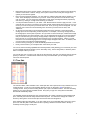
ANY/AON pull down menu: ANY means that although you may enter your order for 400 shares you will take
whatever is available. This means you may get partial fills. All orders sent to ECNs (Island), SOES, or
AUTO orders must be sent as ANY. Even if you select AON, they will be sent as ANY orders. AON can be
used only for SelectNet market maker orders and DOT (NYSE or AMEX) orders. AON (all-or-none) means
you are telling the market makers to fill all of your order or nothing at all; hence, you will not accept partial
fills.
DEF:
At any time if you click on DEF you will reset all the order entry settings to your default settings.
BUY:
Press this to send your buy order. You buy to enter a trade, or to close a short position.
ACCOUNT pull down menu: Be sure that your account is highlighted here. If you have multiple accounts,
you can use this to toggle back and forth between different accounts. Be sure to always select the account
after entering the security symbol, otherwise it may refill the default.
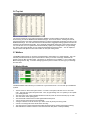
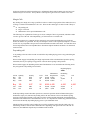
Regarding the bottom third of the Trading window there are two groups of columns displaying Level II
information. The left side is the bid side representing buy orders displaying the Market Maker ID (MMID),
the Bid, and the Size (hundreds). The right side is the offer side which shows sell orders displaying the
Market Maker ID (MMID), the Offer, and the Size (hundreds).
NYSE and AMEX disseminate Level I quotes from the different regional exchanges. The NYSE and AMEX
determine the inside bid and offer (ask), the inside can be found within the trading window’s task bar. This is
the best possible price to immediately attempt to sell or buy shares of a particular stock. Many stocks will be
listed on multiple exchanges, but the New York and American are the exchanges that our trading platform
executes against.
NASDAQ stocks display Level II quotations which show current bids and offers of all the major market
makers and ECNs (Electronic Communication Networks). To identify an ECN look for the ‘#’ sign after their
4-letter acronym.
Each of the Exchanges requires different methods of trade execution. The section titled Trading Stocks in
this manual will explain in detail the actual trading process, and methods available to execute your trades.
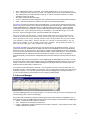
To identify the Exchange of the stock you are trading, you need to look at the letter that is listed above the
dark blue button in your Trading Window.
You will see one of the following letters:
Q: NASDAQ
SOES, SELECTNET, ISLD, AUTO
N: NYSE- New York Stock Exchange
DOT, ISLD
A: AMEX- American Stock Exchange
DOT, ISLD
U: NASDAQ OTCBB Over-the-Counter Bulletin Board
You must call Trader Support to place an order for these stocks.
S: NASDAQ Small Cap
SELECTNET, Island, AUTO, SOES (may work depending on whether or not the security
has registered SOES participants).
R: next to a NASDAQ symbol indicates a ‘restricted stock’.
For more about each of these Exchanges, check the Trading Stocks section.
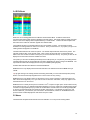
You may want to change the colors in the bottom portion. You can do this by right clicking in the quotation
area. A configuration box will pop up. Click on ‘Level2Color’ to make adjustments. The same steps can be
used to adjust the font. If you make the font larger you may want to adjust the width of the columns by
grabbing the little icon that appears when you hover over the ends of the column listings.
7