1
Configuring Users
3
Configuring Users
3
3.1 Overview
Paradox Insight™ Users can view and record live streaming video from cameras on premises (e.g. home, store or office)
according to access permissions defined for the User by the Master User for each site.
A User can view live video stream at any time (Video on Demand - VOD) or be limited to view live video stream for up to
15 minutes after an alarm (VOD after Alarm). When a User views VOD the application sends a notification to the Master
User.
3.2 User Types
There are three types of users:
• Master User - has full permissions to the site including configuring authorized Users and their permissions
• Authorized Users - authorized to arm/disarm the system, view camera status and to view live video (VOD) or VOD after
alarm. Users are defined by the Master User
• CMS User - has permission to view VOD after alarm when authorized by the Master User
3.3 Configuring a New User
The Master User can define up to seven authorized Users of Paradox Insight™ app. from the list of Users defined in the
Paradox control panel.
The following graphics and procedure describe how to configure Users.
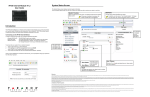
Figure 18 – Creating a New User
To configure a new User:
1.
2.
3.
4.
5.
11
Open app.> select and login to a Site> tap Menu> tap Settings. The Settings drop-down menu opens.
Tap Users. The Users screen opens.
Tap Add User
. The Select Users from the List screen opens.
Select a User from the list. The User screen opens.
Enter the User information in the provided fields:
Insight Application User Manual
Configuring Users