1
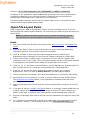
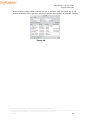
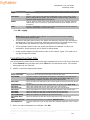
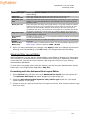
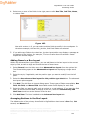
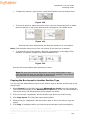
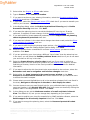
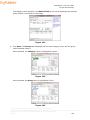
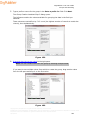
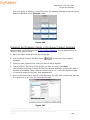
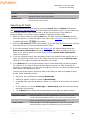
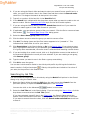
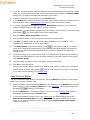
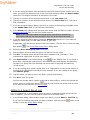
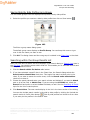
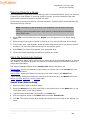
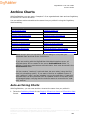
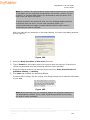
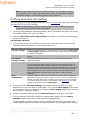
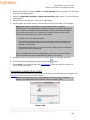
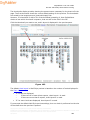
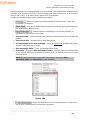
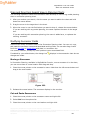
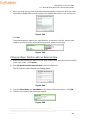
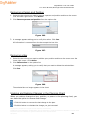
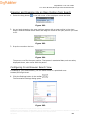
OrgPublisher 11.8 User Guide Publish Charts 24. If you chose to encrypt the chart, select either the 40 bit encryption or 128 bit encryption option. 25. If applicable, select Allow ‘Remember my password’ option in the PluginX. Click Next. 26. If you want to set up an archive schedule now, select the Keep an archive of this chart check box. Click Next. 27. Select: Publish now to publish your EChart immediately. The Publishing Summary message displays the link, or links if you also chose to publish a directory view chart, to your published charts. Click on the link to preview the chart. Publish later to open the Publish charts dialog where all publishing definitions are kept. Schedule now to set up a publishing schedule. Click Finish. Republishing Charts You can republish an updated chart or publish a chart you created previously, but did not yet publish. Note: If you previously published a chart with a version earlier than OrgPublisher 8, you may want to modify your publishing definition to take advantage of the new functions. If you are republishing an EChart originally published on a previous version of OrgPublisher, you must delete the EChart DLL file before republishing using Version 8 and later. 1. Select File from the menu bar, then Publish from the pull-down menu. You can also click the Publish button. The Publish charts dialog opens. 2. All of your publishing definitions are listed. Click the gray box to the left of the publishing definition you want to select. 3. Click Publish to republish the chart. The chart is published and you are prompted to preview it. Click Yes to preview the chart as it will be seen on the web. Otherwise, click No. 4. If you need to modify your chart before republishing, click Update to walk through the Publishing Wizard to republish. 5. Click Publish All to publish all of the publishing definitions for this chart. You cannot preview the charts if you select this option. If you republish a PDF chart and are using Acrobat® Reader® 6.0, you may receive an error message. Open the Windows Task Manager dialog. In the Applications tab, select the Acrobat Reader record and click End Task then republish your chart. Copyright 2015, PeopleFluent. All rights reserved. Proprietary and confidential. PeopleFluent and the PeopleFluent and OrgPublisher logos are trademarks or registered trademarks of PeopleFluent. All other brand and product names are trademarks or registered trademarks of their respective holders. 08/12/2015 200