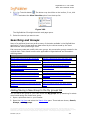
1
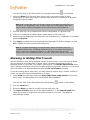
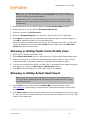
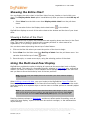
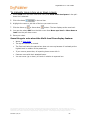
OrgPublisher 11
User Guide
Copyright
Copyright © 2001 – 2013 Peoplefluent®. All Rights Reserved. Information in this document
is subject to change without notice. The software described is furnished under a license
agreement or nondisclosure agreement and may be used or copied only in accordance with
the terms of those agreements. No part of this publication may be reproduced, stored in a
retrieval system, or transmitted in any form or any means electronic or mechanical for any
purpose other than the purchaser’s personal use without the written permission of
Peoplefluent.
Peoplefluent
400 E. Las Colinas Blvd., Suite 500
Irving, Texas 75039
USA
1+ 214.574.5020
Trademarks
All trademarks are properties of their respective owners.
Peoplefluent®, OrgPublisher™, Unifi™ Platform, OrgHistory™, OrgPlan™, and InSight™ are
registered trademarks or trademarks of Peoplefluent in the United States and other
countries.
Microsoft®, Windows®, Windows 2000, Windows XP, Windows Vista™, Windows 2003,
Windows 2008, Windows NT, Windows 7, and Internet Explorer, are either registered
trademarks or trademarks of Microsoft Corporation in the United States and other countries.
Oracle®, JD Edwards, PeopleSoft, and Siebel are registered trademarks of Oracle
Corporation and/or its affiliates.
HTML, DHTML, XML, XHTML are trademarks or registered trademarks of W3C®, World Wide
Web Consortium, Massachusetts Institute of Technology.
SAP® and mySAP™ are trademarks or registered trademarks of SAP AG in Germany and in
several other countries all over the world.
Apple® and iPad® are registered trademarks of Apple, Inc. in the United States and other
countries.
The information contained in this document is confidential and proprietary to Peoplefluent®. This information may not be
distributed or used for any purpose other than the evaluation of Peoplefluent® solutions, nor may it be disclosed to any party
without the prior written consent from Peoplefluent®. Copyright © 2001 - 2013 Peoplefluent®. All Rights Reserved.
Revised 7/18/2013
OrgPublisher 11 User Guide
Overview
The following information provides a road map for the OrgPublisher activities and tasks to
create organization charts.
For more detailed information about features in this guide, please refer to the OrgPublisher
application Help file by clicking Help in the OrgPublisher Main menu, then User manual
from the options list.
Section type
Tasks
New with this Version
Prebuilt reports, publish to iPad, bulk field editor
Before You Begin
Information about licensing system requirements, primary
user roles
Prepare Chart Data
Data must conform to the Input File Layout or the
Universal File Layout
Create Charts
Administrator creates charts that can include prebuilt
reports, custom styles, hotspots, and more
Custom Fields
Custom fields containing HR/ERP data, email addresses,
telephone numbers, office numbers, sales figures, etc.
Position Types
Prebuilt Reports
Provide preformatted business focus on select aspects of
organization, using the Universal File Layout (UFL)
Format Charts
Enhance appearance and display specific data using
custom fields, icons, photos, logos, legends, etc.
Summaries and Formulas
Add summaries, head count rollups, use formulas to mine
data
Preview and Modify
Review what charts will look like, modify chart layout
before printing
Print Charts and Views
Add headers or footers, print in wall style or book style
Publish Charts
Publish charts to the web, intranet, OrgPublisher Executive
on iPad, enable interactive, planning, and security
features
Modify Charts
Edit charts working with custom fields, groups, position
types, pinned profiles, and more
Archive Charts
Save snapshot of organization and archive for future
reference
Work with Published Charts
End users can search charts, create groups, send to
PowerPoint or Excel; use org modeling or succession
planning
Work with Cross Browser Published
Charts
Cross browser charts can be viewed using several different
Web browsers
Work with Planning Charts
Web Administration
Runs as an ActiveX control that access files and data on a
web server, and works much like standard OrgPublisher
The information contained in this document is confidential and proprietary to Peoplefluent®. This information may not be
distributed or used for any purpose other than the evaluation of Peoplefluent® solutions, nor may it be disclosed to any party
without the prior written consent from Peoplefluent®. Copyright © 2001 - 2013 Peoplefluent®. All Rights Reserved.
Revised 7/31/13
3
OrgPublisher 11 User Guide
Section type
Tasks
Troubleshooting
Review samples of warning, error messages, and problem
solving
Resources
Links to additional support, such as tutorial video,
Customer Support Portal, and more
The information contained in this document is confidential and proprietary to Peoplefluent®. This information may not be
distributed or used for any purpose other than the evaluation of Peoplefluent® solutions, nor may it be disclosed to any party
without the prior written consent from Peoplefluent®. Copyright © 2001 - 2013 Peoplefluent®. All Rights Reserved.
Revised 7/31/13
4
OrgPublisher 11 User Guide
New with this Version
With this version of OrgPublisher, new features include:
New Features
OrgPublisher
Premier
OrgPublisher
Standard
Published Chart
X
X
X
General
Prebuilt Report templates
Publishing
Publish to OrgPublisher Executive
on Apple® iPad®
x
No chart - employee
data on iPad mobile
digital device
Custom fields
Custom field bulk editor
X
X
n/a
X
X
n/a
New Chart Wizard for Prebuilt
Reports
X
X
n/a
Publishing Wizard for publishing to
OrgPublisher Executive on iPad
X
X
n/a
Views
Profile View bulk editor
Wizard enhancements
The information contained in this document is confidential and proprietary to Peoplefluent®. This information may not be
distributed or used for any purpose other than the evaluation of Peoplefluent® solutions, nor may it be disclosed to any party
without the prior written consent from Peoplefluent®. Copyright © 2001 - 2013 Peoplefluent®. All Rights Reserved.
Revised 7/31/13
5
OrgPublisher 11 User Guide
Prebuilt Reports
OrgPublisher Premier provides prebuilt report templates for human resource areas of
responsibilities. Areas you can isolate into a single report include, directory listing, head
count, open positions, contractors, span of control, succession planning, and more.
Using the Universal File Layout (UFL) and the New Chart Wizard, you can quickly create a
chart with your selected area of interest. The UFL template takes care of arranging,
formatting, and calculating your data into a prebuilt report (chart) and style.
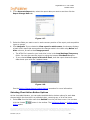
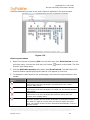
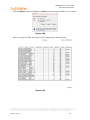
Figure 1.
There are four categories of reports:
General - These charts cover the basics such as: a standard org chart, directory listing of
employees, org charts featuring open positions, contractors profile views, photos and a
layout specifically for printing.
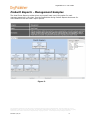
Management - Management related activities include: Head Count, Head Count with Open
Positions. Direct Report Analysis, and Span of Control Analysis.
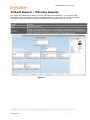
Planning - Planning focused charts include charts related to Head Count, FTE, Contractors,
Salary and Head Count, Salary, Head Count, and Performance, and Talent Review.
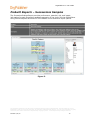
Succession - Includes Succession Planning focused charts including Ratings and Ratings with
Photos.
The information contained in this document is confidential and proprietary to Peoplefluent®. This information may not be
distributed or used for any purpose other than the evaluation of Peoplefluent® solutions, nor may it be disclosed to any party
without the prior written consent from Peoplefluent®. Copyright © 2001 - 2013 Peoplefluent®. All Rights Reserved.
Revised 7/31/13
6
OrgPublisher 11 User Guide
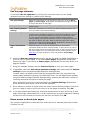
Prebuilt Reports - General Sample
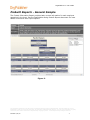
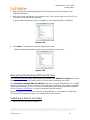
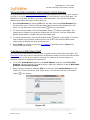
The Contact Information Report provides basic contact information for each employee
appearing in the chart. See the OrgPublisher Using Prebuilt Reports document for more
details on this and other report options.
Figure 2.
The information contained in this document is confidential and proprietary to Peoplefluent®. This information may not be
distributed or used for any purpose other than the evaluation of Peoplefluent® solutions, nor may it be disclosed to any party
without the prior written consent from Peoplefluent®. Copyright © 2001 - 2013 Peoplefluent®. All Rights Reserved.
Revised 7/31/13
7
OrgPublisher 11 User Guide
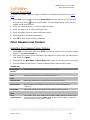
Prebuilt Reports - Management Samples
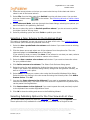
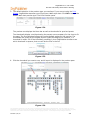
The Head Count Report provides direct and overall head count information for each
manager appearing in the chart. See the OrgPublisher Using Prebuilt Reports document for
more details on this and other report options.
Figure 3.
The information contained in this document is confidential and proprietary to Peoplefluent®. This information may not be
distributed or used for any purpose other than the evaluation of Peoplefluent® solutions, nor may it be disclosed to any party
without the prior written consent from Peoplefluent®. Copyright © 2001 - 2013 Peoplefluent®. All Rights Reserved.
Revised 7/31/13
8
OrgPublisher 11 User Guide
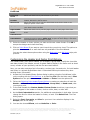
Prebuilt Reports – Planning Samples
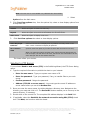
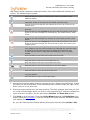
The Salary and Head Count Report provides individual and total salary, in conjunction with
total head count, information for each manager appearing in the chart. See the OrgPublisher
Using Prebuilt Reports document for more details on this and other report options.
Figure 4.
The information contained in this document is confidential and proprietary to Peoplefluent®. This information may not be
distributed or used for any purpose other than the evaluation of Peoplefluent® solutions, nor may it be disclosed to any party
without the prior written consent from Peoplefluent®. Copyright © 2001 - 2013 Peoplefluent®. All Rights Reserved.
Revised 7/31/13
9
OrgPublisher 11 User Guide
Prebuilt Reports – Successions Samples
The Succession Ratings Report provides performance, potential, risk, and impact
information for each succession candidate appearing in the chart. See the OrgPublisher
Using Prebuilt Reports document for more details on this and other report options.
Figure 5.
The information contained in this document is confidential and proprietary to Peoplefluent®. This information may not be
distributed or used for any purpose other than the evaluation of Peoplefluent® solutions, nor may it be disclosed to any party
without the prior written consent from Peoplefluent®. Copyright © 2001 - 2013 Peoplefluent®. All Rights Reserved.
Revised 7/31/13
10
OrgPublisher 11 User Guide
Prebuilt Reports - Universal File Layout (UFL)
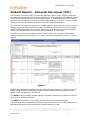
The Universal File Layout (UFL) includes the data field names, types, lengths, categories
and descriptions that are used as functional fields for basic features in all solutions. The UFL
is used as the official data format for all OrgPublisher 11 Prebuilt Reports. By formatting
data following the specific field order and field value definition of the UFL, you can choose
from the many Prebuilt Report templates provided with the OrgPublisher.
The Universal File Layout contains a color coded legend in the upper left corner to help you
identify where your data should be mapped. The first two field sections must be mapped
with your associated data. Any field you want to use that does not map to the specified
fields in the Universal File Layout should be considered as a custom field.
In addition, the file layout specifies when a field is required or, perhaps, conditionally
required, depending on the solution you have chosen and the data you want to view and
analyze.
Figure 6.
OrgPublisher uses data specifically geared toward the type of report or chart you want to
create. Several fields are reserved for future use by the OrgPublisher application, and
custom fields use data rows 129 and up.
The Notes column contains product specific information that may not pertain to the field
when used in a different solution.
The HRIS column used for your SAP® solution field names, where applicable.
It is important that the data feed include all fields, even should they be left blank since no
associated HR data is being provided for a select number of fields.
The information contained in this document is confidential and proprietary to Peoplefluent®. This information may not be
distributed or used for any purpose other than the evaluation of Peoplefluent® solutions, nor may it be disclosed to any party
without the prior written consent from Peoplefluent®. Copyright © 2001 - 2013 Peoplefluent®. All Rights Reserved.
Revised 7/31/13
11
OrgPublisher 11 User Guide
Prebuilt Reports - Create a New Report
To create a chart by using a Prebuilt Report:
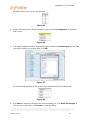
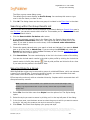
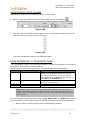
1. Open the New Chart Wizard.
2. Select Organizational chart using Prebuilt Reports and click Next.
Figure 7.
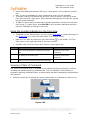
3. Choose a report category and a Prebuilt Report within the chosen category, and then
click Next.
Figure 8.
4. Select your data source and click Next.
Note: This wizard dialog provides a link to a PDF with additional information about
your selected report.
5. Your data source selection will determine your next steps. Complete your data link and
click Next.
The information contained in this document is confidential and proprietary to Peoplefluent®. This information may not be
distributed or used for any purpose other than the evaluation of Peoplefluent® solutions, nor may it be disclosed to any party
without the prior written consent from Peoplefluent®. Copyright © 2001 - 2013 Peoplefluent®. All Rights Reserved.
Revised 7/31/13
12
OrgPublisher 11 User Guide
6. If the first row in your data file contains column names click the First row contains
column names box and click Next.
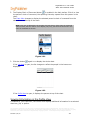
7. If your data is already in the standard UFL (Universal Format Layout) field order, accept
the default selection, and click Next.
Figure 9.
If your data is not in the standard UFL select the Map data to the UFL field order
radio button.
8. Review the Preview of the data for accuracy and click Next.
9. Click Finish.
Prebuilt Reports - Map Data to the UFL Field Order
When creating a new chart using the Prebuilt Reports option, and your data is not already
mapped to the Universal File Layout, the New Chart Wizard allows you to manually map the
field order.
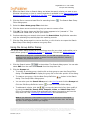
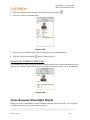
1. Select the Map data to the UFL field order radio button in the New Chart Wizard.
Figure 10.
2. Select how you want to sort the data fields, by Field name or by Field position. Click
Next.
Figure 11.
The information contained in this document is confidential and proprietary to Peoplefluent®. This information may not be
distributed or used for any purpose other than the evaluation of Peoplefluent® solutions, nor may it be disclosed to any party
without the prior written consent from Peoplefluent®. Copyright © 2001 - 2013 Peoplefluent®. All Rights Reserved.
Revised 7/31/13
13
OrgPublisher 11 User Guide
3. Select the drop-down arrow in each column, and map the appropriate field to the UFL
field order. When all columns are mapped, click Next.
Figure 12.
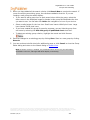
4. If the Preview of the data dialog indicates that you have mapped your fields correctly,
click Next. Click Finish to complete the wizard and open the Prebuilt Report.
Figure 13.
If the preview indicates that you have mapped fields incorrectly, click Back and repeat
Steps 3 and Step 4.
The information contained in this document is confidential and proprietary to Peoplefluent®. This information may not be
distributed or used for any purpose other than the evaluation of Peoplefluent® solutions, nor may it be disclosed to any party
without the prior written consent from Peoplefluent®. Copyright © 2001 - 2013 Peoplefluent®. All Rights Reserved.
Revised 7/31/13
14
OrgPublisher 11 User Guide
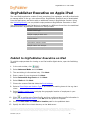
OrgPublisher Executive on Apple iPad
The new iPad® application enables C-level executives, line managers, and HR professionals
to manage talent on the go, even when offline. OrgPublisher Executive can be downloaded
from the Apple store, and works with an additional license in OrgPublisher Premier. Using
the Publishing Wizard, you can publish employee data to OrgPublisher Executive on iPad.
The published data on the iPad device is presented in a different format from the traditional
published charts. OrgPublisher Executive on iPad provides:
iPad Mobile Digital Device Feature
Secure access login
Fully interactive demo
Multiple employee data views
Level and filter options in views
Search feature
Email lists feature
Geographic mapping option
Ability to set maximum for records and levels
Multiple talent view analysis
Ability to determine sync schedule
Publish to OrgPublisher Executive on iPad
To publish employee data for viewing on an iPad mobile digital device, open the Publishing
Wizard.
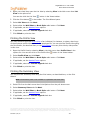
1. In the main toolbar, click
.
2. Select Advanced Mode and click Next.
3. The next dialog is informational only. Click Next.
4. Enter a name for your chart and click Next.
5. Select Interactive Org Chart and click Next.
6. Select iPad and click Next.
7. Choose the custom field that holds the Email address.
8. Select a Chart Style and Position Type to be used for formatting boxes in the org chart
views.
9. Select Enable Location View to display the geographic location of employees in your
organization.
10. Click
to configure the Talent Profile, and then configure talent profile information in
the Talent Profile Section Editor. Click OK when the profile is complete.
11. Select a Chart name and Publish to location path for the published chart.
12. Specify the URL of the virtual directory on the Web server.
The information contained in this document is confidential and proprietary to Peoplefluent®. This information may not be
distributed or used for any purpose other than the evaluation of Peoplefluent® solutions, nor may it be disclosed to any party
without the prior written consent from Peoplefluent®. Copyright © 2001 - 2013 Peoplefluent®. All Rights Reserved.
Revised 7/31/13
15
OrgPublisher 11 User Guide
13. Select a chart security option and related data, and then click Next.
14. Enable Publish Notification Email in case of a data error during publication, if
applicable.
15. Create an archive of the published chart, if applicable.
16. Publish to Intranet.
OrgPublisher Executive iPad Email Dialog
If you want to be able to send emails to employees from OrgPublisher Executive in iPad, you
must select the field containing the email address. In addition, this dialog allows you to
select the fields and groups you want to use in the filter, categorize, and analytics portions
of OrgPublisher Executive.
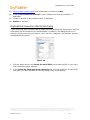
Figure 14.
1. Click the down-arrow in the Select the email field, and choose the field in your chart
that contains the email address.
2. In the Select the fields and group categories list, click the check box for each field
and group you want available for filtering, categorizing, and analyzing.
The information contained in this document is confidential and proprietary to Peoplefluent®. This information may not be
distributed or used for any purpose other than the evaluation of Peoplefluent® solutions, nor may it be disclosed to any party
without the prior written consent from Peoplefluent®. Copyright © 2001 - 2013 Peoplefluent®. All Rights Reserved.
Revised 7/31/13
16
OrgPublisher 11 User Guide
OrgPublisher Executive Chart Style and Position Type Dialog
When you publish to OrgPublisher Executive, you select a chart style and a position type to
use as a basis for formatting boxes in the people and chart views in iPad. When you select a
position type to use, the Publishing Wizard shows the fields that display in boxes in iPad.
Figure 15.
OrgPublisher Executive Geographic Mapping Dialog
OrgPublisher Executive offers a mapping feature so that you can indicate, using latitude and
longitude, where and how many employees are located in which cities or states.
Figure 16.
The information contained in this document is confidential and proprietary to Peoplefluent®. This information may not be
distributed or used for any purpose other than the evaluation of Peoplefluent® solutions, nor may it be disclosed to any party
without the prior written consent from Peoplefluent®. Copyright © 2001 - 2013 Peoplefluent®. All Rights Reserved.
Revised 7/31/13
17
OrgPublisher 11 User Guide
OrgPublisher Executive Talent Profile Section Editor
OrgPublisher Executive provides different options when displaying talent information in iPad.
The Section Title displays in OrgPublisher executive as the talent profile page title.
The Section Type drop-down list allows you to choose a Percentile, Bubble Graph, or
Custom Layout.
The Section Height drop-down list provides options, depending on your choice in Section
Type, of Complete Page, Half of a Page, or Third of a Page size when displaying the
profile.
Once you choose the Talent Profile format, you can make additional choices for presenting
your talent data analysis.
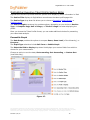
Percentile Graph
The Data Scope provides the options to compare Peers, Same Level (of the hierarchy), or
Everyone.
The Graph Type selections include Bell Curve or Bubble Graph.
The Select the field to display drop-down list displays your custom fields from which to
choose for your measurement.
Choose an option to sort the data, Sort ascending, Sort descending, or Custom Sort
(text fields only).
Figure 17.
The information contained in this document is confidential and proprietary to Peoplefluent®. This information may not be
distributed or used for any purpose other than the evaluation of Peoplefluent® solutions, nor may it be disclosed to any party
without the prior written consent from Peoplefluent®. Copyright © 2001 - 2013 Peoplefluent®. All Rights Reserved.
Revised 7/31/13
18
OrgPublisher 11 User Guide
Bubble Graph
The Y-Axis field allows you to choose the field you want to see measured on the left side of
the graph. You can choose to sort the data in Sort ascending, Sort descending, or
Custom Sort. A custom sort, used with text fields, gives you the option to arrange the data
the way you want to see it.
The X-Axis field allows you to choose the field you want to see measured on the bottom of
the graph. You can choose to sort the data in Sort ascending, Sort descending, or
Custom Sort. A custom sort, used with text fields, gives you the option to arrange the data
the way you want to see it.
Figure 18.
The information contained in this document is confidential and proprietary to Peoplefluent®. This information may not be
distributed or used for any purpose other than the evaluation of Peoplefluent® solutions, nor may it be disclosed to any party
without the prior written consent from Peoplefluent®. Copyright © 2001 - 2013 Peoplefluent®. All Rights Reserved.
Revised 7/31/13
19
OrgPublisher 11 User Guide
Custom Layout
The custom option allows you to drag and drop Layout items into the display area on the
right, and then format the layout Alignment, Font Type, and Label Text.
In addition, once you have created a custom layout, you can Export that layout and save it
to use again later. When you Import a saved custom layout, you see the placeholders for
the chosen layout. You still must select items for each placeholder.
Figure 19.
OrgPublisher Executive Chart Security Dialog
You can select the type of security to assign to OrgPublisher data on iPad. In addition to the
options listed below, you can use the OrgPublisher hierarchical, custom field, and
style/group security options.
Chart security options
•
Unsecured – All users can view the entire chart enables anyone who has access
to the OrgPublisher Executive application to view the chart data.
–
Require PIN restricts access to OrgPublisher Executive only to those users with
your authorized PIN (Personal Identification Number).
The information contained in this document is confidential and proprietary to Peoplefluent®. This information may not be
distributed or used for any purpose other than the evaluation of Peoplefluent® solutions, nor may it be disclosed to any party
without the prior written consent from Peoplefluent®. Copyright © 2001 - 2013 Peoplefluent®. All Rights Reserved.
Revised 7/31/13
20
OrgPublisher 11 User Guide
•
Chart – User enters user ID and password only allows users with assigned IDs
and passwords access to the OrgPublisher Executive data.
–
–
–
–
Allow user to cache password option provides end users with the option to
save their password information in OrgPublisher Executive.
Password field is selected from your custom field data.
User ID field is selected from your custom field data.
Sync data starting at option allows you the option to choose the level
•
Maximum Number of records to sync to iPad defaults to 20,000 records. The
more records allowed in the sync process the longer that process takes.
•
Maximum Number of levels to sync to iPad defaults to All levels, but you can
select a specific number of levels to sync.
•
Require or Recommend sync every X days defaults to 15 days, but you can
select a specific timeframe.
Figure 20.
The information contained in this document is confidential and proprietary to Peoplefluent®. This information may not be
distributed or used for any purpose other than the evaluation of Peoplefluent® solutions, nor may it be disclosed to any party
without the prior written consent from Peoplefluent®. Copyright © 2001 - 2013 Peoplefluent®. All Rights Reserved.
Revised 7/31/13
21
OrgPublisher 11 User Guide
Bulk Editor Custom Fields Dialog
When working with a large number of custom fields, you can use the Bulk Editor dialog,
accessed from the Custom Field Properties dialog.
1. Click Bulk Editor in the Custom Field Properties dialog.
Figure 21.
The Custom Field Bulk Editor dialog opens, displaying all custom fields in your database.
Figure 22.
2. Select individual custom field records, or select the check box at the top of the first
column to select ALL custom fields.
Figure 23.
3. Select individual check boxes for custom fields that you want to allow end users to
search in the published chart. Or, select the check box at the top of the Searchable
column to allow end users to search for All custom fields in the published chart.
Figure 24.
The information contained in this document is confidential and proprietary to Peoplefluent®. This information may not be
distributed or used for any purpose other than the evaluation of Peoplefluent® solutions, nor may it be disclosed to any party
without the prior written consent from Peoplefluent®. Copyright © 2001 - 2013 Peoplefluent®. All Rights Reserved.
Revised 7/31/13
22
OrgPublisher 11 User Guide
All check boxes in the column are selected.
Figure 25.
4. Assign individual custom fields to position types by clicking Assigned to at the top of
that column.
Figure 26.
5. The Update Assigned Custom Fields dialog opens. Select the Position type and the field
you want to display the custom field. Click OK.
Figure 27.
All custom fields now display the position type selected through the Bulk Editor.
Figure 28.
6. Click Done to accept the changes and close the dialog. Or, click Undo all changes to
clear all of your selections. Click Done to close the dialog.
The information contained in this document is confidential and proprietary to Peoplefluent®. This information may not be
distributed or used for any purpose other than the evaluation of Peoplefluent® solutions, nor may it be disclosed to any party
without the prior written consent from Peoplefluent®. Copyright © 2001 - 2013 Peoplefluent®. All Rights Reserved.
Revised 7/31/13
23
OrgPublisher 11 User Guide
Bulk Editor in Profile View
1. Right-click on a field in the Profile View.
2. Select Configure Profile View from the drop-down list. The Configure Profile View
dialog opens.
3. You can show or hide fields and headings by selecting the adjoining check box. A check
indicates the field is displayed. A blank box indicates that the field is hidden.
Figure 29.
The bulk editing option now allows you to select all the fields using the bulk editor
feature.
4. Click Check All to select all fields. To reverse that action, click Uncheck All.
The information contained in this document is confidential and proprietary to Peoplefluent®. This information may not be
distributed or used for any purpose other than the evaluation of Peoplefluent® solutions, nor may it be disclosed to any party
without the prior written consent from Peoplefluent®. Copyright © 2001 - 2013 Peoplefluent®. All Rights Reserved.
Revised 7/31/13
24
OrgPublisher 11 User Guide
Before You Begin
Before you create your first chart you would benefit from familiarizing yourself with
information about licensing, system requirements, directory structure, user roles, and
several other topics covered in this section.
Licensing Information Dialog
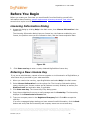
1. Access this dialog by clicking Help in the Main menu, then License Information in the
options list.
The Licensing Information dialog lists your license key, the features enabled by your
license, the position count you are licensed to chart, and the license expiration date.
Figure 30.
2.
Click Enter new key to enter a newly obtained OrgPublisher license key.
Entering a New License Key
If you, as an administrator, request a license upgrade or a trial extension of OrgPublisher, a
new license key is provided by your sales associate.
1. When you receive the new key, open OrgPublisher and select Help in the Main menu.
2. Select License Information from the options list. The Licensing Information dialog
opens, showing your license number and all features currently enabled, as well as your
Position Count and expiration date, if applicable.
3. Click Enter new key. The License Key Entry dialog opens.
4. Copy the provided key from your e-mail message and click Paste Key. The license key
displays in the Please enter a license field.
5. Type your company name in the Registered Company field. Click OK to accept the
new key.
If an error message displays stating you have entered invalid information, click the Back
button and verify that the license key and company name are correct and retry.
The information contained in this document is confidential and proprietary to Peoplefluent®. This information may not be
distributed or used for any purpose other than the evaluation of Peoplefluent® solutions, nor may it be disclosed to any party
without the prior written consent from Peoplefluent®. Copyright © 2001 - 2013 Peoplefluent®. All Rights Reserved.
Revised 7/31/13
25
OrgPublisher 11 User Guide
Entering a New License Key Using Web
Administration
If you, as a server administrator for Web Administration, request a license upgrade or a trial
extension of OrgPublisher, a new license key is provided by your sales associate.
1. When you receive the new key, a server administrator must log into the server and
locate the installation folder. (If you use default paths, it is c:/program
files/orgpub11.)
2. Run the OrgPub32.exe file in that root folder to open OrgPublisher and select Help in
the Main menu.
3. Select License Information from the options list. The Licensing Information dialog
opens, showing your license number and all features currently enabled, as well as your
Position Count and expiration date, if applicable.
4. Click Enter new key. The License Key Entry dialog opens.
5. Copy the provided key from your e-mail message and click Paste Key. The license key
displays in the Please enter a license field.
6. Type your company name in the Registered Company field. Click OK to accept the
new key.
7. Reset IIS to activate the key in the registry by restating the remote administrator
server.
If an error message displays stating you have entered invalid information, click the Back
button and verify that the license key and company name are correct and retry.
Note: Only the OrgPublisher administrator, logged into the server, can successfully
enter a license key on the computer where OrgPublisher resides. The new license
information is read when the remote administration server starts, after IIS is
refreshed.
Providing Access to End User Help Pages
When you publish a chart using PluginX or EChart you can provide the URL to help pages
you create or allow end users access to the end user help pages on our web site.
The Publishing Wizard includes a dialog in which you can type or browse to the location of
help pages meant for end users of your published charts.
1. Click the Publish
button in the toolbar. You can also select Tools in the Main
menu then Publishing Wizard from the options list. If this is the first time you are
publishing a chart, the wizard opens to the first dialog which gives you a brief overview
of the Publishing Wizard.
2. Follow the dialog prompts until you reach the dialog enabling you to select several
different options, such as creating a directory view, opening hotspots in the same or a
new browser, or entering a URL for the PluginX help file.
3. If you want end users to access pages on your intranet, type the location of the end user
help files you want to use in the If applicable, type a URL for a PluginX help file field.
The information contained in this document is confidential and proprietary to Peoplefluent®. This information may not be
distributed or used for any purpose other than the evaluation of Peoplefluent® solutions, nor may it be disclosed to any party
without the prior written consent from Peoplefluent®. Copyright © 2001 - 2013 Peoplefluent®. All Rights Reserved.
Revised 7/31/13
26
OrgPublisher 11 User Guide
4. Complete the Publishing Wizard and publish your chart.
5. Open the published chart and click the Help button in the toolbar. The custom help files
open in the web browser. If you do not type a custom URL, the Help button opens the
default end user help page.
Using Row Level Security
Note: If you want to implement row level security, you must first contact Professional
Service.
Once you have implemented this feature with Professional Services, you can create an
Access Control List (ACL) file and use it to control row level security in the chart. Row level
security allows select employees access to sensitive information needed to make informed
decisions, while, at the same time, preventing other employees from seeing this data. An
ACL file is a comma-delimited list of UserID, Type, and TargetValues.
Before you begin creating the ACL file, there are certain things you must know, such as box
IDs, and who should or should not have access to specific box infirmation. Based on this,
you can determine which model (Grant or GrantDeny) you need to use.
Once you have created the ACL file, verify that it is saved in the same location as your
chart, and that it is named exactly the same as your chart.
Note: Enabling Org Modeling or Succession planning features in a published secure
chart that contains one or more formula fields that have security restrictions set may
expose that data when using row level security. Please test this before publishing.
Creating an ACL File for Row Level Security
Available in OrgPublisher Premier, an Access Control List (ACL) file must be created first in
order to provide row level security. Viewing the ACL Preparation list may be helpful before
beginning this procedure.
1. Open Microsoft Notepad or any other text editor.
2. Type the first line as the header. There will be two or three tokens, or pieces of
information.
a. Security Model = "Grant" or "GrantDeny"
b. Security field ID = typically boxid "2"
c. Access designation for the GrantDeny model = "True" (allows access to unsecured
boxes) or "False" (denies access to unsecured boxes) For example: Grant,2,False
Note: You can designate an access for the Grant model, but if left blank, the Grant
model will always deny access to unsecured boxes, regardless of a true or False
designation.
3. The remainder of the lines are the ACL comma delimited lists. Follow the ACL List
formats. For example: SteppA,G,22,24,26,58 (where SteppA is the user; G is the
Grant type; 22, 24, 26, and 58 are the box IDs that can be accessed by Amy Stepp)
The information contained in this document is confidential and proprietary to Peoplefluent®. This information may not be
distributed or used for any purpose other than the evaluation of Peoplefluent® solutions, nor may it be disclosed to any party
without the prior written consent from Peoplefluent®. Copyright © 2001 - 2013 Peoplefluent®. All Rights Reserved.
Revised 7/31/13
27
OrgPublisher 11 User Guide
4. Save the file using the name of the published chart, with the extension of .acl,
publishedchartname.acl.
5. Place the file in the same location as the published chart.
6. Republish the secured EChart to verify the row-level security works as you want it.
A log is created each time you publish the chart using the ACL file for row level security,
with the same name as the chart and .acl file, publishedchartname.log, if the user has
write privileges on his computer. This file is also in the same location as the published
chart.
The information contained in this document is confidential and proprietary to Peoplefluent®. This information may not be
distributed or used for any purpose other than the evaluation of Peoplefluent® solutions, nor may it be disclosed to any party
without the prior written consent from Peoplefluent®. Copyright © 2001 - 2013 Peoplefluent®. All Rights Reserved.
Revised 7/31/13
28
OrgPublisher 11 User Guide
Prepare Chart Data
This section explains what you need to do to prepare your data for uploading to
OrgPublisher. After the data is prepared and uploaded, you are ready to create your chart.
Topics Pertaining to this Section
Input File Layout Rules
Identify a Broken Hierarchy
Linking to Your Data Source
File Types
Selecting a Data Source
Record Types
Extracting Your Data
Boxes and Position Types
Creating a Custom XSLT File
Creating and Using a Semantic Dictionary for
Intelligent Searches
Creating an OCB File
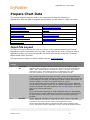
Input File Layout
The Input File Layout defines the order of columns in the comma-separated text file that
OrgPublisher opens to generate your org chart. It also specifies the order of fields to send to
OrgPublisher when you choose to generate org charts automatically using the Component
Object Model (COM) interface.
This layout does not apply to charts created using the Prebuilt Reports.
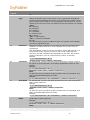
Column
number
1
Field name
Description
Parent Box
ID
2
Box ID
3
Box title
A required field, the parent box ID can be any string of numbers and/or
characters that represent the report to box of this record. The data type for
fields 1 and 2 should match, for instance, if field 1 is numeric, then field 2
should be numeric. The parent box ID is not displayed in the chart.
Only the top person in a chart will have an empty parent box ID.
A required field, the box ID can be any string of numbers and/or characters
that uniquely represent a box within the chart. This ID can be duplicated for
several records when multiple people are located in the same box. The box ID
is not displayed in the chart. The data type for fields 1 and 2 should match, for
instance, if field 1 is numeric, then field 2 should be numeric.
You can add a unique box ID, typically an employee ID from your database.
You can also use a position code if you use position management. Where the
employee is placed in the chart depends on the Auto Build option the position
type priority, and the Sort option.
Note:
If you use the matrix reporting, or multi-relationship feature in OrgPublisher,
the box ID for the person reporting to more than one person must be unique
for each instance in the chart in order ensure correct drilling up through
hierarchy.
The Box title field is optional. The box title can be any string of numbers
and/or characters and is shown as the top text entry in the org chart box that
it describes. This can be a cost center or full department name.
The box title should be unique to the box ID that is also contained in this
record. The same box title is displayed in every record that contains this box
The information contained in this document is confidential and proprietary to Peoplefluent®. This information may not be
distributed or used for any purpose other than the evaluation of Peoplefluent® solutions, nor may it be disclosed to any party
without the prior written consent from Peoplefluent®. Copyright © 2001 - 2013 Peoplefluent®. All Rights Reserved.
Revised 7/31/13
29
OrgPublisher 11 User Guide
Column
number
Field name
4
Record
Type
5
Person ID
6
Last Name
7
First Name
8
Middle
Name
Description
ID.
An optional field, but if left blank it will default to E for Employee. Record type
defines the position type of each person in your organization. OrgPublisher
provides several predefined record types. You can also create custom record
types to define other positions in your organization. Record types for custom
position types using more than one character should use brackets, for example
<MT>.
M = Manager
E = Employee
A = Assistant
C = Contractor
I = Indirect report
PR = Partner
<SF> = Staff Function
<SC> = Succession Candidate
B = Box
You cannot insert a person in a B record type. It is typically used to display
org units or departments only.
The person ID field is optional. It can contain any string of numbers and/or
characters to represent the ID or unique identifier for a person, such as
employee ID.
With OrgPublisher version 5 and later this field is used to add a person to a
group and to identify a person in order to add a multi-relationship icon.
Therefore, the field is displayed and searchable by end users. Do not store
sensitive information, such as a social security number, in this field.
Example:
"1","2",”ABC Department”,"M","9999999",”Smith”,”Rose”,,"JOB001",”Supervisor"
An optional field, the last name field represents the last, or family, name of
the person a record represents. If left blank, OrgPublisher inserts an open
position.
Example:
"1","2",”ABC Department”,"M","999999999",”Smith”,”Rose”,,"JOB00"1,”Supervisor”
Note:
An Input File record represents an Open position when the Last Name, First
Name, and Middle Name fields are empty.
Example:
"1","2",”ABC Department”,"M","9-99999999",,,,"JOB001",”Supervisor”
An optional field, the first name field represents the first name of the person
that a record represents.
Example:
"1","2",”ABC Department”,"M","999999999",”Smith”,”Rose”,,"JOB001",”Supervisor”
Note:
An Input File record represents an Open position when the Last Name, First
Name, and Middle Name fields are empty.
Example:
"1","2",”ABC Department”,"M","9-99999999",,,,"JOB001",”Supervisor”
An optional field, the middle name field represents the middle name of the
person that a record represents.
Example:
"1","2",”ABC Department”,"M","999999999",”Smith”,”Rose”,”L”,JOB001,”Supervisor”
Note:
The information contained in this document is confidential and proprietary to Peoplefluent®. This information may not be
distributed or used for any purpose other than the evaluation of Peoplefluent® solutions, nor may it be disclosed to any party
without the prior written consent from Peoplefluent®. Copyright © 2001 - 2013 Peoplefluent®. All Rights Reserved.
Revised 7/31/13
30
OrgPublisher 11 User Guide
Column
number
Field name
9
Job ID
10
Job Title
11
Reserved
12
Box
Sequence
Number
13
Job
Sequence
number
14
Position
Sequence
Number
15
Photo
16
Reserved
Description
An Input File record represents an Open position when the Last Name, First
Name, and Middle Name fields are empty.
Example:
"1","2",”ABC Department”,"M","9-99999999",,,,"JOB001",”Supervisor”
The job ID can be any string of numbers and/or characters that uniquely
represent a job title or position title within the chart. If records are combined
into one box, job titles are defaulted to list in ascending sequence by job ID
and are sorted within each position type.
The job ID is not displayed in the chart. This field is used in Auto Build.
The Job Title field is optional. The job title can be any string of numbers and/or
characters and is shown above the individual name within a box.
A job title is associated with the first position type beneath the job title. The
priority of the position type determines the order of job titles of different
position types appearing within a box. You can override the priority by
assigning the sequence number in field 13 of the comma-delimited text file.
In the following example, each record that contains job ID "JOB001" also
contains the job title "Supervisor."
Example:
"1","2",”ABC Department”,"M",,"Smith",'A",,"JOB001",”Supervisor”
"1","3",”ABC Department”,"M",,”Turner”,”B”,,"JOB001",”Supervisor”
"1","4",”ABC Department”,"M",,”Brown”,”K”,,"JOB001",”Supervisor”
Field 11 is reserved for use by OrgPublisher. To avoid problems when you are
creating an org chart automatically from data, and to ensure compatibility with
future versions of OrgPublisher, leave this field blank.
Field 12 is the box sequence number and accepts only numeric (integer only)
characters. It can be used, but is not required, to override the default
positioning of the boxes. By default, boxes are positioned from left to right
(level by level) in your chart alphabetically by box ID. This field is used when
you select the Sort by box ID option of the OrgPublisher Sort feature.
The job sequence number accepts only numeric (integer only) characters. It
can be used, but is not required, to override the default positioning of the job
title. By default, job IDs are used for sorting multiple jobs within a single box,
such as people in the same box as their manager.
The position sequence number can be used, but is not required, to override
the default positioning of the employee name, and must be numeric (integer
only) characters. By default, multiple employee names are sorted
alphabetically within a single box.
The file names of the photos in your chart are stored in the photo field. Add
photos with the Photo Wizard so that you can specify a common path for all of
your photo files. If photos are stored in different areas you must put the full
path name in this field.
Fields 16 is reserved for use by OrgPublisher. To avoid problems when you are
creating an org chart automatically from data and to ensure compatibility with
future versions of OrgPublisher, leave this field blank.
The information contained in this document is confidential and proprietary to Peoplefluent®. This information may not be
distributed or used for any purpose other than the evaluation of Peoplefluent® solutions, nor may it be disclosed to any party
without the prior written consent from Peoplefluent®. Copyright © 2001 - 2013 Peoplefluent®. All Rights Reserved.
Revised 7/31/13
31
OrgPublisher 11 User Guide
Column
number
17
Field name
Description
Position ID
OrgPublisher looks for Position ID in field 17. Position IDs are used for:
Tracking position movement in OrgHistory when comparing charts.
Tracking what positions have been pinned in the side-by-side Profile View.
Unique position IDs are very important for continued synchronization.
It’s preferable to have position IDs in the source data if you want to tie
changes back to the source system.
Note:
If you choose not to use this field for Position ID, it must be left blank.
You can also use a unique identifier in field 5 that OrgPublisher will use if field
17 is blank. If both fields are null, you can, instead, set up a custom field with
the Type selected as Position ID.
18
Level
Number
19
Reserved
20-25
Custom
Fields
26-49
Custom
Fields and
Summary
Fields
Level number is used to pass in your levels for use in the multi-level peer
display. This is a numeric absolute value level, for instance, if the manager
grade level is 10 and the report-to is 1, OrgPublisher charts the report-to box
as 9 levels below the manager box.
The level number is a differential from the parent level number, either in
ascending or descending order. The sequence cannot change in the middle of
the “chain.” There are 10 levels to work with at each parent box level; any
differential greater than 10 displays at the same level as 10. If there is no
value in the parent box, it is assumed to be 0 (zero).
Field 19 is reserved for use by OrgPublisher. To avoid problems when you are
creating an org chart automatically from data and to ensure compatibility with
future versions of OrgPublisher, leave these fields blank.
Input in fields 20 and up are for your custom fields, such as phone numbers,
room numbers and hotspot URLs. After populating these fields in the Input File
with your custom data, open the Custom Field Properties dialog and select
where these fields should be displayed in your chart.
A default label is supplied that you should type over. This example shows
custom fields of hire date and phone number in Positions 20 and 21.
If you plan to use the EChart security option, custom fields must be created to
hold the unique identifiers for both the Password and User ID.
Example:
"1","2",”ABC
Department”,"M",,”Smith”,”A”,,"JOB001",”Supervisor”,,,,,,,,,”1995/12/02”,”24
95”
Note:
When importing numeric fields, make sure that you do not use any leading
symbols, such as dollar signs. Verify that decimal places are set the way you
want them prior to importing those fields into OrgPublisher.
You can add leading and trailing symbols to numeric fields with the Field
Format dialog, but the decimal places cannot be adjusted after they are
imported. OrgPublisher does not change the value of numeric fields you bring
in. For instance, if you import 341.00, that's what the number is in
OrgPublisher. If you import 341, that's what OrgPublisher uses. Formatting
cannot change the value of the data you import.
Fields 26 - 49 and 65+ can be used for custom fields, as well as summaries. In
OrgPublisher Premier, you can perform basic calculations on numeric custom
fields in your chart and display this data in a summary field in your org chart.
Note:
The Summary Wizard inserts placeholders, if necessary, which display in the
Custom Field Properties dialog. These fields within OrgPublisher, occupy
sequences 20 -25, and are designated as field types other than summaries,
such as Text, Hotspot, or Email. As you create summary fields, OrgPublisher
starts placing them in sequence 26.
The information contained in this document is confidential and proprietary to Peoplefluent®. This information may not be
distributed or used for any purpose other than the evaluation of Peoplefluent® solutions, nor may it be disclosed to any party
without the prior written consent from Peoplefluent®. Copyright © 2001 - 2013 Peoplefluent®. All Rights Reserved.
Revised 7/31/13
32
OrgPublisher 11 User Guide
Column
number
50-64
65 and
up
Field name
Succession
Candidate
Fields
Custom
Fields and
Summary
Fields
Description
When importing numeric fields, make sure that you do not use any leading
symbols, such as dollar signs. Verify that decimal places are set the way you
want them prior to importing those fields into OrgPublisher. For example, you
can calculate the total sales for a department and display that information in a
summary field. The Summary Wizard and Head count Wizard automatically
place summary fields in the Input File.
Input fields 50 through 64 are designed to be used with one of the
OrgPublisher succession templates. After populating these fields in the Input
File with your custom data, open the Custom Field Properties dialog and select
where these fields should be displayed in your chart. Can be used to help
define a successor group. Special formatting for a successor position comes
automatically with OrgPublisher.
If you are not using an OrgPublisher succession template for your chart, these
fields can be used for any custom fields.
Note:
Initial formatting of the successor position type is handled in the default
templates shipped with OrgPublisher.
50 - Key Person
51 - Location
52 - Age
53 - Salary
54 - Performance Rating
55 - Education Level
56 - Skills
57 - Certifications
58 - Competency Rating
59 - Successor Rank
60 - Designated Successor
61 - High Potential Rating
62 - Readiness
63 - Retention Risk
64 - Impact of Loss
Positions 26 - 49 and 65+ can be used for custom fields, as well as
summaries. In OrgPublisher Premier, you can perform basic calculations on
numeric custom fields in your chart and display this data in a summary field in
your org chart.
Note:
The Summary Wizard inserts placeholders, if necessary, which display in the
Custom Field Properties dialog. These fields within OrgPublisher, occupy
sequences 20 -25, and are designated as field types other than summaries,
such as Text, Hotspot, or Email. As you create summary fields, OrgPublisher
starts placing them in sequence 26.
When importing numeric fields, make sure that you do not use any leading
symbols, such as dollar signs. Verify that decimal places are set the way you
want them prior to importing those fields into OrgPublisher. For example, you
can calculate the total sales for a department and display that information in a
summary field. The Summary Wizard and Head count Wizard automatically
place summary fields in the Input File starting at Position 26.
Note: If you plan to use the Compare two Charts feature, it is strongly recommended
that you create a custom field called Position ID, and assign a unique ID to each
instance of a person in the chart. In addition, each open position should be assigned a
unique ID.
The information contained in this document is confidential and proprietary to Peoplefluent®. This information may not be
distributed or used for any purpose other than the evaluation of Peoplefluent® solutions, nor may it be disclosed to any party
without the prior written consent from Peoplefluent®. Copyright © 2001 - 2013 Peoplefluent®. All Rights Reserved.
Revised 7/31/13
33
OrgPublisher 11 User Guide
An Input File record represents an open position when the Last Name, First Name, and
Middle Name fields are empty.
Example: "1","2","ABC Department","M","9-99999999",,,,"JOB001","Supervisor"
In addition to the predefined, required data fields of the Input File Layout, OrgPublisher
provides the capability for an unlimited number of fields that can be imported and
customized to include data that is unique to your environment.
The administrator maintains control over the custom fields to use in the planning chart.
Planners cannot add or delete custom fields.
Input File Layout Rules
When mapping your data to OrgPublisher, keep in mind the following points. If you are
working with the Prebuilt Reports features, you must map your data using the Universal File
Layout (UFL).
Note: A conditional formatting position type is used for formatting purposes only and
does not override a position type pulled from your data source.
Fields
1. Each input record must be laid out according to the Input File Layout or Universal File
Layout.
2. The first two fields in each record must contain the correct reporting relationship
information before a chart structure can build successfully.
3. The first 10 fields in each input file must be mapped correctly, matching the
OrgPublisher layout, although only the first two fields are required to contain data.
4. Field 5 must contain a unique person or employee ID if you intend to display multirelationship icons in your chart. This ID should not contain sensitive information because
it is displayed in the Update Person dialog and is searchable by end users.
5. Fields 11, 16, 17, and 19 are reserved fields for use by OrgPublisher. Populating field 17
with a unique position ID is strongly recommended when using OrgHistory.
6. Fields 12, 13, and 14 can contain sequence numbers (integers only) used by
OrgPublisher. Field 12 is used to Sort by box ID in the Sort Options feature.
7. Field 4 contains the record type. The record type defaults to E (employee) when blank.
8. Use Field 18 for level numbers if you want to use the Multi-level Peer Display feature.
The Multi-level Peer Display feature is not applicable to Assistant boxes and boxes
reporting to Assistants.
9. Custom fields begin with Field 20 and can continue sequentially through the rest of the
fields.
10. If you plan to use the Compare Two Charts feature, it is strongly recommended that you
create a custom field called Position ID and assign a unique ID to each instance of a
person in the chart. In addition, each open position should be assigned a unique ID.
11. Summary fields begin with Field 26 and can continue sequentially through the rest of the
fields.
The information contained in this document is confidential and proprietary to Peoplefluent®. This information may not be
distributed or used for any purpose other than the evaluation of Peoplefluent® solutions, nor may it be disclosed to any party
without the prior written consent from Peoplefluent®. Copyright © 2001 - 2013 Peoplefluent®. All Rights Reserved.
Revised 7/31/13
34
OrgPublisher 11 User Guide
12. It is necessary to enclose fields in quotes only when there is a comma within the field,
for example, "Smith,jr". The following record is valid, 0001,0002,Box title,B,,,,,,,.
13. Make sure that the Input File does not contain the quote character within any field. The
following record is invalid, 0001,0002,"Sales" Dept.", B,,,,,,,.
14. There should be no blank spaces or special characters (such as #, -, |, +, =, <, >, @, $,
etc.) in field names.
15. You can create open positions in your chart by passing null records into the Last Name,
First Name, and Middle Name input fields (Fields 6, 7, and 8).
16. When building a succession planning chart, select Specify custom field order to map
your data. This allows you to map your data to standard Succession Candidate fields.
Record types
1. The Record Type defaults to E (employee) when blank.
2. Record types B and BA do not display names or job titles in the chart boxes.
3. Chart boxes are built in ascending sequence by Box ID.
4. Job titles display in ascending sequence by Job ID within each box.
5. Each record in an OrgPublisher file represents a position in the chart.
6. Custom position record types should be defined in your text input file. Select Edit from
the menu bar, then Define from the pull-down menu to define Custom position record
types. The record type should include before and after brackets, for example <T>.
7. The input records may be in any order.
8. If Box IDs are the same for two records and they report to the same manager, they will
be placed in the same box.
9. Assistant boxes (record type BA) cannot have a reporting Assistant box.
10. Assistant boxes (record type BA) cannot have a reporting Partner box (record type P).
11. Boxes reporting to Assistant boxes (record type BA) cannot have reporting boxes.
12. Charts containing Succession Candidate (record type SC) contain no hierarchical
information.
Data files
1. Use the same text file name each time you export data from your database. The text file
name should match the template file (OTM) name and be located in the same directory
as the template file. OrgPublisher creates the OTM file when you save your chart.
2. An input text file that does not have a corresponding template file (OTM) will be
assigned a default template automatically by OrgPublisher.
3. Avoid naming your text data with the extension OCP. This is reserved for use by
OrgPublisher when publishing a file.
4. There should be no blank records at the end of the file.
5. When the AutoTitle feature is enabled, the top box title displayed in the chart is used
as the chart title.
The information contained in this document is confidential and proprietary to Peoplefluent®. This information may not be
distributed or used for any purpose other than the evaluation of Peoplefluent® solutions, nor may it be disclosed to any party
without the prior written consent from Peoplefluent®. Copyright © 2001 - 2013 Peoplefluent®. All Rights Reserved.
Revised 7/31/13
35
OrgPublisher 11 User Guide
Linking to Your Data Source
You must know how to link to your data source to create your chart, manage your data, and
resolve reporting relationship problems.
Your system administrator may need to provide some of the information required to connect
to your database. To share a database connection file with another user, you must use a file
DSN on a shared network path when you save the ODB file.
Use the New Chart Wizard to form an SQL statement that is used to extract data from your
database. You can also write your own SQL statement. For query samples, refer to the
Downloads section of the web site.
Once you have saved the file with your connection, you can reconnect to the same database
by opening the chart’s ODB file.
Selecting a Data Source
The New Chart Wizard helps you select the data source from which to create your org chart.
Note: If you are creating a succession planning chart, see the Mapping Succession
Planning Fields topic.
ODBC database - OrgPublisher establishes a direct connection to any ODBC - compliant
database, retains all connection and field mapping information.
XML - OrgPublisher matches data in the XML format to the OrgPublisher input fields. If
your XML data file contains an x-schema reference to the product schema, this reference
must point to the downloaded OrgPublisher schema or the OrgPublisher schema must be
copied to the directory containing your XML data file.
Text - OrgPublisher uses existing data in a comma-delimited text file for building an
organization chart.
Multiple data sources - OrgPublisher allows you to build a single chart from more than
one data source, choices include ODBC, XML, and Text.
Blank chart - This option allows you to open a blank chart to build your hierarchy
manually.
Extracting Your Data
Once you have established person-to-person, position-to-position, or department-todepartment relationships, you can begin building your charts automatically from data by
mapping data in your HR system to the OrgPublisher input fields.
1. Map the fields in your database that link managers to their direct reports or reporting
departments to managing departments to the following OrgPublisher input fields.
Input Field 1 - PARENT_BOX_ID
Input Field 2 - BOX_ID
The information contained in this document is confidential and proprietary to Peoplefluent®. This information may not be
distributed or used for any purpose other than the evaluation of Peoplefluent® solutions, nor may it be disclosed to any party
without the prior written consent from Peoplefluent®. Copyright © 2001 - 2013 Peoplefluent®. All Rights Reserved.
Revised 7/31/13
36
OrgPublisher 11 User Guide
You can map an Employee ID field from your database to BOX_ID and a Reports To (or
Supervisor ID) field to PARENT_BOX_ID. This creates an org chart where each person
appears in their own box.
2. Define each input record with a default or custom position type in Input Field 4 RECORD_TYPE.
If you leave the record type blank, all positions in the chart default to Employee
position types.
3. Map the employee name from your HR system to the Last Name, First Name, and Middle
Name fields in the OrgPublisher Input File Layout.
Note: If your database has only one field for the entire employee name, then map this
field to the Last Name field.
Each record can contain information about a person’s position or job title. If your
database does not store a key or code to identify each job title, you can map the job
title field in your employee database to both the Job ID field and the Job title field in
the Input File, or you can leave the Job ID field blank.
4. If you want to use multi-level peer display, you must define the level number in Field
18.
5. Map the rest of the fields according to the Input File Layout.
6. Save your comma-separated ASCII text file as an OCB, TXT, or CSV file.
7. Open your text file (example, MYCHART.OCB) in OrgPublisher.
Your org chart is displayed and ready for you to format. When you save the chart, your
formatting is stored in a separate template file with an OTM extension. When you reimport your data and open the chart, the styles and formatting remain unchanged.
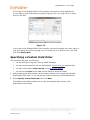
Extracting Data into a Text File
Extract data into a comma-separated text file in the order required by the OrgPublisher
Input File. You can save the comma-separated text file in an ODBC -compliant database,
and then establish a database connection with OrgPublisher to reorder the data by selecting
the appropriate columns in the New Chart Wizard.
Note: If you are creating a succession planning chart, see the Mapping Succession
Planning Fields topic.
Creating a Custom XSLT File
As an alternative to downloading a valid XSLT file from the web site, you may want to
create a custom XSLT file that is valid for your data.
To implement your own schema for translating XML data to the OrgPublisher input format,
you will need to add the tag name and file name of your XSLT file to the XSLTFileList.xml
file. This file is usually located in your C:\Program Files\OrgPubX\TVXMLCon\XML
directory.
The information contained in this document is confidential and proprietary to Peoplefluent®. This information may not be
distributed or used for any purpose other than the evaluation of Peoplefluent® solutions, nor may it be disclosed to any party
without the prior written consent from Peoplefluent®. Copyright © 2001 - 2013 Peoplefluent®. All Rights Reserved.
Revised 7/31/13
37
OrgPublisher 11 User Guide
The following code samples are truncated to conform to this document’s margin settings.
When modifying this code make sure that there are no spaces inserted or this code may not
perform properly. If you have any questions about this process, please contact Support.
Sample of original XSLTFileList.xml file
<?xml version = ”r;1.0”?>
<OP40FileList>
<urn_schemas_biztalk_org_lawson_com_0q3yhkct_xml>LawsonToOP40V1.xsl</urn_schem
as_biztalk_org_lawson_com_0q3yhkct_xml>
</OP40FileList>
Sample of modified XSLTFileList.xml file
<?xml version = ”r;1.0”?>
<OP40FileList>
<urn_schemas_biztalk_org_lawson_com_0q3yhkct_xml>LawsonToOP40V1.xsl</urn_schem
as_biztalk_org_Lawson_com_0q3yhct_xml>
<x_schema_myschema_xml>mytoOP40V1.xsl</x_schema_myschema_xml>
</OP40FileList>
Note: The underscore (_) character must be substituted for period (.) and comma (,)
characters.
Creating an OCB File
You can create an OCB file for an existing chart in order to automatically build an org chart.
1. Open the database connection chart file (ODB) for the chart.
2. Click the Build Mode
created to save your changes.
button. A dialog opens stating that a text file will be
3. Click Yes. OrgPublisher automatically saves the file in the same directory with the same
name as the ODB file and a file extension of OCB.
4. Make changes to the org chart.
Any changes you make to the format are saved in the chart template file (OTM), which
means these formatting changes will also affect the original org chart (ODB).
5. Save your changes in the OCB file.
Note: If this is a chart file created as a succession planning chart, the file extension is
ODBX.
The information contained in this document is confidential and proprietary to Peoplefluent®. This information may not be
distributed or used for any purpose other than the evaluation of Peoplefluent® solutions, nor may it be disclosed to any party
without the prior written consent from Peoplefluent®. Copyright © 2001 - 2013 Peoplefluent®. All Rights Reserved.
Revised 7/31/13
38
OrgPublisher 11 User Guide
Data in an OCB file cannot be refreshed in the same way as a chart created from a database
connection (ODB file). You can reconnect to your database by opening the ODB file, and
then saving it with the same name as the OCB file.
You will lose any prior data changes in the OCB file. Alternatively, you can open the OCB file
and manually change the chart.
Identify a Broken Hierarchy
One of the most valuable features in OrgPublisher is the ability to track reporting
relationships. When you create your input file layout for your first chart and define your
relationship hierarchy, OrgPublisher remembers that hierarchy. OrgPublisher determines if
any of the established relationships are broken when you open your chart built from data.
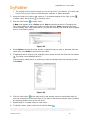
The following is an example of the error message:
Figure 31.
You can copy the list and use it to correct your HR database and then update your chart.
File Types
OrgPublisher potentially creates several types of files that contain different information for
your chart.
File
Extensions
OCP
OTM
HTM
OCB
File Contents
OrgPublisher published chart; if you are working with an EChart, contains
information to contact the EChart server.
PluginX - Binary chart/template file combined.
Template formatting file: OTM file matches the ODB, ODBX, or OCB chart file.
Contains all formatting, custom field labels, publishing definitions, styles, and
groups.
HTML code page: main chart page that determines the browser type and
invokes the JS file for downloading the ActiveX Plugin.
Also applicable to EChart, both thin and rich client.
HTML code page: contains chart data ASCII file; comma-delimited text file (in
OrgPublisher format). Contains "static snapshot" of the data (not dynamic
The information contained in this document is confidential and proprietary to Peoplefluent®. This information may not be
distributed or used for any purpose other than the evaluation of Peoplefluent® solutions, nor may it be disclosed to any party
without the prior written consent from Peoplefluent®. Copyright © 2001 - 2013 Peoplefluent®. All Rights Reserved.
Revised 7/31/13
39
OrgPublisher 11 User Guide
File
Extensions
File Contents
data).
Database connection file: contains ODBC connection and DSN information only,
no chart data.
EChart chart file: contains DLL for both thin client and rich client. DLL file is
named the same as the published chart file and must be in the same directory
as the EChart OCP file.
Needs to be configured in ISAPI Filter setup (IIS6) or Handler Mapping (IIS7).
EChart file for both thin and rich client types; contains EChart data; must be in
the same web directory as the EChart OCP file.
EChart file for both thin and rich client; batch file that can be used for
automated EChart publishing. See the Publish ECharts section of this document
for detailed information.
Web Administration file.
Multiple sources chart file: also pertains to single text data-source that is
custom mapped or contains a header row. Maps information to text file only,
contains no chart data.
ODB
DLL
OCS
BAT
OPW
ODBX
Record Types
The record type is the position type of a person who works in your organization. A position
type can be used to categorize employees. Position types assist in the formatting of boxes
and text, and the calculations of various head counts within your organization. The position
type/record type determines the order of positions within a single box.
Each person or position in an org chart is represented by only one record in the input file,
but a person can occupy multiple positions and have multiple records. You can also create
your own record type to define a position within your organization using the Position Type
Wizard or the Define dialog.
If you leave the Record Type blank, OrgPublisher sets the position type to "Employee."
Do not use these characters when creating your own custom record type in field 4.
Record
Type
M
Name
Definition
Manager
E
Employee
A
Assistant
I
Indirect
report
A manager record type represents a person who is the manager or supervisor of
the people in the reporting boxes or within an org box. Manager record types have
a Priority of 0. They are placed in their own box unless the Auto Build option, in
the Format dialog Chart tab, is set so that managers and employees are placed in
the same box. When there is more than one manager under a job title within a
box, the names are defaulted to sort alphabetically by last name.
This is the default record type. An employee record type represents a person who
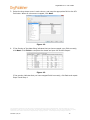
is an employee within an org box. You can format employee names and boxes
separately from manager names and boxes. When there is more than one
employee name under a job title within a box, the names are defaulted to sort
alphabetically by last name.
An assistant record type represents a person who is displayed within an assistant
box type. Assistant boxes alternate right and left of the reporting line.
You can define custom assistant position types with data using the Define dialog,
accessed from the Edit menu option, by creating a new position type and selecting
the assistant box type.
An OrgPublisher org chart can include indirect reporting relationships as well as
direct reporting relationships. Indirect reporting relationships are also known as
The information contained in this document is confidential and proprietary to Peoplefluent®. This information may not be
distributed or used for any purpose other than the evaluation of Peoplefluent® solutions, nor may it be disclosed to any party
without the prior written consent from Peoplefluent®. Copyright © 2001 - 2013 Peoplefluent®. All Rights Reserved.
Revised 7/31/13
40
OrgPublisher 11 User Guide
Record
Type
Name
C
Contractor
PR
Partner
B
Box
BA
Assistant
box
SF
Staff
function
SC
Succession
candidate
Definition
dotted-line relationships.
An input record can indicate a person is an indirect report by using an “I” in the
Record Type field in front of the assigned position record type. Indirect is a
modifier of the assigned position type. For example, an IE is an employee who
reports indirectly to another position. If you use only I as your record type,
OrgPublisher defaults the record to IM.
When an indirect report appears as the top position in a box, the box is formatted
with a dotted-line box unless you change this default in the current chart style. In
addition, an indirect box has a dotted connecting line to the supervisor box above
it.
Indicating that one person reports to more than one manager is accomplished
with multiple records and use of position types.
One box must be designated position type "E" for Employee. Other boxes must be
designated position type "I" for Indirect Report. (Indirect Reports are not counted
for head count purposes. Indirect Report boxes are displayed with dotted lines
around the box, as well as the lines to the box.) When building from data, you
need multiple employee records — one for each manager (see sample of data
below).
If you are building from data the records should look like the following:
ParentBoxID BoxID
Box Title Record Type ID Last Name First Name
Manager1
1234
xxx
E
Smith
Carol
Manager2
1234a
xxx
I
Smith
Carol
Manager 3
1234b
xxx
I
Smith
Carol
A contractor record type represents a person who is a contractor within an org
box. Contractor record types are different from other position type records.
Contractors are always displayed after managers and employees within an org
box. Contractor names are formatted separately from other position types.
Contractors are not counted in the head count with the default settings. You can
override the default.
When there is more than one contractor under a job title within a box, the names
are defaulted to sort alphabetically by last name.
A partner record type represents a person in a partner box type and denotes a
side-by-side relationship. A partner box is located on the same level and to the
right of the box to which the partner is aligned.
A box record type reports to another record and may have records reporting to it.
A box record type can be used to create a report-to box that does not contain a
person or job title, for instance a department or division name. You cannot add
persons to a box with B record type.
An assistant box record type can be used to indicate there are assistants for the
report-to box, but names and job titles are not stored in the box, for instance a
department or division name that has an assistant. You cannot add persons to a
box with BA record type.
A staff function record type represents a person very much like an assistant, or a
cost center displayed in a staff function box. The staff function normally has boxes
reporting to it in the chart and is positioned opposite an assistant box on the
reporting line. Staff function record types have a Priority of 0, and are placed in
their own box.
A succession candidate record type represents a person who is a candidate for a
specific position currently being held by someone else. Succession candidate
record types have a Priority of 1, and are typically placed in a normal box type
with other candidates, as well as the current person holding the position they may
inherit.
The information contained in this document is confidential and proprietary to Peoplefluent®. This information may not be
distributed or used for any purpose other than the evaluation of Peoplefluent® solutions, nor may it be disclosed to any party
without the prior written consent from Peoplefluent®. Copyright © 2001 - 2013 Peoplefluent®. All Rights Reserved.
Revised 7/31/13
41
OrgPublisher 11 User Guide
Boxes and Position Types
Each box type has a designated position within the chart in relation to other box types. By
placing position types in specific box types it ensures that the position type appears in its
correct hierarchal position in the org chart.
Normal
Box
Employee
Assistant
Box
Assistant
Partner
Box
Partner
Staff Box
Staff
Function
Manager
Contractor
Indirect
report
Succession
Candidate
An open position type will occupy the same box type as the original position.
Creating and Using a Semantic Dictionary for
Intelligent Searches
You can add values associated with specific fields in order to expedite searching on box and
job titles. The Semantic Dictionary Editor enables you to create associations between the
titles and any value you enter for it.
1. Select Options from the Main menu, Search options, and then Semantic Dictionary.
Figure 32.
The Semantic Dictionary Editor dialog opens.
The Semantic Dictionary provides "nodes" for you to work with.
•
The first node is the OrgPublisher field label, such as Job Title and Box Title (both
these fields are default entries in the dictionary). You can enter as many field labels
as you need.
The information contained in this document is confidential and proprietary to Peoplefluent®. This information may not be
distributed or used for any purpose other than the evaluation of Peoplefluent® solutions, nor may it be disclosed to any party
without the prior written consent from Peoplefluent®. Copyright © 2001 - 2013 Peoplefluent®. All Rights Reserved.
Revised 7/31/13
42
OrgPublisher 11 User Guide
•
The second node is the field name you use in the chart. For instance, your label may
be Job Title, but the name is Administrative Assistant or Sales Associate.
2. Select the node you want to add values to. Two buttons appear to the right, a plus
to add a value, and a minus
, to delete a value.
3. Click the Plus button
,
to add a value.
A Map node appears with a Value record. Map represents the action of mapping the
term you are about to add to the node you have selected. Value represents the term
you are adding that, when searched for, will find the original node, and all other mapped
terms, in the search results.
Figure 33.
4. Select Value and type the word, phrase, or partial word you want to associate with the
select title. Press Enter to accept the new value.
5. If additional search criteria exist, highlight one of those records and click the Plus button
. The Value record displays below it.
Type the word, partial word, or phrase you want to associate with the selected job title.
Press Enter.
Figure 34.
6. Click the Plus button
at the Map level to add another value to the selected title. Or,
click the Plus button at the Value level if you want to add an even deeper layer of search
by mapping another term to the new term.
7. Repeat steps 2-5 to add values to other titles.
8. To delete a value, select it and click the Minus button
.
The information contained in this document is confidential and proprietary to Peoplefluent®. This information may not be
distributed or used for any purpose other than the evaluation of Peoplefluent® solutions, nor may it be disclosed to any party
without the prior written consent from Peoplefluent®. Copyright © 2001 - 2013 Peoplefluent®. All Rights Reserved.
Revised 7/31/13
43
OrgPublisher 11 User Guide
9. Click OK to accept your entries and close the dialog.
When using the Search View to search on box or job titles, end users type any of the
entries associated with a job title, the search results pane displays all possible matches.
Figure 35.
The information contained in this document is confidential and proprietary to Peoplefluent®. This information may not be
distributed or used for any purpose other than the evaluation of Peoplefluent® solutions, nor may it be disclosed to any party
without the prior written consent from Peoplefluent®. Copyright © 2001 - 2013 Peoplefluent®. All Rights Reserved.
Revised 7/31/13
44
OrgPublisher 11 User Guide
Create Charts Overview
After your data has been prepared you're ready to create your chart. You can create a chart
automatically or manually. This section also provides information about OrgPublisher Chart
elements, menus, and toolbars.
Topics Pertaining to this Section
Getting Started with OrgPublisher
Position Types
Automatic Charts
Hotspot Links
Manual Charts
Styles
Custom Fields
Using the Format Dialog
Getting Started with OrgPublisher
By the time you reach this point the following activities should have occurred:
•
OrgPublisher has been installed on your computer.
•
Your company’s human resource data is in a location that you can access.
-or•
You have access to data from which you will manually create a chart.
To create a new chart or open an existing chart:
1. Open OrgPublisher.
OrgPublisher displays a blank chart and the OrgPublisher dialog.
Figure 36.
The information contained in this document is confidential and proprietary to Peoplefluent®. This information may not be
distributed or used for any purpose other than the evaluation of Peoplefluent® solutions, nor may it be disclosed to any party
without the prior written consent from Peoplefluent®. Copyright © 2001 - 2013 Peoplefluent®. All Rights Reserved.
Revised 7/31/13
45
OrgPublisher 11 User Guide
The Create a blank org chart option provides a blank org chart to which you can add
boxes, enter the employee information into the boxes, and apply formatting.
The Run the New Chart Wizard option provides interactive screens to walk you through
the process of creating a new chart, either manually or automatically.
The Open an existing org chart option is preselected by OrgPublisher, and a list of
existing charts is provided from which you can choose.
Choosing the Open chart for formatting only option opens an existing chart for
formatting changes only. No data changes can be made to a chart opened with this
option.
2. Select the option you want then click OK.
What You Need to Know
When creating a chart
There are two ways you can build organizational charts in OrgPublisher:
Automatically
By connecting directly to a data source. You will need to know the path to that data.
OrgPublisher provides the ability to access data from multiple locations. Your IT
department should be able to provide you with this information.
Manually
By placing boxes on a chart and entering employee information into the boxes.
When building from data
You should have an understanding of how your company's reporting relationships work, the
layout of your company’s reporting relationships, and other HR data so that you can
properly map the data for OrgPublisher. It is also useful if you have experience in:
•
Querying a database.
•
Writing VBA scripts (for automating charting processes).
•
Adding and extracting data from a database.
•
Operating a Microsoft Windows spreadsheet application.
You should also familiarize yourself with the system requirements and parameters.
Topics Pertaining to this Section
Linking to your Data Source
Identifying and Using Pointers
Chart Window
Identifying Invalid Comma-separated File
Format
Chart Parameters
Build and View Modes
Drilling Through Chart Levels
Views
The information contained in this document is confidential and proprietary to Peoplefluent®. This information may not be
distributed or used for any purpose other than the evaluation of Peoplefluent® solutions, nor may it be disclosed to any party
without the prior written consent from Peoplefluent®. Copyright © 2001 - 2013 Peoplefluent®. All Rights Reserved.
Revised 7/31/13
46
OrgPublisher 11 User Guide
Linking to Your Data Source
You must know how to link to your data source to create your chart, manage your data, and
resolve reporting relationship problems. Your system administrator may need to provide
some of the information required to connect to your database. To share a database
connection file with another user, you must use a file DSN on a shared network path when
you save the ODB file.
You can connect to an ODBC-compliant database and extract data for your organizational
chart. You can also connect to, or create, a text file to use as input for creating your chart.
Use the New Chart Wizard to select the data source, tables, etc. These selections form an
SQL statement that is used to extract data from your database. You can also write your
own SQL statement. For query samples, refer to the Downloads section of the web site.
Once you have saved the file with your connection, you can reconnect to the same database
by opening the chart’s ODB file.
Chart Window
When you start OrgPublisher and open a chart, the OrgPublisher window opens. It contains
a main menu and several toolbars, which you can turn off if you choose. The Style bar
which displays the current chart style at the top, the Status bar which displays the levels
shown and the head count for those levels at the bottom of the window, are always visible.
The main window section, called the Chart View, contains the chart components, such as
data and photos, arranged in boxes. The sample below includes telephone numbers,
departments and head counts. The Chart View is always displayed, regardless of how many
other views you select.
Figure 37.
You can move views, except for the Chart View, to display anywhere in your chart.
The information contained in this document is confidential and proprietary to Peoplefluent®. This information may not be
distributed or used for any purpose other than the evaluation of Peoplefluent® solutions, nor may it be disclosed to any party
without the prior written consent from Peoplefluent®. Copyright © 2001 - 2013 Peoplefluent®. All Rights Reserved.
Revised 7/31/13
47
OrgPublisher 11 User Guide
Drilling Through Chart Levels
If you want to display only a few levels within your chart, you can use the OrgPublisher
Drill-up/Drill-down
feature. You can set the number of levels that are displayed from
the Custom levels dialog on the toolbar or from the Style Wizard while creating a style for
your chart. This feature is available in both the OrgPublisher application and in a published
chart in a browser.
Drill-up
and drill-down
buttons are arrows that are placed above or beneath boxes
to indicate there are chart levels above or below them. Unless you change it, you move up
or down through the chart the number of levels shown in the Custom Levels dialog on the
toolbar. Changing the number of levels to drill up is useful when used with the Set Top of
Chart
feature. You can customize drill buttons to make your charts more cosmetically
appealing or to better match your corporate document style. You must show a minimum of
two custom levels.
Note: Drilling through a real-time chart automatically updates the chart.
Identifying Invalid Comma-separated File Format
When building from data or using API function definitions, found in the OrgPublisher
Software Development Kit (OPSDK):
•
Ensure that fields that contain a comma, such as last name, are enclosed in quotes.
Example:
Incorrect: ,Smith, Jr.,
Correct: ,"Smith, Jr.",
•
Ensure that fields do not contain any quote characters.
Example:
Incorrect: ,"Mc"Donald",
Correct: ,"Mc'Donald",
•
Ensure that there are no blank records at the end of the file. Word processors and
spreadsheets may inadvertently leave blank lines at the end of the file. The last
record in the file should be followed by the end of file marker.
•
Ensure that no single field is over 2000 characters in length.
•
Ensure that there are no less than 10 comma-separated fields in each input record.
Build and View Modes
Build Mode vs View Mode - If you are an administrator, you'll need to be aware of this.
OrgPublisher operates in either Build Mode
or View Mode
.
You use Build Mode to create, edit, and reorganize data. You use View Mode to format and
view charts as they will be seen by your users when published.
The information contained in this document is confidential and proprietary to Peoplefluent®. This information may not be
distributed or used for any purpose other than the evaluation of Peoplefluent® solutions, nor may it be disclosed to any party
without the prior written consent from Peoplefluent®. Copyright © 2001 - 2013 Peoplefluent®. All Rights Reserved.
Revised 7/31/13
48
OrgPublisher 11 User Guide
When building charts from data, remember that any editing of data or hierarchical structure
made using Build Mode will be lost when your chart is refreshed.
Build and View Modes Active Features
OrgPublisher operates in either Build Mode or View Mode. You use Build Mode to create,
edit, reorganize, and format charts. You use View Mode to format and view charts as they
will be seen by your users when published.
You cannot hide chart components while in Build Mode, but you can switch to View Mode at
any time. If you try to hide components while in Build Mode, OrgPublisher automatically
switches to View Mode.
Note: Build Mode features a Compact version so that you can view more of your chart
while you work on it. Click the Compact Build Mode button and OrgPublisher hides
everything in the chart boxes except the names. This way, you can drag and drop
boxes in the Build Mode without all the custom fields, job, or box titles taking up
screen space.
Planning charts are always in Build Mode, and do not reflect special formatting, such
as multi-level peer display, reports in the same box as their manager, or the Advanced
Box Layout settings.
The Compact Build Mode is not available to save as a style, but you can create a
similar chart style by hiding all your chart elements except the employee names.
Views
The user interface within OrgPublisher displays smaller windows called views.
Chart View
The Chart View is the main window and contains the chart components arranged in boxes,
as well as any enabled toolbars and views.
9 Box Matrix View
The 9 Box Matrix View
, providing comparative sets of data for select criteria, allows you
to compile the top performers and high potential employees in preparation for succession
planning. You can print this view or show where people from the Profile View fit in this view.
Hover Profile View
The Hover Profile View allows users to quickly view key custom fields just by letting the
cursor hover over a box component. The Hover Profile, if enabled, opens when you hover
the mouse button over a component in the chart box.
The information contained in this document is confidential and proprietary to Peoplefluent®. This information may not be
distributed or used for any purpose other than the evaluation of Peoplefluent® solutions, nor may it be disclosed to any party
without the prior written consent from Peoplefluent®. Copyright © 2001 - 2013 Peoplefluent®. All Rights Reserved.
Revised 7/31/13
49
OrgPublisher 11 User Guide
Tree View
The Tree View
arranges data hierarchy in an outline format. The Tree View, not
available in published thin client ECharts, arranges chart components in an outline format.
You can also locate and display any person or position in the chart by clicking on it in the
Tree View. You can print this view.
List View
The List View
can be used as a telephone directory or general field information by
employee record, and includes a Search View pane. You can copy and print this view.
Search View
The Search View is a separate pane inside the List View. It contains options to search for
select criteria, save the results as groups, and associate icons with the groups. You can also
copy, email, include in Profile View, and export data in this view.
You can use a group filter
in your searches if you want OrgPublisher to search only the
selected group and only display those matching records.
The Groups tab displays the existing groups in the org chart. It enables you to create a
new group description, delete a group, or edit an existing group description. The E-mail to
group feature is also available in this tab if the chart contains custom fields assigned to the
E-mail type.
The Search View also provides a My groups tab when the chart is published. This tab is
viewable only in the published chart. Once your org chart is published with the Search View,
end users can search for and save their own groups, which are displayed in the My groups
tab in the published chart.
Profile View
The Profile View
can provide employee, job, or box profiles containing information you
may not want to display in the chart box. Side-by-side Profiles can be used to build groups
in conjunction with the 9 Box Matrix or search results.
Filter View
The Filter View lists all groups used in the current style, as well as any group categories
used to identify group types. The Filter View is anchored to the right side of the
OrgPublisher window and closes as soon as you have selected a group to view.
Summary View
The Summary View
provides totals and calculated summary totals by position type and
group. Workforce Analysis Graphs, part of the Summary View, allow you to display your
The information contained in this document is confidential and proprietary to Peoplefluent®. This information may not be
distributed or used for any purpose other than the evaluation of Peoplefluent® solutions, nor may it be disclosed to any party
without the prior written consent from Peoplefluent®. Copyright © 2001 - 2013 Peoplefluent®. All Rights Reserved.
Revised 7/31/13
50
OrgPublisher 11 User Guide
summary data in a visual way. You can copy, print, and export the List View. You can also
copy and print the Workforce Analysis graphs.
Styles View
The Styles View
, if enabled, displays a list of available styles within the current chart.
You can modify this view by right-clicking on the Styles bar.
Click the Styles View button
in the toolbar to display this view or select View from the
menu bar, then Style View from the pull-down menu. The Styles View defaults to the left
side of the window, but you can drag it to another location.
Tabbed views are available for the Profile View, Style View, and Hover Profile.
Moving and Docking Views
Views can be docked in one place or you can float them in the chart. You can also remove
or size views. When creating styles in OrgPublisher, you can select which views should
become part of that style. The location and size of the view at publishing time determines
what the end user sees in the published chart.
Docking a View
1. Place the mouse pointer on the docking bar portion of the view.
2. Holding the mouse button down, drag the view to the new location.
3. Release the mouse button when you have the view where you want it.
4. You can float the view or dock it on the top, bottom, left, or right of the screen. An
outline of the view displays as you are dragging it.
Sizing a View
1. Place the mouse pointer on the edge of the view.
2. Drag to change the size of the view.
Removing a View
To remove a view from the OrgPublisher window or from a style, you can either:
•
Click on the close button (X).
•
Click on the view button in the Views toolbar.
The information contained in this document is confidential and proprietary to Peoplefluent®. This information may not be
distributed or used for any purpose other than the evaluation of Peoplefluent® solutions, nor may it be disclosed to any party
without the prior written consent from Peoplefluent®. Copyright © 2001 - 2013 Peoplefluent®. All Rights Reserved.
Revised 7/31/13
51
OrgPublisher 11 User Guide
Automatic Charts
OrgPublisher provides a wizard to help you begin creating a new chart. The New Chart
Wizard can also launch the Style Wizard to help you create your first style.
Topics Pertaining to this Section
Running the New Chart Wizard
Creating an Org Chart from Multiple Data
Sources
Creating an Org Chart from an ODBC
Database
Choosing Standard or Custom Field Order
Creating an Org Chart from an XML File
Selecting a Database Table, View, or Query
Creating an Org Chart from a Text File
Mapping to Multiple Field Types
Creating an Org Chart a UNICODE File
Running the New Chart Wizard
OrgPublisher provides a wizard to help you begin creating a new chart. The New Chart
Wizard can also launch the Style Wizard to help you create your first style.
Real-time publishing is not available when building a chart from multiple data sources.
1. Open OrgPublisher and select Run the New Chart Wizard or click the New
in the toolbar.
button
2. To create a new chart using the Prebuilt Reports feature, click here. Select
Organizational chart then click Next.
Figure 38.
3. In the Select a data source dialog, select a source for your data then click Next.
The information contained in this document is confidential and proprietary to Peoplefluent®. This information may not be
distributed or used for any purpose other than the evaluation of Peoplefluent® solutions, nor may it be disclosed to any party
without the prior written consent from Peoplefluent®. Copyright © 2001 - 2013 Peoplefluent®. All Rights Reserved.
Revised 7/31/13
52
OrgPublisher 11 User Guide
Figure 39.
Note: If you do not know what your data source type is, see your
OrgPublisher or IT administrator. The multiple data sources option is
considered an advanced org chart option and is not part of this section.
If you selected:
ODBC database, go to the Creating a Chart From an ODBC Database procedure.
XML file, go to the Creating a Chart From an XML File procedure.
Text file, go to the Creating a Chart From a Text File procedure.
Note: If you are connecting to a Microsoft Excel file, you must create a named range
identifying where the data is located within the spreadsheet
Creating a Chart from an ODBC Database
1. In the New Chart Wizard Select a data source dialog, select ODBC database then click
Next.
The next dialog box allows you to specify the ODBC Data Source Name (DSN).
Figure 40.
2. In the ODBC Database dialog, click the down arrow and select the type of database
containing your chart data. Click Next.
-or-
The information contained in this document is confidential and proprietary to Peoplefluent®. This information may not be
distributed or used for any purpose other than the evaluation of Peoplefluent® solutions, nor may it be disclosed to any party
without the prior written consent from Peoplefluent®. Copyright © 2001 - 2013 Peoplefluent®. All Rights Reserved.
Revised 7/31/13
53
OrgPublisher 11 User Guide
If your data source is not listed, click New data source and follow the instructions in
the Select Data Source dialog.
The Select Database dialog box opens.
Figure 41.
3. Indicate the path and filename of the database containing your data then click OK.
The next dialog allows you to select the database table, view, or query that contains the
data for your chart.
Figure 42.
4. Click the Select a database table, view or query that contains the data for your
chart option. Click the down arrow and, from the options list, select the table containing
the data from which you want to build your chart. Click Next.
Note: The Custom SQL option is addressed in advanced procedures.
The Data preview dialog opens, and the first 100 records are shown.
Figure 43.
The information contained in this document is confidential and proprietary to Peoplefluent®. This information may not be
distributed or used for any purpose other than the evaluation of Peoplefluent® solutions, nor may it be disclosed to any party
without the prior written consent from Peoplefluent®. Copyright © 2001 - 2013 Peoplefluent®. All Rights Reserved.
Revised 7/31/13
54
OrgPublisher 11 User Guide
5. Review the data to determine that it is the data you want, and then click Next.
Note: If the data shown is incorrect, click Back to connect to a different database.
The next option allows you to accept the standard OrgPublisher field order or specify a
custom order.
Figure 44.
6. Select the appropriate option for your field order. The default selection is Use standard
OrgPublisher field order. If the table, view, or query selected is not laid out in the
field noted in the Input File Layout, see the Specifying a Custom Field Order procedure.
This provides the mapping option. Click Next.
When you select the default field order, OrgPublisher displays the following dialog box.
Figure 45.
7. If you do not want to Launch the style wizard, clear that check box. Click Finish.
OrgPublisher displays your org chart.
Creating an Org Chart from an XML File
The New Chart Wizard enables you to create a chart from a single source, such as text,
XML, or ODBC. You can also create a succession planning chart, see Mapping Succession
Planning Fields for additional information.
1. Open OrgPublisher and select Run the New Chart Wizard radio button from the
OrgPublisher dialog. You can also select File from the Main menu then New from the
pull-down menu, or click the New
opens.
button in the toolbar. The New Chart Wizard
2. Select the XML file button and click Next.
3. Type or Browse to the chart XML file. Click Next.
The information contained in this document is confidential and proprietary to Peoplefluent®. This information may not be
distributed or used for any purpose other than the evaluation of Peoplefluent® solutions, nor may it be disclosed to any party
without the prior written consent from Peoplefluent®. Copyright © 2001 - 2013 Peoplefluent®. All Rights Reserved.
Revised 7/31/13
55
OrgPublisher 11 User Guide
4. The Data Preview dialog lets you verify that you have the right source and that your
records contain the appropriate data. See the Specifying a Custom Field Order procedure
for additional information. Click Next.
5. You can accept the default in the last dialog to Launch the style wizard to format your
chart, or you can clear the check box and click Finish to open your chart.
Creating an Org Chart from a Text File
The New Chart Wizard also enables you to create a chart from a single source, such as
text, XML, or ODBC.
1. Open OrgPublisher and select Run the New Chart Wizard radio button from the
OrgPublisher dialog. You can also select File from the Main menu then New, or click the
New
button in the toolbar. The New Chart Wizard opens.
2. Select the Text file button and click Next.
3. Type or Browse to the Chart Text File. Click Next.
4. The Data preview dialog lets you verify that you have the right source and that your
records contain the appropriate data. If your data file includes field names, select the
First row contains column names check box. OrgPublisher then removes the Field
number column headings. Click Next.
5. In the next dialog, select the Use standard OrgPublisher field order radio button if
your database was built for OrgPublisher. Or, select the Specify custom field order
radio button if you want to sequence your custom fields in a specific order. Click Next. If
you chose to Use standard OrgPublisher field order in the previous step, proceed to
Step 7.
If you chose to Specify custom field order, the Data preview dialog enables you to
map your field names to the OrgPublisher input layout.
Note: When bringing data into OrgPublisher using ODBC or Microsoft excel data
sources, the first row is assumed to be column headings. You are advised to select the
Specify custom field order option, as noted above, and manually map your data to the
correct file layout.
6. Click the pull-down arrow above the field you want to map, and select the appropriate
OrgPublisher record name from the pull-down list. The default option is Do not import
for those fields you don't have to map. For instance, if your database contains fields
identified as ParentID or BoxID, these fields will automatically map to the standard
OrgPublisher record input field.
Other mapping options in the list include Custom Field, Parent Box ID, Box ID,
Person ID, Position Sequence, Level Number, etc. Duplicate usage of a field type is
limited to custom fields. You can also click Apply Standard Mapping if you choose not
to map fields manually.
If you are creating a succession planning chart, see Mapping Succession Planning Fields
for additional information.
You will most often use this dialog to identify your custom fields. When you finish
mapping, click Next.
The information contained in this document is confidential and proprietary to Peoplefluent®. This information may not be
distributed or used for any purpose other than the evaluation of Peoplefluent® solutions, nor may it be disclosed to any party
without the prior written consent from Peoplefluent®. Copyright © 2001 - 2013 Peoplefluent®. All Rights Reserved.
Revised 7/31/13
56
OrgPublisher 11 User Guide
7. You can accept the default in the last dialog to Launch the style wizard to format your
chart, or you can clear the check box and click Finish to open your chart.
Creating an Org Chart from a UNICODE File
OrgPublisher can read and write UNICODE files to support internationalized data from ERP
and HR systems. Files are converted to and from UNICODE as they are serialized.
OrgPublisher correctly displays characters from any region but does not display characters
from multiple regions simultaneously.
1. Select Options from the Main menu then Text encoding options from the drop-down
list.
2. The setting in the Text Input File Encoding Options dialog is stored in the value
Encoding under the registry key HKCU/Software/Aquire/OrgPublisher/Settings.
This setting is global to OrgPublisher for the current user.
3. You can change the default Automatically detect encoding by reading the Byte
Order Mark (recommended) by selecting one of the alternate radio buttons in the
Input file encoding method section of the dialog.
Additional options include:
•
Open all input files as ANSI text
•
Open all input files as Unicode UCS-2 little endian
•
Open all input files as Unicode UCS-2 big endian
•
Open all input files as UTF-8
4. Click OK to close the dialog.
Note: The first option (Automatically detect encoding by reading Byte order Mark)
does not work unless the UNICODE input files contain a Byte Order Mark (BOM). In
that case, select an alternate option based on your input file type.
Creating an Org Chart from Multiple Data Sources
The New Chart Wizard also enables you to create a chart from a single source, such as text,
XML, or ODBC.
Note: Real-time publishing is not available when creating a chart from multiple data
sources.
1. Select File from the Main menu then New from the pull-down menu. You can also click
the New
button in the toolbar. The New Chart Wizard opens.
2. Select the Organizational chart radio button, and click Next. The Select a data source
dialog opens.
3. Select the Multiple Data Sources button, and click Next. The Multiple data sources
dialog opens.
4. Click the appropriate button to Select a Primary Data Source. Click Next.
The information contained in this document is confidential and proprietary to Peoplefluent®. This information may not be
distributed or used for any purpose other than the evaluation of Peoplefluent® solutions, nor may it be disclosed to any party
without the prior written consent from Peoplefluent®. Copyright © 2001 - 2013 Peoplefluent®. All Rights Reserved.
Revised 7/31/13
57
OrgPublisher 11 User Guide
5. Follow the prompts for the data source you select, ODBC database, XML file, or Text file.
Note: Web Administration supports opening multiple data base charts (OCB, CSV), as
long as those files exist in the SourceCharts folder. Web Administration, however,
does not support creating multiple data source charts from these file types, neither
does it support editing the text file charts using the Data sources dialog.
6. The next dialog asks you to either accept the default name, Primary data source, or
type a "nickname" for this data source. Click Next.
7. The next dialog verifies that you want to use another data source. Select the Yes radio
button and click Next.
8. The Multiple data sources dialog allows you to identify what the additional data source
contains.
If you select Additional boxes, positions, and persons, you can also select the All
new positions have the following position type check box and select the
corresponding position type.
If you select Additional fields for existing records, choose the corresponding data
element from the Link to pull-down list.
Click Next.
9. In the next dialog, click Select an additional data source then click Next.
10. Follow the wizard prompts to add the additional data source, ODBC database, XML
file, or Text file. Click Next.
11. Either accept the default name, Secondary data source 1, or type a "nickname" for
the additional data source. Click Next.
12. You can again access another data source by selecting Yes, and repeating Steps 4 - 11.
Select No to complete the wizard.
13. You can accept the default in the last dialog to Launch the style wizard to format your
chart, or you can clear the check box and click Finish to open your chart.
Note: By design, only the last data source in the list can be deleted.
Custom fields and associated data are NOT deleted from the chart when you delete a data
source. These custom fields, or just the custom field data, must be deleted manually using
the Custom Field Properties dialog.
Choosing Standard or Custom Field Order
When creating a new chart from data, you must choose between a standard field or map to
a custom field order.
1. Follow the New Chart Wizard dialogs, selecting the data source and database table or
query. Click Next in the Data preview dialog.
2. The next dialog defaults to the Use standard OrgPublisher field order radio button.
As noted in this option, you should accept the default only if your database was created
The information contained in this document is confidential and proprietary to Peoplefluent®. This information may not be
distributed or used for any purpose other than the evaluation of Peoplefluent® solutions, nor may it be disclosed to any party
without the prior written consent from Peoplefluent®. Copyright © 2001 - 2013 Peoplefluent®. All Rights Reserved.
Revised 7/31/13
58
OrgPublisher 11 User Guide
with the OrgPublisher Input File Layout in mind. This layout provides information in a
specific order, and relies on a person-to-person, position-to-position, or department-todepartment relationship. Unique IDs are used for the parent box, individual employees,
boxes, jobs, and more. If you accept this default selection click Next to finish the
wizard.
If you are working with the Prebuilt Reports feature, your options display as Use the
standard Universal File Layout (UFL) order and Map data to the UFL field order.
See the Prebuilt Reports - Create a New Report procedure for additional information.
3. If your database was not designed to follow the OrgPublisher input file layout, select the
Specify custom field order radio button. Click Next to map your field order to work with
the OrgPublisher layout.
4. Follow the link in Step 3 to map your field order then complete the New Chart Wizard.
Data Preview
When creating a chart from data, OrgPublisher displays a Data preview dialog that allows
you to scan the first 100 records to verify you've selected the correct table, view, or query.
If the extracted records are correct, click Next to complete the New Chart Wizard.
If the extracted records are wrong, click Back to select a new table, view, or query.
Head counts and head count roll-ups
•
OrgPublisher provides two types of head counts in addition to a head count roll-up.
These features count position types that have the Count set to Yes. Head counts are
different from head count roll-ups, which are based on a counted position type or
total population for each manager, department, district, region, etc. You choose if
and where you want head count roll-ups displayed in your chart.
Total head count - The counted "filled" positions in an org chart, indirect
reports are normally not counted.
Total planned head count - The counted "filled" and "open" positions in an org
chart, indirect reports are normally not counted.
Head count Roll-up - A count of positions reporting to a specific manager or
area within an org chart.
Note: Orphan records and broken hierarchies can adversely affect summary and
security functions. Unexpected results can occur that may cause head count or other
totals to be incorrect.
•
Head counts are displayed in the Status bar at the bottom of the window. The
starting point of a head count is always based on the point in the chart that is
displayed. For example, if you have several departments within your organization
that are higher in the hierarchy than the Development department, but only the
Development department is displayed in the chart, the head counts shown in the
Status bar are based on the counts in the Development department on down.
•
Position types displayed in the Summary View in OrgPublisher Premier can be
excluded from the total head count, but included as an individual position type head
count. For example, you can exclude contractors from the total head count, but
insert a separate head count for contractors.
The information contained in this document is confidential and proprietary to Peoplefluent®. This information may not be
distributed or used for any purpose other than the evaluation of Peoplefluent® solutions, nor may it be disclosed to any party
without the prior written consent from Peoplefluent®. Copyright © 2001 - 2013 Peoplefluent®. All Rights Reserved.
Revised 7/31/13
59
OrgPublisher 11 User Guide
Note: In conditional formatting, the search feature and all calculations follow the
conditional position type. Formatting follows the group. If you display the Summary
View in a chart with conditional formatting, you should hide either the group or
position type of the conditional format. If you don't, head counts display in both areas.
Selecting a Database Table, View, or Query
When creating a chart from ODBC, you must select the table, view or query to extract data
from the database.
1. Follow the New Chart Wizard dialogs, selecting the ODBC option and navigating to your
ODBC database.
2. The dialog that opens next depends on the type of database you select. For example, if
you select an SQL database the next dialog may be a login screen for SQL. Click the
drop-down arrow and select from a list of tables, views, or queries.
Figure 46.
If your database does not already contain tables, views or queries you may have to
write your own SQL statement.
3. If you want to write your own SQL statement select the Custom SQL radio button and
type your query string.
Figure 47.
The information contained in this document is confidential and proprietary to Peoplefluent®. This information may not be
distributed or used for any purpose other than the evaluation of Peoplefluent® solutions, nor may it be disclosed to any party
without the prior written consent from Peoplefluent®. Copyright © 2001 - 2013 Peoplefluent®. All Rights Reserved.
Revised 7/31/13
60
OrgPublisher 11 User Guide
4. You can later modify this statement in the chart by selecting Data from the menu then
Manage data sources from the options list to open the Data Source dialog. Click
Connection Info to open the Database Connection dialog.
5. Click Next to continue the wizard and create your chart.
Note: If you are connecting to a Microsoft Excel file, you must create a named range
identifying where the data is located within the spreadsheet.
Mapping to Multiple Field Types
1. You may need to map a single column of data as more than one field type when creating
a chart from data. For instance, you have a column of data that contains the Employee
Number. You want to use it as input field 5 (Person ID) as well as display the field in the
chart as a custom field. Scroll down to the last field type option and click Multiple. The
Multiple Field Mapper dialog opens.
Figure 48.
2. Click Add. The Multiple Field Mapper inserts Custom Field as the first mapping type.
3. In the Name column, click Custom Field to display all the available options.
Figure 49.
4. Select the field type you want to apply.
5. Click Add to insert the second instance of the field.
The information contained in this document is confidential and proprietary to Peoplefluent®. This information may not be
distributed or used for any purpose other than the evaluation of Peoplefluent® solutions, nor may it be disclosed to any party
without the prior written consent from Peoplefluent®. Copyright © 2001 - 2013 Peoplefluent®. All Rights Reserved.
Revised 7/31/13
61
OrgPublisher 11 User Guide
6. Repeat Steps 3-5 if applicable.
Figure 50.
7. Click OK when you have finished mapping the field. The mapped column is now labeled
as Multiple.
8. When you have finished mapping your fields, click Next to continue with the New Chart
Wizard.
The information contained in this document is confidential and proprietary to Peoplefluent®. This information may not be
distributed or used for any purpose other than the evaluation of Peoplefluent® solutions, nor may it be disclosed to any party
without the prior written consent from Peoplefluent®. Copyright © 2001 - 2013 Peoplefluent®. All Rights Reserved.
Revised 7/31/13
62
OrgPublisher 11 User Guide
Manual Charts
Once you have inserted the first box into your chart, you can begin building your chart
levels by inserting additional boxes.
You can also design the box and chart format, or you can apply a preformatted chart design
provided by OrgPublisher.
Note: Although this section provides information on manually editing a chart,
remember that if you want the changes to remain permanent, you must apply the
changes to your HR database. When your HR data is refreshed and you open your
chart, your manual changes are overwritten.
Topics Pertaining to this Section
Creating a Blank Org Chart
Inserting a Staff Function Box
Inserting the First Box and Person
Inserting Assistant Boxes
Inserting Chart Components
Inserting Open Positions
Inserting a Chart Title
Inserting Partner Boxes
Inserting a Custom Field for a Single Position
Type
Inserting People
Inserting a Custom Field for All Position
Types
Making Several Insertions for the Same Position
Type
Inserting a Person/Job Box
Creating a Blank Org Chart
Creating a blank org chart is the first step to building a chart manually. You insert each box
then populate each box with the employee information. The first box must contain a person
and a job.
To insert these two components at the same time, select the Person/Job box
button
from the Insert Toolbar. (See Menu Bars Overview for the purpose and behavior of each
button.)
1. Open OrgPublisher.
OrgPublisher displays a blank chart and the OrgPublisher dialog.
2. Select the Create a blank org chart radio button. Click OK.
The information contained in this document is confidential and proprietary to Peoplefluent®. This information may not be
distributed or used for any purpose other than the evaluation of Peoplefluent® solutions, nor may it be disclosed to any party
without the prior written consent from Peoplefluent®. Copyright © 2001 - 2013 Peoplefluent®. All Rights Reserved.
Revised 7/31/13
63
OrgPublisher 11 User Guide
OrgPublisher opens in Build Mode with the Wizard View displayed on the left.
Figure 51.
3. Begin building your chart, using the insert components toolbar buttons.
Inserting the First Box and Person in a Chart
When you manually create an org chart, you start with a blank chart, and then insert each
box, enter all of the relevant information into each box, and then format the chart.
1. From the Main menu, select Insert then Person in box from the options list.
Figure 52.
You can also select the Insert Box containing a person button
in the Insert toolbar.
Click and release the mouse. Notice that the cursor, or pointer, has changed
.
2. Click inside the chart to place the box. The Box title, Job title, and Name fields appear
inside the box.
Figure 53.
Because this is a new chart, the first box is placed at the top and middle of the new
chart window.
The information contained in this document is confidential and proprietary to Peoplefluent®. This information may not be
distributed or used for any purpose other than the evaluation of Peoplefluent® solutions, nor may it be disclosed to any party
without the prior written consent from Peoplefluent®. Copyright © 2001 - 2013 Peoplefluent®. All Rights Reserved.
Revised 7/31/13
64
OrgPublisher 11 User Guide
3. Inside the box, click the Employee name text and replace the field name with the
name of the employee. Click Enter.
4. Double-click the Job Title 1 text. The Rename Job Title dialog opens.
Figure 54.
5. Type the Job title and select the Position type. Click OK. The Rename Box Title dialog
opens.
Figure 55.
6. Type the Box title then click OK. The new name appears inside the box and at the top
of the chart. When you rename Box 1 (inside the box), that name becomes the chart
title. This is typically the name of your organization or a department name, but may be
whatever works best for your chart. See the Formatting a Chart Title procedure for more
information.
Add additional boxes to your chart, using the Inserting Boxes in a Chart procedure. See
the Box Button Descriptions topics to help identify appropriate buttons.
Inserting Chart Components
Buttons for chart components are contained on the Insert toolbar and listed in the Insert
menu. You can insert these components manually or with the New Chart Wizard.
To insert chart components, you can do one of the following:
•
Select the component from the Insert menu.
•
Select the component using the shortcut keys. (To identify the shortcut keys, select
the menu option and use the keys displayed next to the component name.)
•
Select a button from the toolbar. (To identify a button, float the cursor over it. A
description appears.)
You must be in Build Mode to create new charts and insert chart components.
The information contained in this document is confidential and proprietary to Peoplefluent®. This information may not be
distributed or used for any purpose other than the evaluation of Peoplefluent® solutions, nor may it be disclosed to any party
without the prior written consent from Peoplefluent®. Copyright © 2001 - 2013 Peoplefluent®. All Rights Reserved.
Revised 7/31/13
65
OrgPublisher 11 User Guide
The first component you insert is a box. Boxes are containers for other chart components
such as jobs, people, hotspots, custom fields, and open positions. Boxes must be inserted in
the chart before other components can be added. There are three types of boxes:
Normal
Assistant
Partner
The box type you will probably use most frequently is the box that inserts a person, job and
box
at the same time. Like the normal box type, this box is inserted beneath the box on
which you drop it. The Insert Person/Job box inserts a normal box with prompts for box
title, job title, and employee name by position type.
Unique formatting is assigned to the assistant box and partner box. Assistant boxes are
inserted beneath and to the right of the higher-level box. Multiple assistant boxes alternate
to the right and left of this box.
A partner box is inserted on the same level and to the right of the box on which it is
dropped. In addition, you can use a Staff Function box which works similarly to an Assistant
box but allows a full hierarchy beneath it. In order to use this special box type, you must
first create a Staff Function Position type.
Inserting a Chart Title
When you insert the first box in a new chart, the text "Box 1" is automatically inserted and
selected for you to add the box name and becomes the chart title. The text you type
displays for both the box and the chart.
A planning chart ordinarily displays an existing chart title, which you can modify.
1. Right-click the chart title. Click to clear Auto Title. The text "Chart Title" appears.
2. Double-click the text and type the title of the chart. Press Enter.
3. Save the chart.
-orDouble-click on an existing chart title and type a new title.
Inserting a Custom Field for a Single Position Type
You can insert a custom field for a single position type by dragging it from the Custom Field
Properties dialog.
1. Select Data from the Main menu then Custom Field Properties from the pull-down
menu.
You can also click the Custom fields
opens.
button. The Custom Field Properties dialog
The information contained in this document is confidential and proprietary to Peoplefluent®. This information may not be
distributed or used for any purpose other than the evaluation of Peoplefluent® solutions, nor may it be disclosed to any party
without the prior written consent from Peoplefluent®. Copyright © 2001 - 2013 Peoplefluent®. All Rights Reserved.
Revised 7/31/13
66
OrgPublisher 11 User Guide
2. You can also use the Custom fields
button in the toolbar and move the mouse
pointer to the place within an existing box where you want to insert the custom field.
Click the mouse to add it.
3. Make sure the field Drag and Drop for All Position Types is not selected. Click Close.
4. If the check box is selected, click on it to clear it then click Apply.
5. Position the cursor in the column to the left of the Field label of the custom field to be
added. Click in the column and hold the mouse button down as you drag that custom
field into the chart and place it within an existing box. Release the mouse button to add
the custom field.
6. Double-click on the label for this custom field and type the new name, if applicable.
Press Enter.
7. The new field displays in the dialog and the chart.
8. If you are adding the field data manually, double-click on the right-hand side of this field
and type your data, for example a phone number. Press Enter.
9. If you want to format the new custom field, right-click on the field and select Format
from the drop-down menu.
Inserting a Custom Field for all Position Types
You can insert a custom field for all position types by dragging it from the Custom Field
Properties dialog.
1. Select Data from the Main menu then Custom Field Properties from the pull-down
menu. You can also click the Custom fields
Properties dialog opens.
button in the toolbar. The Custom Field
In addition, you can use the Insert Custom Field
button in the toolbar and move the
mouse pointer to the place within an existing box where you want to insert the custom
field. Click the mouse to add it.
2. Make sure the field Drag and Drop for All Position Types is selected. Click Close.
3. If the check box is not selected, select it and click Apply.
4. Position the cursor in the column to the left of the Field label of the custom field to be
added to a position type. Click in the column and hold the mouse button down as you
drag that custom field into the chart and place it within an existing box. Release the
mouse button to add the custom field.
5. Double-click on the label for this custom field and type the new name, if applicable.
Press Enter. The new field displays in the dialog and with every position type displayed
in the chart.
6. Double-click on the right-hand side of each occurrence of this field and type your data,
for example a phone number. Press Enter.
7. If you want to format the new custom field, right-click on the field and select Format
from the drop-down menu.
The information contained in this document is confidential and proprietary to Peoplefluent®. This information may not be
distributed or used for any purpose other than the evaluation of Peoplefluent® solutions, nor may it be disclosed to any party
without the prior written consent from Peoplefluent®. Copyright © 2001 - 2013 Peoplefluent®. All Rights Reserved.
Revised 7/31/13
67
OrgPublisher 11 User Guide
Inserting a Person/Job Box
When you create a chart, you must insert a box before you add any other components. This
box must contain a person and a job. To insert these two components at the same time,
select the Person/Job box button from the Insert toolbar.
You can also add the person and job chart components individually.
Inserting Additional Person/Job Boxes
Once you have inserted the first box into your chart, you can begin building your chart
levels by adding additional boxes.
1. Click and release the Insert Person/Job Box
button.
2. Move the pointer over the box to which the new person/job box will be reporting and
click to insert a person/job box beneath the box you selected.
3. Type over the Box title, Job title, and Name text with the appropriate for the person
for the new box.
Inserting Multiple Person/Job Boxes
Once you have inserted your first box into your chart, you can add several boxes at once.
1. Press and hold the Ctrl key. Click and release the Insert Person/Job Box
button.
2. Still pressing the Ctrl key, move the pointer over each box under which you want to
place a new box. Click the mouse once for each box you want to insert.
3. To insert the last box, release the Ctrl key and click the mouse over the last box under
which the new box will be inserted.
Inserting a Staff Function Box
Unlike the process of inserting other chart components from the OrgPublisher toolbar,
inserting a staff function box to an existing chart requires that you first create a staff
function position type.
Note: Only Staff Function position types can reside in Staff Function boxes.
If you are working with an empty chart, the position type is already available in the Position
Type Wizard. The actual box type does not contain special formatting by default, but you
can format the box to your specifications.
1. Once the position type is created, you add a box with a person and job into the chart
where you want to place the staff function.
2. Double-click on the name field to open the Update Person dialog and select the Staff
Function position type.
3. The staff function box title displays and the box may be repositioned. Double-click on
Staff Function to change the box title. If you add reports to this box, a drill-down
button displays and you must drill to view those reporting boxes.
The information contained in this document is confidential and proprietary to Peoplefluent®. This information may not be
distributed or used for any purpose other than the evaluation of Peoplefluent® solutions, nor may it be disclosed to any party
without the prior written consent from Peoplefluent®. Copyright © 2001 - 2013 Peoplefluent®. All Rights Reserved.
Revised 7/31/13
68
OrgPublisher 11 User Guide
Inserting Assistant Boxes
An assistant is a special type of box that is inserted below and to the right of a selected box.
If you insert more than one assistant box, these boxes alternate from the right and then to
the left of the reporting box. The text "Assistant Box" followed by the number of the box in
the chart, is placed into the box as the box title.
Note: You can add reports to assistants in OrgPublisher, enabling you to show one
level of reporting boxes under an Assistant Box.
Inserting and labeling an Assistant box
You can add one or more assistant boxes in your org chart. Multiple jobs and people can be
placed in an assistant box.
1. Click and release the Insert Assistant button
on the Insert toolbar.
2. Move the mouse pointer over the box title or job under which the assistant box will be
inserted. Click the mouse.
3. The assistant box is inserted below and to the right.
4. Type a title for the assistant box.
Inserting multiple Assistant boxes
Multiple assistant boxes can be placed under a box, and multiple jobs and people can be
placed in an assistant box. Multiple assistant boxes inserted under the same box alternate
from right to left.
1. Press and hold the Ctrl key. Click and release the Insert Assistant
toolbar.
button from the
2. Still pressing the Ctrl key, move the pointer over each box title or job under which the
assistant boxes will be inserted.
3. Click the mouse for each assistant you want to insert.
4. To insert the last assistant box, release the Ctrl key and click the mouse over the last
box title or job.
Adding Boxes Under an Assistant Box
You can add reports to an assistant box type just as you can to other boxes in the chart.
OrgPublisher displays these boxes vertically immediately below the assistant. Assistant
boxes dropped on an assistant box display like normal boxes and will not contain the special
assistant box formatting.
1. Click and release the Insert person/job button. (You can also use the Normal box
button.)
2. Move the mouse pointer over the assistant box title or job. Click the mouse. The new
box displays directly below the assistant box.
The information contained in this document is confidential and proprietary to Peoplefluent®. This information may not be
distributed or used for any purpose other than the evaluation of Peoplefluent® solutions, nor may it be disclosed to any party
without the prior written consent from Peoplefluent®. Copyright © 2001 - 2013 Peoplefluent®. All Rights Reserved.
Revised 7/31/13
69
OrgPublisher 11 User Guide
Note: You cannot add a Partner box to an Assistant box. If you have an Assistant box
that has several reporting boxes, you should consider identifying that box as a Staff
function box, rather than as an assistant. You can add several reporting boxes to an
Assistant box, but since they are all displayed directly below the assistant, more than
one or two boxes can make viewing your org chart difficult.
Only Staff Function position types can reside in a Staff Function box.
Inserting Boxes In a Chart
Boxes can be manually inserted into charts by either of the following two methods.
1. From the Main menu bar select Insert.
The Insert menu displays the options available.
Figure 56.
The Insert toolbar also displays the box style buttons.
Figure 57.
2. Select a box style, click the button, and then click inside the chart to place the box.
Inserting Normal Boxes
A normal box is one of three types of boxes that you can insert into your chart. It contains
only the box title field and is always added directly below the box it reports to.
Inserting a single box
1. Click and release the Insert Box button
on the Insert toolbar.
2. Move the mouse pointer over the box title under which the new box will be inserted.
Click the mouse.
3. Type a title for the box.
The information contained in this document is confidential and proprietary to Peoplefluent®. This information may not be
distributed or used for any purpose other than the evaluation of Peoplefluent® solutions, nor may it be disclosed to any party
without the prior written consent from Peoplefluent®. Copyright © 2001 - 2013 Peoplefluent®. All Rights Reserved.
Revised 7/31/13
70
OrgPublisher 11 User Guide
Inserting multiple boxes
1. Press and hold the Ctrl key. Click and release the Insert Box
button in the toolbar.
2. Still pressing the Ctrl key, move the pointer over each box title or job under which the
new boxes will be inserted.
3. Click the mouse for each box you want to insert.
4. To insert the last box, release the Ctrl key and click the mouse over the last box title or
job.
5. Type the box titles for each box.
Inserting Open Positions
Open positions are positions in your organization that are not presently filled. Open
positions retain the position type already assigned to the box, whether that is a manager,
employee, etc. You can format and track open positions separately from the filled positions
in your chart, as well as drop them on box titles, jobs, or other people. When you drop an
open position on a box title, a new job title is automatically created for the open position.
Inserting an Open position
1. Click and release the Insert Open Position button
on the Insert toolbar.
2. Move the pointer over the box title, job, or person under which the open position will be
inserted.
3. Click the mouse. The text "Open position" displays in the box.
Inserting multiple Open positions
1. Press and hold the Ctrl key. Click and release the Open Position
toolbar.
button on the
2. Still holding the Ctrl key, move the pointer over each box title, job, or person under
which the new person will be inserted. Click the mouse.
3. To insert the last person, release the Ctrl key and click the mouse over the last box title,
job title or person.
Inserting Partner Boxes
OrgPublisher depicts the equal yet independent relationship of a business partner by
inserting and connecting a partner box on the same level and to the right of the box on
which it is dropped. Multiple jobs and people can be placed in a partner box. When you
insert a partner, the box number is shown as the box title.
The information contained in this document is confidential and proprietary to Peoplefluent®. This information may not be
distributed or used for any purpose other than the evaluation of Peoplefluent® solutions, nor may it be disclosed to any party
without the prior written consent from Peoplefluent®. Copyright © 2001 - 2013 Peoplefluent®. All Rights Reserved.
Revised 7/31/13
71
OrgPublisher 11 User Guide
Inserting and labeling a Partner
1. Click and release the Insert Partner button
on the Insert toolbar.
2. Move the mouse pointer over the box title or job by which the partner box will be
inserted.
3. Click the mouse. The partner box is inserted to the right.
4. Type a title for the partner box.
Inserting multiple Partner boxes
1. Multiple partner boxes can be placed to the right of a box.
2. Press and hold the Ctrl key. Click and release the Insert Partner
toolbar.
button on the
3. Still pressing the Ctrl key, move the pointer over each box title or job by which the
Partner boxes will be inserted. Click the mouse for each partner box you want to insert.
4. To insert the last partner box, release the Ctrl key and click the mouse over the last box
title or job.
Inserting People
People are the employees, managers, and other personnel in your chart. One person is
automatically inserted whenever you place a job in a chart. Additional people can be
dropped on box titles, jobs and other people. When you drop a person on a box title, a
manager is created. If you already have an employee position type in that box, OrgPublisher
displays both positions. When you drop a person on a job title, the person inherits the
characteristics of the job.
When you drop a person on another person, the new person inherits the existing person’s
job title, and the new person’s name is placed directly below the name of the existing
person.
Inserting and naming a person
1. Click and release the Insert Person button
on the Insert toolbar.
2. Move the mouse pointer over the box title, job, or person under which the new person
will be inserted. Click the mouse.
3. Type the name of the person.
Inserting multiple people
1. Press and hold the Ctrl key. Click and release the Insert Person
toolbar.
button on the
2. Still pressing the Ctrl key, move the pointer over each box title, job, or other person
under which the new person will be inserted.
The information contained in this document is confidential and proprietary to Peoplefluent®. This information may not be
distributed or used for any purpose other than the evaluation of Peoplefluent® solutions, nor may it be disclosed to any party
without the prior written consent from Peoplefluent®. Copyright © 2001 - 2013 Peoplefluent®. All Rights Reserved.
Revised 7/31/13
72
OrgPublisher 11 User Guide
3. Click the mouse for each person you want to insert.
4. To insert the last person, release the Ctrl key and click the mouse over the last box title,
job title or person.
Making Several Insertions for the Same Position
Type
You can apply the format for the same position type to several boxes or jobs if you select a
position type before you begin inserting boxes.
1. Select Insert from the Main menu then Select position type from the pull-down
menu. The Select Position Type for Insert dialog opens.
2. Click on the position type you want to insert and clear the Automatically assign
Position Type check box.
3. If you are inserting multiple boxes with this position type, or you want to make it the
default position type when you insert a box, click the Insert using this Position Type
check box.
4. To automatically assign a manager position type to the first inserted box and an
employee position type on the box dropped on that position, click the Automatically
assign Position Type check box.
5. If you do not select either check box, OrgPublisher prompts you for the position type
when you insert a job or person into an empty box.
6. Click OK. The dialog closes.
7. Select the appropriate button from the toolbar and insert the box where you want it.
The information contained in this document is confidential and proprietary to Peoplefluent®. This information may not be
distributed or used for any purpose other than the evaluation of Peoplefluent® solutions, nor may it be disclosed to any party
without the prior written consent from Peoplefluent®. Copyright © 2001 - 2013 Peoplefluent®. All Rights Reserved.
Revised 7/31/13
73
OrgPublisher 11 User Guide
General Chart Activities
Topics Pertaining to this Section
Administering Enabled Languages
Showing or Hiding Chart Levels
Managing Data Sources
Showing or Hiding Fields in the Profile View
Setting the Default Template
Showing or Hiding Actual Head Count
Setting the Top of the Chart
Showing the Entire Chart
Showing or Hiding Chart Components
Using the Multi-level Peer Display
Administering Enabled Languages
If you need to publish charts in more than one language, you can do so with OrgPublisher
Premier. Using the Administer Languages feature, you can select a language in which you
have installed the OrgPublisher application.
All OrgPublisher dialogs and toolbars display in the translated language, however, all of
the data, custom fields, groups, and position types remain in the language in
which you originally created the chart.
Note: Each OrgPublisher application must be installed to a different folder directory,
or the second instance overlays the first. For example, the English folder is OrgPub11
in Program Files. You should install the other languages in folder with names like
OrgPub11FR (French language) or OrgPub11_SP (Spanish language).
1. Select File from the main menu, then Administer Languages from the options list.
The Administer Languages dialog opens.
Figure 58.
2. The dialog displays all the languages available for OrgPublisher. An X in a language row
indicates that OrgPublisher has been installed in that language on your machine or
server.
3. Select the language you want to use and click Administer this language. If you
currently have a chart open, you are prompted to save it.
The information contained in this document is confidential and proprietary to Peoplefluent®. This information may not be
distributed or used for any purpose other than the evaluation of Peoplefluent® solutions, nor may it be disclosed to any party
without the prior written consent from Peoplefluent®. Copyright © 2001 - 2013 Peoplefluent®. All Rights Reserved.
Revised 7/31/13
74
OrgPublisher 11 User Guide
If a chart has not yet been published in the selected language, a message opens to
verify that you want to create a new template and convert the OrgPublisher dialogs and
toolbars to the selected language. Click Yes.
Figure 59.
OrgPublisher closes the current chart and opens it again in the selected language.
Figure 60.
4. Open the Custom Field Properties dialog and retype your custom field names in the
selected language.
The information contained in this document is confidential and proprietary to Peoplefluent®. This information may not be
distributed or used for any purpose other than the evaluation of Peoplefluent® solutions, nor may it be disclosed to any party
without the prior written consent from Peoplefluent®. Copyright © 2001 - 2013 Peoplefluent®. All Rights Reserved.
Revised 7/31/13
75
OrgPublisher 11 User Guide
When all custom fields have been translated, click Apply then Close.
Figure 61.
5. If applicable, retype the labels and values in each custom field in your chart so that they
display in the appropriate language.
6. Save your chart, and then follow the appropriate publishing procedure.
Expanding or Collapsing Levels in Tree View
1. Select Options from the Main menu then Tree View options.
2. Select Expand or Collapse from the options list. Expand shows each level of
information. Collapse shows only the top level, with plus (+) signs to indicate where
additional levels are available. The Tree View immediately reflects your change.
Managing Data Sources
After you have created a chart from a multiple sources, text, XML, or ODBC, you can
manage those sources through the Data menu.
Note: Web Administration supports opening multiple data base charts (OCB, CSV) as
long as those files exist in the SourceCharts folder. Web Administration, however,
does not support creating multiple data source charts from these file types, neither
does it support editing the text file charts using the Data sources dialog.
•
Click Data from the Main menu then Manage data sources from the options list.
The Data sources dialog opens. This dialog displays a list of all databases used to
create your chart. You can delete a data source, add a new data source, or modify
the properties of a data source.
Add a Data Source
1. Click the New
button to add another data source to your chart. The New Chart
Wizard opens at the Additional data source dialog.
2. Follow the wizard prompts to add the data source.
The information contained in this document is confidential and proprietary to Peoplefluent®. This information may not be
distributed or used for any purpose other than the evaluation of Peoplefluent® solutions, nor may it be disclosed to any party
without the prior written consent from Peoplefluent®. Copyright © 2001 - 2013 Peoplefluent®. All Rights Reserved.
Revised 7/31/13
76
OrgPublisher 11 User Guide
3. Click Finish to close the New Chart Wizard and return to the Data sources dialog.
4. Click Close.
Your chart reflects the new data.
Delete a Data Source
Note: By design, only the last data source listed can be deleted.
Custom fields and associated data are NOT deleted from the chart when you delete a
data source. These custom fields, or just the custom field data, must be deleted
manually using the Custom Field Properties dialog.
1. Select the last data source displayed in the Data Sources dialog. Click the Delete
button to remove the data source from your chart.
2. A message asks you to verify that you want to delete the selected data source.
3. Click Yes to delete the source and return to the Data sources dialog.
4. Click Close.
Modify a Data Source
1. Click the Properties
button to modify the data fields. The New Chart Wizard
opens at the Data preview dialog.
2. Follow the wizard prompts to modify the data properties.
3. Click Finish to close the New Chart Wizard and return to the Data sources dialog.
4. Click Close when you are finished modifying the data sources.
Your chart reflects the updates.
Review or Configure Connection Information
1. Click the Connection Info
button to review or configure your connection
information. The Database Connection dialog opens.
2. To set the connection information, click Configure. The dialog fields are now enabled for
editing.
3. Modify the connection information as needed and click Verify.
4. Click OK when you have finished configuring the database connection to close the
dialog.
Setting the Default Template
A default template contains one or more styles and all of the formatting options within those
styles.
The information contained in this document is confidential and proprietary to Peoplefluent®. This information may not be
distributed or used for any purpose other than the evaluation of Peoplefluent® solutions, nor may it be disclosed to any party
without the prior written consent from Peoplefluent®. Copyright © 2001 - 2013 Peoplefluent®. All Rights Reserved.
Revised 7/31/13
77
OrgPublisher 11 User Guide
1. Open the chart that contains the styles you want to use regularly, or create a style that
includes colors, views, and data layouts that you want.
2. Select File from the Main menu then Set Template as Default from the pull-down
menu. These styles will be active the next time you open a new chart.
3. To remove a default template, you can either rename or delete the file Default.OTM in
the OrgPublisher directory.
Note: There is no option to set a default template when using Web Administration
(thin client publishing format) because setting the template on the server would set
the same default template for all chart administrators' charts.
Setting the Top of the Chart
When you set the top of chart for the current style, the selected box and reporting boxes
are shown in the Chart View. To set the top box in the chart style:
1. Click on the Box title you want to display as the top of your chart.
2. Select View from the Main menu then Set Top of chart from the pull-down menu.
You can also use the Set top of chart
button in the toolbar.
OrgPublisher displays only the selected box and reporting boxes in both the Chart View
and Tree View for the current style. Head counts in the Status bar are adjusted to reflect
only the portions of the chart that are shown.
Setting up the OrgPublisher MIME Type
The OrgPublisher MIME type must be set up in order for Netscape users to view your chart
on the company intranet.
Your intranet Web master or administrator must set up the following MIME type:
MIME Type
application/x-orgpublisher
File extension
.OCP
Showing or Hiding Chart Components
You can show or hide specific components in your chart such as an open position,
assistants, partners, custom fields, hotspots, or your logo. You can show or hide fields using
the Show/Hide Chart Components dialog, selecting options in wizards, or by using the rightclick menu in views.
Note: The Show/Hide Components dialog doesn’t not apply to position types
formatted using the Advanced Box Layout Editor.
All information you can view in the OrgPublisher chart or search results list is also displayed
when you copy the chart to Microsoft PowerPoint or the search results to Microsoft Excel.
1. Select View from the Main menu then Show/Hide chart components from the pulldown menu. The Show/Hide Chart Components dialog opens at the Components tab.
To modify levels displayed, see the Showing or Hiding Chart Levels procedure.
The information contained in this document is confidential and proprietary to Peoplefluent®. This information may not be
distributed or used for any purpose other than the evaluation of Peoplefluent® solutions, nor may it be disclosed to any party
without the prior written consent from Peoplefluent®. Copyright © 2001 - 2013 Peoplefluent®. All Rights Reserved.
Revised 7/31/13
78
OrgPublisher 11 User Guide
You can also click on the Show/Hide Chart Components button
in the toolbar.
2. Select the Style from the drop-down list for which you want to show or hide
components. A check mark next to a position type means it is displayed. An X means
the position type is hidden.
Note: Keep in mind that, when you choose to show or hide fields, all information you
can view in the OrgPublisher chart or search results list is also displayed when you
copy the chart to Microsoft PowerPoint or the search results to Microsoft Excel.
3. Click the plus sign (+) to expand and view the components of a position type.
4. Click on a component to display (green check mark) or hide (red X) it.
5. Select the group displayed in the style from the drop-down list, if applicable. The default
group is Everyone.
6. Click Apply to update the chart and keep the dialog open for further changes, or click
OK to update the chart and close the dialog box.
Note: In conditional formatting, the Search feature and all calculations follow the
conditional position type. Formatting follows the group. If you display the Summary
View in a chart with conditional formatting, you should hide either the group or
position type of the conditional format. If you don't, head counts display in both areas.
Showing or Hiding Chart Levels
You can choose to show just a specified number of chart levels, or you can show all levels.
You can also hide the lowest level of boxes. When you select a specified number of
displayed levels in your chart, you create a custom level. The Show Custom Levels menu
option displays chart levels using the currently selected top of chart, whether it is the actual
top of the chart or an alternate specified with the Set top of chart command.
If you are working with a large chart, you may choose to display only a certain number of
levels. You can also hide the lowest boxes in a chart.
1. Select View from the Main menu then Show/Hide chart components from the pulldown menu. The Show/Hide Chart Components dialog displays.
You can also click on the Show/Hide Chart Components
button in the toolbar.
2. Click the Levels tab.
3. Select the Style you want to modify from the drop-down list.
4. The Show all levels check box is the default selection. In the Custom levels field,
select the number of chart levels you want to show in your chart. The default is
automatically cleared.
The information contained in this document is confidential and proprietary to Peoplefluent®. This information may not be
distributed or used for any purpose other than the evaluation of Peoplefluent® solutions, nor may it be disclosed to any party
without the prior written consent from Peoplefluent®. Copyright © 2001 - 2013 Peoplefluent®. All Rights Reserved.
Revised 7/31/13
79
OrgPublisher 11 User Guide
Note: If you are publishing an EChart, you select a maximum number of levels to
display while you are in the Publishing Wizard. All levels is not an option. These levels
cannot be changed in the published EChart.
All information you can view in the OrgPublisher chart or search results list is also
displayed when you copy the chart to Microsoft PowerPoint or the search results to
Microsoft Excel.
5. Select whether or not you want to display the Drill-up/Drill-down buttons.
6. Select whether or not you want to Drill up custom levels.
7. Select the number of Drill up levels.
8. Select the Group displayed in the style from the drop-down list, if applicable.
9. Click Apply to update the chart and keep the dialog box open for further changes, or
click OK to update the chart and close the dialog box.
Once your chart levels have been set and you are looking at your chart, you can later
choose to display all chart levels. Select View from the Main menu then Show All
Levels from the pull-down menu.
Showing or Hiding Fields in the Profile View
1. Right-click on a field in the Profile View.
2. Select Show/Hide fields from the drop-down list. The Show/hide fields dialog opens.
3. Select the check box for the field or subheading you want to show or hide. A check
indicates the field is displayed. A blank box indicates that the field is hidden.
4. You can also rearrange the position of each field, or arrange fields to display beneath a
subheading, by clicking the Move Up and Move Down buttons.
5. Click OK to close the dialog. The Profile View reflects the changes.
Showing or Hiding Actual Head Count
Note: Orphan records and broken hierarchies can adversely affect summary and
security functions. Unexpected results can occur that may cause head count or other
totals to be incorrect.
1. Select View from the Main menu then Status Bar from the pull-down menu.
The Status bar options display in an options list. Each option displays a check mark
when selected.
2. Click Head count to show the actual head count for the displayed portion of the chart.
Or, clear it to hide the actual head count. Shown Head count displays in the lower right
section of the Status bar.
The information contained in this document is confidential and proprietary to Peoplefluent®. This information may not be
distributed or used for any purpose other than the evaluation of Peoplefluent® solutions, nor may it be disclosed to any party
without the prior written consent from Peoplefluent®. Copyright © 2001 - 2013 Peoplefluent®. All Rights Reserved.
Revised 7/31/13
80
OrgPublisher 11 User Guide
Showing the Entire Chart
You can display the entire chart in the Chart View from any location or level within your
chart. The Display whole chart option is available only after you have invoked Set top of
chart.
•
Select View from the Main menu then Display whole chart from the pull-down
menu.
•
You can also click on the Display whole chart button
in the toolbar.
OrgPublisher displays as much of the entire chart as the window and the size of your chart
allow.
Showing a Portion of the Chart
When you set the top of chart, the selected box and reporting boxes are shown in the Chart
View. This option is useful for working with company divisions or other areas of an
organization, or for printing a portion of a chart.
You can also create styles using the set top of chart feature.
1. Click on the Box title where you want the portion of the chart to begin.
2. Select View from the Main menu then Set Top of chart from the pull-down menu. You
can also click the Set top of chart
button.
3. Save the style, or create a new style, using the selecting portion of the chart.
Using the Multi-level Peer Display
OrgPublisher provides the option to display all reports at the same chart level or display
multiple levels. This option is a formatting function, displays in View Mode only, and can be
useful if you have, for instance, a Vice President and a manager reporting to the same box
and you want to show the hierarchy level of the two positions.
Note: The multi-level peer display does not work when your chart contains multiple
people in a box.
When building a chart with data, map your levels to the OrgPublisher Input File field 18.
Boxes reporting to an assistant will not have this functionality. You can also save the multilevel peer display as a separate style or use the menu or toolbar options to manually adjust
box levels.
Note: If you are working with a large chart that takes a little longer to open, you may
want to turn off the multi-level viewing. This will speed up the process. Select View
from the menu bar and clear Show multi-level peers option in the pull-down list.
Planning charts are always in Build Mode, and do not reflect special formatting, such as
multi-level peer display, reports in the same box as their manager, or the advanced box
layout settings.
The information contained in this document is confidential and proprietary to Peoplefluent®. This information may not be
distributed or used for any purpose other than the evaluation of Peoplefluent® solutions, nor may it be disclosed to any party
without the prior written consent from Peoplefluent®. Copyright © 2001 - 2013 Peoplefluent®. All Rights Reserved.
Revised 7/31/13
81
OrgPublisher 11 User Guide
To manually move a box up or down a level:
4. Select View from the Main menu and verify that Show multi-level peers in the pulldown list is selected.
5. Click View Mode
in the tool bar.
6. Highlight the name or job title of the box you want to move.
7. Click the Move up
or Move down
button. The box displays at the new level.
8. You can also select Edit from the Main menu then Move up a level or Move down a
level from the pull-down menu.
9. Save your chart.
Some things to note about the Multi-level Peer display feature:
•
Works in View Mode.
•
The top box cannot be moved.
•
The first level below the parent box does not move up because it is already at the
highest level in relation to the parent box.
•
If you move a parent box, all reporting boxes move with it.
•
Partners move with their attached boxes.
•
You can move (up or down) 10 levels in relation to a parent box.
The information contained in this document is confidential and proprietary to Peoplefluent®. This information may not be
distributed or used for any purpose other than the evaluation of Peoplefluent® solutions, nor may it be disclosed to any party
without the prior written consent from Peoplefluent®. Copyright © 2001 - 2013 Peoplefluent®. All Rights Reserved.
Revised 7/31/13
82
OrgPublisher 11 User Guide
Custom Fields Overview
OrgPublisher can display custom field data extracted from your database. The required
layout for org chart information is defined in the OrgPublisher Input File Layout. Custom
fields automatically begin in column 20 of this file, and summary custom fields begin in
column 26.
The first time a chart is created from data, open the Custom Field Properties dialog and
assign your custom fields to the appropriate position types.
Topics Pertaining to this Section
Adding a Custom Field
Hiding a Custom Field Label
Changing the Contents of a Custom Field
Inserting a Custom Field for a Single Position
Type
Changing the Custom Field Label
Inserting a Custom Field for all Position Types
Custom Field Properties Dialog
Inserting a Head Count Roll-up with the Custom
Field Properties Dialog
Designating Custom Fields as Not Searchable
Reviewing Custom Field Security Summary
Displaying a Custom Field
Selecting a Custom Field Date Format
Dragging and Dropping Custom Fields
Setting Search Properties for Custom Fields
Formatting a Custom Field
Specifying a Custom Field Order
Formatting Numeric Custom Fields
Adding a Custom Field
Custom fields added below box titles contain information pertinent to the whole department
or team that the box represents. Custom fields added below a job title contain information
about that job. Custom fields added below a person contain specific information about that
person or the position they hold.
You can also add custom fields with the Custom Field Wizard.
1.
Select Data from the menu bar, then Custom Field Properties from the pull-down
menu. You can also click the Custom fields button
Properties dialog opens.
in the toolbar. The Custom Field
2. Position the cursor where you want to add the new custom field, either somewhere
within existing fields, or at the end. Click Insert. If you are inserting a field within the
list of existing fields, a message dialog verifies that this is what you want to do.
3. Enter the field name in the Field label column.
4. Press the TAB key to move to the Type column and select the type of custom field you
are adding, for instance Text.
The information contained in this document is confidential and proprietary to Peoplefluent®. This information may not be
distributed or used for any purpose other than the evaluation of Peoplefluent® solutions, nor may it be disclosed to any party
without the prior written consent from Peoplefluent®. Copyright © 2001 - 2013 Peoplefluent®. All Rights Reserved.
Revised 7/31/13
83
OrgPublisher 11 User Guide
Custom Field
Type
Text
Hotspot
Numeric
Currency
Count
Summary
Average
Minimum
Maximum
Percentage
Date
Email
Position ID
Direct Count
Level Number
Level Below
Description
Alpha/numeric field that displays company information like phone numbers, email addresses, etc.
Displays whatever label or text you enter and links to a destination URL or
path you have assigned in the Hotspot Wizard.
Any field containing numbers only for calculating data; displays information
such as hours of training and years of employment. See also Inserting
Formulas.
Displays monetary values, such as a department’s budget, that can be
summarized.
Includes a position type in the head count total or a head count by position
type that can be totaled.
Calculates summaries for a numeric custom field, such as:
Sum - Total T & E expenses.
Average - Years of employment.
Minimum - Training hours.
Maximum - Sales per salesperson.
Percentage - Managers to employees.
Numeric summary field used to display the average derived from a calculation
of two or more numeric fields.
Numeric summary field used to display a minimum number derived from a
calculation of two or more numeric fields, for example, a minimum salary
range for a specific job.
Numeric summary field used to display a maximum number derived from a
calculation of two or more numeric fields for example, a maximum salary
range for a specific job.
Numeric summary field used to display a percent derived from a calculation of
two or more numeric fields.
Displays a date field in a specific format.
Displays an active link to an e-mail address message.
Required in order to compare two charts that have identical custom field
definitions, and generate a change report. If you do not automatically import
a position ID (see Field 17 in the Input File Layout topic), in order to achieve
consistent results, it is recommended that you assign a custom field type of
Position ID to a unique record number across all charts.
In OrgPublisher Premier levels and span of control feature, shows the direct
report count for each manager, director, vice president, and president by
creating a custom field and assigning the Direct Count custom field type.
In OrgPublisher Premier levels and span of control feature, show the level
number where the box is located in each box by creating a custom field and
assigning the Level Number custom field type.
In OrgPublisher Premier levels and span of control feature, show the number
of levels below a manager's box by creating a custom field and assigning the
Levels Below custom field type.
Note: OrgPublisher looks for the first custom field of Email type when sending email to
a group. If you decide to use more than one email address in your chart, the primary
email must be first in the custom field sequence order.
OrgPublisher does not change the value of numeric fields you import. For instance, if
you import 341.00, that's what the number is in OrgPublisher. If you import 341,
that's what OrgPublisher uses. Formatting cannot change the value of the data you
import.
The information contained in this document is confidential and proprietary to Peoplefluent®. This information may not be
distributed or used for any purpose other than the evaluation of Peoplefluent® solutions, nor may it be disclosed to any party
without the prior written consent from Peoplefluent®. Copyright © 2001 - 2013 Peoplefluent®. All Rights Reserved.
Revised 7/31/13
84
OrgPublisher 11 User Guide
5. If you selected a numeric, currency or count field type, press the TAB key to move to
the Calc Field and select the numeric field on which to do the calculation. See the
Formulas and Using Levels and Span of Control topics for additional information.
6. If you selected a numeric, currency or count field type, press the TAB key to move to
the Population column and select the position types, total head count, or planned head
count to be included in your calculation.
7. Press the TAB key to move to the Assigned To column. The Update Assigned Custom
Fields dialog opens. Select the position types you want to assign the custom field to,
such as Manager, Employee, or All Position Types.
8. In the same dialog, choose where you want the field to display, Box title, Job title, or
Name. Click OK to accept your changes and close the text box. (If you click on the
position type name rather than the plus sign (+), the Name component is automatically
selected.) Click OK to close the dialog.
The Sample field displays the contents of the first custom field for this Type.
The Seq field displays the OrgPublisher Input File record sequence for that custom field.
9. Click Apply or Close.
Note: In OrgPublisher, the Summary Wizard inserts placeholders, if necessary, which
display in the Custom Field Properties dialog. These fields within OrgPublisher, occupy
sequences 20 -25, and are designated as field types other than summaries, such as
Text, Hotspot, or Email. As you create summary fields, OrgPublisher starts placing
them in sequence 26.
When importing numeric fields, make sure that you do not use any leading symbols,
such as dollar signs. Also, verify that decimal places are set the way you want them
prior to importing those fields into OrgPublisher.
Changing the Contents of a Custom Field
You can modify the contents of a custom field at any time.
1. Double-click on the contents of the field in the chart box to select it for editing.
2. Type new field information and either press Enter or click elsewhere in the Chart View.
The new information displays in the box.
Changing the Custom Field Label
You can change the custom field label, or name, within the body of the chart, or by using
the Custom Field Properties dialog. Custom field labels change in all the views.
1. Double-click on the custom field label in the Chart View.
2. Type the new name and press Enter. The label is changed throughout the chart.
-or-
1. Select Data from the menu bar, then Custom Field Properties from the pull-down
menu. You can also click the Custom fields button
Properties dialog opens.
in the toolbar. The Custom Field
The information contained in this document is confidential and proprietary to Peoplefluent®. This information may not be
distributed or used for any purpose other than the evaluation of Peoplefluent® solutions, nor may it be disclosed to any party
without the prior written consent from Peoplefluent®. Copyright © 2001 - 2013 Peoplefluent®. All Rights Reserved.
Revised 7/31/13
85
OrgPublisher 11 User Guide
2. Double-click in the Field label to highlight the current field name.
3. Type the new name and click Close or Apply.
Custom Field Properties Dialog
The Custom Field Properties dialog can be used to add, change, and display custom fields,
and to manually add a numeric custom field after you have defined one or more summary
fields in your chart. You can select fields and options in this dialog to create the same type
of summary fields as you do with the Head Count Wizard and Summary Wizard, or define
formulas used in a summary.
You can also attach a hotspot to a specific field and set security options for custom fields in
published ECharts.
Figure 62.
You can access the Custom Field Properties dialog from the Data menu option, or by
clicking the Custom fields
button in the toolbar.
Designating Custom Fields as Not Searchable
You can designate custom fields as not searchable in the published chart. End users will still
be able to see these fields in the chart, but will not be able to conduct a search using that
data.
Note: This feature is also seen in the published cross browser/Silverlight chart.
1. Select Data from the Main menu then Custom field properties from the options list.
You can also click the Custom fields
Properties dialog opens.
button in the toolbar. The Custom Field
2. Select the custom field you do not want end users to find when conducting a search in
the published chart by clicking on the gray cell next to the custom field name.
3. Click Security. The Custom Field Security dialog opens.
The information contained in this document is confidential and proprietary to Peoplefluent®. This information may not be
distributed or used for any purpose other than the evaluation of Peoplefluent® solutions, nor may it be disclosed to any party
without the prior written consent from Peoplefluent®. Copyright © 2001 - 2013 Peoplefluent®. All Rights Reserved.
Revised 7/31/13
86
OrgPublisher 11 User Guide
4. The check box at the top of the dialog determines if the field is searchable in the Search
View and Search dialog. Select the check box if you want to allow end users to search on
this field name. Clear the check box if you do not want to allow end users to search on
this field name.
If you are publishing your chart as a secured EChart, you can also secure customs fields.
See the Securing ECharts procedure for details.
Note: Published real-time charts use IIS security only. Custom field, group, and styles
security do not apply.
5. Click OK to accept the change and return to the Custom Field Properties dialog.
6. Click Apply to accept the change in the current chart and continue to work in the dialog.
Click Close to exit the Custom Field Properties dialog.
Note: Keep in mind that when you choose to show or hide information you can view in
the OrgPublisher chart or search results list, that the information is also displayed
when you copy the chart to Microsoft PowerPoint or copy the search results list to
Microsoft Excel.
Making a field “not searchable” does not hide it in the chart or other views.
Displaying a Custom Field
The Assigned To field in the Custom Field Properties dialog determines where the custom
field is displayed in the chart. EChart field security, such as securing a field hierarchically or
by group, also affects whether or not end users can view custom fields.
1. Select Data from the Main menu then Custom Field Properties from the pull-down
menu. The Custom Field Properties dialog opens. You can also use the Custom fields
button
in the toolbar.
2. Position the cursor on the custom field, and press the TAB key to move to the Assigned
To column.
3. Select the position types for this custom field and click Apply.
Dragging and Dropping Custom Fields
You can insert a custom field into your chart by dragging the custom field from the Custom
Field Properties dialog into the Chart View. You can add a custom field to one position type
or to all position types.
Inserting a Custom Field to a single Position type
1. Select Data from the Main menu then Custom Field Properties from the pull-down
menu. You can also click the Custom fields
Properties dialog opens.
button in the toolbar. The Custom Field
2. Verify that the Drag and Drop for All Position Types check box is not selected. If it
is, click to clear it.
The information contained in this document is confidential and proprietary to Peoplefluent®. This information may not be
distributed or used for any purpose other than the evaluation of Peoplefluent® solutions, nor may it be disclosed to any party
without the prior written consent from Peoplefluent®. Copyright © 2001 - 2013 Peoplefluent®. All Rights Reserved.
Revised 7/31/13
87
OrgPublisher 11 User Guide
3. Select the custom field you want to drop into the chart. Click and hold down the mouse
button.
4. Drag the mouse cursor into a box in the chart that contains the position type you want.
5. Release the mouse button. The custom field is inserted in every instance of that specific
position type in the chart.
6. Repeat steps 3 - 5 for each custom field you want to add.
Inserting a Custom Field to all Position types
1. Select Data from the Main menu then Custom Field Properties from the pull-down
menu. You can also click the Custom fields
Properties dialog opens.
button in the toolbar. The Custom Field
2. Verify that the Drag and Drop for All Position Types check box is selected.
3. Select the custom field you want to drop into the chart. Click and hold down the mouse
button.
4. Drag the mouse cursor into a box in the chart and release the mouse button. The
custom field is inserted in every position type in the chart.
5. Repeat steps 3 - 4 for each custom field you want to add to all position types.
Formatting a Custom Field
When you manually create a numeric custom field, you can format that field by selecting
the appropriate values. You can also format a date field.
Property
Leading symbol
Trailing symbol
Decimal places
1000 separator
Negative values
Show negatives in
red
Suppress zero
values
Value
Select a symbol that precedes the numeric custom field, for example £ or
#.
Select a symbol to follow the numeric custom field, for example a
percentage sign (%).
When using the summary feature, you can type the number of digits
shown after the decimal.
Select a character to separate thousands within a numeric custom field,
for example a comma (,).
Select a symbol to represent a negative value, for example a minus sign
(-).
Select this option to display all negative numeric custom fields in red.
Select this check box if you do not want to display zero values in your
chart.
Note: When importing numeric fields, make sure that you do not use any leading
symbols, such as dollar signs. Also, verify that decimal places are set the way you
want them prior to importing those fields into OrgPublisher, as they cannot be
adjusted after they are imported.
Formatting cannot change the value of the data you import
The information contained in this document is confidential and proprietary to Peoplefluent®. This information may not be
distributed or used for any purpose other than the evaluation of Peoplefluent® solutions, nor may it be disclosed to any party
without the prior written consent from Peoplefluent®. Copyright © 2001 - 2013 Peoplefluent®. All Rights Reserved.
Revised 7/31/13
88
OrgPublisher 11 User Guide
Formatting a numeric field
1. Select Data from the menu bar, then Custom Field Properties from the pull-down
menu. The Custom Field Properties dialog opens. You can also use the Custom fields
button in the toolbar.
2. Select a numeric custom field then click Format. The Field Format dialog opens.
3. Type values for the properties that pertain to this field. For example, if the field is a
percentage, you can select % in the Trailing Symbol field.
4. Click OK to apply the properties.
Formatting a date field
1. Select Data from the menu bar, then Custom Field Properties from the pull-down
menu. The Custom Field Properties dialog opens. You can also use the Custom fields
button in the toolbar.
2. Select a date custom field then click Format. The Select a date format dialog opens.
3. Click the down arrow in the Date Format field and select the format you want. The
options are:
•
MM/DD/YYYY
•
DD/MM/YYYY
•
DD.MM.YYYY
Note: If you want to use the data formatting (or the search criteria of <>) in Custom
Field Properties dialog when building a chart with data, OrgPublisher must receive the
data with a 4-digit year then the month and the day; for example, "YYYYMMDD" if you
want to change the format to display as "DDMMYY."
4.
Click OK to apply the format.
Hiding a Custom Field Label
You can choose to hide a custom field label in your org chart.
1. Right-click the custom field label in your chart.
2. Select Hide label from the drop-down menu. The label is no longer displayed in your
chart.
3. To show a hidden label, right-click on the custom field data and click Show label from
the drop-down menu.
You can also select the Hide label option in the Custom Field Wizard when you create or
modify a custom field.
The information contained in this document is confidential and proprietary to Peoplefluent®. This information may not be
distributed or used for any purpose other than the evaluation of Peoplefluent® solutions, nor may it be disclosed to any party
without the prior written consent from Peoplefluent®. Copyright © 2001 - 2013 Peoplefluent®. All Rights Reserved.
Revised 7/31/13
89
OrgPublisher 11 User Guide
Inserting a Custom Field for a Single Position Type
You can insert a custom field for a single position type by dragging it from the Custom Field
Properties dialog.
Note: The use of conditional formatting can affect position type summary fields.
1. Select Data from the Main menu then Custom Field Properties from the pull-down
menu. You can also click the Custom fields
dialog opens.
button. The Custom Field Properties
2. You can also use the Custom fields
button in the toolbar and move the mouse
pointer to the place within an existing box where you want to insert the custom field.
Click the mouse to add it.
3. Make sure the field Drag and Drop for All Position Types is not selected. Click Close.
4. If the check box is selected, click on it to clear it then click Apply.
5. Position the cursor in the column to the left of the Field label of the custom field to be
added. Click in the column and hold the mouse button down as you drag that custom
field into the chart and place it within an existing box. Release the mouse button to add
the custom field.
6. Double-click on the label for this custom field and type the new name, if applicable.
Press Enter.
7. The new field displays in the dialog and the chart.
8. If you are adding the field data manually, double-click on the right-hand side of this field
and type your data, for example a phone number. Press Enter.
9. If you want to format the new custom field, right-click on the field and select Format
from the drop-down menu.
Inserting a Custom Field for all Position Types
You can insert a custom field for all position types by dragging it from the Custom Field
Properties dialog.
1. Select Data from the Main menu then Custom Field Properties from the pull-down
menu. You can also click the Custom fields
Properties dialog opens.
button in the toolbar. The Custom Field
In addition, you can use the Insert Custom Field
button in the toolbar and move the
mouse pointer to the place within an existing box where you want to insert the custom
field. Click the mouse to add it.
2. Make sure the field Drag and Drop for All Position Types is selected. Click Close.
Note: You can also use this check box in conjunction with the Insert Hotspot button in
the Insert toolbar.
3. If the check box is not selected, select it and click on Apply.
The information contained in this document is confidential and proprietary to Peoplefluent®. This information may not be
distributed or used for any purpose other than the evaluation of Peoplefluent® solutions, nor may it be disclosed to any party
without the prior written consent from Peoplefluent®. Copyright © 2001 - 2013 Peoplefluent®. All Rights Reserved.
Revised 7/31/13
90
OrgPublisher 11 User Guide
4. Position the cursor in the column to the left of the Field label of the custom field to be
added to a position type. Click in the column and hold the mouse button down as you
drag that custom field into the chart and place it within an existing box. Release the
mouse button to add the custom field.
5. Double-click on the label for this custom field and type the new name, if applicable.
Press Enter. The new field displays in the dialog and with every position type displayed
in the chart.
6. Double-click on the right-hand side of each occurrence of this field and type your data,
for example a phone number. Press Enter.
7. If you want to format the new custom field, right-click on the field and select Format
from the drop-down menu.
Inserting a Head Count Roll-up with the Custom
Field Properties Dialog
1. Select Data from the Main menu then Custom Field Properties from the pull-down
menu. You can also click the Custom fields
Properties dialog opens.
button in the toolbar. The Custom Field
2. Position the cursor where you want to add the new custom field, either somewhere
within existing fields, or at the end. Click Insert. If you are inserting a field within the
list of existing fields, a message verifies that this is what you want to do.
3. Enter the field name in the Field label column.
4. Press the TAB key to move to the Type column and select Count.
5. Press the TAB key to move to the Population column and select the position type or
group you want to count. You can select one or more position types or groups, or the
Total Head Count, or the Total Planned Head Count.
Note: Orphan records and broken hierarchies can adversely affect summary and
security functions. Unexpected results can occur that may cause head count or other
totals to be incorrect.
6. Press the TAB key to move to the Assigned To column. The Update Displayed Custom
Fields dialog opens. Select the position types or groups for this custom field. If you want
all position types to have this field, select All Positions.
7. Click Close to insert the new head count in your org chart and to close the Custom Field
Properties dialog.
Note: In conditional formatting, the search feature and all calculations follow the
conditional position type. Formatting follows the group. If you display the Summary
View in a chart with conditional formatting, you should hide either the group or
position type of the conditional format. If you don’t, head counts display in both areas.
Succession candidates are not included in head counts.
The information contained in this document is confidential and proprietary to Peoplefluent®. This information may not be
distributed or used for any purpose other than the evaluation of Peoplefluent® solutions, nor may it be disclosed to any party
without the prior written consent from Peoplefluent®. Copyright © 2001 - 2013 Peoplefluent®. All Rights Reserved.
Revised 7/31/13
91
OrgPublisher 11 User Guide
Reviewing Custom Field Security Summary
In OrgPublisher Premier, you can designate field security and then quickly review a
summary of the security for each custom field in your EChart.
1. Select Data from the Main menu then Custom Field Properties from the pull-down
menu. You can also use the Custom fields
Properties dialog opens.
button in the toolbar. The Custom Field
2. Click View security summary. The Field Security Summary dialog opens, displaying the
custom fields in your chart and the type of security assigned to each.
3. Click Copy to Clipboard if you want to copy the summary to another application for
printing or to view later, or click Close to return to the Custom Field Properties dialog.
Selecting a Custom Field Date Format
1. Select Data from the menu bar, then Custom Field Properties from the pull-down
menu. The Custom Field Properties dialog opens. You can also use the Custom fields
button in the toolbar.
2. Select a date custom field then click Format. The Select a date format dialog opens.
3. Click the down arrow in the Date Format field and select the format you want. The
options are:
•
MM/DD/YYYY
•
DD/MM/YYYY
•
DD.MM.YYYY
Note: If you want to use data formatting (or the search criteria of <>) in Custom
Field Properties dialog when building a chart with data, OrgPublisher must receive the
data with 4-digit year, then the month and the day; for example, “YYYMMDD” if you
want to change the format to display as “DDMMYY.”
4. Click OK to apply the format.
Securing Custom Fields in ECharts
You can display data for select employees based on search criteria and group membership
when you publish in EChart format. This security option restricts the display of custom field
data unless the user record is a member of a specific group.
1. Create a group containing the employee records you want to view.
2. Open the Custom Fields Properties dialog and select the field to secure.
3. Click Security to open the Custom Field Security dialog.
4. Setup up the desired security attributes:
a. Will the field be searchable? If yes, select the Allow check box at the top of the dialog.
b. Can the end user see the data for the Entire Chart, the User’s box and
subordinates, or the User’s subordinates only? Select the appropriate radio button.
The information contained in this document is confidential and proprietary to Peoplefluent®. This information may not be
distributed or used for any purpose other than the evaluation of Peoplefluent® solutions, nor may it be disclosed to any party
without the prior written consent from Peoplefluent®. Copyright © 2001 - 2013 Peoplefluent®. All Rights Reserved.
Revised 7/31/13
92
OrgPublisher 11 User Guide
c. Can everyone see the field or only certain groups of individuals? If certain groups only,
click the down-arrows to choose:
d. The group that can see the field
e. The group where the field will appear in the chart
5. Select the group where the field will display.
Figure 63.
If the end user can see all records in the chart, the secured field data displays for the
group identified in Step 4c1.
If the end user can only see within their designated span of control; the secured field
data in boxes only within that span of control.
Example –Unpublished chart where all fields are viewable
Figure 64.
The information contained in this document is confidential and proprietary to Peoplefluent®. This information may not be
distributed or used for any purpose other than the evaluation of Peoplefluent® solutions, nor may it be disclosed to any party
without the prior written consent from Peoplefluent®. Copyright © 2001 - 2013 Peoplefluent®. All Rights Reserved.
Revised 7/31/13
93
OrgPublisher 11 User Guide
Example – Published chart with HR Specialist logged in and viewing sensitive data for their
area of responsibility (User’s box and subordinates selection)
Figure 65.
Example – Published chart with user logged in and viewing sensitive data for a specific
group (role-based security), Below Average Performers
Figure 66.
Setting Search Properties for Custom Fields
You can specify suggested values on which users can search custom fields.
1. Click the Custom fields button
dialog.
in the toolbar to open the Custom Field Properties
2. Select the custom field for which you want to set search properties, for instance
Birthdate.
3. Click the Search Properties button to open the Search Properties for dialog.
4. Accept the default of Allow this field to be searchable if you want end users to be
able to find this field while searching.
The information contained in this document is confidential and proprietary to Peoplefluent®. This information may not be
distributed or used for any purpose other than the evaluation of Peoplefluent® solutions, nor may it be disclosed to any party
without the prior written consent from Peoplefluent®. Copyright © 2001 - 2013 Peoplefluent®. All Rights Reserved.
Revised 7/31/13
94
OrgPublisher 11 User Guide
Clear the check box if you do not want the field found during a search.
Figure 67.
5. You can accept the default to Allow entry of custom search values if you want end
users to type whatever characters they want to search on.
6. When choosing to allow customer search values, you can also select the Show
potential matches as users type check box. This option displays a preview pane with
potential matching records as the user types the search criteria.
7. If a field has a limited number of possible values, you do not have to accept the default.
You can specify values to search on by clicking Create selection from field values.
Figure 68.
Values that have been entered for that custom field display in the pane in the center of
the dialog.
8. Select the Limit searches to these items radio button. Click OK to accept your
selections and close the dialog.
The information contained in this document is confidential and proprietary to Peoplefluent®. This information may not be
distributed or used for any purpose other than the evaluation of Peoplefluent® solutions, nor may it be disclosed to any party
without the prior written consent from Peoplefluent®. Copyright © 2001 - 2013 Peoplefluent®. All Rights Reserved.
Revised 7/31/13
95
OrgPublisher 11 User Guide
When the selected field is searched on, using the Search View or Search dialog, the first
value displays automatically in the blank field.
Figure 69.
9. Click the down-arrow to display all the available values.
In the Search View, select the field they want, then click
searched for value displays in the results pane.
. The record with the
Figure 70.
In the Search dialog, end users can select the All Fields tab, then the field they want.
The first value displays automatically in the For field.
Figure 71.
The information contained in this document is confidential and proprietary to Peoplefluent®. This information may not be
distributed or used for any purpose other than the evaluation of Peoplefluent® solutions, nor may it be disclosed to any party
without the prior written consent from Peoplefluent®. Copyright © 2001 - 2013 Peoplefluent®. All Rights Reserved.
Revised 7/31/13
96
OrgPublisher 11 User Guide
In the case of the Birthdate field in this example, end users can then highlight the
month, date, or year and change the value by typing over it or using the up or down
arrow in the field.
Figure 72.
In the case of the Birthdate field in this example, end users highlight the month, date, or
year and change the value by typing over it or using the up or down arrow in the field,
then click Search Now.
Specifying a Custom Field Order
This procedure assumes the following:
•
You are building an org chart from an ODBC database.
•
You have become familiar with the OrgPublisher Input File Layout requirements.
•
You have reviewed the Data Preview in the New Chart Wizard.
•
You have clicked Next in the Data Preview dialog to accept the data.
1. After accepting the data preview, the next option allows you to accept the standard
OrgPublisher field order, or you can set the custom field order, as illustrated below.
2. Select Specify custom field order then click Next.
The Data Preview dialog enables you to map the displayed field names to the
OrgPublisher input layout.
The information contained in this document is confidential and proprietary to Peoplefluent®. This information may not be
distributed or used for any purpose other than the evaluation of Peoplefluent® solutions, nor may it be disclosed to any party
without the prior written consent from Peoplefluent®. Copyright © 2001 - 2013 Peoplefluent®. All Rights Reserved.
Revised 7/31/13
97
OrgPublisher 11 User Guide
If you are working with the Prebuilt Reports feature, see the Prebuilt Reports - Create a
New Report procedure for additional information.
Figure 73.
3. Select an option for Sort drop lists, either Field name or Field position.
4. Above each column of data, a drop-down arrow appears with the default selection of Do
not import. Click the drop-down arrow to display other field options. Select the
appropriate option for that field/column of data.
As you select the field options (other than Custom Field) in the drop-down list and move
to another column the previously selected mapping options "fade." This indicates that
you have already identified a field/column for this type.
If a field type (other than Custom Field) is used more than once, the field type switches
to red text. Duplicate usage of a field type must be limited to Custom Fields.
Other mapping options in the list include Parent Box ID, Box ID, Person ID, Position
Sequence, Level Number, etc.
When you finish mapping, click Next.
5. You may need to map a single column of data as more than one field type. For instance,
you have a column of data that contains the Employee Number. You want to use it as
input field 5 (Person ID) as well as display the field in the chart as a custom field.
Scroll down to the last field type option and click Multiple. The Multiple Field Mapper
dialog opens.
Figure 74.
The information contained in this document is confidential and proprietary to Peoplefluent®. This information may not be
distributed or used for any purpose other than the evaluation of Peoplefluent® solutions, nor may it be disclosed to any party
without the prior written consent from Peoplefluent®. Copyright © 2001 - 2013 Peoplefluent®. All Rights Reserved.
Revised 7/31/13
98
OrgPublisher 11 User Guide
6. Click Add. The Multiple Field Mapper inserts Custom Field as the first mapping type.
7. In the Name column, click Custom Field to display all the available options.
Figure 75.
8. Select the field type you want to apply.
9. Click Add to insert the second instance of the field.
10. Repeat Steps 4-8, if applicable.
Figure 76.
11. Click OK when you have finished mapping the field. The mapped column is now labeled
as Multiple in the New Chart Wizard.
12. Complete mapping your fields, then click Next.
13. If you do not want to Launch the style wizard, clear that check box. Click Finish.
14. OrgPublisher displays the chart. Any custom fields or custom position types brought into
the chart must be defined in OrgPublisher.
15. Save the chart file. It will have an .odbx extension.
The information contained in this document is confidential and proprietary to Peoplefluent®. This information may not be
distributed or used for any purpose other than the evaluation of Peoplefluent® solutions, nor may it be disclosed to any party
without the prior written consent from Peoplefluent®. Copyright © 2001 - 2013 Peoplefluent®. All Rights Reserved.
Revised 7/31/13
99
OrgPublisher 11 User Guide
Position Types
OrgPublisher provides standard position types in order to create your organizational
hierarchy. You can also create your own position types either to better match a position
within your company.
In addition, you can assign a group, based on a single attribute to create a conditional
position type. You can then use conditional formatting to increase visibility of that group in
your chart.
Note: Only Staff Function position types can reside in a Staff Function box.
Topics Pertaining to this Section
Position Type Wizard
Creating a Staff Function Position Type
Adding a Custom Position Type
Including/Excluding Position Types in Summary
View
Assigning a Position ID Type
Listing All or Current Positions
Selecting a Position Type for Insert
Making Several Insertions for the Same Position
Type
Changing a Person’s Position Type
Renaming a Position Type
Changing Direct Reports to Indirect Reports
Showing or hiding All Options Associated with a
Position type
Changing from an Open Position
Adding a Custom Position Type
1. Select Tools from the menu bar then Position type Wizard from the drop-down list.
The Position Type Wizard opens. Click Next.
2. Select the New Position Type radio button. Click Next.
Figure 77.
The information contained in this document is confidential and proprietary to Peoplefluent®. This information may not be
distributed or used for any purpose other than the evaluation of Peoplefluent® solutions, nor may it be disclosed to any party
without the prior written consent from Peoplefluent®. Copyright © 2001 - 2013 Peoplefluent®. All Rights Reserved.
Revised 7/31/13
100
OrgPublisher 11 User Guide
3. Type the Position Type name.
4. If you are creating a position type in order to assign conditional formatting to a group,
click the down-arrow and select a single attribute Group name. If you choose a group in
this step, then next step allows you to retain the original box type.
5. When associating a group for conditional formatting, you can retain the original box type
by accepting the default Use base box type selection. Click Next.
Note: It is recommended that you do not select a group that references secure fields
if you plan to publish a secure thin client EChart because you will receive undesirable
results.
The rich client EChart summary counts using conditional formatting show numbers
calculated as if all fields are visible to the end user. This is because EChart summaries
are calculated at publishing time and cannot be recalculated.
If there is more than one group-based position type for which a person qualifies, the
first match is used in Search and Summary tasks.
6. Indicate whether the new position type is to be displayed in a Normal Box, Assistant
Box, Partner Box, or Staff Function Box. Click Next.
7. Indicate if the position type is to be included in the total Head count by selecting the
Yes or No radio button. Click Next.
8. Type or select a Record Type code for this position. Click Next.
Note: Record Types for custom position types should use brackets, for example, <T>.
9. Click Box Style and Color to open the Format dialog to the Box tab. Choose the style
of the chart box and the box color. Click OK.
10. Click Text Style and Color to open the Format dialog to the Text tab. Choose the text
color, alignment, etc. Click OK then Next.
11. Click Finish. The new position type is saved within your chart file, even if you do not
actually save the chart after creating the position type.
Assigning a Position ID Type
You can compare two charts that have identical custom field definitions, and generate a
change report. If you do not automatically import a position ID (see Field 17 in the Input
File Layout topic), in order to achieve consistent results, it is recommended that you assign
a custom field type of Position ID to a unique record number across all charts.
Note: If the charts you are comparing do not contain a Position ID type in field 17 or a
custom field position type, OrgPublisher uses the ID in field 5 from the Input File
Layout. If neither exist, an error message displays and the comparison does not occur.
In addition new or renamed custom fields will not match when comparing charts and will not
be included in the change report.
The information contained in this document is confidential and proprietary to Peoplefluent®. This information may not be
distributed or used for any purpose other than the evaluation of Peoplefluent® solutions, nor may it be disclosed to any party
without the prior written consent from Peoplefluent®. Copyright © 2001 - 2013 Peoplefluent®. All Rights Reserved.
Revised 7/31/13
101
OrgPublisher 11 User Guide
1. Select Data from the Main menu then Custom Field Properties from the pull-down
menu. You can also click the Custom Field Properties button
Custom Field Properties dialog opens.
in the toolbar. The
2. Select the custom field you want to use for Position ID and TAB to the Type column.
3. Click the down-arrow to view a list of custom field types.
4. Scroll to the end of the list and select Position ID.
5. Click Apply or Close.
Selecting a Position Type for Insert
The first time you open OrgPublisher, an employee position type is automatically assigned
to the first inserted box. After that, the default is the last position type assigned.
Note: You can also assign a position type using the Update Person dialog or define the
priority of a position type.
1. Select Insert from the Main menu then Select position type from the pull-down
menu. The Select Position Type for Insert dialog opens.
2. Choose a position type by clicking on it. A green check mark indicates the current
selected position type.
3. If you want to choose a position type to insert for each person you add to your chart,
select the Insert using this Position Type check box. OrgPublisher assigns each
subsequent person that position type.
4. If you want OrgPublisher to use the default position type, the last one inserted, select
the Automatically assign Position Type check box. This is the default when you first
open OrgPublisher and the Employee position type is selected.
5. Click OK to accept the changes and close the text box.
Changing a Person's Position Type
1. Double-click on the person’s name in the Chart View. The Update Person dialog opens.
2. Double-click the new Position type you want to use. The Update Person dialog closes
and the new position type is accepted. You can also select the new position type from
the list, then click OK.
The person in the box inherits the formatting of the new position type. In addition, the
ID field contains the unique ID information necessary to enable the use of multirelationship icons and EChart security.
Changing Direct Reports to Indirect Reports
Indicating that one person reports to more than one manager is accomplished with multiple
records and use of position types. One box must be designated position type "E" for
Employee. Other boxes must be designated position type "I" for indirect report. (Indirect
reports are not counted for head count purposes.) By default, OrgPublisher displays this
The information contained in this document is confidential and proprietary to Peoplefluent®. This information may not be
distributed or used for any purpose other than the evaluation of Peoplefluent® solutions, nor may it be disclosed to any party
without the prior written consent from Peoplefluent®. Copyright © 2001 - 2013 Peoplefluent®. All Rights Reserved.
Revised 7/31/13
102
OrgPublisher 11 User Guide
type of indirect relationship, or matrix reporting, as a dotted line box and connecting line in
the Chart View.
Indirect report boxes are displayed with dotted lines around the box, as well as the lines to
the report-to box.) When building from data, you need multiple employee records — one for
each manager (see sample of data below).
If you are building from data the records should look like the following:
ParentBoxID BoxID
Box Title Record Type ID Last Name First Name
Manager 1
1234
xxx
E
Smith
Carol
Manager 2
1234a
xxx
I
Smith
Carol
Manager 3
1234b
xxx
I
Smith
Carol
You can modify the display for indirect boxes and connecting lines using the Format menu
option. In addition, you can add multi-relationship icons to boxes with indirect reports.
1. Verify that you are in Build Mode then double-click on the name in the chart that you
want to change from a direct report to an indirect report. The Update Person dialog
opens.
2. Click Indirect Report in the Position type column.
3. Click OK. The box and connecting line now display in the chart with a dotted line,
indicating an indirect reporting relationship.
If you change an assistant from a direct to an indirect report, the internal record type
also changes, from A (Assistant) to IA (Indirect assistant).
Changing from an Open Position
You can change an open position to the appropriate position type at any time.
1. Verify you are in Build Mode then double-click the open position in the Chart View. The
Update Person dialog opens.
2. Type the name of the person who filled this position in the First name, Second, or
Last name fields.
3. You can also update the ID field in this dialog, if required.
4. Select the Position type from the list if the chart box does not designate one already.
5. Click OK. The open position text in the chart box is replaced by the person’s name. If
the chart box is an assistant or partner box, the position type will change automatically
when you enter a person’s name.
Creating a Staff Function Position Type
Use the Position Type Wizard to create a position type to add a Staff Function to an existing
chart. Once this position type is established, you can insert a Staff Function box type to
your chart. If you open an empty chart, the Staff Function is already available in the wizard.
Note: Only Staff Function position types can reside in a Staff Function box.
The information contained in this document is confidential and proprietary to Peoplefluent®. This information may not be
distributed or used for any purpose other than the evaluation of Peoplefluent® solutions, nor may it be disclosed to any party
without the prior written consent from Peoplefluent®. Copyright © 2001 - 2013 Peoplefluent®. All Rights Reserved.
Revised 7/31/13
103
OrgPublisher 11 User Guide
1. Select Tools from the Main menu then Position type Wizard from the pull-down list.
The Position Type Wizard opens.
2. Click Next and select the New Position Type radio button. Click Next.
3. Type the Position Type name for which you are creating the Staff Function box or type
"Staff Function." Click Next.
4. Select the Staff Function Box radio button. The actual box type does not contain
special formatting by default, but you can format the box to your specifications, as
noted in Steps 7-8. Click Next.
5. Indicate whether or not this new position type is included in the total head count. Click
Next.
6. Type the Record Type code for this position, <SF>. The code must be include
brackets. Click Next.
7. Click Box Style and Color to open the Format dialog to the Boxes tab. Choose the
style of the chart box and the box color you want for the Staff Function position type.
Click Apply to add your changes and continue working in the dialog. Click OK to add
your changes and close the dialog.
8. Click Text Style and Color to open the Format dialog to the Text tab. Choose the text
color, alignment, etc. Click Apply to add your changes and continue working in the
dialog. Click OK to add your changes and close the dialog. Click Next.
9. Click Finish.
10. In the Chart View, add a box with a person and job where you want to place the Staff
function.
11. Double-click on the name field to open the Update Person dialog and select the Staff
Function position type.
12. The staff function box title displays and the box may be repositioned. Double-click on
Staff Function to change the box title. If you add reports to this box, a drill-down
button displays and you must drill to view those reporting boxes.
Including/Excluding Position Types in Summary
View
When you exclude, or do not count, a position type in the Summary View in OrgPublisher
Premier, the summary amounts for these types are not displayed in the view, and are
subtracted from any totals, except for group totals.
Exclude managers from their own totals
1. Select Options from the Main menu then Summary options from the pull-down menu.
2. Select Exclude managers from their own totals. The totals in the manager boxes no
longer include the manager.
3. You can also exclude managers from their own totals when using the Summary Wizard.
The information contained in this document is confidential and proprietary to Peoplefluent®. This information may not be
distributed or used for any purpose other than the evaluation of Peoplefluent® solutions, nor may it be disclosed to any party
without the prior written consent from Peoplefluent®. Copyright © 2001 - 2013 Peoplefluent®. All Rights Reserved.
Revised 7/31/13
104
OrgPublisher 11 User Guide
Exclude/include Position Types in totals
1. Select Edit from the Main menu then Define from the pull-down menu. The Define
dialog opens.
2. Click on the record line of the position type you want to exclude from your Summary
View totals. By default, indirect reports and contractors are already excluded from the
totals.
3. Click in the Count field. A drop-down arrow appears.
4. Click No. If you want to include a position type, for example indirect reports, click Yes.
5. Click OK to accept the change and close the Define dialog.
Note: The use of conditional formatting can affect position type summary totals.
If there is more than one group-based position type for which a person qualifies, the first
match is used in search and summary tasks.
Listing All or Current Positions
The List View displays all of the positions in your chart, or only those positions which are
currently shown in the Chart View. The current OrgPublisher default is to display only the
positions currently displayed in the chart.
If you want to list all positions in your chart file, you can:
1. Select Options from the Main menu then List View options from the pull-down menu.
2. Clear Show Displayed Positions. The List View now displays all positions in your
chart data.
-or•
Open the List View and select the Search View pane. Verify that the Everyone group
is active in the chart. All positions are listed in the Search View.
Making Several Insertions for the Same Position
Type
You can apply the format for the same position type to several boxes or jobs if you select a
position type before you begin inserting boxes.
1. Select Insert from the Main menu then Select position type from the pull-down
menu. The Select Position Type for Insert dialog opens.
2. Click on the position type you want to insert and clear the Automatically assign
Position Type check box.
3. If you are inserting multiple boxes with this position type, or you want to make it the
default position type when you insert a box, click the Insert using this Position Type
check box.
4. To automatically assign a manager position type to the first inserted box and an
employee position type on the box dropped on that position, click the Automatically
assign Position Type check box.
The information contained in this document is confidential and proprietary to Peoplefluent®. This information may not be
distributed or used for any purpose other than the evaluation of Peoplefluent® solutions, nor may it be disclosed to any party
without the prior written consent from Peoplefluent®. Copyright © 2001 - 2013 Peoplefluent®. All Rights Reserved.
Revised 7/31/13
105
OrgPublisher 11 User Guide
5. If you do not select either check box, OrgPublisher prompts you for the position type
when you insert a job or person into an empty box.
6. Click OK. The dialog closes.
7. Select the appropriate button from the toolbar and insert the box where you want it.
Renaming a Position Type
1. Select Edit from the Main menu then Define from the pull-down menu. The Define
dialog opens at the Positions tab.
2. Select the record line for the position you want and, in the Position type field, type the
label name you want to use.
3. Click OK. All instances of that position in your chart display the new text.
Showing or Hiding All Options Associated with a
Position Type
1. Select View from the Main menu then Show/Hide chart components from the pulldown menu. The Show/Hide Chart Components dialog opens. You can also click the
Show/Hide Chart Components
button in the toolbar.
2. At the top of the dialog, select a Style to modify from the drop-down list.
3. At the bottom of the dialog, select a Group displayed to modify in the chart, if
applicable.
4. Select the Components tab. Each position type in your chart is listed. Click on the plus
sign to display each component within the position type. A green check mark to the left
indicates a shown component, and a red X indicates a hidden component.
5. Select a position type, or All Position Types, to change the status. All components for
the position type are affected unless you place an X next to the individual component.
6. Click Apply to update the chart and keep the dialog open for further changes, or click
OK to update the chart and close the dialog.
Note: In conditional formatting, the search feature and all calculations follow the
conditional position type. Formatting follows the group. If you display the Summary
View in a chart with conditional formatting, you should hide either the group or
position type of the conditional format. If you don't, head counts display in both areas.
The information contained in this document is confidential and proprietary to Peoplefluent®. This information may not be
distributed or used for any purpose other than the evaluation of Peoplefluent® solutions, nor may it be disclosed to any party
without the prior written consent from Peoplefluent®. Copyright © 2001 - 2013 Peoplefluent®. All Rights Reserved.
Revised 7/31/13
106
OrgPublisher 11 User Guide
Hotspot Links
Hotspots provide a way to create links in an org chart that is published and viewed with a
web browser, such as Internet Explorer. Any string that can be typed in an address line of a
browser can be used as a hotspot, such as mailto:, http://, file://, etc. Hotspots are a type
of custom field assigned to a specific position type, or all position types, and they appear in
listings with other custom fields.
You can create hotspots with the Hotspot Wizard, attach a hotspot to a specific custom field
using the Custom Field Properties dialog or use the Define dialog to define the URL path to
the link.
Topics Pertaining to this Section
Accessing Smart Links
Inserting Hotspots
Assigning Hotspots to Position Types
Setting a Base URL (Path)
Attaching A Hotspot to a Field
Using the Define Dialog
Inserting Hotspots
You can set up a hotspot on a box title, job title, person’s name or custom field to view
another web page pertaining to the selected text. Hotspots can be clicked in the Chart View,
Profile View, and the Hover Profile to open an e-mail message (with the format mailto:), or
to link to a page on your intranet or a Web page.
The Smart Links feature enables you to attach more than one hotspot to a field. When the
end user clicks on a custom field, a list displays the names of all the hotspots attached to
that particular field.
Note: You can use hotspots to link to any file type that your web browser can
recognize and display.
To insert a Hotspot using the toolbar button.
1. While in Build Mode, select the box needing the hotspot link.
2. Move the cursor to the toolbar and click on the Insert Hotspot
button.
3. Release the mouse button and move the cursor to the selected box. The pointer changes
to
.
4. Click inside the destination box. The Hotspot Wizard opens.
You can also open the Hotspot Wizard directly from the Tools>Hotspot Wizard menu
option.
Manually Edit a Hotspot Label:
1. Double-click the hotspot label to select it for editing.
2. Type a new hotspot label. Every occurrence of this label is changed.
The information contained in this document is confidential and proprietary to Peoplefluent®. This information may not be
distributed or used for any purpose other than the evaluation of Peoplefluent® solutions, nor may it be disclosed to any party
without the prior written consent from Peoplefluent®. Copyright © 2001 - 2013 Peoplefluent®. All Rights Reserved.
Revised 7/31/13
107
OrgPublisher 11 User Guide
Manually Edit a Hotspot File Information:
1. Verify that you are in Build Mode.
2. Double-click the file information area to select it for editing.
3. Type a new file name.
Attaching a Hotspot to a Field
You can attach a hotspot to a custom field by using the Custom Field Properties dialog. In
addition you can attach multiple hotspots, known as Smart Links, to a field.
Note: Profile View hotspots do not work in the published PluginX or Planning charts
when the hotspot data points to a data file from the local drive. Web pages, even
those served from the local file system, are not allowed to access, open, or otherwise
"touch" the local file system. This is a security measure as web pages shouldn't be
allowed to do anything with your local files.
1. While in Build Mode, verify that you have correct URLs in your hotspot fields.
2. Select Data from the Main menu and Custom Field Properties from the pull-down
menu or click the Custom fields button
dialog opens.
in the toolbar. The Custom Field Properties
3. Select the hotspot you want to attach to a field. Only fields with a designated Type of
Hotspot can be attached to another field.
4. For instance, if one of your custom fields is an e-mail address hotspot, instead of
displaying the e-mail address in the published chart, you can attach the hotspot to the
Name field. When users click on a name in the published chart, the e-mail client opens.
5. Click Hotspot Attachment. The Attach Hotspot dialog displays.
6. Click the down-arrow in the Select field to attach hotspot field.
7. From the pull-down list, select the field you want to be the "clickable" link in your
published chart, for instance the Box Title or Name.
8. Click OK. The text box closes.
9. In the Custom Field Properties dialog, click Apply. Continue working in the dialog or
click OK to close the dialog.
10. Test your hotspot by switching to View Mode and click on the field to which you attached
the hotspot. If you attached multiple hotspots to a field, the list of Smart Links displays
when you click on a field. Select the link you want to access.
Note: Smart Links attached to a hidden field do not appear in the chart.
The information contained in this document is confidential and proprietary to Peoplefluent®. This information may not be
distributed or used for any purpose other than the evaluation of Peoplefluent® solutions, nor may it be disclosed to any party
without the prior written consent from Peoplefluent®. Copyright © 2001 - 2013 Peoplefluent®. All Rights Reserved.
Revised 7/31/13
108
OrgPublisher 11 User Guide
Assigning Hotspots to Position Types
When you create hotspots, a type of custom field, using the Hotspot Wizard, you assign the
hotspot to either a specific position type or to all position types. Assigning a hotspot to a
single position type, such as open position, can allow links to the appropriate job
descriptions. Assigning a hotspot to all position types in your chart allows you to make the
physical locations, telephone extensions, or e-mail addresses of all employees accessible to
all employees.
1. Click the Insert Hotspot button
in the toolbar. Drag the cursor to the location in the
chart where you want to add the hotspot and click the right mouse button. You can also
select Tools from the Main menu then Hotspot Wizard from the options list. The
Hotspot Wizard opens.
2. Follow the Hotspot Wizard prompts asking for the base path or target name, until you
reach the dialog asking you to select the position types for which the hotspot will be
active.
3. Click on the position type to expand it. You can also click All Position Types.
4. Click on the field you want as the hotspot link, Box Title, Job Title, or Name. A green
arrow displays next to the selected field and the position type label. Click Next.
5. Follow the prompts to complete the wizard and open the Custom Field Properties dialog
to attach the hotspot to a field and, if applicable assign security.
Setting a Base URL (Path)
The base URL is the common path or command string for all hotspots or photos in the chart.
To set up a base URL (path), you must store the hotspots or photos for your chart in the
same location.
OrgPublisher appends the base URL to the beginning of each link in your chart, which means
you do not have to type the complete path or string for each hotspot or photo. (At the same
time, you are supporting browsers that require fully qualified URLs.) For example:
•
If all the links in your chart are to e-mail addresses of people within your
organization, set up the base URL as mailto:. However, it is recommended that you
use the Custom Field Properties dialog to set an E-mail custom field type to create
your e-mail link.
•
If you have links to company documents or photos saved on a network drive, for
example the T drive, set up the base URL as file://servername/folder name/.
•
If these documents or photos are saved on your intranet, you might set up the base
URL as http://www.companysite.com /CompanyDocuments/.
Note: You must include the trailing forward slash (/) in the base URL.
You can set a base path that is unique for each custom field. This base path can be assigned
in the Hotspot Wizard or using the Attach Hotspot dialog accessed in the Custom Field
Properties dialog.
The information contained in this document is confidential and proprietary to Peoplefluent®. This information may not be
distributed or used for any purpose other than the evaluation of Peoplefluent® solutions, nor may it be disclosed to any party
without the prior written consent from Peoplefluent®. Copyright © 2001 - 2013 Peoplefluent®. All Rights Reserved.
Revised 7/31/13
109
OrgPublisher 11 User Guide
1. Open the Hotspot Wizard by clicking on the component where you want to place the
hotspot and select Tools in the Main menu then Hotspot Wizard from the options list.
You can also click on the Hotspot button
in the toolbar.
2. The Hotspot Wizard opens. Click Next.
3. Select the Specify a base path that is unique to this field radio button, and type or
Browse to the base path you want to use for this custom field.
4. You can also accept the default selection, Use the chart's global hotspot base path, and
type or Browse to the common path to the hotspots in your chart. See the samples
above for the correct format.
5. Click Next and continue following the wizard dialogs.
-or-
1. In the Photo Wizard, type or Browse to the file name of the photo in the Photo file
name field.
2. Type or Browse to the common path to the photos in your chart in the Base photo file
path or URL field. See the URL samples in Setting a Base URL for the correct format.
3. Click Next. If the photo preview is correct, click Finish. If the photo preview does not
show the correct photo, click Back and retype or Browse to the correct path or URL.
Using the Define Dialog
The Define dialog contains two tabs, one for Positions and the other for Hotspots.
When building from data, this information is fed into field 4 in the OrgPublisher Input File.
You must define certain values when you create a position type.
Value
Priority
Count
Box type
Definition
Determines where your custom position types will be placed within a box in
relationship to other position types. The lower the priority number, the higher it is
placed in the box. OrgPublisher automatically assigns this number, but you can
change it from the Define dialog.
Determines if the position type is counted in head counts. The default is Yes.
Determines the type of box that is inserted for this position type. Each box type has
a different position within the chart. For example, the first assistant box is placed
below and to the right of the box to which it reports. If there is more than one
assistant, the boxes alternate from right to left below the box to which it reports.
Values include:
Normal Box, Assistant Box, Partner Box, and Staff Function Box
To define a new position type:
1. Select Edit from the menu bar, then Define from the pull-down menu. The Define
dialog opens.
2. To create a new position type, click New. The last row in the table displays a new
position with default information.
3. Highlight the text in the field Position type and type the new name. This name is not
displayed in the chart, but should be something meaningful to you.
The information contained in this document is confidential and proprietary to Peoplefluent®. This information may not be
distributed or used for any purpose other than the evaluation of Peoplefluent® solutions, nor may it be disclosed to any party
without the prior written consent from Peoplefluent®. Copyright © 2001 - 2013 Peoplefluent®. All Rights Reserved.
Revised 7/31/13
110
OrgPublisher 11 User Guide
4. You can accept the default or press the TAB key to move to the Count column and
choose whether or not this position will be counted in the head count roll-up.
5. You can accept the default or press the TAB key to move to the Priority column and
select the position priority number.
6. You can accept the default or press the TAB key to move to the Record type column and
select the record type for the position.
7. Press the TAB key to move to the Group column. Click in the field and select a group
from the drop-down list.
8. You can accept the default or press the TAB key to move to the Box type column and
select the chart box type.
9. Click Move Up or Move Down to reposition the position type in the dialog. (This does
not affect the order of position types in the chart boxes.)
10. Click OK. The Define dialog closes and the file is saved. If this is a new file, you will be
prompted to save the file before you can continue.
To modify an existing position type:
Select the Position type name, and follow Steps 3 - 10.
Note: When using conditional formatting, it is best to assign a single attribute group
to an appropriately named position type, such as “High Performing Managers.”
To set a Hotspot URL
When you use hotspots in your org chart, you must set a base URL or a target frame. The
Define dialog contains two tabs, one for Positions and one for Hotspots.
1. Select Edit from the Main menu then Define from the pull-down menu. The Define
dialog opens.
2. Click the Hotspots tab.
3. Type the Base Hotspot URL or path name. The base URL is the lowest level of the
path to the directory where the linked document is saved. Setting the base URL helps
you avoid passing in extra or repetitive data.
4. Or, you may want to type the Web browser Target frame name, if applicable. If you
use HTML frames to display the results of all your hotspots, specify the target HTML
frame name. If you are not using HTML frames, then accept the default _parent.
5. Click OK. The Define dialog closes and the file is saved.
The information contained in this document is confidential and proprietary to Peoplefluent®. This information may not be
distributed or used for any purpose other than the evaluation of Peoplefluent® solutions, nor may it be disclosed to any party
without the prior written consent from Peoplefluent®. Copyright © 2001 - 2013 Peoplefluent®. All Rights Reserved.
Revised 7/31/13
111
OrgPublisher 11 User Guide
Accessing Smart Links
End users can select from multiple hotspots attached to a single field. When the end user
clicks on a custom field, a list displays the names of all the hotspots attached to that
particular field. This feature enables end users to access multiple applications or web pages
from within a chart.
Access Smart Links from the published chart
1. In the PluginX, or the published chart, place the cursor over a field, such as a name, job,
or department. If there is a link, or hotspot attached to the field, the cursor changes.
2. Click on the field. A list of the hotspots, or Smart Links, attached to that field appears.
3. Click on the link you want. OrgPublisher opens the appropriate web page, document, or
e-mail client.
The information contained in this document is confidential and proprietary to Peoplefluent®. This information may not be
distributed or used for any purpose other than the evaluation of Peoplefluent® solutions, nor may it be disclosed to any party
without the prior written consent from Peoplefluent®. Copyright © 2001 - 2013 Peoplefluent®. All Rights Reserved.
Revised 7/31/13
112
OrgPublisher 11 User Guide
Wizards Overview
Wizards Overview
The Wizard View displays buttons that open a wizard to perform OrgPublisher tasks,
although some wizards do not display in this view. The Wizard View defaults to the left side
of the window, but you can drag it to another location.
Click the Wizard View button
from the toolbar to open this view, or select View from
the Main menu, then Wizard View from the options list. Details on opening a wizard can be
found in the Opening a Wizard procedure.
Topics Pertaining to this Section
Wizard View
Opening a Wizard
9 Box Matrix Wizard
OrgHistory Archive Wizard
Automatic Task Scheduling Wizard
Photo Wizard
Custom Field Wizard
Position Type Wizard
Head Count Wizard
Print Wizard
Hotspot Wizard
Publishing Wizard
Logo Wizard
Style Wizard
New Chart Wizard
Summary Wizard
Wizard View
The Wizard View displays buttons that open a wizard to perform OrgPublisher tasks,
although some wizards do not display in this view.
Click the Wizard View button
from the toolbar to open this view, or select View from
the Main menu, then Wizard View from the options list.
The Wizard View defaults to the left side of the window, but you can drag it to another
location.
Figure 78.
The information contained in this document is confidential and proprietary to Peoplefluent®. This information may not be
distributed or used for any purpose other than the evaluation of Peoplefluent® solutions, nor may it be disclosed to any party
without the prior written consent from Peoplefluent®. Copyright © 2001 - 2013 Peoplefluent®. All Rights Reserved.
Revised 7/31/13
113
OrgPublisher 11 User Guide
Wizards Overview
Opening a Wizard
Each OrgPublisher wizard consists of a series of dialogs that guide you through a specific
process one step at a time. Some wizards are available from the Tools menu or through the
Wizard View. Some wizards open another wizard.
You can access a wizard by following the instructions below.
9 Box Matrix Wizard - opens from the Tools menu or when you click the 9 Box Matrix
button in the toolbar (the first time you access 9 Box Matrix).
Automatic Task Scheduling Wizard - opens from the Publishing Wizard or OrgHistory Archive
Wizard when you select the Schedule now option; also available from the Publish charts
and OrgHistory Archives dialogs.
Custom Field Wizard - opens from the Tools menu or the Wizard View.
Head count Wizard - opens from the Tools menu or the Wizard View.
Hotspot Wizard - opens from the Tools menu, the Wizard View, or by clicking on the Insert
Hotspot
button and clicking in a chart box.
Logo Wizard - opens from the Tools or Insert menu.
New Chart Wizard - opens when you select the New
button in the menu or toolbar, or
when you select that radio button when you open OrgPublisher.
OrgHistory Archive Wizard - opens from the OrgHistory Archives dialog, which opens by
clicking the Manage OrgHistory Archives
Tools menu.
button in the Main toolbar, or opens from the
Position Type Wizard - opens from the Tools menu or the Wizard View.
Photo Wizard - opens from the Insert menu, or by clicking the Insert Photo
clicking in a chart box.
button and
Position Type Wizard – opens from the Tools menu or the Wizard View.
Print Wizard - opens the first time you print a chart (using either the File, Print menu or
the Print
button) or every time you print a chart if you choose it in Print Options from
the File menu.
Publishing Wizard - opens from the Tools or File menu or from the Wizard View.
Style Wizard - opens from the Tools menu or the Wizard View. Also opens from the New
Chart Wizard.
Summary Wizard - opens from the Tools menu or the Wizard View.
9 Box Matrix Wizard
Available in OrgPublisher Premier, the 9 Box Matrix Wizard converts your performance data
into a “scorecard” for succession planning.
The wizard walks you through selecting fields for the X-axis (horizontal line) of 3 boxes
assessing performance and the Y-axis of 3 boxes (vertical line) assessing potential.
The information contained in this document is confidential and proprietary to Peoplefluent®. This information may not be
distributed or used for any purpose other than the evaluation of Peoplefluent® solutions, nor may it be disclosed to any party
without the prior written consent from Peoplefluent®. Copyright © 2001 - 2013 Peoplefluent®. All Rights Reserved.
Revised 7/31/13
114
OrgPublisher 11 User Guide
Wizards Overview
A combination of the Y and X axis determines the box within the grid where the employee is
placed. The top right-most box displays High Performance/High Potential employees,
while the bottom left-most box contains Low Performance/Low Potential.
Figure 79.
In addition to the fields you want to use for analysis, you can also select group and position
type filters, range limits, and sort order.
Note: Records displayed in the 9 Box Matrix are associated with the level displayed in
the Chart View.
Automatic Task Scheduling Wizard
OrgPublisher provides an Automatic Task Scheduling Wizard which enables you to schedule
a chart to automatically publish or archive at the selected frequency. You can create a new
schedule definition or select from a list of existing definitions.
Task scheduling is accessed when you choose the Schedule now option in either the
Publishing Wizard or the OrgHistory Archive Wizard.
With the OrgPublisher Automatic Task Scheduling Wizard you can schedule a job to run:
•
One time only
•
Daily
•
Weekly
•
Monthly
The information contained in this document is confidential and proprietary to Peoplefluent®. This information may not be
distributed or used for any purpose other than the evaluation of Peoplefluent® solutions, nor may it be disclosed to any party
without the prior written consent from Peoplefluent®. Copyright © 2001 - 2013 Peoplefluent®. All Rights Reserved.
Revised 7/31/13
115
OrgPublisher 11 User Guide
Wizards Overview
User ID for Automatic Task Scheduler
•
When scheduling a publishing or archive task, the OrgPublisher Automatic Task
Scheduler wizard presents a dialog user name and password. Depending on your
company's operating system requirements, you may be able to bypass this dialog
without typing the asked for information.
•
If you are using Microsoft® Windows®, the User ID dialog prompts you to type a
valid user name and password in order to automatically publish or archive your
chart. You must be an authorized user of Windows® to publish or archive your
charts through this scheduling wizard.
Custom Field Wizard
The OrgPublisher Custom Field Wizard walks you through the process of manually creating
or modifying custom fields in your chart for your organization’s data.
Custom fields added below box titles contain information pertinent to the whole department
or team that the box represents. Custom fields added below a Job title contain information
about that job. Custom fields added below a person contain specific information about that
person or the position they hold.
Note: When working with planning charts, planners can modify any data fields
displayed in the Chart View. Data fields that you, the administrator, want to keep in
the chart but do not want modified, can be displayed in the Profile View. And since
planners cannot add or delete custom fields, you still maintain control over the custom
fields you decide to use in the chart.
To create or modify a custom field using the Custom Field Wizard:
Note: If you manually create a custom field and you do not update your HR database,
the next time your chart is refreshed, your data will overwrite your manual changes.
1. Select Tools from the Main menu then Custom field Wizard from the pull-down menu.
2. The first time you create a custom field for your chart, the dialog prompts you to select
the Type of custom field you want. For instance, select E-mail if you are setting up a
group e-mail list.
To display numeric information like sales and expenses in OrgPublisher Premier, you
insert numeric custom fields.
Click Next.
3. If custom fields already exist in your chart, select either the New Custom field or
Existing Custom field radio button. Click Next.
4. Type the Label, or name, for the custom field. Select the Hide label check box if you
do not want the label to display in the chart. Click Next.
5. Click on the Position Type to display the custom field in your chart, such as All
Positions or Manager. Select where you want to assign the field, box, job, or name.
Click Next.
6. Click Finish. The custom field displays in your chart.
The information contained in this document is confidential and proprietary to Peoplefluent®. This information may not be
distributed or used for any purpose other than the evaluation of Peoplefluent® solutions, nor may it be disclosed to any party
without the prior written consent from Peoplefluent®. Copyright © 2001 - 2013 Peoplefluent®. All Rights Reserved.
Revised 7/31/13
116
OrgPublisher 11 User Guide
Wizards Overview
When comparing charts, new or renamed custom fields will not match when comparing
charts and will not be included in the change report. In addition, if the charts you are
comparing do not contain a custom Position ID type, OrgPublisher uses the ID in field 5
from the Input File Layout. If neither exist, an error message displays and the comparison
does not occur.
Head Count Wizard
OrgPublisher can automatically calculate and display head counts in your org chart. Only
those position types set as “counted” will be included in chart box head counts. Counts can
be displayed in both the chart and the Summary view.
Head counts and head count roll-ups
OrgPublisher provides two types of head counts in addition to a head count roll-up. These
features count position types that have the Count set to Yes. Head counts are different
from head count roll-ups, which are based on a counted position type or total population for
each manager, department, district, region, etc.
–
–
–
Total head count - The counted "filled" positions in an org chart, indirect
reports are normally not counted.
Total planned head count - The counted "filled" and "open" positions in an org
chart, indirect reports are normally not counted.
Head count Roll-up - A count of positions reporting to a specific manager or
area within an org chart.
•
Head counts are displayed in the Status bar at the bottom of the window. The
starting point of a head count is always based on the top most point in the chart that
is displayed in the Chart View.
•
Position types displayed in the Summary View can be excluded from the total head
count, but included as an individual position type head count.
To insert a Head count:
1. Select Tools then Head count Wizard from the pull-down list. The Head Count Wizard
opens. Click Next.
2. Select a Population for the head count from the drop-down list. Total Head Count is
the default selection.
3. Select the Accumulation method, Direct Count, Hierarchy, or Level. Click Next.
4. Type a Label for the head count field.
5. If applicable, select the Hide label check box. Click Next.
6. Select the Position type to display the head count field, or choose All Position Types.
Click Next.
7. Click Back to edit your choices. Click Finish to complete the wizard and display the
head count in your chart.
Hotspot Wizard
OrgPublisher provides a Hotspot Wizard to help you create or modify hotspot links in the
Chart View, Profile View, and the Hover Profile. These links can point to locations on the
The information contained in this document is confidential and proprietary to Peoplefluent®. This information may not be
distributed or used for any purpose other than the evaluation of Peoplefluent® solutions, nor may it be disclosed to any party
without the prior written consent from Peoplefluent®. Copyright © 2001 - 2013 Peoplefluent®. All Rights Reserved.
Revised 7/31/13
117
OrgPublisher 11 User Guide
Wizards Overview
Internet, your intranet, or your server. You can also specify a base path for each hotspot
rather than a global base path.
Note: Do not use this wizard if you want to set up a hotspot email link. Use the
Custom Field Properties dialog to assign the Email custom field type.
To add a hotspot:
1. Click the Insert a Hotspot button
the Hotspot Wizard.
in toolbar and click on a field in a chart box to open
2. To create a new hotspot, select the New Hotspot field button. To modify an existing
hotspot, select the desired hotspot from the Existing Hotspot field list.
3. Accept the default Use the chart's global hotspot base path option or select the
Specify a base path that is unique to this field radio button. If you select the latter
option, type the lowest level of the path to the directory where the linked document is
saved, such as file://servername/profiles. Setting the base URL helps you avoid passing
in extra or repetitive data. Click Next.
Note: You can also specify a base path for hotspots when using the Publishing Wizard.
4. If you use HTML frames to display the results of a hotspot, type the Target frame
name. If you are not using HTML frames, then accept the default, _parent. Click Next.
5. Select the Position type to display the hotspot, such as All Position Types.
6. Select the field where you want the hotspot shown, such as Job Title. Click Next.
7. Review the information you have selected, the label, base URL, and target frame. Click
Back if you need to modify data. If the fields are correct, click Finish.
Logo Wizard
The OrgPublisher Logo Wizard walks you through adding or modifying the URL for a logo in
your org chart. You can also insert a graphic as a watermark or background using the
Format dialog.
Note: The Logo Wizard inserts one logo per chart across all styles.
To insert a logo:
1. Select Insert from the main menu, then Logo from the options list. You can also select
Tools, then Logo Wizard. If you are modifying an existing logo, right-click on the logo.
The Logo Wizard opens.
2. Type or Browse to the Logo file name. Click Next.
3. If you are deleting a logo, just delete the file name from this field. Click Next and then
proceed to Step 6.
4. Select the alignment you want for your logo from the drop-down Alignment list.
The information contained in this document is confidential and proprietary to Peoplefluent®. This information may not be
distributed or used for any purpose other than the evaluation of Peoplefluent® solutions, nor may it be disclosed to any party
without the prior written consent from Peoplefluent®. Copyright © 2001 - 2013 Peoplefluent®. All Rights Reserved.
Revised 7/31/13
118
OrgPublisher 11 User Guide
Wizards Overview
Figure 80.
5. Select the Show Logo check box if you want the logo displayed. (You may create styles
that do not display the logo.) A preview of the logo is shown.
6. If the logo is too large to see in the preview pane, you can select the Shrink to fit
check box.
7. Click Back if you need to change the logo or graphic. If the logo is correct, click Finish.
Logos are not supported when publishing as an EChart thin client.
New Chart Wizard
OrgPublisher provides a wizard to help you begin creating a new chart. The New Chart
Wizard can also launch the Style Wizard to help you create your first style.
Note: Use the ODBC, or Database, option to publish a chart in real-time. If you are
creating an ODBC connection for Unifi Thin Client, refer to the Unifi Installation and
Configuration Guide provided by the Peoplefluent Professional Services Group.
Real-time publishing is not available when building a chart from multiple data sources.
1. Open OrgPublisher and select Run the New Chart Wizard radio button from the
OrgPublisher dialog.
You can also click the New button
in the toolbar. The New Chart Wizard opens.
2. Select either the Organizational chart or Organizational chart using Prebuilt
Reports radio button then click Next. The New Chart Wizard displays a dialog for you to
select the source of your data.
3. If you select the Prebuilt Reports option, see the Prebuilt Reports - Create a New Report
topic for detailed information.
4. Select the button that indicates where you want to get data and click Next.
Click on a data source option below to access the procedure you need to create an org
chart.
ODBC file
The information contained in this document is confidential and proprietary to Peoplefluent®. This information may not be
distributed or used for any purpose other than the evaluation of Peoplefluent® solutions, nor may it be disclosed to any party
without the prior written consent from Peoplefluent®. Copyright © 2001 - 2013 Peoplefluent®. All Rights Reserved.
Revised 7/31/13
119
OrgPublisher 11 User Guide
Wizards Overview
XML File
Text file
Multiple data sources
Blank Chart
UNICODE File
Choosing Standard or Custom Field Order
5. Follow the wizard prompts for the data source you selected.
Detailed information about the input fields can be found in the Input File Layout and
Input File Layout Rules sections of this document.
Note: If you are connecting to a Microsoft Excel file, you must create a named range
identifying where the data is located within the spreadsheet.
6. Select the Launch the Style Wizard check box if you want to format a style. Click
Finish. The Style Wizard opens.
OrgHistory Archive Wizard
With OrgPublisher you can use the OrgHistory Archive Wizard to take a "snapshot" of your
organizational chart and archive it for reference at a later time. The wizard walks you
through selecting a directory and name for your archive, as well as helps you assign a
password or add a signature to the archive.
Note: You can create a “read-only” archived chart just once a day (using the one time
only option). If you want to archive an updated version of your "read-only" chart, you
can schedule it to run the next day. A "read-only" archived chart can be overwritten
with an updated version of the same chart. A message verifies that the end user wants
to overwrite the "read-only" archive.
To add an archive schedule:
1. Click the Manage OrgHistory Archives
dialog opens.
button in the toolbar. The OrgHistory Archives
2. Click on the Archive Schedule tab.
3. Click New. The OrgPublisher Automatic Task Scheduling Wizard opens. Click Next.
4. Type the archive schedule name in the Name field or accept the default name displayed.
The schedule name can be the same name as the archive definition, if you want. Click
Next.
5. Select the archive definition you want to schedule. Click Next.
If you choose to have more than one schedule, make sure that you set up enough time
for each schedule to complete before the next one begins.
6. Select a radio button for your publishing schedule. Click Next.
7. If you selected One time only, the Schedule Once dialog asks you to select a time of
day and a date to automatically archive your chart.
The information contained in this document is confidential and proprietary to Peoplefluent®. This information may not be
distributed or used for any purpose other than the evaluation of Peoplefluent® solutions, nor may it be disclosed to any party
without the prior written consent from Peoplefluent®. Copyright © 2001 - 2013 Peoplefluent®. All Rights Reserved.
Revised 7/31/13
120
OrgPublisher 11 User Guide
Wizards Overview
•
If you selected Daily, the Daily Schedule dialog asks you to select a day to
automatically archive your chart. For example, if you want your chart to archive
Every weekday, you select that radio button. If you want your chart to archive
every other day, you select 2 in the Every field. Then you set the time and actual
date to begin automatically archiving your chart.
•
If you selected Weekly, the Weekly Schedule dialog asks you to select a weekly
frequency in the Every field, such as 1 for every week, or 2 for every two weeks.
Then you must enter the time and the day of the week to automatically archive your
chart, such as Sunday. Your chart can be archived on more than one day of the
week.
•
If you selected Monthly, the Monthly Schedule dialog asks you to select a day, such
as Day 1, or the First Monday of the month to automatically archive your chart.
Then you select the time and the specific months that you want your chart archived.
Click Next.
Note: Your machine must be turned on and the chart closed in order to archive.
8. Depending on your company operating system requirements, you may be able to bypass
this dialog without typing the asked for information. If you are using Microsoft®
Windows®, the User ID dialog prompts you to type a valid user name and password in
order to automatically archive your chart. You must be an authorized user of Windows®
to archive your charts using the scheduler wizard. Click Next.
9. The Scheduling dialog displays a recap of your archive selections. If the information is
correct, click Finish. If you need to modify information, click Back until you reach the
appropriate dialog and repeat steps above to complete your scheduling.
Note: If you are working with the OrgPublisher Web Administration server, all
archived charts will be created in the server ArchivedCharts folder. In addition, if end
users must access archived charts, they must be stored in the SourceCharts folder.
Photo Wizard
The OrgPublisher Photo Wizard walks you through the process of inserting or modifying the
URL for photos or graphics in your chart.
To insert a photo:
1. Right-click on a name if you are working with a planning chart and select Photo Wizard
from the options list. Select Insert from the menu bar, then Photo from the pull-down
menu. The Photo Wizard opens. If you are working with a chart from data, place the
photo file name, for example, jasmith.jpg, in field 15 of the input file.
You can also click the Insert Photo button
on the Insert toolbar and click in the box
where you want to add the photo. The Photo Wizard opens.
2. Type or Browse to the Photo file name.
3. If applicable, type or Browse to the Base photo file path or URL.
The information contained in this document is confidential and proprietary to Peoplefluent®. This information may not be
distributed or used for any purpose other than the evaluation of Peoplefluent® solutions, nor may it be disclosed to any party
without the prior written consent from Peoplefluent®. Copyright © 2001 - 2013 Peoplefluent®. All Rights Reserved.
Revised 7/31/13
121
OrgPublisher 11 User Guide
Wizards Overview
If you browsed to the photo file name, the base path automatically displays in this field.
The base file path or URL is the lowest level of the path to the directory where the linked
document is saved, such as file://servername/profiles/.
If applicable, you can select the Photos located in the same folder as chart check
box.
Click Next.
Note: If a full path is passed in with a photo file in field 15, the base URL is overridden
and the full path name is used. You must include the trailing forward slash (/) in the
base URL.
4. A preview of the photo is shown in the last dialog. If the photo is correct, click Finish.
OrgPublisher inserts the photo or graphic into your org chart. Click Back if you need to
change the photo or graphic, then repeat these steps and click Finish. The photo
displays in the selected box.
5. If necessary, resize the photo by adjusting the Width or Height. As you adjust one
dimension, the other automatically changes to maintain the aspect ratio.
6. If you are not satisfied with the new size, click Reset to actual size and begin again.
7. If you are using very large photos, you can select the Shrink preview to fit check box.
8. Click Finish.
A message displays asking if you want to make the size of the selected photos the
default size for all photos in the chart. Click Yes for best results.
Position Type Wizard
You can add or modify a position type using the Position Type Wizard.
1. Select Tools from the Main menu then Position Type Wizard from the pull-down
menu.
2. Accept the default of New Position Type, or select Existing Position Type to choose
one of the standard OrgPublisher types. Click Next.
3. Type the Position Type name.
4. If applicable, select a Group to assign conditional formatting, as long as it is not a
secured group. Click Next.
5. Accept the default selection of Yes to add the position type to the head count, or select
No. Click Next.
6. If applicable, type the custom Record Type.
7. If applicable, select a Box Style and Color. (Option not available when using Prebuilt
Reports.)
8. If applicable, select the Text Style and Color. (Option not available when using Prebuilt
Reports.)
9. Click Next. Click Finish.
The information contained in this document is confidential and proprietary to Peoplefluent®. This information may not be
distributed or used for any purpose other than the evaluation of Peoplefluent® solutions, nor may it be disclosed to any party
without the prior written consent from Peoplefluent®. Copyright © 2001 - 2013 Peoplefluent®. All Rights Reserved.
Revised 7/31/13
122
OrgPublisher 11 User Guide
Wizards Overview
Print Wizard
OrgPublisher provides a Print Wizard to help you with the page setup for your printed chart.
You can print a chart in either a book or wall chart format.
The Wall Chart option is ideal for smaller charts that fit on one page, or when printing to a
plotter. The Book Style option can be modified to print a select number of levels per page,
specific chart layouts and more, and includes an index.
To print a chart using the Print Wizard:
1. Select File from the Menu then Print options from the options list then Use Print
Wizard. You can also click the Print
button in the toolbar. The Print Wizard opens.
2. Select the View to print, such as Org Chart. Click Next.
3. Select either the Wall Chart or Book Style radio button. Click Next.
4. If you want to add or modify a header or footer for your chart, click Header/Footer to
open the Print Header/Footer Options dialog. Make your selections, as detailed in the
Selecting Print Header/Footer Options procedure in this document. Click OK.
5. If your chart contains group icons or custom items, you can select the Include Legend
check box to print a chart legend listing all the icons and colors used in the chart.
Click Finish to print your chart.
Publishing Wizard
OrgPublisher provides a Publishing Wizard to help you create publishing definitions for your
chart. You can choose Express Mode for a basic PluginX published chart or Advanced
Mode to select specific options for your published org chart.
Select a publishing format to review the appropriate publishing option procedure.
Express Mode
PluginX
Graphic
HTML
EChart Rich client
OrgPublisher Executive on iPad
Cross browser EChart Thin client or Microsoft Silverlight
Real-time
PDF document
Style Wizard
You can create multiple styles in OrgPublisher for each chart to vary the display of your
chart data and to help format your chart. If you publish your charts with OrgPublisher
PluginX, your users can switch styles while viewing your chart. With the Style Wizard, you
can create a new or change an existing style. You can set styles from within the New Chart
Wizard, or create styles later in the chart process.
The information contained in this document is confidential and proprietary to Peoplefluent®. This information may not be
distributed or used for any purpose other than the evaluation of Peoplefluent® solutions, nor may it be disclosed to any party
without the prior written consent from Peoplefluent®. Copyright © 2001 - 2013 Peoplefluent®. All Rights Reserved.
Revised 7/31/13
123
OrgPublisher 11 User Guide
Wizards Overview
Note: Applying a chart design template overwrites any Advanced Box Layout settings
you may already have in your chart.
To add a style:
Note: You can also select a style from the Chart Design Template using the Style
Wizard or by clicking the Chart Design Templates button
in the toolbar.
1. Select Tools from the main menu and Style Wizard from the pull-down list. The Style
Wizard opens. Click Next.
2. Select the radio button to either edit an Existing Style or create a New Style. Click
Next.
3. Type a Style name or accept the displayed default.
4. Select the radio button to choose the method of creating the style, Use this wizard to
create a new style or Make a copy of an existing style. Click Next.
If you selected to make a copy of an existing style, proceed to Step 7.
5. If you selected to create a new style, select a method to format your chart, Selecting a
chart design template or Using the wizard. Click Next. If you select the chart
design template option, proceed to Step 14.
6. Choose a radio button for the chart layout you want to use. Click Next.
7. Select the radio button for how you want reports displayed in each box, Report each
person on his/her own box, Report each person in box with manager, or Report
each person in the same box below manager. Click Next.
8. Select the position types you want to show or hide in the style. A green check mark
indicates a shown position type. A red X indicates a hidden position type. Click Next.
9. Select a radio button to use the Automatic chart title or to create a Custom Title. If
you choose to use a custom title, type the name in that field. Click Next.
10. Select the Levels to Display in the chart. OrgPublisher defaults to "2 levels." Click the
down-arrow to modify the default.
11. Select the check box to Enable Drill-up/Drill-down buttons, or clear it to hide the
drill buttons. Click Next.
12. Select the check box next to each view you want to display in the chart. Click Next and
proceed to Step 15.
13. If you selected the chart design template option in Step 6, the next dialog displays
thumbnails of preformatted window layout templates available. Select the format you
want then click Next.
14. Select the thumbnail that resembles the Chart View you want to see in your chart. Click
Next.
15. You can click Back in order to modify any of your choices, or click Finish to close the
wizard and open your chart in this style.
The information contained in this document is confidential and proprietary to Peoplefluent®. This information may not be
distributed or used for any purpose other than the evaluation of Peoplefluent® solutions, nor may it be disclosed to any party
without the prior written consent from Peoplefluent®. Copyright © 2001 - 2013 Peoplefluent®. All Rights Reserved.
Revised 7/31/13
124
OrgPublisher 11 User Guide
Wizards Overview
Summary Wizard
The Summary Wizard in OrgPublisher Premier walks you through the process of creating
summary fields in your chart for numeric data. You can use summary information for
reports or what-if planning. You can select how much of this information displays in the
Summary View.
Summary fields can include:
•
Head counts
•
Summaries of numeric data, such as totals, averages, minimum, maximum, or
percentages
•
Projections that you create in a separate planning session
•
Group counts
The Summary Wizard prompts you for the custom field to summarize, the type of summary,
the population for the summary, the name or label you want to assign to the summary, and
which position types should display the summary.
Note: The Summary View is not available in published real-time charts. Succession
candidates are not included in head counts or summaries.
The Summary Wizard informs you if your chart does not contain numeric custom fields and,
subsequently, closes.
When importing numeric fields, make sure that you do not use any leading symbols, such as
dollar signs. Also, verify that decimal places are set the way you want them prior to
importing those fields into OrgPublisher, as they cannot be adjusted after they are
imported.
Adding a Summary Field
1. Select Tools from the Main menu, then Summary Wizard from the pull-down menu.
The Summary Wizard opens to the first dialog. Click Next.
Figure 81.
The information contained in this document is confidential and proprietary to Peoplefluent®. This information may not be
distributed or used for any purpose other than the evaluation of Peoplefluent® solutions, nor may it be disclosed to any party
without the prior written consent from Peoplefluent®. Copyright © 2001 - 2013 Peoplefluent®. All Rights Reserved.
Revised 7/31/13
125
OrgPublisher 11 User Guide
Wizards Overview
Select the existing Numeric Field to Summarize from the drop-down list.
2. Select the Type of Summary from the drop-down list.
3. Click the down-arrow in the Sum on field and select either Hierarchy or Level on
which to base the summary. Click Next.
4. Select the Population to include the summary total. You can select the position types,
total head count, or planned head count to be included in your calculation. Click Next.
5. Type the Label, or name, for the summary field. Select the Hide label check box if you
do not want the label to display in the chart. Click Next.
6. Click on the position type to display the summary. Select where in the position type you
want the field displayed. Repeat for each position type. You can also select All
Positions. Click Next.
7. Click Finish. The summary field displays in your chart.
The information contained in this document is confidential and proprietary to Peoplefluent®. This information may not be
distributed or used for any purpose other than the evaluation of Peoplefluent® solutions, nor may it be disclosed to any party
without the prior written consent from Peoplefluent®. Copyright © 2001 - 2013 Peoplefluent®. All Rights Reserved.
Revised 7/31/13
126
OrgPublisher 11 User Guide
Formatting Charts
Formatting Charts
After you create your chart you can apply specific formatting features to enhance the visual
effectiveness of your chart.
Topics Pertaining to this Section
Advanced Formatting
Legends
Custom Fields
Photos, Icons, and Logos
Hover Profiles
Styles
Format Dialog
Formatting the Search Dialog
You can format the Search dialog to match the field types in your org chart by:
•
altering the tab or field labels
•
changing the operation between modal and non-modal; either keeping the focus on
the Search dialog while it is open or letting the focus switch between the dialog and
the chart window
•
hiding or reordering search tabs
•
select focus or succession planning options
1. Select Options from the menu bar, then Search Options from the pull-down menu and
Customize Search dialog from the options list. The Customize Search Dialog opens.
There are four columns in the Search dialog.
Column Name
Search Page
Tab Caption
Field label
Hide
Description
Lists the type of information contained in each tab.
Lists the current name of the selected tab.
Lists the names of the fields within each tab.
Indicates whether the tab is shown or hidden.
2. Click the tab name in the Tab Caption column that you want to change.
3. Type the name that you want over the old name and press Enter.
4. Repeat the process for each Tab Caption or Field label you want to change.
5. To change the sequence of the tabs, highlight the tab record line that you want to move
and click Move Up or Move Down.
6. If you want the Search dialog to always be active while it is open, verify that the Keep
focus on Search dialog (Modal) check box is selected. In other words, you have to
close the Search dialog before you can perform a task in OrgPublisher or the published
chart.
7. If you want to create a succession planning chart and search for succession candidates,
select the Enable succession planning features check box. Clear the check box to
disable this feature.
The information contained in this document is confidential and proprietary to Peoplefluent®. This information may not be
distributed or used for any purpose other than the evaluation of Peoplefluent® solutions, nor may it be disclosed to any party
without the prior written consent from Peoplefluent®. Copyright © 2001 - 2013 Peoplefluent®. All Rights Reserved.
Revised 7/31/13
127
OrgPublisher 11 User Guide
Formatting Charts
8. Click OK to accept your change.
9. If you want to use the original tab and field names, click Restore Default and click OK.
This option immediately restores all default headings.
Hover Profiles
The Hover Profile is a quick way to view the most important employee information without
opening the Profile View. The pop-up profile is anchored to the upper right or, depending on
the location in the Chart View, the upper left, of the data element (box title, job title, or
name) that the mouse is over. The Hover Profile is not the same as the Profile View.
Modifications made in one place are not reflected in the other.
The Hover Profile is style-specific and is available in View Mode or published chart only. The
Hover Profile defaults to off. End users can access it if you publish a chart with the Hover
Profile enabled.
Figure 82.
Resizing the Hover Profile
You can resize the Hover Profile using the Show/Hide dialog. The Hover Profile is stylespecific, and end users can access it if you publish a chart with the Hover Profile enabled.
Note: The Profile View is not the same as the Hover Profile. Modifications made in one
place are not reflected in the other.
1. Hover the mouse cursor over the chart component, person, job, or box, for which you
want to resize the Hover Profile. When the profile appears, right-click on a field and
select Show/Hide fields from the options list. The Show/Hide dialog opens.
2. In the Popup View Size portion of the dialog, use the up or down-arrows to select the
pixel size you want for the Width and Height. You can also type a size between 80 and
600 pixels.
3. Click OK to close the dialog and accept the changes. Hover over the data element, box
title, job title, or name, again and the Hover Profile opens to the new size. All profiles for
the same component (person, job, or box) throughout the chart reflect this change.
The information contained in this document is confidential and proprietary to Peoplefluent®. This information may not be
distributed or used for any purpose other than the evaluation of Peoplefluent® solutions, nor may it be disclosed to any party
without the prior written consent from Peoplefluent®. Copyright © 2001 - 2013 Peoplefluent®. All Rights Reserved.
Revised 7/31/13
128
OrgPublisher 11 User Guide
Formatting Charts
Showing or Hiding Fields in the Hover Profile
1. Right-click on a field in the Hover Profile.
2. Select Show/Hide fields from the drop-down list. The Show/hide fields dialog opens at
the Person tab.
3. Select the tab where you want to modify the fields, Person, Job, or Box then select the
check box for the field or subheading you want to show or hide. A check indicates the
field is displayed. A blank box indicates that the field is hidden.
4. You can also rearrange the position of each field, or arrange fields to display beneath a
subheading, by clicking the Move Up and Move Down buttons.
5. Click OK to close the dialog. The Hover Profile reflects the changes.
Viewing the Hover Profile
1. Move the mouse cursor over a box title, job title, or name in a chart box, and let it hover
there for a few seconds. The Hover Profile opens.
A vertical scroll bar is available if the number of displayed fields requires it. The Hover
Profile displays the selected chart color scheme.
2. When you have finished reviewing the information in the Hover Profile, click somewhere
else in the chart to close it.
Viewing the Matrix Reporting Hover Display
If you enable the Hover Profile, you can also enable the Matrix Reporting hover display.
1. Open a chart that contains multiple relationships/matrix reporting icons.
2. Move the cursor over the matrix reporting icon in a box.
The Matrix reporting hover display appears, listing that person and all report to
instances.
3. You can move the cursor to close the hover display, or you can pin the matrix reporting
hover display to the Search View by clicking the Pin button .
Viewing the Tabbed Hover Profile
If you have created subheadings in the Hover View you, as well as the end user of a
published chart, have the option to display the information with tabs representing each
subheading. The chart administrator sets the default display for the published chart.
1. Open the Hover View and add subheadings if they do not currently exist.
2. Right-click inside the view and select Configure Profile View.
The information contained in this document is confidential and proprietary to Peoplefluent®. This information may not be
distributed or used for any purpose other than the evaluation of Peoplefluent® solutions, nor may it be disclosed to any party
without the prior written consent from Peoplefluent®. Copyright © 2001 - 2013 Peoplefluent®. All Rights Reserved.
Revised 7/31/13
129
OrgPublisher 11 User Guide
Formatting Charts
The Configure Profile View dialog opens.
Figure 83.
3. Select the Show headings as tabs radio button.
4. Click OK. The dialog closes and the Hover Profile displays the subheadings as tab
options.
Figure 84.
5. Select a tab to view the subheading and associated data.
6. Click the Enable/disable tabbed category view
the grid.
button to remove tabs and view
Group Icon Chart Legends
The chart legend allows the chart administrator and planners to not only display a list of
group icons, but to also create and describe custom colors used in the chart. The legend
helps end users understand what the icons and colors mean.
When you first enable the legend, all group icons are automatically placed within the legend.
You can quickly turn the legend on or off by using the toolbar Legend Properties
button,
The information contained in this document is confidential and proprietary to Peoplefluent®. This information may not be
distributed or used for any purpose other than the evaluation of Peoplefluent® solutions, nor may it be disclosed to any party
without the prior written consent from Peoplefluent®. Copyright © 2001 - 2013 Peoplefluent®. All Rights Reserved.
Revised 7/31/13
130
OrgPublisher 11 User Guide
Formatting Charts
or you can open the Chart Legend Properties dialog. The settings you select for the legend
are applied to the current style.
Note: Depending on where you place the legend, some boxes in the chart may be
covered. You may want to modify the legend settings to better fit the legend within a
blank area of the Chart View.
Formatting the Chart Legend
You can format the chart legend to better fit your chart scheme.
The legend default uses:
•
a 1 column list
•
a width of 200 pixels
•
a height that is automatically calculated to fit the number of items in the legend
To change the format of the chart legend:
1. Open the chart legend by clicking the Legend Properties button
in the toolbar or by
selecting Insert from the Main menu then Legend from the options list. If the legend is
already displayed in the chart, you can also click on the legend to open it. The Chart
Legend dialog opens at the Placement tab.
2. Select the Formatting tab. This tab provides options for outline style, color, gradient,
and dimensions, as well as a preview section.
3. In the Format section, select the Outline style you want to use by scrolling through
the available options and clicking on the one you want.
4. Accept the default to Show outline for the legend, or clear the check box if you do not
want to display the outline.
5. Select the Outline width using the up or down-arrow. The allowed range is between 1 5 pixels.
6. In the Use Custom Dimensions section, select the check box if you want to the legend
to be a different size. Using the up and down-arrows for each field, select the Box
width (range 40 - 999), Box height (range 40 - 999), Number of columns (1 - 20),
and Column wrap style.
7. In the Color section, use the pull-down options in each field to select the Background
color, Gradient color, Gradient style, Shadow color, and Outline color.
8. The Preview section to the right of the dialog provides a sample of what the legend
looks like as you make each change. When you get the format you want, click OK to
accept the changes and close the dialog.
Aligning the Chart Legend
When you enable the chart legend in your chart, you can select the placement of the
legend, format the legend, and select the contents of the legend. You can also add or
modify custom items in the chart legend.
The information contained in this document is confidential and proprietary to Peoplefluent®. This information may not be
distributed or used for any purpose other than the evaluation of Peoplefluent® solutions, nor may it be disclosed to any party
without the prior written consent from Peoplefluent®. Copyright © 2001 - 2013 Peoplefluent®. All Rights Reserved.
Revised 7/31/13
131
OrgPublisher 11 User Guide
Formatting Charts
Note: Chart legends can be activated when still empty, but the legend will not display
in the chart until icons have been entered.
1. Open the chart legend by clicking the Chart Legend Properties
button in the toolbar
or by selecting Insert from the menu then Legend from the options list. If the legend is
already displayed in the chart, you can also click on the legend to open it.
2. Select the Show legend check box in the Placement tab.
Figure 85.
The Chart Legend Properties dialog is now enabled, and the Contents and Formatting
tabs are available.
3. Select the radio button to place the legend in one of the four corners of your chart,
Upper Left, Lower Left, Upper Right, or Lower Right.
4. If you want to accept the default to display all current icons in the legend, as well as the
default legend format, click OK to close the dialog. The legend displays in the Chart View
in the selected corner.
5. You can also select or add the contents of the chart legend or format the chart legend to
fit better with your chart properties.
Selecting the Contents of the Chart Legend
When you enable the chart legend in your chart, you can select the placement of the
legend, format the legend, and select the contents of the legend. You can also add or
modify custom items in the chart legend.
1. Click on the legend in the Chart View. You can also click the Legend Properties button
in the toolbar.
The information contained in this document is confidential and proprietary to Peoplefluent®. This information may not be
distributed or used for any purpose other than the evaluation of Peoplefluent® solutions, nor may it be disclosed to any party
without the prior written consent from Peoplefluent®. Copyright © 2001 - 2013 Peoplefluent®. All Rights Reserved.
Revised 7/31/13
132
OrgPublisher 11 User Guide
Formatting Charts
The Chart Legend Properties dialog opens.
Figure 86.
2. Select the Contents tab.
When opening the Chart Legend Properties for the first time, all icons in the chart are
displayed in the legend. These icons are listed in the Legend contents section of the
dialog. As you create new groups with icons or custom items, they display in the
Available groups section of the dialog. The Preview section shows you what the
legend currently looks like.
3. Select a group or custom item from the Available groups section and click Add
selected group to legend. The selected icon moves to the Legend contents section,
and you can see it in the Preview section.
4. Click Move up or Move down to change the sequence of the list in the Legend
contents section.
5. Click Remove an icon
button to remove a group icon from the contents area and
move it to the Available groups section.
6. Click Add Custom Item to Legend to add an additional custom color to the legend.
When you add the new icon to the contents section, double-click on the item to enable
the Set icon properties
button. Click the button to Modify Icon Properties. You can
also delete a custom color icon with the Remove an icon
button.
Note: When you delete a custom icon, it is immediately discarded. The icon and color
information is not saved.
7. Click OK to accept the changes and close the dialog.
Adding a Custom Item to the Chart Legend
When you enable the chart legend in your chart, you can select the placement of the
legend, format the legend, and select the contents of the legend. You can also add custom
item color and gradient icons to include in the legend.
The information contained in this document is confidential and proprietary to Peoplefluent®. This information may not be
distributed or used for any purpose other than the evaluation of Peoplefluent® solutions, nor may it be disclosed to any party
without the prior written consent from Peoplefluent®. Copyright © 2001 - 2013 Peoplefluent®. All Rights Reserved.
Revised 7/31/13
133
OrgPublisher 11 User Guide
Formatting Charts
1. Click on the legend in the Chart View. You can also click the Legend Properties
button in the toolbar. If the legend is already displayed in the chart, you can also click
on the legend to open it. The Chart Legend Properties dialog opens.
2. Click the Contents tab.
When opening the Chart Legend Properties for the first time, all icons in the chart are
displayed in the legend. These icons are listed in the Legend contents section of the
dialog. As you create new groups with icons or custom items, they display in the
Available groups section of the dialog. The Preview section shows you what the
legend currently looks like.
In addition, it's best not to give custom items the same names as groups. Custom
legend items and groups that have the same name do not synch.
3. Click Add Custom Item to Legend. The Add New Custom Item dialog opens.
4. Type the Label for the new icon, limited to 64 characters.
5. Select a Color using the down-arrow to open the color grid.
6. If applicable, select the Gradient style using the down-arrow to select a gradient style
thumbnail.
7. If applicable, select the Gradient color using the down-arrow to open the color grid.
8. Click Add. The new icon is automatically added to the Legend contents section of the
dialog.
Modifying Icon Properties
1. Select the custom item icon in the Legend contents tab to enable the Properties
button. You can modify custom legend icon properties only. Properties for a group icon
can be modified only in the Group Editor dialog.
2. Click the Properties
button to open the Modify Icon Properties dialog.
3. Modify the custom icon settings as needed, Label, Color, Gradient style, and
Gradient color.
4. Click OK to accept the changes and close the dialog. The modified icon displays in the
Legend contents and Preview sections of the dialog.
Printing a Chart Legend
If you use several group or custom icons in your chart, you can choose to print a chart
legend when you print your chart using the Print Wizard or the Print Preview.
Note: The chart legend does not display in the Book Style Print Preview. It does,
however, print when you print the chart in book style.
1. Open the Print Wizard by clicking on the Print button
or, if you have turned off the
Print Wizard option, select File from the main menu, then Print Options from the pulldown list and Use Print Wizard from the options list.
The information contained in this document is confidential and proprietary to Peoplefluent®. This information may not be
distributed or used for any purpose other than the evaluation of Peoplefluent® solutions, nor may it be disclosed to any party
without the prior written consent from Peoplefluent®. Copyright © 2001 - 2013 Peoplefluent®. All Rights Reserved.
Revised 7/31/13
134
OrgPublisher 11 User Guide
Formatting Charts
2. Follow the wizard dialogs to print either in Wall chart or Book style.
3. The last dialog enables you to choose header or footer options. If you select the Include
Legend check box, your printed chart includes the legend on each page of your chart.
4. Click Finish to close the wizard and print your chart.
If you are using the Print Preview option and you have defined and enabled a legend, you
can use the Add or remove legend button
in the preview and select the Include
Legend check box in the Settings dialog of the Book style preview.
The legend prints on one page in Wall style and on every page in Book style. You may need
to make adjustments in your chart for the size of the legend so that it does not print over
boxes.
Photos, Icons, and Logos
You can configure your org chart and reports using employee photos, meaningful icons for
groups, and a company logo.
Topics pertaining to this section include:
Topics Pertaining to this Section
Adding a Group Icon
Inserting Photos
Adding Multi-reporting Relationships Icons
Photo Wizard
Attaching or Removing Groups Icons in
Styles
Resizing Photos in the Chart
Groups and Multi-reporting Relationships
Icons
Resizing Wizard Icons
Inserting Logos
Inserting Photos
You can insert photos in your chart boxes in the Chart View or Profile View. You can also
insert graphics into your chart the same way as photos. The accepted file formats are GIF,
JPG, TGA, PCX, and DIB.
Before you insert any photos or graphics, you should:
•
Move all of your picture files into one directory. By keeping all of your photos in one
directory, you can type the base URL or path for photos in the field, Base photo file
path or URL in the Photo Wizard, and it is saved for future photo insertions.
•
Set a default size for your photos. If you insert a photo that is larger than the chart
box, the box automatically widens to fit the photo. The width of a chart box is the
same for all boxes in the chart, which means that all of the boxes in the chart
change to the same width as the box with the photo.
•
Once you have moved all of your photos and graphics to the same directory and
have modified them to be the same size, run the Photo Wizard.
The information contained in this document is confidential and proprietary to Peoplefluent®. This information may not be
distributed or used for any purpose other than the evaluation of Peoplefluent® solutions, nor may it be disclosed to any party
without the prior written consent from Peoplefluent®. Copyright © 2001 - 2013 Peoplefluent®. All Rights Reserved.
Revised 7/31/13
135
OrgPublisher 11 User Guide
Formatting Charts
Resizing Photos in the Chart
Using the Photo Wizard, you can resize the photos in your chart at any time.
1. Double-click on a photo in your chart.
The Photo Wizard opens to display the file name and path. Click Next.
2. Type the new size or use the up and down arrows to adjust the Width or Height. As
you adjust one dimension, the other automatically changes to maintain the aspect ratio.
3. If you are not satisfied with the new size, click Reset to actual size and begin again.
4. If you are using very large photos, you can select the Shrink preview to fit check box.
This will not change the actual size of the large photos in the chart.
5. Click Finish.
A message displays asking if you want to make the size of the selected photos the
default size for all photos in the chart. Click Yes for best results.
All the photos in the chart are redisplayed in the new size.
Adding a Group Icon
You can add an image to display in your chart next to the names of individuals belonging to
a selected group. You can use standard 16x16 and 32x32 pixel icons (.ico files).
Note: Conditional Formatting does not perform the same function in the org chart as
the display of group icons. In particular, if you want to show that an employee is a
member of more than one group, use the group icon feature.
Using group and multi-reporting relationship icons in conjunction with Conditional
Formatting is not recommended. These two features distinguish different aspects of
group information and are not meant to work together.
1. Click the Search
button in the toolbar. The Search dialog opens.
2. Click the Groups tab and double-click on the group you want to modify. The Group
Editor dialog opens.
3. Select the radio button to choose from Small icons or Large icons.
4. Click the down-arrow in the Displayed image for people in this group field and select
the icon you want to display from the pull-down list.
You can also scroll to the end of the list and click Other. This opens the Select an icon
file dialog where you can browse to another icon image resource file. Valid files of type
are *.ico, *.dll, *.exe, *.ocx.
5. If applicable, you can select the check box to Hide this group in published chart. For
additional information, see the Hiding Groups procedure in this document.
6. Click Save. The dialog closes.
7. Click Close to return to the Chart View.
8. The selected group icon displays in the lower-left corner of the group member's box. You
can change where you want to display the icon by selecting Format from the menu and
The information contained in this document is confidential and proprietary to Peoplefluent®. This information may not be
distributed or used for any purpose other than the evaluation of Peoplefluent® solutions, nor may it be disclosed to any party
without the prior written consent from Peoplefluent®. Copyright © 2001 - 2013 Peoplefluent®. All Rights Reserved.
Revised 7/31/13
136
OrgPublisher 11 User Guide
Formatting Charts
Boxes from the options list. In the Show group icons field, select Left, Center, or
Right.
9. You can click on the group icon to open the Group Editor dialog to modify or delete
(select (None) from the pull-down list) the displayed icon.
Note: This feature is also seen in the published cross-browser/Silverlight chart.
Group and Multi-reporting Relationships Icons
You can select a unique icon to associate with a specific group. The icon displays in the
chart box next to the name of each person who is a member of that group. If a person is a
member of multiple groups, multiple icons display in the box. When you click on a group
icon, the Search View opens with a list of all the people in that group.
Note: Using group and multi-reporting relationship icons in conjunction with
Conditional formatting is not recommended. These two features distinguish different
aspects of group information, and are not meant to work together.
See the Group Icon Chart Legends section for details on viewing and displaying a list of
group icons used in the chart. See the Printing a Chart Legend for details on printing a
group icon legend.
Note: You can use 16-bit or 32-bit icons for both the group and multi-relationship
icons.
Adding Multi-relationship Icons
You can use this feature for matrix reporting to indicate employees who report to more than
one supervisor. In order to do this, each employee must have a unique ID in the ID field of
the Update Person dialog. This file is "searchable" and, therefore, can be viewed by end
users. Do not use sensitive data in this field.
Using group and multi-reporting relationship icons in conjunction with Conditional
Formatting is not recommended. These two features distinguish different aspects of group
information and are not meant to work together.
Note: In the printed version of a book, matrix reporting is indicated by persons
appearing multiple times in the index, with a page number for each appearance. We
recommend that you format indirect relationships differently, such as with a dotted
line.
1. Verify that unique IDs exist for each employee. To open the Update Person dialog,
double-click on a person's name in the chart. If the ID field is empty, add the employee
ID.
If you build charts from data, you can choose to enter this information manually, as
stated above, but when your chart is refreshed, this information will be lost. If you want
the unique ID to be permanent, you must make the changes in your database.
The information contained in this document is confidential and proprietary to Peoplefluent®. This information may not be
distributed or used for any purpose other than the evaluation of Peoplefluent® solutions, nor may it be disclosed to any party
without the prior written consent from Peoplefluent®. Copyright © 2001 - 2013 Peoplefluent®. All Rights Reserved.
Revised 7/31/13
137
OrgPublisher 11 User Guide
Formatting Charts
2. Click Format in the Main menu and Chart from the pull-down list. The Format dialog
opens at the Chart tab.
3. Click in the Multiple report icon field to display the list of existing icons. Click on the
image you want, or click Other to navigate to an icon from another icon resource file.
4. Click OK. The dialog closes and the Chart View displays the multiple report icon in the
lower-left corner of the boxes.
You can click on the icon to display the Search View which lists each instance of the
person in the chart.
Multiple reports display separately in the List View for each time they occur in the chart.
You can click on an instance of the name to locate the person in the chart.
Resizing Wizard Icons
You can resize the icons used in the Wizard View.
1. Select View from the Main menu then Wizard View from the pull-down list. The Wizard
View opens.
2. Right-click within the view.
3. Select Large icon or Small icon. The Wizard View immediately displays the resized
icons.
Inserting Logos
OrgPublisher enables you to insert your company logo into your org chart. The logo displays
at the top of the chart in the Chart View, either to the left or right, and appears on every
page or window of your chart. You can also insert a logo as a watermark or background in
your chart, or insert special graphics or instructions instead of a logo. Valid file types are
GIF, JPG, TGA, PCX, and DIB.
Note: You can insert one logo per chart, across all styles.
1. Select Insert from the main menu, then Logo from the options list. You can also select
Tools, then Logo Wizard. If you are modifying an existing logo, right-click on the logo.
The Logo Wizard opens.
2. Type or Browse to the Logo file name. Click Next.
3. If you are deleting a logo, just delete the file name from this field. Click Next and
proceed to Step 6.
4. To add a logo to your chart, select the alignment you want for your logo from the dropdown Alignment list.
5. Select the Show Logo check box if you want the logo displayed. (You may create styles
that do not display the logo.) A preview of the logo is shown.
6. If the logo is too large to see in the preview pane, you can select the Shrink to fit
check box.
7. Click Back if you need to change the logo or graphic. If the logo is correct, click Finish.
The information contained in this document is confidential and proprietary to Peoplefluent®. This information may not be
distributed or used for any purpose other than the evaluation of Peoplefluent® solutions, nor may it be disclosed to any party
without the prior written consent from Peoplefluent®. Copyright © 2001 - 2013 Peoplefluent®. All Rights Reserved.
Revised 7/31/13
138
OrgPublisher 11 User Guide
Formatting Charts
Styles
You can create styles to configure your charts to look a certain way and to retain these
formats for use in new charts. There is no limit to the number of styles. In addition, you can
build multiple styles for each chart to vary the display of your chart information. If you
publish your charts with OrgPublisher PluginX, your users can switch styles while viewing
your chart.
Click the Style View button
to open the Style View for the list of chart styles. You can
create or modify a style with menu options or by using the Style Wizard.
Creating and Using Styles
You can create multiple styles in OrgPublisher for each chart to vary the display of your
chart data and to help format your chart.
Note: Applying a chart design template overwrites any Advanced Box Layout settings
you may already have in your chart.
Topics Pertaining to this Section
Adding Multiple Styles
Modifying an Existing Style
Applying a Chart Design Template
Pinning the Style View
Attaching or Removing Group Icons in Styles
Securing Styles to a Group
Choosing a Background Image and Style
Select a Window Layout for the Chart View
Creating a Backup Style
Select chart layout style
Creating a Color gradient and Style
Selecting a Planning Chart Style
Deleting a Style
Setting the Default Template
Displaying Chart Styles
Showing or Hiding the Style Bar
Editing the Style Bar Label
Using Additional Gradient Options
Enabling or Disabling Styles Tabs
Using styles
Formatting Cross browser/Silverlight Charts
by Style and Position Type
Using the Tabbed Style Selector
Inserting a Background Image
Viewing Available Styles
Adding Multiple Styles
You can create more than one style within your org charts. Multiple styles are useful if you
need the org chart to serve several purposes. You can also use the Styles dialog, or you can
apply a chart design template to add a style to your chart.
1. Select Tools from the Main menu then Style Wizard from the pull-down menu.
2. If you are working with prebuilt reports, see the Adding Multiple Styles for Prebuilt
Reports procedure.
If you are not working with prebuilt reports, click Next.
The information contained in this document is confidential and proprietary to Peoplefluent®. This information may not be
distributed or used for any purpose other than the evaluation of Peoplefluent® solutions, nor may it be disclosed to any party
without the prior written consent from Peoplefluent®. Copyright © 2001 - 2013 Peoplefluent®. All Rights Reserved.
Revised 7/31/13
139
OrgPublisher 11 User Guide
Formatting Charts
3. Choose either New Style or Existing Style. If you select to use an existing style,
choose a style from the drop-down list, click Next and proceed to Step 7.
If you chose to create a new style, click Next.
4. Type the new Style name.
5. Choose either Use this wizard to create a new style or Make a copy of an existing
style. If you select to use an existing style, choose a style from the drop-down list and
click Finish.
If you selected to create a brand new style, click Next and proceed to Step 6.
Note: Some charts built from data may not be changed with these options because of
how the data was brought into the chart.
6. Choose a method to format your chart, Selecting a chart design template or Using
the wizard. Click Next.
If you select the chart design template option, proceed to Step 14.
7. Select a radio button for the chart layout you want to use. A simple graphic sample is
provided for each layout choice. Click Next.
8. Select the radio button that describes how you want to arrange people in the chart
boxes. Click Next.
9. This dialog appears only if you already have data in your chart. Accept the default to
show All Position Types in the style, or select the specific position types you want to
show in this style. Click Next.
10. This dialog opens only if you already have data in your chart. Select the radio button for
the type of chart title you want. Select Automatic if you want the chart title to be the
same as the first box title.
If you want to add a unique title, select Custom Title and type the chart title in that
field. Click Next.
11. Indicate the Levels to Display in the chart from the drop-down list.
12. If you have several levels in your chart and you choose to display just a few, you can
select Enable Drill-up/Drill-down buttons so that your users can navigate through
the chart levels. Click Next.
13. Select the check box next to each view you want to display in the chart. Click Next.
14. If you selected the Chart Design Template option in Step 6, the next dialog displays
thumbnail layouts of preformatted templates available. Select the layout you want then
click Next.
15. From the thumbnails, select the format you want for the Chart View. Click Next.
16. You can click Back in order to modify any of your choices, or click Finish to close the
wizard and open your chart in this style.
You can also create or modify styles with menu options.
The information contained in this document is confidential and proprietary to Peoplefluent®. This information may not be
distributed or used for any purpose other than the evaluation of Peoplefluent® solutions, nor may it be disclosed to any party
without the prior written consent from Peoplefluent®. Copyright © 2001 - 2013 Peoplefluent®. All Rights Reserved.
Revised 7/31/13
140
OrgPublisher 11 User Guide
Formatting Charts
Applying a Chart Design Template
Note: Applying a formatting template overwrites any Advanced Box Layout settings
you may already have in your chart.
1. Select Tools from the Main menu then Style Wizard from the options list. You can also
click the Chart Design Templates
opens.
button in the Format toolbar. The Style Wizard
2. Select the New Style radio button. Click Next.
3. Type the new Style name.
4. Select the Use this wizard to create a new style radio button. Click Next.
5. Select the Selecting a chart design template radio button. Click Next.
6. Use the scroll bar to view the thumbnails for available window layouts. Select the layout
you want then click Next.
Note: The Chart Design Template feature tries to match position types in the source
chart. If it can’t find a position type match then the manager formatting is applied.
Attaching or Removing Group Icons in Styles
You can choose not to display a group icon in selected styles in your chart by using the
Attach Groups to Styles dialog.
Note: This feature is also available in the published cross browser/Silverlight chart.
1. Select Options in the OrgPublisher Main menu, then Group display options.
2. Click Manage Group Attachment. The Attach Groups to Styles dialog opens. Group
names are shown on the left and style names appear at the top of the columns.
The default is to attach all group icons to all styles in the chart.
Figure 87.
The information contained in this document is confidential and proprietary to Peoplefluent®. This information may not be
distributed or used for any purpose other than the evaluation of Peoplefluent® solutions, nor may it be disclosed to any party
without the prior written consent from Peoplefluent®. Copyright © 2001 - 2013 Peoplefluent®. All Rights Reserved.
Revised 7/31/13
141
OrgPublisher 11 User Guide
Formatting Charts
3. Find the style you want to modify, then clear the check box for each named group you
do not want to visually display in the chart.
4. When you have finished modifying the styles to not display a group icon, click OK.
When you return to the chart and select a modified style, icons do not appear in chart
boxes for the groups you modified.
Choosing a Background Image and Style
You can select a background image, or watermark, either from the OrgPublisher folder or
from your own library, and then choose a background style.
1. Select Format from the Main menu then Chart from the pull-down menu. The Format
dialog opens at the Chart tab.
2. Select the style you want to modify from the drop-down list in the left pane of the
dialog.
3. Click inside the Background Image field in the Value column in the right pane, and
select an image from the OrgPublisher Samples>Images folder. You can also navigate
to your company folder to choose a background image. “Embed Image” displays in the
field.
4. Click inside the Background Style field in the Value column, and select from the dropdown list. Choices are Center, Tile, or Stretch.
5. Click OK to accept the background choices and view the chart.
To remove a background image, click Remove Image in the Value column then click
OK.
Creating a Backup Style
If you have taken the effort to format the chart and create a style you want to use as a
standard, it is recommended that you create a backup of that style.
1. Select File from the Main menu then Styles from the pull-down menu. The Styles dialog
opens.
2. Select the existing style from the top-left pane that you want to backup then click New.
OrgPublisher copies the existing style features into the new style and a new record line
displays at the bottom of the list.
3. Select the text “Copy of X style” and type the name you want to use for the backup
style.
4. Add any notes, if appropriate, in the Notes area in the center of the dialog.
5. If you are working with a secure EChart, you can secure a style to a group by selecting
the group name from the drop-down list at the bottom of the dialog.
6. Click Close. The open style in your chart reflects the changes you have just made.
7. Select File from the Main menu then Save from the pull-down menu. You can also click
the Save button
in the toolbar.
The information contained in this document is confidential and proprietary to Peoplefluent®. This information may not be
distributed or used for any purpose other than the evaluation of Peoplefluent® solutions, nor may it be disclosed to any party
without the prior written consent from Peoplefluent®. Copyright © 2001 - 2013 Peoplefluent®. All Rights Reserved.
Revised 7/31/13
142
OrgPublisher 11 User Guide
Formatting Charts
Creating a Color Gradient and Style
OrgPublisher enables you to create a gradient color and style for your chart background. A
gradient is a gradual difference in lightness or darkness of a color. A good example is the
color matrix slide in the Color dialog.
1. Click Format in the Main menu then Chart from the pull-down list. The Chart tab of the
Format dialog opens.
2. In the right-hand pane, the Property column displays both a Gradient Color and
Gradient Style field. Click in the gradient color Value field to select a color for the
chart background gradient. You can also select Other to customize a background color.
3. In the Color dialog, you can select one of the Basic colors, then modify it by moving
your cursor within the color matrix and the color slide to adjust the Hue, Saturation,
and Luminosity. When you have the color you want, as shown in the Color/Solid box,
click Add to Custom Colors. Click OK to return to the Format dialog.
4. Click Apply to accept the change and continue working in the Format dialog or click OK
to accept the change and close the dialog.
5. Click in the gradient style Value field to select how you want the gradient to display in
the chart background. The black and gray tone images in the pull-down list enable you
to display the gradient darker colors on the top, left, horizontal middle, or center of the
chart. Click on the image that best illustrates what you want to display.
6. Click Apply to accept the change and continue working in the Format dialog or click OK
to accept the change and close the dialog.
7. If you want the color gradient to print when you print your chart, select the Print
Gradient/Background check box.
8. Click Apply to accept the change and continue working in the Format dialog or click OK
to accept the change and close the dialog.
9. You can also add an image to your chart background.
Deleting a Style
1. Select File from the Main menu then Styles from the pull-down menu. The Styles dialog
opens.
2. In the upper-left pane, select the style you want to delete by clicking to the left of the
name.
3. Click Delete. The style no longer exists.
4. Click Close to return to the chart.
Displaying Chart Styles
If you have created more than one style for your chart, you can quickly view the style list
and open a specific style with the Styles View.
Note: This option is not available if the Show styles in tabs option is enabled.
The information contained in this document is confidential and proprietary to Peoplefluent®. This information may not be
distributed or used for any purpose other than the evaluation of Peoplefluent® solutions, nor may it be disclosed to any party
without the prior written consent from Peoplefluent®. Copyright © 2001 - 2013 Peoplefluent®. All Rights Reserved.
Revised 7/31/13
143
OrgPublisher 11 User Guide
Formatting Charts
1. Click the Style View button
in the toolbar or, if you have not "pinned" the Style
View, click the drop-down arrow next to the style name in the Style bar. A list of styles
available for your chart appears.
2. Click on the name of the style you want to display. For example, if a style were created
to show indirect reports in your organization, you click that style name to display
information for indirect reports.
Note: Deleting a group associated with a secured style makes that style available to
every EChart user.
Editing the Style Bar Label
You can edit the style bar label or the filter label displayed in the right-hand of the Style
Bar. The new text pre-pends the selected group name. The default label is Filter:.
If the Show styles in tabs option is enabled:
1. Right-click on the Style Bar and select Group Selector button then Edit label from the
options list. The Group button label dialog opens.
2. Type the label name and click OK. Or, click Cancel to close the text box without
modifying the label.
You can also select View from the main menu then Toolbars, Styles Toolbar, Style
selector button, and Edit Label from the options list.
Figure 88.
If the Show Styles in tabs option is not enabled, right-click on the Style bar and select
Style Selector button then Edit Label to open the Style button label dialog.
Figure 89.
The information contained in this document is confidential and proprietary to Peoplefluent®. This information may not be
distributed or used for any purpose other than the evaluation of Peoplefluent® solutions, nor may it be disclosed to any party
without the prior written consent from Peoplefluent®. Copyright © 2001 - 2013 Peoplefluent®. All Rights Reserved.
Revised 7/31/13
144
OrgPublisher 11 User Guide
Formatting Charts
Enabling or Disabling Styles Tabs
The tabbed styles option is the default selection in OrgPublisher. You can turn this option off
or back on.
1. Right-click on the Styles bar in OrgPublisher. An options list appears.
2. Select the Show styles in tabs option to disable the tabbed styles.
To enable the tabbed option again, repeat Steps 1-2.
Inserting a Background Image
In OrgPublisher, you can further enhance your org chart by adding a background image, or
watermark. This can be done while you are formatting the chart.
1. Select Format from the Main menu then Chart from the pull-down list. The Format
dialog opens at the Chart tab.
2. In the Background Image field, click Embed Image. The Open dialog appears,
enabling you to navigate to your JPG image file. Click Open.
3. OrgPublisher returns to the Chart tab. Click OK to accept the image and exit the dialog,
or click Apply and proceed to step 4 if you want to continue working in the dialog.
4. If applicable, select a style for the background image in the Background Style field.
Click the down-arrow and select Center, Tile, or Stretch.
5. Click OK to accept the image and exit the dialog, or click Apply if you want to continue
working in the dialog.
Modifying an Existing Style
1. To modify an existing style, open the style in your chart, make your changes.
2. Select File from the Main menu then Save. You can also click the Save button
Main toolbar.
in the
3. To rename an existing style, click File then Styles. The Styles dialog opens.
4. Select the style you want to rename by clicking to the left of the name and then typing
over the existing name text. Click Close.
The current style reflects the new name.
Pinning the Style View
The Style bar, which indicates the name of the open chart style, displays just below the
menu and toolbars.
Note: This option is not available if the Show styles in tabs option is enabled.
1. Click the Style View button
in the Style bar to display the list of styles for the chart.
2. Highlight a style from the list and click on the "pin"
in the upper right corner of the
view. This makes the Styles View easily accessible while you work.
The information contained in this document is confidential and proprietary to Peoplefluent®. This information may not be
distributed or used for any purpose other than the evaluation of Peoplefluent® solutions, nor may it be disclosed to any party
without the prior written consent from Peoplefluent®. Copyright © 2001 - 2013 Peoplefluent®. All Rights Reserved.
Revised 7/31/13
145
OrgPublisher 11 User Guide
Formatting Charts
3. When you close the view, a down-arrow displays to the right of the style name in the
Style bar to indicate more styles are available.
Select chart layout style
The Layout Style
button in the Format toolbar enables you to change the chart layout.
When you click the button, displayed options include:
Setting the Default Template
Note: Initial formatting of the successor position type is handled in Prebuilt Reports.
1. Open the chart that contains the styles you want to use regularly, or create a style that
includes colors, views, and data layouts that you want.
2. Select File from the Main menu then Set Template as Default from the pull-down
menu. These styles will be active the next time you open a new chart.
3. To remove a default template, you can either rename or delete the file Default.OTM in
the OrgPublisher directory.
Note: There is no option to set a default template when using Web Administration
because setting a default template on the server would set the same default for all
administrators’ charts.
Showing or Hiding the Style Bar
You can elect to hide the Style Bar in OrgPublisher. The default is to display the Style Bar.
Note: When you choose to show or hide fields, all information viewable in the chart or
search results list, also displays when you copy the chart to Microsoft PowerPoint or
the search results to Microsoft Excel.
•
Right-click on the Style Bar and select Style Selector button then Enable button
from the options list. A check mark indicates that the Style Bar is shown in the Chart
View. Clear the option to hide the bar.
The information contained in this document is confidential and proprietary to Peoplefluent®. This information may not be
distributed or used for any purpose other than the evaluation of Peoplefluent® solutions, nor may it be disclosed to any party
without the prior written consent from Peoplefluent®. Copyright © 2001 - 2013 Peoplefluent®. All Rights Reserved.
Revised 7/31/13
146
OrgPublisher 11 User Guide
Formatting Charts
•
You can also select View from the Main menu then Toolbars, Styles Toolbar, and
Show Styles toolbar from the options menu. A check mark indicates that the Style
Bar is shown in OrgPublisher. Clear the option to hide the bar.
Using Additional Gradient Options
Additional gradient options are available for boxes, background, and legend items.
In the gradient drop down, the black is the background color representation and white is the
gradient representation.
1. Select Format from the Main menu then Boxes from the pull-down menu. The Format
dialog opens at the Boxes tab. You can also use the Format Box button
toolbar.
in the
2. Select the specific style you want to modify or, if you want to modify all styles for the
chart, select All Styles.
3. Click the position type, or All Position Types, you want to modify. Only the chart boxes
for the selected position types are modified.
4. Click the arrow in the Gradient Style field to select one of the new options.
You can also select the Chart tab and assign a new gradient style to the chart background,
or select the Gradient style under the Formatting tab of the Chart Legend Properties
dialog.
Using the Tabbed Style Selector
In addition to selecting a style from the Styles View, OrgPublisher displays available styles
with tabs across the Style bar.
The last tab in the application contains a New Style
button which launches the Style
Wizard when selected. The tabs display in alphabetical order.
•
Click on a tab to look at the selected style.
The application tabs look like this:
Figure 90.
The published chart tabs look like this:
Figure 91.
Note: The Edit Style Bar label option is not available if the Show styles in tabs
option is enabled.
The information contained in this document is confidential and proprietary to Peoplefluent®. This information may not be
distributed or used for any purpose other than the evaluation of Peoplefluent® solutions, nor may it be disclosed to any party
without the prior written consent from Peoplefluent®. Copyright © 2001 - 2013 Peoplefluent®. All Rights Reserved.
Revised 7/31/13
147
OrgPublisher 11 User Guide
Formatting Charts
Viewing Available Styles
If you have created more than one style for your chart, you can quickly view the style list
with the Styles View.
Note: This option is not available if the Show styles in tabs option is enabled.
1. Click on the Style View button
in the toolbar or, if you have pinned the Style View,
click the drop-down arrow next to the style name in the Style bar.
2. The Styles View opens on the left side of the OrgPublisher window.
3. Select the style from the list by clicking on the style name in the list.
Using the Format Dialog
You can define chart characteristics, such as title, box shape and color, connecting lines,
and much more. The format dialog provides options within tabs to choose individual
formatting items.
Topics Pertaining to this Section
Formatting Chart Boxes
Formatting the Chart Title
Formatting Chart Text
Formatting the Chart View
Formatting Reporting Lines
Formatting with the Advanced Box Layout
Formatting Chart Boxes
You can modify a box outline, background color, and style by position type. These
modifications are style specific. You can also use the Advanced box layout tab if you want to
format in greater detail.
Note: If there is more than on position type within a box, the top position type
determines the formatting for the box.
1. Select Format from the Main menu then Boxes from the pull-down menu. The Format
dialog opens at the Boxes tab. You can also use the Format boxes
toolbar.
button in the
2. Select the specific style you want to modify or, if you want to modify all styles for the
chart, select All Styles.
3. Click the position type, or All Position Types, you want to modify. Only the chart boxes
for the selected position types are modified.
4. Change the appropriate values:
Values
Style
Show only text
Width
Description
Choose a box style for the selected position in the current style. All box styles
have background color and several have shadows. Both can be configured
using the box options.
Select to show text for the position in the current style. This hides the box
outline, shadow, and background color.
Type the box width for the selected position type in the current style. If the
The information contained in this document is confidential and proprietary to Peoplefluent®. This information may not be
distributed or used for any purpose other than the evaluation of Peoplefluent® solutions, nor may it be disclosed to any party
without the prior written consent from Peoplefluent®. Copyright © 2001 - 2013 Peoplefluent®. All Rights Reserved.
Revised 7/31/13
148
OrgPublisher 11 User Guide
Formatting Charts
Values
Height
Show outline
Outline width
Background color
Shadow color
Outline color
Gradient Color
Gradient Style
Show head count
Show group icons
Description
text is wider than the box width, it wraps automatically. This setting applies to
all boxes in the chart. The maximum range is between 5 and 100.
This field must be changed from the default setting in order to place text
outside the boxes using the Advanced Box Layout Editor. Change the width to a
number wide enough to accommodate the text.
Type the minimum box height for the selected position type in the current
style. If the wrapped text is taller than this setting, the box height
automatically increases to fit the text. This setting applies to all boxes in the
chart for this position type. The maximum range is between 0 and 500.
Select to show the box outline for the selected position type in the current
style; or clear the selection to hide the box outline. If you hide the outline,
other box components such as background color and shadow still appear.
Type the width of the line surrounding the box for the selected position type in
the current style.
Select a predefined or custom color for the box background for the selected
position type in the current style.
Select a predefined or custom color for the box shadow for the selected position
type in the current style.
Select a predefined or custom color for the box outline for the selected position
type in the current style.
Select a predefined or custom color for the box gradient for the selected
position type in the current style.
Select a box gradient for the current style from the drop-down list.
Select to show the number of filled or open positions in the current style with
Count set to Yes inside the box. To be shown in the count, a person’s position
type must be defined to show count.
Indicate where you want the group icons to display in the current style, if
applicable, in respect to the person's name in the box. Click in the field to
display the drop-down list and select Left, Center, or Right.
5. Click OK or Apply.
Formatting Chart Text
You can format the job title, box title, or name text within a position type for the current
style. If you have custom fields for a position type, you can also format that text.
1. Select Format from the Main menu then Text from the pull-down menu. The Format
dialog opens at the Text tab.
2. Select the specific style that you want to change or, if the change is to be applied to all
the styles for a chart, select All Styles.
3. Select the position type, for example Manager, or All Position Types.
4. Select the category you want to format, such as Box Title. If applicable, choose the
custom field you want to modify.
5. Change the appropriate values. These options may vary, depending on the component
you select.
Values
Position Type
Show
Bold
Description
This field displays the position type to be formatted in the current style. The
position type can also be renamed if a component under the position type is
selected.
Shows the selected position type in the current style when the chart is
published or in View Mode.
Bolds text in the current style for the selected component of the position type.
The information contained in this document is confidential and proprietary to Peoplefluent®. This information may not be
distributed or used for any purpose other than the evaluation of Peoplefluent® solutions, nor may it be disclosed to any party
without the prior written consent from Peoplefluent®. Copyright © 2001 - 2013 Peoplefluent®. All Rights Reserved.
Revised 7/31/13
149
OrgPublisher 11 User Guide
Formatting Charts
Values
Italic
Underline
Text color
Align
Name format
All caps
Leading caps
Leading spaces
Trailing spaces
Label
Show label
Label position
Show Photo
5.
Description
Italicizes text in the current style for the selected component of the position
type.
Underlines the text in the current style for the selected component of the
position type.
Choose predefined or custom color text in the current style for the selected
component of the position type.
Aligns (Left, Center, or Right) text in the current style for the selected
component of the position type.
Choose a format to display employee names in the current style for the
selected position type; for example F. Last indicates first initial, last name.
Displays text for the selected component, with the exception of the Name
component, of the position type in all capital letters in the current style.
Capitalizes the first letter of each word in the selected component of the
position type in the current style.
Type the number of blank lines to appear above the selected component of the
position type in the current style.
Type the number of blank lines to appear below the selected component of the
position type in the current style.
Type the label for the selected component of the position type in the current
style.
Shows the label for the selected component of the position type in the current
style.
Choose the location of the selected component label, either above or next to
the component it describes in the current style.
Shows the photo (if applicable) for the selected position type in the current
style.
Click OK or Apply.
Formatting Fonts
The format text option changes the default character attributes of the chart’s text.
Attributes include font name and point size.
A preview sample box displays an example of the text before you assign the attribute.
1. Select Format from the Main menu then Font from the pull-down menu. The Font
dialog opens.
2. Choose the font type you want to use.
3. Choose the size.
4. Confirm your selections in the Sample area of the dialog.
5. Click OK. The new font format displays in your chart.
Formatting Reporting Lines
You can not only format reporting lines by relationship, direct or indirect, you can also select
line attributes for each position type in the current style.
The reporting line format is style specific.
You can also use the Advanced box layout tab if you want to format in greater detail.
1. Select Format from the Main menu then click Lines from the pull-down menu. The
Format dialog opens at the Lines tab.
The information contained in this document is confidential and proprietary to Peoplefluent®. This information may not be
distributed or used for any purpose other than the evaluation of Peoplefluent® solutions, nor may it be disclosed to any party
without the prior written consent from Peoplefluent®. Copyright © 2001 - 2013 Peoplefluent®. All Rights Reserved.
Revised 7/31/13
150
OrgPublisher 11 User Guide
Formatting Charts
2. Click the relationship type to modify. If you want to format by a specific position type,
you must expand Direct Report then select the position type, or All Position Types.
3. Select the position type and change the appropriate values:
Values
Type
Line Style
Width
Color
Description
Select the reporting relationship for the line you want to format in the current
style.
Choose a line type for the selected relationship in the current style. If you plan
to change the line width, you must select a solid line style. (Microsoft Windows
limits dashed lines to one point.)
Type or select a width of the solid connecting line for the selected reporting
relationship in the current style. (Microsoft Windows limits dashed lines to one
point.)
Choose a predefined or custom color of the connecting line for the selected
reporting relationship in the current style.
Click OK or Apply.
Note: When using conditional formatting, the reporting line format is based on the
conditional position type.
•
If the first and last report-to box line styles are identical, that style will be used for
shared areas. If you do not select a particular line style for the middle boxes, they
will always take the default line style (as selected for Direct Reports).
•
If first and last report-to box line styles are different the default line style (as
selected for Direct Reports) will be used for shared areas.
•
Direct reports default line style doesn't refer to All Position Types. It is used only if
you don't expand the node.
Formatting the Chart Title
You can format the chart title for the current style separately from the rest of the chart text.
1. Select Format from the Main menu then Title from the pull-down menu. The Format
dialog opens at the Title tab.
2. Modify or select the appropriate values.
Values
Show chart title
Title width
Auto Title
Custom Title
Title font
Title font size
Title color
Title bold
Title italic
Title underlined
Title with AsOf
Date
AsOf Date Format
Description
Shows the title at the top of the chart in the current style.
Type the number of characters across that are allowed for the chart title in the
current style. If the title text is wider than the available width, it is
automatically wrapped, or divided, into more than one line.
Select to make the chart title of the current style the same as the title of the
top box.
Type a title for the chart in the current style. To do this, clear Auto Title.
Select the default font for the chart title in the current style.
Select the default font size for the chart title in the current style.
Select a predefined or custom color for the chart title in the current style.
Select to show the chart title in bold text for the current style.
Select to show the chart title in italic text for the current style.
Select to underline the chart title in the current style.
Select to add the current date to the chart title in the current style.
Select to format the date, for example, MM/DD/YYYY.
The information contained in this document is confidential and proprietary to Peoplefluent®. This information may not be
distributed or used for any purpose other than the evaluation of Peoplefluent® solutions, nor may it be disclosed to any party
without the prior written consent from Peoplefluent®. Copyright © 2001 - 2013 Peoplefluent®. All Rights Reserved.
Revised 7/31/13
151
OrgPublisher 11 User Guide
Formatting Charts
Values
Title Separator
Description
Type the character to use as the chart title and date separator in the current
style.
3. When you have completed your changes, click OK.
Formatting the Chart View
You can update a chart’s box arrangement, background, and default text information at any
time. You can do this across all styles or for just one style. In addition you can modify the
shape and color of the drill button to better match your corporate style, making your chart
more cosmetically appealing.
1. Select Format from the Main menu then Chart from the pull-down menu. The Format
dialog opens at the Chart tab.
2. Select the style you want to modify from the drop-down list.
3. Change the chart layout in the left-hand pane of the dialog, or the property values such
as background color, gradient, background/watermark or font size from the right-hand
pane.
Values
Style
Layout 1
Layout 2
Layout 3
Layout 4
Background color
Gradient Color
Gradient Style
Background
Image
Background Style
Print Gradient/
Background
Multiple report
icon
Auto Build
Horizontal
Description
Select the style of your chart you want to format.
Horizontal - Lowest level of each branch in the chart is arranged in a
horizontal line. This creates shorter, wider charts.
Vertical - Lowest level of each branch in the chart is arranged in a vertical
row. This creates narrower, taller charts.
Side by side - Lowest level of each branch in the chart is arranged with the
boxes side by side. This creates more compact charts.
Stacked - Lowest level of the chart (displays only two levels) is arranged in a
horizontal line across the width of a page for as many lines as it takes to
display the lowest level. The number of boxes across is determined
automatically or set to a specific number.
Select or define a color for the chart background.
Select a predefined or custom color for the chart gradient.
Select a chart gradient style from the drop-down list.
Select an image to use as a chart background, or watermark, by clicking
Embed Image. You can also delete an existing background image by clicking
Remove Image.
Select the style for the background image from the drop-down list, Center,
Tile, or Stretch.
Select this check box if you want to print your chart gradient or background.
Select an icon to use in the chart to indicate a person reports to more than one
supervisor by clicking on the down-arrow and choosing an image. You can also
select Other to open the Select an icon dialog and browse to a different icon
source file.
Select an Auto Build option to change how reporting employees are shown.
Select one of the following options:
Normal - Each employee in the chart has his or her own box, with its own
reporting line.
Reports in one box - All reporting employees are included in the box of the
person they report to. Position types with a zero (0) priority remain in their
own box.
Reports in box below - All reporting employees are included in the same box,
with a single line indicating to whom they report.
Type the horizontal space between boxes.
The information contained in this document is confidential and proprietary to Peoplefluent®. This information may not be
distributed or used for any purpose other than the evaluation of Peoplefluent® solutions, nor may it be disclosed to any party
without the prior written consent from Peoplefluent®. Copyright © 2001 - 2013 Peoplefluent®. All Rights Reserved.
Revised 7/31/13
152
OrgPublisher 11 User Guide
Formatting Charts
Values
spacing
Vertical spacing
Drill button type
Chart font
Chart font size
Automatic row
size
Boxes per row
Show Hover
Profile
Hover Profile
Delay (ms)
Description
Type the vertical space between boxes.
Click on the Click to modify button in this field to open the Customize Drill
Buttons dialog.
Select the default font type for the chart text in the current style.
Select the default font size for chart text in the current style.
Select this check box when using chart layout 4, typically for use in a smaller
window, if you want OrgPublisher to automatically set the number of boxes
across in a row.
Type the maximum number of boxes to print in a row. The minimum number of
boxes across is 4. (The chart style is automatically stacked, which means there
are two levels of the organization per page and the lowest level is arranged in a
horizontal line across the width of a page for as many lines as it takes to
display the lowest level.)
Select this check box to enable the display of the Hover Profile. The default is
set to off.
Type the number of milliseconds to hover over the field before displaying the
Hover Profile. Limits are between 1000 - 20,000.
4. When you have completed your changes, click Apply to add your changes and continue
working in the Format dialog. Click OK to add your changes and close the dialog.
Advanced Box Layout Editor
With OrgPublisher you can use the Advanced Box Layout Editor to display more information
more concisely. The advanced box layout provides more flexibility in displaying information
in the chart box, such as the use of columns, and helps you conform to your existing
documentation standards.
To view tips to remember when using this feature, see the Using the Advanced Box Layout
Editor topic in the OrgPublisher application Help File.
Formatting with the Advanced Box Layout Editor
1. Select Format from the Main menu then Advanced box layout from the options list.
The Advanced box layout tab opens displaying a single check box.
2. Select the Use advanced box layout for this position type check box. The layout
options display in the dialog.
3. Choose a style you want to format from the pane on the left, then choose a position type
within the style.
4. Select one of the fields in the right pane to edit: Box Title, Job Title, Name, or custom
field. In the above example, the job title is selected. The type of field you select, data,
or label, displays in the bar at the bottom of the dialog.
5. If you add many fields to the chart box, the box layout editor may display a message at
the bottom of the list box, for example, “The box is taller than this window. Please
expand the window height.”
Adding Items to a Box Layout
Within the Advanced Box Layout Editor, you can add items to the box layout in the current
style by field, as well as align and format the text of those items.
The information contained in this document is confidential and proprietary to Peoplefluent®. This information may not be
distributed or used for any purpose other than the evaluation of Peoplefluent® solutions, nor may it be disclosed to any party
without the prior written consent from Peoplefluent®. Copyright © 2001 - 2013 Peoplefluent®. All Rights Reserved.
Revised 7/31/13
153
OrgPublisher 11 User Guide
Formatting Charts
1. Select Format from the Main menu then Advanced box layout from the options list.
The Format dialog opens to the Advanced box layout tab displaying a single check
box.
2. Select the style, if applicable, and the position type you want to modify from the left
pane.
3. Select the Use advanced box layout for this position type check box. The advanced
box layout options appear.
4. Click Add. The Add Item to Layout dialog opens. Three types of fields are available, Box
field, Job field, and Name field. Associated custom fields display for each field.
5. Select the field you want to add, such as a photo or e-mail address. If you want the field
label, as well as the field data, to display in the box, select the Automatically add
label item check box at the bottom of the list box.
6. Click Add item. The item is added to the Advanced box layout tab
Arranging Sections in the Box Layout
You can arrange the order of fields within the chart boxes in the selected style.
1. Select Format from the Main menu then Advanced box layout from the options list.
The Format dialog opens to the Advanced box layout tab displaying a single check
box. If you have already used this option for this chart, the layout options already
display.
2. Select the style, if applicable, and the position type you want to modify from the left
pane.
3. Select the Use advanced box layout for this position type check box, if applicable.
The advanced box layout options display in the right-side of the tab.
4. Click Arrange. The Arrange Sections dialog opens.
5. Select the radio button that describes the order in which you want the field sections to
display in the chart box.
6. Click OK. The list box closes.
7. Click OK in the Advanced box layout tab. The Format dialog closes and the field
sections are rearranged for the position type you selected.
Copying the Box Layout to Another Position Type
You can copy the advanced box layout of one position type to another position type in the
current style.
1. Select Format from the Main menu then Advanced box layout from the options list.
The Format dialog opens to the Advanced box layout tab. Since you have modified a
layout previously, the advanced box layout options are shown.
2. Click on the style, if applicable, and the position type layout you want to copy.
3. Click Copy layout. The Copy Box Layout dialog opens.
4. Select the style, if applicable, and the position type to which you want to copy the
layout.
The information contained in this document is confidential and proprietary to Peoplefluent®. This information may not be
distributed or used for any purpose other than the evaluation of Peoplefluent® solutions, nor may it be disclosed to any party
without the prior written consent from Peoplefluent®. Copyright © 2001 - 2013 Peoplefluent®. All Rights Reserved.
Revised 7/31/13
154
OrgPublisher 11 User Guide
Formatting Charts
5. Click Copy. A message notifies you that the layout has been copied successfully.
6. Repeat steps 2 - 5 if you want to copy the layout to multiple position types, or click
Close to exit the list box.
Reviewing List Items in the Box Layout
You can review a list of items in the box layout in the current style. Selecting an item is the
same as selecting it within the layout tab.
1. Select Format from the Main menu then Advanced box layout from the options list.
The Format dialog opens to the Advanced box layout tab. If you have already used
the Advanced box layout tab for this chart, the layout options are enabled.
2. Select the Use advanced box layout for this position type check box, if applicable.
The advanced box layout options appear.
3. Click List items. The Box Layout Items dialog opens. The three sections of the layout
editor appear, Box field section, Job field section, and Name field section. Data
and information fields added using the Add Item to Layout dialog display within each
section.
4. Click Done to close the list box and return to the Advanced box layout tab.
Resetting the Box Layout
You can choose to reset the box layout to the default settings.
Note: This reset feature deletes ALL formatting done in the Advanced box layout
tab, not just in the current instance. Do not use this button as an “undo” button.
1. Select Format from the Main menu then Advanced box layout from the options list.
The Format dialog opens to the Advanced box layout tab displaying the current
advanced settings.
2. Click Reset. A message displays verifying that you want to lose all the current settings
and revert back to the default settings in the chart.
3. Click Yes if you do or No if you want to leave the settings as they are or adjust them
individually.
The information contained in this document is confidential and proprietary to Peoplefluent®. This information may not be
distributed or used for any purpose other than the evaluation of Peoplefluent® solutions, nor may it be disclosed to any party
without the prior written consent from Peoplefluent®. Copyright © 2001 - 2013 Peoplefluent®. All Rights Reserved.
Revised 7/31/13
155
OrgPublisher 11 User Guide
Summaries and Formulas
Summaries and Formulas
You can use summary fields in your chart to summarize numerical data for reports or whatif planning.
Note: In conditional formatting, the search feature and all calculations follow the
conditional position type. Formatting follows the group. If you display the Summary
View in a chart with conditional formatting, you should hide either the group or
position type of the conditional format. If you don't, head counts display in both
areas.
If there is more than one group-based position type for which a person qualifies, the
first match is used in Search and Summary tasks.
Formula fields allow users to define and populate a new, or existing, custom field based on
values provided in other custom fields or using other criteria.
Topics Pertaining to this Section
Adding a Summary Field
Population for a Summary Field
Adding Summary Fields for Levels and Span
of Control
Printing the Summary View
Adding Summary Fields Manually to an
ODBC Chart
Resizing Rows and Columns in Summary View
Copying the Summary View
Summary View
Creating a Group Summary
Summary Wizard
Displaying Summary Fields
Including/Excluding Position Types in
Summary View
Formulas
Inserting a Summary Field
Inserting Formulas
Summaries
Note: Orphan records and broken hierarchies adversely affect summary and security
functions. Unexpected results can occur that may cause head count or other totals to
be incorrect.
Adding Summary Fields for Levels and Span of Control
In OrgPublisher Premier, an additional option is available when creating a summary field
using the Sum, Count, and Average levels and span of control custom fields. The new field
has been added to the bottom of the Custom Field Properties dialog.
Note: When you make changes to a summary field, OrgPublisher recalculates the field
from the top of the chart through the bottom level.
The information contained in this document is confidential and proprietary to Peoplefluent®. This information may not be
distributed or used for any purpose other than the evaluation of Peoplefluent® solutions, nor may it be disclosed to any party
without the prior written consent from Peoplefluent®. Copyright © 2001 - 2013 Peoplefluent®. All Rights Reserved.
Revised 7/31/13
156
OrgPublisher 11 User Guide
Summaries and Formulas
1. Select Data from the menu bar, then Custom Field Properties from the pull-down
menu. You can also use the Custom fields button
Properties dialog opens.
in the toolbar. The Custom Field
2. Position the cursor where you want to add the summary field, either somewhere within
existing fields, or at the end of the list. Click Insert. If you are inserting a field within
the list of existing fields, a message dialog verifies that this is what you want to do.
3. Enter the field name in the Field label column.
4. Press the TAB key to move to the Type column and select Sum or Average.
5. Press the TAB key to move to the Calc Field and select the level or span of control
numeric field on which to do the calculation.
6. Press the TAB key to move to the Population column and select the position types,
such as total head count, to be included in your calculation.
7. Press the TAB key to move to the Assigned To column. The Update Assigned Custom
Fields dialog opens. Select the position types you want to assign the custom field to,
such as Manager or Director.
8. In the same dialog, choose where you want the field to display, Box title, Job title, or
Name. Click OK to accept your changes and close the text box. (If you click on the
position type name rather than the plus sign (+), the Name component is automatically
selected.) Click OK to close the dialog.
9. The Sample field displays the contents of the first custom field for this Type.
10. The Seq field displays the OrgPublisher Input File record sequence for that custom field.
11. At the bottom of the Custom Field Properties dialog, click the drop-down arrow to select
Hierarchy or Level. The name of this field will differ, depending on the type of numeric
field selected, such as Count on, Sum on, or Average on.
Figure 92.
Depending on the field selected, you may also see an additional check box to choose
whether or not to Include zero values.
Figure 93.
12. Click Apply or Close.
The information contained in this document is confidential and proprietary to Peoplefluent®. This information may not be
distributed or used for any purpose other than the evaluation of Peoplefluent® solutions, nor may it be disclosed to any party
without the prior written consent from Peoplefluent®. Copyright © 2001 - 2013 Peoplefluent®. All Rights Reserved.
Revised 7/31/13
157
OrgPublisher 11 User Guide
Summaries and Formulas
In the following sample Paul Melbram is in the red outlined box. If the Count on option
is set to Level, the resulting count is 7.
Figure 94.
If the Count on option is set to Hierarchy, the resulting count is 63.
Figure 95.
Using Level or Hierarchy Options with Groups
Using a group as the selected Population provides more summary options. In the sample
below, a custom field is created to show the count of Level 5 employees within a hierarchy.
Figure 96.
The information contained in this document is confidential and proprietary to Peoplefluent®. This information may not be
distributed or used for any purpose other than the evaluation of Peoplefluent® solutions, nor may it be disclosed to any party
without the prior written consent from Peoplefluent®. Copyright © 2001 - 2013 Peoplefluent®. All Rights Reserved.
Revised 7/31/13
158
OrgPublisher 11 User Guide
Summaries and Formulas
The chart box results show that Paul Melbram has 48 Level 5 employees in his hierarchy.
Amy Stepp has 0 Level 5 employees in her hierarchy.
Figure 97.
Adding Summary Fields Manually in an ODBC Chart
When OrgPublisher imports data to create a chart, it verifies that a field exists in the
position that the data field is mapped to. It will add more field definitions if necessary. The
properties of the current fields (type, name, etc.) are not taken into consideration.
If you have manually added summary fields and then want to go back and import more
fields from the data source, please do the following.
1. Select Data from the Main menu then Custom Field Properties from the pull-down
menu. You can also use the Custom fields button
Properties dialog opens.
in the toolbar. The Custom Field
2. Select the top-most summary field and click Insert once for each new data field you
want to import.
3. Type your field label names and attach the new fields to the appropriate position types.
4. Click Apply then Close. The Custom Field Properties dialog closes.
5. Select Data in the Main menu then Manage data sources. The Data sources dialog
opens.
6. Click Properties to open the New Chart Wizard.
7. Follow the wizard dialogs to map the new fields.
8. Complete the wizard and click Finish. The summary fields are added correctly to your
chart.
Copying the Summary View
You can copy information from the Summary View to other Microsoft® Windows®
applications.
Note: The Summary View is not available in a published real-time chart.
1. Right-click in the Summary View.
2. Select Copy Summary from the options list.
3. Click the Copy
button in the toolbar.
The information contained in this document is confidential and proprietary to Peoplefluent®. This information may not be
distributed or used for any purpose other than the evaluation of Peoplefluent® solutions, nor may it be disclosed to any party
without the prior written consent from Peoplefluent®. Copyright © 2001 - 2013 Peoplefluent®. All Rights Reserved.
Revised 7/31/13
159
OrgPublisher 11 User Guide
Summaries and Formulas
4. Open a Windows application and click the Paste
displays in the new application.
button. The summary information
Creating a Group Summary with the Summary Wizard
In OrgPublisher, you can use the summary feature to generate a group head count.
Note: If you create a group based on a standard position type, such as Manager, and
then associate a custom position type to the group for conditional formatting, such as
Top Performing Manager, the original position type is no longer a part of the group
criteria.
For instance, if you then searched for all "managers" the "top performing managers"
will not be part of your search results because they are now a different position type.
Your Boolean search should use both the original position type, Manager, and the new
position type, Top Performing Manager, as a criteria using And/Or.
1. Open the Summary Wizard by selecting Tools from the Main menu then Summary
Wizard from the options list. Click Next.
2. Select the Numeric Field to Summarize and the Type of Summary. Click Next.
3. Click the drop-down arrow in the Population field and select the group name for which
you want to create the summary. Click Next.
4. Type the summary Label. Click Next.
5. Select the Position type to display the summary field. Click Next.
6. Click Finish. The new group summary field displays in the Summary View.
Displaying Summary Fields
In OrgPublisher, summary fields inserted in the top box of the displayed portion of the chart
are also displayed in the Summary View. These fields can be hidden in the Chart View while
still shown in the Summary View. Summary fields you may want to display include group
totals, position type totals, or sales figures.
Note: When you make a change to a summary field, OrgPublisher recalculates the
field from the top of the chart through the bottom level.
Chart View
1. To show or hide summary fields in the Chart View, right-click on a blank spot in the
chart and select Show/Hide chart components. You can also click the Show/hide
chart components
opens.
button in the toolbar. The Show/Hide Chart Components dialog
2. Click on the position type or group you want to modify, or click All Position Types to
select a component for all position types. Navigate to the summary field you want to
show or hide, and click on the green arrow or red X. The arrow indicates the field is
shown in the Chart View. The X indicates that it is hidden.
3. Select the component in the position type or group you want to show or hide. Click OK.
The information contained in this document is confidential and proprietary to Peoplefluent®. This information may not be
distributed or used for any purpose other than the evaluation of Peoplefluent® solutions, nor may it be disclosed to any party
without the prior written consent from Peoplefluent®. Copyright © 2001 - 2013 Peoplefluent®. All Rights Reserved.
Revised 7/31/13
160
OrgPublisher 11 User Guide
Summaries and Formulas
Summary View
1. To show or hide summary fields in the Summary View, right-click on a column name and
select Show/Hide columns. The Show/hide Fields dialog displays the names of the
columns shown in the view.
2. Scroll to the summary column names and select the corresponding check box. To move
a column in the view, click the Move Up or Move Down button.
3. To show or hide specific fields, such as a group total or head count, right-click on a row
in the Summary View and select Show/Hide rows. The Show/hide Fields dialog
displays the names of the field totals in the view.
4. Scroll to the summary field names and select the corresponding check box. To move a
field up or down in the view, click Move Up or Move Down.
5. Click OK to accept the changes and close the text box. The summary fields display in
the Summary View.
Including/Excluding Position Types in Summary View
When you exclude, or do not count, a position type in the Summary View in OrgPublisher,
the summary amounts for these types are not displayed in the view, and are subtracted
from any totals, except for group totals.
To exclude managers from their own totals:
1. Select Options from the Main menu then Summary options from the pull-down menu.
2. Select Exclude managers from their own totals. The totals in the manager boxes no
longer include the manager.
You can also exclude managers from their own totals when using the Summary Wizard.
To exclude/include Position Types in totals:
1. Select Edit from the Main menu then Define from the pull-down menu. The Define
dialog opens.
2. Click on the record line of the position type you want to exclude from your Summary
View totals. By default, indirect reports and contractors are already excluded from the
totals.
3. Click in the Count field. A drop-down arrow appears. Click No.
If you want to include a position type, for example indirect reports, click Yes.
4. Click OK to accept the change and close the Define dialog.
If there is more than one group-based position type for which a person qualifies, the
first match is used in search and summary tasks.
Inserting a Summary Field
You can add a summary field at the end of or within the list of custom fields displayed in the
Custom Field Properties dialog.
1. Select Data from the Main menu then Custom Field Properties from the pull-down
menu. The Custom Field Properties dialog opens. You can also click the Custom fields
button in the toolbar.
The information contained in this document is confidential and proprietary to Peoplefluent®. This information may not be
distributed or used for any purpose other than the evaluation of Peoplefluent® solutions, nor may it be disclosed to any party
without the prior written consent from Peoplefluent®. Copyright © 2001 - 2013 Peoplefluent®. All Rights Reserved.
Revised 7/31/13
161
OrgPublisher 11 User Guide
Summaries and Formulas
2. Position the cursor where you want to add the new custom field, either somewhere
within existing fields, or at the end of the list. Click Insert. If you are inserting a field
within the list of existing fields, a message dialog verifies that this is what you want to
do.
3. Enter the field name in the Field label column.
4. Press the TAB key to move to the Type column and select a summary type.
Note: Succession candidates are not included in head counts or summaries.
5. Click in the Calc Field and select a numeric custom field to summarize.
6. Press the TAB key to move to the Population column and select the position types,
total head count, or planned head count to be included in your calculation. You can
select one or more position types or groups, a combination of position types and groups,
or All Position Types.
7. Press the TAB key to move to the Assigned To column. The Update Displayed Custom
Fields dialog opens. Select the position types or groups for this custom field. If you want
all position types to have this field, select All Positions.
8. The Sample field information displays the contents of the first custom field for a
selected type.
9. The Seq. field displays the OrgPublisher Input File Record sequence for that custom
field.
10. Click Close to insert the new summary field in your org chart and to close the Custom
Field Properties dialog.
Resizing Rows and Columns in Summary View
You resize the columns and rows in the Summary View to fit your chart.
1. In the Summary View, place the cursor in the column or row heading on the line
separating one column or row from the next. Click and hold down the left mouse button.
The cursor changes appearance.
2. Drag the column or row line to the width you want and release the mouse button.
Selecting Summary Types
There are several types of summaries you can insert in your organizational chart. You can
use the Summary Wizard to create the summary field and select the summary type. You
can also assign summary type in the Custom Field Properties dialog.
When building from data, OrgPublisher writes (and rewrites as data refreshes) to these
fields based on calculations. When selecting a summary field you are prompted to select a
field type, for instance Average or Percentage, and what population (position types, total
head count, or planned head count) you want to include in the calculation.
When your chart is republished or refreshed, these data fields may change, depending on
your source data.
The information contained in this document is confidential and proprietary to Peoplefluent®. This information may not be
distributed or used for any purpose other than the evaluation of Peoplefluent® solutions, nor may it be disclosed to any party
without the prior written consent from Peoplefluent®. Copyright © 2001 - 2013 Peoplefluent®. All Rights Reserved.
Revised 7/31/13
162
OrgPublisher 11 User Guide
Summaries and Formulas
The summary field types are:
Summary Field Type
Sum
Average
Minimum
Maximum
Percentage
Example
Total sales per district
Tenure in company
Training hours for all employees
Sales by or for all employees
Department sales to total sales
Selecting Summary Types in Custom Field Properties Dialog
1. Select Data from the Main menu then Custom field properties from the pull-down list.
The Custom Field Properties dialog opens.
2. Select the summary field record by clicking inside the box to the left of the Field label
column.
3. Tab to the Type column and click inside the field.
4. Use the scroll bar to locate the field type you want to assign. Click the type, such as
Sum. See the Formatting Numeric Custom Fields procedure for additional information.
5. Click Apply.
6. Repeat Steps 2 - 5 to assign summary types to additional custom fields or click Close to
exit the dialog.
Selecting Summary Types in the Summary Wizard
1. Select Tools from the Main menu then Summary Wizard from the pull-down list. The
Summary Wizard opens.
2. Click Next. Click inside the Numeric Field to Summarize field and select the summary
field from the options list.
3. Click inside the Type of Summary field and select the summary type you want to
assign. Click Next.
4. Click inside the Population field and select the population for the summary field, for
instance position type or group. Click Next.
5. Type the name you want to use for the summary in the Label field. Click Next.
6. Select the Hide label check box if you do not want to display the label in the chart.
7. Select the position types or All Position Types you want to display the summary. Click
Next.
8. Click Finish.
Creating Workforce Analysis Graphs
Workforce Analysis Graphs use Summary View data to create graphs visually depicting your
organization. There are 3 graph options: pie chart graph, horizontal bar chart graph, and
vertical bar chart graph. Just as Summary View data changes as you drill through the chart
levels, graph results also change.
When creating new charts, OrgPublisher automatically creates a default graph reflecting the
summary information. You can modify or delete this graph to suit your needs.
The information contained in this document is confidential and proprietary to Peoplefluent®. This information may not be
distributed or used for any purpose other than the evaluation of Peoplefluent® solutions, nor may it be disclosed to any party
without the prior written consent from Peoplefluent®. Copyright © 2001 - 2013 Peoplefluent®. All Rights Reserved.
Revised 7/31/13
163
OrgPublisher 11 User Guide
Summaries and Formulas
Graphs are displayed in published PluginX charts and EChart rich client and thin client. Thin
client charts display the graphs as GIF format below the Summary View. Graph properties
are not changeable in published charts, but may be copied to the clipboard. Graphs do not
display when publishing as PDF, HTML, or when sending output to Microsoft PowerPoint.
Note: Graph categories with a zero value do not appear in the graph. OrgPublisher
displays percentages in graphs with 2 decimal places.
1. Open the Summary View.
2. Select the Graphs tab.
3. Maximize the docked window.
4. Click New to open the Graph Properties dialog.
5. Modify the properties for your graph.
Property
Graph Title
Graph labels section
Show Categories
Show Percentages
Show Numbers
Other Category section
Category Name
Maximum Categories
Minimum Percentage
Size
Width
Height
Summary Column
Select Categories
Select Colors
Description
Type the text you want to display above the graph.
Select this option to display the position type or group name for each
chart element.
Select this option to display the percentage each chart element
represents compared to the whole.
Select this option to display the actual count for each chart element.
Accept the default "Other" or type a different label. This label must
contain at least 1 character; however, if you type a category name
that is too long an error message displays. If you do not modify the
category name, you can still open the graph view, but only the legend
and category text display. The graph itself will not open.
Select the maximum number of elements from the Summary View you
want to display. This number can be between 1 and 12. The default is
5.
The Other category plus the independent elements equal the 12
elements allowed from the Summary View.
Select the minimum percentage required for an independent element
to display in the graph. Any element that falls below the percentage is
accumulated in an ”Other” category in the graph. The default is off.
Increase or decrease the width of the graph. The maximum value is
3000 and the minimum value is 100.
When there are multiple graphs aligned vertically, all graphs are
automatically resized to match the widest and tallest graph.
Increase or decrease the height of the graph. The maximum value is
3000 and the minimum value is 100.
Select a summary option available in the Summary View. This is the
column used for charting and is the number displayed when Show
Numbers is selected. The default is the first column in the Summary
View.
Click this button to open the Select Categories dialog. Select
categories from a list of all items in the Summary View. At least 1
category, and no more than 12, must be selected. Click OK.
Click this button to open the Select Colors dialog. Choose a color for
each category displayed in the graph. Click OK.
The information contained in this document is confidential and proprietary to Peoplefluent®. This information may not be
distributed or used for any purpose other than the evaluation of Peoplefluent® solutions, nor may it be disclosed to any party
without the prior written consent from Peoplefluent®. Copyright © 2001 - 2013 Peoplefluent®. All Rights Reserved.
Revised 7/31/13
164
OrgPublisher 11 User Guide
Summaries and Formulas
Property
Show Legend
Legend Options
Zoom to Fit
Graph Appearance section
Type
Description
When this check box is selected a legend displays for the graph. The
default is selected.
This option is enabled when Show Legend is selected. Click this button
to open the Legend Options dialog. Select background color, a border
around the legend, font, and placement of the legend within the graph
area. Click OK.
If only one graph exists, select this check box to expand or shrink the
graph to fill the entire graph area. If there are multiple graphs, the
graph expands horizontally when the graphs are vertically aligned, and
expands vertically when they are horizontally aligned.
If this option is selected, you cannot resize the graph by dragging the
borders.
Select the type of graph you want to display. The default is a pie
chart graph.
When a horizontal or vertical bar graph is selected, the Bar Graph
Options button is enabled. Click to open the Bar Graph Options dialog
and modify the display of the bar chart. You can display background
lines and data axis values.
2D
3D
Bar Graph Options
Preview
The maximum value displayed on the data axis is determined by
adding 5% to the category with the highest value. An adjustment is
made to the value to provide open space between the highest value
and the end of the graph.
Select this radio button to display the pie chart or bar graph in
standard two dimensions.
Select this radio button to display the pie chart and bar graphs in
three dimensions.
Available for bar graphs only. You can select to Display Background
Lines, Display Data Axis Values; and select the Width of Bars and the
X-axis Label Angle.
This area displays a sample graph with currently selected options. All
graph attributes may not be shown in this view.
6. Click OK to close the dialog and display the graph.
Note: Workforce Analysis Graph data changes based on where you are in the chart,
just as the Summary View data changes.
The information contained in this document is confidential and proprietary to Peoplefluent®. This information may not be
distributed or used for any purpose other than the evaluation of Peoplefluent® solutions, nor may it be disclosed to any party
without the prior written consent from Peoplefluent®. Copyright © 2001 - 2013 Peoplefluent®. All Rights Reserved.
Revised 7/31/13
165
OrgPublisher 11 User Guide
Summaries and Formulas
Selecting Graph Categories
When you create a workforce analysis graph, you must select the categories to show in that
graph.
1. Open the Summary View and select the Graphs tab.
Figure 98.
2. Select each category (position type or group) individually, or click
you decide to select only specific categories, click
appropriate check boxes.
. If
, and then select the
3. In the Category Sorting Method area of the dialog, choose to sort the selected
categories to match the Summary View Order, in the category Numeric Rank in the
graph, or by sorting them in Manual Order.
If you select Manual Order, the
arrange the categories as you want them.
and
are enabled to
4. When you have selected your categories and the sort order, click OK to close the dialog
and return to the Graphs tab. Click Cancel to discard selections and close the dialog.
Copying a Workforce Analysis Graph
If you can view a workforce analysis graph, you copy the graph to another Windows
application.
1. In the Summary View, click on the Graphs tab.
The information contained in this document is confidential and proprietary to Peoplefluent®. This information may not be
distributed or used for any purpose other than the evaluation of Peoplefluent® solutions, nor may it be disclosed to any party
without the prior written consent from Peoplefluent®. Copyright © 2001 - 2013 Peoplefluent®. All Rights Reserved.
Revised 7/31/13
166
OrgPublisher 11 User Guide
Summaries and Formulas
In the Graphs tab, verify that you can see the entire graph and legend, if applicable. If
not, resize the Summary View.
Figure 99.
. The graph is copied to the clipboard, and you can paste
2. Click the Copy button
the graph into another application.
You can also print a workforce analysis graph using the Print Wizard.
Formulas
Formula fields allow users to define and populate a new, or existing, custom field based on
values provided in other custom fields or using other criteria. For example:
•
years of employment
•
days until an appraisal is due
•
percentage of sales quota met
•
new salary based on a percentage increase
OrgPublisher Premier supports formula fields by using the Windows Scripting Host to
process VBScript. The VBScript function references values in custom fields and produces
results in other custom fields.
Items to remember about using formulas:
•
Formulas are processed when the chart is opened and when closing the Custom Field
Properties dialog
•
Formulas are only processed by the OrgPublisher Premier application or OrgPublisher
Premier via Web Administration
•
Formulas do not refresh in response to a data edit or structure change
•
Formulas are not processed in any Planning charts
•
Formulas are not processed when a user opens a published chart. The chart shows
the data as calculated prior to publishing. This limitation only applies to formulas that
reference the current date.
•
Formulas cannot be applied to the following fields when these fields are used in the
Levels and Span of Control feature.
The information contained in this document is confidential and proprietary to Peoplefluent®. This information may not be
distributed or used for any purpose other than the evaluation of Peoplefluent® solutions, nor may it be disclosed to any party
without the prior written consent from Peoplefluent®. Copyright © 2001 - 2013 Peoplefluent®. All Rights Reserved.
Revised 7/31/13
167
OrgPublisher 11 User Guide
Summaries and Formulas
–
–
–
–
–
–
Direct report
Level number
Levels below
Count
Sum
Ave
Inserting Formulas
To insert a formula using OrgPublisher Premier:
1. On the toolbar, click the Custom Fields Properties dialog button
.
The Custom Field Properties dialog opens.
Figure 100.
2. Place your cursor at the end of the Field label column, and click Insert.
3. Type in the Field label, Type of data, and then click the Formula button.
The Formula dialog opens.
The information contained in this document is confidential and proprietary to Peoplefluent®. This information may not be
distributed or used for any purpose other than the evaluation of Peoplefluent® solutions, nor may it be disclosed to any party
without the prior written consent from Peoplefluent®. Copyright © 2001 - 2013 Peoplefluent®. All Rights Reserved.
Revised 7/31/13
168
OrgPublisher 11 User Guide
Summaries and Formulas
Figure 101.
The control fields in the Formula dialog are:
Control
Formula
window
Results
section
Test
formula
on all
records
button
Run
Summary
First
check
box
Description
Allows entry of a formula. If blank, the field
will not have a formula. After every
keystroke, the Formula code executed
section will be updated.
Formula code executed: Shows code type in
the above area.
Result: Shows the return value of the
formula for the first record
Runs the formula against all records in the
chart. This is useful for discovering data
errors due to missing or unacceptable field
values.
When selected, runs the summary engine
before executing the formula.
You can type the formula directly into the Formula dialog, or copy and paste it from a text
file.
4. Click the Test formula on all records button.
If the formula works, OrgPublisher displays a message stating that no errors were found.
If errors are found, you must modify, or fix, the formula before it can be used in the
chart.
To remove a formula, delete all the existing text in the dialog.
The information contained in this document is confidential and proprietary to Peoplefluent®. This information may not be
distributed or used for any purpose other than the evaluation of Peoplefluent® solutions, nor may it be disclosed to any party
without the prior written consent from Peoplefluent®. Copyright © 2001 - 2013 Peoplefluent®. All Rights Reserved.
Revised 7/31/13
169
OrgPublisher 11 User Guide
Publish Charts
Publish Charts
OrgPublisher offers several publishing options, as well as associated tasks.
Note: Web servers do not allow clients to schedule tasks. The OrgPublisher Web
Administration Server allows you to publish charts manually. You can, however, open
the desktop OrgPublisher version and schedule the publishing definition in the Publish
charts dialog using the Web Administration SourceCharts folder.
1. Log on the server as an administrator or power user.
2. Open the desktop OrgPublisher application. (If default install is used, the location is
c:/program files/orgpubx).
3. Open the chart (found in the SourceCharts folder).
4. Schedule the publishing definition in OrgPublisher using the Schedules tab.
Also, when you are publishing to ECharts, you must manually schedule the BAT file
created in the first manual publishing. To do this, open the Task Scheduler on the
server to add the .BAT job
Topics Pertaining to this Section
Choosing a Publishing Format
Enabling Copy Option in a Secured Chart
Publishing a Directory View
Enabling Publish Notification Email
Publishing in EChart Rich Client Format
Enabling Save As in Published Charts
Publishing in EChart Thin Client Format
Enabling Send to PDF in Published ECharts
Publishing in Graphic Format
Enabling the Succession Planning Option
Publishing in HTML Format
End User Accessibility
Publishing in PluginX Format
Exporting Change Data
Publishing a Cross Browser Chart
Formatting Cross Browser/Silverlight Charts
Publishing Real-Time Charts
Overwriting Existing HTML and JS Files
Publishing a Chart for Org Modeling or
Succession Planning
Scheduling an EChart to Publish
Changing a Publishing Definition
Securing EChart Toolbars and Buttons
Choosing EChart Thin Client Settings
Selecting a Color Scheme for Published Charts
Choosing PDF Font and Image Settings
Selecting Advanced Cross Browser View Options
Choosing PDF Paper Settings
Selecting Chart Action Button Options
Creating a Publishing Schedule
Selecting EChart Security Options
Defining and Using Custom Colors
Sending the Published Chart to FTP Server
Deleting a Publishing Definition
Setting Change Report Default Options
Enabling Action Buttons
Showing or Hiding Toolbar Buttons in Silverlight
Enabling a Visual Change Indicator
Using a Virtual Directory
Enabling/Disabling Functions
The information contained in this document is confidential and proprietary to Peoplefluent®. This information may not be
distributed or used for any purpose other than the evaluation of Peoplefluent® solutions, nor may it be disclosed to any party
without the prior written consent from Peoplefluent®. Copyright © 2001 - 2013 Peoplefluent®. All Rights Reserved.
Revised 7/31/13
170
OrgPublisher 11 User Guide
Publish Charts
Choosing a Publishing Format
You can choose one of several formats to publish your chart in OrgPublisher. These formats
publish charts that fall into one of two categories, an interactive chart or an org chart
document.
Interactive choices include PluginX and EChart.
Format
PluginX
EChart
Cross Browser Silverlight
HTML
Graphic
PDF
iPad
Browser
OrgPublisher PluginX to view with Microsoft Internet
Explorer 6.0 and later.
To publish to a Microsoft IIS or ISAPI-compliant
Windows® 2000, Windows® XP, Windows® 2003 web
server, or Apache™ HTTP Server 2.0+ running Windows.
Offers both thin and rich client formats.
For interactive, animated cross browser and cross
platform publishing.
For cross platform publishing.
To publish in a static graphics format.
To publish a chart in a portable document format file.
To publish employee data to OrgPublisher Executive
Org chart documents include HTML, graphic, and PDF.
Format
PDF
HTML
Browser
OrgPublisher PluginX to view with Microsoft Internet
Explorer 6.0 and later.
To publish to a Microsoft IIS or ISAPI-compliant Windows®
2000, Windows® XP, Windows® 2003 web server, or
Apache™ HTTP Server 2.0+ running Windows. Offers both
thin and rich client formats.
Graphic
Platform
Windows
Windows
Cross
Cross
Cross
Cross
Apple®
iPad® mobile
digital device
Platform
Cross
Cross
Cross
Org Chart Document options:
PDF - When you select this option, you can choose chart styles and the top of chart box,
and print in Book style. In addition, this is the EChart thin client printing option. End users
must have the Adobe® Acrobat® Reader® 9 software installed on their PCs.
HTML - When you select this option, the published chart can contain basic interactive
elements, such as drilling, hotspots, displayable views, and the e-mail to a group feature.
Graphic - When you select this option, the published chart is a static document, such as a
JPG, that can be viewed on a browser.
Choosing Between Express and Advanced Mode Publishing
When publishing a chart in OrgPublisher, the Publishing Wizard lets you select Express Mode
or Advanced Mode. Your choice depends on your needs for a particular published chart and
its audience.
Express Mode enables you to quickly publish a chart in PluginX, directory view, or PDF.
You can type the chart name and choose a “publish to location” and immediately publish a
chart.
The information contained in this document is confidential and proprietary to Peoplefluent®. This information may not be
distributed or used for any purpose other than the evaluation of Peoplefluent® solutions, nor may it be disclosed to any party
without the prior written consent from Peoplefluent®. Copyright © 2001 - 2013 Peoplefluent®. All Rights Reserved.
Revised 7/31/13
171
OrgPublisher 11 User Guide
Publish Charts
Advanced Mode walks you through each of the wizard dialogs, enabling extensive choices
for publishing format, enabling the publishing notification e-mail, selecting planning or
succession chart options, end users toolbar and button options, end user context menu
commands, allowing end user personalization, enabling visually impaired support, chart
security, publish to iPad, and more.
Choosing a Cross Browser Option
The Publishing Wizard allows you to publish an interactive chart which enables end users to
perform several tasks, such as conducting detailed searches and creating their own groups.
An org chart document provides fewer end user features.
Published chart features, including multiple viewing levels, chart searches, ad hoc groups,
Smart Links, or print preview, are not available when publishing to an org chart document.
Org chart documents are, however, cross-platform publishing options.
Cross Browser - When you choose this publishing format, you can publish a chart that is
viewable across all platforms. There are two cross browser options.
•
Thin client - This option is compatible with browser that support HTML and
JavaScript. The chart provides searching, drilling, and view options, but does not
provide a rich user experience.
•
Microsoft Silverlight - This option is compatible with all browsers that support
Silverlight. The chart provides searching, drilling, and view options in a rich user
experience, with the use of interactive features, such as animation.
Publishing in Express Mode
1. Open the Publishing Wizard.
2. Accept the default selection of Express Mode. Click Next.
3. Select an express publishing mode.
4. Type the Name of Chart.
5. Type or Browse to the chart publish to Location. Click Finish.
Selecting an Express Mode Publishing Option
When you choose the Express Mode publishing option in the Publishing Wizard, you are
prompted to select the type of express publishing you want. Options include:
Publishing Option
Chart
Chart with directory
PDF
Description
Publishes a chart that can be viewed with Internet Explorer. (PluginX )
Publishes a chart that includes a directory view of the organization.
(telephone list)
Publishes a chart to a PDF document.
The information contained in this document is confidential and proprietary to Peoplefluent®. This information may not be
distributed or used for any purpose other than the evaluation of Peoplefluent® solutions, nor may it be disclosed to any party
without the prior written consent from Peoplefluent®. Copyright © 2001 - 2013 Peoplefluent®. All Rights Reserved.
Revised 7/31/13
172
OrgPublisher 11 User Guide
Publish Charts
Publishing a Directory Version of the Chart
With OrgPublisher you can publish a chart for Directory View. This additional html file opens
the Search View as a directory for the published PluginX or EChart rich client chart.
Note: When you select a base group filter when searching for and creating groups,
you also limit the records displayed in the published directory view of the chart.
Express Mode
1. Click the Publish button
in the toolbar or select Tools from the Main menu
then Publishing Wizard from the options list. The Publishing Wizard opens.
2. Select the Express Mode radio button. Click Next.
3. Select the Chart with directory view radio button.
4. Type the Name of Chart.
5. Type or Browse to the Location where you want to store the chart.
6. Click Finish to publish the chart directory.
Advanced Mode
1. If you choose to publish using the Advanced Mode, select Interactive Org Chart.
2. Make your selection of either PluginX or EChart and follow the wizard dialogs until you
reach the multiple subject dialog that includes the directory view option.
3. Select the Create directory view for chart check box.
4. Complete the Publishing Wizard and then open the published chart.
You can access the directory view by clicking on the file name in the Publishing
Summary message, or add an underscore and "dir" (_dir) to your chart name in the
Address field in your browser and press Enter, for example, \Creative Print_Dir.htm. If
you are publishing to EChart thin client, the name is \Creative Print_TDir.htm. The
directory view opens.
End users can click on a name and OrgPublisher displays the Smart Links options list.
The end user selects the required link, such as E-mail or Go to person in chart. If
there is no link provided, OrgPublisher automatically opens to the person in the chart.
End users can also use the Search View features, such as the Groups and My groups
tab, as well as the e-mail, save as, and viewing the list in Microsoft Excel options.
Publishing in EChart Rich Client Format
Rich client is an option of EChart publishing and uses the OrgPublisher PluginX for a more
flexible end user experience. EChart publishing may affect other processes running on the
server. You can also schedule your published chart to automatically publish at a specified
date and time.
The information contained in this document is confidential and proprietary to Peoplefluent®. This information may not be
distributed or used for any purpose other than the evaluation of Peoplefluent® solutions, nor may it be disclosed to any party
without the prior written consent from Peoplefluent®. Copyright © 2001 - 2013 Peoplefluent®. All Rights Reserved.
Revised 7/31/13
173
OrgPublisher 11 User Guide
Publish Charts
Note: The EChart HTM file must be closed in order to publish successfully. If it is open
when you attempt to publish the EChart, an error message displays stating that access
is denied. Simply close the file and publish again.
This notification is sent only if the OrgPublisher is not being run interactively.
1. Click the Publish button
in the toolbar. You can also select Tools from the
Main menu then Publishing Wizard from the options list.
If this is the first time you are publishing a chart, the wizard opens to the first dialog
which gives you a brief overview.
2. Select the Advanced Mode radio button. Click Next. Click Next again at the brief
description dialog.
3. Type the Name of the published chart. It can be the same as the chart name and does
not need to include publishing information. The name must, however, be unique and
cannot contain any special characters such as slashes (\ or /), colons (:), asterisks (*),
question marks (?), quotation marks ("), and greater than or less than symbols (< or
>). The publishing definition name can be up to 255 characters. Click Next.
4. Accept the default Interactive Org Chart selection. Click Next.
5. Select the EChart radio button. Click Next.
6. The next dialog verifies that your chart will benefit from publishing an EChart.
If the wizard determines that your chart will not benefit from this option, it is
recommended that you click Back and select a different publishing format. If your chart
will benefit using the EChart option, click Next.
7. In the Publish to location, type or Browse to the location where you want to publish
your org chart.
8. If you want to write over your existing information, select the Overwrite existing
HTML and JS files check box.
9. Select the Send to web server (FTP) check box if you want to transfer your chart to your
intranet. Click Next.
10. In the Client Type section, select one of the options, Rich client using PluginX, Thin
client, or Both client options above. Click Next.
11. Type the URL (http://SiteName) of the virtual directory on your web server. This is
necessary to locate the EChart server for this chart.
12. Select the Maximum chart levels to display in your published EChart. Click Next.
13. Select a chart security option to assign to your published EChart. If you have already set
security on your selected custom fields, proceed to make your security selections in this
dialog. If you have not secured your custom fields and need to, close the wizard and
open the Custom Field Properties dialog to secure fields. Click Next.
14. Select the Chart Style you want the published chart to display first by clicking on the
down-arrow and choosing a style from the options list.
The information contained in this document is confidential and proprietary to Peoplefluent®. This information may not be
distributed or used for any purpose other than the evaluation of Peoplefluent® solutions, nor may it be disclosed to any party
without the prior written consent from Peoplefluent®. Copyright © 2001 - 2013 Peoplefluent®. All Rights Reserved.
Revised 7/31/13
174
OrgPublisher 11 User Guide
Publish Charts
15. If you have highlighted a box in the Chart View other than the hierarchical top box, you
can select Reset starting box to make that box the top of your published chart. Click
Next.
16. If applicable, select Enable Publish Notification E-mail and associated fields. Click Next.
Note: When you select this option, publishing will stop when a data error is detected.
If you do not want to stop publishing in the event of an error, a registry setting must
be changed. Contact the Support Team for assistance.
17. Select a color scheme for the published chart. Click Next.
18. Select the toolbars and buttons you want to secure in your published chart. Click Next.
19. Select one or both of the planning options, Enable Organizational or Succession
Planning, if you want to enable web-based planning in the published chart. Click Next.
20. Select the context menu commands for chart action buttons in the published chart. Click
Next.
21. If you are publishing your chart using a different "top of chart" than the actual top box
in the chart, you can select the Exclude positions above check box if you do not want
your end users to drill-up in the chart.
22. Select the Create directory view for chart check box if you want to publish an
additional HTML file of the chart that contains only the Search View columns. See the
Publishing a Directory Version of the Chart procedure in this document for detailed
information.
23. If you want to allow the rich client chart to be personalized by the end user, select the
Remember each user's navigation and interface changes check box.
24. Select either the Open hotspots in the same browser window or the Open
hotspots in a new browser window radio button based on how you want end users
to access the chart's hotspots.
25. Choose what you want OrgPublisher to do in the case that a hotspot link is not found in
the chart; Navigate to the top box in the chart or Not display the chart.
26. You can choose to use your own PluginX help for your published chart by typing the file
name and location in the PluginX Help URL field which users can access by clicking the
question mark in the OrgPublisher toolbar. Click Next.
27. In this dialog you can set the Maximum number of e-mail recipients in Search
View. The default is 20, but you can change that, depending on your system.
28. If you want to publish your chart for accessibility by JAWS assistive software, select the
Enable support for the visually impaired check box. Click Next.
29. If you want to set up an archive schedule now, select the Keep an archive of this chart
check box. Click Next.
30. Select:
•
Publish now to publish your EChart immediately. The Publishing Summary message
displays the link, or links if you also chose to publish a directory view chart, to your
published charts. Click on the link to preview the chart.
The information contained in this document is confidential and proprietary to Peoplefluent®. This information may not be
distributed or used for any purpose other than the evaluation of Peoplefluent® solutions, nor may it be disclosed to any party
without the prior written consent from Peoplefluent®. Copyright © 2001 - 2013 Peoplefluent®. All Rights Reserved.
Revised 7/31/13
175
OrgPublisher 11 User Guide
Publish Charts
•
Publish later to open the Publish charts dialog where all publishing definitions are
kept.
To schedule your EChart to publish at a later time, use Microsoft Task Scheduler.
Selecting EChart Security Options
When publishing in EChart format, you can select from several security options. If you
choose not to secure ECharts, they can be accessed by any chart user, as well as any user
who can access the server where the EChart resides.
1. Select a chart security option radio button and complete accompanying fields.
•
Unsecured - This radio button is the default selection and allows all users to view
the entire chart and its contents.
•
Active Directory® authentication - Select this radio button to allow only users
who have Windows NT access and who are actually located in the chart to access the
chart.
•
System user ID /box linkage (not secure) - Select this radio button if you want
to give any user ID on the user machine access to the chart. This is not a secure
setting. The chart will open at the user's box.
•
Chart- Select this radio button to require users to type an ID and password to open
and view the chart. This option can be used for single sign-on.
–
•
Select the Password field from the pull-down list where OrgPublisher can find
your password information. This must be stored in an Input File custom field
record.
Reverse proxy - Select this radio button when you can supply the user ID in HTTP
header. This option can be used with portals for single sign-on.
–
–
Accept the Variable default of USER_ID, or type a new variable.
Select the Passed as a cookie radio button, if applicable.
2. Select the User ID field using the down-arrow.
3. Choose the Format of User ID field, such as User ID only, Domain\UserID, or
domain.company.com /UserID.
4. In the Starting box in chart section, select the radio button of the box from which the
security check will begin.
•
Top of chart - Select this radio button to open the chart at the original top of chart
box, displaying all levels in the chart.
•
Supervisor's box - Select this radio button to open the chart at the user's
supervisor's box, displaying all levels from that point downward.
•
User's box - Select this radio button to open the chart at the user's box, displaying
all levels from that point down.
•
Box ID in this field - Select this radio button to open the chart at a top of chart box
other than the previous options. Use the down-arrow to make your selection in the
adjacent field.
5. The Allow users to drill up from starting box check box is the default selection, and
allows users to navigate to levels above their box in the chart.
The information contained in this document is confidential and proprietary to Peoplefluent®. This information may not be
distributed or used for any purpose other than the evaluation of Peoplefluent® solutions, nor may it be disclosed to any party
without the prior written consent from Peoplefluent®. Copyright © 2001 - 2013 Peoplefluent®. All Rights Reserved.
Revised 7/31/13
176
OrgPublisher 11 User Guide
Publish Charts
Clear the check box if you do not want users to navigate above their own chart level.
6. Continue with the Publishing Wizard.
Scheduling an EChart
You can schedule or reschedule an EChart to automatically publish using Microsoft Windows
Task Scheduler. Task Scheduler prompts you to provide a user ID and password, which
verify that you have the necessary access rights to run the scheduled task. You must be a
member of the local Administrators group on the computer executing the task.
The EChart .htm file must be closed in order to publish successfully. If it is open when you
attempt to publish the EChart, an error message displays stating that access is denied.
Simply close the file and publish again.
1. Publish your EChart, Rich Client or Thin Client, using the Publishing Wizard. This creates
a batch file.
2. Run the batch (BAT) file. This file assumes that publishing and server processing occur
on the same machine.
You can modify the batch file (BAT) produced by the Publishing Wizard in order to
publish to a location other than the web server. Doing this may minimize chart "down
time” if your chart is extremely large (200,000+ records) or if resources are limited on
the web server. EChart publishing is very CPU intensive and may affect other processes
running on the server.
The batch file must be modified after you publish, so that the following steps occur in
this order:
–
–
–
Move the EChart files to the server (if not publishing directly to the server).
Unload the EChart from the server’s memory.
Reload the EChart into the server’s memory.
Note: The batch file will not be overwritten during publishing, so any modifications
you make will be preserved.
3. Open the Microsoft Task Scheduler from the Control Panel in Windows 2000 and
Windows XP (or from My Computer in Windows NT).
4. Double-click Scheduled Tasks. The Scheduled Tasks window opens.
5. Double-click Add Scheduled Task and follow the wizard prompts to set up the batch
file as a scheduled task.
Securing EChart Toolbars and Buttons
If you publish an EChart rich client, you can secure role-based toolbar buttons based on
groups.
Note: If your chart contains only one group, the lock icons are disabled in the
Publishing Wizard.
1. Create any groups needed to secure toolbar buttons.
The information contained in this document is confidential and proprietary to Peoplefluent®. This information may not be
distributed or used for any purpose other than the evaluation of Peoplefluent® solutions, nor may it be disclosed to any party
without the prior written consent from Peoplefluent®. Copyright © 2001 - 2013 Peoplefluent®. All Rights Reserved.
Revised 7/31/13
177
OrgPublisher 11 User Guide
Publish Charts
2. Follow the Publishing Wizard, choosing the EChart rich client after selecting the
Advanced Mode option.
3. When you reach the toolbar button selection dialog, open locks appear to the left of each
securable button and view.
As a default, all buttons are selected to display in the chart. Clear check boxes for all
fields you do not want to display in the chart.
4. Hover over the lock to display security options.
Figure 102.
5. Click on the lock to display the available groups.
Select individual groups or click on (Select all groups) to include all group results.
Figure 103.
6. After selection, the lock appears closed and the button displays a filled check box,
indicating that it is available for the restricted viewing audience.
Figure 104.
Only users who are in the selected groups have access to the locked buttons when they
access the published EChart.
Publishing in EChart Thin Client Format
The thin client is an option in EChart publishing. EChart publishing may affect other
processes running on the server. Thin client publishing is a manual process and cannot be
scheduled to automatically publish.
The information contained in this document is confidential and proprietary to Peoplefluent®. This information may not be
distributed or used for any purpose other than the evaluation of Peoplefluent® solutions, nor may it be disclosed to any party
without the prior written consent from Peoplefluent®. Copyright © 2001 - 2013 Peoplefluent®. All Rights Reserved.
Revised 7/31/13
178
OrgPublisher 11 User Guide
Publish Charts
Note: If your EChart contains secured fields, it is recommended that you either do not
publish your chart in thin client format or that you do not use conditional formatting
on secured fields.
Hierarchical custom field security can significantly slow the length of time to publish
the thin client.
1. Click the Publish button
in the toolbar. You can also select Tools from the
Main menu then Publishing Wizard from the options list. The Publishing Wizard opens.
2. Select the Advanced Mode radio button. Click Next. Click Next again at the brief
description dialog.
3. Type the Name of the published chart. It can be the same as the chart name and does
not need to include publishing information. The name must, however, be unique and
cannot contain any special characters such as slashes (\ or /), colons (:), asterisks (*),
question marks (?), quotation marks ("), and greater than or less than symbols (< or
>). The publishing definition name can be up to 255 characters. Click Next.
4. Accept the default Interactive Org Chart selection. Click Next.
5. Select the Cross Browser radio button. Click Next.
6. Select the Thin client radio button. Click Next.
7. In the Publish to location, type or Browse to the location where you want to publish
your org chart.
8. If you want to write over your existing information, select the Overwrite existing
HTML and JS files check box.
9. Select the Send to web server (FTP) check box if you want to transfer your chart to your
intranet. Click Next.
10. Type the URL (http://SiteName) of the virtual directory on your web server.
11. Select the Maximum chart levels to display in your published EChart. Click Next.
12. Select a chart security option to assign to your published EChart Thin Client chart. Click
Next.
13. Select the Chart Style you want the published chart to display first by clicking the
down-arrow and choosing a style from the options list.
14. If you have highlighted a box in the Chart View other than the hierarchical top box, you
can select Reset starting box to make that box the top of your published chart. Click
Next.
15. If applicable, select the Enable Publish Notification E-mail check box. Click Next.
16. Select a color scheme for the published chart. Click Next.
17. Select the toolbars and buttons you want to enable in your published chart. Click Next.
18. If you are publishing your chart using a different "top of chart" than the actual top box
in the chart, you can select the Exclude positions above check box if you do not want
your end users to drill up in the chart.
The information contained in this document is confidential and proprietary to Peoplefluent®. This information may not be
distributed or used for any purpose other than the evaluation of Peoplefluent® solutions, nor may it be disclosed to any party
without the prior written consent from Peoplefluent®. Copyright © 2001 - 2013 Peoplefluent®. All Rights Reserved.
Revised 7/31/13
179
OrgPublisher 11 User Guide
Publish Charts
19. Select the Create directory view for chart check box if you want to publish an
additional HTML file of the chart that contains only the Search View columns.
20. If you want to allow the thin client chart to be personalized by end user, select the
Remember each user's navigation and interface changes check box.
21. Select either the Open hotspots in the same browser window or the Open
hotspots in a new browser window radio button based on how you want end users
to access the chart's hotspots.
22. Choose what you want OrgPublisher to do in the case that a hotspot link is not found in
the chart; Navigate to the top box in the chart or Not display the chart.
23. You can choose to use your own published chart help by typing the file name and
location in the URL for a PluginX help file field which end users can access by clicking
the Help
button in the OrgPublisher toolbar. Click Next.
24. The next dialog contains several Thin Client default selections, which you may override
by clearing the options. Click Next.
25. If you want to set up an archive schedule now, select the Keep an archive of this chart
check box. Click Next.
26. Select:
•
Publish now radio button to publish your EChart immediately. The Publishing
Summary message displays the link, or links if you also chose to publish a directory
view chart, to your published charts. Click on the link to preview the chart.
•
Publish later to open the Publish charts dialog where all publishing definitions are
kept.
To schedule your EChart Thin Client to publish at a later time, use Microsoft Task
Scheduler. The Publishing Summary message displays the link, or links if you also chose
to publish a directory view chart, to your published charts. Click on the link to preview
the chart.
Note: Due to several possible network issues, it is recommended that you hide all
photos before publishing as thin client. In addition, logos are not supported when
published as thin client, and do end users do not have access the My groups tab
available in the Search View.
Choosing EChart Thin Client Settings
When publishing your chart in EChart thin client, you can accept default settings, or select
settings of your own when the Publishing Wizard reaches the next to the last dialog. EChart
thin client settings help you publish a chart that will look good and work within your
browser, but can also enable end users to print the chart.
Choices include enabling JavaScript, choosing JPEG or GIF graphics, using a cascading style
sheet, enabling PDF printing, and optimizing images.
The information contained in this document is confidential and proprietary to Peoplefluent®. This information may not be
distributed or used for any purpose other than the evaluation of Peoplefluent® solutions, nor may it be disclosed to any party
without the prior written consent from Peoplefluent®. Copyright © 2001 - 2013 Peoplefluent®. All Rights Reserved.
Revised 7/31/13
180
OrgPublisher 11 User Guide
Publish Charts
Settings
Enable JavaScript
Enable end users to
print charts via PDF
files
JPEG
GIF
Use optimized
toolbar and button
images
Cascading Style
Sheet
Description
Accept this default selection to allow end users to close and reopen
views, as well as perform searches on numeric fields. Clearing this
option prohibits end users from closing views and forces them to search
using the All fields options.
Accept this default selection to provide end users with a "book style"
print option for the chart. Clearing this option forces end users to use
the browser Print button in order to get a hard copy of the chart, which
only prints what displays in the browser window.
Accept the default selection of JPEG if your chart contains photos,
background or box color gradients, or background images.
Selecting the GIF radio button will provide a published chart with clearer
text quality, but will display lower quality photos and graphics.
You may be able to improve performance by caching static images.
When enabling this option, the ChartImages subfolder, in the
OrgPubX folder, must be copied to the destination web folder.
You can type a path to your corporate or custom cascading style sheet
you want to use with this thin client chart.
Two cascading style sheets are available with the OrgPublisher installation, and can be
found in the css subfolder of the OrgPubX folder.
Selecting Role-based Toolbars
If you publish an EChart rich client, you can secure role-based toolbar buttons based on
groups.
Note: If your chart contains only one group, the lock icons are disabled.
1. Create any groups needed to secure toolbar buttons.
2. Create a publishing definition for an EChart rich client after selecting the Advanced
Mode option in the Publishing Wizard.
3. When you reach the toolbar button selection dialog, open locks appear to the left of each
securable button. Click on the lock to display security options.
Figure 105.
The information contained in this document is confidential and proprietary to Peoplefluent®. This information may not be
distributed or used for any purpose other than the evaluation of Peoplefluent® solutions, nor may it be disclosed to any party
without the prior written consent from Peoplefluent®. Copyright © 2001 - 2013 Peoplefluent®. All Rights Reserved.
Revised 7/31/13
181
OrgPublisher 11 User Guide
Publish Charts
4. Right-click on the lock to display the available groups. Click to select individual groups or
click on (Select all groups) to include all group results.
Figure 106.
After selection, the lock appears closed and the button displays a green filled check box
indicating that it is available for the restricted viewing audience.
Only users who are in the selected groups have access to the locked buttons when they
access the published EChart.
Configuring EChart Multiple User Selections
When publishing a secured EChart, there may be multiple occurrences of end user ID
records; for instance, an employee reports directly to a manager, but also participates in a
project team and, therefore, also has an indirect reporting relationship to the project leader.
When this occurs, the end user can select which occurrence to use when opening the chart.
You can choose which fields the end user can see when making the user ID record selection.
1. Click Options in the Main menu then EChart security options from the options list.
The EChart Multiple Instance User Configuration dialog opens.
2. Select the check box for each field you want the end user to see, such as Name of
user's manager, First name, Last name, Job Title, and more.
3. When you have finished your selections, click OK. The dialog closes.
When opening an EChart, end users are shown the Select User Instance dialog to choose
which instance to use when accessing the chart. The dialog states that the user ID is
assigned to multiple records in the chart and one of the displayed instances must be
chosen to view the chart. The information you select to display helps them make the
right decision.
Publishing in Graphic Format
A chart published as a graphic is in JPG format, which can be read by most browsers and
graphics programs.
1. Click the Publish button
in the toolbar. You can also select Tools from the
Main menu then Publishing Wizard from the options list. The Publishing Wizard opens.
2. Select the Advanced Mode radio button. Click Next. Click Next again at the brief
description dialog.
3. Type the Name of the published chart. It can be the same as the chart name and does
not need to include publishing information. The name must, however, be unique and
cannot contain any special characters such as slashes (\ or /), colons (:), asterisks (*),
The information contained in this document is confidential and proprietary to Peoplefluent®. This information may not be
distributed or used for any purpose other than the evaluation of Peoplefluent® solutions, nor may it be disclosed to any party
without the prior written consent from Peoplefluent®. Copyright © 2001 - 2013 Peoplefluent®. All Rights Reserved.
Revised 7/31/13
182
OrgPublisher 11 User Guide
Publish Charts
question marks (?), quotation marks ("), and greater than or less than symbols (< or
>). The publishing definition name can be up to 255 characters. Click Next.
4. Select the Org Chart Document radio button. Click Next.
5. Select the Graphic radio button. Click Next.
6. Type or Browse to the location where you want to publish your org chart.
7. Select the Send to web server (FTP) check box if you want to transfer your chart to your
intranet. Click Next.
8. Select the Chart Style you want the published chart to display first by clicking the
down-arrow and choosing a style from the options list.
9. If you have highlighted a box in the Chart View other than the hierarchical top box, you
can select Reset starting box to make that box the top of your published chart. Click
Next.
10. If applicable, select the Enable Publish Notification E-mail check box. Click Next.
11. Select the
•
Publish now radio button to publish your EChart immediately. The Publishing
Summary message displays the link, or links if you also chose to publish a directory
view chart, to your published charts. Click on the link to preview the chart.
•
Publish later to open the Publish charts dialog where all publishing definitions are
kept.
•
Schedule Now to set up a publishing schedule.
Click Finish.
Publishing in HTML Format
You can also schedule your published chart to automatically publish at a specified date and
time.
HTML charts can be published with the List View or Profile View that are displayed when you
publish a chart on your intranet.
1. Click the Publish button
in the toolbar. You can also select Tools from the
Main menu then Publishing Wizard from the options list. The Publishing Wizard opens.
Click Next.
2. Select the Advanced Mode radio button. Click Next. Click Next again.
3. Type the Name of the published chart. It can be the same as the chart name and does
not need to include publishing information. The name must, however, be unique and
cannot contain any special characters such as slashes (\ or /), colons (:), asterisks (*),
question marks (?), quotation marks ("), and greater than or less than symbols (< or
>). The publishing definition name can be up to 255 characters. Click Next.
4. Select the Org Chart Document radio button. Click Next.
5. Select the HTML radio button. Click Next.
6. Type or Browse to the location where you want to publish your org chart.
The information contained in this document is confidential and proprietary to Peoplefluent®. This information may not be
distributed or used for any purpose other than the evaluation of Peoplefluent® solutions, nor may it be disclosed to any party
without the prior written consent from Peoplefluent®. Copyright © 2001 - 2013 Peoplefluent®. All Rights Reserved.
Revised 7/31/13
183
OrgPublisher 11 User Guide
Publish Charts
7. Select the Send to web server (FTP) check box if you want to transfer your chart to your
intranet. Click Next.
8. If you selected Send to web server (FTP), the FTP Server dialog displays. Type the
required information to publish the chart to your intranet. Click Next.
9. Select the Chart Style you want the published chart to display first by clicking the
down-arrow and choosing a style from the options list.
10. If you have highlighted a box in the Chart View other than the hierarchical top box, you
can select Reset starting box to make that box the top of your published chart. Click
Next.
11. When you select the Enable Publish Notification E-mail check box. Click Next.
12. The Enable Drill-up/Drill-down check box is automatically selected and generates
multiple HTML pages.
You can navigate through your chart with Drill-Up/Drill-Down buttons. The number of
HTML files that are generated is based on the number of levels you set.
When you include hotspots in your chart, a client-side image map is created. Because
the file’s image map is part of the HTML document, files in this format can be read more
quickly.
13. If you have included photos in your chart, it is recommended that you select the Use
JPEG graphic format check box. Click Next.
14. Select:
•
Publish now publish the chart immediately and to save it to the location you
specified. A Publishing Summary message displays a link to the published chart.
•
Publish later to open the Publish charts dialog. The chart is not published, but the
publishing definition is saved.
•
Schedule now to set up a publishing schedule.
Click Finish.
Publishing in PDF Format
You can publish your chart as a PDF (Portable Document Format) in Book Style print format.
Note: When working with a published chart in PDF format, end users must use
Adobe® Reader® 9 and later to effectively open email links. OrgPublisher will install
this free reader if it cannot find it on the end user's operating system.
1. Click the Publish button
in the toolbar. You can also select Tools from the
Main menu then Publishing Wizard from the options list. The Publishing Wizard opens.
Click Next.
2. Select the Advanced Mode radio button. Click Next. Click Next again.
3. Type the Name of the published chart. It can be the same as the chart name and does
not need to include publishing information. The name must, however, be unique and
cannot contain any special characters such as slashes (\ or /), colons (:), asterisks (*),
The information contained in this document is confidential and proprietary to Peoplefluent®. This information may not be
distributed or used for any purpose other than the evaluation of Peoplefluent® solutions, nor may it be disclosed to any party
without the prior written consent from Peoplefluent®. Copyright © 2001 - 2013 Peoplefluent®. All Rights Reserved.
Revised 7/31/13
184
OrgPublisher 11 User Guide
Publish Charts
question marks (?), quotation marks ("), and greater than or less than symbols (< or
>). The publishing definition name can be up to 255 characters. Click Next.
4. Select the Org Chart Document radio button. Click Next.
5. Select the PDF radio button. Click Next.
6. Type or Browse to the location where you want to publish your org chart.
7. Select the Send to web server (FTP) check box if you want to transfer your chart to your
intranet. Click Next.
8. Select the Chart Style you want the published chart to display first by clicking the
down-arrow and choosing a style from the options list.
9. If you have highlighted a box in the Chart View other than the hierarchical top box, you
can select Reset starting box to make that box the top of your published chart. Click
Next.
10. When you select the Enable Publish Notification E-mail check box. Click Next.
11. Select the book style settings for the PDF chart. Click Next.
12. Select the PDF paper settings you want to use. Click Next.
13. In the Settings dialog, select the PDF font and page format settings you want to use.
Click Next.
14. Select the radio button for when you want to publish.
•
Publish now to publish the chart immediately and save it to the location you
specified. A Publishing Summary message displays a link to the published chart.
•
Publish later to open the Publish charts dialog. The chart is not published, but the
publishing definition is saved.
•
Schedule now to set up a publishing schedule.
After the PDF conversion is complete a message displays the number of chart pages
created. The PDF chart file is saved to the WEB folder in the OrgPublisher directory. End
users can view and print the chart as a Book style PDF.
Click Finish.
Choosing PDF Font and Image Settings
When publishing your chart in PDF format or printing an EChart thin client chart,
OrgPublisher defaults to several settings. These include chart, paper, font and image
choices.
Font embedding and images can affect the size of the PDF file which, in turn, can affect the
response time.
Settings
Font Embedding
Printer Resolution
Description
OrgPublisher defaults to the Font Embedding check box.
Embedding fonts used in the creation of the chart into the published
PDF ensures that the end user sees the chart text just as it is in the
original chart.
If you have concerns about the size of the file (font embedding
significantly increases the file size) you can clear the option.
The default Printer Resolution is set to 600 DPI, but you can
The information contained in this document is confidential and proprietary to Peoplefluent®. This information may not be
distributed or used for any purpose other than the evaluation of Peoplefluent® solutions, nor may it be disclosed to any party
without the prior written consent from Peoplefluent®. Copyright © 2001 - 2013 Peoplefluent®. All Rights Reserved.
Revised 7/31/13
185
OrgPublisher 11 User Guide
Publish Charts
Settings
Remove Duplicate
Images
Downsample highresolution images
JPEG Compression
Description
select another option from 72 DPI to 1200 DPI.
DPI means dots of ink (or toner) printed per inch of full-color and
gray-scale images. The higher the resolution, the more detailed the
image.
If you accept the default, OrgPublisher will Remove Duplicate
Images. If you must keep duplicate images in the PDF chart, clear
this check box.
OrgPublisher defaults to Downsample high-resolution images
when creating the PDF file. If you want to keep high-resolution
images, clear this check box.
High-resolution images provide sharper graphics but can also
increase the file size or take a longer to display.
If you are concerned about the PDF file size and the sharpness of
graphics in your PDF chart is not a high priority, you can select the
JPEG Compression check box.
Once you've published the chart, a dialog displays the progress of the PDF conversion. After
the conversion is complete a message displays the number of chart pages created.
Choosing PDF Paper Settings
When publishing your chart in PDF format or printing an EChart thin client chart,
OrgPublisher defaults to several settings. These include chart, paper, font and image
choices. You can choose several paper settings, such as paper size, page orientation, and
page margins; but you can select other options.
Settings
Paper Size
Page Orientation
Margins (in tenths
of millimeters)
Description
You can choose the paper size you want for the PDF chart. The default is
Letter 8 1/2 x 11 in. You can select Legal 8 1/2 x 14 in, A4 210 x
297 mm (International/European paper size, roughly 8.27 x 11.69 in) or
A3 297 x 420 mm (International/European paper size, roughly 11.69 x
16.54 in).
You can choose the page orientation that will best display your PDF chart.
The default is Landscape but, depending on the layout selected, you can
choose Portrait.
You can choose the page margins (in tenths of millimeters) that will best
display your PDF chart. The default margins are Horizontal 60 and
Vertical 60. Type over the numbers if you want to change them.
Once you've published the chart, a dialog displays the progress of the PDF conversion. After
the conversion is complete a message box displays the number of chart pages created.
Publishing in PluginX Format
You can also schedule your published chart to automatically publish at a specified date and
time.
1. Click the Publish button
in the toolbar. You can also select Tools from the
Main menu then Publishing Wizard from the options list. If this is the first time you
are publishing a chart, the wizard opens to the first dialog which gives you a brief
overview of the Publishing Wizard. Click Next.
2. If your published chart does not require specific selections, select the Express Mode
radio button and follow the Publishing in Express Mode procedure.
The information contained in this document is confidential and proprietary to Peoplefluent®. This information may not be
distributed or used for any purpose other than the evaluation of Peoplefluent® solutions, nor may it be disclosed to any party
without the prior written consent from Peoplefluent®. Copyright © 2001 - 2013 Peoplefluent®. All Rights Reserved.
Revised 7/31/13
186
OrgPublisher 11 User Guide
Publish Charts
If your published chart requires selections, such as planning or available toolbars, select
the Advanced Mode radio button. Click Next and click Next again.
3. Type the Name of the published chart. It can be the same as the chart name and does
not need to include publishing information. The name must, however, be unique and
cannot contain any special characters such as slashes (\ or /), colons (:), asterisks (*),
question marks (?), quotation marks ("), and greater than or less than symbols (< or
>). The publishing definition name can be up to 255 characters. Click Next.
4. Accept the default Interactive Org Chart selection. Click Next.
5. Accept the default PluginX selection. Click Next.
6. Type or Browse to the location where you want to publish your org chart.
7. If you want to write over your existing information, select the Overwrite existing HTML
and JS files check box.
8. Select the Send to web server (FTP) check box if you want to transfer your chart to your
intranet. Click Next.
9. Select the Chart Style you want the published chart to display first by clicking the
down-arrow and choosing a style from the options list.
10. If you have highlighted a box in the Chart View other than the hierarchical top box, you
can select Reset starting box to make that box the top of your published chart. Click
Next.
11. If applicable, select the Enable Publish Notification E-mail check box. Click Next.
12. Select a color scheme for the published chart. Click Next.
13. Select the toolbars and buttons you want to display in your published chart. End users
can utilize buttons on these toolbars to view more of the chart data and to navigate
through it. Click Next.
14. Select one or both of the planning options, Enable Organizational or Succession
Planning, if you want to enable web-based planning in the published chart. Click Next.
15. Select the context menu commands for chart action buttons in the published chart. Click
Next.
16. If you are publishing your chart using a different "top of chart" than the actual top box
in the chart, you can select the Exclude positions above check box if you do not want
your end users to drill-up in the chart.
17. Select the Create directory view for chart check box if you want to publish an
additional HTML file of the chart that contains only the Search View columns. See the
Publishing a Directory Version of the Chart procedure in this document for detailed
information.
18. If you want to allow the rich client chart to be personalized by the end user, select the
Remember each user's navigation and interface changes check box.
19. Select either the Open hotspots in the same browser window or the Open
hotspots in a new browser window radio button based on how you want end users
to access the chart's hotspots.
20. Choose what you want OrgPublisher to do in the case that a hotspot link is not found in
the chart; Navigate to the top box in the chart or Not display the chart.
The information contained in this document is confidential and proprietary to Peoplefluent®. This information may not be
distributed or used for any purpose other than the evaluation of Peoplefluent® solutions, nor may it be disclosed to any party
without the prior written consent from Peoplefluent®. Copyright © 2001 - 2013 Peoplefluent®. All Rights Reserved.
Revised 7/31/13
187
OrgPublisher 11 User Guide
Publish Charts
21. You can choose to use your own PluginX help for your published chart by typing the file
name and location in the PluginX Help URL field which users can access by clicking the
question mark in the OrgPublisher toolbar. Click Next.
22. In this dialog you can set the Maximum number of e-mail recipients in Search
View. The default is 20, but you can change that, depending on your system.
23. If you want to publish your chart for accessibility by JAWS assistive software, select the
Enable support for the visually impaired check box. Click Next.
24. If you want to set up an archive schedule now, select the Keep an archive of this chart
check box. Click Next.
25. Select:
•
Publish now to publish your EChart immediately. The Publishing Summary message
displays the link, or links if you also chose to publish a directory view chart, to your
published charts. Click on the link to preview the chart.
•
Publish later to open the Publish charts dialog where all publishing definitions are
kept.
•
Schedule now to set up a publishing schedule.
Click Finish.
Publishing a Cross Browser Chart Using Microsoft
Silverlight
In OrgPublisher Premier, you can publish a cross browser chart that provides your end users
with a richer experience using Microsoft Silverlight.
1. Click the Publish button
in the toolbar to open the Publishing Wizard.
2. Select the Advanced Mode radio button and click Next. Click Next again.
3. Type the publishing Name for your chart and click Next.
4. Select the Interactive Org Chart radio button and click Next.
5. Select the Cross Browser radio button and click Next.
6. Accept the default selection of Microsoft Silverlight and click Next.
7. Select the viewer options you do not want to offer in the published chart. Click Next.
8. Accept the default selection of Enable Search Feature if you want your end users to be
able to search for information in the published chart. Clear the selection if you do not
want to make the search feature available.
9. Select up to three fields to display in the search results list. Box Title is selected by
default. You can accept that and select two more fields, or clear the Box Title check box
and select three others.
10. If applicable, move the selected fields up or down in the list. Click Next.
Field names that are preceded by an asterisk are not displayed in the application Search
View and, therefore, not available to view in the published chart.
The information contained in this document is confidential and proprietary to Peoplefluent®. This information may not be
distributed or used for any purpose other than the evaluation of Peoplefluent® solutions, nor may it be disclosed to any party
without the prior written consent from Peoplefluent®. Copyright © 2001 - 2013 Peoplefluent®. All Rights Reserved.
Revised 7/31/13
188
OrgPublisher 11 User Guide
Publish Charts
11. Accept the default Toolbar and Drop list command options, or clear the check boxes for
those you do not want to enable for your end users. Click Next.
12. Select a position type in a specific style and properties for that position type in the
desired format. Click Next.
13. Type the Chart name. If special characters are used, an error message appears to let
you know that special characters are not allowed for cross browser charts. Re-enter the
name without the characters.
Figure 107.
14. Type or Browse to the Publish to location.
15. Select Send to web server (FTP) if you want to publish the chart using file transfer
protocol. Click Next.
16. Type the URL (http://SiteName) of the virtual directory on your web server. This is
necessary to locate the EChart server for this chart. Click Next.
17. Select an available security option for the cross browser Silverlight chart.
•
Unsecured - This radio button is the default selection and allows all users to view
the entire chart and its contents.
•
Windows Active Directory® authentication - Select this radio button to allow
only users who have Windows NT access and who are actually located in the chart to
access the chart.
•
Chart - Select this radio button to require users to manually type an ID and
password to open and view the chart.
•
Reverse proxy - Select this radio button to allow OrgPublisher to retrieve the user
ID from the HTTP header variable and use it for authentication.
18. If you selected the Chart option, click the down-arrow in the Password field and select
the field in the chart containing the password information. This must be stored in an
Input File custom field record.
19. No matter which security option you choose, click the down-arrow in the User ID field
and select the field in the chart that holds the unique user ID. Click the down-arrow in
the Format of User ID field to select the user ID format.
20. In the Starting box in chart section, select the box where you want OrgPublisher to
display as top of chart.
•
Top of chart - Select this radio button to open the chart at the original top of chart
box, displaying all levels in the chart.
•
Supervisor's box - Select this radio button to open the chart at the user's
supervisor's box, displaying all levels from that point downward.
•
User's box - Select this radio button to open the chart at the user's box, displaying
all levels from that point down.
The information contained in this document is confidential and proprietary to Peoplefluent®. This information may not be
distributed or used for any purpose other than the evaluation of Peoplefluent® solutions, nor may it be disclosed to any party
without the prior written consent from Peoplefluent®. Copyright © 2001 - 2013 Peoplefluent®. All Rights Reserved.
Revised 7/31/13
189
OrgPublisher 11 User Guide
Publish Charts
•
Box ID in this field - Select this radio button to open the chart at a top of chart box
other than the previous options. Click the down-arrow in the adjacent field to select
the field you want to use.
21. The Allow users to drill up from starting box check box is the default selection, and
allows users to navigate to levels above their box in the chart. Clear the check box if you
do not want users to navigate above their own chart level.
22. Accept the Chart Style displayed or click the down-arrow to select another style.
23. If you have highlighted a box in the Chart View other than the hierarchical top box, you
can select Reset starting box to make that box the top of your published chart. Click
Next.
24. Select Enable Publish Notification Email if you want to send an email message to
someone if the chart does not publish. Click Next.
25. Select Keep an archive of this chart if you want to automatically create an archive for
this published chart. Click Next.
26. Select the radio button for when you want to publish.
•
Publish now to publish the chart immediately and save it to the location you
specified. A Publishing Summary message displays a link to the published chart.
•
Publish later to open the Publish charts dialog. The chart is not published, but the
publishing definition is saved.
•
Schedule now to set up a publishing schedule.
Click Finish.
Formatting Cross browser/Silverlight Charts in the Publishing
Wizard
When you publish a cross browser chart for viewing through Microsoft Silverlight, you can
format the box and text by position type. This formatting is style specific, and can vary from
one style to the next depending on your needs.
1. Follow the Publishing Wizard, choosing the Cross Browser option. Click Next.
2. Select Microsoft Silverlight and click Next.
3. Continue with the wizard dialogs until you reach the Style/Position Type settings
fields dialog.
4. Select your formatting options.
a. Select the style you want to format from the left pane.
b. Select the position type you want to format within that style.
c. In the pane on the right, select the Shadow Style you want to use for the chart box for
the selected position type from the drop-down list.
d. Select the Box Title Font by clicking on the field to open the Font dialog. Options are
based on your machine fonts.
e. Select the Job Title Font by clicking on the field to open the Font dialog. Options are
based on your machine fonts.
f. Select the Font scaling option. You can choose Automatic (recommended) to let
OrgPublisher do the scaling, or Manual if you want to do the scaling yourself.
The information contained in this document is confidential and proprietary to Peoplefluent®. This information may not be
distributed or used for any purpose other than the evaluation of Peoplefluent® solutions, nor may it be disclosed to any party
without the prior written consent from Peoplefluent®. Copyright © 2001 - 2013 Peoplefluent®. All Rights Reserved.
Revised 7/31/13
190
OrgPublisher 11 User Guide
Publish Charts
5. Complete with the publishing process.
Formatting Cross browser/Silverlight Charts by Style and Position
Type
When you publish a cross browser chart for viewing through Microsoft Silverlight, you can
format the box and text by position type. This formatting is style specific, and can vary from
one style to the next depending on your needs.
Follow the Publishing Wizard, choosing the Cross Browser and Microsoft Silverlight options.
1. Select your formatting options when you reach the dialog with the Style/Position Type
settings fields.
Figure 108.
2. Select the style you want to format from the left pane.
3. Select the position type you want to format within that style. Options include:
•
In the pane on the right, select the Shadow Style you want to use for the chart box
for the selected position type.
•
Options include Drop Shadow, Emboss, Bevel, and Three Dimensional.
4. Select the Box Title Font if you do not want to accept the default, Tahoma, Bold, 8;
additional options are available in the Font dialog based on your machine fonts.
5. Select the Job Title Font if you do not want to accept the default, Tahoma, Bold, 8;
additional options are available in the Font dialog based on your machine fonts.
6. Select the Font scaling option. You can choose Automatic (recommended) to let
OrgPublisher do the scaling, or Manual if you want to do the scaling yourself.
Selecting Advanced Cross Browser Viewing Options
When publishing your cross browser chart to Microsoft Silverlight, you can enhance the end
user experience. These options are all selected by default, but you can clear the check box
for the option you do not want to use.
The information contained in this document is confidential and proprietary to Peoplefluent®. This information may not be
distributed or used for any purpose other than the evaluation of Peoplefluent® solutions, nor may it be disclosed to any party
without the prior written consent from Peoplefluent®. Copyright © 2001 - 2013 Peoplefluent®. All Rights Reserved.
Revised 7/31/13
191
OrgPublisher 11 User Guide
Publish Charts
You can:
•
Animate chart navigation - this feature provides motion to certain tasks, such as:
–
–
–
when you open a chart, it appears to "fly in" from the bottom of the window
when you open a style, it appears to "fly in" from the style tab in toolbar
when you drill through the chart, the top box appears to "float" up or down
•
Use reflective photos - this feature displays chart photos with a slight downward
window reflection effect.
•
Animate the Profile View - this feature provides motion when the chart box flips
to reveal the profile.
Showing or Hiding Toolbar Buttons in the Silverlight Chart
When you publish a chart for viewing through Microsoft Silverlight, you can choose to show
end user options on the toolbar or in a drop list.
Select your toolbar options when you reach the dialog with the Toolbar Items table.
Figure 109.
1. Clear the check box in the Include column for any task Button you do not want to
enable for your end users.
2. Accept the default Toolbar and Drop list command options, or clear the check boxes
for those you do not want to enable for your end users. Options include:
•
Personalize settings - Allows the end user to select a color scheme and animation.
•
Print this page - Allows the end user to send the published chart to PDF.
•
View Tutorials - Allows the end user to open and view video tutorials on how to use
the published chart.
•
Send feedback - Allows the end user to send comments via your e-mail client.
•
About - Allows the end user to see the version and copyright information for
OrgPublisher and Silverlight.
The information contained in this document is confidential and proprietary to Peoplefluent®. This information may not be
distributed or used for any purpose other than the evaluation of Peoplefluent® solutions, nor may it be disclosed to any party
without the prior written consent from Peoplefluent®. Copyright © 2001 - 2013 Peoplefluent®. All Rights Reserved.
Revised 7/31/13
192
OrgPublisher 11 User Guide
Publish Charts
3. Click inside the Location field for each option to view the Toolbar and Drop list
choices.
4. Accept the default of Show style selector, or click the check box if you do not want
end users to view different styles in the chart.
5. Continue with the Publishing Wizard.
Publishing Real-Time Charts
Real-time publishing is an option when publishing an EChart, either rich client or thin client,
created using an ODBC connection. Real-time publishing is not available when building a
chart from multiple data sources.
Real-time charts must be secured via your IIS, not through the Publishing Wizard. The
security dialog is not available when you publish a real-time chart.
1. Click the Publish button
in the toolbar. You can also select Tools from the
Main menu then Publishing Wizard from the options list. If this is the first time you
are publishing a chart, the wizard opens to the first dialog which gives you a brief
overview of the Publishing Wizard.
2. Select the Advanced Mode radio button. Click Next. Click Next again at the brief
description dialog.
3. Type the Name of the published chart. It can be the same as the chart name and does
not need to include publishing information. The name must, however, be unique and
cannot contain any special characters such as slashes (\ or /), colons (:), asterisks (*),
question marks (?), quotation marks ("), and greater than or less than symbols (< or
>). The publishing definition name can be up to 255 characters. Click Next.
4. Accept the default Interactive Org Chart selection. Click Next.
5. Select the EChart radio button. Click Next. Click Next again.
6. Type or Browse to the location where you want to publish your org chart.
7. If you want to write over your existing information, select the Overwrite existing HTML
and JS files check box. Click Next.
8. If applicable, select the Send to web server (FTP) check box if you want to transfer your
chart to your intranet. Click Next.
9. Select the Both client options above radio button. Click Next.
10. Select the Use Real-Time Data check box.
11. If you want to improve searching performance you can choose the Use static cached
data for searching check box.
This allows OrgPublisher to perform all searches using a "snapshot" of the data as of
publishing time only. If you do not select this option, end users will search using realtime data. This may affect response time.
12. Type the OLE DB connect string for the database. Click Next.
If you need help building the connect string, click Connect String Builder. The
Data Link Properties dialog opens at the Provider tab.
The information contained in this document is confidential and proprietary to Peoplefluent®. This information may not be
distributed or used for any purpose other than the evaluation of Peoplefluent® solutions, nor may it be disclosed to any party
without the prior written consent from Peoplefluent®. Copyright © 2001 - 2013 Peoplefluent®. All Rights Reserved.
Revised 7/31/13
193
OrgPublisher 11 User Guide
Publish Charts
Follow the Microsoft operating system instructions to select a data provider, build
a connection string, and choose a data source by clicking the Help button in that
dialog.
Note: When publishing to real-time using Oracle, you MUST select the Microsoft OLE
DB Provider for Oracle driver.
After you select a provider, click Next. The Data Link Properties dialog opens to the
Connection tab.
Options may vary, depending on the provider selected. However, you MUST select the
Allow saving password check box. This allows the password to be saved in the connection
string in order to open the chart. Click Next.
13. Type the URL (http://SiteName) of the virtual directory on your web server.
14. Select the Maximum chart levels to display in your published EChart. Click Next.
15. Select a security option to assign to your published EChart. Click Next.
16. Select the Chart Style you want the published chart to display first by clicking on the
down-arrow and choosing a style from the options list.
17. If you have highlighted a box in the Chart View other than the hierarchical top box, you
can select Reset starting box to make that box the top of your published chart. Click
Next.
18. When you select the Enable Publish Notification E-mail check box. Click Next.
19. Select a color scheme for the published chart. Click Next.
20. Select the toolbars and buttons you want to display in your published chart. Click Next.
Note: The Summary View is not available in the Real-time published chart.
21. Select one or both of the planning options, Enable Organizational or Succession
Planning, if you want to enable web-based planning in the published chart. Click Next.
22. Select the context menu commands for chart action buttons in the published chart. Click
Next.
23. If you are publishing your chart using a different "top of chart" than the actual top box
in the chart, you can select the Exclude positions above check box if you do not want
your end users to drill-up in the chart.
24. Select the Create directory view for chart check box if you want to publish an
additional HTML file of the chart that contains only the Search View columns. See the
Publishing a Directory Version of the Chart procedure in this document for detailed
information.
25. If you want to allow the rich client chart to be personalized by the end user, select the
Remember each user's navigation and interface changes check box.
The information contained in this document is confidential and proprietary to Peoplefluent®. This information may not be
distributed or used for any purpose other than the evaluation of Peoplefluent® solutions, nor may it be disclosed to any party
without the prior written consent from Peoplefluent®. Copyright © 2001 - 2013 Peoplefluent®. All Rights Reserved.
Revised 7/31/13
194
OrgPublisher 11 User Guide
Publish Charts
26. Select either the Open hotspots in the same browser window or the Open
hotspots in a new browser window radio button based on how you want end users
to access the chart's hotspots.
27. Choose what you want OrgPublisher to do in the case that a hotspot link is not found in
the chart; Navigate to the top box in the chart or Not display the chart.
28. You can choose to use your own PluginX help for your published chart by typing the file
name and location in the PluginX Help URL field which users can access by clicking the
question mark in the OrgPublisher toolbar. Click Next.
29. In this dialog you can set the Maximum number of e-mail recipients in Search
View. The default is 20, but you can change that, depending on your system.
30. If you want to publish your chart for accessibility by JAWS assistive software, select the
Enable support for the visually impaired check box. Click Next.
31. The next dialog contains several Thin Client default selections, which you may override
by clearing the options. Click Next.
32. If you want to set up an archive schedule now, select the Keep an archive of this chart
check box. Click Next.
33. Select:
•
Publish now radio button to publish your EChart immediately. The Publishing
Summary message displays the link, or links if you also chose to publish a directory
view chart, to your published charts. Click on the link to preview the chart.
•
Publish later to open the Publish charts dialog where all publishing definitions are
kept.
To schedule your EChart Thin Client to publish at a later time, use Microsoft Task
Scheduler.
The Publishing Summary message displays the link, or links if you also chose to publish
a directory view chart, to your published charts. Click on the link to preview the chart.
Publishing a Chart for Org Model or Succession
Planning
You can publish a web-based chart for organizational model (what-if) or succession planning
using OrgPublisher Premier. Once OrgPlan charts are created, they are always in Build Mode
to allow modifications to chart components.
1. Click the Publish button
in the toolbar or select Tools from the Main menu
then Publishing Wizard from the options list. The Publishing Wizard opens.
2. Select Advanced Mode and click Next. Click Next again.
3. Type the Name of the published chart. It can be the same as the chart name and does
not need to include publishing information. The name must, however, be unique and
cannot contain any special characters such as slashes (\ or /), colons (:), asterisks (*),
question marks (?), quotation marks ("), and greater than or less than symbols (< or
>). The publishing definition name can be up to 255 characters. Click Next.
4. Select the Interactive Org Chart radio button. Click Next.
The information contained in this document is confidential and proprietary to Peoplefluent®. This information may not be
distributed or used for any purpose other than the evaluation of Peoplefluent® solutions, nor may it be disclosed to any party
without the prior written consent from Peoplefluent®. Copyright © 2001 - 2013 Peoplefluent®. All Rights Reserved.
Revised 7/31/13
195
OrgPublisher 11 User Guide
Publish Charts
5. Select either the PluginX or EChart radio button.
6. Type or Browse to the Publish to location.
7. If you want to write over your existing information, select the Overwrite existing HTML
and JS files check box. Click Next.
8. If applicable, select the Send to web server (FTP) check box if you want to transfer your
chart to your intranet. Click Next.
9. In the OrgPlan dialog, select the Enable Organizational Planning and/or Enable
Succession Planning check box. Click Next.
10. If you want the planning chart to record the Windows NT user sign-on ID and a
comment, if supplied, for each change, click the Enable revision history check box.
11. If you want planning charts password protected, click the Require that all planning
charts be password protected check box.
12. If you want an indicator in the chart where changes have been made, select the Show
visual indicator for changes check box.
13. If you want to edit the planning change report options, click Set default options for
change report to open the Change Report Options dialog. Click Next.
14. Select the context menu commands for end user action buttons you want to make
available. Click Next.
15. If you are publishing your chart using a different "top of chart" than the actual top box
in the chart, you can select the Exclude positions above check box if you do not want
your end users to drill-up in the chart.
16. Select the Create directory view for chart check box if you want to publish an
additional HTML file of the chart that contains only the Search View columns. See the
Publishing a Directory Version of the Chart procedure in this document for detailed
information.
17. If you want to allow the rich client chart to be personalized by the end user, select the
Remember each user's navigation and interface changes check box.
18. Select either the Open hotspots in the same browser window or the Open
hotspots in a new browser window radio button based on how you want end users
to access the chart's hotspots.
19. Choose what you want OrgPublisher to do in the case that a hotspot link is not found in
the chart; Navigate to the top box in the chart or Not display the chart.
20. You can choose to use your own PluginX help for your published chart by typing the file
name and location in the PluginX Help URL field which users can access by clicking the
question mark in the OrgPublisher toolbar. Click Next.
21. In this dialog you can set the Maximum number of e-mail recipients in Search
View. The default is 20, but you can change that, depending on your system.
22. If you want to publish your chart for accessibility by JAWS assistive software, select the
Enable support for the visually impaired check box. Click Next.
23. If you want to encrypt the planning chart, select the Password protect this chart
check box.
The information contained in this document is confidential and proprietary to Peoplefluent®. This information may not be
distributed or used for any purpose other than the evaluation of Peoplefluent® solutions, nor may it be disclosed to any party
without the prior written consent from Peoplefluent®. Copyright © 2001 - 2013 Peoplefluent®. All Rights Reserved.
Revised 7/31/13
196
OrgPublisher 11 User Guide
Publish Charts
24. If you chose to encrypt the chart, select either the 40 bit encryption or 128 bit
encryption option.
25. If applicable, select Allow ‘Remember my password’ option in the PluginX. Click
Next.
26. If you want to set up an archive schedule now, select the Keep an archive of this chart
check box. Click Next.
27. Select:
•
Publish now to publish your EChart immediately. The Publishing Summary message
displays the link, or links if you also chose to publish a directory view chart, to your
published charts. Click on the link to preview the chart.
•
Publish later to open the Publish charts dialog where all publishing definitions are
kept.
•
Schedule now to set up a publishing schedule.
Click Finish.
Republishing Charts
You can republish an updated chart or publish a chart you created previously, but did not
yet publish.
Note: If you previously published a chart with a version earlier than OrgPublisher 8,
you may want to modify your publishing definition to take advantage of the new
functions.
If you are republishing an EChart originally published on a previous version of
OrgPublisher, you must delete the EChart DLL file before republishing using Version 8
and later.
1. Select File from the menu bar, then Publish from the pull-down menu. You can also
click the Publish
button. The Publish charts dialog opens.
2. All of your publishing definitions are listed. Click the gray box to the left of the
publishing definition you want to select.
3. Click Publish to republish the chart. The chart is published and you are prompted to
preview it. Click Yes to preview the chart as it will be seen on the web. Otherwise, click
No.
4. If you need to modify your chart before republishing, click Update to walk through the
Publishing Wizard to republish.
5. Click Publish All to publish all of the publishing definitions for this chart. You cannot
preview the charts if you select this option.
If you republish a PDF chart and are using Acrobat® Reader® 6.0, you may receive an
error message. Open the Windows Task Manager dialog. In the Applications tab, select the
Acrobat Reader record and click End Task then republish your chart.
The information contained in this document is confidential and proprietary to Peoplefluent®. This information may not be
distributed or used for any purpose other than the evaluation of Peoplefluent® solutions, nor may it be disclosed to any party
without the prior written consent from Peoplefluent®. Copyright © 2001 - 2013 Peoplefluent®. All Rights Reserved.
Revised 7/31/13
197
OrgPublisher 11 User Guide
Publish Charts
Republishing EChart Rich/Thin Client Charts
Note: If you previously published a chart with a version earlier than OrgPublisher 8,
you may want to modify your publishing definition to take advantage of the new
functions.
If you are republishing an EChart originally published on a previous version of
OrgPublisher, you must delete the EChart DLL file before republishing using Version 8
and later.
1. Select File from the Main menu then Publish from the pull-down menu. You can also
click the Publish
button. The Publish charts dialog opens.
2. All of your publishing definitions are listed. Click the gray box to the left of the
publishing definition you want to select.
3. Click Publish to republish the chart. The chart is published and you are prompted to
preview it. Click Yes to preview the chart as it will be seen on the web. Otherwise, click
No.
4. If you need to modify your chart before republishing, click Update to walk through the
Publishing Wizard to republish. Follow the dialog prompts, and click Publish Now on the
last dialog.
5. OrgPublisher displays the EChart Link Summary message. Click on the link to update
and republish your chart. (The HTM link is always created when you publish an EChart.
The DLL/Frame link is created when you publish an EChart thin client.)
General Publishing Tasks
Changing a Publishing Definition
You can modify an existing publishing definition using the Publish charts dialog.
1. Select File from the Main menu then Publish from the pull-down menu. You can also
click the Publish button
in the toolbar. The Publish charts dialog displays at
the Publishing Definitions tab.
The Name field lists the publishing definitions for this chart. Click the gray box to the
left of the publishing definition to select the one you want to change.
2. Click Update to walk through the Publishing Wizard for this publishing definition,
modifying the desired elements.
Note: Publishing formats cannot be changed within the Publish charts dialog. All
publishing updates must be done within the Publishing Wizard.
3. Select a publishing time and click Finish. The new options are saved in the existing
publishing definition when you save the file.
The information contained in this document is confidential and proprietary to Peoplefluent®. This information may not be
distributed or used for any purpose other than the evaluation of Peoplefluent® solutions, nor may it be disclosed to any party
without the prior written consent from Peoplefluent®. Copyright © 2001 - 2013 Peoplefluent®. All Rights Reserved.
Revised 7/31/13
198
OrgPublisher 11 User Guide
Publish Charts
Note: If you installed the Web Administration mode of OrgPublisher, you cannot
change a publishing definition. The publishing definition and name of charts published
with Web Administration must be the same.
Scheduling a Chart for Archiving or Publishing
You can schedule a date and time to archive or publish your charts. You can start the task
scheduler at the end of the OrgHistory Archive Wizard. You can also use the Archive
Schedule tab of the OrgHistory Archives dialog or the Schedule tab of the Publish charts
dialog.
Charts published as ECharts, or using Web Administration must use Microsoft Task
Scheduler to create a publishing schedule.
1. If you select Schedule Now in the OrgHistory Archive Wizard, the OrgPublisher
Automatic Task Scheduling Wizard opens when you click Finish. Click Next.
2. In the Schedule Name dialog, type the Name you want to assign to the chart. Click
Next.
3. Select the scheduling definition you want. If this is your first schedule, only this
definition displays in the list pane of the dialog. Click Next.
4. In the Schedule Frequency dialog, select the radio button that fits your scheduling
needs. Options are One time only, Daily, Weekly, and Monthly. Click Next.
5. If you selected One time only, the next dialog prompts you to Select the time of day
and Select a date using the drop-down arrows. Click Next.
6. If you selected Daily, the next dialog prompts you to select a frequency, such as every 2
days or Every weekday. You must also Select the time of day and Select the date
to begin. Click Next.
7. If you selected Weekly, the next dialog prompts you to select a frequency, such as every
3 weeks. You must also Select the time of day as wells as Select the days of the
week to archive. Click Next.
8. If you selected Monthly the next dialog prompts you to select the Day or specified day,
such as the First Monday. You must also Select the time of day and Select the
specific months, such as January and April.
9. In the User ID dialog, your login ID displays in the Type user name field. Complete the
Type password and Confirm password fields. Click Next.
10. If a password is not entered, a message verifies that you want to continue. If you select
Yes, the scheduling proceeds without requiring a password.
11. The last dialog opens if you have successfully completed the scheduling. Click Finish.
You can also click Back and change your scheduling information.
Scheduling a Daily Job
When you schedule a chart to publish or archive, you can select how often and at what time
you want the job to run.
To run the publish or archive schedule on a daily basis:
The information contained in this document is confidential and proprietary to Peoplefluent®. This information may not be
distributed or used for any purpose other than the evaluation of Peoplefluent® solutions, nor may it be disclosed to any party
without the prior written consent from Peoplefluent®. Copyright © 2001 - 2013 Peoplefluent®. All Rights Reserved.
Revised 7/31/13
199
OrgPublisher 11 User Guide
Publish Charts
1. Select the Schedule now radio button and click Finish in the OrgHistory Archive
Wizard or the Publishing Wizard. The OrgPublisher Automatic Task Scheduling Wizard
opens. You can also access the task scheduling in the Archive Schedule tab by
selecting the archive definition and clicking Update or New. Click Next.
2. Follow the wizard prompts until you reach the Schedule Frequency dialog. Select the
Daily radio button. Click Next.
3. You can select the Every x days or the Every weekday radio button; for instance, the
first option runs the job every 2 days, and the second option runs the job every day
Monday through Friday.
4. Use the up or down arrow to Select the time of day to run the scheduling job, for
instance 1:00:00 PM.
5. Use the down-arrow to Select the date you want the job to begin, for instance
11/16/2005. Click Next.
6. Continue with the Automatic Task Scheduling Wizard. The last dialog displays if you
have successfully completed the scheduling. Click Finish. You can also click Back and
change your scheduling information.
Scheduling a Monthly Job
When you schedule a chart to publish or archive, you can select how often and at what time
you want the job to run.
To run the publish or archive schedule on a monthly basis:
1. Select the Schedule now radio button and click Finish in either the OrgHistory Archive
Wizard or the Publishing Wizard. The OrgPublisher Automatic Task Scheduling Wizard
opens. Click Next.
2. Follow the wizard prompts until you reach the Schedule Frequency dialog. Select the
Monthly radio button. Click Next.
3. You can choose the appropriate radio button to run the scheduling job on a specific day
or a relative day of the month. Use the up or down-arrow to select a specific Day of the
month, for instance 1 or 15. Use the down arrows to select a relative day, for instance
The First Monday.
4. To Select the time of day to run the scheduling job, use the up or down-arrow to
choose the time, for instance 1:00:00 PM.
5. To Select the specific months to run the scheduling job, select the appropriate check
boxes; for instance to run the job quarterly you select January, April, July, and
October. Click Next.
6. Continue with the Automatic Task Scheduling Wizard. The last dialog displays if you
have successfully completed the scheduling. Click Finish. You can also click Back and
change your scheduling information.
Scheduling a One Time Only Job
When you schedule a chart to publish or archive, you can select how often and at what time
you want the job to run.
To run the publish or archive schedule only once:
The information contained in this document is confidential and proprietary to Peoplefluent®. This information may not be
distributed or used for any purpose other than the evaluation of Peoplefluent® solutions, nor may it be disclosed to any party
without the prior written consent from Peoplefluent®. Copyright © 2001 - 2013 Peoplefluent®. All Rights Reserved.
Revised 7/31/13
200
OrgPublisher 11 User Guide
Publish Charts
1. Select the Schedule now radio button and click Finish in either the OrgHistory Archive
Wizard or the Publishing Wizard. The OrgPublisher Automatic Task Scheduling Wizard
opens. Click Next.
2. Follow the wizard prompts until you reach the Schedule Frequency dialog. Select the
One time only radio button. Click Next.
3. Use the up or down-arrows to Select the time of day you want the schedule to run,
such as 1:00:00 PM.
4. Use the down-arrow to Select the date you want the schedule to run, such as
11/16/2005. Click Next.
5. Continue with the Automatic Task Scheduling Wizard. The last dialog displays if you
have successfully completed the scheduling. Click Finish. You can also click Back and
change your scheduling information.
Scheduling a Weekly Job
When you schedule a chart to publish or archive, you can select how often and at what time
you want the job to run.
To run the publish or archive schedule on a weekly basis:
1. Select the Schedule now radio button and click Finish in either the OrgHistory Archive
Wizard or the Publishing Wizard. The OrgPublisher Automatic Task Scheduling Wizard
opens. Click Next.
2. Follow the wizard prompts until you reach the Schedule Frequency dialog. Select the
Weekly radio button. Click Next.
3. To Select a weekly frequency, use the up or down-arrow to choose Every x week, for
instance, every 2 weeks.
4. To Select the time of day to run the scheduling job, use the up or down-arrow to
choose the time, for instance 1:00:00 PM.
5. To Select the days of the week you want the job to run, select the appropriate check
box; for instance, if you want the job to run at the beginning and middle of the week,
you might select Monday and Wednesday. You can also schedule the job to run on
weekends by selecting Saturday or Sunday. Click Next.
6. Continue with the Automatic Task Scheduling Wizard. The last dialog displays if you
have successfully completed the scheduling. Click Finish. You can also click Back and
change your scheduling information.
User ID for Automatic Task Scheduler
When scheduling a publishing or archive task, the OrgPublisher Automatic Task Scheduler
wizard presents a user name and password dialog. Depending on your company's operating
system requirements, you may be able to bypass this dialog without typing the asked for
information.
If you are using Microsoft® Windows®, the User ID dialog prompts you to type a valid user
name and password in order to automatically publish or archive your chart. You must be an
authorized user of Windows® to publish or archive your charts through this scheduling
wizard.
The information contained in this document is confidential and proprietary to Peoplefluent®. This information may not be
distributed or used for any purpose other than the evaluation of Peoplefluent® solutions, nor may it be disclosed to any party
without the prior written consent from Peoplefluent®. Copyright © 2001 - 2013 Peoplefluent®. All Rights Reserved.
Revised 7/31/13
201
OrgPublisher 11 User Guide
Publish Charts
Deleting a Schedule in Microsoft Explorer
1. Locate the Scheduled Tasks folder on your PC. In Windows 2000, this folder is found
by clicking Start on the task bar then Settings and Control Panel.
2. Select the schedule you want to delete and press Delete. The schedule no longer exists.
Defining and Using Custom Colors
In OrgPublisher you can define custom colors for boxes, backgrounds, and the chart color
scheme. You can also define custom colors for a published chart when using the Publishing
Wizard.
1. Select Format in the Main menu, then Boxes, Lines, or Chart from the pull-down
menu. The Format dialog displays at the tab that you selected. You can also use the
Format Box
button in the toolbar to modify chart boxes, or select Options then
Color scheme options.
2. Select the chart component color option. For box options, you can choose background,
shadow, or outline colors. For the entire chart, you can choose a background color.
3. Click to open the color grid and select Other to define your custom color. Select the
color by clicking in the color areas and using the intensity slide. Click Add to Custom
Colors. (Custom colors cannot be used with chart text.)
Click OK.
4. Click Apply or OK to display the chart using the new color.
Deleting a Publishing Definition
1. Open a previously published chart or a chart for which you have defined and saved a
publishing definition.
2. Select File from the Main menu then Publish from the pull-down menu. The Publish
charts dialog opens.
3. In the Charts to Publish field select the publishing definition to remove from the list.
4. Click Delete. The definition no longer exists.
5. Save the chart file.
Enabling and Disabling Functions in a Published Chart
If you publish your chart in the PluginX or EChart format, you can select to enable or disable
certain end user functions in the published chart. These selections are made in the
Publishing Wizard and can be updated. The EChart thin client mode does not contain all
toolbar options. For instance, the toolbar copy and search features are not available.
If you are publishing a secured EChart, you can select role-base toolbar buttons based on
groups.
In addition, in the PluginX or EChart publishing format, you can:
•
Allow end users to access different styles and groups in the Chart View by enabling
the Styles bar in the published chart. The default is to enable access.
The information contained in this document is confidential and proprietary to Peoplefluent®. This information may not be
distributed or used for any purpose other than the evaluation of Peoplefluent® solutions, nor may it be disclosed to any party
without the prior written consent from Peoplefluent®. Copyright © 2001 - 2013 Peoplefluent®. All Rights Reserved.
Revised 7/31/13
202
OrgPublisher 11 User Guide
Publish Charts
•
Display the Status bar in the Chart View, which explains what the users are
viewing. For instance, the position type of the person in the selected box and head
counts. The default is to enable the bar.
•
Enable specific functions from the Main toolbar such as searching, drilling, and print
preview, or disable the entire toolbar by clearing that check box.
Note: If you disable the Main toolbar, the Organizational Modeling and Succession
options are not available in the published chart.
•
Select specific views your end users can see, such as the Chain of Command, 9 Box
Matrix View, Profile View, List View, or Search View, or disable all but the Chart View
by clearing the Views toolbar check box.
Some views are disabled, depending on the publishing format selected. For
instance, thin client publishing does not provide the Tree View, and real-time
chart publishing does not provide the Summary View.
•
Allow end users to save a published chart, or a portion of the chart, under a different
name. Select the Save as check box.
The default is to allow saving the published chart. Clear the check box if you do
not want end users to save any part of the published chart.
•
Allow end users to preview and copy the chart into Microsoft PowerPoint. The
default is to enable that function.
•
Allow end users to print the published chart. Select the Print check box.
–
–
•
The default is to enable printing of a published chart. Clear the check box if you
do not want end users to use OrgPublisher to print a published chart. They will
still be able to use the browser print feature.
If you are working with a published EChart, end users will be limited to the size
of the chart they are able to print.
Allow end users to copy the published chart. Select the Enable PluginX Copy check
box. The default is not to allow any copies in the browser while the PluginX chart is
open, unless a third party copy software is used.
The default is not to enable this function. This makes the published chart
unavailable for copying, although end users can use the browser copy and paste
functions.
•
Choose Enable opening the search results in Microsoft Excel to allow end users
to send the search results list to Excel. The default is to enable this feature.
Note: If you are working with a published EChart, end users will be limited to the size
of the chart they are able to save.
Enabling Action Buttons
Chart action buttons are an easy way to view and access what were previously the rightclick menus for each data field in the Chart View.
The information contained in this document is confidential and proprietary to Peoplefluent®. This information may not be
distributed or used for any purpose other than the evaluation of Peoplefluent® solutions, nor may it be disclosed to any party
without the prior written consent from Peoplefluent®. Copyright © 2001 - 2013 Peoplefluent®. All Rights Reserved.
Revised 7/31/13
203
OrgPublisher 11 User Guide
Publish Charts
When this option is enabled in OrgPublisher, the chart administrator chooses the Action
button options for published charts and can enable or disable the action button feature in
the chart.
1. Click View in the Main menu.
2. If the Show Action Buttons option is not selected, click to enable the feature in both
the application and published chart.
3. Click the checked option to disable the feature.
Enabling a Visual Change Indicator in the Planning Chart
The Show Change icon
is a visual indicator that change has occurred in the planning
chart. You determine if this feature is available in a planning chart. The planner decides
whether or not to actually display the icons.
A change icon appears as a small pencil icon in the upper right-hand corner
box has been moved, added, or edited.
when a chart
1. Click the Publish
button in the toolbar. You can also select Tools in the Main
menu then Publishing Wizard from the options list. If this is the first time you are
publishing a chart, the wizard opens to the first dialog which gives you a brief overview
of the Publishing Wizard.
2. Follow the dialog prompts, choosing to publish a planning enabled chart, until you reach
the dialog allowing choices for the planning chart.
Figure 110.
3. Select the Show visual indicator for changes check box.
4. Complete the Publishing Wizard and publish your chart.
5. In the planning-enabled chart, click View in the menu then Show Change Icons.
The information contained in this document is confidential and proprietary to Peoplefluent®. This information may not be
distributed or used for any purpose other than the evaluation of Peoplefluent® solutions, nor may it be disclosed to any party
without the prior written consent from Peoplefluent®. Copyright © 2001 - 2013 Peoplefluent®. All Rights Reserved.
Revised 7/31/13
204
OrgPublisher 11 User Guide
Publish Charts
Figure 111.
As changes are made in the chart, the icon appears (with a hover tool tip) when:
–
–
–
–
a box has been moved
box data has been modified
a box has been moved and edited
a box has been added
Figure 112.
Enabling the Copy Option in a Secured Published Chart
The copy option is automatically enabled when you publish an unsecured chart. However,
when you publish a PluginX or EChart rich client chart, the browser print (Alt+Prnt Scrn)
and copy features are automatically disabled only if:
•
the chart is secured and the PluginX copy option is disabled in the toolbar
•
the chart is secured and the PluginX copy option is disabled based on the user's role
This prevents end users from taking a screen shot or copy of the published chart. When the
user exits the web page containing the published chart, the print screen and copy
functionality are restored. This does not, however, eliminate screen captures by users who
have Snagit® or other 3rd party screen capture software installed.
If you want to restore the ability to copy the secured chart in the PluginX browser:
1. Select File from the Main menu then Publish from the pull-down menu. You can also
click the Publish
dialog opens.
button in the toolbar. The Publishing Wizard or Publish charts
2. Step through the wizard dialogs and select the options you want included in this
publishing definition.
3. When you reach the dialog for enabling toolbar options, select the Enable PluginX
Copy check box, located toward the bottom of the dialog.
4. Complete the wizard to publish your chart.
The information contained in this document is confidential and proprietary to Peoplefluent®. This information may not be
distributed or used for any purpose other than the evaluation of Peoplefluent® solutions, nor may it be disclosed to any party
without the prior written consent from Peoplefluent®. Copyright © 2001 - 2013 Peoplefluent®. All Rights Reserved.
Revised 7/31/13
205
OrgPublisher 11 User Guide
Publish Charts
Note: Taking screen captures becomes unavailable system wide only after accessing
the published chart. If you leave Enable PluginX Copy option unchecked in the
Publishing Wizard, you can still take the screen capture system wide until you actually
open the published chart.
Enabling Publish Notification E-mail
You can enable the publish notification e-mail when using the Publishing Wizard. This
notification is sent and the chart is not published in the event of a:
•
Broken hierarchy (orphans )
•
License violation (publishing continues normally)
•
Recursive reporting relationship
Note: This email notification does not cover all possible situations that can affect
publication of a chart. Always check that your chart has published successfully.
This notification is sent only if OrgPublisher is not being run interactively.
1. Select the Enable Publish Notification Email check box. The fields in the dialog are
enabled for entry.
2. Type (or scroll to select) the e-mail address to which the notification should be sent in
the Addresses field.
3. Type the e-mail address from which the notification should be sent in the From
Address field.
4. Type the name of your company's Mail Server.
(The Port field defaults but can be overridden only on the rare occurrence that it is not
the standard port.)
5. If applicable, click Send Test Email to verify that the e-mail addresses you entered are
correct.
6. Click Next and continue with the publishing procedure.
Note: When you select this option, publishing will stop when a data error is detected.
If you do not want to stop publishing in the event of an error, a registry setting must
be changed. Contact the Support Team for assistance.
Enabling Save As in the Published Chart
The Save As function can be enabled while using the Publishing Wizard.
1. Open the Publishing Wizard, select Advanced Mode, and progress to the dialog labelled
Select the toolbars and buttons you want enabled.
The information contained in this document is confidential and proprietary to Peoplefluent®. This information may not be
distributed or used for any purpose other than the evaluation of Peoplefluent® solutions, nor may it be disclosed to any party
without the prior written consent from Peoplefluent®. Copyright © 2001 - 2013 Peoplefluent®. All Rights Reserved.
Revised 7/31/13
206
OrgPublisher 11 User Guide
Publish Charts
Figure 113.
2. Select the Save As check box to enable this option.
Note: The Views toolbar must be turned OFF for the Save As option to work.
3. Click Next and complete the rest of the Publishing Wizard definitions.
Enabling Send to PDF in a Published EChart
You can now enable end users to send an EChart rich client chart to PDF by allowing that
toolbar button during the publishing process.
1. Follow the Publishing in EChart Rich Client Format procedure.
2. When you reach the dialog to enable or disable toolbars and buttons, retain the default
with the Send To PDF check box selected.
Figure 114.
3. Clear the check box if you do not want to allow this feature.
4. Click Next and complete the publishing process.
The information contained in this document is confidential and proprietary to Peoplefluent®. This information may not be
distributed or used for any purpose other than the evaluation of Peoplefluent® solutions, nor may it be disclosed to any party
without the prior written consent from Peoplefluent®. Copyright © 2001 - 2013 Peoplefluent®. All Rights Reserved.
Revised 7/31/13
207
OrgPublisher 11 User Guide
Publish Charts
When the published EChart is opened, the Send to PDF button
toolbar.
displays in the
Figure 115.
5. Click the button
to create a PDF of the chart.
A dialog opens that allows you to select the Number of OrgChart levels to print.
Figure 116.
In addition, you can choose whether or not to Include index, a version of the List View.
If you elect to include an index, the index is at the beginning of the document when you
open the PDF.
6. Click OK when you have made your selections. A File Download dialog opens.
You can Open the PDF immediately or Save the document to a folder of your choice.
Enabling the Succession Planning Features
If you have selected this option in OrgPublisher Premier and you are the chart
administrator, you can choose to enable or disable succession planning features in your
chart.
1. Click Options from the OrgPublisher menu then Search options and Customize
Search dialog. The Customize Search Dialog opens.
2. To create succession planning charts and search for succession candidates, select the
Enable succession planning features check box. Clear the check box to disable these
features.
3. Click OK to accept the changes and close the dialog.
End User Accessibility
The OrgPublisher PluginX chart can be accessed by JAWS® for Windows screen reading
software for the blind and visually impaired. When you publish a PluginX chart, you can
enable the Section 508 accessibility option in the Publishing Wizard by selecting the Enable
support for the visually impaired check box.
An accessible chart works best if published with only the Chart View available using chart
layout 1. We recommend that you not publish peripheral views, such as Profile View or List
View, and that you disable the Views toolbar when using the Publishing Wizard. In addition,
you should consider using larger fonts and basic colors.
The following functions are supported in the PluginX chart via the keyboard.
The information contained in this document is confidential and proprietary to Peoplefluent®. This information may not be
distributed or used for any purpose other than the evaluation of Peoplefluent® solutions, nor may it be disclosed to any party
without the prior written consent from Peoplefluent®. Copyright © 2001 - 2013 Peoplefluent®. All Rights Reserved.
Revised 7/31/13
208
OrgPublisher 11 User Guide
Publish Charts
Functions
Find
Keyboard
command
F key
Find Next
N key
Zoom in
Zoom out
Ctrl+
Ctrl-
Description
Opens the Enter Search text dialog. This is equivalent to an All
fields search, for example, type a first or last name, or a job or
box title. Press the space bar or Enter to begin the find, or press
TAB to the Cancel button.
Performs a "find next" matching record function if a previous
search occurred. Searches all fields one field at a time.
Raises the zoom factor by one level.
Lowers the zoom factor by one level.
Toolbar support is not currently available.
Note: JAWS hot keys, such as F for the next form field and L for the next list, are
disabled. OrgPublisher PluginX accessible charts do not contain form fields, lists, links,
or tables. If you use a high zoom-in level, you may notice JAWS takes a little longer to
read the screen.
•
End users can navigate through the chart using the Up, Down, Left, and Right
arrow keys. The Drill-up/Drill-down to another level function occurs automatically.
•
When a chart is opened the top box is automatically selected.
•
A box must always be selected. Drilling on "white space" will not clear the current
box.
•
Only one box is selectable at a time. Hierarchical "trees" are not available.
•
To access a sibling of a selected top box with a drill-up button, click the up arrow
first, then the left or right arrow. If the requested sibling does not exist, the original
box will remain selected.
•
If JAWS is running and you tab away to another application, the focus on the chart
may be lost. To regain focus, press Alt Tab to go to another application and then
press Alt Tab again to refocus on the chart.
Exporting Change Data in Planning Charts
When you generate change reports you can choose to export data that has changed in order
to create a comma separated file reflecting changes to upload into a source HR system. You
select the desired fields, and the resulting Microsoft Excel file contains three tabbed
worksheets:
•
Added position data records
•
Removed position data records
•
Edited data records (field data modified or movement in the chart)
1. In the planning chart, select Report from the menu then Generate change report
from the options list. You can also click the Generate a change report button
toolbar.
in the
In the OrgPublisher application chart, select Tools from the menu then Compare two
charts from the options list to open the Compare Charts dialog. Follow the Comparing
Two Charts procedure to generate the report. The Change Report Options dialog opens.
The information contained in this document is confidential and proprietary to Peoplefluent®. This information may not be
distributed or used for any purpose other than the evaluation of Peoplefluent® solutions, nor may it be disclosed to any party
without the prior written consent from Peoplefluent®. Copyright © 2001 - 2013 Peoplefluent®. All Rights Reserved.
Revised 7/31/13
209
OrgPublisher 11 User Guide
Publish Charts
2. In the Generate Report tab, select the report data you want to see then click the
Export Change Data tab.
Figure 117.
3. Select the fields you want to see in each summary section of the report, such as position
types or groups.
4. Click Generate. If you selected to View report in web browser, the browser displays
a basic HTML report that summarizes the changes made in the chart using Before and
After columns, as well as the Change percent.
•
The HTML file is saved to your local drive in the in the Local Settings/Temporary
folder. You can also save the report by using the browser File>Save As option.
•
If you selected View report in Microsoft Excel, both the report sheet and export
data sheets open with the 3 tabbed sheets.
Figure 118.
See the Setting Change Report Default Options procedure for more information.
Selecting Chart Action Button Options
As the chart administrator, you can select available Action button options for each data
element within the chart box in a published chart, removing any or all of the items.
1. Select File from the Main menu then Publish from the pull-down menu. You can also
click the Publish
dialog opens.
button in the toolbar. The Publishing Wizard or Publish charts
The information contained in this document is confidential and proprietary to Peoplefluent®. This information may not be
distributed or used for any purpose other than the evaluation of Peoplefluent® solutions, nor may it be disclosed to any party
without the prior written consent from Peoplefluent®. Copyright © 2001 - 2013 Peoplefluent®. All Rights Reserved.
Revised 7/31/13
210
OrgPublisher 11 User Guide
Publish Charts
2. Step through the wizard dialogs and select the options you want included in this
publishing definition.
3. When you reach the dialog for the context menu, click a menu item to turn it off or on.
The default to all options are enabled.
A green check indicates an option is enabled, a red X that the option is disabled.
Figure 119.
4. Click Next to complete the wizard to publish your chart.
Planning chart options differ slightly but the procedure is the same.
Figure 120.
Overwriting the Existing HTML and JS Files
This Publishing Wizard dialog requires that you indicate your Publish to location as well as
allows you to overwrite an existing HTML or JS files when publishing your chart.
The Overwrite existing HTML and JS files check box is turned off by default. You do NOT
want to overwrite your HTML or JS files if you have customized them, for example to display
special web elements, or you will lose your modifications. Review technical documentation
on the Customer Care Center on using an Alternate CAB File location.
However, when you first use a new version of OrgPublisher, it is advisable to create new
HTML and JS files and then make your modifications to the new file.
Publishing a Portion of a Chart
1. Open the chart you want to publish.
The information contained in this document is confidential and proprietary to Peoplefluent®. This information may not be
distributed or used for any purpose other than the evaluation of Peoplefluent® solutions, nor may it be disclosed to any party
without the prior written consent from Peoplefluent®. Copyright © 2001 - 2013 Peoplefluent®. All Rights Reserved.
Revised 7/31/13
211
OrgPublisher 11 User Guide
Publish Charts
2. Place the mouse pointer on the box you want to be the top of the chart and click to
select it and all the boxes below it.
3. Select File from the Main menu then Publish from the pull-down menu. You can also
click the Publish button
dialog opens.
in the toolbar. The Publishing Wizard or Publish charts
4. Select Advanced Mode, and step through the wizard dialogs, selecting the options you
want included in this publishing definition.
5. Be sure to select the option to Exclude positions above if you do not want to publish
the higher levels of the org chart.
6. Select a publishing option and click Finish to publish your chart.
Selecting a Color Scheme for the Published Chart
This option is disabled if you are not running in at least 16 bit color. The Publishing Wizard
color scheme option affects the published chart only.
1. Select the Use a predefined color scheme radio button if you want to use an existing
color scheme.
2. Click the down-arrow and select one of the schemes from the options list. The color
scheme displays in the Preview pane of the dialog.
If the scheme is what you want, click Next. If the scheme is not what you want, select a
different predefined scheme or select a custom color scheme.
3. Select the Use a custom color scheme radio button if you want to choose the colors
for your published chart.
4. Click Define custom color scheme. The Select Color Scheme dialog opens.
5. Select the color for each gradient by clicking the down-arrow to open the color grid.
Fields in the Select Color Scheme dialog include, background and gradient intensity, as
well as a Style bar color option.
6. Select Other to define your custom color using the Microsoft® Windows Color dialog.
Select the color by clicking in the color areas and using the intensity slide. Click Add to
Custom Colors. Click OK.
7. You can also Copy scheme to the clipboard if you want to propagate the same color
scheme to another chart. The code for the color scheme is copied to the clipboard which
can be pasted into OrgPublisher.
8. Click Paste scheme to the clipboard if you want to paste the code previously copied
to the clipboard into another OrgPublisher chart.
9. Click OK to close the dialog and return to the Publishing Wizard.
Selecting Publishing Options for the Tree View and List View
You can set display options for both the Tree View and List View from the Options menu.
These options are only available for charts that are published with a PluginX format.
The information contained in this document is confidential and proprietary to Peoplefluent®. This information may not be
distributed or used for any purpose other than the evaluation of Peoplefluent® solutions, nor may it be disclosed to any party
without the prior written consent from Peoplefluent®. Copyright © 2001 - 2013 Peoplefluent®. All Rights Reserved.
Revised 7/31/13
212
OrgPublisher 11 User Guide
Publish Charts
Note: The Tree View is not available in a published thin client EChart.
1. Select
Options from the Main menu.
2. Click Tree View options then, from the options list, select or clear display options from
a drop-down list:
Field
Outline
Full
Expand
Collapse
Show icons
3.
Description
Select this option
Select this option
Select this option
Select this option
Select this option
to
to
to
to
to
show box titles only.
show box titles, custom fields, and people.
list all chart information for all levels shown.
show only box titles of the top two levels shown.
display chart icons.
Click List View options then select or clear display options.
Field
Show Displayed
Positions
Show List View
bar in Search
View
Description
Select this check box to display a list of positions currently shown in the
chart. Leave unchecked to display all positions.
Select this option to show the List View option when the Search View is
opened. Clear this option if you want to work with the Search View only.
When you select this option and then open a style that was saved with the
List View open, the bar will not be seen, but the list view information can be
seen until you click on the Search View bar.
The views reflect your choices.
Sending to FTP Server
If you selected Send to web server (FTP) in the Publishing Wizard, the FTP Server dialog
opens.
1. Type the required information to publish the chart to your intranet.
•
Enter the user name - Type your system user name or ID.
•
Enter the password - Type your password, if any, to transfer files to your web
server.
•
Confirm password - Retype the password.
•
Address (FTP URL or server name) - You must type the correct IP address or
server name before you can click Browse Site.
2. Once you enter the server name, the dialog displays a directory tree. Navigate to the
directory you want and click on it. The Parent Dir button enables you to move up to the
parent directory, if necessary.
3. Double-click on the correct file. The complete URL address displays in the Path field.
4. If applicable, select the Establish the network connection using SSL (FTPS) check
box. Click Next, and continue with the wizard.
The information contained in this document is confidential and proprietary to Peoplefluent®. This information may not be
distributed or used for any purpose other than the evaluation of Peoplefluent® solutions, nor may it be disclosed to any party
without the prior written consent from Peoplefluent®. Copyright © 2001 - 2013 Peoplefluent®. All Rights Reserved.
Revised 7/31/13
213
OrgPublisher 11 User Guide
Publish Charts
Setting Change Report Default Options
You can choose to Enable Organizational Planning or Enable Succession Planning in
the Publishing Wizard, as well as select the default options for the planning chart change
report.
1. Follow the Publishing Wizard until you reach the dialog concerning the planning chart
revision history.
2. Click Set default options for change report. You can access the change report from
the planning chart Report/Generate change report menu option. The Change Report
Options dialog opens.
3. In the Generate Report tab, the Generate summary section enables you to choose
the areas to summarize in the report. Check box options include:
Summary
Create summary section
Show position type summaries
Show group summaries
Show differences in summary
fields
Show differences for every
manager
Show summary section for
each manager
Specify how you want to show
people's names in
Description
Select this check box to display a summary of changes made to
each position type in your planning chart.
Select this check box to display a summary of changes made to
each group in your planning chart.
Select this check box if you want to display changes made to
each summary field in the OrgPublisher Premier planning chart.
Select this check box if you want to display changes made to
each summary field for each manager in the OrgPublisher
Premier planning chart.
Select this check box if you want to show the detail for added or
removed reporting relationships for each manager in the
planning chart.
Click the drown-arrow to select box title, job title, or customize.
4. You can customize the display of names by selecting the Specify how you want to
show people's names in the check box.
•
If you select Custom, the Custom Name Format dialog opens and you can build the
desired format.
•
By default the Box title and Name are loaded into the Custom name format: box.
To remove these, select the text in the list and press the Delete key on your
keyboard.
•
Scroll through the list to locate the first field you want to display.
•
Double-click on the field to place it in the Custom name format field: box. You can
also type the field information between the $ character.
•
To add a second field, scroll to locate and then double click on the field. A hyphen (-)
is added to separate the fields of data.
•
Sample output displays in the Example of this format section.
•
Click OK to close the Custom Name Format dialog.
5. In the Where to view the report section, you can select the View report in web
browser or View report in Microsoft Excel radio button. Click OK to accept your
selections.
The information contained in this document is confidential and proprietary to Peoplefluent®. This information may not be
distributed or used for any purpose other than the evaluation of Peoplefluent® solutions, nor may it be disclosed to any party
without the prior written consent from Peoplefluent®. Copyright © 2001 - 2013 Peoplefluent®. All Rights Reserved.
Revised 7/31/13
214
OrgPublisher 11 User Guide
Publish Charts
6. Follow the Exporting Change Data procedure to send the report to a spreadsheet.
7. Click Next, and continue the publishing procedure.
Showing or Hiding Toolbar Buttons in the Silverlight Chart
When you publish a chart for viewing through Microsoft Silverlight, you can choose to show
end user options on the toolbar or in a drop list.
1. Select your toolbar options when you reach the dialog with the toolbar items table.
Figure 121.
a. Clear the check box in the Include column for any task Button you do not want to
enable for your end users.
b. Accept the default Toolbar and Drop list command options, or clear the check boxes
for those you do not want to enable for your end users. Options include:
Personalize settings - Allows the end user to select a color scheme and animation.
Print this page - Allows the end user to send the published chart to PDF.
View Tutorials - Allows the end user to open and view video tutorials on how to use
the published chart.
Send feedback - Allows the end user to send comments via your e-mail client.
About - Allows the end user to see the version and copyright information for
OrgPublisher and Silverlight.
o
o
o
o
o
c. Click inside the Location field for each option to view the Toolbar and Drop list
choices.
d. Accept the default of Show style selector, or click the check box if you do not want
end users to view different styles in the chart.
2. Complete publishing the cross browser Silverlight chart.
Using a Virtual Directory
When you publish ECharts, cross browser Silverlight charts, real-time charts, or through
Web Administration, whether to a rich or thin client, you publish to the physical directory
but the reference to the chart (or web page) using HTTP must reference the virtual
directory, if your web server uses one. If not, use HTTP://mychart.htm in the URL field in
the Publishing Wizard.
Verify that the chart is published to a virtual directory with execute permissions. If you are
not sure of the structure of your web server, please contact your Web administrator.
The information contained in this document is confidential and proprietary to Peoplefluent®. This information may not be
distributed or used for any purpose other than the evaluation of Peoplefluent® solutions, nor may it be disclosed to any party
without the prior written consent from Peoplefluent®. Copyright © 2001 - 2013 Peoplefluent®. All Rights Reserved.
Revised 7/31/13
215
OrgPublisher 11 User Guide
Publish Charts
Using the Publish Charts Dialog
The Publish charts dialog is enabled after you have published a chart or created a publishing
definition. You can also create new definitions and schedules, or update or delete existing
definitions and schedules. From this dialog, you can publish one or all of your definitions
and preview the chart before you actually publish it.
Note: Web servers do not allow clients to schedule tasks. The OrgPublisher Web
Administration Server allows you to publish charts manually. You can, however, open
the desktop OrgPublisher version and schedule the publishing definition in the Publish
charts dialog using the Web Administration SourceCharts folder.
-
Log on the server as an administrator or power user.
Open the desktop OrgPublisher application. (If default install is used, it would be in
c:/program files/orgpubx).
Open the chart (found in the SourceCharts folder).
Schedule the publishing definition in OrgPublisher using the Schedules tab.
Also, when you are publishing to ECharts, you must manually schedule the BAT file
created in the first manual publishing. To do this, open the Task Scheduler on the
server to add the .BAT job.
The Publish charts dialog contains three tabs.
Publishing Definitions
Schedules
Schedule Status
Publishing Definitions tab
The Publishing Definitions tab of the Publish charts dialog provides the same elements as
the Publishing Wizard and is available as soon as you have created a definition or published
a chart.
This tab displays information about your publishing definitions. Buttons enable you to create
New, and Update or Delete existing publishing definitions. Buttons are also available to,
Publish a chart definition or Publish All definitions. You can also Browse to the publishing
location you want to use.
Fields in the Publishing Definitions tab are:
Field
Name
Start at
Style
How to publish
FTP to Web server
Date published
Definition
The name you set up for the chart publishing definition.
The box title chosen to be the “top of chart” for this published chart.
The style selected for the published chart.
The publishing format selected, such as PluginX.
If the check box is selected, indicates that the published definition is sent
to a web server via FTP.
The date the chart was last published with this definition.
Schedules tab
The Schedules tab of the Publish charts dialog provides a list of your publishing schedules
and the last time the publishing schedule ran. The Schedules tab displays information
The information contained in this document is confidential and proprietary to Peoplefluent®. This information may not be
distributed or used for any purpose other than the evaluation of Peoplefluent® solutions, nor may it be disclosed to any party
without the prior written consent from Peoplefluent®. Copyright © 2001 - 2013 Peoplefluent®. All Rights Reserved.
Revised 7/31/13
216
OrgPublisher 11 User Guide
Publish Charts
about the schedules for your publishing definitions. Buttons enable you to create New and
Delete or Update existing schedules.
Always verify that your chart has published as scheduled by checking the Last run date and
time or the Status information on the Schedule Status tab.
Fields in the Schedules tab are:
Field
Name
Publishing Definition
Schedule
Last run
Definition
The name of the publishing schedule.
The name given to describe the publishing definition.
The date and time the definition is scheduled to run.
The date and time the definition was last published.
Schedule Status tab
The Schedule Status tab of the Publish charts dialog provides a list of your publishing
definitions and the status of each publishing run. The View log button enables you to open
your current scheduling log in Microsoft Notepad to review it.
Always verify that your chart has published as scheduled by checking the Status date and
time.
Fields in the Schedule Status tab are:
Field
Publishing
Schedule
Status
Definition
The name describing the publishing schedule.
This field describes the current status of the publishing schedule. If the chart
has not yet been published, the status reads "The task has not yet run."
Once a chart is published, the status reads “Successful Operation.” If a
problem occurs during the publishing process, you may see “Access denied”
or “Login failure.”
Updating or Deleting a Publishing Schedule
1. Select File from the Main menu then Publish from the pull-down menu. The Publish
charts dialog displays at the Publishing Definitions tab.
2. Click on the Schedules tab.
3. Click Update to modify a schedule and continue with Step 4. Click Delete to
permanently remove a schedule. A message confirms that you want to delete the
selected schedule. Click Yes and proceed to step 9.
4. Select or type the schedule name in the Name field or accept the default name
displayed. The schedule name can be the same name as the publishing definition, if you
want. Click Next.
5. Select the publishing definition you want to update, or you can choose All definitions.
You should have one publishing schedule per chart, but you can create multiple
schedules. Click Next.
6. Select a radio button for your publishing schedule. Click Next.
7. If you selected One time only, the Schedule Once dialog asks you to select a time of day
and a date to automatically publish your chart.
The information contained in this document is confidential and proprietary to Peoplefluent®. This information may not be
distributed or used for any purpose other than the evaluation of Peoplefluent® solutions, nor may it be disclosed to any party
without the prior written consent from Peoplefluent®. Copyright © 2001 - 2013 Peoplefluent®. All Rights Reserved.
Revised 7/31/13
217
OrgPublisher 11 User Guide
Publish Charts
8. If you selected Daily, the Daily Schedule dialog asks you to select a day to automatically
publish your chart. For example, if you want your chart to publish Every weekday, you
select that radio button. If you want your chart to publish every other day, you select 2
in the Every field. Then you set the time and actual date to begin automatically
publishing your chart.
9. If you selected Weekly, the Weekly Schedule dialog asks you to select a weekly
frequency in the Every field, such as 1 for every week, or 2 for every two weeks. Then
you must enter the time and the day of the week to automatically publish your chart,
such as Sunday. Your chart can be published on more than one day of the week.
10. If you selected Monthly, the Monthly Schedule dialog asks you to select a day, such as
Day 1, or the First Monday of the month to automatically publish your chart. Then you
select the time and the specific months that you want your chart published.
Click Next.
11. If you are using Microsoft Windows 2000, the User ID dialog prompts you to type a valid
user name and password in order to automatically publish your chart. You must be an
authorized user of Windows® 2000, Windows® XP, or Windows® Vista™ to publish your
charts on these operating systems. Click Next.
12. The Scheduling dialog displays a recap of your publishing selections. If the information is
correct, click Finish. If you need to modify information, click Back until you reach the
appropriate dialog and repeat steps above to complete your scheduling.
The information contained in this document is confidential and proprietary to Peoplefluent®. This information may not be
distributed or used for any purpose other than the evaluation of Peoplefluent® solutions, nor may it be disclosed to any party
without the prior written consent from Peoplefluent®. Copyright © 2001 - 2013 Peoplefluent®. All Rights Reserved.
Revised 7/31/13
218
OrgPublisher 11 User Guide
Modify Charts
Modify Charts
You can take several actions to modify and organize your chart data.
Note: Although this section provides information on manually editing a chart,
remember that is you want the changes to remain permanent, you must apply the
changes to your HR database. When your HR data is refreshed and you open your
chart, your manual changes are overwritten.
Topics Pertaining to this Section
Adding Subheadings to the Hover Profile
Moving Boxes
Adding Subheadings to the Profile View
Moving Indirect Reports
Changing a Chart Title
Moving Jobs
Changing a Job or Box Title
Moving Open Positions
Changing a Name
Moving People
Changing from an Open Position
Reordering Field Sequence in Profile View
Changing the Open Position Label
Selecting Drilling Options
Copying a Hyperlink to a Person
Showing or Hiding Chart Components
Copying Job Titles
Showing or Hiding Actual Head Count
Copying the List View
Showing or Hiding Fields in the Profile View
Copying the Summary View
Showing or Hiding Planned Head Count
Deleting Subheadings in the Hover Profile
Showing or Hiding the Head Count Label
Deleting Subheadings in the Profile View
Showing or Hiding the List Bar in the Search
View
Displaying a Direct Report Count
Showing or Hiding the Style Bar
Editing an Embedded Org Chart
Sorting Boxes
Editing Subheadings in the Hover Profile
Sorting the 9 Box Matrix
Editing Subheadings in the Profile View
Updating Your Chart
Embedding an Org Chart in a Document
Refreshing Chart Data
Enabling the Hover Profile
Undoing Changes
Going to the Top of the Chart
Using Click and Drag Scrolling
Moving Boxes with Cut and Paste
Adding Subheadings to the Hover Profile
You can add subheadings to the Hover Profile using the Show/Hide Fields dialog.
Subheadings can help you organize data fields for better viewing. Subheadings are affected
by security attached to fields beneath the headings.
The information contained in this document is confidential and proprietary to Peoplefluent®. This information may not be
distributed or used for any purpose other than the evaluation of Peoplefluent® solutions, nor may it be disclosed to any party
without the prior written consent from Peoplefluent®. Copyright © 2001 - 2013 Peoplefluent®. All Rights Reserved.
Revised 7/31/13
219
OrgPublisher 11 User Guide
Modify Charts
Note: When all fields under a heading are secured so that a particular end user cannot
view them, the subheading above the fields is also hidden for that end user.
The Profile View is not the same as the Hover Profile. Modifications made in one place
are not reflected in the other.
1. Right-click on a field name in the Hover Profile, and select the Configure Profile View
option. The Configure Hover Profile dialog opens.
The dialog contains Person, Job, and Box tabs, as well as Add heading, Edit heading,
and Delete heading buttons. You can also resize the Hover Profile in the Popup View Size
section.
2. Choose the box component for which you want to assign a subheading. If your fields are
in the order you want to display them, you can highlight the first field you want to
display below the subheading then click Add heading. The Heading Caption dialog
opens.
3. Type the name of the heading you want to use and click OK. The subheading appears at
the point you highlight in the list or, if you don't highlight a field, it appears at the
bottom of the list in the Show/Hide Fields dialog. The corresponding check box is
automatically selected for display in the Hover Profile.
4. Use the Move Up or Move Down buttons to arrange the subheading and the fields to
display under it.
5. Click OK to accept changes and close the dialog.
Editing Subheadings in the Hover Profile
1. Right-click on a field name in the Hover Profile, and select the Configure Profile View
option. The Configure Hover Profile dialog opens.
2. Select the subheading you want to modify.
3. Click Edit heading. The Heading Caption dialog opens.
4. Modify the subheading name as necessary and click OK. The change is saved and the
dialog closes. The Hover Profile reflects the name change.
Deleting Subheadings in the Hover Profile
Note: There is no warning prior to deleting the subheading.
1. Right-click on a field name in the Hover Profile, and select the Configure Profile View
option. The Configure Hover Profile dialog opens.
2. Select the subheading you want to delete.
3. Click Delete heading. The subheading is immediately deleted. It no longer displays in
the dialog or the Hover Profile. All check boxes for the associated components are
cleared, and the components do not display in the Hover Profile.
The information contained in this document is confidential and proprietary to Peoplefluent®. This information may not be
distributed or used for any purpose other than the evaluation of Peoplefluent® solutions, nor may it be disclosed to any party
without the prior written consent from Peoplefluent®. Copyright © 2001 - 2013 Peoplefluent®. All Rights Reserved.
Revised 7/31/13
220
OrgPublisher 11 User Guide
Modify Charts
Adding Subheadings to the Profile View
You can add subheadings to the Profile View using the Configure Profile View dialog.
Subheadings can help you organize data fields for better viewing. Subheadings are affected
by security settings attached to fields beneath the headings.
Note: When all fields under a heading are secured so that a particular end user can
not view them, the subheading above the fields is also hidden for that end user.
The Profile View is not the same as the Hover Profile. Modifications made in one place are
not reflected in the other.
1. Right-click on a field name in the Profile View, and select the Configure Profile View
option. The Configure Profile View dialog opens.
The dialog contains Person, Job, and Box tabs, as well as Add heading, Edit
heading, and Delete heading buttons.
2. You can modify each tab to work as a Person Profile View, Job Profile View, and Box
Profile View. Select the tab in which you want to add subheadings.
3. Choose the component for which you want to assign a subheading. If your fields are in
the order you want to display them, you can highlight the first field you want to display
below the subheading then click Add heading. The Heading Caption dialog opens.
4. Type the name of the heading you want to use and click OK. The subheading appears at
the point you highlighted in the list or, if you didn't highlight a field, at the bottom of the
list in the Show/Hide Fields dialog. The corresponding check box is automatically
selected for display in the Profile View.
5. Use the Move Up or Move Down buttons to arrange the subheading and the fields to
display under it.
6. Click OK to accept changes and close the dialog.
The Profile View displays the new subheading, indented one space, with corresponding
fields indented two spaces, and listed beneath the subheading.
Editing Subheadings in the Profile View
1. Right-click on a field name in the Profile View, and select the Configure Profile View
option. The Configure Profile View dialog opens.
2. Select the profile tab you want to modify, Person, Job, or Box, and select the
subheading you want to modify.
3. Click Edit heading. The Heading Caption dialog opens.
4. Modify the subheading name as necessary and click OK. The change is saved and the
dialog closes. The Profile View reflects the name change.
Deleting Subheadings in the Profile View
Note: There is no warning prior to deleting the subheading.
The information contained in this document is confidential and proprietary to Peoplefluent®. This information may not be
distributed or used for any purpose other than the evaluation of Peoplefluent® solutions, nor may it be disclosed to any party
without the prior written consent from Peoplefluent®. Copyright © 2001 - 2013 Peoplefluent®. All Rights Reserved.
Revised 7/31/13
221
OrgPublisher 11 User Guide
Modify Charts
1. Right-click on a field name in the Profile View, and select the Configure Profile View
option. The Configure Profile View dialog opens.
2. Select the profile tab you want to modify, Person, Job, or Box, and select the
subheading you want to delete.
3. Click Delete heading. The subheading is immediately deleted from the Configure Profile
View dialog and the Profile View. The associated field check boxes are cleared, and no
longer display in the Profile View.
Changing a Chart Title
You can change the title of your organizational chart at any time. You can also use the
Chart tab of the Format dialog or select Format from the Main menu and Title from the
options list.
1. Click the chart title text to select it in the Chart View. A red box outlines the title.
2. Click the title again to highlight the text.
3. Type the new chart title and click somewhere in the chart or press Enter. The new chart
title displays.
Changing a Job or Box Title
You can change job and box titles in your chart at any time.
1. Double-click on the box title or job title in the Chart View. The Rename Box/Job Title
dialog opens.
2. Type the new title over the old one. If you are changing the box title and there are
multiple titles existing in the chart, you can also select a title from a drop-down list.
3. Click OK. The new title displays in the chart box.
Changing a Name
In OrgPublisher, you can change a person's name by using the Update Person dialog.
1. Double-click the person’s name in the Chart View, or if a name hasn't been entered, the
default text, such as "Manager name.” The Update Person dialog opens.
2. Type the new name in the First name, Second, or Last name fields.
3. You can also update the ID field in this dialog, if required.
4. Click OK. The name displays in the chart box.
In addition, the ID field contains the unique ID information necessary to enable the use
of multi-relationship icons and EChart security.
Changing from an Open Position
You can change an open position to the appropriate position type at any time.
1. Verify you are in Build Mode then double-click the open position in the Chart View. The
Update Person dialog opens.
The information contained in this document is confidential and proprietary to Peoplefluent®. This information may not be
distributed or used for any purpose other than the evaluation of Peoplefluent® solutions, nor may it be disclosed to any party
without the prior written consent from Peoplefluent®. Copyright © 2001 - 2013 Peoplefluent®. All Rights Reserved.
Revised 7/31/13
222
OrgPublisher 11 User Guide
Modify Charts
2. Type the name of the person who filled this position in the First name, Second, or
Last name fields.
3. You can also update the ID field in this dialog, if required.
4. Select the Position type from the list if the chart box does not designate one already.
5. Click OK. The open position text in the chart box is replaced by the person’s name. If
the chart box is an assistant or partner box, the position type will change automatically
when you enter a person’s name.
Changing the Open Position Label
You can modify the label for open positions in the Chart View at any time.
1. Select Edit from the Main menu then Define from the pull-down menu. The Define
dialog opens to the Positions tab.
2. Select the record line for Open position and, in the Position type field, type the label
name you want to use.
3. Click OK. All open positions in your chart will display the new text.
Copying a Hyperlink to a Person
With OrgPublisher you can copy the link to a person in the published chart if you publish to
and access the published chart from a server.
Note: If there are multiple people in a box, OrgPublisher opens the box and selects
the first person listed.
1. Open the published chart and right-click on a person's name, the job, or the box title. A
list of menu options appears.
2. Select the Copy hyperlink to person or Copy hyperlink to box option.
3. Open an application that can recognize and use hyperlinks, such as an e-mail client, and
paste the link into the application. The hyperlink text appears.
For instance, you can copy a link to a person in a chart, paste the link into an e-mail
message, and send the e-mail to a supervisor who should review information in this
person's chart box. The supervisor clicks on the link and the chart opens at that person's
location in the chart.
Note: If the link is pasted into Microsoft Word or an e-mail, and the published chart is
accessed through the file system, such as C:/Program Files
(x86)/OrgPub10/Web/OPDev.htm, the target box is not located. The link will,
instead, open at the top of the chart.
This copying a link feature works as designed when the published chart is accessed
through HTTP, even if pasted into a Microsoft Word document or an e-mail.
The information contained in this document is confidential and proprietary to Peoplefluent®. This information may not be
distributed or used for any purpose other than the evaluation of Peoplefluent® solutions, nor may it be disclosed to any party
without the prior written consent from Peoplefluent®. Copyright © 2001 - 2013 Peoplefluent®. All Rights Reserved.
Revised 7/31/13
223
OrgPublisher 11 User Guide
Modify Charts
Copying Job Titles
You can copy job titles and paste them to other boxes in the chart.
1. Press and hold the Ctrl key. Press and hold the left mouse button over the job to copy.
2. Drag the pointer to the new box or job title. Release the mouse button and then the Ctrl
key. The job title is inserted below the selected location.
OrgPublisher automatically inserts an open position below the job title.
Copying the List View
You can copy information from the List View and paste it into other Microsoft® Windows®
applications.
Note: When working with a published EChart, the Copy whole list option is not
available because ECharts are, typically, very large charts. You can, however, use the
Search feature and select the Everyone group, then copy the list to the clipboard.
To copy a record
1. Highlight the record in the List View and right-click.
2. Select Copy selection from the options list.
3. Click the Copy button
in the toolbar.
4. Open the Windows application and click the Paste button
the new application.
. The selection appears in
To copy the entire list
1. Right-click in the List View.
2. Select Copy whole list from the options list.
3. Open the Windows application and click the Paste button
the new application.
. The selection displays in
Copying the Summary View
You can copy information from the Summary View to other Microsoft® Windows®
applications.
Note: The Summary view is not available in a published real-time chart.
1. Right-click in the Summary View.
2. Select Copy Summary from the options list.
3. Click the Copy
button in the toolbar.
The information contained in this document is confidential and proprietary to Peoplefluent®. This information may not be
distributed or used for any purpose other than the evaluation of Peoplefluent® solutions, nor may it be disclosed to any party
without the prior written consent from Peoplefluent®. Copyright © 2001 - 2013 Peoplefluent®. All Rights Reserved.
Revised 7/31/13
224
OrgPublisher 11 User Guide
Modify Charts
4. Open the Windows application and click the Paste
displays in the new application.
button. The summary information
Displaying a Direct Report Count
With the levels and span of control feature in OrgPublisher Premier, you can show the direct
report count for each manager, director, vice president, and president by creating a custom
field and assigning the Direct Count custom field type. When you make a change to a
summary field, OrgPublisher recalculates the field from the top of the chart through the
bottom level.
1. Select Data from the menu bar, then Custom Field Properties from the pull-down
menu. You can also use the Custom fields button
Properties dialog opens.
in the toolbar. The Custom Field
2. Position the cursor where you want to add the new custom field, either somewhere
within existing fields, or at the end. Click Insert. If you are inserting a field within the
list of existing fields, a message dialog verifies that this is what you want to do.
3. Enter the field name in the Field label column.
4. Press the TAB key to move to the Type column. Click the down-arrow and select Direct
Count.
5. Press the TAB key to move to the Population column and select the position types,
total head count, or planned head count to be included in your calculation.
6. Press the TAB key to move to the Assigned To column. The Update Assigned Custom
Fields dialog opens. Select the position types you want to assign the custom field to,
such as Manager, Director, Vice president, or President.
7. In the same dialog, choose where you want the field to display, Box title, Job title, or
Name. Click OK to accept your changes and close the text box. (If you click on the
position type name rather than the plus sign (+), the Name component is automatically
selected.) Click OK to close the dialog.
The Sample field displays the contents of the first custom field for this Type.
The Seq field displays the OrgPublisher Input File record sequence for that custom field.
8. Click Apply then Close. The Direct Count field appears in the chart.
Figure 122.
The information contained in this document is confidential and proprietary to Peoplefluent®. This information may not be
distributed or used for any purpose other than the evaluation of Peoplefluent® solutions, nor may it be disclosed to any party
without the prior written consent from Peoplefluent®. Copyright © 2001 - 2013 Peoplefluent®. All Rights Reserved.
Revised 7/31/13
225
OrgPublisher 11 User Guide
Modify Charts
Editing an embedded org chart
You can edit linked or embedded charts from within the target application.
1. Double-click in the object to edit. The OrgPublisher toolbar and editing area appear.
2. Make changes to the object using the OrgPublisher editing tools.
3. If the chart is embedded, click outside the chart. The application’s toolbar refreshes.
Save the changes.
If the chart is linked, select File from the OrgPublisher Main menu then Save from the
pull-down menu. Exit to return to the original application.
Embedding an Org Chart in a Document
You can embed a chart in another COM automation-compliant document. You can also use
Previewing a Wall Style Chart to copy a modified chart.
1. In OrgPublisher, save the chart to be embedded.
2. To select a box and all its reports, for instance the top box in the chart hierarchy, click
on the Box title.
3. Select Edit from the Main menu then Copy from the pull-down menu.
4. Open the target application and document, such as Microsoft® Word.
5. In the target document, select the point to insert the OrgPublisher chart.
6. In the target application, select Edit from the menu bar then, in the target application,
select Paste from the pull-down menu. A copy of the chart displays in the document.
Enabling the Hover Profile
1. Select Format from the menu and Chart from the options list. The Format dialog opens
at the Chart tab.
2. Scroll down to the Show Hover Profile field and select the corresponding check box.
3. Type the time in milliseconds in the Hover Profile Delay (ms) field that the mouse
cursor must remain in the field before the Hover Profile opens. The range is 1000
milliseconds (1 second) to 20,000 milliseconds (20 seconds).
4. Click OK to save the change and close the Format dialog.
Going to the Top of the Displayed Chart
You can return to the top of the current chart level in the Chart View after you have scrolled
to a specific box or after you have performed a search.
•
Select View from the Main menu then Go to top of displayed chart from the pulldown menu.
•
You can also use the Go to top of displayed chart button
from in the toolbar.
OrgPublisher displays the box at the top of the current drilling level and its
reporting boxes.
The information contained in this document is confidential and proprietary to Peoplefluent®. This information may not be
distributed or used for any purpose other than the evaluation of Peoplefluent® solutions, nor may it be disclosed to any party
without the prior written consent from Peoplefluent®. Copyright © 2001 - 2013 Peoplefluent®. All Rights Reserved.
Revised 7/31/13
226
OrgPublisher 11 User Guide
Modify Charts
Moving Boxes with Cut and Paste
When you right-click and cut a box, the box/span of control remains in the chart with
diagonal lines drawn across the box.
Figure 123.
The box stays in its current position until you select a box on which to paste (move) the cut
box or span of control.
If you change your mind, you can right-click on the selected box or press the Esc key to
remove the “cut” status.
Moving Boxes
You can move boxes or span of control from one location to another in your chart. See the
Moving Boxes in Print Preview section of this document if you want to temporarily move
boxes in order to print your chart.
1. Press and hold down the left mouse button
reporting boxes are selected.
over the box title. The box and all
2. Drag the box pointer to the new top box and drop it on the top box.
3. You can also drag and drop to rearrange boxes on a horizontal line without changing
the top box. Select a box and then drag it to another location at the same level.
Moving Indirect Reports
Indirect reports, also referred to as matrix reporting, are not counted for head count
purposes. If an indirect report is dropped on a job title or another name, the indirect report
inherits the new reporting relationship. If an indirect report is dropped on a box title, the
indirect report is moved to that box and remains an indirect report.
One box must be designated Position Type "E" for Employee. Other boxes must be
designated position type "I" for Indirect Report.
1. Press and hold down the left mouse button over the indirect report you want to move.
2. Drag the cursor to the new box or person and release the mouse button. The indirect
report and associated fields, including the multi-relationship icon, if used, are inserted
below the selected location. Indirect report boxes are displayed with dotted lines around
the box, as well as the lines to the box.
The information contained in this document is confidential and proprietary to Peoplefluent®. This information may not be
distributed or used for any purpose other than the evaluation of Peoplefluent® solutions, nor may it be disclosed to any party
without the prior written consent from Peoplefluent®. Copyright © 2001 - 2013 Peoplefluent®. All Rights Reserved.
Revised 7/31/13
227
OrgPublisher 11 User Guide
Modify Charts
When building from data, you need multiple employee records — one for each manager (see
sample of data below). The records should look like the following:
ParentBoxID
BoxID
Box Title Record Type ID Last Name First Name
Manager 1
1234
xxx
E
Smith
Carol
Manager 2
1234a
xxx
I
Smith
Carol
Manager 3
1234b
xxx
I
Smith
Carol
Moving Jobs
1. Press and hold down the left mouse button over the job you want to move.
2. Drag the cursor to the new box title or job title, and release the mouse button. The job
title and associated people and custom fields are inserted below the selected location.
Moving Open Positions
1. Press and hold down the left mouse button over the open position.
2. Drag the cursor to the new box title, job title, or name, and release the mouse button.
The open position and any custom fields associated with the position are inserted below
the selected location.
•
When you drop an open position onto a box title, a job title is automatically created
for the open position.
•
When the last open position is moved from a job title, a copy of the open position
remains at the original location. The last open position must be deleted manually,
because deleting the last open position also deletes the job title.
Moving People
1. Press and hold down the left mouse button over the person’s name.
2. Drag the cursor to the new box title, job title, or name, and release the mouse button.
The person and any custom fields associated with the person are inserted below the
selected location.
•
When you drop a person on a job title or another person, the moved person inherits
the new job title.
•
When the last person is moved from a job title, OrgPublisher creates an open
position under that title.
Reordering Field Sequence in Profile View
You can reorder the field sequence in Profile View.
Note: The Profile View is not the same as the Hover Profile. Modifications made in
one place are not reflected in the other.
If the Profile View contains subheadings, you must move the subheading as well as items
beneath it.
The information contained in this document is confidential and proprietary to Peoplefluent®. This information may not be
distributed or used for any purpose other than the evaluation of Peoplefluent® solutions, nor may it be disclosed to any party
without the prior written consent from Peoplefluent®. Copyright © 2001 - 2013 Peoplefluent®. All Rights Reserved.
Revised 7/31/13
228
OrgPublisher 11 User Guide
Modify Charts
1. Right-click on a profile field.
2. Select Configure Profile View from the drop-down list. The Configure Profile View
dialog opens.
3. Highlight the field you want to move and click Move Up or Move Down until the field is
where you want it. Click OK when the field is where you want it.
Selecting Drilling Options
1. Select View from the Main menu then Drill-up/Drill-down from the pull-down menu.
An arrow displays next to the option to indicate that drilling is enabled.
You can also click on the Drill-up/Drill-down button
in the toolbar, or right-click in
the chart area and choose Drill-Up/Drill-Down from the options list.
2. To turn off the drilling option, select View from the Main menu then click on the arrow
next to the Drill up/Drill down option to clear it.
You can also customize the look of the drill buttons.
Showing or Hiding Actual Head Count
Note: Orphan records and broken hierarchies can adversely affect summary and
security functions. Unexpected results can occur that may cause head count or other
totals to be incorrect.
1. Select View from the Main menu then Status Bar from the pull-down menu. The Status
bar options display in an options list. Each option displays a check mark when selected.
2. Click Head count to show the actual head count for the displayed portion of the chart.
Or, clear it to hide the actual head count.
Shown Head count displays in the Status bar at the bottom of the window.
Showing or Hiding Chart Components
You can show or hide specific components in your chart such as an open position,
assistants, partners, custom fields, hotspots, or your logo.
Note: The Show/Hide Chart Components dialog does not apply to position types
formatted using the Advanced Box Layout Editor.
1. Select View from the Main menu then Show/Hide chart components from the pulldown menu. The Show/Hide Chart Components dialog opens at the Components tab.
You can also click on the Show/Hide Chart Components button
in the toolbar.
2. In the Style field, select a style from the drop-down list that you want to modify.
In the pane below the field, a check mark next to a Position type means it is displayed.
An X means the position type is hidden.
3. Click the plus sign (+) to expand and view the components of a position type.
The information contained in this document is confidential and proprietary to Peoplefluent®. This information may not be
distributed or used for any purpose other than the evaluation of Peoplefluent® solutions, nor may it be disclosed to any party
without the prior written consent from Peoplefluent®. Copyright © 2001 - 2013 Peoplefluent®. All Rights Reserved.
Revised 7/31/13
229
OrgPublisher 11 User Guide
Modify Charts
4. Click on a component to display (green check mark) or hide (red X) it.
5. Select a group from the Group displayed drop-down list to show in the chart style.
6. Click Apply to update the chart and keep the dialog open for further changes, or click
OK to update the chart and close the dialog box.
Note: In conditional formatting, the search feature and all calculations follow the
conditional position type. Formatting follows the group. If you display the Summary
View in a chart with conditional formatting, you should hide either the group or
position type of the conditional format. If you don't, head counts display in both areas.
Showing or Hiding Fields in the Profile View
1. Right-click on a field in the Profile View.
2. Select Configure Profile View from the drop-down list. The Configure Profile View
dialog opens.
3. Select the check box for the field or subheading you want to show or hide. A check
indicates the field is displayed. A blank box indicates that the field is hidden.
4. You can also rearrange the position of each field, or arrange fields to display beneath a
subheading, by clicking the Move Up and Move Down buttons.
5. Click OK to close the dialog. The Profile View reflects the changes.
Showing or Hiding Planned Head Count
1. Select View from the Main menu then Status Bar from the pull-down menu. A dropdown list displays the Status bar options. Each option selected for display is checked.
2. Select Planned to show the planned head count for the displayed portion of the chart.
This option adds in the number of open positions displayed in your chart. You can click
on the option again to clear it.
3. You can display both the actual and the planned head count at the same time by
selecting both options in the option list. Planned head count displays to the right of
Shown head count.
Showing or Hiding the Head Count Label
You can show or hide the label, or name, of a head count field in two ways.
•
When you create or modify a style, you can select the Hide label check box in the
Head Count Wizard to hide the label in the chart. To show the label, leave the check
box blank.
•
Right-click on the label in the Chart View and select the Hide label for option. To
show the label, right-click on the head count field and select Show label.
The information contained in this document is confidential and proprietary to Peoplefluent®. This information may not be
distributed or used for any purpose other than the evaluation of Peoplefluent® solutions, nor may it be disclosed to any party
without the prior written consent from Peoplefluent®. Copyright © 2001 - 2013 Peoplefluent®. All Rights Reserved.
Revised 7/31/13
230
OrgPublisher 11 User Guide
Modify Charts
Showing or Hiding the List Bar in the Search View
The List View and Search View share the same pane in the OrgPublisher window. The
default setting is now to hide the List View option.
Figure 124.
1. Select Options from the Menu Bar.
2. Highlight List View options from the pull-down menu.
3. Select Show List View bar in Search View.
When you open the List View, the Search View bar displays at the bottom of the pane.
Figure 125.
4. Clear the checkbox to hide the List View bar.
Showing or Hiding the Style Bar
You can elect to hide the Style Bar in OrgPublisher by using the View menu option. The
default is to display the Style Bar.
•
You can also select View from the Main menu then Toolbars, Styles Toolbar, and
Show Styles toolbar from the options menu. A check mark indicates that the Style
Bar is shown in OrgPublisher. Clear the option to hide the bar.
The information contained in this document is confidential and proprietary to Peoplefluent®. This information may not be
distributed or used for any purpose other than the evaluation of Peoplefluent® solutions, nor may it be disclosed to any party
without the prior written consent from Peoplefluent®. Copyright © 2001 - 2013 Peoplefluent®. All Rights Reserved.
Revised 7/31/13
231
OrgPublisher 11 User Guide
Modify Charts
Sorting Boxes
In OrgPublisher you can sort by boxes in the Chart View across rows manually, by box ID,
or by a selected field. (After remodeling a chart using drag and drop editing, you can select
the Sort by this field option to sort the chart on box ID left to right.)
Note: Charts saved in previous versions of OrgPublisher open with the original
sequencing unaffected. If you choose to sequence by field, this sequencing overrides
any previous sequencing and priority choices.
Charts built from data are always sorted left to right by box ID. The Sort manually
option is enabled by default.
1. Select Options from the Main menu and Sort options from the pull-down list. The
Sorting Options dialog opens.
2. Select the radio button that describes the sort option you want to use.
Selecting the Sort manually option enables you to place boxes where you want them in
a row, or place position types, etc. where you want them in a box.
Selecting Sort by Box ID enables OrgPublisher to automatically sort boxes by the ID in
file layout field 2.
Selecting Sort by this field enables you to select a custom field by which to sort the
boxes.
3. If you select Sort by this field, click the down-arrow in the adjacent field and select the
field name by which you want to sort, such as Last name or Box title.
4. Click OK to close the Sorting Options dialog and apply your sort option.
Sorting the 9 Box Matrix
When you create a 9 Box Matrix, available in OrgPublisher Premier, you can choose to sort
the data within the matrix boxes.
Note: Records displayed in the 9 Box Matrix are associated with the level displayed in
the Chart View.
1. Open your chart and click the 9 Box Matrix button
in the toolbar.
The 9 Box Matrix opens. If no matrix currently exists, the 9 Box Matrix Wizard opens
automatically.
2. If a matrix currently exists, click Tools in the Main menu then select 9 Box Matrix
Wizard from the options list to open the wizard.
3. Follow the wizard dialogs to select the fields, limits, and filter options, including Provide
additional customization, until you reach the “data within each of the nine generated
boxes” dialog.
The information contained in this document is confidential and proprietary to Peoplefluent®. This information may not be
distributed or used for any purpose other than the evaluation of Peoplefluent® solutions, nor may it be disclosed to any party
without the prior written consent from Peoplefluent®. Copyright © 2001 - 2013 Peoplefluent®. All Rights Reserved.
Revised 7/31/13
232
OrgPublisher 11 User Guide
Modify Charts
Figure 126.
4. Select the Field name for you want to sort by in the 9 Box Matrix.
5. Select the Sort order, then Ascending or Descending. Click Next.
6. Complete the wizard and click Finish to view the matrix.
Updating Your Chart
You can update chart data after you have created your organizational chart by refreshing
the chart data with changes made to the database. If your chart was created from multiple
data sources, you can also manage data sources through the Tools menu.
Note: You can update a published real-time chart by clicking the Refresh button in the
browser or by drilling through the chart.
You may want to change chart data in the OCB file to reflect personnel changes that have
not yet been applied to your HR database. When you overwrite or manually update a chart
that was created with a database connection, an OCB file is created.
Refreshing Chart Data
OrgPublisher updates your chart built from data every time you open that chart. You can
also keep the data in your org chart up-to-date while you are working in your chart. The
following steps explain how to do this manually. Detailed information about automating this
process can be found in the OrgPublisher System Development Kit (OPSDK) .
1. Open the ODB file for the chart you want to update. Your database connections are
automatically reestablished and your org chart is displayed.
2. Select Data from the Main menu then Refresh from the pull-down menu. Any changes
made to data in your HR database are applied to the chart data.
The information contained in this document is confidential and proprietary to Peoplefluent®. This information may not be
distributed or used for any purpose other than the evaluation of Peoplefluent® solutions, nor may it be disclosed to any party
without the prior written consent from Peoplefluent®. Copyright © 2001 - 2013 Peoplefluent®. All Rights Reserved.
Revised 7/31/13
233
OrgPublisher 11 User Guide
Modify Charts
Undoing Changes
If you make a change in your chart, then decide that you do not want to keep the change,
you may be able to reverse, or undo that change. You can undo most content-related
changes, such as adding, deleting, moving, and copying information.
Formatting changes, such as changes to box style, text size, or the color of chart
components cannot be reversed.
•
To Undo a content change click the Undo button
in the toolbar.
Or
•
Select Edit from the menu bar, then Undo from the pull-down menu.
Using Click and Drag Scrolling
When the mouse cursor sits over a blank area in the Chart View, the cursor changes to a
hand icon
. Using the click and drag scrolling feature is another way to navigate through
a large chart. This option is always enabled and cannot be turned off.
•
Click and hold down the mouse button. The hand closes
and allows you to scroll
through the chart levels by dragging or moving the mouse wheel in the direction you
want the Chart View to move.
For instance, if you want to see the bottom of a chart level, you want the Chart View to
move up. Click the hand in the background of the view and drag upwards.
OrgPublisher Scrolling
Chart scrolling is now updated with more of an iPod® scrolling feel. As you drag to move a
chart, it will appear more as a “toss.” As you release the mouse, the chart continues to
move with a gradual slow down to its new position.
Mouse Wheel Scrolling
You can also use the mouse wheel to scroll the window up or down. Some computers may
have different mouse scroll vertical settings, and users may experience different results
when using this feature.
The information contained in this document is confidential and proprietary to Peoplefluent®. This information may not be
distributed or used for any purpose other than the evaluation of Peoplefluent® solutions, nor may it be disclosed to any party
without the prior written consent from Peoplefluent®. Copyright © 2001 - 2013 Peoplefluent®. All Rights Reserved.
Revised 7/31/13
234
OrgPublisher 11 User Guide
Groups and Searching
Groups and Searching
Topics Pertaining to this Section
Adding a Group Category
Removing a Person from a Group
Adding a New Group
Saving and Charting Searching Results as a
Group
Adding a Group Icon
Adding to a Search Results List
Auto-pinning Group or Search Results as
Side-by-Side Profiles
Searching Within a Group Results List
Combining Searches
Securing Styles to a Group
Conducting a Boolean Search
Sending E-mail to a Group
Copying a Group or Search Results List
Spotlighting Search Results or Groups in the
Chart View
Creating New Groups Using the Group
Creation Assistant
Using the Sounds Like Feature
Deleting a Group
Using the Group Filter in Searches
Editing a Group Definition
Using the Group Editor Dialog
Exporting and Importing Groups
Using the My groups Tab in the Search View
Hiding Groups in Published Charts
Using the Smart Search Option
Opening a Selected Group in the Chart View
Using the Toolbar Search with Quick Search
Results
Viewing Search Results in Microsoft Excel
Adding a Group Category
You can add group categories to your chart in order to classify groups with a common
theme, such as, for a global company, groups by country or HR items like retirements or
ethnicity.
Note: The category name is not a searchable field. The Value, or group name, is the
searchable field.
1. Open the Groups tab of the Search dialog by clicking the Groups button
toolbar, or by clicking the Advanced Search button
tab.
in the
and selecting the Groups
2. Double-click on a group name for which you want to create a category. The Group Editor
dialog opens.
3. In the optional Category field, type the name of the category you want to add.
The information contained in this document is confidential and proprietary to Peoplefluent®. This information may not be
distributed or used for any purpose other than the evaluation of Peoplefluent® solutions, nor may it be disclosed to any party
without the prior written consent from Peoplefluent®. Copyright © 2001 - 2013 Peoplefluent®. All Rights Reserved.
Revised 7/31/13
235
OrgPublisher 11 User Guide
Groups and Searching
The category name appears in the Search Field of the record displaying the selected
group criteria in the center of the dialog.
Figure 127.
4. Click Save. The Groups tab redisplays with the new category name, and the group
name indented below it.
When selected, the Category name is highlighted in green.
Figure 128.
When selected, the Group name is highlighted in blue.
The information contained in this document is confidential and proprietary to Peoplefluent®. This information may not be
distributed or used for any purpose other than the evaluation of Peoplefluent® solutions, nor may it be disclosed to any party
without the prior written consent from Peoplefluent®. Copyright © 2001 - 2013 Peoplefluent®. All Rights Reserved.
Revised 7/31/13
236
OrgPublisher 11 User Guide
Groups and Searching
Figure 129.
5. Repeat steps 2 - 4 to add additional categories.
If you want to use an existing category, click the drop-down arrow in the Category field
and select the name you want to use.
Figure 130.
The group Filter View displays the groups indented below the associated category name.
The group Filter View list first displays the category names in alphabetical order, then
the associated group within the category name in alphabetical order, then the groups
without categories in alphabetical order.
Figure 131.
Adding a New Group
You can add a person to a group directly from the Chart View. In addition, you can add a
new group using the Select a Group text box.
Adding a Group by Searching
1. Conduct your search using one of the Search dialog tabs or by using the Search View
pane in the List View.
The information contained in this document is confidential and proprietary to Peoplefluent®. This information may not be
distributed or used for any purpose other than the evaluation of Peoplefluent® solutions, nor may it be disclosed to any party
without the prior written consent from Peoplefluent®. Copyright © 2001 - 2013 Peoplefluent®. All Rights Reserved.
Revised 7/31/13
237
OrgPublisher 11 User Guide
Groups and Searching
2. When your search result is the way you want it, click Save as Group. The Enter a group
name text box opens.
3. Type the name of the group.
Click OK. The Search dialog or Search View displays the Group tab with the new group
displayed.
Note: Do not name groups with the same name as custom item icons. Custom legend
icons and groups do not synch.
If an end user has conducted a search in the published chart, the saved group displays
in the My groups tab of the Search View. The new group displays in the PluginX Filter
View only.
4. If you are using the Search dialog, close it. Click on the down-arrow in the Styles bar.
The Filter View displays your group names. Click on the name of the group you want to
chart. The Chart View displays the group members within the original hierarchy.
For instance, if you searched your chart to find all open positions and saved the group,
the charted group shows the boxes containing open positions and the parent boxes
those open positions report to.
Adding a Group using right-click menu
1. In the Chart View, select the name of the person you want to add to a new group.
2. Right-click on the person's name and click Add person to group from the options list.
The Select a Group text box opens.
3. If you are adding the person to an existing group, use the down-arrow in the Group
field to select the group name.
If you are adding the person to a new group, click New Group. The Enter a group name
text box opens.
4. Type the name for the group. Click OK. The text box closes and the new group is
created and the name is added to the Filter View.
5. Click OK again to close the Select a Group dialog.
Adding a Group Icon
You can add an image to display in your chart next to the names of individuals belonging to
a selected group. You can use standard 16x16 and 32x32 pixel icons (.ico files).
1. Click the Search
button in the toolbar. The Search dialog opens.
2. Click the Groups tab and double-click on the group you want to modify. The Group
Editor dialog opens.
3. Select the radio button to choose from Small icons or Large icons to display in the
chart boxes.
4. Click the down-arrow in the Displayed image for people in this group field and select
the icon you want to display from the pull-down list.
The information contained in this document is confidential and proprietary to Peoplefluent®. This information may not be
distributed or used for any purpose other than the evaluation of Peoplefluent® solutions, nor may it be disclosed to any party
without the prior written consent from Peoplefluent®. Copyright © 2001 - 2013 Peoplefluent®. All Rights Reserved.
Revised 7/31/13
238
OrgPublisher 11 User Guide
Groups and Searching
5. You can also scroll to the end of the list and click Other. This opens the Select an icon
file dialog where you can browse to another icon image resource file. Valid files of type
are .ico, .dll, .exe, .ocx.
6. If applicable, you can select the check box to Hide this group in published chart. For
additional information, see the Hiding Groups procedure in this document.
7. Click Save. The dialog closes.
8. Click Close to return to the Chart View.
The selected group icon displays in the lower-left corner of the group member's box. You
can change where you want to display the icon by selecting Format from the menu and
Boxes from the options list. In the Show group icons field, select Left, Center, or
Right.
You can click on the group icon to open the Group Editor dialog to modify or delete
(select (None) from the pull-down list) the displayed icon.
Attaching or Removing Group Icons in Styles
You can choose not to display a group icon in selected styles in your chart by using the
Attach Groups to Styles dialog.
1. Select Options in the OrgPublisher Main menu, then Group display options.
Figure 132.
2. Click Manage Group Attachment.
The Attach Groups to Styles dialog opens.
The information contained in this document is confidential and proprietary to Peoplefluent®. This information may not be
distributed or used for any purpose other than the evaluation of Peoplefluent® solutions, nor may it be disclosed to any party
without the prior written consent from Peoplefluent®. Copyright © 2001 - 2013 Peoplefluent®. All Rights Reserved.
Revised 7/31/13
239
OrgPublisher 11 User Guide
Groups and Searching
Figure 133.
The default is to attach all group icons to all styles in the chart.
3. Find the style you want to modify, and make your changes. Clear the check box for each
named group you do not want to visually display in the chart.
When you have finished modifying the styles to not display a group icon, click OK.
When you return to the chart and select a modified style, icons do not display in chart
boxes for the groups you modified.
Copying a Group List
You can copy the group or search results list from the Search View.
You can also use the View Search Results in Microsoft Excel procedure.
1. In the Search View, select either the Groups or My groups tab.
2. Double-click on the group you want to copy.
3. Click the Copy the list to clipboard button
.
4. Open the application in which you want to place the list and paste it.
You can also move the cursor to the search results pane and right-click on a name. From
the options list, select Copy whole list or Copy selection to copy a single record.
Note: If you are working with a very large chart, because of its size, the Copy whole
list option is not available. You can, however, use the Search feature and select the
Everyone group, then copy the list to the clipboard.
Creating New Groups Using the Group Creation
Assistant
The Group Creation Assistant provides a series of dialogs which ask the questions needed to
create multiple groups at the same time, although you can use the assistant to create a
single group.
1. Click Search
in the Navigation bar. The Search dialog opens.
The information contained in this document is confidential and proprietary to Peoplefluent®. This information may not be
distributed or used for any purpose other than the evaluation of Peoplefluent® solutions, nor may it be disclosed to any party
without the prior written consent from Peoplefluent®. Copyright © 2001 - 2013 Peoplefluent®. All Rights Reserved.
Revised 7/31/13
240
OrgPublisher 11 User Guide
Groups and Searching
2. Select the Groups tab.
3. In the Groups tab, click the Group Creation Assistant button
.
The Group Creation Assistant Step 1 dialog opens.
4. Click the drop-down arrow in the Select the field that contains the values… field,
and select the field you want to search on.
Figure 134.
5. Type a prefix or name for the group in the Enter a prefix for…field. Click Next.
The Group Creation Assistant Step 2 dialog opens.
The left pane contains the values available for grouping the data in the field you
selected.
These values are sorted first by "hit" count (the highest number of records to match the
criteria), then alphabetically.
The information contained in this document is confidential and proprietary to Peoplefluent®. This information may not be
distributed or used for any purpose other than the evaluation of Peoplefluent® solutions, nor may it be disclosed to any party
without the prior written consent from Peoplefluent®. Copyright © 2001 - 2013 Peoplefluent®. All Rights Reserved.
Revised 7/31/13
241
OrgPublisher 11 User Guide
Groups and Searching
Figure 135.
6. Drag and drop the correct value to the right pane.
Note: You can create more than one group by selecting multiple fields.
If you want to use multiple values from which to create the group, drag another value
from the left pane and drop it on the first value.
Figure 136.
If you want to create multiple groups, drag a value from the left pane and drop it in the
white space of the right pane.
The information contained in this document is confidential and proprietary to Peoplefluent®. This information may not be
distributed or used for any purpose other than the evaluation of Peoplefluent® solutions, nor may it be disclosed to any party
without the prior written consent from Peoplefluent®. Copyright © 2001 - 2013 Peoplefluent®. All Rights Reserved.
Revised 7/31/13
242
OrgPublisher 11 User Guide
Groups and Searching
Figure 137.
You can create several groups at the same time using single or multiple values in each.
7. When you have created the group parameters you want, click Next.
Figure 138.
The Group Creation Assistant dialog Step 3 opens, displaying the groups that will be
created.
8. If the listed groups are correct, click Finish.
If they are not correct, click Back and repeat the applicable steps 4 - 8.
The information contained in this document is confidential and proprietary to Peoplefluent®. This information may not be
distributed or used for any purpose other than the evaluation of Peoplefluent® solutions, nor may it be disclosed to any party
without the prior written consent from Peoplefluent®. Copyright © 2001 - 2013 Peoplefluent®. All Rights Reserved.
Revised 7/31/13
243
OrgPublisher 11 User Guide
Groups and Searching
Figure 139.
The Groups tab of the Search dialog displays the groups that were created using the
Groups Creation Assistant.
9. Click Close to return to the Chart View.
Figure 140.
10. On the Style bar, click the Filter View button.
Figure 141.
The information contained in this document is confidential and proprietary to Peoplefluent®. This information may not be
distributed or used for any purpose other than the evaluation of Peoplefluent® solutions, nor may it be disclosed to any party
without the prior written consent from Peoplefluent®. Copyright © 2001 - 2013 Peoplefluent®. All Rights Reserved.
Revised 7/31/13
244
OrgPublisher 11 User Guide
Groups and Searching
Click on a group to display it in the Chart View. The following example shows the Human
Resource Specialist in the Spotlight mode.
Figure 142.
Dragging and Dropping Values in the Group Creation Assistant
When creating new groups using the Group Creation Assistant, you use drag and drop to
identify a new group or value.
1. Open the Search dialog and click the Groups tab.
2. Click the Group Creation Assistant button
Assistant.
to open the Group Creation
3. Select the field containing the value you want to search against.
4. Type a prefix for the names of the groups you want to create. Click Next.
The left pane of the Step 2 dialog contains the values available for grouping the data in
the field you selected. These values are sorted first by "hit" count (the highest number
of records to match the criteria), then alphabetically.
5. Click on the correct value, drag it to the right pane. The text “Add 1 new group” appears
if no groups exist yet. Drop the value into the pane.
Figure 143.
The information contained in this document is confidential and proprietary to Peoplefluent®. This information may not be
distributed or used for any purpose other than the evaluation of Peoplefluent® solutions, nor may it be disclosed to any party
without the prior written consent from Peoplefluent®. Copyright © 2001 - 2013 Peoplefluent®. All Rights Reserved.
Revised 7/31/13
245
OrgPublisher 11 User Guide
Groups and Searching
If you want to use multiple values from which to create the group, drag another value
from the left pane and drop it on the first value. As the cursor hovers over the group
name, the text reads “Add 1 new search value.”
Figure 144.
You can also drag more than one value at the same time and drop them onto the group.
a. For instance, select a value.
Figure 145.
b. Press the Shift key and select the next value.
Figure 146.
The information contained in this document is confidential and proprietary to Peoplefluent®. This information may not be
distributed or used for any purpose other than the evaluation of Peoplefluent® solutions, nor may it be disclosed to any party
without the prior written consent from Peoplefluent®. Copyright © 2001 - 2013 Peoplefluent®. All Rights Reserved.
Revised 7/31/13
246
OrgPublisher 11 User Guide
Groups and Searching
c. Drag them both into the right pane. As the cursor hovers over the group name, the text
reads “Add 2 new search values.”
Figure 147.
d.
Drop them beneath the selected group.
Figure 148.
If you want to create multiple groups, drag a value or multiple values from the left pane
and drop in the white space of the right pane.
Figure 149.
The information contained in this document is confidential and proprietary to Peoplefluent®. This information may not be
distributed or used for any purpose other than the evaluation of Peoplefluent® solutions, nor may it be disclosed to any party
without the prior written consent from Peoplefluent®. Copyright © 2001 - 2013 Peoplefluent®. All Rights Reserved.
Revised 7/31/13
247
OrgPublisher 11 User Guide
Groups and Searching
e. When you have created the group parameters you want, click Next.
Figure 150.
The Group Creation Assistant Step 3 dialog opens.
Figure 151.
f. If the groups listed are correct, click Finish to close the assistant.
If the groups are not correct, click Back to make the adjustments.
Deleting a Group
You can delete a group definition through the Search dialog or Search View.
1. Open the Search dialog by clicking on the Search button
in the toolbar. In
addition, you can open the List View and select the Search View pane.
2. Select the My groups tab in the published chart or the Groups tab in the application.
3. Click the group then click the Delete Group Definition button
immediately deleted from the existing groups.
. The group is
The information contained in this document is confidential and proprietary to Peoplefluent®. This information may not be
distributed or used for any purpose other than the evaluation of Peoplefluent® solutions, nor may it be disclosed to any party
without the prior written consent from Peoplefluent®. Copyright © 2001 - 2013 Peoplefluent®. All Rights Reserved.
Revised 7/31/13
248
OrgPublisher 11 User Guide
Groups and Searching
Editing a Group Definition
1. Click the Search button
in the toolbar. The Search dialog opens.
2. Select the Groups tab.
3. To modify an existing group, double-click on that group to open the Group Editor dialog.
Click Search Now to display the group list.
You can also open the Search View pane in the List View and select the Groups tab.
4. Click the Edit Group Definition
button to open the Group Editor dialog.
5. To add search criteria, click Add to copy the last criteria line, then modify it by using the
And/Or, Search Field, Compare, Value, and Match Case fields.
Click on the values in those fields and select the option you want to use from the dropdown list.
6. When you have added all the search criteria, click Search Now to conduct the search. If
you are modifying an existing group, the results are added to that list. If you are
creating a new group the results display in the lower pane.
To delete an existing group criterion, highlight the record and click the Remove button
.
7. Save the changes to an existing group by clicking Save. Save to a new group by clicking
Save As.
You can continue to build criteria for additional groups or click Cancel to close the Group
Editor dialog and return to the Search dialog or Search View.
If you delete the custom position type, the records will return to the original position
type assigned.
Do not mix groups based on position type with position types based on groups.
Hiding Groups in Published Charts
With OrgPublisher you can hide selected groups in published charts.
Note: You can hide a group in the planning charts, but there is not “undo” for this
feature. If you save the chart with the group hidden, you cannot access the hidden
group in the planning chart. You must conduct a new search, using the same criteria,
if you want to recover the group.
1. Click the Search button
in the Navigation toolbar. The Search dialog opens.
2. Click the Groups tab to display groups available in the current chart.
3. Double-click on the group you want to hide. The Group Editor dialog opens.
4. Select the Hide this group in published chart check box.
The information contained in this document is confidential and proprietary to Peoplefluent®. This information may not be
distributed or used for any purpose other than the evaluation of Peoplefluent® solutions, nor may it be disclosed to any party
without the prior written consent from Peoplefluent®. Copyright © 2001 - 2013 Peoplefluent®. All Rights Reserved.
Revised 7/31/13
249
OrgPublisher 11 User Guide
Groups and Searching
Note: Hidden groups are removed from the Filter View and Chart View in both the
application and the published chart. In addition, hidden groups cannot be seen in
Search View or Search dialog in the published chart. They can, however, be seen in
the application Groups tab of the Search View and Search dialog.
5. Click Save then Close the Search dialog.
6. Complete the publishing steps. When you open the published chart the selected group
will not display in the chart or the Filter View.
Opening a Selected Group in the Chart View
Your chart may contain several groups. OrgPublisher displays only one group at a time, but
you can quickly select and open another.
1. Click on the group filter label in the Style Bar. The Filter View opens.
2. Click on the group you want to view. The Filter View closes, and your selected group
hierarchy displays in the Chart View.
You can also use the group spotlighting feature, accessed by right-clicking on the group
name in the Style bar, and selecting Group filter in chart then Spotlight boxes in
group.
Removing a Person from a Group
You can remove, or delete a person from a group by using the right-click menu in the
Search View.
1. Open the List View and select the Search View pane.
2. Click the Groups tab then click on the group you want to modify. The group members
display in the lower pane.
3. Right-click on the name of the person you want to delete from the group. The right-click
menu opens.
4. Select Remove person from group. The name is removed from the group.
There is no "Undo" option for this process. If you remove a person in error, you can
locate them in the chart and add them back into the group.
Sending E-mail to a Group
When a custom field type, E-mail, is used within a chart, the e-mail to group feature is
enabled in the Search View. (This feature must be enabled in a published chart by the chart
Administrator.)
Note: When working with a published chart in PDF format, end users must use
Adobe® Reader® 9 and later to effectively open email links. OrgPublisher will install
this free reader if it cannot find it on the end user's operating system.
1. Open the Search View pane of the List View.
2. Click the Groups tab and select the group you want to send an e-mail to. You can also
select your search criteria to create and save a group.
The information contained in this document is confidential and proprietary to Peoplefluent®. This information may not be
distributed or used for any purpose other than the evaluation of Peoplefluent® solutions, nor may it be disclosed to any party
without the prior written consent from Peoplefluent®. Copyright © 2001 - 2013 Peoplefluent®. All Rights Reserved.
Revised 7/31/13
250
OrgPublisher 11 User Guide
Groups and Searching
Note: OrgPublisher looks for the first custom field of E-mail type when sending e-mail
to a group. If you decide to use more than one e-mail address in your chart, the
primary e-mail must be first in the custom field sequence order.
3. Click the Send e-mail to everybody in this group button
. OrgPublisher opens your email client and displays the e-mail addresses in the To field.
Note: OrgPublisher defaults the maximum number of e-mail addresses to "20." The
chart Administrator can override this number when publishing the chart.
4. Type your message and send the e-mail in the normal method.
Viewing Search Results in Microsoft Excel
You can open and view your search results list directly in Microsoft® Excel. All information
you can see in the results list in OrgPublisher is copied into Microsoft Excel.
1. Open the List View
in the chart.
2. Select the Search View pane.
3. Conduct the search you want, or sort the records as required. Click the Open in
Microsoft Excel button
at the bottom of the view. Microsoft Excel opens with your
chart records list.
4. You can also open the Groups tab in the Search View, select a group, and click the
Excel button
to open the group list in Microsoft Excel.
Viewing Search Dialog Results in Microsoft Excel
You can also open your search results in the Search dialog in Microsoft Excel.
1. Open the Search dialog by clicking the Search
button in the toolbar or
selecting Edit from the Main menu and Search from the options list. The Search dialog
opens at the Name tab.
2. Conduct the search you want then click the Open search results in Microsoft Excel
button,
. Microsoft Excel opens with your search results list.
3. You can also open the Groups tab in the Search dialog, select a group, and click the
Open search results in Microsoft Excel button,
, to open the group list in
Microsoft Excel.
Note: When sending data to Microsoft Excel, you may see a rounding up error in the
font point size.
The information contained in this document is confidential and proprietary to Peoplefluent®. This information may not be
distributed or used for any purpose other than the evaluation of Peoplefluent® solutions, nor may it be disclosed to any party
without the prior written consent from Peoplefluent®. Copyright © 2001 - 2013 Peoplefluent®. All Rights Reserved.
Revised 7/31/13
251
OrgPublisher 11 User Guide
Groups and Searching
Saving and Charting Search Results as a Group
When you create a group, it can be used in any style at any time. OrgPublisher
automatically creates the Everyone group, which is the default group displayed when you
open your chart. OrgPublisher displays the top of chart box if no results are found for a
search.
If you plan to create a large number of groups, for instance 60 - 70, it is recommended that
you use more than one chart.
Note: Published real-time charts provide single field searching capabilities; complex or
group searching and saving My groups are not available.
If EChart security is enabled, the published chart reflects only the search and group
information accessible to the user, based on the level of security.
Conducting a Boolean Search
You can take one of two approaches to a Boolean search. You can search within a group list
using Boolean criteria or add additional records to your original list. Advanced users can go
directly to the Group Editor dialog and add Boolean logic, that is, true/false logic to the
group search criteria.
The components of a Boolean search include:
All Fields tab
Component
Search
For
Match
Match Case
Search Now
Close
Search under
selected box
New Search
Add to list below
Description
This field displays all standard and custom fields within your chart in a
drop-down list. Select the field you want to search.
Sample value: Position type or Status type
This field varies based on the selection made in the Search field. Type
what you want to search for or select from the options list.
Sample value: Type text or select either Contractor or Filled Position.
Information in the drop-down list in this field varies based on the
selection made in the For field. Select the value you want to use for your
search.
Sample value: Select = Whole Field, Not equal to any part of field,
or Not equal t start of field
This check box is available based on the selection made in the For field.
Displays Yes or No, depending on your search criteria. When adding new
search criteria, select the check box to match upper and lower case text.
Click this button to perform the search and display all the matching
records in the lower pane of the dialog. When adding new search criteria,
click this button to begin your search.
Click this button at any time to close the dialog.
Check box is selected if you have clicked on a specific box in your chart
that is not the “top of chart.” When adding new search criteria, select this
radio button if you want to begin your search at a selected point in the
chart. You must select a box in the Chart View to enable this feature.
Select this radio button if you want to discard current records displayed
and begin a new search.
Click this radio button if you want to keep the existing displayed records
and you want to add the results of your new search to the current list.
This is an “OR” condition.
The information contained in this document is confidential and proprietary to Peoplefluent®. This information may not be
distributed or used for any purpose other than the evaluation of Peoplefluent® solutions, nor may it be disclosed to any party
without the prior written consent from Peoplefluent®. Copyright © 2001 - 2013 Peoplefluent®. All Rights Reserved.
Revised 7/31/13
252
OrgPublisher 11 User Guide
Groups and Searching
Component
Search within list
below
(Number of) people
found
Email
Copy
Microsoft Excel
Save as group
Group Editor dialog
Component
Category
Group Name
Add
Remove
Move Up
Move Down
And/Or
Search Field
Compare
Value
Match Case
Displayed image for
people in this group
Just selection
Search Now
Description
Click this radio button if you want to search only the records already
displayed in a search. This is an “AND” condition.
Display in the lower left-hand corner indicates the number of matching
records found in your search.
Opens your default mail client to send an email message to everyone in
the selected groups or results list.
Click this button if you want to copy the list of matching records in order
to paste them into another Microsoft® Windows® application.
Click this button to open the search results in a Microsoft Excel table.
Click this button if you want to save the current search criteria as a new
group.
Description
Optional field used as an umbrella name for like groups.
Field displays the name of the group you have selected. You can type a
new name.
Click this button to add a new Boolean search criterion for the group
definition and to copy the previous or selected criterion, if available.
Click this button to delete the selected Boolean search criterion.
Click this button to move the selected criteria up one record in the dialog,
modifying the search priority.
Click this button to move the selected criteria down one record in the
dialog, modifying the search priority.
Select AND if you want your search results to meet both (or all) lines of
criteria.
Select OR if you want your search results to meet either (or some) line of
criteria.
Displays the field or fields in the chart your search is based on. When
adding new search criteria, select a field you want to find from the dropdown options list.
Sample value: Head count or Planned Head count.
This field varies based on the selection in the Search Field column.
Displays the value or action performed in your search. When adding new
search criteria, select a value or action from the options list.
Sample value: Select =Equal to, > Greater than, < Less than, <>
Not equal to, >= Greater than or equal to, <= Less than or equal
to, or Sounds Like.
This field varies based on the selection in the Search Field column.
Displays the information you looked for in your search. When adding new
search criteria, type what you want to find or select a value from the
drop-down options list.
Sample value: date (99/06/03) or number (12)
This check box is available based on the selection made in the For field.
Displays Yes or No, depending on your search criteria. When adding new
search criteria, select the check box to match upper and lower case text.
This field displays the icon shown in the chart for the selected group.
Select an icon from the drop-down options list if you want to display a
group icon in the chart.
Check box is selected if you have clicked on a specific box in your chart
that is not the “top of chart.” When adding new search criteria, select this
radio button if you want to begin your search at a selected point in the
chart. You must select a box in the Chart View to enable this feature.
Click this button to perform the search and display all the matching
The information contained in this document is confidential and proprietary to Peoplefluent®. This information may not be
distributed or used for any purpose other than the evaluation of Peoplefluent® solutions, nor may it be disclosed to any party
without the prior written consent from Peoplefluent®. Copyright © 2001 - 2013 Peoplefluent®. All Rights Reserved.
Revised 7/31/13
253
OrgPublisher 11 User Guide
Groups and Searching
Component
Save
Save As
Cancel
Matching records
display
people found
Description
records in the lower pane of the dialog. When adding new search criteria,
click this button to begin your search.
Click this button to save the displayed records and group search criteria.
Click this button to save the displayed results under a new group name.
Click this button to cancel your search.
The lower pane in this dialog displays the existing group records or the
matching records of your new search.
Display in the lower left-hand corner indicates the number of matching
records found in your search.
Searching All Fields
You can conduct a search in this tab by using the Search, For, and Match field options.
See Conducting a Boolean Search for more details on the search option. You can search any
field including position type, custom field, or group, as well as any of the hidden or
displayed fields in your chart, including hidden or displayed custom fields.
1. Open the Search dialog by selecting Edit from the Main menu then Search from the
pull-down options, or open the Search View pane in the List View. You can also click on
the Advanced button
in the toolbar.
2. Select the All Fields tab in the Search dialog. If you are using the Search View, click the
drop-down arrow in the first field and select All Fields.
3. If you have selected a specific box in the Chart View, the Search dialog selects the
Search under selected box check box. This begins the search at that point in the
chart. If you want to search the entire chart, click the Search under selected box
check box to clear it.
4. If you are using the Search View and want to start your search from a specific box in a
chart, you must first select a box in the Chart View and then select the Search under
check box. This begins the search at that point in the chart.
5. In the Search field, click the drop-down arrow to select what field you want to search.
For instance, if you want to find a specific telephone number in order to identify an
employee or department, you will scroll through the list until you reach the custom fields
and the name for telephone number.
You can also press the key of the first letter of the field you want to navigate through
the list.
Other examples include:
•
Search for open positions by selecting Status type.
•
Search for indirect reports by selecting Relationship.
•
In the For field, type the telephone number, or a portion of the number, you want to
find.
•
If, for instance, you chose Status type or Relationship, click the drop-down arrow
and select a field option.
•
In the Match field, indicate with the drop-down arrow what you want to match.
The information contained in this document is confidential and proprietary to Peoplefluent®. This information may not be
distributed or used for any purpose other than the evaluation of Peoplefluent® solutions, nor may it be disclosed to any party
without the prior written consent from Peoplefluent®. Copyright © 2001 - 2013 Peoplefluent®. All Rights Reserved.
Revised 7/31/13
254
OrgPublisher 11 User Guide
Groups and Searching
Field
= Any Part of Field
= Whole Field
= Start of Field
Not equal to any part
of field
Not equal to whole
field
Not equal to start of
field
Sounds Like
Description
Select this option if you want OrgPublisher to find the records that
contain fields with matching criteria in any part of the searched field.
Select this option if you want OrgPublisher to find the records that
contain exactly matching criteria to the searched field.
Select this option if you want OrgPublisher to find the records that
contain matching criteria at the beginning of the searched field.
Select this option if you want OrgPublisher to find the records that do
not contain matching criteria in any part of the searched field.
Select this option if you want OrgPublisher to find all records that do
not match the exact criteria of the searched field.
Select this option if you want OrgPublisher to find the records that
match everything except the start of the field.
Select this option if you want OrgPublisher to find the records that
closely match the typed name or word.
6. If you are using the Search dialog, select the Match Case check box if you want the
search to match upper or lower case formats in your text.
7. If applicable, you can select a group to filter your search. Click the Search Base Group
Filter button
. The Search Base Group Filter dialog opens.
8. Select the Use a base group filter check box.
9. Click the down-arrow to select the group you want to use as a filter.
10. Click OK. The dialog closes and the filter button appears to be "pressed in." This
indicates that a base filter is set for your search.
11. Click Search Now in the Search dialog or Go in the Search View. If you chose a group
filter, OrgPublisher searches only the selected group and displays the matching records.
If no group filter was selected, the entire chart is searched and matching records shown.
12. If you are looking for a certain record, click on it. OrgPublisher moves to that section of
the chart and highlights the record you have selected. If you are creating a new group,
click Save as group.
13. Type the name you want to use in the Enter a group name dialog. Click OK to save the
group.
You can also include search results in the side by side profile by clicking the Include the
search results in Profile View button
. Side by side profiles are limited to 6 at a time
if you auto-pin the profiles in the Search View.
Searching by Box Title
You can conduct a simple search in this tab by using the Match field options in the Search
dialog or by using the Search View.
If you want to search for a specific box title in your chart:
1. Open the Search dialog by selecting Edit from the Main menu then Search from the pulldown options, or open the Search View pane in the List View. You can also click on the
Advanced
button in the toolbar.
The information contained in this document is confidential and proprietary to Peoplefluent®. This information may not be
distributed or used for any purpose other than the evaluation of Peoplefluent® solutions, nor may it be disclosed to any party
without the prior written consent from Peoplefluent®. Copyright © 2001 - 2013 Peoplefluent®. All Rights Reserved.
Revised 7/31/13
255
OrgPublisher 11 User Guide
Groups and Searching
2. Select the Box Title tab in the Search dialog. If you are using the Search View, click the
drop-down arrow and select the Box Title option.
3. If you have selected a specific box in the Chart View, the Search dialog selects the
Search under selected box check box. This begins the search at that point in the
chart. If you want to search the entire chart, click the Search under selected box
check box to clear it.
4. If you are using the Search View and want to start your search from a specific box in a
chart, you must first select a box in the Chart View and then select the Search under
check box. This begins the search at that point in the chart.
5. Type all or a portion of the box title in the Box title field.
6. In the Match field, indicate with the drop-down arrow what you want to match or do not
want to match. See the Searching All Fields topic for the list of match options.
7. If you are using the Search dialog, select the Match Case check box if you want the
search to match upper or lower case formats in your text.
8. If applicable, you can select a group to filter your search. Click the Set or remove a base
filter button,
. The Search Base Group Filter dialog opens.
9. Select the Use a base group filter check box.
10. Click the down-arrow to select the group you want to use as a filter.
11. Click OK. The dialog closes and the filter button appears to be "pressed in." This
indicates that a base filter is set for your search.
12. Click Search Now in the Search dialog or Go in the Search View. If you chose a group
filter, OrgPublisher searches only the selected group and displays the matching records.
If no group filter was selected, the entire chart is searched and matching records shown.
13. If you are looking for a certain record, click on it. OrgPublisher moves to that section of
the chart and highlights the record you have selected. If you are creating a new group,
click Save as group.
14. Type the name you want to use in the Enter a group name dialog.
15. Click OK to save the group.
You can also include search results in the side by side profile by clicking the Include the
search results in Profile View button
. Side by side profiles are limited to 6 at a time if
you auto-pin the profiles in the Search View.
Searching by Job Title
You can conduct a simple search in this tab by using the Match field options in the Search
dialog or by using the Search View.
1. Open the Search dialog by selecting Edit from the main menu then Search from the
pull-down options, or open the Search View pane in the List View.
You can also click on the Advanced
button in the toolbar.
2. Select the Job Title tab in the Search dialog. If you are using the Search View, click the
drop-down arrow and select the Job Title option.
The information contained in this document is confidential and proprietary to Peoplefluent®. This information may not be
distributed or used for any purpose other than the evaluation of Peoplefluent® solutions, nor may it be disclosed to any party
without the prior written consent from Peoplefluent®. Copyright © 2001 - 2013 Peoplefluent®. All Rights Reserved.
Revised 7/31/13
256
OrgPublisher 11 User Guide
Groups and Searching
If you have selected a specific box in the Chart View, the Search dialog selects the
Search under selected box check box. This begins the search at that point in the chart.
If you want to search the entire chart, click the Search under selected box check box
to clear it.
3. If you are using the Search View and want to start your search from a specific box in the
chart, you must first select the box in the Chart View and then select the Search under
check box. This begins the search at that point in the chart.
4. Type all or a portion of the job title in the Job Title field.
5. In the Match field, indicate with the drop-down arrow what you want to match or do not
want to match. See the Searching All Fields topic for the list of match options.
6. If you are using the Search dialog, select the Match Case check box if you want the
search to match upper or lower case formats in your text.
If applicable, you can select a group to filter your search. Click the Set or remove a base
filter button
. The Search Base Group Filter dialog opens.
7. Select the Use a base group filter check box.
8. Click the down-arrow to select the group you want to use as a filter.
9. Click OK. The dialog closes and the filter button appears to be "pressed in." This
indicates that a base filter is set for your search.
10. Click Search Now in the Search dialog or Go
in the Search View. If you chose a
group filter, OrgPublisher searches only the selected group and displays the matching
records. If no group filter was selected, the entire chart is searched and matching
records shown.
11. If you are looking for a certain record, click on it. OrgPublisher moves to that section of
the chart and highlights the record you have selected. If you are creating a new group,
click Save as group.
12. Type the name you want to use in the Enter a group name dialog.
13. Click OK to save the group.
You can also include search results in the side by side profile by clicking the Include the
search results in Profile View button
. Side by side profiles are limited to 6 at a time
if you auto-pin the profiles in the Search View.
Searching by Name
You can conduct a simple search in this tab by using the Match field options in the Search
dialog or by using the Search View.
1. Open the Search dialog by selecting Edit from the menu bar, then Search from the pulldown options or open the Search View pane in the List View. You can also click on the
Advanced
button in the toolbar.
2. Select the Name tab in the Search dialog. If you are using the Search View, click the
drop-down arrow and select the Name option.
The information contained in this document is confidential and proprietary to Peoplefluent®. This information may not be
distributed or used for any purpose other than the evaluation of Peoplefluent® solutions, nor may it be disclosed to any party
without the prior written consent from Peoplefluent®. Copyright © 2001 - 2013 Peoplefluent®. All Rights Reserved.
Revised 7/31/13
257
OrgPublisher 11 User Guide
Groups and Searching
3. If you have selected a specific box in the Chart View, the Search dialog selects the
Search under selected box check box. This begins the search at that point in the
chart. If you want to search the entire chart, click the Search under selected box
check box to clear it.
4. If you are using the Search View and want to start your search from a specific box in the
chart, you must first select the box in the Chart View and then select the Search under
check box. This begins the search at that point in the chart.
5. Type all or a portion of the employee’s last name in the Last name field.
6. Type all or a portion of the employee’s first name in the First name field, if you have
that information.
7. If you are using the Search dialog, type all or a portion of the employee’s middle name
in the Middle name field, if you have that information.
8. In the Match field, indicate with the drop-down arrow what you want to match. See the
Searching All Fields topic for the list of match options.
Note: If you type a last name and a first name, OrgPublisher searches for both
names, and will not show a match if only one of the names is found.
9. If you are using the Search dialog, select the Match Case check box if you want the
search to match upper or lower case formats in your text.
If applicable, you can select a group to filter your search. Click the Set or remove a base
filter button
. The Search Base Group Filter dialog opens.
10. Select the Use a base group filter check box.
11. Click the down-arrow to select the group you want to use as a filter.
12. Click OK. The dialog closes and the filter button appears to be "pressed in." This
indicates that a base filter is set for your search.
13. Click Search Now in the Search dialog or Go
in the Search View. If you chose a
group filter, OrgPublisher searches only the selected group and displays the matching
records. If no group filter was selected, the entire chart is searched and matching
records shown.
14. If you are looking for a certain record, click on it. OrgPublisher moves to that section of
the chart and highlights the record you have selected. If you are creating a new group,
click Save as group.
15. Type the name you want to use in the Enter a group name dialog.
16. Click OK to save the group.
You can also include search results in the side by side profile by clicking the Include the
search results in Profile View button
. Side by side profiles are limited to 6 at a time
if you auto-pin the profiles in the Search View.
Adding to a Search Result List
You can combine two or more search results in order to create the unique group that you
want. In addition, you can view the search results list in Microsoft Excel.
The information contained in this document is confidential and proprietary to Peoplefluent®. This information may not be
distributed or used for any purpose other than the evaluation of Peoplefluent® solutions, nor may it be disclosed to any party
without the prior written consent from Peoplefluent®. Copyright © 2001 - 2013 Peoplefluent®. All Rights Reserved.
Revised 7/31/13
258
OrgPublisher 11 User Guide
Groups and Searching
1. In the Search dialog, select a tab to begin your search, such as Name or Job Title. Or,
if you have an existing group that you want to search, click the Groups
toolbar to open the Group Editor dialog.
button in the
2. If you have selected a specific box in the Chart View, the Search dialog selects the
Search under selected box radio button. This begins the search at that point in the
chart. If you want to search the entire chart, click the Search under selected box
radio button to clear it.
3. Enter your search criteria and indicate if you want to Match part or all of the field, or
Match Case. See the Searching All Fields topic for the list of match options.
If you are searching the All Fields tab, select the Search field and enter or select the
For field data, as well.
4. Click Search Now. The results display in the list in the lower section of the dialog.
5. If the results are what you want, click the Add to list below radio button to begin the
second search.
6. Repeat Steps 2-5 until you have the group you want. Then click Save as Group.
Combining Searches
You can combine two or more searches in order to create the unique group that you want.
In addition, you can view the search results list in Microsoft Excel.
1. Select a tab in the Search dialog or a field in the drop-down list of the Search View to
begin your search. Or, if you have an existing group that you want to search, click the
Groups
button in the toolbar to open the Group Editor dialog.
2. If you have selected a specific box in the Chart View, the Search dialog selects the
Search under selected box radio button. This begins the search at that point in the
chart. If you want to search the entire chart, click the Search under selected box
radio button to clear it.
3. Enter your search criteria and indicate if you want to Match part or all of the field, or
Match Case. If you are searching the All Fields tab, select the Search field and enter
or select the For field data, as well. See the Searching All Fields topic for the list of
match options.
4. Click Search Now. The results display in the list in the lower section of the dialog.
If the results are what you want, click the Add to list below radio button.
5. Repeat Steps 2-4 until you have the group you want. Then click Save as Group.
Spotlighting Search Results or Group in the Chart View
You can use the Chart Spotlighting feature to highlight search results in the Chart View, or
dim boxes that are not part of the search results.
1. Open the Search View.
2. Select the search criteria and click
to begin the search.
The information contained in this document is confidential and proprietary to Peoplefluent®. This information may not be
distributed or used for any purpose other than the evaluation of Peoplefluent® solutions, nor may it be disclosed to any party
without the prior written consent from Peoplefluent®. Copyright © 2001 - 2013 Peoplefluent®. All Rights Reserved.
Revised 7/31/13
259
OrgPublisher 11 User Guide
Groups and Searching
3. When the search results display in the Search View, click the Spotlight search results in
chart button
are dimmed.
. The boxes in the Chart View that are not part of the search results
4. If you want to spotlight a specific group in your chart, click on the Groups or My
groups tab in the Search View. You can spotlight any group except the Everyone
group. Select the group and click the Spotlight search results in chart button
group is spotlighted in the chart.
. The
5. Click the button again to disable the spotlight search results feature.
Note: When printing a chart with the spotlighting feature enabled, if your
printer does not support AlplaBlend, your printed chart will show all boxes
as in the past. See your IT administrator if you have any questions.
Using the Toolbar Search with Quick Search Results
The simple toolbar search feature in the OrgPublisher application and published chart has
been modified.
1. Type a single or multiple words or initials in the Look For toolbar field
.
2. Click the Go button
to begin the search navigate around the chart; this feature
searches on a box-to-box basis for the next instance of a matching record.
A list of matching results displays in the Quick Search Results dialog below the toolbar,
the characters entered for the search are in bold font.
Figure 152.
The information contained in this document is confidential and proprietary to Peoplefluent®. This information may not be
distributed or used for any purpose other than the evaluation of Peoplefluent® solutions, nor may it be disclosed to any party
without the prior written consent from Peoplefluent®. Copyright © 2001 - 2013 Peoplefluent®. All Rights Reserved.
Revised 7/31/13
260
OrgPublisher 11 User Guide
Groups and Searching
3. You can select a record right away, or click the Details button
to display more
information for the displayed results. Click the List button
just the found records.
to return the display to
To reuse previous searches, click on the down-arrow and select the search item you
want. To clear the search list, right-click on the button and select Clear List.
Using the Smart Search Option
The toolbar Quick Search Results dialog can be used in a Smart Search option when you pin
the search results into the Search View.
1. Type a single or multiple words or initials in the Look For toolbar field
.
2. Click the Go button
to begin the search navigate around the chart; this feature
searches on a box-to-box basis for the next instance of a matching record.
A list of matching results displays in the Quick Search Results dialog below the toolbar,
the characters entered for the search are in bold font.
Figure 153.
3. Click the Pin button
in the upper-right corner of the dialog. The Search View opens,
displaying the Quick Search Results list.
The information contained in this document is confidential and proprietary to Peoplefluent®. This information may not be
distributed or used for any purpose other than the evaluation of Peoplefluent® solutions, nor may it be disclosed to any party
without the prior written consent from Peoplefluent®. Copyright © 2001 - 2013 Peoplefluent®. All Rights Reserved.
Revised 7/31/13
261
OrgPublisher 11 User Guide
Groups and Searching
Figure 154.
Once you pin the Quick Search Results into the Search View, OrgPublisher identifies this
as the Smart Search mode by the "pushed in" appearance of the chevron button.
Hover the cursor over the button to see a tooltip indicating how to switch to the
Advanced Search mode.
Figure 155.
4. Select a record right away, or click the Details button
the displayed results. Click the List button
records.
If you select the Detail button
data.
to display more information for
to return the display to just the found
, the Smart Search View displays additional columns of
The information contained in this document is confidential and proprietary to Peoplefluent®. This information may not be
distributed or used for any purpose other than the evaluation of Peoplefluent® solutions, nor may it be disclosed to any party
without the prior written consent from Peoplefluent®. Copyright © 2001 - 2013 Peoplefluent®. All Rights Reserved.
Revised 7/31/13
262
OrgPublisher 11 User Guide
Groups and Searching
Figure 156.
5. You can search further by typing additional letters to the original search and click Go
.
6. Once you have selected the records you want, you can also select the Groups or My
groups tab to save the search results as a group
Excel
, send the results to Microsoft
, send the results to the clipboard to copy and paste into another application
, place the results in the Profile View
, and more.
7. When you have completed your Smart Search tasks, click the Search Mode button
to return the Search View to its original display, or Advanced Search, as identified by the
label when you hover over the button.
Figure 157.
You can click the button again to return to the Smart Search mode.
Figure 158.
Saving a Group
1. Conduct your search using one of the Search dialog tabs or by using the Search View
pane in the List View.
2. When your search result is the way you want it, click Save as Group. The Enter a group
name dialog opens.
The information contained in this document is confidential and proprietary to Peoplefluent®. This information may not be
distributed or used for any purpose other than the evaluation of Peoplefluent® solutions, nor may it be disclosed to any party
without the prior written consent from Peoplefluent®. Copyright © 2001 - 2013 Peoplefluent®. All Rights Reserved.
Revised 7/31/13
263
OrgPublisher 11 User Guide
Groups and Searching
3. Type the name of the group.
4. Click OK. The Search dialog or Search View displays the Groups tab with the new group
shown. If an end user has conducted a search in the published chart, the saved group
displays in the My groups tab of the Search View.
5. If you are using the Search dialog, close it. Click on the down-arrow in the Styles bar. A
Filter View displays your group names.
6. Click on the name of the group you want to chart. The Chart View displays the group
members within the original hierarchy.
For instance, if you searched your chart to find all open positions and saved the group,
the charted group shows the boxes containing open positions and the parent boxes
those open positions report to.
Auto Pinning Group or Search Results as Side-by-Side Profiles
You can use new search results or a search result from an existing group to automatically
pin profiles (maximum of six records at a time) to the Profile View.
1. Conduct your search in the Search View or Search dialog.
2. Click the Show the search results in the Profile View button
. If there are more than
six records in the Search Results pane, OrgPublisher selects the first six to display in the
side-by-side profile.
3. Click the button again to add the next 6 records, repeating the process, if applicable,
until all the records you want are in the pinned Profile View.
4. If the search results in less than 6 pinned profiles, you can manually add and pin
additional records by selecting a record that matches your original search criteria.
Saving Side By Side Profiles as a Group
You can create groups from the displayed and pinned side-by-side profiles.
1. Select the profiles you want to use as a side-by-side profile then click on the Save the
current set of people as a new group button
.
Figure 159.
The information contained in this document is confidential and proprietary to Peoplefluent®. This information may not be
distributed or used for any purpose other than the evaluation of Peoplefluent® solutions, nor may it be disclosed to any party
without the prior written consent from Peoplefluent®. Copyright © 2001 - 2013 Peoplefluent®. All Rights Reserved.
Revised 7/31/13
264
OrgPublisher 11 User Guide
Groups and Searching
The Enter a group name dialog opens.
The default group name displays as Profile Group. You can keep this name or type
over it with the name you want to use.
2. Click OK. The dialog closes and the new group is included in the Filter View in the chart.
Searching within the Group Results List
After you have done a search and a list displays in the Search dialog or Search View pane in
the List View, you can also search within that list. This enables you to eliminate records and
narrow your search criteria.
1. Click the Search within list below radio button.
2. If you have selected a specific box in the Chart View, the Search dialog selects the
Search under selected box check box. This begins the search at that point in the
chart. If you want to search the entire chart, click the Search under selected box
check box to clear it.
3. Choose the search tab and enter your search criteria and indicate if you want to Match
part or all of the field, or Match Case. If you are using the All Fields tab, select the
Search field and enter or select the For field data, as well. See the Searching All Fields
topic for the list of match options.
4. Click Search Now. The new results display in the list in the lower section of the dialog.
You can also include search results in the side by side profile by clicking the Include the
search results in Profile View button
. Side by side profiles are limited to 6 at a time
if you auto-pin the profiles in the Search View.
Securing Styles to a Group
With OrgPublisher styles may be secured to groups in published ECharts, which can enhance
a secure rich client EChart. In securing styles to groups, you must remember that each
chart viewer must have access to at least one style.
EChart security works only with an unbroken hierarchy. Orphans within a secured chart will
disrupt all security controls.
Note: This feature is also available in the published cross browser/Silverlight chart.
Deleting a group associated with a style security makes that style available to every
EChart user.
1. Select File from the Main menu then Styles from the options list. The Styles dialog
opens.
2. Select the style you want to secure by clicking on it in the top-left pane of the dialog.
3. In the lower pane, use the down-arrow to select the group to which you want to secure
the style. You may also create a new style to secure to a group.
4. Click Close. The Chart View displays your group and style.
The information contained in this document is confidential and proprietary to Peoplefluent®. This information may not be
distributed or used for any purpose other than the evaluation of Peoplefluent® solutions, nor may it be disclosed to any party
without the prior written consent from Peoplefluent®. Copyright © 2001 - 2013 Peoplefluent®. All Rights Reserved.
Revised 7/31/13
265
OrgPublisher 11 User Guide
Groups and Searching
5. Follow the EChart publishing procedure to publish your chart.
Using the Sounds Like Feature
The OrgPublisher search option allows you to search any text type fields based on a “sounds
like” feature. This feature provides you with an increased chance of a successful search for
people and information.
The view and dialogs affected by the Sounds Like match field option are:
Group Editor: Access this feature by right-clicking in a group icon in the Groups tab, then
the Compare column.
Search View: Access this feature by clicking on the down-arrow in the Match field.
Search dialog: Access this feature by clicking on the down-arrow in the Match field in the
Name, Job Title, Box Title, and All Fields tabs.
Search View/Search dialog
1. Open the Search View or Search dialog.
2. Select the Name field (or other text field) in the Search View, or the Name tab (or one
of the other tabs) in the Search dialog.
3. Type the name as accurately as possible in the Last field.
4. Click on the down-arrow in the Match field and select Sounds Like.
5. Click Go. The search results pane displays all names that come close to the spelling you
used.
Group Editor dialog
1. Open the Group Editor dialog.
2. Click Add to set a new group criteria. A duplicate of the last criteria record is created.
3. Click on the Compare field and select Sounds Like.
4. Click in the Value field and type the name or word as accurately as possible.
5. Click Search Now. The search results pane displays all names or words that come close
to the spelling you used.
Using the Group Filter in Searches
With OrgPublisher you can choose to filter your searches through a specific group. The filter
button is included in the Search View and the Search dialog.
Note: the group filter option is not available in the published chart unless you select a
group for filtering other than Everyone.
When you select a base group filter, you also limit the records displayed in the published
directory view of the chart.
The information contained in this document is confidential and proprietary to Peoplefluent®. This information may not be
distributed or used for any purpose other than the evaluation of Peoplefluent® solutions, nor may it be disclosed to any party
without the prior written consent from Peoplefluent®. Copyright © 2001 - 2013 Peoplefluent®. All Rights Reserved.
Revised 7/31/13
266
OrgPublisher 11 User Guide
Groups and Searching
1. Open the Search View or Search dialog and select the search criteria you want to use.
Detailed instructions on how to conduct searches is available in the Searching all Fields,
Searching by Box Title, Searching by Job Title, and Searching by Name procedures in
this document.
2. Click the Set or remove a base filter for searching button
Filter dialog opens.
. The Search Base Group
3. Select the Use a base group filter check box.
4. Click the down-arrow to select the group you want to use as a filter.
5. Click OK. The dialog closes and the filter button appears to be "pressed in." This
indicates that a base filter is set for your search.
6. Continue selecting your search criteria and click Search Now. OrgPublisher searches
only the selected group and displays the matching records.
7. Click the filter button again to remove the filter, or click it twice to reopen the Search
Base Group Filter dialog to select a new group filter.
Using the Group Editor Dialog
The Group Editor dialog displays all the existing groups for your chart, and enables you to
modify those groups or create new groups or categories. You can also add a group icon.
Note: When working with a published EChart, you can add new groups, but the
existing groups cannot be modified or deleted. The new group, however, cannot be
displayed in the published EChart view.
1. Click the Search button
in the toolbar. The Search dialog opens. You can also
select Edit from the menu and Search from the drop-down list.
2. Click the Groups tab.
•
To modify an existing group, double-click on that group to open the Group Editor
dialog. Click Search Now to display the group list in the lower portion of the dialog.
•
To create a new group, click the New Group Definition
dialog. The Group Editor dialog opens.
•
You can also open the Search View pane in the List View and click the Groups tab.
Click the Edit Group Definition button
•
button in the Search
to open the Group Editor dialog.
To add search criteria, click Add
to copy the last criteria line, then modify it
by using the And/Or, Search Field, Compare, Value, and Match Case fields.
Click on the values in those fields and select the option you want to use from the
drop-down list. See Conducting a Boolean Search for field definitions.
Note: If you delete the custom position type, the records will return to the original
position type assigned. In addition, if you delete the custom position type, the records
will return to the original position type assigned.
The information contained in this document is confidential and proprietary to Peoplefluent®. This information may not be
distributed or used for any purpose other than the evaluation of Peoplefluent® solutions, nor may it be disclosed to any party
without the prior written consent from Peoplefluent®. Copyright © 2001 - 2013 Peoplefluent®. All Rights Reserved.
Revised 7/31/13
267
OrgPublisher 11 User Guide
Groups and Searching
3. When you have added all the search criteria, click Search Now to conduct the search. If
you are modifying an existing group, the results are added to that list. If you are
creating a new group the results display.
•
If you want to add a group icon to each person's box within the group, select the
down-arrow in the Displayed image for people in this group field and select the icon
you want to use. You can also click Other and navigate to an icon of your choice.
•
Select a radio button for the icon size. Small icons inserts 16X16 pixel icons. Large
icons inserts 32X32 pixel icons.
•
If you have created this group for security purposes, you can hide the group from
end users by selecting the Hide this group in published chart check box.
•
To delete an existing group criterion, highlight the record and click Remove
.
4. Save the changes to an existing group by clicking Save. Save to a new group by clicking
Save As.
5. You can continue to build criteria for additional groups or click Cancel to close the Group
Editor dialog and return to the Search dialog or Search View.
Note: If EChart security is enabled, the published EChart reflects only the information
accessible to the user, although field labels display in the dialog.
The information contained in this document is confidential and proprietary to Peoplefluent®. This information may not be
distributed or used for any purpose other than the evaluation of Peoplefluent® solutions, nor may it be disclosed to any party
without the prior written consent from Peoplefluent®. Copyright © 2001 - 2013 Peoplefluent®. All Rights Reserved.
Revised 7/31/13
268
OrgPublisher 11 User Guide
Archive Charts
Archive Charts
With OrgPublisher you can save a "snapshot" of an organizational chart and use OrgHistory
to archive it for future reference.
You can add an archive schedule at the same time you publish it using the OrgHistory
Archives dialog.
Topics Pertaining to this Section
Auto-archiving Charts
Scheduling a Daily Job
Comparing Two Charts
Scheduling a Monthly Job
Creating a New Archive Chart
Scheduling a One Time Only Job
Deleting an Archive Chart
Scheduling a Weekly Job
Deleting an Archive Schedule
Updating an Archive Definition
Generating a Change Report
Updating an Archive Schedule
Exporting Change Report Data
Using the OrgHistory Archive Browser
Resetting the Starting Box
Using the OrgHistory Archives Dialog
Work with Signed and Read-Only Archive Charts
Note: Always open the OrgHistory Archives dialog to verify that your scheduled chart
archived at the correct time.
If you are working with the OrgPublisher Web Administration server, all archived
charts will be created in the server ArchivedCharts folder. In addition, if end users
must access archived charts, they must be stored in the SourceCharts folder.
You can create a "read-only" archived chart just once a day (using the One time only
scheduling option). If you want to archive an updated version of your "read-only"
chart, you can schedule it to run the next day.
A "read-only" archived chart can be overwritten with an updated version of the same
chart. A message displays verifying that the end user wants to overwrite the "readonly" archive.
Auto-archiving Charts
With OrgPublisher, you can now archive a chart at the same time you publish it.
1. Follow the Publishing Wizard for the PluginX, EChart rich client, or EChart thin client
format.
The information contained in this document is confidential and proprietary to Peoplefluent®. This information may not be
distributed or used for any purpose other than the evaluation of Peoplefluent® solutions, nor may it be disclosed to any party
without the prior written consent from Peoplefluent®. Copyright © 2001 - 2013 Peoplefluent®. All Rights Reserved.
Revised 7/31/13
269
OrgPublisher 11 User Guide
Archive Charts
Note: The Position ID type provides a unique record number across all charts. If the
charts you are comparing charts that do not contain a Position ID type in field 17 or a
custom field position ID, OrgPublisher uses the person ID in field 5 from the Input File
Layout.
If neither a position nor person ID exist, an error message displays and the
comparison does not occur. For the most consistent results, it is recommended that
you assign a unique identifier field for each record in charts that you want to compare.
After you make all your selections in the wizard dialogs, the next to last dialog presents
archive options.
Figure 160.
2. Select the Keep an archive of this chart check box.
3. Type or Browse to the location where you want to store the archives. Chart archive
names are generated using the publishing definition name and date.
4. Select the interval at which you want the chart to archive, Every time the chart is
published, Weekly, or Monthly.
5. Click Next and complete the Publishing Wizard.
If position IDs or person IDs are missing, this dialog prompts you to add this information
to your data.
Figure 161.
Note: When archiving from the Publishing Wizard, the OrgHistory definition is not
automatically created. If you create a publishing schedule for the chart, the archive is
also scheduled.
Creating a New Archive Chart
With OrgPublisher you can save a "snapshot" of an organizational chart and use OrgHistory
to archive it for future reference.
The information contained in this document is confidential and proprietary to Peoplefluent®. This information may not be
distributed or used for any purpose other than the evaluation of Peoplefluent® solutions, nor may it be disclosed to any party
without the prior written consent from Peoplefluent®. Copyright © 2001 - 2013 Peoplefluent®. All Rights Reserved.
Revised 7/31/13
270
OrgPublisher 11 User Guide
Archive Charts
1. Click the Manage OrgHistory Archives
button in the Main toolbar. The OrgHistory
Archives dialog opens. You can also select Tools from the Main menu then Manage
OrgHistory Archives from the options list.
2. Click New. The OrgHistory Archive Wizard opens.
3. Type or Browse to the folder where you want to store your archived charts.
4. Accept the default name for the archived chart, which is the chart name, or type a new
name. When the archived chart is saved, OrgPublisher adds the date to the beginning of
the file name, for instance, "20050815_Martin." Click Next.
5. Select the Password protect this chart check box if you want to assign a password to
the archived chart. Type the password and select the encryption method radio button,
40 bit encryption or 128 bit encryption.
6. All fields display in archived charts. If your chart contains secure custom fields you can
choose to remove the data from those secured fields in the archived chart. Select the
Remove secure field data check box. Click Next.
7. OrgPublisher defaults to Sign archived charts. If you do not want to archive the chart
with a signature, clear the check box. See the Working with Signed and Read-Only
Archive Charts section for more information.
8. OrgPublisher also defaults to Mark archived charts as read-only. You can clear the
check box if you do not want to archive the chart as read-only. Click Next.
Note: You can create a "read-only" archived chart just once a day (using the "One
time only" scheduling option). If you want to archive an updated version of your
"read-only" chart, you can schedule it to run the next day.
9. If you highlighted a box other than the top of chart in OrgPublisher, you can select the
Exclude positions above check box to archive the chart only from the selected box
down.
10. If you navigated through the chart you want to archive and left the cursor at a box other
that the top box in the chart, you can click Reset Starting Box. Click Next.
11. You can select to archive your chart immediately or later. Select the appropriate radio
button.
•
Execute now archives the chart immediately, placing it in the folder you designated
in the wizard. The Archive Charts dialog opens to display the names of all your
archived charts. A message displays verifying that the chart has been archived with
a link you can click to preview the archived chart.
•
Execute later places the name of your chart in the Archive Charts dialog but will not
create the archived chart until you return to the dialog and click Archive.
•
Schedule now opens the OrgPublisher Automatic Task Scheduler which walks you
through scheduling a date and time to archive your chart.
Comparing Two Charts
You can compare two organizational charts in the OrgPublisher application that have
identical custom field definitions, and generate a change report. Fields that do not match
will not be listed on the change report.
The information contained in this document is confidential and proprietary to Peoplefluent®. This information may not be
distributed or used for any purpose other than the evaluation of Peoplefluent® solutions, nor may it be disclosed to any party
without the prior written consent from Peoplefluent®. Copyright © 2001 - 2013 Peoplefluent®. All Rights Reserved.
Revised 7/31/13
271
OrgPublisher 11 User Guide
Archive Charts
In addition new or renamed custom fields will not match when comparing charts and will not
be included in the change report.
1. Select Tools from the Main menu then Compare two charts from the options list. The
Compare Charts dialog opens.
You can also click Compare in the Definitions tab of the OrgHistory Archives dialog.
2. Type or Browse to the first chart in the Select the first (older) chart to compare
field. This should be the original or older chart.
3. Type or Browse to the second chart in the Select the second (newer) chart to
compare field. This should be the modified or newer chart.
4. You can also select the default options for your change report by clicking Customize
change report.
5. Click View Change Report to view the results of the comparison, or click Cancel.
Depending on which viewing option you selected when you customized the report, it
displays either in a web browser or in Microsoft® Excel.
The report defaults to the name OrgPubChangeReport.htm and is placed in a temporary
folder. You can rename the report and save it in a specified folder.
The figures in the Before column represent the first chart you selected. The figures in
the After column represent the second chart you selected.
Note: You can also compare two archived charts and generate a change report using
the OrgHistory Archives dialog.
Archive Definitions Tab
The Definitions tab of the OrgHistory Archives dialog provides the same elements as the
OrgHistory Archive Wizard, and is available as soon as you have created a definition or
archived a chart. You can access the dialog by clicking the Managing OrgHistory Archives
button
in the toolbar.
This tab displays information about your archive definitions for the current chart. Buttons
enable you to create New, and Update or Delete existing archive definitions. A button is
also available to Archive your chart if you selected the Execute Later option in the
Publishing Wizard. You can Browse through your archive definitions or Compare archived
charts using the OrgHistory Archive Browser.
Archive Schedule tab
The Archive Schedule tab of the OrgHistory Archives dialog provides a list of your archived
chart schedules and the last time the archive schedule ran. The Archive Schedule tab
displays information about the chart schedules for your archive definitions. Buttons enable
you to create New and Delete or Update existing schedules.
The Archive Schedules tab displays the Name of the archived chart, the Publishing
Definition of the original chart, the Schedule for archiving, and the Last run date and
time of the archived chart.
The information contained in this document is confidential and proprietary to Peoplefluent®. This information may not be
distributed or used for any purpose other than the evaluation of Peoplefluent® solutions, nor may it be disclosed to any party
without the prior written consent from Peoplefluent®. Copyright © 2001 - 2013 Peoplefluent®. All Rights Reserved.
Revised 7/31/13
272
OrgPublisher 11 User Guide
Archive Charts
Deleting an Archive Chart
You can delete an archived chart definition using the OrgHistory Archives dialog.
1. Click the Managing OrgHistory Archives button
in the toolbar to open the OrgHistory
Archives dialog. The Definitions tab displays all archive chart definitions.
2. Select the definition you want to delete. Click Delete. The archive chart file is removed.
3. Click OK to close the dialog and return to the chart.
Deleting an Archive Schedule
You can delete an archive schedule using the OrgHistory Archives dialog.
1. Click the Managing OrgHistory Archives button
Archives dialog.
in the toolbar to open the OrgHistory
2. Select the Archives Schedule tab.
3. Select the schedule you want to delete. Click Delete. The archive schedule is removed.
4. Click OK to close the dialog and return to the chart.
Generating a Change Report
When working with archived charts, you can create customized change reports.
Change reports show the differences in a chart from one point in time to another.
1. After you have archived at least 2 versions of your selected chart, click the Manage
OrgHistory Archives button
. The OrgHistory Archives dialog opens.
Figure 162.
2. Click Compare. The OrgHistory Archive Browser dialog opens.
The information contained in this document is confidential and proprietary to Peoplefluent®. This information may not be
distributed or used for any purpose other than the evaluation of Peoplefluent® solutions, nor may it be disclosed to any party
without the prior written consent from Peoplefluent®. Copyright © 2001 - 2013 Peoplefluent®. All Rights Reserved.
Revised 7/31/13
273
OrgPublisher 11 User Guide
Archive Charts
Figure 163.
3. Select the chart files you want to compare from the OrgHistory Archives panel on the
right. Click Compare. The Change Report Options dialog opens.
Figure 164.
4. Make your choices for summary and difference information in the Create summary
section.
5. In the middle pane, click the down-arrow and select how you want to show names.
6. In the last pane, select where you want to view the report, either in the web browser of
in Microsoft Excel. Click OK. See the Exporting Change Data for detailed information
about the Export Change Data tab.
The change report runs and, when complete, the report opens.
Exporting Change Data in Archived Charts
When you generate change reports you can choose to export data that has changed in order
to create a comma separated file reflecting changes to upload into a source HR system. You
select the desired fields, and the resulting Microsoft Excel file contains three tabbed
worksheets:
•
Added position data records
The information contained in this document is confidential and proprietary to Peoplefluent®. This information may not be
distributed or used for any purpose other than the evaluation of Peoplefluent® solutions, nor may it be disclosed to any party
without the prior written consent from Peoplefluent®. Copyright © 2001 - 2013 Peoplefluent®. All Rights Reserved.
Revised 7/31/13
274
OrgPublisher 11 User Guide
Archive Charts
•
Removed position data records
•
Edited data records (field data modified or movement in the chart)
1. After you have archived at least 2 versions of your selected chart, click the Manage
OrgHistory Archives button
. The OrgHistory Archives dialog opens.
2. Click Compare. The OrgHistory Archive Browser dialog opens.
3. Select the chart files you want to compare from the OrgHistory Archives panel on the
right. Click Compare. The Change Report Options dialog opens.
4. If applicable, select the report data you want to see in the Generate Report tab. Click
the Export Change Data tab.
Figure 165.
5. Select the fields you want to see in each summary section of the report, such as position
types or groups.
6. Click Generate. If you selected to View report in web browser, the browser displays
a basic HTML report that summarizes the changes made in the chart using Before and
After columns, as well as the Change percent.
•
The HTML file is saved to your local drive in the in the Local Settings/Temporary
folder. You can also save the report by using the browser File>Save As option.
•
If you selected View report in Microsoft Excel, both the report sheet and export
data sheets open with the 3 tabbed sheets.
The information contained in this document is confidential and proprietary to Peoplefluent®. This information may not be
distributed or used for any purpose other than the evaluation of Peoplefluent® solutions, nor may it be disclosed to any party
without the prior written consent from Peoplefluent®. Copyright © 2001 - 2013 Peoplefluent®. All Rights Reserved.
Revised 7/31/13
275
OrgPublisher 11 User Guide
Archive Charts
Figure 166.
Resetting Starting Box in OrgHistory Archive Charts
When you use OrgPublisher's OrgHistory feature, you can use the reset starting box option
in the OrgHistory Archive Wizard if the archive definition is assigned to start at a box ID that
no longer exists in the chart or if you want the archived chart to start at the currently
selected top box shown in the Chart View. You can use this feature to archive only a specific
part of your hierarchy within the chart.
1. Follow the OrgHistory Archive Wizard, selecting where you want to store the archived
chart, whether or not you want to password protect the archive or remove secure
fields, mark archives as read-only, until you reach the dialog with the Reset Starting
Box button.
2. If you select Exclude positions above, the archived chart will only provide information
from the selected box and below in the hierarchy.
If you do not select Exclude positions above, users can navigate upward in the chart
to the additional hierarchical information.
3. Click Reset Starting Box. A message verifies that you want to reset the top of box.
Click Yes. Click No if you decide not to reset the top of box.
4. Continue with the OrgHistory Archive Wizard.
Updating an Archive Definition
With OrgPublisher you can use OrgHistory save a "snapshot" of an organizational chart and
archive it for future reference. You can also update that snapshot if an archive definition
already exists.
Note: Always open the OrgHistory Archives dialog to verify that your scheduled chart
archived at the correct time.
If you are working with the OrgPublisher Web Administration server, all archived
charts will be created in the server ArchivedCharts folder. In addition, if end users
must access archived charts, they must be stored in the SourceCharts folder.
The information contained in this document is confidential and proprietary to Peoplefluent®. This information may not be
distributed or used for any purpose other than the evaluation of Peoplefluent® solutions, nor may it be disclosed to any party
without the prior written consent from Peoplefluent®. Copyright © 2001 - 2013 Peoplefluent®. All Rights Reserved.
Revised 7/31/13
276
OrgPublisher 11 User Guide
Archive Charts
You can create a "read-only" archived chart just once a day (using the One time only
scheduling option). If you want to archive an updated version of your "read-only" chart, you
can schedule it to run the next day.
A "read-only" archived chart can be overwritten with an updated version of the same chart.
A message displays verifying that the end user wants to overwrite the "read-only" archive.
1. Click the Manage OrgHistory Archives
button in the Main toolbar. The Archive
Definitions dialog opens. You can also select Tools from the Main menu then Manage
OrgHistory Archives from the options list.
2. Click Update. The OrgHistory Archive Wizard opens.
3. Complete the wizard dialog prompts to update the archive definition following the steps
for Creating a New Archive Chart.
Updating an Archive Schedule
You can modify an existing schedule to archive your charts. You can start the task scheduler
at the end of the OrgHistory Archive Wizard or in the Archive Schedule tab of the
OrgHistory Archives dialog.
1. Select Tools from the Main menu then Manage OrgHistory Archives from the options
list. You can also click the Manage OrgHistory Archives
OrgHistory Archives dialog opens at the Definitions tab.
button in the toolbar. The
2. Click on the Archive Schedule tab.
3. Select a schedule from the displayed list and click Update. The OrgPublisher Automatic
Task Scheduler opens. If your selection was Schedule Now in the OrgHistory Archive
Wizard the scheduler opens when you click Finish. You can also access the task
scheduling in the Archive Schedule tab by selecting the archive definition and clicking
Update or New. Click Next.
4. In the Schedule Name dialog, the archive Name you selected displays. You can type a
new name. Click Next.
5. Select the scheduling definition from the displayed list you want to archive. If this is
your first archive, only this definition displays in the list pane of the dialog. Click Next.
6. In the Schedule Frequency dialog, select the radio button that fits your scheduling
needs. Options are One time only, Daily, Weekly, and Monthly. Click Next.
7. If you selected One time only, the next dialog prompts you to Select the time of day
and Select a date using the drop-down arrows. Click Next.
•
If you selected Daily, the next dialog prompts you to select a frequency to archive,
such as every 2 day or Every weekday. You must also Select the time of day and
Select the date to begin. Click Next.
•
If you selected Weekly, the next dialog prompts you to select a frequency to
archive, such as every 3 weeks. You must also Select the time of day as wells as
Select the days of the week to archive. Click Next.
•
If you selected Monthly the next dialog prompts you to select the Day or specified
day, such as the First Monday. You must also Select the time of day and Select
the specific months, such as January and April.
The information contained in this document is confidential and proprietary to Peoplefluent®. This information may not be
distributed or used for any purpose other than the evaluation of Peoplefluent® solutions, nor may it be disclosed to any party
without the prior written consent from Peoplefluent®. Copyright © 2001 - 2013 Peoplefluent®. All Rights Reserved.
Revised 7/31/13
277
OrgPublisher 11 User Guide
Archive Charts
8. In the User ID dialog, your login ID displays in the Type user name field. Complete the
Type password and Confirm password fields. Click Next.
9. The last dialog displays if you have successfully completed the scheduling. Click Finish.
You can also click Back and change your scheduling information.
Using the OrgHistory Archive Browser
Once you have created one or more archive definitions, you can access these definitions
through the OrgHistory Archives dialog.
•
Click
or
to open the OrgHistory Archive Browser.
•
The left-hand pane lists the OrgHistory Archive Definitions for the current chart.
•
When you double-click on a definition, it displays in the right-hand pane,
OrgHistory Archives. Select the definition then click
archive.
•
to open the
If you accessed the OrgHistory Archive Browser by clicking
in the
Definitions tab, you can use the Ctrl key to select archives then click Compare to
view a Change Report.
Using the OrgHistory Archives Dialog
The OrgHistory Archives dialog opens when you click on the Manage OrgHistory Archives
button
in the Main toolbar or when you click Finish in the OrgHistory Archive Wizard
after you have selected the Schedule Now option. The OrgHistory Archives dialog contains
two tabs, Definitions and Archive Schedule. You can also access the OrgHistory Archive
Browser from this dialog.
You can use this dialog to open the OrgHistory Archive Wizard to create a new archived
chart or update existing archived chart definitions, review a list of archived charts and
schedules. You can also delete archived charts and set new schedule times to automatically
archive charts.
Note: Always open the OrgHistory Archives dialog to verify that your scheduled chart
archived at the correct time.
Work with Signed and Read-Only Archive Charts
You can use OrgHistory to take a "snapshot" of your organizational chart and archive it for
reference at a later time. The OrgHistory Archive Wizard walks you through selecting a
directory location, assigning a name and password, as well as add a signature to the
archive.
•
OrgHistory defaults to Sign archived charts, which means that if the archived chart
is created and opened in OrgPublisher 7 and later, it cannot be modified. However,
the archived chart can be modified if it is opened from a previous version of
OrgPublisher or in a hex editor.
The information contained in this document is confidential and proprietary to Peoplefluent®. This information may not be
distributed or used for any purpose other than the evaluation of Peoplefluent® solutions, nor may it be disclosed to any party
without the prior written consent from Peoplefluent®. Copyright © 2001 - 2013 Peoplefluent®. All Rights Reserved.
Revised 7/31/13
278
OrgPublisher 11 User Guide
Archive Charts
•
When you open an altered "signed" archived chart in OrgPublisher 7 and later, you
receive a message telling you that it has been modified. You can choose not to
archive a chart with a signature by clearing the check box in the OrgHistory Archive
Wizard.
•
OrgHistory also defaults to Mark archived charts as read-only, which means that
the "read-only file" system flag is set. The chart can be overwritten if the flag is
removed. You can choose not to archive as read-only by clearing the check box in
the OrgHistory Archive Wizard.
The information contained in this document is confidential and proprietary to Peoplefluent®. This information may not be
distributed or used for any purpose other than the evaluation of Peoplefluent® solutions, nor may it be disclosed to any party
without the prior written consent from Peoplefluent®. Copyright © 2001 - 2013 Peoplefluent®. All Rights Reserved.
Revised 7/31/13
279
OrgPublisher 11 User Guide
Preview and Modify Charts before Printing
Preview and Modify Charts before
Printing
After charts are published, and before they are printed, OrgPublisher enables you to modify
your chart by changing the chart layout to better fit on a printed page.
Topics Pertaining to this Section
Book Style
Wall Chart Style
Advanced Page Optimizer Settings
Changing the Chart Layout
Changing the Chart Layout
Copying the Print Preview Chart
Creating a Top of Page List
Moving Boxes in Print Preview
Modifying Print Settings
Opening Print Header/Footer Options in Print
Preview
Previewing a Book Style Chart
Previewing a Wall Style Chart
Saving the Book Style Page Modifications
Print Enhancements
Selecting Pages to Print
Sending the Chart to Microsoft PowerPoint
Showing/Hiding Headers and Footers
Book Style
Creating a Book Style Top of Page List
You can create a list of boxes that you want to print at the top of pages in your Book Style
printed chart or PDF published chart.
1. In the Chart View, right-click on a name or box you want as the top of a page in your
Book Style printed chart. This box must be a hierarchically logical box, such as a
manager's box. An assistant's box cannot be selected as the top of a page.
2. Select the Top of page (Book style printing) option. When you open the print
preview, the selected box will display at the top of the page for the selected hierarchy.
3. Select File from the menu and Print preview from the pull-down list. The Print Preview
Type dialog opens.
4. Select the Book style preview radio button and click OK. The Book Style Print Preview
opens.
5. Click Settings. The Book Style Print Settings dialog opens.
6. Select the Page customization list button. A list box displays a list of pages with
custom settings, including selected names for top of page.
7. You can remove a name from the top of page list by clicking on the corresponding check
box and clicking Remove checked items. The name is removed from the list and, if it
is not a hierarchically logical top of page box, that page no longer displays in the
preview pane.
The information contained in this document is confidential and proprietary to Peoplefluent®. This information may not be
distributed or used for any purpose other than the evaluation of Peoplefluent® solutions, nor may it be disclosed to any party
without the prior written consent from Peoplefluent®. Copyright © 2001 - 2013 Peoplefluent®. All Rights Reserved.
Revised 7/31/13
280
OrgPublisher 11 User Guide
Preview and Modify Charts before Printing
Note: Because Book Style printing handles hierarchy in a consistent manner, you may
right-click on a box and see that this option is not enabled. Similarly, you cannot
remove a "hierarchically logical" top of page box.
Modifying Book Style Print Settings
You can modify your initial settings made while in the Print Wizard for Book Style printing in
the Book Style Print Preview window.
Note: The Book Style printing and preview option is only available if you have selected
File, Print Options, then Print Wizard.
1. Follow the Print Wizard to the Settings dialog, which provides several options to choose
from when printing your chart as a book.
2. Select the Use classic book style printing radio button if you want to print all pages
using chart layout 4.
Use the page optimizer
3. If you choose to use the optimizer for printing your chart as a book, you can accept
automatic optimizer settings or customize the settings.
Setting
Use easy settings
Preferred layout
Use custom
optimizer settings
Custom settings
Page
customization
Description
Select this radio button to use the slider to print your chart on More pages
or Fewer pages. OrgPublisher automatically arranges the chart to best fit
the boxes on the pages.
Choose the radio button to print your chart pages in one of the layout
options.
Select this radio button to print your chart as a book using custom
optimizing settings.
Click this button to open the Advanced Page Optimizer Settings dialog.
In some cases, the default criteria used by the page optimizer may not
produce the fewest pages possible for printing your Book Style chart. You
can adjust those settings using the Advanced Page Optimizer, selecting the
maximum number of reporting boxes and the layout to display per page.
When a page fits none of the criteria selected in the Advanced Settings
dialog, OrgPublisher prints the chart using layout 4 with two levels
displayed.
Select this option to view a list of boxes that you have either customized
within the Print Preview window, or have chosen to print at the top of each
page of your book style chart. In order to print a box at the top of a page,
you must first select the box for this purpose in the Chart View, by rightclicking on a box and selecting Top of Page.
4. You can select the Use easy settings radio button and use the slider to enable
OrgPublisher to print on more or fewer pages. If you choose More pages, OrgPublisher
will print fewer boxes on a page. If you choose to Fewer pages, OrgPublisher will fit as
many boxes on a page as possible.
5. Using the standard settings, select a Preferred layout to print your chart pages.
6. You can select the Use custom optimizer settings radio button and click Custom
settings to open the Advanced Page Optimizer Settings dialog.
The information contained in this document is confidential and proprietary to Peoplefluent®. This information may not be
distributed or used for any purpose other than the evaluation of Peoplefluent® solutions, nor may it be disclosed to any party
without the prior written consent from Peoplefluent®. Copyright © 2001 - 2013 Peoplefluent®. All Rights Reserved.
Revised 7/31/13
281
OrgPublisher 11 User Guide
Preview and Modify Charts before Printing
In some cases, the default criteria used by the page optimizer may not produce the
fewest pages possible for printing your Book Style chart. You can adjust those settings
using the Advanced Page Optimizer Settings dialog, selecting the maximum number of
reporting boxes and the layout to display per page.
When a page fits none of the criteria selected in the Custom Settings, OrgPublisher
prints the chart using layout 4 with two levels displayed.
7. You can set a maximum number of report boxes and select a layout and the number of
levels to print on a page in order to print your chart on as few pages as possible. Click
OK.
8. If you have already previewed your chart and selected boxes to print at the top of each
page, you can select Page customization list in order to delete any as a top of page
box. Deleting the box from this list does not remove the box from the chart. Click OK.
Boxes across on book style pages
9. You can allow OrgPublisher to determine the chart row size or manually select the
number of boxes in a row.
Setting
Automatically set
row size
Set maximum
row size
Description
Select this radio button to let OrgPublisher set the number of boxes per row
and size these boxes to fit each page.
Select this radio button to manually set the maximum number of boxes to
be printed in a row. The minimum number of boxes across is 4. (The chart
style is automatically stacked, which means there are two levels of the
organization per page and the lowest level is arranged in a horizontal line
across the width of a page for as many lines as it takes to display the
lowest level.)
10. You can choose to Print index to accompany your book pages.
11. Select Show page number circles if you want each book style page to print the circled
page numbers.
12. If opened from the Print Wizard, select Show the print preview check box if you want
to modify individual pages in the book style print job.
13. If opened in the Print Preview, and you have included groups in your chart, or use
custom colors, you can select the Include Legend check box to help identify the groups
and colors by the icons displayed in the chart legend.
14. If you want OrgPublisher to adjust the size of the boxes to fit on each page, select the
Zoom each page to fit radio button.
15. Click Next. Click Header/Footer to change either the header or footer text. The Print
Header/Footer Options dialog opens.
16. Follow the prompts to select header and footer options. Click OK to accept the changes
and close the dialog.
17. Click Finish to complete the Print Wizard.
Moving Boxes in Print Preview
In OrgPublisher the Print Preview for Wall Style and Print Preview for Book Style dialogs
enable you to modify your chart for printing by moving boxes (and the box reporting lines)
to better fit on the page.
The information contained in this document is confidential and proprietary to Peoplefluent®. This information may not be
distributed or used for any purpose other than the evaluation of Peoplefluent® solutions, nor may it be disclosed to any party
without the prior written consent from Peoplefluent®. Copyright © 2001 - 2013 Peoplefluent®. All Rights Reserved.
Revised 7/31/13
282
OrgPublisher 11 User Guide
Preview and Modify Charts before Printing
1. Open the Print Preview by selecting File from the menu then Print preview from the
options list. The Print Preview Type dialog opens. You can also click the Print Preview
button
in the toolbar.
2. Select the Wall chart preview or Book style preview radio button. The Print Preview
dialog opens.
3. Select a box by clicking on it. The box is highlighted.
4. Holding down the mouse cursor, move the box to where you want it on the page.
Note: Note that the connecting line moves with the box. Because OrgPublisher is not a
drawing tool, you do not want to move the box across from or above its manager box
because the reporting line draws through it. If you select the top box in a hierarchy, all
reporting boxes move as well. Remember these basic rules when moving boxes:
-
Vertical lines move with the boxes.
The boxes at the either end of a row must stay at the end because the corners of
the horizontal and vertical lines which link these boxes are "owned" by the boxes.
Unexpected results occur if you move boxes outside of the OrgPublisher
hierarchical drawing standards. These standards assure that an OrgPublisher chart
can be viewed without written explanation and be understood anywhere in the
world.
5. Release the box by moving the cursor to a blank space on the page and click.
6. You can reverse that change by clicking the Undo
button.
7. Select Print if you want to open the Print Wizard to print the chart or Close Print
Preview without printing.
Previewing a Book Style Chart
You can preview charts before printing them to check how the chart fits on the pages. The
Chart View is the only one you can preview.
Note: If you choose to print a chart legend in your org chart, it does not display in the
Book Style Print Preview. It does, however, print.
Figure 167.
The information contained in this document is confidential and proprietary to Peoplefluent®. This information may not be
distributed or used for any purpose other than the evaluation of Peoplefluent® solutions, nor may it be disclosed to any party
without the prior written consent from Peoplefluent®. Copyright © 2001 - 2013 Peoplefluent®. All Rights Reserved.
Revised 7/31/13
283
OrgPublisher 11 User Guide
Preview and Modify Charts before Printing
1. Select File from the menu bar, then Print Preview from the pull-down menu. The Print
Preview dialog opens and the chart displays as it will print for each page. You can also
click on the Print Preview
opens.
button in the toolbar. The Print Preview Type dialog
2. Select the Book style preview radio button and click Show Preview. The Book Style
Print Preview dialog opens and the chart displays as it will print on each page. The top
pane displays thumbnails of each page. The lower pane displays the selected page. The
Book Style Print Preview enables you to format individual pages. Each page is displayed
in a thumbnail.
3. The Print Preview Menu bar contains buttons that enable you to print, modify your Book
Style print settings, or cancel the preview. Click on a button for its definition.
Button
Action Performed
Click this button to print the chart. This button opens your system Print
dialog.
Click this button to open the system Print Setup dialog in order to select
the printer device, paper size, orientation, and source.
Click this button to open the Book Style Print Settings dialog. You can
also access the Print Header/Footer Options dialog, the page
customization list, or enable the Print a chart legend feature.
This button closes the Book Style Print Preview dialog.
Click this button to print only selected pages.
Click this link to access the OrgPublisher Printing Tips web page for ideas
on successfully printing your chart.
You can use the Print Preview toolbar buttons to change the layout for the printed page,
change the number of levels to print on a page, and zoom to a selected percent per page.
Button
Action Performed
Click this button to select Layout 1, the layout with the lowest level
of each branch in the chart arranged in a horizontal line. This
creates shorter, wider charts.
Click this button to select Layout 2, the layout with the lowest level
of each branch in the chart arranged in a vertical row. This creates
narrower, taller charts.
Click this button to select Layout 3, the layout with the lowest level
of each branch in the chart arranged with the boxes side by side.
This creates more compact charts.
Click this button to select Layout 4, the layout with the lowest level
of the chart (displays only two levels) arranged in a horizontal line
across the width of a page for as many lines as it takes to display
the lowest level. The number of boxes across is determined
automatically or set to a specific number.
Click this button to select the number of levels from the drop-down
list that you want to display. Printing All Levels is now an option in
Book Style.
Click this button to set the zoom percent for the chart display. The
default is Zoom to fit.
Click this button to place employees in individual boxes below the
supervisor box. (Same as Auto Build option.)
The information contained in this document is confidential and proprietary to Peoplefluent®. This information may not be
distributed or used for any purpose other than the evaluation of Peoplefluent® solutions, nor may it be disclosed to any party
without the prior written consent from Peoplefluent®. Copyright © 2001 - 2013 Peoplefluent®. All Rights Reserved.
Revised 7/31/13
284
OrgPublisher 11 User Guide
Preview and Modify Charts before Printing
Button
Action Performed
Click this button to place employees in a box below the supervisor
box. (Same as Auto Build option.)
Click this button to place employees in the same box as the
supervisor. (Same as Auto Build option.)
Click this button to use the Compact Build Mode in the print
preview.
Click this button to reset the chart boxes with employees and
supervisors in normal build. (Same as Auto Build option.)
Click Print to print the chart. This button opens your system Print dialog.
4. Or, you can close the Print Preview without printing the chart by clicking Cancel.
Print Enhancements Using Print Preview
The OrgPublisher Print Preview features have been enhanced to provide more chart printing
options. You can see detail of all the enhancements in the Previewing a Book Style Chart
and Previewing a Wall Style Chart topics.
When working with a published Thin Client chart, OrgPublisher also provides a popup option
to select the number of levels to print.
Book Style preview
•
Both the Wall style and Book style previews now contain a Print Setup button
for easier access to your print client.
•
The Book Style preview now provides the ability to print all levels of the chart using
the Levels button
.
•
The Book Style Print Settings dialog includes the Header/Footer button
to open the Print Header/Footer Options dialog in order to configure
the header and footer display.
Wall Style preview
The Wall Style Preview provides the preview and print controls at the top of the window.
The controls also provide a section with thumbnails that give you an idea of what your chart
will look like when you select a specific layout.
Figure 168.
The thumbnails display a tooltip showing the percent zoom necessary for the chart to fit the
page. The first thumbnail shows the current default setting for the preview. The thumbnails
are sorted by the largest percent (least shrinkage) first.
However, if a thumbnail is within 5% of the thumbnail preceding it, then OrgPublisher
checks to see which thumbnail is squarer; that one will be the first in the list.
The information contained in this document is confidential and proprietary to Peoplefluent®. This information may not be
distributed or used for any purpose other than the evaluation of Peoplefluent® solutions, nor may it be disclosed to any party
without the prior written consent from Peoplefluent®. Copyright © 2001 - 2013 Peoplefluent®. All Rights Reserved.
Revised 7/31/13
285
OrgPublisher 11 User Guide
Preview and Modify Charts before Printing
Click the thumbnail you want to use, and it layout is displayed in the preview pane.
Figure 169.
The default chart layout in Wall Style preview is based on the number of levels displayed in
the Chart View.
•
If 2 levels are displayed
–
–
•
If there are 8 or fewer direct reports, chart layout 1 is used.
If there are more than 8 reports, chart layout 4 is used.
If 3 or more levels are displayed, chart layout 2 is used.
If you accept the default Wall Style preview settings, then no check is performed on the size
of the chart when the preview is opened.
If you select one of the suggested Wall Style thumbnails, then OrgPublisher checks to see if
the chart must be shrunk by 50% to fit on a single page when the preview. If so, then the
zoom is set to 80%. In all other cases, zoom-to-fit is the default.
In addition, the Wall Style preview includes new buttons:
•
- opens you system Print Setup dialog to select printer, paper size,
orientation, and source.
The information contained in this document is confidential and proprietary to Peoplefluent®. This information may not be
distributed or used for any purpose other than the evaluation of Peoplefluent® solutions, nor may it be disclosed to any party
without the prior written consent from Peoplefluent®. Copyright © 2001 - 2013 Peoplefluent®. All Rights Reserved.
Revised 7/31/13
286
OrgPublisher 11 User Guide
Preview and Modify Charts before Printing
•
- removes all modifications made to the preview layout and returns to
the OrgPublisher default layout.
•
- presents options, depending on the layout selected, to
optimize the chart layout on the page.
•
Compact boxes - reduces the box size, field size, and drill arrow lines; shrinks box
shadow.
•
Use narrow font - changes font to Arial Narrow 8pt.
•
Put employees in box with manager - Turns on Auto Build; available only when
at least 1 leaf node box is visible.
•
Hide secondary fields - Turns on Compact Build mode.
•
Customize - Enabled if Hide secondary fields is selected; opens the Select fields
to print dialog, displaying box fields to show or hide; the default is to print only box
title and name.
Note: If the Advanced Box Layout Editor was used in the chart, Hide secondary
fields and Customize are not available.
Figure 170.
•
- Opens the Wall Style Preview Format toolbar in order to set
top of chart, choose layout, move boxes, and more.
The information contained in this document is confidential and proprietary to Peoplefluent®. This information may not be
distributed or used for any purpose other than the evaluation of Peoplefluent® solutions, nor may it be disclosed to any party
without the prior written consent from Peoplefluent®. Copyright © 2001 - 2013 Peoplefluent®. All Rights Reserved.
Revised 7/31/13
287
OrgPublisher 11 User Guide
Preview and Modify Charts before Printing
Saving the Book Style Page Customizations
With OrgPublisher you can save any modifications you make to individual pages in the Book
Style Print Preview and PDF publishing format.
1. Open the Book style preview to change page layouts or zoom percent.
2. Click Settings, and use the Book Style Print Settings dialog to suppress the display of
page numbers in circles, or delete a specified top of printed page box.
Click Page customization list to open the Book style page customization list box and
review the pages which you have customized or chosen a specific top of page box.
Select a page or all of the pages, and remove them from the customization list. This
deletes the modifications you have made in the Book Style Print Preview. Click OK or
Cancel to return to the Book style print settings dialog.
3. Continue with the settings modifications or click OK to return to the Book Style Print
Preview.
4. Click Print to print the Book Style chart or Cancel to return to the Chart View without
printing.
A message displays asking if you want to save your changes. You do not have to save
the settings in order to print the customized pages.
5. Click Yes to save the page customizations or No to discard them.
The Book Style Print Preview closes and your system printer Settings dialog may
open before the print job completes.
Choosing Book Style Print Settings
When publishing or printing your chart in PDF format, you can accept default settings, or
select settings of your own when the Publishing Wizard reaches the Settings dialog. These
include chart settings, paper, font, and image choices. PDF settings not only help you
arrange the chart to fit on pages in the PDF file but will also affect the printed document.
The Settings dialog is similar to the dialog used in the Book Style Print Preview. You can
accept defaults, work with the classic book style print settings such as chart layout 4, or
select custom optimizer settings.
Settings Option
Use classic book style
printing - all pages are
printed using layout 4
Use the page optimizer
Use easy settings
Preferred layout
Description
Select this radio button if you want to print the Book Style chart
which uses chart layout 4, stacked boxes. There are two levels of
the organization per page and the lowest level is arranged in a
horizontal line across the width of a page for as many lines as it
takes to display the lowest level.
Selecting this radio button enables you to make several choices to
customize the PDF print settings. Use standard settings is the
default option. You can move the slider to optimize more or less. If
you choose to optimize more, OrgPublisher will fit as many boxes on
a page as possible. If you choose to optimize less, OrgPublisher will
print fewer boxes on a page.
Select this radio button to use the slider to print your chart on More
pages or Fewer pages. OrgPublisher automatically arranges the
chart to best fit the boxes on the pages.
Choose the radio button to print your chart pages in one of the
layout options.
The information contained in this document is confidential and proprietary to Peoplefluent®. This information may not be
distributed or used for any purpose other than the evaluation of Peoplefluent® solutions, nor may it be disclosed to any party
without the prior written consent from Peoplefluent®. Copyright © 2001 - 2013 Peoplefluent®. All Rights Reserved.
Revised 7/31/13
288
OrgPublisher 11 User Guide
Preview and Modify Charts before Printing
Settings Option
Use custom optimizer
settings
Custom settings
Page customization list
Depth
Automatically set row size
Specify maximum row size
Print index
Include Legend
Print Header
Hyperlinks
Show page number circles
Print Footer
Description
Select this radio button to print your chart as a book using custom
optimizing settings.
Click this button to open the Advanced Page Optimizer Settings
dialog.
In some cases, the default criteria used by the page optimizer may
not produce the fewest pages possible for printing your Book Style
chart. You can adjust those settings using the Advanced Page
Optimizer Settings dialog, selecting the maximum number of
reporting boxes and the layout to display per page. When a page fits
none of the criteria selected in the Advanced Settings dialog,
OrgPublisher prints the chart using layout 4 with two levels
displayed.
Select this option to view a list of boxes that you have either
customized within the Print Preview window, or have chosen to print
at the top of each page of your book style chart. In order to print a
box at the top of a page, you must first select the box for this
purpose in the Chart View, by right-clicking on a box and selecting
Top of Page.
Click the down-arrow and select the number of levels you want to
include.
Selecting this radio button enables OrgPublisher to automatically
select the number of boxes to print per row.
Selecting this radio button enables you to specify the number of
boxes per row to be printed on a page.
Select this check box if you want to print an index for the book style
PDF printed chart.
Select this check box to print the chart legend.
Select this check box to print a header in your chart.
Select this check box to include existing hyperlinks in the PDF.
Select this check box if you want to print the connecting page
numbers in circles on each printed PDF page.
Select this check box to print a footer in the chart.
Once you've published the chart, a dialog displays the progress of the PDF conversion. After
the conversion is complete a message box displays the number of chart pages created.
Selecting Pages to Print in Book Style Preview
With OrgPublisher 8.1 and later, you don't have to print the entire book in the Book Style
Print Preview - you can select just the pages you want to print.
1. Select File from the Main menu then Print Preview from the pull-down menu. The Print
Preview Type dialog opens. You can also click on the Print Preview
toolbar.
button in the
2. Click Show Preview. The Book Style Print Preview window opens, and the chart displays
as it will print for each page. The box with the yellow border indicates the current view
shown in the preview. See the Previewing a Book Style Chart procedure for additional
tasks you can perform.
3. Click the
button to enable the selection of specific pages for printing.
The Selective printing mode enabled message notifies you that selective printing is
enabled. You can choose not to display the message again by selecting the Don't show
The information contained in this document is confidential and proprietary to Peoplefluent®. This information may not be
distributed or used for any purpose other than the evaluation of Peoplefluent® solutions, nor may it be disclosed to any party
without the prior written consent from Peoplefluent®. Copyright © 2001 - 2013 Peoplefluent®. All Rights Reserved.
Revised 7/31/13
289
OrgPublisher 11 User Guide
Preview and Modify Charts before Printing
this dialog again check box. The individual page thumbnails now include a printer icon
.
4. Select the pages that you do NOT want to print. The print icon changes
.
If you choose not to print only selected pages, click
. You can also
right-click on a printer icon to use the context menu. Options are Select all pages to
print and Clear all pages.
If you choose to print the selected pages only, click
.
Changing the Chart Layout in the Book Style Print Preview
The Book Style Print Preview window enables you to modify your chart by changing the
chart layout on each page to better fit on a printed page.
Note: Changing the chart layout can nullify previous modifications made in Print
Preview, so you should select your layout before performing other tasks such as
setting levels or zooming in or out.
You must have Print Wizard selected in File> Print Options in order to access the Book
Style Print Preview.
1. Open Print Preview by selecting File from the menu bar, then Print Preview from the
pull-down menu. You can also click on the Print Preview
Print Preview Type dialog opens.
button in the toolbar. The
2. Click the Book style preview radio button then Show Preview. The Book Style Print
Preview window opens and the top pane displays thumbnails of each page as it will print.
The lower pane displays the selected page.
3. To change the chart layout for a specific printed page, select the page you want to
modify in the thumbnail pane and click one of the layout buttons in the toolbar.
Chart Layout
button
Chart Layout Description
Layout 1 - Click this button to select the layout with the lowest level of
each branch in the chart arranged in a horizontal line. This creates
shorter, wider charts.
Layout 2 - Click this button to select the layout with the lowest level of
each branch in the chart arranged in a vertical row. This creates narrower,
taller charts.
Layout 3 - Click this button to select the layout with the lowest level of
each branch in the chart arranged with the boxes side by side. This
creates more compact charts.
Layout 4 - Click this button to select the layout with the lowest level of
the chart (displays only two levels) arranged in a horizontal line across
the width of a page for as many lines as it takes to display the lowest
level. The number of boxes across is determined automatically or set to a
specific number.
4.
Click Print if you want to print the chart or Cancel the print preview without printing.
The information contained in this document is confidential and proprietary to Peoplefluent®. This information may not be
distributed or used for any purpose other than the evaluation of Peoplefluent® solutions, nor may it be disclosed to any party
without the prior written consent from Peoplefluent®. Copyright © 2001 - 2013 Peoplefluent®. All Rights Reserved.
Revised 7/31/13
290
OrgPublisher 11 User Guide
Preview and Modify Charts before Printing
Advanced Page Optimizer Settings
In some cases, the default criteria used by the page optimizer may not produce the fewest
pages possible for printing your Book Style chart. You can adjust those settings using the
Advanced Page Optimizer Settings dialog, selecting the maximum number of reporting
boxes and the layout to display per page. When a page fits none of the criteria selected in
the Advanced Settings dialog, OrgPublisher prints the chart using layout 4 with two levels
displayed.
Sending the Chart to Microsoft PowerPoint
With OrgPublisher you can copy the chart directly to Microsoft® PowerPoint. This provides
enhanced chart graphic quality and flexibility within PowerPoint presentations. All the
information you can see in the OrgPublisher chart is sent to PowerPoint.
Note: This feature disables the header and footer options, as well as the index or
chart legend for Book style. In addition, the page number circle drill buttons are not
available for the copy to PowerPoint option.
1. In the Main toolbar, click the Send to Microsoft PowerPoint button
PowerPoint Preview dialog opens.
. The Microsoft
2. Select either the Wall chart preview or Book style preview radio button. Click OK.
The Microsoft PowerPoint Preview window opens.
3. Make your modifications in the Wall style or Book style preview. If you click Settings in
the Book Style preview, the Book Style PowerPoint Settings dialog opens. Follow the
Choosing Book Style Print Settings procedure to choose the PowerPoint settings.
Click Send. The Send to PowerPoint dialog opens.
4. In the Page Range section, select which pages you want to send to PowerPoint,
Current Page, All Pages, or Pages and enter the page numbers or range.
5. In the Chart Options section, select the optional chart features you want to send to
PowerPoint. These features include Show Drill Buttons, Chart Title, which allows you
to choose Title is part of image or Title is part of slide, and Chart Background,
which allows you to choose Background is part of image or Background is part of
slide.
6. In the PowerPoint Options section, the default is Use currently open presentation.
Clear this check box if a current presentation does not exist or you want to choose a
different presentation.
7. In the Image Options, select Copy as metafile or Copy as bitmap.
8. Click OK once you have selected all the options you want to use. Microsoft PowerPoint
opens with the chart embedded in the slides.
The information contained in this document is confidential and proprietary to Peoplefluent®. This information may not be
distributed or used for any purpose other than the evaluation of Peoplefluent® solutions, nor may it be disclosed to any party
without the prior written consent from Peoplefluent®. Copyright © 2001 - 2013 Peoplefluent®. All Rights Reserved.
Revised 7/31/13
291
OrgPublisher 11 User Guide
Preview and Modify Charts before Printing
Wall Style
Changing the Chart Layout in Wall Style Print Preview
The Wall Chart Print Preview window enables you to modify your chart by changing the
chart layout to better fit on a printed page.
Note: Changing the chart layout can nullify previous modifications made in Print
Preview, so you should select your layout before performing other tasks such as
showing/hiding the header.
Thumbnail selection
The Wall Style Preview has been configured with thumbnails that give you an idea of what
your chart will look like when you select a specific layout.
Figure 171.
The thumbnails display a tooltip showing the percent zoom necessary for the chart to fit the
page. The first thumbnail shows the current default setting for the preview.
The thumbnails are sorted by the largest percent (least shrinkage) first. However, if a
thumbnail is within 5% of the thumbnail preceding it, then OrgPublisher checks to see which
thumbnail is squarer; that one will be the first in the list.
Note: A thumbnail may be blank when previewing larger charts or in charts displaying
all levels using less than 1% zoom. Hover the cursor over the thumbnail area to view a
description of the layout option.
The information contained in this document is confidential and proprietary to Peoplefluent®. This information may not be
distributed or used for any purpose other than the evaluation of Peoplefluent® solutions, nor may it be disclosed to any party
without the prior written consent from Peoplefluent®. Copyright © 2001 - 2013 Peoplefluent®. All Rights Reserved.
Revised 7/31/13
292
OrgPublisher 11 User Guide
Preview and Modify Charts before Printing
Click the thumbnail you want to use, and it layout is displayed in the preview pane.
Figure 172.
Chart Layout buttons
1. Open Print Preview by selecting File from the Main menu then Print Preview from the
pull-down menu. You can also click the Print Preview
Preview Type dialog opens.
button in the toolbar. The Print
2. Click the Wall chart preview radio button then Show Preview. The Wall Chart Print
Preview window opens displaying the chart as it will appear in print form.
3. To change the chart layout for the printed page, click one of the layout buttons in the
toolbar.
Chart Layout
button
Chart Layout Description
Layout 1 - Click this button to select the layout with the lowest level of
each branch in the chart arranged in a horizontal line. This creates
shorter, wider charts.
Layout 2 - Click this button to select the layout with the lowest level of
each branch in the chart arranged in a vertical row. This creates narrower,
taller charts.
Layout 3 - Click this button to select the layout with the lowest level of
each branch in the chart arranged with the boxes side by side. This
creates more compact charts.
Layout 4 - Click this button to select the layout with the lowest level of
the chart (displays only two levels) arranged in a horizontal line across
the width of a page for as many lines as it takes to display the lowest
level. The number of boxes across is determined automatically or set to a
specific number.
The information contained in this document is confidential and proprietary to Peoplefluent®. This information may not be
distributed or used for any purpose other than the evaluation of Peoplefluent® solutions, nor may it be disclosed to any party
without the prior written consent from Peoplefluent®. Copyright © 2001 - 2013 Peoplefluent®. All Rights Reserved.
Revised 7/31/13
293
OrgPublisher 11 User Guide
Preview and Modify Charts before Printing
Select Print if you want to open the Print Wizard to print the chart or Close the print
preview without printing.
Copying the Print Preview Chart
You can copy the Wall style chart from the Print Preview window and paste it into another
Microsoft® Windows application. The chart headers and footers are also copied.
Note: This preview chart copy function copies with OLE embedding enabled, which
enables you to manipulate the chart if you paste it into an application that can edit
metafiles, such as Microsoft Word or PowerPoint.
1. Open the Print Preview by selecting File from the Main menu then Print preview from
the options list. You can also click the Print Preview
Preview Type dialog opens.
button in the toolbar. The Print
2. Click OK to accept the default type or select the Wall chart preview radio button. The
Print Preview window opens.
3. Modify the chart as needed, such as moving the chart or boxes, or selecting a new
layout.
4. Click the Copy button
in the toolbar.
5. Paste the chart into the desired application. The chart displays in the new application.
6. Close the Print Preview dialog.
Moving Boxes in Print Preview
In OrgPublisher the Print Preview for Wall Style and Print Preview for Book Style dialogs
enable you to modify your chart for printing by moving boxes (and the box reporting lines)
to better fit on the page.
1. Open the Print Preview by selecting File from the menu then Print preview from the
options list. The Print Preview Type dialog opens. You can also click the Print Preview
button
in the toolbar.
2. Select the Wall chart preview or Book style preview radio button. The Print Preview
dialog opens.
3. Select a box by clicking on it. The box is highlighted.
4. Holding down the mouse cursor, move the box to where you want it on the page.
Release the box by moving the cursor to a blank space on the page and click.
You can reverse that change by clicking the Undo
button.
5. Select Print if you want to open the Print Wizard to print the chart or Close Print
Preview without printing.
The information contained in this document is confidential and proprietary to Peoplefluent®. This information may not be
distributed or used for any purpose other than the evaluation of Peoplefluent® solutions, nor may it be disclosed to any party
without the prior written consent from Peoplefluent®. Copyright © 2001 - 2013 Peoplefluent®. All Rights Reserved.
Revised 7/31/13
294
OrgPublisher 11 User Guide
Preview and Modify Charts before Printing
Showing/Hiding Headers and Footers in Print Preview
In OrgPublisher the Print Preview for Wall Style dialog enables you to modify your chart for
printing by showing or hiding the header and footer information on the printed page. The
default is to show and, therefore, print the header and footer. The Print Preview dialog
displays the header and footer as they will print.
1. Open Print Preview by selecting File from the Main menu then Print Preview from
the pull-down menu. The Print Preview dialog opens and the chart displays as it will
print. You can also click on the Print Preview
button in the toolbar.
2. To hide the chart header, click the Show/Hide Header
button in the toolbar. The
header text is hidden in the preview window and will not print. Click the Show/Hide
Header button again to display and print the header text.
3. To hide the chart footer, click the Show/Hide Footer
button in the toolbar. The footer
text is hidden in the preview window and will not print. Click the Show/Hide Footer
button again to display and print the footer text.
4. Select Print if you want to open the Print Wizard to print the chart or Close Print
Preview without printing.
Previewing a Wall Style Chart
You can preview charts before printing them to check how the chart fits on the pages. The
Chart View is the only one you can preview. Modifications made in the Print Preview window
now enable you to fine-tune a chart for printing, for instance, by moving boxes or a
selection of boxes or changing the chart layout.
1. If you have Print Wizard selected in the Print Options, and you select File, Print
Preview, the Print Preview Type dialog opens, requiring a selection of either Wall chart
preview or Book style preview.
2. Open the Print Preview by selecting File from the menu then Print preview from the
options list. The Print Preview Type dialog opens. You can also click the Print Preview
button
in the toolbar.
Figure 173.
The information contained in this document is confidential and proprietary to Peoplefluent®. This information may not be
distributed or used for any purpose other than the evaluation of Peoplefluent® solutions, nor may it be disclosed to any party
without the prior written consent from Peoplefluent®. Copyright © 2001 - 2013 Peoplefluent®. All Rights Reserved.
Revised 7/31/13
295
OrgPublisher 11 User Guide
Preview and Modify Charts before Printing
3. The default selection is the preview type you used last. If you are not using the Print
Wizard, OrgPublisher assumes you will print as a Wall style chart. Click OK to accept the
default Wall chart preview type. The Print Preview opens.
Figure 174.
The preview now displays the Menu bar as well as thumbnails for preview layouts.
The thumbnails display a tooltip showing the percent zoom necessary for the chart to fit
the page. The first thumbnail shows the current default setting for the preview. The
thumbnails are sorted by the largest percent (least shrinkage) first. However, if a
thumbnail is within 5% of the thumbnail preceding it, then OrgPublisher checks to see
which thumbnail is squarer; that one will be the first in the list.
Figure 175.
4. Click the thumbnail you want to use, and it layout is displayed in the preview pane.
Figure 176.
The information contained in this document is confidential and proprietary to Peoplefluent®. This information may not be
distributed or used for any purpose other than the evaluation of Peoplefluent® solutions, nor may it be disclosed to any party
without the prior written consent from Peoplefluent®. Copyright © 2001 - 2013 Peoplefluent®. All Rights Reserved.
Revised 7/31/13
296
OrgPublisher 11 User Guide
Preview and Modify Charts before Printing
The Menu bar contains buttons that enable you to print, move from page to page, zoom
in or out and change from a one page view to two page. Additional buttons have been
added for page optimization and advanced options.
The Menu bar buttons include:
Button
Action Performed
Click this button to print the chart. If you have Print Wizard selected in
Print Options, this button opens the Print Wizard. If you do not have
Print Wizard selected, this button opens your system Print dialog.
Click this button to open the system Print Setup dialog in order to
select the printer device, paper size, orientation, and source.
If your chart will print on multiple pages, click this button to view the
next page.
If your chart will print on multiple pages, click this button to view the
previous page. This button is enabled only after you've clicked Next
Page.
This button indicates your chart can print on multiple pages. Click Next
Page to see a page preview. After you have clicked this button, it reads
Two Page. Click to return to the single page preview.
If your chart will print on multiple pages, this button enables you to
see two pages at a time in the preview window. This button is enabled
only after you have clicked Next Page. After you have clicked this
button, it reads One Page to return to the single page preview.
This button closes the Wall Chart Style Print Preview dialog.
Click this button to reset the chart boxes with employees and
supervisors in normal build. (Same as Auto Build option.)
Click this button to select the number of levels from the drop-down list
that you want to display.
Click this button to display the check box options for optimizing chart
boxes on a page. Options vary, depending on the selected layout.
Compact boxes - reduces the box size, field size, and drill arrow lines;
shrinks box shadow.
Use narrow font - changes font to Arial Narrow 8pt.
Put employees in box with manager - turns on Auto Build; available
only when at least 1 leaf node box is visible; displays all employees in
the same box as the assigned manager.
Put employees in box below manager - available only when at least 1
leaf node box is visible; displays reporting employees in a box below
assigned manager.
Hide secondary fields - turns on Compact Build mode.
Customize - enabled if Hide secondary fields is selected; opens the
Select fields to print dialog, displaying box fields to show or hide; the
default is to print only box title and name.
Click this button to display the preview Advanced toolbar.
Click this button to hide the preview Advanced toolbar.
The information contained in this document is confidential and proprietary to Peoplefluent®. This information may not be
distributed or used for any purpose other than the evaluation of Peoplefluent® solutions, nor may it be disclosed to any party
without the prior written consent from Peoplefluent®. Copyright © 2001 - 2013 Peoplefluent®. All Rights Reserved.
Revised 7/31/13
297
OrgPublisher 11 User Guide
Preview and Modify Charts before Printing
Wall Style preview contains an advanced toolbar, which offers additional flexibility and
control. The toolbar buttons include:
Button
Action Performed
Click this button to reverse the latest action. May be repeated to undo
additional actions.
Click this button to copy the chart displayed in the preview to another
application. Photos in the chart are also copied using this button.
Clicking this button designates the selected box as the top of chart for the
selected style.
Click this button to display the whole chart from the highest box in the
hierarchy.
Click this button to select Layout 1, the layout with the lowest level of each
branch in the chart arranged in a horizontal line. This creates shorter, wider
charts.
Click this button to select Layout 2, the layout with the lowest level of each
branch in the chart arranged in a vertical row. This creates narrower, taller
charts.
Click this button to select Layout 3, the layout with the lowest level of each
branch in the chart arranged with the boxes side by side. This creates more
compact charts.
Click this button to select Layout 4, the layout with the lowest level of the
chart (displays only two levels) arranged in a horizontal line across the width
of a page for as many lines as it takes to display the lowest level. The
number of boxes across is determined automatically or set to a specific
number.
Click this button to move the entire Chart View to the left.
Click this button to move the entire Chart View to the right.
Click this button to move the entire Chart View up.
Click this button to move the entire Chart View down.
Click this button to set the zoom percent for the chart display.
Click this button to show or hide the header text.
Click this button to show or hide the footer text.
Click this button to open the Print Header/Footer Options dialog and select
your print options.
Click this button to print a chart legend page.
Click to display or hide the drill buttons for printing.
5. Use the Print Preview toolbar buttons to set top of chart, display the whole chart, change
the layout for the printed chart, move individual boxes, move the chart left, right, up or
down, zoom in or out, and more.
6. Move the cursor anywhere on the chart and click. The chart enlarges each time you click
on it until it fills the page. When you click on a full-page display, it reduces to display the
entire chart as it will print. You can also use the Zoom In and Zoom Out buttons.
7. Click Print to print the chart. If you have Print Wizard selected in Print Options, this
button opens the Print Wizard. If you do not have the wizard selected, this button opens
your system Print dialog.
Or, you can close the Print Preview without printing the chart by clicking Close or Esc.
The information contained in this document is confidential and proprietary to Peoplefluent®. This information may not be
distributed or used for any purpose other than the evaluation of Peoplefluent® solutions, nor may it be disclosed to any party
without the prior written consent from Peoplefluent®. Copyright © 2001 - 2013 Peoplefluent®. All Rights Reserved.
Revised 7/31/13
298
OrgPublisher 11 User Guide
Preview and Modify Charts before Printing
Moving the Chart in Print Preview
In OrgPublisher, the Print Preview for Wall Style dialog enables you to modify your chart for
printing by moving the chart left, right, up or down on the printed page.
1. Open the Print Preview by selecting File from the menu then Print preview from the
options list. You can also click the Print Preview
Preview Type dialog opens.
button in the toolbar. The Print
2. Select the Wall chart preview radio button and click OK. The Print Preview dialog
opens.
3. To move the chart on the page, click one of the Move buttons in the toolbar. Click the
Move button as many times as needed to move the chart to the location on the page
that you want.
Button
Action
Click this button to move the entire Chart View to the left.
Click this button to move the entire Chart View to the right.
Click this button to move the entire Chart View up.
Click this button to move the entire Chart View down.
You can reverse changes by clicking the Undo
button.
4. Select Print if you want to open the Print Wizard to print the chart or Close Print
Preview without printing.
Opening Print Header/Footer Options in Print Preview
In OrgPublisher the Print Preview for Wall Style dialog enables you to modify your chart for
printing by opening the Print Header/Footer Options dialog to modify your header and footer
information.
1. Open Print Preview by selecting File from the Main menu then Print Preview from the
pull-down menu. The Print Preview dialog opens and the chart displays as it will print.
You can also click on the Print Preview button in the toolbar to open the Print Preview.
2. To open the Print Header/Footer Options dialog, click the Header/Footer
the toolbar.
button in
3. Select the header or footer options you want in your printed chart and click Apply to
accept the changes and continue working in the dialog or click OK to accept the changes
and close the dialog.
4. Select Print if you want to open the Print Wizard to print the chart or Close Print Preview
without printing.
The information contained in this document is confidential and proprietary to Peoplefluent®. This information may not be
distributed or used for any purpose other than the evaluation of Peoplefluent® solutions, nor may it be disclosed to any party
without the prior written consent from Peoplefluent®. Copyright © 2001 - 2013 Peoplefluent®. All Rights Reserved.
Revised 7/31/13
299
OrgPublisher 11 User Guide
Print Charts and Views
Print Charts and Views
After you have modified your chart so you know the printed page will be formatted and
aligned correctly, you can print your chart in either Book Style or Chart Style.
You can print views that display specific information shown in your chart, and you can
customize your chart headers and footers.
Topics Pertaining to this Section
Charts
Headers/Footers
Printing the Cross Browser Chart
Customizing Header/Footer Print Options
Printing Graphs
Selecting Header/Footer Options
Printing a Chart Legend
Views
Printing a Chart without the Print Wizard
Printing a Workforce Analysis Graph
Printing a Wall Style Chart
Printing the List View
Printing Your Chart as a Book
Printing the Profile View
Printing the Published EChart as a PDF
Printing the Summary View
Running Print Setup
Printing the 9 Box Matrix View
Print Charts
Printing the Published Cross Browser Chart
If enabled by the chart administrator, you can print your published cross browser/Silverlight
chart in wall style (one displayed page at a time).
1. Click the Print button
. The button may be visible on the toolbar; if not, click
and select the Print this page option from the drop list.
The Print this page of the Org Chart dialog opens.
Figure 177.
2. Accept the default of Shrink to Fit (recommended) or clear the check box.
3. Click Print to print the displayed levels in the chart view.
The information contained in this document is confidential and proprietary to Peoplefluent®. This information may not be
distributed or used for any purpose other than the evaluation of Peoplefluent® solutions, nor may it be disclosed to any party
without the prior written consent from Peoplefluent®. Copyright © 2001 - 2013 Peoplefluent®. All Rights Reserved.
Revised 7/31/13
300
OrgPublisher 11 User Guide
Print Charts and Views
Printing Graphs
You can print graphs when the Print Wizard is enabled. To print a graph,
1. Open the Summary View and select the Graph View.
2. Click the Print button
in the toolbar. The Print Wizard opens.
3. In the View to print list, select Summary View. Click Next.
4. Select Wall Chart or Book Style. Click Finish.
Each graph prints one to a page.
Printing a Chart Legend
If you use several group or custom icons in your chart, you can choose to print a chart
legend when you print your chart using the Print Wizard or the Print Preview. The chart
legend does not display in the Book Style Print Preview. It does, however, print.
Note: Chart legends can be activated when still empty, but the legend will not display
in the chart until icons have been entered.
1. Open the Print Wizard by clicking on the Print button
or, if you have turned off the
Print Wizard option, select File from the main menu, then Print Options from the
pull-down list and Use Print Wizard from the options list.
2. Follow the wizard dialogs to print either in Wall chart or Book style.
3. The last dialog enables you to choose header or footer options. If you select the Include
Legend check box, your printed chart includes the legend on each page of your chart.
4. Click Finish to close the wizard and print your chart.
5. If you are using the Print Preview option and you have defined and enabled a legend,
you can use the Add or remove legend button
in the preview and select the Include
Legend check box in the Settings dialog of the Book style preview.
The legend prints on one page in Wall style and on every page in Book style. You may
need to make adjustments in your chart for the size of the legend so that it does not
print over boxes.
Note: Depending on where you place the legend, some boxes in the chart may be
covered. You may want to modify the legend settings to better fit the legend within a
blank area of the Chart View.
The information contained in this document is confidential and proprietary to Peoplefluent®. This information may not be
distributed or used for any purpose other than the evaluation of Peoplefluent® solutions, nor may it be disclosed to any party
without the prior written consent from Peoplefluent®. Copyright © 2001 - 2013 Peoplefluent®. All Rights Reserved.
Revised 7/31/13
301
OrgPublisher 11 User Guide
Print Charts and Views
Printing a Chart without the Print Wizard
You can print a chart from the menu options to print the Wall chart style as long as you
have disabled the Print Wizard.
Note: If you choose to turn off the Print Wizard, the Book Style print option is no
longer available.
1. Open the chart you want to print. If your chart has multiple styles, select the one you
want to print.
2. Open the Print Preview by selecting File from the Main menu then Print preview from
the options list. The Print Preview Type dialog opens. You can also click the Print Preview
button
in the toolbar.
3. Click OK to accept the default Wall chart preview type or select the Book style preview
radio button. The Print Preview dialog opens.
4. To reduce the size of a chart that does not fit on a page, you can reduce the size of
chart text, change the arrangement of chart boxes, reduce the space between boxes, or
select View.
5. Click on the Print button
in the toolbar. The system Print dialog opens with the
default printer and settings. Your dialog options may vary.
6. Verify the selected printer, or select a different printer.
7. Specify a range of pages, or select All to print the entire document.
8. Specify the number of copies to print. Click OK to print the chart.
Printing in Wall Chart Style
The Wall Chart Style printing option is available from the Print Wizard or the Wall Chart Print
Preview. This procedure describes printing your chart using the Print Wizard. If you want to
modify your Wall chart in more detail, see the Previewing a Wall Style Chart procedure.
Buttons on the toolbar enable moving boxes, changing box layouts, and switching between
zoom and grab modes. When in grab mode, clicking on boxes selects the box rather than
zooming in/out.
1. Open the Print Wizard or, if you have turned off the Print Wizard option, select File
from the main menu, then Print from the pull-down list. You can also click the Print
button
in the main menu.
2. If you selected File then Print, the system Print dialog opens. Verify the printer options
and click OK. The portion of the chart displayed in the Chart View prints.
If you are following the Print Wizard, and additional views are displayed in your chart,
you can select the views you want to print. Click Next.
3. Following the Print Wizard, select the Wall Chart radio button. Click Next.
4. Select the Include Legend check box if you are using group or custom item icons in
your chart and need the chart legend to identify them.
The information contained in this document is confidential and proprietary to Peoplefluent®. This information may not be
distributed or used for any purpose other than the evaluation of Peoplefluent® solutions, nor may it be disclosed to any party
without the prior written consent from Peoplefluent®. Copyright © 2001 - 2013 Peoplefluent®. All Rights Reserved.
Revised 7/31/13
302
OrgPublisher 11 User Guide
Print Charts and Views
5. Click Header/Footer if you want to include these in your chart. The Print
Header/Footer Options dialog opens.
6. The Header tab prompts you to indicate if you want to print a page header. Select chart
title options and the date and time formats.
If you select the Group label check box, the name of the group prints in the upper-left
corner of the page.
7. The Footer tab prompts you to indicate if you want to print a page footer. Select the
fields you want to see in the footer.
See the Selecting Print Header/Footer Options procedure for detailed header and footer
information. In addition, see the Customizing the Header and Footer Print Options
procedure for information on formatting fonts.
8. When you have made your header and footer selections, click Apply to accept the
changes and continue using the dialog or click OK to accept the changes and return to
the Print Wizard.
9. Click Finish to print your chart.
Printing the Published EChart as PDF
When the published EChart is opened and the Send to PDF button
toolbar, you can print the chart as PDF.
displays in the
Figure 178.
1. Click the Send to PDF button
to create a PDF of the chart.
A dialog opens that allows you to select the Number of OrgChart levels to print.
Figure 179.
2. In addition, you can choose whether or not to Include index, a version of the List View.
3. Click OK when you have made your selections. A File Download dialog opens.
The information contained in this document is confidential and proprietary to Peoplefluent®. This information may not be
distributed or used for any purpose other than the evaluation of Peoplefluent® solutions, nor may it be disclosed to any party
without the prior written consent from Peoplefluent®. Copyright © 2001 - 2013 Peoplefluent®. All Rights Reserved.
Revised 7/31/13
303
OrgPublisher 11 User Guide
Print Charts and Views
You can Open the PDF immediately or Save the document to a folder of your choice.
Figure 180.
When you open the PDF, the index is at the beginning of the document.
Figure 181.
The information contained in this document is confidential and proprietary to Peoplefluent®. This information may not be
distributed or used for any purpose other than the evaluation of Peoplefluent® solutions, nor may it be disclosed to any party
without the prior written consent from Peoplefluent®. Copyright © 2001 - 2013 Peoplefluent®. All Rights Reserved.
Revised 7/31/13
304
OrgPublisher 11 User Guide
Print Charts and Views
The printed chart follows, displays as many levels as you selected.
Figure 182.
Printing Your Chart as a Book
The Book Style printing option is available from the Print Wizard or the Book Style Print
Preview. If you want to modify your Book Style chart in more detail, see the Previewing a
Book Style Chart procedure.
Book Style is a method of previewing or printing your chart as a single print job and is sent
to a PDF file. You can include an index, print all or just selected pages, change the layout,
or modify box settings.
1. Verify that your Print Options choice is set to Print Wizard.
2. Select File from the menu bar, then Print from the pull-down menu. You can also click
the Print
button in the main menu. The Print Wizard opens.
3. If additional views are displayed in your chart, you can select the views you want to
print. Click Next.
4. Select the Book Style radio button and click Next.
5. The Settings dialog of the Print Wizard provides several options to choose from when
printing your chart as a book. Select the Use classic book style printing radio button
if you want to print all pages using chart layout 4.
The information contained in this document is confidential and proprietary to Peoplefluent®. This information may not be
distributed or used for any purpose other than the evaluation of Peoplefluent® solutions, nor may it be disclosed to any party
without the prior written consent from Peoplefluent®. Copyright © 2001 - 2013 Peoplefluent®. All Rights Reserved.
Revised 7/31/13
305
OrgPublisher 11 User Guide
Print Charts and Views
Use the page optimizer
If you select Use the optimizer for printing your chart as a book, you can accept
automatic optimizer settings or customize the settings.
Setting
Use easy settings
Preferred layout
Use custom optimizer
settings
Custom settings
Page customization
list
Description
Select this radio button to use the slider to print your chart on More
pages or Fewer pages. OrgPublisher automatically arranges the chart
to best fit the boxes on the pages.
Choose the radio button to print your chart pages in one of the layout
options shown.
Select this radio button to override the default settings and print your
chart as a book using selected settings.
Click this button to open the Advanced Page Optimizer Settings dialog.
In some cases, the default criteria used by the page optimizer may not
produce the fewest pages possible for printing your Book Style chart.
You can adjust those settings using the Advanced Page Optimizer
Settings dialog, selecting the maximum number of reporting boxes and
the layout to display per page. When a page fits none of the criteria
selected in the Advanced Settings dialog, OrgPublisher prints the chart
using layout 4 with two levels displayed.
Select this option to view a list of boxes that you have either
customized within the Print Preview window, or have chosen to print at
the top of each page of your book style chart. In order to print a box at
the top of a page, you must first select the box for this purpose in the
Chart View, by right-clicking on a box and selecting Top of Page.
6. Select the Use easy settings radio button and use the slider to enable OrgPublisher to
print on more or fewer pages. If you choose More pages, OrgPublisher prints fewer
boxes on a page. If you choose to Fewer pages, OrgPublisher fits as many boxes on a
page as possible.
7. Using the standard settings, select a Preferred layout to print your chart pages.
8. If applicable, select the Use custom optimizer settings radio button and click Custom
settings to open the Advanced Page Optimizer Settings dialog.
In some cases, the default criteria used by the page optimizer may not produce the
fewest pages possible for printing your Book Style chart. You can adjust those settings
using the Advanced Page Optimizer Settings dialog, selecting the maximum number of
reporting boxes and the layout to display per page.
When a page fits none of the criteria selected in the Custom Settings, OrgPublisher
prints the chart using layout 4 with two levels displayed.
9. Set a maximum number of report boxes and select a layout and the number of levels to
print on a page in order to print your chart on as few pages as possible. Click OK.
10. If you have already previewed your chart and selected boxes to print at the top of each
page, select Page customization list in order to delete any as a top of page box. Deleting
the box from this list does not remove the box from the chart. Click OK.
Boxes across on book style pages
You can allow OrgPublisher to determine the chart row size or manually select the number
of boxes in a row.
The information contained in this document is confidential and proprietary to Peoplefluent®. This information may not be
distributed or used for any purpose other than the evaluation of Peoplefluent® solutions, nor may it be disclosed to any party
without the prior written consent from Peoplefluent®. Copyright © 2001 - 2013 Peoplefluent®. All Rights Reserved.
Revised 7/31/13
306
OrgPublisher 11 User Guide
Print Charts and Views
Setting
Automatically set
row size
Specify maximum
row size
Description
Select this radio button to let OrgPublisher set the number of boxes per
row and size these boxes to fit each page.
Select this radio button to manually set the maximum number of boxes
to be printed in a row. The minimum number of boxes across is 4. (The
chart style is automatically stacked, which means there are two levels
of the organization per page and the lowest level is arranged in a
horizontal line across the width of a page for as many lines as it takes
to display the lowest level.)
Organizational levels to print
Accept the default to show all levels in the printed chart or select a specific level option.
Setting
Show all levels
Description
Accept this default or click the down-arrow to choose the number of
levels you want to print.
11. Choose Print index to print an index of pages to accompany your book print.
12. If you are not already using the Book Style Print Preview, select the Show the print
preview check box in order to view each page before you print the chart.
13. If applicable, select the Show page number circles radio button.
14. If you want OrgPublisher to adjust the size of the boxes to fit on each page, select the
Zoom each page to fit radio button. Click Next.
15. If you are using the Settings dialog from the Book Style Print Preview window, click
Header/Footer to change either the header or footer text. The Print Header/Footer
Options dialog displays. Follow the prompts to select header and footer options.
16. If you have included groups or custom colors in your chart, you can choose Print
legend to print a chart legend that helps identify the icons displayed in the chart boxes.
17. Click OK to accept the changes and close the dialog.
18. If you are using the Settings dialog while publishing to PDF, you can choose to print a
header and footer on each page, or clear the Print Header and Print Footer check
boxes if you do not want them to print in the book pages.
19. Click Finish to start the printing process. The Book Style Print Preview dialog opens.
Make any adjustments using the Print Preview.
20. When you are ready, click Print. Your system Print dialog box displays. Verify your
printer settings and click OK. Your chart begins to print as a book.
Your printed Book Style chart contains Next and Previous page indicators, and prints
the List View as an index at the beginning of the chart.
The index contains the page numbers of the chart where employees are located and the
custom fields associated with each position.
The information contained in this document is confidential and proprietary to Peoplefluent®. This information may not be
distributed or used for any purpose other than the evaluation of Peoplefluent® solutions, nor may it be disclosed to any party
without the prior written consent from Peoplefluent®. Copyright © 2001 - 2013 Peoplefluent®. All Rights Reserved.
Revised 7/31/13
307
OrgPublisher 11 User Guide
Print Charts and Views
Running Print Setup
To select your printer, page size, page orientation, and paper source before you print a
chart:
1. Select File from the Main menu then Print Setup from the options list. You can also
click the Print Setup
button in the toolbar. The Print Setup dialog opens with the
default printer and settings.
2. Verify the selected printer, or select a different printer.
3. Verify the paper size or select a different size.
4. Verify the paper source or select a different source.
5. Select portrait or landscape orientation.
6. Click OK to save these settings as defaults.
Print Headers and Footers
Selecting Print Header/Footer Options
1. Select File from the Main menu then Print from the pull-down menu. The print options
display in the View to print list.
2. Click one of the views to print. Available views depend on which views you have open in
your chart. Click Next.
3. Select either the Wall Chart or Book Style radio button for the type of print you want.
4. Click the Header/Footer button. The Print Header/Footer Options dialog opens.
Header tab
Field
Print Page
Header
Group label
Title
Default Chart
Title
Custom Title
Date and Time
Date Format
Date Prefix
Print Date
Data Modified
Date
Font
Customization
Description
Select this check box to print a header in your chart.
Select this check box to print the group name in OrgPublisher and PluginX.
Select this check box to print a title for the chart.
Select this radio button to use the title shown on the chart.
Select this radio button in the Print to type new title text box.
Select this check box to show the date and time the chart was printed.
Select the format to display the date and time, such as MM/DD/YYYY
HH:mm:ss.
Type text to precede the date or date and time on your chart, if any.
Select this radio button to print the date that the chart is printed.
Select this radio button to print the date that the chart was last modified.
This section of the Print Header/Footer Options dialog displays a sample of the
selected font and a button, Select Font, to open the Font dialog to customize
font information for the header or footer.
The information contained in this document is confidential and proprietary to Peoplefluent®. This information may not be
distributed or used for any purpose other than the evaluation of Peoplefluent® solutions, nor may it be disclosed to any party
without the prior written consent from Peoplefluent®. Copyright © 2001 - 2013 Peoplefluent®. All Rights Reserved.
Revised 7/31/13
308
OrgPublisher 11 User Guide
Print Charts and Views
Footer tab
Field
Print Page
Footer
File Name and
Location
Head count
Open positions
Page Number
Planned Head
count
Custom Footer
Font
Customization
Description
Select this check box to print a footer in your chart.
Select this check box to print the drive and directory where the chart file is
located, followed by the file name.
Select this check box to print the actual head count for the chart or the
displayed portion of the chart.
Select this check box to print the head count for positions that are listed in
your chart but are not filled.
Select this check box to print the page number on each page of the chart.
Select this check box to print the total of actual and planned positions in your
chart.
This section of the Print Header/Footer Options dialog displays a sample of the
selected font and a button, Select Font, to open the Font dialog to customize
font information for the header or footer.
5. Select the header or footer options you want and choose a date format. Click OK to
accept the changes and close the dialog.
6. Click on Print Wizard if you want to open it each time you print a chart. The options to
print the chart as a book or wall chart are only available in the Print Wizard.
You can also select these options when using the Book style and Wall chart style print
preview.
Customizing the Header and Footer Print Options
The header/footer print option enables you to display a group label, modify the chart title
and date printed in the header, as well as select data to display in the footer such as head
count, number of open positions, and the file name and location.
Now, you can also customize font information, such as type, size and color, for both header
and footer in a printed OrgPublisher chart. Customized footers print above any other
existing footer information.
1. Access the Print Header/Footer Options dialog by either using the Print Wizard, while
you're working with the Print Preview, or by selecting File from the Main menu, Print
Options from the pull-down menu, and Header or Footer from the options list.
2. Follow the Selecting Print Header/Footer Options to make your selections in both the
Header and Footer tabs, such as Date Format, Group label, or Head count, that
you want to print.
3. In the field beneath the Custom Header/Custom Footer check box, type what you
want to appear in the header or footer, such as a title, date, or other text.
4. Us the Font Customization section, for additional customization in both tabs. You can
change the font for either the header or footer, or both. Click Select Font. The Font
dialog opens.
5. Select the Font, Font style, and Size for your text. Your selection displays in the
Sample pane of the dialog.
6. You can also choose Effects, such as Underline or Color.
The information contained in this document is confidential and proprietary to Peoplefluent®. This information may not be
distributed or used for any purpose other than the evaluation of Peoplefluent® solutions, nor may it be disclosed to any party
without the prior written consent from Peoplefluent®. Copyright © 2001 - 2013 Peoplefluent®. All Rights Reserved.
Revised 7/31/13
309
OrgPublisher 11 User Guide
Print Charts and Views
7. When you have made your selections, click OK to accept your changes and close the
Font dialog.
Print Views
You can print views that display specific information about your chart. For example, the
Summary View displays the summary fields you have set up by each position type. A print
preview is available only for the Chart View. Each view must be open in order to print it.
1. Select File from the Main menu then Print from the pull-down list. The Print Wizard
opens. The listed views reflect those displayed in your chart.
2. Select the view you want to print. By default, Org Chart is already selected to print the
Chart View. You can make only one selection. Click Next.
3. Select either the Wall Chart or Book Style radio button. Click Next.
4. If applicable, set the Header/Footer options.
5. If applicable, select the Include Legend check box.
6. Click Finish to print the view.
Printing a Workforce Analysis Graph
Graphs are available for printing when the Print Wizard is enabled. Each graph will print one
to a page.
1. Open your chart then open the Summary View by selecting View in the Main menu and
Summary View from the options list. You can also click the Summary View
in the Views toolbar.
button
2. Select the Graphs tab to display the graph in your chart.
3. Click the Print
button in the Main toolbar. The Print Wizard opens. If you have more
than one graph, each graph prints one to a page.
4. Select Summary View and click Next.
5. Select either the Wall Chart or Book Style radio button. Click Next.
6. If applicable, set the Header/Footer options.
7. If applicable, select the Include Legend check box.
8. Click Finish to print the graph. The printed graph displays whatever is shown in the
Graphs tab, such as a legend or categories.
Printing the List View
You may want to print the List View as your telephone listing or, depending on the custom
field data that you have added, as a convenient data index.
Note: Because of a published EChart size, the Print List is available only for the List
currently displayed on the view. You can, however, select the Everyone group, copy
the list to the clipboard, paste the list into another application and print it.
The information contained in this document is confidential and proprietary to Peoplefluent®. This information may not be
distributed or used for any purpose other than the evaluation of Peoplefluent® solutions, nor may it be disclosed to any party
without the prior written consent from Peoplefluent®. Copyright © 2001 - 2013 Peoplefluent®. All Rights Reserved.
Revised 7/31/13
310
OrgPublisher 11 User Guide
Print Charts and Views
1. Open your chart then open the List View by selecting View in the Main menu then List
View in the options list.
You can also click the List View
2. Click the Print button
button in the Views toolbar.
in the toolbar. The Print Wizard opens.
3. Select List View and click Next.
4. Select either the Wall Chart or Book Style radio button. Click Next.
5. If applicable, set the Header/Footer options.
6. If applicable, select the Include Legend check box.
7. Click Finish to print the view.
Printing the Profile View
You may choose to print the Profile View of an individual, for instance, to place a hard copy
of the employee profile information in the employee file. You can print the Profile View using
the Print button, as described here, or the Print Wizard. You can print side-by-side profiles
in this view.
1. Open the Profile View by selecting View in the Main menu then Profile View in the
options list. You can also click on the Profile View
button in the Views toolbar.
2. Select Profile View and click Next.
3. Select either the Wall Chart or Book Style radio button. Click Next.
4. If applicable, set the Header/Footer options.
5. If applicable, select the Include Legend check box.
6. Click Finish to print the view.
Printing the Summary View
You can print the Summary View using the Print button, as described here, or the Print
Wizard.
Note: The Summary View is not available in a published real-time chart.
1. Select File from the Main menu then Print Options from the pull-down menu.
2. Select Summary View and click Next.
3. Select either the Wall Chart or Book Style radio button. Click Next.
4. If applicable, set the Header/Footer options.
5. If applicable, select the Include Legend check box.
6. Click Finish to print the view.
The information contained in this document is confidential and proprietary to Peoplefluent®. This information may not be
distributed or used for any purpose other than the evaluation of Peoplefluent® solutions, nor may it be disclosed to any party
without the prior written consent from Peoplefluent®. Copyright © 2001 - 2013 Peoplefluent®. All Rights Reserved.
Revised 7/31/13
311
OrgPublisher 11 User Guide
Print Charts and Views
Printing the 9 Box Matrix
You can print the 9 Box Matrix if the Print Wizard has been activated. If the 9 Box Matrix is
maximized in OrgPublisher, the matrix prints automatically.
Note: Records displayed in the 9 Box Matrix are associated with the level displayed in
the Chart View.
1. Open the 9 Box Matrix by selecting View in the Main menu then 9 Box Matrix from the
options list. You can also click the 9 Box Matrix
button in the Views toolbar.
2. Click the Print
button in the Main toolbar. The Print Wizard opens.
3. Select 9 Box Matrix and click Next.
4. Select either the Wall Chart or Book Style radio button. Click Next.
5. If applicable, set the Header/Footer options.
6. If applicable, select the Include Legend check box.
7. Click Finish to print the view. The printed 9 Box Matrix includes the designations for
each box, such as High Performance/High Potential or Average Performance/Low
Potential.
The information contained in this document is confidential and proprietary to Peoplefluent®. This information may not be
distributed or used for any purpose other than the evaluation of Peoplefluent® solutions, nor may it be disclosed to any party
without the prior written consent from Peoplefluent®. Copyright © 2001 - 2013 Peoplefluent®. All Rights Reserved.
Revised 7/31/13
312
OrgPublisher 11 User Guide
Work with Published Charts
Work with Published Charts
The features available in each published chart depend upon the publishing format option
selected.
General Chart Activities
Many tasks listed here are also applicable to Organizational and Succession planning charts.
Topics Pertaining to this Section
Accessing Smart Links
Setting Top of Chart
Adjusting Column and Row Widths
Sorting the List View
Copying a Hyperlink to a Person in the Chart
Understanding Profile View Subheadings
Copying a Workforce Analysis Graph
Understanding the Chart Legend
Copying the List View
Using Chart Action Buttons
Copying the Summary View
Using Click and Drag Scrolling
Embedding Org Charts
Using Dynamic Chart Layouts
Going to the Top of the Displayed Chart
Using OrgPublisher in Accessibility Mode
Locating Information with the List View
Using the Bulk Editor in Custom Fields Dialog
Locating Information with the Tree View
Using the Bulk Editor Option in Profile View
Maximizing Docked Views
Using the Symbol Indicators in the Tree View
Opening a Password Protected Chart
Viewing the Tabbed Hover Profile
Opening and Pinning the Style View
Viewing the Tabbed Profile View
Maximized and Restoring Docked Views
Using the Tabbed Style Selector
Moving Boxes in the Published Chart
Viewing a Chain of Command
Selecting a User ID Instance
Viewing Information in the Profile View
Selecting Drilling Options
Viewing the Hover Profile
Sending the Chart to Microsoft PowerPoint
Viewing the Matrix Reporting Hover Display
Adjusting Column and Row Widths
1. To resize a column or row width in the List View, Profile View, Summary View, or Tree
View, place the cursor in the column or row heading on the line separating one column
or row from the next.
2. Click and hold down the left mouse button. The cursor changes appearance.
3. Drag the column or row line to the width you want and release the mouse button. The
column or row is resized.
The information contained in this document is confidential and proprietary to Peoplefluent®. This information may not be
distributed or used for any purpose other than the evaluation of Peoplefluent® solutions, nor may it be disclosed to any party
without the prior written consent from Peoplefluent®. Copyright © 2001 - 2013 Peoplefluent®. All Rights Reserved.
Revised 7/31/13
313
OrgPublisher 11 User Guide
Work with Published Charts
Locating Information with the List View
•
To use the List View to locate information in the chart, click on the name, position or
custom field in the List View that you want to find. The chart re-centers, and the
matching record is highlighted in the chart.
•
To use the Chart View to locate information in the List View, click on the name,
position, or field in the chart. The matching record is highlighted in the List View.
Locating Information with the Tree View
You can use the Tree View to locate information in the Chart View, or to view chart
information in an outline format.
1. If not already open, click the Tree View button
on the right-hand side of the chart window.
in the toolbar. The Tree View opens
2. In the Tree View, select the person, job, or custom field you want to find in the chart.
3. Click on that person, job, or custom field.
4. The chart re-centers and the matching record is outlined in red in the Chart View.
Maximizing and Restoring Docked Views
1. Open the view, if enabled by your chart administrator, you want to maximize.
2. Click the Maximize button , typically in the upper right or upper left corner of the
view. The view increases in size to fill the screen.
3. Click the contract maximized view button or the Restore button
, typically in the
upper right or upper left corner of the view, to set the view to its previous size.
Moving Boxes in the Published Chart
If given permission to access specific boxes, end users can move the boxes in the published
chart. The mouse move box feature changes only if the user has the necessary permissions
to access the box.
1. Place the mouse cursor over the border of a box. The cursor changes into a four way
arrow
.
2. Click the mouse, and drag the box from that point.
3. Release the mouse when you reach the new location for the box.
Opening a Password Protected PluginX Chart
In order to protect sensitive information, you can publish charts to your browser as
password protected. End users must enter a valid password in order to view the chart.
1. The Enter Password dialog opens when you access a protected chart in your browser.
2. If you know the password to open the chart, type the password in the Password field.
The information contained in this document is confidential and proprietary to Peoplefluent®. This information may not be
distributed or used for any purpose other than the evaluation of Peoplefluent® solutions, nor may it be disclosed to any party
without the prior written consent from Peoplefluent®. Copyright © 2001 - 2013 Peoplefluent®. All Rights Reserved.
Revised 7/31/13
314
OrgPublisher 11 User Guide
Work with Published Charts
3. If the Remember my password option displays and you want to open the protected
file in the future without entering the password again, select this check box.
4. Click Unlock to open the chart.
5. If you do not have a password, click Cancel and contact the publisher of the chart you
want to open.
Selecting a User ID Instance
When opening a secured EChart, there may be multiple occurrences of end user ID records,
for instance if they have more than one report-to in the chart. When this occurs, end users
can select a user ID instance to use in the chart session. EChart security must be enabled
for this feature to work.
1. Open the published secured EChart. The Select User Instance dialog opens. Fields
displayed include Reports to, First name, Last name, Job title, Box Title, Position
type, and Reporting relationship (direct or indirect).
2. Review the displayed fields and select your record for the current chart session.
3. If you are opening a rich client chart, click OK to close the dialog. The published EChart
opens.
If you are opening a thin client chart, the EChart opens when you click your selection.
Selecting Drilling Options in the Published Chart
If enabled by your administrator, you can move up or down in the Chart View based on a
specific hierarchical tree with these buttons. A button containing an arrow pointing
downward moves down through the chart. If there are tiers of the chart above the viewed
area, an arrow pointing upward moves toward the top.
1. To use drill-up and drill-down custom levels, first set the number of custom levels to
display
.
2. Click on the Drill-up/drill-down button
to turn this feature on or off.
3. Scroll through the chart until you see the drill-down arrow
.
4. Click on the arrow to move down the chart.
5. Click on the arrow pointing upward
to move back up the chart.
Other ways to navigate around a chart are:
•
Find Next
•
Top of Chart
•
List View
•
Search
The information contained in this document is confidential and proprietary to Peoplefluent®. This information may not be
distributed or used for any purpose other than the evaluation of Peoplefluent® solutions, nor may it be disclosed to any party
without the prior written consent from Peoplefluent®. Copyright © 2001 - 2013 Peoplefluent®. All Rights Reserved.
Revised 7/31/13
315
OrgPublisher 11 User Guide
Work with Published Charts
•
Scrolling
Sorting the List View
1. Open the List View by clicking the List View button
in the toolbar.
2. Click on the column heading that you want to sort by. The sort order is retained when
you publish the chart. For instance, click on the full name to sort the list alphabetically
by last name.
3. Click on the heading for a numeric field, such as telephone number, to sort the list
numerically, or on a date column to sort the list by date. The date format must be
YYYY/MM/DD.
In addition, the Search View is available within the List View and offers features much
like the Search dialog. Columns shown in the List View determine the columns shown in
the Search View.
Understanding Profile View Subheadings
Depending on your chart administrator, you may see subheadings in the Profile
View. Subheadings help organize data fields for better viewing and understanding.
•
Open the Profile View, if available, in your chart.
The information contained in this document is confidential and proprietary to Peoplefluent®. This information may not be
distributed or used for any purpose other than the evaluation of Peoplefluent® solutions, nor may it be disclosed to any party
without the prior written consent from Peoplefluent®. Copyright © 2001 - 2013 Peoplefluent®. All Rights Reserved.
Revised 7/31/13
316
OrgPublisher 11 User Guide
Work with Published Charts
Figure 183.
The Profile View displays subheadings, indented one space, with corresponding fields
indented two spaces and listed beneath the subheadings. Subheadings group information of
the same type for a quicker grasp of available data.
Understanding the Chart Legend
The Chart Legend tells you what the icons and colors used in the chart mean, and it takes
the place of OrgPublisher's previous group legend.
Figure 184.
Each icon is accompanied by the name of the associated group. Custom colors contain a
label describing how they are used in the chart.
Using Chart Action Buttons
Chart action buttons are an easy way to view and access what were previously the rightclick menus for each data field in the Chart View. The chart administrator chooses the
Action button options for published charts.
This feature is available in the OrgPublisher application and in charts published as PluginX or
EChart rich client, as well as planning charts.
The information contained in this document is confidential and proprietary to Peoplefluent®. This information may not be
distributed or used for any purpose other than the evaluation of Peoplefluent® solutions, nor may it be disclosed to any party
without the prior written consent from Peoplefluent®. Copyright © 2001 - 2013 Peoplefluent®. All Rights Reserved.
Revised 7/31/13
317
OrgPublisher 11 User Guide
Work with Published Charts
1. Open the chart and select a data field in a chart box, for instance the job title. The
Action button appears to the right of the chart box.
Figure 185.
2. Click the button. The available menu options appear.
Figure 186.
In this example, the data includes Smart Links associated with the data field. Smart
Links display at the top of the Action menu list.
Note: Microsoft® Internet Explorer will append the OrgPublisher menu list with
Internet Explorer specific options, such as "Right to left Reading order" or "Insert
Unicode control character." These additional menu options cannot be disabled in the
browser.
3. Select the option you want to use and proceed with your task. If you choose not to
select a menu option, click in a blank area of the chart to close the menu.
Chart action buttons include more options when used by the chart administrator within
OrgPublisher. The following graphic is of the same box and job title from the chart
administrator’s perspective.
Figure 187.
The information contained in this document is confidential and proprietary to Peoplefluent®. This information may not be
distributed or used for any purpose other than the evaluation of Peoplefluent® solutions, nor may it be disclosed to any party
without the prior written consent from Peoplefluent®. Copyright © 2001 - 2013 Peoplefluent®. All Rights Reserved.
Revised 7/31/13
318
OrgPublisher 11 User Guide
Work with Published Charts
Using Dynamic Chart Layouts
OrgPublisher allows you to dynamically select a chart layout.
1. Open a chart and click the Select the layout style for this chart button
.
Figure 188.
2. The drop-down list displays layout options. The current layout is selected. Click the
layout structure you want to use in the chart.
Figure 189.
The chart immediately changes the displayed layout.
Using OrgPublisher in Accessibility Mode
The OrgPublisher PluginX chart can be accessed by JAWS® for Windows screen reading
software for the blind and visually impaired.
The following functions are supported in the PluginX chart via the keyboard.
Functions
Find
Keyboard command
F key
Find Next
N key
Zoom in
Zoom out
Crtl+
Ctrl -
Description
Opens the Enter Search text dialog. This is
equivalent to an All fields search; for example,
type a first or last name, or a job or box title.
Press the space bar or Enter to begin the find, or
press TAB to the Cancel button.
Performs a "find next" matching record function if
a previous search occurred.
Raises the zoom factor by one level.
Lowers the zoom factor by one level.
Note: JAWS hot keys, such as F for the next form field and L for the next list, are
disabled. OrgPublisher PluginX accessible charts do not contain form fields, lists, links
or tables. If you use a high zoom-in level, you may notice JAWS takes a little longer to
read the screen.
You can navigate through the chart using the Up, Down, Left, and Right arrow keys on
your keyboard. The Drill-up/Drill-down to another level function occurs automatically.
•
When a chart is opened, the top box is automatically selected.
The information contained in this document is confidential and proprietary to Peoplefluent®. This information may not be
distributed or used for any purpose other than the evaluation of Peoplefluent® solutions, nor may it be disclosed to any party
without the prior written consent from Peoplefluent®. Copyright © 2001 - 2013 Peoplefluent®. All Rights Reserved.
Revised 7/31/13
319
OrgPublisher 11 User Guide
Work with Published Charts
•
•
•
•
A box must always be selected. Drilling on "white space" will not clear the current
box.
Only one box is selectable at a time. Hierarchical "trees" are not available.
To access a sibling of a selected top box with a drill-up button, click the up arrow
first, then the left or right arrow. If the requested sibling does not exist, the original
box will remain selected.
If JAWS is running and you tab away to another application, the focus on the chart
may be lost. To regain focus, press Alt TAB to go to another application and then
press Alt TAB again to refocus on the chart.
Using the Symbol Indicators in the Tree View
•
If enabled by your administrator, you can use the Tree View to locate information in
the Chart View, or to view chart information in an outline format.
•
Open the Tree View by clicking the Tree View button
in the toolbar. The Tree
View opens on the right-hand side of the chart window.
•
Symbols used in the Tree View, their function, and locations are:
Symbol
+
>
Function
A component is collapsed and can be expanded to
show more components by clicking on the plus
sign.
A component is expanded and can be collapsed
by clicking on the minus sign.
More boxes are available for display by doubleclicking the box containing the greater-than sign.
Location on the Tree
Corner of the branch
connected to the chart
component
Corner of the branch
connected to the chart
component
Chart box
Viewing a Chain of Command
The Chain of Command mode is available in the published chart using PluginX or EChart,
including the published planning-enabled chart. It is not available in the modeling or
succession planning published charts, as these charts are about reassigning responsibilities
and positions.
1. Select the chart box containing the person whose chain of command you want to see.
Figure 190.
The information contained in this document is confidential and proprietary to Peoplefluent®. This information may not be
distributed or used for any purpose other than the evaluation of Peoplefluent® solutions, nor may it be disclosed to any party
without the prior written consent from Peoplefluent®. Copyright © 2001 - 2013 Peoplefluent®. All Rights Reserved.
Revised 7/31/13
320
OrgPublisher 11 User Guide
Work with Published Charts
2. The Display Chain of Command button
is enabled in the Main toolbar. Click it to view
the person's chain of command, the reporting hierarchy upward from this person in the
chart.
The Chart View changes to display the selected person's chain of command from the
selected box to the top of the chart.
Note: This view is affected by the number of levels shown. If the chain of command
spans 3 levels, but the chart is set to display only two, just the first two levels in the
chain of command are shown.
Figure 191.
3. Click the button
again to re-display the whole chart.
If the List View is open, the list changes to reflect the people in the boxes now
displayed.
Figure 192.
If the Profile View is open, it displays the person at top of the chart.
Viewing Information in the Profile View
If enabled by your supervisor, the Profile View displays additional information for a selected
chart box, job, or person.
The information contained in this document is confidential and proprietary to Peoplefluent®. This information may not be
distributed or used for any purpose other than the evaluation of Peoplefluent® solutions, nor may it be disclosed to any party
without the prior written consent from Peoplefluent®. Copyright © 2001 - 2013 Peoplefluent®. All Rights Reserved.
Revised 7/31/13
321
OrgPublisher 11 User Guide
Work with Published Charts
1. Open the Profile View in the chart by clicking the Profile button
.
2. Click on a name in the Chart View.
Figure 193.
3. The Profile View displays information associated with the selected name.
4. Click the Profile View button
again to close the view.
Viewing the Tabbed Profile View
The tabbed Profile View opens with custom fields grouped under named subheadings in tab
options. For instance, click a tab to view information about the person, job, or department.
Figure 194.
Cross Browser Silverlight Charts
When your chart is published for cross browsers using Microsoft Silverlight, your chart will
look different from the previous published charts.
The information contained in this document is confidential and proprietary to Peoplefluent®. This information may not be
distributed or used for any purpose other than the evaluation of Peoplefluent® solutions, nor may it be disclosed to any party
without the prior written consent from Peoplefluent®. Copyright © 2001 - 2013 Peoplefluent®. All Rights Reserved.
Revised 7/31/13
322
OrgPublisher 11 User Guide
Work with Published Charts
Topics Pertaining to this Section
Conducting a Search
Sending Feedback to Peoplefluent
Configuring Search View
Sending the Chart to PDF
Moving the Search Results View
Showing/Hiding Cross Browser Toolbar
Personalizing Cross Browser Settings
Viewing Profiles in the Cross Browser Chart
Printing the Cross Browser Chart
Viewing Cross Browser Chart Tutorials
Resizing the Search Results View
Conducting a Search in a Published Silverlight Chart
If enabled by your administrator, you can search fields in a published cross
browser/Silverlight chart.
1. In the field adjacent to the Search button
in the toolbar, type the name or
partial name of the field you want to find. Click
.
The search results open in a List View dialog.
Figure 195.
2. Click the ellipsis next to the name to expand the view. Select the name you want to see
in the chart.
OrgPublisher moves to the box location in the chart and highlights your selection.
Figure 196.
You can also view the search results in a Panel View
.
The information contained in this document is confidential and proprietary to Peoplefluent®. This information may not be
distributed or used for any purpose other than the evaluation of Peoplefluent® solutions, nor may it be disclosed to any party
without the prior written consent from Peoplefluent®. Copyright © 2001 - 2013 Peoplefluent®. All Rights Reserved.
Revised 7/31/13
323
OrgPublisher 11 User Guide
Work with Published Charts
Figure 197.
Or, you can view the search results in a Grid View
'
Figure 198.
Configuring Cross Browser Search View
If enabled by your administrator, you can search fields in a published cross
browser/Silverlight chart.
1. Once the search results view opens, right-click on the blue bar at the top of the view.
Figure 199.
The options list appears.
Figure 200.
2. Click Configure Search View.
The Search Results Configuration dialog opens.
The information contained in this document is confidential and proprietary to Peoplefluent®. This information may not be
distributed or used for any purpose other than the evaluation of Peoplefluent® solutions, nor may it be disclosed to any party
without the prior written consent from Peoplefluent®. Copyright © 2001 - 2013 Peoplefluent®. All Rights Reserved.
Revised 7/31/13
324
OrgPublisher 11 User Guide
Work with Published Charts
Figure 201.
Three configuration options are available.
Hide Search Results window after each selection - the default selection; hides the
view once you have made a selection from the results list. You can clear the check box if
you want the view to remain open. Unless you resize or move the view, this option may
actually hide the chart box you want to view.
Begin search in currently visible top of chart - this option limits the search area to
the selected top of chart and levels below.
Reset search results to default size - if you have modified the size of the search
results view, this option is enabled to reset the view to the default size. If the default
size has not been changed, this button is not enabled.
3. Make the selection you want and click OK. The chart displays your choices.
Moving the Cross Browser Search Results View
If enabled by your administrator, you can search fields in a published cross
browser/Silverlight chart. Once the search results view opens, you can drag and drop the
search results view to another location in the chart.
1. Click the mouse button and hold on the blue bar at the top of the view.
Figure 202.
2. Drag the view to the location you want in the chart and release the mouse button to
drop the view.
Personalizing Settings in a Published Silverlight Chart
If enabled by the chart administrator, you can personalize settings in your published cross
browser/Silverlight chart.
1. Click the Personalize settings button
not, click
. The button may be visible on the toolbar; if
and select the Personalize settings option from the drop list.
The Personalize Settings dialog opens.
The information contained in this document is confidential and proprietary to Peoplefluent®. This information may not be
distributed or used for any purpose other than the evaluation of Peoplefluent® solutions, nor may it be disclosed to any party
without the prior written consent from Peoplefluent®. Copyright © 2001 - 2013 Peoplefluent®. All Rights Reserved.
Revised 7/31/13
325
OrgPublisher 11 User Guide
Work with Published Charts
Figure 203.
2. In the Color Scheme pane, select the color scheme you would like to use, or keep the
default selection, Chart, in which the chart was published. A preview appears to the
right.
3. In the Chart Effects pane, select the animation affects you would like to use in your
chart. A sample of the animation appears to the right.
4. Click Save to keep your choices and close the dialog.
Printing the Published Cross Browser Chart
If enabled by the chart administrator, you can print your published cross browser/Silverlight
chart in wall style (one displayed page at a time).
1. Click the Print button
. The button may be visible on the toolbar; if not, click
and select the Print this page option from the drop list.
The Print this page of the Org Chart dialog opens.
Figure 204.
2. Accept the default of Shrink to Fit (recommended) or clear the check box.
3. Click Print to print the displayed levels in the chart view.
The information contained in this document is confidential and proprietary to Peoplefluent®. This information may not be
distributed or used for any purpose other than the evaluation of Peoplefluent® solutions, nor may it be disclosed to any party
without the prior written consent from Peoplefluent®. Copyright © 2001 - 2013 Peoplefluent®. All Rights Reserved.
Revised 7/31/13
326
OrgPublisher 11 User Guide
Work with Published Charts
Resizing the Cross Browser Search Results View
If enabled by your administrator, you can search fields in a published cross
browser/Silverlight chart. Once the search results view opens, you can resize the search
results view to be either smaller or larger than the default size.
1. Move the mouse cursor to the lower-right corner of the search results view.
2. When the mouse pointer changes to a double-ended arrow, select the corner
.
3. Click the mouse button and hold it down until the view is the size you want, then release
the button.
Sending Feedback from Published Cross Browser Chart
If enabled by the chart administrator, you can send us feedback about your experience with
the cross browser/Silverlight chart.
1. Click the
button to open your email client. The button may be visible on the
toolbar; if not, click
and select the Send feedback option from the drop list.
2. The email opens with the To and Subject fields filled in. Type your message then click
Send.
Sending the Published Cross Browser Chart to PDF
If enabled by the chart administrator, you can print the published cross browser/Silverlight
chart as a PDF document.
1. Click the Send to PDF button
. The button may be visible on the toolbar; if not, click
and select the Send to PDF option from the drop list.
The Send to PDF dialog opens.
Figure 205.
2. Select the chart Levels to show in the PDF chart.
3. Select the Include Index check box if you want to add a list of all the boxes and
associated fields at the front of the PDF document.
4. Click OK to send the chart to PDF.
A progress bar displays while the PDF is created, and the document opens when
complete.
The information contained in this document is confidential and proprietary to Peoplefluent®. This information may not be
distributed or used for any purpose other than the evaluation of Peoplefluent® solutions, nor may it be disclosed to any party
without the prior written consent from Peoplefluent®. Copyright © 2001 - 2013 Peoplefluent®. All Rights Reserved.
Revised 7/31/13
327
OrgPublisher 11 User Guide
Work with Published Charts
Showing/Hiding the Cross Browser Published Chart Toolbar
Your cross browser/Silverlight chart can be viewed with or without the toolbar.
1. To hide the toolbar, click the
button.
Figure 206.
2. To show the hidden toolbar, click the button again.
Viewing Profiles in a Published Cross Browser Chart
If enabled, you can view an animated version of the Profile View in your cross
browser/Silverlight chart. You can display several - or all- of the profiles in the chart at the
same time. You can also print the chart with the profiles instead of the boxes.
1. Click the arrow
in the chart box of the profile you want to see.
Figure 207.
The box flips to reveal the Profile View.
Figure 208.
2.
Click the arrow at the bottom of the Profile View to return to the box.
Viewing Tutorials for Published Cross Browser Charts
You can view video tutorials on how to use a published cross browser/Silverlight chart.
The information contained in this document is confidential and proprietary to Peoplefluent®. This information may not be
distributed or used for any purpose other than the evaluation of Peoplefluent® solutions, nor may it be disclosed to any party
without the prior written consent from Peoplefluent®. Copyright © 2001 - 2013 Peoplefluent®. All Rights Reserved.
Revised 7/31/13
328
OrgPublisher 11 User Guide
Work with Published Charts
1. Click the Tutorials button
. The button may be visible on the toolbar; if not, click
and select the View Tutorials option from the drop list.
Figure 209.
The OrgPublisher Silverlight tutorials web page opens.
2. Select the tutorial you want to see.
Searching and Groups
Users of a published chart can perform many of the tasks available in the OrgPublisher
application. Some of these tasks are determined by the choices made by the chart
administrator while publishing a chart.
End users can create and modify their own groups, but cannot alter groups created in the
original chart. Tasks listed here are also applicable to Organizational and Succession
planning charts.
Topics Pertaining to this Section
Adding a New Group to the My groups tab
Opening a Selected Group in the Chart View
Adding a Person to a Group in the My groups
Tab
Removing a Person from a Group in the My
Groups Tab
Adding a Group Category
Saving Side By Side Profiles as a Group
Auto Pinning Group or Search Results as
Side-by-Side Profiles
Searching Charts
Copying a Group List in the My Groups Tab
Sending Email to a Group in the My groups Tab
Deleting a Group from the My Groups Tab
Spotlighting Search Results or Group in the
Chart View
Editing a Group Definition from the My
Groups Tab
Using the Smart Search Option
Exporting and Importing Groups from the My
Groups Tab
Using the Toolbar Search with Quick Search
Results
Adding/Saving a New Group to the My groups tab
You can add a new group to your chart under the My groups tab by searching for select
criteria and saving the results as a group.
1. Open a published chart in your browser.
2. Open the List View and select the Search View pane. Three tabs are shown, Search,
Groups, and My groups.
The information contained in this document is confidential and proprietary to Peoplefluent®. This information may not be
distributed or used for any purpose other than the evaluation of Peoplefluent® solutions, nor may it be disclosed to any party
without the prior written consent from Peoplefluent®. Copyright © 2001 - 2013 Peoplefluent®. All Rights Reserved.
Revised 7/31/13
329
OrgPublisher 11 User Guide
Work with Published Charts
The Search tab enables you to search for specific information in the chart. You can copy
the results list or save the list as a group.
The Groups tab displays the groups created by the OrgPublisher administrator before
publishing the chart.
The My groups tab displays all groups saved by the end user, plus the default
Everyone group.
3. If you haven't already done so, conduct your search using the Search View pane.
4. When your search result is the way you want it, click Save
dialog opens.
. The Enter a group name
5. Type the name of the group and click OK. The My groups tab opens and displays the
new group name. Several buttons are also available at the top of the tab view.
The New Group Definition button
group definition.
The Delete Group Definition button
The Edit Group Definition button
group definition.
The Export group button
another chart location.
opens the Group Editor dialog to add a new
deletes a selected group.
opens the Group Editor dialog to edit an existing
opens the Select Groups to Export dialog to send groups to
The Import group button
opens the Select Groups to Import dialog to bring groups
from another location into this chart.
Note: If the end user must change PCs, the export and import buttons enable the
transfer of end user groups from one machine to another.
6. To display a specific group in the published chart, open the Filter View by clicking on the
groups label in the far-left of the Style bar.
Adding a Group Using the Right-click Menu
1. In the Chart View, select the name of the person you want to add to a new group.
2. Right-click on the person's name. The Select a Group text box opens.
3. Click New Group. The Enter a group name text box opens.
4. Type the name for the group. Click OK. The text box closes and the new group is
created.
The group name is added to the My groups tab and Filter View in the chart.
Adding a Person to a Group in the My groups Tab
You can add a person to a group in the My groups tab directly from the Chart View.
1. In the Chart View, select the name of the person you want to add to an existing group.
The information contained in this document is confidential and proprietary to Peoplefluent®. This information may not be
distributed or used for any purpose other than the evaluation of Peoplefluent® solutions, nor may it be disclosed to any party
without the prior written consent from Peoplefluent®. Copyright © 2001 - 2013 Peoplefluent®. All Rights Reserved.
Revised 7/31/13
330
OrgPublisher 11 User Guide
Work with Published Charts
2. Right-click on the person's name and select the Add person to the Group option. The
Select a Group text box opens.
3. Click the down-arrow and select a group from the drop-down list.
4. Click OK. The text box closes and the person is now included in the selected group.
Exporting and Importing Groups
OrgPublisher includes export and import options for both the OrgPublisher application and
the PluginX chart. If duplicate group names are imported, OrgPublisher will append the
name with a number, 1, 2, 3, etcetera. No groups are overwritten by the import process.
When exporting groups that reference other groups, verify that they reference the correct
group. If a referenced group is not included in the import, the affected group will not be
imported and an error message displays.
Note: In order to import a group successfully, the number, type, and order of custom
fields in the chart receiving the import must match exactly the number, type, and
order of custom fields in the chart from which the groups was exported.
The Everyone group cannot be exported or imported.
Export Groups
1. Open the Search View or the Search dialog. Click on the My groups tab if you're in a
published chart (or the Groups tab if you're in the application). The group names
display in the upper pane.
2. Click the Export groups button
. The Select Groups to Export dialog opens.
3. Click Select all if you want to export all of the groups. You can clear groups you do not
want to export, or you can click Clear all if there are many groups and you want to
select just a few.
4. Type or Browse to the file into which you want to export your groups, such as a file in
your network drive. Type a name for the group files and click Open. The file extension is
OCG, Group Data Files.
5. Click Export to send the groups to the selected file. A message displays to let you know
if your groups were successfully exported.
Import Groups
1. Open the Search View or Search dialog. Click on the My groups tab if you're in a
published chart (or the Groups tab if you're in the application).
2. Click the Import groups button
. The Select Groups to Import dialog opens.
3. Type or Browse to the file from which you want to import your groups. The names of
the groups in the selected file display.
4. Click Select all to import all of the displayed groups to your PC. You can clear the
groups you do not want to import or click Clear all if there are many groups and you
want to select just a few.
The information contained in this document is confidential and proprietary to Peoplefluent®. This information may not be
distributed or used for any purpose other than the evaluation of Peoplefluent® solutions, nor may it be disclosed to any party
without the prior written consent from Peoplefluent®. Copyright © 2001 - 2013 Peoplefluent®. All Rights Reserved.
Revised 7/31/13
331
OrgPublisher 11 User Guide
Work with Published Charts
5. Click Import. A message displays that your groups have been successfully imported.
The selected groups display in the published chart My groups tab.
Preview and Print Charts
Tasks listed here are also applicable to Organizational and Succession planning charts.
Topics Pertaining to this Section
Creating and Editing a Book Style Page
Customization List
Printing a Workforce Analysis Graph
Customizing the Printed Header and Footer
Information
Printing the Published EChart as PDF
Previewing a Book Style Chart
Printing Your Chart as a Book
Previewing a Wall Style Chart
Selecting Pages to Print in a Book Style Preview
Printing a Chart Legend
Sending the Chart to Microsoft PowerPoint
Printing a Wall Style Chart
Using Print Preview Enhancements to Print Charts
All print and preview options for published charts have been outlined in previous sections,
as noted in the links in the table above.
Organizational Planning for Administrators
Many tasks listed here are applicable to both Organizational and Succession planning charts.
Topics Pertaining to this Section
Creating a New Planning Chart
Opening a Planning Chart
Creating New Groups for Planning Charts
Using the Group Creation Assistant
Selecting a Planning Chart Style
Deleting a Planning Chart
Sending the Planning Chart to Another User
Exporting Change Data
Setting Levels for Planning Charts
Generating a Revision History/Change
Report
Showing the Change Icon in Planning Charts
Managing Planning Charts
Storing Planning Charts
Moving a Planning Chart
Creating a New Planning Chart
1. Open the planning-enabled chart in the web browser and click the Planning button
. (This button may vary, depending on the type of planning chart selected.)
2. You may have to select the type of planning chart you want to create from the options
list, Organizational Planning or Succession Planning. The Organizational Planning
Charts dialog opens.
3. Click
. The dialog indicates where the planning chart begins, such as "This chart
will include boxes from (name) and down." For instance, your chart administrator may
publish the chart for you to work only from your box down.
The information contained in this document is confidential and proprietary to Peoplefluent®. This information may not be
distributed or used for any purpose other than the evaluation of Peoplefluent® solutions, nor may it be disclosed to any party
without the prior written consent from Peoplefluent®. Copyright © 2001 - 2013 Peoplefluent®. All Rights Reserved.
Revised 7/31/13
332
OrgPublisher 11 User Guide
Work with Published Charts
4. The planning chart name defaults to "OrgPlan for" and names the top person in the
chart, as well as the name of the original chart. Type a name for the chart if you do not
want to accept the default name.
5. If not already enabled by the chart administrator, you can select the Password protect
this chart check box to require typing a password whenever the chart is opened.
6. Type the Password then Retype password.
7. If you want a shortcut to the planning chart to display on your desktop, select the
Create a shortcut to the chart on my Windows desktop check box.
8. Click
. The browser opens the Organizational Planning chart with the
Insert Toolbar, the Generate a change report
, and email
buttons enabled.
Figure 210.
The planning chart saves to the folder specified when the original chart was published.
PluginX planning charts can be saved to the local hard drive or the web server.
Note: If you save multiple planning charts to the same web folder, you must specify
separate storage folders in order to maintain user name and password security.
When you create a planning chart, verify that the box you have selected as top of
chart is correct. Once the planning chart is created, drilling up from the designated top
of chart is not available.
Deleting a Planning Chart
1. Open the planning-enabled published chart in the web browser. Click the Planning
button
.
2. You may have to select the type of planning chart you want to create from the options
list, Organizational Planning or Succession Planning. The Organizational Planning
Charts dialog opens.
3. Select the chart from the list and click
.
4. A message states that the task cannot be undone and verifies that you want to delete a
planning chart.
5. Click Yes. A message verifies that the selected chart has been deleted.
The information contained in this document is confidential and proprietary to Peoplefluent®. This information may not be
distributed or used for any purpose other than the evaluation of Peoplefluent® solutions, nor may it be disclosed to any party
without the prior written consent from Peoplefluent®. Copyright © 2001 - 2013 Peoplefluent®. All Rights Reserved.
Revised 7/31/13
333
OrgPublisher 11 User Guide
Work with Published Charts
Exporting Change Data in Planning Charts
When you generate change reports you can choose to export data that has changed in order
to create a comma separated file reflecting changes to upload into a source HR system. You
select the desired fields, and the resulting Microsoft Excel file contains three tabbed
worksheets:
•
Added position data records
•
Removed position data records
•
Edited data records (field data modified or movement in the chart)
1. In the planning chart, select Report from the menu then View revision history from
the options list. You can also click the Generate a Change Report button
toolbar.
in the
2. Select the report data you want to see in the Generate Report tab. Click the Export
Change Data tab.
Figure 211.
3. Click Generate. If you selected to View report in web browser, the browser displays
a basic HTML report that summarizes the changes made in the chart using Before and
After columns, as well as the Change percent.
The HTML file is saved to your local drive in the in the Local Settings/Temporary
folder. You can also save the report by using the browser File>Save As option.
If you selected View report in Microsoft Excel, both the report sheet and export data
sheets open with the 3 tabbed sheets.
The information contained in this document is confidential and proprietary to Peoplefluent®. This information may not be
distributed or used for any purpose other than the evaluation of Peoplefluent® solutions, nor may it be disclosed to any party
without the prior written consent from Peoplefluent®. Copyright © 2001 - 2013 Peoplefluent®. All Rights Reserved.
Revised 7/31/13
334
OrgPublisher 11 User Guide
Work with Published Charts
Figure 212.
Generating a Revision History
You can create a revision history when modifying web-based planning charts. After you
have modified an OrgPlan chart, or have been sent a modified planning chart, you can see
who modified the chart on what day the modification occurred.
1. In the planning chart, select Report from the menu then View revision history from
the options list. You can also click the Generate a change report button
toolbar.
in the
2. The browser displays a basic HTML page with the revision information. The User and
Date fields are automatically recorded. A Comment is entered as an option and may or
may not be available.
3. You can use the browser menu to save the revision history, copy and paste it into
another application, or send it to someone via an email message.
Managing Planning Charts
When viewing a published planning enabled chart (OrgPublisher Premier), you can manage
the planning charts.
When you click the planning charts button the first time, the standard create a chart dialog
opens. The planning button varies, based on the type of planning chart.
Org model planning button Succession planning button Both planning options If a planning chart already exists, you see the list of existing charts. You can select a chart
to delete, open to edit, or create a new planning chart.
The information contained in this document is confidential and proprietary to Peoplefluent®. This information may not be
distributed or used for any purpose other than the evaluation of Peoplefluent® solutions, nor may it be disclosed to any party
without the prior written consent from Peoplefluent®. Copyright © 2001 - 2013 Peoplefluent®. All Rights Reserved.
Revised 7/31/13
335
OrgPublisher 11 User Guide
Work with Published Charts
Moving a Planning Chart
A published planning-enabled chart (succession or org modeling) can be published to a new
location other than the default location.
1. Publish or open an already published planning enabled chart.
2. In the toolbar, click the Planning button
.
The Planning Charts dialog opens.
Figure 213.
3. Click Move Chart Location at the bottom of the dialog.
The Browse for Folder dialog opens.
Figure 214.
4. Navigate to the folder where you want publish the chart, or select Make New Folder to
create a new location for the published chart.
5. Click OK to move the chart to the new location.
The information contained in this document is confidential and proprietary to Peoplefluent®. This information may not be
distributed or used for any purpose other than the evaluation of Peoplefluent® solutions, nor may it be disclosed to any party
without the prior written consent from Peoplefluent®. Copyright © 2001 - 2013 Peoplefluent®. All Rights Reserved.
Revised 7/31/13
336
OrgPublisher 11 User Guide
Work with Published Charts
Opening a Planning Chart
Planning administrators can open a planning chart (OrgPublisher Premier) from the
planning-enabled published chart.
Note: If you save multiple planning charts to the same web folder, you should specify
separate storage folders in order to maintain user name and password security.
1. Click on the Planning button
in the toolbar.
2. Select Open planning chart from the options list. A list of available planning charts
displays in a pull-down list.
3. Click on the chart name you want. The planning chart opens in the OrgPlan client.
4. Return to the planning-enabled chart by clicking the Back
button in the browser.
Selecting a Planning Chart Style
Click the Select Style
button in the toolbar to open the Select Style dialog to choose a
layout style for the planning chart. Click on a layout for additional information.
Chart Layout
Description
Layout 1
Horizontal - Lowest level of each branch in the chart is arranged in a horizontal
line. This creates shorter, wider charts.
Layout 2
Vertical - Lowest level of each branch in the chart is arranged in a vertical row.
This creates narrower, taller charts.
Layout 3
Side by side - Lowest level of each branch in the chart is arranged with the
boxes side by side. This creates more compact charts.
Layout 4
Stacked - Lowest level of the chart (displays only two levels) is arranged in a
horizontal line across the width of a page for as many lines as it takes to display
the lowest level. The number of boxes across is determined automatically or set
to a specific number.
Sending the Planning Chart to Another User
You can send your planning chart and the change report to another approved user via email.
1. In the planning chart, select Report from the menu then Send chart to another user
from the options list. You can also click the Send chart to another user
button in the
toolbar. The E-mail OrgPlan dialog opens.
2. Select the radio button that matches what you want to do, Send chart and a change
report, Send chart only, or Send change report only.
The information contained in this document is confidential and proprietary to Peoplefluent®. This information may not be
distributed or used for any purpose other than the evaluation of Peoplefluent® solutions, nor may it be disclosed to any party
without the prior written consent from Peoplefluent®. Copyright © 2001 - 2013 Peoplefluent®. All Rights Reserved.
Revised 7/31/13
337
OrgPublisher 11 User Guide
Work with Published Charts
3. Click OK. Your e-mail client opens a message with the attachments in the e-mail. The
planning chart file attachments include an OCP and HTM file.
4. Type the e-mail address or addresses to which you would like to send the attachments.
Click Send.
You may encounter an error when sending a planning chart created on a local machine
using Microsoft Vista. It is recommended that you use a secured server location.
Setting Levels for Planning Charts
When creating a new planning chart (OrgPublisher Premier), you can determine how many
levels to allow in the planning chart.
1. In the published planning enabled chart, click the Organizational Planning button
. This button may vary, depending on whether or not Succession
Planning has been enabled.
2. If planning charts exist, the Planning Charts dialog opens with a list of existing planning
charts. Click the New
button.
If no planning charts currently exist, the New Planning Chart dialog opens automatically.
Figure 215.
3. Select the Restrict planning chart size check box.
4. Use the down-arrow to select the number of levels you want to Limit chart size to field.
Showing the Change Icon in Planning Charts
You can determine if you want to display the change icon
changes are made.
in the planning chart box as
1. Select View in the planning-enabled chart Main menu.
The information contained in this document is confidential and proprietary to Peoplefluent®. This information may not be
distributed or used for any purpose other than the evaluation of Peoplefluent® solutions, nor may it be disclosed to any party
without the prior written consent from Peoplefluent®. Copyright © 2001 - 2013 Peoplefluent®. All Rights Reserved.
Revised 7/31/13
338
OrgPublisher 11 User Guide
Work with Published Charts
2. If there is a check mark beside Show Change Icons, and you do not want to show the
icons, then click the check mark to clear it.
This closes the menu and removes the displayed change icons in the chart boxes.
3. If there is no check mark and you do want to display the change icon, select Show
Change Icons. The change icons appear in chart boxes that have changed.
Figure 216.
Storing Planning Charts
When you publish a secured EChart using OrgPublisher Premier's organization modeling or
succession planning, you can store your planning charts either on the end user's PC or the
EChart web server.
1. In the planning chart, select File from the Main menu then Preferences from the
options list. The Preferences dialog opens.
Figure 217.
The dialog displays the default locations set by the IT administrator. If you have the
appropriate permissions, you can select to store the planning chart on a local drive or a
network location.
2. Type or Browse to the folder on the server to store planning charts, and verify that the
folder is secure - accessible to the EChart sever but not to HTTP requests. If you are in
doubt about the security, contact your IT administrator.
3. Click OK to save the specified folder and return to the planning chart.
Note: Planners may encounter an error when sending a planning chart created on a
local machine using Microsoft Vista. It is recommended that administrators use a
secured server location.
The information contained in this document is confidential and proprietary to Peoplefluent®. This information may not be
distributed or used for any purpose other than the evaluation of Peoplefluent® solutions, nor may it be disclosed to any party
without the prior written consent from Peoplefluent®. Copyright © 2001 - 2013 Peoplefluent®. All Rights Reserved.
Revised 7/31/13
339
OrgPublisher 11 User Guide
Work with Published Charts
Succession Planning for Administrators
Many tasks listed here are applicable to both Organizational and Succession planning charts.
Topics Pertaining to this Section
Adding a Succession Candidate to a Box
Generating a Revision History/Change Report
Changing a Job Title
Printing the 9 Box Matrix
Changing a Position Type
Modifying Successor Fields
Creating a New Succession Planning Chart
Searching for Person Succession Counts
Creating a Successor
Searching for Successors in a Box
Creating Side-by-Side Profiles
Spotlighting Succession Groups
Deleting a Successor
Updating an Open Position
Drag and Drop from 9 Box Matrix
Using Succession Candidates in Groups
Exporting Change Data
Adding a Succession Candidate to a Box
When you create a succession planning chart, the chart opens with no hierarchical
information included because this type of chart is meant to help you plan for successors to
specific positions within your company.
1. In the Chart View, drag and drop individuals from their current box into the box of the
position for which they are candidates.
2. Save the chart with your changes.
Adding a Second Successor Position
A person may be a successor to more than one position.
Add a Successor with Drag and Drop
1. Place the mouse pointer on the person’s name you want to become a successor. Hold
down the left mouse button to select the name, which is outlined with a solid red line.
2. Continue to hold down the left mouse button and drag the name to the position needing
a successor. The pointer includes a person icon while moving to the new box. When the
cursor is on top of the current position holder’s name (a dotted red line outlines the
name), release the mouse button.
The successor’s name appears below the current position holder and a change icon
appears in the top right of the chart box.
Add a Successor with Copy and Paste
1. Place the mouse pointer on the person you want to become a successor.
2. Right-click and select Copy.
3. Locate the box containing the current position holder by one of the following methods:
•
Searching for the person’s name and clicking to navigate to the person
•
Drilling to the person
The information contained in this document is confidential and proprietary to Peoplefluent®. This information may not be
distributed or used for any purpose other than the evaluation of Peoplefluent® solutions, nor may it be disclosed to any party
without the prior written consent from Peoplefluent®. Copyright © 2001 - 2013 Peoplefluent®. All Rights Reserved.
Revised 7/31/13
340
OrgPublisher 11 User Guide
Work with Published Charts
•
Scrolling
•
Place the pointer on the position holder's name and right-click.
4. Select Paste. The copied record is now a successor.
Changing a Job Title in Planning Charts
When working with a planning chart, you can change job titles or position types.
1. Double-click on the job title in the Chart View. The Rename Job Title dialog opens.
2. Type the new title over the old one.
3. Click OK. The new title displays in the chart box.
Changing a Position Type in Planning Charts
When working with a planning chart, you can change position types.
1. Double-click on the person’s name in the Chart View. The Update Person dialog opens.
2. Double-click the new Position type you want to use. The Update Person dialog closes
and the new position type is accepted. You can also select the new position type from
the list, then click OK.
Creating a New Succession Planning Chart
1. Open the planning-enabled chart in the web browser and click the Planning button
. (This button may vary, depending on the type of planning charts selected.)
The Succession Planning Charts dialog opens.
2. Click
. The New Succession Planning Chart dialog opens. If a current succession
planning chart does not exist, the dialog opens as soon as you select the planning
button.
3. Type a name for the chart if you do not want to accept the default, OrgSuccession
for... title.
4. If not already enabled by the chart administrator, you can select the Password protect
this chart check box to require typing a password whenever the chart is opened.
5. Type the Password then Retype password.
6. If you want a shortcut to the planning chart to display on your desktop, select the
Create a shortcut to the chart on my Windows desktop check box.
7. Click
. The browser opens the succession planning chart with the
select toolbars, the Generate a change report
, and email
buttons enabled.
Creating a Successor in a Succession Planning Chart
The easiest method for creating a successor in a succession planning chart is to use drag
and drop.
The information contained in this document is confidential and proprietary to Peoplefluent®. This information may not be
distributed or used for any purpose other than the evaluation of Peoplefluent® solutions, nor may it be disclosed to any party
without the prior written consent from Peoplefluent®. Copyright © 2001 - 2013 Peoplefluent®. All Rights Reserved.
Revised 7/31/13
341
OrgPublisher 11 User Guide
Work with Published Charts
1. Place the mouse pointer on the person’s name you want to become a successor. Hold
down the left mouse button to select the name, which is outlined with a solid red line.
Figure 218.
2. Continue to hold down the left mouse button and drag the name to the position needing
a successor. The pointer includes a person icon while moving to the new box.
3. When the cursor is on top of the current position holder’s name (a dotted red line
outlines the name), release the mouse button.
Figure 219.
The successor’s name appears below the current position holder and a change icon
appears in the top right of the chart box.
Figure 220.
You can also copy and paste a successor into the new location within the succession
planning chart. This method is helpful when placing someone in a box that is outside of
the chart viewing area.
4. Place the mouse pointer on the person you want to become a successor. Right-click and
select Copy.
The information contained in this document is confidential and proprietary to Peoplefluent®. This information may not be
distributed or used for any purpose other than the evaluation of Peoplefluent® solutions, nor may it be disclosed to any party
without the prior written consent from Peoplefluent®. Copyright © 2001 - 2013 Peoplefluent®. All Rights Reserved.
Revised 7/31/13
342
OrgPublisher 11 User Guide
Work with Published Charts
Figure 221.
5. Locate the box containing the current position holder by one of the following methods:
•
Searching for the person’s name and clicking to navigate to the person
•
Drilling to the person
•
Scrolling
6. Place the pointer on the position holder's name. Right-click and select Paste.
The copied record is now a successor.
Figure 222.
Creating Side-by-Side Profiles
Side-by-Side Profile View allows you to look at multiple profiles at the same time. See also,
Saving Side-by-Side Profiles as a Group.
1. Open the Profile View. The profile for the top box appears.
2. Select the person in the chart you want to see in the side-by-side Profile View. The
profile opens in the Profile View.
3. Click the pin button
in the upper right corner to anchor the profile. The profile is
anchored and moved to the right, and a placeholder is created on the left for the next
profile.
Figure 223.
The information contained in this document is confidential and proprietary to Peoplefluent®. This information may not be
distributed or used for any purpose other than the evaluation of Peoplefluent® solutions, nor may it be disclosed to any party
without the prior written consent from Peoplefluent®. Copyright © 2001 - 2013 Peoplefluent®. All Rights Reserved.
Revised 7/31/13
343
OrgPublisher 11 User Guide
Work with Published Charts
4. Click on another person’s name, job title, or box title (depending on the data you are
profiling; you want to compare like data fields) to populate the placeholder with the
selected person’s information.
If the added profile is pinned, both pinned profiles move to the right, and an additional
placeholder appears.
Figure 224.
5. Continue selecting and pinning the profiles you want, repeating Steps 2-4.
Deleting a Successor
You may need to remove a person from a successor role.
Note: OrgPublisher does not leave an open position in the box when a successor is
deleted.
1. Right-click on the person’s successor position in the chart.
2. Select Delete from the options list. This deletes only that successor occurrence of the
person in the chart.
Drag and Drop from 9 Box Matrix in Planning Charts
You can drag a person's name from the 9 Box Matrix, available in OrgPublisher Premier, and
drop it into the org model planning chart or succession planning chart.
1. In the 9 Box Matrix, click the name you want to add to the chart and hold down the
mouse button.
2. Drag the cursor to the target box in the chart.
3. When the cursor is over the field where you want to drop it, release the mouse button.
If you are working with org model planning, the name replaces the name in the target
box.
If you are working with succession planning, the name is added as another successor, or
replaces the existing successor.
The information contained in this document is confidential and proprietary to Peoplefluent®. This information may not be
distributed or used for any purpose other than the evaluation of Peoplefluent® solutions, nor may it be disclosed to any party
without the prior written consent from Peoplefluent®. Copyright © 2001 - 2013 Peoplefluent®. All Rights Reserved.
Revised 7/31/13
344
OrgPublisher 11 User Guide
Work with Published Charts
Drag and Drop from Search View in Planning Charts
You can drag a person's name from the Search View and drop it into the org model planning
chart or succession planning chart.
1. After you conduct your search, click the name you want to add to the chart and hold
down the mouse button.
2. Drag the cursor to the target box in the chart.
3. When the cursor is over the field where you want to drop it, release the mouse button.
If you are working with org model planning, the name replaces the name in the target
box.
If you are working with succession planning, the name is added as a, or replaces the
existing, successor.
Modifying Successor Fields
Planners can modify successor fields in the Succession Planning chart. You can cut, copy,
and paste the successor names and associated ranking fields. You can also drag a name
from the List View or Search View and place in a successor slot.
You cannot, however, modify any other position type or associated field.
If enabled by your administrator, the change icon
changes are made.
displays in the succession chart box as
Moving a Successor
In Succession Planning, available in OrgPublisher Premier, once a successor is in the chart,
you can move them to a new location with drag and drop.
1. Place the mouse pointer on the successor's name. Hold down the left mouse button and
drag to the new location.
Figure 225.
2. Release the mouse button. The successor displays in the new box.
Cut and Paste Successors
1. Place the mouse pointer on the successors name and right-click.
2. Select Cut from the options list.
3. Place the mouse pointer on the new location and right-click.
4. Select Paste from the options list. The successor displays in the new box.
The information contained in this document is confidential and proprietary to Peoplefluent®. This information may not be
distributed or used for any purpose other than the evaluation of Peoplefluent® solutions, nor may it be disclosed to any party
without the prior written consent from Peoplefluent®. Copyright © 2001 - 2013 Peoplefluent®. All Rights Reserved.
Revised 7/31/13
345
OrgPublisher 11 User Guide
Work with Published Charts
Figure 226.
Rearranging Successors in a Box
After adding all of the successors, you may want to rearrange them to indicate who has
what rank in line for the position.
•
first (Successor 1)
•
second (Successor 2)
•
third (Successor 3)
1. Place the mouse pointer over the name of the successor who should appear first in the
list of successors.
Figure 227.
2. Hold down the left mouse button and drag the successor on top of the current position
holder’s name.
Figure 228.
3. Release the left mouse button.
Figure 229.
The information contained in this document is confidential and proprietary to Peoplefluent®. This information may not be
distributed or used for any purpose other than the evaluation of Peoplefluent® solutions, nor may it be disclosed to any party
without the prior written consent from Peoplefluent®. Copyright © 2001 - 2013 Peoplefluent®. All Rights Reserved.
Revised 7/31/13
346
OrgPublisher 11 User Guide
Work with Published Charts
4. Place the mouse pointer over the second successor in line for the position. Hold the left
mouse button down and drag the successor on top of the first in line successor’s name.
5. Release the mouse and the second in line appears below the first in line successor.
Using a Group Icon for Succession Groups
This example uses a group created to show succession candidates who are designated to
succeed more than one position.
Figure 230.
Using a Multi-Report Icon for Succession Groups
Uses the employee ID to determine if a succession candidate is in the chart more than once.
When the user clicks the icon, the Search View opens with a list of all occurrences of the
person in the chart. If indirect reports are in the chart and the person is also a successor,
the indirect role appears in the list.
Figure 231.
Searching for Person Succession Counts
The Person succession count uses the Succession Candidate position type to determine if
a person is slated for more than one position. Your organization may want to see everyone
slated for more than one position. You may also want to create groups showing people
slated for 2 positions, 3 positions, etc.
1. Open the Search dialog by clicking
.
2. If you have selected a specific box in the Chart View, the Search dialog selects the
Search under selected box check box. This begins the search at that point in the
chart. If you want to search the entire chart, click the Search under selected box
check box to clear it.
If you are using the Search View and want to start your search from a specific box in a
chart, you must first select a box in the Chart View and then select the Search under
check box. This begins the search at that point in the chart.
The information contained in this document is confidential and proprietary to Peoplefluent®. This information may not be
distributed or used for any purpose other than the evaluation of Peoplefluent® solutions, nor may it be disclosed to any party
without the prior written consent from Peoplefluent®. Copyright © 2001 - 2013 Peoplefluent®. All Rights Reserved.
Revised 7/31/13
347
OrgPublisher 11 User Guide
Work with Published Charts
3. Select the All Fields tab.
4. In the Search field, click the drop-down arrow to select Person successor count. You
can also press the key of the first letter of the field you want to navigate through the
list.
5. In the For field, type the number you want to search on. For instance, if you want to see
how many positions contain more than one successor, type the number 2.
6. In the Match field, click the down-arrow to select = Any Part of Field.
7. Click Search Now or
. OrgPublisher performs the search and displays the
matching records in the lower pane.
8. You can save the search results as a group or perform an additional search.
Searching for Successors in a Box
This search option provides a list of people in a box containing a selected number of
successors, and helps you locate where you have no successors or too many successors for
a specific position.
1. Open the Search dialog by clicking the Search button
in the toolbar.
2. If you have selected a specific box in the Chart View, the Search dialog selects the
Search under selected box check box. This begins the search at that point in the
chart. If you want to search the entire chart, click the Search under selected box
check box to clear it.
3. If you are using the Search View and want to start your search from a specific box in a
chart, you must first select a box in the Chart View and then select the Search under
check box. This begins the search at that point in the chart.
4. Select the All Fields tab.
5. In the Search field, click the drop-down arrow to select Successor(s) in a box. You
can also press the key of the first letter of the field you want to navigate through the
list.
6. In the For field, type the number of successors in a box you want to find. For instance,
if you want to see all boxes that contain more than one successor, type 1.
7. In the Match field, click the down-arrow to select = Whole Field.
8. Click Search Now or
. OrgPublisher performs the search and displays the
matching records, successors and managers in the box in the lower pane.
9. You can save the search results as a group or perform an additional search.
Spotlighting Succession Groups
You can use the spotlighting a group feature with succession groups (OrgPublisher Premier)
you have created. You can use this feature alone or you can use it in conjunction with
spotlighting search results.
The information contained in this document is confidential and proprietary to Peoplefluent®. This information may not be
distributed or used for any purpose other than the evaluation of Peoplefluent® solutions, nor may it be disclosed to any party
without the prior written consent from Peoplefluent®. Copyright © 2001 - 2013 Peoplefluent®. All Rights Reserved.
Revised 7/31/13
348
OrgPublisher 11 User Guide
Work with Published Charts
1. To enable the spotlight group feature, select a succession group to display in the chart
from the Filter View.
2. Right-click on the group label in the Style Bar to view the options list.
3. Click Group filter in chart then Spotlight boxes in group.
The first example uses a succession group created to show people who are designated to
succeed more than one position.
Figure 232.
The second example uses a succession group created to find managers with no
successors.
Figure 233.
Note: When printing a chart with the spotlighting feature enabled, if your printer does
not support AlphaBlend, your printed chart will show all boxes as in the past. See your
IT administrator if you have any questions.
Updating an Open Position in Planning Charts
You can update a position type in a planning chart.
1. Double-click on the open position in the Chart View. The Update Person dialog opens.
The information contained in this document is confidential and proprietary to Peoplefluent®. This information may not be
distributed or used for any purpose other than the evaluation of Peoplefluent® solutions, nor may it be disclosed to any party
without the prior written consent from Peoplefluent®. Copyright © 2001 - 2013 Peoplefluent®. All Rights Reserved.
Revised 7/31/13
349
OrgPublisher 11 User Guide
Work with Published Charts
Figure 234.
2. Type the First name and Last name of the person filling the open position.
3. Select the appropriate Position type from the list.
4. Click OK. The new position type and name display in the chart box
Using Succession Candidates in Groups
After you have created a group or groups with the results you require, you can use one of
several options to indicate persons meeting the succession group criteria. Some examples
are:
Search Results for Succession Candidates
•
The first example uses a group created to show people who are designated to
succeed more than one position.
Figure 235.
•
The second example uses a group created to find managers with no successors.
The information contained in this document is confidential and proprietary to Peoplefluent®. This information may not be
distributed or used for any purpose other than the evaluation of Peoplefluent® solutions, nor may it be disclosed to any party
without the prior written consent from Peoplefluent®. Copyright © 2001 - 2013 Peoplefluent®. All Rights Reserved.
Revised 7/31/13
350
OrgPublisher 11 User Guide
Work with Published Charts
Figure 236.
The information contained in this document is confidential and proprietary to Peoplefluent®. This information may not be
distributed or used for any purpose other than the evaluation of Peoplefluent® solutions, nor may it be disclosed to any party
without the prior written consent from Peoplefluent®. Copyright © 2001 - 2013 Peoplefluent®. All Rights Reserved.
Revised 7/31/13
351
OrgPublisher 11 User Guide
Web Administration
Web Administration
There are some things to remember when you work with Web Administration.
•
The Web Administration Server chart design templates work if the web
administration server (remotserver.dll) and the OrgPub32.exe installed on the
server are both the current version. If one of these pieces has not been updated,
OrgPublisher cannot pull the data it needs and a blank list of quick formats appears
in the dialog.
•
There is no option to Set a Default Template option when using Web
Administration (thin client publishing format) because setting the template on the
server sets the same default template for all chart administrators' charts.
•
With the Web Administration server, all archived charts are automatically created in
the server ArchivedCharts folder. In addition, if end users must access archived
charts, they must be stored in the SourceCharts folder.
•
Web Administration supports opening multiple data base charts (OCB, CSV) as long
as those files exist in the SourceCharts folder. Web Administration, however, does
not support creating multiple data source charts from these file types. Nor does it
support editing the text file charts using the Data sources dialog.
Unless otherwise indicated, procedures throughout this document pertain to Web
Administration.
Topics Pertaining to this Section
Building a DSN Connection String
Scheduling a Publishing Task
Creating Alternate Destination Directories
Using a Virtual Directory
Entering a New License Key
Using the Select a Chart to Open Dialog
Publishing a Chart Using Web Administration
Web Administration Troubleshooting Tips
Building a DSN Connection String for Web
Administration
The connection string is set up only once, and cannot be built from the client because that
option is not available via Web Administration.
1. Verify that you are logged onto the Web/IIS Server with appropriate permissions.
2. Open Administrative Tools and select Data Source (ODBC) Control Panel.
3. Follow the dialog prompts to create the DSN connection to your Database Server or
ODBC Data Source.
4. Save your entry and close the dialogs.
5. In OrgPublisher Web Administration, open the New Chart Wizard and follow the ODBC
dialogs to create and ODBX file that you can use to build charts.
The information contained in this document is confidential and proprietary to Peoplefluent®. This information may not be
distributed or used for any purpose other than the evaluation of Peoplefluent® solutions, nor may it be disclosed to any party
without the prior written consent from Peoplefluent®. Copyright © 2001 - 2013 Peoplefluent®. All Rights Reserved.
Revised 7/31/13
352
OrgPublisher 11 User Guide
Web Administration
Creating Alternate Destination Directories
When using OrgPublisher Web Administration Server, all charts default to the
PublishedCharts folder. For security purposes, you may want to publish a chart to a
different URL. In that case, you can use this procedure for securing DLLs by publishing some
charts to different URLs. You can redirect the DLL by defining alternate destinations in the
INI file.
1. Create an INI file with the name RemoteServer.ini on the web server.
2. Use the standard INI file format to add a section named [PublishFolders].
3. Add an item in this section to describe each publishing destination directory in the
following format.
http://DestinationUrl=c:\inetpub\wwwroot\MyFolder
4. When you publish your chart using the Publishing Wizard the dialog containing the field
Publish to location will display a combo box. Select one of the alternate publishing
URLs and complete the publishing process.
Entering a New License Key Using Web
Administration
If you, as a server administrator for Web Administration, request a license upgrade or a trial
extension of OrgPublisher, a new license key is provided by your sales associate.
1. When you receive the new key, a server administrator must log into the server and
locate the installation folder. (If you use default paths, it is c:/program files/orgpub11.)
2. Run the OrgPub32.exe file in that root folder to open OrgPublisher and select Help in the
Main menu.
3. Select License Information from the options list. The Licensing Information dialog opens,
showing your license number and all features currently enabled, as well as your Position
Count and expiration date, if applicable.
4. Click Enter new key. The License Key Entry dialog opens.
5. Copy the provided key from your e-mail message and click Paste Key. The license key
displays in the Please enter a license field.
6. Type your company name in the Registered Company field. Click OK to accept the new
key.
7. Reset IIS to activate the key in the registry by restating the remote administrator
server.
If an error message displays stating you have entered invalid information, click the Back
button and verify that the license key and company name are correct and retry.
Note: Only the OrgPublisher administrator, logged into the server, can successfully
enter a license key on the computer where OrgPublisher resides. The new license
information is read when the remote administration server starts, after IIS is
refreshed.
The information contained in this document is confidential and proprietary to Peoplefluent®. This information may not be
distributed or used for any purpose other than the evaluation of Peoplefluent® solutions, nor may it be disclosed to any party
without the prior written consent from Peoplefluent®. Copyright © 2001 - 2013 Peoplefluent®. All Rights Reserved.
Revised 7/31/13
353
OrgPublisher 11 User Guide
Web Administration
Publishing a Chart Using Web Administration
You can publish charts in the OrgPublisher Web Administration Server just as you do in the
desktop OrgPublisher. You can download the OrgPublisher Software Development Kit
(OPSDK) for additional information about using the Web Administration server.
Note: You cannot change a publishing definition when using Web Administration. The
publishing definition and name of charts published with Web Administration must be
identical.
1. Open OrgPublisher in your browser. The Select a Chart to Open dialog opens. The
columns in this dialog are defined below.
•
Chart name - The name given to the chart in Web Administration.
•
Modified by - The login name of the person who last modified the chart in Web
Administration.
•
Modification date - The date and time the chart was last modified in Web
Administration.
•
Lock Status - Indicates whether the chart is Locked or Not locked in Web
Administration.
•
Locked by - The login name of the person who has locked the chart in Web
Administration.
•
Locked on - The date and time the chart was locked in Web Administration.
2. Select a chart to open from the list or select New Chart. Click Open. The selected chart
opens in the browser.
If you try to open a locked chart, a box displays the message The Chart is Locked by
Another User, and gives you an option to Open Read-Only or Cancel your request.
3. Click the Publish button in the toolbar. If this is the first time you are publishing a chart,
the wizard opens to the first dialog which gives you a brief overview of the Publishing
Wizard.
4. Accept the default Express Mode if you want to publish a basic chart. Select Advanced
Mode if you want to make detailed option selections. Click Next.
5. Accept the default Interactive Org Chart selection if you want to publish to PluginX or
EChart. Select the Org Chart Document radio button if you want to publish a PDF, HTML,
or Graphic. Click Next.
6. Follow the publishing procedure for the publishing format you want:
•
EChart Rich Client Format - make sure that you add "publishedcharts" to the URL
Publish to location
•
EChart Thin Client Format - make sure that you add "publishedcharts" to the URL
Publish to location
•
Graphic Format
•
HTML Format
The information contained in this document is confidential and proprietary to Peoplefluent®. This information may not be
distributed or used for any purpose other than the evaluation of Peoplefluent® solutions, nor may it be disclosed to any party
without the prior written consent from Peoplefluent®. Copyright © 2001 - 2013 Peoplefluent®. All Rights Reserved.
Revised 7/31/13
354
OrgPublisher 11 User Guide
Web Administration
•
PDF Format
•
PluginX Format
7. If you publish an EChart to a server, the EChart Link Summary text box displays the
published EChart link. Click on the link to open the published chart.
You can also republish a chart in Web Administration.
Note: Web servers do not allow clients to schedule tasks. The OrgPublisher Web
Administration Server allows you to publish charts manually. You can, however, open
the desktop OrgPublisher version and schedule the publishing definition in the Publish
charts dialog using the Web Administration SourceCharts folder.
-
Log on the server as an administrator or power user.
Open the desktop OrgPublisher application. (If default install is used, it would be in
c:/program files/orgpubx).
Open the chart (found in the SourceCharts folder).
Schedule the publishing definition in OrgPublisher using the Schedules tab.
Also, when you are publishing to ECharts, you must manually schedule the BAT file
created in the first manual publishing. To do this, open the Task Scheduler on the
server to add the .BAT job.
Scheduling a Publishing Task Using Web
Administration
If you are publishing a chart through Web Administration, the Schedule Now option is not
available in the Publishing Wizard. The following steps would be used in Web Administration.
1. Log onto the server as an administrator.
2. Open the desktop OrgPublisher application. (The default installation uses the in
c:/program files/orgpubx folder.)
3. Open the chart (found in the SourceCharts folder).
4. Schedule the publishing definition in OrgPublisher using the Schedules tab per following
instructions.
When you are publishing to ECharts, you must manually schedule the .BAT file created
in the first manual publishing. To do this, open the Task Scheduler on the server to add
the .BAT job.
Using a Virtual Directory
When you publish ECharts (desktop OrgPublisher or Web Administration), whether to a rich
client or thin client, or when you publish a real-time chart, you publish to the physical
directory but the reference to the chart (or web page) using HTTP must reference the virtual
directory, if your web server uses one. If not, use HTTP://mychart.htm in the URL field in
the Publishing Wizard.
Verify that the chart is published to a virtual directory with execute permissions. If you are
not sure of the structure of your web server, please contact your Web administrator.
The information contained in this document is confidential and proprietary to Peoplefluent®. This information may not be
distributed or used for any purpose other than the evaluation of Peoplefluent® solutions, nor may it be disclosed to any party
without the prior written consent from Peoplefluent®. Copyright © 2001 - 2013 Peoplefluent®. All Rights Reserved.
Revised 7/31/13
355
OrgPublisher 11 User Guide
Web Administration
Using the Select a Chart to Open dialog
You can choose to add or delete charts, open an existing chart, or modify a chart in Web
Administration using the Select a Chart to Open dialog.
When you open OrgPublisher Web Administration in your browser, the Select a Chart to
Open dialog appears. This dialog defaults to the detailed list of files. You can change that to
view large icons or small icons.
Field
Chart name
Type
Modified by
Modification date
Lock Status
Locked by
Locked on
Description
The name of the chart in Web Administration
The file type of the chart, such as text file or database connection.
The login name of the person who last modified the chart
The date and time the chart was last modified
Indicates whether the chart id locked or Not locked
The login name of the person who has locked the chart
The date and time the chart was locked
•
If you want to open a new chart, click New Chart. The New Chart Wizard opens.
Follow the dialog prompts to create your chart.
•
If you want to delete a chart, select the chart from the records list and click Delete
Chart. A message verifies that you want to delete the record, as you cannot "undo"
that action. Click Yes to delete or No to cancel the action.
•
If you want to import an OrgPublisher chart from a disk drive, click Import. The
Import OrgPublisher Chart dialog opens. Type or Browse to the location of the chart
you want to add to OrgPublisher with Web Administration. Click Import.
Web Administration Troubleshooting Tips
In order to use OrgPublisher Web Administration, you must configure IIS, where you can
experience connection and authentication errors. This topic provides tips on some of the
most common problems seen. Contact the Aquire Support team can help you resolve these
and other issues.
•
If you get an Internet Explorer window with a grey bar at the top but no chart, set
the MIME type of .OCP on the publishedcharts folder.
•
If you receive the error, “Unable to contact the remote server.dll at this URL,” This
indicates the paths to the virtual directory and URL were, likely, not entered correctly
when installed, or the permissions are not set. This may require reinstalling the
application, per the installation guide.
•
Chart administrator or end users get a blank IE screen with a red X in the upper left
corner indicates a problem installing and registering the ActiveX control. Installing
ActiveX controls requires administrative rights on the PC. Your IT group can request
MSI scripts to assist in pushing out the plugins. Please contact [email protected]
if you require a script.
Understanding HTTP error messages and their associated status codes is important when
you need to troubleshoot IIS. A few common errors on the client side (4xx error) and server
side (5xx error) are listed below:
The information contained in this document is confidential and proprietary to Peoplefluent®. This information may not be
distributed or used for any purpose other than the evaluation of Peoplefluent® solutions, nor may it be disclosed to any party
without the prior written consent from Peoplefluent®. Copyright © 2001 - 2013 Peoplefluent®. All Rights Reserved.
Revised 7/31/13
356
OrgPublisher 11 User Guide
Web Administration
Error Code
400
401
403
404
405
406
407
410
500
501
502
503
Definition
Bad request; the server cannot service the request, usually because of
an incorrect URL.
Unauthorized; the user's credentials were not accepted by the
authorization process.
Forbidden; the request could not be serviced for a number of reasons
even though the user was authenticated.
Not found; the server cannot locate the requested file.
Method Not Allowed; the client incorrectly issues an HTTP GET
request when an HTTP POST request should have been issued.
Not Acceptable; the requested file is not supported by the client.
Proxy Authentication required; the client has to authenticate with
the proxy server before its request can be serviced.
Gone; the server no longer has the requested file.
Internal Server Error; indicates a typical server side error.
Not Implemented; the server does not support the HTTP method
requested by the client.
Bad Gateway; an invalid response was received by the upstream
server for which this server is a gateway.
Service Unavailable; the server does not support the service
requested by the client.
The information contained in this document is confidential and proprietary to Peoplefluent®. This information may not be
distributed or used for any purpose other than the evaluation of Peoplefluent® solutions, nor may it be disclosed to any party
without the prior written consent from Peoplefluent®. Copyright © 2001 - 2013 Peoplefluent®. All Rights Reserved.
Revised 7/31/13
357
OrgPublisher 11 User Guide
Troubleshooting
Troubleshooting
The topics in this section provide information helpful in resolving issues that may occur.
Topics Pertaining in this Section
Addressing Warning s and Error Messages
Resolving Reporting Relationship Problems
Automatic Publishing Tips
Troubleshooting Automatic Publishing
Identifying a Broken Hierarchy
Troubleshooting Tips for Published ECharts
Identifying Invalid Comma-separated File
Format
Web Administration Troubleshooting Tips
Addressing Warnings and Error Messages
Message 1
Too few fields in record #, Abort file read?
The Messages option under the Options menu must be checked for this message to
appear. The message is caused by having less than 10 fields in any record within the Input
File. The number of the records in error is displayed in the message.
Message 2
# records read. Do you wish to continue?
The Messages option under the Options menu must be checked for this message to
appear. This message allows you to stop OrgPublisher reading the Input File at a certain
record limit. The following setting determines the number of records read each time before
this warning is displayed:
[Settings]
warn after=1000
This setting can only be changed by manually editing the OrgPublisher registry settings. The
default setting is to warn after every 200,000 records are read.
Message 3
Warning!
Chart is too wide to be displayed correctly. Please alter the chart style and/or
reduce the width and spacing of boxes.
This message occurs if the width of the chart to be displayed is larger than 30,000
characters across.
To resolve this problem, try changing the chart style by selecting Format from the menu
bar, then Chart from the pull-down menu, and then choose a more compact chart layout in
the Format dialog.
In addition, try reducing the character width of boxes and the horizontal spacing between
boxes. Setting the overall chart font to a smaller font such as Arial 6 point, using the Font
tab of the Format dialog will also reduce the chart width. Using the Drill-up/Drill-down
features in OrgPublisher can also solve this problem because it limits the number of
organizations levels displayed at any one time. As a last resort, break up your org chart into
smaller, more manageable charts.
The information contained in this document is confidential and proprietary to Peoplefluent®. This information may not be
distributed or used for any purpose other than the evaluation of Peoplefluent® solutions, nor may it be disclosed to any party
without the prior written consent from Peoplefluent®. Copyright © 2001 - 2013 Peoplefluent®. All Rights Reserved.
Revised 7/31/13
358
OrgPublisher 11 User Guide
Troubleshooting
Message 4
OLE 2.0 initialization failed. Make sure that the OLE libraries are the correct
version.
This message is displayed when OrgPublisher is unable to locate a required OLE2 file on
your PC.
During the OrgPublisher setup process OLE2 files are copied to the Windows System
directory. Check that these files have been installed. Try rebooting your PC and then
reinstalling OrgPublisher.
If your PC is connected to a network, ensure that you are able to write to the Windows
System directory. If you do not have the necessary network access, request that your
networking group install the product for you.
Message 5
Failed to allocate space for objectName.
OrgPublisher has run out of available memory. Close OrgPublisher and all other programs.
Restart OrgPublisher and open the org chart again. Also, try restarting Windows before
running OrgPublisher. If the situation persists, try adding more memory to your PC or
reduce the size of your org chart.
Message 6
Warning! The maximum number of organization levels has been exceeded.
The org chart has exceeded 499 levels. This may be caused by an invalid reporting
hierarchy.
Please e-mail Customer Support if you suspect your data is correct.
Automatic Publishing Tips
•
Schedule the jobs to run when the fewest number of users may look at the chart, for
example, the middle of the night. Verify that it is not at the same time that system
backups are running, as those jobs can have files “locked” that are required to run
the publishing job.
•
If you schedule separate jobs, verify that you allocate enough time between the jobs
so the first job is finished running OrgPublisher before the second one starts.
•
It is best not to use file names longer than 8 characters. Some versions of the
Microsoft Task Scheduler may not handle those file names consistently. If you do use
file names with more than 8 characters, and you have other files in the same path
with only 8 character names, the wrong file may be used for the job.
•
Do not use special characters or spaces in file names.
Identifying a Broken Hierarchy
One of OrgPublisher’s most valuable features is the ability to track reporting relationships.
When you create your input file layout for your first chart and define your relationship
hierarchy, OrgPublisher remembers that hierarchy.
The information contained in this document is confidential and proprietary to Peoplefluent®. This information may not be
distributed or used for any purpose other than the evaluation of Peoplefluent® solutions, nor may it be disclosed to any party
without the prior written consent from Peoplefluent®. Copyright © 2001 - 2013 Peoplefluent®. All Rights Reserved.
Revised 7/31/13
359
OrgPublisher 11 User Guide
Troubleshooting
OrgPublisher determines if any of the established relationships are broken when you open
your chart built from data. For instance, if a manager should leave your company, and is
deleted from your database, and if the records for the employees who reported to that
manager are not changed to reflect a new reporting relationship, OrgPublisher generates an
error report listing those broken hierarchies.
The following is an example of the error message:
Figure 237.
You can copy the list and use it to correct your HR database and then update your chart.
Identifying Invalid Comma-separated File Format
When building from data or using API function definitions, found in the OrgPublisher
Software Development Kit (OPSDK):
•
Ensure that fields that contain a comma, such as last name, are enclosed in quotes.
Example:
Incorrect: ,Smith, Jr.,
Correct: ,"Smith, Jr.",
•
Ensure that fields do not contain any quote characters.
Example:
Incorrect: ,"Mc"Donald",
Correct: ,"Mc'Donald",
•
Ensure that there are no blank records at the end of the file. Word processors and
spreadsheets may inadvertently leave blank lines at the end of the file. The last
record in the file should be followed by the end of file marker.
•
Ensure that no single field is over 2000 characters in length.
•
Ensure that there are no less than 10 comma-separated fields in each input record.
The information contained in this document is confidential and proprietary to Peoplefluent®. This information may not be
distributed or used for any purpose other than the evaluation of Peoplefluent® solutions, nor may it be disclosed to any party
without the prior written consent from Peoplefluent®. Copyright © 2001 - 2013 Peoplefluent®. All Rights Reserved.
Revised 7/31/13
360
OrgPublisher 11 User Guide
Troubleshooting
Resolving Reporting Relationship Problems
If you open a chart that contains incomplete or invalid reporting relationships, the Errors
Found in Data dialog opens when you open your chart. This dialog displays the incomplete
hierarchy, or orphan records. The Errors Found in Data dialog finds information in the data
for Parent Box ID, Box ID, Box title, Record type, ID, Last name, First name, and
more for each error record.
Note: The records listed from your input file, and any boxes reporting to these
records, will not display in your org chart. Review the records listed to determine the
problem.
1. If you want to quickly open the chart without resolving the relationship problems, you
can select the "top of chart" record, for instance the CEO or president box, to display
your chart with only the valid records. This represents an incomplete organization.
•
The only valid record in the Errors Found in Data dialog that can display a blank
Parent Box ID field is the "top of chart" box, usually the CEO or President of the
company, because that box does not report to another box.
•
Select a record of, for instance, a Manager to display all the boxes that report to
that box. However, this closes the Errors Found in Data dialog and does not resolve
the reporting relationship problem.
•
You may see records listed in this dialog that display a Parent Box ID. This
suggests that the actual record for that box is not in your database, or the Box ID is
invalid.
•
You may see records listed in the dialog that display a blank Parent Box ID field.
This suggests that these records in your database are incomplete, with no parent box
ID recorded.
2. To assist you in resolving errors in your source data, select the records in the list and
click Copy list to clipboard.
3. Open a Windows application, such as Microsoft Word or Excel.
4. Press Ctrl+V or click the Paste
button in the toolbar to paste the records. Either save
this document or print it so that you can research the invalid data and correct your HR
database.
5. Close your chart and correct your database. Once your HR database is corrected, reopen
your org chart. The missing records now display and the Errors Found in Data dialog
does not open if all records have been corrected.
Note: If the Messages option is cleared in OrgPublisher Options menu list, the Errors
Found in Data dialog does not open even though you may have reporting relationship
problems.
Once you have corrected your data, you can turn off messages in order to increase
your processing time.
The information contained in this document is confidential and proprietary to Peoplefluent®. This information may not be
distributed or used for any purpose other than the evaluation of Peoplefluent® solutions, nor may it be disclosed to any party
without the prior written consent from Peoplefluent®. Copyright © 2001 - 2013 Peoplefluent®. All Rights Reserved.
Revised 7/31/13
361
OrgPublisher 11 User Guide
Troubleshooting
Troubleshooting Automatic Publishing
If you are experiencing problems with automatic publishing using the Publish charts dialog,
check to ensure that:
•
you have local Administrator group privileges on Windows® XP, Windows® 2003
web server, or Windows® 2008 web server. These privileges are required in order to
set up or run a job automatically.
•
Microsoft Task Scheduler is installed. This is a Microsoft program, usually installed as
a component of Microsoft Internet Explorer.
•
you are not using letter-mapped drives for automatic publishing (e.g.,
G:\NetworkPath\FileName). In some cases they are not recognized when running
jobs off-line. Instead, use UNC to specify network paths (e.g.,
\\ServerName\Path\Filename).
Error messages can be generated in two different log files:
•
Look for the log in the c:\program files\OrgPub(x)\OPAutoPub.log. (The (X) is
the version number of your OrgPublisher installation, for example, OrgPub9.) Find
the date and time the job was supposed to run, and check for any error messages.
•
Check the message log for the Microsoft Task Scheduler by clicking Advanced then
View Log. Look for errors, such as "file not found" or "password not valid," based on
date and time the job should have run.
Diagnosing Common Problems
Did the job ever run before?
Yes, the job has run before.
To isolate the problem:
1. Determine whether or not the job ever kicked off (look at Task Scheduler and the job
itself) by checking the Last Run Time column.
2. Look in the published chart output folder to determine if the output chart files were
actually updated. In the case of a PluginX chart, verify the time and date stamp on the
OCP file. For EChart Rich or Thin client charts, verify the time and date stamp on the
OCS file. If the EChart OCS file shows the correct time and date stamp, it may mean the
server memory did not unload and load as specified in the BAT file. This may require a
restart of the Default Web Site.
3. The log files should indicate if a file was not found or a "Pub_Def" was not found. The
logs may also show a permission problem.
Any of the problems listed above may be as a result of one of the following:
•
OrgPublisher cannot open on a machine at the same time a job is scheduled to run
on it.
•
If the scheduled task fails, check if any OrgPub32 processes are running. Hold down
the Alt + Ctrl + Delete keys simultaneously. Then click Task Manager. Under the
Process tab, check if OrgPub32 is active. If it is, select it and click End Task. The
scheduled job will not start if you have one of these processes already running.
The information contained in this document is confidential and proprietary to Peoplefluent®. This information may not be
distributed or used for any purpose other than the evaluation of Peoplefluent® solutions, nor may it be disclosed to any party
without the prior written consent from Peoplefluent®. Copyright © 2001 - 2013 Peoplefluent®. All Rights Reserved.
Revised 7/31/13
362
OrgPublisher 11 User Guide
Troubleshooting
Occasionally, when a job fails, it can leave one process running, depending on which
part of the job fails.
•
If you schedule a job and occasionally it does not run, but has run previously, try
stopping the Task Scheduler service and restarting it.
Note: We recommend only one version of OrgPublisher be installed on a PC. When
there are multiple versions, and you open from a scheduled task, the last used version
is opened. This can cause unexpected results. (This can also cause problems with
synchronization of PluginX versions.)
No, the job has never run automatically.
•
Does the chart run manually (using the OrgPublisher application), but not from the
Task Scheduler?
When running the Task Scheduler, you actually run under different privileges than when you
work on the PC or server normally. The following permissions are required:
•
To Set Up a Scheduled Job to Run, you must have Administrator privileges on
Microsoft Windows 2000 or Windows XP.
•
The user ID you are using to run the job must be in the Administrative Group of the
LOCAL COMPUTER.
•
In Windows 2000 or Windows XP, verify the User is in the Administrative Group,
click Start/Control Panel/Administrative Tools/Computer
Management/Local Users/Group/Administrators.
•
If your job is on an IIS Server, the DCOM Default Access permissions must be
configured using the program DCOMCNFG.EXE. Click Start/Run and type
DCOMCNFG.EXE to execute the program. Choose the Default Security tab, and edit
the default settings for the Default Access permissions. Add the Local
Administrators group to the list of access permissions.
Other considerations that may affect automatic publishing:
•
How was the chart published? If you published with EChart Rich or Thin client
options, you must run the BAT file created in the first, manual publishing of the
chart. For all other publishing options, you can use the Scheduling dialog from the
Publishing Wizard to set up the job.
•
Use UNC paths, not letter mapped drives because Scheduled Jobs run under a
different type of user that does not use the same profile. Letter mapped drives are
not available when running off line, and you receive errors such as "File not found"
or ”r;Pub_Def not found.” A UNC path looks something like
//servername/share/folder/filename.
•
If you are using a regular workstation to automate the publishing rather than a
server, you can log on two different ways, to the local machine or to the domain.
(Typically, these jobs are run on a server rather than a workstation because the PC
must be powered on – even though you are logged off.) For example, you can be
USERIDA or you could be DOMAIN/USERIDA. (See your logon window when you log
on to the PC.)
The information contained in this document is confidential and proprietary to Peoplefluent®. This information may not be
distributed or used for any purpose other than the evaluation of Peoplefluent® solutions, nor may it be disclosed to any party
without the prior written consent from Peoplefluent®. Copyright © 2001 - 2013 Peoplefluent®. All Rights Reserved.
Revised 7/31/13
363
OrgPublisher 11 User Guide
Troubleshooting
•
You may see the following error message if Task Scheduler is not installed,
"OrgPublisher AutoPub requires the installation of Task Scheduler. Contact your
system administrator." Some older operating systems may not install Task
Scheduler. You can verify this by selecting Start/Find and typing Mstask.exe to
look for this application on your C: drive. If it is not there, Task Scheduler is not
installed. This may also be the problem if you do not see the Schedule dialog in the
Publishing Wizard.
Check the scheduled jobs:
•
Check jobs under Task Scheduler by using Windows Explorer. Go to My Computer.
Under this list you should see Scheduled Tasks. (In Windows 2000, this appears
under My Computer/Control Panel.) Click Scheduled Tasks, and verify that your
job is there. Click on the job name, and determine if there are any problems with
any of the settings.
•
Right-click on the job name and click Properties. Verify the UserID and Password,
or change them.
•
Right-click on the job, and click Run to run the job while it runs under the Task
Scheduler. It may help to put the AS OF date and time in the title of the chart for
testing purposes. Verify that this worked by navigating to the output file and
checking the date and time stamp of the OCP file (PluginX ) or the OCS (EChart Rich
or Thin client).
•
If an error message in one of the log files indicates that a file or Pub_Def was not
found, this may indicate that the job cannot find the source file (ODB or OCB) that
contains the publishing definition. Open the Task Scheduler (Version 7 and later),
and right-click on Properties for the job name. You should see Run As.
–
–
–
The pointer to open the OrgPublisher application is located within the first set of
quotes, and it should point to your installation.
The second set of quotes contains the path to your source file that gets opened
to publish from. That file contains the publishing definition. Then you should see
/Pub_PublishingDefName.
Letter mapped drives in the source file path can be a problem. "Tildes" are
sometimes put in long file names and, in cases where you have other files in the
same path with the same first 8 characters, there may be problems pointing to
the correct file. Either change the job name to a shorter name, or replace the
name in the Run As command with the full long name removing tilde (~)
characters.
•
If your OrgPublisher version is earlier than version 7, you must check the registry
settings for the parameters of the Run As job. The Support team is glad to assist
you with checking registry settings if you are unfamiliar with the process.
•
Click on Start/Run then type Regedit. Click
HKEY_LOCAL_MACHINE/Software/Timevision/OrgPublisher/Schedule. Your
jobs should be listed. Determine if there are any problems with values in the job.
There is a ”r;Text file ” value that should be the source file name (the file that gets
opened to publish the chart from). The Destination is the output file path and name.
You can modify either of these in the registry to spell out the full long file name if
tilde (~) characters are used, or you can modify the path.
The information contained in this document is confidential and proprietary to Peoplefluent®. This information may not be
distributed or used for any purpose other than the evaluation of Peoplefluent® solutions, nor may it be disclosed to any party
without the prior written consent from Peoplefluent®. Copyright © 2001 - 2013 Peoplefluent®. All Rights Reserved.
Revised 7/31/13
364
OrgPublisher 11 User Guide
Troubleshooting
Note: If you contact Support, please send the following information:
- Error Log Messages
- Operating System and OrgPublisher Versions
- The publishing method for the chart, such as, EChart Rich, EChart Thin, PluginX, etc.
Did you select the FTP option? If you experience problems such as:
•
the Schedule Status tab’s Status field reads Never Published or it is blank, or
•
if Microsoft Task Scheduler indicates that the publishing job ran, but your chart is not
published or updated you can use the Troubleshooting Automatic Publishing
procedure.
Troubleshooting Automatic Publishing procedure
1. In the Publish charts dialog, in the Schedule Status tab, click View log. The
OrgPub32.LOG opens in Microsoft Notepad. You can use this as a diagnostic tool by
reviewing the schedule information.
2. If you see the Never published message after you have scheduled a chart to publish,
you are probably still working in that org chart in OrgPublisher. Update your schedule to
a new publishing time and close the chart.
3. If Task Scheduler indicates that your publishing job ran but your chart is not published
or updated, or you can publish charts while you are logged on but they do not publish
while you are logged off, there may be a conflict with Microsoft IIS. Open the Task
Manager and click the Processes tab. If OrgPub32.exe is still running, this may be an
indication that an IIS conflict exists.
If you installed OrgPublisher on an IIS server to automatically update charts, you may need
to alter your default Distributed COM (DCOM) settings to allow authentication from any user
in the local Administrators group. Note that changes to the default security settings can
alter other permissions.
IIS alters the default DCOM security access settings, adding its own set of permissions that
allow external access by users to Internet pages, thus changing the default security
template and excluding permissions previously set up. An administrator must add the local
Administrators group to the default security access list in the DCOMCNFG.EXE utility.
To add the local Administrator group to DCOMCNFG.EXE
1. Execute DCOMCNFG.EXE, usually found in the Windows system directory.
2. Select the Security tab.
3. Click Edit Default for the Default Access Permissions dialog.
4. Click Add.
5. Browse the local computer and select the local Administrators group.
6. Click Add.
7. Click OK.
The information contained in this document is confidential and proprietary to Peoplefluent®. This information may not be
distributed or used for any purpose other than the evaluation of Peoplefluent® solutions, nor may it be disclosed to any party
without the prior written consent from Peoplefluent®. Copyright © 2001 - 2013 Peoplefluent®. All Rights Reserved.
Revised 7/31/13
365
OrgPublisher 11 User Guide
Troubleshooting
When next you schedule a chart to publish while you are logged out, it should publish
successfully.
If you are using FTP, you must have authority to write to the target server directory. The
FTP server authority must be set to recursive to allow you to put the file in a directory you
create. Otherwise, it will place your files in the server’s root directory.
Troubleshooting Tips for Published ECharts
If you are experiencing problems with published ECharts, these tips may answer your
questions.
Thin client charts with photos published via Web Administration
Check with your system administrator to discuss the following.
•
Photos will not display on a secure URL (https).
•
The network requires photos be handled by the LocalSystem account. The IUSR
does not have access to the LocalSystem Temporary Internet Files to read
cached photos. This can be changed by granting the IUSR read access to the
Temporary Internet Files.
•
The LocalSystem home directory is C:\Documents and Settings\LocalSystem.
The administrator can right-click on this folder and select Properties and Grant
IUSR_MACHINENAME Read access only to the directory.
•
In addition, the virtual directory must be set to run applications in the IIS process.
The virtual directory property Application Protection should be set to Low.
•
Windows XP, under Tools>Options>View, the administrator can select Show
hidden files and folders.
•
Changing the IIS user to be a privileged user is not recommended.
Refresh or display troubleshooting
•
If your EChart does not open, you may get the error message Unable to contact
the EChart server at ..., verify that the virtual directory where the EChart files
reside has execute permissions.
•
If you generated the chart by a scheduled batch file, verify that you are not using
letter-mapped drives. For example, use \\MyServer\path\filename.
•
Check your output file name in the publishing definition and remove any spaces or
special characters in the output file name and any spaces in the definition name.
•
Run the three separate batch file commands individually on the command line and
verify the results. The data should be unloading and reloading each time you publish.
•
Look for generated errors in Task Scheduler>Advanced>View Log.
•
Check the c:\Program Files\OrgPubX directory for the ORGPUB32.log to review
any errors that may have been generated at publishing.
•
Verify that the chart administrator has authority to write to all folders in the
tree/path to the directory if you can't find a log. Go to Windows Explorer and right-
The information contained in this document is confidential and proprietary to Peoplefluent®. This information may not be
distributed or used for any purpose other than the evaluation of Peoplefluent® solutions, nor may it be disclosed to any party
without the prior written consent from Peoplefluent®. Copyright © 2001 - 2013 Peoplefluent®. All Rights Reserved.
Revised 7/31/13
366
OrgPublisher 11 User Guide
Troubleshooting
click on the appropriate folder. Select Properties then the Security tab. Select the
name to view the permissions.
•
Verify the time and date stamp on the output file coincide with the time you
published the chart.
•
Stop and restart Microsoft IIS through the Control Panel>Administrative
Tools>Services>World Wide Web Publishing Service. Right-click on Restart.
•
Verify that there are no ORGPUB32 hung instances by looking in the Task Manager.
There must be no OrgPub32 processes running before the next one can start.
•
Reboot your server.
Print troubleshooting
If you want to override the print default of 5,000 records, you can manually adjust the
registry setting in the client's machine registry.
•
Select Start>Run>regedit and locate
HKEY_LOCAL_MACHINE>SOFTWARE>Aquire>OrgPublisherX>Publish.
Change the EChartPrintLimit record to the number you want to print. This becomes
the new default print limit for ECharts.
•
We recommend printing from within the OrgPublisher application on a PC with the
capacity to handle very large charts. Printing enormous ECharts from the browser
downloads all of the "person" data to the client machine. The network will experience
a great deal of traffic and use much, if not all, of the RAM on the client machine.
If the above tips do not resolve your issue, please contact Support.
The information contained in this document is confidential and proprietary to Peoplefluent®. This information may not be
distributed or used for any purpose other than the evaluation of Peoplefluent® solutions, nor may it be disclosed to any party
without the prior written consent from Peoplefluent®. Copyright © 2001 - 2013 Peoplefluent®. All Rights Reserved.
Revised 7/31/13
367
OrgPublisher 11 User Guide
Resources
Resources
OrgPublisher provides a variety of resources to support your OrgPublisher experience.
Topics Pertaining to this Section
Customer Care Center
View Video Tutorials for Cross Browser Charts
View Quick Start Videos
Tip of the Day
Customer Care Center
Click Support in the main menu and select Customer Care Center. From this page, you can
access support documents, how-to guides, and automation tools, and sample code if you
need to customize OrgPublisher.
Figure 238.
You can also find system requirements and published versions of the OrgPublisher sample
charts that include a directory and planning chart. These charts are web-enabled so you can
navigate, search, change views, print, and more.
View OrgPublisher Quick Start Videos
In addition to the application help file, accessed through the Help menu option, you can also
access the OrgPublisher Quick Start Video web page.
Figure 239.
The information contained in this document is confidential and proprietary to Peoplefluent®. This information may not be
distributed or used for any purpose other than the evaluation of Peoplefluent® solutions, nor may it be disclosed to any party
without the prior written consent from Peoplefluent®. Copyright © 2001 - 2013 Peoplefluent®. All Rights Reserved.
Revised 7/31/13
368
OrgPublisher 11 User Guide
Resources
View Video Tutorials for Published Cross Browser Charts
You can view video tutorials on how to use a published cross browser/Silverlight chart.
1. Click the Tutorials button
. The button may be visible on the toolbar; if not, click
and select the View Tutorials option from the drop list.
Figure 240.
The OrgPublisher cross browser tutorials web page opens.
2. Select the tutorial you want to see.
Tip of the Day
OrgPublisher includes a tip of the day to help you with tasks you often perform and to
provide you with additional information about the OrgPublisher program.
•
Tip of the Day can display whenever you start OrgPublisher by selecting Help from
the menu bar, then Tip of the Day from the pull-down menu. The Tip of the Day
dialog opens. Select the Show Tips at Startup check box. Clear the check box if
you do not want to automatically display tips.
•
Or you can select the Show Tips check box at startup and click OK.
•
You can scroll through the tips by clicking Next Tip or Previous Tip. Click OK when
you have reviewed all the tips you want to see.
The information contained in this document is confidential and proprietary to Peoplefluent®. This information may not be
distributed or used for any purpose other than the evaluation of Peoplefluent® solutions, nor may it be disclosed to any party
without the prior written consent from Peoplefluent®. Copyright © 2001 - 2013 Peoplefluent®. All Rights Reserved.
Revised 7/31/13
369