1
Brainstorming with MindMaps
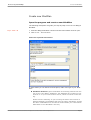
Create and design branches
nodes or perform analysis and assign certain function to nodes, which are
necessary for project management using this method. Use the menus in the
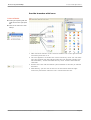
sidebar to work quickly with MindPlan. Next, we will show you the sidebar
functions.
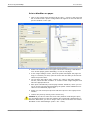
Create additional branches
Create additional branches as follows:
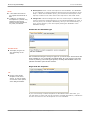
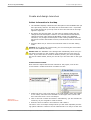
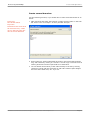
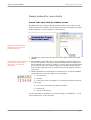
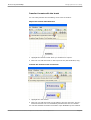
1 Click on the central node again and select »Create new branch« again in
the sidebar. This function always creates a new branch under the branch.
Enter key:
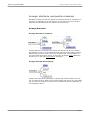
Branches at the same level
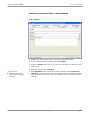
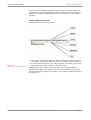
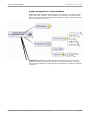
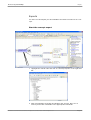
2 It can be done faster with a key: Mark a branch, press Enter on your keypad and thereby create a branch at the same level.
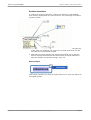
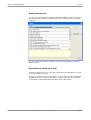
Additional key words in form of branches can now be easily created by
pressing Enter again, enter another key word and repeat this process. You
will use the Enter key always in the future, if you want to create branches at
the same level.
MindPlan User Manual Part 1© Haus Weilgut ▪ November 2008 ▪ www.mindplan.com
Page 11