1
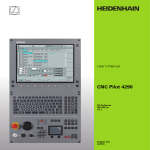
CNC PILOT 4290
NC Software
368 650-xx
V7
User’s Manual
English (en)
10/2004
Machine operating panel
Data input keypad
Manual operating mode
Cycle Start
Automatic mode
Cycle Stop
Programming modes (DIN PLUS, simulation,TURN
PLUS)
Feed Stop
Organization modes (parameter, service, transfer)
Spindle Stop
Display error status
Spindle on – M3/M4 direction
Call the info system
Spindle jog – M3/M4 direction (The
spindle turns until you press the key.
ESC (escape)
■ Go back by one menu level
■ Close dialog box, do not save
Manual direction keys +X/–X
INS (insert)
Manual direction keys +Z/–Z
■ Insert list element
■ Close dialog box, save data
ALT (alter)
■ Change the list element
DEL (delete)
■ Deletes the list element
■ deletes the selected character or the character to
the left of the cursor.
...
Numbers for value input and soft-key
selection
Decimal point
Minus as algebraic sign
Manual direction keys +Y/–Y
Rapid traverse key
Slide change key
Spindle change key
Spindle speed at the programmed value
Increase/decrease spindle speed by 5%
”Continue key” for special functions (e.g. marking)
Override dial for feed rate
Arrow keys
Page forward, page backward
■ Change to previous/next screen page
■ Change to previous/next dialog box
■ Switch between input windows
Enter – Confirmation of input
Touch pad with right and left
mouse key
CNC PILOT 4290, Software and
Functions
This manual describes functions that are available in the CNC PILOT
4290 with NC software number 368 650-xx (Release 7.0). For
programming the Y-axis, please refer to the User's Manual ”CNC
PILOT 4290 with Y-Axis”. It is not described in this manual.
The machine manufacturer adapts the features offered by the control
to the capabilities of the specific lathe by setting machine parameters.
Therefore, some of the functions described in this manual may not be
among the features provided by the CNC PILOT on your machine tool.
Some of the CNC PILOT functions which are not available on every
machine are:
■ Machining with the C axis
■ Machining with theY-axis
■ Full-surface machining
■ Tool monitoring
■ Graphically supported interactive contour definition
■ Automatic or graphically supported interactive DIN PLUS program
generation
Please contact your machine manufacturer for detailed information on
the features that are supported by your machine tool.
Many machine manufacturers and HEIDENHAIN offer programming
courses for the CNC PILOT controls. We recommend these courses
as an effective way of improving your programming skills and sharing
information and ideas with other CNC PILOT users.
HEIDENHAIN also offers the PC software DataPilot 4290, which is
designed for use with the CNC PILOT 4290. The DataPilot is suitable
for both shop-floor programming as well as off-location program
creation and testing. It is also ideal for training purposes. DataPilot
can be run on WINDOWS 95, WINDOWS 98, WINDOWS ME,
WINDOWS NT 4.0 or WINDOWS 2000.
Intended place of operation
The CNC PILOT 4290 complies with EN 55022, Class A, and is
intended primarily for operation in industrially zoned areas.
Contents
Contents
1
2
3
4
5
6
7
8
9
10
11
Introduction and Fundamentals
Basics of operation
Manual Control and Automatic Modes
DIN PLUS
Graphic Simulation
TURN PLUS
Parameter
Operating Resources
Service and Diagnosis
Transfer
Tables and overviews
HEIDENHAIN CNC PILOT 4290
I
Contents
1 Introduction and Fundamentals..... 1
1.1 The CNC PILOT..... 2
1.2 The Operating Modes..... 5
1.3 Expansion Stages (Options)..... 6
1.4 Fundamentals..... 7
1.5 Tool Dimensions..... 10
2 Basics of Operation..... 11
2.1 User Interface..... 12
2.1.1
Screen Displays..... 12
2.1.2
Controls and Displays..... 13
2.1.3
Selection of Operating Modes..... 14
2.1.4
Selection of Functions, Data Input..... 14
2.2 The Info System..... 16
2.3 The Error System..... 17
2.3.1 Direct Error Messages..... 17
2.3.2 Error Display, PLC Display..... 17
2.4 Data Backup..... 19
2.5 Explanation of Terms..... 19
3 Manual Control and Automatic mode..... 21
3.1 Switch-On, Switch-Off, Reference Run..... 22
3.1.1
Switch-On and Traversing the Reference Marks..... 22
3.1.2
Switch-Off..... 23
3.2 Manual Operating Mode..... 24
3.2.1 Entering machine data..... 25
3.2.2 M Commands..... 25
3.2.3 Manual Turning Operations..... 26
3.2.4 Handwheel..... 26
3.2.5 Spindle and Axis Direction Keys..... 27
3.2.6 Slide/Spindle change key..... 27
3.3 Tool Lists, Tool Life Management..... 28
3.3.1 Setting Up a Tool List..... 29
3.3.2 Comparing a Tool List with an NC Program..... 31
3.3.3 Transferring the Tool List from an NC Program..... 32
3.3.4 Tool Life Management..... 33
3.4 Setup Functions..... 34
3.4.1 Defining the Tool Change Position..... 34
3.4.2 Shifting the Workpiece Datum..... 35
3.4.3 Defining the protection zone..... 36
3.4.4 Setting up the Chucking Table..... 37
3.4.5 Setting up Machine Dimensions..... 38
3.4.6 Measuring Tools..... 39
II
Contents
Contents
3.5 Automatic Mode of Operation..... 41
3.5.1 Program Selection..... 41
3.5.2 Defining a Start Block..... 42
3.5.3 Program Sequence Modification..... 43
3.5.4 Compensation..... 44
3.5.5 Tool Life Management..... 45
3.5.6 Inspection Mode..... 46
3.5.7 Block Display..... 48
3.5.8 Graphic Display..... 49
3.5.9 Post-Process Measuring Status Display..... 51
3.6 Machine Display..... 52
3.7 Load Monitoring..... 54
3.7.1
Reference Machining..... 54
3.7.2
Production Using Load Monitoring..... 55
3.7.3
Editing Limit Values..... 56
3.7.4
Analyzing Reference Machining..... 57
3.7.5
Machining Using Load Monitoring..... 57
3.7.6
Load Monitoring Parameters..... 58
4 DIN PLUS..... 59
4.1 DIN Programming..... 60
4.1.1
Introduction..... 60
4.1.2
DIN PLUS Screen..... 61
4.1.3
Linear and Rotary Axes..... 62
4.1.4
Units of Measurement..... 63
4.1.5
Elements of the DIN Program..... 63
4.2 Programming Notes..... 65
4.2.1 Parallel Editing..... 65
4.2.2 Address Parameters..... 65
4.2.3 Contour Programming..... 66
4.2.4 Tool Programming..... 68
4.2.5 Fixed cycles..... 69
4.2.6 NC Subprograms..... 70
4.2.7 Template Control..... 70
4.2.8 NC Program Interpretation..... 70
4.3 The DIN PLUS Editor..... 71
4.3.1
Main Menu..... 72
4.3.2 Geometry Menu..... 75
4.3.3 Machining Menu..... 76
4.3.4 Block Menu..... 77
HEIDENHAIN CNC PILOT 4290
III
Contents
4.4 Program Section Codes..... 79
4.4.1 PROGRAMMKOPF [PROGRAM HEAD]..... 79
4.4.2 TURRET..... 80
4.4.3 CHUCKING EQUIPMENT..... 82
4.4.4 Contour Definition..... 82
4.4.5 BEARBEITUNG [MACHINING]..... 83
4.4.6 UNTERPROGRAMM [SUBPROGRAM]..... 83
4.5 Geometry Commands..... 84
4.5.1 Definition of Blank..... 84
4.5.2 Basic Contour Elements..... 84
4.5.3 Contour Form Elements..... 86
4.5.4 Help Commands for Contour Definition..... 92
4.5.5 Contour Position..... 95
4.5.6 Front and Rear Face Contours..... 96
4.5.7 Lateral Surface Contours..... 102
4.5.8 Circular Pattern with Circular Slots..... 108
4.6 Machining Commands..... 110
4.6.1 Assigning the Contour to the Operation..... 110
4.6.2 Tool Positioning without Machining..... 110
4.6.3 Simple Linear and Circular Movements..... 111
4.6.4 Feed Rate and Spindle Speed..... 113
4.6.5 Cutter Radius Compensation (TRC/MCRC)..... 115
4.6.6 Zero Point Shift..... 116
4.6.7 Oversizes, Safety Clearances..... 118
4.6.8 Tools, Types of Compensation..... 120
4.7 Turning Cycles..... 122
4.7.1
Contour-Based Turning Cycles..... 122
4.7.2
Simple Turning Cycles..... 134
4.8 Thread Cycles..... 140
4.9 Drilling cycles..... 143
4.10 C-Axis Machining..... 148
4.10.1 General C-Axis Functions..... 148
4.10.2 Front/Rear Face Machining..... 149
4.10.3 Lateral Surface Machining..... 150
4.11 Milling Cycle Group..... 152
4.12 Special functions..... 159
4.12.1 Chucking Equipment in Simulation..... 159
4.12.2 Slide Synchronization..... 160
4.12.3 Spindle Synchronization, Workpiece Transfer..... 161
4.12.4 Contour Follow-Up..... 164
4.12.5 In-Process Measuring..... 165
IV
Contents
Contents
4.12.6 Post-Process Measuring..... 166
4.12.7 Load Monitoring..... 167
4.13 Other G Functions..... 168
4.14 Data Input and Data Output..... 173
4.14.1 Input/Output of # Variables..... 173
4.14.2 Input/Output of V Variables..... 174
4.15 Programming Variables..... 175
4.15.1 # Variables..... 175
4.15.2 V Variables..... 177
4.15.3 Program Branches, Program Repeats, Conditional Block Execution..... 179
4.16 Subprograms..... 182
4.17 M Functions..... 183
4.18 Programming Notes and Examples..... 184
4.18.1 Programming Machining Cycles..... 184
4.18.2 Contour Repetitions..... 184
4.18.3 Full-Surface Machining..... 187
5 Graphic Simulation..... 195
5.1 Simulation Mode of Operation..... 196
5.1.1
Graphic Elements, Displays..... 197
5.1.2
Basics of Operation..... 200
5.2 Main Menu..... 201
5.3 Contour Simulation..... 203
5.3.1 Contour-Simulation Functions..... 203
5.3.2 Dimensioning..... 204
5.4 Machining Simulation..... 205
5.5 Motion Simulation..... 207
5.6 Zoom Function..... 208
5.7 3-D View..... 209
5.8 Checking the
5.9 Time Calculation..... 212
5.10 Synchronous Point Analysis..... 213
6 TURN PLUS..... 215
6.1 TURN PLUS Mode of Operation..... 216
6.2 Program Management..... 217
6.2.1 TURN PLUS Files..... 217
6.2.2 Program Head..... 218
6.3 Workpiece Description..... 219
6.3.1 Entering the Contour of a Blank Part..... 219
6.3.2 Input of the Finished Part Contour..... 220
6.3.3 Superimposing form elements..... 221
6.3.4 Integrating a Contour Train..... 222
HEIDENHAIN CNC PILOT 4290
V
Contents
6.3.5 Entering Contours Machined with the C Axis..... 223
6.3.6 Basics of Operation..... 225
6.3.7 Help Functions for Element Definition..... 226
6.4 Contours of Workpiece Blanks..... 228
6.5 Contour of Finished Part..... 229
6.5.1 Basic Contour Elements..... 229
6.5.2 Form elements..... 232
6.5.3 Overlay Elements..... 239
6.6 C-Axis Contours..... 242
6.6.1 Contours on the Front and Rear Face..... 242
6.6.2 Contours of the Lateral Surface..... 249
6.7 Manipulating Contours..... 256
6.7.1
Editing the Contours of a Blank Part..... 256
6.7.2
Trimming..... 256
6.7.3
Change..... 258
6.7.4
Deleting..... 259
6.7.5
Inserting..... 260
6.7.6
Transformations..... 261
6.7.7
Connect..... 262
6.7.8
Resolve..... 262
6.8 Importing DXF Contours..... 263
6.8.1 Fundamentals..... 263
6.8.2 Configuring the DXF Import..... 264
6.8.3 DXF-Import..... 266
6.8.4 Transferring and Organizing DXF Files..... 266
6.9 Assigning attributes..... 267
6.9.1 Attributes for Workpiece Blanks..... 267
6.9.2 Oversize..... 267
6.9.3 Feed rate/peak-to-valley height..... 267
6.9.4 Precision stop..... 268
6.9.5 Separation Points..... 268
6.9.6 Machining Attributes..... 269
6.10 User Aids..... 273
6.10.1 Calculator..... 273
6.10.2 Digitizing..... 274
6.10.3 Inspector – Checking Contour Elements..... 274
6.10.4 Unresolved Contour Elements..... 275
6.10.5 Error Messages..... 276
6.11 Preparing a Machining Process..... 277
6.11.1 Chucking a Workpiece..... 277
6.11.2 Setting Up a Tool List..... 284
VI
Contents
Contents
6.12 Interactive Working Plan Generation (IWG)..... 286
6.12.1 Tool call..... 287
6.12.2 Cutting Data..... 288
6.12.3 Cycle specification..... 288
6.12.4 Roughing..... 289
6.12.5 Recessing..... 294
6.12.6 Drilling..... 299
6.12.7 Finishing..... 301
6.12.8 Thread Machining(G31)..... 306
6.12.9 Milling..... 307
6.12.10 Special Machining Tasks (SM)..... 309
6.13 Automatic Working Plan Generation (AWG)..... 310
6.13.1 Generating a Machining Plan..... 310
6.13.2 Machining Sequence..... 311
6.14 Control Graphics..... 321
6.15 Configuration..... 322
6.16 Machining Information..... 324
6.16.1 Tool Selection, Turret Assignment..... 324
6.16.2 Cutting Parameters..... 325
6.16.3 Coolant..... 325
6.16.4 Hollowing..... 326
6.16.5 Inside Contours..... 326
6.16.6 Drilling..... 328
6.16.7 Full-Surface Machining..... 328
6.16.9 Shaft Machining..... 330
6.17 Example..... 332
7 Parameters..... 337
7.1
Parameter Mode of Operation..... 338
7.1.1
Parameters..... 338
7.1.2
Editing Parameters..... 339
7.2
Machine Parameters..... 341
7.3
Control Parameters..... 348
7.4
Set-Up Parameters..... 355
7.5
Machining Parameters..... 357
HEIDENHAIN CNC PILOT 4290
VII
Contents
8 Operating Resources..... 371
8.1 Tool Database..... 372
8.1.1
Tool Editor..... 372
8.1.2
Tool Types (Overview)..... 375
8.1.3
Tool Parameters..... 377
8.1.4
Multipoint Tools, Tool Life Monitoring..... 384
8.1.5
Explanation of Tool Data..... 385
8.1.6
Tool Holder, Mounting Position..... 387
8.2 Chucking Equipment Database..... 390
8.2.1 Chucking Equipment Editor..... 390
8.2.2 Chucking Equipment Data..... 392
8.3 Technology Database (Cutting Values)..... 399
9 Service and Diagnosis..... 401
9.1 Service Mode of Operation..... 402
9.2 Service Functions..... 402
9.2.1 Access Authorization..... 402
9.2.2 System Service..... 403
9.2.3 Fixed-Word Lists..... 404
9.3 Maintenance System..... 405
9.4 Diagnosis..... 408
10 Transfer..... 411
10.1 The Transfer Mode of Operation..... 412
10.2 Transfer Systems..... 413
10.2.1 General Information..... 413
10.2.2 Configuring for Data Transfer..... 414
10.3 Data Transfer..... 417
10.3.1 Enabling, Data Types..... 417
10.3.2 Transmitting and Receiving Files..... 418
10.4 Parameters and Operating Resources..... 420
10.4.1 Converting Parameters and Operating Resources..... 420
10.4.2 Saving Parameters and Operating Resources..... 422
10.5 File Organization..... 423
11 Tables and overviews..... 425
11.1 Undercut and Thread Parameters..... 426
11.1.1 Undercut DIN 76, Parameters..... 426
11.1.2 Undercut DIN 509 E, Parameters..... 427
11.1.3 Undercut DIN 509 F, Parameters..... 427
11.1.4 Thread Parameters..... 428
11.1.5 Thread Pitch..... 429
11.2 Technical Information..... 433
11.3 Peripheral Interfaces..... 437
VIII
Contents
1
Introduction and Fundamentals
1.1 The CNC PILOT
1.1
The CNC PILOT
The CNC PILOT is a contouring control designed for
lathes and turning centers. In addition to turning
operations, you can perform milling and drilling
operations with the C-axis or the Y-axis. The CNC PILOT supports parallel machining of up to 4
workpieces in programming, testing and production.
Full-surface machining is supported on lathes with:
■ Rotating gripper
■ Movable opposing spindle
■ Multiple spindles, slides and tool carriers
The CNC PILOT controls up to 6 slides, 4 spindles and
2 C axes.
Programming
Depending on the type and complexity of the parts to
be machined and your organization, you can choose
the type of programming best suited to your tasks.
In TURN PLUS you describe the contour of the blank
and finished part with interactive graphics. Then you
call the automatic working plan generation (AWG),
and the NC program will be generated fully
automatically at a keystroke. Alternately, you can
choose the interactive working plan generation (IWG).
When using the IWG, you determine the sequence of
machining and other technical details.
Every working step is shown in the control graphics
and can be corrected immediately. The result of program creation with TURN PLUS is a structured DIN
PLUS program.
TURN PLUS minimizes the number of entries
required, but it requires that the the tool data and
cutting data has already been entered.
If TURN PLUS fails to create the optimal NC program
for technologically sophisticated machining
operations, or if you primarily want to reduce the
machining time, program the NC program in DIN
PLUS.
DIN PLUS supports the separation of the geometric
description from the machining of the workpiece.
Powerful cycles are available for programming in DIN
PLUS. The ”simple geometry programming” function
calculates coordinates if the dimensions used in the
drawing are not suitable for NC programs.
Both TURN PLUS and DIN PLUS support machining with the C-axis or
Y-axis and full-surface machining.
The Graphic Simulation feature enables you to subject your NC
programs to a realistic test. The CNC PILOT displays the machining of
up to 4 workpieces in the working space. Workpiece blanks and
finished parts, chucking equipment and tools are shown to scale.
You can program your NC programs and test them -even during
machining operations- directly on the machine.
Regardless of whether you are machining a simple or complex part,
producing a single part or a series of parts, or a whole batch on a
turning center, the CNC PILOT always gives you optimum support.
Alternately, you can machine your workpiece in DIN
PLUS with linear and circular movements and simple
turning cycles, as you are accustomed to in
conventional DIN programming.
2
1 Introduction and Fundamentals
1.1 The CNC PILOT
The C-axis
With a C-axis you can drill and mill a workpiece on its
front, back and lateral surfaces.
During use of the C-axis, one axis interpolates linearly
or circularly with the spindle in the given working plane, while the third axis interpolates linearly.
The CNC PILOT supports part program creation with
the C-axis in:
■ DIN PLUS
■ TURN PLUS contour definition
■ TURN PLUS working plan generation
TheY-axis
With a Y-axis you can drill and mill a workpiece on its
front, back and lateral surfaces.
During use of the Y-axis, two axes interpolate linearly
or circularly in the given working plane, while the third
axis interpolates linearly. This enables you to machine
slots or pockets, for example, with plane floors and
perpendicular edges. By defining the spindle angle,
you can determine the position of the milling contour
on the workpiece.
The CNC PILOT supports part program creation with
the Y-axis in:
■ DIN PLUS
■ TURN PLUS contour definition
■ TURN PLUS working plan generation
HEIDENHAIN CNC PILOT 4290
3
1.1 The CNC PILOT
Full-surface machining
The CNC PILOT supports full-surface machining for all
common machine designs.The features include anglesynchronous part transfer with rotating spindle,
traversing to a stop, controlled parting, and coordinate
transformation. This ensures efficient full-surface
machining and simple programming.
The CNC PILOT supports full surface machining in:
■ DIN PLUS
■ TURN PLUS contour definition
■ TURN PLUS working plan generation
4
1 Introduction and Fundamentals
The Operating Modes
The functions of the CNC PILOT are grouped into the following
operating modes:
Manual operating mode
In the Manual mode you set up the machine and move the
axes manually.
The actual control is not accessible to the machinist.
You should know, however, that your CNC PILOT has
an integrated hard disk on which all TURN PLUS and
DIN PLUS programs that you enter are stored. This
allows you to save a vast number of programs.
For data exchange and data backup, you can use the
Ethernet interface. Data exchange is also possible
over the serial interface. (RS232).
Automatic mode
The NC programs are run in Automatic mode. You control and
monitor the machining of the workpiece.
DIN PLUS programming mode
In ”DIN PLUS,” you can create structured NC programs. You
first define the geometry of the blank and finished part, and
then program the individual operations.
Simulation programming mode
The Simulation mode shows a graphic representation of
programmed contours, the paths of traverse and cutting
operations.The working space, tools and chucking equipment
are shown true to scale.
During simulation, the CNC PILOT calculates the machining
and idle-machine times for every tool. For lathes with several
slides, the Synchronous point analysis enables you to
optimize your NC program.
TURN PLUS programming mode
In ”TURN PLUS” you describe the contour of the workpiece
using interactive graphics. For Automatic Working plan Generation (AWG), you select the material and chucking equipment.
The CNC PILOT will generate the NC program automatically at
a keystroke. As an alternative, you can create the working
plan with the aid of interactive graphics (IAG).
Parameter organization mode
The system behavior of the CNC PILOT is controlled with
parameters. In this mode, you set the parameters to adapt the
control to your situation.
In addition, in this mode you describe the operating resources
(tools and chucking equipment) and the cutting values.
Service organization mode
In ”Service” mode, you log on for password-protected
functions, select the conversational language and make the
system settings. This operating mode also provides diagnostic
functions for commissioning and checking the system.
Transfer organization mode
In ”Transfer” you exchange the files with other systems,
organize your programs and make data backups.
HEIDENHAIN CNC PILOT 4290
5
1.2 Modes of Operation
1.2
Expansion Stages (Options)
1.3
Expansion Stages (Options)
The machine manufacturer configures the CNC PILOT according to
the capabilities of the specific lathe.The following upgrades (options)
are available, which enable you to adapt the control to your specific
requirements:
■ TURN PLUS
Graphically supported interactive contour definition
■ Graphic description of the workpiece for blank and finished part
■ Geometry-programming function for calculating and displaying
missing contour data
■ Simple input of standard form elements like chamfers, rounding
arcs, recesses, undercuts, threads, fits, etc.
■ Easy-to-use transformations like shifting, rotating, mirroring or
multiplying
DIN PLUS program generation with interactive graphics
■ Selection of the appropriate machining method
■ Selection of the tools and definition of the cutting data
■ Direct graphic control of machining process
■ Immediate compensation possibility
Automatic DIN PLUS program generation
■ Automatic selection of tools
■ Automatic generation of working plan
■ TURN PLUS – extension by C-axis or Y-axis
■ C-axis: representation of programmed contour in the following
views: XC plane (front/rear end) and ZC plane (unrolled surface)
■ Y-axis: representation of programmed contour in the following
views: XY plane (front/rear end) YZ plane (side view)
■ Hole and figure patterns
■ Fixed cycles
■ Interactive or automatic working plan generation – also for
machining with the C-axis or Y-axis
■ TURN PLUS – extension by opposing spindle
■ Rechucking with expert program
■ Interactive or automatic generation of working plan – also for
rechucking and 2nd setup
■ In-process measuring
■ With triggering probe
■ For measuring tools
■ For measuring workpieces
■ Post-process measuring
■ Connection of measuring system via RS-232 interface
■ Evaluation of measuring results in Automatic mode
This operating manual describes all
options.The operating sequences
described in this manual may therefore
deviate from those on your machine
whenever a certain option is not supported
by your system.
Options can usually be retrofitted. Your machine manufacturer can
give you more information on retrofitting.
6
1 Introduction and Fundamentals
1.4 Fundamentals
1.4
Fundamentals
Axis designations
The cross slide is referred to as the X-axis and the saddle as the Zaxis.
All X-axis values that are displayed or entered are regarded as
diameters. In TURN PLUS you can define whether the X-axis values
are to be interpreted as diameters or radii.
Lathes with Y-axis: The Y-axis is perpendicular to the X-axis and Z-axis
(Cartesian system).
When programming paths of traverse, remember to:
■ Program a positive value to depart the workpiece.
■ Program a negative value to approach the workpiece.
Coordinate system
The coordinates entered for the principal axes X, Y and Z are
referenced to the workpiece zero point – exceptions to this rule will be
indicated.
Angles entered for the C-axis are referenced to the ”zero point of the
C-axis” (precondition: the C-axis has been configured as a principal
axis).
Absolute coordinates
If the coordinates of a position are referenced to the workpiece zero
point, they are referred to as absolute coordinates. Each position on a
workpiece is clearly defined by its absolute coordinates.
HEIDENHAIN CNC PILOT 4290
7
1.4 Fundamentals
Incremental coordinates
Incremental coordinates are always referenced to the last
programmed position. They specify the distance from the last active
position and the subsequent position. Each position on a workpiece is
clearly defined by its incremental coordinates.
Polar coordinates
Positions located on the face or lateral surface can either be entered
in Cartesian coordinates or polar coordinates.
When programming with polar coordinates, a position on the
workpiece is clearly defined by the entries for diameter and angle.
You can enter polar coordinates as absolute or incremental values.
Units of measurement
You can program and operate the CNC PILOT either in the metric or
inch system. The units of measurement listed in the table below apply
to all inputs and displays.
Measure
Metric
inch
Coordinates
mm
inch
Lengths
mm
inch
Angles
Degrees
Degrees
Spindle speed
rpm
rpm
Cutting speed
m/min
ft/min
Feed per revolution
mm/rev
inch/rev
Feed per minute
mm/min
inch/min
Acceleration
m/s2
ft/s2
8
1 Introduction and Fundamentals
1.4 Fundamentals
Machine reference points
Machine zero point
The point of intersection of the X-axis with the Z-axis is called the
machine zero point. On a lathe, the machine zero point is usually the
point of intersection of the spindle axis and the spindle surface. The
machine zero point is designated with the letter M.
Workpiece zero point
For machining a workpiece, it is easier to reference all input data to a
zero point located on the workpiece. By programming the zero point
used in the workpiece drawing, you can take the dimensions directly
from the drawing, without further calculation.This point is the
”workpiece zero point.” The workpiece zero point is designated with
the letter W.
Reference marks
Whether the control ”forgets” the positions of the machine axes
when it is switched off depends on the position encoders used. If the
positions are lost, you must pass over the fixed reference points after
switching on the CNC PILOT. The system knows the distances of the
reference points to the machine datum.
HEIDENHAIN CNC PILOT 4290
9
1.5 Tool Dimensions
1.5
Tool Dimensions
The CNC PILOT requires information on the specific tools for a variety
of tasks, such as calculating the cutting radius compensation or the
proportioning of cuts.
Tool length
All position values that are programmed and displayed are referenced
to the distance between the tool tip and workpiece zero point. Since
the control only knows the absolute position of the tool carrier (slide),
it needs the dimensions XE and ZE to calculate and display the
position of the tool tip. For milling and drilling tools operating with theYaxis, the CNC PILOT additionally needs the dimension in Y.
Tool compensation
The tool tip is subjected to wear during machining processes. To
compensate for this wear, the CNC PILOT uses compensation values.
The system automatically adds the compensation values to the
values for length.
Tooth and cutter radius compensation (TRC)
The tip of a lathe tool has a certain radius. When machining tapers,
chamfers and radii, this results in inaccuracies which the CNC PILOT
compensates with its cutting radius compensation function.
Programmed paths of traverse are referenced to the theoretical tool
tip S. The TRC function compensates for this error by calculating a
new path of traverse, the equidistant line.
Milling cutter radius compensation (MRC)
In milling operations, the outside diameter of the milling cutter
determines the contour. When the MRC function is not active, the
system defines the center of the cutter as reference point for the
paths of traverse. The MRC function compensates for this error by
calculating a new path of traverse, the equidistant line.
10
1 Introduction and Fundamentals
2
Basics of Operation
2.1 User Interface
2.1
User Interface
2.1.1 Screen Displays
1
2
1 Operating mode line
Show the status of the operating modes.
■ The active mode of operation is shown with a
dark-gray background.
■ Programming and organization modes:
– The selected mode is shown at the right of the
symbol
– Additional information such as the selected program, submode, etc. are shown below the
operating mode symbol.
2 Menu bar and pull-down menus
For function selection
3 Working window
Size and content depend on the operating mode.
Some programming and organization modes
overlap the machine display.
3
8
4
6
5
7
4 Machine display
Current status of the machine (tool position, the
cycle and spindle situation, active tool, etc.). The
machine display is configurable.
5 Status line
■ Simulation, TURN PLUS: display of current
settings or information on the next operating steps
■ Other operating modes: display of the last error
message
6 Calendar date and service ”traffic light”
■ Display of date and time
■ A color background signals a error or a PLC
message
■ The ”service traffic light” shows the servicing
state of the machine (see ”9.3 Maintenance
system”)
7 Soft-key row
Shows the current meaning of the soft keys.
8 Vertical soft-key row
Shows the current meaning of the soft keys. For
more information: see the machine manual
12
2 Basics of Operation
2.1 User Interface
2.1.2 Controls and Displays
n Screen with
■ Horizontal and vertical soft keys: The meaning is
shown above or next to the soft keys
Additional keys (same function as on the operating
panel):
■ ESC
■ INS
n Operating panel with
■ Alphanumeric keyboard with integrated
numeric keypad
■ Keys for Operating mode selection
■ Touch pad: For cursor positioning (menu or soft
key selection, selection from lists, selecting edit
boxes, etc.)
n Machine operating panel with
■ Operating elements for the manual and
automatic operation of the lathe (cycle keys,
manual direction keys, etc.)
■ Handwheel for exact positioning in manual
operation
■ Override button for feed-rate override
Operation of the touch pad
Normally, you can use the touch pad as an alternative
to the cursor keys. In the following, the keys below
the touch pad are referred to as the left and right
mouse keys.
The functions and operation of the touch pad are
similar to the mouse operation of the Windows
operating systems.
■ Single click of the left mouse key or single touch on
the touch pad:
■ The cursor is positioned in lists or input windows.
■ Menu items, soft keys or buttons are activated
■ Double-click of the left mouse key or double touch
on the touch pad: In lists, the selected element is
activated (the input window is activated)
■ Single-click with the right mouse key:
■ Same function as the ESC key – prerequisite: the
ESC key is allowed in this situation (for example to
go back by one menu level)
■ Same function as the left mouse key when
selection soft keys or buttons
HEIDENHAIN CNC PILOT 4290
13
2.1 User Interface
2.1.3 Selection of Operating Modes
Keys for operating mode selection:
You can switch the operating mode at any time. After the change, the
new mode starts in the function in which it was last exited.
Manual operating mode
In the programming and organization modes a difference is made
between the following situations:
■ No operating mode is selected (no entry next to the operating mode
symbol): Select the desired mode from the menu.
Automatic operating mode
■ Operating mode selected (indicated next to the operating mode
Programming modes
Organization modes
symbol): The functions of this operating mode are available. Within
the programming or organization modes, you can switch the modes
by soft key or by repeatedly pressing the corresponding mode key.
2.1.4 Selection of Functions, Data Input
Menu bar and pull-down menu
The individual menu items are preceded by a 9-field symbol with one
field highlighted.This field represents the field on the numeric keypad.
Press the key whose position corresponds to the position of the
highlighted field.
The function selection begins in the menu row, then goes to the pulldown menus. In the pull-down menu, press again the numeric key
assigned to the menu item – or alternatively, select the menu item
with touch pad or with the ”page up/page down” keys and press
Enter.
Soft-key row
The meaning of the soft keys is dependent on the current operating
situation.
Some soft keys work like ”toggle switches”. A function is active when
the associated field in the function-key row is highlighted in color. The
setting remains in effect until the function is switched off.
List Operations
DIN PLUS programs, tool lists, parameter lists, etc. are displayed as
lists. You can scroll through a list with the touch pad or arrow keys to
check data, to select the position where you wish to enter data, or to
highlight items for operations like deleting, copying, editing, etc.
After having selected the desired list position or a list item, press the
ENTER, INS, ALT or DEL key to execute the operation.
Continued
14
2 Basics of Operation
2.1 User Interface
Data Input
Data are entered and edited in input windows. An
input window consists of several input fields. You
position the cursor with the touch pad or with the
page up/page down keys to the input box.
Once the cursor is located in the box, you can enter
your data. Existing data are overwritten. With the
right/left arrow keys you can place the cursor on a
position within the input box in order to delete or add
characters. The up/down arrow keys or Enter confirm
and terminate the entry.
Some dialogs have more input fields than a window
can show. In these cases, more than one input
window appears on the screen, one superimposed on
the other. You will recognize this through the window
number in the top line.To toggle between input
windows, use the Page Up/Page Dn keys.
By pressing the ”OK” button, you confirm the data
entered or edited. Independent of the position of the
cursor, you can press the INS key as an alternative. If
you leave the input window by pressing the ”Cancel”
button or the ESC key, entries or changes will be lost.
If the dialog consists of more than one input window,
you already confirm the data when pressing the
PageUp/PageDn key.
Buttons
The CNC PILOT allows you to choose various options
via different buttons such as the ”OK” and ”Cancel”
buttons for terminating a dialog box or the buttons
contained in the ”Extended inputs” window.
Select the required button and press ENTER.
Note: Instead of selecting the ”OK” or ”Cancel”
button, you can press the INS or ESC key.
HEIDENHAIN CNC PILOT 4290
15
2.2 The Info System
2.2
The Info System
The info system calls excerpts from the User's Manual to the screen. The system is structured in info
topics comparable to the chapters of a book. In the
top line of the information window, the topic you
selected and the page number are shown.
The info system gives you information on the current
operating situation (context-sensitive help). Also, you
can select the info topics through the table of
contents or the subject index. Simply select the
desired topic or word and click ”Topic select” (or
Enter).
Cross references in the text are highlighted. Place
the cursor on the desired cross reference and call the
topic with ”Topic select.” ”Topic return” switches
back to the previous topic.
Error display
When an error message occurs, press the info key, or
place the cursor on the error message in the ”display
of errors” and then press the info key, to get further
information on the respective error.
Call the info system
End the info system
Soft keys
Calls the
■ Selected cross reference
■ Topic from the table of contents
■ Topic from the subject index
Returns to the most recent info topic
Calls the table of contents with the overview of info
topics. The table of contents is arranged in several
levels.
Calls the subject index
Switches to the previous topic.
Switches to the next topic.
(or page up key) previous info page
(or page down key) next info page
16
2 Basics of Operation
2.3 The Error System
2.3
The Error System
2.3.1 Direct Error Messages
Direct error messages appear whenever immediate
error correction is possible. Confirm the message by
pressing ENTER and correct the error. Example: The
input value of the parameter is out of range.
Information of the error message:
■ Error description: Explains the error
■ Error number: For service inquiries
■ Time of day When the error occurred (for your
information).
Symbols
Warning
The program run/operation continues.The
CNC PILOT indicates the problem.
Error
The program run/operation is stopped.You
must correct the error before you can
continue the current job.
2.3.2 Error Display, PLC Display
Error Display
If during the system start or during program run or
other operation an error occurs, it is indicated in the
date box, displayed in the status line, and saved in
the error display.
The date and time remain highlighted in red until all of
the errors have been canceled.
Notes on using TURN PLUS:
Opens the ”error display”
Further information on the error marked with
the cursor
Exits the error display
Deletes the error message marked with the
cursor
Deletes all error messages.
Continued
HEIDENHAIN CNC PILOT 4290
17
2.3 The Error System
Information of the error message:
■ Error description: Explains the error
■ Error number: For service inquiries
■ Channel number: Slide for which the error
occurred.
■ Time of day When the error occurred (for your
information).
■ Error class (only with errors):
■ Background: The message serves for
information only, or it is a minor error.
■ Cancel: The running process (cycle run, traverse
command, etc.) was aborted. You can resume
operation once the error has been cleared.
■ Emergency stop: Traverse and the execution of
the DIN program were stopped. You can resume
operation once the error has been cleared.
■ Reset: Traverse and the execution of the DIN program were stopped. Switch off the control for a
moment, then restart. Contact your machine
manufacturer if the error occurs again.
System Error, Internal Error
If a system error or internal error occurs, write
down all information on the displayed message and
inform your machine manufacturer. You cannot
correct an internal error. Switch off the control and
restart.
Warnings during Simulation
In the event of problems during simulation of an NC
program, the CNC PILOT displays a warning in the
status line (see ”5.1.2 Notes on Operation”).
PLC display
The PLC window is used for PLC messages and the
PLC diagnosis. Your machine manual provides more
detailed information on the PLC window.
To call the PLC window, open the error window with
the Error status key and then press ”PLC Diagnosis”
soft key.
To exit the PLC status display, press the ESC key; to
switch to the error window, use the ”CNC Diagnosis”
soft key.
Soft keys
Switch to PLC display
Deletes all error messages
Return to error display
18
2 Basics of Operation
2.4 Data Backup; 2.5 Explanation of Terms
2.4
Data Backup
The CNC PILOT stores NC programs, operating-resource data and
parameters on the hard disk. Since the possibility of damage to the
hard disk due to excessive vibration or shock cannot be eliminated,
HEIDENHAIN recommends making regular backup copies of your
programs, operating resource data and parameters on a PC.
You can use DataPilot 4290, the WINDOWS ”Explorer” or other
suitable programs for backing up your data on a PC.
For data exchange and data backup, you can use the Ethernet
interface. Data exchange is also possible over the serial interface
(RS-232) (see ”10.2 Data Transfer Methods”).
2.5
Explanation of Terms
■ Cursor: In lists, or during data input, a list item, an input box or a
character is highlighted. This ”highlight” is called a cursor.
■ Arrow keys: The cursor is moved with the ”page up/page down”
arrow keys or the touch pad.
■ Navigate: You can move the cursor within a list or an input box to
any position you would like to check, change, delete or add to. In
other words, you ”navigate” through the list.
■ Active/inactive functions, menu items: Functions or soft keys
that currently unavailable are shown dimmed.
■ Dialog box: Dialog boxes are also called input windows.
■ Editing: ”Editing” is changing, deleting and adding to parameters,
commands, etc., within programs, tool data or parameters.
■ Default value: If the parameters of DIN commands or other
parameters are preassigned values, these values are referred to as
”default values.”
■ Bytes: The capacity of a storage disk is indicated in ”bytes.” Since
the CNC features a hard disk, the individual program lengths (file
sizes) are expressed in bytes.
■ Extension: File names consist of the actual file name and the ”file
name extension.” The name part and the extension part are
separated by ”.”.The extension indicates the type of file. Examples:
■ ”*.NC” DIN programs
■ ”*.NCS” DIN subprograms
■ ”*.MAS” Machine parameters
HEIDENHAIN CNC PILOT 4290
19
3
Manual Control
and Automatic mode
HEIDENHAIN CNC PILOT 4290
21
3.1 Switch-On, Switch-Off, Reference Run
3.1
Switch-On, Switch-Off,
Reference Run
3.1.1 Switch-On andTraversing the
Reference Marks
In the screen dialog line, the CNC PILOT shows you
step by step how to proceed when starting the
system. The the CNC PILOT asks you to select an
operating mode.
Whether the reference run is necessary depends on
the encoders installed in your machine:
■ EnDat encoder: Reference run is not necessary
■ Distance-coded encoders: The position of the axes
is ascertained after a short reference run
■ Standard encoder: The axes move to familiar,
machine-based points
”Reference automatic” means that all axes make
reference runs. ”Reference jog” only one axis does.
Reference automatic (all axes)
Select ”Ref – Reference automatic.”
<
”Status of reference run approach” informs you of
the current status. Axes that have not been
referenced are shown in gray.
<
Either set the slides that need to find a reference or
set ”All slides” (”reference automatic” dialog box)
<
The axis move to find the reference
Interrupts the reference run. Cycle
start resumes the run.
Cancels the reference run
<
After completion of the reference run:
■ The position display is activated.
■ The automatic mode is selectable.
22
■ The Sequence, in which the axis make their reference
run is defined in machine parameters 203, 253, .. .
■ Exiting the ”Reference automatic” dialog box: Press
Cycle stop
The software limit switches are active only after you
have traversed the reference marks.
Monitoring the EnDat encoders
If your machine is equipped with EnDat encoders, the control saves
the axis positions during switch-off. During switch-on, the CNC PILOT
compares for each axis the position during switch-on with the position
saved during switch-off.
If there is a difference, one of the following messages appears:
■ ”Axis was moved after the machine was switched off.”
Check the current position and confirm it if the axis was in fact
moved.
■ ”Saved encoder position of the axis is invalid”
This message is correct if the control has been switched on for the
first time, or if the encoder or other control components involved
were exchanged.
■ ”Parameters were changed. Saved encoder position of the axis is
invalid.”
This message is correct if configuration parameters were changed.
The cause for one of the messages listed above could be a defect in
the encoder or in the control. Please contact your machine supplier if
the problem recurs.
3 Manual Control and Automatic mode
3.1 Switch-On, Switch-Off, Reference Run
Reference jog (single axis)
Select ”Ref – Reference jog.”
<
”Status of reference run approach” informs you of
the current status. Axes that have not been
referenced are shown in gray.
<
Set slides and axes (”reference jog” dialog box)
<
The reference run is continued as long
as you keep pressing the key. To
interrupt the reference run, release the
key.
Cancels the reference run
<
After completion of the reference run:
■ The position display is active for the axis that has
been referenced.
■ If all axes have been referenced, you can select
automatic mode.
Exiting the ”Reference jog” dialog box: Press cycle stop
The software limit switches are only active after you
have traversed the reference marks.
3.1.2 Switch-Off
Switching off the CNC PILOT. Confirm
the subsequent request with OK.The
control is shut down in an orderly
manner. After a few seconds, CNC
PILOT requests you to switch off the
machine.
”Shutdown” is available in the programming and
organization modes if no operating mode is selected.
Proper switch-off is recorded in the error log file.
HEIDENHAIN CNC PILOT 4290
23
3.2 Manual Control Operating Mode
3.2
Manual Operating Mode
The Manual control mode offers various functions for
setting up the machine, for measuring tool dimensions
and for manually machining workpieces.
The machine display in the lower section of the
screen shows the tool position and further machine
data.
Options of operation:
■ Manual mode of operation
With the ”machine keys” and the handwheel, you
can control the spindle and move the axes to
machine the workpiece.
■ Setting up the machine
Functions for entering the tools being used, setting
the workpiece zero point, the tool change position,
the protective-zone dimensions, etc.
■ Measuring tool dimensions
Functions for measuring the tool by touching the
workpiece or by use of measuring devices.
■ Configuring the screen display
The CNC PILOT supports various types of machine
display.
In Automatic mode, the data are entered
and displayed in 1 millimeters or in
inches, depending on the setting of the
control parameter 1.
Soft keys
■ Assigns a handwheel to an axis
■ Defines the handwheel interpolation factor
Switches the machine display
Turret one position backward
Remember: If the machine has not been
referenced:
■ The position display is not valid
■ The software limit switches are
nonoperational.
24
Turret one position forward
3 Manual Control and Automatic mode
3.2 Manual Control Operating Mode
3.2.1 Entering machine data
”F” (feed rate) pull-down menu:
■ Feed per revolution
Select ”Feed per revolut.”
Enter the feed rate in mm/rev (or inches/rev)
■ Feed per minute
Select ”Feed per minute.”
Enter the feed rate in mm/min (or inches/min) and
press OK.
”S” (spindle speed) pull-down menu:
■ Spindle speed
Select ”Speed S.”
Enter the speed in rpm
■ Constant cutting speed
Select ”V constant.”
Enter the cutting speed in m/min (or ft/min) and
press OK.
■ Spindle point stop
To switch to the required spindle, press the
Spindle change key.
Select ”Spindle point stop.”
Enter position
Cycle start: The spindle is positioned
Cycle stop: Exit the dialog box
Menu item ”T” (Tool):
Select ”T”
Enter the turret position
You can enter a constant cutting speed only for slides with
an X axis.
Tool change functions:
■ Moving the tool into position
■ Offsetting ”new” tool dimensions
■ Showing the ”new” actual values in the position display.
3.2.2 M Commands
”M” (M functions) pull-down menu:
■ The M number is known: Select ”M direct” and
enter the number.
■ M menu: To select the M function, use the menu.
After input/selection of the M function:
Cycle start: The M function is executed
Cycle stop: Exit the dialog box
The content of the M menu depends on
the machine. Yours may differ from the
example shown here.
HEIDENHAIN CNC PILOT 4290
25
3.2 Manual Control Operating Mode
3.2.3 ManualTurning Operations
”Manual” pull-down menu:
n Simple longitudinal and transverse turning
operations
Select ”Constant feed.”
Select the direction of feed (”Constant feed”
dialog box).
Control the feed rate with the cycle keys.
With constant speed, a feed rate per revolution must be
defined.
n G functions
Select ”G function.”
Enter the G number and the function parameter;
press OK.
The G function is executed.
The following G functions are permitted:
■ G30 – Rear-face machining
■ G710 – Adding tool dimensions
■ G720 – Spindle synchronization
■ G602..G699 – PLC functions
n Manual NC programs
Depending on the configuration of a lathe, the
machine manufacturer can includes NC programs
supporting the machinist in manually operating the
lathe (Example: Switching to rear-face machining).
Refer to the machine manual.
3.2.4 Handwheel
Assign the handwheel to one of the
principle axes or the C axis, and enter
the feed rate or angle of rotation per
handwheel increment (”Handwheel
axes” dialog box).
The handwheel assignment and speed ratio are
shown in the machine display (the axis letter and the
decimal place of the handwheel traverse ratio are
marked).
The cancel the handwheel assignment, press the
”Handwheel” soft key with opened dialog box.
The handwheel assignment is canceled by:
■ Switching to another slide.
■ Changing the operating mode.
■ Pressing an axis direction key.
■ Selecting the handwheel assignment again.
26
3 Manual Control and Automatic mode
The keys of the machine operating panel are used for
machining a workpiece manually and for special
functions such as positioning or determining
compensation values (actual position capture,
scratching, etc.).
To activate tools, define the spindle speed and feed
rate, etc., use the menus.
3.2 Manual Control Operating Mode
3.2.5 Spindle and Axis Direction Keys
Spindle keys
Switch the spindle on in M3/M4 direction.
Jog the spindle in M3/M4 direction.The spindle
rotates as long as the key is held. Jog speed:
machine parameters 805, 855, ...
Spindle stop
To move the slide diagonally, press the X
and Z-axis direction keys simultaneously.
Axis direction keys (jog keys)
Move slide in X direction.
Move slide in Z direction.
Move slide in Y direction.
To move the slide in rapid traverse: Simultaneously
press the rapid traverse key and the axis direction
key. Rapid traverse velocity: Machine parameters
204, 254, ...
3.2.6 Slide/Spindle change key
■ On lathes with more than one slide, the axis
direction keys control the selected slide.
■Selection of the slide: Slide change key
■ Display of the selected slide: Machine display
■ On lathes with more than one spindle, the spindle
keys on the selected spindle.
■ Select the spindle: Spindle change key
■ Display of the selected spindle: Machine display.
Slide/Spindle change key
Switch over to the next slide
Switch over to the next spindle
■ For setup functions referring to one slide or spindle
(workpiece zero point, tool change point, etc.), you
specify the slide/spindle with the slide/spindle
change key.
■ The machine display usually contains display
elements for spindle and slide.To switch between
these elements, use the Slide/Spindle change key
(see 3.6 ”Machine Display”).
HEIDENHAIN CNC PILOT 4290
27
3.3 Tool Lists, Tool Life Management
3.3
Tool Lists, Tool Life
Management
The tool list (turret table) indicates the current tool
carrier assignment. To compile a tool list, enter the ID
numbers of the tools.
You can use the entries in the TURRET section of the
NC program to set up the tool list. The ”Compare list”
and ”Accept list” functions refer to the NC program
last interpreted in automatic mode.
Tool life data
Apart from ID numbers and tool type descriptions, the
tool list includes data for tool life management:
■ Status
Shows the remaining tool life/quantity.
■ Ready for use
When the tool life has expired/the defined number
of parts has been produced, the tool is ”not ready
for use” any longer.
■ Atw (replacement tool)
If a tool is ”not ready for use,” a replacement tool is
inserted.
Simple tools
With the setup functions, you can only enter tools
registered in the database. If the NC program uses
”simple tools,” proceed as follows:: Run an
interpretation of the NC program; the CNC PILOT
automatically updates the tool list.h
If the positions in the tool list are occupied by ”old”
tools, the confirmation request - ”Update tool list?”
- appears. The tools are only entered after you have
confirmed the request.
Tools that are not registered in the database are
identified by the code ”_AUTO_xx” (xx: T number),
and not by an ID number.
28
■ The parameters of simple tools are defined in the NC
program
■ The tool life data are evaluation only if the tool life
management is active.
Danger of collision
■ Compare the tool list with the current tool carrier
assignment and check the tool data before running a
program.
■ The tool list and the dimensions of the tools entered
must correspond to the actual facts, because the CNC
PILOT uses the data for slide movements, protective-zone
monitoring, etc.
3 Manual Control and Automatic mode
3.3 Tool Lists, Tool Life Data
3.3.1 Setting Up a Tool List
A tool list can also be set up without using an NC
program.
Enter a new tool
Select ”Setting up -Tool list - Compile list”
<
Select the tool location
<
ENTER (or INS key) – opens the setup dialog box
<
Enter the ID number
Take the tool from the database
Enter the tool type – the CNC PILOT
displays all tools of this type mask
Soft keys
Enter the ID number – the CNC PILOT
displays all the tools of this ID mask
<
Select the tool
Delete tool
Take the tool from the ”ID number clipboard”
<
Take the tool from the database
Delete the tool and place in the ”ID number clipboard”
Exit the tool database
Edit the tool parameters
<
Entries in the tool database - sorted by tool typep
Delete the tool
Select ”Setting up -Tool list - Compile list”
Entries in the tool database - sorted by tool ID number
<
Select the tool location
<
or the DEL key deletes the tool
Continued
HEIDENHAIN CNC PILOT 4290
29
3.3 Tool Lists, Tool Life Data
Changing the tool pocket
Select ”Setting up - Tool list - Compile list”
<
Select tool location
<
Deletes the tool and saves it in the ”ID
number clipboard”
<
Select a new tool location
<
Take the tool from the ”ID number
clipboard”
If the location was occupied, the
previous tool is taken into the
clipboard.
30
3 Manual Control and Automatic mode
3.3 Tool Lists, Tool Life Data
3.3.2 Comparing a Tool List with an NC
Program
The CNC PILOT compares the current tool list with
the entries in the NC program last translated in
automatic mode.
Comparing a tool list
Select ”Setting up - Tool list - Compare list” The
CNC PILOT shows the current contents of the tool
list and marks deviations from the programmed
tool list.
<
Select marked tool location
<
Nominal-actual comparison
Press ENTER (or INS key). The CNC PILOT opens
the ”nominal-actual comparison” dialog box.
<
Accept the ID number of the ”nominal
tool” in the tool list
or
Soft keys
Delete the tool
Look for the tool in the database
Take the tool from the ”ID number clipboard”
Delete the tool and place in the ”ID number clipboard”
The CNC PILOT shows the following tools marked:
■ Actual tool ≠ nominal tool
■ Actual – not occupied; nominal – occupied
Edit the tool parameters
The entries in the TURRET section are considered
nominal tools (reference:TURRET section of the NC
program most recently interpreted in Automatic
mode).
Entries in the tool database - sorted by tool typep
Tool locations that are not assigned in the NC
program cannot be selected.
Entries in the tool database - sorted by tool ID numberr
Danger of collision
■ Tool pockets that are occupied but,
according to the NC program, are not
needed, are not marked.
■ The CNC PILOT compensates the tool
actually entered – even if it does not
match the nominal assignment.
HEIDENHAIN CNC PILOT 4290
Accept the ID number of the ”nominal tool” in the tool
list
31
3.3 Tool Lists, Tool Life Data
3.3.3 Transferring theTool List from an
NC Program
The CNC PILOT transfers the new tool assignment
from the TURRET section (reference: the NC program
last interpreted in Automatic mode).
Transferring the tool list
Select ”Setting up - Tool list - Accept list”
Depending on the previous turret assignment, the
following might occur:
■ Tool not used
The CNC PILOT enters the new tools in the tool list.
Positions that were occupied in the old tool list, but
are not used in the new list, are retained. If a tool
shall remain in the tool carrier, no further action is
required; if not, delete the tool:
■ Actual tool location differs from location in tool
list
A tool is not entered when its newly assigned
location differs from the location specified in the
tool list. The CNC PILOT displays a message
indicating this error. Change the tool location.
As long as a tool position differs from the nominal
assignment it remains highlighted.
Danger of collision
■ Tool locations that are occupied but,
according to the NC program, are not
needed, are kept.
■ The CNC PILOT compensates the tool
actually entered – even if it does not
match the nominal assignment.
Soft keys
Delete the tool
Take the tool from the ”ID number clipboard”
Delete the tool and place in the ”ID number clipboard”
Edit the tool parameters
Entries in the tool database - sorted by tool typep
Entries in the tool database - sorted by tool ID number
32
3 Manual Control and Automatic mode
3.3 Tool Lists, Tool Life Data
3.3.4 Tool Life Management
The tool life management allows you to define the
sequence of exchange and declare the tool to be
ready for use. The tool life/quantity is defined in the
tool database (see section ”8.1.7 MultipleTools,Tool
Life Monitoring”).
The ”Tool life management” dialog box is used both
for entering and displaying the tool life data.
You can use the variable-programming function in
your NC program to evaluate sequential events that
you enter in ”Event 1” and ”Event 2” (see section
”4.15.2 V Variables”).
Tool life management parameters
■ Repl. tool (replacement tool): T number (turret
position) of the replacement tool
■ Event 1: Sequential event that is triggered when
the life of a tool has expired/a tool has produced the
defined quantity – Event 21..59
■ Event 2: Sequential event that is triggered when
the life of the last tool of the interchange chain has
expired/the tool has produced the defined quantity –
Event 21..59
■ Ready for use: Set the tool to ”ready for use” or
”not ready for use” (applies to tool life management
only).
Entering the tool life parameters
Select ”Setting up – Tool list – Tool life
management”; the CNC PILOT displays the tools
entered.
Update tool life management data
Select ”Setting up - Tool list – Update tool life management.”
<
Confirm the confirmation request with OK; the CNC PILOT sets the
tool life/quantity to the value defined in the database and sets all
tools in the tool list to ready for use.
<
The CNC PILOT displays the ”Tool list - tool life management” for
inspection.
<
Select the tool location.
<
Press ENTER – the CNC PILOT opens the ”Tool life
management” dialog box.
Application example: The cutting edges of all tools used have been
replaced. Part production is to be continued, using the tool life
management function.
<
Enter the replacement tool and the tool life
parameters; press OK.
”New cutter” sets the tool life/quantity to the value
programmed in the database and sets the tool to
ready for use.
HEIDENHAIN CNC PILOT 4290
33
3.4 Setup Functions
3.4
Setup Functions
3.4.1 Defining theTool Change Position
With the ISO command G14, the machine slide
moves to the tool change point. Always program
the tool change point as far from the workpiece as
possible to allow the turret to rotate to any position.
Defining the tool change position
For more than one slide: Define the desired slide
(with the Slide change key)
<
Select ”Setting up – Tool change point.”
<
The CNC PILOT displays the currently valid position
in the ”Set tool change point” dialog box.
<
Entering the tool change point
Enter a new position
Capture tool change point
Move slide to the tool change position
Confirms the slide position as tool
change point
Soft keys
■ Assigns a handwheel to an axis
■ Defines the handwheel interpolation factor
Switch the machine display
or
Confirms the position of individual axes
Enter the feed per revolution
Enter the constant surface speed
The tool change point is managed in the setup
parameters (Select: „Act. Para – Setting up (menu) –
Tool change point – ..“).
The coordinates of the tool change position
are entered and displayed as distance
between machine datum and tool carrier
datum. Since these values are not shown
in the position display, it is advisable to
move to the tool change point and
”capture” the position.
34
Enter the M function
Accept the axis position as tool change point(or Y or Z
axis)
Accept the slide position as tool change point
3 Manual Control and Automatic mode
3.4 Setup Functions
3.4.2 Shifting theWorkpiece Datum
Shifting the Workpiece Datum
For more than one slide: Define the desired slide
(with the Slide change key)
<
Position the tool
<
Select ”Setting up - Shift zero point.”
<
The ”Shift zero point” dialog box displays the
current workpiece zero point.
<
Enter the workpiece zero point
Enter a ”zero point shift”
Contact position = tool zero point
Touch the end face with the tool
Accept the tool contact position as
workpiece zero point
Workpiece zero point relative to the contact
position
Soft keys
■ Assigns a handwheel to an axis
■ Defines the handwheel interpolation factor
Switches the machine display
Touch the end face with the tool
Accept the tool contact position
Enter the measured value (distance
of the tool contact position from the
workpiece zero point)
The tool zero point is managed in the setup
parameters (Select: „Act. Para – Setting up (menu) –
Tool zero point – ..“).
■ The ”displacement” is with respect to
the machine zero point.
■ You can also offset the workpiece zero
point for the X and Y axes.
HEIDENHAIN CNC PILOT 4290
Enter the feed per revolution
Enter the constant surface speed
Enter the M function
Define the Z position as tool zero point (or X or Y
position)
Specify the tool zero point relative to the current Z
position (or X orY position)
35
3.4 Setup Functions
3.4.3 Defining the protection zone
Defining the protection zone
Insert any tool (T0 is not permitted).
<
Select ”Setting up - Selection zones”
<
Enter the protection zone parameters
Enter the limit values.
Capturing the protection zone parameters per
axis
For each input box:
Select the input field
Position the tool to the protection zone limit
Accept the axis position as protection
zone parameter
Soft keys
Capturing positive/negative protection zone
parameters
Select any positive or negative input field
Position the tool to the protection zone limit
■ Assigns a handwheel to an axis
■ Defines the handwheel interpolation factor
Switch the machine display
Accept all positive/negative axis
positions
Enter the feed per revolution
The parameters serve for protection zone
monitoring - not as software limit switches.
Protection zone parameters:
■ are expressed with respect to the
machine zero point
■ are managed in the machine parameters
1116, 1156, ..
■ X value are radius dimensions
■ 99999/–99999 means: no monitoring of
this side of the protection zone
36
Enter the constant surface speed
Enter the M function
Accept the X position as ”protection zone –X”
parameter (or +X, –Y, +Y, –Z, +Z position)
Accept the axis positions as positive/negative
protection zone parameter
3 Manual Control and Automatic mode
3.4 Setup Functions
3.4.4 Setting up the ChuckingTable
The chucking table is evaluated by the concurrent
graphics.
Setting up the chucking table
Select ”Setting up – Chucking table – Main spindle
(or Tailstock)
<
Select the ID number from the chucking database
Chucking equipment for spindles
The definition of the clamping form (”Grip. form”)
presupposes the definition of the chuck jaws. Set the
clamp form by soft key – it is graphically illustrated.
To switch to the chucking assignment of further
spindles, press the Page Up/Page Dn keys.
Parameters for ”spindle x” (main spindle, spindle 1, ..)
■ Chucking ID (identification number): Reference to
database.
■ Chuck jaws ID (identification number): Reference to
database.
■ Chuck supplement ID (identification number):
Reference to database.
■ Clamp form (for chuck jaws): Define internal/
external chucking and the level of chuck jaws used
■ Clamping diameter:The diameter at which the
workpiece is clamped. (Workpiece diameter when
clamped externally; inside diameter when internal
clamping is used)
”Tailstock” parameters
■ Sleeve center ID (identification number): Reference
to database.
HEIDENHAIN CNC PILOT 4290
Soft keys
Edit the chucking equipment parameters
Entries in the chucking database – sorted by chuck type
Entries in the chucking database – sorted by chuck ID
number
”Continue” – Define the clamp form
37
3.4 Setup Functions
3.4.5 Setting up Machine Dimensions
You can evaluate machine dimensions in the variable
programming of the NC program.
The ”Set machine dimensions” function accounts for
the dimensions 1..9 and the ”configured axes” for
each dimension.
Setting up machine dimensions
Select ”Setting up - Machine dimensions.”
<
Enter the machine dimension number
<
Enter the machine dimensions
Enter the values (”Set machine dimension x” dialog
box).
Capturing a single machine dimension
Select the input field
Move the axis to the desired position
Confirm the axis position as machine
dimension (orY or Z position)
Capturing all machine dimensions
Move the slides to the desired positions
Confirm the axis positions of the slides
as machine dimensions
<
OK – enter the next machine dimension
Cancel – Exit the machine dimension setup
Soft keys
■ Assigns a handwheel to an axis
■ Defines the handwheel interpolation factor
Switch the machine display
Enter the feed per revolution
Enter the constant surface speed
Enter the M function
Machine dimensions are managed in machine
parameter 7.
Machine dimensions are given with
respect to the machine zero point.
Accept the axis position as machine dimension X (or Y or
Z axis)
Accept the axis positions of the slides as machine
dimensions
38
3 Manual Control and Automatic mode
3.4 Setup Functions
3.4.6 MeasuringTools
Define the type of tool measurement in machine
parameter 6:
■ 0: Contact with tool
■ 1: Measure with touch probe
■ 2: Measure with measuring optics
MeasuringTools
Position the tool
<
Select ”Setting up - Tool setup – Tool measuring.”
The ”Tool measuring T...” dialog box indicates the
current tool dimensions.
<
Enter the machine dimensions
Enter the dimensions
Find the tool dimensions by touching the
workpiece with the tool
Select the input field ”X”
Touch off the diameter, retract in Z direction
Confirm the diameter as measured
value
Select the Z input field
Touch the face with the tool, then retract in the X
direction
Confirm the Z position of the tool as the
measured value
Measuring tools with the touch probe
for each input field:
Select the X/Z input field
Move the tool tip in X/Z direction to the probe; the
CNC PILOT saves the X/Z dimension
Retract the tool – retract the touch probe
Measuring the tools with measuring optics
For each input field
Select the X/Z input field
Align the tool point in the X/Z direction with the
cross hairs
Accept the value
Soft keys
■ Assign a handwheel to an axis
■ Define the handwheel interpolation factor
Switch the machine display
Enter the feed per revolution
Enter the constant surface speed
Enter the M function
Accept the X position as measured value X (or Y or Z
position)
■ The entries in the ”Enter measured value” dialog box are
given with respect to the workpiece zero point.
■ The compensation values of the tool are deleted.
■ The measured tool dimensions are entered in the
database.
Continued
HEIDENHAIN CNC PILOT 4290
39
3.4 Setup Functions
Determining tool-compensation values
Move the tool into position
<
Select ”Setting up - Tool setup – Tool compensation”
<
Assign the handwheel to the X axis – move the tool
by the compensation value
<
Assign the handwheel to the Z axis – move the tool
by the compensation value
<
The CNC PILOT loads the
compensation values
Soft keys
■ Assign a handwheel to an axis
■ Define the handwheel interpolation factor
Switch the machine display
Enter the feed per revolution
Enter the constant surface speed
Enter the M function
Accept the tool compensation values
40
3 Manual Control and Automatic mode
3.5 Automatic Mode of Operation
3.5
Automatic Mode of
Operation
In Automatic mode, the data are entered
and displayed in 1 millimeters or in
inches, depending on the setting of the
control parameter 1. The setting in the
”program head” of the NC program
governs the execution of the NC part
program - it has no influence on operation
or display.
3.5.1 Program Selection
The CNC PILOT interprets the NC program before it
can be activated with Cycle Start. ”#-Variables” are
entered during the translation process. A ”restart”
prevents a new translation, while a ”new start”
forces a new translation.
Program selection
Select ”Prog – Program selection”
Select the NC program
The NC program is loaded without previous
translation, if:
■ No changes were made in the program or the tool
list.
■ The lathe was not switched off since the program
was last selected.
Restart
Select ”Prog – Restart”
The last active NC program is loaded without
without previous translation, if:
■ No changes were made in the program or the tool
list.
■ The lathe was not switched off since the program
was last selected.
New start
Select ”Prog – New start”
The NC program is loaded and translated. (Use for
starting an NC program containing # variables.)
From DIN PLUS
Select ”Prog – From DIN PLUS”
The NC program selected in DIN PLUS is loaded
and translated.
■ If the ”turret table” of the NC program is
Soft keys
Switch to ”graphic display”
Switch the machine display
Define block display for more channels
Display basic blocks (individual paths of traverse)
Suppress/permit variable output
Set single block mode
Program stop at M01 (optional stop)
Run a start-block search
not the currently valid one, there is a
warning.
■ The name of the NC program is retained
until you select another program – even if
the lathe was switched off in the
meantime.
HEIDENHAIN CNC PILOT 4290
41
3.5 Automatic Mode of Operation
3.5.2 Defining a Start Block
Defining a Start Block
Activating a start block search
<
Position the cursor on the start block. (The soft
keys support your search.)
<
The CNC PILOT switches back into
automatic mode and jumps to the start
block.
<
Start the NC program with the selected
NC block.
Exit the start block search without default
start block.
■ Select a suitable start block. If program
run is started by a specific start block, the
CNC PILOT automatically provides all the
programmed and essential data for this
NC program (excluding interchange of the
correct tool and paths of traverse).
■ On machines with more than on slide,
select a suitable start block on all slides
before you press the Accept soft key.
Danger of collision
■ If the start block includes a T command,
the CNC PILOT first rotates the turret.
■ The first traversing instruction is
executed from the current tool position.
Soft keys
Switch the machine display
Define block display for more channels
Display basic blocks (individual paths of traverse)
Preset the T number – the cursor is positioned with this
T number on the next T command
Preset the T number – the cursor is positioned to the
block number
Preset the L number – the cursor is positioned with this
L number to the next subprogram call
Run a start-block search
42
3 Manual Control and Automatic mode
Status of skip levels
Skip levels:
■ The program blocks which are marked as active
skip levels are not executed when the program is
being carried out.
■ Skip levels: 0..9
■ For multiple skip levels, enter a sequence of digits
■ Deactivate the skip level: No entries in ”Level No.”
Operation:
Select menu item ”Process - Skip level”
Enter the level number
Display field:
3.5 Automatic Mode of Operation
3.5.3 Program Sequence Modification
Markings:
■ Upper row: entered skip levels
■ Lower row: the skip levels detected by the ”block execution”
(active skip levels)
The CNC PILOT accounts for activated/deactivated skip
levels after approx. 10 blocks (reason: block scan during
the execution of NC blocks).
Quantity
■ Counting range: 0..9999
■ Quantity = 0: Production without quantity limitation;
the counter is increased by one after each program
run.
■ Quantity > 0: The CNC PILOT produces the defined
quantity; the counter is reduced by one after each
program run.
■ Quantity counting is retained even if the machine
has been switched off in the meantime.
■ When an NC program is activated with ”Program
selection,” the CNC PILOT resets the quantity
counter.
■ When a program has completed a production lot,
the NC program cannot be restarted by the Cycle
Start key. To start the NC program again, press
”Re-start.”
Operation:
Select menu item ”Process – Quantity”
Enter the quantity
V variables
■ The ”V variables” dialog box serves for input and
display of variables.
■ V variables are defined at the beginning of the NC
program. The meaning is specified in the NC
program.
Operation:
Select the menu item ”Process – V variables” –
the CNC PILOT shows the variables defined in the
NC program
Press ”Edit” if you wish to change the variables
Continued
HEIDENHAIN CNC PILOT 4290
43
3.5 Automatic Mode of Operation
Single-block mode
Only one NC command (basic block) is
executed at a time. The CNC PILOT
then goes into the ”cycle stop”
condition.The subsequent blocks are
started with Cycle Start.
Status of optional stop
Optional stop off
Optional stop on
Optional STOP
The CNC PILOT stops at the M01
command and goes into the cycle stop
condition. Cycle start resumes the
program run.
Feed rate override F% (0% .. 150%)
Feed rate override is controlled manually with a knob
on the on the machine operating panel.The machine
display shows the current feed rate override.
Spindle speed override S% (50% .. 150%)
The spindle speed override or the reset to the
programmed speed is controlled with the keys of the
machine operating panel. The machine display shows
the current spindle speed override.
Keys for spindle speed override
Rotational speed to 100% (of the programmed value)
Increase speed by 5%
Reduce speed by 5%
3.5.4 Compensation
■ Tool compensation
Select ”Comp -Tool compensation”
The CNC PILOT enters the T number and current
compensation values of the active tool. You can
enter a differentT number.
Enter the compensation values
Values entered here are added to the existing
compensation values.
Tool compensation:
■ Become effective when the next
traverse starts.
■ Are transferred to the database.
■ Values of max. 1 mm can be entered.
44
3 Manual Control and Automatic mode
3.5 Automatic Mode of Operation
■ Additive compensation
Select ”Comp - Additive cormpensation.”
Enter the compensation number (901 to 916); the
CNC PILOT displays the current compensation
values.
Enter the compensation values
Values entered here are added to the existing
compensation values.
Additive compensation:
■ are activated with G149 ..
■ are managed in setup parameter 10
■ can be changed by no more than 1 mm
3.5.5 Tool Life Management
Select ”Comp -Tool life management.”
This tool list with the current tool life data is
displayed
Select the tool
ENTER opens the ”Tool life management” dialog
box
■ Set to ”ready for use” - or
■ update the tool life data with a ”new cutter.”
HEIDENHAIN CNC PILOT 4290
45
3.5 Automatic Mode of Operation
3.5.6 Inspection Mode
This function interrupts the program sequence,
checks and corrects the ”active tool,” inserts a new
cutting edge and continues the NC program from the
point of interruption.
The inspection cycle is executed as follows::
Interrupt the program sequence and retract the
tool.Check the tool, and replace the cutting edge if
necessary.n Return the tool.
■ Cutting edge OK: Continue the automatic
program run.
■ New cutting edge: Define the compensation
values by ”scratching,” and continue the automatic
program run.
When the tool is retracted, the CNC PILOT stores the
first five traverse movements. Each change in
direction corresponds to a path of traverse.
The NC program run can be continued before the
point of interruption. Specify the distance to the
interruption point. If the value is greater than the
distance between the start of the NC block and the
interruption point, program sequence begins at the
start of the interrupted NC block.
Inspection mode
Interrupt the program run
<
Select ”Insp(ection)”
■ During the inspection process you can
turn the turret, press the spindle keys, etc.
■ If the turret was turned, the return
motion program inserts the ”correct” tool.
■ When changing the cutting edge, select
the compensation values so that the tool
stops in front of the workpiece.
■ In the cycle stop condition you can
interrupt the inspection cycle with ESC and
switch to ”Manual control.”
<
To retract the tool, use the axis-direction keys.
<
If necessary, swivel the turret.
<
Inspect the tool; if necessary, replace it.
<
Conclude the inspection process - the CNC PILOT loads
the return motion program (”_SERVICE”).
<
The ”Tool compensation” dialog box appears. Enter the
compensation values, and confirm with OK.
If you are using a new cutting edge, modify the tool compensation
so that the tool - when returning - comes to a stop in front of the
workpiece.
<
If necessary, activate the spindle.
<
Starts the return motion program.
<
Continued
46
3 Manual Control and Automatic mode
3.5 Automatic Mode of Operation
Inspection mode – continued
The ”Scrambled takeoff on restart?” dialog box
appears; Enter Yes/No, and press OK.
<
Scrambled takeoff – Yes:
The ”Start from interruption point (IP) / before
interruption point” dialog box appears.
■ From UP: No further dialog box.
■ Before UP: Specify the distance from the point of
interruption to the starting point of the tool (Dialog
”Distance from interruption point”).
The return motion program positions the tool on/
before the interruption point and continues the
program without stopping.
The inspection cycle has been completed.
Scrambled takeoff – NO:
The ”Start from interruption point (IP) / before
interruption point” dialog box appears.
■ From UP: No further dialog box.
■ Before UP: Specify the distance from the point of
interruption to the starting point of the tool (Dialog
”Distance from interruption point”).
The return motion program positions the tool on/
before the interruption point and stops.
Application example: Cutting edge has been
replaced.
<
Select ”Insp(ection)” again.
<
The ”Scratch with tool” dialog box opens (for
information)
<
Assign the handwheel to the X/Z axis and
”scratch” the workpiece.
<
Press ”Accept value” to save the compensation
values defined per handwheel.
<
The program run continues
HEIDENHAIN CNC PILOT 4290
47
3.5 Automatic Mode of Operation
3.5.7 Block Display
Block display – basic block display
The block display lists the NC blocks according to
the programmed sequence.The basic-block display
shows the individual paths of traverse – the cycles
are ”resolved.” The numbering of the basic blocks is
independent of the programmed block numbers.
In the block display and basic-block display, the cursor
is located on the block being executed.
Channel display
For lathes with several slides (channels), you can
activate block display for up to 3 channels.
Basic block on/off
Switching the channel display
To add a channel, press the soft key
again; in the block display, only channel
1 is shown.
Variable output
Pressing the soft key enables the
variable soft key output (with PRINTA).
Otherwise the variable output is
suppressed.
Menu item ”display - ...”
■ Font size: Enlarges/reduces the characters in the
block display
■ Load monitoring – see ”3.7.2 Production under
Load Monitoring”
48
3 Manual Control and Automatic mode
3.5 Automatic Mode of Operation
3.5.8 Graphic Display
The ”Automatic graphics” function displays the
programmed blank and finished part and the paths of
traverse. This enables process control of non-visible
areas during production and provides an oversight of
production status, etc.
All machining operations, including milling, are
depicted in the turning window (XZ view).
Activate the graphic – if the graphic
was already active, the screen is
adapted to the current machining
status.
Return to block display
Settings:
Line: Each tool movement is
represented as a line, referenced to the
theoretical tool tip.
Cutting path: depicts the surface
covered by the ”cutting area” of the
tool with hatch marks. You can see the
area that will actually be machined,
with the geometry of the respective
tool already accounted for (see ”5.1
Simulation Mode of Operation”).
Soft keys
Return to block display
Activate the zoom function
Set to Single block mode
The white dot: (small white rectangle)
represents the theoretical tool point.
Depiction of traverse paths: Line or (cutting) trace
Tool: The tool contour is depicted.
(Precondition: Proper tool description in
the tool database.)
Tool depiction: Point of light or tool
Standard: The system displays the
complete path of traverse block by
block
Motion: Depicts the metal removal in
synchronism to the machining
sequence.
■ ”Motion” appears only for lathes with one slide.
■ If no blank part was programmed, the standard blank
form (control parameter 23) is assumed.
Prerequisites:
■ Workpiece blank is programmed
■ Activate the ”motion” function
before starting the NC program.
■ If an NC program is repeated (M99),
the ”Motion” function becomes active
with the next program run.
Continued
HEIDENHAIN CNC PILOT 4290
49
3.5 Automatic Mode of Operation
Enlarging, reducing, selecting a section for
enlargement
When you call the zoom function, a red
frame appears with which you can
select the detail you wish to isolate.
Detail:
■ Enlarge: ”Page forward”
■ Reduce: ”Page back”
■ Shift: Cursor keys
Zoom settings by touch pad
Prerequisite: Simulation in ”stop condition”
Position the cursor to one corner of the section
While holding the left mouse key, pull the cursor to
the opposite corner of the section
Right mouse key: Return to standard size
Standard settings: See soft-key table
Exit the zoom function
Soft keys
After having enlarged a detail to a great extent, select
”Workpiece maximum” or ”Work space,” and then
isolate a new detail.
Return to block display
Cancels the zoom settings last used and displays the
last standard setting (”Workpiece maximum” or ”Work
space”).
Switches back to the last zoom/setting used. You can
select ”Previous zoom” more than once.
Shows the workpiece in the largest possible
magnification
Shows the working space including the tool change
position.
In the ”Coordinate system” dialog box, you specify the
dimensions of the simulation window and the position of
the workpiece zero point.
50
3 Manual Control and Automatic mode
3.5 Automatic Mode of Operation
3.5.9 Post-Process Measuring Status
Display
Selection: Menu item ”Display – PPM Status”
(automatic mode)
The ”PPM Info” dialog box contains information on
the status of the measured values and displays the
transferred results:
■ ”Measured-value coupling” (control parameter 10)
■ Off: Measuring results are immediately
transferred. Previous values are overwritten.
■ On: Measuring results are not transferred until
the previous results have been processed.
■ Measured values valid: Status of the measured
values (after the measured values have been
transferred with G915, the status ”No” is
displayed).
■ #939: Total result of last measurement.
■ #940..956: Measuring results last transferred by the
measuring function.
If you select ”Init,” the post-process measuring
function is re-initialized and all measured values are
deleted.
HEIDENHAIN CNC PILOT 4290
The post-process measuring function stores the measured
values received in the clipboard. The ”PPM Info” dialog box
displays in #939..956 the values contained in the clipboard not the variables.
51
3.6 Machine Display
3.6
Machine Display
The machine display of the CNC PILOT can be
configured. Per slide, you can configure up to 6
displays in Manual mode and Automatic mode.
Switches to the ”next configured
display”
To switch to the display of the following
slide, press the Change slide key. With
the spindle change key you can display
the next spindle.
The ”display elements” table explains the standard
display fields. For more display fields, see ”7.3 Control
Parameters”
You can set the values of the Position
display in ”Display setting” (machine
parameter 17):
■ 0: Actual values
■ 1: Lag
■ 2: Distance to go
■ 3: Distance between tool tip and position
of slide
■ 4: Slide position
■ 5: Distance between reference cams
and zero pulse
■ 6: Nominal position value
■ 7: Distance between tool tip and slide
position
■ 8: IPO nominal position
Display elements
Position display (actual value display)
Distance from tool point to tool zero point
■ Empty box: Reference mark in this axis not yet traversed
■ White axis letter No enabling
Position display (actual value display) C
Position of the C axis.
■ ”Index”: Indicates the C axis „0/1“
■ Empty box: C axis is not active
■ White axis letter: No enabling
Distance-to-go display
Distance remaining in the current traverse command
■ Bar graphic: Distance to go in millimeters
■ Box at lower left: Actual position
■ Box at lower right: Distance to go
T display – without tool life monitoring
■ T number of active tool
■ Tool compensation values
T display – with tool life monitoring
■ T number of the active tool
■ Tool life data
Continued
52
3 Manual Control and Automatic mode
Cycle status (slide display)
Quantity of workpieces/time per workpiece
Automatic mode – Cycle Start
■ Number of finished workpieces in this batch
■ Machining time of current workpiece
■ Entire production time of this batch
Automatic mode – Feed Stop
Load display
3.6 Machine Display
Display elements (continued)
Automatic mode – Cycle Stop
Load of the spindle motors/axis drives with regard to rated torque
D display – additive compensation
Manual control
■ Number of the active compensation
■ Compensation values
Inspection cycle
Slide display
■ White symbol: No enabling
■ Number: Selected slides
■ Cycle state: see table
■ Bar diagram: Feed rate override ”in %”
■ Upper box: Feed rate override
■ Lower box: Current feed rate – with stationary spindle: Nominal
feed rate (gray print)
■ Slide number in blue background: Rear side machining active
Spindle display
■ White symbol: No enabling
■ Number in spindle symbol: Gear range
■ ”H”/number: Selected spindle
■ Spindle status: See table
■ Bar diagram: Spindle speed override ”in %”
■ Upper box: Spindle speed override
■ Lower box: Current speed – with position control (M19): Spindle
position – with stationary spindle: Nominal speed (gray print)
Machine in setup mode
Spindle status (spindle display)
Direction of spindle rotation M3
Direction of spindle rotation M4
Spindle stopped
Spindle position-controlled (M19)
C-axis is ”active”
Overview of enabled elements
Shows the enabling status of up to 6 NC channels, 4 spindles, and 2
C-axes. Enabled elements are marked in green.
■ Display group at left: Enabled elements
F=feed rate; D=data; S=spindle; C=C-axis.
1..6: Number of slides/ of spindle, of C axis
■ Display group at center: Status
Zy – left dash: Cycle on/off.
Zy – right dash: Feed Stop.
R=traversing the reference marks; A=automatic mode;
H=manual control;
F=retracting (after traversing the limit switches);
I = Inspection mode; E = Setup switch;
■ Display group at right: Spindle
Display for ”direction of rotation left/right.”
Both active: Positioning of spindle (M19).
HEIDENHAIN CNC PILOT 4290
53
3.7 Load Monitoring
3.7
Load Monitoring
The load monitoring function of the CNC PILOT
compares the current torque, or the values for work,
with the values from a ”reference run.”
If ”torque limit 1” or the ”work limit” is exceeded, the
CNC PILOT marks the tool as ”worn out.” If ”torque
limit 2” is exceeded, the CNC PILOT assumes tool
breakage and stops machining (feed stop). Violations
of limit values are reported as error messages.
The load monitoring identifies worn tool in the ”tool
diagnosis bits.” If you are using the tool life
management function, the CNC PILOT will manage
the replacement of tools (see ”4.2.4 Tool
Programming”). You can also evaluate the ”tool
diagnosis bits” in the NC program.
The CNC PILOT checks the values for torque and work in each
interpolator cycle and displays the values in a time reference grid of
20 ms. The limit values are calculated from the reference values and
the limit factor (control parameter 8). You can later change the limit
values in ”Edit load parameters.”
■ Make sure that the conditions for reference machining
comply with those for production (feed-rate/speed override,
tool quality, etc.).
■ Up to four components are monitored per monitoring
zone.
■ Using ”G996 Type of load monitoring,” you can control
the hiding the rapid traverses paths and the monitoring of
torque and/or work.
■ The graphic and numeric displays are relative to the rated
torque values.
The load monitoring function defines the monitoring
zones and the drives to be monitored (G995) in the
NC program.The torque limits of a monitoring zone
depend on the maximum torque determined by the
reference machining cycle.
3.7.1
Reference Machining
The reference machining cycle (registration of nominal
values) determines the reference values for the
maximal permissible torque and work of each
monitoring zone.
CNC PILOT executes a reference machining cycle if:
■ The parameters for monitoring have not been
entered.
■ You press ”Yes” in the ”Reference machining”
dialog box (after having selected the program).
Selection: ”Display – Load monitoring – Load
monitoring display” (Automatic mode).
”Taking nominal values” submenu
■ ”Curves” menu item
Assign the input fields ”curves 1...4” to the drives.
The value in ”Display grid” influences the accuracy
and velocity of the graphical display. A small value
increases the accuracy of the display (values: 4, 9,
19, 39 seconds per image).
■ ”Mode” menu group
■ Line graphics: Display torque values over the
time axis
Continued
54
3 Manual Control and Automatic mode
3.7 Load Monitoring
■ Bar graphic: Graphically display torque values
and mark the peak values
■ Save/do not save measured values
The measured values must be saved for later
analysis of reference machining. Check the setting
in the ”Save data” (”Write data”) display field.
■ Overwrite/Do not overwrite limit values
If you wish to retain the limit values after a new
reference machining cycle, select ”Do not
overwrite limit values.”
■ Pause stops the display
■ Continue continues the display
■ Auto: returns to the automatic menu
Additional information
■ Zone number: Current monitoring zone.
Negative algebraic sign: Production is not
monitored (example: skipping the paths of rapid
traverse).
■ Tool: Active Tool.
■ Selected drives: The drives are listed and the
current torques are displayed.
■ Block display
3.7.2
Block display has no influence on reference machining.
Production Using Load Monitoring
If you wish to use the load monitoring function for
your machining processes, you must activate it in the
NC program (G996).
Display torque values and limit values:
”Display – Load monitoring – Display” (Automatic
operating mode).
”Load monitoring display” submenu:
■ ”Curves” menu item
Enter the required drives in the input fields ”Curves
1 to 4”.
■ Line graphics: One curve
■ Bar graphics: Up to four curves
Display grid: See §3.7.1 Reference Machining”
■ ”Mode” menu group
■ Line graphic Display the torque values over the
time axis and limit values – limit values are gray:
nonmonitored area (rapid traverse paths are
hidden).
■ Bar graphic Displays current torque values,
previous ”work” and all limit values of the
monitoring zone
HEIDENHAIN CNC PILOT 4290
■ Pause Stops the display
■ Continue Resumes the display
■ Auto Returns to the automatic menu
55
3.7 Load Monitoring
3.7.3
Editing LimitValues
The function for editing the load parameters allows
you to analyze reference machining cycles and
optimize limit values.
The CNC PILOT displays the program name of the
loaded monitoring parameters in the header.
Selection: ”Display – Load monitoring – Edit”
(Automatic mode).
”Load parameter editor” submenu
■ ”Act. load” (Load current file) menu item:
Monitoring parameters of the active NC program.
■ ”Load” menu item: Monitoring parameters you
have selected.
■ ”Edit” menu item: Display and edit the limit
values.
■ ”Delete reference values” menu item: Delete the
load parameters of the NC program.
■ Auto Returns to the automatic menu
Editing the load parameters
The ”Display and adjust load parameters” dialog box
displays the parameters of one component of one
monitoring zone, which can then be edited.
The bar graphic shows all components of the
monitoring zone (the larger bar displays the values for
performance; the smaller bar displays the values for
work).The selected component is highlighted.
Enter the monitoring zone and select the component.
The CNC PILOT displays the reference values. The
limit values for performance and work, which are
displayed, can be edited. The tool (T number) is
displayed for information.
Buttons of the dialog box:
■ Saving: Store the limit values of the component in
the specified zone.
■ End (or ESC key): Exit the dialog box.
■ File: Switch to ”Line graphics.” Precondition:The
values measured during the reference machining
cycle have been stored.
56
3 Manual Control and Automatic mode
3.7 Load Monitoring
3.7.4
Analyzing Reference Machining
The torque and the limit values of the selected
component are shown ”over time.” Limit values
”gray”: nonmonitored area (hiding rapid traverse
paths).
The CNC PILOT also displays the values of the cursor
position.
Selection: ”File” button (”Display and set load
parameters” dialog box).
”Analyzer (file display)” submenu:
■ ”Set cursor” pull-down menu; using the right/left
arrow key, position the cursor at the:
■ Start of file
■ Start of the next zone
■ Zone maximum
■ ”Display” menu item: Select the component from
the ”Display file” dialog box.
■ ”Setting – Zoom” menu item: Set the zoom
factor. (Small values increase the accuracy of the
display and reduce the step size of the cursor.)
The settings defined for the grid, the time reference
grid of the measured value registration and the
cursor position are shown in the line below the
graphic display (relative to the start of reference
machining).Time ”0:00.00 sec” = Start of reference
machining cycle.
Switch back to ”Edit load parameters”
3.7.5
Machining Using Load Monitoring
It is advisable to use the load-monitoring function
when - due to a dull cutting edge - a machining
process requires a considerably higher torque than
with a new cutting edge. As a rule, drives that are
subjected to considerable loads should be monitored usually the main spindle.
Due to the relatively small torque variations, it is
difficult to monitor machining operations with small
cutting depths.
A decrease in torque cannot be identified.
Defining the monitoring zones: The reference values for torque
depend on the maximum torque values of the zone. Therefore, lower
torque values cannot always be monitored.
Facing with constant cutting speed: The spindle is monitored as
long as the acceleration is 15% of the mean value from maximum
acceleration and maximum braking deceleration (machine parameters
811, ...). Since acceleration increases as a result of the increase in
rotational speed, the CNC PILOT usually only monitors the period after
the first cut.
Experimental values for the machining of steel
■ For longitudinal turning, ensure that the cutting depth is greater than
1 mm.
■ For recessing, ensure that the cutting depth is greater than 1 mm.
■ For hole drilling, ensure that the diameter drilled is between 6 and
10 mm.
HEIDENHAIN CNC PILOT 4290
57
3.7 Load Monitoring
3.7.6
Load Monitoring Parameters
Machine parameters for load monitoring (spindle: 809, 859, ...; Caxis: 1010, 1060; linear axes: 1110, 1160, ...)
■ Start time for monitoring [0 to 1000 ms] is calculated when rapid
traverse movements have been skipped:
■ Spindles: A limit value is calculated from the acceleration and
brake ramps. As long as nominal acceleration exceeds the limit
value, the monitoring function is deactivated. If nominal acceleration
drops below the limit value, the monitoring function is delayed by
the ”start time for monitoring.”
■ Linear axes and C-axis: After rapid traverse has changed to feed
rate, the monitoring function is delayed by the ”start time for
monitoring.”
■ Number of measured values to be averaged [1..50]
The mean value reduces the sensitivity to short peaks.
■ Maximum torque of the drive [Nmm]
■ Delay in reaction P1, P2 [0 to 1000 ms]: The CNC PILOT indicates
that torque limit 1/2 has been exceeded after the time ”P1/P2” has
passed.
Control parameter 8 ”Load monitoring settings”
■ Factor for torque limit value 1, 2
■ Factor for work limit value
Limit value = reference value * factor for limit value
■ Minimum torque [% of rated torque]: Reference values below
this value are raised to this minimum torque value. This prevents
that limit values are exceeded as a result of minor differences in
torque.
■ maximum file size [KB]: If the data exceed the ”maximum file
size,” the ”oldest measured values” are overwritten. Approximate
value: For one component per minute of program run time
approximately 12 KB.
Control parameter 15 ”bit codes for load monitoring”:
Assigns the bits number used in G995 to the drives (logical axes).
58
3 Manual Control and Automatic mode
4
DIN PLUS
4.1 DIN Programming
4.1
DIN Programming
4.1.1 Introduction
The CNC PILOT supports conventional DIN
programming and DIN PLUS programming.
Conventional DIN programming
You program the basic contour with line segments,
circular arcs and simple turning cycles. For
conventional DIN programming, the ”simple tool
description” is sufficient (see section ”4.4.2 Turret”).
Example: Structured DIN PLUS program
PROGRAMMKOPF [PROGRAM HEAD]
#MATERIAL
#EINSPANNDURCHM [CLAMPING DIAMETER]
#AUSSPANNLAENGE [CLAMPING LENGTH]
#SPANNDRUCK [CLAMPING PRESSURE]
#SCHLITTEN [SLIDE]
#SYNCHRO
St 60-2
120
106
20
$1
0
DIN PLUS – Programming
The geometrical description of the workpiece and the
machining process are separated. You first program
the geometry of the blank and finished part. Then you
machine the workpiece, using contour-related turning
cycles. The contour follow-up function can be
activated for each machining step, including individual
paths of traverse and simple turning cycles. The CNC
PILOT optimizes the machining process as well as the
paths for approach and departure (no noncutting
passes).
REVOLVER 1 [TURRET]
T1 ID”342-300.1”
T2 ID”111-80-080.1”
T3 ID”112-16-080.1”
T4 ID”121-55-040.1”
T5 ID”122-20-040.1”
T6 ID”151-600.2”
Depending on the type and complexity of your
machining task, you can use simple DIN
programming or DIN PLUS programming.
SPANNMITTEL [CHUCKING EQUIPMENT] [zero offset Z282 ]
H1 ID”KH250”
H2 ID”KBA250-77” Q4.
NC program sections
The CNC PILOT supports the division of the NC
program into individual program sections. Sections
containing set-up information and organizational data
are included.
ROHTEIL [BLANK]
N1 G20 X120 Z120 K2
NC program sections:
■ Program head (organizational data and setup
information)
■ Tool list (turret table)
■ Chucking-equipment table
■ Definition of blank
■ Definition of finished part
■ Machining of workpiece
Parallel operation
While you are editing and testing programs, your
machine can execute another NC program.
60
FERTIGTEIL [FINISHED PART]
N2 G0 X60 Z-115
N3 G1 Z-105
...
BEARBEITUNG [MACHINING]
N22 G59 Z282
N23 G65 H1 X0 Z-152
N24 G65 H2 X120 Z-118
N25 G14 Q0
[Predrilling-30mm-Outside-Centric-Front face]
N26T1
N27 G97 S1061 G95 F0.25 M4
...
ENDE [END]
4 DIN PLUS
4.1 DIN Programming
4.1.2 DIN PLUS Screen
1 Menu bar
1
2 Display of loaded NC programs. The selected
program is marked.
2
3 Full, double or triple editing window. The selected
window is marked.
3
4 Contour display (or machine display)
5 Soft keys
Parallel editing
You can edit up to eight NC program/subprograms in
parallel. The CNC PILOT displays NC programs as
desired in either a full, double, or triple window.
4
Main menus and submenus
The functions of the DIN PLUS editor are contained in
the main menu and various submenus. The submenus
can be called by
■ Selecting the desired menu items
■ Positioning the cursor in the program section
Soft keys
Soft keys are available for fast switching to
”neighboring operating modes” for changing the
editing window and for activating the graphic.
5
Soft keys
Change to the simulation operating mode
Change to the TURN PLUS mode
Switch the NC program
Switch the NC program
Switch the editing window
Select full-size window (one editing window)
Select double or triple window
Activate the graphics
HEIDENHAIN CNC PILOT 4290
61
4.1 DIN Programming
4.1.3 Linear and Rotary Axes
Principle axes: Coordinates of the X, Y and Z axes refer to the
workpiece zero point. Any deviations from this rule will be indicated.
Note for negative X-coordinates:
■ Not permitted for contour definition.
■ Not permitted for turning cycles.
■ Contour regeneration is interrupted.
■ The direction of rotation of arcs (G2/G3, G12/G13) must
be adjusted manually.
■ The position for tooth and cutter-radius compensation
(G41/G42) must be adjusted manually.
C axis: Angle data are with respect to the zero point of the C axis.
(Precondition: The C axis has been configured as a principal axis.)
For C-axis contours and C-axis operations, the following applies:
Principal axes
■ Positions on the front/rear face are entered in Cartesian
coordinates (XK, YK), or polar coordinates (X, C).
■ Positions on the lateral surface are entered in polar coordinates
(Z, C). Instead of C, the ”linear value CY” is used (”unrolled”
reference diameter).
Secondary axes (auxiliary axes): In addition to the principle axes, the
CNC PILOT supports:
■ U:
■ V:
■ W:
■ A:
■ B:
■ C:
Linear axis in X direction
Linear axis in Y direction
Linear axis in Z direction
Rotary axis around X
Rotary axis around Y
Rotary axis around Z
The auxiliary axes are only programmed in the MACHINING section,
using the functions G0 to G3, G12, G13, G30, G62 and G701. Circular
interpolation is only possible in the principal axes.
Linear axes as secondary axes
Rotary axes (auxiliary axes) are programmed in the MACHINING
section, using G15.
■ The DIN editor respects only address letters of the
configured axes.
■ The behavior of the rotary axis C depends on whether it
is configured as principle or secondary. The ”C axis
functions” G100..G113 apply for the principle axis C.
Rotary axes as secondary axes
62
4 DIN PLUS
4.1 DIN Programming
4.1.4 Units of Measurement
You can use the metric or inch system for writing NC programs. The
unit of measure is defined in the ”Unit” box (see ”4.4.1 Program
Head”). After the unit of measure has been defined, it cannot be
edited. Units of measure used: See ”1.4 Fundamentals.”
4.1.5 Elements of the DIN Program
A DIN program consists of the following elements:
■
■
■
■
■
Program number
Program section codes
NC blocks
Commands for structuring the program
Comment blocks
The program number begins with ”%” followed by up to 8
characters (numbers, upper case letters or underscore; no mutated
vowels or ”ß”) and the extension ”nc” for main programs or ”ncs”
for subprograms. The first character must be a number or a letter.
Program section code: When you create a new DIN program,
certain program section codes are already entered. You can add new
codes or delete existing ones, depending on your program
requirements. A DIN program must contain at least the MACHINING
and END section codes.
NC blocks start with the letter ”N” followed by a block number (with
up to four digits). The block numbers do not affect the sequence in
which the program blocks are executed. They are only intended for
identifying the individual blocks.
The NC blocks of the PROGRAM HEAD, TURRET and CHUCKING
EQUIPMENT sections are not included in the ”block number
organization” of the DIN editor.
An NC block contains NC commands such as positioning, switching
or organizational commands. Traversing and switching commands
begin with ”G” or ”M” followed by a number (G1, G2, G81, M3, M30,
...) and the address parameters. Organizational commands consist of
”key words” (WHILE, RETURN, etc.), or of a combination of letters/
numbers.
You can also program NC blocks containing only variable calculations.
You can program various NC commands in an NC block provided that
they do not contain the same address letters and do not have
opposing functionalities.
Continued
HEIDENHAIN CNC PILOT 4290
63
4.1 DIN Programming
Examples
■ Permissible combination:
N10 G1 X100 Z2 M8
■ Impermissible combination:
N10 G1 X100 Z2 G2 X100 Z2 R30 (same address letters used more
than once)
or
N10 M3 M4 – opposing functionality
NC address parameters
Address parameters consist of 1 or 2 letter(s) followed by a
■ A value
■ A mathematical expression
■ A ”?” (simplified geometry programming VGP)
■ An ”i” to designate incremental address parameters (examples:
Xi..., Ci..., XKi...,YKi..., etc.)
■ A # variable (calculated during NC program interpretation)
■ A V variable (calculated during run time)
Examples:
■ X20
■ Zi–35.675
■ X?
■ X#12
■ X{V12+1}
■ X(37+2)*SIN(30)
(absolute dimension)
(incremental dimension)
(Simple geometry programming)
(Programming of variables)
(Programming of variables)
(Mathematical term)
Program branches and repeats
■ You can use program jumps, repeats and subprograms to structure
a program. Example: Machining the beginning/end of a bar etc.
■ Skip level: Influences the execution of individual NC blocks
■ Slide code: you can assign the NC blocks to the indicated slides
provided that your lathe is equipped with more than one slide.
Input and output
With ”input” the machine operator can influence the flow of the NC
program. Using ”output” functions, you can communicate with the
machinist. Example: The machinist is required to check measuring
points and update compensation values.
Comments
These are enclosed in parentheses ”[...].” They are located at the end
of an NC block or in a separate NC block.
64
4 DIN PLUS
Programming Notes
4.2 Basics of Programming
4.2
”Switch windows” soft key
4.2.1 Parallel Editing
Switch the NC program
The CNC PILOT
■ runs up to eight NC program/subprograms in parallel
■ provides up to three editing windows
Switch the NC program
Editing window
Double or triple window: Selected in ”Config – Window – ...” (main
menu).
Switch the editing window
Load the desired NC program.
Load NC program in the next free window:
Select ”Prog – Load – Main program/Subprogram”
Load NC program in selected window:
Select and activate free editing window
Select ”Prog – Load – Main program/Subprogram”
Select full-size window (one editing
window)
Select double or triple window
Switching between NC programs and windows
■ By soft key: see table
■ By touch pad:
■ To switch NC programs: Click the NC program in the program title
bar
■ To switch editing windows: Click the desired window
Save the NC program
■ ”Prog – Save”: Saves the NC program of the active window. The
NC program stays in the editing window – you can continue editing
it.
■ ”Prog – Save as”: Saves the NC program of the active window
under a new program name. In the ”Saving NC program” dialog box
you specify whether the editing window is closed.
■ „Prog – Save all”: Saves the NC programs of all active windows.
The NC programs remain in the editing windows – you can continue
editing them.
4.2.2 Address Parameters
You can use absolute or incremental coordinates for programming. If
no entry is made for X, Y, Z, XK, YK, C, the coordinates of the block
previously executed will be retained (modal).
CNC PILOT calculates missing coordinates in the principal axes X, Y
or Z if you program ”?” (simplified geometry programming).
The machining functions G0, G1, G2, G3, G12 and G13 are modal. This
means that the CNC PILOT uses the previous G command if the
address parameters X, Y, Z, I or K in the following block have been
programmed without a G function provided that the address
parameters have been programmed as absolute values.
Continued
HEIDENHAIN CNC PILOT 4290
65
4.2 Basics of Programming
The CNC PILOT supports the use of variables and
mathematical expressions as address parameters.
Editing address parameters
Call the dialog box.
Place the cursor in the required input box.
■ Enter/edit values, or
■ CONTINUE soft key: The ”Extended input” dialog
box appears
■ Program ”?” (simplified geometry programming).
■ Switch from ”Incremental” to ”Absolute,” or
vice versa.
■ Activate the input of variables.
CNC PILOT only shows the ”Extended
inputs” permitted in the respective input
box.
4.2.3 Contour Programming
The ”contour follow-up” function and contour-turning
cycles require the previous description of the blank
and finished part. For milling and drilling with the C orY
axis, contour definition is a precondition if you wish to
use fixed cycles.
Remember with Contours for turning:
■ Describe a continuous contour.
■ The direction of the contour description is
independent of the direction of machining.
■ CNC PILOT closes open contours paraxially.
■ Contour descriptions must not extend beyond the
turning center.
■ The contour of the finished part must lie within the
contour of the blank part.
■ When machining bars, only define the required
section as blank.
■ Contour definitions are valid for the complete NC
program, even if the workpiece is rechucked for
machining the rear face.
■ In the fixed cycles you program ”reference values”
referenced to the contour description.
Continued
66
4 DIN PLUS
4.2 Basics of Programming
To describe blank parts, use
■ G20 ”Blank part macro” for standard parts (cylinder, hollow
cylinder).
■ G21 ”Cast-part macro” for blank-part contours based on finishedpart contours.
■ Individual contour elements (such as are used for finished-part
contours) if use of G20 or G21 is not possible.
To describe finished parts, use individual contour elements. The
contour elements or the complete contour can be assigned attributes
which are accounted for during the machining of the workpiece
(example: roughness, allowances, etc.).
For intermediate machining steps, define auxiliary contours.Auxiliary
contours are programmed in the same way as finished-part
descriptions.You can program one contour definition per AUXILIARY
CONTOUR. The number of auxiliary contours in a program is not
limited.
Contours for machining with the C/Y axis
Contours that are milled or drilled are programmed within the
FINISHED PART section. The machining planes are defined as FRONT,
FRONT_Y, SURFACE, SURFACE_Y, etc. You can repeatedly use the
section codes, or program various contours within one section code.
Up to four contour per NC program
The CNC PILOT support up to four contour groups (workpiece blank
and finished part) in one NC program.
The code CONTOUR introduces the description of a contour group.
Parameters on zero point shift and the coordinate system define the
position of the contour in the working space. A G99 in the machining
section assigns the machining to a contour.
Contour generation during simulation:
You can save contours generated in the simulation and insert it in the
NC program. Example: You describe the workpiece blank and finished
part, and simulate the machining of the first setup. Then you save the
contour. You define a shift of the workpiece zero point and/or a mirror
image. The simulation saves the ”generated contour” as the
workpiece blank and the originally defined finished part contour taking the zero point shift and mirroring into account.
In DIN PLUS, you insert into the program the workpiece blank and
finished part contour that you generated during simulation (block
menu – ”Insert contour”).
Contour follow-up
CNC PILOT takes the blank part as a basis and accounts for each cut
and each cycle of the turning operation when following up the contour.
Thus you can inspect the current contour of the workpiece during
each machining stage. With the ”contour follow-up” function, the CNC
PILOT optimizes the paths for approach and departure and avoids
noncutting passes.
Continued
HEIDENHAIN CNC PILOT 4290
67
4.2 Basics of Programming
The contour follow-up function can also be used for
auxiliary contours.
Preconditions for contour follow-up:
■ Definition of blank
■ Proper description of tools (”simple definition of
tools” is not sufficient)
The contour follow-up function can be used only for
turning contours; it cannot be used for contours
with the C or Y axis.
Contour simulation
During editing CNC PILOT displays programmed
contours in up to two graphic windows.
■ Selection of the graphic window: ”Graphic –
Window” menu item
■ Back to machine display: ”Graphic – Graphic OFF”
menu item
Activate graphic window or update the
contour
Note:
■ The starting point of the turning contour is marked
by a ”small box.”
■ When the cursor is located on a block of the
”BLANK or FINISHED PART” section the
corresponding contour element is highlighted in red
and the direction of contour definition is indicated.
■ When programming fixed cycles, you can use the
displayed contour for establishing block references.
■ The CNC PILOT starts at the pattern base when
displaying contours on lateral surfaces (reference
diameter for SURFACE).
■ Additions/changes on the contours are not considered
until GRAPHIC is selected again.
■ Unambiguous NC block numbers are a prerequisite for
the ”contour display”!
4.2.4 Tool Programming
The designations of the tool pockets are fixed by the
machine tool builder. Each tool holder has a unique T
number.
In the ”T command” (MACHINING section) you
program the position of the tool holder, and therefore
the position to which the tool carrier rotates. The CNC
PILOT retrieves the assignment of the tools to the
turret positions from the TURRET section, or the tool
list (in case the T number is not defined in TURRET).
Continued
68
4 DIN PLUS
4.2 Basics of Programming
Multipoint tools
For tools with more than one point (multiple tools) theT number is
followed by an
„. S”.
T number S
S: Number of the cutting edge [0 to 4]
(0=main cutter - may be omitted)
In the TURRET section, you define only the main cutting edge.
When a cutting edge of a multiple tool has become dull, the tool life
management function marks all cutting edges ”worn-out.”
Examples:
■ T3 or T3.0 – Turret position 3; Main cutting edge
■ T12.2 – position to which the turret rotates 12; cutting point 2
Replacement tools
If you wish to use the Tool life monitoring function, you must define
an ”tool interchange chain.” As soon as a tool is worn out, the CNC
PILOT interchanges a replacement tool. The CNC PILOT does not stop
the program run until the last tool of the tool interchange chain is worn
out.
In the TURRET section and the T commands, you program the first
tool to be interchanged.The CNC PILOT inserts the replacement tool
automatically.
When programming variables (access to tool compensation or tool
diagnosis bits), you also address the first tool of the chain. The CNC
PILOT automatically addresses the ”active tool.”
You can define replacement tools in ”Setup” (see ”3.3.4 Tool Life
Management”).
4.2.5 Fixed cycles
HEIDENHAIN recommends programming a fixed cycle in the
following steps: (see: ”4.18.1 Programming a Fixed Cycle”):
■ Insert tool.
■ Define the cutting data.
■ Position the tool in front of the working area.
■ Define the safety clearance.
■ Call a cycle.
■ Retract the tool.
■ Approach the tool change position.
HEIDENHAIN CNC PILOT 4290
Danger of collision!
If cycle-programming steps are omitted
when a program is optimized:
■ A special feed rate remains in effect up
to the next feed-rate command (example:
finishing feed for recessing cycles).
■ Several cycles return diagonally to the
starting point if you use the standard
programming (example: roughing cycles).
69
4.2 Basics of Programming
4.2.6 NC Subprograms
Subprograms are used to program the contour or the machining
process.
In the subprograms, transfer parameters are available as variables.
You can fix the designation of the transfer parameter (see ”4.16
Subprograms”).
In every subprogram, the variables #256 to #285 are available for
internal calculations.
Subprograms can be nested up to six times. This means that a
subprogram calls in a further subprogram, etc.
If a subprogram is to be executed repeatedly, enter the number of
times the subprogram is to be repeated in the parameter Q.
The CNC PILOT distinguishes between local and external
subprograms. Local subprograms and the NC main program are
stored in the same file. Local subprograms can only be called in from
their corresponding main programs. External subprograms are stored
in separate NC files and can be called in from any NC main program
or other NC subprograms.
Expert programs
The machine manufacturer usually provides subroutines, which are
tailored to the machine configuration, for complex processes such as
workpiece transfer for full-surface machining. (Example: workpiece
transfer for full-surface machining). Refer to the machine manual.
4.2.7 Template Control
”Templates” are predefined NC code blocks integrated in the NC
program.They reduce programming input and help standardize the
program format.
Templates are defined by the machine tool builder. Your machine tool
builder can tell you whether he offers templates and how they can be
used.
4.2.8 NC Program Interpretation
For variable programming and user communication, keep in mind that
the CNC PILOT interprets the complete NC program before it can be
run (see ”3.5 Automatic Mode of Operation).
The CNC PILOT differentiates between:
■ #-variables are calculated during the interpretation of the NC
program.
■ V-variables are calculated at runtime, which means during the
execution of an NC block.
■ Input/output during NC program interpretation.
■ Input/output during NC program run.
70
4 DIN PLUS
4.3The DIN PLUS Editor
4.3
The DIN PLUS Editor
Select menu items
The submenus can be called by
■ Selecting the desired menu items
■ Positioning the cursor in the program section
From the submenu back to the main menu
When you call the menu items ”Geometry,” ”Processing,” ”Turret
assignment” or ”Chucking equipment,” the CNC PILOT jumps to the
corresponding program section. - When you position the cursor in the
BLANK, FINISHED PART or MACHINING section, the CNC PILOT
switches to the corresponding submenu.
Creating NC blocks
The insertion of new NC blocks varies depending on the program
section.
■ After the ”Editing program head” dialog box has been concluded,
the CNC PILOT automatically creates the blocks of the program
head (code ”#”).
■ In the TURRET and CHUCKING EQUIPMENT sections, you can
insert a new block by pressing the INS key.
■ When you program a contour or a machining process, or within a
subprogram, the CNC PILOT automatically creates new NC blocks.
Alternately, you can add NC blocks by pressing the INS key.
The new NC block is inserted below the cursor position.
Deleting elements of an NC block
Position the cursor on an element of the NC block (NC block
number, G or M command, address parameter, etc.), or the section
code.
Press the DEL key. The element highlighted by the cursor and all
the related elements are deleted. (Example: If the cursor is located
on a G command, the address parameters are also deleted.)
Before deleting a complete NC block, CNC
PILOT displays a confirmation request.
Individual elements of an NC block
including G or M functions are deleted
immediately.
Editing elements of an NC block
Position the cursor on an element of the NC block (NC block
number, G or M command, address parameter, etc.), or the section
code.
Press ENTER or double-click with the left mouse key. The CNC
PILOT activates a dialog box which displays the block number, the
number of the G or M function, or the address parameters of the G
function, which can then be edited.
When you edit NC words (G, M, T), the CNC PILOT additionally
activates a dialog box for editing the address parameters.
When editing section codes, you can only change the associated
parameters (Example: Number of the turret).
Continued
HEIDENHAIN CNC PILOT 4290
71
4.3The DIN PLUS Editor
”Conversational” or ”free” editing
You usually select the NC functions from the menus and edit the
address parameters in dialog boxes. You can also select ”Free input”
(”NC Bl” pull-down menu) and edit the NC program. For ”free editing,”
the maximum length of a block is 128 characters per line.
Block references
When editing G commands related to the contour (MACHINING
section), you can switch to contour simulation and select the block
references from the contour displayed, using the arrow keys.
G commands
The G commands are divided into:
■ Geometry commandsfor describing the blank and finished part.
You can use additional ”auxiliary commands” (allowance, surface
quality, etc.) to influence the machining process.
■ Machining commands for the MACHINING section.
4.3.1
Some G functions are used for blank/
finished-part definition and in the
MACHINING section. When copying or
shifting NC blocks, keep in mind that
”geometry” functions are used only for
describing a contour, while ”machining”
functions are used only in the
MACHINING section.
Main Menu
”Prog” pull-down menu (NC program management):
■ Load – loads stored NC programs:
The CNC PILOT displays existing NC main programs or
subprograms.
Select the NC program
■ New – creates new NC main programs or subprograms:
Enter a program name.
Select main program or subprogram.
To activate the ”Editing program head” window, select ”Program
head.”
■ Close – Closes the selected NC program without saving it
■ Save – Saves the selected NC program – the program stays open
for editing
■ Save as – Saves the selected NC program under a given name
”Do not close/Close”: Select whether to close the editing window
or leave it open to continue editing the NC program
”Save as ...”: Enter the program name
■ Save all – Saves all loaded NC programs
When you exit ”DIN PLUS” operating
mode, the NC programs are saved
automatically. The old version of the NC
program is overwritten.
”Head” pull-down menu (NC program head):
■ Program head: activates the ”Editing program head” dialog box.
■ Turret assignment: positions the cursor in the TURRET section.
■ Chucking equipment: positions the cursor in the CHUCKING
EQUIPMENT section.
Continued
72
4 DIN PLUS
4.3The DIN PLUS Editor
”Geometry” pull-down menu (contour
programming):
■ Blank – Chuck piece/bar G20: creates an NC
block in the BLANK section, switches to the
”Geometry” menu and activates the ”Chuck part
cylinder/tube G20” dialog box.
■ Blank – Casting G21: creates an NC block in the
BLANK section, switches to the ”Geometry” menu
and activates the ”Casting G21” dialog box.
■ Blank – Free contour: positions the cursor in the
BLANK section and switches to the Geometry
menu.
■ Finished part: positions the cursor in the
FINISHED PART section and switches to the
Geometry menu.
Single menu items
■ Programming: switches to the Machining submenu
and positions the cursor in the MACHINING
section.
■ PAb (Program Section codes) – inserts new section
codes:
Select the desired section code and press
ENTER.
The CNC PILOT inserts the section code at the
correct position.
■ Block: switches to the block-editing functions (see
section ”4.5.5 Block menu”).
”NC Bl” pull-down menu
■ Program beginning Positions the cursor to the
beginning of the program
■ Program end: Positions the cursor to the program
end
■ Search function - Search block
Enter the block number.
The CNC PILOT positions the cursor on the block
number provided that it exists.
■ Search function - Search word
Enter the NC word to be searched for ( G
command, address parameter, etc.).
The cursor skips to the first NC block containing
the word searched for. The CNC PILOT searches
from the cursor position to the end of the program,
then continues searching from the start of the
program.
■ Increment Numerical interval between NC blocks
The increment entered remains in effect for the
active NC program only.
DIN PLUS main menu
Prog (NC program management)
Head: Edit the NC program head (program head, turret
assignment, chucking equipment table)
Geo: Program the contour of the blank and finished part
(submenu ”Geometry”)
Pro(gramming): Program the machining of the workpiece
(”Machining” submenu)
PAb: Insert program section codes
Block: Switch to the block submenu containing functions
for moving, copying or deleting NC blocks
NC Bl: Functions for block numbering, searching and ”free”
editing
Configuration of the DIN PLUS screen display (with/
without graphical display)
Graphics: Select graphic simulation window, switch the
contour simulation ON/OFF
Continued
HEIDENHAIN CNC PILOT 4290
73
4.3The DIN PLUS Editor
■ Block numbering: The number ”interval” is specified for the first
NC block; for each following block the ”interval” is added. Block
references in contour-related G commands and subprogram calls
are corrected automatically. The sequence of the NC blocks is
retained.
■ New: free input
Position the cursor.
Select ”New: free input.”
Enter NC block
The new NC block is inserted below the cursor position.
■ Modify: free input
Position the cursor on the NC block to be edited.
Select ”New: modified input.”
Edit the NC block
”Config(uration)” menu group:
■ Aux. pict.:Select whether you wish to display the help graphics.
■ Window – Full-size window/Double window/Triple window:
Select the number of editing windows
■ Font size – smaller/larger: Change the font size within the editing
window
■ Font size – Adjust fonts: Set the font size of the selected window
in all editing windows
■ Settings – Save: Saves the current editor condition (window
setting, all loaded NC programs)
■ Settings – Load: Loads the lasts save condition of the editor
■ Settings – Auto-save on: Saves the current editor condition when
CNC PILOT is switched off
■ Settings – Auto-save off: No saving of the editor condition when
the CNC PILOT is switched off
”Graphics” pull-down menu
■ Graphic ON: activates contour simulation.
■ Graphic - OFF: deactivates contour simulation and activates the
machine display.
■ Window (selection of simulation window): Select a maximum of
two windows. The contour simulation is activated by selecting
”Graphic ON.”
74
4 DIN PLUS
4.3The DIN PLUS Editor
4.3.2 Geometry Menu
The ”Geometry” submenu contains G functions and
instructions for the BLANK and FINISHED PART
sections.
Selecting a G function:
■ The G number is known: Select ”G” and enter the
number.
■ The G number is not known:
Select ”G.”
Press the CONTINUE soft key
Select the G function from the list of G numbers
■ ”G menu”: To select the desired G function, use the
pull-down menu.
”Instr(uctions)” pull-down menu:
■ DIN PLUS words – calls selection list containing:
■ Instructions for structuring the program.
■ Instructions for input/output.
■ Section codes for contours with the C/Y axis.
■ Variables – Enter a variable or mathematical
expression
■ FRONT, SURFACE, REAR SIDE
The dialog box for entering the contour position
(reference plane/reference diameter) appears.
Enter the Z position/diameter
The CNC PILOT inserts the section code below
the position of the cursor.
■ AUXILIARY CONTOUR (TEMPORARY) – inserts
the section code below the position of the cursor.
■ Comment line – Enter a comment. The comment
is inserted above the position of the cursor.
Single menu item:
Geometry submenu
G: Direct input of the G number / Calls the G list
Line: Activates the G1 Geo dialog box
CirClockwise arc, counterclockwise with incremental or absolute center dimensioning
Form Elements of the contour, subprogram call, reference
plane for pocket/island
Attributes (auxiliary commands) for contour definition
■ Graphic – Activates/deactivates contours in the
graphic window.
Front: Basic elements, figures or patterns of the contour
on the front or rear face (machining with the C axis)
Surface: Basic elements, figures or patterns on the lateral
surface (machining with the C axis)
Instructions for structuring the program and for section
codes
Graphics: Activate/update the contour in the graphic
simulation windows
HEIDENHAIN CNC PILOT 4290
75
4.3The DIN PLUS Editor
4.3.3 Machining Menu
The ”Machining” submenu contains G and M
functions as well as further functions for the
MACHINING section.
Selecting a G function:
■ The G number is known: Select ”G” and enter the
number.
■ The G number is not known:
Select ”G.”
Press the CONTINUE soft key
Select the G function from the list of G numbers
■ ”G menu”: To select the desired G function, use the
pull-down menu.
Selecting an M function:
■ The M number is known: Select ”M” and enter the
number.
■ M menu: To select the M function, use the menu.
Single menu items
■ T – Tool call
Program theT number (see ”4.6.7 Tools, Types of
Compensation”). A list containing the tools
indicated in the TURRET section is displayed.
■ F- calls ”G95 - ”Feed per revolution.”
■ S- calls ”G96 – Cutting speed.”
”Instr(uctions)” pull-down menu:
■ DIN PLUS words – calls selection list containing:
■ Instructions for structuring the program.
■ Instructions for input/output. n
■ Variables – Enter a variable or mathematical
expression
■ / Skip level
Enter skip level 1 to 9.
The CNC PILOT inserts the skip level before the
NC block (example: /3 N 100 G...).
■ $ Slide:
Enter the ”Slide number”; more than one slide
number -one after the other- can be entered.
The DIN editor inserts the slide number before the
NC block (example: $1$2 N 100 G...).
Machining submenu
G: Enter number of G function/call the list of G functions
G menu: Pull-down menus containing G functions appear
M: Enter the M number
M Menu: Opens pull-down menus containing M functions
T:Tool call
F: Call ”G95 - ”Feed per revolution”
S: Calls ”G96 – Cutting speed”
Instructions for structuring the program
Graphics: Activate/update the contour in the graphic
simulation windows
Continued
76
4 DIN PLUS
4.3The DIN PLUS Editor
■ L call external – (see ”4.16 Subprograms”).
Select the subprogram and press RETURN
Enter the transfer parameters.
The CNC PILOT inserts the subprogram call.
■ L call internal – (see ”4.16 Subprograms”).
Enter the name of the subprogram (number of the
first block of the subprogram).
Enter the transfer parameters.
The CNC PILOT inserts the subprogram call.
■ Comment line
Enter the comment – the comment is inserted
above the cursor position.
■ Template selection – Select from the available
templates. Prerequisite:The machine manufacturer
has defined templates
■ The working plan – ”collects” all comments that
begin with ”// ...” and places them before the
MACHINING section. This gives you a summary of
the functions in the NC program or subprogram.
Menu item:
■ Graphic – Activates/deactivates contours in the
graphic window.
4.3.4 Block Menu
This function enables NC program sections (several
successive NC blocks) to be moved, copied, deleted
or exchanged between NC programs.
To define an NC block, highlight the first and last line
of the block. Then select the desired function from the
”Edit” menu.
In order to exchange blocks between NC
programs, copy the block to the clipboard. Then read
in the block from the clipboard. A block remains in the
clipboard until it is overwritten by another block.
Single menu items
■ Start Mark:
Position the cursor on the beginning of a block.
Press ”Start mark.”
■ End mark:
Position the cursor on the end of a block.
Press ”End mark.”
Continued
HEIDENHAIN CNC PILOT 4290
77
4.3The DIN PLUS Editor
”Edit” pull-down menu
■ Cut:
■ Stores the highlighted block in the clipboard.
■ Deletes the block.
■ Copy to clipboard – copies the highlighted block to the clipboard.
■ Paste from clipboard:
Position the cursor where you wish to insert the block.
Select ”Paste from clipboard.”
The block is inserted at the position indicated by the cursor.
■ Delete – deletes the highlighted block definitively (it is not stored in
the clipboard).
■ Displace:
Position the cursor where you wish to insert the block.
Select ”Displace.”
The highlighted block is moved from its initial position to the
position indicated by the cursor.
■ Copy and paste:
Position the cursor where you wish to insert the block.
Select ”Copy and paste.”
The block is inserted at/copied to the position indicated by the
cursor.
Single menu items
■ Cancel – all markings are canceled.
■ Insert contour – inserts the most recent workpiece blank and
finished part contour in the simulation below the cursor position
As an alternative of the block menu, you can use the usual
WINDOWS key combinations for marking, deleting, shifting etc.:
■ Marking by moving the cursor keys while holding the shift key.
■ Ctrl + C: Copy the marked text to the clipboard
■ Shift + Del(ete): Delete the marked text and save it in the clipboard
■ Ctrl + V: Insert text from the clipboard at the cursor position
■ Del(ete): Delete the marked text
78
4 DIN PLUS
Program Section Codes
A new DIN program is already provided with section
codes. You can add new codes or delete existing
ones, depending on your program requirements. A
DIN program must contain at least the MACHINING
and END section codes.
4.4 Program Section Codes
4.4
Overview of program section codes
PROGRAMMKOPF [PROGRAM HEAD]
TURRET
MAGAZINE
CHUCKING EQUIPMENT
KONTUR [CONTOUR]
ROHTEIL [BLANK]
FERTIGTEIL [FINISHED PART]
HILFSKONTUR [AUXILIARY CONTOUR]
BEARBEITUNG [MACHINING]
ENDE [END]
UNTERPROGRAMM [SUBPROGRAM]
RETURN
Machining with the C axis
FRONT
REAR SIDE
SURFACE
4.4.1 PROGRAMMKOPF [PROGRAM HEAD]
The PROGRAM HEAD comprises:
■ Slides: NC program is run only on the given slides
(input: „$1, $2, ...”) – no input: NC program is run for
every slide.
■ Unit: Unit of measure ”metric/inches” – no input:
The unit of measure defined in control parameter 1
is used
■ The other codes contain organizational
information and set-up information that do not
influence the program run.
Information contained in the program head is
preceded by ”#” in the DIN program.
The ”Unit” can be programmed only when a new program
is being created (set under PROGRAM HEAD). It is not
possible to post-edit this entry.
HEIDENHAIN CNC PILOT 4290
79
4.4 Program Section Codes
Definition of the variable display
Call: ”Variable display” button in the ”Editing program
head” dialog box
In the dialog box you define up to 16 V variables that
control the program process. In automatic mode and
in the simulation you define whether the variables are
to be asked for during program run. As an alternative,
the program version is run with the default values.
For each variable you define:
■ Variable number
■ Default value (initialization value)
■ Description (text, with which this variable is
asked for during program run)
The definition of the variable display is an alternative
to programming with INPUTA/PRINTA commands.
4.4.2 TURRET
TURRET x (x: 1..6) defines the turret assignment of
tool carrier x. You enter the ID number directly
(”Tools” dialog box), or you take it from the tool
database. You can access the tool database with the
”Type list” or ”ID list” soft key.
Alternately, you can define the tool parameters in the
NC program.
Enter the tool data:
„Select ”Head – Turret assignment.”
Position the cursor in the TURRET section.
Press the INS key.
Edit the ”Tool” dialog box.
Edit the tool data:
Position the cursor.
Press RETURN or double-click with the left mouse
key
Edit the ”Tool” dialog box.
Parameters of the ”Tool” dialog box:
■ T-number: Position on the tool carrier.
■ ID (ID number): Reference to the database – no
input: Data saved in the database as ”temporary
tools.”.
Access to the tool database by soft key
Edit the tool parameters
Entries in the tool database - sorted by tool type
Entries in the tool database - sorted by tool ID number
Continued
80
4 DIN PLUS
4.4 Program Section Codes
n Extended input:
n No constraints for the use of the tool.
n Only the tool tip is shown in the simulation.
n First you define the tool type, then you edit the tool parameters.
The tool parameters are shown in the parameters of the first dialog
box to the tool editor (see ”8.1 Tool Database).
n The data are saved in the database during program compilation
only if you enter the ID number.
n Simple tool:
n Only suitable for simple traverse paths and turning cycles
(G0...G3, G12, G13; G81...G88).
n No contour regeneration.
n Tooth/cutter radius compensation.
n Simple tools are not included in the database.
n For the meaning of the parameters, refer to the table below.
Simple tools
Dialog box
NC program Meaning
Tool type
WT
Tool type and machining direction
X dimension (xe)
X
Setup dimension
Y dimension (ye)
Y
Setup dimension
Z dimension (ze)
Z
Setup dimension
Radius R (rs)
R
Cutting radius of turning tools
Cutting width B (sb)
button tools
B
Cutting width of recessing and
Diameter I (df)
I
Milling or drilling diameter
■ If you do not program the TURRET,
the tools entered in the ”tool list” are used
(see ”3.3.1 Setting Up the Tool List”).
■ The names ”_SIM...” and ”_AUTO...”
are reserved for temporary tools (simple
tools and tools without ID number). Tool
entries are valid as long as the NC program is activated in the simulation or
Automatic mode.
Example: TURRET --Table
REVOLVER 1 [TURRET]
T1 ID”342-300.1” [Tool from the database]
T2 WT1 X50 Z50 R0.2 B6 [simple tool description]
T3 WT122 X15 Z150 H0 V4 R0.4 A93 C55 I9 K70 [extended
tool description – not transferred to database]
T4 ID”Erw.1” WT112 X20 Z150 H2 V4 R0.8 A95 C80 B9 K70
[extended tool description – with transfer to database]
...
HEIDENHAIN CNC PILOT 4290
81
4.4 Program Section Codes
4.4.3 CHUCKING EQUIPMENT
CHUCKING EQUIPMENT x (x: 1 to 4) defines spindle assignment x.
Using the identification numbers of chuck, jaws and adapters (lathe
center, etc.), you create the chucking equipment table. It is evaluated
in the simulation (G65).
Enter chucking equipment data:
„Select ”Header – Chucking equipment”
Position the cursor in the CHUCKING EQUIPMENT section.
Press the INS key.
Edit the ”Chucking equipment” dialog box.
Edit the CHUCKING EQUIPMENT data:
Position the cursor.
Press ENTER
Edit the ”Chucking equipment” dialog box.
The chucking equipment table is used for
the simulation graphics – it does not
influence the execution of the program.
Example: CHUCKING EQUIPMENT table
SPANNMITTEL 1 [CHUCKING EQUIPMENT]
H1 ID”KH250”
H2 ID”KBA250-77”
...
Parameters of the ”Chucking equipment” dialog box:
H:
Number of chucking equipment (reference to G65).
■ H=1: Chuck
■ H=2: Jaw
■ H=3: Adapter - spindle
■ H=4: Adapter - tailstock
ID: Identification number of chucking equipment (reference to
database).
X:
Gripping diameter of jaws
Q: Chuck form of jaws (see G65)
4.4.4 Contour Definition
KONTUR [CONTOUR]
Assigns the following workpiece blank and finished part description to
a contour.
Parameters
Q: Number of the contour – 1..4
X, Z: Zero point shift (reference: machine zero)
V:
Position of the coordinate system
■ 0: The machine coordinate system applies
■ 2: Mirrored machine coordinate system (Z direction opposite
to the machine coordinate system)
82
4 DIN PLUS
Program section for defining the contour of the blank part.
For several independent contour definitions
for drilling/milling, use the program section
codes (FRONT END, REAR END, etc.).
FERTIGTEIL [FINISHED PART]
Program section for defining the contour of the finished part.To define
the finished part, use additional section codes such as FRONT,
SURFACE, etc.
FRONT, REARSIDE
designates contours on the front and rear face
Parameters
Z:
Position of the contour on the front/rear face – default: 0
SURFACE
identifies contours on the lateral surface.
Parameters
X:
Reference diameter of lateral-surface contours.
HILFSKONTUR [AUXILIARY CONTOUR]
designates further turning contours (intermediate contours).
Examples for section codes in the
finished part definitions
. . .
ROHTEIL [BLANK]
N1 G20 X100 Z220 K1
FERTIGTEIL [FINISHED PART]
N2 G0 X60 Z-80
N3 G1 Z-70
. . .
STIRN Z-25 [FRONT]
N31 G308 P-10
N32 G402 Q5 K110 A0 Wi72 V2 XK0 YK0
N33 G300 B5 P10 W118 A0
N34 G309
STIRN Z0 [FRONT]
N35 G308 P-6
N36 G307 XK0 YK0 Q6 A0 K34.641
N37 G309
. . .
4.4.5 BEARBEITUNG [MACHINING]
Program section for machining a workpiece. This code must be
programmed.
ENDE [END]
Ends your NC program. This code must be programmed. It replaces
M30.
4.4.6 UNTERPROGRAMM [SUBPROGRAM]
If you define a subprogram within your NC program (within the same
file), it is designated with SUBPROGRAM, followed by the name of
the subprogram (max. 8 characters).
RETURN
ends your NC subprogram.
HEIDENHAIN CNC PILOT 4290
83
4.4 Program Section Codes
ROHTEIL [BLANK]
4.5 Geometry Commands
4.5
Geometry Commands
4.5.1 Definition of Blank
Chuck piece: bar/tube G20 Geo
Contour of a cylinder/hollow cylinder.
Parameters
■ Diameter of a cylinder hollow cylinder
X:
■ Diameter of circumference of a polygonal blank
Z:
Length of blank
K:
Right edge (distance between workpiece zero point and right
edge)
I:
Inside diameter for hollow cylinders
Cast part G21 Geo
Generates the workpiece blank contour from the finished part contour
– plus the ”equidistant allowance P.”
Parameters
P:
Equidistant finishing allowance (reference: finished part contour)
Q: Bore holes yes/no – default: Q=0
■ Q=0: Without bore holes
■ Q=1: With bore holes
4.5.2 Basic Contour Elements
Starting point of turning contour G0 Geo
Starting point of a turning contour.
Parameters
X, Z: Starting point of the contour (X diameter)
84
4 DIN PLUS
4.5 Geometry Commands
Line segment in a contour G1-Geo
Parameters
X, Z: End point of contour element (X diameter)
A:
Angle to rotary axis – for angle direction see graphic support
window
Q: Selection of intersection – default: 0. End point, if the line
segment intersects a circular arc.
■ Q=0: near intersection
■ Q=1: distance intersection
B:
Chamfer/rounding arc – transition to the next contour element.
Program the theoretical end point when you enter a chamfer/
rounding arc.
■ No entry in B: tangential transition
■ B=0: no tangential transition
■ B>0: Radius of the rounding arc
■ B<0: Width of chamfer
E:
Special feed factor for chamfer/rounding arc in a finishing cycle
(0 < E <= 1) – default: 1
(special feed rate = active feed rate * E)
Programming X, Z: Absolute,
incremental, modal or ”?”
Circular arc in a contour
G2/G3 Geo – incremental center coordinates
G12/G13 Geo – absolute center coordinates
Direction of rotation: see help graphic
Parameters
X, Z: End point of contour element (X diameter)
R:
Radius
Q: Selection of intersection – default: 0. End point, if the circular arc
intersects a circular arc.
■ Q=0: Far intersection
■ Q=1: Near intersection
B:
Chamfer/rounding arc – transition to the next contour element.
Program the theoretical end point when you enter a chamfer/
rounding arc.
■ No entry in B: tangential transition
■ B=0: no tangential transition
■ B>0: Radius of the rounding arc
■ B<0: Width of chamfer
E:
Special feed factor for chamfer/rounding arc in a finishing cycle
(0 < E <= 1) – default: 1
(special feed rate = active feed rate * E)
G2 Geo
G2/G3 – incremental center:
I:
Center (distance from starting point to center as radius)
K:
Center (distance from starting point to center)
G12/G13 – absolute center:
I:
Center (radius)
K:
Center
Programming X, Z: Absolute, incremental, modal or ”?”
G13 Geo
HEIDENHAIN CNC PILOT 4290
85
4.5 Geometry Commands
4.5.3 Contour Form Elements
Recess (Standard) G22 Geo
Recess on a paraxial reference element (G1). G22 is assigned to the
previously programmed reference element.
Parameters
X:
Starting point of recess on the face (diameter)
Z:
Starting point of recess on the lateral surface
I, K: Inside corner
■ I – recess on face: Recess end point (diameter value)
■ I – recess on lateral surface: Recess base (diameter value)
■ K – recess on face: Recess base
■ K – recess on lateral surface: Recess end point
Ii, Ki: Inside corner – incremental (pay attention to sign!)
■ Ii – recess on face: Recess width
■ Ii – recess on lateral surface: Recess depth
■ Ki – recess on face: Recess depth
■ Ki – recess on lateral surface: Recess end point (recess
width)
B:
Outside radius/chamfer (at both ends of the recess) – default: 0
■ B>0: Radius of rounding
■ B<0: Width of chamfer
R:
Inside radius (in both corners of recess) – default: 0
Program either ”X” or ”Z”.
Recess (general) G23-Geo
Recess on a linear reference element (G1). G23 is assigned to the
previously programmed reference element. On the lateral surface, the
recess can be positioned on an inclined reference straight.
Parameters
H:
Recess type – default: 0
■ H=0: Symmetrical recess
■ H=1: relief turn
X:
Center point of recess on the end face (diameter)
Z:
Center point of recess on the lateral surface
I:
Recess depth and position
■ I>0: Recess to right of reference element
■ I<0: Recess to left of reference element
K:
Recess width (without chamfer/rounding)
U:
Recess diameter (diameter of recess base) – use only if the
reference element runs parallel to the Z axis
A:
Recess angle – default: 0
■ With H=0: 0° <= A < 180° (angle between edges of recess)
■ With H=1: 0° < A <= 90° (angle between reference straight
and recess edge)
Simple recess
Continued
86
4 DIN PLUS
4.5 Geometry Commands
B:
Outside radius/chamfer; starting point near corner - default: 0
■ B>0: Radius of rounding
■ B<0: Width of chamfer
P:
R:
Outside radius/chamfer; starting point distant from corner default: 0
■P>0: Radius of rounding
■ P<0: Width of chamfer
Inside radius (in both corners of recess) – default: 0
The CNC PILOT refers the recess depth to the reference
element. The recess base runs parallel to the reference
element.
Recess or free rotation
Thread with undercut G24-Geo
Linear base element with linear thread (external or internal thread;
metric ISO fine-pitch thread DIN 13 Part 2, Series 1) and a subsequent
thread undercut (DIN 76).
Calling the contour macro:
N..G1 X..Z..B..
N..G24 F..I..K..Z..
N..G1 X..
/Starting point for thread
/Contours for thread and undercut
/Next surface element
Parameters
F:
Thread pitch
I:
Depth of undercut (radius)
K:
Width of undercut
Z:
End point of the undercut
■ Use G24 only if the thread is cut in the definition
direction of the contour.
■ The thread is machined with G31.
HEIDENHAIN CNC PILOT 4290
87
4.5 Geometry Commands
Calling the contour macro (example):
Undercut contour G25-Geo
Generates the following undercut contours in paraxial inside contour
corners. Program G25 after the first axis-parallel element.
Parameters
H:
Type of undercut – default: 0
■ H=4: Undercut type U
■ H=0, 5: Undercut type DIN 509 E
■ H=6: Undercut type DIN 509 F
■ H=7: Thread undercut DIN 76
■ H=8: Undercut type H
■ H=9: Undercut type K
N..G1 Z..
N..G25 H..I..K.. ..
N..G1 X..
/longitudinal element
/Undercut contour
/Next surface element
Undercut form U (H=4)
Parameters
I:
Depth of undercut (radius)
K:
Width of undercut
R:
Inside radius (in both corners of recess) – default: 0
P:
Outside radius/chamfer – default: 0
■ P>0: Radius of rounding
■ P<0: Width of chamfer
Undercut DIN 509 E (H=0, 5)
Parameters
I:
Depth of undercut (radius)
K:
Width of undercut
R:
Undercut radius (in both corners of the undercut)
W: Undercut angle
If you do not enter parameters, the CNC PILOT calculates them from
the diameter (see ”11.1.2 Undercut Parameters DIN 509 E”).
Continued
88
4 DIN PLUS
4.5 Geometry Commands
Undercut DIN 509 F (H=6)
Parameters
I:
Depth of undercut (radius)
K:
Width of undercut
R:
Undercut radius (in both corners of the undercut)
P:
transverse depth
W: Undercut angle
A:
Transverse angle
If you do not enter parameters, the CNC PILOT calculates them from
the diameter (see ”11.1.3 Undercut Parameters DIN 509 F”).
Undercut DIN 76 (H=7)
Parameters
I:
Depth of undercut (radius)
K:
Width of undercut
R:
Undercut radius (in both corners of the undercut) –
default: R=0.6*I
W: Undercut angle – default: 30°
Undercut type H (H=8)
Parameters
K:
Width of undercut
R:
Undercut radius
W: Plunging angle
Continued
HEIDENHAIN CNC PILOT 4290
89
4.5 Geometry Commands
Undercut form K (H=9)
Parameters
I:
Undercut depth
R:
Undercut radius – no value: The circular element is not machined
W: Undercut angle
A:
Angle to linear axis – default: 45°
Thread (standard) G34-Geo
■ You need to program a linear contour
A simple or successive outside or inside thread (metric ISO fine-pitch
thread DIN 13 Series 1). The CNC PILOT calculates all the required
values.
element as a reference before G34 or in
the NC block containing G34.
■ The thread is machined with G31.
Threads are interlinked by programming several G01/G34 blocks after
each other.
Parameters
F:
Thread pitch – no value: Pitch from the standard table
Thread (general) G37-Geo
■ Program a linear contour element as a
Defines the different types of thread Multi-start threads and
concatenated threads are possible. Threads are concatenated by
programming several G01/G34 blocks after each other.
■ The thread is machined with G31.
Parameters
Q: Type of thread – default: 1
■ Q=1: Metric ISO fine-pitch thread (DIN 13 Part 2, Series 1)
■ Q=2: Metric ISO thread (DIN 13 Part 1, Series 1)
■ Q=3: Metric ISO taper thread (DIN 158)
■ Q=4: Metric ISO tapered fine-pitch thread (DIN 158)
■ Q=5: Metric ISO trapezoid thread (DIN 103 Part 2,
Series 1)
■ Q=6: Flat metr. trapezoid thread (DIN 380 Part 2, Series 1)
■ Q=7: Metric buttress thread (DIN 513 Part 2, Series 1)
■ Q=8: Cylindrical round thread (DIN 405 Part 1, Series 1)
■ Q=9: Cylindrical Whitworth thread (DIN 11)
■ Q=10: Tapered Whitworth thread (DIN 2999)
■ Q=11: Whitworth pipe thread (DIN 259)
■ Q=12: Nonstandard thread
■ Q=13: UNC US coarse thread
■ Q=14: UNF US fine-pitch thread
reference before G37.
■ For standardized threads, the CNC PI-
LOT defines the parameters P, R, A and W
(see ”11.1.4 Thread Parameters”).
■Use Q=12 if you wish to use individual
parameters.
Continued
90
4 DIN PLUS
F:
Thread pitch – required for Q=1, 3..7, 12. For other thread types,
F is calculated from the diameter if it was not programmed (see
”11.1.5 Thread Pitch”).
P:
Thread depth – enter only for Q=12.
K:
Run-out length (for threads without undercut) – default: 0
D:
Reference point (position of thread run-out) – default: 0
■ D=0: Run-out at end of reference element
■ D=1: Run-out at beginning of reference element
H:
Number of thread turns – default: 1
A:
Edge angle left – enter only for Q=12.
W:
Edge angle right – enter only for Q=12.
R:
Thread width – enter only for Q=12.
E:
Variable pitch (increases/reduces the pitch per revolution by E) –
default: 0
4.5 Geometry Commands
■ Q=15: UNEF US extra-fine-pitch thread
■ Q=16: NPT US taper pipe thread
■ Q=17: NPTF US taper dryseal pipe thread
■ Q=18: NPSC US cylindrical pipe thread with lubricant
■ Q=19: NPFS US cylindrical pipe thread without lubricant
Caution: Danger of collision!
The thread is generated to the length of
the reference element. Another linear
element without undercut is to be
programmed as overrun.
Bore hole (centric) G49 Geo
Single bore hole with countersink and thread at the center of
rotation (front or rear face). The G49 hole is a form element, not part
of the contour.
Parameters
Z:
Starting position for hole (reference point)
B:
Bore hole diameter
P:
Depth of hole (excluding point)
W: Point angle – default: 180°
R:
Countersinking diameter
U:
Countersinking depth
E:
Countersinking angle
I:
Thread diameter
J:
Thread depth
K:
Thread runout length
F:
Thread pitch
V:
Left-hand or right-hand thread - default: 0
■ V=0: Right-hand thread
■ V=1: Left-hand thread
A:
Angle (position of bore hole) – default: 0
■ A=0: front end
■ A=180: tail end
O: Centering diameter
HEIDENHAIN CNC PILOT 4290
■ Program G49 in the FINISHED PART
segment (not in FRONT or REAR SIDE).
■ Machine the G49 hole with G71...G74.
91
4.5 Geometry Commands
4.5.4 Help Commands for Contour Definition
Overview
G7
Precision stop ON
G8
Precision stop OFF
G9
Precision stop blockwise
G10
Influences finishing feed rate for total contour
G38
Influences finishing feed rate for basic contour elements block
by block
G39
■ G10, G38, G52, G95 and G149 Geo
apply for basic contour elements (G1, G2,
G3, G12 and G13 Geo) – not for chamfers/
rounding arcs that are programmed in
connection with basic contour elements.
■ The auxiliary commands of the contour
description influence the finishing feed rate
of the Cycles G869 and G890 – not the
finishing feed rate in recessing cycles.
Only for form elements:
■ Influences finishing feed rate
■ Additive compensation values
■ Equidistant finishing allowances
G52
Equidistant oversize - blockwise
G95
Defines finishing feed rate for total contour
G149 Additive compensation values for basic contour elements
Precision stop ON G7-Geo
Switches ”precision stop” on. It is a modal function. The block with G7
is run with precision stop. The CNC PILOT does not run the following
block until the tool reaches the position tolerance window around the
end point (for more on the tolerance window, see machine parameters
1106, 1156, ...).
”Precision stop” is used for basic contour
elements that are executed with G890 or
G840.
Precision stop OFF G8-Geo
Switches the ”precision stop” off. The block programmed with G8 is
run without precision stop.
Blockwise precision stop G9 Geo
”Precision stop” for the NC block in which G9 is programmed (see
also ”G7 Geo”).
Peak-to-valley height (surface texture) G10 Geo
Influences the finishing feed rate of G890.
Parameters
H:
Type of surface texture (see also DIN 4768)
■ H=1: General roughness (profile depth) Rt1
■ H=2: Average roughness Ra
■ H=3: Mean roughness Rz
RH: Peak-to-valley height (µm, inch mode: µinch)
92
Programming notes
■ G10 Geo is modal.
■ G95 Geo or G10 Geo without parameters switch
the peak-to-valley height off.
■ G10 RH... (without ”H”) overwrites the peak-tovalley height blockwise.
■ G38 Geo overwrites the peak-to-valley height block
by block.
The peak-to-valley height applies only to
basic contour elements.
4 DIN PLUS
Special feed rate for G890
Parameters
E:
Special feed factor (0 < E <= 1) – default: 1
(special feed rate = active feed rate * E)
The ”special feed rate” is valid only for
basic contour elements.
Programming notes
■ G38 is a non-modal function.
■ G38 is programmed before the contour element for
which it is destined.
■ G38 replaces another special feed rate or
programmed peak-to-valley height.
Attributes for superimposed elements G39 Geo
Influences G890 in the override elements (form elements):
■ Chamfers/rounding arcs (for connecting basic elements)
■ Undercuts
■ Recesses
Machining factors influenced:
■ Special feed rate
■ Peak-to-valley height
■ Additive D compensation
■ Equidistant oversizes
Programming notes
■ G39 is a non-modal function.
■ G39 is programmed beforethe contour element for
which it is destined.
■ G50 preceding a cycle (MACHINING section)
cancels a finishing allowance programmed for that
cycle with G39.
Only use peak-to-valley height (”V, RH”),
finishing allowance (”F”) and special feed
rate (”E”) alternately!
Parameters
F:
Feed per revolution
V:
Type of surface texture (see also DIN 4768)
■ V=1: General roughness (profile depth) Rt1
■ V=2: Average roughness Ra
■ V=3: Mean roughness Rz
RH: Peak-to-valley height (µm, inch mode: µinch)
D:
Number of the additive compensation (901 <= D <= 916)
P:
Finishing allowance (radius)
H:
(Translation of P) absolute / additive – default: 0
■ H=0: P replaces G57/G58 oversizes
■ H=1: P is added to G57/G58 oversizes
E:
Special feed factor (0 < E <= 1) – default: 1
(special feed rate = active feed rate * E)
HEIDENHAIN CNC PILOT 4290
93
4.5 Geometry Commands
Feed rate reduction factor G38-Geo
4.5 Geometry Commands
Blockwise oversize G52-Geo
Equidistant allowance that is taken into consideration in G810, G820,
G830, G860 and G890.
Parameters
P:
Finishing allowance (radius)
H:
(Translation of P) absolute / additive – default: 0
■ H=0: P replaces G57/G58 oversizes
■ H=1: P is added to G57/G58 oversizes
Feed per revolution G95-Geo
Influences the finishing feed rate of G890.
Parameters
F:
Feed per revolution
Programming notes
■ G52 is a non-modal function.
■ G52 is programmed in the NC block containing the
contour element for which it is destined.
■ G50 preceding a cycle (MACHINING section)
cancels a finishing allowance programmed for that
cycle with G52.
Programming notes
■ G95 is a modal function.
■ G10 resets a finishing feed rate set with G95.
■ Use peak-to-valley height and finishing
feed rate alternatively.
■ The G95 finishing feed rate replaces a
finishing feed rate defined in the machining
program.
Additive compensation G149 Geo
The CNC PILOT manages 16 tool-independent compensation values.
To activate the additive compensation function, program G149
followed by a ”D number” (for example, G149 D901). ”G149 D900”
resets the additive compensation function.
Parameters
D:
Additive compensation – default: D900 – range: 900 to 916
94
Programming notes
■ Additive compensation is effective from the block in
which G149 is programmed.
■ An additive compensation remains effective until:
■ The next ”G149 D900”.
■ The end of the finished part description.
Note the direction of contour description!
4 DIN PLUS
4.5 Geometry Commands
4.5.5 Contour Position
Milling depth, contour position
You must define the ”reference plane” or the ”reference diameter” in
the section code. Specify the depth and position of a milling contour
(pocket, island) in the contour definition:
■ With ”depth P” in the previously programmed G308
■ Alternatively on figures: Cycle parameter ”depth P”
The algebraic sign of ”depth P” defines the position of the milling
contour (see table):
■ P<0: Pocket
■ P>0: Island
Section
P
Surface
Milling floor
FRONT
P<0
Z
Z+P
FRONT
P>0
Z+P
Z
REAR SIDE
P<0
Z
Z–P
REAR SIDE
P>0
Z–P
Z
SURFACE
P<0
X
X+(P*2)
SURFACE
P>0
X+(P*2)
X
Pocket or island
Island: The area-milling cycles machine
the complete area specified in the contour
definition. Islands within this surface are
not taken into consideration.
X: Reference diameter from the section code
Z: Reference plane from the section code
P: ”Depth” from G308 or from cycle parameter
Contours in More than One Plane
Programming with hierarchically nested contours:
■ Start with G308 ”begin pocket/island” and end with G309 ”End of
pocket/island.” G308 sets a ”new” reference plane/reference
diameter:
■ The first G308 uses the reference plane defined in the section code.
■ Every following G308 sets a new reference plane.
Calculation: Currently active reference plane + P (from the
previous G308).
■ G309 switches back to the previous reference plane.
Start pocket/island G308-Geo
New reference plane/reference diameter for hierarchically nested
front-face, rear-face, or lateral face contours.
Parameters
P:
Depth for pocket, height for islands
Continued
HEIDENHAIN CNC PILOT 4290
95
4.5 Geometry Commands
End pocket/island G309-Geo
End of a ”reference plane.” Every reference plane defined with G308
must be ended with G309!
Example for G308/G309
. . .
FERTIGTEIL [FINISHED PART]
. . .
STIRN Z0 [FRONT]
N7 G308 P-5
N8 G305 XK-5 YK-10 K50 B30 R3 A0
N9 G308 P-10
N10 G304 XK-3 YK-5 R8
N11 G309
N12 G309
MANTEL X100 [SURFACE]
N13 G311 Z-10 C45 A0 K18 B8 P-5
. . .
Define reference plane
Beginning of ”rectangle” with depth of –5
Rectangle
Beginning of ”full circle in rectangle” depth –10
Full circle
End of ”full circle”
End of ”rectangle”
Define reference diameter
Linear slot with the depth ”–5”
4.5.6 Front and Rear Face Contours
Starting point of front/rear face contour G100 Geo
Parameters
X:
Starting point in polar coordinates (diameter)
C:
Starting point in polar coordinates (angular dimension)
XK,YK: Starting point in Cartesian coordinates
96
4 DIN PLUS
4.5 Geometry Commands
Line segment in front-face/rear-face contour G101 Geo
Parameters
X:
End point in polar coordinates (diameter)
C:
End point in polar coordinates (angular dimension)
XK,YK: End point in Cartesian coordinates
A:
Angle to positive XK axis
B:
Chamfer/rounding arc – transition to the next contour element.
Program the theoretical end point when entering a chamfer/
rounding.
■ B No input: Tangential transition
■ B=0: Nontangential transition
■ B>0: Radius of rounding
■ B<0: Width of chamfer
Q: Selection of intersection – default: 0. End point, if the line
segment intersects a circular arc.
■ Q=0: near intersection
■ Q=1: distance intersection
Programming
■ X, XK, YX: absolute, incremental, modal or ”?”
■ C: absolute, incremental or modal
Circular arc on front/rear face G102/G103 Geo
Direction of rotation: see help graphic
Parameters
X:
End point in polar coordinates (diameter)
C:
End point in polar coordinates (angular dimension)
XK,YK: End point in Cartesian coordinates
R:
Radius
I, J: Center in Cartesian coordinates
Q:
Selection of intersection – default: 0. End point, if the circular arc
intersects a circular arc.
■ Q=0: Far intersection
■ Q=1: Near intersection
G102 Geo
Continued
HEIDENHAIN CNC PILOT 4290
97
4.5 Geometry Commands
B:
Chamfer/rounding arc – transition to the next contour element.
Program the theoretical end point when you enter a chamfer/
rounding arc.
■ No entry in B: tangential transition
■ B=0: no tangential transition
■ B>0: Radius of the rounding arc
■ B<0: Width of chamfer
Programming
■ X, XK, YK: absolute, incremental, modal or ”?”
■ C: Absolute, incremental or modal
■ I, J: Absolute or incremental
■ End point must not be the starting point (no full circle).
G103 Geo
Hole on front/rear face G300 Geo
Hole with countersinking and thread.
Parameters
XK,YK: Center in Cartesian coordinates
B:
Hole diameter
P:
Depth of hole (excluding point)
W:
Point angle – default: 180°
R:
Countersinking diameter
U:
Countersinking depth
E:
Countersinking angle
I:
Thread diameter
J:
Thread depth
K:
Thread runout length
F:
Thread pitch
V:
Left-hand or right-hand thread - default: 0
■ V=0: Right-hand thread
■ V=1: Left-hand thread
A:
Angle – inclination of hole (reference: Z axis)
■ Front face – default: 0° (range: –90° < A < 90°)
■ Rear face – default: 180° (range: 90° < A < 270°)
O:
Centering diameter
Machine the G300 holes with G71...G74.
98
4 DIN PLUS
4.5 Geometry Commands
Linear slot on face G301 Geo
Parameters
XK,YK: Center in Cartesian coordinates
A:
Angle to longitudinal axis (reference: XK axis) – default: 0°
K:
Slot length
B:
Slot width
P:
Depth/height – no entry: ”P” from G308
■ P<0: Pocket
■ P>0: Island
Circular slot on front/rear face G302/G303 Geo
■ G302: Circular slot clockwise
■ G303: Circular slot counterclockwise
Parameters
I, J: Center of curvature in Cartesian coordinates
R:
Curvature radius (reference: center point path of the slot)
A:
Angle of starting point (reference: XK axis) – default: 0
W: Angle of end point (reference: XK axis)
B:
Slot width
P:
Depth/height – no entry: ”P” from G308
■ P<0: Pocket
■ P>0: Island
G302 Geo
Full circle on front/rear face G304 Geo
Parameters
XK,YK: Circle center in Cartesian coordinates
R:
P:
Radius
Depth/height – no entry: ”P” from G308
■ P<0: Pocket
■ P>0: Island
HEIDENHAIN CNC PILOT 4290
99
4.5 Geometry Commands
Rectangle on front/rear face G305 Geo
Parameters
XK,YK: Center in Cartesian coordinates
A:
Angle to longitudinal axis (reference: XK axis) – default: 0°
K:
Length
B:
(height) width
R:
Chamfer/rounding - default: 0
■ R>0: Radius of rounding
■ R<0: Width of chamfer
P:
Depth/height – no entry: ”P” from G308
■ P<0: Pocket
■ P>0: Island
Eccentric polygon on front/rear face G307 Geo
Parameters
XK,YK: Center in Cartesian coordinates
Q: Number of edges (Q>2)
A:
Angle to a polygon side (reference: XK axis) – default: 0°
K:
Edge length
■ K>0: Edge length
■ K<0: Key width (inside diameter)
R:
Chamfer/rounding - default: 0
■R>0: Radius of rounding
■ R<0: Width of chamfer
P:
Depth/height – no entry: ”P” from G308
■ P<0: Pocket
■ P>0: Island
Linear pattern on face G401 Geo
G401 is effective for the bore hole/figure defined in the following block
(G300..305, G307).
Programming notes
■ Program the hole/figure in the following block without a center.
■ The milling cycle (MACHINING section) calls the hole/figure in the
following block - not the pattern definition.
Parameters
Q: Number of holes/figures - default: 1
XK,YK: Starting point in Cartesian coordinates
I, J: End point in Cartesian coordinates
Ii, Ji: Distance between figures (in XK,YK direction)
A:
Angle to longitudinal axis (reference: XK axis) – default: 0°
R:
Total length of pattern
Ri: Distance between figures (pattern distance)
100
4 DIN PLUS
4.5 Geometry Commands
Circular pattern on front/rear face G402 Geo
G402 is effective for the bore hole/figure defined in the following block
(G300..305, G307).
Programming notes
■ Program the hole/figure in the following block without a center. –
Exception circular slot: the ”center of curvature I, J” is added to
the sample position (see ” 4.5.8 Circular Pattern with Circular
Slots”).
■ The milling cycle (MACHINING section) calls the hole/figure in the
following block - not the pattern definition.
Parameters
Q: Number of figures
K:
Pattern diameter
A:
Starting angle – position of the first figure (reference: XK axis) –
default: 0°
W: Ending angle – position of the last figure (reference: XK axis) –
default: 360°
Wi: Angle between figures
V:
Direction (orientation) – default: 0
■ V=0 – without W: distribution over complete circle
■ V=0 – with W: distribution over long arc
■ V=0 – with Wi: algebraic sign of Wi defines the direction
(Wi<0: clockwise)
■ V=1 – with W: clockwise
■ V=1 – with Wi: clockwise (sign of Wi has no meaning)
■ V=2 – with W: counterclockwise
■ V=2 – with Wi: counterclockwise (sign of Wi has no meaning)
XK,YK: Center in Cartesian coordinates
H:
Position of figures – default: 0
■ H=0: Normal position – figures are rotated about the circle
center (rotation).
■ H=1: Original position – position of figure remains unchanged
with respect to coordinate system (translation).
HEIDENHAIN CNC PILOT 4290
101
4.5 Geometry Commands
4.5.7 Lateral Surface Contours
Starting point of lateral surface contour G110-Geo
Parameters
Z:
Starting point
C:
Starting point (starting angle)
CY: Starting angle as linear value (referenced to unrolled reference
diameter)
Program either Z, C or Z, CY.
Line segment in a lateral surface contour G111-Geo
Parameters
Z:
End point
C:
End point (end angle)
CY: End angle as linear value (referenced to unrolled reference
diameter)
A:
Angle (reference: positive Z axis)
B:
Chamfer/rounding arc – transition to the next contour
element. Program the theoretical end point when you enter a
chamfer/rounding arc.
■ No entry in B: tangential transition
■ B=0: no tangential transition
■ B>0: Radius of the rounding arc
■ B<0: Width of chamfer
Q: Selection of intersection – default: 0. End point, if the line
segment intersects a circular arc.
■ Q=0: near intersection
■ Q=1: distance intersection
Programming
■ Z, CY: Absolute, incremental, modal or ”?”
■ C: Absolute, incremental or modal
■ Program either Z – C or Z – CY
102
4 DIN PLUS
4.5 Geometry Commands
Circular arc in lateral surface contour G112/G113-Geo
Direction of rotation: see help graphic
Parameters
Z:
End point
C:
End point (end angle)
CY: End angle as linear value (referenced to unrolled reference
diameter)
R:
Radius
K:
Center point (in Z direction)
W: Angle of the center point
J:
Angle of the center point as a linear value
Q: Selection of intersection – default: 0. End point, if the circular arc
intersects a circular arc.
■ Q=0: Far intersection
■ Q=1: Near intersection
B:
Chamfer/rounding arc – transition to the next contour element.
Program the theoretical end point when you enter a chamfer/
rounding arc.
■ No entry in B: tangential transition
■ B=0: no tangential transition
■ B>0: Radius of the rounding arc
■ B<0: Width of chamfer
G112 Geo
Programming
■ Z, CY: Absolute, incremental, modal or ”?”
■ C: Absolute, incremental or modal
■ K, J: Absolute or incremental
■ Program either Z – C or Z – CY, and either K – W or K – J
■ Program either ”center” or ”radius”
■ With ”radius”: circular arcs possible only <= 180°
G113 Geo
Hole on lateral surface G310-Geo
Hole with countersinking and thread.
Parameters
Z:
Center (Z position)
C:
Center (angle)
CY:
Angle as linear value (referenced to unrolled reference diameter)
B:
Hole diameter
P:
Depth of hole (excluding point)
W:
Point angle – default: 180°
R:
Countersinking diameter
U:
Countersinking depth
Continued
HEIDENHAIN CNC PILOT 4290
103
4.5 Geometry Commands
E:
I:
J:
K:
F:
V:
A:
O:
Countersinking angle
Thread diameter
Thread depth
Thread runout length
Thread pitch
Left-hand or right-hand thread - default: 0
■ V=0: Right-hand thread
■ V=1: Left-hand thread
Angle (reference: Z axis) – default: 90° = vertical hole
(range: 0° < A < 180°)
Centering diameter
Machine the G310 hole with G71 ...G74.
Linear slot on lateral surface G311-Geo
Parameters
Z:
Center
C:
Center (angle)
CY: Angle as linear value (referenced to unrolled reference diameter)
A:
Angle to longitudinal axis (reference: Z axis) – default: 0°
K:
Slot length
B:
Slot width
P:
Pocket depth – no entry: ”P” from G308
Circular slot on lateral surface G312/G313-Geo
■ G312: Circular slot clockwise
■ G313: Circular slot counterclockwise
Parameters
Z:
Center of curvature
C:
Center of curvature (angle)
CY: Angle as linear value (referenced to unrolled reference diameter)
R:
Curvature radius (reference: center point path of the slot)
A:
Angle of starting point (reference: Z axis)
W: Angle of end point (reference: Z axis)
B:
Slot width
P:
Pocket depth – no entry: ”P” from G308
G312-Geo
104
4 DIN PLUS
4.5 Geometry Commands
Full circle on lateral surface G314-Geo
Parameters
Z:
Circle center
C:
Circle center (angle)
CY: Angle as linear value (referenced to unrolled reference diameter)
R:
Radius
P:
Pocket depth – no entry: ”P” from G308
Rectangle on lateral surface G315-Geo
Parameters
Z:
Center
C:
Center (angle)
CY:
Angle as linear value (referenced to unrolled reference diameter)
A:
Angle to longitudinal axis (reference: Z axis) – default: 0°
K:
Length
B:
Width
R:
Chamfer/rounding - default: 0
■ R>0: Radius of rounding
■ R<0: Width of chamfer
P:
Pocket depth – no entry: ”P” from G308
Eccentric polygon on lateral surface G317-Geo
Parameters
Z:
Center
C:
Center (angle)
CY: Angle as linear value (referenced to unrolled reference diameter)
Q: Number of edges (Q>2)
A:
Angle to a polygon side (reference: Z axis) – default: 0°
K:
Edge length
■ K>0: Edge length
■ K<0: Key width (inside diameter)
R:
Chamfer/rounding - default: 0
■ R>0: Radius of rounding
■ R<0: Width of chamfer
P:
Pocket depth – no entry: ”P” from G308
HEIDENHAIN CNC PILOT 4290
105
4.5 Geometry Commands
Linear pattern on lateral surface G411-Geo
G411 is effective for the bore hole/figure defined in the following block
(G310..315, 317).
Programming notes
■ Program the hole/figure in the following block without a center.
■ The milling cycle (MACHINING section) calls the hole/figure in the
following block - not the pattern definition.
Parameters
Q: Number of holes/figures - default: 1
Z:
Starting point
C:
Starting point (starting angle)
K:
End point
W: End point (end angle)
Ki: Distance between figures (in Z direction)
Wi: Angular distance between figures
A:
Angle to longitudinal axis (reference: Z axis) – default: 0°
R:
Total length of pattern
Ri: Distance between figures (pattern distance)
If you program Q, Z and C, the bore holes/
figures will be ordered in a regular manner
along the circumference.
Circular pattern on lateral surface G412-Geo
G412 is effective for the bore hole/figure defined in the following block
(G310..315, 317).
Programming notes
■ Program the hole/figure in the following block without a center. –
Exception circular slot: the ”center of curvature I, J” is added to
the sample position (see ” 4.5.8 Circular Pattern with Circular
Slots”).
■ The milling cycle (MACHINING section) calls the hole/figure in the
following block - not the pattern definition.
Parameters
Q: Number of figures
K:
Diameter of circle
A:
Starting angle – position of the first figure (reference: Z axis) –
default: 0°
W: End angle – position of the last figure (reference: Z axis) –
default: 360°
Wi: Distance between figures
Continued
106
4 DIN PLUS
Z:
C:
H:
4.5 Geometry Commands
V:
Direction (orientation) – default: 0
■ V=0 – without W: distribution over complete circle
■ V=0 – with W: distribution over long arc
■ V=0 – with Wi: algebraic sign of Wi defines the direction
(Wi<0: clockwise)
■ V=1 – with W: clockwise
■ V=1 – with Wi: clockwise (sign of Wi has no meaning)
■ V=2 – with W: counterclockwise
■ V=2 – with Wi: counterclockwise (sign of Wi has no meaning)
Center of pattern
Center of pattern (angle)
Position of figures – default: 0
■ H=0: Normal position – figure is rotated about the circle
center (rotation).
■ H=1: Original position – position of figure remains unchanged
with respect to the coordinate system (translation).
HEIDENHAIN CNC PILOT 4290
107
4.5 Geometry Commands
4.5.8 Circular Pattern with Circular Slots
In addition to the pattern positions, for circular patterns you program
the center and radius of curvature. DIN PLUS and TURN PLUS
calculate the position of the slots from the center of the pattern and
center of curvature:
■ If pattern center = center of curvature and
pattern radius = radius of curvature,
then: Pattern position = center of slot center line
■ Pattern center≠center of curvature or
pattern radius≠ center of curvature,
then: Pattern position = center of curvature
The following rules apply for the orientation of the
slots (pattern definition):
■ Normal position: The starting/end angles are
defined relative to the pattern positions. (The
orientation angle is added to the starting/end angle.)
■ Original position: Starting/end angles are defined
absolutely.
The following examples and figures show the
programming of a circular pattern with circular slots.
Example for a slot center as reference and normal position:
. . .
N7 G472 Q4 K30 A0 X0 Y0 H0
N8 G373 X0 Y0 R15 A-20 W20 B3 P1
Slots arranged at distance of ”pattern radius”
around the pattern center point.
Example for a slot center as reference and original position:
. . .
N7 G472 Q4 K30 A0 X0 Y0 H1
N8 G373 X0 Y0 R15 A-20 W20 B3 P1
All slots are located at the same position
(center of curvature = center of pattern)
Example of a center of curvature as reference and normal position:
. . .
N7 G472 Q4 K30 A0 X5 Y5 H0
N8 G373 X0 Y0 R15 A-20 W20 B3 P1
Example for a center of curvature as reference and original position:
. . .
N7 G472 Q4 K30 A0 X5 Y5 H1
N8 G373 X0 Y0 R15 A-20 W20 B3 P1
108
Slots arranged at distance of ”pattern radius+
curvature radius” around the pattern center
(pattern center point: X=5;Y=5).
Slots are arranged at the distance of the ”pattern radius“
curvature radius” around the pattern center
while retaining the starting/end angles
(pattern center point: X=5;Y=5).
4 DIN PLUS
4.5 Geometry Commands
Example for a slot center line as reference and normal
position
Example for a slot center as reference and original
position
Example for a center of curvature as reference and normal
position
Example for a center of curvature as reference and
original position
HEIDENHAIN CNC PILOT 4290
109
4.6 Machining Commands
4.6
Machining Commands
4.6.1 Assigning the Contour to the Operation
■ The simulation
Workpiece group G99
If more than one contour description is defined in an NC program
(workpieces), use G99 to assign the ”contour Q” to the following
machining sequence. The slide code before the NC block defines the
slides that machine this contour. If G99 was not yet programmed (for
example at the start of the program), all slide work in ”contour 1.”
– positions the tool using the ”shift in X, Z”
– calculates and positions the chuck using
the ”spindle number D” (G99 does not
replace the G65)
■ Program G99 again if the workpiece is
transferred to another spindle and/or
moves its position in the working space.
Parameters
Q: Tool number – specified in CONTOUR
D:
Spindle number – spindle that holds the workpiece
X, Z: Zero point shift (reference: machine zero)
4.6.2 Tool Positioning without Machining
Rapid traverse G0
The tool moves at rapid traverse along the shortest path to the target
point
Parameters
X, Z: Diameter, length to target point (X diameter)
Programming X, Z: Absolute, incremental or modal
Programming in the Y axis: See ”CNC PILOT 4290 with Y Axis”
User's Manual.“
Approach to tool change position G14
The slide moves at rapid traverse to the tool change position. In setup
mode, define permanent coordinates for the tool change.
Parameters
Q: Sequence – default: 0
0: diagonal path of traverse
1: First X direction, the Z
2: First Z direction, then X
3: Only X direction
4: Only Z direction
Programming in the Y axis See ”CNC PILOT 4290 with Y Axis”
User's Manual.
110
4 DIN PLUS
The slide moves at rapid traverse on the shortest path to the target
point.
”X, Z” refer to the machine zero point and
the slide zero point.
Parameters
X, Z: End point (X diameter value)
Programming in the Y axis See ”CNC PILOT 4290 with Y Axis”
User's Manual.
4.6.3 Simple Linear and Circular Movements
Linear path G1
The tool moves linearly at the feed rate to the ”end point.”
Parameters
X, Z: Diameter, length to end point (X diameter)
A:
Angle (angular direction: see graphic support window)
Q:
Selection of intersection – default: 0. End point, if the line
segment intersects a circular arc.
■ Q=0: near intersection
■ Q=1: distance intersection
Chamfer/rounding arc – transition to the next contour element.
Program the theoretical end point when you enter a chamfer/
rounding arc.
■ No entry in B: tangential transition
■ B=0: no tangential transition
■ B>0: Radius of the rounding arc
■ B<0: Width of chamfer
Special feed factor for chamfer/rounding
(0 < E <= 1) – default: 1
(special feed rate = active feed rate * E)
B:
E:
Programming X, Z: Absolute,
incremental, modal or ”?”
Programming in the Y axis See ”CNC PILOT 4290 with Y Axis”
User's Manual.
HEIDENHAIN CNC PILOT 4290
111
4.6 Machining Commands
Rapid traverse to machine coordinates G701
4.6 Machining Commands
Circular paths
G2, G3 – incremental center coordinates
G12, G13 – absolute center coordinates
The tool moves in a circular arc at the feed rate to the ”end point.”
Direction of rotation: see help graphic.
Parameters
X, Z: Diameter, length to end point (X diameter)
R:
Radius (0 < R <= 200 000 mm)
Q: Selection of intersection – default: Q=0. End point, if the circular
arc intersects a circular arc.
■ Q=0: Far intersection
■ Q=1: Near intersection
B:
Chamfer/rounding arc – transition to the next contour element.
Program the theoretical end point when you enter a chamfer/
rounding arc.
■ No entry in B: tangential transition
■ B=0: no tangential transition
■ B>0: Radius of the rounding arc
■ B<0: Width of chamfer
E:
Special feed factor for chamfer/rounding
(0 < E <= 1) – default: 1
(special feed rate = active feed rate * E)
Circular arc G2
G2, G3 – incremental center :
I, K: Center (distance from starting point to center; I radius)
G12, G13 – center absolute:
I, K: Center (I radius)
Programming in the Y axis See ”CNC PILOT 4290 with Y Axis”
User's Manual.
Programming X, Z: Absolute, incremental, modal or ”?”
Circular arc G13
Danger of collision!
If V variables are used for calculating the address
parameters, a limited contour check is carried out. Ensure
that the variable values produce a circular arc.
112
4 DIN PLUS
Speed limitation Gx26
G26: Spindle; Gx26: Spindle x (x: 1...3)
The speed limit remains in effect until the end of the program or until a
new value is programmed for G26/Gx26.
Actual S > ”absolute maximum speed”
(machine parameter 805, ff), applies to the
parameter value.
Parameters
S:
(Maximum) speed
Acceleration (slope) G48
■ If P > parameter value, the parameter
Define the approach acceleration, breaking acceleration, and
maximum feed rate. G48 is a modal function.
■ ”E, F and P” refer to the X or Z axis. The
If G48 is not programmed,
■ Acceleration and deceleration values will be taken from machine
parameter 1105, ... ”Acceleration/deceleration of linear axis”
■ Maximum feed rate: machine parameter 1101, ... ”maximum axis
velocity”
value applies.
acceleration/feed rate for the slide is not
higher with axis-parallel traverses.
Parameters
E:
Acceleration starting an axis – default: Parameter value
F:
Acceleration for braking an axis – default: parameter value
H:
Programmed acceleration On/Off
■ H=0: Switch off programmed acceleration after next traverse
■ H=1: Switch on programmed acceleration
P:
Maximum feed rate – default: parameter value
Interrupted feed G64
Briefly interrupts the programmed feed rate. G64 is a modal function.
■ Switch-on: Program G64 with ”E and F”
■ Switch-off: Program G64 without parameter
Parameters
E:
Duration of pause (Interval time: range: 0.01 s < E < 99.99 s)
F:
Duration of feed rate (feed period: range: 0.01 s < E < 99.99 s)
Feed per minute for rotary axes G192
Feed rate when only a rotary axis (auxiliary axis) is moved.
Parameters
F:
Feed per minute (in °/min)
HEIDENHAIN CNC PILOT 4290
113
4.6 Machining Commands
4.6.4 Feed Rate and Spindle Speed
4.6 Machining Commands
Feed per tooth Gx93
Drive-dependent feed rate with respect to the number of teeth on the
milling cutter (x: spindle 1...3).
The actual value display shows the feed
rate in mm/rev.
Parameters
F:
Feed per tooth (mm/tooth or inch/tooth)
Constant feed G94 (feed per minute)
Drive-independent feed rate.
Parameters
F:
Feed per minute (mm/min / inch/min)
Feed per revolution Gx95
G95: Spindle; Gx95: Spindle x (x: 1...3)
Drive-dependent feed rate.
Parameters
F:
Feed per revolution (mm/rev / inch/rev)
G26/Gx26 limits the spindle speed.
Constant cutting speed Gx96
G96: Spindle; Gx96: Spindle x (x: 1...3)
The spindle speed is dependent on the X position of the tool tip or on
the diameter of the driven tools.
Parameters
S:
Cutting velocity (in m/min or ft/min)
Speed Gx97
G97: Spindle; Gx97: Spindle x (x: 1...3)
Constant spindle speed.
Parameters
S:
Speed (in revolutions per minute)
114
4 DIN PLUS
Tooth and cutter radius compensation (TRC)
If TRC is not used, the theoretical tool tip is the reference point for the
paths of traverse. This might lead to inaccuracies when the tool
moves along non-paraxial paths of traverse. The TRC function corrects
programmed paths of traverse (see section ”1.5 Tool Dimensions”).
With Q=0, the TRC reduces the feed rate at arcs (G2, G3, G12, G13)
and rounding arcs if the ”shifted radius < original radius”.The ”special
feed rate” is corrected when a rounding as transition to the next
contour element is machined.
Reduced feed rate:
Feed rate * (offset radius / original radius)
Milling cutter radius compensation (MCRC)
Without the MCRC function, the system defines the center of the
cutter as the zero point for the paths of traverse. With the TRC
function, the CNC PILOT accounts for the outside cutting radius when
moving along the programmed paths of traverse (see ”1.5 Tool
Dimensions”).
Recessing, area clearance and milling cycles already include TRC/
MCRC calls. You must therefore ensure that TRC/MCRC is disabled
before you call these cycles. There are a few exceptions to this rule
that will be described where concerned.
G40: Switch off TRC/MCRC
■ The TRC is effective up to the block before G40
■ In the block with G40 or in the block after G40, only a line is
permissible (G14 is not allowed)
G41/G42: Switch on TRC/MCRC
■ A straight line segment (G0/G1) must be programmed in the block
containing G41/G42 or after the block containing G41/G42
■ The TRC/MCRC is effective beginning with the next positioning
command
Parameters (G41/G42)
Q: Machining plane – default: 0
■ Q=0: TRC on the turning plane (X-Z plane)
■ Q=1: MCRC on the face (X-C plane)
■ Q=2: TRC on the lateral surface (Z-C plane)
■ Q=3: TRC on the ace (X-Y plane)
■ Q=4: TRC on the lateral surface (Y-Z plane)
H:
Output (only with MCRC) – default: 0
■ H=0: Intersecting areas which are
programmed in directly successive contour
elements are not machined.
■H=1: The complete contour is machined –
even if certain areas are intersecting.
O: Feed rate reduction – default: 0
■ O=0: Feed rate reduction active
■ O=1: No feed rate reduction
■ If the tool radii are larger than the contour
radii, the TRC/MCRC might cause endless
loops.Recommendation: Use the finishing
cycle G890 / milling cycle G840.
■ Never select MCRC during a
perpendicular approach to the respective
plane.
■ Remember when calling subprograms
with ”active TRC/MCRC”:
Switch the TRC/MCRC off
– in the subprogram in which it was
switched on
– in the main program if it was switch on
there.
G41: Switch on TRC/MCRC – compensation of the tool-tip/cutter
radius to the left of the contour in traverse direction.
G42: Switch on TRC/MCRC – compensation of the tool-tip/cutter
radius to the right of the contour in traverse direction.
. .
N..
N..
N..
N..
. .
.
G0 X10 Z10
G41 G0 Z20
G1 X20
G40 G0 X30 Z30
.
HEIDENHAIN CNC PILOT 4290
Function of the TRC/MCRC
Path of traverse: from X10/Z10 to X10+TRC/Z20+TRC
The path of traverse is ”shifted” by the TRC
Path of traverse from X20+TRC/Z20+TRC to X30/Z30
115
4.6 Machining Commands
4.6.5 Cutter Radius Compensation (TRC/MCRC)
4.6 Machining Commands
4.6.6 Zero Point Shift
Overview
You can program several zero shifts in one NC program. The
relationship of the coordinates for blank/finished part, auxiliary
contours are retained by the zero offset description.
G51
G920 temporarily deactivates zero point shifts – G980 reactivates
them.
n Relative shift
n Programmed shift
n Reference: Previously defined workpiece
zero point
G53, G54, G55
n Relative shift
n Shift defined in parameters
n ÿReference: Previously defined workpiece
zero point
G56
Additive shift
Programmed shift
n Reference: Current workpiece zero point
n
n
G59
Absolute shift
Programmed shift
n Reference: Machine zero point
n
n
Zero point shift G51
Shifts the workpiece zero point by ”Z” (or ”X”). The shift is referenced
to the workpiece zero point defined in setup mode.
Even if you shift the zero point several times with G51, it is still
always referenced to the workpiece zero point defined in setup mode.
The zero point shift remains in effect up to the end of the program or
until it is canceled by another zero point shift.
Parameters
X, Z: Displacement (X radius value) – default: 0
Parameter-dependent zero offset G53, G54, G55
Shifts the workpiece zero point by the value defined in the setup
parameters 3, 4, 5. The shift is referenced to the workpiece zero point
defined in setup mode.
Even if you shift the zero point several times with G53, G54, G55, it is
still always referenced to the workpiece zero point defined in setup
mode.
The zero shift applies until the end of the program or until it is
canceled by another zero shift
A shift in X is entered as a radius.
116
4 DIN PLUS
4.6 Machining Commands
Additive zero offset G56
Shifts the workpiece zero point by ”Z” (or ”X”). The shift is given with
respect to the currently active workpiece zero point.
If you shift the workpiece zero point several times with G56, the shift
is always added to the currently active zero point.
Parameters
X, Z: Shift (X radius value) – default: 0
Absolute zero offset G59
Sets the workpiece zero point to X, Z. The new zero point remains in
effect to the end of the program.
Parameters
X, Z: Zero-point shift (X radius dimension)
G59 cancels all previous zero point displacements (with
G51, G53..G55 or G59).
Mirror/shift contour G121
■ Lateral surface contours are mirrored/
shifted like turning contours.
■ Auxiliary contours are not mirrored.
■ Remember when Q=1: the coordinate
system and the contour are mirrored –
H=1 mirrors only the contour.
Mirrors and or shifts the workpiece blank contour and finished part
contour. The contour is mirrored at the X axis and shifted in Z direction.
The workpiece zero point is not affected.
G121 allows you to use the blank and finished part descriptions for
front and rear-face machining.
Parameters
H:
Mirroring – default: 0
■ H=0: Contour shift – no mirroring
■ H=1: Contour shift, mirroring, and reversal of the direction of
contour description
Q:
Mirroring the coordinate system (direction of the Z axis) default: 0
■ Q=0: No mirroring
■ Q=1: Mirroring
Z:
Shift – default: 0
D:
Mirroring XC/XCR (mirroring/shifting the front
and rear face contours) - default: 0
■ D=0: No mirroring/shifting
■ D=1: Mirroring/shifting
Continued
HEIDENHAIN CNC PILOT 4290
117
4.6 Machining Commands
Example of rear side machining with opposing spindle.
■ Part transfer with mirroring of the coordinate system
...
N.. G121 H1 Q1 Z.. D1
...
■ Part transfer without mirroring of the coordinate system.
...
N.. G121 H0 Q0 Z.. D1
...
Example of rear side machining with a spindle
The workpiece is rechucked manually to machine the rear face.
...
N.. G121 H1 Q0 Z.. D1
...
4.6.7 Oversizes, Safety Clearances
Safety clearance G47
Safety clearance for the turning cycles: G810, G820, G830, G835,
G860, G869, G890, the drilling cycles G71, G72, G74 and milling
cycles G840...G846.
G47 replaces safety clearance set in the
machining parameters or that set in G147.
G47 without parameters activates the parameter values (machining
parameters 2, ... – safety clearances).
Parameters
P:
Safety clearance
Switch off oversize with G50
Switches off oversizes defined with G52/G39 Geo for the following
cycle. G50 is programmed before the cycle.
118
4 DIN PLUS
G52 has the same effect as G50! – Use G50.
Parameters
P:
Oversize - is not evaluated
Safety clearance G147
Safety clearance for the milling cycles G840...G846 and drilling cycles
G71, G72, G74.
G147 replaces safety clearance set in the
machining parameters (machining
parameters 2, ...) or that set in G47.
Parameters
I:
Safety clearance to the milling plane (only for milling operations)
K:
Safety clearance in approach direction (feed)
Axis-parallel oversize G57
G57 defines different oversizes for X and Z. Program G57 before the
cycle call.
G57 is effective in the following cycles. After cycle run, the oversizes
are
■ deleted: G810, G820, G830, G835, G860, G869, G890
■ not deleted: G81, G82, G83
Parameters
X, Z: Oversize (X diameter value) – only positive values
If the oversizes are programmed with G57 and in the cycle
itself, the cycle oversizes apply.
Contour-parallel oversize (equidistant) G58
A negative oversize is permitted with G890. Program G58 before the
cycle call.
G58 is effective in the following cycles. After cycle run, the oversizes
are
■ deleted: G810, G820, G830, G835, G860, G869, G890
■ not deleted: G83
Parameters
P:
Oversize
If an oversize is programmed with G58 and in the cycle,
the oversize from the cycle is used.
HEIDENHAIN CNC PILOT 4290
119
4.6 Machining Commands
Switch off oversize G52
4.6 Machining Commands
4.6.8 Tools, Types of Compensation
Tool call T
The CNC PILOT displays the tool assignment defined in the TURRET
section. You can enter the T number directly or select it from the tool
list (switch with the CONTINUE soft key). See also ”4.2.4 Tool
Programming.”
(Changing the) cutter compensation G148
”O” defines the values compensating for wear. On program start and
after a T command, DX, DZ are active.
Parameters
O: Selection – default: 0
■ O=0: DX, DZ active – DS inactive
■ O=1: DS, DZ active – DX inactive
■ O=2: DX, DS active – DZ inactive
The recessing cycles G860, G866, G869 automatically
take the ”correct” wear compensation into account.
Additive compensation G149
The CNC PILOT manages 16 tool-independent compensation values.
A G149 followed by a ”D number” activates the compensation –
”G149 D900” switches the compensation off.
Parameters
D:
Additive compensation – default: D900; range: 900..916
Programming notes
■ The compensation becomes effective after the tool has moved in
the compensation direction by the compensation value.Therefore,
program G149 one block before the block containing the path of
traverse to which the compensation is to apply.
■ An additive compensation remains effective until:
■The next ”G149 D900”
■ The next tool change
■The end of the program
120
Example
. . .
N.. G1 Z–25
N.. G149 D901
N.. G1 X50
N.. G1 Z–50
N.. G149 D900
. . .
[Activate the compensation]
[”Move” compensation:
Position X50 + compensation]
[Compensation is applied
to contour element]
[Deactivate compensation]
4 DIN PLUS
4.6 Machining Commands
Compensate right tool tip G150
Compensate left tool tip G151
Defines the tool reference point for recessing and button tools.
■ G150: Reference point of the right tool tip
■ G151: Reference point of the left tool tip
G150/G151 is effective from the block in which it is programmed and
remains in effect up to
■ The next tool change
■ The end of the program
■ The displayed actual values always refer to the tool tip
defined in the tool data.
■ If you use TRC, after G150/G151 you must also adjust
G41/G42.
Linking tool dimensions G710
When a T command is programmed, the CNC PILOT replaces the
previous tool dimensions with new tool dimensions. When you
activate the adding function with ”G710 Q1”, the dimensions of the
new tool are added to the dimensions of the previous tool.
Parameters
Q: Add tool dimensions
■ Q=0: Off
■ Q=1: On
. . .
REVOLVER 1 [TURRET]
. . .
T14 IDSETUP PICKUP
. . .
REVOLVER 2 [TURRET]
T2001 ID116-80-080.1
. . .
BEARBEITUNG [MACHINING]
. . .
N100 T14
N101 LEXGRIF V1
N102 G710 Q1
N103 T2001
. . .
HEIDENHAIN CNC PILOT 4290
Example for application
For full-surface machining, the workpiece is
transferred to a rotating gripper after having been
machined on the front face. The rear side is machined
by stationary tools. To do this, the dimensions of the
rotating gripper are added to the dimensions of the
stationary tool.
Example of ”adding tool dimensions”
Rotating gripper
Stationary tools on tool carrier 2
Roughing tool for rear-face machining
Insert rotating gripper
Transfer workpiece from spindle to rotating
gripper (expert program)
Add tool dimensions
Add the dimensions of the rotating gripper and the
stationary tool
121
4.7 Turning Cycles
4.7 Turning Cycles
4.7.1
Contour-Based Turning Cycles
Finding the block references:
Activate the contour graphics (GRAPHICS soft key)
Set the cursor to NS/NE and press the CONTINUE soft key
Using the horizontal arrow keys to select the contour element
The vertical arrow keys can be used to switch between contours
(also face contours, etc.)
Confirm the block of the contour element with ENTER
If you press the vertical arrow keys, the
CNC PILOT also considers contours that
are not displayed on the screen.
Longitudinal roughing G810
G810 machines the contour area defined by “NS, NE.” The CNC
PILOT uses the tool definition to distinguish between external and
internal machining. With “NS – NE” you specify the machining
direction.
If the contour to be machined consists of one element, then:
■ If you program only NS: Machining in contour definition
direction
■ If you program NS and NE: Machining against the contour
definition direction
If required, the area to be machined is divided into several sections
(example: with contour valleys).
The simplest way of programming is specifying NS, NE and P.
Parameters
NS: Starting block number (beginning of contour section)
NE: End block number (end of contour section)
P:
Maximum infeed
I:
Oversize in X direction (diameter value)—default: 0
K:
Oversize in Z direction—default: 0
E:
Approach behavior
■ E=0: Descending contours are not machined
■ E>0: Approach behavior
■ No input: Feed rate reduced depending on approach
angle—maximum reduction: 50%
X:
Cutting limit in X direction (diameter value)—default: no
cutting limit
Z:
Cutting limit in Z direction—default: no cutting limit
H:
Type of contour smoothing—default:
■ H=0: smoothing after each cut
■ H=1: lift off at under 45°, smoothing after last cut
■ H=2: lift off at under 45°, no smoothing
Cycle run
1 Calculate the areas to be machined and the
cutting segmentation (infeeds).
2 Approach workpiece for first pass from starting
point, taking the safety clearance into account
(first in Z direction, then in X).
3 Move at feed rate to target point Z.
4 Depending on H:
■ H=0: Cut along the contour
■ H=1 or 2: Retract at 45°
5 Return at rapid traverse and approach for next
pass.
6 Repeat 3 to 5 until target point X has been
reached.
7 If required, repeat 2 to 6 until all areas have been
machined.
8 H=1: Smoothen contour.
9 Retract according to ”Q.”
Continued
122
4 DIN PLUS
W:
Q:
V:
D:
B:
Approach angle (reference: Z axis)—default: 0°/180° (parallel
to Z-axis)
Departing angle (reference: Z axis)—default: 90°/270°
(perpendicular to Z axis)
Type of retraction after machining—default: 0
■ Q=0: Return to starting point (first in X direction, then in Z)
■ Q=1: Position in front of finished contour
■ Q=2: Move to clearance height and stop
Identifier beginning/end—default: 0
A chamfer/rounding arc is being machined:
■ V=0: At beginning and end
■ V=1: At beginning
■ V=2: At end
■ V=3: No machining
■ V=4: Chamfer/rounding is being machined—not the basic
element (prerequisite: Contour section with an element)
Omit element (influences the machining of undercuts, relief
turns: see table)—default: 0
Slide lead for 4-axis machining
■ B=0: Both slides work on the same diameter—with double
feed rate
■ B<>0: Distance to “leading” slide (the lead). The slides
work on different diameters with the same feed rate.
■ B<0: The slide with larger number leads.
■ B>0: The slide with smaller number leads.
Cutting limitation: The tool position before the cycle call
determines the effect of a cutting limit. The CNC PILOT
machines the area to the right or to the left of the cutting
limit, depending on which side the tool has been
positioned before the cycle is called.
Cutter radius compensation: Active
G57 oversize: “Enlarges” the contour (also inside
contours)
G58 oversize:
■ >0: ”enlarges” the contour
■ <0: is not considered
G57/G58 oversizes are deleted after cycle end
D
G22
G23
G23
G25
G25
G25
=
0
•
H0
•
H1
•
H4
•
H5/6
•
H7..9
•
1
•
•
•
–
–
–
2
•
•
–
•
•
•
3
•
•
–
–
–
–
4
•
•
–
•
•
–
4.7 Turning Cycles
A:
4 axis operation
■ When working on the same diameter, both slides
start simultaneously.
■ When working on different diameters, the second
slide starts when the leading slide has reached
“lead B.” This is synchronized at every step.
Each slide advances by the calculated depth of
cut. If the slides do not have to execute the same
number of cuts, the leading slide executes the
last cut.
With “constant cutting speed,” the cutting speed
depends on the speed of the leading slide. The
leading tool does not retract until the subsequent
tool is ready for use.
On 4 axis cycles, ensure that the tools
are identical (tool type, cutting edge
radius, cutting edge angle, etc.).
”•”: Skip elements
HEIDENHAIN CNC PILOT 4290
123
4.7 Turning Cycles
Face roughing G820
G820 machines the contour area defined by “NS, NE.” The CNC
PILOT uses the tool definition to distinguish between external and
internal machining. With “NS – NE” you specify the machining
direction.
If the contour to be machined consists of one element, then:
■ If you program only NS, machining is in contour definition
direction
■ If you program NS and NE, machining is against the contour
definition direction
If required, the area to be machined is divided into several sections,
for example, for machining contour valleys.
The simplest way of programming is specifying NS, NE and P.
Parameters
NS: Starting block number (beginning of contour section)
NE: End block number (end of contour section)
P:
Maximum infeed
I:
Oversize in X direction (diameter value)—default: 0
K:
Oversize in Z direction—default: 0
E:
Approach behavior
■ E=0: Descending contours are not machined
■ E>0: Approach behavior
■ No input: Feed rate reduced depending on approach
angle—maximum reduction: 50%
X:
Cutting limit in X direction (diameter value)—default: no
cutting limit
Z:
Cutting limit in Z direction—default: no cutting limit
H:
Type of contour smoothing—default:
■ H=0: smoothing after each cut
■ H=1: lift off at under 45°, smoothing after last cut
■ H=2: lift off at under 45°, no smoothing
A:
Approaching angle (reference: Z axis)—default: 90°/270°
(perpendicular to Z-axis)
W: Departing angle (reference: Z axis)—default: 0°/180° (parallel
to Z-axis)
Q:
Type of retraction after machining—default: 0
■ Q=0: Return to starting point (first in X direction, then in Z)
■ Q=1: Position in front of finished contour
■ Q=2: Move to clearance height and stop
V:
Identifier beginning/end—default: 0
A chamfer/rounding arc is being machined:
■ V=0: At beginning and end
■ V=1: At beginning
■ V=2: At end
Cycle run
1 Calculate the areas to be machined and the
cutting segmentation (infeeds).
2 Approach workpiece for first pass from starting
point, taking the safety clearance into account
(first in X direction, then in Z).
3 Move at feed rate to target point X.
4 Depending on H:
■ H=0: Cut along the contour
■ H=1 or 2: Retract at 45°
5 Return at rapid and approach for next pass.
6 Repeat 3 to 5 until target point Z has been
reached.
7 If required, repeat 2 to 6 until all areas have been
machined.
8 H=1: Smoothen contour.
9 Retract according to “Q.”
Cutting limitation: The tool position
before the cycle call determines the
effect of a cutting limit. The CNC PILOT
machines the area to the right or to the
left of the cutting limit, depending on
which side the tool has been positioned
before the cycle is called.
Cutter radius compensation: Active
G57 oversize: “Enlarges” the contour
(also inside contours)
G58 oversize:
■ >0: “enlarges” the contour
■ <0: is not considered
G57/G58 oversizes are deleted after
cycle end
Continued
124
4 DIN PLUS
D:
B:
not the basic element (prerequisite: Contour
section with an element)
Omit element (influences the machining of
undercuts, relief turns: see table)—default: 0
Slide lead for 4-axis machining
■ B=0: Both slides work on the same
diameter—with double feed rate
■ B<>0: Distance to “leading” slide (the lead).
The slides work on different diameters with
the same feed rate.
■ B<0: The slide with larger number leads.
■ B>0: The slide with smaller number leads.
4 axis operation
■ When working on the same diameter, both slides
start simultaneously.
■ When working on different diameters, the second
slide starts when the leading slide has reached
”lead B.” This is synchronized at every step. Each
slide advances by the calculated depth of cut.
If the slides do not have to execute the same
number of cuts, the leading slide executes the
last cut.
With ”constant cutting speed,” the cutting speed
depends on the speed of the leading slide. The
leading tool does not retract until the subsequent
tool is ready for use.
HEIDENHAIN CNC PILOT 4290
D
G22
G23
G23
G25
G25
G25
=
0
•
H0
•
H1
•
H4
•
H5/6
•
H7..9
•
1
•
•
•
–
–
–
2
•
•
–
•
•
•
3
•
•
–
–
–
–
4
•
•
–
•
•
–
4.7 Turning Cycles
■ V=3: No machining
■ V=4: Chamfer/rounding is being machined—
”•”: Skip elements
On 4 axis cycles, ensure that the tools are identical (tool
type, cutting edge radius, cutting edge angle, etc.).
125
4.7 Turning Cycles
Contour parallel roughing G830
G830 machines the contour area defined by ”NS, NE” parallel to
the contour. The CNC PILOT uses the tool definition to distinguish
between external and internal machining. With ”NS – NE” you
specify the machining direction.
If the contour to be machined consists of one element, then:
■ If you program only NS, machining is in contour def. direction
■ If you program NS and NE, machining is against the contour
definition direction
If required, the area to be machined is divided into several sections,
for example, for machining contour valleys.
The simplest way of programming is specifying NS, NE and P.
Parameters
NS: Starting block number (beginning of contour section)
NE: End block number (end of contour section)
P:
Maximum infeed
I:
Oversize in X direction (diameter value)—default: 0
K:
Oversize in Z direction—default: 0
X:
Cutting limit in X direction (diameter value)—default: none
Z:
Cutting limit in Z direction—default: no cutting limit
A:
Approach angle (reference: Z axis)—default: 0°/180° (parallel
to Z-axis)
W: Departing angle (reference: Z axis)—default: 90°/270°
(perpendicular to Z-axis)
Q:
Type of retraction after machining—default: 0
■ Q=0: Return to starting point (first in X direction, then in Z)
■ Q=1: Position in front of finished contour
■ Q=2: Move to clearance height and stop
V:
Identifier beginning/end—default: 0
A chamfer/rounding arc is being machined:
■ V=0: At beginning and end
■ V=1: At beginning
■ V=2: At end
■ V=3: No machining
■ V=4: Chamfer/rounding is being machined—not the basic
element (prerequisite: Contour section with an element)
D:
Omit element (influences the machining of undercuts, relief
turns: see table)—default: 0
D
G22
G23
G23
G25
G25
G25
=
0
•
H0
•
H1
•
H4
•
H5/6
•
H7..9
•
1
•
•
•
–
–
–
2
•
•
–
•
•
•
3
•
•
–
–
–
–
4
•
•
–
•
•
–
”•”: Skip elements
126
Cycle run
1 Calculate the areas to be machined and the
cutting segmentation (infeeds).
2 Approach workpiece for first pass from starting
point, taking the safety clearance into account.
3 Execute the first cut (roughing).
4 Return at rapid traverse and approach for next
pass.
5 Repeat 3 to 4 until the complete area has been
machined.
6 If required, repeat 2 to 5 until all areas have been
machined.
7 Retract as programmed in ”Q.”
Cutting limitation: The tool position
before the cycle call determines the
effect of a cutting limit. The CNC PILOT
machines the area to the right or to the
left of the cutting limit, depending on
which side the tool has been positioned
before the cycle is called.
Cutter radius compensation: Active
G57 oversize: “Enlarges” the contour
(also inside contours)
G58 oversize:
■ >0: ”enlarges” the contour
■ <0: is not considered
G57/G58 oversizes are deleted after
cycle end
4 DIN PLUS
4.7 Turning Cycles
Contour-parallel with neutral tool G835
G830 machines the contour area defined by “NS, NE” parallel to
the contour and bidirectionally. The CNC PILOT uses the tool
definition to distinguish between external and internal machining.
If required, the area to be machined is divided into several sections,
for example, for machining contour valleys.
The simplest way of programming is specifying NS, NE and P.
Parameters
NS: Starting block number (beginning of contour section)
NE: End block number (end of contour section)
P:
Maximum infeed
I:
Oversize in X direction (diameter value)—default: 0
K:
Oversize in Z direction—default: 0
X:
Cutting limit in X direction (diameter value)—default: no
cutting limit
Z:
Cutting limit in Z direction—default: no cutting limit
A:
Approach angle (reference: Z axis)—default: 0°/180° (parallel
to Z-axis)
W: Departing angle (reference: Z axis)—default: 90°/270°
(perpendicular to Z-axis)
Q:
Type of retraction after machining—default: 0
■ Q=0: Return to starting point (first in X direction, then in Z)
■ Q=1: Position in front of finished contour
■ Q=2: Move to clearance height and stop
V:
Identifier beginning/end—default: 0
A chamfer/rounding arc is being machined:
■ V=0: At beginning and end
■ V=1: At beginning
■ V=2: At end
■ V=3: No machining
■ V=4: Chamfer/rounding is being machined—not the basic
element (prerequisite: Contour section with an element)
D:
Omit element (influences the machining of undercuts, relief
turns: see table)—default: 0
D
G22
G23
G23
G25
G25
G25
=
0
•
H0
•
H1
•
H4
•
H5/6
•
H7..9
•
1
•
•
•
–
–
–
2
•
•
–
•
•
•
3
•
•
–
–
–
–
4
•
•
–
•
•
–
Cycle run
1 Calculate the areas to be machined and the
cutting segmentation (infeeds).
2 Approach workpiece for first pass from starting
point, taking the safety clearance into account.
3 Execute the first cut (roughing).
4 Approach for the next pass and execute the next
cut (roughing) in the opposite direction.
5 Repeat 3 to 4 until the complete area has been
machined.
6 If required, repeat 2 to 5 until all areas have been
machined.
7 Retract as programmed in ”Q.”
Cutting limitation: The tool position
before the cycle call determines the
effect of a cutting limit. The CNC PILOT
machines the area to the right or to the
left of the cutting limit, depending on
which side the tool has been positioned
before the cycle is called.
Cutter radius compensation: Active
G57 oversize: ”Enlarges” the contour
(also inside contours)
G58 oversize:
■ >0: ”enlarges” the contour
■ <0: is not considered
G57/G58 oversizes are deleted after
cycle end
”•”: Skip elements
HEIDENHAIN CNC PILOT 4290
127
4.7 Turning Cycles
Recessing G860
G860 machines (indents) the contour area defined by “NS, NE”
axially/radially. The contour to be machined may contain various
valleys. The CNC PILOT uses the tool definition to distinguish
between external and internal machining, or between radial and
axial recesses.
Calculation of the cut segmentation (SBF: see machining
parameter 6): maximum offset = SBF * width of cut
With “NS – NE” you specify the machining direction. If the contour
to be machined consists of one element, then:
■ If you program only NS: Machining in contour definition
direction
■ If you program NS and NE: Machining against the contour
definition direction
If required, the area to be machined is divided into several sections,
for example, for machining contour valleys.
The simplest way of programming is specifying NS, or NS and NE.
Parameters
NS: Starting block number (beginning of contour section, or
reference to recess defined by G22/G23-Geo).
NE: End block number (end of contour section)—omit for contour
defined by G22/G23-Geo.
I:
Oversize in X direction (diameter value)—default: 0
K:
Oversize in Z direction—default: 0
Q:
Sequence—default: 0
■ Q=0: Roughing and finishing
■ Q=1: Roughing only
■ Q=2: Finishing only
X:
Cutting limit in X direction (diameter value)—default: no
cutting limit
Z:
Cutting limit in Z direction—default: no cutting limit
Code start/end—default: 0
A chamfer/rounding arc is machined:
■ V=0: At the start and end
■ V=1: At the start
■ V=2: At end
■ V=3: No machining
E:
Feed rate for finishing—default: Active feed rate
H:
Retraction at end of cycle—default: 0
■ H=0: Return to starting point (axial recess: first Z and then X
direction; radial recess: first X and then Z direction)
■ H=1: Position in front of the finished contour
■ H=2: Move to clearance height and stop
128
Cycle run (where Q=0 or 1)
1 Calculate the areas to be machined and the
cutting segmentation.
2 Approach workpiece for first pass from starting
point, taking the safety clearance into account
(radial recess: first in Z, then in X direction; axial
recess: first in X, then in Z direction)
3 Execute first cut (roughing).
4 Return at rapid traverse and approach for next
pass.
5 Repeat 3 to 4 until the complete area has been
machined.
6 If required, repeat 2 to 5 until all areas have been
machined.
7 Q=0: Finish-machine the contour.
Cutting limitation: The tool position
before the cycle call determines the
effect of a cutting limit. The CNC PILOT
machines the area to the right or to the
left of the cutting limit, depending on
which side the tool has been positioned
before the cycle is called.
Cutter radius compensation: Active
G57 oversize: “Enlarges” the contour
(also inside contours)
G58 oversize:
■ >0: ”enlarges” the contour
■ <0: is not considered
G57/G58 oversizes are deleted after
cycle end
4 DIN PLUS
G866 generates a recess defined by G22-Geo. The CNC PILOT uses
the tool definition to distinguish between external and internal
machining, or between radial and axial recesses.
Calculation of the cut segmentation (SBF: see machining
parameter 6): maximum offset = SBF * width of cut
Parameters
NS: Block number (reference to G22-Geo)
I:
Allowance (with precutting)—default: 0
■ I=0: Recess is machined in one run
■ I>0: Precutting is carried out in the first run; and finishing in
the second
E:
Dwell time—no input: Corresponds to a spindle revolution
■ With I=0: For each recess
■ With I>0: Only during finishing
Cycle run
1 Calculate the proportioning of cuts.
2 Approach workpiece for first pass from starting
point (radial recess: first in Z, then in X direction;
axial recess, first in X, then in Z direction).
3 Execute the first cut according to ”I.”
4 Return at rapid traverse and approach for next
pass.
5 I=0: ”E” period of dwell.
6 Repeat 3 to 4 until the recess has been machined.
7 I>0: Finish-machine the contour.
Cutter radius compensation is active.
Oversizes are not taken into account.
HEIDENHAIN CNC PILOT 4290
129
4.7 Turning Cycles
Recessing cycle G866
4.7 Turning Cycles
Recess turning cycle G869
G869 machines (indents) the contour area defined by ”NS, NE”
axially/radially. The workpiece is machined by alternate recessing
and roughing movements. The machining process requires a
minimum of retraction and infeed movements.
The contour to be machined may contain various valleys. If
required, the area to be machined is divided into several sections.
The CNC PILOT uses the tool definition to distinguish between
radial and axial recesses.
With ”NS – NE” you specify the machining direction. If the contour
to be machined consists of one element, then:
■ If you program only NS: Machining in contour definition
direction
■ If you program NS and NE: Machining against the contour
definition direction
Depending on factors such as workpiece material or feed rate, the
tool tip is displaced during a turning operation. You can correct the
resulting infeed error with “turning depth compensation factor” R.
The value is usually determined empirically.
After the second infeed movement, during the transition from
turning to recessing, the path to be machined is reduced by “Offset
width B.” Each time the system switches on this side, the path is
reduced by “B”—in addition to the previous offset. The total offset
is limited to 80% of the effective cutting width (effective cutting
width = cutting width – 2 * cutting radius). If required, the CNC
PILOT reduces the programmed offset width. After precutting, the
remaining material is removed with a single cut.
Unidirectional turning (U=1): Roughing is in the machining direction
”NS – NE.”
Cycle run (where Q=0 or 1)
1 Calculate the areas to be machined and the
cutting segmentation.
2 Approach workpiece for first pass from starting
point, taking the safety clearance into account
(radial recess: first in Z, then in X direction; axial
recess: first in X, then in Z direction)
3 Execute the first cut (recessing).
4 Machine perpendicularly to recessing direction
(turning).
5 Repeat 3 to 4 until the complete area has been
machined.
6 If required, repeat 2 to 5 until all areas have been
machined.
7 Q=0: Finish-machine the contour.
The simplest way of programming is specifying NS or NS, NE and P.
Parameters
NS: Starting block number (beginning of contour section, or
reference to G22/G23 Geo recess)
NE: End block number (end of contour section)—omit for contour
defined by G22/G23-Geo.
P:
Maximum infeed
R:
Turning depth compensation for finishing—default: 0
I:
Oversize in X direction (diameter value)—default: 0
K:
Oversize in Z direction—default: 0
X:
Cutting limit in (diameter value)—default: no cutting limit
Z:
Cutting limit—default: no cutting limit
G869 requires tools of the type 26*.
Cutting limitation: The tool position
before the cycle call determines the
effect of a cutting limit. The CNC PILOT
machines the area to the right or to the
left of the cutting limit, depending on
which side the tool has been positioned
before the cycle is called.
Cutter radius compensation: Active
G57 oversize: ”Enlarges” the contour
(also inside contours)
G58 oversize:
■ >0: ”enlarges” the contour
■ <0: is not considered
G57/G58 oversizes are deleted after
cycle end
Continued
130
4 DIN PLUS
4.7 Turning Cycles
A, W: Approach angle, departure angle—default:
opposite from the recessing direction
Q:
Sequence—default: 0
■ Q=0: Roughing and finishing
■ Q=1: Roughing only
■ Q=2: Finishing only
U:
Unidirectional turning—default: 0
■ U=0: bidirectional
■ U=1: unidirectional in contour direction
H:
Retraction at end of cycle—default: 0
■ H=0: Return to starting point (axial recess:
first Z and then X direction; radial recess: first
X and then Z direction)
■ H=1: Position in front of the finished contour
■ H=2: Move to clearance height and stop
Code start/end—default: 0
A chamfer/rounding arc is machined:
■ V=0: At the start and end
■ V=1: At the start
■ V=2: At end
■ V=3: No machining
O:
Recessing feed rate—default: Active feed rate
E:
Feed rate for finishing—default: Active feed
rate
B:
Offset width—default: 0
Machining information
■ Transition from turning to recessing: Before the
transition from turning to recessing, the CNC
PILOT retracts the tool by 0.1 mm. Thus an offset
cutting edge is adjusted for the recessing
operation, independent of ”offset width B.”
■ Inside radii and chamfers: Depending on the
recessing width and the radii of rounding, single
cuts preventing a ”fluid transition” from
recessing to turning are executed before the
rounding is machined. This prevents damade to
the tool.
■ Edges: Edges are recessed. This prevents
”residual rings.”
HEIDENHAIN CNC PILOT 4290
131
4.7 Turning Cycles
Finish contour G890
G890 finishes the contour area defined by „NS, NE“ parallel to the
contour in one pass and takes chamfers/rounding into account.
Undercuts are machined where tool geometry permits.
The CNC PILOT uses the tool definition to distinguish between
external and internal machining.
With „NS – NE“ you specify the machining direction. If the contour
to be machined consists of one element, the following applies:
■ The contour is machined in the defined direction if you program
only NS
■ The contour is machined opposite to the defined direction if
you program NS and NE.
You activate the residual finishing with Q=4 (example: hollowing
with finishing tools that machine in the direction opposite to that
defined). The CNC PILOT knows the areas that have already been
machined and does not machine them again. If Q=4, you cannot
influence the approach type. It is determined by the finishing cycle.
Note for small chamfers/rounding:
■ Peak-to-valley height or feed rate (with G95-Geo) are not
programmed: The CNC PILOT automatically reduces the feed
rate. The chamfer/rounding arc is machined with at least 3
revolutions.
■ If peak-to-valley height or feed rate (with G95 Geo) are
programmed: no automatic feed reduction
For chamfers/rounding which, as a result of their size, are machined
with at least three revolutions, the feed rate is not reduced
automatically.
G890 Q4—Residual finishing
During residual finishing (G890 – Q4),
the CNC PILOT checks whether the tool
can move into the contour valley without
a collision. The collision check is based
on tool parameter „width dn“ (see “8.1.2
Notes on Tool Data”).
Parameters
NS: Starting block number (beginning of contour section)
NE: End block number (end of contour section)
E:
Approach behavior
■ E=0: Descending contours are not machined
■ E>0: Approach behavior
■ No input: Feed rate reduced depending on approach angle
—maximum reduction: 50%
V:
Identifier beginning/end—default: 0
A chamfer/rounding arc is being machined:
■ V=0: At beginning and end
■ V=1: At beginning
■ V=2: At end
■ V=3: No machining
■ V=4: Chamfer/rounding is being machined—not the basic
element (prerequisite: Contour section with an element)
Type of approach—default: 0
■ Q=0: Automatic selection—the CNC PILOT checks:
– Diagonal approach
– First X, then Z direction
Continued
132
4 DIN PLUS
4.7 Turning Cycles
– Equidistant around the barrier
– Omission of the first contour element if the start position is
inaccessible
■ Q=1: First X, then Z direction
■ Q=2: First Z, then X direction
■ Q=3: No approach—tool is in the proximity of the starting
point
■ Q=4: Residual finishing
H:
Retraction—default: 3
Tool lifts off under 45° in the opposite direction to machining
and moves as follows to the position “I, K“:
■ H=0: Diagonal
■ H=1: First X, then Z direction
■ H=2: First Z, then X direction
■ H=3: Remains at safety clearance
■ H=4: No retraction movement—tool remains at the end
coordinate
Z:
Cutting limit (diameter)—default: no cutting limit
Z:
Cutting limit—default: no cutting limit
D:
Omit element (influences the machining of undercuts, relief
turns, and recessing: see table)—default: 1
I, K: End point that is appropriate at the end of the cycle (I diameter
value)
O:
Feed rate reduction—default: 0
■ O=0: No feed rate reduction
■ O=1: Feed rate reduction active
Undercuts/undercut combinations can be omitted as follows:
D
G22
G23
G23
G25
G25
G25
=
0
H0
•
H1
•
H4
•
H5/6
•
H7..9
•
K
•
1
•
•
–
•
–
–
2
•
•
–
•
•
•
3
•
•
•
•
–
–
4
•
•
–
•
•
–
5
•
•
–
•
–
–
6
•
•
–
•
–
•
7
–
–
–
–
–
–
“•”: Skip elements
HEIDENHAIN CNC PILOT 4290
Cutting limitation: The tool position
before the cycle call determines the
effect of a cutting limit. The CNC PILOT
machines the area to the right or to the
left of the cutting limit, depending on
which side the tool has been positioned
before the cycle is called.
G57 oversize: “enlarge” the contour
(also inside contours)
G58 oversize:
■ >0: “enlarges” the contour
■ <0: “reduces” the contour
G57/G58 oversizes are deleted after
cycle end
Other D codes for skipping undercuts/recesses.
Add the codes if you want to skip several
undercuts/recesses:
G call
Function
G22
G22
G23
G23
G23
G23
G23
G23
G23
G23
Recess for sealing ring
512
Recess for guard ring
1.024
General recess
256
Relief turn
2.048
Undercut type U
32.768
Undercut type E
65.536
Undercut type F
131.072
Undercut type G
262.144
Undercut type H
524.288
Undercut type K
1.048.576
H0
H1
H4
H5
H6
H7
H8
H9
D code
133
4.7 Turning Cycles
4.7.2
SimpleTurning Cycles
End of cycle G80
Concludes the fixed cycles.
Simple longitudinal roughing G81
G81 machines (roughs) the contour area described by the current tool
position and ”X, Z.” If you wish to machine an oblique cut, you can
define the angle with I and K.
The CNC PILOT uses the position of the target point to distinguish
between external and internal machining.
The proportioning of cuts is calculated so that an ”abrasive cut” is
avoided and the calculated infeed distance <= maximum infeed I.
Oversizes:
■ G57 oversizes
■ are calculated with algebraic sign (oversizes are therefore
impossible for inside contour machining)
■ stay in effect after cycle end
■ G58 oversizes: are not taken into account
Cycle run
1 Calculate the cut segmentation (infeeds).
2 Approach workpiece for first pass from starting point on paraxial path.
3 Move at feed rate to target point Z.
4 Depending on the algebraic sign of I:
■ I<0: Machine contour outline.
■ I>0: Retract by 1 mm at 45°.
5 Return at rapid traverse and approach for next pass.
6 Repeat 3 to 5 until target point X has been reached.
7 Move to:
■ X – last position at which the tool retracts.
■ Z – starting point of cycle.
■ Programming X, Z: absolute,
incremental or modal
■ Cutter radius compensation: Not
active
■ Safety clearance After every step: 1 mm.
Parameters
X/Z: Contour target point (X diameter)
I:
Maximum infeed distance in X direction:
■ I<0: With machining contour outline.
■ I>0: Without machining contour outline.
K:
Offset in Z direction – default: 0
Q: G function Infeed – default: 0
■ 0: Infeed with G0 (rapid traverse).
■ 1: Infeed with G1 (feed rate).
134
4 DIN PLUS
4.7 Turning Cycles
Simple face roughing G82
G82 machines (roughs) the contour area defined by the current tool
position and ”X, Z.” If you wish to machine an oblique cut, you can
define the angle with I and K.
The CNC PILOT uses the position of the target point to distinguish
between external and internal machining.
The proportioning of cuts is calculated so that an ”abrasive cut” is
avoided and the calculated infeed distance <= maximum infeed K.
Oversizes:
■ G57 oversizes
■ are calculated with algebraic sign (oversizes are therefore
impossible for inside contour machining)
■ stay in effect after cycle end
■ G58 oversizes: are not taken into account
Cycle run
1 Calculate the cut segmentation (infeeds).
2 Approach workpiece for first pass from starting point on paraxial
path.
3 Move at feed rate to target point X.
4 Depending on algebraic sign of K:
■ K<0: Machine contour outline.
■ K>0: Retract by 1 mm at 45°.
5 Return at rapid traverse and approach for next pass.
6 Repeat 3 to 5 until target point Z has been reached.
7 Move to:
■ X – starting point of cycle.
■ Z – last position at which the tool retracts.
■ Programming X, Z: absolute,
incremental or modal
■ Tool radius compensation: Not active
■ Safety clearance After every step: 1 mm.
Parameters
X/Z: Contour target point (X diameter)
I:
Offset in X direction – default: 0
K:
Maximum infeed distance
■ K<0: With machining contour outline.
■ K>0: Without machining contour outline.
Q: G function Infeed – default: 0
■ 0: Infeed with G0 (rapid traverse).
■ 1: Infeed with G1 (feed rate).
HEIDENHAIN CNC PILOT 4290
135
4.7 Turning Cycles
Simple contour repeat cycle G83
G83 carries out the functions programmed in the following blocks
(simple traverses or cycles without a contour definition) more than
once. G80 ends the machining cycle.
If the number of infeeds differs for the X and Z axes, the tool first
advances in both axes with the programmed values. The infeed is set
to zero if the target value for one direction is reached.
Note on programming G83
■ G83 must be alone in a block.
■ G83 must not be programmed with K variables.
■ G83 must not be nested, not even by calling subprograms.
Oversizes:
■ G57 oversizes
■ are calculated with algebraic sign (oversizes are therefore
impossible for inside contour machining)
■ G58 oversizes: are taken into account if you are working with TRC
■ G57 and G58 oversizes stay in effect after cycle end
Cycle run
1 Start the cycle execution from the current tool position.
2 Advance by the infeed distance defined in I and K.
3 Execute the machining operation which is programmed in the blocks
after G83, taking the distance from the tool position to the contour
start point as an ”oversize.”
■ Cutter radius compensation: Not
active. – You can program the TRC
separately with G40..G42.
■ Safety clearance After every step:
1 mm.
Danger of collision!
After each pass, the tool returns on a
diagonal path before it advances for the
next pass. If required, program an
additional rapid traverse path to avoid a
collision.
4 Return on a diagonal path.
5 Repeat 2 to 4 until the contour target point has been reached.
6 Return to the starting point of the cycle.
Parameters
X/Z: Contour target point (X diameter) - default: Transfer the last X/Z
coordinate
lI:
Maximum infeed in X direction (radius) – default: 0
K:
Maximum infeed in Z direction – default: 0
136
4 DIN PLUS
4.7 Turning Cycles
Undercut cycle G85
With the function G85, you can machine undercuts according to DIN
509 E, DIN 509 F and DIN 76 (thread undercut). The CNC PILOT
determines the type of undercut using ”K.” For undercut parameters,
see table.
The adjoining cylinder is machined if the tool is positioned at the
cylinder diameter X ”in front of” the cylinder.
The undercut roundings are executed with the radius 0.6 * I.
Parameters
X, Z: Target point (X as diameter value)
I:
Depth/wear allowance (radius)
■ DIN 509 E, F: Wear allowance – default: 0
■ DIN 76: Undercut depth
K:
Undercut width and type
■ K no input: DIN 509 E
■ K=0: DIN 509 F
■ K>0: Undercut length for DIN 76
E:
Reduced feed (for machining the undercut) – no input: Active
feed rate
Undercut DIN 76 (thread undercut)
■ Cutter radius compensation: Not active.
■ Allowances are not considered.
Undercut according to DIN 509 E
Diameter
I
K
R
18
0.25
2
0.6
> 18 80
0.35
2.5
0.6
> 80
0.45
4
1
Undercut DIN 509 E
Undercut according to DIN 509 F
Diameter
I
K
R
P
18
0.25
2
0.6
0.1
> 18 80
0.35
2.5
0.6
0.2
> 80
0.45
4
1
0.3
Undercut angle for undercuts according to DIN 509 E and F: 15°
Transverse angle for an undercut according to DIN 509 F: 8°
I = depth of undercut
K = width of undercut
R = undercut radius
P = depth of end face
Undercut DIN 509 F
HEIDENHAIN CNC PILOT 4290
137
4.7 Turning Cycles
Recessing G86
G86 machines simple radial and axial recesses with chamfers. From
the tool position the CNC PILOT calculates a radial/axial or an inside/
outside recess.
”Oversize K” programmed: First pre-recessing, then finish recessing
(finishing)
G86 machines chamfers at the sides of the recess. If you do not wish
to cut the chamfers, you must position the tool at a sufficient distance
from the workpiece. Calculate the starting position XS (diameter) as
follows:
XS = XK + 2 * (1,3 – b)
XK: Contour diameter
b:
Chamfer breadth
Cycle run
1 Calculate the cutting segmentation – maximum offset: SBF *
cutting width (For SBF, see machining parameter 6).
■ Cutter radius compensation: Active.
■ Allowances are not calculated.
2 Approach to clearance height at rapid traverse on paraxial path.
3 Execute the first cut - taking finishing allowance into account.
4 Without finishing allowance: ”E” period of dwell.
5 Retract and approach for next pass.
6 Repeat 2 to 4 until the complete recess has been machined.
7 With finishing allowance: Finish-machine the recess.
8 Return to starting point at rapid traverse.
Parameters
X, Z: Target point (X diameter)
Radial recess:
I:
Allowance
■ I>0: Allowance (roughing and finishing)
■ I=0: No finishing
K:
Recess width – no input: a single cut is machined (recess width
= tool width)
Axial recess:
I:
Recess width – no input: a single cut is machined (recess width
= tool width)
K:
Allowance
■ K>0: Allowance (roughing and finishing)
■ K=0: No finishing
E
Period of dwell (for chip breaking) – default: Length of time for
one revolution
■ With finishing allowance: Only during finishing
■ Without finishing allowance: For each recess
138
4 DIN PLUS
4.7 Turning Cycles
Cycle radius G87
G87 machines transition radii at orthogonal, paraxial inside and
outside corners.The direction is taken from the ”position/machining
direction” of the tool.
A preceding longitudinal or transverse element is machined if the tool
is located at the X or Z coordinate of the corner before the cycle is
executed.
Parameters
X, Z: Corner point (X diameter)
B
Radius
E
Reduced feed – default: Active feed
■ Cutter radius compensation: Active.
■ Allowances are not calculated.
Cycle chamfer G88
G88 machines chamfers at orthogonal, paraxial outside corners. The
direction is taken from the ”position/machining direction” of the tool.
A preceding longitudinal or transverse element is machined if the tool
is located at the X or Z coordinate of the corner before the cycle is
executed.
Parameters
X, Z: Corner point (X diameter)
B
Chamfer breadth
E
Reduced feed – default: Active feed
■ Cutter radius compensation: Active.
■ Oversizes are not taken into account.
HEIDENHAIN CNC PILOT 4290
139
4.8 Thread Cycles
4.8
Thread Cycles
The slide requires a run-in distance to accelerate to the programmed
feed rate before starting the actual thread and a run-out distance
(overrun) at the end of the thread to decelerate again.
If the run-in/run-out length is too short, the thread may not attain the
expected quality. In this case, the CNC PILOT displays a warning.
Runout length: BE > 0.75 * (F*S)² / e + 0.15
BA: Minimum starting length
BE: Minimum runout length
F:
Thread pitch in mm/revolution
S:
Spindle speed in revolutions/seconds
a, e: Acceleration in mm/s²
(see ”Acceleration at block start/block end” in
machine parameter 1105, ...)
Starting length: BA > 0.75 * (F*S)² / a + 0.15
Thread cycle G31
G31 machine simple threads, successions of threads and multi-start
threads with G24, G34 or G37 Geo.
External or internal threads are detected by the tool definition. The
individual cuts are calculated from the thread depth, maximum
approach ”I” and type of approach ” V.”
Parameters
NS: Block number (reference to basic element G1 Geo for
successions of threads: block number of the first basic block)
I:
Maximum approach - maximum infeed distance
B, P: Starting length, overrun length – no input: Length is calculated
from adjacent undercuts or recesses. Undercut/recess does not
exist: ”thread starting length, thread runout length” from
machining parameter 7.
D:
Cutting direction (reference: Defined direction for basic element)
– default: 0;
■ D=0: Same direction
■ D=1: Opposite direction
V:
Type of feed – default: 0;
■ V=0: Constant cutting cross section for all cuts
■ V=1: Constant infeed
■ V=2: With distribution of remaining cut – first infeed =
”remainder” of the thread depth/cutting depth divisionThe last
cut is divided into 1/2, 1/4, 1/8 and 1/8 cut.
■ V=3: Infeed is calculated from the pitch and the spindle speed
H:
Type of offset (infeed for smoothing the thread flank) – default: 0
■ H=0: No offset
■ H=1: Offset from left
■ H=2: Offset from right
■ H=3: Offset alternately right/left
Q: Number of air cuts after the last cut (for reducing the cutting
pressure in the thread base) – default: 0
C:
Starting angle (thread start is defined with respect to rotationally
nonsymmetric contour elements) – default: 0
Cycle run
1 Calculate the cut segmentation.
2 Approach the ”internal starting point” at rapid traverse on a diagonal path, which is calculated from
”Slope length B” and the safety clearance.
3 Execute a thread cut.
4 Return at rapid traverse and approach for next
pass.
5 Repeat 3 to.4 until the complete thread has been cut.
6 Execute idle cuts.
7 Return to ”internal starting point.”
For multiple threads, the same rate of cut is used for
each thread turn, before the next infeed motion is
executed.
■ ”Feed rate stop” becomes effective at
the end of a thread cut.
■ Feed rate override is not in effect.
■ Do not use spindle override if the look-
ahead is switched off!
Danger of collision!
An excessive overrun length P might cause a collision. The
overrun length can be checked during the simulation.
140
4 DIN PLUS
G32 cuts a simple thread in any desired direction and position
(longitudinal, tapered or transverse thread; internal or external thread)
without look-ahead function. G32 calculates the thread from the
”thread end point,” ”thread depth” and the tool position.The main
machining direction of the tool determines whether an internal or an
external thread will be machined.
First infeed = ”remainder” of the division of thread depth/cutting depth
Parameters
X, Z: End point of thread (X diameter)
F:
Thread pitch
P:
Thread depth
I:
Maximum cutting depth
B:
Remainder cuts – default: 0
■ B=0: Division of the ”last cut” into 1/2, 1/4, 1/8 and 1/8 cut
■ B=1: No remaining cut division
Q: Number of air cuts after the last cut (for reducing the cutting
pressure in the thread base) – default: 0
K:
Run-out length at thread end – default: 0
W: Taper angle (range: –45° < W < 45°) – default: 0; position of the
taper thread with reference to longitudinal or transverse axis.
■ W>0: Rising contour (in machining direction)
■ W<0: Falling contour
C:
Starting angle (thread start is defined with respect to rotationally
nonsymmetric contour elements) – default: 0
H:
Type of tool offset (offset of the individual approaches to smooth
the thread flanks) – default: 0
■ H=0: No offset
■ H=1: Offset to the left
■ H=2: Offset to the right
■ H=3: Offset alternating left and right
HEIDENHAIN CNC PILOT 4290
Cycle run
1 Calculate the cut segmentation.
2 Execute a thread cut.
3 Return at rapid traverse and approach for next pass.
4 Repeat 3 to.4 until the complete thread has been cut.
5 Execute idle cuts.
6 Return to starting point.
■ ”Feed rate stop” becomes effective at
the end of a thread cut.
■ Feed rate override is not in effect.
■ Spindle override is not in effect.
■ Make thread with G95 (feed rate per
revolution).
■ Look-ahead is switched off.
141
4.8 Thread Cycles
Single thread G32
4.8 Thread Cycles
Thread single path G33
G33 cuts threads in any desired direction and position (longitudinal,
tapered or transverse threads; internal or external threads). G33 uses
a single pass to cut a thread starting at the tool position and ending at
”X, Z.” (Spindle and feed drives are synchronized during thread
cutting.)
Parameters
X, Z: Diameter, length to end point of thread (X diameter)
F:
Feed per revolution (thread pitch)
B, P: Run-in length, overrun length – default: 0 (see ”4.8 Thread
Cycles)
C:
Starting angle (thread start is defined with respect to rotationally
nonsymmetric contour elements) – default: 0
Q: Number of the spindle
H:
Reference direction for spindle pitch - default: 0
■ H=0: Feed rate in Z axis (for longitudinal and tapered threads
up to a maximum angle of +45°/–45° to Z axis
■ H=1: Feed rate in X axis (for transverse and taper threads up
to a maximum angle of +45°/–45° to the X- axis
■ H=2: Feed rate in Y axis
■ H=3: Contouring feed rate
E:
Variable pitch – default: 0
■ E=0: Constant pitch
■ E>0: Increase pitch per revolution by E
■ E<0: Decrease pitch per revolution by E
142
■ ”Feed rate stop” becomes effective
only at the end of a thread cut.
■ Feed rate override is not in effect.
■ Do not use spindle override if the lookahead is switched off!
■ Make thread with G95 (feed rate per
revolution).
4 DIN PLUS
Drilling cycles
Simple drilling cycle G71
G71 is used for axial and radial bore holes using driven or stationary tools.
The cycle is used for:
■ Individual bore hole without contour description
■ Bore holes with contour definition (individual bore hole or hole
pattern) in the following program sections:
■ FRONT
■ REAR SIDE
■ SURFACE
The type of drill determines when a feed rate reduction begins:
■ Indexable inserts and twist drills with 180° drilling angle:
Reduction at end of hole – 2 * safety clearance
■ Other drills:
Drill end – length of first cut – safety clearance
(length of first cut=drill tip; safety clearance: see machining
parameter 9 ”Drilling” or G47, G147).
Parameters
NS: Contour block number with geometry of bore hole (G49, G300/
G310-Geo) – no input: Individual bore hole without contour
definition
X, Z: Position, length – end point of axis/radial holes (X diameter
value)
E:
Period of dwell in seconds (for chip breaking at end of hole) –
default: 0
V:
Feed rate reduction (50%) – default: 0
■ V=0 or 2: Reduction at start
■ V=1 or 3: Reduction at start and at end
■ V=4: Reduction at end
■ V=5: No reduction
Exception withV=0 andV=1: No reduction when boring when
indexable insert drills and twist drills with 180° drilling angle are
used
D:
Retraction speed – default: 0
■ D=0: Rapid traverse
■ D=1: Feed rate
K:
Retraction plane (radial holes, holes in the YZ plane: diameter) –
default: to starting position or to safety clearance
HEIDENHAIN CNC PILOT 4290
Cycle run
1 Bore hole without contour definition
Precondition: Tool is located at the safety distance
from the bore hole (”starting position”).
Bore hole with contour definition:
The tool approaches the starting position at rapid
traverse:
■ If K is not programmed: Approach to clearance height
■ If K is programmed: Approach to K, and then to
clearance height.
2 Start drilling bore hole – feed rate reduction
according to ”V.”
3 Drill hole at feed rate.
4 Drill through – feed rate reduction according to ”V.”
5 Retract at rapid traverse or feed rate according to
”D.”
6 Position to which the tool retracts:
■ If K is not programmed: Retraction to the starting
point
■ If K is programmed: Retraction to position K
■ Single hole without contour description:
Program „X or Z“ as alternative.
■ Hole with contour description: Do not
program X, Z.
■ Hole pattern: NS refers to the bore hole
contour (and not the definition of the pattern)).
143
4.9 Drilling Cycles
4.9
4.9 Drilling Cycles
Boring, countersinking G72
Use of G72: Boring, sinking, reaming, NC spot drilling or centering for
axial/ radial holes with stationary or driven tools.
G72 is used for bore holes with contour definition (individual bore hole
or hole pattern) in the following program sections:
■ FRONT
■ REAR SIDE
■ SURFACE
Parameters
NS: Contour block number with geometry of bore hole (G49, G300/
G310-Geo)
E:
Period of dwell (for chip breaking at end of hole) – default: 0
D:
Retraction speed – default: 0
■ D=0: Rapid traverse
■ D=1: Feed rate
K:
Retraction plane (radial holes, holes in the YZ plane: diameter) –
default: to starting position or to safety clearance
144
Cycle run
1 Approach starting position at rapid traverse
according to ”K”:
■ K not programmed: Approach to clearance height.
■ K programmed: Approach to ”K,” and then to
clearance height.
2 Start drilling bore hole at reduced feed rate (50%).
3 Move at feed rate to end of bore hole.
4 Retract at rapid traverse or feed rate according to
”D.”
5 Position to which tool retracts depends on ”K”:
■ K not programmed: Retract to starting position.
■ K programmed: Retract to position ”K.”
Hole pattern: ”NS” refers to the bore hole
contour (and not the definition of the
pattern).
4 DIN PLUS
G73 cuts axial/radial threads using driven or stationary tools.
G73 is used for bore holes with contour definition (individual bore hole
or hole pattern) in the following program sections:
■ FRONT
■ REAR SIDE
■ SURFACE
The starting position is calculated from the safety distance and the
”run-in (slope) length B.”
Meaning of ”retraction length J”: Use this parameter for floating
tap holders. The cycle calculates a new nominal pitch on the basis of
the thread depth, the programmed pitch, and the ”retract length.” The
nominal pitch is somewhat smaller than the pitch of the tap. During
tapping, the drill is pulled away from the chuck by the ”retraction
length.” With this method you can acheive higher service life from the
taps.
Parameters
NS: Contour block number with geometry of bore hole (G49, G300/
G310-Geo)
B:
Slope length – default: Machining Parameter 7 ”Thread starting
length [GAL]”
S:
Retraction speed – default: Tapping speed
K:
Retraction plane (radial holes, holes in the YZ plane: diameter) –
default: to starting position or to safety clearance
J:
Retraction length when using floating tap holders – default: 0
HEIDENHAIN CNC PILOT 4290
Cycle run
1 Approach starting position at rapid traverse
according to ”K”:
■ K not programmed: Approach directly to starting
position.
■ K programmed: Approach to ”K,” and then to
starting position.
2 Move along ”slope length B” at feed rate
(synchronization of spindle and feed drives).
3 Cut the thread.
4 Returns at ”return speed S” according to ”K”:
■ K not programmed: Return to starting point.
■ K programmed: Return to position ”K.”
■ Hole pattern: NS refers to the bore hole
contour (and not the definition of the
pattern)).
■ ”Cycle stop” becomes effective at the
end of a thread cut.
■ Feed rate override is not in effect.
■ Do not use spindle override!
145
4.9 Drilling Cycles
Tapping G73
4.9 Drilling Cycles
Thread cycle G36
G36 cuts axial/radial threads using driven or stationary tools.
Depending on X/Z, G36 decides whether a radial or axial thread will be
machined.
Move to the starting point before G36. G36 returns to the starting
position after having cut the thread.
Parameters
X:
Diameter – end point for axial holes
Z:
Length – end point for radial holes
F:
Feed per revolution - thread pitch
Q: Number of spindle - default: 0 (main spindle)
B:
Run-in length for synchronizing spindle and feed drive (see G33 )
H:
Reference direction for thread pitch – default: 0
■ H=0: Feed rate on the Z axis
■ H=1: Feed rate on the X axis
■ H=2: Feed rate on the Y axis
■ H=3: Contour feed rate
S:
Retraction speed (higher speed for the retraction) – default:
Same speed as for tapping
146
Types of taps:
■ Stationary tap: Spindle and feed drives are
synchronized.
■ Driven tap: Driven tool (auxiliary spindle) and feed
drive are synchronized.
■ ”Cycle stop” becomes effective at the
end of a thread cut.
■ Feed rate override is not in effect.
■ Do not use spindle override!
■ Use a floating tap holder if the driven
tool is not controlled, e.g. by a ROD
encoder.
4 DIN PLUS
G74 is used for axial and radial bore holes in several stages using
driven or stationary tools.
”1st drilling depth P” is used for the first pass. The CNC PILOT then
automatically reduces the drilling depth with each subsequent pass by
the ”reducing value I”, however, without falling below the ”minimum
hole depth J.” After each pass, the tool is retracted either by ”return
distance B” or to the starting point of the hole.
The cycle is used for:
■ Individual bore hole without contour description
■ Bore holes with contour definition (individual bore hole or hole
Cycle run
1 Bore hole without contour definition
Precondition: Tool is located at the safety distance
from the bore hole (”starting position”).
Bore hole with contour definition
The tool approaches the starting position at rapid
traverse according to ”K”:
■ K not programmed: Approach to clearance height.
■ K programmed: Approach to ”K,” and then to
clearance height.
2 Start drilling bore hole – feed rate reduction
according to ”V.”
pattern) in the following program sections:
3 Drill hole in several passes.
■ FRONT
■ REAR SIDE
■ SURFACE
4 Drill through – feed rate reduction according to ”V.”
The type of drill determines when a feed rate reduction begins:
■ Indexable inserts and twist drills with 180° drilling angle:
Reduction at end of hole – 2 * safety clearance
■ Other drills:
Drill end – length of first cut – safety clearance
(length of first cut=drill tip; safety clearance: see machining
parameter 9 ”Drilling” or G47, G147).
Parameters
NS: Contour block number with geometry of bore hole (G49, G300/
G310-Geo) – no input: Individual bore hole without contour
definition
X, Z: Position, length – end point of axis/radial holes (X diameter value)
P:
1st drilling depth
I:
Reduction value – default: 0
B:
Retraction distance – default: to starting point of hole
J:
Minimum hole depth - default: 1/10 of P
E:
Period of dwell (for chip breaking at end of hole) – default: 0
V:
Feed rate reduction (50%) – default: 0
■ V=0 or 2: Reduction at start
■ V=1 or 3: Reduction at start and at end
■ V=4: Reduction at end
■ V=5: No reduction
Exception withV=0 andV=1: No reduction when boring when
indexable insert drills and twist drills with 180° drilling angle are
used
D:
Retraction speed and infeed within the hole – default: 0
■ D=0: Rapid traverse
■ D=1: Feed rate
K:
Retraction plane (radial holes, diameter) – default: to starting
position or to safety clearance
HEIDENHAIN CNC PILOT 4290
5 Retract at rapid traverse or feed rate according to
”D.”
6 Position to which tool retracts depends on ”K”:
■ K not programmed: Retract to starting position.
■ K programmed: Retract to position ”K.”
■ Single hole without contour description:
Program +X or Z+ as alternative.
■ Hole with contour description: Do not
program X, Z.
■ Hole pattern: NS refers to the bore hole
contour (and not the definition of the
pattern)).
■ A ”feed rate reduction at end” goes into
effect only at the last drilling stage.
147
4.9 Drilling Cycles
Deep-hole drilling G74
4.10 C Axis Machining
4.10 C-Axis Machining
4.10.1 General C-Axis Functions
Select C axis G119
If several C axes are available, use G119 to select a C axis and to
switch the active C axis during machining.
G119 assigns the C axis entered in ”Q” to the slide. Before assigning
an active C axis to another slide, cancel the previous assignment with
G119 without Q.
Parameters
Q: Number of the C axis – default: 0
■ Q=0: Cancel the current assignment of C axis to slide.
■ Q>0: Assign the C axis to a slide.
Reference diameter G120
G120 determines the reference diameter of the unrolled lateral
surface. Program G120 if you use ”CY” for G110 to G113. G120 is a
modular function.
Parameters
X:
Diameter
Zero point displacement, C axis G152
G152 defines a zero offset for the C axis (reference: machine
parameter 1005, ff ”reference point C axis). The zero point is valid until
the end of the program.
Parameters
C:
Angle of the ”new” C-axis zero point
Standardize C axis G153
G153 resets a traverse angle >360° or <0° to the corresponding angle
modulo 360° – without moving the C axis.
148
G153 is only used for lateral-surface
machining. An automatic modulo 360°
function is carried out on the end faces.
4 DIN PLUS
4.10 C Axis Machining
4.10.2 Front/Rear Face Machining
Rapid traverse on end face G100
The tool moves at rapid traverse along the shortest path to the end point.
Parameters
X:
Diameter of the end point
C:
Final angle (angular dimension)
XK,YK: End point in Cartesian coordinates
Z:
End point - default: Current Z position
Programming
■ X, C, XK, YK, Z: Absolute, incremental or modal.
■ Program either X and C or XK and YK.
Danger of collision!
During G100 the tool moves on a linear path. To position
the workpiece to a defined angle, use G110.
Linear segment on end face G101
The tool moves linearly at the feed rate to the ”end point.”
Parameters
X:
Diameter of the end point
C:
Final angle (angular dimension)
XK,YK: End point in Cartesian coordinates
Z:
End depth – default: Current Z position
Programming
■ X, C, XK, YK, Z: Absolute, incremental or modal.
■ Program either X and C or XK and YK.
Circular arc on front face/rear face G102/G103
The tool moves in a circular arc at the feed rate to the ”end point.”
Direction of rotation: see help graphic
If you program ”H=2 or H=3”, you can machine linear slots with a
circular base. If
■ H=2: With I and K
■ H=3: Define the circle center with J and K.
Continued
HEIDENHAIN CNC PILOT 4290
Circular arc G102
149
4.10 C Axis Machining
Parameters
X:
Diameter of the end point
C:
Final angle (angular dimension)
XK,YK: End point in Cartesian coordinates
R:
Radius
I, J: Center in Cartesian coordinates
Z:
End depth – default: Current Z position
H:
Circular plane (machining plane) – default: 0
■ H=0, 1: Facing (XY plane)
■ H=2: Machining in YZ plane
■ H=3: Machining in XZ plane
K:
Center point (Z direction) – only for H=2, 3
Programming
■ X, C, XK, YK, Z: absolute, incremental or modal
■ I, J: absolute or incremental
■ Program either X–C or XK–YK
■ Program either ”center” or ”radius”
■ With ”radius”: circular arcs possible only <= 180°
■ End point in the coordinate origin: Program XK=0 and YK=0
Circular arc G103
4.10.3 Lateral Surface Machining
Rapid traverse on lateral surface G110
The tool moves at rapid traverse along the shortest path to the end
point.
Parameters
Z:
End point
C:
Final angle (angular dimension)
CY: End point as linear value (referenced to unrolled reference
diameter G120)
X:
End point (diameter)
Programming
■ Z, C, CY: absolute, incremental or modal
■ Program either Z–C or Z–CY
Use G110 to position the C axis to a defined angle
(programming: N.. G110 C...).
150
4 DIN PLUS
4.10 C Axis Machining
Linear segment on lateral surface G111
The tool moves linearly at the feed rate to the ”end point.”
Parameters
Z:
End point
C:
Final angle (angular dimension)
CY: End point as linear value (referenced to unrolled reference
diameter G120)
X:
End depth (diameter value) – default: Current X position
Programming
■ Z, C, CY: Absolute, incremental or modal.
■ Program either Z and C, or Z and CY.
Circular arc on lateral surface G112/G113
The tool moves in a circular arc at the feed rate to the ”end point.”
Direction of rotation: see help graphic
Parameters
Z:
End point
C:
Final angle (angular dimension)
CY:
End point as linear value (referenced to unrolled reference
diameter G120)
R:
Radius
K, W: Position, angle to midpoint
J:
Center point coordinate as a linear value (referenced to unrolled
G120 reference diameter)
X:
End depth (diameter value) – default: Current X position
Circular arc G112
Programming
■ Z, C, CY: absolute, incremental or modal
■ K, W, J: Absolute or incremental
■ Program either Z–C andK–W or Z–CY and K–J
■ Program either ”center” or ”radius”
■ With ”Radius”: Only circular arcs <= 180° are possible.
Circular arc G113
HEIDENHAIN CNC PILOT 4290
151
4.11 Milling Cycles
4.11 Milling Cycle Group
Contour milling G840
G840 mills, finishes, engraves or deburrs figures or ”free contours”
(open or closed) in the following program sections:
■ FRONT
■ REAR SIDE
■ SURFACE
NS/NE defines the contour section and the contour direction. NE is
not programmed for closed contours. For a single contour element,
you can program NS and NE to reverse the contour direction.
You can change the machining direction and the cutter radius
compensation (TRC) with the ”cycle type Q,” the ”cutting direction
H” and the rotational direction of the tool (see following table).
Deburring
G840 deburrs if ”chamfer width B” is programmed.The ”milling depth
P” defines the plunging depth of the tool – preempting the ”infeed I.”
”Preparation diameter J” (see illustration):
■ Open contour – J programmed: The contour is deburred all
around. Prerequisite:The deburring tool has a smaller diameter than
the milling cutter.
■ Open contour – deburring tool and milling cutter have equal
diameter: J is omitted
■ Closed contour: The side programmed with ”cycle type Q” is
deburred; J is omitted.
Other parameters are usually programmed in the same way as milling
contours.
Approach and departure
For closed contours, the point of the surface normal from the tool
position to the first contour element is the point of approach and
departure. If no surface normal intersects the tool position, the
starting point of the first element is the point of approach and
departure.
Cycle run
1 Starting position (X, Z, C) is the position before the
cycle begins.
2 Calculate the milling depth infeeds.
3 Move to the safety clearance and plunge to the first
milling depth.
4 Mill the contour.
5 ■ For open contours and for slots whose width =
tool diameter: Plunge to the next milling depth and
mill the contour in the opposite direction.
■For closed contours and slots: Retract by the
safety clearance, return and cut to the next milling
depth.
6 Repeat steps 4 and 5 until the complete contour is
milled.
7 Retract to ”return plane K.”
For figures, you can select the approach/depart element or machine
parts of the figure by selecting ”Begin, End Element Number D, V.”
Oversize
A G58 oversize ”shifts” the contour to be milled in the direction given
in ”cycle type.” ”Inside milling” (closed contour) contracts the
contour, while an ”outside milling” type expands it. For open contours,
the contour is shifted to the left or right, depending on the cycle type.
■ With ”cycle type Q=0,” oversizes are
not taken into account.
■ G57 and negative G58 oversizes are not
taken into account.
Continued
152
4 DIN PLUS
HEIDENHAIN CNC PILOT 4290
4.11 Milling Cycles
Parameters
Q:
Cycle type (= milling location)
■ Q=0: Milling center on the contour (without milling cutter
radius compensation)
■ Q=1—closed contour: inside milling
■ Q=1—with open contour: left in machining direction;
intersecting areas which are programmed in directly
successive contour elements are not machined.
■ Q=2—with closed contour: outside milling
■ Q=2—with open contour: right in machining direction;
Intersecting areas which are programmed in directly
successive contour elements are not machined.
■ Q=3 (only with open contours): The tool cuts from the left or
right of the contour depending on the “cutting direction H“
and the direction of tool rotation (see following table).
■ Q=4—with closed contour: inside milling
■ Q=4—with open contour: left in machining direction;;
Intersecting areas which are programmed in directly
successive contour elements are machined
■ Q=5—with closed contours: outside milling
■ Q=5—with open contours: right in machining direction;
Intersecting areas which are programmed in directly
successive contour elements are machined.
NS: Block number—beginning of contour section
■ Figures: Block number of the figure.
■ “Free contour“: First contour element (not starting point).
NE: Block number—end of contour section
■ Figures, closed contours: No input
■ Open contour: Last contour element
■ Contour consists of one element: Input unnecessary
H:
Cutting direction—default: 0
■ H=0: Up-cut milling
■ H=1: Climb milling
I:
(Maximum) infeed—default: Milling in one infeed
F:
Infeed rate (depth infeed)—default: Active feed rate
E:
Reduced feed rate for circular elements—default: Current
feed rate
R:
Radius of approaching/departing arc—default: 0
■ R=0: Contour element is approached directly; feed to
starting point above the milling plane—then vertical plunge.
■ R>0: Tool moves on an approaching/departing arc that
connects tangentially to the contour element.
■ R<0 for inside corners: Tool moves on an approaching/
departing arc that connects tangentially to the contour
element.
■ R<0 for outside corners: Contour element is approached/
departed on a tangentially linear path
P:
Milling depth
■ Milling, finishing—default: Milling depth from the contour
description
■ Deburring: Plunging depth of the tool.
K:
Retraction plane—default: return to starting
position
■ Front or rear face: Retraction position in Z
direction
■ Lateral surface: Retraction position in X
direction (diameter)
B:
Chamfer width for deburring the upper edges
(sign has no effect).
J:
Preparation diameter (tool diameter from
machining):
■ Required for deburring of open contours.
■ Not required, if diameter of deburring tool =
diameter of milling tool.
D, V: Beginning, end of element number for figures
(only if partial figures are machined).
Element numbers for figures:
Direction of contour definition for figures:
Counterclockwise.
■ Rectangles, polygons and linear slots: The
“angle of orientation” (angle with respect to the
longitudinal axis, or to one side of a polygon)
points to the first contour element.
■ Circular slot: The larger arc is the first contour
element.
■ Full circle: The upper semicircle is the first
contour element.
153
4.11 Milling Cycles
Closed contours
Cycle type
Cutting direction
Direction of tool rotation
TRC
Contour (Q=0)
–
Mx03
–
Contour
–
Mx03
–
Contour
–
Mx04
–
Contour
–
Mx04
–
Inside (Q=1)
Up-cut milling (H=0)
Mx03
Right
Inside
Up-cut milling (H=0)
Mx04
Left
Inside
Climb milling (H=1)
Mx03
Left
Inside
Climb milling (H=1)
Mx04
Right
Outside (Q=2)
Up-cut milling (H=0)
Mx03
Right
Outside
Up-cut milling (H=0)
Mx04
Left
Outside
Climb milling (H=1)
Mx03
Left
154
Version
4 DIN PLUS
4.11 Milling Cycles
Closed contours
Cycle type
Cutting direction
Direction of tool rotation
TRC
Outside
Climb milling (H=1)
Mx04
Right
Contour (Q=0)
–
Mx03
–
Contour
–
Mx04
–
Right (Q=3)
Up-cut milling (H=0)
Mx03
Right
Left (Q=3)
Up-cut milling (H=0)
Mx04
Left
Left (Q=3)
Climb milling (H=1)
Mx03
Left
Right (Q=3)
Climb milling (H=1)
Mx04
Right
HEIDENHAIN CNC PILOT 4290
Version
155
4.11 Milling Cycles
Pocket milling – roughing G845
G845 roughs closed contours and figures in the following program
sections:
■ FRONT
■ REAR SIDE
■ SURFACE
You can change the cutting direction with the ”cutting direction H,”
the ”machining direction Q” and the direction of tool rotation (see
table G846).
Parameters
NS: Block number – reference to contour description
P:
(Maximum) milling depth (infeed in the working plane)
I:
Oversize in X direction
K:
Oversize in Z direction
U:
(Minimum) overlap factor – overlap of tool paths (overlap = U *
cutter diameter) – default: 0.5
V:
Overrun factor – no significance for machining with the C axis
H:
Cutting direction – default: 0
■ H=0: Up-cut milling
■ H=1: Climb milling
F:
Feed rate for infeed – default: Active feed rate
E:
Reduced feed rate for circular elements – default: Current feed
rate
J:
Retraction plane – default: return to starting position
■ Front or rear face: Retraction position in Z direction
■ Lateral surface: Retraction position in X direction (diameter)
Q: Machining direction – default: 0
■ Q=0: From the inside toward the outside
■ Q=1: From the outside toward the inside
Cycle run
1 Starting position (X, Z, C) is the position before the
cycle begins.
2 Calculate the cutting segmentation (infeeds to the
working planes, infeeds in the working plane).
3 Move to the safety clearance and plunge to the first
milling depth.
4 Mill the first plane.
5 Retract by the safety clearance, return and cut to
the next milling depth.
6 Repeat steps 4 and 5 until the complete surface is
milled.
7 Retract to ”return plane J.”
Oversizes are taken into account with
G845 (G57: X, Z direction; G58: equidistant
oversize in the milling plane).
Programming in the Y axis See ”CNC PILOT 4290 with Y Axis”
User's Manual.
156
4 DIN PLUS
G846 finishes closed contours and figures in the following program
sections:
■ FRONT
■ REAR SIDE
■ SURFACE
You can change the cutting direction with the ”cutting direction H,”
the ”machining direction Q” and the direction of tool rotation (see
following table).
Parameters
NS: Block number – reference to contour description
P:
(Maximum) milling depth (infeed in the working plane)
R:
Radius of approaching/departing arc – default: 0
■ R=0: Contour element is approached directly; feed to
approach point above the milling plane – then perpendicular feed
to plunging depth.
■ R>0: Mill moves along approaching/departing arc, which
connects tangentially with the contour element.
U:
(Minimum) overlap factor – overlap of tool paths (overlap = U *
cutter diameter) – default: 0.5
V:
Overrun factor – no significance for machining with the C axis
H:
Cutting direction – default: 0
■ H=0: Up-cut milling
■ H=1: Climb milling
F:
Feed rate for infeed – default: Active feed rate
E:
Reduced feed rate for circular elements – default: Current feed
rate
J:
Retraction plane – default: return to starting position
■ Front or rear face: Retraction position in Z direction
■ Lateral surface: Retraction position in X direction (diameter)
Q: Machining direction – default: 0
■ Q=0: From the inside toward the outside
■ Q=1: From the outside toward the inside
Programming in the Y axis See ”CNC PILOT 4290 with Y Axis”
User's Manual.
Cycle run
1 Starting position (X, Z, C) is the position before the
cycle begins.
2 Calculate the cutting segmentation (infeeds to the
working planes, infeeds in the working plane).
3 Move to the safety clearance and plunge to the first
milling depth.
4 Mill the first plane.
5 Retract by the safety clearance, return and cut to
the next milling depth.
6 Repeat steps 4 and 5 until the complete surface is
milled.
7 Retract to ”return plane J.”
Continued
HEIDENHAIN CNC PILOT 4290
157
4.11 Milling Cycles
Pocket milling, finishing G846
4.11 Milling Cycles
Pocket milling
Cycle
Cutting direction
Machining direction
Direction of tool rotation Version
G845
G846
Up-cut milling (H=0)
Up-cut milling (H=0)
from inside (Q=0)
–
Mx03
Mx03
G845
G846
Up-cut milling (H=0)
Up-cut milling (H=0)
from inside (Q=0)
–
Mx04
Mx04
G845
Up-cut milling (H=0)
from outside (Q=1)
Mx03
G845
Up-cut milling (H=0)
from outside (Q=1)
Mx04
G845
G846
Climb milling (H=1)
Climb milling (H=1)
from inside (Q=0)
–
Mx03
Mx03
G845
G846
Climb milling (H=1)
Climb milling (H=1)
from inside (Q=0)
–
Mx04
Mx04
G845
Climb milling (H=1)
from outside (Q=1)
Mx03
G845
Climb milling (H=1)
from outside (Q=1)
Mx04
G846
Up-cut milling (H=0)
–
Mx03
G846
Up-cut milling (H=0)
–
Mx04
G846
Climb milling (H=1)
–
Mx03
G846
Climb milling (H=1)
–
Mx04
158
4 DIN PLUS
4.12 Special Functions
4.12 Special functions
4.12.1 Chucking Equipment in Simulation
Clamping G65
G65 displays the selected chucking equipment in the simulation
graphics. G65 needs to be programmed separately for each chuck.
G65 H.. without X, Z cancels the chuck in the simulation graphics.
Chucks are described in the database and are defined in CHUCKING
EQUIPMENT (H=1..3).
Parameters
H:
Chuck number (H=1..3: Reference to CHUCKING EQUIPMENT)
X, Z: Starting point – position of the chuck reference point (X
diameter) – Reference: Workpiece zero point
D:
Spindle number (reference: CHUCKING EQUIPMENT section)
Q: Chuck shape (only for chuck jaws) – default: Q from the
CHUCKING EQUIPMENT section.
Chuck reference point
”X, Z” defines the position of the chucking equipment in the simulation
graphics.The position of the reference point depends on the clamping
form (see illustration).
The CNC PILOT mirrors the chucks ”H=1 to 3” if they are positioned
to the right of the workpiece.
Note on the simulation graphics and the reference point:
■ H=1 – chuck
■ ”Open” chuck is displayed.
■ Reference point X: Chuck center.
■ Reference point Z: Right edge (account for width of chuck jaws).
■ H=2 – chuck jaw (”chuck shape Q” defines the reference point and
internal/external clamping)
■ Position of the reference point: see illustration at upper right
■ Internal clamping: 1, 5, 6, 7
■ External clamping: 2, 3, 4
■ H=3 – chucking accessory (dead center, lathe center, etc.)
■ Reference point in X: Chuck center
■ Reference point in Z: Chuck tip
HEIDENHAIN CNC PILOT 4290
Program NC blocks containing G65 with
”slide code $..” if your lathe has more than
one slide. Otherwise, the system displays
more than one chuck.
Example: Chucking equipment
...
SPANNMITTEL 1 [CHUCKING EQUIPMENT]
H1 ID”KH110”
[Chuck]
H2 ID”KBA250-77”
[Chuck jaw]
H4 ID”KSP-601N”
[Lathe center]
...
ROHTEIL [BLANK]
N1 G20 X80 Z200 K0
...
BEARBEITUNG [MACHINING]
$1 N2 G65 H1 X0 Z-234
$1 N3 G65 H2 X80 Z-200 Q4
...
159
4.12 Special Functions
4.12.2 Slide Synchronization
G functions can be used for synchronizing slides when more than one
slide is used for machining a workpiece. The slides are synchronized
by markers and/or tool positions in NC blocks which are started
simultaneously.
One-sided synchronization
■ Both slides must be controlled by the
The slide programmed with G62 waits until ”slide Q” has reached
”mark H” or the mark and the X/Z coordinate. Use G162 to set a
synchronizing mark for a different slide.
■ Do not synchronize to the end
The CNC PILOT uses the actual value, if you synchronize to the X/Z
coordinate.
Parameters
H:
Number of the marker (range: 0 <= H <= 15)
Q: Slide to be awaited
X, Z: Coordinate to end the waiting process – default: Only the
marker is used for synchronizing
common main program.
coordinates of NC blocks, because the
positions to be used for synchronization
must also be crossed over or are not
reached due to servo lag. Alternative:
Synchronous start of paths with G63
■ Besides the G functions, the ”program
synchronization M97” is also available
(see ”4.17 M Functions”).
Example: G62
$1 N.. G62 Q2 H5
[slide 1 waits until slide 2 has
reached mark 5]
$2 N.. G62 Q1 H7 X200 [slide 2 waits until slide 1 reaches
mark 7 and the position X200]
...
Synchronous start of slides G63
G63 causes a synchronous (simultaneous) start of the
programmed slides.
Ensure that no M or T commands are
contained between the NC block
containing G63 and the blocks containing
traverse commands.
Example: G63
$1$2 N.. G63
$1 N.. G1 X.. Z.. [$1, $2 start simultaneously]
$2 N.. G1 X.. Z..
...
Synchronization marking G162
G162 sets a synchronizing mark. (Another slide programmed with G62
waits until the mark has been crossed.)
The slide continues executing the NC program without a pause.
Parameters
H:
Number of the mark (range: 0<=H<=15)
160
4 DIN PLUS
Spindle synchronization G720
G720 controls the workpiece transfer from the master to the slave
spindle and synchronizes functions such as polygonal turning jobs.
Program the speed of the master spindle with Gx97 S.. and define
the speed ratio between the master spindle and the slave spindle
with ”Q, F.” If you enter a negative value for Q or F, the direction of
rotation of the slave spindle will be reversed. If you synchronize
more than one slave spindle with a master spindle, use G720 for
each of the slave spindles.
The following rule applies: Q * master speed = F * slave speed
Parameters
S:
Number of the master spindle [1..4]
H:
Number of the slave spindle [1..4] – no input or H=0: Switches
off the spindle synchronization
C:
Offset angle [°] – default: 0°
Q: Master speed factor – default: 1;
Range: –100 <= Q <= 100
F:
Slave speed factor – default: Q is transferred;
range: –100 <= F <= 100
Example: G720
...
N.. G397 S1500 M3 [speed and direction
of master spindle]
N.. G720 C180 S4 H2 Q2 F–1 [synchronization
of master spindle to slave spindle. The slave
spindle precedes the master spindle
by 180°. Slave spindle: Direction of rotation M4;
speed 750]
...
C-angle offset G905
G905 measures the ”angular offset” of workpiece transfer with
rotating spindle. The sum of angle C and the angle offset goes into
effect as ”zero point shift of C axis.” This value is saved in the
variable V922 (C axis 1) or V923 (C axis 2).
The zero offset stays in effect until another NC program is activated.
Parameters
Q: Number of the C axis
C:
Angle of additional zero point shift for offset gripping – range: –
360° <= C <= 360°; default: 0°
Danger of collision!
■ For narrow workpieces the jaws have to
grip at an offset.
■ The ”zero point shift of C axis” is
retained:
– When changing from Automatic to
Manual mode
– After switch-off
Measuring angular offset during spindle
synchronization G906
G906 writes the angular offset between the master spindle and the
slave spindle into variable V921.
Programming notes:
■ Program G906 only for active angular synchronization – both chucks
must be closed.
■ Program G906 in a separate NC block.
■ Program G909 (interpreter stop) before processing variable V921.
■ G906 generates an ”interpreter stop.”
HEIDENHAIN CNC PILOT 4290
161
4.12 Special Functions
4.12.3 Spindle Synchronization, WorkpieceTransfer
4.12 Special Functions
Traversing to a fixed stop G916
G916 activates the “monitoring function for the traversing path.“
Then you move with G1 to a “dead stop.“ The CNC PILOT stops the
slide as soon as the following error “lag“ is reached, saves the
position and retracts by the “reversing path“ to reduce forces.
Application example
Transfer a premachined workpiece to a second traveling spindle if
you do not know the exact position of the workpiece.
In machine parameters 1012, .. ;1112, 1162, .. define the following:
■ Servo lag limit (to detect the dead stop)
■ Reversing path
The CNC PILOT
■ Sets the feed rate override to 100%
■ Moves to the dead stop and stops as soon as the servo lag
error is reached—the path remaining is deleted
■ Saves the dead stop position in the variables V901..V918
■ Retracts by the “reversing path“
■ Generates and “interpreter stop“
Programming notes:
Position the slide at a sufficient distance before the stop
Program G916 in the G1 positioning block
Program G1 as follows:
■ Target position lies behind the dead stop
■ Move only one axis
■ “Feed per minute“ must be active (G94)
ZP:
S:
R:
Target position of the traverse command
Lag error limit
Reversing path
Example
...
N.. G94 F200
$2 N.. G0 Z20 [Pre-position slide 2]
$2 N.. G916 G1 Z-10 [Activate monitoring,
move to a dead stop]
...
As of software version 368 650-08, the traversing-to-adead-stop function can also be used for C axes.
Controlled parting using lag error monitoring G917
The controlled parting function (cut-off control) prevents collisions
caused by incomplete parting processes. G917 monitors the path
of traverse.
Application
■ Parting control
Move the workpiece in the positive Z direction after it has been
cut off. If a lag error occurs, the workpiece is defined as follows:
No cut-off.
■ Smooth parting control
Move the workpiece in the negative Z direction after it has been
cut off. If a lag error occurs, the workpiece is defined as follows:
No correct cut-off.
Define the following in machine parameters 1115, 1165, ..:
■ Lag limit.
■ Feed rate for the path of traverse to be monitored.
Continued
162
4 DIN PLUS
Test results
G917 produces satisfactory results provided that:
■ With rough chucking jaws, n < 3000 rpm.
■ With smooth chucking jaws, n < 2000 rpm.
■ Clamping pressure of > 10 bar.
Programming notes:
■ Program G917 and G1 in one block
■ Program G1 as follows:
■ With ”parting control”: Path >0.5 mm (to permit a
result of monitoring)
■ When checking for smooth parting control: Path <
width of the parting tool
■ Result in variable V300
■ 0: Workpiece has not been cut off correctly/
smoothly (lag error has been detected).
■ 1: Workpiece has been cut off correctly/smoothly
(no lag error has been detected).
■ G917 generates an interpreter stop.
Controlled parting using spindle monitoring G991
The controlled parting function (cut-off control) prevents collisions
caused by incomplete parting processes. G991 controls the parting
process by monitoring the speed difference between the two spindles.
The spindles are connected in terms of actuation via the workpiece.
After the parting process has been completed, the spindles rotate
independently of each other. Speed differences and monitoring time
are stored in machine parameters 808, 858, ... They can be changed
with G992.
The CNC PILOT writes the monitoring result into variable V300.
Specify the path to be monitored in ”return path R” and define
whether the path before the workpiece is cut off or the return path is
to be monitored (see illustration).
Parameters
R:
Return path (radius value)
■ No entry: The speed difference between the spindles running
synchronously is checked (one-time check) .
■ R>0: ”Remaining path before the parting operation” is
monitored.
■ R<0: ”Return path” is monitored – the monitoring function is
activated when the return path begins and is deactivated when
the value ”-R” is reached.
Programming notes:
■ Program constant cutting speed G96.
■ Program G991 and G1 (path before the parting
operation or return path) in one block.
■ Result stored in V300:
■ 0: Workpiece not cut off
■ 1: Workpiece cut off
■ G991 generates an interpreter stop.
■ Parting control with G917 is preferable to G991.
■ Tool breakage might result in speed differences which in
turn might affect the monitoring result. It is therefore
advisable to monitor the reverse path too.
163
HEIDENHAIN CNC PILOT 4290
Continued
4.12 Special Functions
Programming controlled parting:
Cut off the workpiece.
Activate the monitoring function for the path of traverse with G917.
Move the workpiece with G1 after it has been cut off.
The CNC PILOT checks the lag error and stores the result in variable
V300.
Evaluate variable V300.
4.12 Special Functions
Values for controlled parting G992
G992 overwrites machine parameters 808, 858, ... for controlled
parting.
The new parameters are effective from the next NC block and are
retained until G992 is reprogrammed or the parameters are edited.
Parameters
S:
Speed difference (in revolutions per minute)
E:
Monitoring time (in ms)
4.12.4 Contour Follow-Up
The following G functions can be used to influence contour
regeneration (see section ”4.10.2 Contour Repetitions”). Examples:
Program repeats (for the machining of bars), program branches, etc.
Storing/loading contour follow-up G702
Parameters
Q: Loading/saving the contour
■ Q=0: Save – saves the current contour – no influence on the
contour follow-up
■ Q=1: Load – loads the saved contour – the contour follow-up
is resumed with the ”loaded contour”
Program G702 for one slide only – usually,
for slide 1.
Contour follow-up G703
With an IF, WHILE or SWITCH statement, the contour follow-up is
switched off. With ENDIF, ENDWHILE or ENDSWITCH it is switched
on again.
G703 switches the contour follow-up on for theTHEN, ELSE or CASE
branch.
Parameters
Q: Contour regeneration On/Off
■ Q=0: Off
■ Q=1: On
K default branch G706
With IF or SWITCH statements with V variables, G706 defines the
”default branch.” The commands of the default branch are used for
updating the ”technology data” (tool, tool position, contour follow-up,
TRC, etc.). After the branch, the result of the ”default branch” goes
into effect. Without the default branch, the technology data remain
undefined after the branch.
Programming notes:
Program:
■ G706 Q0, 1, 2: before the branch
■ G706 Q3: at the beginning of the THEN, ELSE or
CASE branches
Parameters
Q: K branch
■ Q=0: No default branch defined;
■ Q=1: THEN branch as default branch
■ Q=2: ELSE branch as default branch
■ Q=3: Current branch as default branch
164
4 DIN PLUS
Prerequisite:Touch trigger probe
The measuring results are evaluated by the NC program. You can use
the tool-life monitoring function when the NC program sets ”tool
diagnosis bit 4 - tool wear determined by in-process measuring of a
workpiece” in order to inform the CNC PILOT of a worn-out tool (see
”4.2.4 Tool Programming”).
Switch on in-process measuring G910
G910 activates the probe and the probe monitoring function.
Programming notes:
■ Program G910 alone in the NC block
■ G910 is a modal function.
■ G913 switches the touch probe off again
Actual value determination for in-process
measurement G912
G912 stores the position of the probe in variables V901 to V920 (see
”4.15.2 V Variables”).
Note on programming in-process measuring:
Position the probe at a sufficient distance before
the ”measuring point.”
Program G1 as follows:
■ Target position lies sufficiently behind the
”measuring point”
■ Feed per minute must be active (G94)
Example: In-process measuring
. . .
BEARBEITUNG [MACHINING]
. . .
N.. T ..
[Change the touch probe]
N.. G910
[Activate in-process measuring]
N.. G0 ..
[Pre-position probe]
N.. G912
N.. G1 ..
[Approach probe]
N.. G914 G1 ..
[Retract probe]
. . .
N.. G913
[Deactivate in-process measuring]
. . .
[Evaluate measured values]
■ X values are measured as a radius.
■ The variables are also used by other G
functions (G901, G902, G903 and G916).
Make sure that your measuring results are
not overwritten.
The CNC PILOT moves to the position to be measured and stops as
soon as the probe stylus is deflected. The remaining path of traverse
is deleted.You can influence the reaction to the ”probe not triggered
after moving the measuring path” situation with ”error evaluation Q.”
Parameters
Q: Error evaluation – default: 0
■ Q=0: ”Cycle stop” condition; the error is displayed
■ Q=1: ”Cycle on” condition; the error number 5518 is saved in
variable V982
Switch off in-process measuring G913
G913 is used to deactivate probe monitoring. Before G913 becomes
effective, retract the probe.
Program only G913 in the NC block. G903 generates an interpreter
stop.
Switch off probe monitoring G914
After the deflection of the probe stylus, deactivate probe monitoring in
order to retract the probe.
To retract the probe: Program G914 and G1 in an NC block
HEIDENHAIN CNC PILOT 4290
165
4.12 Special Functions
4.12.5 In-Process Measuring
4.12 Special Functions
4.12.6 Post-Process Measuring
The workpieces are measured outside of the lathe and the results are
transferred to the CNC PILOT. The measuring setup determines
whether measured values or compensation values are transferred.
The post-process measuring status as
well as the measured values last received
can be checked in Automatic mode (see
”3.5.9 Post-process Measuring Status
Display”).
A global measuring result should be transferred to measuring
position 0.
The results are evaluated by the NC program. Example: Tool wear
compensation. You can use the tool-life monitoring function when
the NC program sets ”tool diagnosis bit 5 - tool wear determined by
in-process workpiece measuring” in order to inform the CNC PILOT
of a worn-out tool (see ”4.2.4 Tool Programming”).
Post-process measuring G915
With G915, measured values are received from the post-process
measuring system and stored in variables.
Variable assignment
■ V939: Global measuring result
■ V940 Measuring status
■ 0: No new measured values
■ 1: New measured values
■ V941..V956 (corresponding to measuring points 1..16).
Parameters
H:
Block
■ H=0: Reserved for further functions.
■ H=1: Measured values received are read in.
Example: Using measuring result for compensation
. . .
BEARBEITUNG
[MACHINING]
. . .
N2T1
[Contour finishing - Outside]
. . .
N49 . . .
[End of machining process]
N50 G915 H1
[Request measuring results]
N51 IF {V940 == 1}
[If results are available]
N52THEN
N53 V {D1 [X] = D1 [X] + V941}
[Add the measuring result to
compensation value D1]
N54 ENDIF
. . .
166
Evaluate the measurement status in
order to avoid that compensation values
are accounted for twice or incorrectly.
Example:
Monitoring for tool breakage
(Monitoring a limiting value)
. . .
BEARBEITUNG [MACHINING]
. . .
N2T1
[Contour Roughing - Outside]
. . .
N49 . . .
[End of machining process]
N50 G915 H1
[Request measuring results]
N51 IF {V940 == 1} [If results are available]
N52THEN
N53 IF {V941 >= 1} [Measured value > 1 mm]
N54THEN
N55 PRINTA (”Measured value > 1 mm = tool
breakage”)
N56 M0
[Programmed stop – Cycle stop]
N57 ENDIF
N58 ENDIF
. . .
4 DIN PLUS
The load monitoring function checks the performance and work
values of the drives and compares them to limit values which have
been determined during a reference machining cycle.
The CNC PILOT considers two limit values:
■ If the first limit value is exceeded, the tool is marked as worn out
and the tool life monitoring inserts the replacement tool during the
next program run (see “4.2.4 Tool Programming”).
■ Second limit value exceeded: The load monitor reports a broken
tool and stops the program run (feed stop).
Defining a monitoring zone G995
G995 defines the monitoring zone and the axes to be monitored.
■ G995 with parameter: Beginning of monitoring zone n
■ G995 without parameter: End of the monitoring zone (not
required, if another monitoring zone follows)
The zone number must be unambiguous in the NC program. A
maximum of 49 monitoring zones per slide are possible.
Parameters
H:
Zone number—range: 1 to 999
Q:
Code for axes (drives to be monitored):
■ 1:
X axis
■ 2:
Y axis
■ 4:
Z axis
■ 8:
Spindle
■ 16:
Spindle 1
■ 128: C axis 1
Add the codes if you want to monitor more than one drive.
(Example: Monitoring the Z axis and main spindle: Q=12.)
4.12 Special Functions
4.12.7 Load Monitoring
Example: Load monitoring
...
MACHINING
. . .
N.. G996 Q1 H1
[Torque monitoring—does
not monitor rapid traverse paths. ]
. . .
N.. G14 Q0
N.. G26 S4000
N.. T2
N.. G995 H1 Q9
[Monitors the spindle
and X axis]
N.. G96 S230 G95 F0.35 M4
N.. M108
N.. G0 X106 Z4
N.. G47 P3
N.. G820 NS..
[Monitors the feed paths
of the roughing cycle]
N.. G0 X54
N.. G0 Z4
N.. M109
N.. G995
[Ends the machining cycle]
. . .
The “code for axes“ is defined in bit
numbers for load monitoring (control
parameter 15).
Type of load monitoring G996
With G996 you can temporarily switch off the load monitoring and
define the type of monitoring.
Parameters
Q:
Scope of monitoring—default: 0
■ Q=0: Monitoring not active (effective for the entire NC
program; even previously programmed G995 are rendered
ineffective)
■ Q=1: Rapid traverse movements not monitored
■ Q=2: Rapid traverse movements monitored.
H:
Type of monitoring—default: 0
■ H=0: Torque and work monitoring
■ H=1: Torque monitoring
■ H=2: Work monitoring.
HEIDENHAIN CNC PILOT 4290
167
4.13 Other G Functions
4.13 Other G Functions
Period of dwell G4
The CNC PILOT interrupts the program run for the time F before
executing the next program block. If G4 is programmed together with
a path of traverse in the same block, the dwell time only becomes
effective after the path of traverse has been executed.
Parameters
F:
Period of dwell [sec] – range: 0 < F < 99.999
Precision stop ON G7
G7 switches ”precision stop” on. It is a modal function. With
”precision stop” the CNC PILOT does not run the following block until
the last point has been reached in the tolerance window for position
(tolerance window: machine parameter 1106, ff ”position control for
linear axis”).
”Precision stop” affects single contours and cycles. The NC block
containing G7 is also executed with a precision stop.
Precision stop OFF G8
G8 switches ”precision stop” off. The block containing G8 is executed
without an accurate stop.
Block precision G9
G9 activates an accurate stop for the block in which it is programmed
(see also ”G7”).
Move rotary axis G15
Programming of all parameters:
Absolute, incremental or modal.
G15 is used to move the rotary axis to a specified angle. The principal
and secondary axes can be moved on a linear path.
Parameters
A, B: Angle – end point of rotary axis
X, Y, Z: End point of principal axis (X diameter value)
U,V,W: End point of secondary axis
168
4 DIN PLUS
■ Mirror the traverse paths and tool
G30 converts G functions, M functions, and slide and spindle
numbers with the aid of the conversion lists (machine parameters
135 and following). G30 mirrors traverse paths and tool dimensions
and shifts the machine zero point about the “zero point offset“ of
the axis (see machine parameters 1114, 1164, ..).
lengths in separate G30 commands.
■ Q1, Q2 without axis selection switches
the mirroring function off.
■ Only configured axes can be selected.
Application:
For full-surface machining, you describe the complete contour,
machine the front face, rechuck the workpiece (through an expert
program) and then machine the rear face. To enable you to program
rear-face machining in the same way as front-face machining (Z axis
orientation, arc rotational direction, etc.). Includes the expert
program commands for converting and mirroring.
Danger of collision!
■ In the transition from AUTOMATIC to
MANUAL OPERATION, conversions and
mirror images are retained.
■ The conversion/mirroring must be
switched off if you activate the front-face
machining after rear-face machining (for
example during program section repeats
with M99).
■ After a new program selection, the
conversion/mirroring is switched off
(example: transition from MANUAL to
AUTOMATIC mode).
Parameters
H:
Table number
■ H=0: Switch off the conversion and compensate the offset
■ H=1..4: conversion table; in addition, the machine zero offset
is activated (machine parameters 1114, 1164, and following).
Q:
Selection
■ Q=0: Deactivate traverse path and tool mirroring
■ Q=1: Activate traverse path mirroring for specified axes
■ Q=2: Activate tool dimension mirroring for specified axes
X, Y, Z, U, V, W, A, B, C—axis selection
■ X=0: Mirroring of the X axis deactivated
■ X=1: Mirroring of the X axis activated
■ Y=0: Mirroring of the Y axis deactivated , etc.
Switch off protection zone G60
G60 is used to cancel protective zone monitoring. G60 is
programmed before the traversing command to be monitored or
not monitored.
Application example:
With G60, you can temporarily deactivate a programmed
monitoring of the protective zone in order to machine a centric
through hole.
Parameters
■ Q=0: Activate the protection zone (modal)
Q:
■ Q=1: Deactivate the protection zone (modal)
■ Q no input: Deactivate the protection zone for the current
NC block
Spindle with workpiece G98
The assignment of the spindle is required for thread-cutting,
drilling, and milling cycles if the workpiece is not in the main
spindle.
Parameters
Q:
Spindle number—default: 0 (master spindle)
HEIDENHAIN CNC PILOT 4290
169
4.13 Other G Functions
Converting and mirroring G30
4.13 Other G Functions
Waiting for time G204
G204 interrupts an NC program up to a specified moment.
Parameters
D:
Day (D=1..31) – default: First possible time ”H, Q”
H:
Hour (H=0 to 23)
Q:
Minute (Q=0 to 59)
Update nominal values G717
G717 is used to update the nominal position values of the control with
the axis position data.
Application:
■ Deleting the lag error.
Use G717 and G718 in expert programs
only (refer to your commissioning manual
for information on real time coupling
function).
■ Standardization of the slave axes after deactivating a master-slave
coupling.
Move lag error G718
G718 prevents the automatic updating of nominal control position
values with the axis position data (e.g. when traversing to a fixed
stop, or after canceling and re-enabling a controller release).
Application:
Before activating a master-slave axis coupling.
Parameters
Q: On/Off
■ Q=0: Off
■ Q=1: On, the lag error is retained in the control memory.
Actual values to variables G901
G901 is used to transfer the actual values to the variables V901.. V920
(see ”4.15.2 V Variables”).
G903 generates an interpreter stop.
Zero-point shift to variables G902
Transfers the shift in Z direction into the variable V901..V920 (see
”4.15.2 V Variables”).
G903 generates an interpreter stop.
Servo lag to variables G903
G903 transfers the current following error (distance by which the
actual values lags the nominal value) into the variables V901..V920
(see ”4.15.2 V Variables”).
G903 generates an interpreter stop.
170
4 DIN PLUS
4.13 Other G Functions
Block speed monitoring off G907
The CNC PILOT starts machining operations requiring spindle
revolutions when the programmed speed has been reached. G907 is
used to deactivate speed monitoring block by block - the path of
traverse is started immediately.
Program G907 and the traverse path in the same NC block.
Feed override 100% G908
G908 sets the feed override for traverse paths (G0, G1, G2, G3, G12,
G13) block by block to 100%.
Program G908 and the traverse path in the same NC block.
Interpreter stop G909
The CNC PILOT pre-interprets approx. 15 to 20 NC blocks in advance.
If variables are assigned shortly before the evaluation, ”old values”
would be processed. An interpreter stop ensures that the variables
contain the new value.
G909 stops the pre-interpretation. The NC blocks are processed up to
G909 – after G909 the subsequent NC blocks are processed.
Apart from G909, the NC block should only contain synchronous
functions. (Some G functions generate an interpreter stop.)
Look ahead G918
The look-ahead function can be activated/deactivated with G918.
G918 can be programmed in a separate NC block program before/
after the thread cutting (G31, G33).
Parameters
Q: Look-ahead function on/off – default: 1
■ Q=0: Off
■ Q=1: On
Spindle override 100% G919
Switched the spindle speed override off/on.
Parameters
Q: Spindle number – default: 0
H:
Type of limit – default: 0
■ H=0: Switch on spindle override
■ H=1: Spindle override to 100% – modal
■ H=2: Spindle override to 100% – for the current NC block
HEIDENHAIN CNC PILOT 4290
171
4.13 Other G Functions
Deactivate zero offsets G920
”Deactivate” the workpiece zero point and the zero point shifts.
Traverse paths and position values are referenced to the distance tool
tip - machine zero point.
Deactivate zero offsets, tool lengths G921
”Deactivates” the workpiece zero point, zero point shifts and tool
dimensions. Traverse paths and position values are referenced to the
distance slide reference point – machine zero point.
Lag error limit G975
Switches to ”Lag error limit 2” (see machine parameter 1106, ..).
G975 is a modal function. At the end of a program the CNC PILOT
switches to the standard lag error limit.
Parameters
Q: Lag error limit – default: 1
■ H=1: Standard lag error limit
■ H=2: Lag error limit 2
Activate zero offsets G980
”Activates” the workpiece zero point and all zero point shifts.
Traverse paths and position values are referenced to the distance
tool tip – workpiece zero point, while taking the zero point shifts
into consideration.
Activate zero offsets, tool lengths G981
”Activates” the workpiece zero point, all zero offsets and the tool
dimensions.
Traverse paths and position values are referenced to the distance
tool tip – workpiece zero point, while taking the zero point shifts
into consideration.
172
4 DIN PLUS
4.14 Data Input, Data Output
4.14 Data Input and Data
Output
Data are also entered and output during simulation.
”V variables” are included during simulation.The V
variables can be assigned values. Thus all branches of
your NC program can be tested.
4.14.1 Input/Output of #Variables
INPUT
With INPUT you program the input of # variables that
are evaluated during program interpretation.
You define the input text and the variable number. The
CNC PILOT stops the interpretation at INPUT and
waits for input of the variable value.
The CNC PILOT displays the input after having
completed the INPUT command.
Syntax:
INPUT (”text,” variable)
PRINT
PRINT can be used to output texts and variable
values during program interpretation.You can program
a succession of several texts and # variables.
Syntax:
PRINT (”text1,”variable,”text1,”variable, ..)
WINDOW
WINDOW (x) opens an output window with ”x” lines.
The window is opened as a result of the first input/
output. WINDOW (0) closes the window.
The ”standard window” comprises 3 lines – you do
not need to program it.
Syntax:
WINDOW (number of lines) – 0 <= number or lines <= 10
Examples:
. . .
N.. WINDOW(8)
. . .
N.. INPUT(”input diameter: ”,#1)
. . .
N.. PRINT(”input diameter: ”,#1)
. . .
HEIDENHAIN CNC PILOT 4290
173
4.14 Data Input, Data Output
4.14.2 Input/Output of V Variables
INPUTA
“INPUTA“ can be used to program the input of V
variables evaluated during program run (run time).
You define the input text and the number of the
variable. The CNC PILOT requests the input of the
variable value during the execution of the
command. The input is assigned to the variable and
the program run continues.
The CNC PILOT displays the input after having
completed the INPUT command.
Syntax:
INPUTA(“Text“,variable)
PRINTA
“PRINTA“ can be used to display text and V-variable
values in an output window. You can program in
succession up to two texts and up to two variables
The input must not exceed 80 characters.
To output texts and variable values on a printer,
activate printer output in control parameter 1
(printer output ON).
Syntax:
PRINTA(“Text1“,Variable,“Text1“,Variable“, ..)
WINDOWA
WINDOWA (x) opens an output window with “x“
lines. The window is opened as a result of the first
input/output. WINDOWA (0) closes the window.
The “standard window” comprises 3 lines—you do
not need to program it.
Syntax:
WINDOWA (line number) – 0 <= line number <= 10
Examples:
. . .
MACHINING
. . .
N100 WINDOWA(8)
. . .
N110 INPUTA(”Input Meas.-value: ",V1)
. . .
N120 PRINTA(”Output Meas.-value: ",V1)
. . .
174
4 DIN PLUS
Syntax
Mathematical function
The CNC PILOT supports NC programs before the program run. The
system therefore differentiates between two types of variables:
■ # variables are evaluated during NC program interpretation.
■ V variables (or events) are evaluated during NC program run.
The following rules apply:
■ Multiplication/division before addition/subtraction
■ Up to 6 bracket levels
■ Integer variables (only for V variables): Integer values between
–32767 .. +32768
■ Real variable (with # and V variable): Floating point numbers with
max. 10 integers and 7 decimal places
■ The variable are kept even if the control was switched off
+
Addition
–
Subtraction
*
Multiplication
/
Division
SQRT(...)
Square root
ABS(...)
Absolute amount
TAN(...)
Tangent (in degrees)
ATAN(...)
Arc tangent (in degrees)
SIN(...)
Sine (in degrees)
ASIN(...)
Arc sine (in degrees)
COS(...)
Cosine (in degrees)
ACOS(...)
Arc cosine (in degrees)
4.15.1 # Variables
The CNC PILOT uses value ranges to define the scope of variables:
■ #0 .. #29: Channel-dependent, global variable
Can be used for each slide (NC channel). Identical variable numbers
on different slides are no problem.
Global variables are retained after the program has been completed
and can be processed by the following NC program.
■ #30 .. #45 channel independent, global variable
Are available once within the control. If the NC program of a slide
changes a variable, it applies to all slides. The variables are retained
after the program has been completed and can be processed by the
following NC program.
■ #46 .. #50 variables are only used in expert programs
. Do not use these variables in your NC program.
■ #256 .. #285 local variables
are effective within a subprogram.
Reading-in parameter values
Syntax: #1 = PARA(x,y,z)
x = Parameter group
■ 1: Machine parameters
■ 2: Control parameters
■ 3: Setup parameters
■ 4: Machining parameters
■ 5: PLC parameters
y = Parameter number
z = Sub-parameter number
4.15Variable Programming
4.15 ProgrammingVariables
ROUND(...) Round
LOGN(...)
Natural logarithm
EXP(...)
Exponential function ex
INT(...)
Cut decimal places
Only with # variables:
SQRTA(.., ..) Square root of (a2+b2)
SQRTS(.., ..) Square root of (a2–b2)
Program NC blocks containing variable
calculations with ”slide code $..” if your
lathe has more than one slide. Otherwise,
the calculations are repeated.
Examples for ”# variables”
. . .
N.. #1=PARA(1,7,3) [transfers ”machine value 1 Z” to
variable #1 ]
. . .
N.. #1=#1+1
N.. G1 X#1
N.. G1 X(SQRT(3*(SIN(30)))
N.. #1=(ABS(#2+0.5))
. . .
Continued
HEIDENHAIN CNC PILOT 4290
175
4.15Variable Programming
Information contained in variables
The following variable information on tool data and your NC program
can be read out. The assignment of variables #518..#521 varies
depending on the type of tool.
Precondition: The variable is ”defined” as a result of a tool call or an
NC program call.
# variables
Information on tool data
#512
Tool type (3-digit number)
#513..#515
1., 2., 3.Tool type position
#516
Usable length (nl) for turning, drilling or boring tools
#517
Main machining direction (see table)
#518
Secondary machining direction of turning tools (see
table
#519
Tool type:
■ 14*: 1 = right-hand model 2 = left-hand model (A)
■ 5**, 6**: number of teeth
#520
#521
Tool type:
■ 1**, 2**: Cutting radius (rs)
■ 3**, 4**: Drilling/boring diameter (d1)
■ 51*, 52*: Milling diameter (front) (df)
■ 56*, 6**: Milling diameter (d1)
Primary and secondary machining direction:
Tool type:
0:
undefined
1:
+Z
2:
+X
3:
–Z
4:
–X
5:
+/– Z
6:
+/– X
■ 11*, 12*: Roughing/finishing diameter (sd)
■ 14*, 15*, 16*, 2**: Cutting width (sb)
■ 3**, 4**: Length of first cut (al)
■ 5**, 6**: Milling width (fb)
#522
Positions and dimensions are always
indicated in metric form. This also applies
when an NC program is run in inches.
Tool orientation (reference: machining direction of tool)
0: On the contour
1:To the right of the contour
– 1: To the left of the contour
#523..#525
Set-up dimensions (ze, xe, ye)
#526..#527
Position of tool tip center I, K (see illustration)
# variables
NC information
#768..#770
Last programmed position X (radius value), Y, Z
#771
Last programmed position C [°]
#772
Active operating mode
2: Machine; 3: Simulation; 4:TURN PLUS
#774
Status TRC/MCRC
40: G40 active; 41: G41 active; 42: G42 active
#775
Number of the selected C axis
Continued
176
4 DIN PLUS
NC information
#776
Active wear compensation (G148)
0: DX, DZ; 1: DS, DZ; 2: DX, DS
#778
Unit of measure
0: Metric system; 1: Inch system
#782
Active machining plane
17: XY plane (front or back)
18: XZ plane (turning operation)
19: YZ plane (side view/surface)
4.15Variable Programming
# variables
#783, #785..#786 Distance from tool tip to slide reference pointY, Z, X
#787
Reference diameter for lateral surface machining (G120)
#788
Spindle holding the workpiece (G98)
#790
Oversize G52-Geo
0: Do not account for oversize
1: Account for oversize
#791..#792
G57 oversizes X, Z
#793
G58 oversize P
#794..#795
Cutting width in X, Z by which the tool reference point is
shifted with G150/G151
#796
Number of spindle for which the last feed rate was
programmed
#797
Number of spindle for which the last speed was
programmed
4.15.2 V Variables
The CNC PILOT uses value ranges to define the scope of variables::
■ Real
V1 .. V199
■ Integer
V200 .. V299
■ Reserved variables
V300 .. V900
Requests and assignments:
■ Machine dimensions read/write (machine parameter 7)
Syntax: V{Mx[y]}
x = dimension: 1..9
y = coordinate: X,Y,Z,U,V,W,A,B or C
■ Interrogate external events
Is the bit value 0 or 1? The significance of the external event is
determined by the machine manufacturer.
Syntax: V{Ex[y]}
x = Slide 1..6
y = bit: 1..16
Continued
HEIDENHAIN CNC PILOT 4290
177
4.15Variable Programming
■ Interrogate
The tool life monitoring function and the function
for searching the start block trigger sequential
events (see below).
Syntax: V{Ex[1]}
x = event: 20..59, 90
■ 20: Tool life has expired (global information)
■ 21..59: Tool life of this tool has expired
■ 90: Search for start block (0=not active;
1=active)
Assign this clock event to the tool (“tool life
management“—Manual control mode).
■ Tool compensation Read/write
Syntax: V{Dx[y]}
x = T number
y = length compensation: X, Y, or Z
If an tool interchange chain is defined, program the first
tool of the chain for tool compensation and tool
diagnosis. The CNC PILOT addresses the active tool
from the sequence of exchange (see “4.2.4 Tool
programming”)
Example for diagnosis bits
. . .
N.. V{T10[1]=1}
[Sets the expiration of tool life of
tool 10—or replacement tool]
...
Tool diagnosis bits
Bit Meaning
1
Worn-out toolidentifies tool condition. Reason for replacing
a tool: see bits 2 to 8.
Syntax: V{Tx[y]}
x = T number
y = bit: 1..16 (see table)
2
Specified tool life/piece number has been reached.
3
Reserved for tool wear determined by in-process measuring
of tool.
Sequential events and tool life management
When a tool is worn-out, “event 20” (global
information”) and “event 1” are triggered. “Event 1”
can be used to identify the worn-out tool. When the
last tool of an tool interchange chain is worn out,
“event 2” is also triggered.
4
Tool wear determined by in-process measuring of workpiece.
5
Tool wear determined by in-process measuring of workpiece.
6
Tool wear, identified by the load monitoring function (power
limit value 1 or 2 has been exceeded)
7
Tool wear, identified by the load monitoring function (power
limit value 1 or 2 has been exceeded)
8
A cutting edge of a multipoint tool is worn-out.
9
New cutting edge
■ Diagnosis bits (Tool life monitoring) read/write
Define “events 1 and 2” for each individual tool of
the tool interchange chain.
The sequential events are automatically reset at the
end of a program (M99).
12 The remaining tool life of the cutting edge is <6% or the remaining piece number is 1.
■ Bit=0: No; Bit=1: Yes
■ Bits 9 to 16 are for general information.
Information in variables
■ V660: Quantity
■ Is set to zero when the system is started.
■ Is set to zero when a new NC program is loaded
■ Is increased by M30 or M99 by 1
■ V901..V920 are used for the G functions G901,
G902, G903, G912 and G916 (see table).
Continued
178
4 DIN PLUS
■ The unit counter in V660 is different
■ V922/V923: Result of “G905 offset C-angle“
from the unit counter in the machine
display.
■ X values are saved as radius values.
■ Note: Functions G901, G902, G903,
G912 and G916 overwrite the variable!
This also applies to variables that have
not yet been evaluated.
■ V982: Error number of “G912 actual value determination for in-
process measurement“
■ V300: Result of “G991 controlled parting“
Examples for “V variables”
. . .
N.. V{M1[Z]=300} [ Sets “machine dimension 1 Z“ to “300“ ]
. . .
N.. G0 Z{M1[Z]}
[Moves to “machine dimension 1 Z” ]
. . .
N.. IF{E1[1]==0}
[Interrogates “external event 1 – bit 1“]
. . .
N.. V{D5[X]=1.3}
[Sets “compensation X for tool 5” ]
. . .
N..V{V12=17.4}
N..V{V12=V12+1}
N.. G1 X{V12}
. . .
Variable assignment V901 to V920
X
Z
Y
Slide 1
V901
V902
V903
Slide 2
V904
V905
V906
Slide 3
V907
V908
V909
Slide 4
V910
V911
V912
Slide 5
V913
V914
V915
Slide 6
V916
V917
V918
C axis 1:
V919
C axis 2:
V920
Note on interpreter stop (G909)
The CNC PILOT pre-interprets approx. 15 to 20 NC blocks. If
variables are assigned shortly before the evaluation, “old values“
would be processed. An interpreter stop ensures that the
variables contain the new value.
■ Program an interpreter stop if
variables or external events are modified
shortly before the block is run.
■ Each interpreter stop lengthens the run
time of the NC program.
■ Several G functions include the
interpreter stop.
G909 stops the pre-interpretation. The NC blocks are processed up
to G909—after G909 the subsequent NC blocks are processed.
4.15.3 Program Branches, Program Repeats,
Conditional Block Execution
Logical operators for IF... and WHILE..
<
Less than
V variables are included during simulation. The V variables can be
assigned values. Thus all branches of your NC program can be
tested.
<=
Less than or equal
<>
Not equal
You can combine up to two conditions.
>
Greater than
IF you program branches on the basis of V variables,
there must not be any # variables in the program
branches.
HEIDENHAIN CNC PILOT 4290
4.15Variable Programming
■ V921: Angular offset of “G906 spindle synchronization“
>=
Greater than or equal
==
Equal
Combining conditions:
AND
Logical AND operation
OR
Logical OR operation
179
4.15Variable Programming
IF..THEN..ELSE..ENDIF – program branches
■ NC blocks with IF, THEN, ELSE, ENDIF
A ”conditional branch” consists of the elements:
■ IF – followed by a condition. In the case of conditions, variables or
mathematical expressions are defined to the left and to the right of
relational operators.
■ THEN – when the condition is fulfilled, theTHEN branch is
executed.
■ ELSE – when the condition is not fulfilled, the ELSE branch is
executed.
■ ENDIF – concludes the conditional program branch.
can have no further commands
■ For branches due to V variables or
events, the contour follow-up is switched
off with the IF statement and back on with
the ENDIF statement. With G703 you can
switch on the contour follow-up function.
Programming notes
Select IF (Machining menu: Instructions – DIN PLUS words)
Enter the desired condition (only enter the required brackets).
Insert NC blocks of the THEN and ELSE branch – the ELSE branch
can be omitted
Example:
. . .
N.. IF {E1[16]==1}
N..THEN
N.. G0 X100 Z100
N.. ELSE
N.. G0 X0 Z0
N.. ENDIF
. . .
WHILE..ENDWHILE – program repeat
■ If the repetition is made due to V
A ”program repeat” consists of the elements:
■ WHILE – followed by a condition. In the case of ”conditions”,
variables or mathematical expressions are defined to the left and to
the right of relational operators.
■ ENDWHILE – concludes the conditional program branch.
variables or events, the contour follow-up
function is switched off for the WHILE
branch and switched on again with
ENDWHILE. With G703 you can switch on
the contour follow-up function.
■ If the ”condition” you program in the
WHILE command is always true, the program remains in an ”endless loop.” This is
one of the most frequent causes of error
when working with program repeats.
NC blocks programmed between WHILE and ENDWHILE are
executed repeatedly for as long as the ”condition” is fulfilled. If the
condition is not fulfilled, CNC PILOT continues execution of the
program with the block programmed after ENDWHILE.
Programming notes
Select WHILE (Machining menu: Instructions – DIN PLUS words)
Enter the desired condition (enter only the required brackets).
Insert NC blocks
180
Example:
. . .
N.. WHILE (#4<10) AND (#5>=0)
N.. G0 Xi10
. . .
N.. ENDWHILE
. . .
4 DIN PLUS
■ If the branch is triggered by V variables
The “switch statement“ consists of the elements:
■ SWITCH—Followed by a variable. The content of the variable is
interrogated in the following CASE statement.
■ CASE x—This CASE branch is run with the variable value x.
CASE can be programmed more than once.
■ DEFAULT—This branch is run if no CASE statement matched
the variable. DEFAULT can be omitted.
■ BREAK—Closes the CASE or DEFAULT branches.
or events, the contour follow-up is
switched off with the SWITCH statement
and back on with the ENDSWITCH
statement. With G703 you can switch on
the contour follow-up function.
■ The variable value should be a whole
number—it is not rounded.
Programming notes
Select SWITCH (Machining menu: Instructions—DIN PLUS words)
Enter the variable (without parentheses)
For each CASE branch:
Select CASE (Machining menu: Instructions—DIN PLUS words)
Enter the “SWITCH condition” (value of the variable).
Insert the NC blocks to be executed.
For the DEFAULT branch:
Insert the NC blocks to be executed.
Skip level/..
An NC block with preceding skip level is not run with an active skip
level (see “4.3.3 Machining Menu“).
Example:
N.. SWITCH {V1}
N.. CASE 1
N.. G0 Xi10
. . .
N.. BREAK
N.. CASE 2
N.. G0 Xi10
. . .
N.. BREAK
N.. DEFAULT
N.. G0 Xi10
. . .
N.. BREAK
N.. ENDSWITCH
. . .
[executed if V1=1]
[executed if V1=2]
[executed if no]
CASE instruction
matched the variable value]
Skip levels are activated/deactivated in Automatic mode (machine
mode of operation).
In addition, you can use the skip cycle (setup parameter 11
“deletion level/cycle”). “Skip cycle x” activates the skip level every
xth time.
Example:
/1 N 100 G...
“N100” is not executed if skip level 1 is active.
Slide code $..
An NC block preceded by a slide code is executed only for the
indicated slide (see “4.3.3 Machining Menu“). NC blocks that are
not preceded by slide codes are executed on all slides.
HEIDENHAIN CNC PILOT 4290
For lathes equipped with one slide or
program heads containing only one slide,
a slide code is not necessary.
181
4.15Variable Programming
SWITCH..CASE—Program branch
4.16 Subprograms
4.16 Subprograms
Calling a subprogram:
L”xx”V1
■ L: Indicator of subprogram call
■ ”xx”: Name of the subprogram – file name for
external subprograms (max. 8 characters or letters)
■ V1: Identification code for external subprograms –
omitted for local subprograms
Note on using subprograms:
■ External subprograms are defined in a separate file.
They can be called from any main program, other
subprograms, or from TURN PLUS.
■ Local subprograms are in the main program file.
They can be called only from the main program.
■ Subprograms can be ”nested” up to 6 times.
Nesting means that another subprogram is called
from within a subprogram.
■ Recursion should be avoided.
■ You can add up to 20 ”transfer values” to a
subprogram.The designations (parameter
designations) are:
LA..LF, LH, I, J, K, O, P, R, S, U, W, X, Y, Z.
The transfer values are available as variables within
the subprogram.The identification code is: ”#__..”,
followed by the parameter designation in lowercase
letters (for example: #__la).
You can use the transfer values when programming
with variables within the subprogram.
■ The variables #256..#285 are available in every
subprogram as local variables.
■ If a subprogram is to be executed repeatedly,
define in the ”number repeats Q” parameter the
number of times the subprogram is to be repeated.
■ A subprogram ends with RETURN.
Dialog texts
You can define the parameter descriptions that
precede/follow the input fields in an external
subprogram.
The CNC PILOT automatically sets the unit of
measure for parameter values to the metric system
or inches.
Max. 19 descriptions – the parameter descriptions
can be positioned within the subprogram as desired.
182
The parameter ”LN” is reserved for the transfer of block
numbers. This parameter may receive a new value when
the NC program is renumbered.
Parameter descriptions:
[//] – Beginning
[pn=n; s=parameter text (max. 16 characters) ]
[//] – End
pn: Parameter designations (la, lb, ...)
n:
Conversion number for units of measurement
■ 0: Non-dimensional
■ 1: ”mm”
or
”inch”
■ 2: ”mm/rev”
or
”inch/rev”
■ 3: ”mm/min”
or
”inch/min”
■ 4: ”m/min”
or
”feet/min”
■ 5: ”Rev/min”
■ 6: Degrees (°)
■ 7: ”µm”
or
”µinch”
Example
. . .
[//]
[la=1; s=bar diameter]
[lb=1; s=starting point in Z]
[lc=1; s=chamfer/round. (-/+)]
. . .
[//]
. . .
4 DIN PLUS
M functions control the program run and the machine components
(machine commands).
Machine commands
The effect of the machine commands depends on the
type of lathe. The table below lists the M commands
used on most machines.
For more information on the M commands,
refer to your machine manual.
M00 Program STOP
The program run stops – ”Cycle Start” resumes the program run.
M01 Optional STOP
The ”optional stop” (Automatic mode) determines whether the
program run stops at M01. ”Cycle start” resumes the program run.
M commands for program-run control
M00
Program STOP
M30 End of program
M30 indicates the end of a program or subprogram. (M30 does not
need to be programmed.)
M01
Optional STOP
M30
End of program
If you press ”Cycle START” after M30, program execution is repeated
from the start of the program.
M99 NS..
Program end with restart
M99 Program end with restart at beginning of program or at a
given block number
M99 means ”end program and start again.” CNC PILOT restarts
program execution from:
■ Program beginning, if NS is not entered
■ Block number NS, if NS is entered
M commands as machine commands
Modal functions (feed rate, spindle speed, tool number,
etc.) which are effective at the end of program remain in
effect when the program is restarted. You should therefore
reprogram the modal functions at the start of program or
at the startup block (if M99 is used).
M03
Spindle ON (CW)
M04
Spindle ON (CCW)
M05
Spindle STOP
M12
Lock spindle brake
M13
Release spindle brake
M14
C axis ON
M15
C axis OFF
M19 C..
STOP spindle at position ”C”
M97 Synchronous function
Slides for which M97 is programmed wait until all slides have reached
this sentence. Program run then continues.
M40
Shift gear to range 0 (neutral)
M41
Shift gear to range 1
For complex machining operations (e.g. machining of several
workpieces), M97 can be programmed with parameters.
M42
Shift gear to range 2
M43
Shift gear to range 3
M44
Shift gear to range 4
Mx03
Spindle x ON (CW)
Mx04
Spindle x ON (CCW)
Mx05
Spindle x STOP
M97
Synchronous function
Parameters
H:
Synchronous mark number – the evaluation takes place only
during interpretation of the NC programs
Q: Slide number – use synchronization with Q if synchronization
with $x is not possible
D:
On/Off – default: 0
■ 0: Off – synchronization during runtime of NC program
■ 1: On – synchronization exclusively during interpretation of the
NC programs
Example for M97
. . .
$1 N.. G1 X.. Z..
$2 N.. G1 X.. Z..
$1$2 N.. M97
[$1, $2 wait for each other]
. . .
HEIDENHAIN CNC PILOT 4290
183
4.17 M Functions
4.17 M Functions
4.18 Notes and Examples
4.18 Programming Notes and Examples
4.18.1 Programming Machining Cycles
PROGRAMMKOPF [PROGRAM HEAD]
...
ROHTEIL [BLANK]
...
FERTIGTEIL [FINISHED PART]
...
BEARBEITUNG [MACHINING]
N.. G59 Z..
N.. G26 S..
N.. G14 Q..
. . .
N.. T..
N.. G96 S.. G95 F.. M4
N..
N..
N..
N..
N..
. .
G0 X.. Z..
G47 P..
G810 NS.. NE..
G0 X.. Z..
G14 Q0
.
Example: Typical structure of a machining
cycle
Zero-point shift
Definition of speed limit
Approach to tool change position.
Tool change
Technology data: Cutting speed
(spindle speed); feed rate; direction of rotation
Positioning
Definition of safety clearance
Cycle call
If necessary: Retract
Approach to tool change position.
4.18.2 Contour Repetitions
%111.nc
Example: Programming contour repetitions,
including storing of the contour
PROGRAMMKOPF [PROGRAM HEAD]
#SCHLITTEN
$1 [SLIDE]
REVOLVER 1 [TURRET]
T2 ID121-55-040.1
T3 ID111-55-080.1
T4 ID161-400.2
T8 ID342-18.0-70
T12 ID112-12-050.1
SPANNMITTEL 1 [CHUCKING EQUIPMENT]
ROHTEIL [BLANK]
N1 G20 X70 Z120 K1
184
4 DIN PLUS
BEARBEITUNG [MACHINING]
N11 G26 S2500
N12 G14 Q0
N13 G702 Q0
N14 L1 V0 Q2
N15 M30
UNTERPROGRAMM 1
[SUBPROGRAM]
N16 M108
N17 G702 Q1
N18 G14 Q0
N19 T8
N20 G97 S2000 M3
N21 G95 F0.2
N22 G0 X0 Z4
N23 G147 K1
N24 G74 Z-15 P72 I8 B20 J36 E0.1 K0
N25 G14 Q0
N26 T3
N27 G96 S300 G95 F0.35 M4
N28 G0 X72 Z2
N29 G820 NS8 NE8 P2 K0.2 W270 V3
N30 G14 Q0
N31 T12
N32 G96 S250 G95 F0.22
N33 G810 NS7 NE3 P2 I0.2 K0.1 Z-12 H0
W180 Q0
N34 G14 Q2
N35 T2
N36 G96 S300 G95 F0.08
N37 G0 X69 Z2
N38 G47 P1
N39 G890 NS8 V3 H3 Z-40 D3
HEIDENHAIN CNC PILOT 4290
4.18 Notes and Examples
FERTIGTEIL [FINISHED PART]
N2 G0 X19.2 Z-10
N3 G1 Z-8.5 B0.35
N4 G1 X38 B3
N5 G1 Z-3.05 B0.2
N6 G1 X42 B0.5
N7 G1 Z0 B0.2
N8 G1 X66 B0.5
N9 G1 Z-10 B0.5
N10 G1 X19.2 B0.5
Store contour
”Qx” = number of repetitions
Load stored contour
185
4.18 Notes and Examples
N40 G47 P1
N41 G890 NS9 V1 H0 Z-40 D1 I74 K0
N42 G14 Q0
N43 T12
N44 G0 X44 Z2
N45 G890 NS7 NE3
N46 G14 Q2
N47 T4
N48 G96 S160 G95 F0.18 M4
N49 G0 X72 Z-14
N50 G150
N51 G1 X60
N52 G1 X72
N53 G0 Z-9
N54 G1 X66 G95 F0.18
N55 G42
N56 G1 Z-10 B0.5
N57 G1 X17
N58 G0 X72
N59 G0 X80 Z-10 G40
N60 G14 Q0
N61 G56 Z-14.4
RETURN
ENDE [END]
186
Insert recessing tool
Shift reference point to the right of the cutting edge
Activate TRC
Switch off TRC
Incremental zero offset
4 DIN PLUS
4.18 Notes and Examples
4.18.3 Full-Surface Machining
The term ”full-surface machining” refers to the machining of the front
and rear ends in one NC program. The CNC PILOT supports fullsurface machining for all common machine designs. The features
include angle-synchronous part transfer with rotating spindle,
traversing to a stop, controlled parting, and coordinate transformation.
This ensures efficient full-surface machining and simple programming.
You describe the turning contour, the contours for the C axis (or Y axis)
as well as full-surface machining functions in one NC program. Expert
programs are available for configuring the lathe. You can also use fullsurface machining functions for single-spindle lathes.
Fundamentals
Rear-face contours with C axis: The XK axis and therefore also the C
axis are oriented relative to the workpiece, not to the spindle.
Therefore, for the rear face:
■ Orientation of the XK axis: ”To the left” (front end: ”to the right”)
■ Orientation of the C axis: ”Clockwise”
■ Rotational direction for arcs, G102: ”Counterclockwise”
■ Rotational direction for arcs, G103: ”Clockwise”
Front face
Rear-face contours with Y axis: The X axis is also oriented relative to
the workpiece. Therefore, for the rear face:
■ Orientation of the X axis: ”To the left” (front end: ”to the right”).
■ Rotational direction for arcs, G2: ”Counterclockwise.”
■ Rotational direction for arcs, G3: ”Clockwise.”
Turning: The CNC PILOT supports full-surface machining with
conversion and mirroring functions so that rear-face machining also
follows the principle:
■ Program a positive value to depart the workpiece.
■ Program a negative valueto approach the workpiece.
The machine manufacturer usually supplies your lathe with suitable
expert programs for workpiece transfer.
HEIDENHAIN CNC PILOT 4290
Rear face
187
4.18 Notes and Examples
Programming
When programming a contour on the rear face, be
sure to consider the orientation of the XK axis (or X
axis) and rotational direction of arcs.
Insofar as you use drilling and milling cycles, there are
no special aspects to rear-face machining, since
these cycles refer to predefined contours.
For rear-face machining with the basic commands
G100..G103 (or G0..G3, G12.. G13 for the Y axis), the
same conditions as for rear-face contours apply.
Turning
The expert programs contain converting and mirroring
functions.The following principle applies for rear-face
machining (2nd setup):
■ + direction: Program a positive value to depart
the workpiece
■ – direction: Program a negative value to
approach the workpiece
■ G2/G12: Circular arc ”clockwise”
■ G3/G13: Circular arc ”counterclockwise”
Full-surface machining with counterspindle
G30: The expert program activates the mirroring of
the Z axis and the conversion of the arcs (G2, G3, ..).
The arcs must be converted for turning operations
and machining with the C axis.
G121: The expert program shifts the contour and
mirrors the coordinate system (Z axis). Further
programming of G121 is normally not required for
machining the rear face after rechucking.
Full-surface machining with single spindle
G30: Normally not required
G121: The expert program mirrors the contour. Further
programming of G121 is normally not required for
machining the rear face after rechucking.
Working without expert programs
If you do not use the expert programs or the
converting and mirroring functions, the following
principle applies:
■ + direction: Program a positive value to move
away from the spindle
■ – direction: Program a negative value to
approach the spindle
■ G2/G12: Circular arc ”clockwise”
■ G3/G13: Circular arc ”counterclockwise”
188
For machining the rear face with the Y axis, deactivate arc
conversion (G30 H2) and reactivate it for turning and other
operations in the YZ plane (surface view) (G30 H1).
4 DIN PLUS
4.18 Notes and Examples
Example: Full-surface machining on lathe with
traveling opposing spindle
The workpiece is machined on the front face,
transferred to the opposing spindle through an expert
program and machined on the rear face.
■ Upper figure: Machining the front face
■ Lower figure: Machining the rear face.
The expert program is used for:
■ Angular-synchronous workpiece transfer to
counterspindle
■ Mirroring the traverse paths for the Z axis
■ Activating the conversion list
■ Mirroring the contour definition and shifting it for
the 2nd setup
The mirroring/conversion function for rear-face
machining (expert program), is switched off at
program end with the G30 command.
HEIDENHAIN CNC PILOT 4290
189
4.18 Notes and Examples
%bspiel1.nc
Example: Full-surface machining on single-spindle
counterspindle
PROGRAMMKOPF [PROGRAM HEAD]
#SCHLITTEN
$1$2 [SLIDE]
. . .
REVOLVER 1 [TURRET]
T1 ID512-600.10
T2 ID111-80-080.1
T3 ID514-600.10
T4 ID121-55-040.1
T6 ID115-80-080.1
T8 ID125-55-040.1
SPANNMITTEL 1 [CHUCKING EQUIPMENT] [zero-point shift Z233]
H1 ID3BACK
H2 IDKBA250-86 X100 Q4.
SPANNMITTEL 4 [CHUCKING EQUIPMENT] [Zero-point shift Z196]
H1 ID3BACK
H2 IDWBA240-50 X80 Q4.
Chucking equipment for 1st set-up
Chucking equipment for 2nd set-up
ROHTEIL [BLANK]
N1 G20 X100 Z100 K1
FERTIGTEIL [FINISHED PART]
. . .
STIRN Z0 [FRONT]
N13 G308 P-1
N14 G100 XK-15 YK10
N15 G101 XK-10 YK-12 B0
N16 G103 XK-4.0725 YK-12.6555 R3 J-12
N17 G101 XK1 YK10
N18 G101 XK10
N19 G309
RUECKSEITE Z-98 [REAR SIDE]
. . .
190
4 DIN PLUS
$1 $2 N81 M97
$1 N82 G65 H1 X0 Z-100 D4
$1 N83 G65 H2 X80 Z-63 D4 Q4
. . .
$1 $2 N125 G30 H0 Q0
$1 $2 N126 M97
N129 M30
ENDE [END]
HEIDENHAIN CNC PILOT 4290
4.18 Notes and Examples
BEARBEITUNG [MACHINING]
N27 G59 Z233
$1 N28 G65 H1 X0 Z-135 D1
$1 N29 G65 H2 X100 Z-99 D1 Q4
$1 N30 G14 Q0
$1 N31 G26 S2500
$1 N32 T2
. . .
$1 N62 G126 S4000
$1 N63 M5
$1 N64 T1
$1 N65 G197 S1485 G193 F0.05 M103
$1 N66 M14
$1 N67 M107
$1 N68 G0 X36.0555 Z3
$1 N69 G110 C146.31
$1 N70 G147 I2 K2
$1 N71 G840 Q0 NS15 NE18 I0.5 R0 P1
$1 N72 G0 X31.241 Z3
$1 N73 G14 Q0
$1 N74 M105
$1 N75 M109
$1 N76 M15
$1 N77 G65 H1 D1
$1 N78 G65 H2 D1
$1 $2 N79 M97
$1 $2 N80 LUMKOMPL V1 LA1000 LD369 LE547 LF98 LH98
I3
Zero-point shift 1st setup
Display chucking equipment of 1st setup
Milling - Contour - Outside - Front face
Prepare the rechucking
Delete chucking equipment of 1st set-up
Synchronize slides for rechucking procedure
Expert program for parting and rechucking
LA=speed limitation
LD=transfer position Z
LE=machining position Z – slide 2
LF=length of finished part
LH=distance between chuck reference point
and edge of workpiece
I=minimum feed motion to fixed stop
Activate chucking equipment for spindle 4
Rear-face machining
Deactivate rear-face machining
191
4.18 Notes and Examples
Example: Full-surface machining on a singlespindle lathe
In the example, the machining of the front and rear
face, using one NC program, is described.
The workpiece is first machined on the front face,
then it is rechucked manually. The rear face is
machined subsequently.
The expert program mirrors and shifts the contour for
the 2nd setup.
PROGRAMMKOPF [PROGRAM HEAD]
#SCHLITTEN
$1 [SLIDE]
REVOLVER 1 [TURRET]
T1 ID512-600.10
T2 ID111-80-080.1
T4 ID121-55-040.1
Example: Full-surface machining on single-spindle
lathe
SPANNMITTEL 1 [CHUCKING EQUIPMENT] [Zero-point shift Z233]
H1 ID3BACK
H2 IDKBA250-86 X100 Q4.
ROHTEIL [BLANK]
N1 G20 X100 Z100 K1
FERTIGTEIL [FINISHED PART]
. . .
STIRN Z0 [FRONT]
. . .
RUECKSEITE Z-98 [REAR SIDE]
N20 G308 P-1
N21 G100 XK5 YK-10
N22 G101 YK15
N23 G101 XK-5
N24 G103 XK-8 YK3.8038 R6 I-5 B0
N25 G101 XK-12 YK-10
N26 G309
192
4 DIN PLUS
N88 G65 H1 X0 Z-99 D1
N89 G65 H2 X88 Z-63 D1 Q4
. . .
N125 M5
N126 T1
N127 G197 S1485 G193 F0.05 M103
N128 M14
N130 M107
N131 G0 X22.3607 Z3
N132 G110 C-116.565
N133 G153
N134 G147 I2 K2
N135 G840 Q0 NS22 NE25 I0.5 R0 P1
N136 G0 X154 Z-95
N137 G0 X154 Z3
N138 G14 Q0
N139 M105
N141 M109
N142 M15
N143 M30
ENDE [END]
HEIDENHAIN CNC PILOT 4290
4.18 Notes and Examples
BEARBEITUNG [MACHINING]
N27 G59 Z233
N28 G65 H1 X0 Z-135 D1
N29 G65 H2 X100 Z-99 D1 Q4
. . .
N82 M15
N83 G65 H1 D1
N84 G65 H2 D1
N86 LUMHAND V1 LF98 LH99
Zero-point shift 1st setup
Display chucking equipment of 1st setup
Prepare the rechucking
Delete chucking equipment of 1st set-up
Expert program for manual rechucking
V=
LF=length of finished part
LH=distance between chuck reference point
and edge of workpiece
Activate chucking equipment for rear-face machining
Milling - rear side
193
5
Graphic Simulation
5.1 Simulation Mode of Operation
5.1
Simulation Mode of
Operation
1
Simulation screen
1 Info line: Submode of simulation, simulated NC
program
2
2 Simulation window: The machining is depicted in up
to three windows
3 Programmed NC block (NC source block) –
alternative display of variables
4 Displays: NC block number, position values, tool
information – alternative cutting values
5 Coordinate systems of the slides
6 Status of the simulation, status of the zero point
shift
3
4
5
Functions of the simulation
The Simulation mode shows a graphic representation
of programmed contours, the paths of traverse and
cutting operations. The CNC PILOT shows the
working space, tools and chucking equipment true to
scale.
Soft keys
Change to the DIN PLUS mode
Check machining operations with the C or Y axis in the
supplementary windows (front/surface and side view
windows).
Change to the TURN PLUS mode
For complex NC programs with branches, variable
calculations, external events, etc., you simulate all
inputs and events to test all program branches.
Switch to the next slide
During simulation, the CNC PILOT calculates the
machining and idle-machine times for every tool.
6
Activate the magnify function
For lathes with several slides, the Synchronous
point analysis enables you to optimize your NC
program.
Set single-block mode
Up to four workpieces in the working space
The CNC PILOT supports the program text for lathes
with more than one slide in one working space.You
can simulate the simultaneous machining of up to
four workpieces.
Set basic block mode
Call next selection
The simulation mode is grouped into:
■ Contour simulation: Simulation of programmed
contours
■ Machining simulation: Inspection of the
machining process
■ Motion simulation: Simulation of real-time
machining with continuous contour regeneration
196
The control parameter 1 (”settings”) defines whether the
display values will be in millimeters or inches. The setting in
”program head” has no influence on operation and display
in the simulation mode of operation.
5 Graphic Simulation
5.1 Simulation Mode of Operation
5.1.1 Graphic Elements, Displays
Graphic elements:
■ Coordinate systems
The zero point of the coordinate system
corresponds to the workpiece zero point. The
arrows of the X and Z axes point in the positive
direction. If the NC program is machining more than
one workpieces, the coordinate systems of all
required slides are displayed.
■ Displayed blank form
■ Programmed: Programmed blank form
■ Not programmed: ”standard blank form” (control
parameter 23)
■ Display of finished part (and help contours)
■ Programmed: Programmed finished part
■ Not programmed: No display
■ Display of tool
■ Programmed in the NC program:The tool
programmed in the REVOLVER (TURRET) section is
used
■ Not programmed in the NC program: The entry in
the tool list is used (see ”3.3 Tool List, Tool Life
Data”)
The CNC PILOT generates the displayed tool from
the parameters of the tool database. Whether the
complete tool or only the ”cutting area” is shown is
specified in ”Picture number” (picture no.=–1 in the
tool editor: No tool displayed).
■ Chucking equipment display
The simulation graphics displays the chucking
equipment provided that it has been programmed
with G65.
The CNC PILOT uses the parameters of the
chucking equipment database to display a chuck.
■ White dot
The point of light (small white rectangle) represents
the theoretical tool tip.
■ Rapid traverse paths
Are shown as a broken white line.
■ Workpiece line display and tool path display
Tool paths are shown as a continuous line. They
describe the path of the theoretical tool tip. The
wire frame graphics is particularly convenient if
you only need a quick overview of the proportioning
of cuts. The path of the theoretical tool tip, however,
is not identical with the contour of the workpiece.
This graphic is therefore not as suitable if you wish
to run a thorough check on the machined contour. In
the CNC, this ”falsification” is compensated by the
cutting radius compensation.
Continued
HEIDENHAIN CNC PILOT 4290
197
5.1 Simulation Mode of Operation
In control parameter 24, you can define the color of
the feed path for the respective T number.
In the cutting path display, the CNC PILOT
shades the area traversed by the cutting edge of
the tool. The cutting path graphic accounts for the
exact geometry of the tool tip (cutting radius,
cutting width, tool-tip position, etc.).
When using the cutting path graphics, you can
check whether the contour is machined completely
or needs to be reworked, whether the contour is
damaged by the tool or overlaps are too large. The
cutting path graphics is especially useful for
recessing or drilling operations as well as for
machining slopes where the tool shape has an
essential influence on the accuracy of the resulting
workpiece.
Notes on the display modes
■ Programmed NC block (NC source block)
■ Display of NC source blocks of up to four slides
(setting: ”Set up - Window”)
■ Alternatively: Display of four selected variables
(selection: ”Debug - Display variables - Set
variables”)
■ Displayed information:
■ Block number, position values (actual values) and
tool of the selected slide
■ Alternative to the tool data: Spindle speed, feed
rate, direction of spindle rotation
Coordinate systems of the slides
■ $n (n: 1..6): Slide code – the selected
slide is marked
■ Symbol: Configured coordinate
system of this slide
■ Number in the symbol: Contour, that
is machined by this slide
198
5 Graphic Simulation
Changed settings do not become effective until the simulation is
restarted.
5.1 Simulation Mode of Operation
Zero point shift
In the ”Contour selection” dialog box (”Set up – Contour selection”)
you define whether zero point shifts will be accounted for in the
simulation. – As an alternative you can use the touch pad to click the
”zero point shifts” symbol in order to change the setting.
Status of the zero point shifts
Zero point shifts are included in
calculation
Zero point shifts are not included in
calculation
Including zero point shifts:
■ The machine zero point is the reference point for the positioning of
contours and for the traverse paths.
■ Zero point shifts are included in calculation
A change of status is not accounted for
until the simulation is restarted.The
symbols are shown faded as long as the
changed setting is not yet in effect.
Zero point shifts are not included in calculation:
■ The workpiece zero point is the reference point for the paths of
traverse
■ Zero point shifts are ignored
If you use the program section code CONTOUR and G99, no matter
what the status of the zero point shift:
■ The workpiece (the contour) is depicted at the position defined in
CONTOUR
■ G99 X.. Z.. shifts the workpiece to a new position
Several workpieces in the working space
The CNC PILOT depicts up to four workpieces in the working space
and simulates machining of these workpieces. You define the (first)
position of the workpiece in CONTOUR. It is possible to shift the
workpiece position later with G99.
Coordinate systems of the contours
■ Qn (n: 1..4): Contour n – the selected
contour is marked
■ Symbol: Coordinate system of this
contour
HEIDENHAIN CNC PILOT 4290
199
5.1 Simulation Mode of Operation
5.1.2 Basics of Operation
How to activate the simulation function
Load the desired NC program.
Set the simulation window (face, surface window,
etc.)
Set the simulations mode (single block, basic block
or without stop)
Select the simulation mode (contour, machining,
motion).
Select ”New.”
Simulation mode ”without stop”:
■ ”Stop” stops the the simulation
■ ”Continue” resumes the simulation
Simulation mode ”Single block or basic block”:
■ The simulation stops after every single block/
basic block
■ ”Continue” resumes the simulation
During a simulation stop you can switch the block
mode, edit the settings or call the dimensioning
function.
Errors and Warnings
Warnings that occur during the interpretation of an
NC program are displayed in the header. When the
simulation has been stopped or completed, you can
call up the messages by selecting ”Set up Warnings.” If more than one warning has occurred,
press ENTER to call up the next message.
The CNC PILOT deletes a warning after you have
confirmed the corresponding message with ENTER.
The system stores a maximum of 20 warnings.
If an error occurs during the interpretation of an NC
program, the simulation is stopped.
200
”Set simulation modes” soft keys
Stop after every NC source block. The continue soft key
simulates the next NC source block.
■ Contour simulation: Stop after every contour element.
Contour macros (contour cycles) are ”segmentalized.”
Select ”Continue” to display the next contour element.
■ Machining or motion simulation: Stop after each path
of traverse. Machining cycles are ”segmentalized.” The
continue soft key simulates the next path of traverse.
Without stop (single block and basic block soft keys are not
pressed): The simulation is conducted without stop.
5 Graphic Simulation
5.2 Main Menu
5.2
Main Menu
”Prog(ram selection)” drop-down menu:
■ Load
Select NC program and press OK
■ From DIN PLUS – takes the NC program selected
in DIN PLUS
■ Menu items for calling the:
■ Contour simulation: ”Contour”
■ Machining simulation: ”Machining”
■ Movement simulation: ”Motion”
■ 3-D depiction: ”3-D view”
”Set up” drop-down menu:
Settings that you made previously apply in the
contour, machining and motion simulation.
■ ”Set up – Window” (window selection dialog
box)
Select the combination of windows best suited to the
machining that you wish to inspect:
Front window
The contour and traverse paths are shown in the XY
plane, taking the spindle position into account.The
spindle position 0° is located on the positive X-axis
(designation: ”XK”).
Surface window
The contour display and traverse-path display are
oriented to the position on the ”unrolled” lateral
surface (designation: CY) and the Z coordinates.
Contours with the C-axis are displayed the same way
as contours on the workpiece surface. (In the graphic
simulation window of the DIN PLUS editor, the
surface contours are drawn ”on the milling floor” and
are therefore shorter than the arc on the workpiece
surface.)
”Side view (YZ)” window
The contour and traverse path are shown in the YZ
plane. The side view depicts only the Y and Z
coordinates – not the spindle position.
Path display in supplementary windows
The front window, surface window, and side view are
considered supplementary windows. Traverse paths
are not shown until the C axis has been oriented or a
G17 or G19 (with Y axis) has been executed.
G18 or a C axis out of orientation stops output of the
traverse paths in the supplementary windows.
■ After program changes in the DIN PLUS editor, you need
only press ”New” to simulate the changed NC program.
■ The front and the surface windows operate with a
”fixed” spindle position. Whereas the machine turns the
workpiece, the graphic simulation moves the tool.
■ The ”surface window” and the ”side view (YZ)” are
shown alternatively.
Continued
HEIDENHAIN CNC PILOT 4290
201
5.2 Main Menu
As an alternative, you can set the ”path display in
supplementary windows” to always (in the ”Window
selection” dialog box). Then, each traverse path will be
shown in all simulation windows.
Source block display
For NC programs with more than one slide, define
which slides are to be shown in the source block
display.
■ ”Set up - Slides”: For lathes with more than one
slides, define:
■ ”Path output for ...”:
– ”All slides”: Display traverse paths of all slides
– ”Current slides”: Display traverse paths of the
selected slide
■ Slide position: Define for every slide whether the
tool traverse should be depicted in front of or
behind the workpiece.
”Reset” button:The slide position defined in the
machine parameters is adopted.
■ ”Set up - Contour selection”:
■ In the dialog box, define whether one selected
contour or all contours of the NC program are
described.
■ Define whether zero point shifts are to be taken
into account.
■ ”Set up – Status line” or ”PgUp/PgDn” switches
the die ”display.” Thus you can check either the tool
data or the technology data.
■ ”Set up - Zero point C” (only during active
”surface window”): In the ”zero point” dialog box,
define the position at which the unrolled cylinder is
to be ”cut open.” The ”C-angle” that you enter is
located on the Z axis.
Default setting: ”C-angle = 0°”
202
5 Graphic Simulation
5.3 Contour Simulation
5.3
Contour Simulation
5.3.1 Contour-Simulation Functions
The contour-simulation function allows you to:
■ Select between ”section or view” graphics.
■ Check the contour programming through simulation
in single blocks.
■ Check the parameters of a contour element
(element dimensioning).
■ Measured each contour point with respect to a
reference point (point dimensioning).
Contour simulation presupposes that the blank or
finished part contour (blank or finished part definition,
auxiliary contours) is programmed. If the blank or
finished part contours have not yet been completely
programmed, they are displayed as completely as
possible.
Back to main menu
■ Menu points or control of the simulation
■ New: Redraws the contour (program changes are
taken into account)
■ Continue: Displays the next NC source block or
basic block
■ Menu item ”Representation” (of contour)
You configure:
■ (cross) ”Section”
■ (lateral) ”View”
■ ”Section and view””: Above the center of
rotation the lateral view, below the center, the cross
section
”Set up – ...” drop-down menu:
■ ”... – Window”:
”... – zero point C”:
see ”5.2 Main Menu”
■ ”... – Contour selection”:
■ In the dialog box, define whether one selected
contour or all contours of the NC program will be
shown.
■ Define whether zero point shifts will be included.
■ ”... – Warnings”: see ”5.1.2 Notes for Operation”
■ Menu item ”3-D view”: see ”5.7 3-D View”
■ ”Debug” drop-down menu:
If you use variables to describe the contour, you
can show and edit them with the debug functions
(see ”5.8 Checking the NC Program Run”).
HEIDENHAIN CNC PILOT 4290
In single/basic block mode, ”section” graphics is active.
203
5.3 Contour Simulation
5.3.2 Dimensioning
Selection: ”Dimensioning” menu item
Back to contour simulation
■ ”Element dimensioning” menu item
The ”Display” line shows all the data of the marked
contour element.
■ The arrow indicates the direction of the contour
description
■ Move to the next contour element: Arrow left/
right
■ Switch contours (example: switch between
workpiece blank and finished part contour): Arrow
up/down
■ ”Point dimensioning” menu item
The CNC PILOT shows the dimensions of the
contour point with respect to the ”reference point.”
Set reference point:
Position the cursor onto the reference point (small
red square)
Select ”Set point of reference” – the small square
changes its color.
Position the cursor to the contour point to be
measured – the CNC PILOT shows the dimensions
with respect to the reference point
Cancel reference point:
”Point of reference OFF” deactivates the
selected reference point. You can now set a new
point of reference.
The following rules apply:
■ Use the vertical arrow keys to move to the next
element group.
■ In the case of figures, the individual elements are
measured.
■ The selected reference plane (XC, XY, etc.) is
shown in the status line.
You can also call the dimensioning
functions in the Machining/Motion mode
of simulation (”Dimensioning” menu item).
Special soft keys
Change to next simulation window. Prerequisite:There
are contours on the reference planes (front face, Y face,
lateral surface, side view).
204
5 Graphic Simulation
Machining Simulation
Functions of the machining simulation:
■ Checking the tool traverse paths
■ Checking the proportioning of cuts
■ Ascertaining the machining time
■ Monitoring for violations of the protection zones
and traverse limits
■ Finding and setting variables
■ Saving machined contours
You can change the speed of the machining simulation with
control parameter 27.
Back to main menu
Protection zone and limit switch monitoring
In addition to the setting in the simulation, the
protection zone monitoring is also switched on in the
machine parameter 205, ... (”Monitoring on/off”).You
set the protection zone dimensions in the Setup mode
(Manual Control operating mode).The dimensions are
managed in the machine parameters 1116, ...
Contour generation during simulation
You can save contours generated in the simulation
and transfer them into the NC program. Example: You
describe the blank form and finished part and
simulate machining of the first setup. Then you save
the contour. You define a shift of the workpiece zero
point and/or a mirror image. The simulation save the
”generated contour” as the workpiece blank and the
originally defined finished part contour - taking the
zero point shift and mirroring into account.
In DIN PLUS, you insert into the program the
workpiece blank and finished part contour that you
generated during simulation (block menu ”Insert
contour”).
Special soft keys
View of the paths of traverse: Line or (cutting) track
Tool depiction: Point of light or tool
Menu items for controlling the simulation
■ New: Start a new simulation (program changes
are taken into account)
■ Continue: Simulates the next NC source block or
basic block
■ Stop: Stops the simulation. Thus you can edit the
settings or use the ”contour follow-up” function.
”Set up – ...” drop-down menu
■ ”... – Window”:
”... – Slides”:
”... – Contour selection”:
”... – Status line”:
”... – Zero point C”:
See ”5.2 Main menu”
■ ”... – Warnings”: see ”5.1.2 Basics of Operation”
Continued
HEIDENHAIN CNC PILOT 4290
205
5.4 Machining Simulation
5.4
5.4 Machining Simulation
■ ”... – Times”: see ”5.9 Time Calculation”
■ ”... – Protection zone – ...”
– ”Monitoring off”: Protection zones/software limit
switches are not monitored
– ”Monitoring with warning”: The CNC PILOT
registers protection zone violations or limit switch
violations and handles them as warnings. The NC
program is simulated up to the end of program.
– ”Monitoring with error (message)”: A
protection zone or limit switch violation results in an
immediate error message and cancelation of the
simulation.
”Contour – ...” drop-down menu:
■ ”... – Contour follow-up”
Updates the contour to depict the current progress
of machining. The CNC PILOT takes the blank part
as a basis and accounts for each cut.
■ ”... – Dimension.”: see ”5.3.2 Dimensioning”
■ Menu item ”3-D view”: see ”5.7 3-D View”
■ ”... – Save contours”
Saves the contour in the simulated machining
condition as BLANK and the programmed finished
part.
Settings in the ”Save contours for NC program”
dialog box:
■ Unit: Contour description in millimeters or inches
■ Contour: Selection of the contour (is more than
one contour exists)
■ Shift: Value of the workpiece zero point shift
■ Mirroring: Contours are mirrored/not mirrored
”Debug” drop-down menu
If you use variables to machine the workpiece, you
can show and edit them with the debug functions
(see ”5.8 Checking the NC Program Run”).
206
5 Graphic Simulation
Motion Simulation
The motion simulation depicts the workpiece blank
material as a ”filled surface” and ”machines” it
during simulation by ”erasing” the material.The tools
move at the programmed feed rate (program-run
graphics).
The simulation shows the limit switch dimensions relative
to the tool point. This is why the limit switch dimensions
are repositioned in a tool change.
You can interrupt the motion simulation at any time,
even during simulation of an NC block. The display
below the simulation window indicates the target
position of the current path.
If other simulation windows are activated in addition
to the lathe window, the machining process is shown
as ”track-display graphics” in the supplementary
windows.
Protection zone and limit switch monitoring
In addition to the setting in the simulation, the
protection zone monitoring is also switched on in the
machine parameter 205, ... (”Monitoring on/off”).You
set the protection zone dimensions in the Setup mode
(Manual Control operating mode).The dimensions are
managed in the machine parameters 1116, ...
Visual limit switch monitoring
Depending on the ”limit switch for slide x” setting
(”slide settings” dialog box) the motion simulation
shows the positions of the software limit switches
relative to the tool point (red rectangle).That simplifies
monitoring the traverse paths near the working space
limits.The visual limit-switch monitoring is
independent from the protection zone monitoring and
limit switch monitoring.ng.
Back to main menu
Menu items for controlling the simulation
■ New: Start a new simulation (program changes
are taken into account)
■ Continue: Simulates the next NC source block or
basic block
■ Stop: Stops the simulation. Thus you can edit the
settings or use the ”contour follow-up” function.
”Set up – ...” drop-down menu:
■ ”... – Window”:
”... – Contour selection”:
„... – Status line”:
see ”5.2 Main Menu.”
■ „... – Slide”: See ”5.2 Main Menu.”
In the motion simulation you can also activate the
”limit switch display for slide x.”
HEIDENHAIN CNC PILOT 4290
■ ”... – Warnings”: see ”5.1.2 Basics of Operation”
■ „... – Times”: see ”5.9 Time Calculation”
■ „... – Protection zone – ...”: see ”5.4 Machining Simulation.”
”Debug” drop-down menu
If you use variables to machine the workpiece, you can show and edit
them with the debug functions (see ”5.8 Checking the NC Program
Run”).
”Contour” drop-down menu:
■ ”Contour - Dimension”: see ”5.3.2 Dimensioning.”
■ ”Contour – 3-D view”: see ”5.7 3-D View.”
Influence the traversing speed (by menu)
■ ”–”: slows the traversing speed.
■ ”>|<”: means traversing speed in real time.
■ ”+”: increases the traversing speed.
207
5.5 Motion Simulation
5.5
5.6 Zoom Function
5.6
Zoom Function
The zoom function can be used to magnify/reduce the
displayed graphic or isolate a detail.
Zoom settings by keyboard
Prerequisite: Simulation in ”stop condition”
When you call the zoom function, a red
frame appears with which you can
select the detail you wish to isolate.
With more than one simulation window:
Set the windows
Detail:
■ Enlarge: ”Page forward”
■ Reduce: ”Page back”
■ Shift: Cursor keys
Zoom settings by touch pad
Prerequisite: Simulation in ”stop condition”
Position the cursor to one corner of the section
While holding the left mouse key, pull the cursor to
the opposite corner of the section
Right mouse key: Return to standard size
Standard settings: See soft-key table
Exit the zoom function
After having enlarged a detail to a great extent, select
”Workpiece maximum” or ”Work space,” and then
isolate a new detail.
Soft keys
Cancels the zoom settings and displays the last setting
(”Workpiece maximum” or ”Work space”).
Cancels the last magnification/setting. You can select
”Previous zoom” more than once.
Switches the zoom function to the next simulation
window.
Shows the workpiece in the largest possible view.
Shows the working space including the tool change
position.
Set the ”dimensions” of the simulation window and
position of the workpiece zero point. If there is more
than one window, each window must be set separately.
The setting applies to the contour of the selected slide.
208
5 Graphic Simulation
5.7 3-D View
5.7
3-D View
In the 3-D view the CNC PILOT shows the workpiece
in its simulated condition. If you call the 3-D view
from the contour simulation, the finished part is
depicted.
Call: ”3-D view” menu itemh
Exit the 3-D view
Switching the display modes:
■ With a soft key you can switch between a
standard solid model or a ”grating” wire model
■ To magnify: Soft key or ”page up”
■ To reduce: Soft key or ”page down”
■ To rotate: cursor keys, plus and minus key
■ Soft key ”standard 3-D view” displays the
workpiece in the standard size and position
ar
The 3-D view accounts for contours
machined by turning – no C or Y
operations.
Soft keys
Depiction as ”solid-body model” in the
standard view (not rotated, not
enlarged/reduced)
Depiction as wire model
Magnify displayed graphics
Reduce displayed graphic
HEIDENHAIN CNC PILOT 4290
209
5.8 Checking the NC Program Run
5.8
Checking the
NC Program Run
The variables and events are simulated.In other words,
the variables used in the Automatic and Manual Control
operating modes are not affected.
For complex NC programs with branches, variable
calculations, events, etc., you simulate all inputs and
events to test all program branches.
”Debug” drop-down menu:
■ ”Debug – Set start block”
”Debug – Delete start block”
”Debug – View start block”
If a start block is defined, then up to this block the
NC program is compiled and the traverse is not
depicted. The CNC PILOT stops – The continue soft
key resumes the simulation.
■ ”Debug – Variables/Source block”
In the standard setting, the NC source block is
displayed below the simulation window. With
”Variables/source block” you can change between
the display of four ”selected variables” and the NC
source block.
■ ”Debug – Variables display – ...”
■ ”... – All # variables”
The variables are shown in a dialog box.
Use ”arrow up/down” and ”page up/down” to
display the desired variables.
If merely the variable number is displayed, the D
variable is not used.
■ ”... – All V variables”
Select variable groups and define the ”first
variable number” (dialog box ”V display”)
The variables are shown in a dialog box.
Use ”arrow up/down” and ”page up/down” to
display the desired variables.
■ ”... – Set display”
Set variable type and number
The variables are displayed (alternative to the
”NC source block”).
■ ”... – Reset display”
Variable fields remain empty.
210
Variable groups
Selection
Display
Meaning
# Variable
# ..
# variable
V variable
KV ..
V variable
Tool compensation X, ...
KD X, ...
Tool compensation
Machine dimensions X, ...
KM X, ...
Machine dimensions
Tool dimensions Mx, ...
KTM X, ...
Tool dimensions
Sequential events
–
Events of the tool life
management and start
block search
External events
–
External events
5 Graphic Simulation
5.8 Checking the NC Program Run
■ ”Debug – Change variables – ...”
■ ”... Change V variables”
Set the variable type and number
Preset the ”value” or the ”event”
Define the ”status”:
– Undefined: The variable is not assigned to any
value/event. That is the same as the condition after
the NC program start. Each time an NC block
containing this variable is simulated, the simulation
asks you to enter the variable value/event.
– Defined: During simulation of an NC block with
this variable, the entered value/the event is
assumed.
– Request: Each time an NC block containing the
variable is simulated, the simulation requests the
variable value/event..
■ ”... – delete all xx variables/events”
If variables have the ”status defined,” you delete
the status of the corresponding variable group/
events.
”xx” stands for:
■ V var.: V variables
■ D var.: Tool compensation
■ E var.: sequential events and external events
■ M var.: machine dimensions
■ T var.: Tool dimensions
■ ”Debug – V variable display”
Provides the variables in the ”V variable display”
(program head) for editing. By pressing ”reset” you
load the ”preset values.”
Prerequisite: The ”V variable display” was defined.
■ ”Debug – Output window – ...”
■ ”... – Activate window”
■ ”... – Deactivate window”
If the NC program includes data output, you define
whether the output window is displayed or
suppressed.
■ ”... – Display # output”
■ ”... – Display V output”
If the data output of # variables and V variables
interfere, use these menu items to put the desired
display in the foreground..
HEIDENHAIN CNC PILOT 4290
211
5.9Time Calculation
5.9
Time Calculation
During machining or motion simulation, the CNC
PILOT calculates the productive and non-productive
times.
Call: ”Settings - Times” menu item
Exit the time calculation
The machining times, idle times and total times are
shown in the table ”Time calculation” (green:
machining times; yellow: idle times). Each line
represents the use of a new tool (for each tool call
withT).
If there are more table entries than fit on a screen
page, you can call further time data with the arrow
keys and PgUp/PgDn.
In control parameters 20 and 21 you can
define which control parameters will be
included in the time calculation.
Soft keys
Switch to the next slide
Output of the time calculation table on a printer (see
control parameter 40).
Call the ”synchronous point analysis”
212
5 Graphic Simulation
5.10 Synchronous Point Analysis
5.10 Synchronous Point
Analysis
If you use more than one slide for your machining
operation, you can coordinate the machining process
with ”synchronous points.”
The ”Synchronous point analysis” analyzes the
mutual dependence of the slides. The bar graph
displays tool changes, synchronous points and
waiting times. Additional synchronous point
information describes the selected point (arrow below
the bar graphic).
Call: The synchronous point analysis is
a subfunction of the time calculation
function.
Select synchronous points:
■ Change slides: by soft key or upward/downward
arrow
■ Next/previous synchronous point: arrow left/right
Synchronous point information:
■ NC program subprogram
■ Active tool
■ The NC block relevant for the selected synchronous
point
■ ”tw”: Waiting time at this synchronous point
■ ”tg”: Calculated execution time as of program start
Soft keys
Switch to the next slide
Return to ”time calculation”
Return to time calculation: Press soft key again:
Return to simulation
HEIDENHAIN CNC PILOT 4290
213
6
TURN PLUS
6.1TURN PLUS Mode of Operation
6.1
TURN PLUS Mode of
Operation
TURN PLUS enables you to describe the workpiece
blank and finished part in a graphic-interactive
environment. Then you can have the working plan
generated fully automatically or generate it yourself
interactively. The result is a commented and
structured NC program.
TURN PLUS comprises:
■ Graphic-interactive contour creation
■ Workpiece setup
■ Interactive working plan generation (IWG)
■ Automatic working plan generation (AWG)
for
■ Turning operations
■ Milling and drilling operations with the C axis
■ Milling and drilling operations with theY axis
■ Full-surface machining
TURN PLUS concept
The working plan generation is based on the
workpiece definition (blank/finished part, milling/drilling
contours). During chucking of the workpiece, the
cutting limits are determined. For tool change,TURN
PLUS provides the following strategies:
■ Automatic selection from the tool database
■ Use of the current turret assignment
■ TURN PLUS turret assignment
The technology database provides the cutting data.
TURN PLUS generates the working plan, which
includes technology attributes such as oversizes,
tolerances, peak-to-valley height, etc. into account.
Each entry and working step are displayed and can
be corrected immediately.
On the basis of workpiece blank regeneration,
TURN PLUS optimizes the paths for approach and
avoids idle cuts or collisions between workpiece and
cutting edge.The generation strategy is defined in the
”machining sequence” or ”machining parameters.”
This allows you to adapt TURN PLUS to your
individual needs.
Notes on usingTURN PLUS:
The ”status line” (above the soft key row) informs you how to
proceed.
TURN PLUS uses a multi-level menu structure. The ”ESC” key
switches one level back.
This description includes operation by mouse, soft keys and touch
pad. However, you can still operate the CNC PILOT, as in earlier
versions, without soft keys or touch pad.
If more than one window (view) is displayed on the screen, the
”active window” is identified by a green frame. PgUp/PgDn switches
between the windows. The period key ”.” displays the active window
as a full screen. Pressing the period key ”.” again switches back to
multiple windows.
The ”Configuration” menu allows you to select the desired type of
display and input (see ”6.15 Configuration”).
The TURN PLUS working plan generation uses the tool/
chucking equipment and the technological information
contained in the respective database. Therefore, make
sure that the database contains an up-to-date and correct
description of the operating resources.
You can use part of the functions and continue
working in DIN PLUS (example: Define a contour
usingTURN PLUS and program the machining
operation in DIN PLUS). Alternately, you can optimize
the DIN PLUS program generated by TURN PLUS.
216
6 TURN PLUS
6.2 Program Management
6.2 Program Management
6.2.1 TURN PLUS Files
TURN PLUS has indexes for:
■ Complete programs (blank and finished part
definition as well as working plan generation)
■ Workpiece descriptions (workpiece blank and
finished part)
■ Workpiece blank descriptions
■ Finished part descriptions
■ Individual contour trains
■ TURN PLUS turret assignments (see ”6.11.2 Set
UpTool List”)
You can use this structure for your requirements. for
example, for generating different working plans using
the same workpiece definition.
”Program (management)” drop-down menu:
■ Load
Select the drop-down menu (Complete, Blank,
Finished part or Contour train)
Select the file
■ New – creates a new TURN PLUS program.
Enter the program name and define the material
To activate the ”Editing program head” window,
select ”Program head.”
After completing the ”program head editing,”
define the workpiece blank and finished part and
generate the working plan
■ Deleting
Select the drop-down menu (Complete, Blank,
Finished part or Contour train)
Select the file and delete it
Soft keys
Change to the DIN PLUS mode
Change to the simulation operating mode
Activate zoom (see: ”6.14 Control Graphics”
■ Saving – saves the created program.
Select the drop-down menu (Complete,
Workpiece, Blank, Finished part or NC program) with ”Complete” the NC program will also be
saved.
Enter/check the program name
Press ”OK” – the file is saved
HEIDENHAIN CNC PILOT 4290
217
6.2 Program Management
6.2.2 Program Head
The PROGRAM HEAD comprises:
■ Material – for determining the cutting values
■ Assignment of spindle to slide for 1st setup
■ Assignment of spindle to slide for 2nd setup
For full-surface machining, enter the spindle/slide for
machining the setup.
■ Spindle speed limit:
■ No input: SMAX is the spindle speed limit
■ Input < SMAX: Input is the spindle speed limit
■ Input > SMAX: SMAX is the spindle speed limit
SMAX: see machining parameter 2 (global
technology parameter – spindle speed limit).
■ ”M functions” button: You can define up to five M
functions which TURN PLUS will take into account
when generating the NC program.
■ At the beginning of the machining process
■ After a tool change (T command)
■ At the end of the machining process
The fields
■ Clamping diameter
■ Unclamping length
■ Clamping pressure
are calculated and automatically entered by TURN
PLUS in the ”setup” function (see ”6.11.1 Clamping
the Workpiece”).
The other fields contain organizational information
and set-up information, which do not influence the
machining process.
Information contained in the program head is
preceded by ”#” in the DIN program.
218
6 TURN PLUS
Basics of contour definition
You program a contour by entering individual
contour elements one after the other in the correct
sequence.
Importing contours in DXF format
Contours available in DXF format can be imported into the TURN
PLUS programming mode of operation (see “6.8 Importing DXF
Contours“).
You can define the contour elements/contour
position using absolute, incremental, Cartesian or
polar coordinates. You can usually program a
contour with the dimensions given in the
workpiece drawing.
DXF contours describe
■ Workpiece blanks
■ Finished parts
■ Contour train
■ Milling contours
X values are entered as diameter or radius values
(see “6.14 Configuration”).
TURN PLUS automatically calculates all missing
coordinates, points of intersection, center points,
etc. that can be derived mathematically. If the
entered data permit several mathematically
possible solutions, you can inspect the individual
solutions and select the proposal that matches the
drawing.
6.3.1 Entering the Contour of a Blank
Part
■ Standard forms (bars, pipes): Definition with
workpiece blank macros
■ Complex workpiece blanks: Description as for
finished part
■ Cast or forged blanks are generated from the
finished part and the oversize
Input of workpiece blank contour (standard form)
Select ”Workpiece - Blank - Bar/Tube.”
<
Enter the dimensions of the workpiece blank
<
The CNC PILOT displays the workpiece blank.
<
To return to the main menu, press the ESC key.
See also
■ ”6.4 Contours of Workpiece Blanks”
■ ”6.9.1 Attributes for Workpiece Blanks”
HEIDENHAIN CNC PILOT 4290
219
6.3Workpiece Description
6.3 Workpiece Description
6.3Workpiece Description
6.3.2 Input of the Finished Part
Contour
The finished part contour includes:
■ Turning contour comprising
■ Basic contour
■ Form elements (chamfers, roundings, undercuts,
recesses, threads, centric bore holes)
■ C-axis contours
Turning contours (blank/finished part) must be closed.
Entering the basic contour
Entering the basic contour
Select ”Workpiece - Finished part - Contour.”
<
Define the ”starting point of contour”
<
Select ”Line/Arc.”
<
Enter the basic contour element for element:
Line
■ Use a menu symbol to select a direction
■ Describe a line
Arc
■ Use a menu symbol to select the direction of
rotation
■ Describe the arc
■ Switch between line/arc menu: by soft key
<
If the contour is not closed:
■ Press the ESC key twice
■ Answer ”yes” to ”Close contour?”
See also
■ ”6.5.1 Basic Contour Elements”
■ ”6.3.7 Help Functions for Element Definition”
■ ”6.9 Assigning Attributes”
220
Describe first the basic contour and then superimpose the
form elements.
6 TURN PLUS
6.3Workpiece Description
6.3.3 Superimposing form elements
Form elements are superimposed on the basic
contour. There remain independent elements that can
be edited or deleted. If required,TURN PLUS
generates a special machining cycle for the form
elements.
The position selection considers the type of form
element:
■ Chamfer: Outside corners
■ Rounding: Outside and inside corners
■ Undercut: Inside corners defined by paraxial
right-angled lines
■ Recess: Straight lines
■ Threads: Straight lines
■ (Centric) bore hole: Center axis on front and rear
face
Superimposing form elements
Select ”Workpiece - Finished part - Form.”
<
Select the desired form element from the drop-down
menu.
<
Select a form element
Select a position by soft key or touch pad
Select more than one form element
Select positions by soft key or touch pad
<
Enter the parameters of the form element
<
TURN PLUS depicts the form elements.
See also
■ ”6.5.2 Form Elements”
■ ”6.3.6 Notes on Operation”
Define chamfers, rounding arcs, undercuts, etc. as form
elements.Then the working plane generation can take into
account special operations on these form elements.
HEIDENHAIN CNC PILOT 4290
221
6.3Workpiece Description
6.3.4 Integrating a ContourTrain
You can program frequently occurring contour trains
once and integrate them once as a series (row) in the
contour. Integrated contour trains are part of the
contour.
The contour trains (overlay elements)
■ Circular arc
■ Wedge
■ Pontoon
are predefined. You can describe complex contours
like a finished part contour. To be able to use a contour
train in different programs, save the respective
contour train.
Overlay elements superimpose existing linear or
circular contour elements (supporting contour
elements).
Integrating a Contour Train
Loading a contour train (if desired):
Select ”Program – Load – Contour train”
<
Select and load file
<
Return to main menu
<
Select ”Workpiece – Finished part – Form – Form
element – ...”
Integrating a contour train (continued)
If there is more than one solution, select the best one.
<
TURN PLUS integrates the overlay contours into the existing
contour.
See also ”6.5.3 Overlay Elements”
<
Standard overlay element:
Select and describe the overlay contour
Contour train or last overlay element:
Select ”... – Contour”
<
Select a supporting contour element
<
Define an overlay (dialog box ”Linear/Circular
overlay”)
<
TURN PLUS displays the overlay. You can accept
(OK) or reject it (cancel).
<
222
6 TURN PLUS
■ Define the complete turning contour before defining the
contours for C/Y-axis machining.
■ Select the reference plane (front face, lateral surface,
etc.) before you define the contours for the C/Y axis.
You define standard forms with Figures, regular linear
or circular figures or holes in patterns. To define
complex contours, use the basic elements ”line” and
”arc.”
See also
Patterns
■ Linear hole pattern (drilling)
■ Circular hole pattern (drilling)
■ Linear figure pattern (milling)
■ Circular figure pattern (milling)
■ Single bore hole
■ ”6.6.1 Contours of the Front Face and Rear Side”
■ ”6.6.2 Contours of the Lateral Surface”
Figures
■ Circle (full circle)
■Rectangle
■ Polygon
■ Linear groove
■Circular slot
You position patterns and figures on the
■ Front face (C-axis machining)
■ Lateral surface (C-axis machining)
■ Rear side (C-axis machining)
Setting/selecting the reference plane
The reference plane, i.e. the selected window, is
marked by a color frame. TURN PLUS refers all
activities to this window.
Activate another reference plane (window):
Adjust 1st window configuration
”Configuration – Change – Views” (main menu)
Mark the window (”window configuration” dialog
box)
Return to main menu
Select ”Workpiece - Finished Part.”
Select the window: ”PgUp/PgDN”
Select the 2nd window (reference plane)
Select the ”turning contour” window
Select pattern/figure (”Pattern/Figures”)
TURN PLUS opens the ”Select input plane” dialog
box – select the reference plane
Selection with multiple windows: ”PgUp/PgDn”
Continued
HEIDENHAIN CNC PILOT 4290
223
6.3Workpiece Description
6.3.5 Entering Contours Machined with
the C Axis
6.3Workpiece Description
Defining figures
Defining a contour with basic elements
Select ”Workpiece – Finished part – Figure”
If required, adjust the reference plane (front face,
lateral surface, etc.)
<
Select the figure type
<
If required, adjust the reference plane (front face, lateral surface,
etc.)
<
Select ”Machining surface” – Check and correct the ”Reference
dimension”
<
■ Enter the position
■ Press the ”figure” button and define the figure
<
Check your entries; Press OK.
<
Select ”Workpiece - Finished part - Contour.”
<
Select ”Machining surface” – Check and correct the
”Reference dimension”
<
Define the ”Starting point of the contour”
<
Describe the C/Y contour element for element
<
After the contour has been completed, press the
ESC key twice.
Define pattern/single hole
Select ”Workpiece - Finished part - Pattern.”
<
Select pattern/single hole.
<
If required, adjust the reference plane (front face, lateral surface,
etc.)
<
Select ”Machining surface” – Check and correct the ”Reference
dimension”
<
Patterns
■ Enter pattern positions and data
■ Select the Hole/Figure soft key and define the hole/figure
Single hole
■ Enter the position
■ Press the ”hole” button and define the hole
Check your entries; Press OK.
224
6 TURN PLUS
6.3Workpiece Description
6.3.6 Basics of Operation
Soft keys
You define by soft key the type of dimensions, special
function, selection, etc.The following tables and the
soft-key overview at the end of this User's Manual
illustrate the meaning of the soft keys.
Selection with the touch pad
To make a selection with the touch pad:
■ Single selection:
Position cursor on element, etc.
Press left mouse key
■ Multiple selection
Switch-on multiple selection by soft key
Position cursor on element, point, etc.
Press the left mouse key
Position cursor next on element, point, etc.
etc.
■ Area selection:
Position cursor on the first element
Switch on the area selection by soft key
Position the cursor on the last element
■ Left mouse key: Area selection in direction of
contour description
■ Right mouse key: Area selection in direction
opposite to contour description
Colors of selection points
■ Red: Point marked by cursor, but not selected
■ Green: Selected point
■ Blue: Point marked by cursor and selected
Multiple selection by soft key
Select ”Workpiece - Finished part - Form.”
<
Select the desired form element from the drop-down menu.
<
Place the cursor on ”first position”
<
Switch-on the multiple selection
<
Mark the selection points in succession
Place cursor on ”next position”
Select the marked point
<
End the selection. Enter the parameters of the form
elements
As an alternative you can select all points and deselect the
undesired point.
Continued
HEIDENHAIN CNC PILOT 4290
225
6.3Workpiece Description
6.3.7 Help Functions for Element Definition
”Delete” drop-down menu
■ Delete ”Element/range”: deletes the contour elements last entered.
Select ”Element/range.”
TURN PLUS tags the last element.
Select the contour section by soft key and confirm. The contour
section is deleted.
■ Unsolved elements: deletes all insufficiently defined contour
elements immediately.
■ Section: deletes the entire contour.
”Zero point” drop-down menu
■ Displace: shifts the zero point of the coordinate system
■to the position entered (absolute value)
■ by the value entered (incremental value)
■ Reset: Resets the zero point of the coordinate system to the
originally programmed position.
”Duplicate” drop-down menu
■ Series – Linear: duplicates the selected contour section and adds it
n times to the contour.
Select ”Series (Row) - Linear.”
TURN PLUS tags the last element.
Select the contour section by soft key and confirm.
Enter ”Copy in linear series”
TURN PLUS extends the contour.
Parameter (”Copy in linear series”)
Q:
Number of copies (the contour section is copied Q times)
Continued
226
6 TURN PLUS
6.3Workpiece Description
■ Series - Circular: duplicates the selected contour section and adds it
n times to the contour.
Select ”Series (Row) - Circular.”
TURN PLUS tags the last element.
Select the contour section by soft key and confirm.
Enter ”Copy in circular series” dialog box
TURN PLUS shows a ”center of rotation” as a red square –
select by soft key the center of rotation and confirm by soft key.
TURN PLUS extends the contour.
Parameter (”Copy in circular series”)
Q:
Number of copies (the contour section is copied Q times)
R:
Patten radius
Duplicating circular
■ Centers of rotation: TURN PLUS uses the entered radius for
creating a circle both around the starting point and the end point of
the contour section. The points of intersection of the circles are the
two possible centers of rotation.
■ The angle of rotation is calculated from the distance between
starting point and end point of the contour section.
■ Extending the contour: TURN PLUS duplicates the selected
contour section, rotates it and adds it to the contour.
■ Mirroring: mirrors the selected contour section and adds it to the
contour.
Select ”Mirroring.”
TURN PLUS tags the last element.
Select the contour section by soft key and confirm.
Enter ”Copy in circular series” dialog box
Press OK; TURN PLUS extends the contour.
Parameter (”Duplication through mirroring” dialog box)
W:
Angle of the mirror axis – reference for the angle: positive Z
axis (the mirror axis runs through the current end point of the
contour)
”Info” menu item
The ”Info” menu item opens and closes a window containing
information on ”unsolved geometric elements.”
■ If the info boxes exceed the window size, move to the next/
previous info box by pressing the vertical arrow keys.
■ The ALT key calls the parameters of the last unsolved element,
which can then be edited.
HEIDENHAIN CNC PILOT 4290
227
6.4 Workpiece Blank Contours
6.4
Contours of Workpiece Blanks
Bar
defines the contour of a cylinder (chuck or bar).
Parameters
■ Diameter
X:
■ Diameter of circumference of polygonal blank
Z:
Blank length, including face oversize
K:
Face oversize (distance between workpiece zero point and
right edge)
Tube
defines the contour of a hollow cylinder (tube).
Parameters
■ Diameter
X:
■ Diameter of circumference of polygonal blank
I:
Inside diameter
Z:
Blank length, including face oversize
K:
Face oversize (distance between workpiece zero point and
right edge)
Forging blank (or cast blank)
Generates the workpiece blank from an existing finished part.
Parameters
Surface:
With bore hole:
■ Cast blank
■ Forging blank
■ Yes
■ No
K:
Equidistant oversize for the complete part
I:
Single allowance (for individual elements or contour sections)
228
First enter the ”single oversize” and then
select the contour element/the contour
range.
6 TURN PLUS
Contour of Finished Part
6.5.1 Basic Contour Elements
Parameters that TURN PLUS knows are not requested - the input
boxes are locked. Example: On horizontal or vertical lines, only one of
the coordinates changes and the angle is defined by the direction of
the element.
The set the type of dimensioning by soft key (see table).
”Dimension of contour elements” soft keys
Polar dimensions of the end point:
Angle α
Polar dimensions of the end point:
Radius
Polar dimension of the center: Angle β
Polar dimension of the center: Radius
Angle to the predecessor element
Angle to the successor element
Starting point of contour
To define the starting point, select Contour.
Parameters
X, Z:
Starting point of contour
P, α:
Starting point of contour in polar coordinates (reference angle
α: positive Z axis)
HEIDENHAIN CNC PILOT 4290
229
6.5 Finished Part Contour
6.5
6.5 Finished Part Contour
Lines
Use the menu symbol to select the direction of the line and assign it a
dimension.
Vertical or horizontal line segments
Select the line direction.
Line at angle
Select the line direction.
Select a line in any desired direction.
Define the end point of the line and then the transition to the next
contour element.
Parameters
X, Z:
End point in Cartesian coordinates
Xi, Zi: Distance from starting point to end point
P, α:
End point in polar coordinates (reference angle α: positive Zaxis)
W:
Angle of the line (for reference see illustration)
WV:
Angle to the preceding element
WN:
Angle to the successor element
WV, WN:
■ The angle leads from the preceding/succeeding element
counterclockwise to the new element.
■ Arc as preceding/succeeding element: Angle to tangent.
L:
Length of line
Tangential/nontangential: Specify the transition to the
next contour element
230
6 TURN PLUS
6.5 Finished Part Contour
Arc
Use the menu symbol to select the direction of arc rotation and give
the arc a dimension.
The set the type of dimensioning by soft key (see table).
Arc
Select the direction of rotation.
Parameters ”end point of arc”
X, Z:
End point in Cartesian coordinates
Xi, Zi: Distance from starting point to end point
P, α:
End point in polar coordinates (reference angle α: positive Zaxis)
Pi, αi: End point polar, incremental (Pi: Linear distance from starting
to end point; reference of αi: see illustration)
Parameters ”center of arc”
I, K:
Center (XM radius dimension)
Ii, Ki:
Distance from starting point to center point
PM, β: Center in polar coordinates (reference angle β: positive Z-axis)
PMi, βi: Center polar, incremental (PMi: Linear distance from starting
point to center; Reference of βi: Angle between an imaginary
line intersecting the starting point and parallel to the Z-axis,
and another line from the starting point to the center)
Other parameters
R:
Arc radius
Tangential/nontangential: Specify the transition to the
next contour element
”Angle” parameters
WA:
Angle between positive Z-axis and tangent in starting point of
arc
WE:
Angle between positive Z-axis and tangent in end point of arc
WV:
Angle between preceding element and tangent in the starting
point of the arc
WN:
Angle between tangent in arc end point and following element
WV, WN:
■ The angle leads from the preceding/succeeding element
counterclockwise to the new element.
■ Arc as preceding/succeeding element: Angle to tangent.
HEIDENHAIN CNC PILOT 4290
231
6.5 Finished Part Contour
6.5.2 Form elements
Chamfer
Parameters
B:
Chamfer width
Rounding
Parameters
B:
Rounding radius
Undercut type E
Parameters
K:
Undercut length
I:
Undercut depth (radius)
R:
Undercut radius (in both corners of the undercut)
W:
Approach angle (undercut angle)
TURN PLUS suggests undercut parameters calculated from the
diameter (see ”11.1.2 Undercut Parameters DIN 509 E”).
232
6 TURN PLUS
6.5 Finished Part Contour
Undercut type F
Parameters
K:
Undercut length
I:
Undercut depth (radius)
R:
Undercut radius (in both corners of the undercut)
P:
transverse depth
W:
Approach angle (undercut angle)
A:
Runout angle (transverse angle)
TURN PLUS suggests undercut parameters calculated from the
diameter (see ”11.1.3 Undercut Parameters DIN 509 F”).
Undercut type G
TURN PLUS proposes the parameter values - but you can overwrite
them. The proposed values are based on the metric ISO thread (DIN
13) that is found from the diameter.
■ Parameter: see ”11.1.1 Undercut Parameters DIN 76”
■ Finding the thread pitch: see ”11.1.5 Thread Pitch”
Parameters
F:
Thread pitch
K:
Undercut length (undercut width)
I:
Undercut depth (radius)
R:
Undercut radius (in both corners of the undercut) –
default: R=0.6*I
W:
Approach angle (undercut angle)
Undercut type H
Parameters
K:
Undercut length
R:
Undercut radius
W:
Approach angle
HEIDENHAIN CNC PILOT 4290
233
6.5 Finished Part Contour
Undercut type K
Parameters
I:
Undercut depth
R:
Undercut radius
W:
Aperture angle
A:
Approach angle (angle to linear axis) – default: 45°
Undercut type U
Parameters
K:
Undercut length (undercut width)
I:
Undercut depth (radius)
R:
Inside radius (in both corners of recess) – default: 0
P:
Outside radius/chamfer
■ No: no chamfer/rounding
■ Chamfer: P = width of chamfer
■ Rounding: P = radius of rounding
234
6 TURN PLUS
6.5 Finished Part Contour
Recess general
Recess general defines an axial or radial recess on a linear reference
element.The recess is assigned to the selected reference element.
Parameters
X/Z:
Reference point
K:
Recess width (without chamfer/rounding)
I:
Recess depth
U:
Diameter/radius of recess base (for recesses parallel to the
Z-axis)
A:
Recess angle (angle between recess edges) –
0° † A < 180°
P:
Outside radius/chamfer (corner far from starting point)
■ No: no chamfer/rounding
■ Chamfer: P = width of chamfer
■ Rounding: P = radius of rounding
B:
Outside radius/chamfer (corner near starting point)
■ No: no chamfer/rounding
■ Chamfer: B = width of chamfer
■ Rounding: B = radius of rounding
R:
The CNC PILOT refers the recess depth to
the reference element. The recess base
runs parallel to the reference element.
Radius at bottom (inside radius in both recess corners)
Recess type D (sealing ring)
This recess type defines an axial or radial recess on the outside or
inside of the contour. The recess is assigned to the previously
selected reference element.
Parameters
X:
Starting point for radial recess
Z:
Starting point for axial recess
I:
Diameter/radius of recess base
■ Axial recess: Recess depth
Ii:
■ Radial recess: Recess width (pay attention to sign!)
Ki:
■ Axial recess: Recess width (pay attention to sign!)
■ Radial recess: Recess depth
B:
Outside radius/chamfer (at both recess sides)
■ No: no chamfer/rounding
■ Chamfer: B = width of chamfer
■ Rounding: B = radius of rounding
R:
Radius at bottom (inside radius in both recess corners)
HEIDENHAIN CNC PILOT 4290
235
6.5 Finished Part Contour
Relief turn (form FD)
This recess type defines an axial or radial relief turn on a linear
reference element.The relief turn is assigned to the previously
selected reference element.
Parameters
X/Z:
Reference point
K:
Recess width
I:
Recess depth
U:
Diameter/radius of recess base (provided that the recess
base is parallel to the Z-axis)
A:
Recess angle ( 0° < A <= 90° )
R:
Inside radius in both corners of the recess
The CNC PILOT refers the recess depth to the reference
element. The recess base runs parallel to the reference
element.
Recess type S (guarding ring)
This recess type defines an axial recess on the outside or inside of
the contour. The recess is assigned to the previously selected
reference element.
Parameters
Z:
Starting point of recess
Ki:
Recess width (pay attention to sign!)
I:
Diameter/radius of recess base
Ii:
Recess depth
B:
Outside radius/chamfer (at both recess sides)
■ No: no chamfer/rounding
■ Chamfer: B = width of chamfer
■ Rounding: B = radius of rounding
236
6 TURN PLUS
6.5 Finished Part Contour
Threads
Thread defines the different types of thread.
Parameters
Q:
Type of thread
■ Metric ISO fine-pitch thread (DIN 13 Part 2, Series 1)
■ Metric ISO thread (DIN 13 Part 1, Series 1)
■ Metric ISO taper thread (DIN 158)
■ Metric ISO tapered fine-pitch thread (DIN 158)
■ Metric ISO trapezoidal thread (DIN 103 Part 2,
Series 1)
■ Flat metric trapezoidal thread (DIN 380 Part 2, Series 1)
■ Metric buttress thread (DIN 513 Part 2, Series 1)
■ Cylindrical round thread (DIN 405 Part 1, Series 1)
■ Cylindrical Whitworth thread (DIN 11)
■ Tapered Whitworth thread (DIN 2999)
■ Whitworth pipe thread (DIN 259)
■ Nonstandard thread
■ UNC US coarse thread
■ UNF US fine thread
■ UNEF US extra fine thread
■ NPT US taper pipe thread
■ NPTF US taper dryseal pipe thread
■ NPSC US cylindrical pipe thread with lubricant
■ US cylindrical pipe thread without lubricant
V:
F:
Define the direction of the thread
”Threads/inch” is entered instead of
”thread pitch”
Direction of rotation
■ Right-hand thread
■ Left-hand thread
D:
”Thread” soft keys
Select reference point
■ Beginning of thread at starting point of element
■ Beginning of thread at end point of element
■ Thread pitch
■ Threads/unit
The thread pitch/threads per unit must be specified for the
”metric fine-pitch thread, tapered thread and tapered finepitch thread, trapezoid thread and flat trapezoid thread” as
well as for the ”nonstandard thread.” This parameter may be
omitted for the other types of threads. The thread pitch is
then calculated from the diameter (see section ”11.1.5 Thread
Pitch”).
E:
Variable pitch (increases/reduces the pitch per revolution by
E) – default: 0
L:
Length of the thread (including runout length)
K:
Runout length (for threads without undercut)
I:
Division for determining the threads/unit
H:
Number of thread turns – default: 1
A, W:
Thread angle left/right – with nonstandard thread
P:
Thread depth – with nonstandard thread
R:
Thread width – with nonstandard thread
HEIDENHAIN CNC PILOT 4290
■ Enter either ”I” or ”H”.The rule is: Thread
pitch / graduation = number of starts.
■ You can assign further attributes to the
thread (see ”6.9.6 Machining
Attributes”).
■ Use the ”nonstandard thread” if you
want to use individual parameters.
Caution: Danger of collision!
The thread is generated to the length of
the reference element. For the machining
of threads without an undercut, it is
necessary to program the ”runout length
K” so that the overrun can be executed by
the CNC PILOT without danger of collision.
237
6.5 Finished Part Contour
(Centric) bore hole
Bore hole defines a single bore hole on the turning center (front or
back).
The hole can contain the following elements:
■ Centering
■ Core drilling
■ Countersinking
■ Thread
Centering parameters
O:
Centering diameter
Core hole parameter
B:
Hole diameter
P:
Depth of hole (excluding point)
W:
Point angle
■ W=0°: ”Feed rate reduction (V=1)”
■ W>0°: Point angle
Fit: H6...H13 or ”none” (see ”6.16.6 Drilling”)
Countersinking parameter
R:
Countersinking diameter
U:
Countersinking depth
E:
Countersinking angle
238
6 TURN PLUS
6.5 Finished Part Contour
Thread parameters
I:
Nominal diameter
J:
Thread depth
K:
Thread runout length
F:
Thread pitch
Thread type: Right-hand/left-hand
6.5.3 Overlay Elements
Call: Menu item ”Form - Form element – ...“ (submenu ”Finished
part”)
■ Select the contour trains arc, wedge or pontoon, define the element
and superimpose it after the definition.
■ With the menu item ”Form – Form element – Contour,” TURN PLUS
superimposes the last loaded contour train. This is either the
previously loaded contour train (main menu: ”Program – Load –
Contour train”) or the last defined overlay element.
Circular arc
Circle center as reference.
Parameters
XF, ZF: Reference point shift
R:
Arc radius
A:
Aperture angle
W:
Angle of rotation: The overlay contour is rotated by the ”angle
of rotation.”
HEIDENHAIN CNC PILOT 4290
239
6.5 Finished Part Contour
Wedge/rounded wedge
Reference point: Wedge tip/midpoint of rounding
Parameters
XF, ZF: Reference point shift
R:
■ R>0: Radius of rounding
■ R=0: No rounding
A:
Aperture angle
LS:
Length of wedge sides (projecting element parts are cut at
the ”points of overlay”)
W:
Angle of rotation: The overlay contour is rotated by the ”angle
of rotation.”
Ponton
Reference point: Center of base element
Parameters
XF, ZF: Reference point shift
R:
■ R>0: Radius of rounding
■ R=0: No rounding
A:
Aperture angle
LS:
Length of ponton sides (projecting element parts are cut at
the ”points of overlay”)
B:
Width of base element
W:
Angle of rotation: The overlay contour is rotated by the ”angle
of rotation.”
Superimposition (”Overlay”)
”Linear overlay” soft keys
Depending on the form of the supporting contour elements, there is a
Enter the length (instead of end point)
■ Linear overlay or
■ Circular superimposition
Enter the length (instead of end point)
The overlay positions can deviate from the supporting
contour element.
Circular overlay soft keys
Define the first overlay position by angle
Define the last overlay position by angle
Continued
240
6 TURN PLUS
6.5 Finished Part Contour
”Linear overlay” parameters
X, Z:
Starting point – Position of the first overlay element
Position: ■ Original position: Inserts the ”original” overlay contour in
the supporting contour (see Help graphic ”1.”).
■ Normal position: Rotates the overlay contour about the
pitch angle of the supporting contour element and inserts it
then in the supporting contour (see help graphic ”2.”).
Q:
Number of overlay elements
XE, ZE: End point – Position of the last overlay element
XEi, ZEi: Incremental end point
L:
Distance between the first and last overlay element
Li:
Distance between the overlay elements
α:
Angle – default: Angle of the supporting contour element
”Circular overlay” parameters
X, Z:
Starting point – Position of the first overlay element
α:
Starting point as angle (reference: one line running parallel to
the Z axis and through the center of the selected arc)
Position: ■ Original position: Inserts the overlay contour ”as it is” into
the support contour (see section 1. in the figure).
■ Normal position: rotates the overlay contour about the
normal position: The overlay contour is rotated by the angle of
the ”overlay point” and is inserted into the support contour
(see section 2. in the figure).
Q:
Number of overlay elements
β:
End point - position of the last element to be superimposed
(reference: a line segment running parallel to the Z axis and
intersecting the midpoint of the selected arc)
βe:
Angle between the first and last overlay element
βi:
Angle between the individual overlay elements
The direction of rotation according to which the overlay contours
are arranged corresponds to the direction of rotation of the supporting
contour element.
The reference point of the contour to be superimposed is
positioned on the ”point of overlay.”
HEIDENHAIN CNC PILOT 4290
241
6.6 C-Axis Contours
6.6
C-Axis Contours
6.6.1 Contours on the Front and Rear Face
Milling depth
For figures, enter the parameter ”Depth P.” If you use individual
elements for describing a milling contour, TURN PLUS opens the
”Pocket/contour” dialog box after you have finished your entries,
which requests ”Depth P.”
”Depth P > 0” defines a ”pocket.”
Position of end-face contours
TURN PLUS takes the selected reference plane and suggests it as
reference dimension.
”Reference data” dialog box
Z:
Reference dimension
Starting point of end-face contour
To define the starting point, select Contour.
Parameters
XK,YK: Starting point of the contour in Cartesian coordinates
P, α:
242
Starting point of contour in polar coordinates (reference angle
α: positive XK axis)
6 TURN PLUS
6.6 C-Axis Contours
Line segment in end-face contour
Use the menu symbol to select the direction of the line and assign it a
dimension.
Parameters
XK,YK: End point in Cartesian coordinates
XKi,YKi: Distance from starting point to end point.
P, α:
End point in polar coordinates (reference angle α: positive XK
axis)
W:
Angle of the line (for reference see illustration)
WV:
Angle to the preceding element
WN:
Angle to the successor element
WV, WN:
■ The angle leads from the preceding/succeeding element
counterclockwise to the new element.
■ Arc as preceding/succeeding element: Angle to tangent.
L:
Length of line
Tangential/nontangential: Specify the transition to the
next contour element
Circular arc in end-face contours
Use the menu symbol to select the direction of arc rotation and give
the arc a dimension.
Parameters ”end point of arc”
XK,YK: End point in Cartesian coordinates
XKi,YKi: Distance from starting point to end point
P, α:
End point in polar coordinates (reference angle a: positive XK
axis)
Pi, αi: End point polar, incremental. Pi: Linear distance from starting
to end point; Reference of ai: Angle between an imaginary
line intersecting the starting point and parallel to the XK axis,
and another line from the starting point to the end point.
Parameters ”center of arc”
I, J:
Center in Cartesian coordinates
Ii, Ji:
Difference from starting point to center point in XK,YK
direction
β, PM: Center in polar coordinates (reference angle b: positive XK
axis)
βi, PMi: Center polar, incremental (PMi: linear distance from starting
point to center; reference of βi: angle between imaginary line
intersecting the starting point and parallel to the XK-axis, and
another line from the starting point to the center)
End point must not be the starting point
(no full circle).
Continued
HEIDENHAIN CNC PILOT 4290
243
6.6 C-Axis Contours
Other parameters
R:
Arc radius
Tangential/nontangential: Specify the transition to the
next contour element
”Angle” parameters
WA:
Angle between positive XK-axis and tangent in starting point
of arc
WE:
Angle between positive XK-axis and tangent in end point of
arc
WV:
Angle between preceding element and tangent in the starting
point of the arc
WN:
Angle between tangent in arc end point and following element
WV, WN:
■ The angle leads from the preceding/succeeding element
counterclockwise to the new element.
■ Arc as preceding/succeeding element: Angle to tangent.
Single hole
”Reference point” parameters
XK,YK: Hole center in Cartesian coordinates
α, PM: Center of hole in polar coordinates (reference angle α: positive XK-axis)
The hole can contain the following elements:
■ Centering
■ Core drilling
■ Countersinking
■ Thread
244
6 TURN PLUS
6.6 C-Axis Contours
Centering parameters
O:
Centering diameter
Core hole parameters
B:
Hole diameter
P:
Depth of hole (excluding point)
W:
Point angle
■ W=0°: ”Feed rate reduction (V=1)”
■ W>0°: Point angle
Fit: H6...H13 or ”none” (see ”6.16.6 Drilling”)
Countersinking parameter
R:
Countersinking diameter
U:
Countersinking depth
E:
Countersinking angle
HEIDENHAIN CNC PILOT 4290
245
6.6 C-Axis Contours
”Thread” parameters
I:
Nominal diameter
J:
Thread depth
K:
Thread runout length
F:
Thread pitch
Thread type: Right-hand/left-hand
Circle (full circle)
Parameters
XK,YK: Center in Cartesian coordinates
α, PM: Center in polar coordinates (reference angle α: positive XKaxis)
R/K:
Radius/diameter of circle
P:
Depth of the figure
Rectangle
Parameters
XK,YK: Center in Cartesian coordinates
α, PM: Center in polar coordinates (reference angle α: positive XKaxis)
A:
Angle to longitudinal axis of rectangle (reference: XK-axis)
K:
Length of rectangle
B:
Width of rectangle
R:
Chamfer/rounding
■ Width of chamfer
■ Radius of rounding
P:
Depth of the figure
246
6 TURN PLUS
6.6 C-Axis Contours
Polygon
Parameters
XK,YK: Center in Cartesian coordinates
α, PM: Center in polar coordinates (reference angle α: positive XKaxis)
A:
Angle to a polygon side (reference: XK-axis)
Q:
Corner number (Q>=3)
K:
Length of side
SW:
Width across flats (inscribed circle diameter)
R:
Chamfer/rounding
■ Width of chamfer
■ Radius of rounding
P:
Depth of the figure
Linear slot
Parameters
XK,YK: Center in Cartesian coordinates
α, PM: Center in polar coordinates (reference angle α: positive XKaxis)
A:
Angle of longitudinal axis of slot (reference: XK-axis)
K:
Slot length
B:
Slot width
P:
Depth of the figure
Circular slot
Parameters
XK,YK: Center of curvature in Cartesian coordinates
α, PM: Center of curvature in polar coordinates (reference angle α:
positive XK-axis)
A:
Starting angle (starting point) of the slot (reference: XK axis)
W:
End angle (end point) of the slot (reference: XK axis)
R:
Curvature radius (reference: center point path of the slot)
B:
Slot width
P:
Depth of the figure
HEIDENHAIN CNC PILOT 4290
247
6.6 C-Axis Contours
Linear Hole Pattern, Linear Figure Pattern
Parameters
XK, YK: Starting point of pattern in Cartesian coordinates
α, P:
Starting point of pattern in polar coordinates (reference
angle α: positive XK axis)
Q:
Number of holes/figures—default: 1
I, J:
end point of pattern in Cartesian coordinates
Ii, Ji:
Distance between two figures in XK/YK direction
β:
Angle to the longitudinal axis of the pattern (reference: XK
axis)
L:
Total length of pattern
Li:
Distance between two figures (pattern distance)
“Type of dimensioning“ soft keys
Linear pattern: Enter the length
Linear pattern: Enter the angle
Hole description/figure description
Circular Hole Pattern, Circular Figure Pattern
Parameters
XK, YK: Center of pattern in Cartesian coordinates
α, PM: Center of pattern in polar coordinates (reference angle α:
positive XK axis)
Q:
Number of figures
Orientation:
■ Clockwise n
■ Counterclockwise
R/K:
Radius/diameter of pattern
A, W: Starting angle, end angle—position of first/last figure
(reference: XK axis)—special cases:
■ Without A and W: Full-circle subdivision, beginning with
0°
■ Without W: Full-circle subdivision
Wi:
Angle between two figures (algebraic sign has no effect)
Position of figures:
■ Normal position: The original figure is rotated about the
pattern center (rotation about the pattern center)
■ Original position: The position of the original figure
remains (translation)
Hole description/figure description
248
In patterns with circular slots, the “center
of curvature“ is added to the pattern
position (see User’s Manual, “4.5.8
Circular Pattern with Circular Slots“).
6 TURN PLUS
”Dimensions of lateral surface” soft key
Cartesian or polar dimensions
The ”linear dimension CY” is given with respect to the unrolled
surface under ”reference diameter.”
Polar dimensions
Milling depth
For figures, enter the parameter ”Depth P.” If you use individual
elements for describing a milling contour, TURN PLUS opens the
”Pocket/contour” dialog box after you have finished your entries,
which requests ”Depth P.”
Angle or angle as linear dimension
”Depth P” > 0 defines a pocket.
Polar dimension (parameter ”P”):
n ”P” is given with respect to the unrolled
lateral surface.
■ Select the desired solution when there
are two possibilities.
Position of lateral-surface contours
TURN PLUS takes the selected reference plane and suggests it as
reference diameter.
”Reference data” dialog box
X:
Reference diameter
Starting point of lateral surface contour
To define the starting point, select Contour.
Parameters
Z:
Starting point of contour
P:
Starting point of contour – polar
CY:
Starting point of contour – angle as linear dimension
C:
Starting point of contour – angle
HEIDENHAIN CNC PILOT 4290
249
6.6 C-Axis Contours
6.6.2 Contours of the Lateral Surface
6.6 C-Axis Contours
Line segment in a lateral surface contour
Use the menu symbol to select the direction of the line and assign it a
dimension.
Parameters
Z:
End point of line
P:
End point of the line - polar
CY:
End point of the line - angle as ”linear dimension”
C:
End point of the line - angle
W:
Angle of the line (for reference see illustration)
WV:
Angle to the preceding element
WN:
Angle to the successor element
WV, WN:
■ The angle leads from the preceding/succeeding element
counterclockwise to the new element.
■ Arc as preceding/succeeding element: Angle to tangent.
L:
Length of line
Tangential/nontangential: Specify the transition to the
next contour element
Circular arc in lateral surface contour
Use the menu symbol to select the direction of arc rotation and give
the arc a dimension.
Parameters ”end point of arc”
Z:
End point
P:
End point - polar
CY:
End point - angle as ”linear dimension”
C:
End point - angle
Center-of-arc parameters
K:
Center
CJ:
Center (angle as linear dimension - reference: unrolled
cylinder at ”reference diameter”)
PM:
Center point, polar
β:
Center (angle)
Other parameters
R:
Arc radius
Tangential/nontangential: Specify the transition to the
next contour element
250
6 TURN PLUS
6.6 C-Axis Contours
Angle parameters
WA:
Angle between positive Z-axis and tangent in starting point of
arc
WE:
Angle between positive Z-axis and tangent in end point of arc
WV:
Angle between preceding element and tangent in the starting
point of the arc
WN:
Angle between tangent in arc end point and following element
WV, WN:
■ The angle leads from the preceding/succeeding element
counterclockwise to the new element.
■ Arc as preceding/succeeding element: Angle to tangent.
Single hole
”Reference point” parameters
Z:
Center of hole
CY:
Center of the hole - angle as ”linear dimension”
C:
Center of the hole - angle
The hole can contain the following elements:
■ Centering
■ Core drilling
■ Countersinking
■ Thread
Centering parameters
O:
Centering diameter
HEIDENHAIN CNC PILOT 4290
251
6.6 C-Axis Contours
Core hole parameter
B:
Hole diameter
P:
Hole depth (depth of hole and countersink - without drill point
and center point)
W:
Point angle
■ W=0°: ”Feed rate reduction (V=1)”
■ W>0°: Point angle
Fit: H6...H13 or ”none” (see ”6.16.6 Drilling”)
Countersinking parameters
R:
Countersinking diameter
U:
Countersinking depth
E:
Countersinking angle
Thread parameters
I:
Nominal diameter
J:
Thread depth
K:
Thread runout length
F:
Thread pitch
Thread type: Right-hand/left-hand
252
6 TURN PLUS
6.6 C-Axis Contours
Circle (full circle)
Parameters
Z:
Center of the figure
CY:
Center of the figure - angle as ”linear dimension”
C:
Center of figure - angle
R:
Radius
K:
Diameter of circle
P:
Depth of the figure
Rectangle
Parameters
Z:
Center of the figure
CY:
Center of the figure - angle as ”linear dimension”
C:
Center of figure - angle
A:
Angle to longitudinal axis of rectangle (reference Z-axis)
K:
Length of rectangle
B:
Width of rectangle
R:
Chamfer/rounding
■ Width of chamfer
■ Radius of rounding
P:
Depth of the figure
Polygon
Parameters
Z:
Center of the figure
CY:
Center of the figure - angle as ”linear dimension”
C:
Center of figure - angle
A:
Angle to a polygon side (reference: Z-axis)
Q:
Corner number (Q>=3)
K:
Length of side
SW:
Width across flats (inscribed circle diameter)
R:
Chamfer/rounding
■ Width of chamfer
■ Radius of rounding
P:
Depth of the figure
HEIDENHAIN CNC PILOT 4290
253
6.6 C-Axis Contours
Linear slot
Parameters
Z:
Center of figure
CY:
Center of the figure - angle as ”linear dimension”
C:
Center of figure - angle
A:
Angle to longitudinal axis of slot (reference: Z-axis)
K:
Slot length
B:
Slot width
P:
Depth of the figure
Circular slot
Parameters
Z:
Center of figure
CY:
Center of the figure - angle as ”linear dimension”
C:
Center of figure - angle
A:
Starting angle (starting point) of the slot (reference: Z axis)
W:
End angle (end point) of the slot (reference: Z axis)
R:
Curvature radius (reference: center point path of the slot)
B:
Slot width
P:
Depth of the figure
Linear hole pattern, linear figure pattern
Parameters
Z:
Starting point of pattern
CY:
Starting point of pattern – angle as linear dimension
C:
Starting point of pattern – angle
Q:
Number of figures
K:
End point of pattern
Ki:
Distance between the figures (in Z direction)
CYE:
End point of pattern – angle as ”linear dimension”
CYi:
Distance between figures – as ”linear dimension”
Continued
254
6 TURN PLUS
W:
Wi:
Total length of pattern
Distance between the figures (pattern distance)
Angle to the longitudinal axis of the pattern (reference: Z
axis)
Ending angle
Distance between the figures as angle (pattern distance)
If you do not program the end point, the
holes/figures will be distributed evenly
along the circumference.
Hole description/figure description
Circular Hole Pattern, Circular Figure Pattern
Parameters
Z:
Center of pattern
CY:
Center of pattern—angle as linear value
C:
Center of pattern—angle
Q:
Number of holes/figures—default: 1
Orientation:
■ Clockwise n
■ Counterclockwise
R:
Pattern radius
K:
Pattern diameter
A, W: Starting angle, end angle—position of first/last figure
(reference: XK axis)—special cases:
■ Without A and W: Full-circle subdivision, beginning with
0°
■ Without W: Full-circle subdivision
Wi:
Angle between two figures (algebraic sign has no effect)
For figures, except for circles, you must enter the position of the
figure in the figure description:
■ Normal position (H=0): Initial figure is rotated about the
center of the pattern.
■ Original position (H=1): Position of the figure remains the
same (translation).
Hole description/figure description
HEIDENHAIN CNC PILOT 4290
In patterns with circular slots, the “center
of curvature“ is added to the pattern
position (see User’s Manual, “4.5.8
Circular Pattern with Circular Slots“).
255
6.6 C-Axis Contours
L:
Li:
β:
6.7 Manipulating Contours
6.7
Manipulating Contours
The turning contour cannot be edited if
contours machined with the C or Y axis
exist.
Note when editing contours:
■ For contour elements that are superimposed by form elements, the
indicated end points or the end points to be entered are given with
respect to the ”theoretical” end point. When contour elements are
modified, the system automatically adjusts chamfers, roundings,
threads and undercuts to the new position.
■ Sequence, starting point and end point of a contour element are
determined by the direction of definition.
■ After trimming, deleting or inserting operations have been executed,
TURN PLUS analyzes whether successive elements can be
combined to form a line segment or an arc. The edited contour is
standardized.
6.7.1
Editing the Contours of a Blank Part
If there is a standard blank (bar, tube) you can:
■ Delete(d) by selecting: ”Workpiece – Blank – Manipulate - Delete –
Contour”
■ Disconnect by selecting: ”Workpiece - Blank - Manipulate Disconnect”
The standard blank is resolved into individual contour elements. You
can then manipulate the individual elements.
If there is a casting or a blank with individual elements was
defined, manipulate it like a finished part.
6.7.2
Trimming
”Trimming” soft keys
”Trimming” drop-down menu
New length
Length of element:
Change the length of a linear element.The starting point of the contour
element remains unchanged.
New end point
■ Closed contours: The manipulated element is recalculated – the
position of the subsequent element is adapted.
■ Open contours: The manipulated element is recalculated – the
New end point
following contour train is shifted.
Operation
Place the cursor on the contour element to be modified.
Press the ”confirm” soft key
Continued
256
6 TURN PLUS
6.7 Manipulating Contours
Enter a new length/end position (”Change line length” dialog box)
TURN PLUS depicts the changed contour
■ ”Confirm” soft key accepts the solution
■ ESC key rejects the solution
Parameters
L/X/Z: ■ New length
■ New end position
Successor element:
■ Modify angle to the next element (”with angle change”)
■ Do not modify angle to the next element (”without angle
change”)
Length of contour
Change length of contour. Select the element to be modified and a
”compensation element.” These are usually one element of the
outside contour and one of the inside contour.
Operation
Place the cursor on the contour element to be modified.
Press the ”confirm” soft key
Enter a new length or end position (”Change line length” dialog box)
TURN PLUS depicts the changed contour
n ”Confirm” soft key accepts the solution
n ESC key rejects the solution
Parameters
L/X/Z: ■ New length
■ New end position
Radius:
Change the radius of an arc.
Operation
Place the cursor on the contour element to be modified.
Press the ”confirm” soft key
Enter a new radius (”Trim radius” dialog box)
TURN PLUS depicts the changed contour
■ ”Confirm” soft key accepts the solution
■ ESC key rejects the solution
Parameters
R:
Radius
HEIDENHAIN CNC PILOT 4290
257
6.7 Manipulating Contours
Diameter
Change the diameter of a horizontal linear element.TURN PLUS
recalculates the manipulated element and adjusts the position of the
preceding/succeeding element.
Operation
Place the cursor on the contour element to be modified.
Press the ”confirm” soft key
Enter the new diameter and adjustments to the predecessor/
successor model (”Change diameter” dialog box)
TURN PLUS depicts the changed contour
■ ”Confirm” soft key accepts the solution
■ ESC key rejects the solution
Parameters of ”Change diameter” dialog box:
X:
New diameter
Preceding/succeeding element:
■ ”With angle change”
■ ”Without angle change”
6.7.3
Change
”Change” drop-down menu
Contour element
Change the parameters of the contour element. TURN PLUS adjusts
the succeeding elements. The starting point stays as it is.
Operation
Place the cursor on the contour element to be modified.
Press the ”confirm” soft key
TURN PLUS opens a ”Line/Arc” dialog box.
Change parameters
TURN PLUS depicts the changed contour
■ ”Confirm” soft key accepts the solution
■ ESC key rejects the solution
”Contour element with shift”
Change the parameters of the contour element. TURN PLUS shifts the
contour according to the new parameters. The starting point remains.
Operation
Place the cursor on the contour element to be modified.
Press the ”confirm” soft key
TURN PLUS opens a ”Line/Arc” dialog box.
Change parameters
TURN PLUS depicts the changed contour
■ ”Confirm” soft key accepts the solution
■ ESC key rejects the solution
258
6 TURN PLUS
6.7 Manipulating Contours
Form element:
Change parameters of the form element. TURN PLUS adjusts the
adjacent elements.
Place the cursor on the form element to be modified.
Press the ”confirm” soft key
TURN PLUS opens a dialog box containing the parameters of the
form element.
Change parameters
TURN PLUS depicts the changed contour
■ ”Confirm” soft key: Accepts the solution (When thread
parameters are edited, the new parameters are immediately
transferred.)
■ ESC key: Rejects the solution
”Pattern/Figure/Pocket”:
Change parameters of the pattern/figure. If the contour consists of
individual elements, you can enlarge or reduce (delete elements) it, or
change its depth.
Activate the window in the desired reference plane (front/back
surface, Y front/Y back, Y surface).
Place the cursor on the pattern/figure/contour.
Press the ”confirm” soft key
Pattern/figure: TURN PLUS opens a dialog box containing the
parameters of the pattern/figure. – Change parameters
Extend the contour with a line segment/arc; Tag and delete a
contour section with ”Delete.”
TURN PLUS depicts the changed contour
■ ”Confirm” soft key accepts the solution
■ ESC key rejects the solution
6.7.4
Deleting
”Delete” drop-down menu
Element/Range:
Deletes the selected contour section
■ Delete one contour element:
Place the cursor on the contour element.
”Confirm” soft key: TURN PLUS deletes the contour element
■ Delete contour range:
Place the cursor on the beginning of the section.
Mark beginning of range (”range marking” soft key)
Place the cursor on the end of the contour section.
”Confirm” soft key: TURN PLUS deletes the section
HEIDENHAIN CNC PILOT 4290
259
6.7 Manipulating Contours
Contour/Pocket/Figure/Pattern:
■ Workpiece blank or finished part: Deletes the complete contour
■ Pocket, figure, pattern:
Activate the window in the desired reference plane (front/back
surface, Y front/Y back, Y surface).
Place the cursor on the pattern/figure/contour.
”Confirm” soft key: TURN PLUS deletes the contour element
Form element:
Place the cursor on the form element.
”Confirm” soft key: TURN PLUS deletes the form element and
adjusts the reference element/ the adjacent elements.
All form elements:
TURN PLUS deletes all form elements and adjusts the reference
elements/adjacent elements.
6.7.5
Inserting
”Insert” drop-down menu
”Line/Arc”
Inserts a linear element/an arc at the selected point.
Select ”Select point.”
OK soft key: TURN PLUS activates the ”line menu/arc menu”
Select and define the desired line/arc segment.
TURN PLUS manipulates the contour accordingly.
”Contour”
Inserts several contour elements at the selected point.
Select ”Select point.”
”Confirm” soft key: TURN PLUS activates the element input
Select and define the desired elements.
TURN PLUS manipulates the contour accordingly.
260
6 TURN PLUS
Transformations
”Transformations” drop-down menu
The transformation functions are used for turning contours, contours
on the end face or lateral surface, etc.
6.7 Manipulating Contours
6.7.6
”Transformations” soft keys
Polar dimensioning: Angle α
Polar dimensions: Radius
■ Turning contour:The original contour is deleted and the complete
turning contour is ”transformed.”
■ Contours on the end face, lateral surface, etc.: Define whether you
Polar dimensions end point: Angle β
wish to delete the original contour or copy and ”transform” it.
Polar dimensions end point: Radius
Shift:
Shifts the contour to the given position or incrementally (reference
point: contour starting point).
Parameters
X, Z:
Target point
Xi, Zi: Target point – incremental
Turning:
TURN PLUS turns the contour about the center of rotation by the
angle of rotation.
Parameters
X, Z:
Center of rotation in Cartesian coordinates
α, P:
Center of rotation in polar coordinates
W:
Angle of rotation
HEIDENHAIN CNC PILOT 4290
261
6.7 Manipulating Contours
Mirroring:
You define the position of the mirror axis through the starting and end
points or the starting point and angle.
Parameters
X, Z:
Starting point in Cartesian coordinates
XE, ZE: End point in Cartesian coordinates
W:
Angle (reference: positive Z axis)
α, P:
Starting point in polar coordinates
β, PE:
End point in polar coordinates
”Invert”:
Inverts the definition direction of the contour.
6.7.7
Connect
”Connect” menu item:
TURN PLUS closes an open contour by inserting a line segment.
6.7.8
Resolve
”Disconnect” menu item:
Place the cursor on the form element/figure/pattern you wish to
resolve.
Press ”confirm” soft key – TURN PLUS resolves the form element/
figure/pattern
Form elements/figures/patterns once
resolved cannot be connected again.
■ Turning contour: Form elements (also chamfers and roundings) are
transformed into linear segments and arcs.
■ Contours on the end face or lateral surface, etc.: Figures and
patterns are resolved into line segments and arcs.
262
6 TURN PLUS
6.8 Importing DXF Contours
6.8 Importing DXF Contours
6.8.1 Fundamentals
Contours available in DXF format can be imported into the TURN
PLUS programming mode of operation.
DXF contours describe
■ Workpiece blanks
■ Finished parts
■ Contour train
■ Milling contours
For workpiece blank and finished-part contours as well as for
contour trains, DXF layers should contain only one contour. For
milling contours multiple contours can be contained and imported.
Requirements of a DXF contour or DXF file
■ Only two-dimensional elements
■ The contour must be in a separate layer (without dimension lines,
without wraparound edges, etc.)
■ Turning contours (workpiece blanks or finished parts) should be
shown above the turning center (if this is not the case, then they
must be revised in TURN PLUS)
■ No complete circles, no splines, no DXF blocks (macros), etc.
■ The imported contours can consist of up to 4000 elements (lines,
arcs). In addition, up to 10 000 polyline points are permitted.
Preparation of contours during DXF import
The contour is converted from DXF format to TURN PLUS format
during importation. The following changes are made to the contour
representation, since there are basic differences between the DXF
and TURN PLUS formats:
■ Possible gaps between contour elements are closed
■ Polylines are transformed into linear elements
In addition, the following features, which are necessary for a TURN
PLUS contour, are specified:
■ The starting point of the contour
■ The rotational direction of the contour
Sequence of a DXF importation:
Selection of the DXF file
Selection of the layer, which contains only the contour(s)
Import of the contour(s)
Saving (and editing) of the contour in TURN PLUS
HEIDENHAIN CNC PILOT 4290
263
6.8 Importing DXF Contours
6.8.2 Configuring the DXF Import
You can influence the preparation of the contour during the DXF
importation with the configuration parameters described below.
DXF configuration:
Starting from the main menu, select Configuration/Change/DXF
Parameters
Define the settings in the “DXF Parameters” dialog box
Conclude with OK
Call the “Settings” dialog box (Settings menu) and choose an
entry for the Start point automatic field
Conclude with OK
Go back one menu step with the ESC key
Select the Configuration/Save menu item
Select the “Standard” file and save the changed configuration
DXF configuration parameters
■ Maximum gap: There might be small gaps between contour
elements in the DXF drawing. With this parameter you specify
how large the distance between two contour elements may be.
■ If the maximum gap is not exceeded, then the following
element is seen as being part of the “current” contour.
■ If the maximum gap is exceeded, then the following element
is considered an element of the “new” contour.
■ Starting point: The DXF import analyzes the contour and
determines the starting point. The possible settings have the
following meaning:
■ Right, left, top, bottom: The starting point is set to be the
contour point that is the furthest to the right (or left, or ...). If more
than one contour point satisfies this requirement, then one of
these points is selected automatically.
■ Maximum distance: The DXF import sets the starting point to
one of the two contour points farthest apart from each other. The
program automatically determines which of these points is the
starting point. It is not possible to influence this decision.
■ Marked point: If one of the contour points in the DXF drawing
is marked with a complete circle, then this point is specified as
the starting point. The contour point must be at the center of the
complete circle.
■ Direction of rotation: Indicate whether the contour is aligned in
clockwise or counterclockwise direction.
264
6 TURN PLUS
6.8 Importing DXF Contours
In the starting point automatic configuration parameter you
specify the behavior of TURN PLUS when entering the finished part
contour.
Meaning of the setting in the Starting point automatic field:
■ Yes: Upon calling the finished part contour entry, TURN PLUS
immediately branches to the entry of the contour starting point.
The DXF import soft key is not available.
■ No: After the finished-part contour entry is called, you have the
choice of whether a finished-part contour/DXF contour should be
imported, or whether the contour will be entered manually.
Only the entry of the finished part contour is affected by this
setting. For all other contours you select the form of contour entry
either by menu or by soft key.
HEIDENHAIN CNC PILOT 4290
265
6.8 Importing DXF Contours
6.8.3 DXF-Import
The DXF import function is always offered when a contour entry is
necessary. The sequence of a DXF import is independent of the
type of contour to be imported (workpiece blank, finished part, etc.).
DXF Import
Press the DXF import soft key. TURN PLUS opens
the “DXF Import” selection box.
<
Choose and load a DXF file
<
Select the contour to be imported with the Next
Contour and Previous Contour soft keys
<
Import the DXF contour(s)
6.8.4 Transferring and Organizing DXF Files
The transfer and organization functions of the Transfer operating
mode support DXF files.
In the “Mask of Files” dialog box, set the TURN PLUS-DXF file file
type in order to edit DXF files.
266
6 TURN PLUS
6.9 Assigning Attributes
6.9 Assigning attributes
Attributes for Workpiece Blanks
These attributes influence the division into machining areas and the
selection of roughing cycles in the AWG.
Selection: ”Workpiece – Blank – Attribute”
Finished part attributes
After the contour of a finished part has been defined, individual
contour elements/contour sections can be assigned attributes. The
AWG and IWG evaluate the attributes for generating a working plan.
Selection: ”Workpiece – Finished part - Attribute”
6.9.1 Attributes for Workpiece Blanks
Define the ”type semifinished” (”Surface quality” dialog box):
■ Cast or forged workpiece blank: Working plan generation
according to the ”cast machining” strategy (first transversal – then
longitudinal roughing).
■ Preturned workpiece blank: Working plan generation after the
standard strategy. In addition to standard machining cycles,
contour-parallel roughing cycles are used.
■ ”Unknown” (or no attribute defined): Working plan generation
according to the standard strategy.
6.9.2 Oversize
The oversize, e.g. grinding allowance, is retained after the machining
process has been completed.TURN PLUS distinguishes between:
■ Absolute oversize: Is ”final” – other oversizes are ignored.
■ Relative oversize: Applies additively to other oversizes.
Parameters
I:
Absolute oversize
Ii:
Relative oversize
6.9.3 Feed rate/peak-to-valley height
Feed rate
The input value applies as finishing feed rate (see also ”4.5.4 Auxiliary
Commands of the Contour Description”).
Feed rate reduction factor
The input value is multiplied by the current feed rate.
HEIDENHAIN CNC PILOT 4290
267
6.9 Assigning Attributes
Peak-to-valley height
The peak-to-valley height is evaluated during finishing (see also ”4.5.4
Auxiliary Commands of the Contour Description”).TURN PLUS
distinguishes:
■ Peak-to-valley height (Rt) – general peak-to-valley depth (profile depth)
■ Mean roughness index (Ra)
■ Average roughness value (Rz)
Additive correction
The CNC PILOT manages 16 tool-independent compensation values.
In the dialog box, you enter the number of the additive correction
value. The correction value is defined during the machining of the
workpiece.
Exclusion from machining
The effect of the attribute depends on the type of machining:
■ Roughing: The attribute is evaluated with the first/last element of
an inside/outside contour. Form elements are not machined.
■ Finishing: Marked elements are not finished.
■ Predrilling: Attribute is ignored.
■ Recessing: Marked recesses are not machined.
■ Thread machining: Marked thread elements are not finished and
threads are not cut.
■ Centering: Marked holes (form elements) are not drilled.
■ Drilling: Marked holes (for C/Y machining) are not machined.
■ Milling: Marked milling contours (for C/Y machining) are not
machined
6.9.4 Precision stop
Tagged contour elements are machined with the ”precision stop”
(see also ”4.5.4 Auxiliary Commands of Contour Description”).
6.9.5 Separation Points
are used for shaft machining or machining with multiple setups.
After the element is selected,TURN PLUS opens the ”selection point”
dialog box.
Parameters
Position:
■ Delete: Deletes an existing separation point (a division of
the contour element remains, however)
■ 1. In target point: Separation point at the end of the element
■ 2. On element: Separation point lies on the element
X, Z:
Position of the separation point
268
6 TURN PLUS
”Plane selection” soft keys
The AWG evaluates the machining attributes for generating the
working plan. The IWG uses the machining attributes as cycle
parameters.
Next/previous plane in ”figure in figure”
Defining machining attributes
Adjust the working plane (turning contour, front face or lateral
surface, etc.)
Select the attribute type (”Machining attributes” drop-down menu)
Select the contour element (existing attributes are displayed)
Enter/edit the attributes
Next/previous plane in ”figure in figure”
Next/previous figure or pattern
Next/previous figure or pattern
Soft keys
If holes or patterns and created in a figure (a figure in a figure), TURN
PLUS differentiates between these ”levels.” First select the plane and
the desired contour.
Machining attributes -Threading
Parameters
B, P:
Starting length, overrun length - no input:The CNC PILOT
automatically determines the length from adjacent undercuts
or recesses. If no undercut/recess exists, the starting length
and overrun length from machining parameter 7 will be used
(see also ”4.8 Thread Cycles”).
C:
Starting angle – if the beginning of the angle is defined with
respect to rotationally nonsymmetrical contour elements
I:
Maximum approach - maximum infeed distance
V:
Type of infeed
■ (V=0) Constant cross section: Constant cross section for
all cuts
■ (V=1) Constant infeed
■ (V=2) (Remaining) cut division: If the division of thread
depth by infeed yields a remainder, this remainder applies to
the first infeed. The ”last cut” is divided into 1/2, 1/4, 1/8 and
1/8 of a cut.
■ (V=3) EPL method: The infeed is calculated from the pitch
and the speed
H:
Type of tool offset of the individual infeeds to smooth the
thread flanks
■ H=0: No offset
■ H=1: Offset from left
■ H=2: Offset from right
■ H=3: Offsets alternates right/left
Q:
Number of air cuts – after the last cut (for reducing the
cutting pressure in the thread base)
HEIDENHAIN CNC PILOT 4290
269
6.9 Assigning Attributes
6.9.6 Machining Attributes
6.9 Assigning Attributes
Machining attributes - Measuring
TURN PLUS uses the parameters of the ”Measuring cut” dialog box
to call the expert program in machining parameter 21 - ”UP-MEAS01.”
Parameters
I:
oversize for measuring cut
K:
Length of measuring cut
Q:
Measuring loop counter: Every nth workpiece is measured
Machining attributes - Drilling
This attribute calls a submenu with drilling attributes and drilling
combinations (see ”4.9 Drilling Cycles”). TURN PLUS accounts for
drilling combinations when selecting tools and generating the working
plan (one machining cycle per ”drilling combination).
Retraction plane
The tool is positioned to the return plane before/after each drilling
operation (hole on lateral surface: diameter).
Parameters
K:
Retraction plane – Position of the drill before/after machining
Drilling combinations
The attribute influences the tool selection:
■ Centering and countersinking: NC centering drill (type 32*);
alternative tool: centering drill (type 31*)
■ Counterboring: Step drill (type 42*)
■ Tapping: Tap (type 44*)
■ Drilling and reaming: Delta drill (type 47*)
No machining
The hole/hole pattern is not machined.
Delete drilling attributes
Deletes all attributes of this hole.
270
6 TURN PLUS
6.9 Assigning Attributes
Machining attributes - Milling
Select the desired type of milling operation from the drop-down menu
(see also ”4.11 Milling cycles”).
Contour milling
Mills the figure or the ”freely defined” open or closed contour.
Parameters
Q:
Milling location
■ Contour: Center of cutter on the contour
■ Internal (milling) – closed contour
■ External (milling) – closed contour
■ To the left of the open contour (in machining direction)
■ To the right of the open contour (in machining direction)
H:
Milling direction
■ 0: Up-cut mill
■ 1: Climb mill
D:
Milling diameter for selecting suitable tool.
K:
Retraction plane: Cutter position before/after milling (lateral
surface: diameter).
Area milling
Mills the internal surface area of closed contours (figure or ”freely
defined” contour).
Parameters
H:
Milling direction
■ 0: Up-cut mill
■ 1: Climb mill
D:
Milling diameter for selecting suitable tool.
K:
Retraction plane: Cutter position before/after milling (lateral
surface: diameter).
HEIDENHAIN CNC PILOT 4290
271
6.9 Assigning Attributes
Deburring
Deburrs the figure or the ”freely defined” open or closed contour.
Parameters
H:
Milling direction
■ 0: Up-cut mill
■ 1: Climb mill
B:
Chamfer width
W:
Chamfer angle: For tool selection – default 45°
K:
Retraction plane: Cutter position before/after milling (lateral
surface: diameter).
Engraving
Engraves a contour (figure, ”freely defined” open or closed contours).
Parameters
B:
Width
W:
Angle for the tool selection – default 45°
K:
Retraction plane: Cutter position before/after milling (lateral
surface: diameter).
Do not machine
The milling contour is not machined.
Delete milling attributes
Deletes all attributes of this milling contour.
272
6 TURN PLUS
6.10 Operating Aids
6.10 User Aids
6.10.1 Calculator
You can use an online pocket calculator for example for standard
calculations, calculation of fit tolerances, and calculation of the core
hole diameter (for inside diameters).
To calculate:
Position the cursor on the input field of the dialog box
Call the pocket calculator – the value of the input box is
loaded.
Perform the calculation.
■ ”OK” – deactivates the pocket calculator and accepts the value
■ ”Delete” - deactivates the calculator and rejects the value
Displays:
■ Display value (below ”=”)
■ saved value (right of ”=”)
■ Operation and intermediate result (to the right of the display
value)
Operation:
■ Select and activate the function/box by cursor key or mouse.
■ The arithmetical functions (SIN, squares, etc.) refer to the value
displayed.
Calculator functions
=
Perform calculation; display result
+, –, *, /
Basic types of calculation
SIN, COS, TAN
Trigonometric functions
ASIN, ACOS, ATAN
Trigonometric inverted functions
X2
Square
¹
Square root
STO
Store value displayed
STO+, STO– Add/subtract value displayed to memory contents
RCL
Recall memory contents to the display
CLR
Clear the display
1/x
Calculate the reciprocal of the value displayed
π
Ratio of circle circumference to diameter (3.14159)
n%
Percent calculation
HEIDENHAIN CNC PILOT 4290
Calculator functions
Fit
Calculate the mean tolerance for fits
Enter nominal diameter
Press ”fit”
Enter the fit data (”fit” dialog box) –
press ”OK”
The calculator displays the mean
tolerance value.
To calculate a core hole diameter from thread data,
use the ”Internal thread” button.
Press ”inside thread”
Enter the thread data (”inside
thread” dialog box) – press ”OK”
The calculator calculates the core
hole diameter and accepts it as display
value.
273
6.10 Operating Aids
6.10.2 Digitizing
Input values can be determined and transferred to the
input field using the quadruple arrow (digitizing).TURN
PLUS displays the coordinates of the cross-hairs
position.
Activate digitizing mode (with opened
dialog box)
Position the cross hairs: Cursor keys or mouse
Exit digitizing mode:
■ ”Enter” – with value transfer
■ ”ESC” – without value transfer
■ Change the zoom setting before calling
the digitizing mode if the increments of the
cross hairs movements are too small/
large.
■ The values are taken over as absolute
values of the Cartesian coordinate system
– independent from the setting of the input
fields.
6.10.3 Inspector – Checking Contour
Elements
The ”inspector function” can be used to check
contour elements, form elements, figures and
patterns. It is not possible to edit the displayed data.
Checking contour elements with the inspector
function:
Select the desired window (reference plane).
Call the ”inspector”
Position the cursor on the contour/form element,
figure or pattern and confirm
TURN PLUS shows the entered parameters
ALT key: TURN PLUS shows all parameters of the
element – for form elements the parameters of the
individual elements
Arrow left/right (with opened dialog box): Shows
the parameters of the following/previous element
To close the dialog box, press the ESC key.
274
6 TURN PLUS
6.10 Operating Aids
6.10.4 Unresolved Contour Elements
If a contour element is not sufficiently defined, TURN
PLUS reports the error. After you have confirmed the
error message, use the soft keys to position the
cursor to the desired unresolved element and correct
the data.
”Unresolved contour elements” soft keys
Mark previous unresolved element
Mark next unresolved element
Select marked unresolved element
HEIDENHAIN CNC PILOT 4290
275
6.10 Operating Aids
6.10.5 Error Messages
If the actual error message shows the characters
”>>”,TURN PLUS can display further information on
the error, if desired.
Call the additional information on the
error message
276
6 TURN PLUS
■ You can set/change the cutting limits.
The ”Prepare” function defines the chucking equipment, the
position of the chucking equipment, and TURN PLUS specific turret
assignments.
■ If you do not use ”clamp” TURN PLUS
For chucking a workpiece, TURN PLUS determines the
the second setup after machining the first
setup.
■ Cutting limitation on the inside and outside of the contour
■ Zero point shift (is taken into the NC program as a G59 command)
and transfers the following setup information to the program head
(see ”6.2.2 Program Head”):
assumed standard values.
■ You define the chucking equipment for
■ When the workpiece is clamped at the
spindle and the tailstock, TURN PLUS
assumes shaft machining (see also
”6.16.9 Shaft Machining”).
■ Clamping diameter
■ Unclamping length
■ Clamping pressure
6.11.1 Chucking a Workpiece
Chucking a workpiece at the spindle
Chucking a workpiece at the spindle
Select first the type of chuck and the jaw
type. TURN PLUS takes these data into
account in the selection of the ID number
of the chuck jaw.
Select ”Prepare - Chucking - Chuck.”
<
Select ”Spindle side.”
<
Select the type of chuck from the drop-down menu - TURN PLUS
opens the corresponding dialog box:
■ Two-jaw chuck
■ Three-jaw chuck
■ Four-jaw chuck
■ Collet chuck
■ Without chuck (face driver)
■ Three-jaw chuck indirect (face driver in chuck with jaws)
<
■ Enter the data for clamping
■ Define the clamp range
<
TURN PLUS displays the selected chucking equipment and the
cutting limit (red line).
Continued
HEIDENHAIN CNC PILOT 4290
277
6.11 Prepare
6.11 Preparing a Machining Process
6.11 Prepare
Parameters for two-jaw, three-jaw or four-jaw
chucks:
Chuck identification number
Chuck type: Define the chuck type and steps
Clamp form: Define the inside/outside clamp and
clamp step
Jaw identification number
Clamping length: Ascertained from the jaw and the
clamp form. Correct this value if the
clamping length is different.
Clamping pressure: is transferred to the PROGRAM
HEAD – TURN PLUS does not evaluate the
parameter.
Jaw adjusting dimension: Distance between outer
edge of chuck and outer edge of jaw.
Negative value: The jaw projects from the
chuck (the dimension is for your information).
”Select clamping range” button: Defines where to
position the chuck
■ In the case of contours with chamfers,
roundings or arcs, tag the section around the
corner to be clamped.
■ In the case of rectangular contours, tag an
element adjacent to the corner to be
clamped.
Clamping form
Unstepped
One-step
Two-step
D=1
D=2
D=3
D=4
D=5
D=6
D=7
278
6 TURN PLUS
6.11 Prepare
Collet chuck parameters:
Chuck identification number
Clamping diameter
Unclamping length: Distance between front edge of
collet and right edge of blank
Clamping pressure: is transferred to the PROGRAM
HEAD – TURN PLUS does not evaluate the
parameter.
Parameters ”without chuck” (face drive):
Identification number
Indentation depth: Approximate depth by which the
claws indent the material (TURN PLUS uses
this value to position the graphic
representing the face driver).
HEIDENHAIN CNC PILOT 4290
279
6.11 Prepare
Parameters for ”Three-jaw chuck indirect” (face
driver with jaws):
Chuck identification number
Jaw type: Select the jaw type.
Jaw identification number
Identification number of face driver
Indentation depth: Approximate depth by which the
claws indent the material (TURN PLUS uses
this value to position the graphic
representing the face driver).
Clamping pressure: is transferred to the PROGRAM
HEAD – TURN PLUS does not evaluate the
parameter.
Chucking a workpiece at the tailstock
Menu item: Tailstock side
Parameters
Chucking: Select the type of chucking equipment
■ Dead center
■ Lathe center
■ Centering taper
Identification number of chucking equipment
Centering depth: Depth by which the chucking
equipment indents the material (TURN PLUS
uses this value to position the graphic
representing the chucking equipment).
If you clamp the workpiece at the spindle
and the tailstock, TURN PLUS assumes
that a shaft is machined.
280
6 TURN PLUS
6.11 Prepare
Defining the cutting limit
Menu item: ”Clamp – Cutting limitation”
TURN PLUS finds the ”cutting limitation for AWG” on the outside and
inside of the contour at ”Clamp – Spindle side.” You can edit or add to
the values.
The cutting limit is displayed as a red line.
Deleting the chucking data
Menu item: ”Chucking – Delete chuck plan”
Deletes all data for tool clamping and all entered cutting limitations.
Rechucking
Rechuck - Standard machining
Use ”Rechuck - Standard machining” for front-face and rear-face
machining with separate NC programs.
TURN PLUS
■ ”flips” the workpiece (blank and finished part) and shifts the zero
point by ”Nvz”
■ Rotates lateral surface contour or contours of the YZ plane about
”Wvc”
■ Deletes the chucking equipment of the first setup.
■ Before rechucking, save the working
plan, etc. for machining the first setup.
When you use the rechucking function,
TURN PLUS deletes the previous working
plan and the operating resources used.
■ Rechucking is no substitute for chucking.
”Rechuck workpiece” parameters
Nvz:
Zero point shift (proposed value: length of the finished
contour)
Wvc: Angular shift
”Rechuck – Complete machining 1st chucking after 2nd
chucking”
Starts machining of the second setup.
First define the chucking equipment. Then,TURN PLUS activates an
expert program (from machining parameter 21) for workpiece
transfer. Which expert program is used depends on the entry ”1st
setup of spindle .. – 2nd setup of spindle ..” in the program header:
■ Same spindle (manual rechucking): Enter ”UP-UMHAND”
■ Different spindles (transfer of workpiece to the opposing spindle):
Enter ”UP-UMKOMPL”
Expert programs are provided by the machine tool builder. That is why
there may be deviations in the parameters described below. Use the
expert program or the machine manual to inform yourself of the
meaning of the parameters and the process of the expert program.
■ F1/B1, F2/B2: Chuck/Chuck jaw for main and
opposing spindle
■ Nvz: Zero point shift (G59, ...)
■ I: Safety clearance on workpiece blank
(machining parameter 2)
■ NP0: Zero point offset (e.g. machine parameter
1164 for Z axis $1)
Continued
HEIDENHAIN CNC PILOT 4290
281
6.11 Prepare
TURN PLUS entered the calculated parameters as
proposed values. Check and edit the entries.
The meaning of the transfer program
depends on the name of the expert
program.
Transfer parameters with the expert program
”UMKOMPL”
Spindle speed for workpiece transfer (LA)
Direction of spindle rotation (LB):
■ 0: CCW
■ 1: CW
Speed or angular synchronism (LC):
■ 0: Angular synchronism without angular
offset
■ >0: Angular synchronism with preset
angular offset
■ <0: Spindle speed synchronism
Transfer position in Z (LD):
■ 0: Transfer position in machine dimension 1
■ 1..6: Transfer position in machine
dimension 1..6
■ ≠ 0..6: Transfer position – Calculation of the
proposed value: see sketch
Working position in Z (LE):
Proposed value: Zero point offset e.g. from
machine parameter 1164 for Z axis $1 (see
sketch)
Finished part length (LF): From the workpiece
description
Distance from stop surface (LH): Distance between
reference point of chuck and stop surface of
the clamping jaw, calculated from the second
setup
Minimum traverse (I):
■ Without moving to fixed stop: Safety
clearance on the workpiece to be transferred
– proposed value: From ”safety clearance on
blank” (machining parameter 2)
■ With traverse to a fixed stop: See machine
manual
Maximum traverse (J):
■ No input: Without traverse to fixed stop
■ With input: With traverse to fixed stop –
meaning of the parameters I and J: See
machine manual
1, if 2 workpieces (U): No meaning
Continued
282
6 TURN PLUS
6.11 Prepare
Transfer parameters in expert program with other
name
Spindle speed for workpiece transfer (LA)
Direction of spindle rotation (LB):
■ 3: CW
■ 4: CCW
Angular synchronization (LC):
■ 0: Angular synchronization
■ 1: Speed synchronization
Offset angle (LD): with angular synchronization
Dead stop (LE):
■ 0: With traverse to dead stop
■ 1: Without traverse to dead stop
Transfer dimension (LF):Transfer position in machine
dimension n (n: 1..6)
Minimum feed path (LH): For ”traversing to dead
stop” (see machining manual)
Maximum feed path (LH): For ”traversing to dead
stop” (see machining manual)
Feed path (J): For ”traversing to dead stop” (see
machining manual)
Jaw rinsing (K): see machine manual
Transfer parameters – for information
WithTURN PLUS (Z):
■ 1: Prepare work on the opposing spindle
(switch-on conversions, zero point shift, etc.)
Working position $2 Z (U): Proposed value: Zero point
offset e.g. from machine parameter 1164 for
Z axis $1 (see sketch)
Zero point shift (W): Shift of the NC zero point
(calculation: distance from reference point on
chuck to dead stop on chuck jaw + finished
part length)
Finished part length (LF): From the workpiece
description
”Rechuck - Full-surface machining back to 1st
chucking”
If you wish to correct or optimize the contour or
machining process after the 2nd setup has been
generated, you can use this function to return to the
starting point of your machining process. The working
blocks of the 2nd setup are rejected.
HEIDENHAIN CNC PILOT 4290
283
6.11 Prepare
6.11.2 Setting Up a Tool List
With ”Prepare – Tool list – ...” you manage custom
turret assignments (see also ”Machining Parameters 2 Global Technology Parameters”).
■ View turret – look at turret n: Shows the turret
assignment.
■ Set up turret – set up turret n: Select tools and
position them on the turret
■ Load list – saved tool list: Load a saved tool list
(”Load file” selection box)
■ Load list – tool list of the machine: Accept the
current revolver assignment of the machine (see
”3.3.1 Setting Up aTool List”).
■ Save list: Save the current turret assignment in a
file
■ Delete list: TURN PLUS deletes the selected file
Load TURN PLUS-specific turret
assignments before using the IWG/AWG
function for selecting tools.
Tools from the database
Select ”Setting up - Tool list - Set up turret – Set up
turret n”
<
Select the tool pocket (arrow up/down or touch pad)
Enter the tool type – the CNC PILOT
displays all tools of this type mask
”Tool database” soft keys
Delete tool
Take the tool from the ”ID number clipboard”
Delete the tool and place in the ”ID number clipboard”
Edit the tool parameters
Enter the ID number – the CNC PILOT
displays all the tools of this ID mask
<
Select the tool
<
Entries in the tool database - sorted by tool typep
Entries in the tool database - sorted by tool ID number
Take the tool from the database
<
For further soft keys see ”3.3.1 Setting Up a Tool List”
ESC key – exit the tool database
Adjust the coolant circuits in the ”tool” dialog box.
284
6 TURN PLUS
6.11 Prepare
Enter a new tool
Select ”Setting up - Tool list - Set up turret – Set up
turret n”
<
Select the tool pocket (arrow up/down or touch pad)
<
ENTER (or INS key ) – opens the ”tool” dialog box
<
■ Enter the tool ID number
■ Button Coolant circuit: Set the displays circuits
(on, off, high pressure)
Changing the tool pocket
Select ”Setting up - Tool list - Set up turret – Set up
turret n”
<
Select the tool pocket (arrow up/down or touch pad)
Delete tool
Select ”Setting up - Tool list - Set up turret – Set up turret n”
<
Deletes the tool and places it in the ”ID
number clipboard”
<
Select a new tool pocket (arrow up/down or touch
pad)
<
Select the tool pocket (arrow up/down or touch pad)
<
or the DEL key deletes the tool
<
Take the tool from the ”ID number
clipboard”
If the location was occupied, the
previous tool is taken into the
clipboard.
HEIDENHAIN CNC PILOT 4290
285
6.12 Interactive Working Plan Generation (IWG)
6.12 Interactive Working Plan
Generation (IWG)
In the IWG, you define the individual blocks of the
working plan. You do this by selecting the tool and the
cutting values and determining the fixed cycle.
The semiautomatic mode generates a complete
work block (part machining).
In special machining (SM) you add paths of traverse, subprogram calls or G/M functions (example: use
of tool handling systems).
A working block may have the following content:
■ The tool call
■ The cutting data (technology data)
■ Approaching the workpiece
■ Fixed cycle
■ Retraction
■ Approaching the tool change position
When the tool data/cutting data of the previous
working block are used, TURN PLUS does not
generate a new tool call or commands for a new feed
rate/spindle speed.
Generating aWorking Block
Generating a Working Block (continued)
Select the required machining operation.
If required, select ”Cycle - Approach.”
■ Enter approach position and type of approach
<
Select the tool (”Tool” submenu)
<
Select ”Cutting data”
■ Check/optimize the cutting data.
■ Activate/deactivate the coolant and define the
coolant circuit
<
Select ”Cycle - Machining range.”
■ Define the machining range by selection
■ TURN PLUS marks the selected area
<
Select ”Cycle – Cycle parameters”
■ TURN PLUS opens the ”cycle parameters” dialog
box
■ Check/optimize the parameters
<
286
<
If required, select ”Cycle - Retract tool.”
■ Enter the position and type or retraction
<
If required, select ”Cycle - Move to tool change point.”
■ Enter position and type of approach to the change point
<
”Start” – TURN PLUS stimulates the machining (see ”6.14 Control
Graphics”)
<
You can accept the work block:
■ Accept: The work block is saved and the workpiece contour
updated (the work block is saved and the workpiece is updated
(regeneration of the blank)
■ Change: TURN PLUS rejects the work block – check/optimize the
parameters and simulate again
■ Repeat: TURN PLUS simulates machining again
6 TURN PLUS
6.12 Interactive Working Plan Generation (IWG)
Continue existing working plan
Select ”IWG”
<
TURN PLUS opens the ”work plan exists” dialog
box. Select continue
<
Add further work blocks
Change existing work plan
Select ”IWG”
<
TURN PLUS opens the ”Working plan exists!”
dialog box. Select Change
<
TURN PLUS displays the existing work plan
<
Mark the work blocks to be changed
<
TURN PLUS simulates the work plan
■ Unmarked work blocks: Without stop
■ Marked work blocks: Question ”Change?”
<
Work blocks to be changed:
■ TURN PLUS marks the machining range and
makes all IWG functions available
■ Correct/optimize the machining block
6.12.1 Tool call
”Tool – ...” drop-down menu
■ Manually through turret assignment: Select a
tool positioned on the turret
■ Manually through tool type/ID number: Select
the tool from the database and position it on the
turret
■ From last machining process: Select the tool
used for the last machining operation.
■ Automatic: The IWG selects and places the tool in
the revolver. - Precondition: Definition of the
machining range.
HEIDENHAIN CNC PILOT 4290
287
6.12 Interactive Working Plan Generation (IWG)
6.12.2 Cutting Data
■ The cutting speed, main and auxiliary feed rate are
determined from the material and the tool data.
Check/optimize the values
■ Maximum cutting depth P is adopted as cycle
parameter.
■ Define the coolant and coolant circuit
6.12.3 Cycle specification
Menu item ”Cycle - ...”
Machining range: Use the range selection function
to set the area to be machined.
Cycle parameter: Check/optimize the parameters.
Approach: The tool moves at rapid traverse from the
current position to the tool change position – before
the cycle is called.
The ”Approach” function is not contained in drilling
and threading cycles. Place the tool on a suitable
position using the ”Approach” function.
Retract: After the cycle is finished, the tool moves at
rapid traverse to the retraction position.
Move to tool change position: After the cycle is
finished or after ”retraction,” the tool moves at rapid
traverse to the change position. The change position
defined in the dialog box is evaluated only when
”WP=1” (machining parameter 2).
The traverse type (G0 or G14) and the tool change
position are defined in machining parameter 2.
288
Machining direction during range selection:
■ By key or soft key: The sequence of selection
determines the machining direction
■ Touch pad:
Left mouse key – machining direction is the direction of
contour creation;
Right mouse key – machining direction is opposed to the
direction of contour creation
6 TURN PLUS
Overview of roughing operations
■ Roughing longitudinal (G810)
■ Roughing transverse (G820)
■ Contour parallel roughing (G830)
■ Roughing automatic – TURN PLUS generates all roughing
operations automatically
■ Rough hollowing
■ Residual roughing longitudinal
■ Residual roughing transverse
■ Residual roughing contour parallel
■ automatic hollowing
■ Rough hollowing (neutral tool)
”Roughing” Soft key
Select longitudinal/transverse oversize
or constant oversize.
FD relief turn machining
E and F undercut machining
G undercut machining
H, K and U undercut machining
Roughing longitudinal, transverse (G810, G820)
Parameters
P:
Cutting depth (maximum infeed)
A:
Approach angle (reference: Z axis)
■ Longitudinal: Default 0°/180° (parallel to Z axis)
■ Plan: default 90°/270° (perpendicular to Z axis)
W:
Departure angle (reference: Z axis)
■ Longitudinal: Default 90°/270° (perpendicular to Z axis)
■ Transverse: Default 0°/180° (parallel to Z axis)
X, Z:
Cutting limit
Type of oversize is selected by soft key per Softkey
I, K:
Different longitudinal/transverse oversize
I:
Constant oversize – generates ”oversize G58” before the
cycle
Plunging: Machine descending contours ?
■ Yes
■ No
E:
Reduced plunging feed rate with descending contours
H:
Type of departure – type of contour smoothing
■ H=0: Smoothing after each cut along the contour
■ H=1: Lift off at under 45°; contour smoothing after the last
cut
■ H=2: Lift off at under 45° – no contour smoothing
Q:
Retraction at cycle end
■ Q=0: Return to starting point
Longitudinal: first X, then Z direction
Transverse: First Z, then X direction
■ Q=1: Positions in front of the finished contour
■ Q=2: Lifts off to safety clearance and stops
Undercutting (see soft-key table)
HEIDENHAIN CNC PILOT 4290
289
6.12 Interactive Working Plan Generation (IWG)
6.12.4 Roughing
6.12 Interactive Working Plan Generation (IWG)
Roughing contour-parallel (G830)
Parameters
P:
Cutting depth (maximum infeed)
A:
Approach angle (reference: Z axis) – default 0°/180° (parallel
to Z axis)
W:
Departing angle (reference: Z-axis) – default 90°/270°
(perpendicular to Z-axis)
X, Z:
Cutting limit
Type of oversize is set by soft key
I, K:
Different longitudinal/transverse oversize
I:
Constant oversize – generates ”oversize G58” before the
cycle
E:
Reduced plunging feed rate
Q:
Type of retraction at cycle end
■ Q=0: Return to starting point – first X, then Z direction
■ Q=1: Positions before the finished contour
■ Q=2: Lifts off to the safety clearance and stops
Undercutting (see soft-key table)
Roughing automatic
Selection: Roughing – Roughing automatic
TURN PLUS generates the working blocks for all roughing operations
(longitudinal, transverse, hollowing, inside, outside, etc.). All the
elements contained in a working block are determined (tools, cutting
data, cycle parameters, etc.).
290
6 TURN PLUS
6.12 Interactive Working Plan Generation (IWG)
Cutting limitation with residual roughing
Using the ”Roughing hollowing - residual roughing ..” function, you can
remove residual material from sloping contours.
Cutting limitation: If no cutting limits are defined, TURN PLUS
machines in the selected area. To avoid collision, the select machining
area is reduced by the cutting limitation function. The machining cycle
accounts for the safety clearance (SAR, SIR – machining parameter 2)
in front of the remaining material.
Defining the cutting limitation
Position the tool so that it moves on the same side as the residual
material.
Selecting the machining range
Select the starting point of the remaining material as the position of
the cutting limitation (see figure).
Danger of collision
The residual material is machined without monitoring for
collision. Check the cutting limits and the angle of approach
given in the ”Cycle parameter (roughing)” dialog box.
AR:
SAR:
SB:
Starting point of residual material
External safety clearance (machining
parameter 2)
Cutting limit
Residual roughing (hollowing) – longitudinal/
transverse
Parameters
P:
Cutting depth (maximum infeed)
A:
Approach angle (reference: Z axis)
■ Longitudinal: Default 0°/180° (parallel to Z axis)
■ Plan: default 90°/270° (perpendicular to Z axis)
W:
Departure angle (reference: Z axis)
■ Longitudinal: Default 90°/270° (perpendicular to Z axis)
■ Transverse: Default 0°/180° (parallel to Z axis)
X, Z:
Cutting limit
Type of oversize is selected by soft key per Softkey
I, K:
Different longitudinal/transverse oversize
I:
Constant oversize – generates ”oversize G58” before the
cycle
Plunging: Machine descending contours?
■ Yes
■ No
E:
Reduced plunging feed rate with descending contours
Continued
HEIDENHAIN CNC PILOT 4290
291
6.12 Interactive Working Plan Generation (IWG)
H:
Q:
Type of departure – type of contour smoothing
■ H=0: Smoothing after each cut along the contour
■ H=1: Lift off at under 45°; contour smoothing after the last
cut
■ H=2: Lift off at under 45° – no contour smoothing
Retraction at cycle end
■ Q=0: Return to starting point
Longitudinal: first X, then Z direction
Transverse: First Z, then X direction
■ Q=1: Positions in front of the finished contour
■ Q=2: Lifts off to safety clearance and stops
Undercutting (see soft-key table)
Residual roughing (hollowing) – contour parallel
Parameters
P:
Cutting depth (maximum infeed)
A:
Approach angle (reference: Z axis)
■ Longitudinal: Default 0°/180° (parallel to Z axis)
■ Plan: default 90°/270° (perpendicular to Z axis)
W:
Departure angle (reference: Z axis)
■ Longitudinal: Default 90°/270° (perpendicular to Z axis)
■ Transverse: Default 0°/180° (parallel to Z axis)
X, Z:
Cutting limit
Type of oversize is selected by soft key per Softkey
I, K:
Different longitudinal/transverse oversize
I:
Constant oversize – generates ”oversize G58” before the
cycle
Plunging: Machine descending contours ?
■ Yes
■ No
E:
Reduced plunging feed rate with descending contours
H:
Type of departure – type of contour smoothing
■ H=0: Smoothing after each cut along the contour
■ H=1: Lift off at under 45°; contour smoothing after the last
cut
■ H=2: Lift off at under 45° – no contour smoothing
Q:
Retraction at cycle end
■ Q=0: Return to starting point
Longitudinal: first X, then Z direction
Transverse: First Z, then X direction
■ Q=1: Positions in front of the finished contour
■ Q=2: Lifts off to safety clearance and stops
Undercutting (see soft-key table)
292
6 TURN PLUS
6.12 Interactive Working Plan Generation (IWG)
Hollowing – Automatic
supports bilateral machining. TURN PLUS first selects a roughing
tool for rough-machining and then a tool for removing the residual
material in the opposite machining direction.
You can use the ”Hollowing automatic” function only for
recesses (a relief turn can be machined using a standard
roughing cycle).TURN PLUS uses the ”Permissible inward
copying angle EKW” (machining parameter 1) to distinguish
recesses from relief turns.
Roughing hollowing – neutral tool (G835)
Parameters
P:
Cutting depth (maximum infeed)
A:
Approach angle (reference: Z axis) – default 0°/180° (parallel
to Z axis)
W:
Departing angle (reference: Z-axis) – default 90°/270°
(perpendicular to Z-axis)
X, Z:
Cutting limit
Type of oversize is set by soft key
I, K:
Different longitudinal/transverse oversize
I:
Constant oversize – generates ”oversize G58” before the
cycle
Plunging: Machine descending contours ?
■ Yes
■ No
E:
Reduced plunging feed rate with descending contours
Bidirectional: Cutting with cycle
■ Yes: G835
■ No: G830
Q:
Retraction at cycle end
■ Q=0: Return to starting point
Longitudinal: first X, then Z direction
Transverse: First Z, then X direction
■ Q=1: Positions in front of the finished contour
■ Q=2: Lifts off to safety clearance and stops
Undercutting (see soft-key table)
HEIDENHAIN CNC PILOT 4290
293
6.12 Interactive Working Plan Generation (IWG)
6.12.5 Recessing
Overview of recessing operations
■ Contour recessing (G860) – radial, axial or automatic
”Recessing sequence type” soft keys
Select longitudinal/transverse oversize
or constant oversize.
■ Recessing (G866) – radial, axial or automatic
■ Recess turning (G869) – radial, axial or automatic
Precutting and finishing
■ Parting (cutting off)
■ Parting/prepare rear-side machining (workpiece transfer)
Precutting
Finish-machining
Contour recessing radial/axial (G860)
For form elements: Recess general, relief turns (recess type F) and
freely defined recesses.
Parameters
X, Z:
Cutting limit
Type of oversize is set by soft key
I, K:
Different longitudinal/transverse oversize
I:
Constant oversize – generates ”oversize G58” before the
cycle
Process: Setting by soft key
■ Pre-cutting and finishing in one machining cycle
■ Only pre-cutting
■ Only finishing
Recessing radial/axial (G866)
For form elements: Recess type D (sealing ring), recess type S
(guarding ring)
If an allowance has been specified, TURN PLUS first rough-machines
and then finish-machines the recess. For finishing, the dwell period is
accounted for only during the finishing operation. Otherwise, the dwell
period is considered for each pass.
Parameters
I:
Oversize (longitudinal and transverse)
E:
294
Period of dwell
6 TURN PLUS
The CNC PILOT machines the material using alternate recessing and
roughing movements.
Parameters
P:
Maximum cutting depth
R:
Depth compensation - depending on factors such as
workpiece material or feed rate, the tool tip ”tilts” during a
turning operation.You can correct this infeed error with
”turning depth compensation factor” R. The compensation is
usually determined empirically.
B:
Offset width – After the second infeed movement, during the
transition from turning to recessing, the path to be machined
is reduced by ”offset width B.” Each time the system
switches from turning to recessing on this side, the path is
reduced by ”B” - in addition to the previous offset. After
precutting, the remaining material is removed with a single
cut.
A, W: Approach angle, departure angle – reference: Z axis - default:
opposite from the recessing direction
X, Z:
Cutting limit
Type of oversize is set by soft key
I, K:
Different longitudinal/transverse oversize
I:
Constant oversize – generates ”oversize G58” before the
cycle
S:
(Unidirectional/) bidirectional – setting by soft key
Precutting is performed:
■ Yes (S=0): bidirectional
■ No (S=1): unidirectional in the direction defined during the
selection of the machining area
O:
Recessing feed rate – default: Active feed rate
E:
Finishing feed – default: Active feed
H:
Type of retraction at cycle end
■ H=0: Return to starting point (axial: first Z, then X direction;
radial: first X, then Z direction)
■ H=1: Positions before the finished contour
■ H=2: Retracts to the safety clearance and stops
Process: Setting by soft key
■ Pre-cutting and finishing in one machining cycle
■ Only pre-cutting
■ Only finishing
HEIDENHAIN CNC PILOT 4290
”Recess turning” soft keys
Select longitudinal/transverse oversize
or constant oversize.
Unidirectional/Bidirectional
Precutting and finishing
Precutting
Finish-machining
295
6.12 Interactive Working Plan Generation (IWG)
Recess turning (G869)
6.12 Interactive Working Plan Generation (IWG)
Parting (Cutting-off)
The workpiece is parted with the expert program that is entered in
machining parameter 21 – ”UP 100098.” Expert programs are
provided by the machine tool builder. That is why there may be
deviations in the parameters described below. Use the expert program or the machine manual to inform yourself of the meaning of the
parameters and the process of the expert program.
TURN PLUS determines the parameters as far as possible and enters
them as default values. Check, edit or enter the values.
Parameters
Bar diameter (LA):
Starting point in Z (LB): TURN PLUS uses the position that you defined
when selecting the machining range.
Chamfer/rounding (LC):
■ < 0: Width of chamfer
■ > 0: Radius of rounding
Feed-rate reduction from X (LD): Feed rate is reduced for the last path
(the reduced feed rate is defined in the expert program).
Select the machining range:
Vertical element, at which part is to be
parted – and the chamfer/rounding.
Diameter of finished part (LE): for determining the position of the
chamfer/rounding
Inside diameter (LF): The expert program moves past this position in
order to ensure a proper parting operation.
■ = 0: for a solid bar
■ > 0: for a tube
Safety clearance (LH): to starting position X
Cutting width (I): is usually not evaluated
Parting and tool transfer
TURN PLUS activates an expert program (from machining
parameter 21) for parting and for workpiece transfer. Which expert
program is used depends on the entry ”1st setup of spindle .. – 2nd
setup of spindle ..” in the program header:
■ Same spindle (manual rechucking): Enter ”UP-ABHAND”
■ Different spindles (transfer of workpiece to the opposing spindle):
Enter ”UP-UMKOMPLA”
Expert programs are provided by the machine tool builder. That is why
there may be deviations in the parameters described below. Use the
expert program or the machine manual to inform yourself of the
meaning of the parameters and the process of the expert program.
”Parting” parameters
Continued
296
6 TURN PLUS
TURN PLUS entered the calculated parameters als
proposed values. Check, edit or enter the values.
The meaning of the transfer program
depends on the name of the expert
program.
Transfer parameters with the expert program
”UMKOMPLA”
”Parting” (see sketch)
Spindle speed limitation (LA) for the parting process
Maximum diameter of workpiece blank (LB):
Proposed value: from the tool description
Reduced feed rate (K): for the parting operation
■ 0: No feed rate reduction
■ >0: (Reduced) feed rate
Starting point in X (O): For the parting operation –
proposed value: from the workpiece
description
Start point in Z (P): For the parting operation –
proposed value: Vertical element from the
”selection”
”Workpiece transfer” (see also ”6.11 Prepare –
Rechuck”)
Speed or anglular synchronism (LC):
■ 0: Angular synchronism without angular
offset
■ >0: Angular synchronism with preset
angular offset
■ <0: Spindle speed synchronism
Transfer position in Z (LD):
■ 0: Transfer position in machine dimension 1
■ 1..6: Transfer position in machine dimension 1..6
■ ≠ 0..6: Transfer position – Calculation of the proposed value:
see sketch
Working position in Z (LE): Proposed value: Zero-point offset, such as
from machine parameter 1164 for Z axis $1
Finished part length (LF): From the workpiece description
Distance from stop surface (LH): Distance between reference point of
chuck and stop surface of the clamping jaw, calculated from
the second setup
Minimum traverse (I):
■ Without moving to fixed stop: Safety clearance on the
workpiece to be transferred – proposed value: From ”safety
clearance on blank” (machining parameter 2)
■ With traverse to a fixed stop: See machine manual
Maximum traverse (J):
■ No input: Without traverse to fixed stop
■ With input: With traverse to fixed stop – meaning of the
parameters I and J: See machine manual
1, if 2 workpieces (U): No meaning
Continued
HEIDENHAIN CNC PILOT 4290
297
6.12 Interactive Working Plan Generation (IWG)
Process of parting and workpiece transfer:
Select the vertical element for the parting – TURN
PLUS opens the dialog box of the expert program
Check/edit the ”parting” parameter
The parting operation starts afer OK is pressed
Define the chucking data and position for the secon
setup
Check/edit the ”workpiece transfer” parameter
The workpiece transfer starts afer OK is pressed
6.12 Interactive Working Plan Generation (IWG)
Transfer parameters in expert program with
other name
”Parting” (see sketch)
Spindle speed limitation (LA) for the parting process
Feed rate reduction (LB): Feed value for the ”last
part” of the parting operation
Jaw rinsing (K): see machine manual
Starting position X (O): For the parting operation –
proposed value: from the workpiece
description
Position for reduced feed X (P): From this position,
traverse is at reduced feed rate
End position X (R): End position during parting
Start position Z (S): For the parting operation –
proposed value: Vertical element from the
”selection”
Parting tool width (Y): Width of the parting tool's
cutting edge
”Workpiece transfer” (see also ”6.11 Prepare –
Rechuck”)
Angular synchronization (LC):
■ 0: Angular synchronization
■ 1: Speed synchronization
Angular offset (LD): with angular synchronization
Dead stop (LE):
■ 0: With traverse to dead stop
■ 1: Without traverse to dead stop
Machine dimension (LF):Transfer position in machine
dimension n (n: 1..6)
Minimum feed path (LH): For ”traversing to dead
stop” (see machining manual)
Maximum feed path (LH): For ”traversing to dead
stop” (see machining manual)
Incr. feed path (J): For ”traversing to dead stop” (see
machining manual)
Working position Z $2 (U): Working position of
opposed spindle -proposed value: Zero point
offset e.g. from machine parameter 1164 for
Z axis $1 (see sketch)
Zero point shift (W): Shift of the NC zero point
(calculation: distance from reference point on
chuck to dead stop on chuck jaw + finished
part length)
Finished part length (LF): From the workpiece
description
With TURN PLUS (Z):
■ 1: Prepare work on the opposing spindle
(switch-on conversions, zero point shift, etc.)
298
6 TURN PLUS
Overview of drilling operations
■ Centric predrilling (G74)
■ Centering (G72)
■ Drilling (G71 or G74)
■ Countersinking (G72)
■ Counterboring (G72)
■ Reaming (G71)
■ Tapping (G73)
■ Special drilling
■ Centering and countersinking (G72)
■ Drilling and countersinking (G72)
■ Drilling and threading (G73)
■ Drilling and reaming (G71 or G74)
■ Drilling automatic – accounts for form elements, bore holes, single
holes and hole patterns.
”Feed rate reduction” soft keys
Feed rate reduction for through drilling
Feed rate reduction for blind drilling
Feed rate reduction for blind drilling with
boring bars and twist drills with 180°
drilling angle
Centric predrilling (G74)
Predrilling at the turning center with stationary tools.
Selecting the machining range
Select all contour elements encompassing the bore hole. If required,
the bore hole can be limited with ”drilling limitation Z.”
Parameters
Z:
Drilling limitation
S:
Safety clearance – generates ”safety clearance G47” before
the drilling cycle
yP:
1st drilling depth
J:
Minimum drilling depth
I:
Reduction value
B:
Return distance – default: Retract to starting point of hole
E:
Period of dwell (for chip breaking at end of hole)
Position the drill with ”Cycle – Approach”
to the turning center.
Centric predrilling – Automatic
”Centric predrilling - Automatic” performs the complete predrilling
operation, including tool changes that might be necessary because of
different diameters.
HEIDENHAIN CNC PILOT 4290
299
6.12 Interactive Working Plan Generation (IWG)
6.12.6 Drilling
6.12 Interactive Working Plan Generation (IWG)
Types of machining for holes
The IAG generates the following drilling and boring cycles:
■ Centric predrilling: G74
■ Centering: G72
■ Drilling
– No deep-hole-drilling parameter set: G71
– deep-hole-drilling parameter set: G74
■ Countersinking: G72
■ Counterboring: G72
■ Reaming: G71
■ Tapping: G73
■ Centering and sinking: G72
■ Drilling and sinking: G72
■ Drilling and thread: G73
■ Drilling and reaming: G71 or G74
For
■ Stationary tools: For drilling at the center of workpiece rotation
■ Driven tools: For C-axis machining
Feed rate reduction factor
For blind drilling and/or through drilling you can define a feed rate
reduction of 50%.The feed rate reduction for through drilling is
switched on depending on the type of tool:
■ Boring bar with indexable inserts and twist drills with 180° drilling
angle: Feed-rate reduction switched on at drill tip – 2 * safety
clearance
■ Other tools: Tool tip – length of first cut – safety clearance
(length of first cut = tool tip; safety clearance: see ”Machining
Parameter 9 Drilling or G47, G147”)
Parameters
K:
Retraction plane – default: Return to the starting position or
to the safety clearance
D:
Retract (”continue” soft key)
■ At feed rate
■ At rapid traverse
E:
(Dwell time for) cutting free
F50%: Feed rate reduction – see soft key table
Parameters (special deep-hole drilling)
P:
1st drilling depth
J:
Minimum drilling depth
I:
Reduction of depth (reduction value)
B:
Retraction value (return distance) – default: Retract to
starting point of hole
Parameters (special tapping)
A:
Slope length – default: Machining Parameter 7 ”Thread
starting length [GAL]”
S:
Retraction speed – default: Tapping speed
300
6 TURN PLUS
Overview of finishing operations
■ Finishing – Contour machining (G890)
■ Finishing - Clearance turning
■ Finishing – Undercut
■ Finishing – Residual-contour machining (G890 – Q=4)
■ Hollowing finishing – neutral tool (G890 – Q=4)
Notes on using TURN PLUS:
You define the ”approach type, retraction type and form-element
machining” by soft key – see the following tables.
6.12 Interactive Working Plan Generation (IWG)
6.12.7 Finishing
”Form element machining” soft keys
Undercut type F
Undercut type G
Relief turn
Switch over the soft-key row for the
selection of the following form
elements:
”Finishing – Approach” soft keys
Approach: Automatic selection – the IWG checks:
■ Diagonal approach
■ First X, then Z direction
■ Equidistant around the obstacle
■ Omission of the first contour elements, if the starting
position is inaccessible
Chamfer
Rounding
Fit
Approach: First X, then Z direction
Threads
Approach: First Z, then X direction
”Finishing - Retraction” soft keys
Switch over the soft-key row for the
selection of the following form
elements:
Backs off at 45° against the machining direction and
moves diagonally to the retraction position
Undercut type H
Backs off at 45° against the machining direction and
moves first in the X direction, then in the Z direction to
the retraction position
Undercut type K
Backs off at 45° against the machining direction and
moves first in the Z direction, then in the X direction to
the retraction position
Backs off at feed rate to the safety clearance
”Form element machining” soft keys
Switch over the soft-key row for the selection of the
following form elements:
Undercut type U
Recess general
Recess form S
Recess form D
Switch back the soft-key row
Undercut type E
HEIDENHAIN CNC PILOT 4290
301
6.12 Interactive Working Plan Generation (IWG)
Finishing – Contour machining (G890)
The selected contour area is machined parallel to the contour in one
pass. Chamfers, roundings, and undercuts are taken into account.
For chamfers/roundings, the following applies:
■ The peak-to-valley height or feed rate are not programmed: The CNC
PILOT automatically reduces the feed rate. At least ”FMUR”
revolutions (machining parameter 5) are performed.
■ ”Peak-to-valley height/feed rate” programmed: No feed rate
reduction
■ There is no feed-rate reduction for chamfers/rounding arcs that, due
to their size, are machined with at least FMUR revolutions
(machining parameter 5).
Parameters
X, Z:
Cutting limit
Type of oversize is set by soft key
L, P:
Different longitudinal/transverse oversize – generates
”oversize G57” before the cycle
L:
Constant oversize – generates ”oversize G58” before the
cycle
Plunging: Machine descending contours ?
■ Yes
■ No
E:
Reduced plunging feed rate with descending contours
Approach:
■ Yes: Set the type of approach Q by soft key
■ No (Q=3): Tool is near the starting point
Q:
Type of approach – define by soft key
Retraction:
■ Yes: Set the type of retraction by soft key
■ No (H=4): Tool remains at the end coordinate
H:
Type of retraction – define by soft key
I, K:
Retraction position with H=0, 1 or 2
Form element machining with ...: Define by soft key the form
elements, chamfers, etc. to be machined.
302
The CNC PILOT finds the proposed value
of the ”retraction position I,K” depending
on whether you program ”Cycle Approach”:
■ programmed: Position from ”Cycle –
Approach”
■ Not programmed: Position of the tool
change point
6 TURN PLUS
TURN PLUS executes a measuring cut on the selected contour
element. Precondition:The ”measuring” attribute was assigned to the
contour element (see ”6.9.6 Machining Attributes”).
Parameters
I:
Oversize for measuring cut
K:
Length of measuring cut
Q:
Measuring loop counter (every nth workpiece is measured)
”Fit turning” is performed by the expert program (entry) ”UPMEAS01” (machining parameter 21). Parameters of the expert
program: see your machine manual.
Finishing – Undercut
”Finishing – undercut” can be used for machining undercuts.
■ Type U
■ Type H
■ Type K
You cannot influence an undercut
operation; the ”Cycle - Cycle parameter”
menu item cannot be selected.
When machining undercut type U, adjacent transverse elements for
which an oversize is taken into account are machined to finished
dimensions.
Notes on using TURN PLUS:
Select the tool
Selecting the machining range
Confirm ”Start”
HEIDENHAIN CNC PILOT 4290
303
6.12 Interactive Working Plan Generation (IWG)
Finishing – Clearance turning
6.12 Interactive Working Plan Generation (IWG)
Finishing – Residual-contour machining (G890 – Q=4)
Using the ”Roughing hollowing - residual roughing ..” function, you can
remove residual material from sloping contours.
Cutting limitation: The finishing operation begins with the residual
material. Normally a cutting limit is not necessary.
Residual finishing (G890 – Q4) checks whether the tool
can move into the contour valley without a collision. The
collision check is based on tool parameter ”width dn” (see
”8.1.2 Tool Data”).
Parameters
X, Z:
Cutting limit
Setting the oversize type: by soft key
L, P:
Different longitudinal/transverse oversize – generates
”oversize G57” before the cycle
L:
Constant oversize – generates ”oversize G58” before the
cycle
Plunging: Machine descending contours ?
■ Yes
■ No
E:
Reduced plunging feed rate with descending contours
Retraction:
■ Yes: Set the type of retraction by soft key
■ No (H=4): Tool remains at the end coordinate
H:
Type of retraction – define by soft key
I, K:
Retraction position with H=0, 1 or 2
Form element machining with ...: Define by soft key the form
elements, chamfers, etc. to be machined.
The CNC PILOT finds the proposed value of the ”retraction
position I,K” depending on whether you program ”Cycle Approach”:
■ Programmed: Position from ”Cycle – Approach”
■ Not programmed: Position of the tool change point
304
6 TURN PLUS
The IWG machines recess areas determined with the aid of the
”inward copying angle” (recesses: inward copying angle <= mtw).
During automatic generation, TURN PLUS selects a ”neutral finishing
tool”
Options (parameters)
X, Z:
Cutting limit
Type of oversize is set by soft key
L, P:
Different longitudinal/transverse oversize – generates
”oversize G57” before the cycle
L:
Constant oversize – generates ”oversize G58” before the
cycle
Plunging: Machine descending contours ?
■ Yes
■ No
E:
Reduced plunging feed rate with descending contours
Retraction:
■ Yes: Set the type of retraction by soft key
■ No (H=4): Tool remains at the end coordinate
H:
Type of retraction – define by soft key
I, K:
Retraction position with H=0, 1 or 2
Form element machining with ...: Define by soft key the form
elements, chamfers, etc. to be machined.
HEIDENHAIN CNC PILOT 4290
The position defined in ”Cycle – Approach”
is assumed as proposed value for the
”Retraction position I,K”
305
6.12 Interactive Working Plan Generation (IWG)
Finishing – Hollowing (neutral tool)
(G890 – Q=4)
6.12 Interactive Working Plan Generation (IWG)
6.12.8 Thread Machining(G31)
Parameters
B, P:
Starting length, overrun length - no input:The CNC PILOT
automatically determines the length from adjacent undercuts
or recesses. If no undercut/recess exists, the starting length
and overrun length from machining parameter 7 will be used
(see also ”4.8 Thread Cycles”).
C:
Starting angle - necessary when the starting point of the
thread is defined with respect to contour elements that are
not rotationally symmetric
I:
Maximum approach - maximum infeed distance
V:
Type of infeed
■ Constant cross section (V=0): Constant cross section for
all cuts
■ Constant approach (V=1)
■ Remaining cut division (V=2): If the division thread depth/
infeed leaves a remainder, the first feed is reduced. The ”last
cut” is divided into 1/2, 1/4, 1/8 and 1/8 of a cut.
■ EPL method (V=3): The infeed is calculated from the pitch
and the speed
H:
Type of tool offset of the individual infeeds to smooth the
thread flanks
■ H=0: No offset
■ H=1: Offset from left
■ H=2: Offset from right
■ H=3: Offsets alternates right/left
Q:
Number of air cuts – after the last cut (for reducing the
cutting pressure in the thread base)
306
Danger of collision!
An excessive overrun length P might
cause a collision. The overrun length can
be checked during the simulation.
6 TURN PLUS
6.12 Interactive Working Plan Generation (IWG)
6.12.9 Milling
Overview of milling operations
■ Contour milling – roughing, finishing (G840)
■ Area milling – roughing (G845), finishing (G846)
■ Deburring (G840)
■ Engraving (G840)
■ Automatic milling – roughing, finishing
Contour milling – roughing/finishing, deburring
(G840)
Contour milling and deburring are for figure or ”free contours” (open or
closed) of the reference planes:
■ FRONT
■ REAR SIDE
■ SURFACE
The oversize L ”shifts” the milling contour in the direction defined
under ”milling location Q”:
■ Q=0: Oversize is ignored
■ Q=1 (closed contour): Reduces the size of the contour
■ Q=2 (closed contour): Enlarges the contour
■ Q=3 (open contour): Shift left/right – depending on the machining
direction
Parameters
K:
Retraction plane – default: return to starting position
■ Front/rear face: Retraction position in Z direction
■ Lateral surface: Retraction position in X direction (diameter)
Q:
Milling location
■ Q=0 Contour: Cutter center on the contour
■ Q=1 inside (milling) – closed contour
■ Q=2 Outside (milling) – closed contour
■ Q=3 left/right of the contour (reference: machining
direction) – open contour
H:
Cutting direction
■ H=0: Up-cut milling
■ H=1: Climb milling
R:
Approach radius
■ R=0: Directly approach contour element
■ R>0: Approaching/departing radius connecting tangentially
with the contour element
■ R<0 with inside corners: Approach/departure radius
connecting tangentially with the contour element
■ R<0 with outside contours: Contour element is
approached/departed tangentially on a line
Continued
HEIDENHAIN CNC PILOT 4290
307
6.12 Interactive Working Plan Generation (IWG)
P:
■ Contour milling: Milling depth – overwrites the ”depth” of
the contour definition
■ Deburring: Plunging depth of the tool – default: Chamfer
width (from ”deburring” machining attribute) + 1 mm
I:
Maximum infeed – default: Milling in one infeed
L:
Oversize – ”Shift” milling contour (”oversize G58” before the
milling cycle)
■ Effects of ”milling location, cutting direction and direction
of tool rotation”: See ”4.11 Milling Cycles.”
■ Deburring: The chamfer width is defined as machining
attribute.
Area milling - Roughing/Finishing (G845/G846)
Roughs/finished figures or closed ”free contours” of the reference
planes:
■ FRONT
■ REAR SIDE
■ SURFACE
Parameters
J:
Retraction plane – default: return to starting position
■ Front/rear face: Retraction position in Z direction
■ Lateral surface: Retraction position in X direction (diameter)
Q:
Machining direction (Q)
■ Toward the outside (Q=0): From the inside toward the
outside
■ Toward the inside (Q=1): From the outside toward the inside
H:
Cutting direction
■ H=0: Up-cut milling
■ H=1: Climb milling
U:
Overlap factor – range: 0 <= U <= 0.9;
0: No overlapping
V:
Overshoot factor – has no effect for operations with the C
axis
P:
Maximum infeed in the milling plane
I, K:
Oversize in X, Z direction - is omitted for finishing
308
6 TURN PLUS
6.12 Interactive Working Plan Generation (IWG)
Engraving (G840)
Engraves open or closed contours of the reference plane:
■ FRONT
■ REAR SIDE
■ SURFACE
Options (parameters)
K:
Retraction plane – default: return to starting position
■ Front/rear face: Retraction position in Z direction
■ Lateral surface: Retraction position in X direction (diameter)
P:
Milling depth – plunging depth of the tool
6.12.10 Special Machining Tasks (SM)
In special machining (SM) you add paths of traverse, subprogram
calls or G/M functions(example: use of tool handling systems).
”Special machining” defines a work block that is integrated in the
working plan.
Special machining tasks
■ Tool movements at feed rate or rapid traverse, including tool calls
and definition of technological data
Selection:
IWG menu item ”Special mach(ining)”
Menu item ”free input”
Menu item ”Tool” – Select and position the tool
Select the ”Single block” menu item
To define the tool path and other technological data (G/M
functions), use the other menu items
■ Subprogram call, G and M functions
Select the ”SM” drop-down menu.
Choose ”Free input”
Select the ”Single block” menu item
Select the ”Technology” drop-down menu
Select the menu item ”Subprogram” or ”G and M functions”
Select the desired subprogram/function. Confirm with ”OK”
HEIDENHAIN CNC PILOT 4290
309
6.13 Automatic Working Plan Generation (AWG)
6.13 Automatic Working Plan
Generation (AWG)
The AWG generates a working plan consisting of
individual working blocks.TURN PLUS automatically
finds the elements of a working block. The ”control
graphics” feature enables you to directly check a
working block (see ”6.14 Control Graphics”).
The machining sequence can be influenced through
the Machining Sequence Editor (see ”6.13.2
Machining Sequence”).
The AWG enables you to continue machining a
partially machined workpiece.
6.13.1 Generating a Machining Plan
Selection: AWG – Automatic
TURN PLUS generates the working blocks according
to the sequence defined in ”Machining order” and
displays them in the control graphics. After generation
you can
■ Accept or
■ Reject the working plan.
To interrupt working plan generation, press the ESC
key. All working blocks that have completely been
generated up to the moment of interruption are
retained.
Selection: AWG – Block-by-block
TURN PLUS generates the working blocks according
to the sequence defined in ”Machining order” and
displays them in the control graphics. After generation
you can
■ accept,
■ reject or
■ repeat the working block.
After blockwise working plan generation you can
■ Accept or
■ Reject the working plan.
TURN PLUS uses default values for machining
details that cannot be defined through contour
analysis, attributes, etc. TURN PLUS displays a
warning for your information. Example: If you haven't
defined how to clamp a workpiece, TURN PLUS
assumes a default type of clamping/clamping length
and adjusts the cutting limitation accordingly.
310
6 TURN PLUS
TURN PLUS analyzes the contour in the sequence in
which the operations are listed. In this process the
areas to be machined and the tool parameters are
ascertained. The contour is analyzed with the aid of
the machining parameters.
TURN PLUS differentiates in machining operations
between:
■ Main machining operations
■ Submachining operations
■ Location (machining location)
With the ”submachining” and the ”machining
location” you can refine the machining specification. If
you do not define the submachining operation/
machining location, the AWG generates working
blocks for all submachining operations/machining
locations.
The following table lists the recommended
combinations of main machining operations with
submachining operations and machining locations and
explains the working method of the AWG.
The following factors additionally influence the
working plan:
■ Contour geometry
■ Contour attributes
■ Tool availability
■ Machining parameters
The AWG does not generate the working blocks if
any required preparatory step is missing, or if the
appropriate tool is not available, etc. TURN PLUS
skips machining operations/machining sequences that
do not make sense in the machining process.
■ TURN PLUS always uses the current machining
sequence.The current machining sequence can be edited
or overwritten by loading another machining sequence.
■ If you load a ”complete” program and generate a new
working plan, the current machining sequence is used as
basis.
Danger of collision!
When executing drilling or milling operations,TURN PLUS
does not check whether the turning operation has already
been completed. Ensure that turning operations precede
drilling or milling operations in the machining sequence.
Rear-face machining (full-surface machining)
Rear-face machining is initiated by the main machining
and submachining operation ”Cutting off – Full-surface
machining” or by ”Rechucking - Full-surface
machining.”
■ You can define further machining operations for
machining the rear face after ”Parting ... /
Rechucking ...”
■ When no further main machining operations are
defined after ”Cutting off ... / Rechucking ...,” TURN
PLUS uses the machining sequence defined for the
front face for machining the rear-face.
Continued
HEIDENHAIN CNC PILOT 4290
311
6.13 Automatic Working Plan Generation (AWG)
6.13.2 Machining Sequence
6.13 Automatic Working Plan Generation (AWG)
List of Machining Sequences
Main machining
Submachining
Location
Centric predrilling
Execution
Contour analysis: Determining the drilling steps
Machining parameter: Centric predrilling (3)
–
–
Predrilling, 1st step
Predrilling, 2nd step
Finish-drilling
Predrilling
–
Predrilling, 1st step
Predrilling, 2nd step
Finish-drilling
–
Finish-drilling
Roughing (without hollowing)
Contour analysis: Subdivision of the contour into areas
for external longitudinal/external transverse and internal
longitudinal/internal transverse machining, using the
transverse/longitudinal ratio (PLVA, PLVI).
Sequence: External machining precedes internal
machining.
Machining parameter: Roughing (4)
–
–
Transverse machining, longitudinal machining - inside and
outside
Longitudinal
–
Longitudinal machining – outside and inside
Longitudinal
Outside
Longitudinal machining – outside
Longitudinal
Inside
Longitudinal machining – inside
Transverse
–
Transverse machining
Contour-parallel
–
Contour-parallel machining – outside and inside
Contour-parallel
Outside
Contour-parallel machining – outside
Contour-parallel
Inside
Contour-parallel machining – inside
(Roughing) Hollowing
Contour analysis: Using the ”inward copying angle
(EKW),” you can determine recess areas (undefined
recesses). The workpiece is machined with one or two
tools.
Sequence: External machining precedes internal
machining.
Machining parameters: Global finished-part parameters
(1)
–
–
Longitudinal/transverse machining – outside and inside
Longitudinal
Outside
Longitudinal machining – outside
Longitudinal
Inside
Longitudinal machining – inside
Continued
312
6 TURN PLUS
Submachining
Location
Execution
Transverse
Outside
Transverse machining - outside, front and back
Transverse
Inside
Transverse machining - inside
Transverse
Outside/front Transverse machining - outside/front
Transverse
Outside/back Transverse machining - outside/back
Neutral tool
–
Longitudinal/transverse machining – outside and inside
Neutral tool
Outside
Longitudinal machining – outside
Neutral tool
Inside
Longitudinal machining – inside
Neutral tool
Outside/front Transverse machining - outside, front and back
Neutral tool
Inside/front
(Roughing) Hollowing – continued
Transverse machining - inside
If hollowing precedes recess-turning/contourrecessing in the machining sequence, recess
areas are hollowed – exception: no suitable
tools are available.
Contour machining (finishing)
Contour analysis: Subdivision of the contour into areas
for external and internal machining.
Sequence: External machining precedes internal
machining.
Machining parameter: Finishing (5)
Contour-parallel
–
External/internal machining
Contour-parallel
Outside
External machining
Contour-parallel
Inside
Internal machining
Neutral tool
–
External/internal machining
Neutral tool
Outside
External machining
Neutral tool
Inside
Internal machining
Neutral tool
Outside/front Machining the front/back - outside
Neutral tool
Inside/front
Machining the front - inside
Undefined recesses are only finish-machined
if they have been rough-machined before.
■ Contour-parallel submachining (standard
tools): Finishing operation according to
hollowing operation.
■ Submachining with neutral tool: Finishmachining using one tool.
HEIDENHAIN CNC PILOT 4290
313
6.13 Automatic Working Plan Generation (AWG)
Main machining
6.13 Automatic Working Plan Generation (AWG)
Main machining
Submachining
Location
Recess turning
Execution
Contour analysis:
■ Without previous rough-machining: The complete
contour, including recess areas (undefined recesses), is
machined.
■ With previous rough-machining: Recess areas
(undefined recesses) are determined from the ”inward
copying angle EKW” and machined.
Sequence: External machining precedes internal
machining.
Machining parameters: Global finished-part parameters
(1)
–
–
Radial/axial machining – outside and inside
Contour-parallel
Outside
Radial machining – outside
Contour-parallel
Inside
Radial machining – inside
Contour-parallel
Outside/front Axial machining – outside
Contour-parallel
Inside/front
Axial machining – inside
■ If recess turning precedes hollowing in the
machining sequence, recess areas are
machined by recess turning. – exception: no
suitable tools are available.
■ Recess turning – contour turning are used
alternatively.
Contour recessing (contour cutting)
Contour analysis: Recess areas (recesses) are
determined from the ”inward copying angle EKW” and
machined.
Sequence: External machining precedes internal
machining.
Machining parameters: Global finished-part parameters
(1)
–
–
Radial/axial machining – outside and inside
Shaft machining: Axial machining on the outside is
executed on the front and back.
Contour-parallel
Outside
Radial machining – outside
Shaft machining: front and back
Contour-parallel
Inside
Radial machining – inside
Contour-parallel
Outside/front Axial machining – outside
Continued
314
6 TURN PLUS
Submachining
Location
Execution
Inside/front
Axial machining – inside
Contour recessing – continued
Contour-parallel
■ If contour recessing precedes hollowing in
the machining sequence, recess areas are
machined by contour recessing. – exception:
no suitable tools are available.
■ Recess turning – contour turning are used
alternatively.
Recessing
Contour analysis: Determining the recess type:
■ Form element S (guarding ring – recess type S)
■ Form element D (sealing ring – recess type D)
■ Form element A (recess general)
■ Form element FD (relief turn F) - for FD, a recess
operation is used only in conjunction with ”inward
copying angle EKW + mtw (contour recessing angle).
Sequence: Outside machining before inside machining
machining parameters for form element FD: Global
finished-part parameters (1)
–
–
All recess types; radial/axial machining; outside and
inside
Type S, D, A, FD (*)
Outside
Radial machining – outside
Type S, D, A, FD (*)
Inside
Radial machining – inside
Type A, FD (*)
Outside/front Axial machining – outside
Type A, FD (*)
Inside/front
Axial machining – inside
*: Define the recess type
Undercuts
Contour analysis/machining: Determining the undercut
types:
■ Form element H is machined using individual traverse
paths; copying tool (type 22x)
■ Form element K is machined using individual traverse
paths; copying tool (type 22x)
■ Form element U is machined using individual traverse
paths; Recessing tool (type 15x)
■ Form element G is machined with cycle G860
Sequence: External machining precedes internal
machining; radial machining precedes axial machining.
–
–
All recess types; outside and inside
Type H, K, U, G (*)
Outside
Machining, outside
HEIDENHAIN CNC PILOT 4290
315
6.13 Automatic Working Plan Generation (AWG)
Main machining
6.13 Automatic Working Plan Generation (AWG)
Main machining
Submachining
Location
Execution
Type H, K, U, G (*)
Inside
Machining, inside
Undercuts – continued
*: Define the undercut type
TURN PLUS uses roughing and finishing
operations to machine undercut type G.
Undercut type G is only machined with an
undercut cycle if no suitable roughing/finishing
tool is available.
Thread cutting
Contour analysis: Determining the thread types.
Sequence: External machining precedes internal
machining. Then the elements are machined according to
the sequence of geometrical definition.
–
–
Machining cylindric (longitudinal), tapered and transverse
threads on the outside and inside of a contour.
Cylindric (longitudinal)
Tapered, transverse (*) Outside
Machining an external thread
Cylindric (longitudinal)
Tapered, transverse (*) Inside
Machining a threaded hole
*: Define the type of thread
Drilling
Contour analysis: Determine the type of bore hole (form
elements).
Sequence – drilling operation/drilling combinations:
■ Centering / centering & countersinking
■ Drilling
■ Countersinking / drilling & countersinking
■ Reaming / drilling & reaming
■ Tapping / drilling & threading
Sequence – machining location:
■ Center
■ Front face (also for Y front face)
■ Lateral surface (also for Y lateral surface)
– following that, sequence of geometrical definition.
–
–
Machining all bore holes on all machining locations
–
Execution of the selected drilling operation on all
machining locations
Centering, drilling,
Countersinking, reaming,
tapping (*)
Continued
316
6 TURN PLUS
Submachining
Location
Execution
Location
Machining a bore hole on the selected machining location
Drilling – continued
Centering, drilling,
Countersinking, reaming,
tapping (*)
*: Define the drilling cycle
Drilling combinations:
■ Define the drilling combinations as
machining attributes (see ”6.9.6 Machining
Attributes”).
■ Select the appropriate drilling operation as
submachining operation (see above).
Milling
Contour analysis: Determining the milling contour.
Sequence – milling operation:
■ Linear and circular slots
■ Open contours
■ Closed contours (pockets), single surfaces and
polygonal surfaces
Sequence – machining location:
■ Front face (also machines front face in Y)
■ Lateral surface (also machines lateral surface in Y)
– then sequence of geometrical definition
–
–
Execution of all milling operations on all machining
locations
–
Execution of the selected milling operation on all
machining locations
Location
Execution of the selected milling operation on the
selected machining location
Surface, contour, slot,
pocket (*)
Surface, contour, slot,
pocket (*)
*: Define the type of contour
HEIDENHAIN CNC PILOT 4290
317
6.13 Automatic Working Plan Generation (AWG)
Main machining
6.13 Automatic Working Plan Generation (AWG)
Main machining
Submachining
Location
Deburring
Execution
Contour analysis: Determining milling contours with the
attribute ”Deburring.”
Sequence – machining location:
■ Front face (also machines front face in Y)
■ Lateral surface (also machines lateral surface in Y)
– then sequence of geometrical definition
–
–
Machining all milling contours with the attribute
”Deburring” on all machining locations
Location
Machining all milling contours with the attribute
”Deburring” on the selected machining location
Contour, slot,
pocket (*)
*: Define the type of contour
Engraving
Contour analysis: Determining milling contours with the
attribute ”Engraving.”
Sequence – machining location:
■ Front face (also machines the front face in Y)
■ Lateral surface (also machines the lateral surface in Y)
– then sequence of geometrical definition
–
–
Machining all milling contours with the attribute
”Engraving” on all machining locations
Contour, slot (*)
Location
Machining all milling contours with the attribute
”Engraving” on the selected machining location
*: Define the type of contour
Finish-milling
Contour analysis: Determining the milling contour.
Sequence – milling operation:
■ Linear and circular slots
■ Open contours
■ Closed contours (pockets), single surfaces and
polygonal surfaces
Sequence – machining location:
■ Front face (also machines front face in Y)
■ Lateral surface (also machines lateral surface in Y)
– then sequence of geometrical definition
–
–
Execution of all milling operations on all machining
locations
–
Execution of the selected milling operation on all
machining locations
Surface, contour, slot,
pocket (*)
Continued
318
6 TURN PLUS
Submachining
Location
Execution
Location
Execution of the selected milling operation on the
selected machining location
Finish-milling – continued
Surface, contour,
slot, pocket (*)
*: Define the milling operation
Parting (Cutting-off)
Rechucking
–
–
The workpiece is cut off.
Full-Surface Machining
–
The workpiece is cut off and transferred to the
counterspindle.
Full-Surface Machining
–
■ Lathe with counterspindle:The workpiece is transferred
to the counterspindle.
■ Lathe fitted with one spindle:The workpiece is
rechucked manually.
Machining of fits
For contour machining (finishing), the AWG takes into account contour elements with the
”measuring” contour element.
Special machining tasks
No significance for the AWG
HEIDENHAIN CNC PILOT 4290
319
6.13 Automatic Working Plan Generation (AWG)
Main machining
6.13 Automatic Working Plan Generation (AWG)
Editing and managing machining
sequences
Editing a machining sequence
Select ”AWG - Machining order - Change”; TURN
PLUS opens the machining sequence editor.
<
Select the position
<
Entering a new machining sequence
■ Position the cursor (the new code is inserted in
front of the cursor position)
Activates the ”Enter the machining
sequence” dialog. Select
■ Main machining
■ Submachining
■ Location
and confirm with ”Enter.”
”OK” confirms the new machining sequence
Editing the machining sequence
■ Position the cursor
Activates the ”Enter the machining
sequence” dialog. Select
■ Main machining
■ Submachining
■ Location
and correct it with ”Enter.”
”OK” confirms the edited machining sequence
Managing the machining sequence files
The following subpoints of ”AWG – Machining sequence” help you
manage the files:
■ Load
■ Saving (storing on hard disk)
■ Delete
Deleting a machining operation
■ Position the cursor
TURN PLUS removes the NC code
<
”OK” saves the changes machining sequence
320
6 TURN PLUS
6.14 Control Graphics
6.14 Control Graphics
During contour definition, TURN PLUS displays all
contour elements that can be displayed.
The IWG and AWG permanently display the finished
part contour and graphically depict the cutting
operations. The workpiece blank takes on a contour
during machining.
You can adjust the depiction of the tool paths and the
simulation mode by soft key.
Maximum window size
If there is more than one window on the screen, you
can use the ”.” key to switch windows settings from
full-size to multiple windows.
Zoom
After activation, a red frame appears
with which you can select the detail you
wish to isolate.The submenu ”Zoom
standard settings” also appears.
Zoom settings by keyboard
■ Enlarge: ”Page forward”
■ Reduce: ”Page back”
■ Shift: Cursor keys
Zoom settings by touch pad
Position the cursor to one corner of the section
While holding the left mouse key, pull the cursor to
the opposite corner of the section
Standard settings: See soft-key table
After having enlarged a detail to a great extent, select
”Workpiece maximum” or ”Work space,” and then
isolate a new detail.
To exit the zoom function, press the ESC key.
”Control graphics” soft keys
■ On: stops after every traverse
movement
■ Off: simulates the complete
”Control graphics” soft keys
(Cutting) path: depicts the surface traversed by the
”cutting area” of the tool with hatch marks.
Line: Depicts paths of traverse with solid line
(reference: theoretical tool tip)
Material-removal graphic: ”cuts” (erases) the area
traversed by the ”cutting area” of the tool.
Zoom soft keys
Shows the last setting ”workpiece maximum” or
”working space.”
Cancels the last magnification/setting. You can select
”Previous zoom” more than once.
Switches the zoom function to the next window.
machining sequence
Run the next path of traverse (”basic
block on” simulation mode)
Shows the workpiece in the largest possible view.
Activate the zoom function
Shows the working space including the tool change
position.
Define the coordinate system and the position of the
workpiece zero (see ”6.15 Configuration”)
HEIDENHAIN CNC PILOT 4290
321
6.15 Configuration
6.15 Configuration
With the functions of the ”configuration” you change and manage
various display and input variants.
Settings:
Zoom behavior:
■ Dynamic: Adjusts the the contour depiction to the window
size
■ Static: Adjusts the contour depiction to the window size
when the contour is loaded and keeps this setting
Plane ID (designation of the coordinate axes)
■ Display
■ Do not display
Point grid (in background)
■ Display
■ Do not display
X value input (for basic elements and form elements of the turning
contour)
■ Diameter: Input is interpreted as diameter values
■ Radius: Input is interpreted as radius values
With help graphic (to illustrate the input parameters)
■ Yes: Display help graphics
■ No: Do not display help graphics
X value input: With standard forms for
workpiece blank description, X values
always function as diameter values. X/XE
coordinates on contours for C/Y axis
machining always function as radius
values.
Window configuration (”Views” menu item):
Views that TURN PLUS is to depict besides the main view (XZ plane)
(front face, unrolled lateral surface, etc.).
Mirror main view ?
■ Yes: Complete contour is depicted
■ No: contour above the turning center is shown
Coordinates:
Setting of the coordinate system and the position of the workpiece
datum for the
■ Main view
■ Front face
■ Rear side
■ Lateral surface
Parameters (example of main view)
Delta X, Z: defines the dimensions of the control-graphic window
min XN, ZN: Defines the position of the tool zero point
322
TURN PLUS
■ Adjusts the dimensions to the height and
width of the screen.
■ Increases the dimensions of the window
to show the complete workpiece.
6 TURN PLUS
6.15 Configuration
Control graphic
Depending on the menu option selected (IWG or AWG), the following
settings apply to the IWG or AWG:
Basic block:
■ On: stops after every traverse movement
■ Off: simulates the complete machining sequence
Graphic type:
■ Tool path: depicts paths of traverse with solid line
(reference: theoretical tool tip)
■ Cutting path: depicts the surface covered by the ”cutting
area” of the tool with hatch marks. The cutting path graphic
accounts for the exact geometry of the tool tip (cutting
radius, cutting width, tool-tip position, etc.).The graphic
simulation is based on the tool data.
■ Erasing graphics: The blank part is displayed as a ”filled
area” from which material is removed during the machining
process.
HEIDENHAIN CNC PILOT 4290
323
6.16 Machining Information
6.16 Machining Information
6.16.1 Tool Selection, Turret Assignment
The tool selection is determined by:
■ The machining direction
■ The contour to be machined
■ The machining sequence
Machining parameter 2 (global technology
parameters) defines whetherTURN PLUS
is to account for the tool database in
addition to the current turret assignment.
If the ideal tool is not available,
■ TURN PLUS first searches for a replacement tool,
■ then for an ”emergency” tool.
If necessary, TURN PLUS adapts the machining cycle to the
requirements of the replacement or emergency tool. If more than one
tool is suitable for a machining operation, TURN PLUS uses the
optimal tool.
TURN PLUS does not support multiple tools (except tools for drilling
combinations).
Contour recessing, recess turning
Cutting radius must be smaller than the smallest inside radius of the
recess contour, but >= 0.2 mm.
TURN PLUS determines the width of the recessing tool as follows:
The recess contour contains
■ Paraxial base element with radii on both sides:
SB <= b + 2*r (for different radii: smallest radius)
■ Paraxial base element without radii or with a radius on one side
only: SB <= b
■ No paraxial base element: The recessing width is determined
using the ”recessing width divisor (SBD)” (machining parameter 6)
SB: Recessing width
b: Width of base element
r: Radius
Drilling
Depending on the geometry of the bore hole,TURN PLUS determines
the appropriate tool. For centric bore holes, TURN PLUS uses
stationary tools.
Automatic turret assignment
The tool location is selected according to the ”Mount type” and
”Preferred tool” parameters (machine parameter 511, ...).These
parameters are used to determine whether a driven tool is supported
and whether to locate primarily external/internal tools or drilling/milling
tools.
Location type
The ”mount type” (machine parameter 511, ...) differentiates between
different tool holders (see ”8.1.2 Notes onTool Data”).
TURN PLUS does not support magazine pocket systems.
324
6 TURN PLUS
6.16 Machining Information
6.16.2 Cutting Parameters
To determine the cutting parameters, TURN PLUS uses the
■ Workpiece material (program head)
■ Cutting material (tool parameters)
■ Machining type (for the IWG: primary machining operation
selected; for the AWG: primary machining operation from the
machining sequence)
The values determined are multiplied by the correction factors which
depend on the respective tool (see ”8.3 Database for Technology
Parameters (Cutting Values)” and ”8.1.2 Tool Data”).
Note for roughing and finishing operations:
■ Main feed rate when the main cutting edge is used.
■ Secondary feed rate when the secondary cutting edge is used.
For milling operations, the following applies:
■ Main feed rate for operations in the milling plane
■ Secondary feed rate for infeed movements
For threading, drilling and milling operations, the cutting speed is
converted into rotational speed.
6.16.3 Coolant
Depending on the workpiece material, cutting material and
machining operation, define in the technology database whether
coolant is used.
AWG
If you have specified that coolant is to be used, the AWG activates
the coolant circulation for the respective machining block. If highpressure coolant circulation is used, the AWG generates a
corresponding M function.
When a fixed turret assignment (see machining parameter 2) is used,
each tool can be assigned high-pressure/normal-pressure coolant
circulations (selection: ”Prepare - Tool list – Set up list”). The AWG
activates the respective coolant circulations as soon as the tool is
used.
IWG
The IWG controls coolant circulation in the same way as the AWG.
Alternately, you can define coolant circulation and pressure stage for
the current machining block in the cutting data.
HEIDENHAIN CNC PILOT 4290
325
6.16 Machining Information
6.16.4 Hollowing
If hollowing precedes recess-turning or contour-recessing in the
machining sequence, recess areas (undefined recesses) are
machined with roughing tools. Otherwise, the AWG machines the
respective contour areas using recessing tools. TURN PLUS uses the
”Inward copying angle EKW” (machining parameter 1) to distinguish
recesses from relief turns.
If more than one tool is required for the hollowing operation,TURN
PLUS pre-machines the area with the first tool and removes the
residual material with a tool machining in the opposite direction.
Contour machining (finishing):The AWG finish-machines hollowed
recesses using the same strategy as for the roughing operation.
Depending on the contour and the available tools, the machining
operation is executed as follows:
■ Complete hollowing with one tool. If more than one tool is available,
the tool with standard machining direction is used.
■ If the final contour element of the area to be hollowed is a
transverse element, the tool first cuts towards the transverse
element (see figure).
■ If the two tools have different clearance angles, the tool with the
larger clearance angle is used first.
■ If both tools have the same clearance angle, machining starts from
the side with the smallest ”inward copying angle.”
Danger of collision!
During hollowing operations on the inside of contours, the
plunging depth of the tool is not checked. Select suitable
tools.
6.16.5 Inside Contours
TURN PLUS machines continuous inside contours up to the transition
from the ”deepest point” to a greater diameter. In addition,TURN
PLUS accounts for
■ Cutting limitation, inside
■ Overhang length, inside (ULI, machining parameter 4)
when determining the end position for drilling, roughing and finishing
operations. TURN PLUS assumes that the usable tool length is
sufficient for the respective machining operation; if not, the inside
contour is machined according to the tool parameter.
326
6 TURN PLUS
6.16 Machining Information
Limits for internal machining operations
■ Predrilling
SBI limits the drilling operation.
■ Roughing
SBI or SU limit the roughing operation.
SU = basic length of roughing cut (sbl) + overhang length, inside
(ULI)
To avoid ”residual rings” during the machining process, TURN PLUS
leaves an area of 5° in front of the roughing limit.
■ Finishing
sbl limits the finishing operation.
The illustrations show the dimensions (a), the drilling operation (b), the
roughing operation (c) and the finishing operation (d).
Example 1
The roughing limit (SU) is in front of the inside cutting limit (SBI).
Example 2
The roughing limit (SU) is behind the inside cutting limit (SBI).
Abbreviations
SBI: Cutting limitation, inside
SU: Roughing limitation (SU = sbl + ULI)
sbl: Basic length of roughing cut (”deepest” point of inside contour)
ULI:Overhang length, inside (machining parameter 4)
nbl: Usable tool length (tool parameter)
HEIDENHAIN CNC PILOT 4290
327
6.16 Machining Information
6.16.6 Drilling
Drilling without definition of fits
TURN PLUS selects tools that permit machining to
finished dimensions. First it searches for twist drills,
then for boring bars with indexable inserts.
TURN PLUS only evaluates the information ”with/without
fit.” The type of fit (H6, H7, ..) is of no significance.
Drilling with definition of fits
TURN PLUS machines the bore hole in two steps.
■ Drilling with smaller diameter than the nominal
diameter of the hole.
■ ”Reaming” to finished dimension
6.16.7 Full-Surface Machining
You describe the geometry of the blank and finished
part, and TURN PLUS generates the working plan for
the complete workpiece.
Depending on the machining sequence, after machining
the front side TURN PLUS activates an expert program for rechucking (machining parameter 21):
■ ”Rechuck – Full-surface machining”: the opposing
spindle takes over the workpiece (entry of ”UPUMKOMPL”)
■ ”Parting – Full-surface machining”: Bar machining –
the workpiece is parted and taken over by the
opposing spindle (entry of ”UP-UMKOMPLA”)
The NC program generated includes front and back
machining (including the drilling, milling and inside
machining), calling the expert program, and the
clamping information of both setups (see also: ”4.18.3
Full-Surface Machining”)
Preconditions for full-surface machining
■ Program header: Assignment of spindle to slide for
the 2nd setup (input fields: ”2nd setup of spindle ..
With slides ..”).
■ Machining sequence: Entry ”Main machining”
RECHUCK or PART after machining the front side
(see ”6.13.2 Machining Sequence”).
For the back machining you can:
■ Enter the machining operations after RECHUCK/
PARTING
■ Use the same machining sequence as for front
side machining (no further entries after RECHUCK/
PARTING.
Continued
328
6 TURN PLUS
6.16 Machining Information
Note on machining the rear face
For contours on the rear side (C/Y axis machining)
remember the orientation of the XK or X axis and the
orientation of the C axis.
Designations:
■ Front side: The side toward the working space
■ Rear side (”R”): The side away from the working
space
These designations also apply to workpieces clamped
at the opposing spindle, or to workpieces rechucked
for rear-side machining in lathes with one spindle.
Illustration of lathe with opposing spindle
HEIDENHAIN CNC PILOT 4290
329
6.16 Machining Information
6.16.9 Shaft Machining
For shafts, TURN PLUS supports rear-face machining of outside
contours in addition to standard machining processes. This enables
shafts to be completely machined using one setup.
TURN PLUS does not support retracting the tailstock and does not
check the setup used.
Precondition for shaft machining: The workpiece is clamped at
spindle and tailstock.
Danger of collision!
TURN PLUS does not monitor for collisions during transverse
machining or machining operations on the end face.
Separation point (TR)
The workpiece is divided into front and rear area. If no separation
point has been specified, TURN PLUS sets a separation point at the
transition from the largest to a smaller diameter. Position the
separation points on outside corners.
Tools for machining the
■ Area on front side: Main machining direction – Z; or primarily ”left”
recessing or tapping tools, etc.
■ Area on rear side: Main machining direction + Z; or primarily ”right”
recessing or tapping tools, etc.
Setting/editing a separation point: see ”6.9.5 ”Separation Points”
Protective zones for drilling and milling operations
■ TURN PLUS machines drilling and milling contours on the end face
(front and rear face) provided that the following conditions are
fulfilled:
■ The (horizontal) distance from the end face must be greater than
5 mm, or
■ The distance between chucking equipment and drilling/milling
contour must be
greater than SAR (SAR: see machining parameter 2).
■ If jaws are used for clamping the shaft at the spindle, TURN PLUS
accounts for the cutting limitation (SB).
Continued
330
6 TURN PLUS
6.16 Machining Information
Machining information
■ Chucking the workpiece at the spindle
Ensure that the area, where the blank part is chucked, is
premachined. Otherwise, the cutting limitation might adversely
affect the machining strategies.
■ Machining of bars
TURN PLUS does not control the bar loader and does not move
the tailstock and steady rest components. TURN PLUS does not
support workpiece adjustment between collet and dead center
during machining operations.
■ Machining operations on shaft ends
■ Note that the machining sequence defined applies to the entire
workpiece, including machining operations on shaft ends.
■ The AWG does not machine inside contours on rear ends. If jaws
are used for clamping the shaft at the spindle, the rear face is not
machined.
■ Longitudinal machining
First the front area is machined, then the rear area.
■ Avoiding collisions
Collisions during machining operations can be avoided as follows:
■ Add the retraction of the tailstock, the positioning of the collet,
etc., to the DIN PLUS program.
■ Add a cutting limitation to the DIN PLUS program.
■ Prevent the automatic execution of machining operations by
assigning the ”Do not machine” attribute or by specifying the
machining location in the machining sequence.
■ Define for the blank part: Oversize = 0. As a consequence, the
front area is not machined (e.g. shafts cut to length and centered
shafts).
HEIDENHAIN CNC PILOT 4290
331
6.17 Example
6.17 Example
On the basis of the production drawing, the working
steps for defining the contour of the blank and
finished part, the setup procedures and automatic
working plan generation are explained.
Creating a program
Select ”Program - New.”
<
”New program” dialog box:
■ Enter a new program name
■ Material – select the material from the fixed-word
list
■ Press the ”program head” button
<
”Program head” dialog box:
■ Enter the spindle and slides for the 1st setup.
■ Fill in further input fields as required
<
Return to ”New program” dialog box
Undefined chamfers: 1x45°
Undefined radii: 1mm
Workpiece blank: ¬60 X 80; Material: Ck 45
<
”OK” – the new program is ready
Defining a blank
Select ”Workpiece - Blank.”
<
Select ”Bar.”
<
”Bar” dialog box:
■ Diameter = 60 mm
■ Length = 80 mm
■ Oversize = 2 mm
■ ”OK” – TURN PLUS depicts the workpiece blank
<
To return to the main menu, press the ESC key.
332
6 TURN PLUS
6.17 Example
Defining the basic contour
Select ”Workpiece - Finished Part.”
<
”Point” dialog box (starting point of contour):
■X=0
■Z=0
■ ”OK” – TURN PLUS depicts the starting point
<
Enter
X = 16; Press OK.
<
Enter
Z = –25; Press OK.
<
Enter
X = 35; Press OK.
<
Enter
Z = –43; Press OK.
<
Enter
X = 58
W = 70 – Press OK
<
Enter
Z = –76 – press OK
<
■ 2 * Esc key
■ ”Close contour?” – confirm with ”yes” – the
basic contour is defined
Defining form elements
Select ”Form - Chamfer.”
■ Select ”corner threaded stud”
■ ”Chamfer” dialog box:
■ Chamfer width = 3 mm
<
Select ”Form - Rounding.”
■ Select ”corner for rounding”
■ ”Rounding” dialog box
■ Rounding radius = 2 mm
<
HEIDENHAIN CNC PILOT 4290
333
6.17 Example
Define form elements (continued)
Select ”Form - Undercut - Undercut type G.”
■ Select ”Corner for undercut”
■ Dialog box ”Undercut form G”:
■ Undercut length = 5 mm
■ Undercut depth = 1,3 mm
■ Approach angle = 30 °
<
Select ”Form - Recess - Recess type D.”
■ Select ”Basic element for recess”
■ ”Recess form D” dialog box:
■ Reference point (Z) = –30 mm
■ Undercut width (Ki) = –8 mm
■ Undercut diameter = 25 mm
■ Corners (B): Chamfers; 1 mm
<
Select ”Form - Thread.”
■ Select ”basic element for thread”
■ ”Thread” dialog box:
■ Select ”metric ISO thread”
<
To return to the main menu, press the ESC key.
Prepare – Chucking
Select ”Prepare - Chucking - Chuck.”
<
Select ”Spindle side -Three-jaw chuck.”
<
”Three-jaw chuck” dialog box:
■ Select ”ID number of chuck”
■ Enter ”type of jaw”
■ Enter the ”clamp form”
■ Select the ”ID number of jaw”
■ Check/enter the ”clamp length” and ”clamp
pressure”
■ Define the clamp range (select a contour element
that is touched by clamping jaws)
<
Close the ”three-jaw chuck” dialog box – TURN
PLUS now depicts the chucking equipment and the
cutting limits
<
To return to the main menu, press the ESC key.
334
6 TURN PLUS
6.17 Example
Generating a working plan ”blockwise”
Select ”AWG - Block-by-block.”
<
TURN PLUS runs a graphic simulation of the
machining process block by block.
<
Select ”Accept (working) block.”
<
After the working plan has been generated, select
”Accept working plan.”
Saving a program
Select ”Program - Saving - Complete.”
<
Check the file name; Press OK.
<
TURN PLUS saves
■ The working plan, the contour of the blank and
finished part (in one file)
■ The NC program (DIN PLUS format)
HEIDENHAIN CNC PILOT 4290
The AWG generates the working blocks according to the
machining sequence and the settings in the machining
parameters (see ”6.13.2 Machining Sequence and 7.5
Machining Parameters”).
335
7
Parameters
HEIDENHAIN CNC PILOT 4290
337
7.1 Parameter Mode of Operation
7.1
Parameter Mode of
Operation
7.1.1
Parameters
The parameters of the CNC PILOT are grouped as
follows:
■ Machine parameters
These are used to adapt the control to the
requirements of the machine, e.g. parameters for
components, assemblies, the assignment of axes,
slides and spindles.
■ Control parameters
These are used to configure the control system
(machine display, interfaces, measuring system
used, etc.).
■ Setup parameters
These define certain settings required for the
production of a specific part (workpiece datum, tool
change position, compensation values, etc.).
■ PLC parameters
These parameters are defined by the machine
manufacturer (see Machine Manual).
■ Machining parameters
These define the strategy for machining cycles and
for TURN PLUS.
In this operating mode, the following operating
resource and technology parameters are managed in
addition (see Chapter ”8 Operating Resources”:
■ Tool parameters
■ Chucking equipment parameters
■ Technology parameters (cutting values)
This Manual describes parameters that can be
changed by the user (”system manager” user class).
Other parameters are explained in the Technical
Manual.
Data transfer and data backup
The CNC PILOT supports data exchange of
parameters and associated fixed-word lists. All
parameters are included for data backup.
Data transfer and data backup occur in the Transfer
mode of operation – see ”10.4 Parameters and
Operating Resources.”
338
Main menu of parameter mode
Current Parameters - frequently used parameters –
selectable via menu
Param.eterlists of the PLC group, setup and machining
Toolparameters
Description of the tools – see ”8.1 Tool Database”
Chuckparameters
Description of the chucking equipment – see ”8.2 Chucking
Equipment Database”
Technology parameter – see ”8.3 Technology database
(cutting values)”
Configuration – contains all parameters (can only be
accessed by system manager)
Input/Output and parameter backup
7 Parameters
7.1 Parameter Mode of Operation
7.1.2
Editing Parameters
Active Parameters
An overview of frequently used parameters are
presented in the ”Cur.(rent) para(meter)” drop-down
menu so that you can select them without having to
know the parameter number.
Editing parameters
If required, log on as system manager (Service
mode)
<
Select ”Cur. Para” (Parameter mode)
<
Select a parameter via the menu - the CNC PILOT
opens a window for editing the parameter.
<
Make the changes
Parameter lists
The parameter groups
■ Setup parameters
■ Machining parameters
■ PLC parameters
are available in the sub-items of ”Param. lists.” You
can select these parameters without being logged on
as system manager.
Editing set-up/machining parameters
Select ”Param. lists” (Parameter mode)
<
Select parameter groups
■ Setup parameters
■ Machining parameters
■ PLC parameter
<
Select parameters
<
ENTER – the CNC PILOT presents the parameters
for editing
<
Make the changes
HEIDENHAIN CNC PILOT 4290
339
7.1 Parameter Mode of Operation
Editing configuration parameters
You edit parameters of the ”machine” and ”control”
groups as follows:
Editing parameters
Log on as system manager (Service mode)
<
Select ”config” (Parameter mode)
<
Parameter number unknown:
Select parameter group (machine, control)
<
Select parameter (”arrow up/down” or touch pad)
<
ENTER – the CNC PILOT presents the parameter
for editing
Parameter number is known:
”Machine direct / Control direct”
<
Enter the parameter number
<
Make the changes
In the submenu of ”Config” you can select in addition
the parameter groups
■ Setup parameters
■ Machining parameters
■ PLC parameters
The procedure is identical with that described under
parameters lists.
■ The CNC PILOT checks whether the user is authorized to
change a parameter. Log on as system manager if you
wish to edit protected parameters. Otherwise, you are
only authorized to read parameters.
■ Parameters that influence the production of a workpiece
cannot be edited in automatic mode.
■ Parameters that you as machine operator cannot change
are explained in the Technical Manual.
340
7 Parameters
7.2 Machine Parameters
7.2
Machine Parameters
Value ranges of machine parameters
■ 1..200: General machine configuration
■ 201..500: Slides 1 to 6: 50 positions per slide (NC
channel)
■ 501..800: Tool carriers 1 to 6: 50 positions per tool
carrier
■ 801..1000: Spindles 1 to 4: 50 positions per spindle
■ 1001..1100: C-axes 1 to 2: 50 positions per C-axis
■ 1101..2000: Axes 1 to 16: 50 positions per axis
■ 2001..2100: Various machine components
General machine parameters
6 – Tool measuring
These parameters define how to determine the tool
lengths in set-up mode.
■ Method (of tool measuring):
■ 0: Scratch
■ 1: Probe
■ 2: Optical measuring system
■ Measuring feed: Feed rate for approaching the touch probe
■ Clearance distance: Minimum distance, which has to be traversed in
the opposite direction to the measuring direction, to retract the touch
probe after the stylus has deflected.
7 – Machine dimensions
Within the framework of variable programming,
machine dimensions can be used in NC programs.
The contents and evaluation of machine dimensions
depend on the NC program only.
■ Dimension n X, Y, Z, U, V, W, A, B, C (n: 1 to 9)
17 – Display setting
The ”Display mode” defines the position display
(actual value display) within the machine display.
■ Actual-value display
■ 0: Actual value
■ 1: Lag error
■ 2: Distance to be covered
■ 3: Tool tip referenced to machine zero point
■ 4: Slide position
■ 5: Distance between reference cams and zero point
■ 6: Nominal position value
■ 7: Distance between tool tip and slide position
■ 8: IPO target position
HEIDENHAIN CNC PILOT 4290
341
7.2 Machine Parameters
General machine parameters (continued)
18 Control configuration
■ PLC takes over workpiece counting
■ 0: CNC takes over workpiece counting
■ 1: PLC takes over workpiece counting
■ M0/M1 for all NC channels
■ 0: M0/M1 initiates a STOP on programmed channels.
■ 1: M0/M1 initiates a STOP on all channels.
■ Stop interpreter during tool change
■ 0: Not active.
■ 1: Active; look-ahead block interpretation is interrupted and only
resumed after execution of the T command.
Slide parameters
204, 254, ... Feed rates
Rapid traverse speed and feed rate when slide is
moved with the axis-direction keys (jog keys).
■ Rapid traverse contouring speed for manual control
■ Feed rate contouring speed for manual control
205, 255, ... Protective-zone monitoring
The protection zone dimensions are defined for
individual axes (machine parameter 1116, ...). Define in
this parameter whether the protection zone
dimensions are to be monitored.
■ Monitoring
■ 0: Protection zone monitoring off
■ 1: Protection zone monitoring on
The other parameters are not used at present.
208, 258, ... Thread cutting
If the ”coupling/uncoupling path” is not programmed
in an NC program, parameter values are used.
■ Coupling path: Acceleration path at the beginning of a threading cut in
order to synchronize the feed axis with the spindle.
■ Decoupling path: Deceleration path at the end of a threading cut.
209, 259, ... Slide deactivation
■ Slide
■ 0: Deactivate slide.
■ 1: Do not deactivate slide.
342
7 Parameters
7.2 Machine Parameters
Slide parameters (continued)
211, 261, ... Position of probe or optical measuring
system
To define the position of the probe, enter its external
coordinates.
To define the position of the optical measuring
system, enter the position of the cross hairs (+X/+Z).
Reference: Machine zero point
■ Position of probe/optical measuring system +X
■ Position of probe –X
■ Position of probe/optical measuring system +Z
■ Position of probe –Z
511..542, 561..592, ... Description of tool holders
Positions of the tool holders relative to the tool-carrier
reference point.
■ Distance to carrier reference point X/Z/Y: Distance between
reference point of tool carrier and reference point of tool holder.
■ Compensation X/Z/Y: Compensation value for the distance between
reference point of tool carrier and reference point of tool holder.
Spindle parameters
804, 854, ... Protection-zone monitoring for spindle – not used at present
805, 855, ... General spindle parameters
■ Zero point shift (M19): Defines the distance between the reference
point of the spindle and the reference point of the encoder. After
receiving the reference pulse from the encoder, the value determined is
transferred.
■ Number of revolutions for backing off: Number of spindle
revolutions after the spindle has stopped in Automatic mode. (When
using low spindle speeds, additional spindle revolutions are necessary
to relieve the tool.)
806, 856, ... Tolerance values, spindles
■ Speed tolerance [%]: The system proceeds from a G0 block to a G1
block as soon as the status ”Speed reached” is attained. When the
speed lies within the tolerance range, the status is attained. The
tolerance value refers to the nominal speed.
■ Position window, position [°]: After the spindle has stopped at a
defined position (M19), the system proceeds to the next block as soon
as the status ”Position reached” is attained. When the difference
between nominal and actual value lies within the tolerance range, the
status is attained. The tolerance value refers to the nominal speed.
■ Speed tolerance, synchronization [rpm]: Criterion for status
”Synchronization reached.”
■ Position tolerance, synchronization [°]: Criterion for status
”Synchronization reached.”
The parameter settings for the slave spindle are the decisive ones.
Continued
HEIDENHAIN CNC PILOT 4290
343
7.2 Machine Parameters
Parameters for spindles (continued)
Status ”Synchronization reached”: If the actual speed difference and
the actual position difference between the spindles to be synchronized
lies within the tolerance range, the status is reached. When the status
”Synchronization reached” is attained, the torque of the guided spindle
is limited.
Note: The tolerances which are actually attainable on the machine must
not be undercut when setting these parameters. The value
programmed here must be set to a value greater than the sum of the
maximum differences in the speeds of the guiding and guided spindles
(approx. 5 to 10 rpm).
807, 857, ... Angular offset measuring (G906),
spindles
Evaluation: G906 Measuring angular offset during spindle
synchronization
■ Maximum permissible change in position: Tolerance window for the
change of position offset after the spindles have gripped the workpiece
at both ends during synchronized operation. If the offset change
exceeds the maximum value, an error message appears.
A normal fluctuation of approx. 0.5° must be taken into account.
■ Waiting time, measuring offset: Measuring period (duration)
808, 858, ... Cut-off control (G991), spindle
After the parting operation has been completed, the
phase angle of the two synchronized spindles
changes without the nominal values (speed/angle of
rotation) being changed. If the speed difference is
exceeded during the monitoring time, the workpiece
is considered as being cut off.
Evaluation: G991 Controlled parting using spindle monitoring
■ Speed difference
■ Monitoring time
809, 859, ... Load monitoring, spindles
Evaluation: Load monitoring
■ Start-up time for monitoring [0..1000 ms] – (only evaluated if ”Omit
paths of rapid traverse” is active) The load monitoring function is not
activated if the nominal acceleration of the spindle exceeds the limit
value (limit value = 15% of acceleration ramp / brake ramp). As soon
as nominal acceleration falls below the limit value, the monitoring
function is activated after the start-up time for monitoring has elapsed.
■ Number of measured values to be averaged [1..50]: The mean value
is calculated from the number of values to be averaged. This reduces
the sensitivity to short-term peak load during monitoring.
■ Reaction delay time P1, P2 [0..1000 ms]
The system reports a limit violation as soon as the delay time for P1 or
P2 (limit torque 1 or 2) has been exceeded.
■ Maximum torque – not used at present
344
7 Parameters
1007, 1057 Backlash compensation, C axis
In backlash compensation the “value of backlash
compensation“ is calculated into every change in
direction.
■ Type of backlash compensation
■ 0: No backlash compensation
■ 1: Encoder is built into the motor. The backlash compensation
accounts for the reversal error between the motor and table. During
each change in direction, the nominal value is adjusted by the value
entered in the “backlash compensation value“ option.
■ 2: With direct measurement, the backlash compensation
compensates the reversal error between the motor and encoder.
During each change in direction, the nominal value is corrected by
the value entered in the “Backlash compensation value“ option.
■ Backlash compensation value:
■ For type=1: compensation value with positive sign
■ For type=2: compensation value with negative sign
1010, 1060 Load monitoring, C axis
Evaluation: Load monitoring
■ Start-up time for monitoring [0 to 1000 ms]—(evaluated if “Omit
paths of rapid traverse” is active): The load monitoring function is not
activated if the nominal acceleration of the spindle exceeds the limit
value (limit value = 15% of acceleration ramp / brake ramp). As soon
as nominal acceleration falls below the limit value, the monitoring
function is activated after the start-up time for monitoring has
elapsed.
■ Number of measured values to be averaged [1 to 50]: The mean
value is calculated from the number of values to be averaged. This
reduces the sensitivity to short-term peak load during monitoring.
■ Maximum torque—not used at present
■ Reaction delay time P1, P2 [0 to1000 ms]
The system reports a limit violation as soon as the delay time for P1
or P2 (limit torque 1 or 2) has been exceeded.
1016, 1066 Limit switches and rapid traverse rates, C axis
■ Rapid traverse rate, C axis: Maximum speed for spindle positioning
1019, 1069 General data, C axis
This parameter is evaluated if “pre-positioning“ is
switched on (“configuration code 1“—machine
parameter 18). For digital drives, pre-positioning is
usually not necessary.
■ Pre-positioning of spindle with M14: Angle at which the spindle is
positioned before the C axis is swiveled in.
HEIDENHAIN CNC PILOT 4290
345
7.2 Machine Parameters
Parameters for C axes
7.2 Machine Parameters
Parameters, C-axis (continued)
1020, 1070 Angle compensation in C axis – Parameters are entered by the machine tool builder.
1021..1026, 1071..1076 Compensation values of C axis – Parameters are entered by the machine tool builder.
Parameters for linear axes
1107, 1157, ... Backlash compensation, linear axes
In backlash compensation the ”value of backlash
compensation” is calculated into every change in
direction.
■ Type of backlash compensation
■ 0: No backlash compensation
■ 1: Encoder is built into the motor. The backlash compensation
accounts for the reversal error between the motor and table. During
each change in direction, the nominal value is adjusted by the value
entered in the ”backlash compensation value” option.
■ 2: With direct measurement, the backlash compensation
compensates the reversal error between the motor and encoder.
During each change in direction, the nominal value is corrected by the
value entered in the ”Backlash compensation value” option.
■ Backlash compensation value:
■ For type=1: compensation value with positive sign
■ For type=2: compensation value with negative sign
1110, 1160, ... Load monitoring, linear axis
Evaluation: Load monitoring
■ Start-up time for monitoring [0..1000 ms] – (evaluated if ”Omit
paths of rapid traverse” is active) The load monitoring function is not
activated if the nominal acceleration of the spindle exceeds the limit
value (limit value = 15% of acceleration ramp / brake ramp). As soon
as nominal acceleration falls below the limit value, the monitoring
function is activated after the start-up time for monitoring has elapsed.
■ Number of measured values to be averaged [1..50]: The mean value
is calculated from the number of values to be averaged. This reduces
the sensitivity to short-term peak load during monitoring.
■ Maximum torque – not used at present
■ Reaction delay time P1, P2 [0..1000 ms]
The system reports a limit violation as soon as the delay time for P1 or
P2 (limit torque 1 or 2) has been exceeded.
Continued
346
7 Parameters
1112, 1162, ... Traverse to fixed stop (G916), linear
axis
These parameters apply to the linear axis for which
G916 has been programmed.
Evaluation: G916 Traverse to fixed stop
■ Lag error limit: The slide is stopped as soon as the lag distance
(difference between actual and nominal position) has reached the lag
error limit.
■ Reversing path: After a fixed stop has been reached, the slide is
reversed by the reversing path (stress relief).
1114, 1164, ... Zero offset when converting linear
axes
■ NC zero offset: Length by which the machine zero point is shifted
during conversion (G30).
1115, 1165, ... Controlled parting (G917), linear axis
These parameters apply to the linear axis for which
G917 has been programmed.
Evaluation: G917 Controlled parting using lag error monitoring
■ Lag error limit: The slide is stopped as soon as the difference between
actual and nominal position has reached the lag error limit. As a result,
the CNC PILOT generates the message ”Lag error detected.”
■ Feed rate when moving the linear axis using lag error monitoring.
1116, 1166, ... Limit switches, protection zone,
linear axis feeds
■ Protection zone dimension, negative
■ Protection zone dimension, positive
Dimensions for protective-zone monitoring. Reference: Machine zero
point
■ Rapid traverse rate in Automatic mode
■ Reference dimension: Distance between reference point and machine
zero point
1120, 1170, ... Slide offset compensation, linear axis – Parameters are entered by the machine tool builder.
Component parameters
Parameters 2003 ... 2013 are not used at present
HEIDENHAIN CNC PILOT 4290
347
7.2 Machine Parameters
Parameters for linear axes (continued)
7.3 Control Parameters
7.3
Control Parameters
Control Parameters
1 – Settings
■ÿDeactivate printer output:Using the PRINTA command in an NC
program, you can output data on a printer (see also control parameter
40, ...).
■ÿ0: Output deactivated
■ÿ1: Output activated.
■ÿMetric / Inch: Definition of the system of measurement
■ÿ0: Metric system
■ÿ1: Inch system
■ÿDisplay format of position display (actual value display)
■ÿ0: Format 4.3 (4 integer positions, 3 decimal places)
■ÿ1: Format 3.4 (3 integer positions, 4 decimal places)
■ÿIn DIN PLUS programs, the unit of measure is defined in the
program head and is independent of the setting made here.
■ÿRestart the CNC PILOT after having changed the unit of
measure.
8 – Load monitoring settings
Evaluation: Load monitoring
■ÿFactor for torque limit value 1
■ÿFactor for torque limit value 2
■ÿFactor for work limit value
The CNC PILOT calculates as follows:
Limit value = reference value * factor for limit value
■ÿMinimum torque [% of rated torque]:
Reference values that remain below this value are raised to this
minimum torque value. This prevents that limit values are exceeded as
a result of minor torque differences.
■ÿMaximum file size [KB]:
If the data during measured value registration exceed the maximum
file size, the ”oldest” values are overwritten.
Approximate value: For one component per minute of program run time
approximately 12 KB.
10 – Post-process measuring
Evaluation: Post-process measuring
■ Activate measuring function
■ 0: Postprocess measuring function off
■ 1: Postprocess measuring function on – the CNC PILOT is ready to
receive data
Continued
348
7 Parameters
■ÿMeasuring mode
■ÿ1: Post-process measuring
■ÿMeasured-value coupling
■ÿ0: New measured values overwrite old measured values.
■ÿ1: New measured values are not accepted until old measured values
are evaluated.
In control parameters 40, ..., the serial interface is selected
and the interface parameters are defined.
11 – FTP parameters
Evaluation: Data transfer using FTP (file transfer protocol)
■ÿUser name: Name of one's own station
■ÿPassword
■ÿAddress/name of FTP server: Address/name of remote station
■ÿUse FTP
■ÿ0: No
■ÿ1: Yes
The parameters can also be set using the transfer functions.
20 – Time determination for simulation: general
Non-cutting time for the ”time counting” function.
Evaluation: Time counting (Simulation mode)
■ÿTool change time [sec]
■ÿGear shifting time [sec]
■ÿTime allowance for M functions [sec]: All M functions are rated with
this time. If an M function is also specified in control parameter 21, the
time allowances entered here are added.
21 – Time determination for simulation: M
function
Individual time allowances for a maximum of 10 M
functions.
Evaluation: Time calculation (Simulation mode)
■ÿ1..10. M function – Number of the respective M function
■ÿTime allowance [sec] – individual time allowance. The time calculation
function in simulation mode adds the specified time to the time
allowance entered in control parameter 20.
HEIDENHAIN CNC PILOT 4290
349
7.3 Control Parameters
Control parameters (continued)
7.3 Control Parameters
Control parameters (continued)
22 – Simulation: Default window size (X, Z)
The simulation function adapts the window size to the
workpiece blank. If no blank part is programmed, the
CNC PILOT uses a standard window size.
Evaluation: Simulation mode
■ÿZero position X – Distance of the origin of the coordinate system
from the lower window frame
■ÿZero position Z – Distance of the origin of the coordinate system from
the left window frame
■ÿDelta X – Vertical expansion of the graphics window
■ÿDelta Z – Horizontal expansion of the graphics window
23 – Simulation: Default blank
If no blank part is programmed, the CNC PILOT uses
a standard blank.
Evaluation: Simulation mode
■ÿOutside diameter
■ÿLength of blank part
■ÿRight edge of blank part(Allowance) reference: Workpiece zero point
■ÿInside diameter for hollow cylinders, solid blanks: 0
24 – Simulation: Color table for feed lengths
The feed travel of a tool is displayed in the color
assigned to the respective turret location.
Evaluation: Simulation mode
■ÿColor for turret position n (n: 1..16) – color code:
■ÿ0: light green (default color)
■ÿ1: dark gray
■ÿ2: light gray
■ÿ3: dark blue
■ÿ4: light blue
■ÿ5: dark green
■ÿ6: light green
■ÿ7: dark red
■ÿ8: light red
■ÿ9: yellow
■ 10: white
27 – Simulation: Settings
The machining simulation and the control graphics
(TURN PLUS) are delayed by the ”path delay” time
after each path that has been simulated graphically.
The simulation speed can thus be influenced.
Smallest unit: 10 msec
Evaluation: Simulation mode
■ÿPath delay (machining)
350
7 Parameters
7.3 Control Parameters
Control parameters (continued)
40 – Allocation to interfaces
The interface parameters are saved in the
parameters 41 to 47. In parameter 40 the machine tool
builder assigns an interface description to an encoder.
The Transfer mode of operation uses the parameters
of the interface defined under ”external input/output.”
Meaning of data to be entered:
■ÿ1..7: Interfaces 1..7, for example, ”2 = interface 2”
described in control parameter 42.
■ÿExternal input/output
■ÿDataPilot 90
■ÿPrinter
■ÿPost-process measuring
■ 2nd keyboard (or card reader)
The parameter settings are made by the machine-tool builder.
41..47 – Interfaces
The CNC PILOT stores the ”settings” of the serial
interfaces and the printer interface in these
parameters.
You define the parameter settings in theTransfer mode of
operation.
48 – Transfer directory
■ÿNETWORK directory
Path of directory offered and indicated for data transfer with
NETWORK.
You define the parameter settings in theTransfer mode of
operation.
196 – SIK number
The CNC PILOT checks whether certain options are
available on your system. For configuring additional
options, your machine manufacturer must be
informed of your board number.
HEIDENHAIN CNC PILOT 4290
351
7.3 Control Parameters
Control parameters (continued)
197 – Option passwords
The options available on your CNC PILOT can be
activated for a limited period of time. Enter ”9999” in
the next free input field and restart the CNC PILOT. All
options will now be available for a limited period of
time.
Options can be made available a limited number of times and
cannot be transferred to other systems.
301 ff – Display type 1..6 manual control/
automatic
The machine display comprises 12 fields which can be
configured and are arranged as follows:
Field 1
Field 5
Field 9
Field 2
Field 6
Field 10
Field 3
Field 7
Field 11
Field 4
Field 8
Field 12
■ÿSymbol, field n (n: 1..12): code number of the ”symbol” to be
displayed here (for code numbers, see following pages).
■ÿSlide / Spindle: Define to which slide, spindle or C-axis the display
refers. (The CNC PILOT automatically identifies whether the symbol
refers to a slide, spindle or C-axis.)
■ÿ0:The component that has been selected using the slide/spindle
selection key is displayed.
■>0: Number of slide/spindle/C-axis
■ÿComponent group: Always enter 0.
352
7 Parameters
Code numbers for ”symbols”
0
Special code, no display
15 Actl value in A
(auxiliary axis)
1
Actual value in X
16 Actl value in B
(auxiliary axis)
2
Actual value in Z
17 Actl value in C
(auxiliary axis)
3
Actual value in C
21 Tool display with
comp. values (DX, DZ)
4
Actual value in Y
22 Tool display with
identification number
5
Actual value and
distance-to-go in X
display
23 Additive compensation
6
Actl value and
disance-to-go in Z
display
25 Tool display with
tool life information
8
Actl value and
disance-to-go in Y
display
10 All principal axes
11 All secondary axes
12 Actl value in U
(auxiliary axis)
13 Actl value in V
(auxiliary axis)
14 Actl value in W
(auxiliary axis)
7.3 Control Parameters
Code numbers for ”symbols”
26 Display for multiple
tools with compensation values (DX, DZ)
30 Actual value and
distance-to-go in U
display
31 Actual value and
distance-to-go in V
display
32 Actual value and
distance-to-go in W
display
33 Actual value and
distance-to-go in a
display
34 Actual value and
distance-to-go in b
display
HEIDENHAIN CNC PILOT 4290
353
7.3 Control Parameters
Code numbers for ”symbols”
35 C actual-value and
information
41 Quanity information
and time per unit
42 Quantity
information
43 Time per unit
45 M01 and skip
levels
60 Spindle and speed
information
61 Actual/nominal speed
69 Actl/noml feed rate
70 Slide and feed
rate information
71 Channel display
89 Load display
B axis (aux. axis)
90 Load display
C-axis (aux. axis)
91 Load display
Spindle
92 Load display
X-axis
93 Load display
Z-axis
94 Load display
C-axis
95 Load display
Y-axis
96 Load display
U axis (auxiliary axis)
97 Load display
V axis (auxiliary axis)
98 Load display
W axis (auxiliary axis)
99 Blank field
81 Overview of enables
88 Load display
A axis (aux. axis)
354
7 Parameters
7.4 Set-Up Parameters
7.4
Set-Up Parameters
Recommendation: Use ”Cur. Para– Setup (menu) – ... ” to edit the parameters. In
the other menu items the parameters are
listed without the axes.
Set-up parameters
Workpiece zero point
For each slide:
■Workpiece zero point, main spindle (reference:
machine zero point)
■ Workpiece zero point, opposing spindle (reference:
machine zero point, opposing spindle)
”PgUp/PgDn” switches to the next/previous slides.
The ”Workpiece zero point, counterspindle” is derived
from ”Machine zero point - Zero offset” (machine
parameters 1114, 1164, ..). It is activated with ”G30
H1 ...”
■ Datum position, main spindle X, Y, Z – Slide 1
■ Datum position, main spindle X, Y, Z – Slide 2
...
■ Datum position, counterspindle X, Y, Z – Slide 1
■ Datum position, counterspindle X, Y, Z – Slide 2
...
Set the workpiece zero point in the Manual Control mode.
Tool change position
The CNC PILOT manages the tool change point for
each slide. ”PgUp/PgDn” switches to the next/
previous slides.
The tool change position defines the distance to the
machine zero point.
■ Tool change position X, Y, Z – Slide 1
■ Tool change position X, Y, Z – Slide 2
...
Set the workpiece zero point in the Manual Control mode.
HEIDENHAIN CNC PILOT 4290
355
7.4 Set-Up Parameters
Set-up parameters (continued)
Datum - Oversize G53/G54/G55
The CNC PILOT manages allowances for zero point
offsets for each slide. ”PgUp/PgDn” switches to the
next/previous slides.
■ Oversize X, Y, Z – Slide 1
■ Oversize X, Y, Z – Slide 2
...
Datum shift C-axis
■ Datum shift, C-axis 1
■ Datum shift, C-axis 2
■ Influences the C-axis actual value.
■ The zero point shift G152 is added to this parameter.
Tool life monitoring
■ Tool life switch – tool life/quantity monitoring
■ 0: OFF
■ 1: ON
■ Load monitoring
■ 0: OFF
■ 1: ON
Additive compensation
The CNC PILOT manages 16 compensation values
(for each X and Z). The compensation values can be
activated/deactivated in the NC program (see G149,
G149 Geo).
■ Compensation 901..916 in X
■ Compensation 901..916 in Z
If an additive compensation value is changed in Automatic
mode, this parameter is changed accordingly.
Deletion level/cycle
A deletion level can be assigned a deletion cycle. As a
result, NC blocks containing the specified deletion
level are executed each nth time.
■ Deletion level [0..9]
■ Deletion cycle [0..99]
0: NC blocks with this deletion level are never executed.
1: NC blocks with this deletion level are always executed.
2..99: NC blocks with this deletion level are executed each 2nd to 99th
time.
Activate/deactivate the skip levels in automatic mode.
356
7 Parameters
7.5 Machining Parameters
7.5
Machining Parameters
Machining parameters are used by the work plan
generation (TURN PLUS) and various machining cycles.
1 – Global finished-part parameters (roughness/limit values)
All elements of the finished part are machined according to the ”ORA”
and ”ORW” parameter values. (Evaluation: Finishing cycle G890).
■ Type of roughness [ORA] – Type of surface roughness
■ 0:
No roughness value
■ 1 – Rt:
Peak-to-valley in [µm]
■ 2 – Ra:
Mean roughness in [µm]
■ 3 – Rz:
Determined peak-to-valley roughness in [µm]
■ 4 – Vr:
Direct feed entry in [mm/rev]
■ Roughness values [ORW]: Roughness or feed rate values
■ Permissible inward copying angle [EKW]: Limiting angle for
recessing contour areas for distinguishing between turning and
recessing cycles.
■ EKW > mtw: Relief turn
■ EKW <= mtw: Undefined recess (no form element)
(mtw = contour angle).
2 – Global technology parameters
Tool selection, tool change, speed limitation
■ Tool off .. [WD] – When selecting a tool, TURN PLUS accounts for
the:
■ 1: Current turret assignment
■ 2: Current turret assignment in the first place, and the tool
database in the second place
■ 3: Tool database
■ TURN PLUS turret [RNR] – Precondition ”WD=1 or WD=2”. RNR
determines which turret assignment is used:
■ 0: Current turret assignment in Machine mode
■ 1: TURN PLUS-specific turret assignment (see ”6.7.2 Setting Up a
Tool List”).
■ Traversing mode to tool change position [WP] – determines the
mode of approach and tool change position.The sequence in which
the axes are traversed is defined in the IWG or, for the AWG, in the
respective machining parameters.
■ 1: Approaching the tool change position in rapid traverse (G0).
IwG – Definition of approach mode and tool change position: ”Cycle
- Move to tool change point” menu item
Continued
HEIDENHAIN CNC PILOT 4290
357
7.5 Machining Parameters
AWG – Definition of approach mode: Respective machining
parameters;Tool change position: Defined tool change point
■ 2: Moving to tool change position with G14.
■ 3: Moving to a calculated change position with G0 – TURN PLUS
uses the current and subsequent tool to calculate the optimum
change position
■ Speed limitation [SMAX]: Global speed limitation – You can define
a lower speed limitation in the TURN PLUS program head (see
”6.2.2 Program Head”).
Global safety clearance
■ External on blank [SAR] – Safety distance on the outside blank
■ Internal on blank [SIR] – Safety distance on the inside blank
■ External on machined part [SAT] – Safety distance on the outside
premachined workpiece contour
■ Internal on machined part [SIT] – Safety distance on the inside
premachined workpiece contour
TURN PLUS takes account of SAR/SIR for all rough-turning cycles
and for centric predrilling.
SAT/SIT on the premachined parts apply to:
■ Finish-machining
■ Recess turning
■ Contour recessing
■ Recessing
■ Thread cutting
■ Measuring
3 – Centric predrilling
Centric predrilling - tool selection, allowances
For predrilling, a maximum of three drilling steps is used:
■ 1st predrilling step (diameter limit UBD1)
■ 2nd drilling step (diameter limit UBD2)
■ Finish-drilling step
■ 1st drilling diameter limit [UBD1]
■ 1st predrilling step, where UBD1 < DB1max
■ Tool selection: UBD1 <= db1 <= DB1max
■ 2nd drilling diameter limit [UBD2]
■ 2nd predrilling step, where UBD2 < DB2max
■ Tool selection: UBD2 <= db2 <= DB2max
■ Finish drilling is performed with: dimin <= UBD2
■ Tool selection: db = dimin
Continued
358
7 Parameters
7.5 Machining Parameters
Designations:
■ db1, db2: Drill diameter
■ DB1max/DB2max: Maximum inside diameter 1st/2nd drilling step
■ dimin: Minimum inside diameter
■ BBG – drilling limitation elements: Contour elements intersected
by UBD1/UBD2
■ UBD1/UBD2 have no effect when ”Centric predrilling”
has been defined as main machining operation followed by
”Finish-drilling” as submachining operation in the machining
sequence (see ”6.12.2 Machining Sequence”).
■ Prerequisite: UBD1 > UBD2
■ UBD2 must permit subsequent inside machining with
boring bars.
■ Point angle tolerance [SWT] – If the drilling limitation element is a
diagonal element,TURN PLUS prefers using a twist drill with
suitable point angle.
SWT: Permissible point angle tolerance
If no suitable twist drill is available, an indexable-insert drill is
selected for the predrilling operation.
■ Drilling allowance – Diameter [BAX] – Machining allowance on
the drilling diameter (X direction - radius value)
■ Drilling allowance – Depth [BAZ] – Machining allowance on drilling
depth (Z direction)
BAZ is not considered if
■ A subsequent internal finishing cycle is not possible
because the diameter is too small.
■ During finish-machining blind holes,
”dimin < 2* UBD2.”
HEIDENHAIN CNC PILOT 4290
359
7.5 Machining Parameters
Predrilling - Traverse modes/Safety clearance
■ Approach for predrilling [ANB]
■ Traverse to tool change point [ABW]
Entries for retracting a tool:
■ 1: Simultaneous, X and Z direction
■ 2: First X direction, then Z
■ 3: First Z direction, then X
■ 6: Coupled motion, first X, then Z
■ 7: Coupled motion, first Z, then X
Approach and departure are in rapid traverse (G0).
■ Safety clearance to workpiece blank [SAB]
■ Internal safety clearance [SIB] – for deep-hole drilling (retraction
distance B for G74).
Predrilling - Machining
■ Drilling depth ratio [BTV] – TURN PLUS checks the 1st and 2nd
drilling step.The predrilling step is performed with:
BTV <= BT / dmax
■ Drilling depth factor [BTF] – 1st drilling depth for deep-hole drilling
cycle (G74):
bt1 = BTF * db
■ Drilling depth reduction [BTR] – Reduction for deep-hole drilling
cycle (G74): bt2 = bt1 – BTR
■ Overhang length - predrilling [ULB] – Through-drilling length
360
7 Parameters
7.5 Machining Parameters
4 – Roughing
Roughing – Tool and Machining Standards
Finishing tools are defined according to machining location and main
machining direction (MMD) via setting angle and point angle. In
addition:
■ Use of standard roughing tools is preferred.
■ Tools that enable full-surface machining are used as an
alternative.
■ Setting angle – external/longitudinal [RALEW]
■ Point angle – external/longitudinal [RALSW]
■ Setting angle – external/transverse [RAPEW]
■ Point angle - external/transverse [RAPSW]
■ Setting angle – internal/longitudinal [RILEW]
■ Point angle - internal/longitudinal [RILSW]
■ Setting angle – internal/transverse [RIPEW]
■ Point angle - internal/transverse [RIPSW]
Parameter for machining contour areas:
■ Standard/Complete – external/longitudinal [RAL]
■ Standard/Complete – internal/longitudinal [RIL]
■ Standard/Complete – external/transverse [RAP]
■ Standard/Complete – internal/transverse [RIP]
Entry:
■ 0: Complete roughing cycle, including plunge-cutting. TURN PLUS
looks for a tool for full-surface machining.
■ 1: Standard roughing cycle without plunge-cutting
Roughing – Tool tolerances and allowances
For tool selection, the following applies:
■ Setting angle (EW): EW >= mkw (mkw: increasing contour angle)
■ Setting angle (EW) and point angle (SW):
NWmin < (EW+SW) < NWmax
■ Secondary angle (RNWT): RNWT = NWmax – NWmin
■ Secondary angle tolerance [RNWT] – tolerance range for
secondary cutting edge
■ Relief cutting angle [RFW] – Minimum angle differential between
the contour and secondary cutting edge
HEIDENHAIN CNC PILOT 4290
361
7.5 Machining Parameters
The finished-part area can be assigned allowances:
■ Type of allowance [RAA]
■ 16: Different longitudinal/transverse allowances – individual
allowances are not considered
■ 144: Different longitudinal/transverse allowances – individual
allowances are considered
■ 32: Equidistant allowance, individual allowances are not
considered
■ 160: Equidistant allowance - individual allowances are considered
■ Equidistant or longitudinal [RLA]: Equidistant allowance or
longitudinal allowance
■ None or transverse [RPA]: Transverse allowance
Roughing – Traverse from/to tool change position
■ Approach, external roughing [ANRA]
■ Approach, internal roughing [ANRI]
■ Depart, external roughing [ABRA]
■ Depart, internal roughing [ABRI]
Entries for retracting a tool:
■ 1: Simultaneous, X and Z direction
■ 2: First X direction, then Z
■ 3: First Z direction, then X
■ 6: Coupled motion, first X, then Z
■ 7: Coupled motion, first Z, then X
Approach and departure are in rapid traverse (G0).
Roughing – Machining analysis
TURN PLUS uses the PLVA/PLVI parameters to define whether a
roughing area is to be rough-machined longitudinally or transversely.
■ Transverse/longitudinal ratio - external [PLVA]
■ PLVA <= AP/AL: Longitudinal machining
■ PLVA > AP/AL: Transverse machining
■ Transverse/longitudinal ratio, internal [PLVI]
■ PLVI <= IP/IL: Longitudinal machining
■ PLVI > IP/IL: Transverse machining
■ Minimum transverse length [RMPL] (radius value): defines
whether the front transverse element of a finished part will have the
external contour roughed transversely.
■ RMPL > l1: Without additional transverse roughing
■ RMPL < l1: With additional transverse roughing
■ RMPL = 0: Special case
■ Transverse angle variation [PWA]: The first front element is
declared a transverse element when it is within +PWA and –PWA.
362
7 Parameters
7.5 Machining Parameters
Roughing – Machining cycles
■ Overhang length - external [ULA]: Relative length for external
rough-machining enabling roughing beyond the target position in
longitudinal direction. Not considered when the cutting limitation is
in front of or within the overhang.
■ Overhang length inside [ULI] (see also ”6.15.5 Inside Contours”)
■ Length of roughing beyond the target point during inside
machining in longitudinal direction. Not considered when the cutting
limitation is in front of or within the overhang.
■ ULI is used to calculate the drilling depth for centric predrilling.
■ Retracting length - external [RAHL]
■ Retracting length - internal [RIHL]
Retracting length for smoothing variants (H=1, 2) of roughing cycles
G810 and G820 for external machining (RAHL) / internal machining
(RIHL).
■ Cutting-depth reduction factor [SRF] – For rough-machining with
tools machining opposite to the main machining direction, the infeed
value (cutting depth) is reduced. Calculation of infeed (P) for
roughing cycles (G810, G820):
P = ZT * SRF (ZT: Infeed from the technology database)
5 – Finishing
Finishing – Tool and Machining Standards
Finishing tools are defined according to machining location and main
machining direction (MMD) via setting angle and point angle. For tool
selection, the following additionally applies:
■ Finishing cycles are primarily executed with standard finishing
tools.
■ If form elements such as recesses (type FD) and undercuts (type
E, F, G) cannot be machined with a standard finishing tool, one form
element after the other is skipped. TURN PLUS starts a renewed
attempt to machine the remaining contour with the standard tool.
Subsequently, the skipped form elements are machined individually
with a suitable finishing tool.
■ Setting angle – external/longitudinal [FALEW]
■ Point angle – external/longitudinal [FALSW]
■ Setting angle – external/transverse [FAPEW]
■ Point angle - external/transverse [FAPSW]
■ Setting angle – internal/longitudinal [FILEW]
■ Point angle - internal/longitudinal [FILSW]
■ Setting angle – internal/transverse [FIPEW]
■ Point angle - internal/transverse [FIPSW]
HEIDENHAIN CNC PILOT 4290
363
7.5 Machining Parameters
The machining of contour areas is determined by the following
parameters:
■ Standard/Complete – external/longitudinal [FAL]
■ Standard/Complete – internal/longitudinal [FIL]
■ Standard/Complete – external/transverse [FAP]
■ Standard/Complete – internal/transverse [FIP]
Entry:
■ 0 – Complete finishing cycle: TURN PLUS searches for an optimum
tool for machining the complete contour area.
■ 1 – Standard finishing cycle:
■ is primarily executed with standard finishing tools. Relief turns
and undercuts are machined with a suitable tool.
■ If the standard finishing tool is not suitable for machining relief
turns and undercuts, TURN PLUS divides the machining process
into standard machining cycles and the machining cycles for form
elements.
■ If the division into standard machining cycles and machining
cycles for form elements is not successful, TURN PLUS switches
to ”full-surface machining.”
Finishing – Tool tolerances, traversing to/from tool change
position
For tool selection, the following applies:
■ Setting angle (EW): EW >= mkw (mkw: increasing contour angle)
■ Setting angle (EW) and point angle (SW):
NWmin < (EW+SW) < NWmax
■ Secondary angle (FNWT): FNWT = NWmax – NWmin
■ Secondary angle tolerance [FNWT] – tolerance range for
secondary cutting edge
■ Relief cutting angle [FFW] – Minimum angle differential between
the contour and secondary cutting edge
■ Approach - external finishing [ANFA]
■ Approach - internal finishing [ANFI]
■ Depart - external finishing [ABFA]
■ Depart - internal finishing [ABFI]
Entries for retracting a tool:
■ 1: Simultaneous, X and Z direction
■ 2: First X direction, then Z
■ 3: First Z direction, then X
■ 6: Coupled motion, first X, then Z
■ 7: Coupled motion, first Z, then X
Approach and departure are in rapid traverse (G0).
364
7 Parameters
7.5 Machining Parameters
Finishing – Machining analysis
■ Minimum finishing transverse length [FMPL] – TURN PLUS
checks the frontmost element of the outside contour to be finishmachined.The following rules apply:
■ Finished part with inside contour:
■ FMPL >= l1: Without additional transverse cut
■ FMPL < l1: With additional transverse cut
■ Finished part without inside contour: Always with additional
transverse cut
■ The additional transverse cut is always from the outside
to the inside.
■ The ”transverse angle variation PWA” does not influence
the analysis of the transverse elements.
■ Maximum finishing cut depth [FMST] – defines the permissible
infeed depth for non-machined undercuts.The finishing cycle (G890)
uses this parameter to determine whether undercuts (type E, F, G)
will be machined with a contour-finishing operation.The following
applies:
■ FMST > ft: With undercut machining (ft: undercut depth)
■ FMST <= ft: Without undercut machining
■ Number of revolutions for chamfer or rounding [FMUR] – The
feed rate is reduced such that at least FMUR revolutions can be
executed (evaluation: finishing cycle G890).
6 – Recessing and contour recessing
Recessing – Traverse from/to tool change position
■ Approach - external recessing [ANESA]
■ Approach - internal recessing [ANESI]
■ Depart - external recessing [ABESA]
■ Depart - internal recessing [ABESI]
Recessing – Traverse from/to tool change position
Approach - external contour recessing [ANKSA]
Approach - internal contour recessing [ANKSI]
Depart - external contour recessing [ABKSA]
Depart - internal contour recessing [ABKSI]
Entries for retracting a tool:
■ 1: Simultaneous, X and Z direction
■ 2: First X direction, then Z
■ 3: First Z direction, then X
■ 6: Coupled motion, first X, then Z
■ 7: Coupled motion, first Z, then X
Approach and departure are in rapid traverse (G0).
■
■
■
■
HEIDENHAIN CNC PILOT 4290
365
7.5 Machining Parameters
Recessing, contour recessing – Tool selection, allowances
If a recess base machined with a contour-recessing cycle does not
contain paraxial elements but only linear elements, a suitable tool is
selected using the ”recessing width divisor SBD.”
■ Recessing width divisor [SBD]
SB <= b / SBD (SB: width of recessing tool; b: width of machining
area)
■ Type of allowance [KSAA]– The recessing area to be machined can
be assigned allowances. When allowances have been defined, a
recess is first rough-machined and then finish-machined. Entry:
■ 16: Different longitudinal/transverse allowances - individual
allowances are not considered.
■ 144: Different longitudinal/transverse allowances - individual
allowances are considered.
■ 32: Equidistant allowance – individual allowances are not
considered.
■ 160: Equidistant allowance - individual allowances are
considered.
■ Equidistant or longitudinal [KSLA]: Equidistant allowance or
longitudinal allowance
■ None or transverse [KSPA]: Transverse allowance
■ The allowances are accounted for when machining
contour valleys with a contour-recessing operation.
■ Standardized recesses such as recess types D, S, A are
completed in one machining cycle. A division into roughmachining and finish-machining is only possible in DIN
PLUS.
Recessing, contour recessing – Machining
Evaluation: DIN PLUS
■ Recessing width factor [SBF] – for determining the maximum
offset during recessing cycles (G860, G866).
The following applies: esb = SBF * SB (esb: effective recessing
width (offset); SB: width of recessing tool)
7 – Thread cutting
Thread cutting - Traverse from/to tool change position
■ Approach - external thread [ANGA]
■ Approach - internal thread [ANGI]
■ Depart - external thread [ABGA]
■ Depart - internal thread [ABGI]
Entries for retracting a tool:
■ 1: Simultaneous, X and Z direction
■ 2: First X direction, then Z
■ 3: First Z direction, then X
■ 6: Coupled motion, first X, then Z
■ 7: Coupled motion, first Z, then X
Approach and departure are in rapid traverse (G0).
366
7 Parameters
7.5 Machining Parameters
Thread cutting - Machining
■ Thread starting length [GAL] – Starting length before threading
cut
■ Thread run-out length [GUL] – overrun length after threading cut
GAL/GUL are automatically transferred to the thread
attributes ”starting length B/overrun length P” if they have
not been entered as attributes.
8 – Measuring
Measuring - Method of measurement
■ Measuring mode [MART] – included.
■ 1: Manual measuring – calls an expert program
■ 2, 3: Currently not used
■ Measuring loop counter [MC] – Defines the measurement/loop
intervals.
Measuring – Measuring loop geometry
■ Measuring allowance [MA] – Allowance still applied to the
element to be measured.
■ Measuring cut length [MSL]
The measuring parameters are assigned to the fit elements as an
attribute.
9 – Drilling
Drilling - Traverse from/to tool change position
■ Approach, end face [ANBS]
■ Approach, lateral surface [ANBM]
■ Depart, end face [ABGA]
■ Depart, lateral surface [ABGI]
Entries for retracting a tool:
■ 1: Simultaneous, X and Z direction
■ 2: First X direction, then Z
■ 3: First Z direction, then X
■ 6: Coupled motion, first X, then Z
■ 7: Coupled motion, first Z, then X
Approach and departure are in rapid traverse (G0).
HEIDENHAIN CNC PILOT 4290
367
7.5 Machining Parameters
Drilling - safety clearances
■ Internal safety clearance [SIBC] – for deep-hole drilling (retraction
distance B for G74).
■ Driven drilling tools [SBC] – Safety clearance for driven tools on
end face and lateral surface
■ Non-driven drilling tools [SBCF] – Safety clearance for non-driven
tools on end face and lateral surface
■ Driven tap [SGC] – Safety clearance for driven taps on end face
and lateral surface
■ Non-driven taps [SGCF] – Safety clearance for non-driven taps on
end face and lateral surface
Drilling - Machining
The parameters apply to drilling with deep-hole drilling cycle (G74).
■ Drilling depth factor [BTFC] – 1st drilling depth: bt1 = BTFC * db
(db: drill diameter)
■ Drilling depth reduction [BTRC] – 2nd drilling depth: bt2 = bt1 –
BTRC; the following drilling steps are reduced accordingly.
■ Diameter tolerance for drill [BDT] – For selecting the desired drill
(centering drills, countersinks, stepped drill, taper reamers).
Drilling diameter: DBmax = BDT + d (DBmax: maximum drilling
diameter)
Tool selection: DBmax > DB > d
10 – Milling
Milling - Traverse from/to tool change position
■ Approach, end face [ANMS]
■ Approach, lateral surface [ANMM]
■ Depart, end face [ABMA]
■ Depart, lateral surface [ABMM]
Entries for retracting a tool:
■ 1: Simultaneous, X and Z direction
■ 2: First X direction, then Z
■ 3: First Z direction, then X
■ 6: Coupled motion, first X, then Z
■ 7: Coupled motion, first Z, then X
Approach and departure are in rapid traverse (G0).
368
7 Parameters
7.5 Machining Parameters
Milling - Safety clearances and allowances
■ Safety clearance in infeed direction [SMZ] – Distance between
the starting position and the top edge of the workpiece to be milled.
■ Safety clearance in milling direction [SME] – Distance between
milling contour and cutter flank.
■ Allowance in milling direction [MEA]
■ Allowance in infeed direction [MZA]
11 – Load monitoring – General switches
■ Load monitoring ON/OFF
■ 0: No load-monitoring commands generated by TURN PLUS.
■ 1: TURN PLUS generates commands for load monitoring.
■ Position, components(corresponds to parameter Q in G996)
■ 0: Load monitoring not active.
■ 1: Rapid traverse paths are not monitored.
■ 2: Rapid traverse paths are monitored.
12..19 – Load monitoring for machining modes
The first parameter switches load monitoring on and off. The other
parameters define the components to be monitored with regard to
machining location/machining mode.
Entry for parameters 12..19:
■ ”Machining mode ...” on/off:
■ 0: Load monitoring off
■ 1: Load monitoring on
■ Component to be monitored (for more than one component, the
sum of the codes):
■ 0: No monitoring
■ 1: X axis
■ 2: Y axis
■ 4: Z axis
■ 8: Main spindle
■ 16: Driven tool
■ 32: Spindle 3
■ 64: Spindle 4
■ 128: C axis 1
HEIDENHAIN CNC PILOT 4290
369
7.5 Machining Parameters
12..19 – Load monitoring for
machining modes (continued)
■ 12 Load monitoring, centric predrilling
■ Drilling, centric ON/OFF
■ Centering
■ Drilling
■ Counterboring
■ Countersinking
■ Reaming
■ Tapping
■ 13 Load monitoring, roughing
■ Roughing ON/OFF
■ External, longitudinal
■ External, transverse
■ Internal, longitudinal
■ Internal, transverse
■ 14 Load monitoring, contour recessing
■ Piercing ON/OFF
■ External
■ Internal
■ Transverse
■ 15 Load monitoring, contour machining
■ Finishing ON/OFF
■ External
■ Internal
■ 16 Load monitoring, recessing
■ Recessing ON/OFF
■ External
■ Internal
■ 17 Load monitoring, thread cutting
■ Thread cutting ON/OFF
■ External
■ Internal
■ Transverse
■ 18 Load monitoring, drilling C-axis
■ Drilling, C-axis ON/OFF
■ Centering
■ Drilling
■ Counterboring
■ Countersinking
■ Reaming
■ Tapping
■ 19 Load monitoring, milling C-axis
■ Milling ON/OFF
■ Slot milling
■ Contour milling
■ Pocket milling
■ Deburring
■ Engraving
370
20 – Direction of rotation for rear-side machining
■ Mirror direction of rotation
■ 0: Direction of spindle rotation remains the same for front
and rear side
■ 1: Direction of spindle rotation is mirrored, i.e. M3
becomes M4 and vice versa)
21 – Name of the subroutines
TURN PLUS uses expert programs for functions such as
workpiece transfer for full-surface machining. This parameter
defines which expert programs (subroutines) are used.
Enter the subprogram names.
■ UP 100098 (parting)
■ UP 100099 (bar loader)
■ UP EXUMS12 (currently no meaning)
■ UP EXUMS12A (currently no meaning)
■ UP MEAS01 (measuring cut)
■ UP UMKOMPL (rechucking for lathes with
counterspindle)
■ UP UMKOMPLA (parting and rechucking for lathes with
counterspindle)
■ UP UMHAND (rechucking for lathes without
counterspindle)
■ UP ABHAND (parting and rechucking on machines
without opposing spindle)
7 Parameters
8
Operating Resources
HEIDENHAIN CNC PILOT 4290
371
8.1 Tool Database
8.1 Tool Database
The CNC PILOT stores up to 999 tool descriptions
which are managed via the tool editor.
Tools that do not fit into any of the standard tool type
groups are assigned to special turning/drilling/milling
tools. They are not used for contour cycles and are not
used by TURN PLUS.
Data exchange and data backup
The CNC PILOT supports data exchange and data
backup of operating resources (tools, chucking
equipment, technology data) and the associated
fixed-word list—see “10 Transfer.“
8.1.1 Tool Editor
Select “Config“ (Parameter mode of operation).
Editing the tool data
The tool data are edited in three dialog boxes. The
parameters of the first two dialog boxes depend on
the tool type. The third dialog box serves for
multitool management and tool life management.
Edit the third dialog box “as required.“
The tool parameters include:
■ Basic data
■ Information on tool depiction (simulation/
control graphic)
■ Information for TURN PLUS (tool selection,
automatic working plan generation).
The tool data can be omitted provided that you do
not use TURN PLUS, or do not wish tools to be
depicted.
■ “New direct” menu item
Enter the “tool type”.
It the tool type is unknown, in the
■ Main group
■ Sub group
■ Machining direction
press the “continue” soft key and select the type
and machining direction from the tool data
Enter the tool data.
■ “New menu” menu
Enter the tool type.
Enter the tool data.
■ “del. temp.” menu item
Deletes tool descriptions that were recorded
“temporarily” by NC program. Temporary tool
descriptions start with “_SIM..” or “_AUTO..”. (see
“4.6.2 REVOLVER x“).
372
Soft keys
Changes to Service Mode
Switches to Transfer mode of operation
Registered tools of the tool carrier (turret)
Entries in the tool database—sorted by tool type
Entries in the tool database—sorted by tool ID number
8 Operating Resources
8.1 Tool Database
Tool lists
Use the tool lists as a starting point for editing,
copying or deleting entries.
Lists the current tool carrier
assignments.
Lists the entries sorted by tool type.
Enter the ”Tool type.”
Tool type unknown:
■ Main group
■ Subgroup
■ Machining direction
Select with ”continue” soft key
Lists the entries, sorted by ID number.
”Mask for ID numbers” limits the list.
Only those entries are displayed that
correspond to the mask.
Mask:
■ Enter the first characters of the ID:
The following places can be any
characters.
■ ?: Any character can be at these
positions.
Abbreviations (in header of the tool list):
■ rs: Cutter radius
db: Drill diameter
df: Milling cutter diameter
■ ew: Setting angle
bw: Drilling angle
fw: Milling angle
■ T no.(T number in the turret list): See ”4.2.4 Tool
Programming”
Editing the tool list
Place the cursor on the desired tool and press the
soft key.
Copy entry
■ You can only copy ”similar” tools
■ The new tool receives a new ID
number
Soft keys
Delete tool entry
Copy tool entry
Edit tool entry
Sort displayed entries according to tool type
Sort displayed entries according to tool ID number
Reverse the sorting sequence
Display the tool graphic
Delete entry
Or ENTER: Edit the entry
Entries of the turret list are neither copied nor deleted in
the tool editor. It is possible to edit the entries when
Automatic mode is not active.
Continued
HEIDENHAIN CNC PILOT 4290
373
8.1 Tool Database
Display picture of tool
The CNC PILOT generates the
displayed tool from the parameters.
The graphic enables you to check the
entered data. Changes become
effective as soon you exit the input
box.
To exit the graphic, press the soft key again
Tool position: If the ”mount type” tool
parameter is used: The CNC PILOT looks
for the mount type in the tool mount
descriptions as of machine parameter 511.
The first tool holder with this mount type is
definitive for the tool position.
374
8 Operating Resources
8.1 Tool Database
8.1.2 Tool Types (Overview)
Main machining direction (third digit of tool type): see figure.
Turning tools
■ Roughing tool (type 11x)
■ Finishing tool (type 12x)
■ Threading tool, standard (type 14x)
■ Recessing tool (type 15x)
■ Parting tool (type 161)
■ Button tool (type 21x)
■ Copying tool (type 22x)—TURN PLUS uses copying tools only for
undercut types H and K.
■ Recess turning tool (type 26x)
■ Knurling tool (type 27x)
■ Special turning tool (type 28x)
Example: Tool type 11x
Drilling tools
■ Centering tool (type 31x)
■ NC center drill (Type 32x)
■ Twist drill (type 33x)
■ Indexable-insert drills (type 34x)
■ Counterbore (type 35x)
■ Countersink (type 36x)
■ Tap (type 37x)
■ Step drill (type 42x)
■ Reamer (type 43x)
■ Tap drill (type 44x)
■ Delta drill (type 47x)
■ Turn-out tool (Type 48x)—not used by TURN PLUS
■ Special drilling tool (type 49x)
Example: Tool type 31x
HEIDENHAIN CNC PILOT 4290
375
8.1 Tool Database
MillingTools
■ Twist drill cutter (type 51x)
■ End milling cutter (type 52x)
■ Side milling cutter (type 56x) – not used by TURN PLUS
■ Angle cutter (type 61x)
■ Thread milling cutter (type 63x) – not used by TURN PLUS
■ Milling pins (type 64x)
■ Circular saw blade (type 66x) – not used by TURN PLUS
■ Special milling tool (type 67x)
Special tools are tools that do not fit into any other type.
They are not used for contour cycles and are not used by
TURN PLUS..
Example: Tool type 51x
Part Handling Systems
■ Stopper tool (type 71x)
■ Bar gripper (type 72x)
■ Rotating gripping device (type 75x)
Example: Tool type 71x
Measuring Devices
■ Touch probe (type 81x)
Example: Tool type 81x
376
8 Operating Resources
8.1 Tool Database
8.1.3 Tool Parameters
Parameters for turning tools
Parameters in dialog box 1
G
S
TP
ID: Identification number of tool
•
•
•
X, Z dim. (xe, ze): Setting dimensions
•
–
–
Tool angleW (ew): Setting angle
•
•
•
Tip angle W (sw): Nose angle
•
•
•
Radius (rs): Cutting radius
•
•
•
NBR: Secondary machining direction
•
–
•
Cut.wd (sb) – Thread tool:
Cutting edge width – distance from the tool edge to the
tool tip
•
•
–
Cut.wid. (sb): Cutting width
•
•
•
Cut.len.(sl): Cutting length
•
•
•
Cut.lg (sl) – Knurling tool: Roll diameter
–
•
–
RCut.wd (sb) – Knurling tool: Roll diameter
–
•
–
NBR: Secondary machining direction
•
–
•
X, Z comp. (DX, DZ): Compensation values
(maximum value +/– 10 mm)
•
–
–
Direc.rot.: Direction of spindle rotation
•
–
•
Usab.lg.(nl): Usable length for internal too
ls –
–
•
Dep.imm. (et): Maximum infeed depth
•
•
•
3 comp. (DS): Special correction value for the
3rd cutting edge (maximum value +/– 10 mm) –
see also G148 and G150/G151
•
–
–
Example: Tool type 111
Threading tool:
■ Note that for types 141, 143 the ”setting dimension ze”
and for type 142, 144, the ”setting dimension xe” is
measured from the tool edge.
■ The CNC PILOT uses the ”direction of rotation”
parameter to determine whether an overhead tool or a
standard tool is used.
Continued
HEIDENHAIN CNC PILOT 4290
377
8.1 Tool Database
Parameters in dialog box 2
G
S
TP
TH DIN: Type of tool holder
–
•
–
TH heig (wh): Height of tool holder
–
•
–
TH brea. (wb): Width of tool holder
–
•
–
Breadth (dn): Tool width (tool tip
to shank back)
–
•
–
Shank d (sd): Shank diameter
–
•
–
Design (A): Left-hand or right-hand tool
•
•
•
Design (A) – Button tools: Left, right or
neutral tool versions in the
tool positions 1..4
•
•
•
Pitch: Thread pitch
•
–
•
Available.: Physical availability
•
–
•
Pict. no. (tool display)
–
•
–
Cut.mat. Cutting material
–
–
•
CSP comp.: Compensation factor for cutting
speed
–
–
•
FDR comp.: Compensation factor for feed rate
–
–
•
Deep comp.: Compensation factor for cutting depth
–
–
•
Location type
•
–
•
G: Basic data
S: Tool depiction (simulation)
TP: TURN PLUS
Example: Tool type 111
See also:
■ ”8.1.4 MultipleTools,Tool Life Monitoring” (parameters of the third
dialog box)
■ ”8.1.5 Notes on Tool Data”
■ ”8.1.6 Tool Holder, Mounting Position”
■ The ”version” parameter defines whether the tool
reference point lies on the right or left side of the cutting
edge.
■ For neutral button tools, the tool reference point lies on
the left side of the cutting edge.
378
8 Operating Resources
8.1 Tool Database
Drilling tool parameters
Parameters of dialog box 1
G
S
TP
ID: Identification number of tool
•
•
•
X, Z, Y dim. (xe, ze, ye): Setting dimensions
•
–
–
Diamet. (db): Drill diameter
•
•
•
Bor.ang. (bw): Drill angle
•
•
•
Point angleW (sw): Point angle
•
•
•
Shnk.di. (d1): Shank diameter
•
•
•
Shnk.ln. (l1): Shank length
•
•
•
Pos.ang. (rw): Position angle
•
•
–
X, Z, Y comp. (DX, DZ, DY): Compensation values
(maximum value +/– 10 mm)
•
–
–
Direc.rot.: Direction of spindle rotation
•
–
•
Usab.lg.(nl): Usable length of drill
–
–
•
Type of tap: See fixed-word list
*1
–
*1
Strtlen (al): Length of first cut
•
•
•
Fixed-word list for ”Tap type”:
■ 0: Undefined
■ 11: Metric
■ 12: Fine thread
■ 13: Whitworth thread
■ 14: Pipe thread
■ 15: UNC
■ 16: UNF
■ 17: PG
■ 18: NPT
■ 19: Tetragonal thread
■ 20: Other threads
Example: Tool type 311
*1:The ”Type of tap” parameter is used for determining the thread
parameters; the AWG accounts for this parameter when selecting a
tool.
Continued
HEIDENHAIN CNC PILOT 4290
379
8.1 Tool Database
Parameters in dialog box 2
G
S
TP
TH DIN: Type of tool holder
–
•
–
TH heig (wh): Height of tool holder
–
•
–
TH brea. (wb): Width of tool holder
–
•
–
Chck.. (fd): Diameter of chuck
–
*1
–
Chck.he. (fh): Height of chuck
–
*1
–
Sali.lg.(ax): Overhang length
–
•
–
Pitch (hb): Thread pitch
•
–
•
Fit qual(ity): See fixed-word list *2
–
–
•
Available.: Physical availability
•
–
•
Pict. no. (tool display)
–
•
–
Cut.mat. Cutting material
–
–
•
CSP comp.: Correction factor for cutting speed
–
–
•
FDR comp.: Compensation factor for feed rate
–
–
•
Deep comp.: Compensation factor for cutting depth
–
–
•
Location type
•
–
•
Fixed-word list for fit quality:
■ H6
■ H7
■ H8
■ H9
■ H10
■ H11
■ H12
■ H13
Example: Tool type 311
*1 – Chuck dimensions
■ Holder types F, K: ”fd, fh” serve to indicate the holder dimensions
■ Other holders: Where fd=0 and fh=0, the chuck is not displayed.
*2: TURN PLUS's automatic tool selection checks whether the ”fit
quality” is defined.There is no detailed evaluation.
G: Basic data
S: Tool depiction (simulation)
TP: TURN PLUS
See also:
■ ”8.1.4 MultipleTools,Tool Life Monitoring” (parameters of the third
dialog box)
■ ”8.1.5 Notes on Tool Data”
■ ”8.1.6 Tool Holder, Mounting Position”
380
8 Operating Resources
8.1 Tool Database
Milling cutter parameters
Parameters in dialog box 1
G
S
TP
ID: Identification number of tool
•
•
•
X, Z, Y dim. (xe, ze, ye): Setting dimensions
•
–
–
Diamet. (df): Cutter diameter, end
•
•
•
Diamet. (d1): Cutter diameter
•
•
•
Width (fb): Cutter width
•
•
•
Angle (fw): Cutter angle
•
•
•
Dep.imm. (et): Maximum infeed depth
•
•
–
Pos.ang. (rw): Position angle
•
•
–
X, Z, Y comp. (DX, DZ, DY): Compensation values
(maximum value +/– 10 mm)
•
–
–
D corr. (DD): Compensation value for cutter diameter
•
–
–
Direc.rot.: Direction of spindle rotation
•
–
•
Cut.len.(sl): Cutting length
•
•
•
Number of teeth of milling cutter
•
–
•
Example: Tool type 611
Continued
HEIDENHAIN CNC PILOT 4290
381
8.1 Tool Database
Parameters in dialog box 2
G
S
TP
TH DIN: Type of tool holder
–
•
–
TH heig (wh): Height of tool holder
–
•
–
TH brea. (wb): Width of tool holder
–
•
–
Chck.. (fd): Diameter of chuck
–
*1
–
Chck.he. (fh): Height of chuck
–
*1
–
Sali.lg.(ax): Overhang length
–
•
–
Pitch (hf): Thread pitch
•
–
–
Threads per unit length (gb) for multiple threads
–
–
–
Tooth pattern of cutter – see fixed word list
–
–
•
Available.: Physical availability
•
–
•
Pict. no. (tool display)
–
•
–
Cut.mat. Cutting material
–
–
•
CSP comp.: Compensation factor for cutting speed
–
–
•
FDR comp.: Compensation factor for feed rate
–
–
•
Deep comp.: Compensation factor for cutting depth
–
–
•
Location type
•
–
•
Fixed-word list for tooth pattern:
■ 0: Undefined
■ 1: SpurFac (straight, end)
■ 2: HeliFac (helical, end)
■ 3: SpurCir (straight, circumference)
■ 4: HeliCir (helical, circumference)
■ 5: SEndCir (straight, end and circumference)
■ 6: HEndCir (helical, end and circumference)
■ 7: Special tooth pattern
Example: Tool type 611
*1: Where fd=0/fh=0 no chuck is depicted.
G: Basic data
S: Tool depiction (simulation)
TP: TURN PLUS
See also:
■ ”8.1.4 MultipleTools,Tool Life Monitoring” (parameters of the third
dialog box)
■ ”8.1.5 Notes on Tool Data”
■ ”8.1.6 Tool Holder, Mounting Position”
382
8 Operating Resources
8.1 Tool Database
Parameters for workpiece handling system and
encoders
Parameters in dialog box 1
G
S
TP
ID: Identification number of tool
•
•
–
X, Z dim. (xe, ze): Setting dimensions
•
–
–
Available.: Physical availability
•
–
–
Shank d (sd): Shank diameter
–
•
–
•
–
–
M ID: Identification number of the following cutter
of a multiple tool
•
–
–
TH DIN: Type of tool holder
–
•
–
TH heig (wh): Height of tool holder
–
•
–
TH brea. (wb): Width of tool holder
–
•
–
Sali.lg.(ax): Overhang length
–
•
–
Pict. no. (tool display)
–
•
–
Location type
•
–
–
Multiple tool: Multiple tool (see ”4.2.4 Tool
Programming”)
■ No: No multiple tool
■ Main: Primary cutting edge
■ Aux.: Secondary cutting edge
Mag(azine) code: Not used at present
Mag(azine) attr(ibute): Not used at present
HEIDENHAIN CNC PILOT 4290
Example: Tool type 811
383
8.1 Tool Database
8.1.4 Multipoint Tools, Tool Life Monitoring
Data input for multipoint tools
Multipoint tools
Turning tools with more than one (maximal 5) cutting edges are
referred to as multipoint tools. In the tool database, each cutting
edge is given a tool definition—in addition, the identification
numbers of the cutting edges of a Multipoint tool are linked so that
a sequence is defined which comprises all cutting edges.
Primary cutting edge:
Parameter input (dialog box 1 and 2)
Use the “PgUp” key to switch to dialog box 3
Enter the Main (cutting edge) in the “Multi.
tool” input field
Enter the identification number of the following
secondary cutting edge in the “M ID” input field
Conclude with “OK.”
For each secondary cutting edge:
Enter the identification number (ID number that
has been entered into the “M ID” field for the
preceding cutting edge)
For further parameter input (dialog boxes 1 and 2)
Use the “PgUp” key to switch to dialog box 3
Enter the secondary (cutting edge) in the
“Multi. tool” input field
Enter the identification number of the following
secondary cutting edge in the “M ID” input field;
for the last secondary cutting edge, enter the
identification number of the main cutting edge
Conclude with “OK.”
Define one of the cutting edges as primary cutting edge and the
other ones as secondary cutting edges. In the tool list, the ID
number of the primary cutting edge (see “4.2.4 Tool Programming“).
Parameters of 3rd dialog box
Mag(azine) code: Not used at present
Mag(azine) attr(ibute): Not used at present
Multi tool: Multipoint tool
■ No: No Multipoint tool
■ Main: Primary cutting edge
■ Aux.: Secondary cutting edge
M ID: Identification number of the following cutter of a multipoint
tool
Mon(itoring) method of the tool life monitoring function (see
“4.2.4 Tool Programming“)
■ No
■ Tool life monitoring
■ Quantity monitoring
Watch for the “closed chain” in
Multipoint tools (main tooth—auxiliary
teeth—main tooth).
Tool life total: Tool life of the cutting edge
Tool life rem.: Display of remaining tool life
Quantity total: Total quantity that can be produced by a tool.
Quantity remaining: Display of remaining quantity.
Reason for retiring Displays reason tool has been retired:
■ Tool life expired
■ Quantity reached
■ Tool life expired
■ Determined by in-process measuring
■ Determined through postprocess measurement
■ Tool wear (limit value 1 or 2 of the power has been exceeded)—
detected through load monitoring
■ Tool wear (limit value of “work” exceeded)—determined by load
monitoring
The tool life parameters are reset with a new cutting edge (see
“3.5.5 Tool Life Management“).
384
8 Operating Resources
■ Tool ID number: Each tool is assigned a unique ID (with up to 16
letters and numbers). The ID number must not start with with an
underscore.
■ Tool type:
■ First and second numeral: Type of tool
■ Third numeral:Tool position/main machining direction
■ Setting dimensions (xe, ze): Distance from tool reference point to
tool-carrier reference point (Tool-carrier reference point: see machine
manual)
■ Compensation values (DX, DZ, DS) compensate for the wear of
the cutting edge. For recessing and button tools, DS stands for the
compensation value of the third side of the tool (away from the tool
reference point).
■ Cutting length (sl): Length of cutting insert.
■ Check the contour cycles as to whether the tool can perform the
required cutting job.
■ Influences tool selection in TURN PLUS.
■ Is evaluated for simulating the cutting path and depicting the tool.
■ Secondary machining direction (NBR): Defines the directions in
which the tool works in addition to the main direction.
■ The contour cycles check whether the tool is suitable for the
respective machining operation.
■ Influences the tool selection in TURN PLUS.
■ For the secondary machining direction, the AWG uses:
The secondary feed rate (see ”8.3 Technology Database (Cutting
Values)”)
– a reduced cutting depth (see machining parameter 4 – ”SRF”
■ Direction of rotation defines the direction of spindle rotation for
the tool; defines whether the tool is a driven/non-driven tool.
■ The contour-based cycles check whether the tool is suitable for
the respective machining operation.
■ The direction of rotation influences tool selection in TURN PLUS.
■ It also defines the direction of spindle rotation for AWG.
■ Width (dn): Tool width from tool tip to shank back. The parameter
for width (dn) is evaluated for graphically representing the tool.
■ (Physically) available: Identifies an unavailable tool without deleting
the database entry.
■ Version: ”Left or right tool” – defines the position of the tool
reference point. For neutral version tools, the tool reference point is
located on the left side.
■ Picture number: Display the tool or only the tool tip?
■ 0: Display tool
■ –1: Display only the tool tip
A ”>>” after the input box means ”fixedword list.” Select the tool parameters from
the ”fixed-word list” and use it as input.
Calling the fixed-word list: Position the
cursor on the input box and press the
”>>” soft key.
Continued
HEIDENHAIN CNC PILOT 4290
385
8.1 Tool Database
8.1.5 Explanation ofTool Data
8.1 Tool Database
■ CSP correction: Cutting speed
FDR correction: Feed rate
Deep correction: Cutting depth
TURN PLUS multiplies the cutting data from the technology
database by the compensation values entered here.
■ Mount type – is used for lathes with different tool holders. The tool
is used if it has the same mount type as is defined for this pocket
(see machine parameter 511, ...).
■ The ”mount type” influences tool selection and positioning in
TURN PLUS.
■ The function ”Set up tool table” checks whether the tool can be
used on the designated turret position.
■ Angle of orientation (rw):Defines the deviation from the main
machining direction in the mathematically positive direction of
rotation (–90° < rw < +90°).
TURN PLUS only uses drilling and milling tools machining in
direction of or at right angles to the principal axis.
■ Tooth number: Used for ”G93 feed rate per tooth”
■ Salient length (ax) – for drilling and milling tools:
■ Axial tools: ax = Distance from tool reference point to the upper
edge of the holder.
■ Radial tools: ax = Distance from tool reference point to the lower
edge of the holder (also for drilling/milling tools clamped in a chuck).
386
Dimension of ”Position angle rw”
8 Operating Resources
8.1 Tool Database
8.1.6 Tool Holder, Mounting Position
The graphic tool representation functions (simulation and control
graphics) take account of the shape of the tool holder and the
mounting position on the tool carrier.
Tool holder
Depending on the turret location, the CNC PILOT determines whether
the holder is mounted in an axial or radial position or whether an
adapter is used.
When the tool holder type is not specified, the CNC PILOT uses a
simplified graphic representation.
The CNC PILOT recognizes the following holders (designation of the
standard holder as per DIN 69 880):
■ A1 three-bar boring tool
■ B1 right-hand, short design
■ B2 left-hand, short design
■ B3 right-hand, short design, overhead
■ B4 left-hand, short design, overhead
■ B5 right-hand, long design
■ B6 left-hand, long design
■ B7 right-hand, long design, overhead
■ B8 left-hand, long design, overhead
■ C1 right-hand
■ C2 left-hand
■ C3 right-hand, overhead
■ C4 left-hand, overhead
■ D1 multiple holder
■ A three-bar boring tool
■ B drill holder with coolant circulation
■ C square, longitudinal
■ D square, transverse
■ E end-face machining
■ E1 U drill
■ E2 cylindrical-shank holder
■ E3 collet holder
■ F drill holder MK (Morse taper)
HEIDENHAIN CNC PILOT 4290
387
8.1 Tool Database
■ K drill chuck
■ Z stop
■ T1 driven, axial
■ T2 driven, radial
■ T3 three-bar boring tool
■ X5 driven, axial
■ X6 driven, radial
■ X7 driven, special holder
388
8 Operating Resources
8.1 Tool Database
Adapter
When an adapter is used, the values entered for tool height (wh) and
tool width (wb) refer to the height/width of the adapter and the holder.
Tool mounting position
The mounting position is fixed by the machine tool builder (see
Machine Parameter 511, ...). Depending on the turret location, the
CNC PILOT determines the tool mounting position.
■ Axial mount – left turret side (AP=0)
■ Radial mount – left turret side (AP=1)
■ Radial mount – right turret side (AP=2)
■ Axial mount – right turret side (AP=3)
When the tool is mounted radially in the middle of the
turret, ”AP=1” is used.
HEIDENHAIN CNC PILOT 4290
389
8.2 Chucking Equipment Database
8.2 Chucking Equipment
Database
The CNC PILOT stores up to 999 chucking
equipment descriptions which are managed via the
chucking equipment editor.
Chucking equipment is used in TURN PLUS mode
and displayed in the simulation/control graphics.
Chucking equipment identification number
Each chuck has its own ID number (up to 16
characters/letters). The ID number must not start
with with an underline character.
Chucking equipment type
The chuck type defines the type of chuck/jaws.
8.2.1 Chucking Equipment Editor
Select “Chuck”(ing equipment) menu item
(Parameters mode)
Editing chuck data
Chuck data are edited in a dialog box. Chuck
parameters contain data for chuck representation in
the simulation/control graphics, and further data for
chuck selection in TURN PLUS.
The chuck parameters can be omitted provided that
you do not use TURN PLUS, or do not wish chucks
to be displayed in the simulation graphics.
Chuck definition
■ “New direct” menu item
Enter “chucking equipment type”
Enter the chucking equipment data in the dialog
box
■ “New direct” menu item
Enter “chucking equipment type” in the
submenu
Enter the chucking equipment data in the dialog
box
390
Soft keys
Changes to Service Mode
Switches to Transfer mode of operation
Entries in the chucking database—sorted by chuck
type
Entries in the chucking database—sorted by chuck ID
8 Operating Resources
8.2 Chucking Equipment Database
Chucking equipment lists
The CNC PILOT lists the chucking equipment
according to identification numbers or chuck types.
The chucking equipment list serves as starting point
for editing, copying or deleting entries.
Lists the entries, sorted by ID number.
”Mask for ID numbers” limits the list.
Only those entries are displayed that
correspond to the mask.
Mask:
■ Enter the first characters of the ID:
The following places can be any
characters.
■ ?: Any character can be at these
positions.
Lists the entries sorted by chuck type.
You can limit the list by using the ”type
number” mask. Only those entries are
displayed that correspond to the mask.
The chuck header informs you of the mask entered,
the number of chucks found and the number of saved
chucks. In addition, the maximum number of chucks
saved by the CNC PILOT is indicated.
Editing the chucking equipment list
Move the cursor to the desired chucking equipment
and press the corresponding key.
Copy the entry (only chucking
equipment of the same type)
Soft keys
Delete a chuck entry
Copy chucking equipment entry
Editing a chuck entry
Delete entry
Sort displayed entries according to chuck type
Or ENTER: Edit the entry
Sort displayed entries according to chuck ID number
Reverse the sequence of sorting
HEIDENHAIN CNC PILOT 4290
391
8.2 Chucking Equipment Database
8.2.2 Chucking Equipment Data
Overview of chuck types
The chuck parameters depend on the chuck types.
Primary chucking equipment
Chuck
Chucking equipment
Chuck
Type
Collet chuck
110
Two-jaw chuck
120
Three-jaw chuck
130
Four-jaw chuck
140
Face chuck
150
Special chuck
160
Chucking equipment
Type
Chuck jaws
21x
Cylindric chuck adapter
xx1
Soft jaws
211
Plain flange adapter
xx2
Hard jaws
212
Morse cone MK3
xx3
Grip jaw
213
Morse cone MK4
xx4
Special jaw
214
Morse cone MK5
xx5
Collet chuck
220
Morse cone MK6
xx6
Mandril
23x
Other adapters
xx7
Face driver
24x
Rotating gripper
25x
Dead center
26x
Lathe center
27x
Centering cone
28x
392
Adapters for chucking types 23x..28x
Type
8 Operating Resources
ID: Chuck identification number
”Jaw connection = 0”: any jaw type may be used.
Available: Physical availability (fixed-word list)
Jaw con.: Code for jaw adapter
d: Chuck diameter
l: Chuck length
max.cl.dia. (d1): Maximum clamping diameter
min.cl.dia. (d2): Minimum clamping diameter
dz: Centering diameter
max.speed: Maximum spindle speed [rpm]
Collet chuck (type 110)
HEIDENHAIN CNC PILOT 4290
Example: Three-jaw chuck (type 130)
393
8.2 Chucking Equipment Database
Parameters, chuck (type 1x0)
Code for jaw adapter
When specific combinations of chuck and jaws are required,
enter the appropriate jaw adapter code. For both the chuck
and the required chuck jaws, enter the same code.
Chuck
8.2 Chucking Equipment Database
Chuck jaws
Parameters, chuck jaws (type 21x)
Parameters, chuck jaws (type 21x)
ID: Chuck identification number
S1: Dimension, step 1 in X direction
Available: Physical availability (fixed-word list)
S2: Dimension, step 2 in X direction
Jaw con.: Code for jaw adapter - must correspond to the jaw
adapter code of the chuck
min.cl.dia.: Minimum clamping diameter
max.cl.dia.: Maximum clamping diameter
L: Width of jaws
H: Height of jaws
G1: Dimension, step 1 in Z direction
G2: Dimension, step 2 in Z direction
Example: Chuck jaw (type 211)
394
Example: Grip jaw (type 213)
8 Operating Resources
8.2 Chucking Equipment Database
Collet chuck
Mandril
Parameters, collet chuck (type 220)
Parameters, mandril (type 23x)
ID: Chuck identification number
ID: Chuck identification number
Available: Physical availability (fixed-word list)
Available: Physical availability (fixed-word list)
d: Diameter of collet chuck
Mandril length:
LD: Total length
DF: Flange diameter
BF: Flange width
max.cl.dia.: Maximum clamping diameter
min.cl.dia.: Minimum clamping diameter
Collet chuck (type 220)
HEIDENHAIN CNC PILOT 4290
Mandril (type 23x)
395
8.2 Chucking Equipment Database
Face driver
Rotating gripper
Parameters, face driver (type 24x)
Parameters, rotating gripper (type 25x)
ID: Chuck identification number
ID: Chuck identification number
Available: Physical availability (fixed-word list)
Available: Physical availability (fixed-word list)
ds: Tip diameter
Nom.dia.: Diameter of rotating gripper
ls: Tip length
Length: Length of rotating gripper
DK: Body diameter
max.cl.dia.: Maximum clamping diameter
BK: Body width
min.cl.dia.: Minimum clamping diameter
DF: Flange diameter
BR: Flange width
d1: Maximum clamping diameter
d2: Minimum clamping diameter
Face driver (type 24x)
396
8 Operating Resources
8.2 Chucking Equipment Database
Dead center
Lathe center
Parameters, dead center (type 26x)
Parameters, lathe center (type 27x)
ID: Chuck identification number
ID: Chuck identification number
Available: Physical availability (fixed-word list)
Available: Physical availability (fixed-word list)
w1: Lathe center angle 1
w1: Lathe center angle 1
w2: Lathe center angle 2
w2: Lathe center angle 2
d1: Diameter 1
d1: Diameter 1
d2: Diameter 2
d2: Diameter 2
IA: Length of conical part
zl: Length of lathe center
d3: Diameter of the dead center sleeve
md: Circumference diameter of the forcing nut
b3: Width of the dead center sleeve
mb: Width of the forcing nut
md: Circumference diameter of the forcing nut
mb: Width of the forcing nut
Dead center (type 26x)
HEIDENHAIN CNC PILOT 4290
Lathe center (type 27x)
397
8.2 Chucking Equipment Database
Centering cone
Parameters, centering cone (type 28x)
ID: Chuck identification number
Available: Physical availability (fixed-word list)
zw: Centering cone angle
za: Length from centering cone tip to the sleeve
d1: (Maximum) diameter 1
d2: (Minimum) diameter 2
zl: Length of centering cone
Centering cone (type 28x)
398
8 Operating Resources
8.3 Technology Database (Cutting Values)
8.3
Technology Database
(CuttingValues)
The CNC PILOT stores the technology data according
to the
■ Material
■ Cutting material
■ Machining mode
The machining modes supported by the CNC PILOT
are permanently defined and cannot be changed;
materials and cutting materials can be defined in a
fixed-word list.
The cutting data are managed in the technology
editor.
Selection: ”Tech(nology data)” menu item
(parameter mode)
The TURN PLUS working plan generation uses the
technology data. In addition, you can use the
database for saving your ”own” cutting data.
Cutting-value tables
■ Tab(le) material
Define the machining mode and the cutting material
– the CNC PILOT lists the cutting data according to
materials.
■ Tab(le) cut. material
Define the material and the machining mode – the
CNC PILOT lists the cutting data according to
cutting materials.
■ Tab(le) proc.(ess) type
Define the material and the cutting material – the
CNC PILOT lists the cutting data according to
machining modes.
To enter material, cutting material and
machining mode, always use the fixedword list.
HEIDENHAIN CNC PILOT 4290
399
8.3 Technology Database (Cutting Values)
”Cut.val.direct” menu item
Define the material, cutting material and machining
mode – the CNC PILOT opens a dialog box for editing
the cutting parameters.
Cutting Parameters
■ Specific cutting force for the material:
The parameter is for information only - it is not
evaluated.
■ Cutting speed
■ Main feed rate [mm/rev]:
Feed rate for primary machining direction
■ Auxiliary feed rate [mm/rev]:
Feed rate for secondary machining direction
■ Infeed (depth of cut)
■ With/without coolant
The automatic working plan generation (AWG) uses
this parameter to determine whether coolant is
used.
TURN PLUS multiplies the cutting
parameters by the correction factors (CSP/
FDR/DEEP comp.) assigned to the tools
(see ”8.1.2 Tool Data Overview”).
400
8 Operating Resources
9
Service and Diagnosis
HEIDENHAIN CNC PILOT 4290
401
9.1The Service Mode of Operation
9.1
Service Mode of Operation
The Service mode of operation features:
■ Service functions
■ Diagnostic functions
■ Maintenance system
Service functions: User registration and user
management, language switching and different
system settings
Some service and diagnostic functions are not accessible
(reserved for service and commissioning personnel).
Diagnostic functions: System inspection and
support when searching for errors
The Maintenance system reminds the machine user
about necessary maintenance tasks.
9.2
Service Functions
9.2.1 Access Authorization
Functions such as editing important parameters are
reserved for privileged users.
The CNC PILOT permits access when the correct
password is entered. The access authorization
remains in effect until the user logs off or until a
second user logs on correctly.
Each user is assigned a ”password” consisting of a
four-digit number – it is entered ”masked” (not
visible).
The CNC PILOT differentiates between:
■ No protection class
■ NC programmer
■ System manager
■ Service personnel (of the machine manufacturer)
”Log-on” menu item
To log on, select your name from the list of users and
enter your password.
”Log-off” menu item
The CNC PILOT does not support automatic log-off.
User log-off is necessary in order to protect your
system from unauthorized access.
”User srv.” (User service) drop-down menu
User service functions are only available after logon
as a system manager.
■ Enter user
Enter the name of the new user, assign a password
and user class. Precondition: You are logged on as a
system manager.
402
9 Service and Diagnosis
Select the user to be deleted and confirm with OK.
■ Change password
Every user can change his or her assigned password. To safeguard
against misuse, the user must first enter the ”old” password before
assigning a new one.
”Maintenance” menu item
See ”9.3 Maintenance System”
■ The CNC PILOT is shipped with the user
name ”Password 1234” and the password
”1234” (user class: system manager). To
enter further users, log on with the user
name ”Password 1234.” You should then
delete the user ”password 1234”.
■ The CNC PILOT prevents that the last
system manager is deleted. Make sure,
however, to memorize your password.
9.2.2 System Service
”Sys.srv.” (System service) drop-down menu
■ Date/Time
Error messages are recorded together with the date and time they
occurred. Since all errors are stored in a log file for a long period of
time, you should always ensure that the date and time are correctly
set. These data facilitate the fault diagnosis in case you require field
service.
■ Language switching
Select the language with the soft key ”>>” and press ”OK”. The
selected screen language becomes effective as soon as you restart
the CNC PILOT.
■ FWL-editing – Language dependent – currently not used.
■ FWL-editing – Language independent:
■ Material (file name: ”0TEMATER”)
■ Cutting material (file name: ”0TESTOFF”)
■ Fittings (file name: ”0WZPASSU”)
■ ”0Listbox”: Currently not used
(FWL = fixed word lists – see ”9.2.3 Fixed Word Lists”)
■ Aux. images ON/OFF
When ”Aux. images ON” is active, the graphic support windows of
Machine mode are not displayed.
■ Editing switch ON/OFF
This function protects the operating modes
■ DIN PLUS
■ TURN PLUS
■ Parameter
from unauthorized access. When ”Editing switch ON” is active,
these menu items can only be selected if you are logged on as an
NC programmer (or higher).
”Aggr.d.” (Component (”Aggregate”) diagnosis) drop-down menu
Using the submenu items, you can call diagnosis functions defined by
the machine manufacturer (see Machine Manual).
HEIDENHAIN CNC PILOT 4290
403
9.2 Service Functions
■ Cancel user
9.2 Service Functions
9.2.3 Fixed-Word Lists
Materials and cutting materials
The terms for materials and cutting materials from
the technology database are contained in fixed-word
lists. Use them to adapt this database to your
requirements (see also ”7.5 Cutting-Value Database”).
Fits
The parameter ”Fit” is included for the delta drill and
reamer tools. Specify the desired fit qualities in the
”0WZPASSU” fixed word list.
Note on editing fixed-word lists:
■ Maximal 64 entries
■ Code
■ Number from 0..63
■ Assign each code only once
■ Name
■ Maximum 16 characters
Editing a fixed-word list
Select ”Sys.srv. – FWL-editing – Language
independent.”
<
Select:
■ ”0TEMATER” (material)
■ ”0TESTOFF” (cutting material)
■ ”0WZPASSU” (fit quality)
<
Editing an entry
Select the position to be edited; press ENTER.
<
Edit the ”Code” or ”Term” and press OK. The CNC
PILOT saves the data.
New entry
Opens the Editing fixed-word lists dialog
box.
<
Enter the ”Code”, ”Term” and press OK. The CNC
PILOT saves the data.
404
9 Service and Diagnosis
Maintenance System
Maintenance System
The CNC PILOT reminds the machine user of the required
maintenance and repair tasks. Every action is described briefly
(assembly, maintenance interval, responsible person, etc.). This
information is displayed in the ”Maintenance and repair actions” list.
A comprehensive description of the maintenance action is provided if
desired.
■ Prerequisite: The machine tool builder
must enter the required actions and
provide complete descriptions of them.
■ All status changes including
acknowledgment of the maintenance
actions are reported to the PLC. Refer to
the machine manual to see whether
further consequences must be made from
due or overdue maintenance actions.
After the user completes a maintenance action, he acknowledges it.
Then the maintenance interval begins again. The CNC PILOT saves
the time of acknowledgment together with the nominal date in a log
file. The acknowledgment log files can be called by the service
personnel and evaluated. You can see at least the last 10
acknowledgments.
Display of maintenance status: ”Traffic light” at right next to the
date/time information
■ Green: No maintenance actions required
■ Yellow: At least one maintenance action is due soon
■ Red: At least one maintenance action is due or overdue
The status with the highest priority is displayed (red before yellow,
yellow before green).
Dates and intervals (see illustration):
■ I – Interval: The period of time between maintenance actions as
fixed by the machine tool builder.
During the on time of the control, the current maintenance interval
is continuously reduced.The remaining time appears in the ”When”
column.
■ D – duration: Period defined by the machine tool builder between
”due” and ”overdue” maintenance actions.
■ Q – acknowledgment period: Within this period, the maintenance
action can be conducted and acknowledged.
■ t1 – maintenance action is due soon:
■ Starting from this time point the maintenance action can be
completed and acknowledged.
■ The status is marked yellow.
■ Calculation: t1 = Early warning entry * interval / 100
■ t2 – maintenance action is due:
■ Starting from this time point, the maintenance action should be
completed and acknowledged.
■ The status is marked red.
■ Calculation: t2 = interval
■ t3 – maintenance action is overdue:
■ The time point of the maintenance action has been exceeded.
■ The status remains red.
■ Calculation: t3 = interval + duration
Explanation:
I: Interval
D: Duration
Q: Acknowledgment time period
t1: Maintenance action will soon be due
t2: Maintenance action is due
t3: Maintenance action is overdue
HEIDENHAIN CNC PILOT 4290
405
9.3 Maintenance System
9.3
9.3 Maintenance System
List of ”maintenance actions”
■ Type: See ”type of maintenance action” table
The status is distinguished by background color:
■ No color: No maintenance action required
■ Yellow: Maintenance action is due soon
■ Red: Maintenance action is due or overdue
■ Location: Location of the assembly
■ Assembly: Designation of the assembly
■ When: Time remaining until maintenance action is
due (= remaining time of the maintenance interval)
■ Duration: Time period between due and overdue
maintenance actions
■ Who: Person responsible for performing the action
■ Interval: Duration of the maintenance interval
■ Early warning: Defines the time point of the
”action is soon due” status (relative to the
maintenance interval)
■ Documentation reference and type:
■ Entry exists: the ”Info actions” soft key calls a
comprehensive description of the maintenance
action
■ No entry: There is no comprehensive description
of the maintenance action available.
Calling the maintenance system: ”Maintenance”
menu item (Service operating mode)
”Maintenance system – general” soft keys
Display ”Part 2” of the actions list
Display ”Part 1” of the actions list
Return to ”Service”
Call comprehensive description of the action
After calling the maintenance system, the
”Maintenance and repair actions” list are displayed
with all actions. The information is divided into Parts 1
and 2 (switch by soft key).
Switch to the soft-key row ”Type/status of actions”
Operation
■ Vertical arrow keys; Page Up/Dn: move the cursor
within the list of actions.
■ Enter: Opens a dialog box with the parameters of
the action marked by the cursor
Switch back to the ”maintenance system” soft-key row
Type of maintenance action
Cleaning
Inspection
Maintenance
Repair
”–” before the symbol: The maintenance system is
deactivated
406
9 Service and Diagnosis
9.3 Maintenance System
Selecting the list
You can open the list ”Maintenance and Repair
Tasks” according to the following criteria:
List of all maintenance tasks
List of the ”pending, current and
overdue maintenance tasks”
Switch the soft-key row to ”Type/
Status of Tasks”
Type of tasks:
List of repair tasks
List of maintenance tasks
List of inspection tasks
List of cleaning tasks
Time data (German / English)
Status of the tasks:
List of the ”current and overdue
maintenance tasks”
List of the ”pending maintenance
tasks”
Acknowledged measures
Lists the acknowledged maintenance
measures
List of acknowledged measures:
■ Type:
■ Symbol: See ”Type of maintenance actions” table
■ ”+”: Measure was acknowledged
M / M:
Minutes
S / H:
Hours
T / D:
Days
W / W:
Weeks
J / Y:
Years
Parts of a time unit are given as decimal numbers. Example: 1.5 S = 1
hour and 30 minutes.
■ Measure: Designation of the maintenance action
■ Acknowledged – through: Name of the
acknowledger
Acknowledgment – on: Date of the
acknowledgment
■ At: Time of ”maintenance action is due” (t2)
■ Comment of the acknowledger
HEIDENHAIN CNC PILOT 4290
407
9.4 Diagnosis
9.4
Diagnosis
Call: ”Diag.(nosis)” drop-down menu in the ”Service”
mode
Return to ”Service”
The ”Diagnosis” submenu provides information, test
and control functions that help you with
troubleshooting.
”Info” menu item
Provides information on the software modules being
used.
”Display” drop-down menu
■ Memory – only accessible by the service
personnel
■ Variables displays the current contents of approx.
500 V variable (see also ”4.15.2 V Variables”).
■ ”---”: The variable is not initialized
■ ”???”: The variable is not available
■ Input/Output displays the current status of all
input/output positions (interface between CNC
PILOT and lathe).
■ 16 Inputs/Outputs: Enter up to 16 inputs/outputs
in the ”Select I/O's for display” dialog box. After the
dialog box has been concluded, the CNC PILOT
displays the current status of these inputs/outputs.
Each change of status is displayed immediately.
To exit the display function, press the ESC key.
■ Cyclic memory – is reserved for the service
personnel
■ Variables cyclic: Enter a V variable. The CNC PILOT
displays the current value. Each change in value is
displayed immediately.
■ Inputs/Outputs cyclic: Enter an I/O position. The
CNC PILOT displays the current status. Each
change of status is displayed immediately.
The cyclic display window is superimposed on part of the
machine display. To cancel cyclic displays, select ”Display Stop cyclic displays.”
■ The display error log function displays the most
recent error message. To view further entries,
press the PgUp/PgDn keys.
■ Save error log file makes a copy of the error log
file (file name: error.log; Directory: Para_Usr).
Existing “error.log” files are overwritten.
n Save Ipo trace saves information on the most
recent interpolator functions (file names:
IPOMakro.cxx, IPOBewbe.cxx, IPOAxCMD.cxx—xx:
00..99; directory: data).
“Remote” drop-down menu
The remote functions support remote diagnosis.
For information on the “Remote” functions, refer to
your machine manufacturer.
“Controls” drop-down menu
■ The hardware—System info option supplies you
with information on the hardware components
used.
n Options: You receive an overview of the available
and installed options of the CNC PILOT (see also
“1.3 Expansion Stages (Options)” and Control
Parameters 197).
n Network—Settings: This menu item calls the
Windows “Network” dialog box. The CNC PILOT
is entered as a “Client for Microsoft Networks.”
Details on installing and configuring networks are
available in the documentation or in the on-line
help function of Windows.
■ Network—shared password: Assign individual
passwords for read and write access. However,
the passwords are valid for all “shared
directories” (see also “10.3.1 Releases, File
Types”).
The “Share names” listed in the “shared
password” dialog box are for your information.
Entries can only be made in the “Read password”
and “Write password” input fields. The password
is entered “masked” (not visible).
n Network—Network ON:
n Network—Network OFF: Switches the network
adapter of the control on or off, then restart the
system to put it into effect.
The menu items “Osci(loscope), LogicAn(alyzer)”
are reserved for service personnel
9.4 Diagnosis
“Log files“ drop-down menu
Errors, system events, and data exchange between
different system components are recorded in log
files. Some log files are save “on command“ and
can be used by the service personnel for
troubleshooting.
10
Transfer
10.1 Transfer Mode of Operation
10.1 The Transfer Mode of
Operation
The Transfer mode is used for data backup and data
exchange with other IT systems. It moves files from
one location to another. The files contain NC programs
(DIN PLUS or TURN PLUS programs), parameter files,
or files with information for service personnel
(oscilloscope data, log files, etc.)
The Transfer mode also includes organizational
functions such as copying, deletion, renaming, etc.
Data Backup
HEIDENHAIN recommends saving your CNC PILOT
programs on a PC in regular intervals.
You should also back up the parameters. Since the
parameters are not changed very often, however, you
only need to back up the parameters from time to
time, as required. See ”10.4.2 Backup Up Parameters
and Operating Resource Files.”
Data exchange with DataPilot
HEIDENHAIN offers the PC program package
DataPilot 4290 to complement the CNC PILOT
machine control. DataPilot has the same
programming and testing function as the control. This
means that can create TURN PLUS and DIN PLUS
programs on the PC, test it with program simulation
and transfer it to the machine control.
Systems for data backup/data exchange
The DataPilot also includes backup functions. Of
course, you can also use alternative Windows
operating system functions or other PC programs
available on the market for data backup.
Printer
With the organization functions you can printout
DIN PLUS programs and parameter/operating
resource data. TURN PLUS programs cannot be
printed out.
The CNC PILOT prepares for print job for A4 format
(21 cm x 29.7 cm).
Menu for transfer mode
Network – activates the Windows network and shows the
”masked” files of the CNC PILOT and the communication
partner.
Serial – activates serial data transmission and displays the
”masked” files of the CNC PILOT.
FTP – activates the FTP network and shows the ”masked”
files of the CNC PILOT and the communication partner.
Calling the Organization (local)
Parameter conv(ersion) – Converts parameters/operating
resources from ”internal format” to ASCII format – or vice
versa; prepares data backup – downloads saved data
Setting the network, FTP, serial interfaces or printer
parameters
■ Files in TURN PLUS format are processed only by CNC
PILOT or DataPilot – they are not readable.
■ Service files support troubleshooting. Theses files are
normally transferred and evaluated by service personnel.
412
10 Transfer
10.2 Transfer Method
10.2 Transfer Systems
10.2.1 General Information
Interfaces
HEIDENHAIN recommends data transfer over an Ethernetinterface.That guarantees high transmission speed, high reliability,
and convenient operation. Data transmission via serial interface is
also possible.
■ Windows networks (Ethernet interface):
With a Windows network you can integrate your lathe in an LAN
network. The CNC PILOT supports the usual networks under
Windows. The CNC PILOT allows you to send/receive files. Other
computer systems integrated in the network have access to read
from and write to shared directories, independent of the CNC
PILOT's activities.
The CNC PILOT usually logs on in the network during startup and
does not log off until the system is terminated.
■ FTP (File Transfer Protocol) (Ethernet interface):
With ”FTP” you integrate your lathe in a LAN network. To do this, an
FTP server must be installed on the host computer (with Windows
NT and UNIX, the FTP server is included in the operating system;
an FTP server is available for Windows 95/98). The CNC PILOT
allows you to send/receive files.
The CNC PILOT does not support server functions. This means that
other computer systems in the network cannot access CNC PILOT files.
■ Serial
You transfer programs or program files via serial interface –
without protocol. Ensure that your communications partner
complies with the defined interface parameters (baud rate, word
length, etc.).
■ Network printer
the CNC PILOT transmits print jobs to the defined standard printer.
Prerequisites:
■ Installed printer driver
■ Declaration as standard printer
■ Device name: STD (”Printer settings” dialog box)
■ Local printer
The CNC PILOT transmits print jobs to the COMx interface (entry in
the ”Device name” field of the ”Printer settings” dialog box.
HEIDENHAIN CNC PILOT 4290
HEIDENHAIN recommends having trained
personnel put your printer into service.
413
10.2 Transfer Method
10.2.2 Configuring for DataTransfer
Configuring a network
Windows networks and FTP networks are configured
in the Windows operating system.
Log-in as ”system manager.”
Select ”Controls – Network – Settings.” This menu
item calls the Windows dialog box ”Network.”
Perform network configuration. The CNC PILOT is
entered as ”Client for Microsoft Networks.” Details
on installing and configuring networks are available
in the documentation or in the on-line help function
of Windows.
HEIDENHAIN recommends configuration
of the Windows networks by the
authorized personnel of your machine
manufacturer.
Settings for Windows network
Log-in as ”system manager”
Select ”Setting – Network” (Transfer mode)
”Setting for network copying” dialog box:
■ Transfer directory: Enter the path of the
communication partner (see next page)
■ Auto-login during power-up:
– YES: The CNC PILOT accepts the login with the
data entered in ”User name” and ”Password”
– NO: You enter the user name and password
during system start
Recommendation: Use the automatic login
Activate Windows network:
Select ”Network” (in Transfer mode) – With the
defined mask, the CNC PILOT displays:
■ Files of its own system
■ Files of the defined transfer directory (Files of the
communication partner)
414
10 Transfer
Define the ”transfer directory” without subdirectory. The
CNC PILOT adds the last stage, depending on the file type.
\\Computer name\Enabling name\Path
Example:
\\DATAPILOT\C\DP90V70\MASCH\MASCHINE1
You define the ”computer name” and ”enabling
name” on the PC of the communication partner. In
this example, the ”C” disk is enabled.
Whether you define the complete path or parts of the
path depends on your organization.
Settings for FTP
Log-in as ”system manager”
Define in control parameter 11 (”FTP parameter”):
■ Use FTP: 1 (=YES)
Select ”Setting – FTP” (Transfer mode)
”Setting FTP” dialog box:
■ User name, password: for login at the host
computer
■ Address/Name FTP server: Enter the server
name or IP address of the host computer
The menu item ”FTP” and ”Setting – FTP”
are selectable only if ”Use FTP = Yes” is
entered in control parameter 11.
Activate FTP:
Select ”FTP” (inTransfer mode) – With the defined
mask, the CNC PILOT displays:
■ Files of its own system
■ Files of the defined transfer directory (Files of the
communication partner)
HEIDENHAIN CNC PILOT 4290
415
10.2 Transfer Method
Transfer directory
You enter the computer name, enabling name, and
path of the communication partner in ”transfer
directory” (”Setting - Directory” dialog box) in the
following form:
10.2 Transfer Method
Configure serial interface or printer
Login as ”system manager”
Select ”Setting – Serial/Printer” (in theTransfer
mode)
Enter data in ”Setting serial/printer” dialog box
Parameter
Define the following interface parameters in
consultation with your communications partner.
■ Baud rate (in bits per second): The baud rate is
defined according to the local condition (cable
length, interference, etc.). A high baud rate has the
advantage of fast data transfer. A lower baud rate,
however, is more stable.
■ Word length: Choose between 7 or 8 bits per
character.
■ Parity: If you select even/odd parity, the CNC PILOT
adds a parity bit so that an even/odd number of set
bits are transferred per character. The parity can be
checked at the distant terminal.
If you define ”No parity,” the characters are
transferred as they are saved.
The parity bit is transmitted in addition to the
number of bits defined in ”Word length.”
■ Stop bits: Choose between 1, 1 1/2 and 2 stop bits.
■ Protocol:
■ Hardware (hardware handshake): The receiving
terminal informs the transmitting terminal by way of
the RTS/CTS signals that it is temporarily unable to
receive data. A hardware handshake presupposes
that the RTS/CTS signals are hardwired in the data
transfer cable.
■ XON/XOFF (software handshake): The receiving
terminal transmits XOFF if it is temporarily unable
to receive data. with XON is indicates that it can
receive data again. The software handshake needs
no RTS/CTS signals in the transmission cable.
■ ON/XOFF (software handshake): The receiver
transmits XON at the beginning of data
transmission to indicate that it is ready to receive.
When the receiver is temporarily not able to receive
data, it transmits XOFF. With XON is signalizes that
it can receive more data. The software handshake
does not require the transmission of RTS/CTS
signals over the data transfer cable.
■ Device name:
COM1: RS-232-C/V.24 data interface
416
■ The menu items ”Serial” and ”Setting – Serial” are
selectable only if an interface is assigned in ”External
input/output” (control parameter 40).
■ The parameters of the serial interface are saved in one of
the control parameters 41 to 47 (depending on the setting
in control parameter 40).
10 Transfer
10.3 Data Transfer
10.3 Data Transfer
10.3.1 Enabling, DataTypes
Enabling – CNC PILOT
See ”Enabled directories”
You can protect these directories from access for
reading and/or writing by assigning passwords
(menu item ”Controls – Network – Enabling
password” in the Service/Diagnosis operating mode –
see ”9.3 Diagnosis”)
If you enter no password, all communication partners
have access to the directories.
Enabling – communication partners
The communication partner can assign passwords for
reading or writing access (Windows: ”System control
– Networks – Access control to shared levels”). In
this case, the Windows dialog box ”Enter network
password” appears when you try to access
directories of the remote system.
If only one password is used, it can be saved. As a
result, the dialog box appears only once (and each
time the password has been changed). The password
saved is checked each time you try to access further
directories. If the password for read permission
differs from the one for write permission, the ”Enter
network password” dialog box appears each time you
try to access a directory after having restarted the
CNC PILOT.
File types
Select the desired file type in the dialog box ”Mask of
files”:
■ All NC programs (DIN PLUS programs)
■ NC main programs (DIN PLUS programs)
■ NC subprograms (DIN PLUS programs)
■ Template files (DIN PLUS templates)
■ TURN PLUS complete (workpiece blank and
finished part description and work plan)
■ TURN PLUS workpieces (workpiece blank,
finished part description)
■ TURN PLUS workpiece blanks (blank description)
■ TURN PLUS finished parts (finished part
description)
■ TURN PLUS contour trains (description of contour
trains)
■ TURN PLUS Turr.(et) lists
■ TURN PLUS Mach.(ining) seq.(uence)
■ Parameter files (PARA_USR directory)
■ Parameter backup (BACKUP directory)
■ Program head lists (subfiles for program head
entries)
Danger of collision!
Other computer systems in the network may overwrite
CNC PILOT programs. When organizing the network and
granting access rights, ensure that only authorized
persons have access to the CNC PILOT.
Shared directories in CNC PILOT
...\NCPS: NC main programs and subprograms, template files
...\GTR: Workpiece blank descriptions (TURN PLUS)
...\GTF: Finished part descriptions (TURN PLUS)
...\GTW: Workpiece descriptions (TURN PLUS)
...\GTC: Complete programs (TURN PLUS)
...\GTT: Contour train descriptions (TURN PLUS)
...\GTL: Turret lists (TURN PLUS)
...\GTB: Machining sequences (TURN PLUS)
...\PARA_USR:
■ Subfiles for program head entries
■ Converted parameter and operating resource files
■ (Saved) error log file
...\DATA: Files for the service personnel
...\BACKUP: Files for data backup (backup/restore)
HEIDENHAIN CNC PILOT 4290
417
10.3 Data Transfer
10.3.2 Transmitting and Receiving Files
After selecting Transfer mode, select by menu the
transmission method:
■ Network: Windows networks
■ Serial: Serial data transfer
■ FTP: File Transfer Protocol
Displays
■ Left window: File belonging to CNC PILOT
■ Right window:
■ Network and FTP: Directory of the
communications partner
■ Serial transfer: Defined interface
Back to transfer menu
■ If after a certain waiting time the
communications partner cannot be
reached, an error message appears.
■ Parameters and operating resource data
must be converted before transmission
and after reception (see ”10.4.1 Parameter
and Operating Resource Transfer”
Changing communication partners
Change the entry in ”Transfer directory” or in
”Address/Name of FTP server” (”Settings – ..” dialog
box).
Changing the file group, changing ”mask”
The current mask setting is displayed below the menu
line.
■ Data type: See ”10.3.1 Enabling, File
Soft keys
Change to Service mode
Change to Parameter mode
Define file type, sorting and masking
Update the file list
Types”
■ Sorting: Sort files sorted by name or
date
■ Mask: Only those entries are
displayed that the mask allows.
Wildcards:
*: Represents any characters at this
position.
?: Represents any one character at this
position.
The CNC PILOT automatically adds ”*”
to any entered mask.
Call the ”Organizations functions” – see ”10.4 File
Organization”
Transmit the marked files
Download the marked files from the communications
partner – for serial transfer: The CNC PILOT goes to
readiness to receive
Mark all files
Mark a file
Continued
418
10 Transfer
10.3 Data Transfer
Operation
■ Vertical arrow keys; Page Up/Dn: move the cursor within the list of
files.
■ Arrow left/right: Switches between the left and right window – while
also switching the CNC PILOT between readiness to transmit and
receive
■ Enter character/character series: The cursor positions to the next
file name beginning with this character sequence
■ Enter (with DIN PLUS programs, parameters and operating
resource files): Shows the file content. You close the file by pressing
Enter again (or Esc).
Marks all displayed files – pressing again unmarks
them
This soft key or ”+” (plus key) marks the selected file –
pressing again unmarks it
■ Network or FTP: Marked files from the CNC PILOT to
the communications partner. If the file already exists,
you must answer the inquiry ”Overwrite?”.
■ Serial Transfer: Marked files are transmitted.
■ Network or FTP: Marked files are transferred from
the communications partner to the CNC PILOT. If the
file already exists, you must answer the inquiry
”Overwrite?”.
■ Serial Transfer: The CNC PILOT switches to readiness
to receive or receives data. If the file already exists,
you must answer the inquiry ”Overwrite?”.
During serial transfer, first start the
receiver and then the transmitter.
■ Mouse operation: You can use a mouse to position the cursor, and
mark and open a file (with DIN PLUS programs, parameter files and
operating resource files).
HEIDENHAIN CNC PILOT 4290
419
10.4 Parameters and Operating Resources
10.4 Parameters and Operating
Resources
10.4.1 Converting Parameters and
Operating Resources
Call: Menu item ”Parameter conv.(ersion) – Save /
Load”
Back to Transfer menu
The CNC PILOT saves parameters and operating
resource data in internal formats and in special
directories in CNC PILOT. Before transmission the
data are converted to ASCII format and transferred to
the PARA_USR directory.
Inversely, received parameters and operating
resource files are saved in the PARA_USR directory.
In a further step, you ”activate” these files. This
means that the data are converted to internal format
and transferred to special directories in the CNC
PILOT. After this step, the CNC PILOT works with the
parameter and operating resource data received.
During conversion of parameters/operating resources
you define the name of the backup file and influence
its output as follows (in the ”Save parameters” dialog
box):
■ No comment: Only parameter and operating
resource data are output
■ With comment: Explanatory comments are
output along with the parameter/operating resource
data
Changing the mask (only in the right window)
The current mask setting is displayed below the menu
line.
■ Sort: Sort files by name or date
■ Mask: Only those entries are
displayed that the mask allows.
Wildcards:
*: Represents any characters at this
position.
?: Represents any one character at this
position.
The CNC PILOT automatically adds ”*”
to any entered mask.
Parameter-conversion soft keys
Convert individual parameters/operating resource data
Convert parameters/operating resources
”Activate” marked files
Call the organization functions – see ”10.4 File
Organization”
To parameter and operating resource files can be
transmitted by serial interface (7-bit transfer), some special
characters are replaced in the comments by ”_”.
Continued
420
10 Transfer
Converts and transfers the marked
parameter/operating resource file or
the marked parameters/operating
resources (selection) in the PARA_USR
directory.
Calls the marked parameter/operating
resource file from the PARA_USR
directory, converts the data to the
internal format and overwrites the
existing parameter/operating resource
data.
Marks all displayed files or parameter/
operating resources (selection) –
pressing again unmarks them
Marks the selected file or the
parameter/operating resource –
pressing again unmarks it
■ During loading the CNC PILOT recognizes the parameter/
operating resource group from the file-name extension.
This is why the file name can be changed on external
systems – but not the extension.
■ During download the control checks whether the user is
authorized to edit this parameter, or whether the Automatic
operating mode is active. If the user is not authorized to
edit the parameter, the parameter is skipped.
■ Mouse operation: You can use a mouse to position
the cursor, and mark and open a file (with DIN
PLUS programs, parameter files and operating
resource files).
HEIDENHAIN CNC PILOT 4290
421
10.4 Parameters and Operating Resources
Operation
■ Vertical arrow keys; Page Up/Dn: move the cursor
within the list of files.
■ Horizontal arrow keys: move from left to right
window and vice versa.
■ Enter (only in right window): displays the file
content – you close the file by pressing Enter again
(or Esc key)
Opens the selected parameter/
operating resource file and presents
the individual parameter/operating
resource file for marking and
subsequent transfer.
10.4 Parameters and Operating Resources
10.4.2 Saving Parameters and Operating
Resources
Data backup of parameters and operating
resources is conducted in two steps:
Create backup files (backup function)
Transfer backup files to an external system
(standard transfer function)
Restoring a data backup of parameters and
operating resources is also conducted in two steps:
Retrieving backup files from the external system
(Standard transfer function)
Integrating backup files in CNC PILOT (Restore
function)
Backup transfers the following files in the directory
BACKUP:
■ All parameter files
■ All operating resource data
■ All associated fixed-word lists
■ Maintenance system files
Parameters and operating resource files are
converted during backup.
Data backup soft keys
Define the sorting order
Restore downloads all backup files into the
directory BACKUP (except maintenance system
files).
Update the file list
Call: Menu item “Parameter conversion—Backup /
Restore”
Make backup
Back to Transfer menu
Restore files
Operation
■ Arrow up/down (only in right window); moves the
cursor within the file list
■ Horizontal arrow keys: move from left to right
window and vice versa.
■ Enter (only in right window): displays the file
content—you close the file by pressing Enter
again (or ESC key)
(Only in right window): Sort by data or
file name
Make backup. All existing backup files
are deleted. Then the new backup
files are created.
Restore files.
422
Restore expects a complete file group saved by backup.
HEIDENHAIN recommends that you always treat a file
group saved by backup as a block.
Prerequisites for Restore:
■ Log in as system manager
■ The automatic mode must not be active
■ The backup files must be available in the BACKUP
directory
Maintenance-system files can be restored only by
trained service personnel.
10 Transfer
10.5 File Organization
10.5 File Organization
The organization functions are used for CNC PILOT
files and, under the following conditions, also for files
of the communication partner:
■ Windows network transfer method
■ Login as system manager
Selection of the file organization:
■ Organization menu item (only for local CNC
PILOT files)
■ Organizational functions soft keys.
Information in the file list
■ File names and extensions (*.NC = main program;
*.NCS = subprogram; etc.)
■ File size in bytes – shown in brackets ”[...]”
■ Attribute
■ ”r/w”: reading and writing allowed (read/write)
■ ”ro”: only reading allowed (read only)
■ Date and time of the last change
Switch the file group, change the ”mask”
The current mask setting is displayed below the menu
line.
Organization-function soft keys
Delete marked files
■ Data type: See ”10.3.1 Enabling, File
Types”
■ Sorting: Sort files sorted by name or
Rename marked files
date
■ Mask: Only those entries are
displayed that the mask allows.
Wildcards:
*: Represents any characters at this
position.
?: Represents any one character at this
position.
The CNC PILOT automatically adds ”*”
to any entered mask.
Copy marked files
Define the file type, sorting order, and masking
Print marked files
Operation:
■ Vertical arrow keys; Page Up/Dn: move the cursor
within the list of files.
■ Enter character/character series: The cursor
positions to the next file name beginning with this
character sequence
■ Enter (with DIN PLUS programs, parameters and
operating resource files): Shows the file content.
You close the file by pressing Enter again (or Esc).
Marks all displayed files – pressing
again unmarks them
Mark all files
Mark file
Call transfer functions
Call organization functions
Continued
HEIDENHAIN CNC PILOT 4290
423
10.5 File Organization
Or ”+” (plus key) marks the selected
file – pressing again unmarks the file
■ Mouse operation: You can use a mouse to position
the cursor, and mark and open a file (with DIN
PLUS programs, parameter files and operating
resource files).
For other organization functions,see the table of
soft keys
424
10 Transfer
11
Tables and overviews
11.1 Undercut and Thread Parameters
11.1 Undercut and Thread
Parameters
External thread
Thr.pitch
I
K
R
W
11.1.1 Undercut DIN 76, Parameters
0.2
0.3
0.7
0.1
30°
TURN PLUS determines the parameters for the
thread undercut (undercut DIN 76) from the thread
pitch.
Where:
Thr.pitch = thread pitch
I = depth of undercut (radius)
K = width of undercut
R = undercut radius
W = undercut angle
The undercut parameters are in accordance with DIN
13 for metric threads.
0.25
0,4
0.9
0,12
30°
0.3
0.5
1.05
0.16
30°
0.35
0.6
1.2
0.16
30°
0,4
0.7
1.4
0.2
30°
0.45
0.7
1.6
0.2
30°
0.5
0.8
1.75
0.2
30°
0.6
1
2.1
0,4
30°
0.7
1.1
2.45
0,4
30°
0.75
1.2
2.6
0,4
30°
0.8
1.3
2.8
0,4
30°
1
1.6
3.5
0.6
30°
1.25
2
4.4
0.6
30°
1.5
2.3
5.2
0.8
30°
1.75
2.6
6.1
1
30°
2
3
7
1
30°
2.5
3.6
8.7
1.2
30°
3
4.4
10.5
1.6
30°
3.5
5
12
1.6
30°
4
5.7
14
2
30°
4.5
6.4
16
2
30°
5
7
17.5
2.5
30°
55
7.7
19
3.2
30°
6
8.3
21
3.2
30°
Thr.pitch
I
K
R
W
0.2
0.1
1.2
0.1
30°
0.25
0.1
1.4
0,12
30°
0.3
0.1
1.6
0.16
30°
0.35
0.2
1.9
0.16
30°
0,4
0.2
2.2
0.2
30°
0.45
0.2
2.4
0.2
30°
0.5
0.3
2.7
0.2
30°
0.6
0.3
3.3
0,4
30°
0.7
0.3
3.8
0,4
30°
Internal thread
426
0.75
0.3
4
0,4
30°
0.8
0.3
4.2
0,4
30°
11 Tables and overviews
11.1 Undercut and Thread Parameters
Internal thread (continued)
Thr.pitch
I
K
R
W
1
0.5
5.2
0.6
30°
1.25
0.5
6.7
0.6
30°
1.5
0.5
7.8
0.8
30°
1.75
0.5
9.1
1
30°
2
0.5
10.3
1
30°
2.5
0.5
13
1.2
30°
3
0.5
15.2
1.6
30°
3.5
0.5
17.7
1.6
30°
4
0.5
20
2
30°
4.5
0.5
23
2
30°
5
0.5
26
2.5
30°
55
0.5
28
3.2
30°
6
0.5
30
3.2
30°
K
R
W
11.1.2 Undercut DIN 509 E, Parameters
diameter
The undercut parameters are determined from the
cylinder diameter;
<= 1.6
0.1
0.5
0.1
15°
> 1.6 – 3
0.1
1
0.2
15°
Where:
I = undercut depth
K = undercut length
R = undercut radius
W = undercut angle
> 3 – 10
0.2
2
0.2
15°
> 10 – 18
0.2
2
0.6
15°
11.1.3 Undercut DIN 509 F, Parameters
diameter
The undercut parameters are determined from the
cylinder diameter;
<= 1.6
Where:
I = undercut depth
K = undercut length
R = undercut radius
W = undercut angle
P = transverse depth
A = transverse angle
HEIDENHAIN CNC PILOT 4290
I
> 18 – 80
0.3
2.5
0.6
15°
> 80
0,4
4
1
15°
I
K
R
W
P
A
0.1
0.5
0.1
15°
0.1
8°
> 1.6 – 3
0.1
1
0.2
15°
0.1
8°
> 3 – 10
0.2
2
0,4
15°
0.1
8°
> 10 – 18
0.2
2
0.6
15°
0.1
8°
> 18 – 80
0.3
2.5
0.6
15°
0.2
8°
> 80
0,4
4
1
15°
0.3
8°
427
11.1 Undercut and Thread Parameters
The ”backlash of threads” (ac) is determined from
the thread pitch.
11.1.4 Thread Parameters
To determine the thread parameters, the CNC PILOT uses the
following table. Where F = *, the thread pitch—depending on the
thread type—is determined from the diameter.
Where:
F = thread pitch
P = thread depth
R = thread width
A = thread angle, left
W = thread angle, right
Q=2 Metric ISO thread (DIN 13)
Q=3 Metric ISO tapered thread (DIN 158)
Q=4 Metric ISO tapered thread (DIN 158)
Q=5 Metric ISO trapezoid thread
Q=14 UNF US fine-pitch thread
0.15
0.25
0.5
1
Kb = 0.26384*F – 0.1*¹F
Outside
Inside
Outside
Inside
Outside
Outside
Inside
Q=6 Flat metr. trapezoid thread (DIN 308)
Outside
Inside
Q=7 Metric buttress thread (DIN 513)
Outside
Inside
Q=8 Cylindrical round thread (DIN 405)
Outside
Inside
Q=8 Cylindrical Whitworth thread (DIN 11) Outside
Inside
Q=10 Tapered Whitworth thread (DIN 2999) Outside
Q=11 Whitworth pipe thread (DIN 259)
Outside
Inside
Q=12 Nonstandard thread
Q=13 UNC US coarse thread
ac
<= 1
<= 5
<= 12
> 12
Calculation of Kb
Thread type Q
Q=1 Metric ISO fine-pitch thread (DIN 13)
Thread pitch
Outside
Inside
Outside
Inside
F
P
R
A
W
–
–
*
*
–
–
–
–
–
*
*
*
*
*
*
*
0.61343*F
0.54127*F
0.61343*F
0.54127*F
0.61343*F
0.61343*F
0.5*F+ac
0.5*F+ac
0.3*F+ac
0.3*F+ac
0.86777*F
0.75*F
0.5*F
0.5*F
0.64033*F
0.64033*F
0.640327*F
0.640327*F
0.640327*F
F
F
F
F
F
F
0.633*F
0.633*F
0.527*F
0.527*F
0.73616*F
F–Kb
F
F
F
F
F
F
F
30°
30°
30°
30°
30°
30°
15°
15°
15°
15°
3°
30°
15°
15°
27.5°
27.5°
27.5°
27.5°
27.5°
30°
30°
30°
30°
30°
30°
15°
15°
15°
15°
30°
3°
15°
15°
27.5°
27.5°
27.5°
27.5°
27.5°
–
*
*
*
*
–
0.61343*F
0.54127*F
0.61343*F
0.54127*F
–
F
F
F
F
–
30°
30°
30°
30°
–
30°
30°
30°
30°
–
Continued
428
11 Tables and overviews
Q=15 UNEF US extra-fine-pitch thread
Q=16 NPT US taper pipe thread
Q=17 NPTF US taper dryseal pipe thread
Q=18 NPSC US cylindrical pipe thread
with lubricant
Q=18 NPFS US cylindrical pipe thread
without lubricant
F
P
R
A
W
Outside
Inside
Outside
Inside
Outside
Inside
*
*
*
*
*
*
0.61343*F
0.54127*F
0.8*F
0.8*F
0.8*F
0.8*F
F
F
F
F
F
F
30°
30°
30°
30°
30°
30°
30°
30°
30°
30°
30°
30°
Outside
Inside
*
*
0.8*F
0.8*F
F
F
30°
30°
30°
30°
Outside
Inside
*
*
0.8*F
0.8*F
F
F
30°
30°
30°
30°
11.1 Undercut and Thread Parameters
Thread type Q
11.1.5 Thread Pitch
Q=2 Metric ISO thread
Diameter
Thread pitch
Diameter
Thread pitch
1
1,1
1,2
1,4
1,6
1,8
2
2,2
2,5
3
3,5
4
4,5
5
6
7
8
9
10
11
12
14
16
18
0.25
0.25
0.25
0.3
0.35
0.35
0.4
0.45
0.45
0.5
0.6
0.7
0.75
0.8
1
1
1.25
1.25
1.5
1.5
1.75
2
2
2.5
20
22
24
27
30
33
36
39
42
45
48
52
56
60
64
68
2.5
2.5
3
3
3.5
3.5
4
4
4.5
4.5
5
5
5.5
5.5
6
6
HEIDENHAIN CNC PILOT 4290
Q=8 Cylindrical round thread
Diameter
Thread pitch
12
14
40
105
200
2.54
3.175
4.233
6.35
6.35
429
11.1 Undercut and Thread Parameters
Q=9 CylindricalWhitworth thread
Q=11 Whitworth pipe thread
Thread
diameter
Thread
Thread
diameter
Thread
designation
(in mm)
pitch
designation
(in mm)
pitch
1/4“
5/16“
3/8“
7/16“
1/2“
5/8“
3/4“
7/8“
1“
1 1/8“
1 1/4“
1 3/8“
1 1/2“
1 5/8“
1 3/4“
1 7/8“
2“
2 1/4“
2 1/2“
2 3/4“
6.35
7.938
9.525
11.113
12.7
15.876
19.051
22.226
25.401
28.576
31.751
34.926
38.101
41.277
44.452
47.627
50.802
57.152
63.502
69.853
1/8“
1/4“
3/8“
1/2“
5/8“
3/4“
7/8“
1“
1 1/8“
1 1/4“
1 3/8“
1 1/2“
1 3/4“
2“
2 1/4“
2 1/2“
2 3/4“
3“
3 1/4“
3 1/2“
3 3/4“
4“
4 1/2“
5“
5 1/2“
6“
9.728
13.157
16.662
20.995
22.911
26.441
30.201
33.249
37.897
41.91
44.323
47.803
53.746
59.614
65.71
75.184
81.534
87.884
93.98
100.33
106.68
113.03
125.73
138.43
151.13
163.83
1.27
1.411
1.588
1.814
2.117
2.309
2.54
2.822
3.175
3.629
3.629
4.233
4.233
5.08
5.08
5.645
5.645
6.35
6.35
7.257
Q=10 Tapered Whitworth thread
Thread
diameter
Thread
designation
(in mm)
pitch
1/16“
1/8“
1/4“
3/8“
1/2“
3/4“
1“
1 1/4“
1 1/2“
2“
2 1/2“
3“
4“
5“
6“
7.723
9.728
13.157
16.662
20.995
26.441
33.249
41.91
47.803
59.614
75.184
87.884
113.03
138.43
163.83
0.907
0.907
1.337
1.337
1.814
1.814
2.309
2.309
2.309
2.309
2.309
2.309
2.309
2.309
2.309
0.907
1.337
1.337
1.814
1.814
1.814
1.814
2.309
2.309
2.309
2.309
2.309
2.309
2.309
2.309
2.309
2.309
2.309
2.309
2.309
2.309
2.309
2.309
2.309
2.309
2.309
Q=13 UNC US coarse thread
Thread
diameter
Thread
designation
(in mm)
pitch
0.073“
0.086“
0.099“
0.112“
0.125“
0.138“
0.164“
0.19“
0.216“
1.8542
2.1844
2.5146
2.8448
3.175
3.5052
4.1656
4.826
5.4864
0.396875
0.453571428
0.529166666
0.635
0.635
0.79375
0.79375
1.058333333
1.058333333
Continued
430
11 Tables and overviews
diameter
Thread
Thread
diameter
Thread
designation
(in mm)
pitch
designation
(in mm)
pitch
1/4“
5/16“
3/8“
7/16“
1/2“
9/16“
5/8“
3/4“
7/8“
1“
1 1/8“
1 1/4“
1 3/8“
1 1/2“
1 3/4“
2“
2 1/4“
2 1/2“
2 3/4“
3“
3 1/4“
3 1/2“
3 3/4“
4“
6.35
7.9375
9.525
11.1125
12.7
14.2875
15.875
19.05
22.225
25.4
28.575
31.75
34.925
38.1
44.45
50.8
57.15
63.5
69.85
76.2
82.55
88.9
95.25
101.6
1/2“
9/16“
5/8“
3/4“
7/8“
1“
1 1/8“
1 1/4“
1 3/8“
1 1/2“
12.7
14.2875
15.875
19.05
22.225
25.4
28.575
31.75
34.925
38.1
1.27
1.411111111
1.5875
1.814285714
1.953846154
2.116666667
2.309090909
2.54
2.822222222
3.175
3.628571429
3.628571429
4.233333333
4.233333333
5.08
5.644444444
5.644444444
6.35
6.35
6.35
6.35
6.35
6.35
6.35
Q=14 UNF US fine-pitch thread
Thread
diameter
Thread
designation
(in mm)
pitch
0.06“
0.073“
0.086“
0.099“
0.112“
0.125“
0.138“
0.164“
0.19“
0.216“
1/4“
5/16“
3/8“
7/16“
1.524
1.8542
2.1844
2.5146
2.8448
3.175
3.5052
4.1656
4.826
5.4864
6.35
7.9375
9.525
11.1125
HEIDENHAIN CNC PILOT 4290
0.3175
0.352777777
0.396875
0.453571428
0.529166666
0.577272727
0.635
0.705555555
0.79375
0.907142857
0.907142857
1.058333333
1.058333333
1.27
1.27
1.411111111
1.411111111
1.5875
1.814285714
1.814285714
2.116666667
2.116666667
2.116666667
2.116666667
Q=15 UNEF US extra-fine-pitch thread
Thread
diameter
Thread
designation
(in mm)
pitch
0.216“
1/4“
5/16“
3/8“
7/16“
1/2“
9/16“
5/8“
11/16“
3/4“
13/16“
7/8“
15/16“
1“
1 1/16“
1 1/8“
1 3/16“
1 1/4“
1 5/16“
1 3/8“
1 7/16“
1 1/2“
1 9/16“
1 5/8“
1 11/16“
1 3/4“
2“
5.4864
6.35
7.9375
9.525
11.1125
12.7
14.2875
15.875
17.4625
19.05
20.6375
22.225
23.8125
25.4
26.9875
28.575
30.1625
31.75
33.3375
34.925
36.5125
38.1
39.6875
41.275
42.8625
44.45
50.8
0.79375
0.79375
0.79375
0.79375
0.907142857
0.907142857
1.058333333
1.058333333
1.058333333
1.27
1.27
1.27
1.27
1.27
1.411111111
1.411111111
1.411111111
1.411111111
1.411111111
1.411111111
1.411111111
1.411111111
1.411111111
1.411111111
1.411111111
1.5875
1.5875
431
11.1 Undercut and Thread Parameters
Thread
11.1 Undercut and Thread Parameters
Q=16 NPT US taper pipe thread
Thread
diameter
Thread
designation
(in mm)
pitch
1/16“
1/8“
1/4“
3/8“
1/2“
3/4“
1“
1 1/4“
1 1/2“
2“
2 1/2“
3“
3 1/2“
4“
5“
6“
8“
10“
12“
14“
16“
18“
20“
24“
7.938
10.287
13.716
17.145
21.336
26.67
33.401
42.164
48.26
60.325
73.025
88.9
101.6
114.3
141.3
168.275
219.075
273.05
323.85
355.6
406.4
457.2
508.0
609.6
0.94074074
0.94174074
1.411111111
1.411111111
1.814285714
1.814285714
2.208695652
2.208695652
2.208695652
2.208695652
3.175
3.175
3.175
3.175
3.175
3.175
3.175
3.175
3.175
3.175
3.175
3.175
3.175
3.175
Q=17 NPTF US taper dryseal pipe thread
Thread
diameter
Thread
designation
(in mm)
pitch
1/16“
1/8“
1/4“
3/8“
1/2“
3/4“
1“
1 1/4“
1 1/2“
2“
2 1/2“
3“
7.938
10.287
13.716
17.145
21.336
26.67
33.401
42.164
48.26
60.325
73.025
88.9
432
Q=18 NPSC US cylindrical pipe thread with
lubricant
Thread
diameter
Thread
designation
(in mm)
pitch
1/8“
1/4“
3/8“
1/2“
3/4“
1“
1 1/4“
1 1/2“
2“
2 1/2“
3“
3 1/2“
4“
10.287
13.716
17.145
21.336
26.67
33.401
42.164
48.26
60.325
73.025
88.9
101.6
114.3
0.94174074
1.411111111
1.411111111
1.814285714
1.814285714
2.208695652
2.208695652
2.208695652
2.208695652
3.175
3.175
3.175
3.175
Q=19 NPFS US cylindrical pipe thread without
lubricant
Thread
diameter
Thread
designation
(in mm)
pitch
1/16“
1/8“
1/4“
3/8“
1/2“
3/4“
1“
7.938
10.287
13.716
17.145
21.336
26.67
33.401
0.94174074
0.94174074
1.411111111
1.411111111
1.814285714
1.814285714
2.208695652
0.94174074
0.94174074
1.411111111
1.411111111
1.814285714
1.814285714
2.208695652
2.208695652
2.208695652
2.208695652
3.175
3.175
11 Tables and overviews
CNC PILOT 4290
Standard features
Expandable
Contouring control with integrated motor control and integrated inverter
■ 2 close-loop axes X1 and Z1 on slide 1
■ 1 close-loop spindle
To up to 10 closed loops
■ Maximum 6 slides
■ Maximum 4 spindles
■ Maximum 2 C axes
Display
15-inch TFT flat-panel display
Program memory
Hard disk
Interpolation
Straight lines
Circular arcs
C axis
Helices
Look-ahead
Feed rate
Data interfaces
In 2 principal axes, optionally in 3 principal axes (maximum ±10 m)
In 2 axes (maximum radius 100 m)
Interpolation of linear axes X and Z with the C axis
Superimposition of circular and linear paths
Preliminary calculation of the contour speed profile
under consideration of up to 20 blocks
■ Maximum input at 0.001 mm resolution: 400 m/min
■ Input in mm/min or mm/revolution
■ Constant cutting speed
■ Feed rate with chip breaking
n RS-232-C/V.24 with up to 38.4 kilobaud
ÿ
■ Ethernet 100 BaseT (maximum 100 megabaud)
■ Printout over serial interface
Accessories
DataPilot
HEIDENHAIN CNC PILOT 4290
CNC PILOT 4290
PC software for programming and training for the CNC PILOT 4290 lathe
control:
■ Programming and Test Run
■ Program management
■ Operating resource data management
■ Data backup
■ Training
433
11.2 Technical Information
11.2 Technical Information
11.2 Technical Information
Programming
CNC PILOT 4290
DIN editor
Programming in DIN 66025 (ISO 6983) format
DIN PLUS
■ Setup information on workpiece blank, material, tools, chucking
equipment
■ Expanded command set (IF...THEN...ELSE;WHILE...; SWITCH...CASE)
■ Dialog-guided input an help graphics for every programming function
■ Subprograms and variable programming
■ Control graphics for workpiece blanks and finished parts
■ Parallel programming
■ Parallel simulation
■ alphanumeric program name
Cycles for contour description
■ Standard workpiece blank forms
■ Recesses
■ Undercuts
■ Thread
■ Hole pattern for the front face and lateral surface (XY and ZY plane)
■ Figure pattern for the front face and lateral surface (XY and ZY plane)
Fixed cycles
■ Area clearance longitudinal and transverse
■ Recessing cycles radial and axial
■ Recess turning cycles radial and axial
■ Undercut cycles
■ Parting cycles
■ Thread cycles radial and axial (multiple threads, successive threads,
taper threads, variable pitch)
■ Drilling, deep-hole drilling, and tapping cycles (conventional/rigid) radial
and axial (C axis and Y axis)
■ Contour milling and pocket milling radial and axial (C axis and Y axis)
■ Area milling, centric polygon milling radial and axial (Y axis)
TURN PLUS – graphic programming (option)
Geometrical workpiece description for workpiece blank and finished part
Graphical geometry program for calculation and display of any length of a
series of dimensioned or also nondimensioned contour points
■ÿWith simple input of standard form elements:
Chamfer, rounding radii, undercuts, recesses, thread, fits
■ With simple input of transformations:
Shifting, rotating, mirroring, multiplying
■ If more than one geometrical solution exists for calculated coordinates
all of them are presented for selection.
434
11 Tables and overviews
C-axis machining
CNC PILOT 4290
■ Display and programming in 3 views (ZX, XC, ZC plane), and the
unrolled lateral surface
■ Hole and figure pattern in the XC and ZC plane
■ Machining cycles for drilling and milling on front face and lateral
surface.
Y-axis machining
■ Display and programming in 3 views (ZX, XY, ZY plane), and the unrolled
lateral surface
■ Hole and figure pattern in the XY and ZY plane
■ Machining cycles for drilling and milling in the XY and ZY planes
TURN PLUS – Graphical programming (option)
Programming in individual work steps for the turning axis, C axis, Y axis
and full-surface machining with:
■ Calling tool and cutting data
■ Individual selection and and definition of the machining mode
■ Direct graphic verification of simulated cutting and subsequent
correction possibilities for rear side machining
■ Rechucking with machine-specific expert program for rear-side
machining
■ Interactive generation of the work blocks for rechucking and the
second setup
TURN PLUS – Automatic DIN PLUS program generation (option)
Automatic NC programming for the turning axis, C axis, Y axis and fullsurface machining
■ Automatic tool selection
■ Automatic turret assignment
■ Automatic generation of the machining sequence in all machining
planes
■ Automatic cutting limit by chucking equipment
■ Automatic rechucking with machine-specific expert program for rearside machining
■ Automatic generation of work blocks for rechucking and the second
setup
Information system
HEIDENHAIN CNC PILOT 4290
■ Information on the G functions
■ Support for graphic programming in TURN PLUS
■ Support for interactive programming in TURN PLUS
■ Information on parameters and operating resource data
■ Context-sensitive call of the Info system
■ Topic search in table of contents and subject index
435
11.2 Technical Information
Programming
11.2 Technical Information
Programming
CNC PILOT 4290
Measuring (option)
In the machine
For setting up and measuring workpieces in the ”manual” and
”automatic” modes using a touch probe
At external measuring stations
Downloading the results of measurement at an external measuring
station for processing the measured data in the Automatic mode of
operation:
■ Maximum of 16 measurement points
■ Data interface: RS-232-C/V.24
■ Data transfer protocol: 3964-R
Tool monitoring
436
Tool life monitoring
Tool life monitoring according to time and piece number
Load monitoring
Breakage and wear monitoring through motor current evaluation
■ Maximum of 4 drives
■ Depiction of load values through bar graphic or line graphic
Tool inspection
For checking the indexable inserts during machining; returning to the
workpiece on the retraction path
11 Tables and overviews
11.3 Peripheral Interfaces
11.3 Peripheral Interfaces
The CNC PILOT is fitted with the following connectors for connecting
peripheral devices or PCs and for integrating the control into
networks. For information on the connectors available on your lathe,
refer to your machine manual.
Serial interface
Ethernet interface
Connector:
Connector:
Pin
9-pin, D-sub, male
Signal RS-232
RJ45 connector, female
Pin
Layout
2
TxD
Transmit Data
1
TX+
3
RxD
Receive Data
2
TX–
4
DTR
Data Terminal Ready
3
REC+
5
GND
Signal Ground
4
Do not assign
6
DSR
Data Set Ready
5
Do not assign
7
RTS
Request to Send
6
REC–
8
CTS
Clear to Send
7
Do not assign
External shield
8
Do not assign
Housing
External shield
Housing
The interface is linked to the external PC by direct
electrical connection. This may lead to interference in the
interface, resulting from different power-supply reference
levels.
Measures:
■ If possible, use the service jack on the machine for the
PC.
■ Engage/disengage the connection only when the
machine and PC are switched off.
■ The cable length must not exceed 20 m (66 ft). Use even
shorter cables if there is strong electromagnetic
interference.
■ Recommendation: Use an adapter with electrical
isolation.
HEIDENHAIN CNC PILOT 4290
437
# variable
In NC program interpretation ..... 70
Input/Output ..... 173
Programming ..... 175
$ – Slide code
Editing ..... 76
Execution ..... 181
/ Skip level
Editing ..... 76
Execution ..... 181
? – Simplified geometry programming 65
3-D view 209
4-axis machining
Cycle G810 ..... 123
Cycle G820 ..... 125
A
Absolute coordinates ..... 7
Acceleration (slope) G48 ..... 113
Active tool ..... 178
Actual values in variables G901 ..... 170
Additional axes ..... 62
Additive compensation
Compensation G149 ..... 120
Compensation G149 Geo ..... 94
Display ..... 53
Entry ..... 45
Address parameters
Fundamentals ..... 64
Programming ..... 65
Angle cutter ..... 372
Angle offset
Angle offset, measuring during spindle
synchronization G90 ..... 161
C-angle offset G905 ..... 161
Angular data for C axis ..... 62
Arcs See Circular arc
HEIDENHAIN CNC PILOT 4290
Index
Symbols
Area milling
IWG roughing/finishing ..... 304
TURN PLUS machining attribute ..... 267
Assigning contour to operation ..... 110
Attributes
For overlay elements G39-Geo ..... 93
For TURN PLUS contours ..... 263
Automatic mode ..... 41
Automatic working plan generation (AWG) ..... 306
Auxiliary axes ..... 62
Auxiliary commands for contour description ..... 92
Auxiliary contour
Entering the section code ..... 75
In the simulation ..... 197
Section code ..... 83
Auxiliary feed rate ..... 396
AWG ..... 306
Axis designations ..... 7
B
Bar (TURN PLUS) ..... 228
Basic block display
Automatic mode ..... 48
Simulation ..... 200
Basic block mode
Automatic mode ..... 42
Simulation ..... 196
Basic contour (TURN PLUS) ..... 229
BLANK (section code) ..... 83
Blank attributes (TURN PLUS) ..... 263
Block Display
Font size ..... 48
Setting ..... 48
Block number
Fundamentals ..... 63
Numbering ..... 74
Block number increment ..... 73
I
Index
B
Block references
Contour display ..... 72
Fixed cycles ..... 122
Block, editing
Exchanging blocks ..... 77
Inserting, copying, deleting ..... 78
Boring G72 ..... 144
Button tool ..... 371
Buttons ..... 15
Bytes ..... 19
C
C axis
Angle data ..... 7
C-angle offset G905 ..... 161
Configuration ..... 62
Contours machined with .. ..... 67
Fundamentals ..... 3
Reference diameter G120 ..... 148
Selecting G119 ..... 148
Standardizing G153 ..... 148
Zero-point shift G152 ..... 148
Calculator (TURN PLUS user aid) ..... 269
Cast part
DIN PLUS cast part G21-Geo ..... 84
TURN PLUS workpiece blank ..... 228
Centering
DIN PLUS cycle G72 ..... 144
TURN PLUS
Form element ..... 238
Front/rear face ..... 244
IWG machining ..... 295
Lateral surface ..... 251
Centering taper ..... 394
Centering tool ..... 371
Centric predrilling (IWG) ..... 295
Chains of tool dimensions G710 ..... 121
II
Chamfer
DIN PLUS Cycle G88 ..... 139
TURN PLUS form element ..... 232
Change – TURN PLUS contour ..... 258
Chuck part/cylinder tube G20-Geo ..... 84
Chucking equipment
Displaying G65 ..... 159
DIN PLUS section code ..... 82
Reference point ..... 159
Circular arcs
DIN PLUS
Front/rear face contour G102-, G103-Geo ..... 97
Front/rear face G102, G103 ..... 149
Lateral surface contours G112/G113-Geo ..... 103
Lateral surface G112, G113 ..... 151
Turning contour G2-, G3-, G12-, G13-Geo ..... 85
Turning cycles G2, G3, G12, G13 ..... 112
TURN PLUS
Basic contour ..... 231
Front face/rear side ..... 243
Lateral surface ..... 250
Circular interpolation ..... 62
Circular path. See Circular arc
Circular pattern see Pattern
Circular pattern with circular slots ..... 108
Circular saw blade ..... 372
Circular slot ccw
DIN PLUS
Front face G302-/G303-Geo ..... 99
Lateral surface G312-/G313-Geo ..... 104
In circular patterns ..... 108
TURN PLUS
Front/rear face ..... 247
Lateral surface ..... 254
Comments
Fundamentals ..... 64
Input in Edit menu ..... 77
Input in Geometry menu ..... 75
Index
Compensation
Additive compensation G149 ..... 120
Additive compensation G149-Geo ..... 94
Entering compensation values ..... 44
Compensation of left/right tool point G151 ..... 121
Configuration
DIN PLUS help graphic ..... 74
TURN PLUS ..... 318
Connect (TURN PLUS contours) ..... 262
Constant cutting speed Gx96 ..... 114
Constant feed (manual control) ..... 26
Contour
Activate/update contour display ..... 74
Contour display, switch-on ..... 68
Contour selection (simulation) ..... 202
Contour simulation ..... 203
Mirror/shift contour G121 ..... 117
Section code in DIN PLUS ..... 82
Contour – machining, arrangement .. ..... 110
Contour definition
DIN PLUS
Front face/rear side ..... 96
Fundamentals ..... 66
Geometry menu ..... 75
Lateral surface ..... 102
Main menu ..... 73
Workpiece blank/finished part contour ..... 84
TURN PLUS
Contour editing ..... 256
Contour elements, checking ..... 270
Contour of workpiece blank ..... 228
Entering basic contour ..... 229
Entering form elements ..... 232
Front face/rear side ..... 242
Fundamentals for workpiece description ..... 219
Lateral surface ..... 249
Contour generation during simulation ..... 67
Contour machining (finishing) IWG ..... 298
HEIDENHAIN CNC PILOT 4290
Index
C
Contour milling
DIN PLUS Cycle G840 ..... 152
TURN PLUS
IWG machining ..... 303
Machining attribute ..... 267
Contour of workpiece blank
DIN PLUS
Blank, definition of ..... 84
Fundamentals ..... 66
TURN PLUS
Blank contour, editing ..... 256
Contour elements ..... 228
Input of .. ..... 219
Contour recessing (IWG) ..... 290
Contour regeneration
Contour follow-up G703 ..... 164
Contour follow-up, saving/loading G702 ..... 164
Fundamentals ..... 67
In the simulation ..... 206
Contour repeat cycle G83 ..... 136
Contour repeats (DIN PLUS example) ..... 184
Contour-based turning cycles ..... 122
Contourparallel roughing
DIN PLUS
Cycle G830 ..... 126
With neutral tool – cycle G835 ..... 127
TURN PLUS IWG machining ..... 286
Contours for turning ..... 66
Control graphics (TURN PLUS) ..... 317
Control of the program run ..... 183
Control parameters ..... 344
Controlled parting
By servo-lag monitoring G917 ..... 162
By spindle monitoring G991 ..... 163
Values for controlled parting G992 ..... 164
III
Index
C
Controls and Displays ..... 13
Machine operating panel ..... 13
Operating panel ..... 13
Screen ..... 13
Touch pad ..... 13
Conventional DIN programming ..... 60
Converting (parameters and operating resources) ..... 416
Converting and mirroring G30 ..... 169
Coolant
Technology database ..... 396
TURN PLUS ..... 321
Coordinates
Absolute .. ..... 7
Coordinate system ..... 7
Fundamentals ..... 62
Incremental .. ..... 8
Polar .. ..... 8
Programming .. ..... 65
Coordinates, unknown ..... 65
Copy (TURN PLUS Contours) ..... 226
Copying tool ..... 371
Counterbore ..... 371
Counterboring (IWG) ..... 295
Countersinkers ..... 371
Countersinking
DIN PLUS cycle G72 ..... 144
TURN PLUS
Countersinking on front/rear face ..... 245
Countersinking on lateral surface ..... 252
Form element ..... 238
IWG counterboring ..... 295
IWG countersinking ..... 295
Countersinking (IWG) ..... 295
Cursor ..... 19
Cut display mode ..... 203
Cutter compensation, switching G148 ..... 120
Cutting data (TURN PLUS IAG) ..... 284
IV
Cutting limit
Fixing/editing (TURN PLUS) ..... 277
With preparation (TURN PLUS) ..... 273
With residual roughing (TURN PLUS) ..... 287
Cutting material
Designations, specifying ..... 400
Technology database ..... 395
Cutting parameters
Finding in TURN PLUS ..... 321
Technology database ..... 395
Cutting path display mode ..... 197
Cutting speed
Manual control ..... 25
Technology database ..... 396
Cycle end G80 ..... 134
Cycle specification (TURN PLUS IWG) ..... 284
D
D display ..... 53
Data Backup
General information ..... 19
Transfer mode ..... 408
Data exchange (transfer) ..... 408
Data input ..... 15
Data input keyboard ..... 2
Data input/output (NC program) ..... 173
Data transfer
General ..... 413
Installation of .. ..... 410
Settings for FTP ..... 411
Settings for Windows networks ..... 410
Transfer directory ..... 411
Database for Chucking Equipment
Centering taper ..... 394
Chuck ..... 389
Chuck types, overview ..... 388
Chucking equipment editor ..... 386
Chucking equipment lists ..... 387
Chucking equipment type ..... 386
Index
HEIDENHAIN CNC PILOT 4290
Index
Clamping jaws ..... 390
Collet ..... 391
Dead center ..... 393
Face driver ..... 392
General information ..... 386
ID number of chucking equipment ..... 386
Lathe center ..... 393
Mandrel ..... 391
Overview of chuck types ..... 388
Rotating gripper ..... 392
DataPilot ..... 408
Date, setting the ..... 399
Datum setting/canceling (simulation) ..... 204
Dead center ..... 393
Debug ..... 210
Deburring
DIN PLUS milling cycle G840 ..... 152
TURN PLUS machining attribute ..... 268
Deep-hole drilling G74 ..... 147
Default value ..... 19
Deleting
TURN PLUS contour manipulation ..... 259
TURN PLUS element input ..... 226
Deleting the chucking data ..... 277
Delta drill ..... 371
Diagnosis ..... 404
Dialog box ..... 19
Dialog texts with subprograms ..... 182
Digitizing (TURN PLUS user aid) ..... 270
Dimensions (simulation) ..... 204
DIN PLUS
Basic structure ..... 60
Editor ..... 71
Fundamentals ..... 2
Main menu ..... 72
Parallel editing ..... 61
Programming ..... 60
Screen ..... 61
Direction of contour description ..... 66
Direction of contour machining ..... 66
Directories, enabled .. ..... 413
Display of actual values ..... 52
Displays
Block display ..... 48
DIN PLUS contour display ..... 68
Machine display
Display fields, defining ..... 348
Meaning of display elements ..... 52
Switching in Automatic mode ..... 52
Switching in Manual control ..... 24
Simulation
Graphic elements ..... 197
Note on the display modes ..... 198
Distance-to-go display ..... 52
Drilling
DIN PLUS
Bore hole (centric) G49-Geo ..... 91
Cycle for boring, countersinking G72 ..... 144
Cycle for deep-hole drilling G74 ..... 147
Cycle for drilling G71 ..... 143
Cycle for tapping G36 ..... 146
Cycle for tapping G73 ..... 145
Front face/rear side G300-Geo ..... 98
Fundamentals ..... 66
Lateral surface G310-Geo ..... 103
TURN PLUS
Centric bore hole ..... 238
Hole on front face/rear side ..... 244
Hole on lateral surface ..... 251
IWG centric predrilling ..... 295
IWG drilling ..... 296
Machining attribute ..... 266
Drilling and slot milling tool ..... 372
Drilling tools ..... 371
Drop-down menu ..... 14
Dwell time G4 ..... 168
V
Index
E
Eccentric polygon. See Polygon
Editing ..... 19
Editing switch ..... 399
Element dimensions (simulation) ..... 204
Elements of the DIN program ..... 63
Enabling
Enabled directories ..... 413
Enabling name of the communications partner ..... 411
Enabling password (network) ..... 405
Enabling overview (machine display) ..... 53
End
Pocket/island G309-Geo ..... 96
Section code ..... 83
End mill ..... 372
Engraving
DIN PLUS Cycle G840 ..... 152
TURN PLUS
IWG machining ..... 305
Machining attribute ..... 268
Equidistants ..... 10
Error log file ..... 405
Error message (simulation) ..... 200
Error message ..... 17
Esc key ..... 15
Ethernet interface
Connector assignment ..... 433
Transfer method with .. ..... 409
Evaluate events ..... 178
Examples
Contour repetitions ..... 184
DIN PLUS Programming ..... 184
Full-surface machining with opposing spindle ..... 187
Full-surface machining with single spindle ..... 192
Programming Machining Cycles ..... 184
TURN PLUS ..... 328
VI
Expert programs ..... 70
Exposed contours ..... 66
Extended input for address parameters ..... 66
Extension ..... 19
External subprograms ..... 70
F
F display ..... 53
Face driver ..... 392
Face roughing G820 ..... 124
Face turning, simple G82 ..... 135
Feed per minute
Linear axes G94 ..... 114
Manual control ..... 25
Rotary axes G192 ..... 113
Feed per revolution ..... 25
Feed rate
Constant G94 ..... 114
Feed per minute, rotary axes G192 ..... 113
Feed rate override, display ..... 53
Feed rate, interrupted G64 ..... 113
Feed-rate override 100% G908 ..... 171
Feed-rate override in automatic mode ..... 44
Feed-rate reduction G38-Geo ..... 93
In manual control mode ..... 25
Per revolution G95-Geo ..... 94
Per revolution Gx95 ..... 114
Per tooth Gx93 ..... 114
Rotary axes G192 ..... 113
TURN PLUS attribute ..... 263
File organization ..... 419
File Transfer Protocol (FTP) ..... 409
File types ..... 413
Finished-part contour
Fundamentals ..... 66
Section code FINISHED PART ..... 83
TURN PLUS ..... 220
Index
HEIDENHAIN CNC PILOT 4290
Index
Finishing tool ..... 371
Finish-machining
DIN PLUS
Cycle G890 ..... 132
Finishing feed rate ..... 94
TURN PLUS IWG
Clearance turning ..... 299
Contour machining (G890) ..... 298
Hollowing (neutral tool) ..... 301
Residual-contour machining ..... 300
Undercuts ..... 299
Fits
IWG measuring step ..... 299
TURN PLUS holes ..... 324
Fixed stop, traverse to .. G916 ..... 162
Fixed-word list ..... 400
Forged part (TURN PLUS) ..... 228
Form elements
DIN PLUS ..... 86
TURN PLUS ..... 232
Free editing
Fundamentals ..... 72
Menu items ..... 74
Front face
Contour description ..... 96
Fundamentals ..... 62
Machining ..... 149
Section code ..... 83
Front window (simulation) ..... 201
FTP (File Transfer Protocol) ..... 409
Full circle
DIN PLUS
Front/rear face G304-Geo ..... 99
Lateral surface G314-Geo ..... 105
TURN PLUS
Front/rear face ..... 246
Lateral surface ..... 253
Full-surface machining
Fundamentals ..... 4
in DIN PLUS ..... 187
TURN PLUS
AWG – machining information..... 324
AWG – machining sequence ..... 307
G
G commands, overview ..... 3
G functions
Manual turning operations ..... 26
Selection from list of geometry functions ..... 75
Selection from list of machining
functions ..... 76
G functions for contour description
G0-Geo Starting point of contour ..... 84
G100-Geo Starting point for front face ..... 96
G101-Geo Line on front face ..... 97
G102-Geo Arc on front face ..... 97
G103-Geo Arc on front face ..... 97
G10-Geo Surface roughness ..... 92
G110-Geo Starting point on lateral surface ..... 102
G111-Geo Line on lateral surface ..... 102
G112-Geo Arc on lateral surface ..... 103
G113-Geo Arc on lateral surface ..... 103
G12-Geo Circular arc ..... 85
G13-Geo Circular arc ..... 85
G149-Geo Additive compensation ..... 94
G1-Geo Line ..... 85
G20-Geo Chuck part, cylinder/tube ..... 84
G21-Geo Cast part ..... 84
G22-Geo Recess (standard) ..... 86
G23-Geo Recess (general) ..... 86
G24-Geo Thread with undercut ..... 87
G25-Geo Undercut contour ..... 88
G2-Geo Circular arc ..... 85
G300-Geo Hole on front face ..... 98
G301-Geo Linear slot on front face ..... 99
G302-Geo Circular slot on front face ..... 99
VII
Index
G
G303-Geo Circular slot on front face ..... 99
G304-Geo Full circle on front face ..... 99
G305-Geo Rectangle on front face ..... 100
G307-Geo Polygon on front face ..... 100
G308-Geo Start of pocket/island ..... 95
G309-Geo End of pocket/island ..... 96
G310-Geo Hole on lateral surface ..... 103
G311-Geo Linear slot on lateral surface ..... 104
G312—Geo Circular slot on lateral surface ..... 104
G313-Geo Circular slot on lateral surface ..... 104
G314-Geo Full circle on lateral surface ..... 105
G315-Geo Rectangle on lateral surface ..... 105
G317-Geo Polygon on lateral surface ..... 105
G34-Geo Thread (standard) ..... 90
G37-Geo Thread (general) ..... 90
G38-Geo Feed rate reduction ..... 93
G39-Geo Attributes for overlay elements ..... 94
G3-Geo Circular arc ..... 85
G401-Geo Linear pattern on front face ..... 100
G402-Geo Circular pattern on front face ..... 101
G411-Geo Linear pattern on lateral surface ..... 106
G412-Geo Circular pattern on lateral surface ..... 106
G49-Geo Bore hole (centric) ..... 91
G7-Geo Precision stop on ..... 92
G95-Geo Feed per revolution ..... 94
G9-Geo Precision stop blockwise ..... 92
G functions for machining
G0 Rapid traverse ..... 110
G1 Linear movement ..... 111
G100 Rapid traverse, front face/rear side ..... 149
G101 Linear, front face/rear side ..... 149
G102 Arc, front face/rear side ..... 149
G103 Arc, front face/rear side ..... 149
G110 Rapid traverse, lateral surface ..... 150
G111 Linear, lateral surface ..... 151
G112 Circular, lateral surface ..... 151
G113 Circular, lateral surface ..... 151
G119 Select C axis ..... 148
VIII
G12 Circular movement ..... 112
G120 Reference diameter ..... 148
G121 Mirror and shift contour ..... 117
G13 Circular movement ..... 112
G14 Tool change position ..... 110
G147 Safety clearance (milling cycles) ..... 119
G148 Changing the cutter compensation ..... 120
G149 Additive compensation ..... 120
G15 Rotary axis traverse ..... 168
G150 Compensate right tool tip ..... 121
G151 Compensate left tool tip ..... 121
G152 Zero point shift, C axis ..... 148
G153 Standardize C axis ..... 148
G162 Set synchronous mark ..... 160
G192 per-minute feed, rotary axes ..... 113
G2 Circular movement ..... 112
G204 Waiting for time ..... 170
G26 Spindle speed limit ..... 113
G3 Circular movement ..... 112
G30 Convert and mirror ..... 169
G31 Thread cycle ..... 140
G32 Simple thread cycle ..... 141
G33 Thread, single path ..... 142
G36 Tapping ..... 146
G4 Dwell time ..... 168
G40 Switch off TRC/MCRC ..... 115
G41 Switch on TRC/MCRC ..... 115
G42 Switch on TRC/MCRC ..... 115
G47 Safety clearance ..... 118
G48 Acceleration (slope) ..... 113
G50 Switch off oversize ..... 118
G51 Zero point displacement ..... 116
G52 Switch off oversize ..... 119
G53 Parameter-dependent zero-point shift ..... 116
G54 Parameter-dependent zero-point shift ..... 116
G55 Parameter-dependent zero-point shift ..... 116
G56 Zero-point shift, additive ..... 117
G57 Oversize, paraxial ..... 119
G58 Oversize, contour-parallel ..... 119
Index
HEIDENHAIN CNC PILOT 4290
G9 Precision stop ..... 168
G901 Actual values to variables ..... 170
G902 Zero-point shift to variables ..... 171
G903 Servo lag to variables ..... 171
G905 C angle offset ..... 161
G906 Measuring angular offset during
spindle synchronization ..... 161
G907 Block speed monitoring off ..... 171
G908 Feed rate override 100% ..... 171
G909 Interpreter stop ..... 171
G910 Switch on in-process measurement ..... 165
G912 Actual-value capture for in-process
measuring ..... 165
G913 Switch off in-process measuring ..... 165
G914 Retract touch probe ..... 165
G915 Postprocess measurement ..... 166
G916 Traverse to a fixed stop ..... 162
G917 Controlled parting ..... 162
G918 Look-ahead ..... 171
G919 Spindle override 100% ..... 171
G920 Deactivate zero-point shifts ..... 172
G921 Deactivate zero-point shifts,
tool lengths ..... 172
G93 Feed per tooth ..... 114
G94 Constant feed rate ..... 114
G95 Feed per revolution ..... 114
G96 Constant cutting speed ..... 114
G97 Spindle speed ..... 114
G975 Servo lag limit ..... 172
G98 Spindle with workpiece ..... 169
G980 Activate zero-point shifts ..... 172
G981 Activate zero-point shift, tool lengths ..... 172
G99 Workpiece group ..... 110
G991 Controlled parting – spindle monitoring ..... 163
G992 Values for controlled parting ..... 164
G995 Define monitoring zone ..... 167
G996 Type of load monitoring ..... 167
Geometry (in main menu) ..... 73
Geometry commands (DIN PLUS) ..... 84
Graphic (DIN PLUS) ..... 74
IX
Index
G59 Zero shift, absolute ..... 117
G60 Switch off protection zone ..... 169
G62 One-sided synchronization ..... 160
G63 Synchronous start of slides ..... 160
G64 Interrupted feed rate ..... 113
G65 Chucking equipment ..... 159
G7 Precision stop on ..... 168
G701 Rapid traverse in machine coordinates ..... 111
G702 Save/load contour follow-up ..... 164
G703 Contour follow-up ..... 164
G706 K default branch ..... 164
G71 Drilling cycle ..... 143
G710 Add tool dimensions ..... 121
G717 Update nominal values ..... 170
G718 Ignore lag error ..... 170
G72 Boring, countersinking ..... 144
G720 Spindle synchronization ..... 161
G73 Tapping ..... 145
G74 Deep-hole drilling cycle ..... 147
G8 Precision stop off ..... 168
G80 Cycle end ..... 134
G81 Longitudinal turning, simple ..... 134
G810 Longitudinal roughing ..... 122
G82 Simple face roughing ..... 135
G820 Face roughing ..... 124
G83 Contour-repeat cycle ..... 136
G830 Contour-parallel roughing ..... 126
G835 Contour-parallel with neutral tool ..... 127
G840 Contour milling ..... 152
G845 Pocket milling, roughing ..... 156
G846 Pocket milling, finishing ..... 157
G85 Parting cycle ..... 137
G86 Simple recessing cycle ..... 138
G860 Contour-based recessing ..... 128
G866 Recessing cycle ..... 129
G869 Recess turning cycle ..... 130
G87 Line with radius ..... 139
G88 Line with chamfer ..... 139
G890 Contour finishing ..... 132
Index
Graphic display ..... 49
Graphic window ..... 68
Graphic, magnifying/reducing
Simulation ..... 208
TURN PLUS ..... 317
Gripping device ..... 372
Guarding ring (TURN PLUS) ..... 236
H
Handwheel ..... 26
Help ..... 16
Hollowing
TURN PLUS IWG
Cutting limit for ... ..... 287
Finishing (neutral tool) ..... 301
Finishing ..... 300
Hollowing – automatic ..... 289
Residual roughing, contour-parallel ..... 288
Residual roughing, longitudinal/transverse ..... 287
Roughing ..... (neutral tool) ..... 289
TURN PLUS machining information ..... 322
I
Identification number
Chucking equipment ..... 82
Tool ..... 80
IF.. Program branch ..... 180
Illustrations for machine display ..... 349
Inches
Defining the unit of measure ..... 79
Machine mode of operation ..... 24, 41
Programming ..... 63
Units of measure ..... 8
Incremental address parameters
Code ..... 64
Programming ..... 65
Incremental coordinates ..... 8
Indexable-insert drills ..... 371
Infeed ..... 396
Info system ..... 16
X
Information in variables ..... 178
Information on ”unsolved geometric elements” ..... 227
In-process measuring
Actual value capture for .. G912 ..... 165
Switching off G913 ..... 165
Switching on G910 ..... 165
Touch probe, retracting G914 ..... 165
INPUT (input of # variable) ..... 173
Input field ..... 15
Input resolution ..... 429
Input window ..... 15
INPUTA (input of V variable) ..... 174
Inputs/outputs
Operator communication ..... 64
Programming ..... 174
Time for .. ..... 70
INS key ..... 15
Inserting (TURN PLUS contour) ..... 260
Inside machining (TURN PLUS machining
information) ..... 323
Inspection mode ..... 46
Inspector (TURN PLUS user aid) ..... 270
Installation of data transfer ..... 410
Instructions, input ..... 76
Integer variable ..... 175
Interactive working plan generation (IWG) ..... 282
Interfaces
Ethernet
Connector assignment ..... 433
Transmission methods with .. ..... 409
Serial
Configuration ..... 412
Connector assignment ..... 433
General information ..... 409
Intermediate contours ..... 83
Internal error ..... 18
Interpreter stop
Interpreter stop G909 ..... 171
Variable programming ..... 179
Index
J
Jog keys ..... 27
K
Knurling tool ..... 371
L
L call ..... 77
Lag error (following error)
Ignoring G718 ..... 170
In variables G903 ..... 171
Lag error limit G975 ..... 172
Language, selecting ..... 399
Lateral surface
Contour commands ..... 102
Coordinate data ..... 62
Machining commands ..... 150
Reference diameter G120 ..... 148
Surface window (simulation) ..... 201
TURN PLUS contours ..... 249
Lathe center ..... 393
Limit switch monitoring in simulation ..... 207
Line segment
DIN PLUS
Front/rear face contour G101-Geo ..... 97
Front/rear face G101 ..... 149
Lateral surface contour G111-Geo ..... 102
Lateral surface G111 ..... 151
Linear motion G1 ..... 111
Turning contour G1-Geo ..... 85
With chamfer G88 ..... 139
With radius G87 ..... 139
HEIDENHAIN CNC PILOT 4290
Index
Interrupted feed rate G64 ..... 113
Inverting (TURN PLUS contour) ..... 262
Island (DIN PLUS) ..... 95
Isolating a detail
Simulation ..... 208
TURN PLUS ..... 317
IWG ..... 282
TURN PLUS
Front/rear face ..... 243
Lateral surface ..... 250
Turning contour ..... 230
Linear and rotary axes ..... 62
Linear dimension ..... 62
Linear path. See Line segment
Linear pattern see Pattern
Linear slot
DIN PLUS
Front/rear face G301-Geo ..... 99
Lateral surface G311-Geo ..... 104
TURN PLUS
Front/rear face ..... 247
Lateral surface ..... 254
Load display ..... 53
Load monitoring
Fundamentals ..... 54
Limit values, editing ..... 56
Load monitoring, type of G996 ..... 167
Monitoring zone, defining G995 ..... 167
Parameters for ... ..... 58
Production under ... ..... 55
Programming ..... 167
Reference machining ..... 54
Reference machining, analyzing ..... 57
Working with the ... ..... 57
Load monitoring, type of G996 ..... 167
Local subprograms ..... 70
Local variables ..... 70
Log file ..... 405
Longitudinal roughing G810 ..... 122
Longitudinal turning, simple G81 ..... 134
Look ahead G918 ..... 171
XI
Index
M
M Commands
In manual control mode ..... 25
Input ..... 76
M00 program stop ..... 183
M01 optional stop ..... 183
M30 program end ..... 183
M97 synchronous function ..... 183
M99 program end with return jump ..... 183
TURN PLUS IWG special machining ..... 305
TURN PLUS program header ..... 218
Machine commands ..... 183
Machine data ..... 25
Machine dimensions, setting up ..... 38
Machine display
Adjusting/switching ..... 52
Display elements ..... 52
Display, defining ..... 349
Fundamentals ..... 12
Machine operating panel ..... 13
Machine parameters ..... 337
Machine reference points ..... 9
Machine zero point ..... 9
Machining information (TURN PLUS) ..... 320
Machining modes (technology database) ..... 395
Machining modes TURN PLUS IWG
Drilling ..... 295
Finishing ..... 297
Milling ..... 303
Recessing ..... 290
Roughing ..... 285
Thread ..... 302
Machining Parameters ..... 353
Machining sequence AWG
Editing ..... 316
General information ..... 307
List of .. ..... 308
Managing ..... 316
Machining Simulation ..... 205
XII
Machining with DIN PLUS
Machining commands ..... 110
Machining menu ..... 76
Section code ..... 83
Main cutting edge ..... 69
Main feed rate ..... 396
Maintenance system ..... 401
Manual control functions ..... 24
Manual direction keys ..... 27
Material (technology database) ..... 395
Material designations ..... 400
Mathematical expressions
Input in Edit menu ..... 76
Input in Geometry menu ..... 75
Mathematical functions ..... 175
Measuring
In-process measuring ..... 165
Postprocess measuring ..... 166
TURN PLUS machining attribute ..... 266
Measuring optics ..... 39
Menu items ..... 14
Menu selection ..... 19
Metric
Dimensional system in automatic mode ..... 41
Dimensional system in Manual control mode ..... 24
Dimensional system, setting ..... 79
Overview of units of measure ..... 8
Milling
DIN PLUS
Contour milling G840 ..... 152
Fundamentals ..... 66
Pocket milling, finishing G846 ..... 157
Pocket milling, roughing G845 ..... 156
TURN PLUS
IWG milling ..... 303
Machining attributes ..... 267
Milling contour position
DIN PLUS ..... 95
TURN PLUS front/rear face ..... 242
Index
HEIDENHAIN CNC PILOT 4290
Index
TURN PLUS lateral surface ..... 249
Milling cutter radius compensation
Fundamentals ..... 10
Programming ..... 115
Milling cycles
DIN PLUS
Contour milling G840 ..... 152
Pocket milling, finishing G846 ..... 157
Pocket milling, roughing G845 ..... 156
TURN PLUS
Area milling ..... 304
Contour milling ..... 303
Deburring ..... 303
Engraving ..... 305
Milling depth
DIN PLUS ..... 95
TURN PLUS – Front face/rear side ..... 242
TURN PLUS – Lateral surface ..... 249
Milling direction (DIN PLUS)
Cycle G840 ..... 152
Cycle G845 ..... 156
Cycle G846 ..... 157
Milling pins ..... 372
Milling tools ..... 372
Mirroring
DIN PLUS
Converting and mirroring G30 ..... 169
Mirror/shift contour G121 ..... 117
TURN PLUS
Auxiliary function ..... 227
Manipulating contours ..... 262
Modal address parameters ..... 65
Modal G functions ..... 65
Modes of operation
Automatic mode ..... 41
DIN PLUS ..... 60
Manual control ..... 24
Operating modes, selection ..... 14
Overview ..... 5
Parameters ..... 334
Service and diagnosis ..... 398
Simulation ..... 196
Transfer ..... 408
TURN PLUS ..... 216
Motion Simulation ..... 207
Multiple tools
Definition of .. ..... 380
Programming .. ..... 69
N
Navigating ..... 19
NC address parameters ..... 64
NC blocks
Creating, deleting ..... 71
Fundamentals ..... 63
Numbering ..... 73
NC commands
Editing, deleting ..... 72
Fundamentals ..... 63
NC drilling G72 ..... 144
NC program header ..... 72
NC program management ..... 72
NC program run ..... 70
NC program run, checking ..... 210
NC program sections ..... 60
NC subprograms ..... 70
Negative X coordinates ..... 62
Nested contours ..... 95
Networks
Installing ..... 410
Overview ..... 409
Settings (diagnosis) ..... 405
New start (NC programs) ..... 41
Nominal values, updating G717 ..... 170
Numeric keypad ..... 14
XIII
Index
O
OK button ..... 15
One-sided synchronization G62 ..... 160
Operating aids (TURN PLUS) ..... 269
Operating rights ..... 398
Operation
Buttons ..... 15
Data input ..... 15
Function selection ..... 14
List operations ..... 14
Menu bar ..... 14
Soft-key row ..... 14
Operator communication ..... 64
Optional STOP
Automatic mode ..... 44
M command M01 ..... 183
Options ..... 6
Options ..... 6
Options, overview of .. ..... 405
Organization (file management) ..... 419
Outputs
# variable ..... 173
Operator communication ..... 64
Programming of ... ..... 173
Time point of ... ..... 70
V variables ..... 174
Overlay element (TURN PLUS)
Circular arc ..... 239
Linear/circular overlay..... 240
Pontoon ..... 240
Wedge ..... 240
Oversize
Blockwise G52-Geo ..... 94
Contour parallel (equidistant) G58 ..... 119
Paraxial G57 ..... 119
Switch-off G50 ..... 118
TURN PLUS attribute ..... 263
XIV
P
Parallel editing (DIN PLUS) ..... 65
Parallel work ..... 60
Parameter
C-axis parameters ..... 341
Control parameters ..... 344
Editing ..... 335
Linear axis parameters ..... 342
Machine parameters ..... 337
Machining parameters ..... 353
Parameter groups ..... 334
Protected parameters ..... 336
Setup parameters ..... 351
Spindle parameters ..... 339
Parameter description – subprograms ..... 182
Parameter values, reading (DIN PLUS) ..... 175
Parameter-dependent zero shift
G53..G55 ..... 116
Parameters/operating resources
Converting ..... 416
Saving ..... 418
Transferring ..... 416
Parting (IWG)
Standard machining ..... 292
Parting tool ..... 371
Password ..... 398
Path ..... 411
Patterns
DIN PLUS
Circular front/rear face G402-Geo ..... 101
Circular lateral side G412-Geo ..... 106
Linear front/rear face G401-Geo ..... 100
Linear lateral surface G411-Geo ..... 106
TURN PLUS
Circular front/rear face ..... 248
Circular lateral surface ..... 255
Linear front/rear face ..... 248
Linear lateral surface ..... 254
Peak-to-valley height
Index
HEIDENHAIN CNC PILOT 4290
Index
DIN PLUS command G10-Geo ..... 92
Machining parameters ..... 353
TURN PLUS attribute ..... 263
Peripheral interfaces ..... 433
PLC message ..... 18
Pocket milling
Finishing G846 ..... 157
Milling contour, pocket ..... 95
Roughing G845 ..... 156
Point dimensions (simulation) ..... 204
Polar coordinates ..... 8
Polygon
DIN PLUS
Front/rear face G307-Geo ..... 100
Lateral surface G317-Geo ..... 105
TURN PLUS
Front/rear face ..... 247
Lateral surface ..... 253
Position display ..... 52
Position nominal values, updating G717 ..... 170
Post-process measuring
Cycle G915 ..... 166
Status ..... 51
Precision stop
Blockwise G9 ..... 168
Blockwise G9-Geo ..... 92
Off G8 ..... 168
Off G8-Geo ..... 92
On G7 ..... 168
On G7-Geo ..... 92
TURN PLUS Attribute ..... 264
Predrilling (IWG) ..... 295
Prepare (TURN PLUS) ..... 273
Principal axes
Arrangement ..... 7
Fundamentals ..... 62
PRINT (output # variables) ..... 173
PRINTA (output V variables) ..... 174
Printer ..... 409
Program blocks, moving ..... 78
Program branch
Fundamentals ..... 64
Programming ..... 179
Program branch IF.. ..... 180
Program branching, SWITCH.. ..... 181
Program compilation ..... 70
Program end with return jump M99 ..... 183
Program execution ..... 70
Program Head
DIN PLUS ..... 79
TURN PLUS ..... 218
Program memory ..... 429
Program number ..... 63
Program repetition, WHILE.. ..... 180
Program run modification ..... 43
Program section codes ..... 79
Program selection ..... 41
Program stop M00 ..... 183
Programming Machining Cycles
Notes on programming ..... 69
Programming example ..... 184
Protection zone
Defining ..... 36
Protection zone monitoring (simulation) ..... 205
Switching off G60 ..... 169
Q
Quantity information ..... 53
Quantity, monitoring for number of parts produced
Quantity default ..... 43
Quantity in variable ..... 178
Quantity information ..... 53
R
Radius G87 ..... 139
Rapid paths (simulation) ..... 197
Rapid traverse
Front face/rear side G100 ..... 149
In machine coordinates G701 ..... 111
XV
Index
R
Rapid traverse
Lateral surface G110 ..... 150
Rapid traverse G0 ..... 110
Real variables ..... 175
Reamer ..... 371
Reaming
Cycle G72 ..... 144
IWG machining ..... 295
Rear-face machining
DIN PLUS
Elements of the front/rear face contour ..... 96
Example with opposing spindle ..... 187
Example with single spindle ..... 192
Section code ..... 83
Section code, programming ..... 75
TURN PLUS
Machining information ..... 324
Machining sequence ..... 307
Recess turning
DIN PLUS cycle G869 ..... 130
IWG machining ..... 291
Recess turning tool ..... 371
Recessing
DIN PLUS
Contour based recessing G860 ..... 128
Recess contour (general) G23-Geo ..... 86
Recess contour (standard) G22-Geo ..... 86
Recessing cycle G866 ..... 129
Simple G86 ..... 138
Simple G866 ..... 129
TURN PLUS
Form element, general recess ..... 235
Form element, recess type D (sealing ring) ..... 235
Form element, recess type F (relief turn) ..... 236
Form element, recess type S (sealing ring) ..... 236
IWG machining ..... 290
XVI
Recessing
DIN PLUS
Recess cycle G866 ..... 129
Recessing G860 ..... 128
TURN PLUS
IWG contour recessing ..... 290
IWG recessing ..... 290
Recessing tool ..... 371
Rechucking ..... 277
Rectangle
DIN PLUS
Front/rear side G305-Geo ..... 100
Lateral surface G315-Geo ..... 105
TURN PLUS
Front/rear side ..... 246
Lateral surface ..... 253
Reference diameter
Reference diameter G120 ..... 148
Section code ..... 75
Reference marks, traversing ..... 22
Reference plan, setting (TURN PLUS) ..... 224
Reference plane
Reference plane G308 ..... 95
Section code ..... 75
Reference point ..... 9
Relief turn
Form element G23-Geo ..... 86
TURN PLUS form element ..... 236
Remote diagnosis ..... 405
Repetition factor of subprograms ..... 70
Replacement tool ..... 69
Residual-contour machining
DIN PLUS residual finishing ..... 132
TURN PLUS
IWG contour parallel roughing ..... 288
IWG cutting limitation ..... 287
IWG finishing ..... 300
IWG roughing ..... 287
Resolution (TURN PLUS) ..... 262
Index
S
Safety clearance
Turning G47 ..... 118
Milling G147 ..... 119
Screen display, configuring ..... 74
Screen displays
DIN PLUS screen ..... 61
General information ..... 12
Simulations screen ..... 196
Sealing ring (TURN PLUS form element) ..... 235
Search functions ..... 73
Secondary machining direction (NBR) ..... 381
Section code in DIN PLUS
Entry in geometry menu ..... 75
Entry in main menu ..... 73
Overview ..... 79
HEIDENHAIN CNC PILOT 4290
Index
Restart ..... 41
RETURN (section code) ..... 83
Rotary axis
Feed per minute, rotary axes G192 ..... 113
Fundamentals ..... 62
Moving G15 ..... 168
Rotating gripper ..... 392
Roughing
DIN PLUS
Contour-parallel roughing G830 ..... 126
Contour-parallel with neutral tool G835 ..... 127
Face roughing G820 ..... 124
Longitudinal roughing G810 ..... 122
TURN PLUS
Automatic ..... 286
Contour parallel ..... 286
Hollowing with neutral tool ..... 289
Longitudinal, transverse ..... 285
Roughing tool ..... 371
Rounding
DIN PLUS cycle G87 ..... 139
TURN PLUS form element ..... 232
Run-out length (thread) ..... 140
Semiautomatic (IWG) ..... 282
Sending/receiving files ..... 414
Separation point
TURN PLUS attribute ..... 264
TURN PLUS machining information ..... 326
Sequential events ..... 178
Serial interface
Configuration ..... 412
Connector assignment ..... 433
General information ..... 409
Service functions ..... 398
Setting up the chucking table ..... 37
Setup
DIN PLUS program header ..... 79
Setup functions ..... 34
Setup parameters ..... 351
TURN PLUS program header ..... 218
Shaft machining (TURN PLUS)
Machining information ..... 326
Preparing a machining process ..... 273
Shift (TURN PLUS contour) ..... 261
Shifting the contour G121 ..... 117
Side milling cutter ..... 372
Side view (YZ) (simulation) ..... 201
Simple tools
Programming ..... 81
Setup ..... 28
Simulation
3-D view ..... 209
Chucking equipment display ..... 197
Contour generation during simulation ..... 205
Contour simulation ..... 203
Dimensions ..... 204
Displays ..... 198
Errors and warnings ..... 200
Front window ..... 201
Graphic elements ..... 197
Lines and path display ..... 197
Machining Simulation ..... 205
XVII
Index
S
Simulation
Main menu ..... 201
Motion Simulation ..... 207
NC program run, checking ..... 210
Operating mode .. ..... 196
Protection zone and limit switch monitoring ..... 205
Screen contents ..... 196
Side view (YZ) ..... 201
Surface window ..... 201
Synchronous point analysis ..... 213
Time calculation ..... 212
Tool representation ..... 197
TURN PLUS control graphics ..... 317
Zoom ..... 208
Single hole (TURN PLUS) ..... 244
Single-block mode
Automatic mode ..... 43
Simulation ..... 196
Skip cycle ..... 181
Skip level:
Editing ..... 76
Entering ..... 43
Execution ..... 181
Fundamentals ..... 64
Slide change key ..... 27
Slide code
Conditional block run ..... 181
Fundamentals ..... 64
Programming ..... 76
Slide display ..... 53
Slide synchronization ..... 160
General information ..... 160
One-sided synchronization G62 ..... 160
Synchronizing mark, setting G162 ..... 160
Synchronous start of slides G63 ..... 160
Slots
DIN PLUS
Circular slot on front/rear face G302-/G303XVIII
Geo ..... 99
Circular slot on lateral surface G312-/G313-Geo ..... 104
Linear slot on front/rear face G301-Geo ..... 99
Linear slot on lateral surface G311-Geo ..... 104
TURN PLUS
Circular slot on front/rear side ..... 247
Circular slot on lateral surface ..... 254
Linear slot on front/rear side ..... 247
Linear slot on lateral surface ..... 254
Soft-key row ..... 14
Software handshake (data transmission) ..... 412
Software limit switch
Manual control ..... 24
Reference run ..... 22
Source block display – simulation ..... 202
Special machining (IWG) ..... 305
Specifications ..... 429
Spindle
Spindle change key ..... 27
Spindle display ..... 53
Spindle keys ..... 27
Spindle override 100% G919 ..... 171
Spindle speed ..... 25
Spindle status ..... 53
Spindle synchronization G720 ..... 161
With workpiece G98 ..... 169
Spindle point stop ..... 25
Spindle speed
Constant cutting speed Gx96 ..... 114
Speed limitation Gx26 ..... 113
Speed monitoring blockwise off G907 ..... 171
Spindle speed Gx97 ..... 114
Spindle speed override ..... 44
Start block search ..... 42
Starting a pocket/island G308 Geo ..... 95
Starting length (thread) ..... 140
Starting point of contour
DIN PLUS
Displaying ..... 68
Index
T
T commands
Fundamentals ..... 68
Tool changing ..... 120
T display ..... 52
T number ..... 80
Tables
Thread parameters ..... 424
Thread pitch ..... 425
Q= 2 Metric ISO thread ..... 425
Q= 8 Cylindrical round thread ..... 425
Q= 9 Cylindrical Whitworth thread ..... 426
Q=10 Taper Whitworth thread ..... 426
Q=11 Whitworth pipe thread ..... 426
HEIDENHAIN CNC PILOT 4290
Index
Front/rear face G100-Geo ..... 96
Lateral surface G110-Geo ..... 102
Turning contour G0-Geo ..... 84
TURN PLUS
Basic contour ..... 229
Front/rear face ..... 242
Lateral surface ..... 249
Step drill ..... 371
Stopper tool ..... 372
Structured DIN PLUS program ..... 60
Subroutine
Call ..... 182
Fundamentals ..... 70
Section code ..... 83
SWITCH..CASE – Program branch ..... 181
Switch-off ..... 23
Switch-on ..... 22
Synchronization
Synchronization, spindle G720 ..... 161
Synchronizing function M97 ..... 183
Synchronizing mark, setting G162 ..... 160
Synchronous start of slides G63 ..... 160
Synchronous point analysis ..... 213
System error ..... 18
Q=13 UNC US coarse thread ..... 426
Q=14 UNF US fine thread ..... 427
Q=15 UNEF US extrafine thread ..... 427
Undercut parameters DIN 509 E ..... 423
Undercut parameters DIN 509 F ..... 423
Undercut parameters DIN 76 ..... 422
Tap ..... 371
Tap drill ..... 371
Tapping
DIN PLUS
Cycle G36 ..... 146
Thread, contour-based G73 ..... 145
TURN PLUS
Centric bore hole ..... 238
Front face/rear side ..... 246
IWG machining ..... 295
Lateral surface ..... 252
Technology database
Auxiliary feed rate ..... 396
Coolant ..... 396
Cutting material ..... 395
Cutting speed ..... 396
Infeed ..... 396
Machining operation ..... 395
Main feed rate ..... 396
Material ..... 395
Template control ..... 70
Thread cutter ..... 372
Thread overrun ..... 140
Thread parameters ..... 424
Thread pitch ..... 425
Thread tool, standard ..... 371
Thread undercut ..... 137
Threads
DIN PLUS
General G37-Geo ..... 90
Single path G33 ..... 142
Standard G34-Geo ..... 90
Tapping G36 ..... 146
XIX
Index
T
Threads
DIN PLUS
Thread cycle G31 ..... 140
Thread cycle, simple ..... G32 ..... 141
With undercut G24-Geo ..... 87
TURN PLUS
Form element ..... 237
IWG machining ..... 302
Machining attributes ..... 265
Tilt position of tool carrier ..... 68
Time calculation ..... 212
Time of day, setting ..... 399
Tool
Changing (DIN PLUS) ..... 120
Measuring ..... 39
Tool display (simulation) ..... 197
Tool graphic, displaying ..... 370
Tool call (TURN PLUS IWG) ..... 283
Tool change point
Approach G14 ..... 110
Set ..... 34
Tool compensation
Finding ..... 40
Fundamentals ..... 10
In automatic mode ..... 44
Variable programming ..... 178
Tool database
Adapter ..... 385
Compensation values ..... 381
Cutting length ..... 381
Cutting speed (CSP) compensation ..... 382
Deep compensation ..... 382
Direction of rotation ..... 381
Execution ..... 381
Extended input .. ..... 81
Feed-rate (FDR) compensation ..... 382
Fixed-word list ..... 381
General information ..... 368
XX
Mount type ..... 382
Mounting position ..... 385
Multipoint tools ..... 380
NBR (secondary machining direction) ..... 381
Notes on tool data ..... 381
Overhang length ..... 382
Picture number ..... 381
Position angle ..... 382
Setting dimensions ..... 381
Simple tool ..... 81
Tool editor ..... 368
Tool graphic, displaying ..... 370
Tool holder ..... 383
Tool ID number ..... 368
Tool life monitoring ..... 380
Tool lists ..... 369
Tool position ..... 370
Width ”dn” ..... 381
Tool dimensions, adding G710 ..... 121
Tool edge compensation G148 ..... 120
Tool edge number ..... 69
Tool graphic, displaying ..... 370
Tool interchange chain
Defining exchange tools ..... 33
Fundamentals ..... 69
Tool length ..... 10
Tool life management
Data display ..... 28
Data in the tool database ..... 380
In automatic mode ..... 45
Parameter entry ..... 33
Tool diagnosis bits ..... 178
Tool life monitoring
Diagnosis bits ..... 178
Fundamentals ..... 69
Parameter entry ..... 33
With load monitoring ..... 167
Index
HEIDENHAIN CNC PILOT 4290
Special drilling tool ..... 375
Special milling cutter ..... 372
Special turning tool ..... 371
Step drill ..... 371
Stopper tool ..... 372
Tap ..... 371
Tap drill ..... 371
Thread cutter ..... 372
Thread tool, standard ..... 371
Touch probe ..... 372
Turning tools ..... 371
Turn-out tool ..... 371
Twist drill ..... 371
Workpiece handling systems ..... 372
Tools with more than one cutting edge ..... 69
Touch pad ..... 13
Touch probe
In-process measuring with ... ..... 165
Tool ... ..... 372
Tools, measuring with .. ..... 39
Transfer ..... 408
Transfer methods ..... 409
Transfer values for subprograms ..... 182
Transformations (TURN PLUS contours) ..... 261
Translation of the NC program ..... 70
Trimming (TURN PLUS contour) ..... 256
Tube (TURN PLUS) ..... 228
TURN PLUS
AWG
Editing and managing machining sequences ..... 316
List of machining sequences ..... 308
Machining sequence ..... 307
Working plan generation ..... 306
Contour definition
Assigning attributes ..... 263
Blank contour, editing ..... 256
Colors for selection points ..... 225
Connect ..... 262
Contour train, integrating ..... 222
XXI
Index
Tool list
Compare with NC program ..... 31
Setup (machine setup) ..... 29
Setup (TURN PLUS) ..... 280
Transferring from NC program ..... 32
Tool movement without machining ..... 110
Tool programming ..... 68
Tool radius compensation
Fundamentals ..... 10
Programming ..... 115
Tool selection
Manual control ..... 25
TURN PLUS ..... 320
Tool types
Angle cutter ..... 372
Bar grippers ..... 372
Button tool ..... 371
Centering tool ..... 371
Circular saw blade ..... 372
Copying tool ..... 371
Counterbore ..... 371
Countersinkers ..... 371
Delta drill ..... 371
Drilling and slot milling tool ..... 372
Drilling tools ..... 371
End mill ..... 372
Finishing tool ..... 371
Gripping device ..... 372
Indexable-insert drills ..... 371
Knurling tool ..... 371
Milling pins ..... 372
Milling tools ..... 372
NC center tool ..... 371
Parting tool ..... 371
Reamer ..... 371
Recess turning tool ..... 371
Recessing tool ..... 371
Roughing tool ..... 371
Side milling cutter ..... 372
Index
T
TURN PLUS
Contour definition
Contour, deleting ..... 259
Contour, editing ..... 258
Contour, trimming ..... 256
Contours of the lateral surface ..... 249
Element entry, auxiliary functions ..... 226
Elements for C-axis contours ..... 242
Elements for finished part contours ..... 229
Entering the C-axis contours ..... 223
Entering the finished part contour ..... 220
Entering the workpiece blank contour ..... 219
Form elements ..... 232
Form elements, superimposing ..... 221
Inserting in the contour ..... 260
Machining attributes ..... 265
Notes on operation ..... 225
Overlay elements ..... 239
Selection with soft keys ..... 225
Selection with the touch pad ..... 225
Solving (form elements, figures, patterns) ..... 262
Transformations ..... 261
User aids ..... 269
Workpiece blank, contours ..... 228
Workpiece blanks, attributes ..... 263
Workpiece description ..... 219
General information
Configuration ..... 318
Control graphic ..... 317
Example ..... 328
Machining information ..... 320
Managing files ..... 217
Operating mode .. ..... 216
Program header ..... 218
User aid ..... 216
XXII
IWG
Cutting data ..... 284
Cycle specification ..... 284
Drilling ..... 295
Finishing ..... 297
Interactive working plan generation ..... 282
Milling ..... 303
Recessing ..... 290
Roughing ..... 285
Special machining (SM) ..... 305
Thread cutting ..... 302
Tool call ..... 283
Machining information
Coolant ..... 321
Cutting parameters ..... 321
Drilling ..... 324
Full-surface machining ..... 324
Hollowing ..... 322
Inside contour ..... 322
Shaft machining ..... 326
Tool selection ..... 320
Turret assignment ..... 320
Preparing a Machining Process
Cutting limitation, defining ..... 277
Rechucking ..... 277
Tool list, setting up ..... 280
Workpiece, clamping ..... 273
Turning (TURN PLUS contour) ..... 261
Turning contours ..... 66
Turning cycles
Contour-based ..... 122
Simple ..... 134
Turning tools ..... 371
Turn-out tool ..... 371
Turret
DIN PLUS section code ..... 80
DIN PLUS tool programming ..... 68
TURN PLUS turret assignment ..... 320
Twist drill ..... 371
Index
Undercut
DIN PLUS
Cycle G85 ..... 137
Definition with G25-Geo ..... 88
DIN 509 E ..... 88
DIN 509 F ..... 89
DIN 76 ..... 89
Form H ..... 89
Form K ..... 90
Form U ..... 88
TURN PLUS
DIN 509 E ..... 232
DIN 509 F ..... 233
DIN 76 ..... 233
Form H ..... 233
Form K ..... 234
Form U ..... 234
Undercut parameters
DIN 509 E ..... 423
DIN 509 F ..... 423
DIN 76 ..... 422
Units of measurement
In the DIN PLUS program ..... 63
Overview ..... 8
Unit of measure, setting ..... 79
User, entering ..... 398
V
Values for controlled parting G992 ..... 164
Variables
# variables ..... 175
As address parameters ..... 66
Assignment ..... 179
Calculations ..... 175
Information in variables ..... 178
Input in Geometry menu ..... 75
Input/output of # variables ..... 173
Input/output of V variables ..... 174
HEIDENHAIN CNC PILOT 4290
Index
U
Machining menu, input ..... 76
Programming ..... 175
V variables ..... 177
Validity range ..... 177
Variable display ..... 80
Verification of NC program run ..... 210
VGP – simplified geometry programming ..... 65
Views of contour..... 203
W
Wait for moment G204 ..... 170
Warnings (simulation) ..... 200
WHILE.. Program repetition ..... 180
WINDOW (special output window) ..... 173
Window selection
DIN PLUS contour display ..... 74
Simulation ..... 201
WINDOWA (special output window) ..... 174
WINDOWS networks ..... 409
Working plan generation TURN PLUS
AWG ..... 306
IWG ..... 282
Working plane ..... 67
Working window ..... 12
Workpiece group G99 ..... 110
Workpiece handling systems ..... 372
Workpiece transfer ..... 161
Angle offset, measuring during spindle
synchronization G90 ..... 161
C-angle offset G905 ..... 161
Controlled parting using
spindle monitoring G991 ..... 163
Controlled parting using lag
error (following error) ..... 162
fixed stop, traversing to G916 ..... 162
Spindle synchronization G720 ..... 161
Values for controlled parting G992 ..... 164
XXIII
Index
W
Workpiece zero point
Entering ..... 35
Fundamentals ..... 9
Parameters ..... 337
Workpiece, chucking (TURN PLUS) ..... 273
Y
Y axis ..... 3
Y-axis machining ..... 67
Z
Zero point
C axis ..... 62
Changing in TURN PLUS ..... 226
Machine zero point ..... 9
Shift absolute G59 ..... 117
Shift in the simulation ..... 199
Shift in variables G902 ..... 171
Shift, activating G980 ..... 172
Shift, activating tool lengths G981 ..... 172
Shift, additive G56 ..... 117
Shift, C axis G152 ..... 148
Shift, deactivating G920 ..... 172
Shift, deactivating tool lengths G921 ..... 172
Shift, parameter-dependent G53..G55 ..... 116
Shift, relative G51 ..... 116
Shifts, overview ..... 116
Workpiece zero ..... 9
Zoom function
Automatic mode (graphical display) ..... 49
Simulation ..... 208
TURN PLUS control graphics ..... 317
XXIV
Index
Connection between geometry and machining commands
Turning
Function
Geometry
Cycle
Individual elements G0..G3
G12/G13
G810
G820
G830
G835
G860
G869
G890
Longitudinal roughing cycle
Face roughing cycle
Contour-parallel roughing cycle
Contour-parallel with neutral tool
Universal recessing cycle
Recess turning cycle
Finishing cycle
Recesses
G22 (standard)
G860
G866
G869
Universal recessing cycle
Simple recessing cycle
Recess turning cycle
Recesses
G23
G860
G869
Universal recessing cycle
Recess turning cycle
Threads
with undercut
G24
G810
G820
G830
G890
G31
Longitudinal roughing cycle
Face roughing cycle
Contour-parallel roughing cycle
Finishing cycle
Thread cycle
Undercut
G25
G810
G890
Longitudinal roughing cycle
Finishing cycle
Threads
G34 (standard)
G37 (general)
G31
Thread cycle
Bore holes
G49 (turning center)
G71
G72
G73
G74
Simple drilling cycle
Boring, countersinking, etc.
Tapping cycle
Deep-hole drilling cycle
C-axis machining – Front/Rear Face
Function
Geometry
Cycle
Individual elements G100..G103
Figures
G301
G302/G303
G304
G305
G307
Bore holes
G300
Linear slot
Circular slot ccw
Full circle
Rectangle
Eccentric polygon
G840
G845/G846
Contour milling
Pocket milling, roughing/finishing
G840
G845/G846
Contour milling
Pocket milling, roughing/finishing
G71
G72
G73
G74
Simple drilling cycle
Boring, countersinking, etc.
Tapping cycle
Deep-hole drilling cycle
C-axis machining – lateral surface
Function
Geometry
Cycle
Individual elements G110..G113
Figures
G311
G312/G313
G314
G315
G317
Bore holes
G310
Linear slot
Circular slot ccw
Full circle
Rectangle
Eccentric polygon
G840
G845/G846
Contour milling
Pocket milling, roughing/finishing
G840
G845/G846
Contour milling
Pocket milling, roughing/finishing
G71
G72
G73
G74
Simple drilling cycle
Boring, countersinking, etc.
Tapping cycle
Deep-hole drilling cycle
C-axis machining
Overview of G commands for contour
definition
Superimposed contours
Turning
Definition of workpiece blank
Page
Page
G308-Geo
Beginning of pocket/island
95
G309-Geo
End of pocket/island
96
G20-Geo
Chuck part, cylinder/tube
84
End face contours
G21-Geo
Cast part
84
G100-Geo
Starting point of end face contour
96
Page
G101-Geo
Line segment on end face
97
G102-Geo
Circular arc on end face
97
G103-Geo
Circular arc on end face
97
G300-Geo
Bore hole on end face
98
G301-Geo
Linear slot on end face
99
G302-Geo
Circular slot on end face
99
G303-Geo
Circular slot on end face
99
G304-Geo
Full circle on end face
99
Page
Basic contour elements
G0-Geo
Starting point of contour
84
G1-Geo
Line segment
85
G2-Geo
Circular arc with incr. center dimensioning 85
G3-Geo
Circular arc with incr. center dimensioning 85
G12-Geo
Circular arc with abs. center dimensioning 85
G13-Geo
Circular arc with abs. center dimensioning 85
Contour form elements
Page
G305-Geo
Rectangle on end face
100
G22-Geo
Recess (standard)
86
G307-Geo
Eccentric polygon on end face
100
G23-Geo
Recess/relief turn
86
G401-Geo
Linear pattern on end face
100
G24-Geo
Thread with undercut
87
G402-Geo
Circular pattern on end face
101
G25-Geo
Undercut contour
88
G34-Geo
Thread (standard)
90
G37-Geo
Thread (general)
90
G49-Geo
Bore hole at turning center
Help commands for contour definition
91
Lateral surface contours
Page
G110-Geo
Starting point of lateral surface contour
102
G111-Geo
Line segment on lateral surface
102
G112-Geo
Circular arc on lateral surface
103
Page
G113-Geo
Circular arc on lateral surface
103
Overview:
Help commands for contour definition
92
G310-Geo
Bore hole on lateral surface
103
G7-Geo
Precision stop ON
92
G311-Geo
Linear slot, lateral surface
104
G8-Geo
Precision stop OFF
92
G312-Geo
Circular groove on cylindrical surface
104
G9-Geo
Precision stop blockwise
92
G313-Geo
Circular groove on cylindrical surface
104
G10-Geo
Peak-to-valley height
92
G314-Geo
Full circle on cylindrical surface
105
G38-Geo
Feed rate reduction factor
93
G315-Geo
Rectangle on cylindrical surface
105
G39-Geo
Attributes of superimposed elements
93
G317-Geo
Eccentric polygon on lateral surface
105
G52-Geo
Blockwise oversize
94
G411-Geo
Linear pattern on lateral surface
106
G95-Geo
Feed per revolution
94
G412-Geo
Circular pattern on lateral surface
106
G149-Geo
Additive correction
94
Overview of G commands in the MACHINING
section
Tool positioning without machining
Positioning in rapid traverse
110
G14
Approach to tool change position.
110
G701
Rapid traverse to machine coordinates
111
Page
Page
G921
Activate datum shifts, tool
lengths
172
G980
Activate datum shifts
172
G981
Activate datum shifts, tool
lengths
172
Page
G0
Simple Linear and Circular Movements
Zero point displacement
Oversizes, safety clearances
Page
G47
Set safety clearances
118
G1
Linear path
111
G50
Switch off oversize
118
G2
Circular arc with incr. center dimensioning 112
G52
Switch off oversize
119
G3
Circular arc with incr. center dimensioning 112
G57
Paraxial oversize
119
G12
Circular arc with abs. center dimensioning 112
G58
Contour-parallel oversize
119
G13
Circular arc with abs. center dimensioning 112
G147
Safety clearance (milling)
119
Feed Rate and Spindle Speed
Page
Tools, types of compensation
Page
Gx26
Speed limit *
113
T
Tool change
120
G48
Acceleration (slope)
113
G148
(Changing the) cutter compensation
120
G64
Interrupted feed
113
G149
Additive correction
120
G192
Feed per minute for rotary axis
113
G150
Compensate right tool tip
121
Gx93
Feed per tooth *
114
G151
Compensate left tool tip
121
G94
Feed per minute
114
G710
Adding tool dimensions
121
Gx95
Feed per revolution
114
Gx96
Constant cutting speed
114
Gx97
Spindle speed
114
Cutter radius compensation (TRC/MCRC)
Page
SimpleTurning Cycles
Page
G80
End of cycle
G81
Simple longitudinal roughing
134
134
G82
Simple face roughing
135
G40
Switch off TRC/MCRC
115
G83
Contour repeat cycle
136
G41
TRC/MCRC left
115
G85
Undercut
137
G42
TRC/MCRC right
115
G86
Simple recessing cycle
138
Zero point displacement
Page
G87
Transition radii
139
Overview of datum shifts
116
G88
Chamfers
139
G51
Datum shift (relative)
116
Contour-based turning cycles
G53
Parameter-dependent datum shift
116
G810
Longitudinal roughing cycle
122
G54
Parameter-dependent datum shift
116
G820
Face roughing cycle
124
G55
Parameter-dependent datum shift
116
G830
Contour-parallel roughing cycle
126
G56
Additive datum shift
117
G835
Contour-parallel with neutral tool
127
G59
Absolute zero point shift
117
G860
Universal recessing cycle
128
G121
Contour mirroring/shifting
117
G866
Simple recessing cycle
129
G152
Zero point displacement, C axis
148
G869
Recess turning cycle
130
G920
Deactivate datum shifts
172
G890
Finishing cycle
132
* ”x” = number of spindles (0...3)
Page
Thread cycles
Page
G31
Thread cycle
140
G32
Single thread cycle
141
G33
Single thread cut (Thread single path)
142
Drilling cycles
Page
Special functions
Assigning the Contour to the Operation
G99
Workpiece group
Chucking equipment in simulation
G65
Display chucking equipment
Page
110
Page
159
G36
Tapping
146
G71
Simple drilling cycle
143
Slide synchronization
G72
Boring, countersinking, etc.
144
G62
One-sided synchronization
160
G73
Tapping cycle
145
G63
Synchronous start of slides
160
G74
Deep-hole drilling cycle
147
G162
Set synchronizing mark
160
Spindle synchronization, workpiece transfer
C-axis machining
C axis
G30
Converting and mirroring
169
G121
Contour mirroring/shifting
117
G720
Spindle synchronization
161
G905
Measuring C-angle offset
161
G906
Angular offset during spindle synchronization,
measuring
161
G916
Traversing to a fixed stop
162
G917
Controlled parting using lag error
monitoring
162
G991
Controlled parting using spindle
monitoring
163
Values for controlled parting
164
Select C axis (No. of C axis)
148
G120
Reference diameter, lateral surface
machining
148
G152
Zero point displacement, C axis
148
G153
Standardize C axis
148
Page
G100
Rapid traverse, face
149
G101
Linear path, face
149
G102
Circular arc, face
149
G992
G103
Circular arc, face
149
Contour regeneration
Lateral-surface machining
G110
Rapid traverse, lateral surface
Page
Page
G702
Storing/loading contour follow-up
164
150
G703
Contour follow-up ON/OFF
164
K default branch
164
G111
Linear path, lateral surface
151
G706
G112
Circular arc, lateral surface
151
In-process/post-process measuring
G113
Circular arc, lateral surface
151
G120
Reference diameter, lateral surface
machining
Milling cycle group
Page
Page
G119
End face machining
Page
G910
Activate in-process measuring
G912
measuring
Actual-value determination for in-process
165
Page
148
Page
165
G913
Deactivate in-process measuring
165
G840
Contour milling
152
G914
Deactivate probe monitoring
165
G845
Pocket milling – roughing
156
G915
Post-process measuring
166
G846
Pocket milling – finishing
157
Load monitoring
Page
G995
Define monitoring zone
167
G996
Type of load monitoring
167
Other G functions
Page
Programming variables
# variables
Evaluation during program
interpretation
Page
G4
Period of dwell
168
G7
Precision stop ON
168
G8
Precision stop OFF
168
G9
Block precision stop
168
Program branches, program repeats
G15
Move rotary axes
168
IF..THEN..
Program branch
G30
Converting and mirroring
169
WHILE
Program repeat
G60
Deactivate protection zone
169
SWITCH..CASE Program branch
G98
Assignment spindle – workpiece
169
G121
Contour mirroring/shifting
117
G204
Waiting for moment
170
G717
Update nominal values
170
G718
Move lag error
170
Subprograms
Page
G901
Actual values in variables
170
Subprogram call
182
G902
Datum shift in variables
170
G903
Lag error in variables
170
G907
Block speed monitoring off
171
V variables Evaluation during program run
Special functions
181
181
See Machine Manual
G500..502
”OEM cycle”
G600, 602..699 ”PLC function”
171
171
SeeTechnical Manual
G918
Look ahead ON/OFF
171
G715
Real-time coupling function
G919
Spindle override 100%
171
G716
Real-time coupling function
G920
Deactivate datum shifts
172
G719
Real-time coupling function
G921
Activate datum shifts, tool lengths
172
G975
Lag error limit
172
G980
Activate datum shifts
172
G16
Reserved for 3-D
172
G704
Return inspection
G705
Return inspection
G900
Return inspection
INPUT
Input (# variables)
173
WINDOW
Open output window (# variables)
173
PRINT
Output (# variables)
173
INPUTA
Input (V variables)
174
WINDOWA Open output window (V variables)
174
PRINTA
174
Output (V variables)
Page
Skip level:
Interpreter stop
Page
180
181
Slide code
Feed override 100%
Data input and data output
180
/
G909
Activate datum shifts, tool lengths
Page
$
G908
G981
175
177
Reserved for internal use
G990
TURN PLUS soft keys (selection)
General soft keys
Point-selection soft keys
Find input parameters by digitizing
Activate multiple selection and select all
elements
Calculate input parameters with pocket
calculator
Activate multiple selection
Incremental dimensions
Select next/previous point (contour transition)
Switch to arc input
Select next/previous point (contour transition)
Switch to line input
Soft keys: Center/end-point selection
Center/end-point selection
”Continue” soft key – next element, next
selection, etc.
Next/previous center/end point
Tangential transition to next contour element
Select next/previous center/end point
Tangential transition to next contour element
Save a contour
Soft keys: Form-element selection
Select all form elements
Element-selection soft keys
Select next/previous form element
Activate range selection
Select next/previous form element
Select next/previous contour element
Select next/previous contour element
Activate selection of multiple elements and
select all elements
Activate selection of multiple elements
Soft keys: General selection
■ Select marked element/point
■ Confirm selection
Cancel selection of marked
element/point