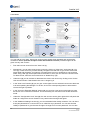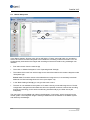
1
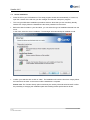
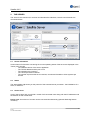
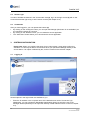
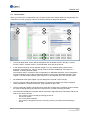
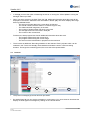
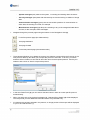
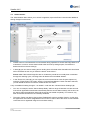
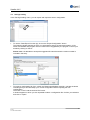
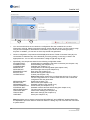
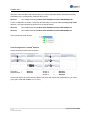
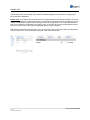
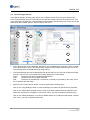
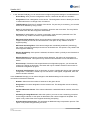
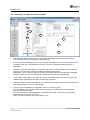
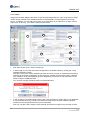
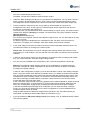
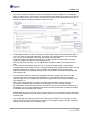
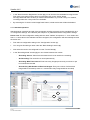
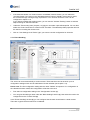
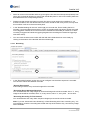
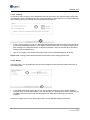
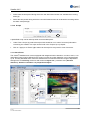
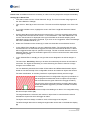
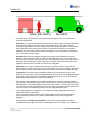
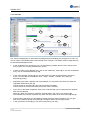
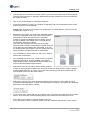
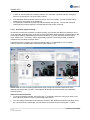
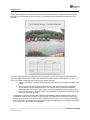
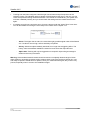
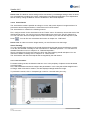
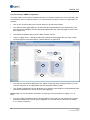
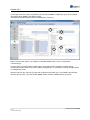
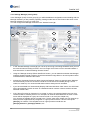
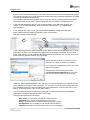
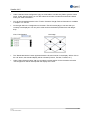
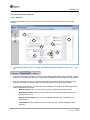
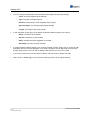
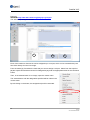
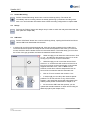
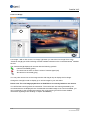
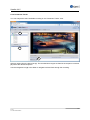
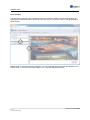
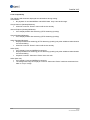
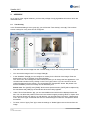
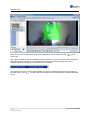
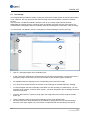
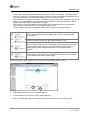
Satellite V4.5 If the selected camera is a virtual camera or a standard network camera, you can select the "Activate Preset Tour" button in the "Standard Network Camera" field (5). If this button is active, the camera will begin running through a preset tour. You can learn how such a tour can be configured in chapter 3.19. If your license includes the tracking option, you can use the "Activate Tracking" button to activate object tracking for selected cameras. Under the "Transcoding" item (chapter 3.17) (6) you can select a pre-defined profile. You can then select the "Code Conversion to a New Format" checkbox. The selected profiles properties will now be used for recording the chosen track. Click on "Use Settings for all Tracks" (7) if you want to use this configuration for all tracks. 3.12 Event Handling 3 1 4 2 5 6 The server can react automatically to various events. These reactions can be saved in up to 16 configuration settings which can be administered via the calendar (see chapter 3.13). Please note: The first configuration setting with the name "Default" is important. If no configuration in the calendar has been made, this configuration will be the active one! First select a configuration setting in the "Configuration" section (1). You can give this setting a name under the "Basic Settings" section (3). Now select the track to be configured from the "Tracks" field (2). In the "Event Handling" section (4) you can configure how the track should react to certain events. There are 3 types here that need to be considered: 36 © 2013 ALL RIGHTS RESERVED