1
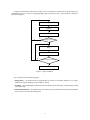
• Fitting – the CAD Fitter tool determines the placement of the LEs defined in the netlist into the LEs in
an actual FPGA chip; it also chooses routing wires in the chip to make the required connections between
specific LEs
• Timing Analysis – propagation delays along the various paths in the fitted circuit are analyzed to provide
an indication of the expected performance of the circuit
• Timing Simulation – the fitted circuit is tested to verify both its functional correctness and timing
• Programming and Configuration – the designed circuit is implemented in a physical FPGA chip by programming the configuration switches that configure the LEs and establish the required wiring connections
This tutorial introduces the basic features of the Quartus II software. It shows how the software can be used to
design and implement a circuit specified by using the VHDL hardware description language. It makes use of the
graphical user interface to invoke the Quartus II commands. Doing this tutorial, the reader will learn about:
• Creating a project
• Design entry using VHDL code
• Synthesizing a circuit specified in VHDL code
• Fitting a synthesized circuit into an Altera FPGA
• Assigning the circuit inputs and outputs to specific pins on the FPGA
• Simulating the designed circuit
• Programming and configuring the FPGA chip on Altera’s DE2 board
1 Getting Started
Each logic circuit, or subcircuit, being designed with Quartus II software is called a project. The software works
on one project at a time and keeps all information for that project in a single directory (folder) in the file system.
To begin a new logic circuit design, the first step is to create a directory to hold its files. To hold the design files
for this tutorial, we will use a directory introtutorial. The running example for this tutorial is a simple circuit for
two-way light control.
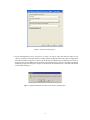
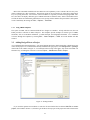
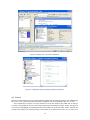
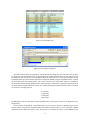
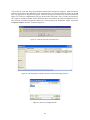
Start the Quartus II software. You should see a display similar to the one in Figure 2. This display consists
of several windows that provide access to all the features of Quartus II software, which the user selects with the
computer mouse. Most of the commands provided by Quartus II software can be accessed by using a set of menus
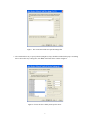
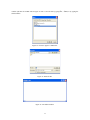
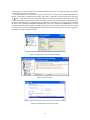
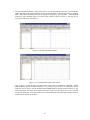
that are located below the title bar. For example, in Figure 2 clicking the left mouse button on the menu named
File opens the menu shown in Figure 3. Clicking the left mouse button on the entry Exit exits from Quartus II
software. In general, whenever the mouse is used to select something, the left button is used. Hence we will not
normally specify which button to press. In the few cases when it is necessary to use the right mouse button, it will
be specified explicitly.
3