1
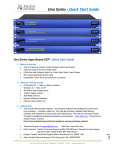
Uno Series - Quick Start Guide Rear Panel Page | 4 1. 2. Power On/Off Switch Fuse Compartment Should you need to replace the fuse use a T-Series 2.5A-250v fuse. Ensure power to the device is disconnected when replacing the fuse. 3. Power Input Connector Insert the IEC plug connector end of the supplied cable into the rear panel of the Uno. Connect the AC end of the cord into an AC power source of the correct voltage and frequency (100-240 VAC, 50/60 Hz). 4. Ethernet Connector Uno utilizes a TCP protocol for communication with the host PC running the NeuConsole software. The port is a standard RJ45 (Ethernet) jack. 5. IP Reset Button. See the IP Reset / Reset Processor Network Settings section in this guide. 6. Logic Control Input/Output Port Utilizing twisted pair wire with an attached terminal block, you can use external signals to control parameters such as triggering presets within NeuConsole. 7. Analog Line Outputs Euro/Phoenix style terminal block output connections utilizing 3.5mm terminal block connectors (included). Use balanced, shielded audio cabling. Uno has eight (8) or sixteen (16) outputs depending on the model. 8. Analog Mic/Line Inputs Euro/Phoenix style terminal block input connections utilizing 3.5mm terminal block connectors (included). Use balanced, shielded audio cabling. Uno has eight (8) or sixteen (16) switchable Mic/Line inputs w 48v phantom power depending on the model. 6. Install the NeuConsole Software: The USB drive included with each processor includes a copy of the Uno’s NeuConsole software or you can download the Windows 7, Vista, XP compatible NeuConsole software from our web site and install on your computer (www.xilica.com). Note: The Microsoft installation program/process remembers what location you installed from the first time you load the NeuConsole software into your computer. This can cause issues if you try and load a new software Version (update) from a different location than the location originally used to load the NeuConsole software into your computer (USB, Internet Download, etc). Solution: Simply un-install the old NeuConsole software version in Control Panel before you update your software version each time. You won’t have any update issues and you won’t have to remember what location you loaded the software from previously or what the source was USB, Internet, etc. Make sure the NeuConsole Software version is the latest version (see “About” menu vs the web site). Make sure the processors Firmware version is compatible with software (view device firmware version in Network View). See information on Page 4- #6 and Page 11 - #15 to assist. If you have a personal Firewall setup on your computer, a Firewall popup window might be displayed during the software installation to ask whether users want to “Block” or “Allow” NeuConsole from accessing the network. Select “Allow” to continue installation. Once installed and working – close the NeuConsole software for now until you are instructed to open it again. XILICA AUDIO DESIGN CANADA / ASIA / EUROPE