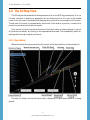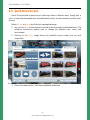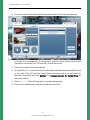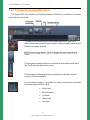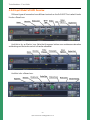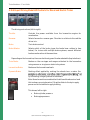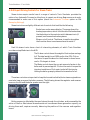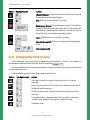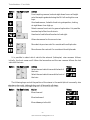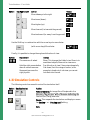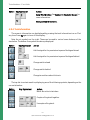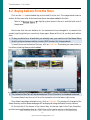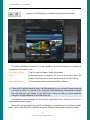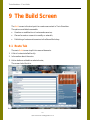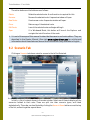
1
Train Simulator – User Guide CONTENTS 1 2 3 INTRODUCTION TO TRAIN SIMULATOR ................................................................4 FEATURES OF TRAIN SIMULATOR.......................................................................... 5 GETTING STARTED ..................................................................................................... 6 3.1 Making a Start................................................................................................................................................ 6 3.2 Scenario Types ............................................................................................................................................... 8 3.3 Controlling a Train ....................................................................................................................................... 9 3.4 Quick Driving Guide ....................................................................................................................................11 3.5 Changing the Camera View ..................................................................................................................... 12 3.6 Additional Controls .................................................................................................................................... 13 3.7 Driving Information ................................................................................................................................... 13 3.8 The 2D Map View ......................................................................................................................................... 15 3.9 Task Information Display ........................................................................................................................ 17 3.10 Pausing and Quitting ................................................................................................................................. 18 3.11 Further Manuals ......................................................................................................................................... 20 4 3.12 Online Community ...................................................................................................................................... 21 DRIVING SCENARIOS .............................................................................................. 22 4.1 Scenarios........................................................................................................................................................ 22 4.2 Scenario Availability ................................................................................................................................. 24 4.3 The Drive Screen .......................................................................................................................................... 24 4.4 Running Scenarios ...................................................................................................................................... 25 4.5 Quick Drive Screen ...................................................................................................................................... 29 4.6 Driving Control Methods .......................................................................................................................... 32 4.7 The Head-Up Display (HUD) ..................................................................................................................... 33 4.8 Information Displays ................................................................................................................................. 34 4.9 Track Displays ............................................................................................................................................. 35 4.10 Traction Controls ........................................................................................................................................ 38 4.11 Simple Mode Driving Controls ................................................................................................................ 44 4.12 Expert Driving Controls ............................................................................................................................ 45 4.13 Other Locomotive Controls ...................................................................................................................... 46 4.14 Changing the Point of View ..................................................................................................................... 47 5 6 4.15 Simulation Controls ................................................................................................................................... 49 DRIVING A LOCOMOTIVE ........................................................................................52 5.1 Driving a Steam Locomotive ................................................................................................................... 52 5.2 Driver Assist ................................................................................................................................................. 53 5.3 Driving a Diesel Locomotive .................................................................................................................... 54 5.4 Driving an Electric Locomotive .............................................................................................................. 55 5.5 Action Markers ............................................................................................................................................ 56 GAME CONTROLLER ................................................................................................. 57 -2©Dovetail Games All Rights Reserved Train Simulator – User Guide 7 8 9 10 6.1 Using the controller in Free Roam ......................................................................................................... 58 7.1 Collection ....................................................................................................................................................... 60 7.2 Steam Workshop ......................................................................................................................................... 61 7.3 Browsing Steam Workshop ...................................................................................................................... 63 8.1 Browsing the Store ..................................................................................................................................... 65 8.2 Buying Add-ons from the Store .............................................................................................................. 67 9.1 Route Tab ....................................................................................................................................................... 69 9.2 Scenario Tab ................................................................................................................................................. 70 9.3 Custom Consists for Quick Drive............................................................................................................ 71 9.4 .......................................................................................................... 75 PROFILE SCREEN ..................................................................................................... 59 THE STORE ................................................................................................................ 64 THE BUILD SCREEN ................................................................................................. 69 SETTINGS ....................................................................................................................78 10.1 Graphics ......................................................................................................................................................... 78 10.2 Gameplay ....................................................................................................................................................... 80 10.3 Audio ............................................................................................................................................................... 81 10.4 Controls .......................................................................................................................................................... 81 11 10.5 Tools................................................................................................................................................................. 81 SUPPORT AND TROUBLESHOOTING .................................................................... 83 11.1 Processor and Graphics Card Hardware ............................................................................................ 83 11.2 General Troubleshooting Tips ................................................................................................................. 83 11.3 Restoring your copy of Train Simulator.............................................................................................. 84 11.4 Problems Running Train Simulator ...................................................................................................... 84 11.5 Game Messages ............................................................................................................................................ 85 12 11.6 Utility Programs.......................................................................................................................................... 86 NOTICES ......................................................................................................................87 12.1 Limited Warranty ....................................................................................................................................... 87 12.2 Returns After Warranty ........................................................................................................................... 87 12.3 Credits............................................................................................................................................................. 88 12.4 Copyrights and Trademarks ................................................................................................................... 88 -3©Dovetail Games All Rights Reserved Train Simulator – User Guide 1 Introduction to Train Simulator Welcome to Train Simulator. This User Guide includes detailed instructions on the operation, menus and controls of the latest edition - TS2016. Please note that the features and content provided with Train Simulator are periodically updated, and the format of screens and content depicted in this manual may differ from that in the latest version. Although this version of Train Simulator comes supplied with an exciting range of routes and locomotives, there are many more available from the In-Game Store. When you acquire these add-ons through Steam, they are installed directly into the software no additional setup required. of the limited license and other terms and conditions set forth in the User Agreement available online at http://www.railsimulator.com -4©Dovetail Games All Rights Reserved Train Simulator – User Guide 2 Features of Train Simulator TS2016 is a virtual world train simulator that focuses on the experience of driving and viewing railway locomotives from around the world. With it, you can: Drive locomotives through realistic 3D cab views and operate their real controls; See beautifully detailed recreations, and hear sounds just like the real thing; Experience driving in varied weather - from sunny days to cloud and snowfall; Discover famous and interesting rail lines from around the world; Find out what it is like to haul freight over mountain passes and open plains; Hone the skills of driving stop-start passenger trains through suburbs and cities; Master the art of creating immersive 3D worlds with professional tools; Share creations and challenges with friends. -5©Dovetail Games All Rights Reserved Train Simulator – User Guide 3 Getting Started Train Simulator offers a highly realistic train driving experience: if you have never driven a train before, don't worry, all is explained. If you are using an Xbox 360Controller and it is connected when the game starts, you will be able to use it straightaway. If you activate it after the game starts, you can enable it using the Settings options described in S ec ti on 10.4 : Co n t r ol s . 3.1 Making a Start These instructions let you start driving straight away: 1. Double click on Train Simulator to start the software. This can either be from an icon on the desktop, or from the Library in Steam. 2. Once loaded, there are two options: 3. Learn to drive trains of all types in the Academy, or navigate to the Main Menu. If this is your first time in Train Simulator, we recommend choosing the Academy. If you are a seasoned player, navigate to the Main Menu to learn what's new. -6©Dovetail Games All Rights Reserved Train Simulator – User Guide Inside the Academy are two options - The Academy; and Tutorials. 4. The Academy will already be displaying a list of available lessons. Lessons are separated into chapters. Each chapter covering a specific aspect of operating locomotives in Train Simulator. 5. Move the blue highlight strip using the keyboard or game pad, or click using the mouse, to select it. Note the scenario description in the bottom right changes to show details of the highlighted lesson. 6. Click on the Start button at the bottom right of the screen to begin the lesson. Once loaded, follow the on-screen instructions to progress. Some lessons do not require any interaction. 7. At the end of the lesson a notice will confirm it is complete. Closing this will return to the front end, with a Debrief of the experience. 8. From here it is possible to: Play this lesson again. Return to the list to select another. Return to the Main Menu, to select an alternative experience. -7©Dovetail Games All Rights Reserved Train Simulator – User Guide 3.2 Scenario Types Scenarios in Train Simulator are where all the action takes place. There are several types of scenarios available in Train Simulator, all of which are described below. Quick Drive This feature allows for the selection of a start and end destination, the type of locomotive, time of day, and weather. Once selected, press Start to jump right into the action. Career These are objective based scenarios that monitor and rate performance. Experience Points and achievements are accumulated and ranked against other players who have also run these scenarios. Career Scenarios cannot be operated while in the Simple Control mode setting. Academy / Tutorial These are objective based lessons. They involve being taught various aspects of operation through camera sequences, on screen messages and prompts. Standard These are the same as Career scenarios, but do not feature performance monitoring and scoring. Complete objectives at your own pace, without any pressure of competition. Free Roam These scenarios are for free exploration of a route. They normally feature several locomotives in the vicinity of the camera when loaded up, allowing a choice of trains, by clicking on a locomotive to use it. Junctions can be controlled, to change direction, and there are no other trains to get in the way. -8©Dovetail Games All Rights Reserved Train Simulator – User Guide 3.3 Controlling a Train At the bottom of the simulation screen is the Head-Up Display or HUD, which can appear in several guises. If it is not displayed, pressing F4 on the keyboard should restore it. The following illustration shows the component parts of the HUD: There is more information on these controls in Section 4.7 : The Head-Up Display (HUD) Driver Information Select Controls that select what driver information is displayed. Scenario Information Information about the next place to stop, the current time and the passenger comfort level. Train Speed Train speed, track speed limit, and current locomotive power output. Driver Information Either the track ahead display or the train coupling display. Locomotive Controls Controls and information for your locomotive. Simulation Controls Mostly controls for the simulation view point, also the pause and snapshot buttons. TS2016 has two modes of controlling the train, Simple and Expert. The mode is selected on the Gameplay Settings screen (see Section 10.2) and initially is set to Expert. Some locomotives only support Expert mode, in which the driving controls are based very closely on the real thing. Detailed instructions on driving can be found in the manual accompanying the specific locomotives. -9©Dovetail Games All Rights Reserved Train Simulator – User Guide The HUD for a Diesel locomotive looks like this: Power Lever Controls the rate of acceleration of the locomotive. Direction Lever Sets whether the locomotive travels forwards or backwards. Brake Lever Controls the rate of deceleration through different types of brake systems. Typically there are two or three systems - Engine or Independent; Train or Auto; and Dynamic. Brake Pressure The left gauges move up and down to show the pressure of the brakes as they are applied. The right gauge shows the pressure available in the system. When this pressure drops below a certain level, a compressor recharges it to ensure there is always enough to operate the brakes. Driver Vigilance This is a safety warning system found on many modern trains. An alarm will sound which must be reacted to by pressing this button. If it is not pressed quickly enough, the brakes will automatically be applied to stop the train. If you wish to use the mouse to manipulate the train controls, first switch to the cab view (see Section 3.5 Changing the Camera View) and then left-click on the required control, holding down the left mouse button, and dragging the control in the direction you wish to manipulate it. Detailed information on cab controls can be found in the manual for the specific locomotive. - 10 ©Dovetail Games All Rights Reserved Train Simulator – User Guide 3.4 Quick Driving Guide Each locomotive will have specific instructions (see Section 3.11), but the following general instructions will get most Diesel locomotives on the move. Using the HUD: 1. Move the direction lever upwards to put the train into forward gear; 2. Move the brake lever downwards to release the pressure holding the brakes; 3. Move the power lever upwards to apply power. Note that for large trains, too much power can cause the wheels to spin. Apply less power to bring the train under control again. 4. To stop the train, move the power lever downwards and let the train coast. 5. Move the brake lever upwards slowly. Notice the brake gauges swap from pressure in the system, to pressure in the brakes themselves. Note, it is not recommended to put the brakes fully on, or into Emergency as this can cause the wheels to lock and slide. Aim for around 50% braking force, so ensure they are applied with ample distance to the stopping point. 6. Once stationary, it is good practice to leave the brakes applied at about 70% to stop the train rolling away. - 11 ©Dovetail Games All Rights Reserved Train Simulator – User Guide 3.5 Changing the Camera View There are many different camera views to drive from or observe the action in Train Simulator. Below is a guide to accessing these camera options. Button Keyboard Action Equivalent Cab view; this is the location of a real driver/engineer. External Front Camera. This is outside and above the leading vehicle in the train. Trackside Camera. This is a dynamic camera placed in advance of the train, to watch it pass by. Use these keys to move the viewing position forwards or backwards (except in the Trackside camera, where the position is fixed). Use these keys to move the viewing position to the left or right (except in the Trackside camera, where the focus is fixed). It is also possible to control zoom on cameras, via the mouse scroll wheel: Button Mouse Equivalent Mouse scroll wheel away Action Zoom in. Much like a telephoto lens. Focus the camera on a distant object. Mouse scroll wheel back Zoom out. Much like a wide angle lens. Allows much more of the scene to be viewed. Hold the right mouse button down & move the mouse Pan around. For applicable cameras, change the direction in which the view is pointing. Especially useful to look around cab views to see controls. - 12 ©Dovetail Games All Rights Reserved Train Simulator – User Guide 3.6 Additional Controls Button Keyboard Equivalent Action Load or unload passengers and freight. Headlights. Click to cycle through different light states. Windscreen wipers. Click to cycle through available speed settings. Driver Vigilance. For locomotives that feature this device, when the alarm sounds, press this button to react. Failure to do so, will result in the brakes being applied and the train being stopped. Apply emergency brakes. This sets the brakes to maximum and locks the controls. Only once the train has come to a stop will the controls be activated again. Use of emergency brakes can result in a penalty in Career scenarios. 3.7 Driving Information Section 3.3 Controlling a Train covered aspects of the HUD related to controls. Below is information on the HUD related to driving. Current Speed, displayed in either MPH or KPH. Current Speed Limit of the rail line being traversed. RPM of the locomotive engine, if applicable. AMPS of the locomotive motors, if applicable. This if the G-Force meter. This is used to indicate the forces being applied to the train. The meter can move in all directions. The greater the forces being applied, the more uncomfortable passengers and cargo will feel. Current time, next stopping point, distance and estimated time of arrival (ETA) at the next objective. - 13 ©Dovetail Games All Rights Reserved Train Simulator – User Guide This is the scrolling Track Monitor. It moves left to right or vice versa depending on the direction of travel, and indicates the following details of the rail line ahead: Track Gradient - Represented as 1inX for UK, % for US, and PerMil for German routes. A graphical representation of the train being driven. Signals - Represented by traffic light style icons. Applicable Speed Limits - Represented by a number in a yellow box. Markers - These represent locations of the track that have specific names, usually relevant to the objective being carried out. Whistle Signs - Represented by a Horn icon. These indicate the location when the whistle or horn must be used to warn approaching features. This information can be used to anticipate the route ahead and plan appropriate actions. 3.7.1 Accessing further information To the left of the Track Monitor is a group of three buttons: Button Keyboard Equivalent Action Display a top-down track map of the entire route available. See Section 3.8 : The 2D Map View. Display the task list containing information about objectives. See Section 3.9 : Task Information. Display the coupling and parking brake information. Use this screen to couple and uncouple vehicles in the train. - 14 ©Dovetail Games All Rights Reserved Train Simulator – User Guide 3.8 The 2D Map View The 2D map can be accessed via the appropriate icon on the HUD, by pressing key 9, or via the user interface. It displays a geographically accurate layout of all track in the loaded route. From this view it is possible to set appropriate junctions for the navigation of the train. The set path of the train is represented by a blue line. If this ends at a junction, it means that junction is not set to allow the train to pass. Only manual junctions can be set (unless a Free Roam scenario is being played, in which all junctions can be set), by clicking on the represented blue node. This is especially useful for setting paths through complex yard areas. 3.8.1 Map Control When activated, the map occupies the full screen, while the simulation continues behind. The task list (shown on the left hand side) is displayed if a task-based scenario is being played. - 15 ©Dovetail Games All Rights Reserved Train Simulator – User Guide Controls for the 2D map are: Show Task Moves the focus of the map to the currently-selected task in the list. Centre Player Focuses the map on the train being operated. Focus will be lost if the view is moved by operating the mouse. Mouse scroll wheel Zooms the display in and out. Back, 9, Right Mouse Return to the driving view. Left Mouse Move around by holding down the left mouse button and moving to drag the map around. 3.8.2 Map Overlays Additional information is displayed on the map in layers: Left Side The Task List, if active. Free Roam Scenarios have no Task List. Bottom Control Buttons (as noted above). Right Side The mouse zoom slider and a mark indicating the north direction. The map cannot be rotated, so north is always up. 3.8.3 Map Symbols The following are represented by symbols on the 2D map. Note - Routes can have custom symbols and colours, so may vary from the below. Junctions Indicated by a different shaded line to the default track. This shows the direction the junction is set. Train Path Traditionally a blue line. This is the path the train will take as it proceeds. Junctions with circular nodes can be changed by clicking on them. Refuelling Point Coal, Water and Diesel points are shown. Signals The location of signals are indicated by coloured nodes accompanied by a white line. Some routes do not show the state of the signal. Locations Named stretches of track are used to indicate sidings, platforms and destinations. Sidings are traditionally coloured yellow, stations green, and destinations are orange. The name will appear next to the track. Other Trains Trains are shown as coloured rectangles which will move to reflect their progress. - 16 ©Dovetail Games All Rights Reserved Train Simulator – User Guide 3.9 Task Information Display The task information display is an overlay on the driving view that indicates the current or subsequent objective to be completed. Display task information. The Task List on the left provides a recap of the initial scenario instructions at the top, and underneath a scrolling list detailing each objective to be completed. Common commands: Couple Drive to the location indicated, stop, and couple to other rolling stock. Go Via Drive to and continue passed: there is no need to stop. Pick Up Drive to and stop at a station to load/unload passengers. Stop at Drive to and stop the train at this point. Drop off Drive to and stop the train at this point. Uncouple the indicated rolling stock, before continuing. Tasks involving coupling and uncoupling of stock may require the display of vehicle numbers to identify which vehicles are involved. Turn on the display of these numberings using the below keys: Display Destination Labels. These show the names of trains and locations relevant to the current scenario. Display Rail Vehicle Numbers. This displays the unique numbers in a bubble above each vehicle. Note - this option requires the Display Destination Labels function to be active. - 17 ©Dovetail Games All Rights Reserved Train Simulator – User Guide When performing tasks: Ensure that the locomotive is on the track section and marker indicated. This is particularly relevant if the coloured marker does not extend the whole length of the track itself. Ensure that the correct end of train is used for the action. Tasks can specify either the front of back of the train, and the task will fail if the incorrect end is used. Be sure to check required tasks before departing at the start of a scenario. Some scenarios start by loading/unloading passengers at a station! 3.10 Pausing and Quitting Press the pause button (or Escape), to bring up the Exit Menu. While this is displayed, game time is paused. To resume, click Continue or press the Escape key again. This menu looks like this: This menu contains the following options Continue Returns to the simulation. Save Save your scenario run so that you can return to it later. Controller Layout Shows a diagram of usage of the buttons for an Xbox 360 controller - 18 ©Dovetail Games All Rights Reserved Train Simulator – User Guide (see Section 6 : Game Controller) Keyboard Layout Shows the keyboard assignments for the TS2016 controls (mostly described in Section 4 : Driving Scenarios). World Editor Enter the world editor to enable you create and modify TS2014 content (see Section 9 : The Build Screen). Options Contains two controls, for HUD type and opacity (see below). Restart Restart the currently active scenario. Quit Leave the simulator and return to the Main Menu. The Options Dialog is accessed from the Pause menu and looks like this: It contains just two controls: Driving HUD Change the makeup of the driving overlay. See Section 4.7 : The Head-Up Display (HUD) Opacity Change the level of transparency of the driving overlay from transparent to completely opaque. - 19 ©Dovetail Games All Rights Reserved Train Simulator – User Guide 3.11 Further Manuals Products bought for Train Simulator generally include a manual describing how to get the most from them. These usually include descriptions of the route and scenarios, and instructions on operating included rolling stock locomotives. These manuals will be installed along with the rest of the game content and are available under Manuals in the install folder. The simplest way to access this folder is by selecting Settings from the main menu and clicking on Tools and then Manuals, although this is only possible when the game is running in Windowed mode (see Section 10.1 : Graphics ). Many - but not all - manuals are available in several languages, so under Manuals is a set of folders, one for each. Folder names are as follows: DE EN ES FR IT PL RU German English Spanish French Italian Polish Russian 3.11.1 For another way to find the manuals folder: 1. Bring up the Steam Client and select the LIBRARY view 2. Right-click on Train Simulator name under Games and select PROPERTIES. 3. Select the tab LOCAL FILES and click on BROWSE LOCAL FILES to bring up Windows Explorer 4. Open the Manuals folder. - 20 ©Dovetail Games All Rights Reserved Train Simulator – User Guide 3.12 Online Community A thriving online community is available for users to engage, exchange and share experiences with Train Simulator. These provide: Information, encouragement and support in using the software; Background on railway practice and aspects of realism Additional downloads for scenarios, routes and trains The official websites are: www.railsimulator.com RailSimulator.com home and Train Simulator product page, including company information, links to the Steam store, product support, and press coverage. www.engine-driver.com Articles and additional information covering the use of the simulator, creating scenarios and routes, railway history and other topics. www.facebook.com/railsimulator Announcements, comment and competitions connected with Train Simulator products. www.twitter.com/railsimulator Announcements and chatter about Train Simulator. - 21 ©Dovetail Games All Rights Reserved Train Simulator - User Guide 4 Driving Scenarios Driving in Train Simulator is achieved using scenarios, which are accessed from the Drive screen. This section describes scenarios, the Drive screen, and how to set up a custom scenario using Quick Drive. 4.1 Scenarios Game play sessions in Train Simulator take the form of scenarios, which are normally based on some real-life situation that the driver must work through. A scenario will start with trains and other rolling stock placed on the track. The train driver must then drive the train to achieve the goal. A common scenario is to drive the train from one place to another to a specific timetable. There are several types of scenario, as described in the following sections. 4.1.1 Quick Drive Scenarios Quick Drive scenarios enable the selection of a route, a locomotive, departure and destination points, and the environmental conditions. There will be no intermediate objectives to perform during the scenario other than the traverse the distance selected. 4.1.2 Career Scenarios Career Mode Scenarios are objective based missions that require tasks to be completed under varying conditions. A scoring system gives feedback on driving and records overall performance with medals, achievements and Experience Points. During a Career Scenario, warnings will appear in the area of the HUD above the scenario information as shown below. Train Simulator calculates the score based on a range of factors including: adherence to speed limits, passenger comfort, timeliness, and fuel efficiency. Each one uses a balance of factors depending on the situation. - 22 ©Dovetail Games All Rights Reserved Train Simulator - User Guide Points are accumulated, as well as earning various achievement awards, which are made visible through Steam. It is then possible to compare these results with friends and other members of the Train Simulator community. Achievements can be seen on the Career page (from the main menu), and in the Steam Client page for Train Simulator. Career mode scenarios automatically terminate once the main goal is completed. 4.1.3 Standard Scenarios Standard Scenarios are identical to Career Scenarios, but do not feature any of the scoring or performance monitoring aspects. Objectives and tasks must be completed, although not necessarily adhering to a timetable. 4.1.4 Free Roam Scenarios In this type of scenario, there is no goal, and no required objectives (such as meeting a timetable or picking up passengers). There are no AI trains (other trains run by the software) on the route in this mode. It is normally possible to choose from a selection of available rolling stock within Free Roam scenarios. Having selected a Free Roam scenario, click on a train in the scene and start driving. Note that some trains in the scenario may be located out of immediate view. The 2D Map view can be used (Section 3.8 : The 2D Map View) to locate them. All junctions in Free Roam are manually operated and thus need to be set to achieve a desired path. Press G to switch the junction ahead or Shift+G to change the junction behind. Alternatively use the 2D Map and click on the desired junction node. As there is no goal in Free Roam mode, to exit at any time, select the Quit icon in the Pause menu, or by pressing Ctrl+Q on the keyboard. - 23 ©Dovetail Games All Rights Reserved Train Simulator - User Guide 4.2 Scenario Availability The scenarios available to play depend on three things: What routes are installed. Each DLC routes comes with a range scenarios making full use of the trains included with that route. What rolling stock is installed. Each DLC train comes with a range of scenarios using that train on an appropriate route (usually noted on the product page). What scenarios are downloaded or installed. It is possible to obtain additional scenarios for DLC via the Steam Workshop, Marketplace and community sites. These generally make use of one of more DLC trains and routes. Be sure to check requirements before downloading. 4.3 The Drive Screen You choose a scenario by first selecting the scenario type from the Drive screen, which has tabs to select the different types: Quick Drive Access Quick Drive options to select a route, locomotive, location, time, and weather. Career Access Career scenarios for all installed routes. Standard Access Standard scenarios for all installed routes. Free Roam Access Free Roam scenarios for all installed routes. Workshop Access subscribed Workshop routes and scenarios. - 24 ©Dovetail Games All Rights Reserved Train Simulator - User Guide 4.4 Running Scenarios 4.4.1 Selecting a Scenario The scenario screens filter the available scenarios by type (Quick Drive, Career, Standard, or Free Roam) but all follow the same pattern, shown below: On the upper left are images of the currently selected train and route. On the lower left are the environmental conditions for the selected scenario. On the right is the list of available scenarios for the combination of train and route chosen. At the bottom are the details of the selected scenario and whether a medal and score have been achieved. - 25 ©Dovetail Games All Rights Reserved Train Simulator - User Guide It is possible to change the selection of scenarios by: Clicking on the locomotive image, opening a selection screen to choose a new one; Clicking on the route image, opening a selection screen to choose a new one. Click on each of the Filters to expand and click again to collapse them. Click on the categories Europe & Electric, for example to filter the locomotives in the list to match those features. To unselect a category, click on its name again. Some locomotives and routes may lack an image to represent them. They can still be selected, this is just an indication that an appropriate image could not be found or displayed. There can be trains (or routes) hidden behind the Filters list. Collapse it to see them! - 26 ©Dovetail Games All Rights Reserved Train Simulator - User Guide 4.4.2 The Scenario List For each scenario, the following is displayed in the list: The Train Name; The Duration of the scenario; The Difficulty Level: the number of squares and their colour indicates increasing difficulty. A Checkbox featuring the completion state: If the scenario has been completed successfully this will be a tick, and any medals awarded will be displayed. If the scenario has been failed, this will be a cross. 4.4.3 Selecting a Scenario To select a scenario, either: Click on an entry in the scenario list. The current selection will turn blue and list the description at the bottom. OR : click the route picture to select an alternative route. OR : click the train picture to select an alternative train. When a scenario is selected, click on the Start button (or press the A button on the Xbox 360 Controller). 4.4.4 Locked Scenarios Some Career and Standard mode scenarios are 'Locked'. This is signified by the red padlock icon at the side and means they cannot yet be played. These scenarios require that another scenario be successfully completed before it can attempted. When such a scenario is selected the description will indicate which additional scenario must be completed to unlock it. 4.4.5 Playing the Scenario To play the selected scenario, click on Start button (A on the controller). The scenario will fter which instructions will be presented on what to do. - 27 ©Dovetail Games All Rights Reserved Train Simulator - User Guide 4.4.6 Chained Scenarios In Train Simulator it is possible for one scenario to aut another. So that when the first is completed, the second part is loaded. This is an automatic process but involves a loading phase. 4.4.7 Resuming a Saved Scenario The Resume button at the bottom of each Drive screen tab is used to resume the save point of the selected scenario. It is possible to save progress in a scenario at any point using the Save option on the Pause menu, or the F2 key on the keyboard. Only one progress point can be saved per scenario. Subsequent saves will overwrite the previous one in that scenario. - 28 ©Dovetail Games All Rights Reserved Train Simulator - User Guide 4.5 Quick Drive Screen Quick Drive provides a great way of exploring routes in different ways. Simply pick a train, a route (including departure and destination points), the environment and then start driving. Select a Train, or a Route by clicking its represented image. 1. You can click Start at any time on this screen to drive using the indicated selection. The following instructions explain how to change the selected train, route, and environment. 2. Clicking on the Train image shows the available trains screen (see the next screenshot). 3. Click on the desired train. It will be outlined with a blue line. - 29 ©Dovetail Games All Rights Reserved Train Simulator - User Guide 4. A consist screen will be displayed allowing the make up of the train to be selected: A Consist is an arrangement of rolling stock, and this screen shows the available Consists for the chosen train. This can vary from train to train. 5. Click on the name of the Consist desired. 6. (It is possible to Edit a selected consist by selecting it and then choosing the Edit button on the right. This will load the Consist Editor allowing creation of new trains or alteration of existing ones. See Section 9.3 : Custom Consists for Quick Drive for more information). 7. Click on Confirm. This will bring up the route selection process. 8. Click on the route desired. It will be outlined with a blue line. - 30 ©Dovetail Games All Rights Reserved Train Simulator - User Guide 9. Click on a Departure location, and then a Destination location Environment settings can be adjusted by using the left and right arrow buttons for each element: 10. Use the controls to select the Season, Weather and Time of Day. 11. Finally, Click Start to begin driving the chosen Quick Drive. - 31 ©Dovetail Games All Rights Reserved Train Simulator - User Guide 4.6 Driving Control Methods Train Simulator allows control of Trains via several methods: Driving Interface The Driving interface, also known as the Head-Up Display (HUD), is a set of on-screen buttons and levers that overlay on the 3D view. It is visible by default when using Train Simulator. This also comes in two forms - Full and Mini. These can be activated using F3 and F4. PC Mouse Use the mouse to move controls in the 3D cab of the train. This mode requires that cab view be used (press 1 to select cab view). PC Keyboard All controls have a keyboard key assigned to them, however, these can vary from train to train depending on available functionality. Xbox 360 Controller An USB Xbox 360 Controller pad can be used. See Section 6 : Game Controller for the key mappings. If using the mouse to manipulate train controls in the cab, first switch to the cab view (see Section 4.14 : Changing the Point of View) and then left-click on the control, and, holding down the left mouse button, drag the control in the direction desired. Look at the locomotivespecific information in the Driver Manual for details of the in-cab controls. Controls which can be manipulated have tool tips associated with them. Tool tips on controls can be enabled or disabled using the User Hints setting under Gameplay Settings. To turn off the Driving Interface, use the F4 key. The Pause Menu (see Section 3.10 : settings for: Pausing and Quitting) has an Options panel with No HUD Nothing is displayed. The keyboard or Xbox controller must be used to control the game (whichever dials and displays the Cab View provides from the real locomotive). Full HUD This features everything needed to control the train with, this is also the default setting. It is still possible to control the train using the Cab controls. The controls present on a Full HUD depend on the game mode (Simple or Expert) and the type of locomotive (Steam, Diesel, or Electric). Minimal HUD A cut-down version of the HUD is displayed, with no locomotive controls but with the route indication diagram, the current speed and other information. You can also select the HUD using the Xbox 360 controller s left joystick, and the F4 key. - 32 ©Dovetail Games All Rights Reserved Train Simulator - User Guide 4.7 The Head-Up Display (HUD) In the lower part of the screen is the Head-Up Display (HUD). This is a combined information and control panel that enables control of the train being driven. This section describes all the variations that can be encountered. The following illustration breaks the HUD into parts: Scenario Information (Section 4.8 : Information Displays) Information about the next place to stop, the current time and the passenger comfort level. Train Speed (Section 4.8 : Information Displays) Train speed, track speed limit, and current locomotive power output. Driver Information Select (Section 4.9 : Track Displays) Shows either the track ahead display or the coupling display, in the Driver Information area. The centre button shows the scenario tasks. Driver Information (Section 4.9 : Track Displays) Either the track ahead or the train coupling display. Locomotive Controls (Section 4.10 : Traction Controls) (Section 4.13 : Other Locomotive Controls) Controls and information for the locomotive. - 33 ©Dovetail Games All Rights Reserved Train Simulator - User Guide Simulation Controls (Section 4.14 : Changing the Point of View) (Section 4.15 : Simulation Controls) Mostly controls for the simulation view point, also the pause and snapshot buttons. 4.8 Information Displays On the left hand side of the HUD is a group of information displays, as follows: Current speed, with the current speed limit immediately below. The area underneath the speed is used by some locomotive models to report generated electric current and engine revolutions, and is otherwise blank. The coloured circles show force on the passengers: the white dot moves up when slowing, down when speeding up, and sideways when cornering. Extremes of movement are translated into a lack of comfort level score in career scenarios. The current time of day in the simulator, and some task information: the name of the next stopping point the distance to the stop the booked time of arrival the estimated time of arrival (ETA). Free Roam scenarios only display the current time here as there is no scenario task to perform. - 34 ©Dovetail Games All Rights Reserved Train Simulator - User Guide 4.9 Track Displays Button Key Equivalent Action Display 2D map. Display Task Information. Display Coupling view (locomotives, wagons, coaches). Toggle Minimal HUD. This toggles the Driver's overlay between Off and the minimal HUD. Toggle Full HUD. This toggles the Driver's overlay between Off and the full HUD. Engine information. Shows detailed technical information about the locomotive. It is only available if the HUD is Off. Display labels. While driving along, the names of trains and locations relevant to the current scenario appear on screen. These labels are valuable for identifying locations, other trains, and vehicle numbers used in the scenario. Press the key again to turn off the display. Display engine and wagon numbers. This displays the engine and wagon numbers relevant to current display. This option is only available if Display Labels (above) is already selected. - 35 ©Dovetail Games All Rights Reserved Train Simulator - User Guide 4.9.1 Track Ahead Display The display at the bottom of the Driving Interface gives key information necessary to drive a train. Use this information to anticipate the track ahead and plan accordingly: The bottom part shows the incline and the wagons or carriages that make up the train. The upcoming signals and speed limits are shown in digits and proportionally. Coloured sections on the white track line indicate marked track, with the marker name below. The colours normally used are: Yellow A siding, normally used for storage or transfer. Green A passenger platform. Orange (Note - some routes redefine these colours). The overall scale and the size of the blobs representing the train changes with speed so the longer the train, and the faster it goes, the further ahead can be n Small blobs are also used for a very long train, so the more of the train fits on the display. - 36 ©Dovetail Games All Rights Reserved Train Simulator - User Guide 4.9.2 Train Coupling and Brake Display When performing shunting operations, it can be convenient to switch to the Coupling view to enable coupling and uncoupling of rolling stock. In real life this can often be performed by staff at the track side manipulating the physical coupling mechanism. in the HUD. It can be accessed using the keyboard or mouse: Display Coupling view (locomotives, wagons, coaches). What is shown in Coupling view depends on the current train consist. The view below shows a long consist longer than the view can accommodate, so there is a scrollbar at the bottom of the view. The primary locomotive is always highlighted in red at the right hand end of the consist. This symbol: is shown below some of the vehicles. This is the manual handbrake control. Click on it to engage the handbrake, and it changes to: . Click again to release. Between the stock is another symbol, representing the coupler itself: . When the train is not moving, click on this to uncouple the vehicles at this point. The display will change to show only the stock still coupled to the locomotive. It is possible to attach stock to the train by reversing the locomotive very slightly back onto the stock. The view will change to something like this: Note the coupler between the locomotive (in red) and the item of stock has a gap in it. Clicking on a coupler in this state will make the coupling and a Consist will be formed. If using 'Automatic Coupling' - a setting in the Gameplay Settings - reversing into stock in this way will cause the stock to be coupled to the train without further required action. - 37 ©Dovetail Games All Rights Reserved Train Simulator - User Guide 4.10 Traction Controls This section describes the controls used to move and stop the locomotive. Later sections include the other controls, for example wipers, horn and lights. 4.10.1 The Minimal HUD The Minimal HUD allows easier use of the in-cab controls, keyboard, or the Xbox 360 controller without the visual feedback that the full HUD provides. Switch to the Minimal HUD using the keyboard key F3, or the Pause menu Options dialogue, or the left-right axis on the Xbox The Minimal HUD only shows the route data and some train state information, but almost steam, diesel and electric locomotives - the one shown above is for a steam locomotive. - 38 ©Dovetail Games All Rights Reserved Train Simulator - User Guide 4.10.2 The Simple Driving mode HUD Controls The Simple HUD looks like this on a Diesel locomotive. The HUD for an Electric locomotive would not have a Fuel bar. The Simple HUD combines the throttle and brake control and this is shown as a single control. Drag the slider to the top to apply power and to the bottom to apply braking. travel. The Fuel gauge, absent on Electric locomotives, shows how much fuel is left. The train stops when this run out. The Emergency Brake stops the train as quickly as the real train can achieve: it is not immediate. An information readout is available for steam locomotives, and shows the following (from left to right): Boiler level Boiler Pressure Fire Mass Water level Coal level. - 39 ©Dovetail Games All Rights Reserved Train Simulator - User Guide 4.10.3 Expert Mode Full HUD: Overview Different types of locomotive have different controls on the Full HUD. This is what it looks like for a Diesel Loco: And this is for an Electric Loco. Note that the power button now combines acceleration and braking and the brake control is therefore disabled: And this is for a Steam Loco: - 40 ©Dovetail Games All Rights Reserved Train Simulator - User Guide 4.10.4Expert Driving Mode HUD Controls for Diesel and Electric Trains The driving controls are (left to right): Throttle Controls the power available from the locomotive engine for acceleration. Reverser Selects forward or reverse gear. Direction is relative to the cab the driver is in. Brake Train brake control. Brake Selector Selects which of the brake types the brake lever relates to (see below). For trains with multiple brake systems, several different brakes can be active at the same time. Depending on the locomotive, there can be three types of brakes selectable (top to bottom): Train Brake Brakes on the carriages and wagons attached to the locomotive using vacuum or air pipes or electrical systems. Locomotive Brake Brakes on the locomotive wheels. Dynamic Brake Braking effect applied by making the wheels turn a motor (for by connecting a large flywheel to the wheels. Note: Some locomotives combine the throttle and brake control and this is shown as a single control. Drag the slider to the top to apply power and to the bottom to apply braking This shows, left to right: Brake cylinder pressure Brake pipe pressure. - 41 ©Dovetail Games All Rights Reserved Train Simulator - User Guide 4.10.5 Expert Driving Controls for Steam Trains Steam trains require careful use of a range of controls. Train Simulator provides the option of an Automatic Fireman to allow focus to remain on driving. Beginners are strongly recommended to make use of this option (check the Automatic Fireman option on the Gameplay Settings). Steam trains have a slightly different set of controls that look like the following. Brake lever and pressure display. The gauge shows the brake pipe pressure, which is the force on the brake shoes. Use the buttons in the centre to switch between train (if present) and locomotive brake systems. Blower: on/off control. The blower is used to strengthen the fire when there is no steam exhaust to assist it. Real life steam trains have a host of interacting elements, of which Train Simulator provides a simplified view in the HUD: The Firebox control shows the weight of fuel and percentage full. The ideal weight is not 100% and is often 70%. Click on the control to open the doors for the fireman to shovel more coal in. Click again to close. The Water control shows the current amount of water in the boiler and its percentage full. Click on the control to open the injectors to add more. Click again to shut off the injector. Letting the boiler go empty causes the locomotive to fail. These two controls are important to keep the locomotive fuelled, but a steam engine driver must also keep an eye on the boiler pressure. The following shows the regulator and reverser levers on the left and the boiler pressure on the right: Boiler pressure is affected by the use of steam through the cylinders, and increased by the action of the fire. Most steam locomotives do not have excess steam generation capacity, so driving them well, requires correctly balancing the position of the reverser and regulator levers. - 42 ©Dovetail Games All Rights Reserved Train Simulator - User Guide Train Simulator makes balancing this easier: keep the boiler pressure gauge showing green that is, not losing pressure for as much time as possible. If the pressure gauge is red, the locomotive is using more steam than it can make and so the boiler pressure will start to fall. This might be appropriate for short periods (e.g. quick hill climbing) but cannot be sustained for long. 4.10.6Expert Keyboard Controls for Steam Trains It is possible to control the train using either the keyboard or the in-cab controls (using the mouse). Some of these are not compatible with using the HUD. Small Ejector on or off Cylinder Cocks on or off. The cylinder cocks are valves that allow condensed water to be removed from the Cylinders which power the wheels. If this water is not removed before pulling away from a stand, it can cause damage. Open or close the locomotive Firebox, to enable the fireman to shovel more coal. Increase or reduce the rate the fireman shovels coal into the firebox. Turn on/off the Exhaust Injector. This uses waste steam from the cylinders to move additional water into the boiler. Increase or reduce the flow of steam to the Exhaust Injector. Turn on or off the Live Steam Injector. This uses steam direct from the boiler to move additional water into the boiler. Increase or reduce the flow of steam to the Live Steam Injector. Increase or reduce the Blower. The Blower is a fan that increases air flow through the fire, making it hotter. It is powered by steam from the - 43 ©Dovetail Games All Rights Reserved Train Simulator - User Guide boiler. While running, the blower is not often needed because the exhaust steam draws air through the fire as well. Increase or reduce the Damper. The Damper covers an opening in the firebox that allows fresh air in. Closing the Damper reduces air flow and hence the temperature of the fire. 4.11 Simple Mode Driving Controls When Train Simulator is first installed, the driving controls are set to 'Expert'. To change to the simple set of driving controls, use the Train Controls option on the Gameplay Settings menu. Not all trains can be driven with simple controls and Career Mode scenarios cannot be p l a ye d i n t h i s mo d e . The driving interface overlay gives all the route information needed, and simplifies the complexity of the driving. The following simple controls are the most important: Accelerate. Click on the upper part of the control or left click and drag the control upwards to increase the speed. (This will be achieved through a combination of releasing the brake and applying power.) Decelerate Click on the lower part of the control or click and drag the control down to decrease the speed. (This will be achieved through a combination of reducing power and applying brakes.) Reverse direction. Click on the control to change the direction of the locomotive. The train must be at a complete stop to do this. Emergency Brake. Apply emergency brakes. This sets the brakes to 100% and locks the other controls. Once the train has come to a complete stop, the other controls will unlock. Horn. Sound the horn or whistle. The information areas of the display and other controls shown are described in the next sections. Those that are not available - if the Train Controls option Simple is selected - are shown as Expert. - 44 ©Dovetail Games All Rights Reserved Train Simulator - User Guide 4.12 Expert Driving Controls To experience the full features of the simulation, select Expert mode (this is set via the Train Controls option on the Gameplay section of the game Settings menu). All locomotives can then be driven and Career Mode scenarios are available. The expert driving control set is shown as follows: The Expert controls provide additional flexibility. The key components are (left to right): Throttle (Diesel/Electric locomotives) or Regulator (Steam trains) Reverser Brake Depending on the locomotive/consist, there are three types of brake selectable (top to bottom): Train brake (highlighted), Locomotive brake and Dynamic brake. Many modern locomotives combine the throttle and brake control and this is shown as a single control. They can also use notched levers, A small number of trains also have a Gear control. This is displayed to the left of the Throttle control. - 45 ©Dovetail Games All Rights Reserved Train Simulator - User Guide The keyboard equivalents for these functions are: Decrease or Increase throttle or Steam engine regulator Forward or Backward for Diesel and Electric, Decrease or Increase Steam engine reverser Decrease or Increase the Train brake Decrease or Increase the Locomotive brake Decrease or Increase the Dynamic brake Transmission Gearbox select a higher gear Transmission Gearbox select a lower gear 4.13 Other Locomotive Controls Note - Not all of the below controls are available in all locomotives. See their specific manuals for further details. Button Key Equivalent Action Load/unload passengers or freight Lights. Repeatedly pressing will cycle through headlight states if appropriate. Windscreen wipers. Click once to switch on and again to switch off. (Expert) Engine stop/start. By default engines will already be running at the start of a scenario. Press this button to stop and then again to restart the engine. (Expert) Raise/Lower Pantograph (Electric trains only). (Expert) Alerter. The Alerter is a system used on some trains to ensure that the driver has seen a signal. If the alert sounds (a black/yellow striped symbol is shown on the Driver's display), this must acknowledge by clicking on the Alerter button or the emergency brakes will be applied. - 46 ©Dovetail Games All Rights Reserved Train Simulator - User Guide Button Key Equivalent Action (Expert) Sander. Causes sand to be laid on the rails next to the wheels to assist with adhesion. Bell. Ring the locomotive bell, if present. Emergency Brake. Apply emergency brakes. This sets the brakes to 100% and locks the other controls. Once the train has come to a complete stop, the other controls will unlock. Note: Not all trains have an emergency brake. Horn. Sound the horn or whistle, if present. Handbrake on/off. This icon is displayed in the Coupling view Couple manually. 4.14 Changing the Point of View Train Simulator has many ways of observing the simulation. Initially, the camera is positioned outside and above the train (the front externa The camera direction can be manipulated by pressing and holding the right mouse button and moving the mouse. Use the following controls to change cameras while drive: Button Key Equivalent Action Cab view, the point of view of the train driver (or fireman/ engineer) External front camera. This is the initial view and initially set to follow the lead locomotive. External back camera. Initially set to follow the last vehicle of the train. Trackside camera. Jumps ahead of train to watch it approach and pass, then repeats. Click again to reposition view. Passenger view. - 47 ©Dovetail Games All Rights Reserved Train Simulator - User Guide Button Key Equivalent Action Front coupling camera, looks straight down from roof height onto the coupling selected using the Ctrl-left and right arrow keys. Overhead camera, linked to the driving cab position, looking straight down from high up. Detach camera from train for general exploration. It is possible to extend up to 2km from the train. Head-out-of-cab left and head-out-of-cab right. Alternate camera for the current view. Move back to previous cab. For consists with multiple cabs Move forward to next cab. For consists with multiple cabs It is possible to select which vehicle the external (helicopter) view cameras follows. Initially, the front camera will follow the locomotive and the rear camera follows the last vehicle of the train. Button Key Equivalent Action Views Select the next vehicle towards the back of the train Select the next vehicle towards the front of the train The following keys control the position of the viewer in the world (which is normally also Button Key Equivalent Action Views Move forward Move backward Move sideways to the left - 48 ©Dovetail Games All Rights Reserved Train Simulator - User Guide Button Key Equivalent Action Views Move sideways to the right Move lower (down). Move higher (up). Move forward (i.e. towards the ground). Move backward (i.e. away from the ground). Use the Shift key in combination with the arrow keys to move faster: (with arrow keys) Move faster Finally, it is possible to change the angle and direction of view: Button Equivalent The mouse scroll wheel Action Zoom. This changes the field of view. Zoom in to see distant objects; Zoom out to view more. Hold the right mouse button down & move the mouse. Game pad users use the right joystick. Pan (direction of view). Some views (especially Cab views) limit the range of motion, so for example in head-out-of-cab view you cannot look back into the cab. 4.15 Simulation Controls The following controls are used to control the simulation itself. Button Key Equivalent Action Take screenshot. An image file will be placed in the location (Lat./Long.) and time. Pause. This suspends the simulation and displays a menu. See Section 3.10 : Pausing and Quitting Exit. - 49 ©Dovetail Games All Rights Reserved Train Simulator - User Guide Button Key Equivalent Action Enter World Editor. See Section 9 : The Build Screen for more information. Save position in Scenario. 4.15.1 Task Information The scenario information can be displayed by pressing the task information icon or F1 at any time. Press F1 again to turn off this display. Note the six symbols on the right. These can be used to control some features of the simulation. The bottom five symbols are always displayed: Button Key Equivalent Action Ask the signaller for permission to pass a Red signal ahead. Ask the signaller for permission to pass a Red signal behind. Change switch ahead Change switch behind Change to another cab on this train The top slot is context sensitive, displaying one of the following symbols, depending on the current situation: Button Key Equivalent Action Blank: No action to be taken. Couple rolling stock together. Uncouple rolling stock. - 50 ©Dovetail Games All Rights Reserved Train Simulator - User Guide Fuel the locomotive. Load Cargo Unload Cargo. Open the doors of the carriages on the train, to allow passengers to embark or disembark. - 51 ©Dovetail Games All Rights Reserved Train Simulator - User Guide 5 Driving a Locomotive 5.1 Driving a Steam Locomotive Until proficient at driving steam engines, keep the Automatic Fireman switched on to reduce workload (to turn on the Automatic Fireman, click on the Settings screen from the main menu, click on Gameplay Options, select Automatic Fireman and then return to select a train/route/scenario). When driving a steam train, there are three key controls: Regulator. This allows steam to pass from the boiler to the cylinders, which turns the wheels and moves the locomotive. Manipulate the regulator by clicking and dragging the control to change the amount of steam used. Reverser. This can be switched between Full Forward and Full Reverse and must be used before setting off. Use a high reverser setting to give maximum power. This uses a lot of steam, so slowly reduce the reverser setting as the train speeds up. Train Brakes. This applies the brakes on the locomotive and any other attached vehicles that have brakes. 5.1.1 Starting a Steam Train Release the brakes. Once fully released and the brake pipe pressure becomes constant (see the pressure display), apply the brakes slightly until they are in the Running position. Leaving them in the Release position will waste steam (because steam is used to hold the brake shoes off the wheels). Turn the reverser to the fully forward position. Open the regulator to about 50% and the train starts to move. Once at about 10mph, turn the reverser back to about 45%. With a pick up in speed, continue to turn the reverser back until it is about 15-20%. - 52 ©Dovetail Games All Rights Reserved Train Simulator - User Guide 5.1.2 Driving Tips To go faster, increase the regulator until the desired speed is reached. When going uphill, it may be necessary to increase the reverser and regulator to provide more power. When going downhill, coast by closing the regulator completely and setting the reverser to about 45%. If boiler pressure begins to decrease, more steam is being used than generated, so adjust the regulator and reverser to prevent further loss of power. 5.1.3 Stopping the Train Always allow plenty of distance to stop depending on their weight and speed. some trains can take up to 2 miles to stop Apply the Train Brake; unless travelling as just a locomotive. Leave the brake control in this position, and the brakes will come on slowly until they reach their maximum force. If a partial brake application is desired, after applying the brakes, release them until the control is in the Self Lap position (Not all locomotives feature this). This will hold the braking force at its current level. 5.2 Driver Assist Driver Assist works by highlighting the control required to be adjusted and provides detailed instructions and real-time feedback as to how far it needs to be moved and what effect it has on the locomotive. Once you've got the hang of it, the system is designed so you can turn it off and go it alone. If you get stuck and feel you need the help again, you can turn it back on. Activate / Deactivate Driver Assist by pressing CTRL+A To pause the simulation if Driver Assist is active, press CTRL+SHIFT+A Not all trains feature the Driver Assist functionality. Please check the manual of the specific DLC to confirm its inclusion. - 53 ©Dovetail Games All Rights Reserved Train Simulator - User Guide 5.3 Driving a Diesel Locomotive The key controls: Throttle. but some, particularly diesel-electrics, may be notched into a small number of discrete settings. Reverser. The reverser on a diesel locomotive usually has three positions: Forwards, Reverse and Neutral. When stationary, always move the reverser to the neutral position. Brakes. Diesel trains often have three types of brakes Train brake, Locomotive brake (normally only used when driving a locomotive on its own the brake type to be used and then move the control accordingly. Gears. Some locomotives have a gear control to aid engine speed verses road speed. Gears are numbered sequentially Start-up / Shut down. Trains always start running, but can be turned off using this key. Some locomotives (including the German BR426) combine the throttle and train brake into one control. When driving these, reducing the throttle (D key) applies the brakes once the control passes a central dotted line. - 54 ©Dovetail Games All Rights Reserved Train Simulator - User Guide 5.3.1 Starting the Train Move the reverser to the Forwards position. Release the train brakes and locomotive brakes if applied. Move the throttle to around 25%. Do not use full throttle from a standing start as this can cause wheel slip or overload the traction motors, causing the power to trip out. Once at around 10 mph, apply full throttle. Be more careful in wet or icy conditions. 5.3.2 Stopping the Train Apply the train brake control until it is in the Self Lap position. Increase or decrease the braking force by moving the train brake control within the Self Lap position. 5.4 Driving an Electric Locomotive Very often, electric locomotives are presented in scenarios with the pantograph or rail The pantograph/Shoes must therefore be activated before the train will move. The key controls are: Throttle so there are only a few possible settings. Single settings do not always maintain a constant speed so be sure to monitor performance. Reverser. The reverser on electric locomotives has three positions: Forwards, Reverse and Neutral. When stationary, always move the reverser to the Neutral position. Brakes. Electric trains often have three types of brakes Train brake, Locomotive brake (normally only used when driving a locomotive on its own flywheel or an alternator). Use the buttons on the right to select the desired brake type and then adjust it accordingly. Pantograph. Click to raise or lower the pantograph/3rd Rail shoes (if applicable), which collect electricity from available power supplies. Start-up/ Shut down. Trains always start running, but can be turned off using this key. - 55 ©Dovetail Games All Rights Reserved Train Simulator - User Guide 5.4.1 Starting the Train Move the reverser to the Forwards position. Release the train brakes and locomotive brakes if applied. Move the throttle to around 25%. Do not use full throttle from a standing start as this can cause wheel slip or overload the traction motors, causing the power to trip out. Once at around 10mph, apply full throttle. Be more careful in wet or snowy conditions. Some electric locomotives have very complicated control systems for example, the BR Class 86. Refer to the associated manual for instructions on driving these locomotives. 5.4.2 Stopping the Train Apply the train brake control until it is in the Self Lap position. Increase or decrease the braking force by moving the train brake control. If the emergency brake is triggered, either by the automatic systems or by user command, the emergency condition can be reset by moving the brake to its maximum position and then back to normal use. Always give plenty of room to stop a train can take ¾ of a mile to stop from 90 mph. 5.5 Action Markers During scenarios, it is possible to use the cursor to start key actions. Moving the cursor over appropriate objects (platform, junction, refuelling points), will change it into the following. Click the mouse to carry out the relevant action. Load bulk freight Load fuel Load Container Load passengers Couple Load water Uncouple Set junction - 56 ©Dovetail Games All Rights Reserved Train Simulator - User Guide 6 Game Controller Train Simulator supports use of the Microsoft Xbox 360 Controller. While driving, the control layout map (shown below) is available from the Pause Menu - Controller Layout. The controller will be automatically enabled if it is detected as active when the game starts. The controller cannot be activated after Train Simulator has been started. Some additional notes on using the controller follow. - 57 ©Dovetail Games All Rights Reserved Train Simulator - User Guide 6.1 Using the controller in Free Roam In Free Roam, the following actions control the camera position: Left Thumb Stick - This controls the physical position of the camera. Right Thumb Stick - This controls the direction the camera is facing. When the hand icon appears over a drivable locomotive, press down the Right Thumb Stick to take control of that locomotive. - 58 ©Dovetail Games All Rights Reserved Train Simulator - User Guide 7 Profile Screen The Profile screen shows a players progress, their collection, and what has been achieved so far. The screen looks like this: The player s Steam Profile is noted on the left, indicating their Driver Level, Number of Medals recorded, and their Status in Experience Points. - 59 ©Dovetail Games All Rights Reserved Train Simulator - User Guide By clicking on the Latest Achievements tab, the Achievements that can be obtained from purchased DLC, will be displayed on the right hand side as shown in this example: Finally, clicking on the Friends tab at the bottom shows a list of those people marked as friends in the Steam Client, and their achievement status. 7.1 Collection The Collection screens show all of the various Steam products (routes and locomotives) that have been purchased. When buying items from the Steam Store, they will cease to be visible on the Store page and appear instead on this page. This screen displays S t e a m- b o ug h t products, not installed items. To locate specific trains, use Quick Drive from the Drive screen. To list all the routes installed (whether or not bought from Steam) use the Build screen. An example of a well-stocked Collection page is shown here: - 60 ©Dovetail Games All Rights Reserved Train Simulator - User Guide 7.2 Steam Workshop While the Store allows for purchase of additional content, the Workshop allows for free sharing of content with other players*. Content available in the Steam Workshop is not solely provided by RailSimulator.com and so quality may vary. This facility is provided by Valve Corporation and we cannot guarantee ongoing availability of this system. *It is not possible to share purchased content. Additionally in the Profile screen is the Workshop tab, which enables access to the Steam Workshop. Steam Workshop allows n entire route itself. In either situation, the subscription works in the same way Train Simulator on Steam: should the content be updated, Steam will automatically update the local copy. Similarly, if content is list from the disk, it is possible to use Steam to verify the game, and re-download the missing files. Steam Workshop content must meet certain requirements in order to be hosted, and ensures that everything needed, is easily available: - 61 ©Dovetail Games All Rights Reserved Train Simulator - User Guide Scenarios and Routes only use assets from officially available DLC. route custom items such as scenery. Once a Workshop Route is made publicly available, it cannot be modified: should the author wish to extend or change it, they must issue it as a new version. This means that scenario authors have a known stable base on which to create their content. The Subscription screen looks like this: Above the list are two buttons indicating what is displayed: Published This will display all content you have shared on Steam Workshop. Subscribe This will display all content subscribed from Steam Workshop. On the right hand side of the screen are two areas: the upper area shows the scenario or route image supplied with it, together with the name of the author. Underneath that is some information about the content, which usually contains details of required DLC. It is acceptable to will not function until all requirements have been met. DLC, but it Underneath the list of required DLC is a further button: Buy Add-ons Select the add-on products not owned, that are required to run the Steam Workshop, and add them to the cart in the Store. Once all the required items are obtained, the new route or scenario can be enjoyed. - 62 ©Dovetail Games All Rights Reserved Train Simulator - User Guide 7.3 Browsing Steam Workshop A new installation of Train Simulator will not have any subscriptions to any Steam Workshop content so the most likely thing to do first is to browse what is available. Click on the Browse button at the bottom of the Workshop Subscriptions screen to do this. This will cause the Overlay to be displayed with a web browser which will open at the Steam Workshop page as shown here: In the centre of this screen is a set of tabs, the default one being Items. To the right of this is a search box in which search terms for scenarios or routes can be entered. Beneath the tabs is a grid of pictures, one for each item, that have been uploaded by the users. Hover the mouse over to show a green Subscribe link, or click on the picture itself to find out more about it. When a desired item is found, and the required components are met, click on the green Subscribe button. Steam will download the item automatically. The subscription to this item persists until unsubscribing. - 63 ©Dovetail Games All Rights Reserved Train Simulator - User Guide 8 The Store Train Simulator provides a shop to acquire new trains and routes and a browsing interface to explore the products available to purchase. The In-Game Store extends the functionality that is provided in the Steam shop (steampowered.com) by enabling more sophisticated filtering based on specific features of the add-ons, text searching, and larger graphics and slideshows. Product availability, prices, special deals, and other detail will not differ between Store Store button and can also be accessed by clicking on the View button for the featured items from the main page. - 64 ©Dovetail Games All Rights Reserved Train Simulator - User Guide 8.1 Browsing the Store There are several Tabs on this screen that sub-divide the available products into groups. In addition, the Search facility in the top corner can be used to find things. The tabs are: Home This screen (shown above) is the initial view, and shows a range of DLC current available. Locos This shows the set of available locomotives. At the top of the tab are selectors to filter the products shown by Country of origin or Type (Steam, Electric, etc.). Routes This shows the set of available routes. Marketplace This shows smaller value items (such as wagons or scenery). For each of the main tabs, click on the product picture to display more information, or on the Cart button beside the price to add it to the shopping cart. Typing text into the Search area at the top right side of the screen will interactively select those products matching the text. On some tabs (Locos, Routes and Marketplace), click on the dropdown menus just above the product add-on grid to filter the displayed products. The set of filters available varies by context. - 65 ©Dovetail Games All Rights Reserved Train Simulator - User Guide Click on a product image to display information about it, as in the following example: Click on Add to Cart to put the item in the shopping cart. Click on Back to return to the product listing. - 66 ©Dovetail Games All Rights Reserved Train Simulator - User Guide 8.2 Buying Add-ons from the Store Click on the Cart button beside the price to add it to the cart. The image below shows a section of the screen after the locomotives shown have been added to the Cart. - Note in the these items: , signifying two items in the cart, and the total cost of Notice now that the cart buttons for the locomotives have changed to a crossed-circle symbol, signifying that you cannot buy them again: Steam will only let you buy each add-on once. To buy products for a friend that you already own, you need to visit the Steam Store directly and purchase an add-on voucher (DLC Voucher) for those products. To view the current contents of the cart, click on View Cart. This displays a view similar to the others, showing those products added: The contents of the Cart will be retained even ifTrain Simulator is closedand restarted. To remove items from the cart, click on the crossed-circle in the lower-right corner. Once items have been selected to buy, click on Checkout. The screen will change to the Steam Overlay and the Steam web page will be displayed using the Steam Overlay feature. At the top left of the screen is the time of day, at the top right is the Train Simulator product name, - 67 ©Dovetail Games All Rights Reserved Train Simulator - User Guide Return to Train Simulator from Game Overlay (and vice versa). The items selected are listed and it is now possible to go to the Checkout to complete the transaction. At this point, click: Purchase for Myself To go through the Steam Checkout procedure Remove (Underneath price of product) To remove the product from the basket. The product will also be removed from the In-Game Store. Continue Shopping To browse other game products available on Steam. If you click Checkout to add an item, it will be retained in your account s Steam shopping cart until you buy it or remove it. So, if you just close the overlay, the items will remain the next time you visit Steam. If you don t wish to buy an item, you must explicitly remove it using the Remove link (under the price). Once products are purchased, exit the Overlay using Shift-Tab or clicking on the link at the top of the overlay screen. Steam will not download items until Train Simulator is restarted, so to use them straight away, return to the Main Menu and Quit the game. Steam will download the new purchases. - 68 ©Dovetail Games All Rights Reserved Train Simulator - User Guide 9 The Build Screen The Build screen is the start point to create new content in Train Simulator. The options available here enable: Creation or modification of routes and scenarios; Clone of a route or scenario to modify or extend it; Publishing of routes and scenarios to the Steam Workshop. 9.1 Route Tab The main Build screen is split into several elements: 1. A list of routes installed locally. 2. Information about the route. 3. Action buttons related to a selected route; The screen looks like this: - 69 ©Dovetail Games All Rights Reserved Train Simulator - User Guide The action buttons on the bottom are as follows: Delete Delete the selected route. A confirmation is required for this. Rename Rename the selected route. A separate window will open. New Route Create a new route. A separate window will open. Clone Make a copy of the selected route. Edit Route Launch the selected route and begin editing it. Open If in Windowed Mode, this button will launch the Explorer and navigate the install location of the route. It is out of the scope of this manual to describe the scenario and route editors. They are described in the Creator Manual. Also visit w w w . en g i n e -d ri v e r . co m for articles and information about these features. Some of this information is only available in English. 9.2 Scenario Tab Clicking on Scenario tab shows a similar screen to that of the Route tab. Initially, a list of routes is shown in the main window. Select one of these to display all the scenarios related to that route. These are split into their scenario types, and listed alphabetically. This order can be affected by clicking the Scenario Name button across the top of the list, and sorting either up and down. - 70 ©Dovetail Games All Rights Reserved Train Simulator - User Guide Select a scenario to activate the action buttons at the bottom of the screen. Delete Delete the selected scenario. This is not available for purchased DLC. Rename Rename the selected scenario. A prompt will appear to enter the new name. This is not available for purchased DLC. New Scenario Create a new scenario. A separate window will appear, to outline the type of new scenario desired. Clone Make a copy of the selected scenario. A separate window will open. Edit Open the Scenario Editor to begin editing the selected scenario. 9.3 Custom Consists for Quick Drive The list of train formations (Consists) presented when you select a Quick Drive locomotive on the Quick Drive - Select Loco screen is determined by the available Quick Drive consists. Most DLC come with predefined consists, but these can be added to by creating new ones using the Consist Editor. To create a new Consist: 1. Navigate to the Drive - Quick Drive - Locomotive screen; 2. Click on the Custom button as shown below: 3. Click on Create New and then Confirm. - 71 ©Dovetail Games All Rights Reserved Train Simulator - User Guide 4. The Consist Editor screen will now load. This is commenced by first scanning and loading all installed rolling stock. This may take a few minutes depending on the size of the Train Simulator installation. The left hand side of the screen has a dropdown control to select the type of item shown in is not a locomotive. On the right hand side is a real-time 3D render of the item selected in the list, and below that is a horizontal list showing the Consist as it is constructed. It can be rotated by dragging left or right with the mouse. To create a Consist to be used from Quick Drive, create a complete train with a locomotive and rolling stock. The Select Consist screen for that locomotive will then list Consists that include that locomotive. It is possible to construct consists using this editor that do not have a locomotive. Such consists can be used from the Scenario Editor to populate scenarios, but cannot be chosen to drive from the Quick Drive menu. 5. Select a type of locomotive from the dropdown list at the top (Steam, Diesel, Electric) and explore the locomotives in the list below. 6. Select the locomotive desired from the list by clicking on its name. The 3D area shows the model, which can be rotated by dragging with the mouse: - 72 ©Dovetail Games All Rights Reserved Train Simulator - User Guide 7. Click the Add To Front consist. For a onsist this is all that is needed. (Tenders for steam locomotives can be found under the item type Wagons). 8. Select Wagons from the dropdown list. 9. Select the items desired and in the same way as before, add them to the back of the consist using Add To Back. 10. The C shown here: overlaid controls as To delete that item, click Delete; to make it face the other way, click Flip. To move this item up or down the Consist use the >> and << buttons. 11. Notice that at the bottom of the screen are statistics about the length and weight of the Consist. Bear in mind the capacity constraints of the route and the locomotive! 12. Once happy, click on Next. A dialog is displayed prompting for a name to identify this Consist, and the country it is valid for. 13. Click on Save. The Consist is saved and the Quick Drive - Select Loco screen is shown. - 73 ©Dovetail Games All Rights Reserved Train Simulator - User Guide Once the Consist is saved, it is possible to use it within Quick Drive, selecting the locomotive used in the Consist (careful of similarly-named locomotives!). Click Next, the Quick Drive - Select Consist list will include the new Consist. A may appear, as in the screenshot below, because the two items concerned use different coupling mechanisms and cannot, in real life, be joined together: Fix this problem by either flipping, deleting or moving the items until each end can be coupled properly. In the case here, the problem is that steam engine tenders do not couple to the locomotive in the same way as other stock, so the second tender cannot be coupled to the back of the first. 9.3.1 Editing and Deleting Custom Consists It is possible to edit and delete Custom Consists as well. Newly created Custom Consists appear on the Quick Drive - Select Consist list under My Trains. To delete, click on the Consist and then on Delete. There is no warning: the Consist is deleted immediately. To edit, click on the Consist and then on Edit. The Consist is loaded into the Build Consist screen and it can be modify as needed. Click on Next and the Save dialog is presented again. By entering the same name, the Consist overwrites the original. By entering a new name, both old and new are retained. 9.3.2 Editing Provided Consists If a Consist provided in a DLC is selected, the Delete button is disabled, but the Edit button can be used to read the Consist into the Consist Editor allowing a copy to be first made and then edited if desired. Remember, a new name must be used. - 74 ©Dovetail Games All Rights Reserved Train Simulator - User Guide 9.4 With Train Simulator it is possible to publish routes and scenarios created, to the Steam Workshop to share with other Train Simulator enthusiasts. These are uploaded to the Steam system and so require and internet connection. This facility is provided by Valve Corporation through their Steam Workshop and as such we cannot guarantee the ongoing availability of this system. In order to share content on the Steam Workshop, some requirements must be met: Routes and scenarios can only use assets (rolling stock, buildings, etc.) from officially available DLC, as found in the Steam Store; Once published, the content cannot be modified, although it can be deleted. Any update must be provided as a clone, and renamed and publish new; Uploaded content is not published immediately. A test period exists during which changes can be made. This period requires other users to subscribe to the content to show it is stable and functional. Once a minimum number of subscribers has been achieved, the author can Publish the content and it becomes finalised; The Publish Route (and Publish Scenario) screens are accessed from the Workshop button on the Build screen, and look like this: - 75 ©Dovetail Games All Rights Reserved Train Simulator - User Guide Initially, the Publish Route screen shows on the left hand side, the installed routes that can be published. Only custom or cloned routes can be published. Purchased content cannot be published. At the top of the screen are two buttons: Routes Show the currently installed routes. Scenario Show the currently installed scenarios. 9.4.1 Publishing a Route Before using the Build screens to publish a route, an image is needed and must be added to a folder called itself. This image will be used to represent the route in the Drive screens. The image must be in PNG format and it must be called Along the left hand side is a list of routes installed locally. Select the route to be published. Train Simulator will checks that the route satisfies the upload requirements noted previously. If the validation fails, an output will be displayed, noting the errors. If the validation is successful, the Publish button at the bottom right hand corner will be enabled. Click on Publish. Another screen is displayed, where fields must be completed to populate it in the Workshop in the correct way: In Game Description This is a full HTML-coded page that can be supplied. The page is displayed when the Info for a route is chosen. Workshop Description This is the title and main text to be displayed in the Workshop. This cannot include HTML. Visibility This is the visibility of this route on the Workshop. Country This is the location the route is set in. Loco Type What power type is the route designed for. Screenshot Taken from the set of screenshots created in game and stored in the My Pictures folder. The image top-centre of the screen is the image.png that located in the Route Information folder. This can be adjusted or replaced by clicking on the Open Folder button. Click Publish to begin upload to the Steam Workshop. There is a delay between the route being published and it appearing on the Workshop. This is Steam making the content available world wide. Once it available, state, where it can be seen in Workshop but scenarios based on it cannot be published. This is to enable final modifications based on initial feedback from subscribers. It is recommended - 76 ©Dovetail Games All Rights Reserved Train Simulator - User Guide that time is allowed for feedback and that any such responses are considered before making the content final. Once final, it cannot be changed! To fully publish the route, return to the Workshop screen, select the route, and click on Make Final. This will do two things: Enable scenarios based on the route to be published. Disable any further changes to the route. 9.4.2 Publishing a scenario In much the same way as publishing a route, a scenario can be chosen and shared on the Steam Workshop. Select the scenario to be published. Validation will then be performed. Assuming the scenario is OK, no message will be displayed and the Publish button at the bottom right hand corner will be enabled. Click on Publish. Another screen is displayed: Fill in the fields to populate it in the Workshop in the correct way: Workshop Description This is the title and main text to be displayed in the Workshop. This cannot include HTML. Visibility This is the visibility of this scenario on the Workshop. Country This is the location the scenario is set in. Loco Type What power type is the scenario is designed for. Screenshot Taken from the set of screenshots created in game and stored in the My Pictures folder. There is no Make Final stage for scenarios. - 77 ©Dovetail Games All Rights Reserved Train Simulator - User Guide 10 Settings Train Simulator can be configured in many ways through the Settings menu located in the top right corner of several Front End menu screens. 10.1 Graphics Use the Graphics screen to configure how the game looks. When first installed, Train Simulator tries to set graphics appropriate to available hardware. The following options are provided to allow adjustment to that configuration: Master Detail This quickly sets the options based on performance. To set an individual feature, click on the Advanced button below. Resolution Set the screen resolution to be used. This cannot be set larger than the computer is already operating at. Note that higher resolutions require more processing power and can lead to a drop in performance. Note that Train Simulator will restart after changes to the screen resolution. - 78 ©Dovetail Games All Rights Reserved Train Simulator - User Guide Full Screen Switch between Windowed, Full Screen and Borderless modes. Dynamic Lighting This enables dynamic shadow and lighting effects which significantly enhance the appearance of the game. Brightness Change display brightness - only available in Full Screen mode. Advanced Customise the graphical options individually rather than using the Master Detail option above. Finally, this button resets the graphics settings: Default Restore the graphics settings to default values chosen at installation. 10.1.1 Advanced Graphics Settings Master Detail This sets the options based on performance of available hardware. Anti-Aliasing Defines how smooth geometry appears. Higher combinations require significantly more hardware to run efficiently. Texture Filtering Defines how crisp textures appear. Higher settings require significantly more hardware to run efficiently. Scenery Quality The complexity and quality of models and textures display. Scenery Density The amount of scenery displayed. View Distance The distance out to which scenery is displayed. Shadow Quality The sharpness of shadows cast by objects. Water Quality The clarity of reflections displayed in water. Procedural Flora Toggles the display of automatically generated grass near the camera. Adaptive Bloom Toggles light intensity when moving from areas of darkness into areas of brightness or vice versa. Depth of Field Toggles a blur effect of distant scenery to simulate focus. Head Light Flares Toggles a sparkle effect generated by train headlights. - 79 ©Dovetail Games All Rights Reserved Train Simulator - User Guide 10.2 Gameplay The Gameplay screen configures how the simulation itself operates. Train Controls Select from Expert or Simple methods of train control. Career Scoring Toggles performance monitoring and scoring of Career Scenarios Hints Toggles the display of text when the mouse is over an interactive item. Auto Coupling Toggle vehicles to couple automatically on contact. Auto Fireman Toggle computer controlled Fireman operation. Passing Danger Signal ends game If a signal is passed when it is Red, the scenario will be automatically ended. Warn on English content Displays a message if the scenario chosen is not translated into the language being used. Auto Braking Toggle brakes to apply if train exceeds designated speed limit. Allow all Coupling Toggle ability to allow any coupling type, to connect with any other. Auto Pause Pauses gameplay while message boxes are displayed on screen. Show Intro Movie Toggle display of the intro movie when Train Simulator starts. - 80 ©Dovetail Games All Rights Reserved Train Simulator - User Guide 10.3 Audio Master Volume This controls the overall volume of audio in Train Simulator. Ambient Volume This controls the background audio when driving trains. Menu Music Toggle playing of music in the Front End Menu System. Enable EFX Toggle application of reverb effects while driving. This affects such things as echo in tunnels, and the reflection of sound through cuttings or passing over bridges. 10.4 Controls Control Input Allows for automatic detection of the Xbox 360 Controller if one is connected. If set to Mouse/Keyboard, any connected controller will be ignored. Sensitivity Affects the response time of control inputs from the chosen device. Vibration Toggles vibration of the Xbox 360 Controller. Invert Y-Axis Affects the vertical direction of movement applied by the Xbox 360 Controller. Forward for up, backward for down, or vice versa. 10.5 Tools Manuals Available only if Train Simulator is running in Windowed Mode. This button opens the folder in which additional DLC related manuals are installed. Clear Cache If installing non-official content, this option forces Train Simulator to recheck what content installed. Reset Progress This option will delete the complete progress obtained by the player. While no purchased or installed content will be lost, any scenario completion, Experience Points, Medals or Achievements will be reset. Google Maps This controls the display of Google Maps in the World Editor. - 81 ©Dovetail Games All Rights Reserved Train Simulator - User Guide 10.5.1 Google Maps Overlay Settings Google Maps are available in Train Simulator as a guide to route building. It provides an overlay on the terrain, displaying road, satellite, terrain or hybrid rendering. Google Maps API Key 1. 2. 3. 4. 5. 6. 7. In order to access higher resolution data, a Google API Key must be obtained and entered here. Follow these instructions to obtain one. Go to https://code.google.com/apis/console and log in with a Google Account Select APIs & Auth -> APIs link from the left hand menu Select Static Maps API from the list Ensure the service is listed as ON. If not, click the OFF button to toggle. Select Credentials link from the left hand menu An API key will be listed as a long series of letters and digits. Type this code into the Google Maps API Key field in Train Simulator. Resolution Select from 640x640 or 1280x1280. Map Type Select the style of map to overlay in the World Editor. Zoom Level This affects the detail level of the overlay. Tiles Displayed Control how many tiles of overlay are rendered at any time. - 82 ©Dovetail Games All Rights Reserved Train Simulator - User Guide 11 Support and Troubleshooting For troubleshooting Train Simulator, please visit www.railsimulator.com/support where you can view the latest troubleshooting FAQs and send technical support queries. For troubleshooting the Steam Client, please first contact the Steam support website at www.steampowered.com 11.1 Processor and Graphics Card Hardware Train Simulator simulates large game worlds at higher speeds compared to other computer games software. As a result this can require significant resources from your computer hardware. To get the best frame rates possible we recommend that other intensive software is not run at the same time, and that as far as possible, all other applications are minimised or terminated while playing. 11.1.1 Graphics Card (GPU) Train Simulator requires a graphics card that supports DirectX 9.0c and Pixel Shader 3.0 or above. Most modern dedicated graphics cards conform to this, but Although Train Simulator can run with 512MB of graphics memory installed, we recommend having between 1GB and 2GB of memory installed. 11.2 General Troubleshooting Tips If you have the disc version of this game and the AutoPlay screen does not automatically appear for installation/playing, right-click the disc drive icon found in My Computer and select AutoPlay. If the game is running slowly, try reducing the quality of some of the video and sound settings from the in game Setting menu. Reducing the screen resolution can often improve performance, as well as operating in Windowed Mode rather than Full Screen. - 83 ©Dovetail Games All Rights Reserved Train Simulator - User Guide 11.3 Restoring your copy of Train Simulator If you have made changes that prevent operation of purchased DLC, you can restore the content by following these steps: 1. Exit Train Simulator and then Exit Steam 2. Start Steam again 3. Selec 4. Library and select properties from the menu that appears 5. 6. 7. Depending on the size of your installation, this may take several minutes 8. Once complete, close the Properties window 9. Any required content will now be re-downloaded 10. Once Ready, restart Train Simulator 11.4 Problems Running Train Simulator Ensure your computer hardware meets the minimum system requirements for Train Simulator and that you have the latest drivers for video and sound cards. For NVIDIA video cards, visit www.nvidia.com For ATI video cards, visit ati.amd.com If you are running the disc version of this game, try reinstalling DirectX from the disc. This is typically found in the DirectX folder on the root of the disc. If you have Internet access, you can visit www.microsoft.com to obtain the latest version. Train Simulator also includes a Technical Support file to help you troubleshoot problems. This is located in the same folder as Train Simulator. - 84 ©Dovetail Games All Rights Reserved Train Simulator - User Guide 11.5 Game Messages 11.5.1 Unrecoverable Errors The following errors cause a Scenario to terminate: Train derailment A train has left the track. Collision A train has come into contact with another train. Locomotive ran out of water (steam trains only) A Steam Locomotive Boiler has run dry. Fusible plug has melted (steam trains only) A Steam Locomotive boiler has overheated and the safety mechanism has prevented it from exploding. Fatal blowback (steam trains only) A Steam Locomotive firebox has reversed its flow of air into the cab rather than forward to the Smoke box. This occurs when entering a tunnel with the firebox door open. Firebox extinguished (steam trains only) The fire in a Steam Locomotive has died. To prevent this, ensure the fire mass is maintained with coal. Train moved while doors were open A train has departed a station before passenger loaded has completed. Signal passed at danger (SPAD) A train has passed a signal showing a danger aspect. 11.5.2 Major Operational Errors The following errors will result in heavily penalties in the performance report at the end of the Scenario. Left station before task complete A train departed a station before the task had been completed. Train moved whilst loading/unloading A train departed during a cargo transfer operation. - 85 ©Dovetail Games All Rights Reserved Train Simulator - User Guide 11.5.3 Minor Operational Errors The following errors will result in a medium penalty being applied in the performance report at the end of a scenario. Used Emergency brakes The emergency brakes were used. Speeding The speed limit was exceeded. For each incident, the start time, maximum velocity, distance travelled, nearest milepost and speed attained, are recorded. Passenger/freight comfort exceeded Recorded G-Forces exceeded acceptable levels, indicated by the G-Force meter shown in Career scenarios. Wheel slip (Scenarios only) A train was forced to accelerate or brake harder than friction could keep the wheels in contact with the track. Failed to stop at a station (Passenger Scenarios) A Passenger Pickup instruction was missed. Failed to stop for work order (Freight Scenarios) A Stop At instruction was missed. 11.6 Utility Programs There are a number of utility programs available with Train Simulator. To access these, navigate the install folder of Train Simulator. BlueprintEditor2.exe This is used to create new content for Train Simulator. This tool generates and exports content from Source formats into those used by Train Simulator. RWAceTool.exe This tool can be used to convert texture files from PNG format to ACE format used by Train Simulator. SerzMaster.exe This tool can be used to decompile binary files such as game ready .bin files to see how they are constructed. Utilities.exe This tool can be used as an alternative to sharing Train Simulator content by 'Packaging' files into easy to used chunks. WiperMotion.exe This tool is used to generate the windscreen wiper effect on trains. - 86 ©Dovetail Games All Rights Reserved Train Simulator - User Guide 12 Notices 12.1 Limited Warranty The following warranties only apply to products sold at retail. These warranties do not apply to products sold online via Steam for which separate warranties exist (see www.steampowered.com). RailSimulator.com Limited warrants to the original purchaser of this computer software product that the recording media on which the software programs are recorded will be free from defects in materials and workmanship for 3 months from the date of purchase. During such period defective media will be replaced if the original product is returned to RailSimulator.com at the address below, together with a dated proof of purchase, the faulty media, your return address and a statement describing the defects. This warranty is in addition to, and does not affect your statutory rights in any way. This nor does it apply to media which has been subject to misuse, damage or excessive wear. 12.2 Returns After Warranty RailSimulator.com will replace user-damaged media, current stocks allowing, if the original media is returned with a cheque or postal order for £7.50 per disc, payable to RailSimulator.com Ltd. Please remember to include full details of the defect, your name, address and, where possible, a daytime telephone number where we can contact you. Train Simulator Warranties, RailSimulator.com Limited, The Observatory, Chatham Maritime, Chatham, Kent, ME4 4NT, UK. RailSimulator.com excludes any warranty in relation to the Product if it is bought second hand and the consumer is not the first end user of the Product. - 87 ©Dovetail Games All Rights Reserved Train Simulator - User Guide 12.3 Credits A full list of Dovetail Games employees and staff who contributed to Train Simulator development can be found Settings > Credits screen in-game. 12.4 Copyrights and Trademarks © 2014 Dovetail Games, a trading name of RailSimulator.com Limited reserved. Portions originally developed by Kuju Entertainment Limited in association with F4G Software Limited. Portions copyright Kuju Entertainment Limited 2007. Physics engine, PhysX, provided by nvidia. Autodesk® Scaleform® software, © 2012 Autodesk, Inc. All rights RailSimulator.com" TS2016" are trademarks of DTG. "Dovetail Games" is a registered trademark of Dovetail Games Limited. Amtrak is a registered service mark of the National Railroad Passenger Corporation. All rights reserved. Used with permission. DB & the DB logo are trademarks of Deutsche Bahn AG. Used under license from Hitachi Rail Europe Limited. All rights reserved. All other trademarks are the property of their respective owners. Unauthorised copying, adaptation, rental, re-sale, arcade use, charging for use, broadcast, cable transmission, public performance, distribution or extraction of the product or any trademark or copyright work that forms part of this product is prohibited. Developed and published by DTG. - 88 ©Dovetail Games All Rights Reserved