Download TS2016 User Guide

Transcript
Train Simulator - User Guide
4.6 Driving Control Methods
Train Simulator allows control of Trains via several methods:
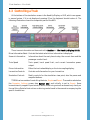
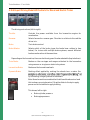
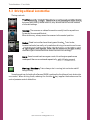
Driving Interface
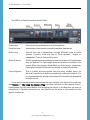
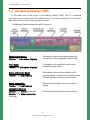
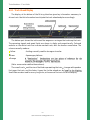
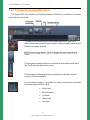
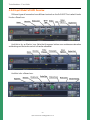
The Driving interface, also known as the Head-Up Display (HUD), is a
set of on-screen buttons and levers that overlay on the 3D view. It is
visible by default when using Train Simulator. This also comes in
two forms - Full and Mini. These can be activated using F3 and F4.
PC Mouse
Use the mouse to move controls in the 3D cab of the train. This mode
requires that cab view be used (press 1 to select cab view).
PC Keyboard
All controls have a keyboard key assigned to them, however, these
can vary from train to train depending on available functionality.
Xbox 360 Controller
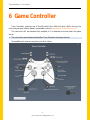
An USB Xbox 360 Controller pad can be used. See Section 6 : Game
Controller for the key mappings.
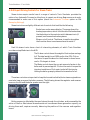
If using the mouse to manipulate train controls in the cab, first switch to the cab view (see
Section 4.14 : Changing the Point of View) and then left-click on the control, and, holding
down the left mouse button, drag the control in the direction desired. Look at the locomotivespecific information in the Driver Manual for details of the in-cab controls. Controls which
can be manipulated have tool tips associated with them. Tool tips on controls can be enabled
or disabled using the User Hints setting under Gameplay Settings.
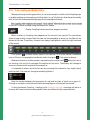
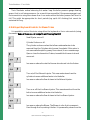
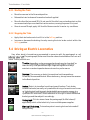
To turn off the Driving Interface, use the F4 key.
The Pause Menu (see Section 3.10 :
settings for:
Pausing and Quitting) has an Options panel with
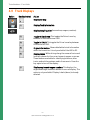
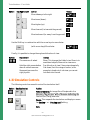
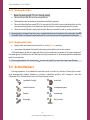
No HUD
Nothing is displayed. The keyboard or Xbox controller must be used
to control the game (whichever dials and displays the Cab View
provides from the real locomotive).
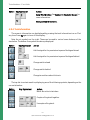
Full HUD
This features everything needed to control the train with, this is
also the default setting. It is still possible to control the train using
the Cab controls. The controls present on a Full HUD depend on the
game mode (Simple or Expert) and the type of locomotive (Steam,
Diesel, or Electric).
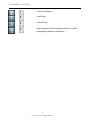
Minimal HUD
A cut-down version of the HUD is displayed, with no locomotive
controls but with the route indication diagram, the current speed
and other information.
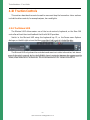
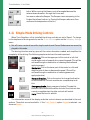
 You can also select the HUD using the Xbox 360 controller s left joystick, and the F4 key.
- 32 ©Dovetail Games All Rights Reserved