1
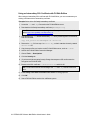
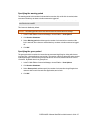
Selecting a new location for the log files
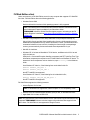
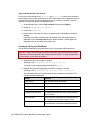
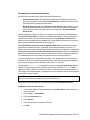
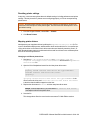
By default, log files are created and stored at C:\Program Files\ACSXerox\FH Web Edition\Log. You can select a new location for the log files.
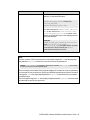
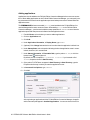
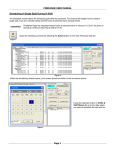
1. In the FH Web Edition Connection Manager, choose Tools → Host Options.
2. Click Log.
3. In Folder , type the path to the new directory, or browse to its location.
Note: You cannot specify a path to a remote system for the log file location.
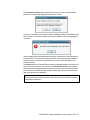
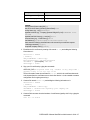
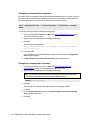
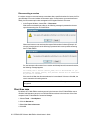
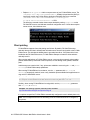
Example: If you type a UNC path or a mapped network drive, the following message
appearss:
"Please specify a usable Windows folder where log files may
be written."
4. Move the Backup folder and existing log files to the new location, along with the Templates and Codes subfolders.
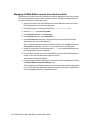
Setting the output level
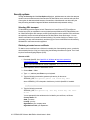
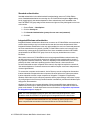
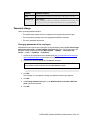
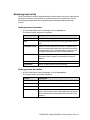
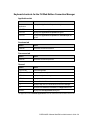
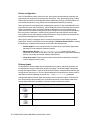
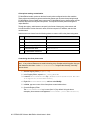
FH Web Edition offers six log output levels, as follows:
l
0: No output
l
1: Errors
l
2: Errors and events
l
3: Errors, events, and warnings
l
4: Errors, events, warnings, and diagnostic messages
l
5, 6: Errors, events, warnings, diagnostic messages, and trace messages
The default value for the output level is 1.
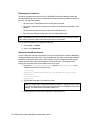
Caution: Setting the log output value to 5 or 6 causes the host to generate very large log files
and may adversely affect performance and scalability. These output levels should only be used
in a controlled environment—preferably when no clients are accessing the FH Web Edition
server.
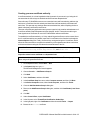
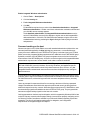
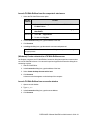
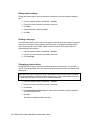
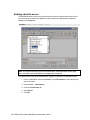
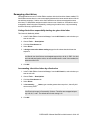
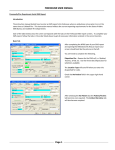
1. In the FH Web Edition Connection Manager, choose Tools → Host Options.
2. Click Log.
3. In Output level, type one of the numeric values listed above
4. Click OK.
FIREHOUSE Software Web Edition Administrator's Guide 109