1
Remapping client drives
When applications are run in FH Web Edition sessions with the client drives feature enabled, FH
Web Edition ensures there is a one-to-one mapping between drive letters and the drives of the client and host computers. If a drive on the client and a drive on the host are assigned the same
drive letter, FH Web Edition assigns a new drive letter to one of the drives. Client drives can be
remapped by either listing them sequentially, starting at a given drive letter, or by incrementing
their drive letters by a specified value.
Listing client drives sequentially starting at a given drive letter
This feature is disabled by default.
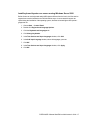
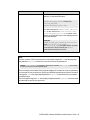
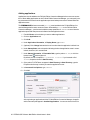
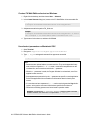
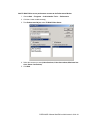
1. In the FH Web Edition Connection Manager, from the All Hosts list, select the host you
want to work with.
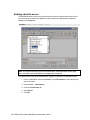
2. Choose Tools → Host Options.
3. Click the Client Access tab.
4. Select Drives.
5. In Assign consecutive letters starting at, type the drive letter that should start the
sequence.
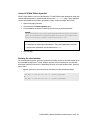
Example: If a client computer has A, C, D, and H drives, and the starting point is set to
drive letter M, the client's drives are remapped respectively to M, N, O, and P. If a drive
letter is already assigned to a drive, the next available letter is used. Once enabled, the
default drive letter is M.
6. Click OK.
Incrementing client drive letters by a fixed value
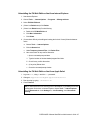
1. In the FH Web Edition Connection Manager, from the All Hosts list, select the host you
want to work with.
2. Choose Tools → Host Options.
3. Click the Client Access tab.
4. Select Drives.
5. In Increment by: ____ letters, type a number greater-than or equal-to 1, that will yield
the necessary offset.
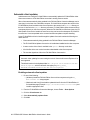
Example: If the client computer has A, C, D, and H drives, and the offset is 12, each
of the client's drives are incremented by 12 letters. The drives are remapped respectively to M, O, P, and T. The default value for this setting is 12.
6. Click OK.
FIREHOUSE Software Web Edition Administrator's Guide 95