1
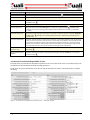
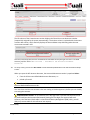
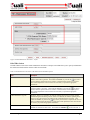
Field
Description
C = Consolidation
L = Level
O = Object Code
H = Cash
N = No Checking
Use the drop-down
menu by clicking the down arrow to display the list, and then click on
an item in the list to highlight and select it to populate the box with your selection. Click the
lookup
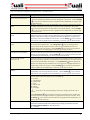
External Encumbrance
Sufficient Funds Indicator
icon to search for and return the value to populate the box automatically, or if
known, type the value in the box.
Select the check box if external encumbrances are to be included in the new accounts’
calculation of sufficient funds. Clear the check box if they are not.
This functionality does not currently exist and selecting the check boxes does not
control the inclusion or exclusion of the accounts from sufficient funds calculation.
Click within the checkbox
to select the item. A check mark appears within the checkbox
to indicate the item is selected. Click within the checkbox again to clear the mark and deselect
the item.
Internal Encumbrance Sufficient
Funds Indicator
Select the check box if internal encumbrances are to be included in the new accounts'
calculation of sufficient funds. Clear the check box if they are not.
This functionality does not currently exist and selecting the check boxes does not
control the inclusion or exclusion of the accounts from sufficient funds calculation.
Click within the checkbox
to select the item. A check mark appears within the checkbox
to indicate the item is selected. Click within the checkbox again to clear the mark and deselect
the item.
Pre-Encumbrance Sufficient
Funds Indicator
Select the check box if pre-encumbrances are to be included in the new accounts’ calculation
of sufficient funds. Clear the check box if they are not.
This functionality does not currently exist and selecting the check boxes does not
control the inclusion or exclusion of the accounts from sufficient funds calculation.
Click within the checkbox
to select the item. A check mark appears within the checkbox
to indicate the item is selected. Click within the checkbox again to clear the mark and deselect
the item.
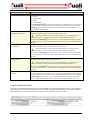
Object Presence Control
Indicator
Select the check box to indicate that the new accounts are to use object presence control. Clear
the check box if they are not. Object presence control requires that an object code be budgeted
for the account before it can be used on an actual or encumbrance transaction. Click within the
checkbox
to select the item. A check mark appears within the checkbox to indicate the
item is selected. Click within the checkbox again to clear the mark and deselect the item.
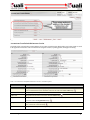
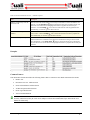
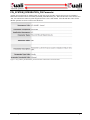
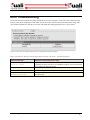
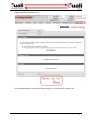
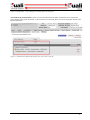
Contracts And Grants Section
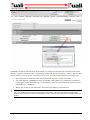
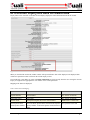
The fields on this tab define attributes that are pertinent to Kuali Coeus contracts and grants accounts. These fields allow
you to define how the new accounts based on this set of defaults automatically distribute indirect cost. It also identifies
which members of the Contracts & Grants Processor role will be responsible for these accounts.
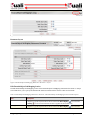
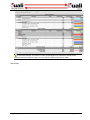
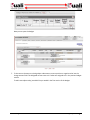
Figure 6 Contracts And Grants Section – Edit Mode Example
10 • Account
KFS-KC Integration Guide