1
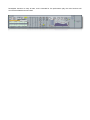
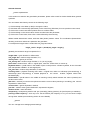
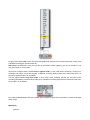
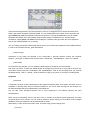
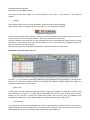
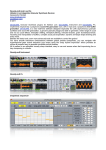
Moving the handle up/down, you can zooming in/out the signal amplitude. Note that this is not a destructive
rescaling but only a visual effect, the time zoom out button, resets the entire time display of file.
_buffer menage
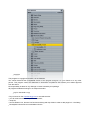
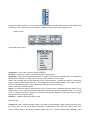
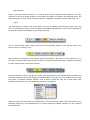
The top-left pop-up menù:
load/replace = open a file browser to load an audio file;
savetofile = export the contents of the buffer as Wav or Aif audio file;
openbuffer = opens the wavepad buffer window, or brings it to the front if it is already open. The windows is
resizable but not editable, scrolling the mouse over time it switches to scrub mode;
crop = crop message will trim the audio data to the current selection. It resizes the buffer to the selection
length, copies the selected samples into it, and displays the result at default settings. The buffer is erased,
except for the selected range. This is a "destructive edit," and cannot be undone;
clear = erases the contents of buffer;
lastsel = it causes the selection start and end points to revert to their immediately previous values. This is
helpful when you are making fine editing adjustments with the mouse and accidentally click in the wrong
place, or otherwise cause the selection to change unintentionally. Repeated undo commands will toggle
between the last two selection states;
zoomout = resets the entire time display of file;
down we have:
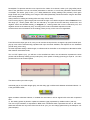
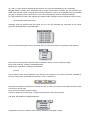
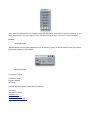
normalize numbox= scale the sample values in the buffer so that the highest peak matches the value given
by the argument. This can cause either amplification or attenuation of the audio, but in either case, every
value is scaled. When a sound file is loaded, default value is 0, it means original wave amplitude, value