1
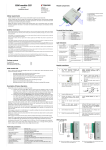
Wiring diagram to SECOLink security control panels:
PAS8xx.
Setting of operating parameters
Module G10 operating parameters are set with computer program G10config. Program can be found in website
www.trikdis.lt.
1. Connect the module G10 with a computer using a USB cable.
Note: USB drivers must be installed in the computer. If the module is connected to a computer for the first time, MS
Windows OS should open the window Found New Hardware Wizard for installing USB drivers. Download the USB driver file
USB_COM.inf for MS Windows OS from the website www.trikdis.lt. In the wizard window select the function Yes, this time
only and press the button Next. When the window Please choose your search and installation options opens, press the
button Browse and select the place where the file USB_COM.inf was saved. Follow the remaining wizard instructions to
finish the USB driver installation.
2.
3.
Start the program G10config.
Select the program directory Settings.
In the drop-down list Port select the port to which the module
is connected.
Note: specific port to which the device is connected will
appear only when the device is properly connected.
In the drop-down list Language select the desired program
language.
4.
Press the button Connect/Disconnect [F2/F8]
When the module G10 is connected to a computer, module LED
Power should flash green and yellow in turn. Program G10config
status bar should indicate connection status as Connected and
the following information about the connected module:
Module type
Module serial number
Firmware version installed in the module
5.
Press the button Read [F7]
When the window Access code opens, enter the access code
(default access code is 1234) and press the button OK.
If you want for the program to remember your access code,
check the box Remember. The window Access code will not
open when connecting to the module for the next time.
5