1
4.4.12.
4.4.13.
4.4.14.
4.4.15.
4.4.16.
4.4.17.
4.4.18.
4.4.19.
4.5.
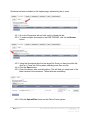
In the Requests tab, click the Open Request of the form you wish to
authorise.
The Authorisation tab is now visible, click the Review Requested
Form button to check the data in the form in read-only format. Navigate
through the form by clicking the Next and Previous arrow buttons.
Alternatively, click the Reject Request button to reject the form prior to
review if for some reason you cannot sign the form.
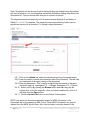
After reviewing the form, click the Navigate icon and then the
Authorisation tab.
Click the Authorise Form button to generate an electronic signature.
Enter your username and password (this acts as an extra layer of
security to ensure that only the registered authoriser can electronically
authorise an application) as well as your Job Title/Post, Position and
Email (these details will appear on the declarations page on the form),
then click the Sign button.
Your electronic authorisation will appear in the form as long as it is
valid.
Alternatively, select the Reject Request button to reject the form. The
applicant will receive a confirmation email and should liaise directly with
the authoriser to resolve any issues.
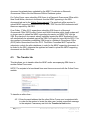
The Submission tab
The Submission tab replaces the Lock for Submission button on the old Online
Forms website. To generate a Submission Code –
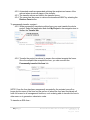
4.5.1. Select the Generate submission code button on the Submission tab. A
new window will appear with the following message –
23 | P a g e
Australia Online Forms for Research
Version 1.6
August 2014