1
A GUIDE TO THE ADVANCED FEATURES OF CRISP2D
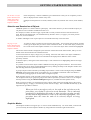
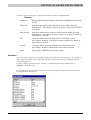
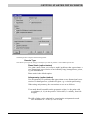
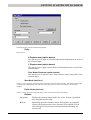
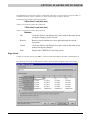
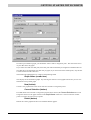
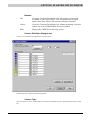
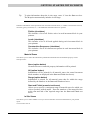
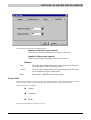
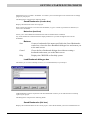
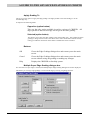
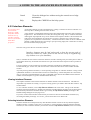
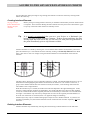
Buttons:
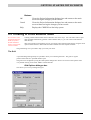
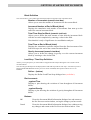
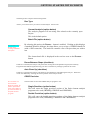
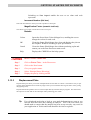
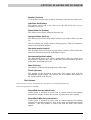
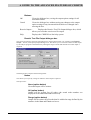
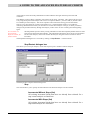
Moves all selected blocks in the Increments Without Stops list to the
Increments With Stops list.
Moves all selected blocks in the Increments With Stops list to the
Increments Without Stops list.
Moves all selected blocks in either list to the other list, i.e. toggles
whether or not the selected blocks are restart blocks.
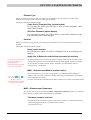
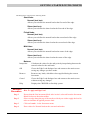
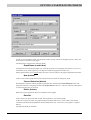
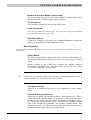
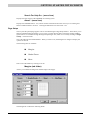
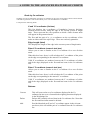
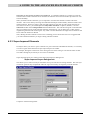
Restart
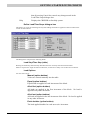
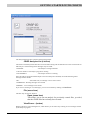
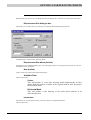
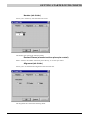
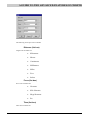
This section allows you to specify an increment block in an existing saved Project from which to restart
your analysis.
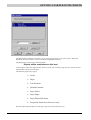
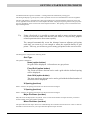
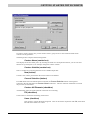
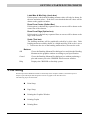
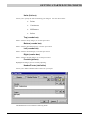
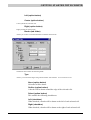
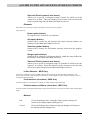
File Name (list box)
This displays a list of child Projects for which you have previously saved
stop/restart information.
Select the Project from the list that contains the stop/restart information
that you want to use.
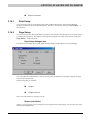
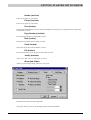
Increment (list box)
Once you have selected a restart Project file, this displays a list of all the
increment blocks within that file that have been specified as stop/ restart
increments.
Select the increment block from the list from which you want to restart
your analysis.
Note that you can only restart an analysis from an increment block that
has previously been marked as a stop/restart block.
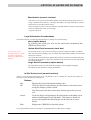
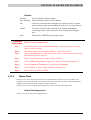
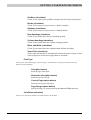
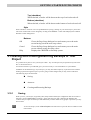
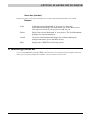
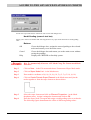
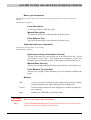
Buttons:
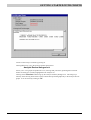
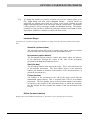
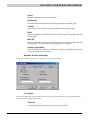
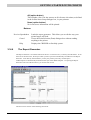
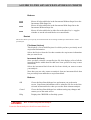
OK
Closes the Stop/Start dialogue box and returns you to the main
screen. Stop/restart information will be written to file for each of the
selected increment blocks when you run the finite element analysis.
Cancel
Closes the Stop/Start dialogue box without saving any changes and
returns you to the main screen.
Help
Displays the CRISP2D on-line help system.
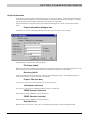
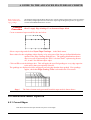
Example
Procedure
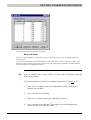
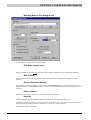
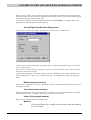
How To Run a Stop-Restart Analysis
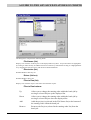
Create the Parent analysis with all increment blocks etc.
4-29