1
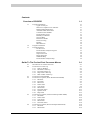
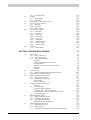
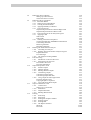
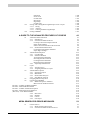
Contents
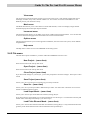
Overview of CRISP2D
1.1
1.2
1.3
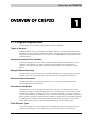
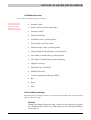
Program Capabilities
Types of Analysis
Interactive Graphical User Interface
Dialogue-Based Data Entry
Automatic Mesh Generation
Constitutive Soil Models
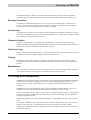
Finite Element Types
Boundary Conditions
On-Line Help
Parametric Studies
Post-Processing
Printing
Miscellaneous
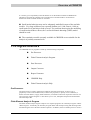
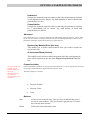
Program Limitations
Program Structure
Pre-Processor
Finite Element Analysis Program
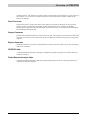
Post-Processor
Output Converter
Report Generator
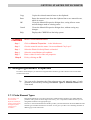
CRISP2D Help
Finite Element Analysis Help
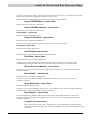
Guide To The Pre And Post Processor Menus
2.1
2.2
2.3
2.4
2.5
2.6
Introduction To The Pre-Processor
Pre-Processor at Start-Up
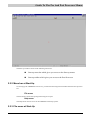
2.2.1 Start-up Window
2.2.2 Menu bar at Start-Up
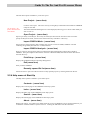
2.2.3 File menu at Start-Up
2.2.4 Help menu at Start-Up
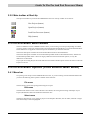
2.2.5 Main toolbar at Start-Up
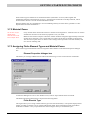
Pre-Processor Mesh Modes
Pre-Processor Options (Finite Element Mesh Mode)
2.4.1 Menu bar
2.4.2 File menu
2.4.3 Edit menu
2.4.4 Select menu
2.4.5 View menu
2.4.6 Mesh menu
2.4.7 Increment menu
2.4.8 Options menu
2.4.9 Help menu
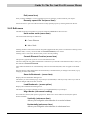
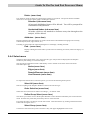
Pre-Processor Options (Unstructured Super Mesh Mode)
2.5.1 Menu Bar
2.5.2 Select menu
2.5.3 View menu
2.5.4 Mesh menu
2.5.5 Increment menu
Pre-Processor Options (Structured Super Mesh Mode)
2.6.1 Menu bar
2.6.2 Mesh menu
1-1
1-1
1-1
1-1
1-1
1-1
1-1
1-1
1-2
1-2
1-2
1-2
1-2
1-2
1-2
1-3
1-3
1-3
1-4
1-4
1-4
1-4
1-4
2-1
2-1
2-1
2-1
2-2
2-2
2-3
2-4
2-4
2-4
2-4
2-5
2-7
2-8
2-9
2-12
2-13
2-15
2-15
2-16
2-16
2-16
2-16
2-17
2-18
2-18
2-18
2-19