1
Chapter 3 Character Input
3.10 Using Balloon UI
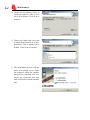
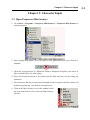
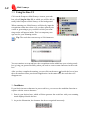
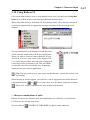
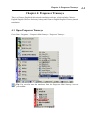
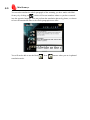
Click on the Mini Scaneye icon on your taskbar beside your clock and select Using Balloon UI. Now Mini Scaneye will function in Balloon interface mode.
When using Mini Scaneye in Balloon UI, all scanning results will be directly transferred
to the desired application, as opposed to having a result box as discussed in previous
chapters.
You can continuously scan through text and all results
will be instantly transferred to the desired application.
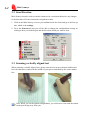
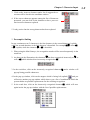
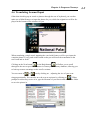
When you want to correct a certain character, all you
need to do is to leave your cursor on the character for
1-2 seconds and a window showing a list of suggested
corrections will be presented to you. This will enable
you quicker correction and a faster way of inputting
characters into your desired application.
Tip: You only need to leave your cursor on the character, you do not need to click
any buttons.
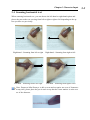
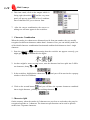
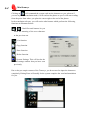
When the pop up window appear, you will have a list of suggested corrections, character
combination buttons
or
hover your cursor over the display original text button
. Please refer to prior explanation for more details on the buttons.
*. Character combinations or splits
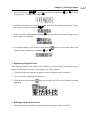
Balloon UI represents character splits and combinations in a different way from Inline
UI. However the concept is the same.
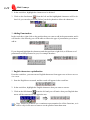
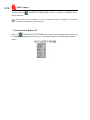
You can click on
(INSERT PICTURE HERE) to split a certain character.
3-13