1
Tasks module
Opening or saving attachments
6.4.4. Opening or saving attachments
You can do the following:
▪
Open an attachment.
Note: To open an attachment you might need additional software.
▪
Save an attachment outside of the groupware.
▪
Save an attachment in the InfoStore.
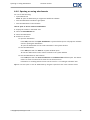
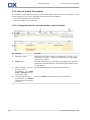
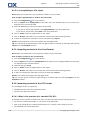
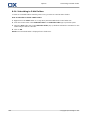
How to open or save a task's attachment:
1. Open the task in the H split view.
2. Open the Attachments tab.
3. Select the attachment.
4. Decide on an action:
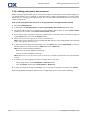
To open the attachment:
In the Edit panel tab click Open attachment. A system window opens. It displays the software
used for opening the attachment. A system window opens. It shows the software used for
opening the attachment.
To open the attachment use the control elements in the system window.
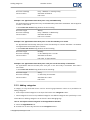
To save the attachment:
In the Edit panel tab click Save as. A system window opens.
To save the attachment sse the control elements in the system window.
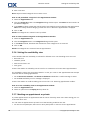
To save the attachment to the infostore:
In the Edit panel tab click Save to infostore. The InfoStore item window opens. The attachment's file name is entered as the file name for the infostore item.
Information on creating infostore items can be found in 7.5: Creating an InfoStore item.
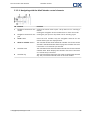
Tip: You can also open or save an attachment by using the respective icons in the task's hover.
106
© Copyright Open-Xchange Inc. 2010