1
Chapter 4 ConfigEd Functions
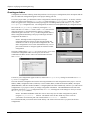
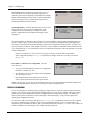
ConfigEd then prompts you to name the configuration. This name appears on the title bar of the configuration when
opened in ConfigEd. It also serves as the MS-DOS file name for the configuration, which is stored under the 8-digit
project subdirectory in SSD_LINK/CONFIGS directory on you hard disk. For a discussion on the complete file
structure of the ConfigEd database, refer to the LINK Overview Manual.
NOTE. As restricted by the MS-DOS, configuration names are limited to 8-character file names. The 3character MS-DOS file extension is reserved for revision numbers (001 through 999).
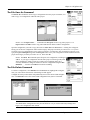
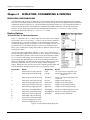
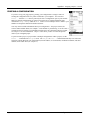
The File-Open (Ctrl+O) Command
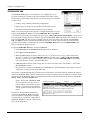
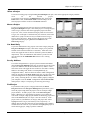
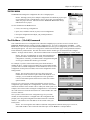
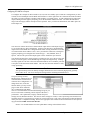
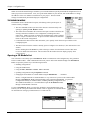
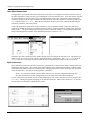
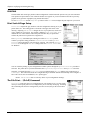
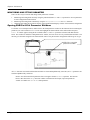
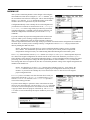
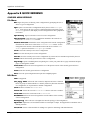
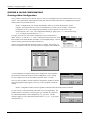
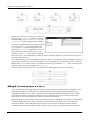
Use File-Open to open the latest revision of a configuration within a
project. When you choose File-Open, highlight the configuration file
from the menu that appears and click on it to open it. Picking the
Open... selection at the top of the box allows you to set display and
installation options for each individual configuration.
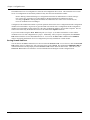
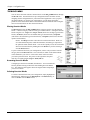
NOTE. A check mark (Ö) indicates that the configuration is not
write-protected (in the Read-Only status), as set through the
File-Open-Open command.
The File-Open-Open Command
4
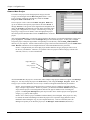
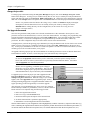
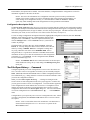
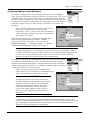
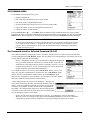
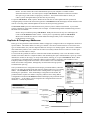
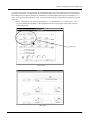
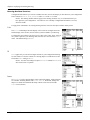
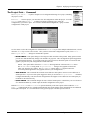
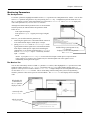
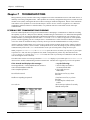
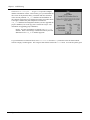
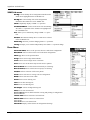
If you choose the second Open command at the top of the File-Open
selection box (or File-Open-Open) a second selection box appears
which gives you more control options for your configurations. You can
open configurations from the same list File-Open offers (the latest
revision of the project’s configuration files) but you can also individually change a configuration’s Read-Only status, designate a file’s source
information be installed into the LINK module when loading, and select
a graphical format.
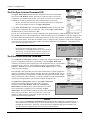
To open a configuration from the File-Open-Open dialog box,
highlight the configuration, then click Select. An asterisk (*) next to
the file name in the File-Open-Open selection box indicates that the
configuration functionality has been modified since last installed.
Configuration Read-Only Mode
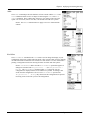
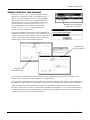
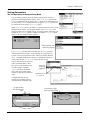
The File-Open-Open dialog box gives you the option to designate a configuration as
Read-Only protecting it from inadvertent or accidental modification. This selection only
provides limited protection as any user may change the Read-Only designation (assuming they have Guest Rights to the project). Those configurations you designate as read/
write (or not Read-Only) are marked with a check (Ö) in the File-Open command
list.
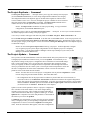
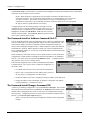
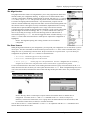
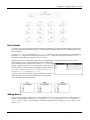
Graphical Mode
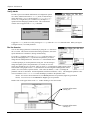
This selection determines how your computer displays configurations on your screen.
Checking the box sets the display to a graphical format; unchecking the box sets the
display to the earlier text-based format of ConfigEd.
NOTE. Graphical mode is recommended for all projects created with ConfigEd
Versions 3.x and higher.
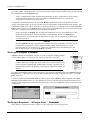
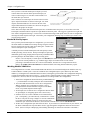
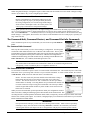
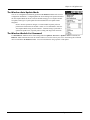
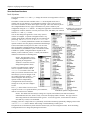
Install Source
Checking the Install Source box prior to installing configurations will cause
ConfigEd to load information into the LINK module which will enable the software tool
to extract the configuration from the module’s memory (i.e., without the project files on
your computer). In order to use the Extract Selected function on first generation
Configuration Editor Software Manual
4 - 11