1
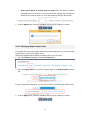
3.2. Connecting via Windows 10
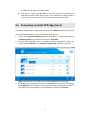
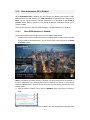
This section explains how to connect a device running Windows 10 to ScreenBeam Pro.
1.
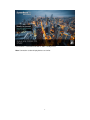
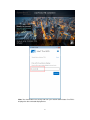
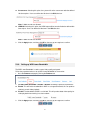
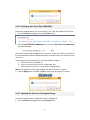
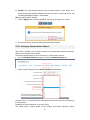
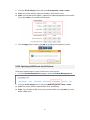
Press the shortcut keys, Windows logo
wireless display receiver list.
+ K, on your keyboard to display the
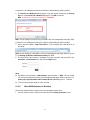
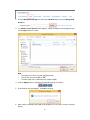
Note: There are other ways to open the wireless display receiver list:
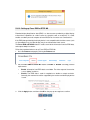
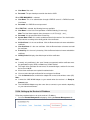
Click the Start button, and then select Settings > Devices > Connected devices >
Add a device to open the wireless display receiver list.
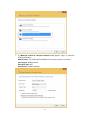
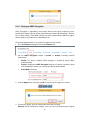
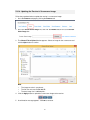
Click the Notification icon on the task bar or press the shortcut keys, Windows
logo
+ A, to open the Action Center, and then select Connect to open the
wireless display receiver list.
2.
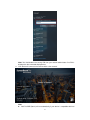
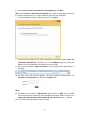
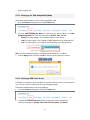
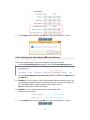
Press the shortcut keys, Windows logo
+ P, to open the Project menu, and
then select Connect to a wireless display to open the wireless display receiver
list.
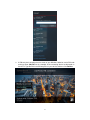
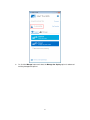
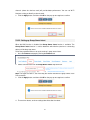
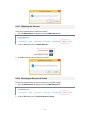
Select your receiver from the device list.
10