1
9
Project Manager User Manual
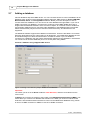
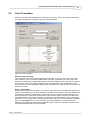
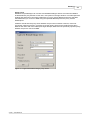
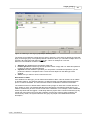
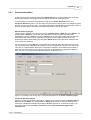
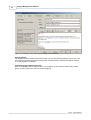
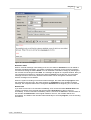
Figure 2: Creating a new user.
Editing and deleting an existing user
You can edit a user if you select it and click the Edit button in the operations bar. A window is
presented (much like the window for creating a user) where you can make the necessary changes.
After clicking the OK button, the changes are saved. At any time you can click the Cancel button to
cancel the operation. In which case, the changes are not saved.
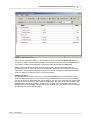
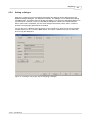
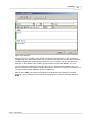
You can delete a user if you select it and click the Delete button in the operations bar. If you delete
a user, the system double-checks if you really want to delete the user. If the status of the user is
active, you can choose to inactivate the user rather than deleting it.
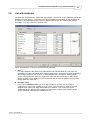
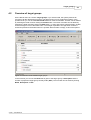
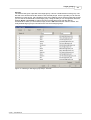
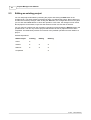
Figure 3: Deleting a user
The system always checks if there is at least one active administrator. Without an active
administrator there is no one that can manage users and user rights. The system will not allow
you to delete the last active administrator.
© 2001 - 2004 Metatude