1
Projects
5.2.2
38
Setting a dialogue
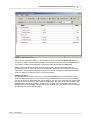
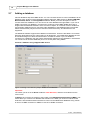
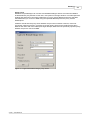
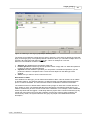
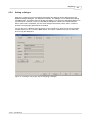
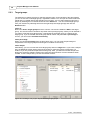
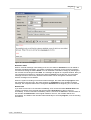
Step two in creating a project is assigning a dialogue (the dialogue can be designed using the
Metatude Dialogue Designer, see 'About this manual'). The dialogue can be assigned by clicking
the Open button. This button opens a window that allows you to select the appropriate dialogue on
your hard drive or network. Once you click OK, the dialogue is copied to the central Dialogue
Server. When this is completed, you see some dialogue information (name, author, number of
questions and language) presented in the window.
You can also copy a dialogue from the server to your hard drive or network (only from an already
created project). To do so, click the Save button. This opens a window were you can select the
drive to copy the dialogue to.
Figure 21: Creating a new project step 2: Assigning a dialogue
© 2001 - 2004 Metatude