1
{Manual Control}
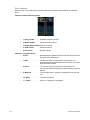
This desk setting button gives you access to Element’s manual control settings.
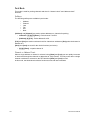
Manual Time
In this section you may change the default times for manual changes to occur in live. Times can be
set for Intensity Up and Intensity Down.
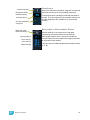
Manual Control
This section allows you to specify the values for certain buttons and settings used in manual
control. To change any value, click the appropriate button in the CIA and use the keypad to enter a
new value.
Preserve Blind Cue - This enables the console to recall the last selected cue in blind when
you return to blind. The default is disabled.
Level - This sets the default for Level (which is accessed in Element by double pressing
[Full]). Any value between 0-100 may be entered. The default is 100.
Plus% - This sets the level for the +% (which is accessed in Element by pressing [At]
[+][+]), which will increase the selected channel by the set percentage. Any value between
0-100 may be entered. The default is 10%.
Minus% - This sets the level for -% (which is accessed in Element by pressing [At] [-][-]),
which will decrease the selected channel by the set percentage. Any value between 0-100
may be entered. The default is 10%.
Rem Dim Level - This allows you to set the level for all Remainder Dim commands. The
default is 0.
Default Times
In this section you may change the default times for sneak commands, back time, and go to cue
time. The default for these is 5 seconds, except for back time, which uses a default of 1 second.
{Face Panel}
In this section you may change the sounds settings as well as adjusting the increment and
acceleration effect of the level wheel.
{Face Panel Keypad}
This screen allows you to adjust the auto repeat settings (delay and speed) for the facepanel
keypad as well as enable/disable the blackout and Grandmaster functions for your Element.
{Displays}
This desk setting button gives you access to the Element display settings.
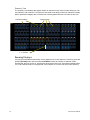
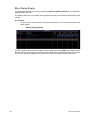
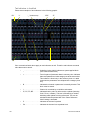
High Contrast Display
This button toggles the setting between “Enabled” and “Disabled”. When enabled, high-contrast
brightens the cue numbers and channel numbers in displays and also brightens the magenta used
to show tracked values.
The default setting for this is “Disabled”.
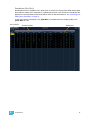
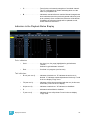
Show Reference Label
This button toggles the setting between “Enabled” and “Disabled”. When enabled, referenced
record targets (such as palettes) with labels will have their labels displayed in the live/blind display
rather than their target type and number. [Label] can be used to toggle between views.
The default setting for this is “Disabled”.
120
Element User Manual