1
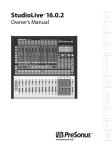
StudioLive CS18AI
™
Ethernet AVB Control Surface
Owner’s Manual
®
www.presonus.com
English
Table of Contents
1Overview — 1
5
Controlling StudioLive RM-series
Mixers with the CS18AI — 28
5.1
Accessing Channels with Layers and Filter DCA
Groups — 28
1.1
Introduction — 1
1.2
StudioLive CS18AI Control Surface Features — 2
5.2
Basic Channel Operation Summary — 30
1.3
Active Integration — 2
5.3
Processing Signals with the Fat Channel — 31
1.4
What is in the Box — 3
5.4
Channel Strip Controls — 48
1.5
What You Will Need — 4
5.5
Global Mixer Controls — 49
1.6
About This Manual — 4
5.6
Master Control and Touchscreen — 55
1.7
Technical Support — 5
5.7
System Menu — 64
2
Getting Started — 6
5.8
Working with Filter DCA Groups — 67
2.1
Minimum System Requirements — 6
5.9
Aux Mixes and Subgroups — 73
2.2
System Setup Overview — 6
2.3
Registering Your CS18AI Control Surface — 7
6
Rear Panel — 83
2.4
Updating CS18AI Firmware — 8
6.1
Physical Connections and Controls — 83
2.5
Powering and Testing the CS18AI — 14
7Reference — 85
3
Networking the StudioLive CS18AI
Control Surface — 16
7.1
StudioLive CS18 Technical Specifications — 85
3.1
Networking Overview — 16
8
Warranty Information — 87
3.2
Connecting the StudioLive CS18AI to one
StudioLive RM Mixer — 19
8.1
How Consumer Law Relates To This
Warranty — 87
3.3
Connecting the CS18AI to an RM Mixer and Studio
One — 23
4
Connecting the CS18AI to Your
Audio System — 25
4.1
Mic and Line Inputs — 25
4.2
Headphone and Monitor Outputs — 26
5.10 Internal Effects Mixes — 77
1Overview
1.1Introduction
StudioLive™ CS18AI
Owner’s Manual
1Overview
1.1
Introduction
Thank you for purchasing a PreSonus®
StudioLive™ CS18AI Ethernet AVB control surface.
PreSonus Audio Electronics has designed the
CS18AI utilizing high-grade components to ensure
optimum performance that will last a lifetime.
The CS18AI provides fast and comprehensive
control with PreSonus’ RM32AI and RM16AI digital
mixers and Studio One® DAW software for Mac®
and Windows®. It combines touch-sensitive,
motorized faders, a color touchscreen, a carefully
designed selection of controls, and Ethernet
AVB networking in a rack-mountable package.
The CS18AI’s touch-sensitive motorized faders
let you check information on a channel without
having to move the fader. When used with Studio
One, it lets you write automation using Touch
and Latch modes that depend on Studio One
knowing when you touch or release a fader.
The StudioLive CS18AI Filter DCA groups make
it easy and quick to navigate and control a large
mix using fewer faders than digital mixers that
require paging through numerous layers. No
other mixing system offers the same combination
of compactness, affordability, and ease of use.
The CS18AI’s built-in 4x2 Ethernet AVB audio interface utilizes the
power and flexibility of audio networking to send and receive
audio across long distances over a single Ethernet cable.
The StudioLive CS18AI is perfectly suited for a variety of applications,
including live-sound mixing, fixed installations, theaters,
broadcast, houses of worship, and professional recording.
We encourage you to contact us with questions or comments regarding
this product. PreSonus Audio Electronics, Inc., is committed to constant
product improvement, and we value your suggestions highly. We believe
the best way to achieve our goal of constant product improvement is by
listening to the real experts: our valued customers. We appreciate the
support you’ve shown us through the purchase of this product.
1
1Overview
1.2
StudioLive CS18AI Control Surface Features
1.2
StudioLive™ CS18AI
Owner’s Manual
StudioLive CS18AI Control Surface Features
• 18 touch-sensitive, motorized faders
• 18 customizable, multi-color Select buttons for easy channel identification
• 16-channel scribble strip display
• 4.3-inch color touchscreen
• Full control of Fat Channel processing
• Ethernet AVB-based control of StudioLive RM-series Mix Systems
• Filter DCA group support
• 4-pin XLR lamp connection
• Footswitch input
• 19" rack mountable
• Internal power supply with no fans
• Supports PreSonus UC Surface software
• Control of PreSonus Studio One DAW software
• Built-in Ethernet AVB audio interface with:
-- 2 mic/line inputs with recallable XMAX preamps for
talkback, room mic, or other local inputs
-- 2 balanced TRS line inputs
-- 2 XLR line outputs
-- Stereo headphone output
1.3
Active Integration
PreSonus created Active Integration™ to enable our products to work
cooperatively, connecting them into a powerful system that meets your specific
needs and can take you from studio to stage and back. Active Integration puts
control in the hands of all who need it in live sound environments and makes
it possible to reconfigure a fixed installation to accommodate every event.
The StudioLive CS18AI is an important addition to PreSonus Active
Integration-equipped products, supplying hands-on control of the
RM-series mixers and Studio One DAW. With UC Surface multi-touch
control software for Mac, Windows, and iPad and the StudioLive CS18AI
control surface, you can choose to work the way you want.
2
StudioLive™ CS18AI
Owner’s Manual
1Overview
1.4
What is in the Box
What is in the Box
Your StudioLive CS18AI package contains the following:
• PreSonus StudioLive CS18AI Ethernet AVB control surface
• 3-foot (1m) Ethernet cable
• IEC power cord
• USB Wi-Fi LAN adapter
• Product registration and software authorization card
• StudioLive CS18AI Quick Start Guide
StudioLive™ CS18AI
Ethernet/AVB Control Surface for
StudioLive RM mixers and Studio One® DAW
Deutsch
Español
English
Visual Quick Start Guide
Français
1.4
www.presonus.com
• PreSonus Health Safety and Compliance Guide
3
StudioLive™ CS18AI
Owner’s Manual
1Overview
1.5
What You Will Need
1.5
What You Will Need
You will need a network connection with Internet access or a USB flash
drive (SanDisk brand recommended) for firmware updates.
Depending on your system configuration and intended uses, you may also need
the following items, which are not included with your CS18AI control surface:
• Wireless router. For information on wireless routers we know work
well with the CS18AI control surface, see http://support.presonus.
com/entries/22338274. In our testing, we have also encountered
some wireless routers that can be problematic, which are discussed
here: http://support.presonus.com/entries/22338264.
• AVB-compatible network switch. The latest information on
compatible switches can be found here: http://support.presonus.
com/entries/67281460-Supported-AVB-network-switches.
• A Mac or Windows computer or iPad running UC Surface, with a wired or
wireless connection to a network router that is, in turn, connected to the mixer.
1.6
About This Manual
We suggest that you use this manual to familiarize yourself with the features,
applications, and connection procedures for your StudioLive CS18AI control
surface before trying to connect it to your RM-series mix system or computer.
This will help you avoid problems during installation and setup.
The concept of Active Integration is to tie together system components like
the RM-series mixers, the CS18AI controller, UC Surface control software,
Studio One DAW, and other software and AI hardware products. This creates
a great deal of potential overlap in the manuals for these products.
The StudioLive RM-Series Mixers Owner’s Manual, available at
http://www.presonus.com/products/StudioLive-RM-Series/downloads,
describes the RM-series mixer hardware, including connections, typical
system configurations, audio interface functions, and more. If you need
information on the RM-series mixers that is not in the CS18AI Owner’s
Manual, the RM-Series Mixers Owner’s Manual is the next place to check.
The StudioLive AI Software Library Manual, available at
http://www.presonus.com/products/StudioLive-RM-Series/downloads,
discusses downloading, installing, and using UC Surface touch-control
software, QMix-AI remote control software, Capture™ recording software,
and Studio One Artist DAW software. The StudioLive CS18AI Owner’s
Manual describes how the CS18AI works with these products.
Throughout this manual you will find Power User Tips. These tips provide mixing
tricks, some of which are unique to StudioLive CS18AI control surfaces, and
offer explanations of various audio terms. Thank you, once again, for buying
our product. We are confident that you will enjoy your StudioLive CS18AI!
4
StudioLive™ CS18AI
Owner’s Manual
1Overview
1.7
Technical Support
1.7
Technical Support
Many technical issues can arise when using a standard computer as a
digital audio workstation (DAW) and when networking wireless devices.
PreSonus can only provide support for issues that directly relate to the
StudioLive CS18AI control surface and Ethernet AVB interface, RM-series
mixers, UC Surface control software, QMix-AI, Capture, and Studio One.
PreSonus does not provide support for computer hardware, iOS hardware, wireless
networks, operating systems, and non-PreSonus hardware and software, and it may
be necessary to contact the manufacturer of these products for technical support.
Please check our Web site www.presonus.com regularly for
software information and updates, firmware updates, and
support documentation for frequently asked questions.
Online technical support is available to registered users through their My
PreSonus account. Visit my.presonus.com to register. PreSonus telephone
technical support is available to customers in the USA on Monday through
Friday from 9 a.m. to 5 p.m. Central Time by calling 1-225- 216-7887.
Customers outside of the USA should contact their national or regional
distributor for telephone technical support. A list of international distributors
is provided at www.presonus.com/buy/international_distributors.
Advanced troubleshooting guides can be found at
http://support.presonus.com/forums.
5
2
2.1
Getting Started
Minimum System Requirements
2
Getting Started
2.1
Minimum System Requirements
StudioLive™ CS18AI
Owner’s Manual
General
• AVB compatible Ethernet connection for control and audio
transport. (If using a non-AVB network connection you’ll still have
control but will not have audio transport over Ethernet.)
• Internet connection for registration and software download.
Mac
• Mac OS X 10.8 (64-bit) or later
• Intel® Core™ i3 processor or better, 4 GB or more RAM (8 GB recommended)
Windows
• Windows 7x 64/x86 SP1, Windows 8x64/x86 or Windows 10
• Intel® Core™ i3 processor or better (Core i5 or faster
recommended), 8 GB or more RAM
iOS
• iOS 7.03 or later
• iPad Air, iPad mini with Retina display, iPad (3rd or 4th generation), iPad mini
2.2
System Setup Overview
It only takes a few steps to get your StudioLive
CS18AI control surface up and running:
1. Register your CS18AI in your My PreSonus account. See Section 2.3
Registering Your CS18AI Control Surface for more information.
2. Update the CS18AI firmware, if necessary. See Section 2.4
Updating CS18AI Firmware for more information.
3. Connect the CS18AI to AC power using the included IEC power
cord. When you power a CS18AI control surface, the touchscreen
indicates the current status of the boot or update process.
4. Connect the CS18AI to your StudioLive RM-series mixer and/
or computer and configure the system. See Chapter 3
Networking the StudioLive CS18AI Control Surface.
5. Connect the CS18AI to your audio system.
6
2
2.3
Getting Started
Registering Your CS18AI Control Surface
2.3
Registering Your CS18AI Control Surface
StudioLive™ CS18AI
Owner’s Manual
1. Go to my.presonus.com.
2. Log in or create a new account if you don’t already have one.
3. Once you have logged into your My PreSonus account, click the Register a
Product button at the top of the page. The Register Product dialog appears.
7
2
2.4
Getting Started
Updating CS18AI Firmware
StudioLive™ CS18AI
Owner’s Manual
4. Select “Hardware” from the drop-down menu in the dialog, enter the
information for your CS18AI controller, and check the box stating
you have read and agree to the license agreement. Click/tap the
Register button when you are done to register your controller.
5. You can now download firmware updates or update the firmware directly
with your StudioLive CS18AI connected to an Internet-connected network.
2.4
Updating CS18AI Firmware
Please be sure to review all instructions before updating your StudioLive CS18AI.
Note: Be sure to confirm that your RM-series mixer is running the
most up-to-date firmware. For more information on updating RM
mixer firmware, see Section 3.8 How to Update StudioLive RM Mixer
Firmware in the StudioLive RM-Series Mixers Owner’s Manual.
If Your CS18AI is Registered and Connected to the Internet
All registered StudioLive CS18AI controllers have the ability to
connect to a My PreSonus account and download firmware updates
over the Internet. To check online for new firmware updates:
• Be sure no USB flash drive is inserted in the USB port.
If a flash drive is in the slot, remove it.
• Connect your registered CS18AI to a network with Internet access.
To Internet
8
2
2.4
Getting Started
Updating CS18AI Firmware
StudioLive™ CS18AI
Owner’s Manual
• Skip steps 1 through 11 below and follow the
instructions in steps 12 through 17.
If Your CS18AI is Not Connected to the Internet
If your CS18AI is not connected directly to the Internet, follow
all of the instructions below to download the firmware files to a
USB flash (“thumb”) drive and install them from there.
We strongly recommend SanDisk-brand flash drives for firmware
updates. If you have compatibility problems with a SanDisk Cruzerseries flash drive, please read this Knowledge Base article.
1. Log in to your my.presonus.com account.
2. Once you have logged in, click the My Products button at the top of the page.
3. If the Hardware button on the My Products page is not highlighted,
click the button to select the Hardware section.
9
2
2.4
Getting Started
Updating CS18AI Firmware
StudioLive™ CS18AI
Owner’s Manual
4. Find your CS18AI on the page and click the View More Details link.
5. If there is an Update Firmware to v<xxx> button just under the product
name and serial number, click it to download the files to your computer.
6. If there is no Update Firmware button, click the Firmware button in the
Downloads area to access recent firmware updates, then click the Download link
to begin downloading the files. If there is more than one update displayed, be
sure to click the Download link for the one with the highest version number.
IMPORTANT: The StudioLive CS18AI control surface, StudioLive AI console
mixers, and StudioLive AI RM mixers each use different firmware files.
Loading the wrong firmware can cause a device to function improperly and
potentially damage the unit.
7. When the download completes, open your Downloads folder and locate the
StudoLive firmware folder. The folder will be named with your controller’s
model number and the new firmware version (e.g., CS18AI_v1234).
10
2
2.4
StudioLive™ CS18AI
Owner’s Manual
Getting Started
Updating CS18AI Firmware
8. Depending on your computer’s system preferences, the
firmware .zip archive file might not automatically decompress.
If it doesn’t, double-click the file, and it will decompress.
9. Open the firmware folder; you will find five files inside. You
will need all five files to upgrade your controller.
- Initvars.scr
- Recovery.scr
- Rootfs.img
- uImage
- upgrade.bin
10. Connect a FAT32-formatted USB thumb drive to your computer.
Power User Tip: Most small USB drives (16 GB or less) should be formatted correctly,
but if your controller does not detect your thumb drive at first, we suggest reformatting
it, even if it’s already formatted as FAT32. On Windows, be sure to do a “Full” format
as opposed to a “Quick” format. On Macs, the choice will be listed as MS-DOS (FAT).
Please refer to the list of suggested drives that can be found on our Knowledge Base.
11
2
2.4
StudioLive™ CS18AI
Owner’s Manual
Getting Started
Updating CS18AI Firmware
11. Select and copy/paste or drag the five firmware files to the root directory of
your thumb drive. If the files are inside a folder, the update will not execute
correctly. Eject the flash drive and disconnect it from your computer.
12. Insert the thumb drive into the USB slot on the rear of your CS18AI
controller and power on the unit if it is not already on.
USB Drive
13. Press the Home button in the Master Control area of your CS18AI.
12
2
2.4
Getting Started
Updating CS18AI Firmware
StudioLive™ CS18AI
Owner’s Manual
14. From the Home page, click the System button.
15. On the System page, click the Firmware button.
16. The Firmware Version page has a section for the CS18AI and another
for the RM mixer. (The mixer section will be empty if no RM mixer is
connected.) Click the “Check for update” button in the CS18AI section.
17. The update process takes about a minute to complete. When
it finishes, you are prompted to power cycle your unit.
18. Restart the CS18AI, revisit the Firmware Version page from the System page, and
note the firmware version shown. The last four digits of the firmware version
reported there should match the version of the firmware files you downloaded.
13
2
2.5
Getting Started
Powering and Testing the CS18AI
2.5
Powering and Testing the CS18AI
StudioLive™ CS18AI
Owner’s Manual
CS18AI Startup
Once your CS18AI controller and RM-series mixers are updated to the most
current firmware, connect the CS18AI to a power source and switch it on.
1. The meters will light up in sequence, scanning
left and right across the meter array.
2. The Launch page will appear.
Using Test Modes to Check CS18AI Operation
Your CS18AI features a suite of test modes useful for confirming
basic operation of the front panel controls.
IMPORTANT: The StudioLive CS18AI should be disconnected from your RM
mixer or computer running Studio One while performing these tests. When
testing is complete, power cycle (power off and then on) your unit.
To run the test modes:
1. Press the System button. The Home page appears.
2. Touch the Utilities icon. The Utilities page appears.
14
2
2.5
Getting Started
Powering and Testing the CS18AI
StudioLive™ CS18AI
Owner’s Manual
3. Touch the icon for the test mode you want to enable. The icon becomes colored
to show the test is active. Multiple tests can be enabled and run simultaneously.
• Mardi Gras: This test runs the Meters, All Buttons, RGB Buttons, and
Faders routines simultaneously. Laissez les bon temps roulez!
• Meters: All meters in the meter array along the top of the
CS18AI go up and down, creating “the wave” effect.
• All Buttons: Buttons flash on and off in pseudo-random groups.
Multi-color buttons change color but never fully light. Any
given button will light every 10 seconds or so, at most.
• RGB Buttons: This tests only multi-color buttons, putting them
through all of their variations of color and brightness.
• Scribble Strip: All scribble strip displays show the same image patterns.
• Screen Test: Cycles the color touchscreen between primary
colors. Touch anywhere on the screen to exit this test.
• Faders: The channel faders sequence through five different routines. Moving
the master fader from the bottom to the top will cycle through all faders
up, all faders down, faders diagonally positioned from down to up, faders
diagonally positioned from up to down, and wave movement cycles.
15
3
3.1
Networking the StudioLive CS18AI Control Surface
Networking Overview
3
Networking the StudioLive CS18AI Control Surface
3.1
Networking Overview
StudioLive™ CS18AI
Owner’s Manual
Control and Audio Data Connections
Two types of data flow between your CS18AI control surface and your RM mixer
or computer: control and audio. Control connections can be made over standard
Ethernet networks, including wireless connections, but sending or receiving
audio requires an Ethernet AVB connection, which cannot be done wirelessly.
Control: This is the primary connection between the CS18AI controller
and your StudioLive RM-series mixer or your computer. The CS18AI
uses this connection to modify settings. When connected to RM-series
mixers, the CS18AI controls the mixers’ functions. When connected to a
computer, the CS18AI can control Studio One or Capture software.
Audio: An Ethernet AVB connection enables routing audio to/from the CS18AI’s
audio inputs and outputs with an RM-series mixer or compatible computer.
Power User Tip: Network connections occasionally require troubleshooting,
especially when a lot of wireless networks are in use. Because of this, it is
always a good idea to get your networked devices and CS18AI control surface
happily communicating before the pressure is on and you have a singer
trying to dial in a monitor mix while you’re trying to mic the drum kit.
About Ethernet AVB
AVB (Audio Video Bridging) is an extension to the Ethernet standard
designed to provide what network geeks call “guaranteed quality of
service,” which simply means a guarantee that audio samples reach
their destinations on time. AVB has been adopted by numerous audio
companies, and more companies are adding it all the time.
Ethernet AVB offers a number of attractive features:
• Long, light cable runs. A single lightweight CAT5e or CAT6 cable can
be run up to 100 meters (300 feet). This makes it easy to have audio
I/O located in different rooms (or even different venues in the same
building) and run multichannel audio between them in real time.
• Low, predictable latency. The Ethernet AVB specification states
latency of no longer than 2 ms sending an audio stream pointto-point over up to seven “hops” (trips through switches or other
devices) at 1x (less than or equal to 48 kHz) sample rates.
• Scalable, with high channel counts. AVB’s bandwidth is sufficient to carry
hundreds of real-time channels using a single Ethernet cable. This offers the
future possibility of expanding your system with additional devices that contain
different kinds of audio I/O, multiple controllers, and other useful functions.
• Integrated clock signal. In a digital audio system with multiple devices,
having a master clock is absolutely critical. The AVB specification defines
such a clock to be accurately distributed to all devices in the system.
• High sample rates: AVB is capable of operating at high
sample rates for high-resolution recording.
Power User Tip: The most important rule to keep in mind when setting up an
AVB network is that all the devices, routers, and switches between the talker
(device sending audio) and listener (device receiving audio) must be Ethernet
AVB-compatible. Plugging in a standard Ethernet device or switch will not carry
the audio data. In this situation, the CS18AI can readily be used for control
but cannot carry signals from its audio inputs or to its monitor outputs.
16
3
3.1
Networking the StudioLive CS18AI Control Surface
Networking Overview
StudioLive™ CS18AI
Owner’s Manual
More information about AVB in PreSonus products can be found here:
• http://support.presonus.com/entries/66743024
• http://support.presonus.com/entries/67281460
StudioLive CS18AI Controller System Configurations
You can connect your CS18AI controller:
• To a single RM-series mixer.
• To an RM-series mixer and also to Studio One software running on a computer.
• Only to Studio One software running on a computer.
In the sections that follow, we will describe all of these configurations in detail.
AVB Versus Standard Ethernet
Your CS18AI can operate over either Ethernet AVB networks or standard
Ethernet networks. The difference between the two is that AVB can
carry both control data from the CS18AI’s front panel and audio data
from the rear-panel Mic-Line input jacks, Line input jacks, and Monitor
Output jacks, while standard Ethernet carries only control data.
Wired Versus Wireless Connection
Your CS18AI can be connected using a cable from the rear-panel Ethernet
jack or wirelessly using the included USB Wi-Fi LAN adapter inserted into
the rear-panel USB port. A wireless connection can only carry control data,
which is useful for controlling Studio One software or any application
where the CS18AI’s onboard audio inputs and outputs are not needed.
Note: The StudioLive CS18AI does not support hot-swapping the Wi-Fi LAN
adapter. The LAN adapter must be connected when you power up your
CS18AI. Once you make the connection, the CS18AI will automatically
see the RM-series mixer and will show it in the UCNET page.
Wireless Connection from Router to StudioLive RM Mixer
A standard wireless Ethernet router can be used to make a wireless
connection from the router to the RM-series mixer. By default, StudioLive
RM-series mixers are configured to automatically connect to a wireless
network using the following network name and password:
• Wireless network name: StudioLive
• Wireless network password: StudioLive
Note: While you may wish to use the default values for testing a new CS18AI controller,
to maintain basic security, we strongly urge configuring different network settings.
To control a StudioLive CS18AI wirelessly over an existing or new
network, first make sure the USB Wi-Fi LAN adapter is inserted in the
USB port on the rear of the CS18AI, then power on the unit.
17
3
3.1
Networking the StudioLive CS18AI Control Surface
Networking Overview
StudioLive™ CS18AI
Owner’s Manual
1. Press the UCNET button to open the Network Connection screen.
2. Press the Network name at the top of the touchscreen.
3. The Network List view appears, showing all of the
wireless networks being seen by the CS18AI.
Note: Scanning for networks can take a little time. If you see a dialog that
reads “The unit has limited or no Wi-Fi capability detected or is still scanning
for additional networks,” try closing and reopening the Network List.
4. Press the name of the wireless network you want to
use in the list of available wireless networks.
5. Enter a password at the prompt, if one is required.
6. Press the Enter button.
7. Press the UCNET button; the name of the network you just joined should be
displayed at the top of the screen. If it is not, you did not successfully join the
network and must try again or troubleshoot the network connections.
Your system is now configured to connect to the new wireless network.
Every time you turn on your StudioLive CS18AI, it will:
1. Look for a wired Ethernet connection and use it if one is found.
2. If no wired connection is found, the CS18AI will check
whether the USB Wi-Fi LAN adapter is plugged in.
3. If the Wi-Fi LAN adapter is found, the CS18AI will look for, and attempt
to connect to, the wireless network it has been configured to use.
Note: StudioLive RM-series mixers ad CS18AI support only WPA and WPA2 security.
Please be sure that your router is configured using one of these security protocols.
Power User Tip: WPA and WPA2 are protocols created to make wireless
networks secure. WPA stands for “Wi-Fi Protected Access,” and WPA2 is a
later version that conforms to the IEEE 802.11i networking standard. Most
routers have settings that manage their security protocols; consult the
documentation for your router to learn how to change these settings.
18
3
3.2
Networking the StudioLive CS18AI Control Surface
Connecting the StudioLive CS18AI to one StudioLive RM Mixer
3.2
Connecting the StudioLive CS18AI to one StudioLive RM Mixer
StudioLive™ CS18AI
Owner’s Manual
Your StudioLive CS18AI can be connected to a single
StudioLive RM-series mixer in any of these ways:
• Using an Ethernet cable from the CS18AI directly to an RMseries mixer, with no switch or router in between.
• Using Ethernet cables to connect both the CS18AI
and an RM-series mixer to an AVB switch.
• Using Ethernet cables to connect both the CS18AI and an
RM-series mixer to a standard Ethernet router.
• Using the included USB Wi-Fi LAN adapter to connect the CS18AI wirelessly
to a standard Ethernet router that is connected to an RM-series mixer.
Note: The last two configurations use standard Ethernet instead of AVB, which enables
you to control your RM-series mixer but doesn’t support AVB audio operation.
Connecting Directly to Your RM Mixer
To connect directly between an RM-series mixer and a CS18AI:
1. Connect a CAT5e or CAT6 cable from the AVB port on the rear panel
of the CS18AI to the Control port on the RM-series mixer.
2. Press the UCNET button in the Master Control area.
The Network Connection page appears on the display.
19
3
3.2
Networking the StudioLive CS18AI Control Surface
Connecting the StudioLive CS18AI to one StudioLive RM Mixer
StudioLive™ CS18AI
Owner’s Manual
3. Touch the Mixer Control field. A menu drops down with a list of
StudioLive RM-series mixers currently available on the network.
4. Touch the name of the RM-series mixer you want to control in the list to
select it. The menu disappears, and the Mixer Control field displays the
name of the RM-series mixer to show it is connected. The power LED on
the RM mixer turns blue to show it is under the control of the CS18AI.
Your CS18AI controller is now connected to control the RM mixer.
Note: If you also want wireless control of your RM-series mixer from UC Surface
or QMix-AI software, you’ll need to use the USB Wi-Fi LAN adapter included
with the RM mixer and a wireless router connected to your computer.
20
3
3.2
Networking the StudioLive CS18AI Control Surface
Connecting the StudioLive CS18AI to one StudioLive RM Mixer
StudioLive™ CS18AI
Owner’s Manual
Connecting to Your RM Mixer with an AVB Switch
When connecting using an AVB switch, you can also connect a wireless
router to the AVB switch for wireless control from UC Surface and QMixAI. For the most current list of compatible AVB switches please refer to this
article on AVB switches approved for use with PreSonus products.
Note: A standard Ethernet switch allows control of an RM-series mixer
from the CS18AI but routing audio to and from the CS18AI’s audio
inputs and outputs requires an AVB-compatible switch.
1. Connect your StudioLive CS18AI to your StudioLive RM mixer using
an AVB switch, as shown, before powering on your system.
AI Mixer AVB Card
AVB Switch
2. Power on the switch and then power on both the CS18AI and the RM mixer.
3. On the CS18AI, press the UCNET button in the Master Control area.
The Network Connection page appears on the display.
21
3
3.2
Networking the StudioLive CS18AI Control Surface
Connecting the StudioLive CS18AI to one StudioLive RM Mixer
StudioLive™ CS18AI
Owner’s Manual
4. Touch the Mixer Control field. A menu drops down with a list
of RM-series mixers currently available on the network.
5. Touch the name of the StudioLive RM-series mixer you want to control in
the list to select it. The menu disappears, and the Mixer Control field displays
the name of the RM-series mixer to show it is connected. The power LED
on the RM mixer turns blue to show it is under the control of the CS18AI.
Your CS18AI controller is now connected to control the RM mixer.
Note: If you also want wireless control of your RM-series mixer from UC Surface or
QMix-AI software, you’ll need to connect a wireless router to the AVB switch or use
the USB Wi-Fi LAN adapter included with the RM mixer and a wireless router.
22
3
3.3
Networking the StudioLive CS18AI Control Surface
Connecting the CS18AI to an RM Mixer and Studio One
3.3
Connecting the CS18AI to an RM Mixer and Studio One
StudioLive™ CS18AI
Owner’s Manual
Your CS18AI can be used to control the transport, markers, automation, and
mix of your Studio One DAW software. The layer buttons enable control by
the CS18AI to be instantly switched between Studio One and RM mixers.
1. Run a CAT5e or CAT6 cable from your CS18AI’s AVB port to an
Ethernet switch on the same network as your computer.
2.
AVB Switch
Note: You can connect your computer to the network with either
a wired Ethernet connection or wirelessly. Audio between the RM
mixer and the computer will be carried over FireWire.
AVB Switch
AVB Switch
3. Power on the CS18AI and computer and launch Studio One. Allow a few
minutes for Studio One to make its presence known to the CS18AI.
4. On the CS18AI press the UCNET button in the Master Control area.
The network connection page appears on the display.
23
3
3.3
Networking the StudioLive CS18AI Control Surface
Connecting the CS18AI to an RM Mixer and Studio One
StudioLive™ CS18AI
Owner’s Manual
5. Touch the Software Control field. A menu drops down listing all available
instances of Studio One running on computers on the network.
6. Touch the name of the instance of Studio One you want to control in
the list to select it. The menu disappears and the Software Control field
displays the name of the Studio One instance to show it is connected.
7. Press the DAW button in the Faders area of the CS18AI front
panel. Your CS18AI controller now controls Studio One.
24
4
4.1
Connecting the CS18AI to Your Audio System
Mic and Line Inputs
4
Connecting the CS18AI to Your Audio System
StudioLive™ CS18AI
Owner’s Manual
The CS18AI is primarily a control surface, but its rear panel includes
a selection of audio inputs and outputs. These are convenient for
providing talkback and for playing source audio from front-ofhouse and from the CS18AI headphone/monitor outputs.
By default, CS18AI audio is routed as follows with a StudioLive RM mixer:
Mic/Line input 1/TB is assigned as the source for the StudioLive RM mixer Talkback.
It will also be available as the network source for Input 31 of the RM mixer.
Mic/Line input 2 is unassigned by default but will be available
as the network source for Input 32 of the StudioLive RM.
Line inputs 3 and 4 are assigned as the stereo Digital Return input of the RM mixer.
4.1
Mic and Line Inputs
The StudioLive CS18AI has two line inputs on TRS jacks and two
combo jack inputs that accept either microphone-level signals on
XLR connectors or line-level signals on ¼-inch TRS jacks.
The microphone inputs on the CS18AI utilize the same recallable
XMAX preamps as RM-series mixers, ensuring you have highquality audio that’s sonically matched with your mixer.
Connecting Microphones
Your CS18AI control surface is equipped with two recallable PreSonus
XMAX microphone preamplifiers for use with all types of microphones.
The XMAX preamplifier has a Class A input buffer, allowing you
to boost signals without increasing background noise.
The microphone inputs are wired as follows:
+ –
2
3
GND
1
Pin 1 = GND; Pin 2 = Signal +; Pin 3 = Signal –
25
4
4.2
Connecting the CS18AI to Your Audio System
Headphone and Monitor Outputs
StudioLive™ CS18AI
Owner’s Manual
+48V Phantom Power
The +48V phantom power can be individually enabled for each mic input.
Power User Tip: Phantom power is a system for powering condenser
microphones, DI boxes, and other devices by supplying a DC voltage
over a mic cable. The StudioLive CS18AI controller supplies +48V,
which is the most commonly used phantom power voltage.
Note: Always be sure that phantom power is disabled for an
input before plugging or unplugging a microphone.
Connecting Line-Level Sources to the Combo Jacks
Line-level sources can be connected to the combo jacks instead of microphones. The
line inputs bypass the preamps, going directly to the analog-to-digital converters.
Connecting Line-Level Sources to the TRS Jacks
The CS18AI rear panel includes two TRS Line Input jacks. These jacks
provide additional line inputs for sources from front-of-house, such
as 2-track or computer playback. On a StudioLive RM-series mixer
connected to the CS18AI via AVB, these two inputs show up as digital
returns 33 and 34, which appear on the Returns layer as Dig Ret.
4.2
Headphone and Monitor Outputs
Power User Tip: Monitor selection in the CS18AI uses the controller’s
monitor facilities and affects only the CS18AI. StudioLive RM-series mixers’
monitor facilities are controlled using the front panel of the RM mixer or UC
Surface and are entirely independent of the selections on the CS18AI.
Headphone Output
A ¼-inch stereo headphone jack is located on the front right
corner of the CS18AI front panel, just under the armrest.
• To control the level appearing at the Phones output, adjust the
Phones knob in the Monitor area of the CS18AI’s front panel.
26
4
4.2
Connecting the CS18AI to Your Audio System
Headphone and Monitor Outputs
StudioLive™ CS18AI
Owner’s Manual
Monitor Outputs
The monitor outputs are balanced XLR-M jacks and are convenient for
control room monitoring when the CS18AI is used to control Studio One
or for monitoring in broadcast applications. The signal routed to these
outputs is the same as that appearing at the headphone outputs.
• To control the level appearing at the Monitor outputs, adjust the
Monitor knob in the Monitor area of the CS18AI’s front panel.
Selecting a Headphone/Monitor Source
The phones jack and monitor outputs on the CS18AI carry the same source.
To select a monitor source:
• Press the Solo button in the Monitor area to select the Solo bus as the source.
• Press the Main button in the Monitor area to select the main mix as the source.
• Press the Cue button in the Monitor area to select the cue source.
To set the cue source:
• Press the Edit button in the Monitor area. The Monitor Cue Routing page appears.
• Touch the source you want to monitor.
27
StudioLive™ CS18AI
Owner’s Manual
5
5.1
Controlling StudioLive RM-series Mixers with the CS18AI
Accessing Channels with Layers and Filter DCA Groups
5
Controlling StudioLive RM-series Mixers with the CS18AI
5.1
Accessing Channels with Layers and Filter DCA Groups
The StudioLive CS18AI is capable of controlling up to 64 StudioLive RMseries mixer channels and provides active access to 16 channels at a time. As
described in Chapter 2, there are two ways to access channels on the CS18AI:
• Layers. The traditional method of accessing channels on a digital
mixer is to have them organized into layers, each layer having
a button that, when pressed, makes it the active layer.
• Filter DCA Groups. Filter DCA Groups do two things:
-- They assign the members of the group to the CS18AI’s channel
strips, filtering out all channels that are not in the group.
-- The levels of all channels in the group are put under the control
of a group master, which is assigned to the Flex Master fader.
Power User Tip: The scribble strips indicate the active channel numbers and names.
Refer to these to know which channels are shown on the CS18AI channel strips.
Navigating Layers with the Faders Buttons
The CS18AI has eight layers for accessing all available channels for
control. Using the buttons in the Faders area you can switch between
the channel layers. Once a layer has been selected, it remains active
on the channel strips until you navigate to another layer.
Layer A (1-16) displays Channels 1-16 on the channel strips.
Layer B (17-32) displays Channels 17-32 on the channel strips.
Layer C (33-48) displays Channels 33-48 on the channel strips.
Layer D (49-64) displays Channels 49-64 on the channel strips.
Returns displays the returns from the four stereo effects processors, talkback
source, stereo digital return, and stereo Tape In on the channel strips.
Mix Masters displays the master send channels for
the 16 mix buses on the channel strips.
Group Masters displays the Filter DCA group masters on your channel strips. For
information on Filter DCA Groups, see Section 5.8 Working with Filter DCA Groups.
DAW switches your CS18AI between controlling your RM mixer and controlling
Studio One DAW software.
28
5
5.1
Controlling StudioLive RM-series Mixers with the CS18AI
Accessing Channels with Layers and Filter DCA Groups
StudioLive™ CS18AI
Owner’s Manual
Accessing Filter DCA Groups
Filter DCA Groups can be accessed using the Groups view on
the touchscreen or from the Group Masters layer.
To access a group from the Groups view on the touchscreen:
1. Press the Groups button in the Master Control area.
The Groups page appears in the touchscreen.
2. Touch the onscreen button of the group you want to access. If you
don’t see the group you want, use the up and down arrow buttons
to scroll through the list. The onscreen button is highlighted, the
group becomes active, and the group members are available on the
channel strips. The Flex Master fader becomes the group master.
3. When there are more than 16 channels in a group, the
channels are split into multiple layers. Press the Shift button
to access the additional channels in the group.
4. The group remains active on the input channel layers until you exit the
group. To exit a group, return to the Groups page (if necessary) and touch
the button for the group again or touch the button for another group. The
highlight disappears, and the group is no longer active on the control strips.
To access a group from the Filter DCA Group masters:
1. Press the Group Masters button in the Faders area to make the Group Masters
layer active. The channel strips now control the masters for all of the groups.
29
5
5.2
Controlling StudioLive RM-series Mixers with the CS18AI
Basic Channel Operation Summary
StudioLive™ CS18AI
Owner’s Manual
2. When there are more than 16 Filter DCA Groups, they are split into multiple
layers. Press the Shift button to access the additional group masters.
3. While the Group Masters layer is active, you can mix by balancing the groups
you’ve created, such as Drums, Horns, Guitars, Keyboards, and Vocals.
4. To open an individual group, press the Select button on
the group master channel you’d like to access.
5. The channel strips will now display the channels in that group and the
touchscreen will show the Groups view with the selected groups highlighted.
Accessing Mixes
To access an individual mix:
1. Press the Mix Select button for the mix you want to access. For
instance, to access mix 7, press the Mix button under the Mix 7
label. The faders now control the mix of channels into Mix 7.
To access all mix masters, press the Mix Masters button in the
Faders area to make the Mix Masters layer active. The channel strips
now control the master send channels for the 16 mixes.
5.2
Basic Channel Operation Summary
This section summarizes the most commonly used channel operations.
Selecting Channels
To select a channel within a layer:
1. Be sure the proper layer is active.
2. Press the Select button for the channel you want to access. The
button lights to show that the channel is selected, and the top left
of the touchscreen will display the channel name and source.
When a channel is selected, these controls apply to it:
• Fat Channel editing
• Channel Option buttons (Stereo, Assign, Channel, A/B)
• Selected channel metering (level, compressor gain
reduction, gate/expander gain reduction)
• Touchscreens with channel-specific functions
30
5
5.3
Controlling StudioLive RM-series Mixers with the CS18AI
Processing Signals with the Fat Channel
StudioLive™ CS18AI
Owner’s Manual
Setting Channel Preamp Gain
The basic level of a channel is set by the preamp gain but the level is affected by
other gain controls in the signal path, such as compressor makeup gain and the
channel fader. Here is a good general procedure for setting the channel preamp gain:
1. Bring down all faders on your StudioLive CS18AI to the ∞ setting.
2. Make sure that the preamp level is all the way down.
3. If your microphone requires phantom power, engage
the 48V button on the channel you’re using.
4. Speak or sing into your microphone at approximately the
same volume you expect during the performance.
5. Turn the Preamp level up while watching the Selected Channel
meter. Adjust the Preamp control until the meter averages
around 0 with peaks on the yellow but not clipping red.
Setting Channel Pan
Pan control for each channel is done using the encoder in the Master
Control section under the touchscreen. This knob will only control
Pan while you’re on the Home screen or a Fat Channel screen (Gate,
Compressor, EQ). Here’s how to adjust the channel pan:
1. Select the channel you’d like to pan.
2. Be sure you’re on the Home, Gate, Compressor, or EQ screen.
3. Turn the Pan knob under the touchscreen. You’ll see the pan setting displayed in
the top right corner of the touchscreen, as well as in the scribble strip display.
5.3
Processing Signals with the Fat Channel
The Fat Channel is the heart of the StudioLive RM-series mixer. The Fat
Channel makes dynamics, EQ, and routing for every input and output
on the StudioLive RM available at the touch of a Select button. The Fat
Channel controls are also used for editing plug-ins in Studio One.
From the Fat Channel, you can:
• Add dynamics processing and EQ to every input and output and A/B them
• Assign subgroup and main routing
• Meter the inputs, post-dynamics-processing outputs,nd
gain reduction for every input channel
• Meter the aux-send outputs
• Copy, save, and load presets
Note: Fat Channel Processing is disabled on all output buses
when HD Mode (88.2 and 96 kHz sample rates) is active.
31
5
5.3
Controlling StudioLive RM-series Mixers with the CS18AI
Processing Signals with the Fat Channel
StudioLive™ CS18AI
Owner’s Manual
When editing Fat Channel settings with these controls,
the settings values are displayed in two ways:
• In the default meter mode (all meter mode buttons off), the meter
above each control indicates the value of the control.
• When a control is adjusted, the exact value is displayed
in the upper right corner of the touchscreen.
In addition to the Fat Channel controls, the Gate, Compressor,
and Equalizer areas each have pages in the touchscreen that offer
some additional, more detailed settings. Pressing the Edit button
in each of these sections will open the associated screen.
32
5
5.3
Controlling StudioLive RM-series Mixers with the CS18AI
Processing Signals with the Fat Channel
StudioLive™ CS18AI
Owner’s Manual
Input
The Input section contains the settings for preamp gain, highpass
filter (HPF), +48V phantom power, and polarity.
Preamp adjusts the gain of the channel’s analog input. It is very important to
properly adjust this control in order to minimize noise and avoid overload distortion.
High Pass Filter sets the High Pass Filter frequency threshold for
the selected channel or output bus. Frequency range is indicated to
the left of the meter. The filter’s threshold can be set from 24 Hz to 1
kHz. When the meter is set to its lowest point, the filter is off.
Power User Tip: A highpass filter attenuates all frequencies below the set
threshold. Use the Fat Channel high pass filter to remove unwanted low
frequencies from your source signal, rather than trying to EQ them out.
33
5
5.3
Controlling StudioLive RM-series Mixers with the CS18AI
Processing Signals with the Fat Channel
StudioLive™ CS18AI
Owner’s Manual
48V engages phantom power for the microphone input on the selected
channel. This feature can be individually enabled for each channel.
WARNING: Phantom power is required for condenser microphones but can
severely damage some dynamic mics, especially ribbon mics. Therefore,
switch phantom power off for all channels where it is not required.
Power User Tip: Dynamic microphones and ribbon microphones are generally
lower-output devices and require no external power source. The most important
thing to note about ribbon microphones is that they very rarely require phantom
power. In fact, unless a ribbon microphone calls specifically for phantom power,
sending phantom power to it can cause severe damage. Condenser microphones
are generally more sensitive than dynamic and ribbon microphones and typically
require external +48V phantom power. Always review your microphone’s
documentation to ascertain the manufacturer’s recommended operating practices.
XLR connector wiring for phantom power: Pin 1 = GND; Pin 2 = +48V; Pin 3 = +48V
Polarity Invert alters the polarity of the selected channel’s signal
by 180°. The button will illuminate, indicating that Polarity Invert
is active. The Polarity Invert button can be used to correct out-ofphase audio signals that are canceling/reinforcing each other.
Power User Tip: Inverting the polarity of an input can help solve or avoid
phase-related problems. This is particularly useful in situations involving
multiple open microphones, such as when you have a microphone placed
underneath a snare drum and another mic on top of the snare.
Noise Gate and Expander
The Gate meter in the Selected Channel area displays the amount of
gain reduction currently being applied by the noise gate/expander.
Gate On toggles the gate on and off for the selected channel. This
button engages and disengages the gate for the selected channel.
It will illuminate to indicate that the gate has been enabled.
Gate Threshold sets the gate threshold—the level at which the gate opens—
for the selected channel. Essentially, all signals above the threshold setting are
passed through unaffected, whereas signals below the threshold setting are
reduced in level by the amount set by the range control. If the threshold is set
fully counterclockwise, the gate is turned off (always open), allowing all signals
to pass through unaffected. You can set the threshold from 0 to -84 dB.
34
5
5.3
Controlling StudioLive RM-series Mixers with the CS18AI
Processing Signals with the Fat Channel
StudioLive™ CS18AI
Owner’s Manual
Gate Range sets the amount of gain reduction that the gate produces. The range
can be set from 0 to -84 dB. Range control is not available when using the expander.
Gate Attack sets the rate at which the gate opens on the selected
channel or output. You can set the attack time from 0.02 to 500 ms.
Power User Tip: A fast attack rate is crucial for percussive instruments.
Slow-rising signals such as vocals and bass guitar require a slower attack;
with these signals, a faster attack can cause an audible click. All gates have
the ability to click when opening but a properly set gate will never click.
Gate Release sets the rate at which the gate for the selected channel
closes. The release time can be set from 0.05 to 2 seconds.
Power User Tip: Gate-release times should typically be set so that the natural
decay of the instrument or vocal being gated is not affected. Shorter release
times help to clean up the noise in a signal but may cause “chattering“ with
percussive instruments. Longer release times usually eliminate chattering and
should be set by listening carefully for the most natural release of the signal.
35
5
5.3
Controlling StudioLive RM-series Mixers with the CS18AI
Processing Signals with the Fat Channel
StudioLive™ CS18AI
Owner’s Manual
Gate Edit opens the Gate view on the touchscreen.
Exp turns the noise gate into an expander. The StudioLive RM allows
you to choose between an expander and a noise gate for each
channel or output. By default, the expander will be enabled.
Power User Tip: In practice, expanders and noise gates are used almost
identically. The main difference is that an expander is smoother and more
gradual, so that it is easier to set the attack and release times correctly.
Key Listen enables Key Listen in the Solo bus. The button will illuminate
to indicate that Key Listen is active. When Key Listen is enabled,
and the selected channel is soloed, you can use the Headphone or
Monitor outputs to monitor what the gate key filter is removing.
Key Filter sets the frequency at which the gate will open. Setting a specific
frequency, in addition to a specific decibel level, provides more sonic
shaping. The key filter can be triggered by the selected channel or bus’s
signal or by side chaining a channel and using its signal as the source.
Power User Tip: A properly set key filter on a gate can greatly improve the overall
sound quality of a mix. For example, if you are inserting a gate on a snare-drum
mic, you may get enough bleed from the kick drum to open the gate. This is
where a key filter can come in handy. By setting the key filter to remove some of
those low frequencies, the gate won’t be as apt to open for the kick drum.
Side Chain Input allows you to select a different channel as the trigger
source for the gate’s key filter. Side chaining has many uses. You can use a side
chained key filter to tighten up a rhythm section by side chaining the kick drum
channel to the bass channel and setting the gate to open at the frequency of
the kick drum. This, combined with a fast attack and release, will make your
rhythm section more cohesive. Increase the release time to loosen the feel.
Another great use for a side chain is as an effect in electronica production. Try side
chaining a drum loop to a sustained source, like pads or strings. By doing this,
every time a drum hit triggers the key filter, your sustained source will be heard.
Between hits, this source will be silenced. Playing with the attack and release will
transform this effect from a rhythmic pulse all the way to a chopped-up stutter.
36
5
5.3
Controlling StudioLive RM-series Mixers with the CS18AI
Processing Signals with the Fat Channel
StudioLive™ CS18AI
Owner’s Manual
Compressor
The Compressor meter in the Selected Channel area displays the amount
of gain reduction currently being applied by the compressor.
Compressor On button toggles the compressor on and off for
the selected channel or output bus. The button will illuminate
to indicate that the compressor has been enabled.
Compressor Threshold sets the compressor threshold for the selected
channel or output bus. When the signal’s amplitude (level) exceeds
the threshold setting, the compressor engages. Turning the knob
counterclockwise lowers the threshold so that compression begins at
a lower amplitude. The threshold can be set from -56 to 0 dB.
Ratio sets the compression ratio (or slope) for the selected channel or output
bus. The ratio sets the compression slope, which is a function of the output
level versus the input level. For example, if you have the ratio set to 2:1, any
signal levels above the threshold setting will be compressed at a ratio of
2:1. This means that for every 2 dB of level increase above the threshold, the
compressor’s output will only increase 1 dB. The ratio can be set from 1:1 to 14:1.
37
5
5.3
Controlling StudioLive RM-series Mixers with the CS18AI
Processing Signals with the Fat Channel
StudioLive™ CS18AI
Owner’s Manual
Compressor Attack sets the compressor’s attack setting for the selected
channel or output bus. Attack sets the speed at which the compressor
acts on the input signal. A slow attack time (fully clockwise) allows the
beginning component of a signal (commonly referred to as the initial
transient) to pass through, uncompressed, whereas a fast attack time (fully
counterclockwise) triggers compression immediately when a signal exceeds
the threshold. You can set the attack from 0.2 to 150 milliseconds.
Compressor Release sets the release setting of the compressor for the selected
channel or output bus. Release sets the length of time the compressor takes to
return the gain reduction back to zero (no gain reduction) after crossing below
the compression threshold. Release can be set from 2.5 to 900 milliseconds.
Power User Tip: Very short release times can produce a choppy or “jittery” sound,
especially when compressing instruments that have a lot of low-frequency
components, such as bass guitar. Very long release times can result in an
overcompressed, or “squashed,” sound. All ranges of release can be useful, however,
and you should experiment to become familiar with different possibilities.
38
5
5.3
Controlling StudioLive RM-series Mixers with the CS18AI
Processing Signals with the Fat Channel
StudioLive™ CS18AI
Owner’s Manual
Compressor Gain sets the makeup gain setting of the compressor for the selected
channel or output bus. When compressing a signal, gain reduction usually
results in an overall attenuation of level. The Gain control allows you to restore
this loss in level, readjusting the volume to the precompression level (if desired).
You can adjust Compressor Gain from 0 dB (no gain adjustment) to +28 dB.
Compressor Edit button opens the Compressor view on the touchscreen.
Soft Knee engages soft-knee compression. In normal operating mode,
the compressor is set for hard-knee compression, meaning that the gain
reduction applied to the signal occurs as soon as the signal exceeds
the level set by the threshold. When the Soft Knee button is engaged,
the ratio increases gradually as the signal reaches the threshold.
Auto enables the automatic attack and release mode. When Auto mode is active,
the Attack and Release controls become inoperative, and preprogrammed attack
and release curves are used. The attack is set to 10 ms, and the release is set
to 150 ms. All other compressor parameters can still be adjusted manually.
Limiter
Limiter On toggles the limiter for the selected input channel or output bus.
When the limiter is engaged the button will illuminate. The ratio is ∞:1.
39
5
5.3
Controlling StudioLive RM-series Mixers with the CS18AI
Processing Signals with the Fat Channel
StudioLive™ CS18AI
Owner’s Manual
Limiter Threshold sets the threshold of the limiter for the selected channel or
output bus. When the signal’s amplitude (level) exceeds the threshold setting, the
limiter is engaged. Turning the knob counterclockwise lowers the threshold so
limiting begins at a lower amplitude. The threshold can be set from -28 to 0 dB.
Equalizer
Editing for the equalizer is deeper than for the other Fat Channel sections. There are
four Fat Channel controls in the Equalizer section, one for each of the four bands in
the equalizer. These controls can be switched between adjusting frequency, gain,
or Q for the indicated band. The meters show the values for the chosen settings.
Equalizer On globally switches all EQ bands on or off for the selected
input channel or output bus. The corresponding button will illuminate
to indicate that the equalizer band has been enabled.
EQ Low, Low-Mid, High-Mid, and High set the gain, frequency,
or Q for the associated EQ band. By default it controls the gain.
Use the Gain, Freq, and Q buttons in the EQ touchscreen to toggle
the parameter being set using this encoder and meter.
40
5
5.3
Controlling StudioLive RM-series Mixers with the CS18AI
Processing Signals with the Fat Channel
StudioLive™ CS18AI
Owner’s Manual
EQ Edit button opens the EQ view on the touchscreen.
The three button on the left of the screen toggle the parameters being
controlled by the four EQ encoders. By default the encoders are set to gain.
They’ll return to controlling the gain when the EQ screen is exited.
Gain sets the four EQ encoders and meters to control the gain of the associated
EQ band. Gain will cut or boost at the center frequency for the Low band.
The level of the center frequency can be set between -15 and +15 dB.
Freq sets the four EQ encoders and meters to control the center frequency
of the associated EQ band. The center frequency is the middle of the
passband (the mean) between the lower and upper cutoff frequencies that
define the limits of the band. You can adjust the center frequency from
36 to 465 Hz on the Low band, 90 Hz to 1.2 kHz on the Low-Mid, 380 Hz
to 5 kHz on the High-Mid, and 1.4 kHz to 18 kHz on the High band.
Q sets the four EQ encoders and meters to control the Q of the associated
EQ band. The Q is the ratio of the center frequency to the bandwidth.
When the center frequency is constant, the bandwidth is inversely
proportional to the Q, so as you raise the Q, you narrow the bandwidth.
In the top left and right corners of the EQ graph are buttons
to engage the High or Low band’s Shelf mode.
Low Shelf turns on the low shelving EQ for the selected input or output bus.
When the Shelf button is not engaged, the Low band is parametric. Enabling
the Shelf button turns the Low band into a low shelving EQ that alters, by a fixed
amount, a band of low frequencies at and below a user-selected frequency.
Power User Tip: A low shelving EQ is like a bass control knob on a stereo. In
this mode, the Center Frequency control selects the shelving frequency.
High Shelf turns on the high shelving EQ for the selected input or output bus.
When the Shelf button is not engaged, the High band is parametric. Enabling the
Shelf button turns the High band into a high shelving EQ that alters, by a fixed
amount, a band of high frequencies at and above a user-selected frequency.
Power User Tip: A high shelving EQ is like a treble control knob on a stereo. In
this mode, the Center Frequency control selects the shelving frequency.
Band On/Off buttons are located on the right of the screen.
These toggle the individual EQ bands on and off.
41
5
5.3
Controlling StudioLive RM-series Mixers with the CS18AI
Processing Signals with the Fat Channel
StudioLive™ CS18AI
Owner’s Manual
Stereo Linking
Stereo linking is done within the Fat Channel. Input channels, aux
buses, and subgroups can be linked to create a stereo pair.
A stereo link can be enabled when either channel in the pair is selected.
When the Stereo Link button is illuminated, all dynamics settings
(except Polarity Invert), subgroup assignments, and main assignments
are destructively pasted to the other channel in the pair.
Mix Bus Assignments
Output assignments are set within the Fat Channel. It should be noted that the
StudioLive RM prevents you from creating a feedback loop. Subgroups can only be
assigned to the main outs, and the aux buses cannot be assigned to a subgroup
or to the main outputs. Any channel on the input bus can be assigned to any or all
of the subgroup outputs, as well as to the main outputs. The internal effects bus
returns can also be assigned to any or all of the subgroups and to the main outputs.
LR assigns the selected channel or subgroup to the Main L/R mix bus.
Mono assigns the selected channel or subgroup to the Main Mono/Center mix bus.
Edit opens the subgroup assignment view on the touchscreen. Since StudioLive
RM mixers have flexible mix buses, you can turn any aux mix into a subgroup. Aux
mixes will show as grayed out in the subgroup assign screen. Subgroups will show as
“on.” Pressing a subgroup button will assign the selected channel to that subgroup.
42
5
5.3
Controlling StudioLive RM-series Mixers with the CS18AI
Processing Signals with the Fat Channel
StudioLive™ CS18AI
Owner’s Manual
Copy-and-Paste Fat Channel Settings
In addition to being able to create and save custom Fat Channel
presets, every setting in the Fat Channel can be copied from
one channel or bus to any other channel or bus.
Press the Copy button to copy the settings on the selected channel or bus. Every
Select button on the CS18AI except the button for the currently selected channel
will begin to flash. The Select button for the selected channel will not illuminate.
You can copy a Fat Channel setting from any channel or bus to any
4. To paste the current channel’s Fat Channel setting to another channel or bus,
simply press that channel’s Select button. It will stop flashing and will illuminate.
5. After you have selected every channel to which you want the settings
pasted, press the Load button. The StudioLive will return to its normal state,
indicating that the Fat Channel settings have been successfully pasted.
43
5
5.3
Controlling StudioLive RM-series Mixers with the CS18AI
Processing Signals with the Fat Channel
StudioLive™ CS18AI
Owner’s Manual
Loading Fat Channel Presets
The StudioLive RM comes with a suite of channel-strip presets created
by professional users of PreSonus products. These presets provide a
great jumping-off point to create a mix quickly and easily. The StudioLive
RM also allows you to create your own library of presets.
1. To load a preset to any channel on the CS18AI, first press
the Select button for the desired channel.
2. From the Fat Channel, press the Load button. You will notice that
the touchscreen now displays the Channel Preset Load screen.
3. The Channel Preset Load menu always displays the selected
channel onto which the preset will be loaded. Use the encoder
under the touchscreen to scroll through the preset library.
4. Once you have made your selection, press the Recall button.
44
5
5.3
Controlling StudioLive RM-series Mixers with the CS18AI
Processing Signals with the Fat Channel
StudioLive™ CS18AI
Owner’s Manual
Saving Fat Channel Presets
If you have created a channel-strip setting in the Fat Channel that you would
like to save to the Channel Preset library, press the Fat Channel’s Save button.
1. Notice that the touchscreen displays the Channel Preset menu. Use the
Value encoder to scroll to an empty position in the Channel Preset library.
2. Select the Preset position you’d like to save to and press the Store button.
3. The Text Entry screen will be shown; enter the name for your preset.
When you’re done, press Enter. Press Cancel to exit this operation.
45
5
5.3
Controlling StudioLive RM-series Mixers with the CS18AI
Processing Signals with the Fat Channel
StudioLive™ CS18AI
Owner’s Manual
A/B Fat Channel Settings
StudioLive RM-series mixers let you create two complete Fat Channel settings for
each channel and bus and compare the two using the Alt EQ & Dyn button. In this
way, you can experiment with a new sound without having to struggle to re-create
your old standby, and after several minutes of careful adjustment, you can verify
that a new Fat Channel setting is better than it was before you started tweaking.
It can also be used to store settings for two different sources or tones on the same
channel, like when the guitar player switches from a Les Paul to a Telecaster.
To A/B Fat Channel settings:
1. Select a channel and create a Fat Channel setup.
2. Press the Alt EQ & Dyn button. The button will light up to
alert you that you are using the Alt Fat Channel layer.
3. Dial in a new Fat Channel setting.
4. Press the Alt EQ & Dyn button again to listen to your original Fat Channel setting.
Metering
The Meters section of the CS18AI is located to the right of the Fat Channel
meters. Each of these buttons are toggle switches; turn them on and off
by pressing them. The meter state can be changed by pressing another
button in the Meters section. Your CS18AI defaults to peak metering. Peakhold metering is also available and can be enabled in the System menu.
Power User Tip: It is important to mention that the meters simply overlay the
selected Fat Channel state. For instance, if you have Channel 16 selected and
then press the Output button in the Meters section, the knobs and buttons in
the Fat Channel section will still be active. The advantage of this is that you can
make adjustments in the Fat Channel while monitoring your entire mix.
Input switches the meters to display the pre-dynamics, pre-fader level of the
input bus. Meters are one-to-one (Meter 1 shows the level of Channel 1, etc.).
Output switches the meters to display the post-dynamics, post-fader level of the
Input bus. Meters are one-to-one (Meter 1 shows the level of Channel 1, etc.).
GR displays the gain reduction of the associated channels.
46
5
5.3
Controlling StudioLive RM-series Mixers with the CS18AI
Processing Signals with the Fat Channel
StudioLive™ CS18AI
Owner’s Manual
Mixes displays the output level of each of the 16 aux mixes or subgroups.
Main meters display the level of the Main Center/Mono, Left, and
Right outputs. These meters are scaled from -60 to +24 dBu.
Power User Tip: Because of the different full-scale reference between the
subgroups and the Main Output meters, you may notice a slight metering variation
when a single channel is patched to both a subgroup and the Main bus.
Selected Channel meters are dedicated to displaying information about the
currently selected channel. The meter on the far left of this section displays the prefader input level for the selected channel. The two meters to the right of it display
the compressor and gate gain reduction applied to the selected channel. These
meters are only active when one of the input channels or an aux bus is selected.
dBu and dBFS
The CS18AI meters the channels and the main and subgroup buses
using two different reference scales. The channel levels are measured in
dBFS and the output levels are measured in dBu. To understand how this
impacts the metering on your StudioLive system, you must be aware of
the difference between dBu and dBFS and how both are measured.
dB is an abbreviation for “decibel.” One decibel is equal to one-tenth of a Bel.
When a measurement is stated in dB, it is describing the ratio between two
levels: the level being measured and the level being referenced. Without
a reference point, the absolute dB value cannot be determined.
dBFS, or “decibels relative to full scale,” is used to measure amplitude levels in
digital systems that have a maximum peak level (the point at which the A/D
converter will clip). When measuring in dBFS, 0 dBFS cannot be exceeded. 0 dBFS
can equal +10 to +24 dBu, depending on the device’s maximum peak level. For
StudioLive-series mixers, 0 dBFS equals +24 dBu in the main output meters.
dBu measures decibels relative to 0.775 volts with an open or unloaded
circuit. (The “u” in “dBu” stands for “unloaded.”) While 0.775 volts may seem
rather arbitrary, it is the voltage level that delivers 1 mW in a 600Ω resistor,
which is the standard reference impedance in a telephone audio circuit.
(The Bel was named after telephone inventor Alexander Graham Bell.)
Because the StudioLive subgroup and main outputs are electrical, rather
than digital, it is more advantageous to meter them relative to voltage.
47
5
5.4
Controlling StudioLive RM-series Mixers with the CS18AI
Channel Strip Controls
5.4
Channel Strip Controls
StudioLive™ CS18AI
Owner’s Manual
The CS18AI has 16 channel strips used to display input channels, return channels,
mix masters, and group masters. Each channel strip includes a scribble strip display;
buttons for Select, Solo, and Mute; and a touch-sensitive motorized fader.
Scribble Strip Display
Above each of the 16 channel strips is a scribble strip display to help you
identify which channels are being shown on the channel strips. Each display
will show the channel name, channel identifier, and pan location.
When displaying the input channels, the channel identifier will be
the channel number. When on the Mix Masters layer, it will show the
mix number, with an “A” for aux mixes and “S” for subgroups.
Multicolor Select
The Select button brings up the Fat Channel for the selected
channel or mix and displays the channel number, name, and
input source or routing setting in the touchscreen.
The Select buttons are multicolored to make it easy for you to quickly identify the
channels of your mix. By default, the Select button colors are configured to match
the color of the associated fader layer when you’re viewing the main mix. The main
mix channel Select colors can be customized, allowing you to create channel color
groups. For example, you could make all drums green, guitars blue, and vocals pink.
To change the color of the Select button, first select the channel you’d like to change.
1. Press the Channel Settings gear icon in the touchscreen to the right
of the channel name. This will open the Channel Settings screen.
2. From this screen you can select the Channel Color button. This
will open the screen with the available color options. Select
the color you’d like to assign to the selected channel.
Solo and Mute
Solo will solo its channel to the main outputs or to the monitor outputs,
depending on whether PFL (Pre-Fader Listening) or SIP (Solo In Place) is selected
in the Solo bus section. Please review Section 5.5 for details on Solo modes.
48
5
5.5
Controlling StudioLive RM-series Mixers with the CS18AI
Global Mixer Controls
StudioLive™ CS18AI
Owner’s Manual
Mute toggles the channel mute on and off. It will illuminate red when the channel
is muted. The Global Mute setting in the System menu determines where a channel
will be muted. By default, Global Mute is set to “Yes.” While in this mode, engaging a
channel Mute button will mute the channel in all of its assigned outputs (subgroups,
mains, aux buses, and FX buses). Disabling Global Mute will allow the channel to
continue to be heard in the Aux bus mixes while muting in all other bus mixes.
Faders
The CS18AI is equipped with touch-sensitive motorized faders to give you precision
control over you mix. Touch sensitivity means the fader knows when you touch it.
This means the faders won’t fight you when beginning to make a movement. It also
means we can provide information about the fader position without you needing to
move the fader.
Channel Fader controls the overall level of the channel. Each
input channel features a 100 mm long-throw fader for accurate
level adjustment. Unity gain (0 dB) is denoted by a “U.”
Power User Tip: Because the faders are motorized, they’ve been designed to have
upper and lower limits just before the top and bottom of the fader throw. This will
avoid having the fader hit the top and bottom of the fader rails, which over time
could cause damage to your faders. Moving the fader to the absolute top or bottom
of the throw will still behave properly but when you navigate back to the layer or
recall a scene, you’ll notice the fader will be located slightly off the end of the rail.
5.5
Global Mixer Controls
In addition to the Fat Channel controls, the StudioLive CS18AI has a
section of Global controls for accessing talkback, Solo modes, graphic
EQ, mute groups, monitoring, and more. These sections are designed to
provide quick and intuitive access to the most essential mix controls.
Talkback
The CS18AI will automatically assign Input 1/TB as the talkback source for the
connected RM mixer. This can be routed to the aux outputs and to the mains.
Talk turns the talkback mic on and off. It will illuminate to indicate
that the talkback mic is active. When illuminated, the talkbackmic signal will be patched to all assigned outputs.
Main assigns the talkback mic to the Main outputs.
All assigns the talkback mic to all Aux and Main outputs.
Custom assigns the talkback mic to a custom configuration of aux mixes.
The aux mix assignments can be selected in the Talkback Edit screen.
49
5
5.5
Controlling StudioLive RM-series Mixers with the CS18AI
Global Mixer Controls
StudioLive™ CS18AI
Owner’s Manual
Edit brings up the talkback custom assignment view in the touchscreen. From
here you can select any combination of aux mixes to receive talkback.
At the top of the Talkback Assign screen you can see the current talkback input
source and a gear icon. Pressing the gear icon brings you to the Talkback Settings
screen. Here you can select a different talkback source, adjust the talkback
preamp level, and engage +48 phantom power on the talkback input.
Power User Tip: While the talkback can be assigned and unassigned
to multiple aux buses at once, each aux mix provides its own
individual level control for the talkback via the Returns layer.
Solo
StudioLive RM mixers feature an independent Solo bus. This feature is extremely
useful in setting levels for monitor mixes, dialing in dynamics processing on
each channel, and fixing issues during a live show without interrupting the
main mix. The Solo bus has three different modes: AFL (default), PFL, and SIP.
AFL (After-Fader Listen) sends the channel or subgroup signal to the
Solo bus post-fader so that you can control the level of the soloed
signal with the fader. This is the StudioLive RM’s default setting.
PFL (Pre-Fader Listen) sends the channel or subgroup signal to the Solo bus
before it reaches the fader so the fader does not affect the soloed signal.
SIP (Solo In Place) is also known as “destructive solo.” When channels are soloed
in this mode, every channel that isn’t soloed will be muted, and only the soloed
channels will be sent to their assigned outputs. While useful in dialing in
dynamics processing during soundcheck, this mode is dangerous during a live
show. We recommend that this mode be turned off when mixing live events.
Power User Tip: When SIP is engaged, channel mutes will only apply to the subgroup
and main bus assignments. SIP does not mute input channels in aux bus mixes.
Because of this, you can use SIP to dial in a mix in the mains without disturbing the
musicians’ last-minute rehearsal onstage. Destructive soloing is also a great way to
tune each channel’s dynamics individually in live-mixing situations or do surgical
editing in the studio. SIP mode mutes every channel and bus that is not soloed in
50
5
5.5
Controlling StudioLive RM-series Mixers with the CS18AI
Global Mixer Controls
StudioLive™ CS18AI
Owner’s Manual
the Main bus (that is, if Channel 3 is soloed, you will only hear Channel 3 in your
mains). This makes a great fine-tuning tool but it can quickly destroy a live mix. We
highly recommend that you drop out of this mode once the show has started.
Clear will disengage all active solos on the mixer.
Edit will bring up the Solo bus options in the touchscreen.
Solo Modes
Latch is the default Solo mode. When Latch Solo mode is active,
you can solo multiple channels and buses at once.
Radio mode allows you to solo only one channel or bus at a time.
CR is designed for studio-style soloing. Soloing any channel while in this
mode will automatically patch the Solo bus to the Main Mix bus and
disable any other buses that are currently engaged in the Solo bus. While
in CR Solo mode, you can solo multiple channels and buses at once but
you can only patch one input or bus to the monitor bus at a time.
Solo Level adjusts the overall level of the Solo Bus. When on the Solo
Edit screen the encoder under the screen will adjust the Solo Level.
Graphic Equalizer (GEQ)
Each graphic equalizer on your StudioLive RM mixer is assigned to a specific
bus: Main Left, Main Right, Main Mono/Center, and Auxes 1 through 12.
The bus assignment cannot be changed. When the GEQ menu is active, the
touchscreen will display the controls and settings for the graphic EQ.
GEQ will open the GEQ view for the selected mix on the touchscreen.
Pressing the button a second time will exit the GEQ screen. When you’re
on the Main Mix, you’ll see the Main L/R GEQ. To change to the Mono/
Center GEQ, first press the Mono/Center Select button, next press the
GEQ button and then the Main Mix button. Pressing the Mix button
for any of the first 12 Mix buses will display the GEQ for that mix.
51
5
5.5
Controlling StudioLive RM-series Mixers with the CS18AI
Global Mixer Controls
StudioLive™ CS18AI
Owner’s Manual
When in the GEQ screen, you’ll see EQ bands for 20 Hz to 640 Hz.
Pressing the right arrow will display 640 Hz to 20 kHz.
1. To adjust a band, touch the band you want to change.
2. Use the encoder under the touchscreen to turn the
gain up or down for the selected band.
Pressing the Presets button in the touchscreen will bring up the GEQ Presets
menu. From here you can select a preset location to store or recall the preset.
Use the encoder under the touchscreen to scroll through the preset list.
52
5
5.5
Controlling StudioLive RM-series Mixers with the CS18AI
Global Mixer Controls
StudioLive™ CS18AI
Owner’s Manual
Mute Groups
StudioLive RM-series mixers feature eight mute groups. A mute group allows
you to mute and unmute multiple channels and buses with the press of a single
button. With ei mute groups, you could, for example, assign the drum mics to Mute
Group 1, the instrumentalists to Mute Group 2, the background vocalists to Mute
Group 3, all the aux buses to Mute Group 4, all four effects buses to Mute Group
5, and every channel on the mixer to Mute Group 6. Then, during the acoustic
jam, you can mute all of the drum mics with one button. When the lead singer is
introducing the band and saying “Hello, New Orleans!” you can mute all effects
assigned to his vocal. When the band goes on break, you can mute all channels
at once. And when it’s time to break down the stage and start unplugging things,
you can just lower the main fader and mute all stage monitors with one button.
All On is a preconfigured mute group that includes every channel
and bus with a Mute button. Pressing this button activates every
mute on the RM mixer. Press it again to unmute them.
All Off clears all mutes. When the All Off button is pressed, any
channel or bus that has been muted will be unmuted.
Mute Group 1-8 buttons engage/disengage assigned Mute Groups. When any of
the Mute Group buttons is pressed, the assigned group of channels or buses will be
muted/unmuted. To create a mute group, press and hold any Mute Group button.
Power User Tip: Both the mute groups and the All On group only add mutes to
your mix and remove the same mutes they added. Mute groups will not clear
mutes that were active prior to the mute group being engaged; if a mute is
engaged when its mute group or the All On group is enabled, that mute will still
be engaged when you disable the mute group or the All On group. The exception
to this rule is the All Off button, which will clear any mute that is currently enabled
and will deactivate any mute group that is active, including the All On group.
Creating a mute group is quick and easy. In this example, we will create
a mute group for Channels 1 through 10, using Mute Group 1.
1. Mute Channels 1-10.
53
5
5.5
Controlling StudioLive RM-series Mixers with the CS18AI
Global Mixer Controls
StudioLive™ CS18AI
Owner’s Manual
2. Press and hold the Mute Group 1 button. It will flash for one second, indicating
that it is storing the group. When the group has been stored, it will illuminate.
Monitor
The StudioLive CS18AI features a headphone output and monitor outputs, giving
you the ability to monitor multiple sources. The Monitor bus on the CS18AI allows
you to monitor the main outputs, Solo bus, or a cue source that is selected from
the Main Mono/Center bus, digital return, stereo tape input, or any aux mix.
Note: The headphones and Monitor Output jacks carry the same monitor signal.
Phones adjusts the overall level for the Headphone output.
Monitor adjusts the overall level for the Monitor outputs.
Solo routes the Solo bus signal. This patches any soloed channel, subgroup, or
aux bus to the Monitor bus. This can be useful in a number of ways. For example:
• Auditioning an aux-send monitor mix
• Dialing in the dynamics processing and EQ on a subgroup
• Creating a better blend for instrumental sections (horns, strings, etc.)
Main routes the same signal that is being sent from the main
outputs to the Monitor bus. This signal is always pre-fader.
Cue routes the custom-assigned source to the Monitor bus. This source can be
selected in the Monitor Cue Routing screen by pressing the Monitor Edit button.
54
5
5.6
Controlling StudioLive RM-series Mixers with the CS18AI
Master Control and Touchscreen
StudioLive™ CS18AI
Owner’s Manual
Edit will open the Monitor Cue Routing view on the touchscreen. From here you
can select the Main Mono/Center, digital return, stereo tape input, or any aux
mix as the source for the Monitor bus. These sources are always post-fader.
5.6
Master Control and Touchscreen
From the Master Control section, you can select and change the parameters of
the four internal effects processors, and you can store and recall every setting
on the StudioLive RM mixer. This is also where you’ll access the primary settings
and preferences for your RM mixer and StudioLive CS18AI controller.
Touchscreen
Your StudioLive CS18AI color touchscreen provides contextual
information to help you navigate and control your mix. Most
views are divided into three primary sections.
The top right corner will always show the value of the parameter
currently being adjusted. You’ll see the exact fader or preamp
level, compressor threshold, EQ frequency, and so on.
To the left of the parameter value display is the Selected Channel
or Mix banner. This will show the name of the channel or mix that’s
selected, the source (Analog, FireWire, Network) if it’s an input channel,
the routings (Pre 1, Pre 2, Post) if it’s an aux mix, and the Settings gear
icon for opening the Settings view for the selected channel.
55
5
5.6
Controlling StudioLive RM-series Mixers with the CS18AI
Master Control and Touchscreen
StudioLive™ CS18AI
Owner’s Manual
Channel and Mix Settings
Pressing the gear icon in the Selected Channel banner in the
touchscreen will open the Settings screen. Here you can change the
name, channel type, source, select button color, and more.
Name the channel by touching the name while on the Channel Settings
screen. This will bring up the Text Entry screen. From here you can customize
the name of the channel. The name will be displayed in the touchscreen when
the channel is selected and in the scribble strip display for that channel. The
name is also synchronized with all StudioLive UCNET devices and software,
such as UC Surface, QMix-AI, and Capture, so you only have to name it once.
Source will display the options for the channel
source: Analog, FireWire, and Network.
Type allows you to select a channel type. This is helpful when setting up a
mix and will save you a lot of time. Setting a type will give your channel a
default name, tag the channel with the type category, and create an automatic
Filter DCA group with all channels tagged with that category type.
Pre/Post determines whether the digital send for the selected channel is
sent before or after the Fat Channel processing. When Post is enabled, the
signal sent to the digital bus is post-EQ and post-dynamics processing. When
Pre is enabled, the signal sent to the digital bus is pre-Fat Channel. All digital
sends are pre-fader except for the subgroups and the main outputs.
Color opens the options for assigning a custom color for the Select button
of the selected channel while on the main mix. This can be useful to
create visual groups of channels, such as drums, guitars, and vocals.
Name the mix by touching the name while on the Mix Settings screen. This
will bring up the Text Entry screen. From here you can customize the name
of the mix. The name will be displayed in the touchscreen when the channel
is selected and in the scribble strip display for that channel. The name is
also synchronized with all StudioLive UCNET devices and software, such as
UC Surface, QMix-AI, and Capture, so you only have to name it once.
Aux/Sub will change the selected mix between an aux mix and a subgroup.
Aux mixes are typically used for creating individual monitor mixes that are tailored
to each performer’s needs. Vocalists can have more vocals, guitarists can have
more guitars, and bass players will likely need more kick to help stay on the beat.
A subgroup allows you to combine multiple channels into a single bus,
giving you level control for the entire group. They also enable you to apply
Fat Channel processing to the group as a whole, in addition to the processing
available for each channel. Subgroups can be soloed and muted.
56
5
5.6
Controlling StudioLive RM-series Mixers with the CS18AI
Master Control and Touchscreen
StudioLive™ CS18AI
Owner’s Manual
Edit is only shown when the selected mix is setup as a subgroup.
Pressing this button will open the Channel Assignments screen.
From here you can quickly assign channels to the subgroup.
Pre 1/Pre 2/Post is available when the selected mix is an
aux mix and determines where the input channels enter the
signal chain. By default, all aux mixes are set to Pre 1.
Pre 1: Sends every input channel to each aux bus before the fader, limiter, EQ,
and compressor and after the Polarity Invert switch, highpass filter, and gate.
Pre 2: Sends each channel to the aux bus after all Fat Channel processing (polarity
invert, high pass filter, gate, compressor, EQ, and limiter) but before the fader.
Post: Sends each channel to the Aux bus after all Fat Channel processing (polarity
invert, highpass filter, gate, compressor, EQ, and limiter) and after the fader.
Power User Tip: Use the Pre 2 position for headphone and in-ear mixes
to give your performers a polished “studio” sound. This setting should be
avoided for floor wedges, as compression can cause feedback problems.
Delay is available on the last four mixes with physical outputs on
the RM mixer (13-16 on the RM32 and 5-8 on the RM16). Delays
can be adjusted, in 0.5 ms increments, from 0.5 to 300 ms.
Power User Tip: When you correctly set the delay time for these outputs, you ensure
that the sound from each speaker in the P.A. system arrives at the listening position at
the same time. The delay should be set for the speakers to which your listener will be
closest. For instance, let’s say you are using a StudioLive RM mixer in a large theater
with a balcony, and you have three pairs of speakers: a pair in front of the stage, a pair
in the rear of the auditorium, and a pair at the front of the balcony. You will need to
delay the rear speakers so that the listeners closest to them will hear the audio from
both the rear and stage speakers at the same time. This is also true for the audience
in the balcony. While the balcony speakers will provide the loudest source of audio,
the balcony audience will still be able to hear the stage speakers, so a delay must
be set for the balcony speakers. You will need to calculate approximately 1.1 ms of
delay time per foot of distance from the stage speakers. So if the balcony speakers
in our example are 61 feet from the stage speakers, set their delay time to 67 ms.
Speaker delay can also be used to correct off-axis phasing issues in small clubs. Because
of space restrictions, you can’t always place your main speakers for the best possible
sound reproduction. Sometimes your left-side speaker will need to be closer to the
audience to make room for a pillar or a staircase or the bathroom, so an audience
member standing in the center of the room will not have the best listening experience. By
using a pair of subgroups as the source for your mains, you can factor in that 2 to 4 ms
delay the left speaker needs so that unbalanced speaker placement is no longer an issue.
UC Surface features the Smaart® System Delay wizard, which is designed to calculate
and set this delay automatically by analyzing your main and delay systems with a
measurement microphone. For more information on this powerful feature, as well
as additional information on configuring a delay system, please review “Smaart
System Delay Wizard” in the StudioLive AI-Series Software Library Manual.
57
5
5.6
Controlling StudioLive RM-series Mixers with the CS18AI
Master Control and Touchscreen
StudioLive™ CS18AI
Owner’s Manual
Home
The Home screen is the first view to be shown on the StudioLive CS18AI when it’s
powered on. From here you can navigate to the primary menus and mix options.
System brings you to the main system settings for the CS18AI and
connected RM mixer. This screen is broken into two sections. On the
left are settings and on the right are the additional setup menus.
For details about the System settings, refer to Section 5.7.
Utilities contains CS18AI surface test modes. These allow you to test
the functionality of the screens, LEDs, and faders. For details about the
test modes refer to Section 2.5 Powering and Testing the CS18AI.
Preamps changes the functionality of the Fat Channel encoders to provide the
preamp gains for each of the 16 channel strips being displayed simultaneously.
This is handy when first setting levels, as you can go right down the line of
inputs. When Preamp mode is on, the encoders map to the Preamp gain
control for the channel shown on the associated channel strip (so if Channel
Strip 1 is showing Channel 1, the first encoder will control the preamp gain
for Channel 1). When you navigate away from the Preamps view, the CS18AI
will exit Preamps mode and return the Fat Channel to its normal state.
FX Edit will bring up a list of the four available effects processors. Touching
one of them will open the associated FX view for editing the effects. For
more information on effects refer to Section 5.9 Internal Effects Mixes.
UCNET
UCNET stands for Universal Control Network. This is the
communications system behind PreSonus Active Integration that
allows all StudioLive systems to stay in sync and work together.
The top banner of this screen will display the current network
connection. Pressing the Settings icon to the right of the Network
name will open the list of available wireless networks, assuming you
have the USB Wi-Fi LAN adapter connected to the CS18AI.
58
5
5.6
Controlling StudioLive RM-series Mixers with the CS18AI
Master Control and Touchscreen
StudioLive™ CS18AI
Owner’s Manual
The top right will display the IP address of the CS18AI. This can be
useful when troubleshooting network and connection issues.
The rest of the screen is divided into two sections. The left is for
selecting an available StudioLive RM mixer for control. The right is
to select an instance of Studio One or Capture for control.
Refer to Section 3 Networking your CS18AI Control Surface for
details on setting up control and networking for the CS18AI.
Groups
The groups screen is where you can select and manage Filter DCA Groups. Groups
are a powerful way to control and navigate your mix. Check out Section 5.8 Working
with Filter DCA Groups for ways you can utilize Filter DCA Groups in your mix.
Groups List shows all the groups available on your mixer. Groups are created
automatically when you set up channel types. You can also create your own
groups to fit your individual needs. Use the up and down arrows to scroll
through the list of groups. Press a group to select it. Press the currently
selected group to exit the group and return to the normal channel view.
Adding Groups is done using the plus (+) button. Pressing this
button will open the Group Edit view, where you can select the
channels to assign to the group and name the group.
Edit opens the Group Edit screen, where you can change the channel
assignments for the group, rename the group, or delete the group. To rename
the group, simply touch the name while in the Group Edit screen.
59
5
5.6
Controlling StudioLive RM-series Mixers with the CS18AI
Master Control and Touchscreen
StudioLive™ CS18AI
Owner’s Manual
Markers
When used with Studio One or Capture, the Markers view can
be used to navigate to markers and create new markers.
Scenes and Quick Scenes
Creating a scene requires simply dialing in a mix and saving it. This has obvious
benefits for both studio and live sound. For example, in the studio, saving and
recalling a scene allows you to move to another song or project and come back to
the current mix later. For live shows with multiple bands, you can set up custom
mixes for each band at soundcheck and recall the mix when that band goes onstage.
You also can save custom mixes for each venue that a band plays repeatedly.
To store a mix scene:
1. Configure your mixer to the state you want to store as a
mix scene. Remember that all settings are stored.
2. Press the Scenes button in the Master Control area. The
button lights and the Scenes page appears.
3. Use the onscreen arrow buttons to scroll to the location where you
want to store the mix scene. The single arrows scroll one location
at a time, while the double arrows scroll a page at a time.
60
5
5.6
Controlling StudioLive RM-series Mixers with the CS18AI
Master Control and Touchscreen
StudioLive™ CS18AI
Owner’s Manual
4. Touch the location to which you want to store a mix scene to select it.
5. Press the Store button in the Master Control area. The text
entry screen will appear, allowing you to name the scene.
When you’re done, press Enter to save the scene.
To recall a mix scene:
1. Press the Scenes button in the Master Control area. The
button lights and the Scenes page appears.
2. Use the onscreen arrow buttons to scroll to the location of the
mix scene you want to load. The single arrows scroll one location
at a time, while the double arrows scroll a page at a time.
61
5
5.6
Controlling StudioLive RM-series Mixers with the CS18AI
Master Control and Touchscreen
StudioLive™ CS18AI
Owner’s Manual
3. Touch the location from which you want to recall a mix scene to select it.
4. Set up any scene filters you want to use to limit which data is loaded.
5. Press the Recall button in the Master Control area. The scene is recalled.
For quick recall of mix scenes:
1. Press the Quick Recall button. The button stays lit
to show you are in Quick Recall mode.
62
5
5.6
Controlling StudioLive RM-series Mixers with the CS18AI
Master Control and Touchscreen
StudioLive™ CS18AI
Owner’s Manual
2. Press the Scenes button in the Master Control area. The
button lights and the Screens page appears.
3. Use the onscreen arrow buttons to scroll to the location of the
mix scene you want to load. The single arrows scroll one location
at a time, while the double arrows scroll a page at a time.
4. Set up any scene filters you want to use to limit which data is loaded.
5. Touch the location from which you want to recall a mix scene. The scene is loaded.
Quick Recall eliminates the step of pressing the Recall button, which is faster than
explicitly pressing the button but more vulnerable to accidental scene loading.
It is useful any time you think you may need to switch mix scenes quickly.
63
5
5.7
Controlling StudioLive RM-series Mixers with the CS18AI
System Menu
StudioLive™ CS18AI
Owner’s Manual
Scene Filters
The scene filters on the Scenes page allow you to specify which settings get loaded
from a mix scene. When a scene filter in the Scenes page is selected, the indicated
settings will be loaded, overwriting the existing settings. Settings are not loaded for
unselected scene filters, and those settings are left at their existing values. Bluegreen colored labels and borders on the Filter buttons indicate selected filters.
• Name
• FX
• EQ and Dyn
• Aux Mix
• Assigns
• Preamps
• GEQ
• DCA Groups
• Faders
5.7
System Menu
The main system settings for your StudioLive CS18AI and connected
StudioLive RM mixer are found in the System menu. To get to
this view, press the Home button and select System.
This screen is split into two sections. On the left are settings,
and on the right are the additional setup menus.
Pan Mode sets the main bus output type. The main bus for StudioLive RMseries mixers can be configured as stereo L/R or as LCR (Left-Center-Right).
Peak Hold sets the type of metering. StudioLive RM mixers offer both Peak and
Peak Hold metering. To view the Peak Hold, simply enable this preference.
Global Aux Mute controls channel mutes per mix. By default, channels are set to
mute globally in all output buses. Setting Global Aux Mute to “No” allows you to
mute your channels per mix. Aux and effects buses will follow the send position
setting (i.e., post-fader sends will mute in the bus but Pre1/Pre2 sends will not).
64
5
5.7
Controlling StudioLive RM-series Mixers with the CS18AI
System Menu
StudioLive™ CS18AI
Owner’s Manual
Footswitch changes the parameter assigned to the rear-panel footswitch jack. By
default the footswitch is set to Tap Tempo. You can also assign it to control the effects
mute, Record start/stop, or talkback or to drop a marker or load the selected scene.
Brightness toggles the screen brightness between full on and dim.
Sample Rate changes the StudioLive RM sample rate. You can set
the sample rate to 44.1, 48, 88.2, or 96 kHz. A higher sample rate will
increase the fidelity of the recording but will increase the file size and
the amount of system resources necessary to process the audio.
All DSP functions are available at 44.1 and 48 kHz. At 88.2 and 96 kHz,
the Fat Channel processing for all mix bus outputs will be disabled.
Setting Device Permissions
The CS18AI can set permissions to restrict access for other devices
connected to the mixer. To set permissions for a device:
1. Touch the Permissions icon. The Permissions page appears.
2. Touch the Device/User field and choose the user or device for which you
want to set permissions from the drop-down menu that appears.
3. Touch the Mix field and choose the desired access level
from the drop-down menu that appears.
Devices running QMix-AI can be set to None, All Auxes, or to any individual
aux (or linked stereo pair of auxes). For devices running UC Surface to control
the CS18AI, FOH is also available, providing full access to the mixer.
65
5
5.7
Controlling StudioLive RM-series Mixers with the CS18AI
System Menu
StudioLive™ CS18AI
Owner’s Manual
4. Touch the Other field and set the option as desired. For devices running
QMix-AI, the choices are None or Wheel Only. Wheel Only restricts the user
to using only the Wheel of Me on the mix to which the device has access.
For devices controlled by the CS18AI, the choices are None
or Ch Rename. When None is selected, input channel and
aux mix names are locked and cannot be edited.
Aux Mix and FX Mix Routing Setup
The Aux Mix Setup menu is a quick way to configure the pre/
post routing options for all your aux mixes at once.
By default, all aux mixes are set to Pre 1. This places the send of every input
channel to each aux bus before the fader, limiter, EQ, and compressor
but after the Polarity Invert switch, highpass filter, and gate.
Pre 1: Sends each channel to the Aux bus after the
polarity invert, highpass filter, and gate.
Pre 2: Sends each channel to the aux bus after all Fat Channel processing (polarity
invert, highpass filter, gate, compressor, EQ, and limiter) but before the fader.
Post: Sends each channel to the Aux bus after all Fat Channel processing (polarity
invert, highpass filter, gate, compressor, EQ, and limiter) and after the fader.
Power User Tip: Use the Pre 2 position for headphone and in-ear mixes
to give your performers a polished “studio” sound. This setting should be
avoided for floor wedges, as compression can cause feedback problems.
66
5
5.8
Controlling StudioLive RM-series Mixers with the CS18AI
Working with Filter DCA Groups
StudioLive™ CS18AI
Owner’s Manual
Digital Routing
In addition to the 32 input channels, StudioLive RM-series mixers allow you to
route a number of other buses and inputs out the digital FireWire and Network
sends. This is managed via the Digital Output Routing menu. To route these
additional Digital Sends, simply select the source from the drop-down list for the
output pair you want. Remember, all of these buses and inputs are automatically
set to send their signals post-Fat Channel dynamics and post-EQ (where
applicable). The inputs and buses selected in the Auxiliary Input Router will be
displayed in your recording application, along with the name of their routing.
The Aux Router also allows you to designate a specific bus to
the S/PDIF output and enables you to select which stereo pair
will be recorded on the auxiliary stereo track in Capture.
Firmware Updates
The Firmware Version screen provides valuable information about the
firmware versions being run on your StudioLive CS18AI and connected
StudioLive RM mixer. The left side of the screen will show the firmware
version and update button for the connected StudioLive RM mixer. The right
side shows the same for the StudioLive CS18AI. For detailed instructions on
updating your firmware refer to Section 2.4 Updating CS18AI Firmware.
5.8
Working with Filter DCA Groups
Professional mixing consoles have addressed the problem of managing
complex mixes with population groups that reduce the channels you’re viewing
at one time and DCAs to control the overall level of a group of channels.
We’ve combined the best aspects of these solutions with Filter DCAs. A Filter DCA
can contain any combination of the available input channels and effects returns,
and you can create as many Filter DCA Groups as you need. You can even include
the same channel in multiple Filter DCAs so you can manage your mixes in multiple
ways. Each group is given a master level control, so you can control the overall
level of the group while maintaining each channel’s relative balance in the mix.
In this way, for example, you can create a single fader to control every drum in a
monitor mix and maintain the relative level of the drum mix that you created.
Once selected, a Filter DCA group stays active until exited regardless of which mix is
selected. This allows you to adjust the group independently across different mixes.
You can also flip between groups on the fly to change the view of a selected mix.
67
5
5.8
Controlling StudioLive RM-series Mixers with the CS18AI
Working with Filter DCA Groups
StudioLive™ CS18AI
Owner’s Manual
Here are some of the things Filter DCA Groups can do that make your job easier:
• Channels are automatically grouped based on channel type. Drums,
Vocals, Guitars, and Keyboards are just a few of the factory-supplied
channel types for tagging channels. The act of designating a channel
type for a channel automatically puts the channel into the Filter DCA
group for the chosen channel type. Fast and easy, that’s how we like it.
• Custom grouping is available when needed. It’s easy to create and
name your own group and then add the channels you want.
• Visual filtering of Filter DCA Groups brings the channels in the group
to the surface, while channels you don’t need are filtered out of the
way. Flipping between groups is the fastest and cleanest way of
getting to exactly the channels that need adjustment without having
to navigate multiple layers regardless of what’s in the layer.
• The Filter DCA Group Masters layer provides a custom layer of control
groups. Creating a group with just one channel, such as lead vocals,
is a great way to setup your custom Group Masters layer. Once you’ve
established your groups, you can run your mix from the Group Masters
layer and simply dig into groups to adjust individual channels as needed.
Creating a New Filter DCA Group
Channels can be a part of multiple Filter DCA Groups.
1. Press the Groups button in the Master Control
section. The Groups Main page appears.
2. Touch the + (plus sign) button in the touchscreen to create a
new Filter DCA group. The Group Edit page appears.
68
5
5.8
Controlling StudioLive RM-series Mixers with the CS18AI
Working with Filter DCA Groups
StudioLive™ CS18AI
Owner’s Manual
3. Touch the channels you want included in the group. Touch the
up and down arrows or use the encoder under the touchscreen
to scroll through the list of available channels.
4. When you have configured the group as desired, touch the Name
field. The text entry screen opens for you to name the group.
5. Enter a name for the new group using the onscreen keys. Press the
onscreen Enter button when you are finished entering the name or use the
onscreen Back button to leave the page without renaming the group.
6. When you’re done setting up your group, press the Done
button. This will create the group and return you to the
Groups screen with the newly created group selected.
69
5
5.8
Controlling StudioLive RM-series Mixers with the CS18AI
Working with Filter DCA Groups
StudioLive™ CS18AI
Owner’s Manual
When a group is selected two things will happen:
1. The channel strips will filter out all channels not in the group, only displaying
the channels in the group. For example, if you have channels 1, 4, 7, 8, 9,
14, 20, 24, 30, and 32 in group A, when that group is selected you’ll see
those channels displayed on channel strips 1 through 10 of the CS18AI.
2. The Flex Master fader will become the main group control for the selected
group. Moving the Flex Master fader will move all the faders for all channels
in the group, and muting the Flex fader will mute all channels in the group.
Editing a Filter DCA Group
1. Press the Groups button in the Master Control area of
the front panel. The Groups page appears.
2. Touch the name of the group you’d like to edit. This will select the group.
3. Touch the onscreen Edit button. The Group Edit page appears. From here you can
add and remove channels in the group, rename the group, or delete the group.
70
5
5.8
Controlling StudioLive RM-series Mixers with the CS18AI
Working with Filter DCA Groups
StudioLive™ CS18AI
Owner’s Manual
4. Touch the channel number on the page to add or remove the
channel from the group. When the channel number is highlighted
blue, it is in the group; when it is gray, it is not included in the
group. Touching the channel number toggles its status.
5. Touch the Name field to change the name of the group. This will
open the Text Entry screen, where you can enter a new name.
6. Pressing the Delete button will delete the group and
return you to the main Groups screen.
7. Touch Done when you are finished configuring the channels in the group.
71
5
5.8
Controlling StudioLive RM-series Mixers with the CS18AI
Working with Filter DCA Groups
StudioLive™ CS18AI
Owner’s Manual
Mixing with Filter DCA Groups
Once your Filter DCA Groups are set up, you’ll find mixing on the CS18AI
a refreshing experience compared with traditional digital mixers. Here’s
a prime example of mixing with the power of Filter DCA Groups.
1. Select the Group Masters layer. Here you’ll see the master
controls for each of the groups you’ve created. All primary
level control and muting can be managed from here.
2. From the Group Masters layer, pressing the Select button on any group will
open that group, switching you from viewing the group master to viewing just
the channels contained in that group. The Flex Master fader will now be the
selected group master, and the touchscreen will show the Groups screen.
3. From here, if you need to jump to another group for more individual channel
adjustments, simply touch the group you want to bring up on the touchscreen.
4. When you’re done making adjustment to the individual channels, press the Group
Masters button again to exit the group and return to the Group Master layer.
72
5
5.9
Controlling StudioLive RM-series Mixers with the CS18AI
Aux Mixes and Subgroups
5.9
Aux Mixes and Subgroups
StudioLive™ CS18AI
Owner’s Manual
The mix buses on the RM-series can be configured as either aux
mixes or subgroups. The StudioLive RM allows you to add global
dynamics processing and EQ to these mix buses. The mix buses are
mono; however, two can be linked to create a stereo bus.
Creating Monitor Mixes
Creating custom monitor mixes is critical. If musicians can’t hear themselves or their
bandmates, their performance will suffer. A monitor mix can be mono or stereo.
As an example, let’s create a stereo in-ear-monitor mix on Aux 1 and 2.
1. To begin, press the Mix 1 button above the scribble strip. The channel
strips will display each input channel’s send level to Aux 1.
2. Press the Select button on the Flex Master fader to select the Aux 1 master.
The Fat Channel will now display the settings for the Aux 1 master send.
3. Press the Link button in the Fat Channel to stereo link Aux 1 and Aux 2.
When linked, both Mix buttons above the scribble strip will illuminate,
and pan indicators will appear in the scribble strip display.
4. Turn up the Flex Master fader to unity. This will turn
up the master send level for Aux Mix 1/2.
5. Ask your musicians what they would like in their monitor
mix and use their requests as a starting point. Turn up the
faders to send the associated channel to the aux mix.
73
5
5.9
Controlling StudioLive RM-series Mixers with the CS18AI
Aux Mixes and Subgroups
StudioLive™ CS18AI
Owner’s Manual
6. To pan a channel in the stereo aux mix, select the channel and use the Pan/
Value encoder under the touchscreen to adjust the pan for the selected
channel. You’ll see the pan position in the scribble strip indicator and
the parameter value display in the top right of the touchscreen.
7. You can listen to the aux mixes you’re creating, using headphones or
monitors, by simply soloing the Aux Master send on the Flex Master
fader and selecting Solo as the source in the Monitor section.
Creating Subgroups
A subgroup allows you to combine multiple channels into a single bus, providing
a master level fader and Fat Channel processing for the entire group. Subgroups
can be soloed, muted, and routed to the Main Left/Right and Mono/Center
mixes. On the CS18AI, selecting a subgroup Mix button will still show the Main
Mix channel strips but will filter them to only show the channels assigned to
the subgroup. The Flex Master fader will be the subgroup master control.
74
5
5.9
Controlling StudioLive RM-series Mixers with the CS18AI
Aux Mixes and Subgroups
StudioLive™ CS18AI
Owner’s Manual
You will find many uses for subgroups that will make mixing more convenient and
provide better control of your mix. Grouping individual channels that create a drum
mix will let you do Fat Channel processing on the entire drum set, which can be
helpful to get a full sound that sits well in your mix. Subgroups are also great for
feeding center or delay fills or other rooms that require the same mix as the Main
mix but may not require all the same channels or different Fat Channel processing.
In this example, we’ll create a stereo subgroup.
1. The first step in creating a subgroup is to convert one of the RM
mixer’s 16 mixes from an aux mix to a subgroup. Press the Mix Masters
layer button to view the master send channels for all 16 mixes.
2. Select Mix 15 by pressing the Select button on Channel
Strip 15. This will show Mix 15 as the selected mix in the
touchscreen and display the Fat Channel for Mix 15.
3. Press the Link button in the Fat Channel to link mixes 15 and 16.
The Select button on the Mix 16 channel strip will illuminate along
with the Select button for Mix 15 when they are stereo linked.
75
5
5.9
Controlling StudioLive RM-series Mixers with the CS18AI
Aux Mixes and Subgroups
StudioLive™ CS18AI
Owner’s Manual
4. Open the Mix Setting by pressing the gear icon to the right
of the selected mix name on the touchscreen.
5. Press the Sub button on this screen to change the linked Aux Mixes
15 and 16 to a stereo subgroup. From here you can edit the subgroup
to select the channels you’d like to assign. You can also assign the
channels from the individual channel assignments in the Fat Channel
while a channel is selected. We’ll go through each option.
Editing the Channels in a Subgroup
1. Select the subgroup master by either selecting the subgroup from the
Mix button above the scribble strip and pressing the Select button on
the Flex Master fader or by selecting the Mix Master layer and pressing
the Select button for the associated subgroup channel strip.
2. Open the Mix Setting by pressing the gear icon to the right
of the selected mix name on the touchscreen.
3. Press the Edit button to change the channels that are assigned to the
selected subgroup. Use the arrow buttons to view additional channels.
4. When you’ve finished your channel assignments, press Done.
76
5
5.10
Controlling StudioLive RM-series Mixers with the CS18AI
Internal Effects Mixes
StudioLive™ CS18AI
Owner’s Manual
Assigning a Channel to a Subgroup
1. Select the channel you’d like to assign to a subgroup by
pressing the Select button on the associated channel strip. This
will display the Fat Channel for the selected channel.
2. Press the Edit button in the Assign section of the Fat Channel to
open the subgroup Assignment view in the touchscreen.
3. Any mixes you have set as subgroups will show as assignable subgroups
on the Assignment view. Touch the subgroups you’d like to assign.
5.10
Internal Effects Mixes
StudioLive RM mixers feature four internal effects processors. The
processors for FX A and FX B are dedicated to reverb. The processors for
FX C and FX D are dedicated to delay effects. These effects buses can be
routed to any of the subgroups, the aux buses, or the main outputs.
Note: FX B and FX D are disabled when HD Mode (88.2 and 96 kHz) is active.
Setting Up an Effects Mix
1. Press the Mix Select button for the effects mix you’d like to setup. The channel
strip faders will then control the send levels of the associated channel to the
selected effects mix. The Flex Master will become the master send level for the
selected effects mix. The FX Edit screen will also be displayed on the touchscreen.
77
5
5.10
Controlling StudioLive RM-series Mixers with the CS18AI
Internal Effects Mixes
StudioLive™ CS18AI
Owner’s Manual
2. Turn up the faders for the channels you’d like to send to the effects.
3. Turn up the master effects-send level using the Flex Master fader. Since the
effects returns for the Main Mix are turned up to unity by default, if you’re
monitoring your Main Mix you should now hear the effects in your mix.
4. To add effects to an Aux Mix, press the associated Mix Select
button to bring that mix to the channel strip faders.
5. Select the Returns layer.
6. The first four channels on the Returns layer are the effects returns from
FX A, B, C, and D. Turn these up to add effects to the selected mix.
78
5
5.10
Controlling StudioLive RM-series Mixers with the CS18AI
Internal Effects Mixes
StudioLive™ CS18AI
Owner’s Manual
Editing an Effects Processor
7. To open the FX Edit view, you can press the FX Mix button for the processor
you want to use or navigate to the screen from the Home screen.
a. Pressing the FX Mix button will automatically open the associated FX
Edit view on the touchscreen.
b. From the Home screen, press FX Edit and then press the button for the
effects you’d like to edit.
8. Once in the desired FX Edit view, you can change the effects type,
adjust the parameters, and load or save a preset. Parameters will
populate on the screen based on the effects type you’ve chosen.
79
5
5.10
Controlling StudioLive RM-series Mixers with the CS18AI
Internal Effects Mixes
StudioLive™ CS18AI
Owner’s Manual
Tap Tempo
The Tap Tempo button lets you easily set the time of the delay effect to match
the tempo of the song being played. Tap can be assigned to either the FX C or
FX D delay processor. Once assigned, pressing the Tap button will set the time
parameter for the associated delay no matter what screen you’re viewing. This
way you don’t have to leave where you’re at to tap out the time of the next song.
To assign the Tap Tempo button to a delay:
1. Open the FX Edit screen for the delay you’d like to assign.
You can do this by going to the FX Edit menu from the Home
screen or by pressing the Mix button for FX D or FX C.
2. In the FX Edit screen for the delay is a button labeled “ASN Tap.” Press this
to assign the Tap button to the selected delay. Tap will always control the
time for that delay until it’s unassigned or assign it to the other delay.
Reverb and its Parameters
Reverberation—or reverb, as it is more commonly known—is perhaps the most
widely used effect. Natural reverb is created by sound waves reflecting off of a
surface or many surfaces. For example, when you walk across the wooden stage
in a large hall, thousands of reflections are generated almost instantaneously
as the sound waves bounce off the floor, walls, and ceilings. These are known as
early reflections, and their pattern provides psychoacoustic indications of the
nature of the space that you are in. As each reflection is reflected off of more
surfaces, the complexity of the sound increases, while the reverb slowly decays.
The reason for the widespread use of reverb in audio recording is fairly self-evident:
Humans don’t live in a vacuum. Because our brains receive cues about the nature
of the space around us based partially on audio reflections, a sense of space
makes an audio recording sound more natural and, therefore, more pleasing.
Note: Reverb types and presets can only be loaded on FX A and FX B.
80
5
5.10
Controlling StudioLive RM-series Mixers with the CS18AI
Internal Effects Mixes
StudioLive™ CS18AI
Owner’s Manual
The following parameters are available for the nine
reverb types the StudioLive offers:
Decay. Decay is the time (in seconds) required for the reflections (reverberation)
to die away. In most modern music production, reverb decay times of between
one and three seconds are prevalent. A reverb setting with strong early reflections
and a quick decay are a great way to create a stereo effect from a mono source.
Predelay. Predelay is the time (in milliseconds) between the end of the initial
sound and the moment when the first reflections become audible. Imagine you’re
back on that stage in a large music hall. This time you stand on the very edge of
the stage and shout “Hello world!” toward the center of the hall. There will be a
brief pause before you hear the first noticeable reflections of your voice because
the sound waves can travel much farther before encountering a surface and
bouncing back. (There are closer surfaces, of course—notably the floor and the
ceiling just in front of the stage—but only a small part of the direct sound will go
there, so those reflections will be much less noticeable.) Adjusting the predelay
parameter on a reverb allows you to change the apparent size of the room without
having to change the overall decay time. This will give your mix a little more
transparency by leaving some space between the original sound and its reverb.
Note: Predelay control is not available on every reverb type.
Early Reflections. Early reflections are those that reach the listener a few
milliseconds after the direct signal arrives. Your brain uses them to identify the size of
the room you’re in. If you are trying to simulate a specific type of room, this control
will be extremely important. This control allows you to set the level (in decibels) of
the early reflections. The louder the early reflections, the smaller the room will seem.
Note: Early Reflections control is not available on every reverb type.
Delay and its Parameters
A delay essentially creates an echo, although you can often use
delays to create more complex time-based effects. The source signal
is delayed so that it is heard later than it actually occurred.
Note: Delay types and presets can only be loaded on FX C and FX D.
The following parameters are available for the four delay types the StudioLive offers:
Time. This is the time (in milliseconds) between the source signal and its
echo. The simplest delay effect is a single repeat. A short delay between
30 and 100 ms can be used to create slap-back echo, while longer delay
times produce a more distant echo. Delay times that are too short to
hear as distinct echoes can be used to create thickening effects. Whether
these echoes are timed with the tempo is a matter of stylistic choice.
This is the parameter that is controlled by the Tap Tempo button. Using the
Tap button on the CS18AI, you can speed up or slow down these repeats or,
more commonly, time the repeats to occur with the tempo of the music.
Power User Tip: While you have to select the Time parameter in order to use the Tap
button, you only have to do this the first time you use the Tap button for that effect.
Once the Tap button has been used to control the Time parameter on FX buses C or D,
it will always control the time of that particular delay, no matter what page you are
currently viewing. To assign the Tap button to control another delay, simply navigate
to that delay’s Time parameter and use the button to enter the desired delay time.
Time X. Time X is the value of the beat you are using as a reference for the
tempo. The basic unit of measure is a quarter note, so for example, if the
beats you are tapping represent quarter notes in the music, you would
set Time X to 1.00. If they are eighth notes, you would set Time X to 0.50,
half notes would be set to 2.00, and so on. In this way, you can precisely
synchronize or syncopate the delay echoes to the music in real time.
Note: The Stereo Delay offers two Time X controls. With the Ping
Pong delay, the Pong X parameter serves the same purpose.
81
5
5.10
StudioLive™ CS18AI
Owner’s Manual
Controlling StudioLive RM-series Mixers with the CS18AI
Internal Effects Mixes
Variable Feedback. Variable feedback, or regeneration, produces multiple
decaying repeats. Increasing the feedback value increases the number of echoes,
as well as the resonance that is created as one echo disappears into another.
F_Frequency. Sets the center frequency in Hz for the Filter Delay.
F_Gain. Sets the boost at the center frequency for the Filter Delay.
F_Q. Sets the Q for the Filter Delay. The Q is the ratio of the center frequency to
the bandwidth. When the center frequency is constant, the bandwidth is inversely
proportional to the Q, so as you raise the Q, you narrow the bandwidth.
Digital FX Types
The StudioLive contains 13 different effects types with which you can
create custom presets or redesign the included library of presets.
NAME
POS
PARAM (L1)
PARAM (L2)
PARAM (L2)
PARAM (L2)
Ambience
T1
Reverb
Decay (s) Default:
0.69
Range: 0.29 – 1.09
Small Room
T2
Reverb
Bright Room
T3
Small Hall
PARAM (L2)
PARAM (L2)
PARAM (L2)
Decay (s) Default:
0.79
Range: 0.39 ~ 0.59
Predelay (ms)
Default: 12.0
Range: 1.00 ~ 40.0
Early Reflec (dB)
Default: -15.0
Range: -25.0 ~ -8.00
Reverb
Decay (s) Default:
1.00
Range: 0.50 ~ 1.79
Predelay (ms)
Default: 12.0
Range: 1.00 ~ 40.0
Early Reflec (dB)
Default: -16.0
Range: -22.0 ~ -10.0
T4
Reverb
Decay (s) Default:
1.39
Range: 0.59 ~ 2.19
Predelay (ms)
Default: 20.0
Range: 1.00 ~ 50.0
Early Reflec (dB)
Default: -22
Range: -35.0 ~ -15.0
Bright Hall
T5
Reverb
Decay (s) Default:
1.59
Range: 0.79 ~ 2.39
Predelay (ms)
Default: 24.0
Range: 1.00 ~ 60.0
Early Reflec (dB)
Default: -22.0
Range: -35.0 ~ -15.0
Warm Hall
T6
Reverb
Decay (s) Default:
1.59
Range: 0.79 ~ 2.50
Predelay (ms)
Default: 50.0
Range: 10.0 ~ 100.0
Early Reflec (dB)
Default: -30.0
Range: -40.0 ~ -20.0
Gated Hall
T7
Reverb
Decay (s) Default:
1.00
Range: 0.59 ~ 1.79
Predelay (ms)
Default: 40
Range: 5.00 ~ 80.0
Large Hall
T8
Reverb
Decay (s) Default:
2.39
Range: 1.39 ~ 5.00
Predelay (ms)
Default: 35.0
Range: 40.0 ~ 90.0
Plate
T9
Reverb
Decay (s) Default:
1.39
Range: 0.50 ~ 4.00
Predelay (ms)
Default: 10.0
Range: 1.00 ~ 40.0
Mono Delay
T10
Delay
Time (ms) Default:
645
Range: 5.00 ~ 1.28k
Time X Default: 1.00
Range: 0.25 ~ 2.00
Feedback Default:
0.25
Range: 0.000 ~ 0.94
Filter Delay
T11
Delay
Time (ms) Default:
645
Range: 5.00 ~ 1.28k
Time X Default: 1.00
Range: 0.25 ~ 2.00
Feedback Default:
0.25
Range: 0.000 ~ 0.94
F_Freq (Hz) Default:
800
Range: 100 ~ 3.00k
F_Gain Default: 12.0
Range: 0.000 ~ 24.0
F_Q Default: 0.69
Range: 0.19 ~ 2.00
Stereo Delay
T12
Delay
Time (ms) Default:
645
Range: 5.00 ~ 1.28k
Time1 X Default: 1.00
Range: 0.25 ~ 2.00
Time2 X Default: 1.00
Range: 0.25 ~ 2.00
Feedback1 Default:
0.25
Range: 0.000 ~ 0.94
Feedback2 Default:
0.25
Range: 0.000 ~ 0.94
L-R Spread Default:
0.50
Range: 0.000 ~ 1.00
Ping Pong
T13
Delay
Time (ms) Default:
645
Range: 5.00 ~ 1.28k
Pong X Default: 1.00
Range: 0.25 ~ 2.00
Pong X Default: 1.00
Range: 0.25 ~ 2.00
Feedback Default:
0.25
Range: 0.000 ~ 0.94
L-R Spread Default:
0.50
Range: 0.000 ~ 1.00
Early Reflec (dB)
Default: -30.0
Range: -40.0 ~ -20.0
82
6
6.1
Rear Panel
Physical Connections and Controls
6
Rear Panel
6.1
Physical Connections and Controls
StudioLive™ CS18AI
Owner’s Manual
1. Power Switch.
2. Power Inlet. A standard IEC AC power inlet.
3. Lamp Jack. The 4-pin XLR lamp jack provides 12 volts to support
high-intensity lamps.
4. USB Port. The USB Type-A port is used for firmware updates using a thumb drive
and for Wi-Fi connections using the included USB Wi-Fi LAN adapter.
5. Ethernet AVB Jack. This RJ-45 jack supports Ethernet AVB networking, with
integrated connection and activity indicators. It provides the primary control
and audio transport. When connected on an AVB-compliant network or to an
AVB-compliant device, the built-in 4x2 audio is available on the network.
When connected to a non-AVB-compliant network or device, only control
data is available.
6. Footswitch Input. A ¼-inch jack supports a momentary footswitch. The target
for footswitch control is set in the Master Control touchscreen.
83
6
6.1
Rear Panel
Physical Connections and Controls
StudioLive™ CS18AI
Owner’s Manual
7. Mic/Line Inputs. These XLR-TRS combo jacks feed the microphone and
line inputs for the control surface. The XLR feeds through a recallable XMAX
preamp. The TRS input feeds the line-level input and bypasses the preamp
with a fixed signal to the analog-to-digital converter.
8. Line Inputs. TRS jacks provide two additional line inputs, perfect for 2-track
playback devices at front-of-house.
9. Monitor Outputs. Electrically balanced XLR-M jacks provide the monitor outputs
for the control surface. The level is controlled with the top-panel Monitor knob.
The source mirrors the headphone outputs.
84
StudioLive™ CS18AI
Owner’s Manual
7Reference
7.1
StudioLive CS18 Technical Specifications
7Reference
7.1
StudioLive CS18 Technical Specifications
Network
Type
Ethernet / AVB
Microphone Inputs
Type
XLR Female (via Combo), Balanced Remote
Maximum Input Level +12 dBu, ±0.5 dB, Unity Gain
Gain Control Range
65 dB, ±1 dB
Gain
0 to +65 dB, ±1 dB
Frequency Response to Main Output
20 Hz-20 kHz, ±0.5 dBu
Frequency Response (A-D)
10 Hz to 40 kHz, ±0.2 dB
Input Impedance
1 kΩ
THD to Main Output
<0.005% max, +4 dBu, 20 Hz-20 kHz, unity gain, unwtd
THD+N (min. gain, a-wtd)
< 0.005%
Dynamic Range (min. gain, a-wtd)
> 114 dB
Dynamic Range (mid. gain, unwtd)
> 105 dB
Signal-to-Noise Ratio to Main Output
94 dB
Common Mode Rejection
65 dB (1 kHz, unity gain)
EIN (+55 dB gain, 150Ω input, 20 Hz-22 kHz, a-wtd)
< 128 dBu
Phantom Power
+48 V (±2 V, > 8 mA per channel)
Line Inputs
Type
¼” TRS Female (via Combo), Balanced
Maximum Input Level +18 dBu
Frequency Response (A-D)
20 Hz to 20 kHz, ±0.2 dB
Frequency Response to Main Out
20 Hz to 20 kHz, ±0.5 dBu
THD to Main Output
<0.005% max, +4 dBu, 20 Hz-20 kHz, unity gain, unwtd
THD+N (1 kHz, -1 dBFS, a-wtd)
< 0.005%
Input Impedance
10 kΩ
Signal-to-Noise Ratio to Main Output
94 dB
Max Input Level
+18 dBu
Dynamic Range (min. gain, a-wtd)
> 114 dB
Dynamic Range (mid. gain, unwtd)
> 105 dB
Crosstalk (1 kHz, channel-to-channel)
< -80 dB
Monitor Line Outputs
Type
XLR Male, Electrically Balanced
Maximum Output Level
+24 dBu, ±0.5
Frequency Response
20 Hz to 20 kHz, ±0.2 dB
Dynamic Range (a-wtd)
> 112 dB
THD+N (1 kHz, -1 dBFS, unwtd)
< 0.005%
Output Impedance
100Ω
Crosstalk (1 kHz, channel-to-channel)
< -80 dB
85
StudioLive™ CS18AI
Owner’s Manual
7Reference
7.1
StudioLive CS18 Technical Specifications
Headphone Outputs
Type
¼” TRS Female, Stereo, Unbalanced
Maximum Output Level
120 mW/channel @ 60 Ω
Frequency Response
20 Hz to 20 kHz, ±0.5 dB
Dynamic Range (A-wtd)
> 103 dB
THD+N
0.01%, 1 kHz, max gain, 20 Hz BW, unwtd
Crosstalk (1 kHz, channel-to-channel)
< -80 dB
Signal-to-Noise Ratio
96 dB 1 kHz, max gain, 20 kHz BW, unwtd
System Crosstalk
Input to Output
-90 dBu +4 dBu, 20 Hz-20 kHz, unwtd
Adjacent Channels
-87 dBu +4 dBu, 20 Hz-20 kHz, unwtd
Digital Audio
ADC Dynamic Range
118 dB min (A-wtd, 48 kHz)
DAC Dynamic Range
118 dB min (A-wtd, 48 kHz)
Sample Rate
44.1, 48, 88.2, 96 kHz
Reference Level for 0 dBFS
+18 dBu
Clock
Clock Jitter
<20 Ps RMS, 20 Hz-20 kHz
Jitter Attenuation
>60 dB 1 ns in ~1 ps out
Power / Environmental
ConnectorIEC
Input-Voltage Range
100 to 230V, 50-60 Hz
Power Requirements
200W
Temperature Range
0˚ to 40˚ Celsius / 32˚ to 104˚ Fahrenheit
Physical
Length
22.35” (58.6 cm)
Width (chassis only)
17.22” (43.74 cm)
Maximum Height
6.9” (17.53 cm)
Weight
23 lbs. (10.43 kg)
86
8
8.1
Warranty Information
How Consumer Law Relates To This Warranty
8
Warranty Information
StudioLive™ CS18AI
Owner’s Manual
PreSonus’ warranty obligations for this hardware product
are limited to the terms set forth below:
8.1
How Consumer Law Relates To This Warranty
THIS WARRANTY GIVES YOU SPECIFIC LEGAL RIGHTS, AND YOU MAY HAVE OTHER
RIGHTS THAT VARY FROM STATE TO STATE (OR BY COUNTRY OR PROVINCE). OTHER
THAN AS PERMITTED BY LAW, PRESONUS DOES NOT EXCLUDE, LIMIT OR SUSPEND
OTHER RIGHTS YOU MAY HAVE, INCLUDING THOSE THAT MAY ARISE FROM THE
NONCONFORMITY OF A SALES CONTRACT. FOR A FULL UNDERSTANDING OF YOUR
RIGHTS YOU SHOULD CONSULT THE LAWS OF YOUR COUNTRY PROVINCE OR STATE.
PreSonus Products And EU Statutory Warranty
When you purchase PreSonus products, European Union consumer
law provides statutory warranty rights in addition to the coverage
you receive from the PreSonus limited warranty. A summary of the EU
Statutory Warranty and the PreSonus Limited Warranty is below:
EU Consumer Law
PreSonus Limited Warranty
Repair or Replacement
Coverage For
Defects present when customer
takes delivery
Defects arising after customer takes delivery
Warranty Period
2 years (minimum) from
original date of purchase (unless
superseded by PreSonus)
1 year from original date of purchase (unless superseded by PreSonus)
Cost of Coverage
Provided at no additional cost
Included at no additional cost
Who to contact to make
a claim
The seller
PreSonus technical support for your region
What This Warranty Covers
PreSonus Audio Electronics, Inc., (“PreSonus”) warrants defects in material and
workmanship in PreSonus-branded products under normal use. This Limited
Warranty applies only to hardware products manufactured by or for PreSonus that
can be identified by the PreSonus trademark, trade name, or logo affixed to them.
Exclusions and Limitations
This warranty does not cover the following:
1. Damage caused by accident, abuse, improper installation, failure to
follow instructions in the applicable owner’s manual or improper
operation, rental, product modification, alteration, or neglect.
2. Damage from improper grounding, faulty wiring (AC and signal),
faulty equipment, or connection to a voltage range outside
published specifications (see applicable owner’s manual).
3. Damage to drivers or diaphragm assemblies found to have burnt voice
coils from over/under driving or signal surge from another device.
4. Damage occurring during shipment or improper handling.
5. Damage caused by repair or service performed by
persons not authorized by PreSonus.
6. Products on which the serial number has been altered, defaced, or removed.
7. Products purchased from an unauthorized PreSonus dealer (products
that have transferable warranties are excluded from this provision
provided the customer and the product are registered with PreSonus).
87
8
8.1
Warranty Information
How Consumer Law Relates To This Warranty
StudioLive™ CS18AI
Owner’s Manual
Who This Warranty Protects
This Warranty protects only the original retail purchaser of the product
(products that have transferable warranties are excluded from this provision
provided the customer and the product are registered with PreSonus)
How Long This Warranty Lasts
A 1-Year Limited Warranty begins on the original date
of purchase from the retail purchaser.
What PreSonus Will Do
PreSonus will repair or replace, at our sole and absolute option, products
covered by this warranty at no charge for labor or materials. If the product
must be shipped to PreSonus for warranty service, the customer must pay the
initial shipping charges. PreSonus will pay the return shipping charges.
How to Get Warranty Service (USA)
1. You must have an active user account with PreSonus and your hardware
must be on file with your account. If you do not have an account, please
go to https://my.presonus.com and complete the registration process.
2. Contact our Technical Support Department at (225) 216-7887 or log a support
ticket at: http://support.presonus.com. TO AVOID THE POSSIBILITY OF
SENDING IN A PRODUCT THAT DOES NOT HAVE A PROBLEM, ALL SERVICE
REQUESTS SHALL BE CONFIRMED BY OUR TECH SUPPORT DEPARTMENT.
3. The return authorization number, as well as shipping instructions, shall
be provided after your service request is reviewed and confirmed.
4. The product should be returned for service in the original product
packaging. Products may be shipped in a manufactured “flight” or “road”
style cases but PreSonus will NOT cover any shipping damage to these
cases. Products that are not shipped in the original product package or
a manufactured case may not receive a warranty repair, at PreSonus’ sole
discretion. Depending on the product model and the condition of your
original packaging, your product may not be returned to you in the original
packaging. The return shipping box may be a generic box that has been
fitted for that model tested if the original gift box is not available.
How to Get Warranty Service (outside of USA)
1. You must have an active user account with PreSonus and your hardware
must be on file with your account. If you do not have an account, please
go to: https://my.presonus.com and complete the registration process.
2. Contact the Technical Support/Service Department for your
region at www.presonus.com/buy/international_distributors
and follow procedures provided by your PreSonus contact.
Limitation of Implied Warranties
ANY IMPLIED WARRANTIES, INCLUDING WARRANTIES OF
MERCHANTABILITY AND FITNESS FOR A PARTICULAR PURPOSE, ARE
LIMITED IN DURATION TO THE LENGTH OF THIS WARRANTY.
Some states, countries, or provinces do not allow limitations on how long
an implied warranty lasts, so the above limitation may not apply to you.
88
8
8.1
Warranty Information
How Consumer Law Relates To This Warranty
StudioLive™ CS18AI
Owner’s Manual
Exclusion of Damages
PRESONUS’S LIABILITY FOR ANY DEFECTIVE PRODUCT IS LIMITED TO THE
REPAIR OR REPLACEMENT OF THE PRODUCT, AT PRESONUS’S SOLE OPTION. IF
PRESONUS ELECTS TO REPLACE THE PRODUCT, THE REPLACEMENT MAY BE A
RECONDITIONED UNIT. IN NO EVENT WILL PRESONUS BE LIABLE FOR DAMAGES
BASED ON INCONVENIENCE, LOSS OF USE, LOST PROFITS, LOST SAVINGS, DAMAGE
TO ANY OTHER EQUIPMENT OR OTHER ITEMS AT THE SITE OF USE, AND, TO THE
EXTENT PERMITTED BY LAW, DAMAGES FOR PERSONAL INJURY, OR ANY OTHER
DAMAGES WHETHER INCIDENTAL, CONSEQUENTIAL OR OTHERWISE, EVEN IF
PRESONUS HAS BEEN ADVISED OF THE POSSIBILITY OF SUCH DAMAGES.
Some states, countries, or provinces do not allow limitations on how long
an implied warranty lasts, so the above limitation may not apply to you.
If you have any questions about this warranty or service received, please contact
PreSonus (USA) at +1-225-216-7887 or contact one of our authorized international
distributors at www.presonus.com/buy/international_distributors.
Product features, design, and specifications are subject to change without notice.
89
Dinner is Served
Added bonus: PreSonus’ previously Top Secret recipe for…
Chicken and Andouille Gumbo
Ingredients:
••
••
••
••
••
••
••
••
••
••
••
••
••
••
••
••
1 C All-Purpose flour
¾ C Vegetable Oil
1 large onion (diced)
1 small onion (quartered)
6 celery stalks (diced)
1 large green bell pepper (diced)
3 cloves garlic (2 minced, 1 whole)
1 lb link Andouille sausage
4 Chicken leg quarters
4 qt water
4 bay leaves
1 tsp thyme
1 tsp Old Bay seasoning
1-2 C frozen okra, sliced
¼ C fresh parsley, minced
6-8 eggs (optional)
Cooking Instructions:
1. In a large pot, combine whole chicken leg quarters, water, quartered onion, Old Bay, 2 bay leaves and 1 whole clove garlic.
Cover and bring to a low boil. Simmer stock until chicken is falling off the bone. Remove the chicken and set aside. Discard
the onion, bay leaves, and garlic, reserving the liquid.
2. In a heavy saucepan, heat 1 Tbsp of the oil on medium high heat and brown the andouille until it is cooked through. Set
aside sausage for later.
3. In the same saucepan, add and heat remaining oil. Slowly add flour 1-2 Tbsp at a time, stirring continuously. Continue
cooking and stirring the roux until it is a dark brown (it should look like melted dark chocolate). Be careful to not to get the
oil too hot or the flour will burn and you’ll have to start over.
4. Once roux has reached the correct color, add diced onion, celery, green pepper, and minced garlic. Cook until vegetables
are very tender. Do not cover.
5. Slowly add 1 quart of chicken broth and bring to a low boil, stirring constantly.
6. Transfer roux mixture to a soup pot and bring to low boil. Do not cover, the roux will settle on the bottom of the pot and burn.
7. Add remaining chicken broth, bay leaves, and thyme. Simmer for 30 minutes.
8. While gumbo is simmering, debone and shred chicken and slice the andouille.
9. Add chicken and andouille to gumbo and return to a simmer. Simmer for 30-45 minutes.
10. Stir in frozen okra and parsley and bring to a rolling boil.
11. Optional: Crack one egg into a teacup and quickly pour into the boiling gumbo. Repeat with the other eggs being careful
not to cluster them too closely. After all the eggs have risen back to the surface, reduce heat and simmer.
12. Correct seasoning with salt and pepper (red, white and/or black) if necessary.
13. Serve over rice with potato salad.
Serves 12
© 2015 PreSonus Audio Electronics, Inc. All Rights Reserved. AudioBox, Nimbit, PreSonus, QMix, StudioLive, and XMAX are trademarks or registered trademarks of PreSonus Audio
Electronics, Inc. Capture and Studio One are trademarks or registered trademarks of PreSonus Software Ltd. Mac and Mac OS are registered trademarks of Apple, Inc., in the U.S. and
other countries. Windows is a registered trademark of Microsoft, Inc., in the U.S. and other countries. Other product names mentioned herein may be trademarks of their respective
companies. All specifications subject to change without notice...except the recipe, which is a classic.
StudioLive CS18AI
™
Ethernet AVB Control Surface
Owner’s Manual
®
18011 Grand Bay Ct. • Baton Rouge,
Louisiana 70809 USA• 1-225-216-7887
www.presonus.com
Part# 70-22000026-A