1
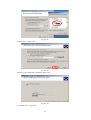
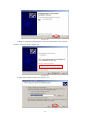
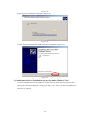
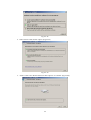
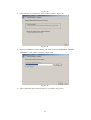
7.During System Installation on Windows Server 2003 Operation System, it detects one
or more DirectX (R) component to be banned for usage. Why ?
Due to Windows Server 2003 Operation System does not allow hardware image speedup,
DirectX Image speedup. Here are the step to enable the image speeding:
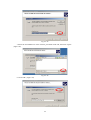
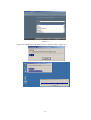
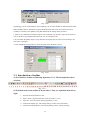
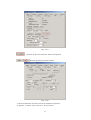
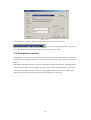
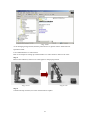
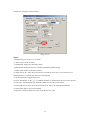
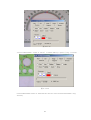
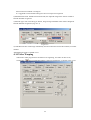
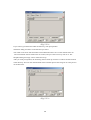
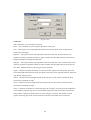
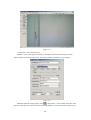
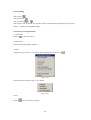
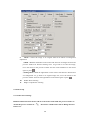
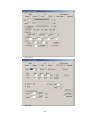
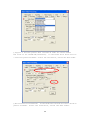
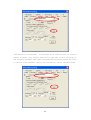
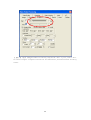
Hardware Image Speedup: Open the “Control Panel”. Select “Appearance and Themes”. Go to
“Display” for Display Properties. Select “Advanced” for Plug and Play Monitor and go to
“Troubleshoot”. Then find the Hardware acceleration and have it in “Full” for Max. Speed Seup.
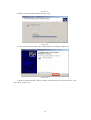
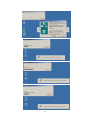
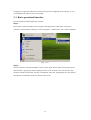
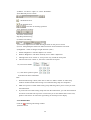
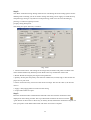
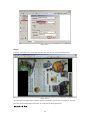
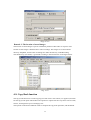
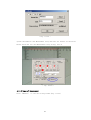
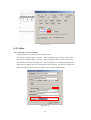
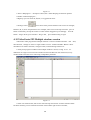
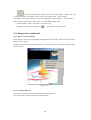
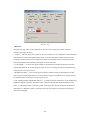
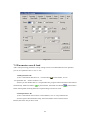
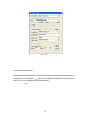
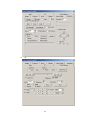
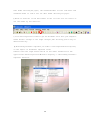
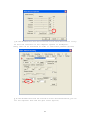
DirectX Image Speedup: Select from “Star Menu” and go to “Run” and enter “dxdiag.exe” to
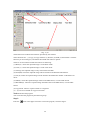
pop up “DirectX Diagnostic Tool”. Go to “Display setup” and enable “DirectDraw Acceleration”,
“Direct3D Acceleration” and “AGP Texture Acceleration”.
10.3
Software FAQ
1.Where can I find the captured images or videos by CamDocument ?
Still Images:D:\snapshot\snapshot\. Folder in time order
Video:D:\VideoRecording\Video\ Folder in time order
Screen Recording:D:\VideoRecording\Screen\ Folder in time order
The Main Disk for storage follows D.E.F.C order. That is, when D disk is full, system will go to
E disk for the storage.
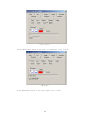
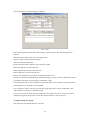
2.Why the preview window keep flickering or in abnormal color in the beginning ?
Due to low computer hardware performance, the flickering light source or light reflection
problem, the AGC, AEC control from the system will result the flickering image on the preview
screen during the auto adjustment in the beginning. When the clear and normal image shows
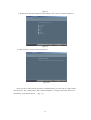
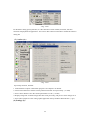
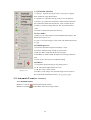
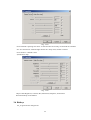
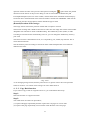
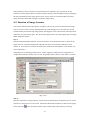
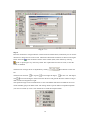
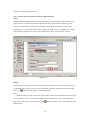
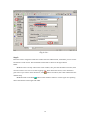
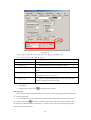
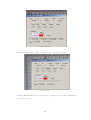
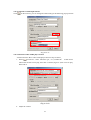
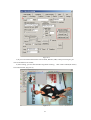
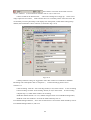
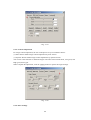
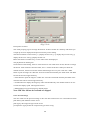
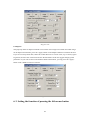
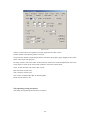
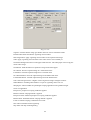
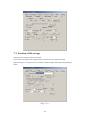
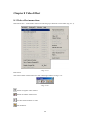
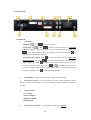
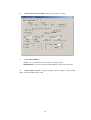
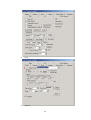
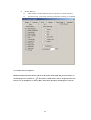
up, please go to setup page from “Basic Video Processing (hotkey PageDown) “ and select
“ Video Quality“ to disable AGC, AEC control or type in the value for good video quality
3.Why the captured image in Full Screen?
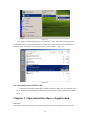
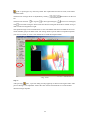
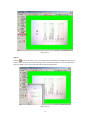
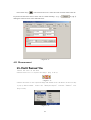
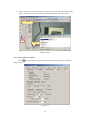
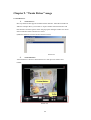
When this happened, please have the mouse on the captured image and double click the left
key on the mouse to popup one window and select “Show Video“ to go back to system. Then
go to command bar for the Action(A) and select “Show still image (¼)“ from its list. Next time
when you grab the image, it will be for ¼ full window size. And you can do further modify the
preview window size.
4.How to disable the preview window pop up?
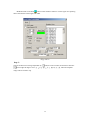
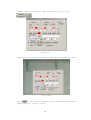
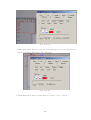
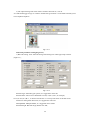
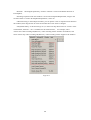
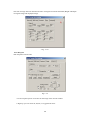
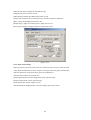
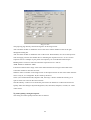
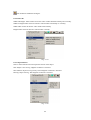
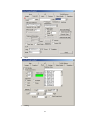
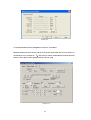
Open “Basic Video Processing (hotkey PageDown)“ and disable “preview“ option for the
“Main“ setup window.
159