1
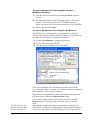
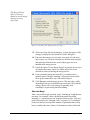
After having typed or changed something in the memo editor and
before closing the editor, save the contents if you want to keep it.
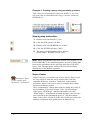
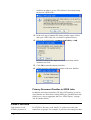
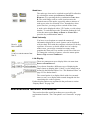
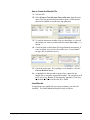
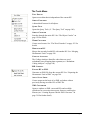
Click on the Save button
editor’s menu.
or select MEMO/SAVE from the
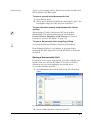
To create a free memo
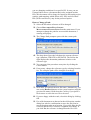
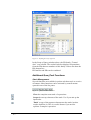
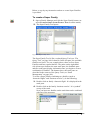
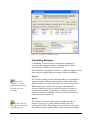
1. In the Memo Manager, click the CREATE NEW button or
select CREATE FREE MEMO from the HUEditor’s MEMOS
menu.
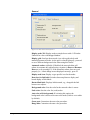
2. A new memo with the default memo title is created. The
memo editor opens (if preferences are set accordingly).
3. Begin to type the memo. Change the memo title and type
according to your needs.
4. Save the memo content before moving on to do something
else by clicking on the Accept button. If you forget to save it,
you are reminded by the program to do so before closing the
editor.
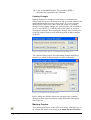
If you prefer that all new entries or modifications to a memo are
saved automatically, you need to go to Setups and activate the
option: ‘Accept changes in browsers silently’ (EXTRAS/GENERAL
PREFERENCES/General).
“Memoing” – Attaching Memos to Data
Segments
The procedure to create and associate a memo with a data segment
or an existing quotation is similar to the coding procedures
described above (see “General Coding Procedure” on page 116).
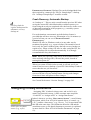
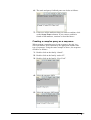
Creating a memo for a data segment
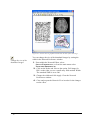
1. Select the part of the primary document for which you want
to write a memo.
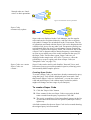
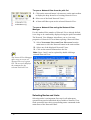
2. Click the memo button
in the primary document toolbar.
3. If the selected data segment does not resemble an existing
quotation, a new quotation is created and the memo is
attached. An editor opens and you can start to type.
130 • The Textual Level - Basic Functions
A5 User's Guide to ATLAS.ti 5.0