1
Configuration
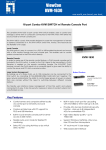
The KVM switch requires 2 or 4 sets of cables for connected two or four
computers, respectively.
After installation, you can either chose SELECT button that leads you through
multiple computers or Hot Key controls.
The SELECT button
Cables:
• PS/2 cable for keyboard and mouse ports
Mini-DIN6 male/male
Mini-DIN6
• Standard VGA cable for monitor port
HDDB15 male/male with thumbscrews
Keyboard Hot Key Menu:
KVM Keyboard Hot Key controls provide options outlined in the following.
Others:
Press Scroll Lock twice and you will hear a beep for verifying Hot Key command
• High-resolution/high-refresh rate VGA cable for monitor port
mode. Follow by pressing number 1,2,3, 4, or letter M and S to switch computer.
ADDB15 male/male with thumbscrews
Press [Esc] to exit Hot Key mode.
• AT to PS/2 keyboard adapter: For an AT-style keyboard
DIN5 female/Mini-DIN6 male
DIN5 Female
Mini DIN6 Male
: Switch to PC 1.
X2
-beep
X2
-BEEPCf
\r-\ : Switch to PC2.
X2
-BEEP-*
\ f—\
X2
-BEEP^"
\ y~\ '■ Switch to PC4 (disable with 2 ports KVM Switch).
X2
^BEEP^"
\/^-\ : !nt0 Auto Scan Mode- Every computer will be scanned every 10 seconds
X2
-BEEP-
7 / \
"7 m N
y/ i \ O
O I Is
^
\/_
•' Switch to PC3 {disable with 2 ports KVM Switch).
»
I
until escape from the Auto Scan mode.
: Reset keyboard & mouse.
InAutoScan mode, the KVM switch remains on one port for 10 seconds before
switching to the next Please notice that mouse or keyboard control has been
restricted under this circumstance. Press any keys to exitAutoScan mode.
6