1
UPGRADING THE QUICKMAIL PRO MACINTOSH CLIENT
QuickMail Pro 2.0 creates a new folder on your hard drive named “QuickMail Pro Folder,” which contains all the new 2.0 files. Additionally, the installer renames the “QuickMail Pro” folder installed with
prior version of QuickMail Pro “QuickMail Pro (old).” You can delete the “QuickMail Pro (old)” folder
after the upgrade after you have verified all of your old mail and address books were migrated to QuickMail Pro 2.0.
If you follow the order of tasks in the checklist provide on page 5, QuickMail Pro Server and QuickMail
Pro Directory System should already be installed and configured on the mail server when you upgrade
client workstations.
UNUSED FILES
QuickMail Pro 2.0 no longer uses the following files that were installed prior to version 2.0:
❖
■
Eudora Converter
■
FreePPPFlipper
■
Change Password
■
Directory Services
■
Connection Scripts
■
LAN Converter
(it’s available on the Office CD)
These files are not deleted during the upgrade process.
USER PASSWORDS
When you upgrade client workstations to version 2.0, users can still use their old passwords to login to
QuickMail Pro. However, the login architecture in QuickMail Pro 2.0 has changed, allowing different
local and remote passwords. See the section entitled, “Logging into QuickMail Pro“ in Chapter 1 of the
QuickMail Pro User Guide for more information.
INSTALLING THE QUICKMAIL PRO WINDOWS CLIENT
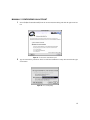
Before installing QuickMail Pro, back up the C:\CESoft\QMData directory. Additionally, you must
logout of prior versions of QuickMail Pro and quit all other QuickMail-related applications, such as
MailTicker. If your computer requires additional Windows components, you may need to restart your
computer after you complete the Setup program.
➣ You must have TCP/IP configured in the Network control panel for QuickMail Pro to function
properly.
19