1
4
Click Save when you have completed the configuration to create the Shared Mailbox.
CLIENT SETUP
These instructions can be used on both Macintosh and Windows-based computers.
1
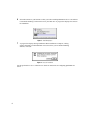
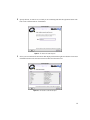
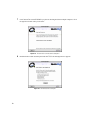
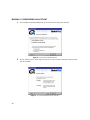
Select Shared Mailboxes from the Configure menu. The Shared Mailboxes window appears.
Figure 51: Monitor which shared mailboxes you are subscribed to using the Shared Mailboxes window.
2
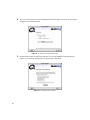
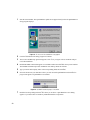
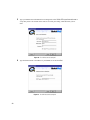
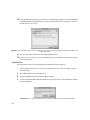
Click the Update List button. The Subscribe Shared Mailbox dialog appears.
3
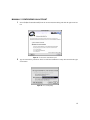
Choose when you want your shared mailbox updated and click OK. If a shared mailbox is available
on the server, the mailbox name appears in the Shared Mailboxes window with Not subscribed listed in
the Subscription column.
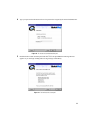
Figure 52: Choose when you want your shared mailbox updated.
38
4
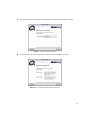
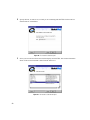
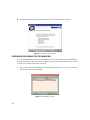
Click the shared mailbox to which you want to subscribe and click the Subscribe button. The information in the Subscription column changes to show that you are now subscribed to the selected mailbox.
5
Click OK when you are finished. Next time you open the Message Browser, the shared mailbox displays so you can read any mail that is sent to that mailbox.