1
Click the arrow next
to the course title
box and select the
course you wish to
enter data for.
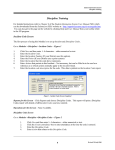
Grade Entry Screen - Figure 11
Click on the arrow next to the course title box and select the class you want to enter the report card data for.
The class roster will appear for the course selected. Enter grade information for each student under the
appropriate column. You school’s office will allow entry on this screen for a specific length of time for the
current Marking Period or Semester.
The comments have been entered by your main office. Click on the Comment Codes box to view available
comments. The Report Card Comments screen will appear which shows a listing of all comments – Figure
12. The numbers next to each comment is what you will enter under the Com1 or Com2 column on the
Grade Entry Screen. To enter a comment for the student, click in the grid under the Com1 or Com2 column
and type in the number of the comment that you would like to have printed on the report card. For a printed
list of comments available, click Reports on the Menu bar and select Print Comments List.
Enter the comment number
under the Com1 or Com2
column that you would like
printed on the report card.
i.e. If you enter a 1 under
Com1 on the Grade Entry
screen, the comment will be
Great Work.
Figure 12 – Report Card Comments
You can also add your own note to be printed on the Report Card. To do so, enter a Y in the column under
the Notes. This procedure activates the Notes screen which will list the Student’s name, course number and
which marking period and semester you are entering the note for – Figure 13. Also displayed are the
comments you have entered for this student. Type in the note that you would like to have print on the report
card and click OK when finished.
Revised August 3, 2006