1
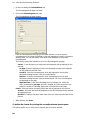
IRIS – HPLC SPECTRAL
PROCESSING SOFTWARE
User Manual
Iris - HPLC Spectral
Processing Software
Release History
Part Number
Release
0993-6807
A
Publication Date
July 2006
Any comments about the documentation for this product should be addressed to:
User Assistance
PerkinElmer Ltd
710 Bridgeport Avenue
Shelton, CT 06484
Or emailed to: [email protected]
Notices
The information contained in this document is subject to change without notice.
Except as specifically set forth in its terms and conditions of sale, PerkinElmer makes no
warranty of any kind with regard to this document, including, but not limited to, the
implied warranties of merchantability and fitness for a particular purpose.
PerkinElmer shall not be liable for errors contained herein for incidental consequential damages in
connection with furnishing, performance or use of this material.
Copyright Information
This document contains proprietary information that is protected by copyright.
All rights are reserved. No part of this publication may be reproduced in any form whatsoever or
translated into any language without the prior, written permission of PerkinElmer, Inc.
Copyright © 2006 PerkinElmer, Inc.
Produced in the US.
Trademarks
Registered names, trademarks, etc. used in this document, even when not specifically marked as such,
are protected by law.
PerkinElmer is a registered trademark of PerkinElmer, Inc.
Table Of Contents
Table Of Contents
Table Of Contents.................................................................................... i
Chapter 1. Introduction ...................................................................1
Introduction ........................................................................................... 2
About IRIS Spectral Processing Software .................................................. 3
Features of IRIS............................................................................... 4
Starting IRIS .......................................................................................... 5
Starting IRIS from Windows.............................................................. 5
Starting IRIS from TotalChrom .......................................................... 6
Overview of the IRIS User Interface......................................................... 7
The Views Tree................................................................................ 8
Tell me about the Views and Operations that are
listed on the Views Tree. .................................................................. 9
The Data Tree ................................................................................. 9
Panes for Displaying Chromatograms, Spectra,
Contour Maps, and 3D Plots ............................................................ 14
The IRIS Menu Bar......................................................................... 15
IRIS Tool Bars ............................................................................... 25
About Spectral Methods ........................................................................ 28
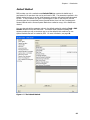
Default Method .............................................................................. 29
Chromatogram’s Spectral Method .................................................... 30
Process Spectral Method................................................................. 31
Viewing a Spectral Method.............................................................. 33
How do I modify the parameters values stored in a
Chromatogram’s Spectral Method and a Process Spectral Method? ..... 37
Editing the Default Method to set the default/initial
conditions of a new method ............................................................ 39
Chapter. 2 Enhanced Security .......................................................42
Enhanced Security ................................................................................ 43
User Management ................................................................................ 44
User Permissions............................................................................ 44
Audit Trails .......................................................................................... 45
What information is captured in an Audit Trail?................................. 46
Entering Audit Trail Information ...................................................... 47
Viewing an Audit Trail..................................................................... 48
Electronic Signatures ............................................................................ 53
Electronic Signature Support in IRIS ................................................ 53
Chapter 3. Opening and Viewing Chromatograms.........................54
Introduction ......................................................................................... 55
Opening a Chromatogram ..................................................................... 56
Viewing Chromatograms ....................................................................... 59
Working with the Chromatogram pane............................................. 59
Obtaining Information about a Chromatogram ........................................ 63
Labeling Chromatograms....................................................................... 65
Scaling Chromatograms ........................................................................ 66
How do I visually specify an area of the display to
zoom into using the Box Zoom function? .......................................... 66
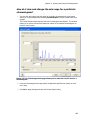
How do I view and change the axis range for a
particular chromatogram? .............................................................. 67
How do I use the Autoscale tools? ................................................... 68
How do I zoom in a continuous fashion? .......................................... 69
How do I use the use the Normalization commands
to find subtle differences between chromatographic peaks? ............... 70
How do I close a chromatogram?........................................................... 72
i
Iris - HPLC Spectral Processing Software
Initializing a TotalChrom Environment with an IRIS Chromatogram ........... 73
Chapter 4. Viewing Spectra............................................................74
Introduction ......................................................................................... 75
Spectral Formats .................................................................................. 76
Viewing a Spectrum .............................................................................. 77
Viewing Chromatographic Spectra.................................................... 78
Viewing Individual, Previously Stored Spectra.......................................... 85
Removing Spectra and Hiding Spectra from the Data Tree........................ 86
Removing Spectra from the Data Tree ............................................. 86
Hiding Spectra from Being Displayed................................................ 86
Obtaining Information on a Stored Spectrum .......................................... 87
Visually Comparing Spectra.................................................................... 89
Options for Scaling Spectra ............................................................. 90
Detailed Descriptions of Normalize Buttons....................................... 92
Additional Options for Scaling Spectra ............................................ 100
Saving an Individual Spectrum ............................................................. 102
Defining How You are Going to Perform the Baseline
Correction of the Spectra..................................................................... 103
Chapter 5. Viewing the Data ........................................................105
IRIS Views ......................................................................................... 106
Main View .......................................................................................... 107
Tell me about the Main View. ........................................................ 107
How do I adjust the pane width and height?................................... 114
How do I open and display chromatograms? .................................. 114
How do I open a previously stored, individual spectrum ? ................ 115
How do I capture a spectrum from the Chromatogram pane? .......... 115
How do I capture a spectrum from the Contour Map pane?.............. 116
How do I capture a spectrum from the 3D Plot pane?...................... 116
How do I temporarily capture a chromatogram
from the Spectra pane? ................................................................ 117
How do I temporarily capture a chromatogram
from the Contour Map pane?......................................................... 118
How do I temporarily capture a chromatogram
from the 3D Plot pane?................................................................ 119
How do I close displayed chromatograms? ..................................... 119
How do I close all displayed spectra? ............................................. 120
Chrom/Spectra View ........................................................................... 121
Contour Map View .............................................................................. 122
Tell me about the Contour Map View. ............................................ 122
How do I adjust the pane width and height?................................... 127
How do I view chromatograms and spectra on the
Contour Map View? ..................................................................... 128
Scaling a Contour Map ........................................................................ 129
How do I scale the Contour Map using the
Normalize Point and Zero commands?........................................... 129
How do I use the Box Zoom on the Contour Map? ......................... 130
How do I use the Autoscale tools on the Contour Map? ................... 130
How do I scale the Time, Absorbance, and
Wavelength axes on the Contour Map? .......................................... 131
Spectra 3D View ................................................................................. 132
Tell me about the Spectra 3D View ................................................ 132
How do I adjust the pane width and height?................................... 138
How do I view chromatograms and spectra on the Spectra 3D View? 139
How do I rotate the display? ......................................................... 140
Scaling a 3D Plot ................................................................................ 141
How do I specify limits for a 3D plot and reverse
the Wavelength Axis? ................................................................... 141
ii
Table Of Contents
How do I reverse the wavelength axis of a 3-D Plot?....................... 142
How do I use the Autoscale commands to scale a 3D Plot? .............. 143
Compare View.................................................................................... 144
Tell me about the Compare View................................................... 144
How do I adjust the pane width and height? .................................. 149
Custom Views .................................................................................... 150
Chapter 6. Spectral Libraries .......................................................151
About Spectral Libraries ...................................................................... 152
Automatically Creating a Library from Named Peaks .............................. 153
How do I create a spectral library using the
apex spectra from named peaks in a chromatogram?...................... 154
Manually Creating a Library ................................................................. 157
How do I create a new library?...................................................... 158
Viewing a Library................................................................................ 160
How do I access the View Library dialog? ....................................... 160
Tell me about the View Library dialog. ........................................... 161
Editing a Library ................................................................................. 162
Tell me about the Edit Library Dialog. ............................................ 162
How do I access the Edit Library dialog? ....................................... 165
How do I add extracted spectra into a library?................................ 166
How do I exclude a spectrum in the Library List? ............................ 166
How do I replace a spectrum in the Library
List with one of the Current Spectra? ............................................ 167
Identifying a Spectrum-using Library Match .......................................... 168
Tell me about the Library Match operation. .................................... 168
Summary of Operation: Library Match........................................... 174
How do I specify search parameters?............................................. 177
Chapter 7. Performing Operations on Spectra..............................178
Spectral Derivative.............................................................................. 179
Tell me about the Spectral Derivatives operation. ........................... 180
Summary of Operation: Spectral Derivitives................................... 186
Spectral Math..................................................................................... 187
Tell me about the Spectral Math operation. .................................... 187
Summary of Operation: Spectral Math .......................................... 197
Chapter 8. Performing Operations on Chromatograms ...............199
Performing Chromatogram Operations.................................................. 200
Peak Purity ........................................................................................ 201
Checking the Purity of Chromatographic Peaks ............................... 202
Tell me about the Peak Purity operation......................................... 203
How do I modify the parameters that are used
to calculate Peak Purity? ............................................................... 209
Summary of Operation: Peak Purity .............................................. 211
Absorbance Ratio ............................................................................... 214
Determining the Absorbance Ratio for each peak in a chromatogram 215
Tell me about the Absorbance Ratio Operation. .............................. 216
How do I modify the parameters that are used to
determine the Absorbance Ratio values? ........................................ 222
Summary of Operation: Absorbance Ratio............................................ 223
Wavelength Maximum......................................................................... 225
Determining the wavelength maximum of chromatographic peaks.... 226
Tell me about the Wavelength Maximum operation. ........................ 227
How do I modify the parameters used that are used
to determine the Wavelength Maximum values? ............................. 233
Summary of Operation: Wavelength Maximum .............................. 234
Spectral Standard Confirmation............................................................ 236
iii
Iris - HPLC Spectral Processing Software
Verifying the Identity of Chromatographic Peaks
by Comparing to a Standard Chromatogram ................................... 237
Tell me about the Spectral Standard Confirmation operation. ........... 238
How do I modify the parameters that are used to
perform the Spectral Standard Confirmation operation? .................. 245
Summary of Operation: Spectral Standard Confirmation ................. 247
Spectral Library Confirmation............................................................... 250
Verifying the Identity of Chromatographic Peaks
by Comparing to a Spectral Library ............................................... 251
Tell me about the Spectral Library Confirmation operation. .............. 252
How do I modify the parameters that are used in the search?.......... 259
Summary of Operation: Spectral Library Confirmation .................... 260
Peak Library Search ............................................................................ 263
Identifying Chromatographic Peaks................................................ 264
Tell me about the Peak Library Search operation............................. 266
How do I modify the parameters used in the search? ...................... 272
Summary of Operation: Peak Library Search.................................. 273
Retention Time Adjustment ................................................................. 276
When should I use this operation? ................................................. 277
Assigning a Component Name to a Peak and
Correcting the Retention Time in the Chromatogram’s Result File. ... 277
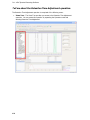
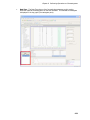
Tell me about the Retention Time Adjustment operation.................. 278
How do I modify the parameters that are used
in the spectral matching? .............................................................. 286
Summary of Operation: Retention Time Adjustment ....................... 287
Extract Chromatograms....................................................................... 290
Extracting Chromatograms at Different Wavelengths ....................... 291
Tell me about the Extract Chromatograms Operation....................... 292
How do I modify the parameters that are used to
Extract Chromatograms?............................................................... 296
Summary of Operation: Extract Chromatograms ............................ 297
Apex Optimized Chromatogram............................................................ 298
Rules for setting the wavelength for a peak .................................... 299
Tell me about the Apex Optimized Chromatogram operation. ........... 300
How do I modify the parameters that are used
to create a chromatogram with the optimum
wavelength set for each peak? ...................................................... 307
Summary of Operation: Apex Optimized Chromatogram ................. 308
Saving the Results of a Calculation ....................................................... 309
How IRIS saves Information to TotalChrom .................................... 310
How do I include the results of chromatographic
operations performed by IRIS/AutoCalc in a TotalChrom report? ...... 312
Chapter 9. AutoCalc: Automating Arithmetic
Operations, Extractions and Apex Spectra Printing .....................313
What is AutoCalc?............................................................................... 314
Points to consider when using AutoCalc for
automated operations in TotalChrom.................................................... 315
How do I use AutoCalc to automatically
perform the desired operations during a TotalChrom sequence?...... 317
Command Line Examples .............................................................. 319
Using AutoCalc to print automatically the
Apex Spectra display for each sample in a running sequence .................. 320
Steps you must perform before you can
automate the printing of chromatograms annotated with apex specta320
Chapter 10. Printing and Presentations.......................................322
Printing and Presentation Options ........................................................ 323
Annotations........................................................................................ 324
iv
Table Of Contents
How do I add an annotation? ........................................................ 324
How do I modify an annotation?.................................................... 325
How do I delete annotations?........................................................ 325
Copying IRIS Images to other Locations......................................... 326
How do I export a chromatogram or
spectrum in numerical format for use in spreadsheet programs? ...... 326
Printing Chromatograms and Spectra from IRIS .................................... 327
What information is included on printouts?..................................... 328
Tell me about the Print dialog. ...................................................... 330
How do I print the current view or operation? ................................ 340
How do I print the contents of a single
pane from any of the IRIS views?.................................................. 341
How do I print a chromatogram and its associated apex spectra?..... 347
Appendix 1: Calculation Algorithms.............................................349
Calculation Algorithms......................................................................... 350
IRIS Peak Purity Algorithm............................................................ 350
Euclidean Distance Algorithm ........................................................ 351
Index.............................................................................................352
v
Chapter 1. Introduction
Iris - HPLC Spectral Processing Software
Introduction
IRIS is a spectral application program designed for use with TotalChrom 6.3.1 (or higher)
and the Series 200 HPLC System equipped with a Series 200 PDA Detector (Photo Diode
Array). With IRIS you can process, manipulate, and display spectral data associated with
chromatograms obtained using the Series 200 PDA. In conjunction with TotalChrom, IRIS
also contains features and functions to assist laboratories in meeting FDA regulations, such
as 21 CFR Part 11, by providing electronic records controls and electronic signature support
for all data modified or created by the IRIS application.
This chapter introduces you to the IRIS application and describes how to access the IRIS
application. In addition, this chapter also provides you with an overview of the IRIS user
interface and information on concepts you should be familiar with before using IRIS, such as
how spectral methods are used in IRIS.
2
Chapter 1. Introduction
About IRIS Spectral Processing Software
IRIS Spectral Processing software provides an easy navigation through the wealth of spectral
information provided by Photo Diode Array detection. With IRIS, you can access, display and
manipulate spectral data with speed and flexibility. In addition, IRIS provides you with the
ability to perform various chromatographic calculations such as confirming and performing
peak identification via spectral library matches, calculating and reporting peak purity and
wavelength maxima for each component. You can also use the IRIS software to extract and
reprocess actual chromatograms at any wavelength you desire - directly from spectral data
files.
One of the benefits you will discover, when using IRIS, is that the integration between the
IRIS Spectral Processing software and TotalChrom allows you to:
•
Easily pass chromatograms between the two applications.
For example, if you’re looking at a chromatogram in TotalChrom's Reprocess, and you
wish to examine the same chromatogram in IRIS, all you need to do is select Spectra
from the Other menu and the chromatogram is displayed in IRIS. On the other hand,
if you are looking at a chromatogram in IRIS, you can move that chromatogram to one
of two TotalChrom environments: Reprocess or Graphic Method Edit. To pass a
chromatogram from IRIS to TotalChrom all you need to do is right mouse click on the
chromatogram in the IRIS Data Tree and select TotalChrom > Reprocess or Graphic
Method Edit from the context menu that appears.
•
Save the results of any arithmetic operations and/or chromatographic extractions that
were performed in IRIS, back in the TotalChrom result file. These results can then be
included in a printed TotalChrom report.
•
Run the AutoCalc user program, which is shipped with your IRIS spectral processing
software, during a TotalChrom sequence to automatically perform any combination of
the arithmetic operations provided by IRIS, such as Peak Purity and Spectral Standard
Confirmation. As part of either a real-time or reprocessed sequence, the results of
these automated operations are automatically saved to the TotalChrom Result file
(.RST) and can automatically be included in a TotalChrom report.
Note: This program also allows the automated extraction of up to 8 chromatograms
and printing of chromatograms annotated with apex spectra.
3
Iris - HPLC Spectral Processing Software
Features of IRIS
With the IRIS software you can:
•
View chromatographic data as a chromatogram, as a contour map, or as a threedimensional plot.
•
Gain access to all of a chromatogram’s associated spectra, and perform various
calculations using those spectra.
•
Conduct on-screen spectral comparisons, or use the software to perform more complex
operations such as adding, subtracting, dividing, and obtaining derivatives of spectra.
•
Identify peaks and calculate peak purity.
•
Confirm the identity of chromatographic peaks by comparing them with other peaks or
standards
•
Using IRIS, you can annotate chromatograms with spectral positions, retention times,
component names, or calculated values such as concentrations or purity indices.
•
To help you visually compare data, chromatograms and spectra can be normalized,
offset-normalized, or displayed full scale.
•
The software also allows you to create and browse through spectral libraries, to search
those libraries for spectral matches to an unknown spectrum, and to confirm peak
identities by matching their spectra to those of known peaks in the libraries.
•
Use a two-dimensional contour map to find chromatographic peaks, which may not be
showing at the wavelength used for the chromatogram. You can use the contour map
to obtain a spectrum and chromatogram at any point on the display. The time,
absorbance, and wavelength display axes can be scaled independently.
•
IRIS also provides you with the ability to view chromatographic data on a threedimensional plot that provides a scaleable perspective on the complete data set.
•
Extract and reprocess actual chromatograms at any wavelength you desire - directly
from spectral data files.
•
Chromatograms, spectra, and other data can be printed using a color printer, such as
the HP Deskjet 5650. You can annotate and export screen displays to other Windows
programs to generate presentation graphics or documentation. You can also export
numerical data to programs such as Microsoft Excel for additional study.
4
Chapter 1. Introduction
Starting IRIS
Before accessing the IRIS application, make sure you have a valid TotalChrom User Name
and Password, since access to IRIS is controlled by TotalChrom. If your user account and
password have not been set up in TotalChrom, contact your System Administrator who is
responsible for maintaining the TotalChrom application, and is the contact person for all
technical support issues. For more information on setting up user accounts, see the section
titled User Management on page 44.
Once you have a valid TotalChrom User Name and Password, you can start IRIS a number of
different ways. This section introduces you to the various ways you can start IRIS.
Starting IRIS from Windows
You can start IRIS directly from Windows from the Windows Start menu, or if you have
added the IRIS application as a shortcut to your Windows Desktop, you can double click on
the IRIS icon
¾
.
If TotalChrom is not running, you will be prompted with the TotalChrom log on screen.
From the log on screen, enter your TotalChrom User Name and Password.
OR
¾
If you have already logged into the TotalChrom application, you will not need to log on
to TotalChrom again to start IRIS. Instead, IRIS will open immediately when you start
IRIS from Windows.
To start IRIS directly from Windows:
1. From the Windows Start menu select All Programs > PerkinElmer > IRIS.
The IRIS menu displays.
2. From the IRIS menu click on IRIS.
If you have not already logged into TotalChrom, the TotalChrom log on dialog appears.
From the TotalChrom log on dialog, enter your TotalChrom User Name and Password
can click OK.
The IRIS application launches.
OR
If you have already logged into TotalChrom, the IRIS application launches.
5
Iris - HPLC Spectral Processing Software
Starting IRIS from TotalChrom
There are two ways to start IRIS from TotalChrom: from the IRIS icon on the Navigator
screen, or from a menu command in Reprocess.
Starting IRIS from the TotalChrom Navigator:
¾
You can start IRIS directly from the TotalChrom Navigator by clicking on the Spectra
icon
.
Note: The Spectra icon is active whenever an instrument containing a Series 200 DAD has been
selected.
Starting IRIS from Reprocess:
Note: Before you can start IRIS from Reprocess you must first save the result file. In addition, you
must save the result file after you make any change in Reprocess and upon entry into
Reprocess, since TotalChrom's Reprocess always reprocesses the data upon entry and the
results obtained may differ from the results in the saved *.rst file.
Any chromatogram you can view in TotalChrom can be opened quickly and easily in IRIS with
no need to select the chromatogram again within IRIS. The file you were viewing in
TotalChrom appears in the chromatogram region of the IRIS Main View.
¾
If you’re looking at a chromatogram in TotalChrom's Reprocess, and you wish to
examine the same chromatogram in IRIS, select Spectra from the Other menu.
Note: The Spectra command is active only if there are spectra associated with the chromatogram
you are currently viewing.
You are moved directly into IRIS and the chromatogram is selected on the IRIS Data
Tree and displayed on the Main View.
6
Chapter 1. Introduction
Overview of the IRIS User Interface
IRIS is designed so that you can easily process, manipulate, and display spectral data
associated with chromatograms from one main window. Following is a high level look at the
IRIS user interface.
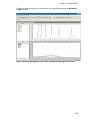
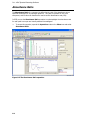
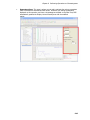
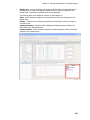
Figure 1-1 The Main View is displayed when the IRIS application is started
7
Iris - HPLC Spectral Processing Software
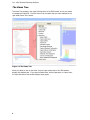
The Views Tree
The Views Tree appears in the upper left hand pane of the IRIS window, and is your means
of navigating though IRIS. From the Views Tree you select what you want displayed in the
right-hand portion of the screen.
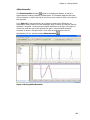
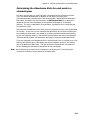
Figure 1-2 The Views Tree
When you select an item on the Views Tree, the right-hand portion of the IRIS window
displays the selected view. If you select a header item, such as Operations or Custom View,
the right-hand side of the window displays empty panes.
8
Chapter 1. Introduction
Tell me about the Views and Operations that are listed on
the Views Tree.
In IRIS you work with Views and Operations. Basically, Views allow you to view
chromatograms and spectra on the right hand side of the IRIS window. Meanwhile,
Operations, which are also displayed on the right hand side of the IRIS window, are used to
obtain important information on chromatograms and to help you analyze spectra. All of the
Views and Operations that can be displayed on the IRIS window are listed on the Views Tree.
Views
When IRIS launches, the Main View is displayed by default. This view is divided into four
panes: a Chromatogram pane, a Spectra pane, a Contour Map, and a 3D Plot pane.
In addition to the Main View, IRIS also provides you with four other default views that you
can select from the Views Tree. The four other default views are labeled: Chrom/Spectra,
Contour Map View, Spectra 3D View, and Compare.
You can also create your own Custom View by modifying an existing view. For more
information on Views in IRIS, refer to the chapter titled Chapter 5. Viewing the Data on
page 105.
Operations
Operations that you can perform on chromatograms and spectra are listed under the
Operations node of the Views Tree. The operations listed on the Views tree provide you
with a number of options for identifying, storing, and performing calculations on spectra; and
for obtaining important information about your chromatograms, such as verifying the purity
of chromatographic peaks, or building your own libraries of stored spectra that can be used
in a search to identify an unknown spectrum.
When you click on an Operation, such as Wavelength Maximum, the right-hand side of
the IRIS window displays panes for displaying the required Chromatogram or Spectrum
(which you select from the Data Tree), a Parameters pane, which is used to set and
investigate the various parameters that determine the results of a particular operation, a
Results pane where the result of an operation is displayed, and a Display List that contains a
list of items you can select to display on the Results pane. It should be noted that the
parameter values that are displayed on an operation come from the parameter values stored
in a spectral method. For more information about spectral methods, refer to About
Spectral Methods on page 28.
For more information on Operations, refer to the chapter titled Chapter 7. Performing
Operations on Spectra on page 178, and the chapter titled Chapter 8. Performing
Operations on Chromatograms on page 199.
9
Iris - HPLC Spectral Processing Software
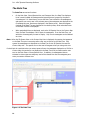
The Data Tree
The Data Tree serves two functions:
•
On the Main View, Chrom/Spectra View, and Compare View, the Data Tree displays a
list of currently loaded chromatograms and spectra that are grouped by the parent
chromatogram. On these Views, you use the Data Tree to select the chromatograms
and spectra you want to see in the relevant panes (chromatograms are displayed in the
Chromatogram pane, Spectra are displayed in the Spectra pane). Items that appear
checked on the Data Tree are displayed in the relevant panes; while unchecked items
on the Data Tree are not displayed.
•
When specialized Views are displayed, such as the 3D Spectra View or the Contour Map
View, the Data Tree displays a list of open chromatograms. From the Data Tree, you
select the chromatogram you want to display. Only one chromatogram can be selected
at a time.
Note: When the 3D Spectra View or the Contour Map View is displayed, the spectra, that appeared
on the Data Tree prior to accessing either view, are not shown on the Data Tree. Only
opened chromatograms are displayed on the Data Tree for the 3D Spectra View and the
Contour Map view. The spectra are not lost and will reappear when you change the view.
It should also be noted that when you extract spectra from a chromatogram displayed on a 3D Plot or
Contour Map, the spectra are not displayed in the Data Tree until you select another view
such as the Main View or Chrom/Spectra View. In addition, chromatograms that are
extracted on these views are temporary and will be cleared from the chromatogram pane
when you select a different view.
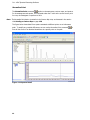
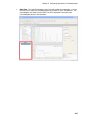
Figure 1-3 The Data Tree
10
Chapter 1. Introduction
How are Chromatograms and Spectra listed on the Data Tree?
When you open a chromatogram or spectrum, via the File > Open >
Chromatogram/Spectrum… command, the chromatogram or spectrum appears at the
bottom of the list on the Data Tree and the newly opened item is selected on the Data Tree
and displayed in the appropriate pane (unless a View or Operation is selected that does not
allow you to display the newly opened chromatogram or spectrum).
Spectra that you have extracted from a chromatogram are listed in ascending order on the
Data Tree under the parent chromatogram. For information on extracting spectra, see page
78.
11
Iris - HPLC Spectral Processing Software
The Data Tree Context Menu
A right-click on a chromatogram or spectrum in the Data tree displays the context menu that
contains a list of commands you can select. The table shown below lists all of the context
menu commands. Please note that certain menu commands are enabled or disabled
depending upon whether you have a chromatogram or spectrum selected.
Note: The command selected only applies to the item right clicked on.
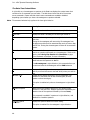
Command
Description
Information…
Displays the relevant information for the item right clicked on.
Audit trail…
Displays the Audit Trail dialog for the item right clicked on.
Close
Deletes the chromatogram or spectrum right clicked on from the
Data tree.
Closing the chromatogram will remove the Chromatogram from
the data tree and close all its associated files such as Contour Map
and 3D Plot. Closing the chromatogram will close all its associated
spectra.
Save Results…
This command allows you to save the results and the parameters
used in an operation performed on a chromatogram. Refer to the
section titled Saving the Results of a Calculation on page
Error! Bookmark not defined. for more information.
Save As…
If a spectrum is right-clicked on, this command allows you to
name and save the spectrum as .uv file.
If a chromatogram is right-clicked on, this command allows you
to name and save the chromatogram with a .RAW extension
Print
9 Match color
Displays a Print dialog from where you specify which details you
want to print from the current view and which printer you want to
use.
Toggles all the spectra belonging to the chromatogram right
clicked on to the same color as the chromatogram, all other
spectra are then turned grey.
This option is enabled only when a chromatogram is right clicked
on.
9Baseline Spectra
Adds/removes the baseline spectrum for the spectrum right
clicked on in the Data Tree. Baseline spectra are identified by the
retention time of the spectrum followed by the word base).
This command is enabled if a spectrum is right clicked on; and
disabled for a baseline spectrum.
Spectral baseline
correction…
12
Displays the Spectral Baseline correction dialog.
This option is enabled if a chromatogram is right-clicked on.
Chapter 1. Introduction
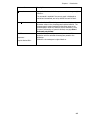
Command
Description
Show scale
Displays the Y axis scale for the spectrum or chromatogram right
clicked on.
This command is enabled if the current graph is displayed as
overlaid and normalized; and so by default the scale is blank.
View Method….
Opens the Method Editor dialog as read-only and displays the
parameter values in the chromatogram’s spectral method. The
chromatogram’s spectral method has the same name as the
chromatogram’s result file; however, the file extension is .tsm.
Fore more information on spectral methods, see page Error!
Bookmark not defined..
TotalChrom ►
Reprocess…
Graphic Method Edit…
Opens the TotalChrom Reprocess or Graphic Method Edit
application with the selected chromatogram passed to the
application.
Enabled if a chromatogram is right-clicked on.
13
Iris - HPLC Spectral Processing Software
Panes for Displaying Chromatograms, Spectra, Contour
Maps, and 3D Plots
The right hand side of the IRIS window can consist of multiple panes for displaying
chromatograms and spectra. The type of panes displayed on the right-hand side of the IRIS
window depends on whether you are looking at a View or an Operation.
The screen below shows the panes that are displayed when the Main View is selected on the
Views Tree. In the Main View you can display chromatograms, spectra, contour maps, and
3D plots.
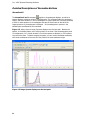
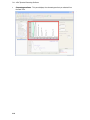
Figure 1-4 The Main View consists of four panes: a Chromatogram pane, Spectra
pane, Contour Map pane, and a 3D Plot pane
¾
The Main View, Chrom/Spectra View, Contour Map View, Spectra 3D View,
and Compare View, have a predefined set of panes for displaying chromatographic
data. You cannot add panes to these predefined Views. However, you can hide a pane
that is associated with the view in order to create a Custom View. Detailed information
on each of the predefined Views can be found in the chapter titled Chapter 5.
Viewing the Data.
¾
If an operation is selected on the Views Tree, the panes that appear in the right-hand
portion of the IRIS window consist of: panes for displaying the required
Chromatogram or Spectrum (which you select from the Data Tree), a Parameters
pane, which is used to set and investigate the various parameters used to determine the
results of a particular operation, a Results pane where the result of an operation is
displayed, and a Display List that contains a list of items you can select to display on
the Results pane. Detailed information on each operation can be found in the chapters
titled Chapter 6. Spectral Libraries and Chapter 8. Performing Operations on
Chromatograms.
14
Chapter 1. Introduction
The IRIS Menu Bar
The IRIS Menu Bar, located along the top of the program window, contains the menu
commands that enable you to process, manipulate, and display spectral data associated with
chromatograms, as described below:
NOTE: The actual availability of menu items is determined by their privileges, which are set in
TotalChrom.
NOTE: The symbol 9 in front of an item indicates that this is an on/off toggle command. The check
mark appears in front of the item when the function is active or selected.
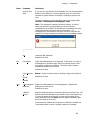
Menu
Command
Description
File
Open ►
Displays a standard Windows file selector set to show the correct type of
file (.rst for chromatograms, .uv for spectra, and .tsm for methods).
Chromatogram…
Spectrum…
Method…
When you open .rst and .uv files, they are added to the Data Tree and
appear selected, so that the opened items are immediately displayed in
the relevant panes in addition to the data that is already displayed in the
panes. When you open a .tsm file, a read-only version of the Method
Editor dialog box appears. From this dialog box you can view the
parameter values in the method.
Note about opening files:
• If the spectral energy of the file being opened is low, the
Warning Low Energy Spectra dialog appears.
• If the spectral energy of the file being opened is inconsistent
with the associated method, the “Inconsistent Wavelength
Range” dialog appears and shows the method’s wavelength
range and the energy determined wavelength range.
If you click OK on this dialog box, the associated method is
updated with the actual range shown on the dialog.
If the checksums are not correct, or not present for the TotalChrom
.raw, .rst files, or the checksum is not correct for the raw spectra file .spc
a warning is displayed that states: “Invalid spectral file (checksum
failed), file cannot be opened and the file is not opened.” If the
checksum is not present for the raw spectra file .spc, a warning is
displayed that states: “This file was collected using an earlier version of
PerkinElmer’s spectral software.” The file is opened but all data created
that is related to this spectral file will indicate that the checksum was
missing.
15
Iris - HPLC Spectral Processing Software
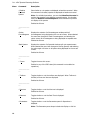
Menu
Command
Description
Close
Removes the currently selected spectra and chromatograms from the
Data tree. If the selection includes an extracted chromatogram or
calculated spectrum that has not yet been saved a message will be
displayed that states: “The items selected for closing include data that
has not been saved. Do you want to continue?” The command buttons
are Yes and No.
Close all spectra
Removes all spectra from the Data tree. If this includes calculated
spectra that have not yet been saved a message will be displayed that
prompts you whether or not you wish to close the spectra without saving
the calculated data.
---------------------Information ►
Chromatogram…
Spectrum…
This command allows you to view information about a specific
chromatogram or a spectrum without actually opening the
chromatogram’s .rst file or the spectrum’s .uv file.
For more information on viewing information on a chromatogram, see
Obtaining Information about a Chromatogram on page 63.
For more information on viewing information on previously stored
individual spectrum file, see Obtaining Information on a Stored
Spectrum on page 87.
---------------------Save Results
This command allows you to save the results and the parameters used in
an operation performed on a chromatogram.
Refer to the section titled Saving the Results of a Calculation on
page Error! Bookmark not defined. for more information.
Save As
If a spectrum is selected on the Data Tree and you select File > Save
As… from the menu bar, a standard Windows file selector appears.
From this dialog box you can save the spectrum as a .uv file. An audit
trail entry is created for this newly created file that identifies the source
of the chromatogram, the user’s full name and logon name, as well as a
date and time stamp.
If a chromatogram is selected on the Data Tree and you select File >
Save As… from the menu bar, a standard Windows file selector is
displayed. From the dialog box that appears you can name and save the
chromatogram with a .RAW extension.
---------------------Print
Displays a Print dialog from where you specify which details you want to
print from the current view and which printer you want to use.
Enabled at all times.
16
Chapter 1. Introduction
Menu
Command
Description
AutoCalc Print
Setup
If you plan on using AutoCalc to automatically print out the Apex spectra
display for each sample in a running sequence, then you can use this
command to specify details of that output, including the printer to be
used.
For more information on using this dialog, refer to the chapter titled
AutoCalc: Automating Chromatographic Tasks.
Note: This command is enabled at all times; however, in order to
access the AutoCalc Print Setup dialog you must first select a
chromatogram on the Data Tree that has been processed by the same
TotalChrom method that will be used in the sequence. If a
chromatogram is not selected on the Data Tree when you select the
AutoCalc Print Setup command, the following warning message displays:
---------------------Exit
Closes the IRIS application.
Enabled at all times.
Edit
Copy Object
Copies the selected object to the clipboard. If the cursor is in either a
chromatogram or spectrum region then the numerical values of that
trace will be placed on the clipboard. This allows export of data to
spreadsheet programs such as Excel.
Enabled at all times.
Copy Screen As
►
Bitmap
Bitmap - Copies the entire screen as a bitmap image to the clipboard.
Enabled at all times.
Metafile
View
9Chromatogram
Baselines
Displays or hides baselines on all chromatograms. Baselines are
displayed as a solid red line.
Enabled at all times.
9Baseline
Spectra
Adds the baseline spectra for the selected spectra to the Data Tree. The
baseline spectra are identified by the retention time of the spectrum (or,
if a range of spectra are being used, the start and end times of the
range) followed by the word base; and they appear immediately after
the parent spectrum in the tree.
This command is enabled when a spectrum is selected in the data tree.
The command does not work if a baseline spectrum is selected.
17
Iris - HPLC Spectral Processing Software
Menu
Command
Description
9Baseline
Corrected
Spectra
Sets whether or not spectra are displayed as baseline corrected. When
this command is checked, spectra are displayed as baseline corrected
Note: On individual operations, you can check Baseline Corrected to
perform the operation using baseline corrected spectra. On the other
hand, the Baseline Corrected Spectra menu command only affects
the display of the spectra.
Enabled at all times.
---------------------Overlay
Chromatograms
Displays the contents of all chromatogram windows with all
chromatograms being displayed on the one set of axes. When selected
the menu item changes to Stack Chromatograms, and selecting the
option returns all chromatograms to being displayed on separate axes.
Enabled at all times.
Stack Spectra
Displays the contents of all spectral windows split onto separate axes.
When selected the menu item changes to Overlay Spectra, and selecting
the option again will return to all spectra being displayed on the one set
of axes.
Enabled at all times.
---------------------9 Cursor
Toggles the cross-hair cursor.
Enabled on any of the IRIS views (this command is not enabled on
operations).
---------------------9Toolbars
Toggles whether or not the toolbars are displayed. When Toolbars is
checked, all three tool bars are displayed.
Enabled at all times.
---------------------9View tree
Toggles whether or not the View tree is displayed.
Enabled at all times.
9Data tree
Toggles whether or not the Data Tree is displayed.
Enabled at all times.
9Parameters
Toggles whether or not the Parameters pane for Operations is
displayed.
Note: The Parameters pane always includes the Display or Hits list.
18
Chapter 1. Introduction
Menu
Command
Description
Enabled only on Operations.
---------------------Panes ►
Chromatogram
Spectrum
This command allows you to select whether or not a pane, selected in
the menu, is displayed on the view. When you hide a pane, a Custom
View is formed.
Contour Map
For more information on Custom Views, refer to the section titled
Custom View on page 150.
3D Plot
Shown panes are checked, hidden panes are unchecked.
Enabled for all Views. This command is disabled on Operations.
Note: Hiding a pane does NOT unload the chromatogram or extracted
spectra. This command only hides/shows the pane. The contents do not
change.
View Template
►
Save As
Delete
Export
Import
Actions
Save As… - Displays the Save View As dialog. Always enabled
Delete - Deletes the selected custom view. Enabled only when a custom
view is selected.
Export - Displays a standard file selector enabling the selected custom
view to be exported to disk. Enabled only when a custom view is
selected.
Import - Displays a standard file selector enabling a custom view
exported to disk to be imported into this view tree. Enabled at all times.
Zoom control ►
Sets the control over the zoom slider.
9X axis
All three are independent toggles enabling any combination to be
switched on at the same time to create a multi-directional zoom.
9Y axis
9Z axis
Autoscale ►
X and Y
Y only
X and Y are enabled when a 2D graph is selected, all three when a 3D
plot is selected.
Rescales the selected graph to the maximum range of the data
displayed, in either just the Y direction or both, depending on the
command selected.
Enabled when a 2D graph is selected and the full range is not currently
shown.
19
Iris - HPLC Spectral Processing Software
Menu
Command
Description
Normalize ►
Rescales the selected graph in line with the command selected.
X and Y
X and Y and Y only will operate based on the full graph.
Y only
Offset will normalize to the maximum point to the right of the X-axis
cursor.
Offset
Point
Zero
Point on a spectrum or chromatogram will normalize at the current Xaxis cursor position, while on a contour map this command will assign all
absorbance values above the current X-axis cursor position to the top
contour.
This command only applies to contour maps. When a Contour Map pane
is selected, this command assigns all absorbance values below the X-axis
cursor to the bottom of the contour.
Enabled at all times.
Previous scale
Returns the selected graph to the previous scaling, stepping back one at
a time through previous scale changes.
Enabled only when the selected 2D or 3D graph has been scaled,
normalized or zoomed.
3D graph tools
►
9X only
Rotate X - Sets rotation slider to rotate around the X axis
Rotate Y - Sets rotation slider to rotate around the Y axis
9Y only
---------------------Label
Chromatograms
Displays the Label Chromatograms dialog. Enabled any time a
chromatogram is selected on a View (not an Operation).
Annotations ►
Add - Opens an empty Edit Annotations dialog. Enabled when a graph is
selected.
Add
Edit
Delete
Delete All
Edit - Opens the Edit Annotations dialog with the details of the selected
annotation available to edit. Enabled when an annotation is selected.
Delete - Removes the selected annotation. Enabled when an annotation
is selected.
Delete All - Removes all annotations from the selected graph. Enabled
when a graph is selected that has at least one annotation.
----------------------
20
Chapter 1. Introduction
Menu
Command
Description
Range
This command is used to display all the spectra within a given time
range. When this command is selected a green range box is displayed
on the chromatogram:
• Positioning the mouse pointer in the range box and clicking
actives the range box. When activated:
• Handles are displayed on the left and right edges of the
box.
• Positioning the mouse pointer over the left or right
handles of the box changes it to a horizontal two-headed
arrow and click and hold enables the edge to be
stretched. Upon releasing the mouse the range box is
deactivated.
• Positioning the mouse pointer over the left or right edge
of the box (except for the position of the handles)
changes it to a four-headed arrow and click and hold
enables the complete box to be moved. Upon releasing
the mouse the range box is deactivated.
• Positioning the mouse pointer within the box and double-clicking
loads all the spectra enclosed by the box into the Data Tree and
sets them as selected. The range box is cleared.
Clicking on the chromatogram but outside of the box clears the
range box.
Note: Range is also an option in the Context menu for a stacked
chromatogram.
21
Iris - HPLC Spectral Processing Software
Menu
Command
Description
Add All to View
Used both for adding spectra that have come from library searches,
mathematical operations, etc, to the Data Tree so they can be viewed on
other views; and for permanently displaying spectra temporarily
displayed on a View.
Enabled in Views at any time a spectrum is temporarily viewed or in
Operations when a spectral graph is selected that includes spectra that
are not currently part of the Data Tree.
When the user selects the Add All to View command in any Operation,
a Response dialog appears that informs you that spectra have been
added to the Data Tree. In any Operations, all the displayed/checked hit
spectra will be added to the Data tree under the appropriate
chromatogram. Derivative Spectra will be named with the time of the
source spectrum plus the label “Derivative” and the derivative order.
Spectra from Math operations will be labeled “MATH #” where # will
increment to provide a unique name. Information on the math spectrum
will yield the source chromatograms and spectra and all necessary
parameter values. They will be shown in the non-operation views. If the
spectrum already exists in the Data tree, the spectrum will not be
duplicated.
Individual spectra may be added by context menus in the specific
operation.
---------------------Tools
View Library
Displays a file select to select the library to be displayed followed by the
View Library dialog.
Enabled at all times.
Build Library ►
Create
Add Apexes
Edit
Displays a file selector either to select the library to be edited or to name
the new one, followed by the Edit Library dialog.
Create - Displays a file selector titled New Library. From the New
Library dialog you specify a name and location for the new library. Once
you specify a new library, the Create Library dialog appears.
Add Apexes - Displays a file selector titled New Library. From this
dialog you specify a name and location for the new library. Once you
specify a library, the Create Library dialog appears. This in turn will be
followed by the Edit Library dialog. The Edit Library dialog shows all the
named peaks from the selected chromatogram in the Library list by
component name. Enabled only if a single chromatogram is selected and
it has named peaks in it.
Edit - Displays a file selector titled Open Library Once you select a
library to open, the Edit Library dialog appears. Enabled at all times.
---------------------TotalChrom ►
Reprocess
Graphic Method
22
Opens the selected TotalChrom application with the selected
chromatogram passed to the application.
Enabled at all times a single chromatogram is selected.
Chapter 1. Introduction
Menu
Command
Description
Edit
---------------------Audit trail
Displays the Audit trail dialog.
Enabled only when a single chromatogram or spectrum is selected.
---------------------Format Graphs
Displays the Format Graphs dialog and either goes to the correct tab for
the currently active graph type or the Chromatogram tab if no graph is
active. Changes made here effect the defaults, to change the current
graph only use the context menu for the graph.
Enabled at all times.
Spectral
Baseline
correction
Displays the Spectral Baseline correction dialog.
Override save
dialog
Displays the dialog that enables you to set whether the you want to turn
off the automatic save dialog .
Enabled only if a single chromatogram is selected in the Data tree.
Note: This command is also available as context menu for
chromatograms only.
Enabled at all times.
---------------------Edit Default
Method
Displays the Method Editor dialog for the default method, enabling it to
be edited.
Enabled at all times.
Help
Contents and
Index
Displays the opening page of the HTML Help system iris.chm.
9Display
Tooltips
Toggles the tool tips on and off.
Enabled at all times.
Enabled at all times.
Default is on.
---------------------PerkinElmer on
the Web
Goes to www.perkinelmer.com.
Enabled at all times, if there is a web browser installed and connected to
an ISP.
---------------------------
23
Iris - HPLC Spectral Processing Software
Menu
Command
Description
About
Displays the About dialog.
Enabled at all times.
24
Chapter 1. Introduction
IRIS Tool Bars
In IRIS there are three default tool bars located below the menu bar. The tool bars contain
icons for standard interactions that will be performed frequently. The default tool bars are as
follows:
Main Tool Bar
The Main Tool bar contains the following commands:
Icon
Associated menu
command
Description
Open Chromatogram
Enables you to open a chromatogram and add it to the
Data Tree.
Open Spectrum
Enables you to open a spectrum and add it to the Data
Tree.
Close
Closes the currently selected items in the Data tree.
Information…
Enables you to review the information associated with a
file.
Save
Saves current changes to a file.
Save As…
Saves new spectrum or extracted chromatogram files.
Print
Prints details from the current view or operation.
Exit
Closes the IRIS software.
Copy Object
Copies the selected object to the Windows clipboard.
Baseline Corrected
Spectra
Determines whether spectra are shown in their baseline
corrected state or not.
Cursor
Displays or hides the cursor.
Label Chromatograms…
Enables you to choose the labels to be displayed on
chromatograms.
Add/Edit Annotation
Enables you to add or edit text on a graph.
View tree
Switches on and off the View tree.
Data tree
Switches on and off the Data tree.
Parameters
Switches on and off the Parameters pane.
Range
Displays a range box enabling you to add all the spectra
within the box to be added to the Data tree.
25
Iris - HPLC Spectral Processing Software
Icon
26
Associated menu
command
Description
Add All to View…
Enables you to add spectra from Operations to the Data
Tree.
Format Graph
Enables you to change the formatting of the selected
graph.
Help
Displays the Help File.
Display Tool tips
Determines whether tool tips are displayed or not.
PerkinElmer on the
web
Links to www.perkinelmer.com.
Zoom X
Sets whether the zoom slider works on the X axis
Zoom Y
Sets whether the zoom slider works on the Y axis
Zoom Z
Sets whether the zoom slider works on the Z axis
Zoom slider
Zooms in on the graph as set by the zoom tools
Chapter 1. Introduction
2D Graph Tool Bar
This tool bar contains commands that allow you to modify how chromatograms and spectra
are displayed.
ICON
Associated menu
command
Description
Stack/Overlay
Switches the currently selected pane between a stacked
display and an overlaid display.
Autoscale X and Y
Rescales the graph to the maximum and minimum of all
data in the X and Y directions.
Autoscale Y only
Rescales the graph to the maximum and minimum of all
data in the Y direction only.
Normalize X and Y
Normalizes the graph so all plots are full scale.
Normalize Y only
Normalizes the graph so all plots are full scale without
changing the X axis.
Offset Normalize
Normalizes all plots to the highest point to the right of the
cursor position.
Normalize Point
Normalizes all plots at the cursor position.
Zero
Sets the point at the cursor position to zero.
Previous scale
Steps back through previous scale changes.
3D Graph Tool Bar
This toolbar contains commands for rotating a 3D Plot.
Icon
Associated Menu
Command
Description
Rotate X
Sets rotation slider to rotate around
the X axis
Rotate Y
Sets rotation slider to rotate around
the Y axis
Rotation slider
Rotate around the set 3D rotation
control axis
27
Iris - HPLC Spectral Processing Software
About Spectral Methods
In Chapter 8. Performing Operations on Chromatograms you will learn about the
chromatographic operations in IRIS, which allow you to obtain important information about
your chromatograms. These operations include Peak Purity (which checks the homogeneity
of each peak in the chromatogram), Peak Library Search (which identifies each peak in the
chromatogram by comparing its spectrum to a spectral library), and Spectral Standard
Confirmation (which confirms the identity of each peak in the chromatogram by comparing
its spectrum to the spectrum from the same named peak in a reference chromatogram).
However, before you begin performing these operations it is important that you learn about
how these operations are calculated. In IRIS all of the parameter values used to calculate
the results of an operation are stored in spectral method files.
There are three types of spectral methods in IRIS: Default Method, Chromatogram’s
Spectral Method, and a Process Spectral Method. Following is s description of each
method and how it is used by IRIS.
28
Chapter 1. Introduction
Default Method
IRIS provides you with a method named Default.TSM that contains the default set of
parameters for all operations that can be performed in IRIS. The parameters specified in this
default method are used to set the initial parameter values for new spectral methods created
by IRIS. In fact, whenever you open a chromatogram in IRIS for the first time, and the
chromatogram has no associated Process Spectral Method, then both the Chromatogram’s
Spectral Method and the Process Spectral Method are created as a copy of the Default.tsm
method.
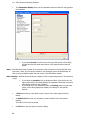
You can view and edit the parameter values in the default method by selecting Tools > Edit
Default method from the IRIS menu bar. The Method Editor Default.tsm dialog that
appears provides you with a convenient way to set the default/initial conditions for new
spectral methods that will be created by IRIS. For more information, see page 39.
Figure 1- 5 The Default Method.
29
Iris - HPLC Spectral Processing Software
Chromatogram’s Spectral Method
This is the spectral method associated with a chromatogram. When a chromatogram is
opened in IRIS for the first time, IRIS automatically creates and saves this method, which we
refer to as the Chromatogram’s Spectral Method. IRIS names this method with the same
name as the chromatogram’s result file; however the file extension is .tsm instead of .mth.
This method contains the parameter values that are responsible for the results you can see
when a chromatogram is displayed on an operation in IRIS, and the results that are stored
with the TotalChrom result file.
IRIS initially creates this method by either copying the parameter values in the Default.tsm
method. Or, if you open a chromatogram in IRIS that has been processed by the same
TotalChrom Method, as a chromatogram previously opened in IRIS, then IRIS creates the
new Chromatogram’s Spectral Method by copying the parameters values from its associated
Process Spectral Method (the Process Spectral Method is the method associated with all
chromatograms that have been processed by the same TotalChrom method; and is used by
AutoCalc).
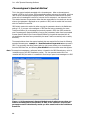
The example below shows the spectral method that was created the first time the following
example chromatogram: example 1 – identified and well separated.rst was opened in
IRIS. You can access the dialog shown below by right mouse clicking on a chromatogram
from the IRIS Data Tree, and selecting View Method from the context menu that appears.
Note: The example chromatogram, referenced above, is located in the IRIS Data directory, which is
installed as part of the IRIS Installation process. The .tsm spectral method file is not
installed with IRIS, but rather it is created the first time you open the chromatogram in IRIS.
Figure 1- 6 A Chromatogram’s Spectral Method controls what you see when you
select a chromatogram on an operation in IRIS, it also contains a record of the
parameters used to calculate any results you have saved back to the TotalChrom
Result file.
30
Chapter 1. Introduction
Process Spectral Method
The Process Spectral Method is also created when a chromatogram is first opened in IRIS.
This spectral method is given the same name and stored in the same location as the
TotalChrom Method that was used to create the result file that you opened in IRIS; however
the file extension is .tsm instead of .mth.
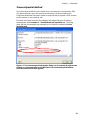
The screen shot below shows the Chromatogram Information dialog for the example
chromatogram named example 1 – identified and well separated.rst. This dialog
shows that the chromatogram was processed by the TotalChrom method named ex1
identified.mth.
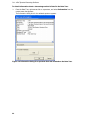
Figure 1-7 The Chromatogram Information dialog can be accessed by right mouse
clicking on a Chromatogram in the IRIS Data Tree and selecting Information…
from the context menu that appears.
31
Iris - HPLC Spectral Processing Software
Now that we know the TotalChrom method used to process the chromatogram, we can use
the File > Open Method.. command to locate and view the chromatogram’s Process
Spectral Method, which should be named ex 1 identified.tsm. The screen shot below
shows the properties for this Process Spectral Method.
Figure 1- 8 The Process Spectral Method for example 1 – identified and well
separated.rst has the same name as the TotalChrom method used to process the
result. This method can be used by all chromatograms that are processed by the
same TotalChrom Method.
When a Process Spectral Method is first created, the parameter values for the method are
copied from the parameter values in the Default Method. Then, whenever you perform an
operation on a chromatogram in IRIS and save the results, IRIS not only updates the
Chromatogram’s Spectral Method, IRIS also updates the associated Process Spectral Method
with the new parameters.
Note: For more information on saving the results of a chromatographic operation, refer to page 309.
It is important to note that all chromatograms that are opened in IRIS, which have been
processed by the same TotalChrom method, share the same Process Spectral Method.
Therefore, once this method is initially created, its parameter values are then used to set the
parameter values in the Chromatogram’s Spectral Method for new chromatogram you open
in IRIS, which has been processed by the same TotalChrom Method.
In addition, the parameter values stored in a Process Spectral Method can be used by
AutoCalc, during a TotalChrom sequence, to automatically perform any of the arithmetic
operations and chromatographic extractions provided by IRIS. For more information on
AutoCalc, see page 314.
32
Chapter 1. Introduction
Viewing a Spectral Method
The View Method dialog allows you to view and print, in its entirety the parameter values in
a spectral method associated with a chromatogram (Chromatogram’s Spectral Method) or a
Process Spectral Method. In addition, the View Method dialog allows you to view the Audit
Trail for a spectral method.
Below is an example of the View Method dialog.
Note: If you have the appropriate user permissions you can edit the default method by selecting
Tools > Edit Default Method... from the IRIS menu bar. For more information on editing
the default method see the topic titled Method Editor.
33
Iris - HPLC Spectral Processing Software
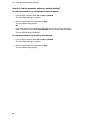
How do I view the parameter values in a spectral method?
To view the parameters in a Chromatogram’s Spectral Method:
1. From the IRIS workspace select File > Open > Method.
The Select Method dialog box appears.
2. Select a spectral method to view and click Open.
The View Method dialog displays.
OR
If you have opened a chromatogram in IRIS, right mouse click on the chromatogram
listed on the Data Tree and select View Method from the context menu that appears.
The View Method dialog is displayed.
To view the parameters in a Process Spectral Method:
1. From the IRIS workspace select File > Open > Method.
The Select Method dialog box appears.
2. Select a spectral method to view and click Open.
The View Method dialog displays.
34
Chapter 1. Introduction
Tell me about the View Method dialog.
The View Method dialog is comprised three main areas:
•
A list box that lists the components of the spectral method file.
Click on one of the items listed here, and the right hand portion of the dialog displays,
in read-only format, the parameters for the selected item.
35
Iris - HPLC Spectral Processing Software
•
The Parameters display shows you the parameters and their values for the operation
have selected.
•
If you select General from the list box, the right-hand portion of the dialog
lists the date and time when each section of the spectral method was last
edited.
Note: If the date/time stamp is empty for an operation, then this section of the method has never
been used. When you first use this operation, the parameter values will automatically be
filled in using the default values that rare stored in the IRIS default method.
Note Carefully: AutoCalc cannot perform an operation if the corresponding section in the method is
empty.
•
•
If you select an operation, such as Absorbance Ratio, from the list box, the
right-hand portion of the dialog displays the parameter values that are used to
calculate the results for that operation.
If you select any of the items listed under the Printing node, the right hand
portion of the dialog displays the default print settings for the spectral
method.
•
A Print button that you can select to print a report of the entire spectral method
details.
•
An Audit Trail button that you can select to view the audit trail for the spectral
method.
The Audit Trail can also be printed.
•
36
An Exit button that you select to close the dialog.
Chapter 1. Introduction
How do I modify the parameters values stored in a
Chromatogram’s Spectral Method and a Process Spectral
Method?
Unless you are viewing the Default.TSM method (This method contains the default/initial
conditions for all new methods that are created by IRIS, when you open a chromatogram in
IRIS for the first time) , you cannot edit any of the fields that are displayed on the View
Method dialog. The View Method dialog only allows you to view and print the parameter
values for a spectral method.
All other IRIS spectral methods are updated only when you save the results of a
chromatographic operation.
To modify a Chromatogram's Spectral Method:
1. Open the chromatogram in IRIS.
2. Select the operation from the Views tree that you wish to modify.
3. Select the chromatogram on the Data Tree.
The Chromatogram is displayed on the operation you have selected.
4. Modify the parameters that are listed on the right-hand side of the operation.
5. When you are satisfied with the results select File > Save Results... from the menu
bar.
The results of any of the operations you perform on a chromatogram in IRIS can be
saved to the chromatogram's result file (.RST), and the parameters that were used
calculate the results are saved the associated spectral method files (.TSM). The saved
results can to be included in a printed TotalChrom report.
You can View the new parameter values from the View Method dialog.
37
Iris - HPLC Spectral Processing Software
To modify a Process Spectral Method:
When you perform an operation on a chromatogram in IRIS and save the results, IRIS not
only updates the chromatogram’s spectral method, IRIS also saves the parameter values to a
Process Spectral Method that will be used by other chromatograms that are processed by the
same TotalChrom method, i.e. all chromatograms in this family.
1. In IRIS, open a chromatogram that has been processed with the TotalChrom method
that has the same name as the Process Spectral Method you want to modify.
Note: You can verify the name of the chromatogram’s associated TotalChrom method by right
mouse clicking on the chromatogram in the IRIS Data Tree and selecting Information from
the context menu that appears. A Chromatogram Information dialog appears that shows the
TotalChrom method associated with the selected chromatogram. If the TotalChrom method
has the same name as the Process Spectral Method you want to update, then you can
proceed to the next step. If the TotalChrom method does not have the same name as the
Process Spectral Method you want to update, then open a different chromatogram and
repeat the steps you just performed.
2. If the TotalChrom method has the same name as the Process Spectral Method you want
to update, you can modify the Process Spectral Method by doing the following:
•
For the chromatogram opened in Step 1, select any of the desired operations that are
listed under Operations in the IRIS Views tree.
•
Make any required changes to the parameters listed for the operation you selected.
•
Select the next operation that you want to make changes to. When you select a
different operation, a dialog appears that prompts you to select if you want to save
the changes. From this dialog select the desired save mode and click Yes.
3. After completing the changes for the last operation, save the results via File > Save
Results.
The Process Spectral Method and the Chromatogram’s Spectral Method are then
updated with all the modified parameter values. Moreover, for AutoCalc , the Process
Spectral Method parameters can now be used by any chromatograms processed by the
TotalChrom Method having the same name.
38
Chapter 1. Introduction
Editing the Default Method to set the default/initial
conditions of a new method
Note: If you have the appropriate user permissions you can edit the default method by selecting
Tools > Edit Default Method... from the IRIS menu bar.
The Default Method contains the default set of parameter values for all operations that can
be performed in IRIS. When you open a chromatogram in IRIS for the first time, and the
chromatogram has no associated Process Spectral Method, then both the Chromatogram’s
Spectral Method and the Process Spectral Method are created as a copy of the Default.tsm
method. The Edit Default Method dialog provides you with a convenient way to specify the
default/initial conditions that IRIS will use to create a new method.
¾
To access the Default Method select Tools > Edit Default Method… from the IRIS
menu bar.
Tell me about the Edit Method dialog.
The Edit Method dialog is comprised three main areas:
•
A list box that lists the components of the spectral method file.
Click on one of the items listed here, and the right hand portion of the dialog displays
the parameters for the selected item.
You can modify any of the displayed parameter values and select Save to update the
default method.
39
Iris - HPLC Spectral Processing Software
•
The Parameters display shows the parameters and their values for the operation you
have selected.
•
•
•
If you select General from the list box, the right-hand portion of the dialog
lists the date and time when each section of the spectral method was last
edited.
If you select an operation, such as Absorbance Ratio, from the list box, the
right-hand portion of the dialog displays the parameter values that are used to
calculate the results for that operation.
If you select any of the items listed under the Printing node, the right hand
portion of the dialog displays the default print settings for the spectral
method.
•
A Print button that you can select to print a report of the entire spectral method
details.
•
An Audit Trail button that you can select to view the audit trail for the spectral
method.
The Audit Trail can also be printed.
•
40
An Exit button that you select to close the dialog.
Chapter 1. Introduction
How do I edit the default method?
To edit the Default Method:
1. From the IRIS menu bar select Tools > Edit Default Method...
The Edit Method dialog appears.
2. From the list box select the operation that you wish to modify.
3. The parameters for the selected operation are displayed on the right-hand side of the
dialog.
4. When you have finished modifying parameters click Save.
41
Chapter. 2 Enhanced
Security
Chapter. 2 Enhanced Security
Enhanced Security
In response to Title 21 (Food and Drug Administration) of the United States Code of Federal
Regulations (CFR), Chapter 1, Part 11, as well as the increasing data security requirements in
other industries, PerkinElmer has developed IRIS to work in conjunction with TotalChrom in
order to provide you with the technical compliance tools needed to meet these regulations.
For example, in IRIS enhanced security features such as electronic records controls and
electronic signatures are supported for all data modified or created by the IRIS application.
More specifically, the integration between IRIS and TotalChrom provides you with the
following enhanced security features:
•
User Level Management and Security
IRIS uses the secure login process provided by TotalChrom in order to control access to
the application. More specifically, IRIS provides for three security levels that can be set
in the TotalChrom SysConfig utility to control access to the application. This means that
users who are granted one type of access level may perform all IRIS functions, while
other users, who are granted a more restrictive access level, can use the software to
calculate and save chromatographic results, but are not able to perform functions such
changing methods or libraries.
•
Audit Trails
If Audit Trailing is turned on in TotalChrom for a specific chromatogram then IRIS will
create secure, computer generated, time-stamped audit trails for all IRIS files linked to
that chromatogram. In addition, Spectral Libraries are always audit trailed. All IRIS
audit trails can be viewed on screen, printed, and exported.
•
Electronic Signatures
In IRIS, electronic signatures work in conjunction with audit trailing. Electronic
Signatures can be enabled in TotalChrom, only on files for which audit trail has been
enabled. The Electronic Signature feature forces a user who saves a file to enter the
TotalChrom password that corresponds to the logged on user.
This chapter covers User Management, Audit Trailing, and Electronic Signatures.
43
Iris - HPLC Spectral Processing Software
User Management
The IRIS Spectral Processing software is designed to be used by several different users who
are granted one of three access levels to the application. This means that users who are
granted one type of access level may perform all IRIS functions, while other users, who are
granted a more restrictive access level, can use the software to calculate and save
chromatographic results, but are not able to perform functions such changing methods or
libraries.
The level of access available to users the IRIS software depends on the permission level you
have been assigned to in TotalChrom. The TotalChrom Administrator or Lab Manager is
responsible for setting up users, groups, and permissions through the TotalChrom
SysConfig utility.
User Permissions
IRIS provides for various security levels that can be set in the TotalChrom SysConfig utility.
Therefore, depending upon the permission level you have been assigned to in TotalChrom,
you are granted one of the following access levels to IRIS:
•
Manager permission – This permission grants a user full access to IRIS.
•
User permission – This permission provides a user with the ability to calculate and
save chromatographic results. However, users with this permission cannot change
methods or libraries.
Note: For more information on methods, refer to the chapter titled IRIS Spectral Methods.
•
44
Read Only permission – This permission provides a user with the ability to perform
calculations as well as change any parameter values that are used in the calculation.
However, users with this permission cannot save anything.
Chapter. 2 Enhanced Security
Audit Trails
IRIS provides you with an Audit Trail feature that tracks and records all changes made within
the IRIS software. All IRIS audit trails can be viewed on screen, printed, and exported.
It should be noted that audit trailing of Spectral Libraries is always enabled in IRIS. On the
other hand, audit trailing of a chromatogram and its associated spectral methods is activated
only when Audit Trailing is turned on in TotalChrom for a specific chromatogram. In other
words, when Audit Trailing is turned on in TotalChrom for a specific chromatogram, IRIS will
create secure, computer generated, time-stamped audit trails for all IRIS files linked to that
chromatogram; meanwhile, all changes, made in IRIS, to the actual chromatogram are audit
trailed by TotalChrom.
Note: Because the TotalChrom chromatographic raw data and the Diode Array spectral file cannot be
modified, this data is not continuously audit trailed. However, you can view the name of the
user who created the data as well as the creation date by right mouse clicking on a
chromatogram or spectral file from the IRIS Data Tree and then selecting Audit Trail from
the context menu that appears.
45
Iris - HPLC Spectral Processing Software
What information is captured in an Audit Trail?
The following information is captured in the Audit Trail for any file that can be audit trailed:
•
The name of the modified parameter.
•
The original value.
•
The new value.
•
The unambiguous time/date stamp of the modification, including the Time Zone where
the modification occurred.
•
The User Name of the person making the change..
•
If necessary, a selection from the appropriate TotalChrom Reasons List and free text.
The enforcement of the reason will be based upon settings in the TotalChrom System
Configuration.
New files created in IRIS contain the following audit trail information:
•
The unambiguous time stamp of the file creation.
•
An indication of the “source” of the new file.
•
“File filename created as a new file”
•
“File filename2 created as a Save As from filename1”
•
The User Name of the person creating the file, recorded automatically.
•
The “reason” will be automatically recorded as “File creation”.
Note: Any file with a corrupted audit trail can only be accessed in read-only mode to allow for
investigation of the failure and cannot be used for any IRIS or TotalChrom processing or data
generation.
46
Chapter. 2 Enhanced Security
Entering Audit Trail Information
When audit trailing has been enabled in TotalChrom for a specific chromatogram and a user
attempts to make any changes in IRIS to the chromatogram and its associated spectral
methods, the user is prompted with the Audit Trail dialog. In addition, any time a user
attempts to modify or create a spectral library, an Audit Trail dialog displays. The Audit Trail
dialog displays the user name of the individual who is currently logged in and the date and
time of the event. In addition, your application manager may have set up the system to
require you to select a reason for the event and you also may be required to or have the
option to enter a comment about the event.
To enter audit trail information when the Audit Trail dialog is displayed:
Note: Your application manager may have set up the system so that you must select a Reason from
a list that is displayed when the Audit Trail is triggered. Or, you may be able to enter your
own reason for the event that triggered the Audit Trail dialog.
1. Select or enter a reason for the change(s) in the Reason list.
2. Enter any information about the change(s) you made to the file in the Comment text
box.
3. Click OK.
If Electronic Signatures is enabled the Electronic Signature dialog appears.
4. Enter your TotalChrom User Name and Password.
5. Click OK.
47
Iris - HPLC Spectral Processing Software
Viewing an Audit Trail
All audit trailed files in IRIS can be viewed from an Audit Trail reader. You can view the
Audit Trail for:
•
A Chromatogram’s Spectral Method (.tsm) and Spectral file (.spc).
•
The default method for IRIS (Default.tsm), or a Process spectral method (.tsm method
associated with all chromatograms that are processed by the same TotalChrom method)
•
A spectral library.
Note: For more information on spectral methods, refer to page Error! Bookmark not defined..,
The following section describes how to access the audit trail for a particular file as well as
describes the components of the Audit Trail reader.
Figure 2-1 The Audit Trail Reader
48
Chapter. 2 Enhanced Security
Tell me about the Audit Trail Reader
The Audit Trail dialog displays the audit trial for a specific object and consists of the following
areas:
Tab pages
The Audit Trail dialog displays tab pages that correspond to the type of Audit Trail you are
viewing:
•
When called from the Audit trail button on the Edit Library and View Library dialogs a
Library tab page is displayed.
Figure 2-2 The Audit Trail Reader for a Spectral Library
49
Iris - HPLC Spectral Processing Software
•
When called from the Audit trail button on the Method Editor dialog, a Method tab
page appears. More specifically, this dialog appears when you open a Chromatogram’s
Spectral Method or Process Spectral Method via the File > Open Method Command;
then when the Method Editor dialog is displayed, click on the Audit Trail button to view
the Audit Trail for the Process Spectral Method or Chromatogram’s Spectral Method that
you selected.
Figure 2-3 The Audit Trail Reader for a Spectral Method
50
Chapter. 2 Enhanced Security
•
When you right-click on a chromatogram in the Data Tree and select Audit Trail… from
the Context menu, the Audit Trail dialog is displayed; and consists of two tab pages: a
Method tab and Spectral tab. The Method tab page displays the Audit Trail of the
Chromatogram’s Spectral Method (.TSM having the same name as the TotalChrom
Result file that was selected). The Spectra tab page displays the Audit Trail of the
source .SPC file.
Figure 2-4 The Method tab page on the Audit Trail Reader for a chromatogram
Figure 2-5 The Spectral tab page on the Audit Trail Reader for a chromatogram
51
Iris - HPLC Spectral Processing Software
Event Table
The Event List displays a list of the events when changes were made to the object. The
events are listed by date and time and the user who made the change. When you click on
an item listed here, the Changes made section is populated with a list of changes made to
the selected object.
Figure 2-6 The Events List for a chromatogram
Changes Made
When you select an event on the Event List, the Changes Made text box displays the
changes that were made for the selected date and time.
¾
You can select any of the changes listed here to view the Reason for the change and
a Comment associated with the change in the corresponding text boxes.
Note: If you select a change from the Changes made list, the Reason for change and Comment
text boxes may not display any information, if the user was not required to select a reason or
enter a comment.
Reason for Changes
This text box displays the reason that was selected when a specific change was made to an
audit trail item.
Comment
This text box displays the comments that were entered at the time the selected change was
made.
Print Button
This command button enables you to print the audit trail.
Export Button
This command button displays a standard Microsoft file selector for you to select where to
export and save the audit trail as a text (.txt) file.
52
Chapter. 2 Enhanced Security
Electronic Signatures
An electronic signature as defined by 21 CFR Part 11 means a computer data compilation of
any symbol or series of symbols executed, adopted, or authorized by an individual to be the
legally binding equivalent of the individual's handwritten signature.
Electronic Signature Support in IRIS
Note: Electronic Signature support in IRIS is controlled by TotalChrom. For more information on
enabling electronic signatures, refer to the TotalChrom Help.
The electronic signature feature forces a user who saves a file to enter the TotalChrom
password that corresponds to the logged on user. The electronic signature feature of IRIS is
provided to assist in satisfying the requirements of FDA Final Rule in 21 CFR 11.
Electronic signature works in conjunction with audit trail; you can enable electronic signature,
in TotalChrom, only on files for which audit trail has been enabled. Once electronic signature
has been enabled for a file, it cannot be turned off. Electronic signature for a result file is
automatically enabled if any of the methods used to create it have electronic signature
enabled.
IRIS records the following information about electronic signatures in the audit trails:
•
When electronic signature is enabled for a file, an entry is made in the audit trail to
record the fact that signature requirement has been started.
•
When a user enters the correct password for a file that has electronic signature
enabled, the audit trail entry for the transaction will show that the electronic signature
was verified.
53
Chapter 3. Opening and
Viewing Chromatograms
Chapter 3. Opening and Viewing Chromatograms
Introduction
Now that you have a general understanding of the IRIS user interface, this section will
introduce you to the most basic element in IRIS, the chromatogram. IRIS was designed
answer the question “What chromatographic information can I get from the spectra
associated with this chromatogram?” — or, perhaps more clearly, “What information about
the peaks in this chromatogram and the components in the sample can I get from the
spectra associated with this chromatogram?” It’s not surprising then, that most of the tasks
you will perform in IRIS begin with chromatograms.
This chapter shows you how to open a chromatogram to begin your investigation. You will
also learn how to obtain information about a chromatogram before you open it.
55
Iris - HPLC Spectral Processing Software
Opening a Chromatogram
You can open a chromatogram at any time while using IRIS by following the steps listed in
this section. However, to help you get started, this chapter will show you how to open and
work with chromatograms on the Main View.
To open a new chromatogram:
1. From the IRIS menu bar select File > Open > Chromatogram.
The Open Chromatogram dialog appears.
2. Select the result file (.RST) that you want to open and click Open.
The Open dialog closes and the chromatogram you just opened is now checked on the
Data Tree and displayed on the current view (if the view contains a pane for displaying
chromatograms).
For this example, the newly opened chromatogram appears checked on the Data Tree
and is displayed on the Main View in the following panes: Chromatogram pane,
Contour Map pane, and 3D Plot pane. To hide the chromatogram from being displayed
on the Main View, simply uncheck the chromatogram on the Data Tree.
Figure 3-1 Main View after opening a chromatogram
3. Repeat steps 1 and 2 for each additional chromatogram you want to open.
Note: In order for you to easily identify the newly opened chromatogram, please note that the
chromatogram graph is color coded to match the chromatogram name listed on the Data
Tree.
56
Chapter 3. Opening and Viewing Chromatograms
What happens when I open a chromatogram in IRIS?
When you open a chromatogram, IRIS automatically determines and specifies, on the
chromatogram, the times at which the baseline, upslope, apex, and down slope spectra
occur.
•
The upslope and down slope spectrum positions (times) are determined as a percentage
of the peak height.
•
By default, the TotalChrom peak-start position (time) is used as the origin of the
baseline spectrum; however, you can change how spectra are baseline corrected within
a chromatogram from the Spectral Baseline Correction dialog. On this dialog you can
select from three options to select/calculate the baseline spectrum. For more
information on the defining how you are going to perform the baseline correction of the
spectra, refer to 103.
•
The TotalChrom peak-retention time is used as the origin of the apex spectrum.
57
Iris - HPLC Spectral Processing Software
What happens when I open multiple chromatograms?
Each time you open a new chromatogram the following occurs:
•
The file name of the chromatogram you just opened is listed at the bottom of the Data
Tree.
•
Depending upon the View you have selected you can specify whether or not a
chromatogram is displayed on the view by doing the following:
¾
To have the chromatogram displayed on the current view, check the chromatogram on
the Data Tree.
OR
If the current view only allows one chromatogram to be displayed on the View, you can
select which chromatogram you want displayed on the view by selecting it on the Data
Tree.
For example, on the Main View each chromatogram that appears checked on the Data
Tree is displayed on the Chromatogram pane, on the Contour Map pane, and the 3D
Plot pane.
Figure 3-2 The Main View with multiple chromatograms displayed
Note: In order for you to easily identify the newly opened chromatogram, please note that the
chromatogram graph is color coded to match the chromatogram name listed on the Data
Tree.
•
58
If you are looking at a View where multiple chromatograms can be displayed, and the
Chromatogram pane is set to a Stacked display, the newly opened chromatogram
appears at the top of the Chromatogram pane; this is the reverse order of how
chromatograms are listed on the Data Tree. The Contour Map and 3D plot for the
newly opened chromatogram are displayed in the same position as shown on the
Chromatogram pane.
Chapter 3. Opening and Viewing Chromatograms
Viewing Chromatograms
In the previous section you learned how to open chromatograms and select which
chromatograms on the Data Tree you want displayed in the current View. The following
section shows you how to work with chromatograms that are displayed on the
Chromatogram pane. This section does not cover viewing chromatograms on a Contour Map
or 3D Plot. For more information on working with Contour Maps and 3D plots, refer to The
Contour Map View on page 122 and The Spectra 3D View on page 132.
Working with the Chromatogram pane
To work with the Chromatogram pane, you must first select the pane by clicking anywhere
inside the plot region of the pane. When the Chromatogram Pane is selected, the border of
the pane turns blue.
Figure 3-3 A blue border appears around the Chromatogram pane to indicate that
it is selected
59
Iris - HPLC Spectral Processing Software
Once you have selected the Chromatogram pane you can do the following:
•
•
If the Cursor command appears checked on the View menu, you can click anywhere on
the displayed chromatogram and cross hairs appear at the point in the chromatogram
region where you clicked the cursor. The exact positions of the X and Y axes are also
displayed as text boxes on the axes.
On any Chromatogram pane, when you move the mouse pointer close to any edge of the
plot region the pointer changes into a four headed arrow.
A drag operation, when the mouse pointer is in this form, drags the graph around the
plot region.
•
On the Main/View, Chrom/Spectra, and Compare Views, the Stack/Overlay command
can be used to display chromatograms as either stacked or overlaid.
If the Chromatogram pane is stacked, as indicated when the stacked icon appears to
be pressed down
, a separate scale is shown for each curve.
,
If overlaid display is selected, as indicated when the stack/overlay icon appears
and all plots are plotted on the same Y scale, then a single Y scale is shown. If each
plot is plotted with its own Y scale, then the Y axis has no labels.
•
The toolbar buttons along the upper right-hand side of the window allow you to zoom in
on portions of the displayed data and to re-scale the data.
For more information on scaling chromatograms, see Scaling Chromatograms on page
66.
60
Chapter 3. Opening and Viewing Chromatograms
The Context Menu for the Chromatogram pane
When you right click on a Chromatogram pane a context menu appears that contains the
following commands:
Note: When the Chromatogram Pane is in Stacked mode, each of the chromatograms has its own
context menu. When the Chromatogram Pane is in Overlay mode, the context menu items
apply to all chromatograms.
Command
Print Pane…
Description
Prints the current pane.
------------------------------9 Chromatogram Baselines
Displays or hides baselines on all chromatograms as a red
line.
Overlay
Chromatograms/Stack
Chromatograms
This command toggles between Stack Chromatograms and
Overlay Chromatograms, and determines how the contents of
the pane are displayed. This option is not available when the
Chromatogram Pane is displayed on an Operations page.
•
When Overlay Chromatograms is selected all
chromatograms are displayed on one set of axes and
the menu command changes to Stack
Chromatograms.
•
When Stack Chromatograms is selected, all
chromatograms are displayed on separate exes and
the menu command changes to Overlay
Chromatograms.
9Cursor
Toggles the cross-hair cursor on and off.
Hide Pane
Hides the chromatogram pane forming a custom view.
This option is not available when the Chromatogram Pane is
displayed on an Operations page.
--------------------------------Label Chromatograms…
Displays the Label Chromatograms dialog.
This option is not available when the Chromatogram Pane is
displayed on an Operations page.
61
Iris - HPLC Spectral Processing Software
Command
Range
Description
Displays a green range box on the chromatogram.
This option is not available when the Chromatogram Pane is
displayed on an Operations page.
Add to View…
Adds the spectrum temporarily displayed from a selected point
on the chromatogram to the Data Tree and selects it.
This option is not available when the Chromatogram Pane is
displayed on an Operations page.
Note: To use this option you must have the Chromatogram
pane in Stacked mode and the Spectra pane in Overlay mode.
--------------------------------Format Graphs
Displays the Format Graphs dialog at the Chromatogram tab.
Changes made here effect the current graph only.
Spectral Baseline
Correction
Displays the Spectral Baseline Correction dialog.
62
Chapter 3. Opening and Viewing Chromatograms
Obtaining Information about a Chromatogram
There are two ways you can obtain information about a stored chromatogram. You can use
the Information command, located in the File menu, to obtain additional information on a
stored chromatogram that is not open. Or, you can also view information about a
chromatogram that is listed on the Data Tree by right mouse clicking on the chromatogram,
and selecting Information from the context menu that appears.
To view information about a chromatogram without opening the chromatogram:
1. From the File menu select Information > Chromatogram…
The Open Chromatogram dialog appears.
2. From the Open Chromatogram dialog select the result file (.RST) that you want to view
information on, and then click Open.
The Information dialog box for the selected chromatogram appears.
63
Iris - HPLC Spectral Processing Software
To obtain information about a chromatogram that is listed in the Data Tree:
¾
From the Data Tree, right mouse click on a chromatogram, and select Information
from the context menu that appears.
The Information dialog box for the selected chromatogram appears.
Figure 3-4 Chromatogram Information
64
Chapter 3. Opening and Viewing Chromatograms
Labeling Chromatograms
IRIS provides you with the ability to label individual chromatographic peaks. There are 14
different labels available for annotating the chromatograms. Only one type of label can
displayed at a time. You may change the type of labeling on one or all of the
chromatograms any time you are viewing chromatograms. You cannot apply a label to a
chromatogram from an Operations page.
How do I apply a label to chromatograms?
Note: Labels can only be applied to chromatograms that are displayed on a View. When you are
viewing an Operation, you cannot select a label for a chromatogram.
You can apply labels to all chromatograms that appear in a Chromatogram pane. Or, if you
are looking at a View where the Chromatogram panes are stacked, you can apply a label to a
single chromatogram.
To apply a label to all currently loaded chromatograms:
1. Select a view from the Views Tree.
2. Select Actions > Label Chromatograms.
The Label Chromatograms dialog appears.
3. From the Label drop down, select a label you wish to apply.
4. Check Apply to all chromatograms.
5. Click OK to close the Label Chromatograms dialog.
To apply a label to a single chromatogram:
1. Select a view from the Views Tree.
2. Click on any area in the white space of a stacked chromatogram display that contains
the chromatogram you wish to label.
A blue border appears around the selected stacked display.
3. From the Actions menu select Actions > Label Chromatograms.
The Label Chromatograms dialog appears.
4. From the Label drop down list, select a label you wish to apply to the chromatogram.
5. Uncheck Apply to all chromatograms.
6. Click OK.
The label you selected is applied to the chromatogram.
65
Iris - HPLC Spectral Processing Software
Scaling Chromatograms
IRIS offers you a variety of options to scale a chromatogram. You can:
•
Visually specify an area of the display to zoom into using the Box Zoom function.
•
Scale chromatograms by specifying the axis range from the Format Graphs dialog.
•
Autoscale only the absorbance axis, to fit the chromatogram between 10% and 90%
of the display, or you can scale both axes to display the full retention time range and rescale the absorbance to fit between 10% and 90% of the display.
•
Zoom in a continuous fashion.
•
(i.e. all
Normalize an entire chromatogram using the Normalize X and Y command
points in the displayed chromatogram), normalize along the Y axis only using the
Normalize Y command , normalize at the current cursor position using the Normalize
, or you can normalize to the maximum absorbance value to the right
Point command
.
of the current cursor position using the Offset Normalize command
Following is an overview of the scaling options that are available to you when you are
working with a Chromatogram pane:
How do I visually specify an area of the display to zoom
into using the Box Zoom function?
To zoom into a visually defined region:
1. Move the mouse cursor inside the plot region and position it at a corner of the area you
want to zoom.
2. Hold down the left mouse button and drag the mouse to form a box around the area to
be zoomed.
3. Release the mouse button.
The region you wish to zoom into will be outlined with a box containing eight control
points. The box can be resized by clicking and dragging on any of the control points.
4. Move the mouse pointer into the zoom region and click the left mouse button.
The zoomed area now fills the trace display region.
5. You can abort the zoom before step 4 by clicking the left mouse button outside the
zoom box.
6. To return to a view of the entire trace, select Actions > Autoscale > X and Y.
66
Chapter 3. Opening and Viewing Chromatograms
How do I view and change the axis range for a particular
chromatogram?
1. You can view and change the axis range for particular chromatogram by right mouse
clicking on a chromatogram and selecting Format Graphs from the context menu that
appears.
The Format Graphs window appears with the Chromatogram tab selected. This window
allows you to set the minimum and maximum values for the selected chromatogram on
both the X and Y axes.
Figure 3-5 The Chromatogram tab page allows you to scale the X and Y axes for a
chromatogram
2. From the Chromatogram tab page specify the Maximum and Minimum values for the X
and Y axes.
3. Click OK to apply changes and close the Format Graphs dialog.
67
Iris - HPLC Spectral Processing Software
How do I use the Autoscale tools?
The autoscale commands allow you to rescale the data in the chromatogram pane so that all
of the data are visible. There are two commands which you can use to scale a
chromatogram to fit the display region. Autoscale X and Y
scales the chromatogram to
between 10% and 90% of the absorbance axis as well as displaying the full retention time
scales only the absorbance axis without
range of the chromatogram. Autoscale Y only
changing the retention time range.
To autoscale the absorbance only:
1. Click on the Chromatogram pane you want to autoscale in the Y direction.
2. Select Actions > Autoscale > Y only.
OR
Click on the Autoscale Y icon
.
The absorbance axis of the selected chromatogram is scaled to fill 80% of the display.
To autoscale both the retention time and absorbance:
1. Click on the Chromatogram you wish to autoscale in the X and Y directions.
2. Select Actions > Autoscale > X and Y.
OR
Click on the Autoscale X and Y icon
.
The retention time axis of the selected chromatogram is scaled to fill the region. All
other chromatograms will be re-scalled to this retention time range. The absorbance
axis is scaled to fill 80% of the display.
68
Chapter 3. Opening and Viewing Chromatograms
How do I zoom in a continuous fashion?
You can zoom a chromatogram in a continuous fashion using the slider zoom feature in
and Zoom Y
icons. The slider zoom enables you to
conjunction with the Zoom X
expand or contract the chromatogram in a continuous manner. The Zoom X and Zoom Y
commands determine what is zoomed when you are interacting with the zoom slider.
To continuously zoom a chromatogram:
1. Before performing the zoom, place the cursor at the position that you want to zoom,
since the zoom is around the position of the cross-hair cursor.
2. Click on the Zoom X axis icon
the required zoom mode.
and or the Zoom Y axis
icon on the Toolbar to set
You can select both the X and Y axis icons to create an X and Y zoom.
The buttons appear depressed when active.
3. Push the Toolbar slider
to the right or left.
69
Iris - HPLC Spectral Processing Software
How do I use the use the Normalization commands to find
subtle differences between chromatographic peaks?
The Normalization commands are most useful when multiple, overlaid chromatograms are
displayed and you want to find subtle differences in the plot. Basically, the Normalize
commands help you compare the exact shapes of peaks by converting all of the displayed
peaks to the same maximum height.
One example, in which the normalize commands may prove useful, is if you have multiple
overlaid chromatograms displayed on your screen and you want to confirm the presence of
closely co-eluting components. You can select pane containing the multiple overlaid
chromatograms and then use the normalize commands described below to better
qualitatively compare the exact shapes of the peaks.
For a detailed description of how the Normalization commands can be used, refer to the
section titled Detailed Description of Normalization commands in Chapter 4.
Viewing Spectra.
The Normalization commands are as follows:
Icon
Associated menu
command
Description
Normalize X and Y
Normalizes the graph so all plots are full scale.
Normalize Y only
Normalizes the graph so all plots are full scale
without changing the X axis.
Offset Normalize
Normalizes all plots to the highest point to the right
of the cursor position.
Normalize Point
Normalizes all plots at the cursor position.
Note: The Normalize Y command is useful if you have zoomed in on a specific region of the
chromatogram and want to normalize without resetting the X axis, since Normalize All
evaluates all points in the chromatogram, and therefore, resets the X axis.
70
Chapter 3. Opening and Viewing Chromatograms
To normalize both the retention time and absorbance:
1. Click anywhere on the chromatogram you want to normalize.
2. Click on the Normalize X and Y icon
.
OR
Select Actions > Normalize > X and Y from the menu bar.
The retention time axis of the selected chromatogram is scaled to fill the region. All
other chromatograms will be re-scalled to this retention time range. The absorbance
axis is scaled to fill 80% of the display.
To normalize along the Y axis only:
1. Click the region below the point where you wish normalization to occur.
2. Click on the Normalize Y icon
.
OR
Select Actions > Normalize > Y only from the menu bar.
The chromatogram will be normalized at the maximum point in the displayed region
without changing or resetting the X axis value.
To normalize to the highest point to the right of the cursor:
1. Click the region below the point where you wish normalization to occur.
2. Click on the Offset Normalize
icon.
OR
Select Actions > Normalize > Offset from the menu bar
The chromatogram is normalized to the maximum point above the cursor position.
To normalize at the position of the cursor:
1. Click the region at the point where you wish normalization to occur.
2. Click on the Normalize Point icon
.
OR
Select Actions > Normalize > Point from the menu bar.
The chromatogram is normalized at the cursor position.
71
Iris - HPLC Spectral Processing Software
How do I close a chromatogram?
¾
You can close a chromatogram by selecting the chromatogram from the Data Tree and
then selecting File > Close.
When you close a chromatogram, the chromatogram is removed from the Data Tree
and all of the chromatogram's associated displays, such as the Contour Map and 3D Plot
are no longer shown. In addition, all of the chromatogram’s associated spectra are
removed from the Data Tree and are no longer displayed.
Note: If you do not want to remove a chromatogram from the Data Tree, you can hide it from being
displayed by unchecking the chromatogram on the Data Tree when you are looking at the
Main View, Chrom/Spectra View, and Compare View. On all other Views, you can hide the
chromatogram from being displayed by simply selecting a different chromatogram on the
Data Tree. .
72
Chapter 3. Opening and Viewing Chromatograms
Initializing a TotalChrom Environment with an
IRIS Chromatogram
This topic shows you how to pass a chromatogram that is open in IRIS back to TotalChrom.
It is possible to move a chromatogram you are viewing in IRIS to one of two TotalChrom
environments: Reprocess or Graphic Method Edit.
¾
Right mouse click on the chromatogram in the Data Tree and select TotalChrom >
Reprocess or Graphic Method Edit from the context menu that appears.
The selected chromatogram is displayed in the requested environment.
73
Chapter 4. Viewing Spectra
Chapter 4. Viewing Spectra
Introduction
Now that you’ve opened a chromatogram, you can look at its associated spectra. You can
use the Main View and Chrom/Spectra View to open, extract, and view spectra.
In this chapter we first describe how spectra are collected for viewing in IRIS. In this
chapter you will also learn how to examine spectra on the various IRIS Views as well as learn
how to modify the spectrum display so that you can more easily compare spectra.
75
Iris - HPLC Spectral Processing Software
Spectral Formats
IRIS stores spectra in three different formats: chromatographic, independent and library
spectra.
•
Chromatographic Spectra - These are the spectra associated with a chromatogram.
Spectra are collected by the Series 200 Diode Array Detector in equal-time increments
across the entire chromatogram (TotalChrom lets you define the time range and the
collection increment, i.e., the spectral collection rate).
These spectra can be accessed from the chromatogram, when the chromatogram is
selected on the Data Tree and displayed on the current View.
To see spectra associated with a chromatogram, simply float your mouse pointer over
the chromatogram; and the spectrum from that point is temporarily displayed on the
Spectra pane on the current view. We recommend you use the Main View,
Chrom/Spectra View, Contour Map View, or 3D Spectra View to perform this task.
You can also capture spectra by double clicking your mouse over an area on the
chraomtogram, and the spectrum at the wavelength and time you clicked appears in the
Spectra pane for the current view. The spectrum is also added to the Data Tree under
the chromatogram from which the spectrum was extracted.
Note: A “captured” spectrum is a spectrum extracted from its source and displayed permanently in
the Spectra Pane. A captured spectrum can be hidden and/or removed.
Note: You cannot use the File > Open > Spectrum command to access a spectrum associated
with a chromatogram.
•
Individual Spectra - These are the files that result when you select a
chromatographic spectrum that you have extracted, and then select the spectrum on
the Data Tree and then use the Save As... command. (Note that you must first extract
and display the spectrum; you cannot save spectra directly from a chromatogram to a
file.) Only this type of spectrum can be opened using the Open > Spectrum option
under the File menu.
•
Library Spectra – You can use the Add Apexes command to automatically create a
spectral library using the apex spectra from named peaks in a chromatogram. You can
also add a previously stored, individual spectrum to a library; to do this you must first
open this spectrum in IRIS, and then use the Build Library commands, located under
the Tools menu. In addition, spectra extracted from a chromatogram can be added to
a spectral library by using the Build Library commands, located under the Tools menu.
For more information on setting up a library of stored spectra, refer to the Spectral Libraries
chapter on page 151.
76
Chapter 4. Viewing Spectra
Viewing a Spectrum
This section shows you how to open and view chromatographic spectra and individual
spectrums that have been previously extracted and saved using the File > Save As…
command in IRIS.
Previously stored, individual spectrums can be opened and viewed on the Main View,
Chrom/Spectra View, and the Compare View. Meanwhile, spectra associated with a
chromatogram are accessed from the chromatogram. You can view the spectra in a
chromatogram from the Main View, Chrom/Spectra View, Spectra 3D View, Contour
Map View, and Compare View.
77
Iris - HPLC Spectral Processing Software
Viewing Chromatographic Spectra
In this section you will learn how to capture and display a spectrum from a chromatogram in
a chromatogram pane, contour map, or 3D plot pane using the Main View. For more
information on extracting spectra using the other View pages in IRIS, refer to the chapter
titled Chapter 5. Viewing the Data..
Note: A “captured” spectrum is a spectrum extracted from its source and displayed permanently in
the Spectra Pane. A captured spectrum can be hidden and/or removed.
How do I see spectra associated with a chromatogram?
IRIS also allows you to see spectra associated with a chromatogram without capturing the
spectra permanently in the Spectra pane. If you do not want permanently capture a
spectrum from a chromatogram, simply float your mouse pointer over the chromatogram, 3D
plot or contour map, and the spectrum from that point is temporarily displayed on the
Spectra pane of the current View.
Note: To preview spectra associated with a particular chromatogram, as well as extract spectra from
a chromatogram, the pane you are extracting from must be set to a Stacked display, and
the Spectra pane must be set to an Overlaid display.
Figure 4-1 On a stacked chromatogram display you can hover your mouse over
the chromatogram and the spectrum from that point on the chromatogram is
displayed in the Spectra pane
78
Chapter 4. Viewing Spectra
How do I work with the Spectra pane?
•
To work with the Spectra pane, you must first select the pane by clicking on the white
space of the pane.
The pane appears selected and the border of the pane turns blue.
•
If a Stacked display is being used on the Chromatogram pane and an Overlaid display is
being used on the Spectra pane, you can float the cursor over a point on the
Chromatogram pane and have the associated spectrum displayed.
•
When the mouse pointer is moved close to any edge of the plot region it changes into a
four headed arrow.
A drag operation when the mouse pointer is in this form, drags the graph around the
plot region.
•
You can also scale spectra with a large selection of tools.
For more information on scaling spectra, see the section titled Visually Comparing
Spectra on page 89.
79
Iris - HPLC Spectral Processing Software
Tell me about the context menu that appears when I right click on a
Spectra Pane.
When you right click on the Spectra Pane a context menu appears that contains the following
commands:
Command
Description
Print Pane…
Prints just the current pane.
9Baseline Spectra
Adds the baseline spectrum for the selected spectrum
to the Data Tree and displays the baseline spectrum on
the Spectra pane. The baseline spectrum is identified
by the retention time of the spectrum (or if a range of
spectra are being used, the start and end times of the
range) followed by the word base.
Stack Spectra/Overlay
Spectra
This command toggles between Stack Spectra and
Overlay Spectra and determines how the contents of
the pane are displayed.
•
The menu command displays Overlay
Spectra when the current display is set to
Stacked. If an overlaid display is selected and
all plots are plotted on the same Y scale a
single Y scale is shown. If each plot is plotted
with its own Y scale then the Y axis has no
labels.
•
When Stack Spectra is selected, all spectra
are split onto separate axes and the menu
command changes to Overlay Chromatograms.
9Cursor
Toggles the cross-hair cursor.
Hide Pane
Closes the selected pane forming a custom view.
Format Graphs
Displays the Format Graphs dialog at the Spectrum tab.
Changes made here effect the current graph only.
80
Chapter 4. Viewing Spectra
How do I capture a spectrum from a Chromatogram pane?
To view spectra associated with a particular chromatogram, as well as extract spectra from a
chromatogram, the Chromatogram pane must use a Stacked display, and the Spectrum
pane must use an Overlaid display.
¾
You can set the display modes for both panes by selecting Stack Chromatograms
and Overlay Spectra from the View menu.
To extract spectra:
1. Click on any area in the white space of the Chromatogram pane.
2. Set the selected Chromatogram pane to Stacked mode by clicking on the
that the icon appears to be pushed down
icon so
.
3. Float your mouse pointer over a point on the chromatogram to temporarily view, in the
Spectra pane, the spectrum from that point. As you continue to float your mouse
pointer over the chromatogram, the Spectra pane automatically updates, so that the
spectrum from the current location of your mouse pointer is displayed in the appropriate
pane.
4. If you see a spectrum that you want extract, just double click on the spot in the
chromatogram that contains the spectrum you want to extract.
The spectrum at the wavelength and time you clicked appears in the Spectra pane.
How do I capture a spectrum from a Contour Map?
To extract and display a spectrum from a point on the Contour Map:
5. On the Main View, check the chromatogram on the Data Tree that you want displayed
as a contour map.
The chromatogram is displayed on the Chromatogram pane, Contour Map pane, and 3D
Plot pane.
6. Float your mouse pointer over a point on the contour map plot to temporarily view, in
the Spectra pane, the spectrum from that point. As you continue to float your mouse
pointer over the contour map, the Spectra pane automatically updates, so that the
spectrum from the current location of your mouse pointer is displayed in the appropriate
pane.
7. If you see a spectrum that you want extract, just double click on that area in the
contour map; and the spectrum at the wavelength and time you clicked appears in the
Spectra pane and is now listed on the Data Tree.
Note: Unlike the Main View, where extracted spectra are displayed on the Data Tree, when you
extract a spectrum from the Contour Map View, the spectrum is added to the Data Tree;
however, you will not see the extracted spectrum on the Data Tree until you exit the Contour
Map View. The reason for this is because on the Contour Map View, the Data Tree is used
only for selecting the chromatogram that you want displayed. You will be able to see all of
the spectra you have extracted once you select a different View such as the Main View or the
Chrom/Spectra View.
81
Iris - HPLC Spectral Processing Software
How do I capture a spectrum from a 3D Plot?
To extract and display a spectrum from a point on the Contour Map:
1. On the Main View, check the chromatogram on the Data Tree that you want displayed
as the 3D Plot.
The chromatogram is displayed on the Chromatogram pane, Contour Map pane, and 3D
Plot pane.
2. Float your mouse pointer over a point on the 3D Plot to temporarily view, in the Spectra
pane, the spectrum from that point. As you continue to float your mouse pointer over
the 3D Plot, the Spectra pane automatically updates, so that the spectrum from the
current location of your mouse pointer is displayed in the appropriate pane.
3. If you see a spectrum that you want extract, just double click on that area in the 3D
Plot; and the spectrum at the wavelength and time you clicked appears in the Spectra
pane.
Note: Unlike the Main View, where extracted spectra are displayed on the Data Tree, when you
extract a spectrum from the Spectra 3D View, the spectrum is added to the Data Tree;
however, you will not see the extracted spectrum on the Data Tree until you exit the Spectra
3D View. The reason for this is because on the Spectra 3D View, the Data Tree is used only
for selecting the chromatogram that you want displayed. You will be able to see all of the
spectra you have extracted once you select a different View such as the Main View or the
Chrom/Spectra View.
What Views should I use to capture spectra?
Although you can use the Main View to capture spectra from a chromatogram that is
displayed on a Chromatogram pane, Contour Map, and/or 3D Plot, we recommend you use
the following Views to capture spectra:
•
If you want to capture spectra from a chromatogram use the Chrom/Spectra View, or
the Main View.
•
If you want to capture spectra from a point on a contour map, use the Contour Map
View.
•
If you want to, capture spectra from a point on a 3D plot use the 3D Spectra View.
Note: Unlike the Main View, where extracted spectra are displayed on the Data Tree, when you
extract a spectrum from the Contour Map View or 3D Spectra View, you will not see the
extracted spectrum on the Data Tree until you exit the Contour Map View or 3D Spectra
View. The reason for this is because while you are viewing the Contour Map View or 3D
Spectra View, the Data Tree is used only for selecting the chromatogram that you want
displayed on the View. You will be able to see all of the spectra you have extracted once you
select a different View such as the Main View or the Chrom/Spectra View.
82
Chapter 4. Viewing Spectra
How do I use the Range Box to extract spectra?
Note: The Range command is enabled only on Views, not Operations, when the View contains a
Chromatogram pane with a single chromatogram displayed. This command is also available
from the context menu for a stacked chromatogram.
This Range command
, located on the tool bar, is used to display all the spectra within a
is selected a green range box is displayed on
given time range. When the Range icon
the chromatogram. To activate the range box, simply position your mouse pointer in the
range box and click.
Figure 4-2 Click on the Range icon to activate the range box
83
Iris - HPLC Spectral Processing Software
When the range box is activated:
This command is used to display all the spectra within a given time range. When this
command is selected a green range box is displayed on the chromatogram:
•
Positioning the mouse pointer in the range box and clicking actives the range box.
When activated:
• Handles are displayed on the left and right edges of the box.
• Positioning the mouse pointer over the left or right handles of the box
changes it to a horizontal two-headed arrow and click and hold enables the
edge to be stretched. Upon releasing the mouse the range box is
deactivated.
• Positioning the mouse pointer over the left or right edge of the box (except
for the position of the handles) changes it to a four-headed arrow and click
and hold enables the complete box to be moved. Upon releasing the mouse
the range box is deactivated.
•
Positioning the mouse pointer within the box and double-clicking loads all the spectra
enclosed by the box into the Data Tree and sets them as checked. When you release
the mouse, the range box is cleared.
Note: If more than 70 spectra are included in the range, you will be informed of the number of
spectra you have requested and are warned that the operation may take some time.
•
84
Clicking on the chromatogram, in an area outside of the box, clears the range box.
Chapter 4. Viewing Spectra
Viewing Individual, Previously Stored Spectra
You can save individual spectrums, plus its baseline spectrum for comparison purposes by
first extracting the spectrum from a chromatogram. Once the spectrum is extracted and
appears on the Data Tree, you select the spectrum on the Data Tree, right mouse click on
the spectrum, and select Save As… A Save Spectrum As dialog appears. On the Save
Spectrum dialog you specify a file name and location for the spectrum.
How do I view a previously stored individual spectrum?
1. Once a spectrum is saved, using the procedure described above, you can view the
spectrum again by selecting File > Open > Spectrum….
The Open Spectrum dialog appears.
2. Select the spectrum you want to open and click Open.
The selected spectrum is opened and now appears as its own node on the Data Tree.
On the Main View and Chrom/Spectra View, and Compare View you can display this
spectrum by checking it on the Data Tree. The spectrum is displayed on the Spectra
pane.
85
Iris - HPLC Spectral Processing Software
Removing Spectra and Hiding Spectra from the
Data Tree
Removing Spectra from the Data Tree
¾
If you want to remove all of the spectra from the Data Tree select File > Close All
Spectra.
All of the spectra are removed from the Data Tree.
¾
If you want to remove a spectrum from the Data Tree, right mouse click on the
spectrum you want to remove and select Close from the context menu that appears.
Hiding Spectra from Being Displayed
¾
86
If you do not want to display a spectrum on the Main View or Chrom/Spectra View you
can hide it by unchecking the spectrum on the Data Tree.
Chapter 4. Viewing Spectra
Obtaining Information on a Stored Spectrum
There are two ways you can obtain information about a spectrum. You can use the
Information command, located in the File menu, to obtain additional information on a
stored spectrum that is not open. Or, you can also view information about a spectrum that is
listed on the Data Tree by right mouse clicking on the spectrum, and selecting Information
from the context menu that appears.
Note: If you are viewing Information on spectra created via a mathematical operation in IRIS, the
details of the operation and the source of the spectra will be included on the Information
dialog. If you are viewing Information on spectra extracted from chromatograms, the source
of the spectra is shown on the Information dialog along with the baseline source and type
(single point, peak start, interpolated, etc.).To view information about a spectrum
without opening the spectral file:
1. From the File menu select Information > Spectrum.
The Open Spectrum dialog appears.
2. From this Open dialog, select the spectral file (.UV) that contains the spectrum that you
wish to view more information on and click Open.
The Information dialog box for the selected spectrum appears.
Figure 4-3 Information dialog for a previously saved spectrum
87
Iris - HPLC Spectral Processing Software
To obtain information about a chromatogram that is listed in the Data Tree:
¾
From the Data Tree, right mouse click on a spectrum, and select Information from the
context menu that appears.
The Information dialog box for the selected spectrum appears.
Figure 4-4 Information dialog for a spectrum that was selected on the Data Tree.
88
Chapter 4. Viewing Spectra
Visually Comparing Spectra
The default display protocol for spectra displayed in IRIS is an X/Y autoscale mode that
automatically scales the display so that every spectrum is completely visible in both the X and
Y axis directions. If you add a new spectrum with a wider range, the display’s range is
adjusted to accommodate it.
IRIS does, however, provide you with a number of features that let you modify the spectrum
display so that you can more easily compare spectra. This section begins with a brief
description of the scaling commands available to you, and then describes in detail the various
forms of spectrum normalization.
89
Iris - HPLC Spectral Processing Software
Options for Scaling Spectra
This section describes the scaling commands you can use to in order to modify the spectrum
display. You will find that the information in this section is useful when multiple, overlaid
spectra are displayed.
Note: Before you use any of the scaling commands to modify how spectra are displayed,
you must first select the Spectra pane by clicking on the white space of the pane. When the
Spectra pane is selected a blue border appears around the pane. Now that you have the
Spectra pane selected you can use the scaling commands described below to more easily
compare spectra.
Autoscaling Spectra
The autoscale commands allow you to rescale the data in the Spectra pane so that all of the
data are visible. As noted earlier, the autoscale commands are particularly useful when
multiple, overlaid spectra are displayed.
There are two commands which you can use to scale spectra to fit the display region:
•
rescales spectra on the current view in both
The Autoscale X and Y command
the X and Y directions, so that all of the data are visible. This command is particularly
useful when multiple overlaid spectra are displayed, because clicking on this command
rescales the data so that all points for the largest data set, in both the X and Y axis
directions, fit in the window.
•
The Autoscale Y Only command
works like the Autoscale X and Y command
described above, except that it leaves the X axis unchanged and scales only the Y axis
90
Chapter 4. Viewing Spectra
Normalizing Spectra
The Normalization commands are most useful when multiple, overlaid spectra are displayed.
The Normalization commands are as follows:
Note: If you are trying to scale a single chromatogram or spectrum, only Offset Normalize and Point
Normalize are useful commands.
•
The Normalize X and Y command
is useful when multiple, overlaid spectra are
displayed. This command scales the maximum Y value in the active window to 90% for
each spectrum and sets the X axis scale so that the entire largest spectrum is displayed.
•
The Normalize Y Only command
only the Y axis.
•
The Offset Normalize command
is useful when multiple, overlaid spectra are
displayed, or when a single spectrum is displayed. This command scales the data point
with the maximum Y value to the right of the current cursor position to 90% in the
region for each spectrum.
•
is useful when multiple, overlaid spectra are
The Normalize Point command
displayed, or when a single spectrum is displayed. This command scales the Y value at
the current cursor point to 90%. The new (90%) scaling is applied to every spectrum.
, works like “Normalize All,” except it rescales
91
Iris - HPLC Spectral Processing Software
Detailed Descriptions of Normalize Buttons
Normalize All
The Normalize X and Y command
applies to chromatogram displays, as well as to
spectral displays containing multiple, overlaid spectra. This command scales the maximum Y
value in the active window (i.e. the Chromatogram or Spectra pane that is currently selected)
to 90% for each spectrum or chromatogram and sets the X axis scale so that all of the
largest spectrum or chromatogram is displayed. All chromatograms or spectra in the
selected pane are affected by this command.
Figure 4-5, below, shows a range of spectra displayed over the last peak. Because the
spectra, in the display below, are of varying sizes it is not clear if the chromatographic peak
is homogeneous, nor is it clear whether or not all the spectra are identical, or if the spectra
vary across the peak. To better compare the peaks, you can use the Normalize commands,
since these commands will convert all of the peaks to the same maximum height.
Figure 4-5 Range Spectra display over the last peak
92
Chapter 4. Viewing Spectra
is applied to Figure 4-5, it is evident that all the
If the Normalize X and Y command
spectra do appear to be identical; and therefore, the chromatographic peak is homogeneous.
Figure 4-6 Range Spectra display after the Normalize X and Y command has been
applied
93
Iris - HPLC Spectral Processing Software
Normalize Y Only
The Normalize Y Only command
works like the Normalize X and Y command,
except that it leaves the X axis unchanged and rescales only the Y axis.
In the example below, four spectra were captured from four different peaks: Toluene, Ethyl
Benzene, Propyl Benzene, and Butyl Benzene. Because of the high absorbance in the low UV
of the spectra shown in the figure below, it is very difficult to see any subtle differences in
the higher part of the UV spectrum.
Figure 4-7 Before applying the Normalize Y only command, it is difficult to see any
subtle differences in the higher part of the UV spectrum
94
Chapter 4. Viewing Spectra
To better compare the spectra, we can zoom into this region and then apply the Normalize
Y Only command.
Figure 4-8 Figure showing the results after zooming into the region of interest
95
Iris - HPLC Spectral Processing Software
Figure 4-9 Figure after the Normalize Y command has been applied
As shown in the figure above, the spectra are not identical. Since the spectra were all
captured from different peaks, the results shown in the figure above are expected; however,
by using the Normalize Y command we were able to confirm the expectation that the four
spectra were not identical.
96
Chapter 4. Viewing Spectra
Offset Normalize
The Offset Normalize command
applies to chromatogram displays, as well as to
spectral displays containing multiple, overlaid spectra. This command scales the data point
with the maximum Y value to the right of the current cursor position to 90% in the region for
each spectrum.
In the Figure 4-7, when examining a set of spectra to observe their differences, we
expanded the scale to observe only the wavelength range of interest, and then we used the
Normalize Y command. Since there was no higher absorbance to the right of the region of
interest, we could have more easily achieved our goal by using the Offset Normalize
command, as shown in the figure below. In this case, we positioned the cursor at
approximately 230 nm, and then selected Offset Normalize
.
Figure 4-10 Using Offset Normalize
97
Iris - HPLC Spectral Processing Software
Normalize Point
The Normalize Point command
applies to chromatograms, contour maps, and spectra.
For chromatograms and spectra, this command scales the Y value at the current cursor point
for every chromatogram or spectrum to 90%.
Note: The Normalize Point button is valuable in the Contour Map view, as discussed in the section
titled Scaling a Contour Map on page 129.
The figure below shows detail from spectra extracted at different points on an Anthracene
peak. To amplify any possible differences, we can use the Normalize Point command
force all the curves to an identical absorbance at a specific point on the peak.
Figure 4-11 Spectra Detail
98
to
Chapter 4. Viewing Spectra
Figure 4-12 Detailed examination using Normalize Point
99
Iris - HPLC Spectral Processing Software
Additional Options for Scaling Spectra
In addition to the Autoscale and Normalize commands, IRIS offers the following additional
options for scaling spectra:
•
Use the Box Zoom function to visually specify an area of the display you want to zoom
into.
•
Use the Format Graphs dialog to scale spectra by specifying the axis range.
•
Zoom in a continuous fashion.
How do I visually specify an area of the display to zoom into using the
Zoom Box function?
It is possible to zoom into a visually defined region of a spectrum using the Box Zoom.
To scale individual spectra set the Spectra pane to Stacked mode.
To zoom into a visually defined region:
1. Move the mouse cursor inside the plot region and position it at a corner of the area you
want to zoom.
2. Hold down the left mouse button and drag the mouse to form a box around the area to
be zoomed.
3. Release the mouse button.
The region you wish to zoom into will be outlined with a box containing eight control
points. The box can be resized by clicking and dragging on any of the control points.
4. Move the mouse pointer into the zoom region and click the left mouse button.
Note: You can individually scale the absorbance of each spectrum. All spectra, however, share the
same wavelength axis, so zooming into the wavelength range on one spectrum zooms into
that wavelength range for all spectra.
5. You can abort the zoom before step 4 by clicking the left mouse button outside the
zoom box.
6. To return to a view of the entire trace, select Actions > Autoscale > X and Y.
OR
Use the Previous Scale command
menu.
100
, which is also located under the Actions
Chapter 4. Viewing Spectra
How do I view and change the axis range for spectra?
1. You can view and change the axis range for spectra by right mouse clicking on a
spectra pane and selecting Format Graphs from the context menu that appears.
The Format Graphs window appears with the Spectra tab selected. This window allows
you to set the minimum and maximum values on both the X and Y axes.
2. From the Spectra tab page specify the Maximum and Minimum values for the X and Y
axes.
3. Click OK to apply changes and close the Format Graphs dialog.
Note: Changes in the wavelength range always affect all the spectra.
101
Iris - HPLC Spectral Processing Software
Saving an Individual Spectrum
You can use the File > Save As... command to save an individual spectrum, plus its
baseline spectrum for comparison purposes. The spectrum is saved as an .UV file. You must
have the spectrum selected on the Data Tree in order to save it. Once you have saved the
spectrum it can be reopened by selecting File > Open > Spectrum… from the IRIS menu
bar.
To save a spectrum that you have extracted from a chromatogram:
1. From the Data Tree click on the spectrum you wish to save.
2. From the menu bar select File > Save As...
The Save Spectrum As dialog appears.
3. From the Save As dialog enter a File name for the .UV file and click Save.
The spectrum is saved and a information header is added to the .UV file that identifies
the source of the chromatogram, the user’s full name, user id, and the date and time
the spectrum was saved.
102
Chapter 4. Viewing Spectra
Defining How You are Going to Perform the
Baseline Correction of the Spectra
The Spectral Baseline Correction dialog allows you to define how you are going to perform
the baseline correction of the spectra. Baseline correction is achieved by subtracting the
appropriate absorbance baseline spectrum from the absorbance spectrum.
Figure 4-13 The Spectral Baseline Correction dialog allows you to define how you
are going to perform the baseline correction of the spectra
103
Iris - HPLC Spectral Processing Software
On the Spectral Baseline Correction dialog you can select from the following three options
that are available to you for calculating/selecting the baseline spectrum:
•
Peak Start Only – This option selects the spectrum at the Baseline Start position
before the current chromatographic peak as the baseline spectrum. (If all peaks are
baseline separated, each peak in the chromatogram would have a different baseline
spectrum.) This spectrum will be used for baseline correction until the next Baseline
Start position.
For spectra before the first start of the first peak in the chromatogram the first baseline
spectrum will be used for all spectra before the first peak.
For spectra after the first end of the last peak in the chromatogram the last baseline
spectrum will be used for all spectra after the last peak.
•
Selected Spectrum – This option uses a spectrum at a point you select on the
chromatogram, currently displayed on this dialog, as the baseline spectrum.
When you select this option, a vertical marker is displayed on the graph (at the start of
the chromatogram). You then drag the marker to the required position. The baseline
spectrum will now be the spectrum from this point. This marker will be re-displayed
whenever Spectrum Type is selected as the Peak Label.
•
Average of range - This option creates the baseline spectrum by averaging the
spectra in a range that you select on the chromatogram that is currently displayed on
the Spectral Baseline Correction dialog.
When this option is enabled a square is displayed on the graph that you drag to the
required position and resize to select a range of spectra.
104
Chapter 5. Viewing the Data
Iris - HPLC Spectral Processing Software
IRIS Views
You examine chromatograms and spectra from Views. IRIS provides you with five default
Views: Main View, Chrom/Spectra View, Contour Map View, Spectra 3D View, and
Compare. By default, when IRIS is started the Main View is displayed. However, you can
select any one of the five default views, which are listed on the Views Tree, to display the
selected view on the right hand portion of the IRIS window. The menu bar and tool bars
always appear on the IRIS window.
You can also create your own Custom Views by modifying an existing view. You can
modify existing views by selecting to hide or show a particular pane. To hide or show a pane
on a view page select View > Panes from the menu bar. The Panes sub menu allows you
to select whether or not a Chromatogram Pane, Spectrum Pane, Contour Map, or 3D Plot is
displayed on the View. Once you have modified an existing view you can save it as a Custom
View by selecting View > View Template > Save As... from the menu bar. Custom Views
appear under the Custom node on the Views tree.
The data that is displayed on a View Page is controlled by the Data Tree. From the Data
Tree you select the chromatogram/s and or spectra that you wish to display.
For more information on using the Data Tree, refer to the section titled For more
information on Operations, refer to the chapter titled Chapter 7. Performing
Operations on Spectra on page 178, and the chapter titled Chapter 8. Performing
Operations on Chromatograms on page 199.
The Data Tree on page 9.
This chapter describes the five default views as well as provides you with information on
creating Custom Views.
106
Chapter 5. Viewing the Data
Main View
When you first launch IRIS the Main View is displayed on the IRIS window. This view allows
you to look at chromatograms and their associated spectra, as well as the contour map and
3D plot for a chromatogram.
Note: You can scale each of the four panes that are displayed on the Main View with a wide
selection of tools. For more information on scaling chromatograms, see page 66. For
more information on scaling spectra, see page 89. For more information on scaling the
Contour Map, see page 129 . For more information on scaling a 3D Plot, see page 141.
Tell me about the Main View.
Figure 5-1 The Main View is used to display chromatograms, spectra, contour
maps, and 3D plots
107
Iris - HPLC Spectral Processing Software
The Main View consists of the following areas:
•
108
Views Tree - The Views Tree provides you access to the Main View. The Main View is
selected by default when IRIS is launched.
Chapter 5. Viewing the Data
•
Data Tree - The Data Tree displays a list of currently loaded chromatograms and
spectra. You use the Data Tree to select the chromatograms and spectra that you want
to see in the relevant panes (chromatograms are displayed in the Chromatogram pane,
Contour Map pane, and 3D Spectra pane, while spectra are displayed in the Spectra
pane). Items that appear checked on the Data Tree are displayed; while unchecked
items on the Data Tree are not displayed.
Note: When you extract spectra from a chromatogram, the extracted spectra are listed on the Data
Tree under the parent chromatogram. Meanwhile, previously stored individual spectrum
files, that you have opened by selecting File > Open > Spectrum…, appear as individual
branches on the Data Tree.
109
Iris - HPLC Spectral Processing Software
•
Chromatogram Pane - The Chromatogram pane displays the chromatograms that are
checked on the Data Tree.
When this pane is in Stacked mode, as indicated when the stacked icon appears to be
pressed down
, and the Spectra pane is set to Overlay mode, as indicated when
, you can float your cursor over a point on the
the stack/overlay icon appears
Chromatogram pane and have the associated spectrum temporarily displayed in the
Spectrum pane. You can also extract a spectrum by double clicking on the area in the
Chromatogram pane that contains the spectrum you wish to extract. The extracted
spectrum is added to the Data Tree and displayed in the Spectrum pane.
110
Chapter 5. Viewing the Data
•
Spectra Pane - The Spectra pane displays the spectra that are checked on the Data
Tree.
111
Iris - HPLC Spectral Processing Software
•
Contour Map - This pane displays stacked contour maps for all chromatograms that
appear checked on the Data Tree. The stacked contour maps appear in the same order
as the chromatograms displayed on the Chromatogram pane.
You can float your mouse pointer over this pane to temporarily view a single spectrum
and chromatogram from a point on the Contour Map. Or, if you want to extract spectra
from this pane: click on any area inside the white space of the Spectra pane and set
the Spectra pane to an overlaid display, and then double click on the area in the
Contour Map that contains the spectrum you want to extract.
You can also temporarily view a chromatogram from a point on the contour map. To
display a chromatogram from a point on a contour map, first make sure the
Chromatogram pane is set to an overlaid display. Then, simply float your mouse pointer
over the contour map, and the chromatogram from that point is temporarily displayed
on the Chromatogram pane in the Main View. If you want to temporarily capture a
chromatogram from this pane, first make sure the Chromatogram pane is set to an
overlaid display. Then, double click on an area in the Contour Map pane; and the
chromatogram at the wavelength and time you clicked appears in the Chromatogram
pane.
Note: Chromatograms that are captured from a contour map are only temporary and will be cleared
when you leave the Main View.
For information on capturing chromatograms and spectra from the Contour Map View, see page 122.
112
Chapter 5. Viewing the Data
•
3D Plot Pane - This pane displays stacked three-dimensional perspective plots for each
chromatogram that is checked on the Data Tree. The stacked plots appear in the same
order as the chromatograms displayed on the Chromatograms pane.
You can float your mouse pointer over the 3D Plot pane to temporarily view a single
spectrum and chromatogram from a point on the 3D Plot pane. (Note: the
Chromatogram and Spectra panes must be set to an Overlaid Display)
If you want to extract spectra from this pane: click on any area inside the white space
of the Spectra pane, set the Spectra pane to an overlaid display, and then double click
on the area in the 3D Plot that contains the spectrum you want to extract.
If you want to temporarily capture a chromatogram from the 3D plot, just double click
on an area in the 3D Plot pane; and the chromatogram at the wavelength and time you
clicked appears in the Chromatogram pane in the Main View.
Note: Chromatograms that are captured from a 3D Plot are only temporary and will be cleared when
you leave the Main View.
For information on using the 3D Spectra View to capture chromatograms and spectra, see
page 132.
113
Iris - HPLC Spectral Processing Software
How do I adjust the pane width and height?
You can adjust the height and widths of any of these panes to make them smaller or larger.
To adjust panes:
1. Place the pointer over the edge of the pane that you want to adjust.
The pointer turns into a line with arrows on each end
.
2. Press the left mouse button and drag up, down, left or right. The pane is resized after
you release the mouse button.
The program maintains these settings until you adjust the panes again.
How do I open and display chromatograms?
You can open chromatograms using the File > Open > Chromatogram command on the
menu bar. To display chromatograms on the Main View, check the chromatograms you wish
to be displayed from the Data Tree.
To open a chromatogram:
1. From the menu bar select File > Open > Chromatogram.
The Open Chromatogram dialog appears.
2. Select the result file (.RST) that you want to look at and click Open.
The Open dialog closes and the name of the chromatogram is added to the Data Tree
and the chromatogram is displayed in the Chromatogram pane. The chromatogram can
be hidden by unchecking it from the Data Tree.
Note: You can find information on a chromatogram, before it is opened, by selecting the
Information command in the File menu and then selecting the chromatogram you wish to
view more information on from the Open Chromatogram dialog that appears.
114
Chapter 5. Viewing the Data
How do I open a previously stored, individual spectrum ?
You can open previously stored, individual spectrum files using the File > Open >
Spectrum command. You can also select the spectra that you wish to be displayed on this
window by checking the spectra you want to display on the Data Tree.
To open previously stored, individual spectrum files:
1. From the menu bar select File > Open > Spectrum.
The Open Spectrum dialog appears.
2. Select the spectral file (.UV) that you want to open and click Open.
The Open dialog closes and the spectrum appears checked in the Data Tree.
How do I capture a spectrum from the Chromatogram
pane?
To view spectra associated with a particular chromatogram, as well as extract spectra from a
chromatogram, the Chromatogram pane must use a stacked display, and the Spectrum
pane must use an overlaid display.
¾
You can set the display modes for both panes by selecting Stack Chromatograms
and Overlay Spectra from the View menu.
To extract spectra:
1. Click on any area in the white space of the Chromatogram pane.
2. Set the selected Chromatogram pane to a stacked display by clicking on the
Stack/Overlay icon
so that the icon appears to be pushed down
3. Float your mouse pointer over a point on the chromatogram to temporarily view, in the
Spectra pane, the spectrum from that point. As you continue to float your mouse
pointer over the chromatogram, the Spectra pane automatically updates, so that the
spectrum from the current location of your mouse pointer is displayed in the appropriate
pane.
4. If you see a spectrum that you want extract, just double click on the spot in the
chromatogram that contains the spectrum you want to extract.
The spectrum at the wavelength and time you clicked appears in the Spectra pane.
115
Iris - HPLC Spectral Processing Software
How do I capture a spectrum from the Contour Map pane?
To extract and display a spectrum from a point on the Contour Map:
1. On the Main View, check the chromatogram on the Data Tree that you want displayed
as a contour map.
The chromatogram is displayed on the Chromatogram pane, Contour Map pane, and 3D
Plot pane.
2. Float your mouse pointer over a point on the contour map plot to temporarily view, in
the Spectra pane, the spectrum from that point. As you continue to float your mouse
pointer over the contour map, the Spectra pane automatically updates, so that the
spectrum from the current location of your mouse pointer is displayed in the appropriate
pane.
3. If you see a spectrum that you want extract, just double click on that area in the
contour map; and the spectrum at the wavelength and time you clicked appears in the
Spectra pane and is now listed on the Data Tree.
Note: Unlike the Main View, where extracted spectra are displayed on the Data Tree, when you
extract a spectrum from the Contour Map View, the spectrum is added to the Data Tree;
however, you will not see the extracted spectrum on the Data Tree until you exit the Contour
Map View. The reason for this is because on the Contour Map View, the Data Tree is used
only for selecting the chromatogram that you want displayed. You will be able to see all of
the spectra you have extracted once you select a different view such as the Main View or
the Chrom/Spectra View.
How do I capture a spectrum from the 3D Plot pane?
To extract and display a spectrum from a point on the Contour Map:
1. On the Main View, check the chromatogram on the Data Tree that you want displayed
as the 3D Plot.
The chromatogram is displayed on the Chromatogram pane, Contour Map pane, and 3D
Plot pane.
2. Float your mouse pointer over a point on the 3D Plot to temporarily view, in the Spectra
pane, the spectrum from that point. As you continue to float your mouse pointer over
the 3D Plot, the Spectra pane automatically updates, so that the spectrum from the
current location of your mouse pointer is displayed in the appropriate pane.
3. If you see a spectrum that you want extract, just double click on that area in the 3D
Plot; and the spectrum at the wavelength and time you clicked appears in the Spectra
pane.
Note: Unlike the Main View, where extracted spectra are displayed on the Data Tree, when you
extract a spectrum from the Spectra 3D View, the spectrum is added to the Data Tree;
however, you will not see the extracted spectrum on the Data Tree until you exit the Spectra
3D View. The reason for this is because on the Spectra 3D View, the Data Tree is used only
for selecting the chromatogram that you want displayed. You will be able to see all of the
spectra you have extracted once you select a different View such as the Main View or the
Chrom/Spectra View.
116
Chapter 5. Viewing the Data
How do I temporarily capture a chromatogram from the
Spectra pane?
On the Main View, you can temporarily preview and capture chromatograms from a
spectrum. However, it is important to note that any chromatograms you capture from the
Spectra pane are temporary and will be cleared from the display when you select a different
view.
To temporarily preview and capture a chromatogram from a spectrum displayed on the
Spectra pane, the Chromatogram pane must use an overlaid display, and the Spectrum
pane must use a stacked display.
¾
You can set the display modes for both panes by selecting Overlay Chromatograms
and Stack Spectra from the View menu.
To temporarily capture a chromatogram:
1. Click on any area in the white space of the Chromatogram pane.
2. Set the selected Chromatogram pane to an Overlaid display by selecting Overlay
Chromatograms from the View menu.
3. Click on any area in the white space of the Spectra pane and set the pane to a Stacked
display by selecting Stack Spectra from the View menu.
4. Float your mouse pointer over a point on a displayed spectrum to temporarily view, in
the Chromatogram pane, the chromatogram from that point. As you continue to float
your mouse pointer over the spectrum, the Chromatogram pane automatically updates,
so that the chromatogram from the current location of your mouse pointer is displayed
in the appropriate pane.
5. If you see a chromatogram that you want to temporarily capture, just double click on
the spot in the spectrum that contains the chromatogram you want to extract.
The chromatogram at the point you clicked appears in the Chromatogram pane.
Note: Chromatograms that are captured from a Spectra pane are only temporary and will be cleared
when you select a different view.
117
Iris - HPLC Spectral Processing Software
How do I temporarily capture a chromatogram from the
Contour Map pane?
On the Main View, you can temporarily capture chromatograms from a Contour Map.
However, it is important to note that any chromatograms you capture from the Contour Map
pane are temporary and will be cleared from the display when you select a different view.
To temporarily capture a chromatogram from a Contour Map pane, the Chromatogram
pane must use an overlaid display, and the Contour Map pane must use a stacked
display.
To temporarily extract and display a chromatogram from a point on the Contour
Map:
1. On the Main View, check the chromatogram on the Data Tree that you want displayed
as a contour map.
The chromatogram is displayed on the Chromatogram pane, Contour Map pane, and 3D
Plot pane.
2. Make sure that the Chromatogram pane is set to an Overlaid display.
3. Float your mouse pointer over a point on the contour map plot to temporarily view, in
the Chromatogram pane, the chromatogram from that point. As you continue to float
your mouse pointer over the contour map, the Chromatogram pane automatically
updates, so that the chromatogram from the current location of your mouse pointer is
displayed in the appropriate pane.
4. If you see a chromatogram that you want to temporarily capture, just double click on
that area in the contour map; and the chromatogram from the location you clicked
appears in the Chromatogram pane.
Note: Chromatograms that are captured from a Contour Map are only temporary and will be cleared
when you select a different view.
118
Chapter 5. Viewing the Data
How do I temporarily capture a chromatogram from the
3D Plot pane?
On the Main View, you can temporarily capture chromatograms from a 3D Plot. However, it
is important to note that any chromatograms you capture from the 3D Plot pane are
temporary and will be cleared from the display when you select a different view.
Note: To temporarily capture a chromatogram from a 3D Plot pane, the Chromatogram pane
must use an overlaid display.
To temporarily extract and display a chromatogram from a point on the 3D Plot:
1. On the Main View, check the chromatogram on the Data Tree that you want displayed
as the 3D Plot.
The chromatogram is displayed on the Chromatogram pane, Contour Map pane, and 3D
Plot pane.
2. Make sure that the Chromatogram pane uses an overlaid display.
3. Float your mouse pointer over a point on the 3D Plot to temporarily view, in the
Chromatogram pane, the chromatogram from that point. As you continue to float your
mouse pointer over the 3D Plot, the Chromatogram pane automatically updates, so that
the chromatogram from the current location of your mouse pointer is displayed in the
appropriate pane.
4. If you see a chromatogram that you want to temporarily extract, just double click on
that area in the 3D Plot; and the chromatogram at the at the point you clicked appears
in the Chromatogram pane.
Note: Chromatograms that are captured from a 3D Plot are only temporary and will be cleared when
you select a different view.
How do I close displayed chromatograms?
¾
You can close a chromatogram by selecting the chromatogram from the data tree and
then selecting File > Close.
When you close a chromatogram, the chromatogram is removed from the Data Tree
and all of the chromatogram's associated displays, such as the chromatogram, Contour
Map, and 3D Plot, as well as all of the associated spectra are no longer shown.
If you attempt to close an extracted chromatogram or calculated spectrum that has not
yet been saved a message appears and states: "The items selected for closing include
data that has not been saved. Do you want to continue?". Click the Yes button on the
message dialog to save the Data.
119
Iris - HPLC Spectral Processing Software
How do I close all displayed spectra?
¾
You can close all of the spectra that appear on the Data Tree by selecting File > Close
All Spectra.
When you select this command all spectra from the Data Tree are removed.
If the Data Tree displays calculated spectra that have not yet been saved a message
appears that states: "The items selected for closing include data that has not been
saved. Do you want to continue? Click the Yes button on the message dialog to save
the Data.
120
Chapter 5. Viewing the Data
Chrom/Spectra View
The Chrom/Spectra View page functions similar to the Main View; both views are designed
for viewing unlimited chromatograms and spectra at one time. However, unlike the Main
View, which shows you chromatograms, spectra, contour maps, and 3D plots, the
Chrom/Spectra View just shows you the chromatograms and spectra that are checked on the
Data Tree. For more information on how to use the Chrom/Spectra View, refer to the
information found in the section titled Tell me about the Main View. on page 107.
Figure 5-2 The Chrom/Spectra View
121
Iris - HPLC Spectral Processing Software
Contour Map View
The Contour Map View is intended to help you explore complex chromatographic data.
This view gives you a wide array of tools for visual investigation of chromatographic
and spectroscopic features.
Note: Although this page allows you view spectral and chromatographic data during
analysis, the data cannot be stored for use in other areas of the IRIS program.
More specifically, the Contour Map view allows you to obtain a plot of spectral data that
resembles a geographical contour map, except that the lines represent equal absorbance
rather than equal altitude. The axes for the display are Retention Time and Wavelength.
The contour levels show the absorbances. There are 100 colored levels on the Contour Map.
The color at each level is fixed, starting with blue at the bottom and finishing with white at
the top. The absorbance range covered can be set using the various scaling commands on
the view, for more information see the topic titled Scaling a Contour Map on page 129.
Tell me about the Contour Map View.
Figure 5-3 The Contour Map View
122
Chapter 5. Viewing the Data
The Contour Map View consists of the following areas:
•
Views Tree - The Views Tree provides you access to the Contour Map View.
123
Iris - HPLC Spectral Processing Software
•
124
Data Tree - The Data Tree displays a list of opened chromatograms. From the Data
Tree you select the required chromatogram for the contour map. Only one
chromatogram can be selected and displayed on this view at a time.
Chapter 5. Viewing the Data
•
Contour Map Pane - This pane displays the contour map of a chromatogram that is
selected on the Data Tree. The display includes a crosshair cursor which is used to
select a point on either the retention time axis or the wavelength axis and the relevant
chromatogram and spectrum will be shown in the corresponding panes below. The
contour levels show the absorbances.
125
Iris - HPLC Spectral Processing Software
•
Chromatogram Pane - The Chromatogram pane displays the chromatogram from the
wavelength axis point selected on the Contour Map pane. To display a chromatogram
on this pane, simply float your mouse pointer over the Contour Map, and the
chromatogram from that point is temporarily displayed on the Chromatogram pane.
If you want to temporarily extract a chromatogram from the Contour Map, just double
click on an area in the Contour Map; and the chromatogram at the wavelength and time
you clicked appears in the chromatogram pane.
Note: Chromatograms that are displayed on this pane are only temporary and will be cleared when
you leave the Contour Map View.
126
Chapter 5. Viewing the Data
•
Spectra Pane - This pane displays the spectrum from the point selected on the
Contour Map. To display a spectrum on this pane, simply float your mouse pointer over
the Contour Map, and the spectrum from that point is temporarily displayed on the
Spectra pane.
If you want to extract a spectrum from the Contour Map, just double click on an area in
the Contour Map; and the spectrum at the wavelength and time you clicked appears in
the Spectra pane.
Note: When you extract a spectrum from the Contour Map, the spectrum is added to the Data Tree;
however, you will not see the extracted spectrum listed on the Data Tree until you exit the
Contour Map View. The reason for this is because while you are viewing the Contour Map
View, the Data Tree is used only for selecting the chromatogram that you want displayed on
the view. You will be able to see the extracted spectra once you select a different view such
as the Main View or the Chrom/Spectra View.
How do I adjust the pane width and height?
You can adjust the height and widths of any of these panes to make them smaller or larger.
To adjust panes:
1. Place the pointer over the edge of the pane that you want to adjust.
The pointer turns into a line with arrows on each end
.
2. Press the left mouse button and drag up, down, left or right. The pane is resized after
you release the mouse button.
The program maintains these settings until you adjust the panes again.
127
Iris - HPLC Spectral Processing Software
How do I view chromatograms and spectra on the Contour
Map View?
In this section you will learn how to capture and display spectra and chromatograms from a
contour map.
Note: A “captured” spectrum is a spectrum extracted from its source and displayed permanently in
the Spectra pane and is listed on the Data Tree. A captured spectrum can be hidden and/or
removed.
To extract and display a chromatogram and spectrum from a point on the Contour
Map:
1. From the Views Tree select Contour Map View.
The Contour Map View displays.
2. From the Data Tree, click on the chromatogram you want displayed as the contour map.
3. Float your mouse pointer over a point on the Contour Map plot to temporarily view, in
their respective panes, the chromatogram and spectrum from that point. As you
continue to float your mouse pointer over the Contour Map, the Chromatogram and
Spectra panes automatically update, so that the chromatogram and spectrum from the
current location of your mouse pointer are displayed in the appropriate panes.
4. If you see a chromatogram/spectrum that you want extract, then double click on the
Contour Map at the wavelength of the chromatogram you want to see.
The chromatogram and spectrum, at the wavelength and time you clicked, are
displayed in their respective panes.
Please note that chromatograms are only temporarily displayed and will be cleared when you change
the view. On the other hand, the spectra that are displayed on the view are extracted and
therefore added to the Data Tree. However, you won’t see the extracted spectra listed on
the Data Tree until you select another view, such as the Main View or Chrom/Spectra View.
128
Chapter 5. Viewing the Data
Scaling a Contour Map
The most useful scaling commands for a Contour Map view are the Normalize Point and
Zero commands. Both commands adjust the scale based on the current position of the
cross-hair cursor. However, you are not limited to using the Normalize Point and Zero
commands to scale a Contour Map. In fact, you can scale a Contour Map performing any
one of the following options:
•
Use the Normalize and Zero commands to set the absorbance range covered by the
map.
•
Zoom into a visually defined wavelength and/or time region on the contour map using
the Box Zoom.
•
Use the Autoscale commands to return the map to its default scaling.
•
Scale all three axes on the Contour Map page by specifying Limits on the Format
Graphs dialog.
How do I scale the Contour Map using the Normalize Point
and Zero commands?
As stated earlier, probably the two most useful scaling commands on the contour map are
the Normalize Point and Zero commands in the Tool bar.
On a Contour Map the Normalize Point command adjusts the scale so that the absorbance
at the cursor position is represented by the top color in the scale. If the absorbance at the
cursor position was originally less than the highest absorbance, this has the effect of
stretching the scale and revealing more detail in the map.
The Zero command does the opposite action and assigns a specified absorbance to the
bottom contour. All data below this level is displayed in the bottom color (blue) and thus is
hidden.
By combining the use of the two commands you can set any absorbance range on the map
to examine specific areas of interest.
To assign an absorbance to the top contour:
1. Click in the map at the point to be assigned to the top contour.
2. Click on the Normalize Point
icon.
All absorbance values equal to or above the absorbance at this point will be assigned to
the top contour (white). All absorbance values between the value at the zero level and
the new top level will be assigned to the remaining fourteen contours.
129
Iris - HPLC Spectral Processing Software
To assign an absorbance to the bottom contour:
1. Click in the map at the point to be assigned to the bottom contour.
2. Click on the Zero
icon.
All absorbance values equal to or below the absorbance at this point will be assigned to
the bottom contour (black). All absorbance values between the value at the top level
and the new bottom level will be assigned to the remaining fourteen contours.
How do I use the Box Zoom on the Contour Map?
It is possible to zoom into a visually defined wavelength and/or time region on the contour
map using the box zoom.
To zoom into a visually defined wavelength and/or time region:
1. Move the mouse cursor inside the plot region and position it at a corner of the area you
want to zoom.
2. Hold down the left mouse button and drag the mouse to form a box around the area to
be zoomed.
3. Release the mouse button.
The region you wish to zoom into will be outlined with a box containing eight control
points. The box can be resized by clicking and dragging on any of the control points.
4. Move the mouse pointer into the zoom region and click the left mouse button.
The zoomed area now fills the trace display region.
5. You can abort the zoom before step 4 by clicking the left mouse button outside the
zoom box.
6. To return to a view of the entire trace, select Actions > Autoscale > X and Y.
How do I use the Autoscale tools on the Contour Map?
Both the Autoscale Y and Autoscale X and Y commands are useful tools in scaling the
Contour Map.
To autoscale the absorbance without changing the wavelength or time axes:
Use this command to scale the absorbance range after a zoom on the wavelength and/or
time axis.
1. Click anywhere on the map.
2. Click on the Autoscale Y icon
.
The absorbance range is scaled such that the lowest absorbance in the displayed data is
set to the bottom contour and the top absorbance is set to the top contour.
130
Chapter 5. Viewing the Data
To return to the full display of the map:
Use this command to return to the full display of the map.
1. Click anywhere on the map.
2. Click on the Autoscale X and Y icon
.
The wavelength and time axes are returned to their full range. The absorbance range is
scaled such that the lowest absorbance in the displayed data is set to the bottom
contour and the top absorbance is set to the top contour.
How do I scale the Time, Absorbance, and Wavelength
axes on the Contour Map?
To scale the Time, Absorbance, and Wavelength axes on the Contour Map:
1. You can scale all three axes on a Contour Map by right mouse clicking on the Contour
Map, and selecting Format Graphs from the context menu that appears.
The Format Graphs window appears with the Contour Map tab selected. From this tab
page you can scale each of the three regions independently by specifying the limits for
the Time, Wavelength, and Absorbance axes; and you can preview the effect of the
values you specify for the axes directly on the screen. The display shows you how the
plot will appear. You can hover your mouse over the controls on the tab page to view
information about the control.
2. After you have specified the limits for all 3 axes click OK.
The Format Graphs dialog closes and the new limits are applied.
131
Iris - HPLC Spectral Processing Software
Spectra 3D View
The Spectra 3D View is intended to help you explore complex chromatographic data. This
view gives you a wide array of tools for visual investigation of chromatographic and
spectroscopic features. Although it does let you view spectral and chromatographic data
during analysis, the data cannot be stored for use in other areas of the IRIS program.
When a chromatogram is selected on the Data Tree, and the Spectra 3D View is selected, the
spectrum and chromatogram positions come from the projection of the mouse cursor position
down onto the plane of the perspective outline box. Once you click on the 3D display at the
point of interest, the cursor position is identified by a cross-hair marker and is defined in the
information bar at the bottom of the Spectra 3D window on the X (time) axis, the Y
(absorbance) axis, and the Z (wavelength) axis.
Tell me about the Spectra 3D View
Figure 5-4 The Spectra 3D View
132
Chapter 5. Viewing the Data
The Spectra 3D View is comprised of the following areas:
•
Views Tree - The Views Tree provides you access to the Spectra 3D View.
133
Iris - HPLC Spectral Processing Software
•
134
Data Tree - The Data Tree displays a list of opened chromatograms. From the Data
Tree you select the required chromatogram for 3D plot. Only one chromatogram can be
selected and displayed on this view at a time.
Chapter 5. Viewing the Data
•
3D Plot Pane – This pane displays the Spectra 3D View from the chromatogram
selected on the Data Tree. The display includes a crosshair cursor which is used to
select a point on either the retention time axis or the wavelength axis and the relevant
chromatogram or spectrum will be shown in the corresponding panes below.
135
Iris - HPLC Spectral Processing Software
•
Chromatogram Pane - The Chromatogram pane displays the chromatogram from the
wavelength axis point selected on the 3D Plot pane. To display a chromatogram on this
pane, simply float your mouse pointer over the 3D Plot, and the chromatogram from
that point is temporarily displayed on the Chromatogram pane.
If you want to temporarily extract a chromatogram from the 3D Plot, just double click
on an area in the 3D Plot; and the chromatogram at the wavelength and time you
clicked appears in the Chromatogram pane.
Note: Chromatograms that are displayed on this pane are only temporary and will be cleared when
you leave the Spectra 3D View.
136
Chapter 5. Viewing the Data
•
Spectra Pane - This pane displays the spectrum from the retention axis point selected
on the 3D Plot pane. To display a spectrum on this pane, simply float your mouse
pointer over the 3D Plot, and the spectrum from that point is temporarily displayed on
the Spectra pane.
If you want to extract a spectrum from the 3D Plot, just double click on an area in the
3D Plot; and the spectrum at the wavelength and time you clicked appears in the
Spectra pane.
Note: When you extract a spectrum from the Spectra 3D View, the spectrum is added to the Data
Tree; however, you will not see the extracted spectrum listed on the Data Tree until you exit
the Spectra 3D View. The reason for this is because while you are viewing the 3D Spectra
View, the Data Tree is used only for selecting the chromatogram that you want displayed on
the view. You will be able to see the extracted spectra once you select a different view such
as the Main View page or the Chrom/Spectra View.
¾
The Add to View command from the context menu will add the Spectrum to the Data
Tree, or drag-drop of the label can be used.
137
Iris - HPLC Spectral Processing Software
How do I adjust the pane width and height?
You can adjust the height and widths of any of these panes to make them smaller or larger.
To adjust panes:
1. Place the pointer over the edge of the pane that you want to adjust.
The pointer turns into a line with arrows on each end
.
2. Press the left mouse button and drag up, down, left or right. The pane is resized after
you release the mouse button.
The program maintains these settings until you adjust the panes again.
138
Chapter 5. Viewing the Data
How do I view chromatograms and spectra on the Spectra
3D View?
In this section you will learn how to capture and display spectra and chromatograms from
the 3D Plot on the Spectra 3D View.
Note: A “captured” spectrum is a spectrum extracted from its source and displayed permanently in
the Spectra pane and is listed on the Data Tree. A captured spectrum can be hidden and/or
removed.
To extract and display a chromatogram and spectrum from a point on the 3D Plot:
1. From the Views Tree select Spectra 3D View.
The 3D Spectra View displays.
2. From the Data Tree, click on the chromatogram you want displayed as a 3D plot.
3. Float your mouse pointer over a point on the 3D plot to temporarily view, in their
respective panes, the chromatogram and spectrum from that point. As you continue to
float your mouse pointer over the 3D plot, the Chromatogram and Spectra panes
automatically update, so that the chromatogram and spectrum from the current location
of your mouse pointer are displayed in the relevant panes.
Note: The horizontal cursor on the 3D Plot indicates exactly where you are viewing the
chromatogram.
4. If you see a chromatogram/spectrum that you want extract, while you are floating your
mouse pointer over the 3D plot, just double click.
The chromatogram and spectrum at the wavelength and time you clicked are displayed
in their respective panes.
Please note that chromatograms are only temporarily displayed and will be cleared when you change
the view. On the other hand, the spectra that are displayed on the view are extracted and
therefore added to the Data Tree. However, you won’t see the extracted spectra listed on
the Data Tree until you select another View, such as the Main View or Chrom/Spectra View.
139
Iris - HPLC Spectral Processing Software
How do I rotate the display?
You can rotate the 3D Plot around one axis at a time to identify chromatographic or spectral
characteristics more accurately. To rotate the 3D plot, you must first select the axis that you
wish to rotate the 3D plot around; you can then use the Rotation slider to rotate the 3D Plot
a set number of degrees around the selected axis.
To rotate the 3D Display:
1. First select the rotation controls for rotating the 3D plot.
Click on the Rotate X
icon if you want to rotate the 3D plot around the X axis.
OR
Click on the Rotate Y
if you want to rotate the 3D plot around the Y axis.
The selected icon appears to be pressed down to indicate that the 3D plot will be roated
around the selected axis.
to rotate the 3D Plot a set number of degrees
2. Use the Rotation slider
around the axis you selected in step 1.
Move the slide to the right to rotate the plot to the right, or the “up” direction.
Move the slide to the left to move the plot in the reverse direction.
3. Release the slider to return it to the center position.
140
Chapter 5. Viewing the Data
Scaling a 3D Plot
Most of the panning and zooming tools that can be used on other panes are not particularly
useful or do not operation on 3D panes. Scaling a 3-D Plot view is best done using the
Format Graphs command, which is located under the Tools menu bar. From the Format
Graphs dialog you can scale all three axes: wavelength, retention time, and absorbance, on
the plot as well as select to reverse the wavelength axis to "look behind" large peaks. In
addition to using the Format Graphs dialog to scale a 3-D plot you can also use the
Autoscale commands to bring all data into view.
How do I specify limits for a 3D plot and reverse the
Wavelength Axis?
The 3D Plot tab on the Format graphs dialog allows you specify limits for all three axes as
well as reverse the wavelength axis (Z axis).
To specify limits for a 3D plot:
1. On the 3D Plot tab of the Format Graphs dialog specify the minimum and maximum
values for the X, Y, and Z axes.
The six spin boxes on this page represent the minimum and maximum values for the X,
Y, and Z axes. When you specify values for the three axes on this dialog, you can
preview the effect directly on the Format Graphs dialog.
2. When you are finished setting the numerical limits for the plot click OK.
The Format Graphs dialog closes and the selected plot is scaled according to the limits
you specified.
141
Iris - HPLC Spectral Processing Software
How do I reverse the wavelength axis of a 3-D Plot?
To reverse the Wavelength Axis on a 3D plot:
The 3D Plot tab page on the Format Graphs dialog contains a switch for reversing the
wavelength axis. Most UV spectra have very high absorbance in the low UV. Therefore, the
3-D plot is normally displayed reversed,, i.e. with the low UV at the back of the display so it
does not obscure the information in the mid-UV range, 220 - 300 nm. The switch is useful
if you want to display the low UV at the front, or if you want to look behind one of the peaks
in the display.
1. On the 3D Plot tab page of the Format Graphs dialog click on the Reverse Z Axis
check box to preview the effect.
The check mark is cleared or returned depending on its previous state.
When this option appears checked the 3D plot is displayed reversed.
2. Click OK.
The Format Graphs dialog closes and the plot is redrawn with wavelength axis reversed
from its previous state.
142
Chapter 5. Viewing the Data
How do I use the Autoscale commands to scale a 3D Plot?
The Autoscale X and Y and Autoscale Y only commands can be used on any plot region
to bring all the data into view. Autoscale Y only can be used after a change on the
wavelength and/or time axis to re-scale the absorbance range only. Autoscale X and Y can
be used to return to the full display of the plot. However, since the initial scaling for the 3DPlots and Contour Maps is based on the scaling in the previous view the Autoscale commands
will not necessarily return them to their initial states.
To autoscale the absorbance without changing the wavelength or time axes:
Use this command to scale the absorbance range after a change on the wavelength and/or
time axis.
1. Click anywhere on the region to be re-scaled.
2. Click on the Autoscale Y icon
.
The Absorbance axis is automatically scaled to fill 80% of the display region.
To return to the full display of the plot:
Use this command to return to the full display of the plot.
1. Click anywhere on the region to be re-scaled.
2. Click on the Autoscale X and Y icon
.
The wavelength and/or time axis will be returned to their full range. The Absorbance
axis is automatically scaled to fill 80% of the display region.
143
Iris - HPLC Spectral Processing Software
Compare View
The Compare View allows you to compare two chromatogram or spectra side-by side for easy
comparison.
Tell me about the Compare View
Figure 5-5 The Compare View
144
Chapter 5. Viewing the Data
The Compare View page is comprised of the following areas:
•
Views Tree - The Views Tree provides you access to the Compare View.
145
Iris - HPLC Spectral Processing Software
•
Data Trees - Both the Data Trees display a list of currently loaded chromatograms and
spectra. You use the Data Trees to select the chromatograms and spectra that you
want to compare side by side in the relevant panes. Items that appear checked on the
Data Trees are displayed; while unchecked items on the Data Trees are not displayed.
Use Data Tree on the left to check the items that you want displayed in the left-hand
Chromatogram and Spectra panes. Use the Data Tree on the right to check the items
that you want displayed in the right-hand Chromatogram and Spectra panes.
146
Chapter 5. Viewing the Data
•
Chromatogram Panes - The Chromatogram pane on the right-hand side of the
window displays the chromatograms that are checked on the Data Tree that is located
on the right-hand side of the window. Conversely, the Chromatogram pane on the left,
displays the chromatograms that are checked on the Data Tree that is located on the
left-hand side of the window.
147
Iris - HPLC Spectral Processing Software
•
148
Spectra Panes - The Spectrum pane on the right-hand side of the window displays the
spectra that are checked on Data Tree that is located on the right-hand side of the
window. The Spectrum pane on the left, displays the spectra that are checked on the
Data Tree that is located on the left hand side of the window.
Chapter 5. Viewing the Data
How do I adjust the pane width and height?
You can adjust the height and widths of any of these panes to make them smaller or larger.
To adjust panes:
1. Place the pointer over the edge of the pane that you want to adjust.
The pointer turns into a line with arrows on each end
.
2. Press the left mouse button and drag up, down, left or right. The pane is resized after
you release the mouse button.
The program maintains these settings until you adjust the panes again.
149
Iris - HPLC Spectral Processing Software
Custom Views
You can create your own Custom views by modifying an existing view. You can modify
existing views by selecting to hide or show a particular pane. When a default view is
modified a custom view is automatically created.
¾
To hide or show a pane on a view page select View > Panes from the menu bar. The
Panes sub menu allows you to select whether or not a Chromatogram pane,
Spectrum pane, Contour Map pane, or 3D Plot pane is displayed on the View.
OR
Right mouse click on the pane you wish to hide, and select Hide Pane from the context
menu that appears.
¾
Once you have modified an existing view you can save it as a Custom View by selecting
View > View Template > Save As... from the menu bar.
The name of the view you saved now appears under the Custom node on the Views
tree.
Figure 5-6 An example of a Custom View
150
Chapter 6. Spectral Libraries
Iris - HPLC Spectral Processing Software
About Spectral Libraries
IRIS provides you with the ability to identify a spectrum by searching one or multiple libraries
for a match to an unknown spectrum, to build your own libraries of stored spectra, build a
library directly from the peak apex spectra in a chromatogram, as well as browse through the
individual spectra in a library, and if necessary, edit that library.
This chapter provides you with information on the following topics:
•
Automatically Creating a Library from Named Peaks
•
Manually Creating a Library
•
Viewing a Library
•
Editing a Library
•
Identifying a Spectrum using the Library Match operation
152
Chapter 6. Spectral Libraries
Automatically Creating a Library from Named
Peaks
The Add Apexes command is accessed by selecting Tools > Build Library > Add Apexes.
This command allows you to automatically create a spectral library using the apex spectra
from named peaks in a chromatogram. This feature is particularly useful when you wish to
create a library for use with the Spectral Library Confirmation function, since this function
requires that the names of the peaks in the chromatogram are identical to the component
names in the library.
Note: If the chromatogram you have selected contains no identified peaks, an error is displayed that
tells you that you cannot add the apex spectra.
153
Iris - HPLC Spectral Processing Software
How do I create a spectral library using the apex spectra
from named peaks in a chromatogram?
1. From the Data Tree, select a chromatogram that has named peaks.
2. Select Tools > Build Library > Add Apexes.
The New Library dialog appears.
3. Select location to save the new library and enter a name for the library in the File
name field.
4. Click Save.
The Create Library dialog appears.
5. From the Create Library dialog, use either the default values for the Library Minimum
and Maximum Wavelengths.
OR
154
Chapter 6. Spectral Libraries
If you are working in a different range, enter new Minimum and Maximum
Wavelength values that cover the range of spectra collected.
For example, specify a range of 190-400 for UV only data, or specify 400-700 for visible
only data, or 190-700 for UV and visible data
6. Click OK to close the Create Library dialog.
The Audit Trail dialog appears.
7. Depending upon how your TotalChrom Administrator has configured Audit Trailing you
may be required to enter a Comment about the library you are creating. If your
TotalChrom Administrator has created a “Reasons list” in TotalChrom, you may also be
required to specify a Reason on the Audit Trail dialog. .
8. Click OK when you have finished entering the required information on the Audit Trail
dialog.
The Electronic Signature dialog appears.
9. From the Electronic Signature dialog, enter your User Name and Password and click
OK.
The Electronic Signature dialog closes and the Edit Library dialog appears. On the Edit
Library dialog all the named peaks from the selected chromatogram are displayed in the
Library list.
Note: The components that appear in the Library list are named from the component names in the
result file.
155
Iris - HPLC Spectral Processing Software
10. For more information on using the Edit Library dialog, see Editing a Library on page
162.
OR
Click OK to exit the Edit Library dialog.
156
Chapter 6. Spectral Libraries
Manually Creating a Library
The Create Library Command, found under the Tools menu by selecting Tools > Build
Library > Create, allows you to create new libraries. You may find this function useful for
creating a library for each general class of compound that you work with. This reduces the
number of spectra that must be searched when you are trying to match an unknown, (you
can match an unknown spectra by accessing the Library Match Operation page). It also
decreases the risk of false matches, because the search can be restricted to the most likely
class of compounds. (If no matches are found, it is always possible to widen the search by
adding other libraries to the search list.)
You can also create a spectral library automatically with the apex spectra from named peaks
in a chromatogram using the Add Apexes command. For more information on using the
Add Apexes command, see page 153.
There are three steps involved in creating a new library.
1. Select Tools > Build Library > Create.
The New Library Dialog appears and from this dialog you specify a name for the
library as well as select a location where the library will be saved.
2. Once you have specified a library name and location where the library will be saved,
click Save.
The Create Library dialog appears. This dialog is used to specify the Library Minimum
and Maximum Wavelengths.
3. From the Create Library dialog make sure that the Library Minimum and Maximum
Wavelengths values cover the range of the spectra collected.
For example, specify a range of 190-400 for UV only data, or specify 400-700 for visible
only data, or 190-700 for UV and visible data.
Once you have specified the Library Minimum and Maximum Wavelengths the Edit
Library dialog appears. At this point, the new library has been created, although it
does not contain spectra. Spectra may be added to the library at any time. Therefore,
you may exit at this point, and add the spectra later, or you may continue and add any
displayed spectra that you want to include in the library.
The following procedures describe how to create a new library.
For information on adding, deleting, or replacing spectra in the library, and for information on
how to browse the library once spectra have been added, see page 162.
157
Iris - HPLC Spectral Processing Software
How do I create a new library?
To create a new library:
1. From the Tools menu select Build Library > Create.
The New Library dialog appears.
2. From the Save in drop down list select the folder where you wish to save the Library
you are creating.
3. Enter a name for the Library in the Filename field.
4. Click Save.
The Create Library dialog appears.
5. From the Create Library dialog, use either the default values for the Library Minimum
and Maximum Wavelengths
OR
If you are working in a different range, enter new Minimum and Maximum
Wavelength values that cover the range of spectra collected.
For example, specify a range of 190-400 for UV only data, or specify 400-700 for visible
only data, or 190-700 for UV and visible data.
158
Chapter 6. Spectral Libraries
6.
Click OK to close the Create Library dialog.
The Audit Trail dialog appears.
7. Depending upon how your TotalChrom Administrator has configured audit trailing you
may be required to enter a Comment about the library you are creating on the Audit
Trail dialog. In addition, if your TotalChrom Administrator has created a “Reasons list”
in TotalChrom, you may also be required to specify a Reason on the Audit Trail dialog.
8. Click OK when you have finished entering the required information on the Audit Trail
dialog.
The Electronic Signature dialog appears.
9. From the Electronic Signature dialog, enter your User Name and Password and click
OK.
The Electronic Signature dialog closes; and the Edit Library dialog appears. At this
point, the new library has been created, although it contains no spectra. Spectra may
be added to the library at any time. For more information on adding spectra, see How
do I add extracted spectra into a library? on page 166.
159
Iris - HPLC Spectral Processing Software
Viewing a Library
The View Library dialog allows you to view information about a selected library, such as the
compounds in the library and their spectra.
How do I access the View Library dialog?
To access the view Library dialog:
1. From the Tools menu select View Library.
The Open Library dialog appears.
2. Select the Library you wish to view and click Open.
The View Library dialog appears.
160
Chapter 6. Spectral Libraries
Tell me about the View Library dialog.
The View Library dialog displays the following information:
Control
Description
Name
The name of the library file you opened appears here.
Description
A description of the library appears here.
Note: You can specify a description for the library when you are
editing/creating a library and the Edit Library dialog is displayed.
For more information on entering a description for the library, see
Editing a Library on page 162.
Minimum
Wavelength
The library's minimum wavelength value appears here.
Maximum
Wavelength
The library's maximum wavelength value appears here.
Spectra List
The Spectra List shows all the spectra currently in the Library by
component name. You can click on a spectrum from this list to
have the selected spectrum displayed the graph below. If you
right mouse click, on a select spectrum and select Properties, a
dialog appears that displays the source, the chromatogram and
retention, the baseline, and who added the spectrum and when.
Baseline corrected
This check box allows you to select whether or not the spectra
displayed on this dialog have been baseline corrected.
Note: This checkbox only determines what is displayed on the
View Library dialog; it does not determine whether or not baseline
corrected spectra are used in library operations.
Show Baseline
This checkbox allows you to select whether or not the baseline
spectrum is also displayed on the graph.
Audit Trail…
Click on this button to display the audit trail for the library.
161
Iris - HPLC Spectral Processing Software
Editing a Library
The Edit Library dialog is used to add, replace, or delete spectra; in addition, this dialog can
be used to browse through the spectra in a library. The Edit Library dialog automatically
appears after you have created a new library. However, this dialog can also be accessed by
selecting Tools > Build Library > Edit..., and then selecting the library you wish to edit
from the Library File Selector dialog box.
Tell me about the Edit Library Dialog.
Figure 6-1. The Edit Library dialog.
162
Chapter 6. Spectral Libraries
The Edit Library dialog consists of the following controls:
Control
Description
Name
The file name of the library appears here.
Description
You can enter or edit a description for the library in this text box.
The description you enter here will help you identify the library later
on when you are performing Operations in IRIS that require you to
select a list of libraries to be searched.
Minimum
Wavelength
The minimum wavelength of the spectra in the library is displayed
here.
Maximum
Wavelength
The maximum wavelength of the spectra in the library is displayed
here.
Current Spectra
This list box shows all the spectra currently listed on the Data Tree,
branched by chromatogram.
•
You can select a spectrum from this list and then use the
Add command to add the Spectra to a Library. When you
add a selected spectrum you are prompted to enter the
component name of the spectra before it is added to the
library.
OR
•
Add
You can select a spectrum from this list that you wish to use
to replace a Library component. To replace a component
you must first select the component from the Library list box,
then select the replacement spectrum from the Current
Spectra list box, and finally click the Replace button.
This command button allows you to add a spectrum that is currently
selected on the Current Spectra list to the Library.
When you select a spectrum from the Current Spectra list box and
click Add, the Add to Library dialog box appears. From this dialog
box you enter the component name for the spectrum.
Note: Make sure that you enter the component name correctly, on
the Add to Library dialog box, before you click OK. The component
name cannot be edited once it has been entered into the library.
Exclude
This command button is enabled when a spectrum, that has not
already been excluded, is selected from the Library list box. This
command permanently excludes a selected spectrum, so it is
not used for operations.
When a spectrum is excluded it remains in the Library list box and
you can still click on the spectrum and view a graph of the selected
spectrum. However, when an excluded spectrum is selected the
Add, Exclude, and Replace command buttons are disabled.
163
Iris - HPLC Spectral Processing Software
Control
Description
Replace
This command button deletes the spectrum that is selected on the
Library list box and replaces it with the spectrum that is currently
selected in the Current Spectra list box. This command is only
enabled when a spectrum is selected from both lists.
Library
This list box shows all the spectra currently listed in the library,
alphabetically by component name. You can select a spectrum from
this list to view a graphical display of the spectrum in the pane
directly below the Current Spectra and Library list boxes.
•
Baseline corrected
You can view additional information about a component by
right mouse clicking on a Library spectrum and selecting
Properties from the context menu that appears. A dialog
appears that shows the source, the chromatogram and
retention, the baseline, and who added the spectrum and
when.
This check box allows you to select whether or not the spectra
displayed on this dialog have been baseline corrected.
Note: This checkbox only determines what is displayed on the Edit
Library dialog; it does not determine whether or not baseline
corrected spectra are used in library operations.
Show Baseline
This checkbox allows you to select whether or not the baseline
spectrum is also displayed on the graph.
Audit Trail…
This command button displays the audit trail for the current library.
164
Chapter 6. Spectral Libraries
How do I access the Edit Library dialog?
To access the Edit Library dialog:
1. From the Tools menu select Build Library > Edit.
The Open Library dialog appears.
2. Select the Library you wish to view and click Open.
The Edit Library dialog appears.
165
Iris - HPLC Spectral Processing Software
How do I add extracted spectra into a library?
1. From the Edit Library dialog select the spectrum you wish to add from the Current
Spectra list box.
2. Click the Add button.
The Add to Library dialog box appears and prompts you to enter a Component Name.
3. Enter the name of the component carefully.
Note: Make sure that you enter the component name correctly before you click OK. The component
name cannot be edited once it has been entered into the library.
4. Click OK.
The dialog closes and you are returned to the Edit Library dialog, from where the newly
added spectrum is displayed in the Library list.
How do I exclude a spectrum in the Library List?
Note: The exclude command permanently excludes a selected spectrum; you cannot undo this action.
To permanently exclude a library spectrum:
1. Select the spectrum you wish to exclude from the Library list box.
The Exclude button is enabled.
2. Click Exclude.
A dialog appears that prompts you to select whether or not you wish to permanently
exclude the selected spectrum.
3. Click Yes to permanently exclude the spectrum.
The spectrum still appears in the Library List; however, if you click on the spectrum the
Add, Exclude, and Replace buttons are disabled, and the Spectrum Display shows that
the selected spectrum is excluded.
166
Chapter 6. Spectral Libraries
How do I replace a spectrum in the Library List with one of
the Current Spectra?
The Replace command button deletes the spectrum you have selected from the Library list
box and replaces it with the spectrum you select from the Current spectra list box.
To replace a Library spectrum with a spectrum listed in the Current Spectra list
box:
1. Click on the spectrum in the Library list box that you wish to delete.
2. Click on a replacement spectrum in the Current Spectra list box.
The Replace button is enabled.
3. Click Replace.
A dialog appears that informs you that the spectrum selected on the Library list box will
be replaced with the spectrum selected on the Current Spectra list box.
4. Click Yes.
The Library spectrum is replaced with the spectrum selected on the Current Spectra list
box.
167
Iris - HPLC Spectral Processing Software
Identifying a Spectrum-using Library Match
You use the Library Match operation to match a selected spectrum against the spectra in a
list of libraries. The results of this match allow you to identify the sample spectrum.
¾
You can access the Library Match operation by selecting Operations > Library Match
from the Views tree.
Note: Prior to accessing the Library Match operation, the spectrum you wish to identify must already
be extracted and displayed on the Data Tree.
Tell me about the Library Match operation.
The Library Match operation is comprised of the following areas:
•
168
Views Tree - From the Views tree you select Operations > Library Match to access the
Library Match operation.
Chapter 6. Spectral Libraries
•
Data Tree - The Data Tree displays a list of extracted spectra that are grouped by their
parent chromatogram. From the Data Tree you select the spectrum you wish to
identify. When you click on a spectrum listed in this tree, a graphical representation of
the spectrum appears in the Spectrum Pane. The spectrum selected on the Data Tree
is highlighted in blue.
Note: Whenever you select a spectrum from the Data Tree, the software automatically runs a search,
using the parameters specified on this operation, and updates the Hits List and Hits Pane.
169
Iris - HPLC Spectral Processing Software
•
170
Spectrum Pane - This pane displays the spectrum that you selected from the Data
Tree.
Chapter 6. Spectral Libraries
•
Parameters Pane – This pane is where you set and investigate the various parameters
(including the list of libraries that will be searched) that control the matching process.
Whenever you change a parameter displayed on this operation, and have a spectrum
selected on the Data Tree, Iris automatically re-runs a search and updates the Hits List
and Hits Pane.
171
Iris - HPLC Spectral Processing Software
•
Hits List – The Hits List contains a list of the spectra from the library(s) that best
match the sample spectrum, in hit order. These matching spectra are listed by their “hit
quality” and name. The hit quality is displayed as a numeric value; a hit quality of 0
indicates a perfect match.
The spectra that appear checked on this list are displayed in the Hits Pane. Therefore,
it should also be noted that the first spectrum that is always listed on the Hits List is the
Sample Spectrum. You can check the Sample Spectrum, listed here, to compare it to
matching spectra that are also checked on this list.
Note: Spectra that appear checked on this list can be added to the Data Tree by selecting Actions >
Add All to View.
172
Chapter 6. Spectral Libraries
•
Hits Pane - The Hits Pane provides a graphical display of the spectra that are checked
on the Hits List. From this pane you can compare the sample spectrum with selected
Hits; the spectra that appear on this graph are color coded to match the Hits List.
173
Iris - HPLC Spectral Processing Software
Summary of Operation: Library Match
The summary below illustrates how identify a spectrum by matching it to a spectral library or
libraries.
To match a spectrum to one or multiple libraries:
Note: Before you perform the Library Match Operation, the spectrum you wish to identify must
already be extracted from a chromatogram and displayed on the Data Tree. For more
information on extracting spectra, see page 78.
1. From the Views Tree, select Operations > Library Match.
If you have already selected a spectrum on the Data Tree, and a list of libraries has
been built, prior to you selecting the Library Match page, then, as soon as the Library
Match operations is displayed, IRIS matches the selected spectrum and displays the
results on the screen. If this is the case, you can skip to step 5.
OR
If you have not already selected a list of libraries to search, the Libraries List dialog
appears.
2. From the Libraries List dialog select the libraries you wish to search.
Note: From the Library Match operation you can open the Libraries List dialog by clicking on the
Library list button.
3. Once you have selected the libraries you wish to search, click OK to close the Libraries
List dialog and return to the Library Match operation.
4. Select the spectrum in the Data Tree that you want to identify.
The match is immediately performed and the results are automatically displayed on the
Hits List.
The original, selected spectrum appears first in the Hits List. The subsequent hits are
displayed in the order of the best match. Each hit is listed first by its Hit Quality value,
the numeric value representing how close a match the library spectrum is to the
currently selected sample spectrum, and then by its library component name.
Note: The Hit Quality is a measure of the similarity of the sample spectrum and the
library spectrum. Lower numbers are better matches; 0 means a perfect match.
5. If you want to compare the sample spectrum to specific matches, check the Sample
Spectrum check box and check any additional spectra listed on the Hits List that you
want displayed on the Hits Pane.
Note: At any time you, can select a different spectrum from the Data Tree that you want to identify.
174
Chapter 6. Spectral Libraries
To modify the wavelength range used to perform the Library Match:
¾
Enter a new Minimum Wavelength and Maximum Wavelength in the
corresponding spin boxes.
To restrict the search to spectra from peaks with similar retention times:
1. Check the Match retention time check box.
A % spin box is enabled.
2. From the % spin box, enter a percentage window for the retention time match.
To examine the effect of using baseline corrected spectra on the Library
Match:
¾
Check the Baseline corrected check box to use baseline corrected spectra for the
match.
To add the displayed spectra in the Hits pane to the Data Tree:
1. Check the items on the Hits List that you wish to add to the Data Tree.
2. Select Actions > Add All to View.
A dialogue box is displayed with the message “The data was added successfully”. The
selected spectra now appear in the Data Tree and are labelled with the Hit Quality and
component name.
Note: Whenever you have modified the Parameters or selected a different spectrum on the Data Tree
the match is re-run and the Hit List and Hits Pane are updated.
175
Iris - HPLC Spectral Processing Software
To build or modify the list of libraries to be searched:
Note: The list you build is remembered by the system, and will be used on subsequent searches,
unless you modify the list of selected libraries to be searched.
1. From the Library Match operation click on the Library List... button.
The Libraries List dialog appears.
2. Specify the directory path where the libraries you wish to search are located by typing
the directory path in the Look in text box, or by clicking on the Browse... button and
selecting a directory path from the Browse for Directory dialog box.
Once you have specified a directory path, a list of libraries available for selection
appears on the Libraries list dialog.
3. From the Available libraries list, click on the libraries you wish to search and then
click on the Add button.
You can either click on a single library to add it to the Libraries list, or you can select
multiple libraries to add to the Libraries List by using CTRL+click or SHIFT+click.
The selected libraries now appear in the Libraries List.
4. To remove a library from the Libraries list click on the library and then click Delete.
The selected library is removed from the Libraries list and reappears in the Available
Libraries list.
5. You can view a description of a library by clicking on the library, from either list. The
Description of the selected library appears below the list boxes.
6. Click OK.
You are returned to the Library Match operation, and the results your search are
displayed in the Hits Pane.
176
Chapter 6. Spectral Libraries
How do I specify search parameters?
The Parameters Pane on the Library Match operations contains the following parameters,
which you can modify so that Iris re-runs the match and updates the Hits List and Hits Pane:
Control
Description
Minimum Wavelength
This spin box is where you set the minimum wavelength to be
used for the match.
Maximum Wavelength
This spin box is where you set the maximum wavelength to
be used for the match.
Match retention time
window
Check this field to select the retention time of the spectrum
as one of the search criteria. When this field is checked a %
spin box appears from where you specify the search window,
as ± percent of retention time
Baseline corrected
Check this field so that the sample spectrum and the spectra
in the libraries being searched are used with baseline
correction. If this field is not checked, baseline corrected
spectra will not be used for the library match.
Note: Checking this option affects the results of the
operation; however, this option does not change the sample
spectrum displayed in the top pane. To baseline correct the
sample spectrum, displayed in the top pane, select View >
Baseline Corrected Spectra.
Library List
Click on this command button to display the Library List dialog
from where you select the libraries that will be searched.
Note: If Match retention time window is checked, the search first creates a list of all spectra in
the library that fall within the window; it then does a spectrum-by-spectrum comparison. If
Match retention time window is not checked, the comparison is made with all spectra in the
library.
177
Chapter 7. Performing
Operations on Spectra
Chapter 7. Performing Operations on Spectra
Spectral Derivative
The Spectral Derivative operation is where you calculate the first, second, third, or forth
derivative for a selected spectrum. This operation provides you with the ability to enhance
subtle differences of the shape of the spectrum and therefore provide you with more
accurate comparisons. In fact, second order derivative spectra are very useful when the
“native” UV-Vis spectrum is not very indicative and does not show sharp maximum of
minimum.
Note: The spectrum you select from the operation should be intense and noise free. Taking the
derivative of a noisy spectrum multiplies variance due to the noise and can result in
inaccurate data.
In this section you will learn how to use the Spectral Derivative operation to provide more
specific details of the spectra.
¾
You can access this operation from the Views tree by selecting Operations > Spectral
Derivative. In order to calculate spectral derivatives you must select a spectrum from
the Data Tree.
Figure 7-1 The Spectral Derivative operation
179
Iris - HPLC Spectral Processing Software
Tell me about the Spectral Derivatives operation.
The Spectral Derivatives operation consists of the following areas:
•
180
Views Tree - This pane provides you access to the Spectral Derivatives operation.
Chapter 7. Performing Operations on Spectra
•
Data Tree - The Data Tree displays a list of extracted spectra that are grouped by their
parent chromatogram. From the Data Tree, you select a spectrum for calculating
spectral derivatives. Only one spectrum can be selected at a time; and the selected
spectrum is displayed in the Spectrum Pane. As different spectra are selected the
software re-calculates the derivatives and updates the Derivatives graph.
Note: If you will be performing the Spectral Derivative operation on spectra extracted from a
chromatogram, the extracted spectra must be displayed on the Data Tree prior to accessing
the Spectral Derivate operation.
181
Iris - HPLC Spectral Processing Software
•
182
Spectrum Pane - This pane displays the original sample spectrum that you have
selected from the Data Tree.
Chapter 7. Performing Operations on Spectra
•
Parameters Pane – This pane allows you to set the minimum and maximum
wavelengths used for calculating spectral derivatives as well as select whether or not
you wish to use the baseline corrected spectrum for the derivative.
183
Iris - HPLC Spectral Processing Software
•
Display List – You use the Display List to select which spectra you want to see on the
Derivatives Pane. Items that appear checked are displayed on the Derivates Pane,
while unchecked items are not displayed.
You can select to display the Sample Spectrum, First Derivative, Second
Derivative, Third Derivative, and/or the Fourth Derivative. When you select or
deselect any one of the check boxes in the Display list, the Derivatives Pane is
automatically updated.
Note: The check box options from the Display List and the curves on the Derivatives Pane have
matching color coding.
184
Chapter 7. Performing Operations on Spectra
•
Derivatives Pane - This pane provides a graphical display of the derivative spectra
that appear checked on the Display List. It should also be noted that whenever you
select a new sample spectrum, change the parameters for the calculation, or
select/deselect an item on the Display List, the Derivatives Pane is automatically
updated.
185
Iris - HPLC Spectral Processing Software
Summary of Operation: Spectral Derivitives
The summary below illustrates how calculate spectral derivatives for a spectrum.
To calculate spectral derivatives:
Note: If you want to calculate spectral derivatives on a spectrum extracted from a chromatogram,
the spectrum must be extracted and displayed on the Data Tree prior to accessing the
Spectral Derivative page.
7. From the Views Tree select Operations > Spectral Derivative.
The Spectral Derivatives operation is displayed.
8. Click on a spectrum listed on the Data Tree.
The selected sample spectrum is displayed in the Spectrum Pane. The spectral
derivatives are automatically calculated using the Parameters specified on this
operation. The Derivatives Pane displays the spectral derivatives that appear checked
on the Display List.
9. If you wish to change the parameters used to calculate spectral derivatives for the
sample spectrum, you may do so by modifying the following parameters:
Select the lower limit of the spectrum range to be included in the calculation from the
Minimum Wavelength spin box.
Select the upper limit of the spectrum range to be included in the calculation from the
Maximum Wavelength spin box.
Check the Baseline corrected check box to use the baseline corrected spectrum for
the derivative.
10. From the Display List, check the spectral derives you wish to be displayed on the
Derivatives Graph. You can select to display the Sample spectrum, the First
Derivative, Second Derivative, Third Derivative, and Fourth Derivative.
The Derivatives Graph updates to display what is checked on the Display List.
To add result spectrum to the Data Tree:
¾
From the menu bar select Actions > Add All to View to add all the derivative spectra
that appear checked in the Display List to the Data Tree.
To save a result spectrum to a .uv file:
11. From the Data Tree, select the spectrum you wish to save.
12. From the File menu select Save As...
The Save Spectrum As dialog appears.
13. Specify a filename and location for the spectral file.
186
Chapter 7. Performing Operations on Spectra
Spectral Math
The Spectral Math operation is where you perform mathematical operations (add, subtract,
and divide) on spectra and view the results. From this operation, you select two spectrums
that you wish to add, subtract, or divide, as well as specify the wavelength range of the
operation, and the Absorbance Threshold if necessary. The results of the calculation are
displayed in the lower portion of this screen, and can be added to the Data Tree using the
Add to View command.
Tell me about the Spectral Math operation.
Figure 7-2 The Spectral Math Operation
187
Iris - HPLC Spectral Processing Software
The Spectral Math operation consists of the following areas:
•
188
Views Tree - This pane provides you access to the Spectral Math operation. You can
access the Spectral Math operation by selecting Operations > Spectral Math from the
Views Tree.
Chapter 7. Performing Operations on Spectra
•
Data Tree - The Data Tree displays a list of extracted spectra that are grouped by their
parent chromatogram. From the Data Tree you select spectra that will be used to
perform mathematical operations on this page. You must select two spectra from the
Data Tree in order to perform operations on this page. For information on selecting
spectra, see To select spectra: on page 197.
Note: If you will be performing the Spectral Math operation on spectra extracted from a
chromatogram, the extracted spectra must be displayed on the Data Tree prior to accessing
the Spectral Math operation.
Note: The Spectrum panes remain blank until a spectrum is selected for the pane, and the Result
pane is blank until both spectrums have been selected.
189
Iris - HPLC Spectral Processing Software
•
Spectrum A Pane - This pane displays the spectrum you selected on the Data Tree as
Spectrum A for mathematical operations performed on this view.
If you do not have a spectrum already selected on the Data Tree, when you first access
the Spectral Math opeartion, the Spectrum A Pane appears blank. To display a
spectrum in this pane, you must click on the Spectrum A Pane, and then select a
spectrum that is listed on the Data Tree.
On the other hand, if a spectrum is already selected on the Data Tree, before you
access this page, the selected spectrum is automatically displayed in this pane. If the
spectrum currently displayed on this pane is not the spectrum you wish to use as
Spectrum A, simply click on an area inside the whitespace of the pane, and then select
a different spectrum from the Data Tree. The new spectrum is now displayed on the
Spectrum A Pane.
190
Chapter 7. Performing Operations on Spectra
•
Spectrum B Pane -- This pane displays the spectrum you selected on the Data Tree as
Spectrum B for mathematical operations performed on this view.
When you first access the Spectral Math operation this pane appears blank. To add a
spectrum to this pane you must first click on an area inside the whitespace of the pane,
and then click on a spectrum listed on the Data Tree. The selected spectrum now
appears on this pane.
191
Iris - HPLC Spectral Processing Software
•
192
Display List – You use the Display List to select the information you want displayed on
the Results Pane. When items appear checked on this list, they are displayed in the
Results Pane. Meanwhile, unchecked items are not displayed.
Chapter 7. Performing Operations on Spectra
•
Parameters Pane - The Parameters Pane displays the wavelength range for the
calculation, whether or not baseline corrected spectra are used for the spectral math, as
well as the Threshold controls, which you can manually set to a value above the system
noise. You can modify these parameters and IRIS automatically updates the Results
pane.
Note: The result of dividing two noisy small numbers can be very unstable; therefore, you can use
the Threshold controls to set the minimum absorbance values above the system noise and
therefore obtain a more reproducible result.
193
Iris - HPLC Spectral Processing Software
More specifically, the Parameters Pane allows you to specify the following parameters:
Minimum Wavelength - Sets the lower limit of the spectrum range to be included in a
calculation.
Maximum Wavelength - Lets you set the upper limit of the spectrum range to be
included in the calculation.
Baseline Corrected - Check this option to use baseline corrected spectra for the
spectral math.
Note: Checking this option affects the results of the operation; however, this option does not change
the sample spectrum displayed in the top pane. To baseline correct the sample spectrum,
displayed in the top pane, select View > Baseline Corrected Spectra
Auto A - Select this option to have IRIS automatically calculate the minimum
absorbance value that can be used in the calculation for Spectrum A. If the value at a
specific wavelength falls below this threshold, the calculated result for that wavelength
will be set to 0.
Auto B -- Select this option to have IRIS automatically calculate the minimum
absorbance value that can be used in the calculation for Spectrum B.
Manual A - Select this option to manually set the minimum absorbance value for
Spectrum A.
Manual B - Select this option to manually set the minimum absorbance value for
Spectrum B.
194
Chapter 7. Performing Operations on Spectra
•
Calculation Parameters - This area is where you define the mathematical operation
to be performed (add, subtract, or divide) as well as specify multiplication factors for
Spectrum A and B, and whether or not you wish to switch Spectrum A and B and their
multiplication factors, in the function.
195
Iris - HPLC Spectral Processing Software
•
196
Results Pane - This pane displays a graphical representation of the items that are
checked on the Display List. You can view Spectrum A, Spectrum B, and the Result
Spectrum on this pane.
Chapter 7. Performing Operations on Spectra
Summary of Operation: Spectral Math
The summary below illustrates how to use the Spectral Math operation to perform
mathematical operations on any two spectra that are listed on the Data Tree. Please note
that if you are working with spectra extracted from chromatograms, the two
spectra must be present in the Data Tree before you access the Spectral Math page.
Once you have selected the two spectra for the operation, IRIS automatically calculates and
displays the result of the operation using the parameters currently displayed on the
operation. You can modify any of the parameters on this page and IRIS will automatically
display the new result.
To select spectra:
1. If you are working with spectra extracted from chromatograms, the two spectra must
be present in the Data Tree prior to displaying the Spectral Math operation.
2. From the Views tree, expand the Operations node and click on Spectral Math.
The Spectral Math opeartion displays.
3. If you are not working with spectra extracted from chromatograms, open one spectrum
file at a time using File > Open > Spectrum…
The opened spectra appear in the Data Tree.
4. From the Spectral Math operation, click anywhere inside the white space of the top
Spectrum Pane, this is the spectrum pane that represents Spectrum A for any
mathematical operations you perform on this operation.
A blue border appears around the pane to indicate that the pane is selected.
5. From the Data Tree, click on the spectrum that you wish to use as Spectrum A for
performing mathematical operations.
The selected spectrum appears in the top Spectrum pane and will be considered
Spectrum A in the mathematical operations you want to perform.
You must now select a second spectrum to be used in the calculation, this spectrum will
be considered Spectrum B in the mathematical you wan tto perform.
6. To select the second spectrum click anywhere inside the white space of the lower
Spectrum pane (Spectrum B), this pane is below the Spectrum A pane.
A blue border appears around the pane to indicate that the pane is selected.
7. From the Data Tree click on the spectrum that you wish to use as Spectrum B for
performing mathematical operations on this page.
The selected spectrum appears in the Spectrum B pane; and IRIS automatically
calculates and displays the result of the currently defined mathematical operation, using
the two selected spectra and the parameters currently displayed on this operation.
Note: You can change any of the parameters used in the calculation, as well as modify the
calculation you wish to perform; and IRIS will automatically recalculate the result and display
it in the Results Pane.
197
Iris - HPLC Spectral Processing Software
To perform a mathematical operation on two spectra using a different set
of parameters:
Once you have selected Spectrum A and Spectrum B, IRIS automatically performs the
calculation, using the current parameter values displayed on your screen. You can then
modify any of the parameters displayed on the page; for example, you can specify new
multiplication factors for Spectrum A and B, or select a different mathematical operation to
perform, and with each parameter you modify, the results are automatically recalculated and
displayed on the operation.
To select new multiplication factors for Spectrum A and B:
1. Select a multiplication factor for Spectrum A using the spin box next to
A*
.
2. Select a multiplication factor for Spectrum B using the spin box next to
B*
.
To select a different operator:
¾
From the drop down list, located between A* and B* select an operator
the calculation.
for
You can select to add spectra, subtract spectra, or divide spectra.
To reverse the order of a Division or Subtraction operation:
¾
Check the Reverse Equation check box to switch Spectrum A and B and their
multiplication factors in the function. For example, a function that read A*1-B*2,
becomes B*2-A*1 when Reverse equation is checked. This option is only enabled when
the operator is / or -.
To add the result spectrum to the Data Tree:
¾
From the menu bar select Actions > Add all to View.
The Result Spectrum is added to the Data Tree.
To save a result spectrum to a .uv file:
1. From the Data Tree select the spectrum you wish to save.
2. From the File menu select Save As...
The Save Spectrum As dialog appears.
3. Specify a filename and location for the spectral file.
198
Chapter 8. Performing
Operations on
Chromatograms
Iris - HPLC Spectral Processing Software
Performing Chromatogram Operations
IRIS has a number of built-in functions that allow you to obtain important information about
your chromatograms. These functions include Peak Purity (which checks the homogeneity of
each peak in the chromatogram), Peak Library Search (which identifies each peak in the
chromatogram by comparing its spectrum to a spectral library), and Spectral Standard
Confirmation (which confirms the identity of each peak in the chromatogram by comparing
its spectrum to the spectrum from the same named peak in a reference chromatogram).
This chapter shows you how to use IRIS to perform operations, such as peak Purity, and
Peak Library Search to investigate a chromatogram.
More specifically, in this chapter you will learn how to:
• Use the Peak Purity operation to check the purity of chromatographic peaks.
• Use the Absorbance Ratio operation to calculate the Absorbance Ratio of
chromatographic peaks.
• Use the Wavelength Maximum operation to determine the Wavelength Maximum of
chromatographic peaks.
• Use the Spectral Standard Confirmation operation to verify the identity of
chromatographic peaks by comparing to a standard chromatogram.
• Use the Spectral Library Confirmation operation to verify the identity of
chromatographic peaks by comparing to a spectral library.
• Use the Peak Library Search operation to identify chromatographic peaks.
• Use the Retention Time Adjustment operation to properly assign the component names
to a peak when TotalChrom misses the identification of peaks because they are outside
the peak tolerance window or they are misassigned.
• Use the Extract Chromatograms operation to extract up to 8 chromatograms from a
spectral file and automatically process them.
• Use the Apex Optimized Chromatogram operation to create a chromatogram with the
optimum wavelength set for each peak
• Save the results of the operations you performed on a chromatogram, so that the
corresponding TotalChrom Result file is updated with this information and the
corresponding spectral method files are updated with the parameter values used to
calculate the results.
Note: Any of the arithmetic operations and chromatographic extractions listed above can be
automatically performed during a TotalChrom sequence, by means of the AutoCalc user
program, which is installed with your IRIS Spectral Processing software. The results of the
automated operations are automatically saved to the TotalChrom Result file (.RST), and can
be automatically included in a TotalChrom Report.
For more information, on automating arithmetic operations and chromatographic extractions, refer to
the chapter titled AutoCalc: Automating Arithmetic Operations, Extractions and
Apex Spectra Printing.
200
Chapter 8. Performing Operations on Chromatograms
Peak Purity
The purity of a chromatographic peak can be checked by comparing the spectra on the
upslope and down slope of the peak. If the two spectra are not the same, then two or more
components with different spectra must be present in the peak envelope. In IRIS you use
the Peak Purity operation, to calculate the peak purity for all peaks in a specific
chromatogram.
¾
To access the Peak Purity operation, expand the Operations node on the Views tree
and select Peak Purity.
Figure 8-1The Peak Purity operation
201
Iris - HPLC Spectral Processing Software
Checking the Purity of Chromatographic Peaks
In order to perform the Peak Purity operation, you must first select a chromatogram from the
Data Tree. The selected chromatogram is displayed on the page in the upper graph
(Chromatogram pane) and each peak in the chromatogram is annotated with a Purity
Index and a pass fail rating. The purity indices and corresponding pass fail ratings are
calculated according to the wavelength range, pass threshold, data point threshold, and
absorbance threshold values that are currently displayed on the page. You can modify any
of these parameters; and IRIS automatically recalculates and displays the new purity indices
for each peak in the chromatogram.
If you are interested in seeing how the peak purity was evaluated for a specific peak, simply
click on that peak. The Results pane, located beneath the chromatogram display, provides
you with a graphical representation of the upslope, down slope, and baseline spectra for the
selected peak, as well as a graphical representation of the purity difference, which is a plot
resulting from the division of the upslope and down slope spectra. For more information on
how IRIS calculates Peak Purity, refer to Appendix 1 on page 349.
Note: Use the Display List to specify what is displayed on the Results pane. Items that appear
checked on the Display List are plotted on the Results pane.
202
Chapter 8. Performing Operations on Chromatograms
Tell me about the Peak Purity operation.
The Peak Purity operation consists of the following areas:
•
Views Tree - The Views Tree provides you access to the Peak Purity operation.
203
Iris - HPLC Spectral Processing Software
•
204
Data Tree – The Data Tree displays a list of currently loaded chromatograms. You use
the Data Tree to select the chromatograms that you want to use in the operation. The
chromatogram you select from the Data Tree is displayed in the upper pane
(Chromatogram pane) for this operation.
Chapter 8. Performing Operations on Chromatograms
•
Chromatogram Pane - This pane displays the chromatogram that you selected from
the Data Tree.
Each peak on the displayed chromatogram is labelled with its purity index and an
associated Pass/Fail Rating. If the purity index for a peak exceeds the Purity Limit
value currently displayed on the Parameters pane, then the peak is considered impure
and an F appears next to the purity value. If the purity index for a peak is less than or
equal to the Purity Limit currently defined on the Parameters pane, then the peak
isconsidered pure and a P is displayed next to the purity value.
Note: A purity index of 1.00 means that a peak is homogeneous, most likely consisting of a single
component. A high value means that the upslope and downslope spectra are quite different,
and the peak is highly impure. Typically, a peak with a purity value of 1.00 to 1.50 is
considered pure. IRIS uses an initial default value of 1.5 for the Purity Limit; however, you
can specify a different maximum value at which the upslope and downslope spectra are
considered to match, using the Purity Limit parameter that is displayed on this view.
205
Iris - HPLC Spectral Processing Software
•
Parameters Pane – This pane is where you set and investigate the various parameters
used to calculate Peak Purity. Whenever you change a parameter displayed on this
operation, and have a chromatogram selected on the Data Tree, IRIS automatically
updates the Display List and Results pane with the modified results.
For more information on the Peak Purity parameters, see How do I on page 209.
206
Chapter 8. Performing Operations on Chromatograms
•
Display List - You use the Display List to select the information you want displayed on
the Results pane (including the spectra used in the calculation of the purity and the
purity result). Items that appear checked are displayed on the Results pane, while
unchecked items are not displayed.
The following items are available for selection on the Display List:
Upslope spectrum - Check Upslope spectrum to display the upslope spectrum from
the current peak.
Note: You can define at what position of the peak height the upslope and downslope spectra are
obtained. The position is defined on the Parameters pane as a percentage of the
chromatographic peak height. The lower the percentage value that is entered for the Use at
% of Peak Height parameter, the closer to the baseline are the spectra taken. When
looking for possible impurities, spectral differences will be increased as you move further out
on the peak, i.e. closer to the baseline, but the signal-to-noise will decrease and therefore
increase the risk of false positives.
Downslope spectrum – Check Downslope spectrum to display the downslope
spectrum from the current peak.
Baseline - Check Baseline to display the baseline spectrum from the current peak.
Purity Result - Check Purity Result to display the plot resulting from the division of
the upslope and down slope spectra at each wavelength.
207
Iris - HPLC Spectral Processing Software
•
Results Pane - This pane displays a graphical representation of the items that are
checked on the Display List. In addition, in the right hand corner of this pane, the
Purity Index for currently selected peak is displayed. If the peak’s purity value exceeds
the Purity Limit currently defined on the Parameters pane, then the Purity Index is
shown in red. If the peak’s purity value is less than or equal to the currently defined
Purity Limit, then the Purity Index is shown in blue.
Note: Whenever you select a different peak, change the parameters for the operation, or
select/deselect an item on the Display List, the Result pane is automatically updated to
reflect the change.
208
Chapter 8. Performing Operations on Chromatograms
How do I modify the parameters that are used to calculate
Peak Purity?
The Parameters pane is where you set and investigate the various parameters for calculating
Peak Purity. At any time you can optimize/adjust the parameters that are listed on the Peak
Purity operation; and the Peak Purity value labels are updated for every peak in the
chromatogram.
Below is a list of the parameters you can modify:
Parameter
Description
Minimum Wavelength
This parameter allows you to set the lower limit of the
spectrum range to be included in calculation.
Maximum Wavelength
This parameter allows you to set the upper limit of the
spectrum range to be included in the calculation.
Minimum Data Points
The absorbance threshold value will eliminate certain data
points from the calculation of the result. If too many data
points are eliminated, the result becomes questionable.
Therefore, the Minimum Data Points parameter is used
to set the minimum number of data points that must be
present for a valid result. The default value is twenty. If
the number of data points falls below this number, the
result is reported as 0 and the test is considered as a fail.
Baseline Correct
Spectra
Check this box use baseline corrected spectra in the
calculation.
Purity Limit
This parameter allows you to set the maximum value at
which the two spectra are considered to match. If the two
spectra match exactly then the value will be 1. To allow
for noise and other errors in the system, this value is
normally set at 1.5. You can reduce or increase this value
to fit your own criteria.
Values that exceed this number are labeled in red on the
Results pane.
209
Iris - HPLC Spectral Processing Software
Parameter
Description
Use at % of Peak
Height
This parameter allows you to change the position from
where the upslope and downslope spectra are extracted.
The position is defined as a percentage of the
chromatographic peak height – the lower the percentage,
the closer to the baseline are the spectra taken.
This parameter is useful if you are looking for possible
impurities. When you specify a lower percentage value
and thereby move further out on the peak, i.e. closer to
the baseline, you will notice that spectral differences are
increased. However, it should be noted that by setting a
lower percentage value for this parameter, the signal-tonoise will decrease, thereby increasing the risk of false
positives.
Absorbance Threshold
The result of dividing two noisy small numbers can be very
unstable; therefore, you can use the Threshold controls to
set the minimum absorbance values above the system
noise and therefore obtain a more reproducible result.
When Auto is selected, the absorbance threshold values
are calculated automatically by the system and are set to
either 0.0005 A.U. or 2% of the maximum absorbance in
the spectrum, whichever is greater. The entry field is
grayed when Auto is selected.
When Manual is selected, enter the required value in the
entry field, by either typing directly or using the spin
buttons. When Manual is first selected the minimum
absorbance value calculated by the Auto function is
displayed in the Manual threshold field.
210
Chapter 8. Performing Operations on Chromatograms
Summary of Operation: Peak Purity
The summary below illustrates how to calculate the purity of peaks in a chromatogram, and
then save the new results and parameters used in the calculation.
To review and recalculate Peak Purity values for the peaks in a
chromatogram:
1. From the Views tree expand the Operations node and click on Peak Purity.
The Peak Purity Operation displays.
2. If necessary open the required chromatogram using File > Open > Chromatogram...
3. Select a chromatogram from the Data Tree.
The selected chromatogram is displayed. The first peak is selected.
The Results pane, located directly below the chromatogram, shows, for the selected
peak, its Purity Index, its upslope and downslope spectra, the plot resulting from the
division of the upslope and downslope spectra at each wavelength, and optionally its
baseline spectrum.
To view the Peak Purity value for a different peak:
¾
Select the required peak by clicking on it in the chromatogram.
The Results pane is updated to show the Purity Index, the upslope and downslope
spectra for the current peak, and the baseline spectrum for the selected peak. The
Purity Result for the current peak is also displayed (The Purity Result is the plot
resulting from the division of the upslope and downslope spectra at each wavelength).
To examine the Purity Values at different wavelengths:
¾
Enter a new value for the Minimum Wavelength and/or Maximum Wavelength.
The Peak Purity value labels are updated for every peak in the chromatogram.
To examine the effect of using baseline corrected spectra on the Peak
Purity values:
¾
Check Baseline Correct Spectra.
The Peak Purity value labels are updated for every peak in the chromatogram.
211
Iris - HPLC Spectral Processing Software
To adjust the Minimum Absorbance value and the Minimum Data Points
that are used in the calculation of Peak Purity:
The Peak Purity operation is very sensitive, and two spectra are rarely absolutely identical.
We have found in practice that a value between 1.00 and 1.50 will usually indicate that the
spectra are the same and that the peak is pure. However, two practical factors have to be
considered when actually performing the Peak Purity operation. The first is that a result of
dividing two noisy numbers close to zero is very unstable and could easily affect the
minimum or maximum value in the final calculation. To avoid such errors, you can set the
Absorbance Threshold above the system noise. Absorbances in the spectra that fall below
this threshold are not used in the calculation.
The second factor results from the threshold just described. Clearly, the threshold removes
some data points from the calculation. It is possible for low- absorbance spectra, especially if
the minimum and maximum wavelength has to be set to a narrow range, to have insufficient
points for a valid calculation to be performed. A second threshold, the Minimum Data
Points threshold, is therefore applied, which determines if the calculation can be performed.
This value defaults to 20 within IRIS, but it can be changed.
1. Select the Manual radio button.
The Manual spin box is enabled
2. Use the spin box to specify a new minimum absorbance value.
The Peak Purity value labels are updated for every peak in the chromatogram.
If you set the Absorbance Threshold above the system noise, then you may want to
modify the Minimum Data Points parameter to ensure that there are sufficient points for
a valid calculation to be performed.
3. Use the spin box for the Maximum Data Points parameter to specify the minimum
number of data points to be found for the result to be valid.
To return to automatically calculating the minimum absorbance value:
¾
Select the Auto radio button if you wish to have IRIS automatically calculate the
minimum absorbance value that can be used in the calculation.
The Peak Purity value labels are updated for every peak in the chromatogram.
To add the displayed spectra in the results pane to the Data Tree:
¾
Select Actions > Add All to View.
A dialogue box is be displayed with the message “The data was added successfully”.
On re-displaying the Main or Chrom/Spectra views the added spectra will apear in the
Data Tree.
212
Chapter 8. Performing Operations on Chromatograms
To save the results and parameters used in the calculation:
Once you are satisfied with the purity results, you can save the updated purity values and
the parameters used in the calculation, by selecting File > Save Results. Once you have
saved the updated purity values, they can be included in a TotalChrom report.
1. Select File > Save Results...
A save dialog appears that asks you to confirm whether or not you want to save the
new values to the chromatogram's result file (.RST), and save the parameters that were
used calculate the results to the associated spectral method file (.TSM).
2. To only save results for peaks that are currently identified (named) in TotalChrom select
Currently identified peaks.
OR
To save results for all peaks, select Include unidentified peaks.
Any unidentified peaks for which results have been calculated are added to the
TotalChrom result file as Unknown 1, Unknown 2, etc. (Any unidentified peaks which
do not have results are not added to the file.)
3. Click Yes to save the results and calculation parameters.
Peak Purity values added to the result file for all identified peaks.
The saved results can now be displayed as peak labels when the chromatogram is
displayed in IRIS in the Main or Chrom/Spectra View. In addition, when you select this
chromatogram again on the Peak Purity operation, the saved results and the parameters
used are displayed on the screen.
To display the Peak Purity results in the Main or Chrom/Spectra View:
1. Select Actions > Label Chromatograms...
2. Select Peak Purity from the list of available labels
To review for any chromatogram previously calculated Peak Purity values
and the parameters used:
¾
Select this chromatogram again on the Peak Purity operation.
The saved results and the calculation parameters are automatically displayed.
213
Iris - HPLC Spectral Processing Software
Absorbance Ratio
The Absorbance Ratio of a compound is defined as the ratio of the absorbance at two
specified wavelengths in its peak apex spectrum. This value is constant for any given
component, and its value can therefore be used to confirm identification and purity.
In IRIS you use the Absorbance Ratio operation to optimize/adjust the absorbance ratio
for each peak in an open and visually selected chromatogram.
¾
To access this operation, expand the Operations node on the Views tree and select
Absorbance Ratio.
Figure 8-2 The Absorbance Ratio operation
214
Chapter 8. Performing Operations on Chromatograms
Determining the Absorbance Ratio for each peak in a
chromatogram
In order to use this page you must first select a chromatogram that is listed on the Data
Tree. The selected chromatogram is displayed on the page in the upper graph
(Chromatogram pane) and each peak in the chromatogram is labeled with the Absorbance
Ratio value. As noted in the previous section, the Absorbance Ratio of a compound is
defined as the ratio of the absorbance at two specified wavelengths in its peak apex
spectrum. The value is independent of concentration, characteristic for the compound but
not necessarily unique.
IRIS calculates the absorbance ratio values using the parameters that are currently displayed
on the page. At any time you can recalculate the absorbance ratio values by modifying the
two wavelength values used in the calculation, specifying a different absorbance threshold,
as well as by selecting whether or not baseline corrected spectra are used in the calculation.
IRIS automatically updates the Absorbance Ratio page to display the recalculated results.
If you are interested in the absorbance ratio for a specific peak, click on the peak; and, in the
bottom graph (Results pane), IRIS displays the apex and baseline spectra for the peak as
well as the Absorbance Ratio value. The apex spectra are annotated with the positions of
the two wavelengths used and the absorbances at each wavelength.
Note: Use the Display List to specify what is displayed on the Results pane. Items that appear
checked on the Display List are plotted on the Results pane.
215
Iris - HPLC Spectral Processing Software
Tell me about the Absorbance Ratio Operation.
The Absorbance Ratio operation consists of the following areas:
•
216
Views Tree - The Views Tree provides you access to the Absorbance Ratio operation.
You can access this operation by selecting Operations >Absorbance Ratio from the
Views Tree.
Chapter 8. Performing Operations on Chromatograms
•
Data Tree - The Data Tree displays a list of currently loaded chromatograms. You use
the Data Tree to select the chromatograms that you want to use in the operation. The
chromatogram you select from the Data Tree will is displayed in the upper pane
(Chromatogram pane) for the Operation.
217
Iris - HPLC Spectral Processing Software
•
218
Chromatogram Pane - This pane displays the chromatogram that you selected from
the Data Tree.
Chapter 8. Performing Operations on Chromatograms
•
Parameters Pane– This pane is where you set and investigate the various parameters
used to calculate the Absorbance Ratio values. Whenever you change a parameter
displayed on this operation, and have a chromatogram selected on the Data Tree, IRIS
automatically updates the Display List and Results pane with the modified
results.
219
Iris - HPLC Spectral Processing Software
•
Display List - You use the Display List to select the information you want displayed on
the Results Pane. When items appear checked on this list, they are displayed in the
Results Pane. Meanwhile, unchecked items are not displayed.
The following items are available for selection on the Display List:
Apex - Check this option to display the apex spectrum from the currently selected peak
on the Results pane.
Baseline - Check this option to display baseline spectrum associated with the currently
selected peak on the Results pane.
Absorbance Ratio - This option is only available when Apex is checked. When
Absorbance Ratio is checked, the apex spectrum, currently displayed in the Results
pane, is annotated with the position of the two wavelengths and the absorbances used
for calculating the Absorbance Ratio.
Note: You can select Actions > Add All to View to add all selected spectra in the Display list to the
Data Tree.
220
Chapter 8. Performing Operations on Chromatograms
•
Results Pane - This pane displays a graphical representation of the items that are
checked on the Display List. In addition, when a peak is selected on the chromatogram,
the Results pane displays the Absorbance Ratio for the selected peak. The Absorbance
Ratio is labelled as: Ratio (A/B) =.
Note: Whenever you select a different peak, change the parameters for the operation, or
select/deselect an item on the Display List, the Result pane is automatically updated to
reflect the change.
221
Iris - HPLC Spectral Processing Software
How do I modify the parameters that are used to
determine the Absorbance Ratio values?
The Parameters pane displays the values that are currently used in the operation. At any
time you can optimize/adjust the parameters that are listed on the Absorbance Ratio
operation; and IRIS automatically updates the display with the new results.
Below is a list of the parameters you can modify:
Parameter
Description
Wavelength A
and
Wavelength B
These spin boxes show the two wavelengths used for the ratio,
which you can modify. The ratio is always calculated A/B.
Wavelength A may be less than, equal to or greater than
Wavelength B.
Baseline correct spectra
Check this option to use the baseline corrected spectra in the
calculation.
Absorbance Threshold
To ensure that IRIS calculates the Absorbance Ratios for small
peaks, but does not interpret baseline noise as peaks, you can
use this parameter to set the minimum absorbance values above
the system noise, and therefore, obtain more reproducible
results.
• When Auto is selected, the absorbance threshold values are
calculated automatically by the system and are set to either
0.0005 A.U. or 2% of the maximum absorbance in the
spectrum, whichever is greater. The entry field is greyed when
Auto is selected.
• When Manual is selected, enter the required value in the entry
field, by either typing directly or using the spin buttons. When
Manual is first selected the minimum absorbance value
calculated by the Auto function is displayed in the Manual
threshold field.
222
Chapter 8. Performing Operations on Chromatograms
Summary of Operation: Absorbance Ratio
The summary below illustrates how to optimize/adjust the Absorbance Ratios for a
chromatogram and then save the new results and parameters used in the calculation.
To review and recalculate Absorbance Ratios for a chromatogram:
1. From the Views tree, expand the Operations node and click on Absorbance Ratio.
The Absorbance Ratio operation displays.
2. If necessary open the required chromatogram using File > Open > Chromatogram...
3. Select a chromatogram from the Data Tree.
The selected chromatogram is displayed. The first peak is selected.
The Results pane, directly below the chromatogram, shows, for the selected peak, its
peak apex spectrum annotated with the position of the two wavelengths and
absorbances, its Absorbance Ratio value, in the top right corner of the pane, and
optionally its baseline spectrum.
To view the Absorbance Ratio for a different peak:
¾
Select the required peak by clicking on it in the chromatogram.
The Results pane is updated to show the peak apex spectrum, the Absorbance Ratio
value, and the baseline spectrum for the selected peak.
To examine the Absorbance Ratios at different wavelengths:
¾
Enter a new value for Wavelength A or Wavelength B.
The Absorbance Ratio value labels are updated for every peak in the chromatogram.
To examine the effect of using baseline corrected spectra on the
Absorbance Ratio values:
¾
Check Baseline Correct Spectra.
The Absorbance Ratio value labels are updated for every peak in the chromatogram.
To change the minimum absorbance value that is used in the calculation of
the Absorbance Ratios:
1. Select the Manual radio button.
The Minimum Absorbance spin box is enabled.
2. Use the spin box to specify a new minimum absorbance value.
The Absorbance Ratio value labels are updated for every peak in the chromatogram.
223
Iris - HPLC Spectral Processing Software
To return to automatically calculating the minimum absorbance value:
¾
Select the Auto radio button if you wish to have IRIS automatically calculate the
minimum absorbance value that can be used in the calculation.
The Absorbance Ratio value labels are updated for every peak in the chromatogram.
To add the displayed spectra in the results pane to the Data Tree:
¾
Select Actions > Add All to View.
A dialogue box is be displayed with the message “The data was added successfully”.
On re-displaying the Main or Chrom/Spectra views the added spectra will apear in the
Data Tree.
To save the results and parameters used in the calculation:
1. Select File > Save Results...
A save dialog appears that asks you to confirm whether or not you want to save the
new values to the chromatogram's result file (.RST), and save the parameters that were
used calculate the results to the associated spectral method file (.TSM).
2. To only save results for peaks that are currently identified (named) in TotalChrom select
Currently identified peaks.
OR
To save results for all peaks, select Include unidentified peaks.
Any unidentified peaks for which results have been calculated are added to the
TotalChrom result file as Unknown 1, Unknown 2, etc. (Any unidentified peaks which
do not have results are not added to the file.)
3. Click Yes to save the results and calculation parameters.
Absorbance Ratio values added to the result file for all identified peaks.
To display the Absorbance Ratio results in the Main or Chrom/Spectra
view:
1. Select Actions > Label Chromatograms...
2. Select Absorbance Ratio from the list of available labels
To review for any chromatogram previously calculated Absorbance Ratio
values and the parameters used:
¾
Select this chromatogram again on the Absorbance Ratio operation.
The saved results and the calculation parameters are automatically displayed.
224
Chapter 8. Performing Operations on Chromatograms
Wavelength Maximum
The Wavelength Maximum operation is used to determine the wavelength maximum of the
apex spectrum of each peak in a chromatogram. The Wavelength Maximum of a
spectrum is defined as the wavelength of the highest absorbance peak in the spectrum above
a specifiable minimum wavelength.
¾
To access this operation expand the Operations node on the Views tree and select
Wavelength Maximum.
Figure 8-3 The Wavelength Maximum operation
225
Iris - HPLC Spectral Processing Software
Determining the wavelength maximum of
chromatographic peaks
In order to use this page you must first select a chromatogram that is listed on the Data
Tree. The selected chromatogram is displayed on the view in the upper graph
(Chromatogram pane) and each peak in the chromatogram is labeled with a Wavelength
Maximum value. IRIS determines the wavelength maximum values using the parameter
values that are currently displayed on the page. You can modify the calculation parameters
at any time and IRIS automatically recalculates and displays the new values on the page.
If you are interested in the wavelength maximum of a specific peak, click on the peak; and,
in the bottom graph (Results pane), the apex and baseline spectra for the peak are
displayed. The apex spectra are annotated with the position and the absorbance of the
wavelength maximum. In addition, in the right hand corner of the Results pane the
Wavelength Maximum value for the selected peak is displayed.
Note: Use the Display List to specify what is displayed on the Results pane. Items that appear
checked on the Display List are plotted on the Results pane.
226
Chapter 8. Performing Operations on Chromatograms
Tell me about the Wavelength Maximum operation.
The Wavelength Maximum operation is comprised of the following areas:
•
Views Tree - The Views Tree provides you access to the Wavelength Maximum
operation. To access this operation, expand the Operations node and click on
Wavelength Maximum.
227
Iris - HPLC Spectral Processing Software
•
228
Data Tree - The Data Tree displays a list of currently loaded chromatograms. You use
the Data Tree to select the chromatograms that you want to use in the operation. The
chromatogram you select from the Data Tree is displayed in the upper pane
(Chromatogram pane) for this operation.
Chapter 8. Performing Operations on Chromatograms
•
Chromatogram Pane - This pane displays the chromatogram that you selected from
the Data Tree.
229
Iris - HPLC Spectral Processing Software
•
230
Parameters Pane – This pane is where you set and investigate the various parameters
used to determine the Wavelength Maximum values. Whenever you change a
parameter displayed on this operation, and have a chromatogram selected on the Data
Tree, IRIS automatically updates the Display List and Results pane with the modified
results.
Chapter 8. Performing Operations on Chromatograms
•
Display List - You use the Display List to select the information you want displayed on
the Results pane. When items appear checked on this list, they are displayed in the
Results Pane. Meanwhile, unchecked items are not displayed.
The following items are available for selection on the Display List:
Apex - Check this option to display the apex spectrum for the selected peak.
Wavelength Maximum- When Apex is checked you can check Wavelength Maximum
to have the Apex spectrum annotated with the position and absorbance of the
wavelength maximum.
Baseline - Check this option to display the baseline spectrum associated with the peak
that is currently selected.
Note: You can select Actions > Add All to View to add all selected spectra in the Display List to the
Data Tree.
231
Iris - HPLC Spectral Processing Software
•
Results Pane - This pane displays a graphical representation of the items that are
checked on the Display List. In addition, when a peak is selected on the chromatogram,
this pane displays the Wavelength Maximum value for the selected peak in the upper
right hand corner as WMAX =.
Note: Whenever you select a different peak, change the parameters for the operation, or
select/deselect an item on the Display List, the Results pane is automatically updated to
reflect the change.
232
Chapter 8. Performing Operations on Chromatograms
How do I modify the parameters used that are used to
determine the Wavelength Maximum values?
The Parameters pane displays the values that are currently used in the operation. At any
time you can optimize/adjust the parameters that are listed on the Wavelength Maximum
operation; and IRIS automatically updates the display with the new results.
Below is a list of the parameters you can modify:
Parameter
Description
Minimum Wavelength
You can use the spin box to specify the minimum wavelength for
the determination of the Wavelength Maximum.
Maximum
Wavelength
You can use the spin box to set the upper limit of the spectrum
range to be included in the calculation.
Baseline correct
spectra
Check this option to use the baseline corrected spectra in the
calculation.
Absorbance Threshold To ensure that IRIS determines the Wavelength Maximum values
for small peaks, but does not interpret baseline noise as peaks, you
can use this parameter to set the minimum absorbance values
above the system noise, and therefore, obtain more reproducible
results.
• When Auto is selected, the absorbance threshold values are
calculated automatically by the system and are set to either
0.0005 A.U. or 2% of the maximum absorbance in the
spectrum, whichever is greater. The entry field is greyed when
Auto is selected.
• When Manual is selected, enter the required value in the entry
field, by either typing directly or using the spin buttons. When
Manual is first selected the minimum absorbance value
calculated by the Auto function is displayed in the Manual
threshold field.
233
Iris - HPLC Spectral Processing Software
Summary of Operation: Wavelength Maximum
The summary below illustrates how to determine the Wavelength Maximum for all the peaks
in a chromatogram and then save the new results and parameters used in the operation.
To determine the Wavelength Maximum of all the peaks in a
chromatogram:
1. From the Views Tree, expand the Operations node and click on Wavelength
Maximum.
The Wavelength Maximum operation displays.
2. If necessary open the required chromatogram using File > Open > Chromatogram...
3. Select a chromatogram from the Data Tree.
The selected chromatogram is displayed. The first peak is selected.
The results pane, located directly below the chromatogram, shows, for the selected
peak, its peak apex spectrum annotated with the position and absorbance of the
wavelength maximum, and optionally its baseline spectrum. In the top right corner of
the pane, the Wavlength Maximum value is displayed.
To view the Wavelength Maximum for a different peak:
¾
Select the required peak by clicking on it in the chromatogram.
The results pane is updated to show the peak apex spectrum, the Wavlength Maximum
value, and optionally the baseline spectrum for the selected peak.
To examine the Wavelength Maximum values at different wavelengths:
¾
Enter a new value for the Minimum Wavelength and/or Maximum Wavelength.
The Wavelength Maximum value labels are updated for every peak in the
chromatogram.
To examine the effect of using baseline corrected spectra on the
Wavelength Maximum values:
¾
Check Baseline Correct Spectra.
The Wavelength Maximum value labels are updated for every peak in the
chromatogram.
To change the minimum absorbance value that is used to determine the
Wavelength Maximum values:
1. Select the Manual radio button.
The minimum absorbance spin box is enabled
2. Use the spin box to specify a new minimum absorbance value.
The Wavelength Maximum value labels are updated for every peak in the
chromatogram.
234
Chapter 8. Performing Operations on Chromatograms
To return to automatically calculating the minimum absorbance value:
¾
Select the Auto radio button if you wish to have IRIS automatically calculate the
minimum absorbance value that can be used in the calculation.
The Wavelength Maximum value labels are updated for every peak in the
chromatogram.
To add the displayed spectra in the results pane to the Data Tree:
¾
Select Actions > Add All to View.
A dialogue box is be displayed with the message “The data was added successfully”.
On re-displaying the Main View or Chrom/Spectra View the added spectra will apear in
the Data Tree.
To save the results and parameters used in the calculation:
1. Select File > Save Results…
A save dialog appears that asks you to confirm whether or not you want to save the
new values to the chromatogram's result file (.RST), and save the parameters that were
used calculate the results to the associated spectral method file (.TSM).
2. To only save results for peaks that are currently identified (named) in TotalChrom select
Currently identified peaks.
OR
To save results for all peaks, select Include unidentified peaks.
Any unidentified peaks for which results have been calculated are added to the
TotalChrom result file as Unknown 1, Unknown 2, etc. (Any unidentified peaks which
do not have results are not added to the file.)
3. Click Yes to save the results and calculation parameters.
The Wavlength Maximum values are added to the result file for all identified peaks.
To display the Wavelength Maximum results in the Main or Chrom/Spectra
view:
1. Select Actions > Label Chromatograms…
2. Select Wavelength Maximum from the list of available labels.
To review for any chromatogram previously determined Wavelength
Maximum values and the parameters used:
¾
Select this chromatogram again on the Wavelength Maximum operation.
The saved results and the calculation parameters are automatically displayed.
235
Iris - HPLC Spectral Processing Software
Spectral Standard Confirmation
The Spectral Standard Confirmation operation allows you to verify the identity of named
peaks in a sample chromatogram by comparing the apex spectrum of each peak in the
sample to the apex spectrum of an identically named peak in a standard chromatogram. The
comparison is made using the Absorbance Index test.
The Absorbance Index is a numerical measure of the similarity of two spectra. The value is
calculated by dividing the two spectra and then dividing the maximum value in the resulting
plot by the minimum value. If the two spectra are identical this quotient, the Absorbance
Index, is 1.00. An AI value above 1.00 implies that the two spectra are different, however,
because of noise and other variables, two spectra are usually considered to match well if the
AI value is between 1.00 to 1.50; this same test is used in the Peak Purity calculation.
¾
To access this operation, expand the Operations node on the Views tree and select
Spectral Standard Confirmation.
To perform this operation you must have a sample chromatogram selected from the
Data Tree as well as have specified a standard chromatogram. If this is the first time
you are performing Spectral Standard Confirmation on a chromatogram, IRIS
automatically prompts you to select a Standard Chromatogram upon accessing this
operation. The sample chromatogram is displayed in the upper pane, and standard
chromatogram is displayed directly below the sample chromatogram.
Figure 8-4 The Spectral Standard Confirmation
236
Chapter 8. Performing Operations on Chromatograms
Verifying the Identity of Chromatographic Peaks by
Comparing to a Standard Chromatogram
Because Spectral Standard Confirmation identifies the corresponding peak in the standard
chromatograms by its component name, this function applies only to named peaks. If the
chromatograms were run using different TotalChrom methods, peak names may not exactly
match. IRIS warns you when this is the case.
If you apply the Spectral Standard Confirmation function to a chromatogram with no
identified peaks, an error message is displayed, and you will not be able to confirm the
identity of any peaks, until you select a new chromatogram that has identified peaks.
It should also be noted that the Spectral Standard Confirmation operation ignores any
unnamed peaks in the chromatogram; as well as ignores named peaks in the sample
chromatogram that are not present in the standard chromatogram.
237
Iris - HPLC Spectral Processing Software
Tell me about the Spectral Standard Confirmation
operation.
The Spectral Standard Confirmation operation is comprised of the following areas:
•
238
Views Tree - The Views Tree provides you access to the Spectral Standard
Confirmation operation. To access this operation, expand the Operations node and
click on Spectral Standard Confirmation.
Chapter 8. Performing Operations on Chromatograms
•
Data Tree - The Data Tree displays a list of currently loaded chromatograms. You use
the Data Tree to select the chromatograms that you want to use in the operation. The
chromatogram you select from the Data Tree is displayed in the upper pane
(Chromatogram pane) for this operation.
Note: If the selected chromatogram has no named peaks, then a message is displayed on the
Chromatogram pane that states: "Selected chromatogram has no named peaks" and
the Standard Chromatogram pane and Results pane are blank.
239
Iris - HPLC Spectral Processing Software
•
Sample Chromatogram Pane – This pane displays the chromatogram that you
selected from the Data Tree. When a chromatogram is first displayed on this pane, the
first peak is selected and appears highlighted in pale green.
You can select any named peak on the chromatogram by clicking on the peak. When
you select a named peak on this pane, the peak with the same name is selected on the
Standard Chromatogram pane and vice-versa. If the selected peak in the sample
chromatogram has no equivalent in the standard chromatogram the message No
corresponding component in standard is displayed on the Result pane.
240
Chapter 8. Performing Operations on Chromatograms
•
Standard Chromatogram Pane - This pane displays the standard chromatogram that
you have selected. When the standard chromatogram is first displayed, the peak
matching the peak selected in the sample chromatogram is automatically selected. You
can select any other identified peak in the standard by clicking on it. The corresponding
peak in the Sample is then automatically selected.
If you want to change the chromatogram that is displayed on this pane, you can click
on the Standard Chromatogram button, which is located on the Parameters pane for
this operation, and select a different standard chromatogram from the dialog box that
appears.
If you open a standard chromatogram with a method that does not match the sample
chromatogram, a warning message is displayed that states “Sample and Standard
chromatogram methods do not match.” Meanwhile, if the selected peak in the standard
chromatogram has no equivalent in the sample chromatogram the message is
displayed: “No corresponding component in sample” on the Results pane.
241
Iris - HPLC Spectral Processing Software
•
242
Parameters Pane – This pane is where you set and investigate the various parameters
used to perform the Spectral Standard Confirmation operation. Whenever you change a
parameter displayed on this operation, and have a chromatogram selected on the Data
Tree, IRIS automatically updates the Display List and Results pane with the modified
results.
Chapter 8. Performing Operations on Chromatograms
•
Display List - You use the Display List to select the information you want displayed on
the Results pane. When items appear checked on this list, they are displayed in the
Results Pane. Meanwhile, unchecked items are not displayed.
The following items are available for selection on the Display List:
Sample spectrum - Check this item to display the spectrum from the selected peak on
the sample chromatogram.
Standard Spectrum – Check this item to display the spectrum from the selected peak
on the standard chromatogram.
Sample Baseline/Standard Baseline – Check either of these items to display the
baseline spectrum associated with each chromatographic peak.
SCC - Check this item to display the result plot, which is the line calculated by dividing
the sample and standard spectra.
Note: You can select Actions > Add All to View to add all selected spectra in the Display list to the
Data Tree.
243
Iris - HPLC Spectral Processing Software
• Results Pane - This pane displays a graphical representation of the items that are
checked on the Display List. If the selected peak on the sample chromatogram matches
the selected peak on the standard chromatogram, then the Results pane also displays
the Absorbance Index. By default, the Absorbance Index is displayed in the upper right
hand corner of the pane as AI =.
Note: Whenever you select a different peak, change the parameters for the operation, or
select/deselect an item on the Display List, the Results pane is automatically updated to
reflect the change.
244
Chapter 8. Performing Operations on Chromatograms
How do I modify the parameters that are used to perform
the Spectral Standard Confirmation operation?
The Parameters pane displays the values that are currently used in the operation. At any
time you can modify the parameters that are listed on the Spectral Standard Confirmation
operation; and IRIS automatically updates the display with the new results.
Below is a list of the parameters you can modify:
Parameter
Description
Minimum Wavelength
Specify the minimum wavelength to be used.
Maximum Wavelength
Specify the maximum wavelength to be used.
Minimum Data Points
The absorbance threshold value will eliminate certain data points
from the calculation of the result. If too many data points are
eliminated, the result becomes questionable. Therefore, use the
Minimum Data Points spin box to set the minimum number of
data points that must be present for the result to be valid.
If the number of data points calculated is less than the minimum
set, then the results are considered invalid and the absorbance
index result is shown as 0.
Pass Threshold
Use this spin box to set the maximum value at which the two
spectra are considered to match. If the two spectra match
exactly then the value will be 1. To allow for noise and other
errors in the system this value is normally set at 1.5. You can
reduce or increase this value to fit your own criteria.
If the calculated absorbance index result is greater than the
threshold set here then the test is failed and the AI result is
shown in bold red.
Baseline correct
spectra
Check this option to use the baseline corrected spectra in the
calculation.
Standard
Chromatogram
Click on this button to change the Standard Chromatogram that
you want to use for the operation.
245
Iris - HPLC Spectral Processing Software
Parameter
Description
Absorbance Threshold
To ensure that IRIS determines performs Spectral Standard
Confirmation on small peaks, but does not interpret baseline noise
as peaks, you can use this parameter to set the minimum
absorbance values above the system noise, and therefore, obtain
more reproducible results.
• When Auto is selected, the absorbance threshold values are
calculated automatically by the system and are set to either
0.0005 A.U. or 2% of the maximum absorbance in the
spectrum, whichever is greater. The entry field is greyed
when Auto is selected.
• When Manual is selected, enter the required value in the
entry field, by either typing directly or using the spin buttons.
When Manual is first selected the minimum absorbance value
calculated by the Auto function is displayed in the Manual
threshold field.
246
Chapter 8. Performing Operations on Chromatograms
Summary of Operation: Spectral Standard Confirmation
The summary below shows you how to perform the Spectral Standard Confirmation operation
on a chromatogram and then save the results.
To confirm the identity of peaks by comparing to a standard
chromatogram:
1. From the Views tree select Operations > Spectral Standard Confirmation.
The Spectral Standard Confirmation operation displays.
2. From the Data Tree click on the chromatogram that contains the named peaks that you
want to verify against a standard chromatogram.
The selected chromatogram appears on the Chromatogram pane with a vertical cursor
that snaps to the nearest named peak.
Note: If the selected Chromatogram has no named peaks, a message is displayed on the
chromatogram graph stating: "Selected chromatogram has no named peaks", and the
Standard Chromatogram pane and Result pane are blank.
3. Select a standard chromatogram from the Select a Standard Chromatogram dialog
box that automatically appears if you have not already performed spectral standard
confirmation on the selected sample.
OR
If this dialog does not automatically appear you can click on the Standard
Chromatogram button, located on the Parameters pane, to select the standard
chromatogram.
Once you have selected a standard chromatogram, you are returned to the Spectral
Standard Confirmation operation and the standard chromatogram appears on the
Standard Chromatogram pane with a vertical cursor that snaps to the nearest peak that
corresponds to the peak selected on the Sample Chromatogram pane.
The results of the operation are displayed in the lower Results pane. In addition, the
peaks in the sample chromatogram are labeled accordingly: peaks in the sample that
correspond to a peak in the standard are labeled with the Absorbance Index value,
while peaks in the sample chromatogram that do not have a corresponding peak in the
standard are labeled with "Not found".
To view the Spectral Standard Confirmation plot for a different peak:
¾
Select the required peak by clicking on it in the sample chromatogram.
The Results pane is updated to show the peak apex spectrum for the peak selected on
the sample chromatogram and the peak apex spectrum for the peak selected on the
standard chromatogram, the Spectral Standard Confirmation plot, the Absorbance Index
value, and optionally the baseline spectrum for the selected peaks on the sample
chromatogram and standard chromatogram.
247
Iris - HPLC Spectral Processing Software
To examine the Spectral Standard Confirmation values at different
wavelengths:
¾
Enter a new value for Minimum Wavelength and/or Maximum Wavelength.
The Spectral Standard Confirmation value labels are updated for every peak in the
chromatogram.
To examine the effect of using baseline corrected spectra on the Spectral
Standard Confirmation values:
¾
Check Baseline Correct Spectra.
The Spectral Standard Confirmation value labels are updated for every peak in the
chromatogram.
To change the minimum absorbance values that are used in the operation:
1. Select the Manual radio button under Threshold for Sample.
The Minimum Absorbance spin box is enabled.
2. Use the spin box to specify a new minimum absorbance value.
The Spectral Standard Confirmation value labels are updated for every peak in the
chromatogram.
3. Select the Manual radio button under Threshold for Standard.
The Minimum Absorbance spin box is enabled.
4. Use the spin box to specify a new minimum absorbance value.
The Spectral Standard Confirmation value labels are updated for every peak in the
chromatogram.
To return to automatically calculating the minimum absorbance value:
¾
Select the Auto radio button, under Threshold for Sample and/or Threshold for
Standard if you want to have IRIS automatically calculate the minimum absorbance
value that can be used in the calculation.
The Spectral Standard confirmation value labels are updated for every peak in the
chromatogram.
To add the displayed spectra in the results pane to the Data Tree:
¾
Select Actions > Add All to View.
A dialogue box is be displayed with the message “The data was added successfully”.
On re-displaying the Main View or Chrom/Spectra View the added spectra will apear in
the Data Tree.
248
Chapter 8. Performing Operations on Chromatograms
To save the results and parameters used in the calculation:
1. Select File > Save Results...
A save dialog appears that asks you to confirm whether or not you want to save the
new values to the chromatogram's result file (.RST), and save the parameters that were
used calculate the results to the associated spectral method file (.TSM).
2. Click Yes to save the results and calculation parameters.
Spectral Standard Confirmation values added to the result file.
To display the Spectral Standard Confirmation results in the Main View or
Chrom/Spectra View:
1. Select Actions > Label Chromatograms...
2. Select Spectral Standard Confirmation from the list of available labels
To review for any chromatogram previously calculated Absorbance Ratio
values and the parameters used:
¾
Select this chromatogram again on the Spectral Standard Confirmation operation.
The saved results and the calculation parameters are automatically displayed.
249
Iris - HPLC Spectral Processing Software
Spectral Library Confirmation
The Spectral Library Confirmation operation allows you to verify the identity of named
peaks in a sample chromatogram by automatically comparing the apex spectrum of each
named peak in the sample to an identically named spectrum from a spectral library that you
specify.
¾
To access this operation expand the Operations node on the Views tree and select
Spectral Library Confirmation.
Figure 8-5 The Spectral Library Confirmation operation
250
Chapter 8. Performing Operations on Chromatograms
Verifying the Identity of Chromatographic Peaks by
Comparing to a Spectral Library
To perform this operation you must select a chromatogram that is listed on the Data Tree.
Next, you must specify the spectral libraries to be searched. IRIS then matches each named
peak in the chromatogram to a library spectrum that has the same component name.
As a result of the search, each named peak, on the chromatogram, that could be matched to
a library spectrum with the same component name is labeled with the Component Name, a
Hit Quality Value (a numerical value that indicates how close the apex spectrum matches
to the library component of the same name), and a Pass/Fail value that indicates whether or
not the component from the sample chromatogram matches the library component based on
the Hit Threshold you specify.
Note: If the chromatogram that you selected on the Data Tree has no identified peaks, IRIS informs
you of the error and you will not be able to perform this operation. Only identified peaks can
be matched.
If you are interested in the Spectral Library Confirmation for a specific peak, simply click on
the peak you wish to evaluate. Below the chromatogram plot, an overlaid plot of the apex
spectrum for the currently selected peak is displayed along with the library spectrum with the
same component name.
How does IRIS perform Spectral Library Confirmation?
As stated earlier, the Spectral Library Confirmation operation verifies the identity of named
peaks in a sample chromatogram by comparing the apex spectrum of each named peak in
the sample to an identically named spectrum in a spectral library. The comparison of the
spectra is made by calculating the Euclidean distance. For more information on the
Euclidean distance algorithm, refer to Appendix 1. The numerical result of this comparison
is called the Hit Quality; and this value can vary between 0 and 1.4. The lower the Hit
Quality number, the closer the spectra and the better the match.
For identification purposes in the Spectral Library Confirmation, it is recommended that a Hit
Quality threshold of 0.01 be used in order to confirm that the component in the sample is the
same component as that in the spectral library. This low value of 0.01 for the Hit Quality
Threshold is used to prevent false matches. However, it should be noted that you can
determine the value that you want to use for the Hit Quality threshold and are not required
to use the recommended Hit Quality threshold of 0.01. For information on specifying a Hit
Quality Threshold for the operation, refer to How do I modify the parameters that are
used in the search? on page 259.
251
Iris - HPLC Spectral Processing Software
Tell me about the Spectral Library Confirmation operation.
The Spectral Library Confirmation operation is comprised of the following areas:
•
252
Views Tree - The Views Tree provides you access to the Spectral Library Confirmation
operation. To access this operation, expand the Operations node and click on Spectral
Library Confirmation.
Chapter 8. Performing Operations on Chromatograms
•
Data Tree - The Data Tree displays a list of currently loaded chromatograms. You use
the Data Tree to select the chromatograms that you want to use in the operation. The
chromatogram you select from the Data Tree is displayed in the upper pane
(Chromatogram pane) for this operation.
253
Iris - HPLC Spectral Processing Software
•
254
Chromatogram Pane - This pane displays the chromatogram that you selected from
the Data Tree. Named peaks in the displayed chromatogram are labelled with their
Component Name, the Hit Quality Value, and either a P or an F to indicate a Pass or
Fail status, which is dependent on the current value of the Hit Distance Threshold.
Chapter 8. Performing Operations on Chromatograms
•
Parameters Pane – This pane is where you set and investigate the various parameters
used to perform the Spectral Library Confirmation operation. Whenever you change a
parameter displayed on this operation, and have a chromatogram selected on the Data
Tree, IRIS automatically updates the Display List and Results pane with the modified
results.
255
Iris - HPLC Spectral Processing Software
•
Hit Details - The file name and path for the library spectrum that has the same name
as the peak selected on the chromatogram, is displayed here.
You can right mouse click on this section and select Properties from the context menu
that appears to view detailed information on the library spectrum, such as the source,
the chromatogram and retention, the baseline, and who added the spectrum and when.
256
Chapter 8. Performing Operations on Chromatograms
•
Display List - You use the Display List to select the information you want displayed on
the Results pane. When items appear checked on this list, they are displayed in the
Results Pane. Meanwhile, unchecked items are not displayed.
The following items are available for selection on the Display List:
Apex - Check this item to display the apex spectrum from the chromatogram on the
Results pane.
Library - Check this item to display the matching named spectrum from the library on
the Result pane.
Spectrum baseline - Check this item to display the baseline spectrum used for the
apex spectrum on the Results pane.
Library baseline - Check this item to display the baseline spectrum used for the library
spectrum on the Results pane.
257
Iris - HPLC Spectral Processing Software
•
258
Results Pane - This pane displays a graphical representation of the items that are
checked on the Display List.
Chapter 8. Performing Operations on Chromatograms
How do I modify the parameters that are used in the
search?
The Parameters pane is where you set and investigate the various parameters for perform
the Spectral Library Confirmation on a chromatogram that is currently selected on the Data
Tree. Once you have a chromatogram selected on the Data Tree, you can optimize/adjust
the parameters that are displayed on the screen at any time; and IRIS automatically updates
the display with the new results.
Below is a list of the parameters you can optimize/adjust:
Parameter
Description
Minimum
Wavelength
Use the Minimum Wavelength spin box to set the lower limit of the
spectrum range to be used in the calculation.
Maximum
Wavelength
Use the Maximum Wavelength spin box to set upper limit of the
spectrum range to be used in the calculation.
Hit distance
threshold
Use the Hit Distance Threshold spin box to specify the Hit Quality
above which two spectra will not be considered a match. The
results of the match are displayed as labels for each peak on the
chromatogram. If the match for a peak on the chromatogram
meets the Hit Distance Threshold specified, then the peak is labeled
with a P, to indicate the test passed. If the match for a peak on the
chromatogram does not fall within the Hit Distance Threshold, then
the peak is labeled with an F, indicating that the test failed.
Baseline corrected
Check this option to use the baseline corrected spectra in the
operation.
Library list
Select this command button to display the Libraries List dialog from
where you select the spectral libraries to search.
259
Iris - HPLC Spectral Processing Software
Summary of Operation: Spectral Library Confirmation
The summary below illustrates how to optimize/adjust the Spectral Library Confirmation
results for a chromatogram and then save the new results and parameters used in the
operation.
To review and adjust the Spectral Library Confirmation values for a
chromatogram:
1. From the Views tree, expand the Operations node and click on Spectral Library
Confirmation.
The Spectral Library Confirmation operation displays.
2. If necessary open the required chromatogram using File > Open > Chromatogram...
3. Select a chromatogram from the Data Tree.
The selected chromatogram is displayed. The first peak is selected.
The results pane, directly below the chromatogram, shows, for the selected peak, its
peak apex spectrum, the matching library spectrum, and optionally the baseline
spectrum for the peak selected on the chromatogram and the baseline spectrum for the
matching library spectrum.
To view the Spectral Library Confirmation values for a different peak:
¾
Select the required peak by clicking on it in the chromatogram.
The results pane is updated to show the peak apex spectrum, the matching library
spectrum, and optionally the baseline spectrum for the selected peak and the matching
library spectrum.
To examine the Spectral Library Confirmation values at different
wavelengths:
¾
Enter a new value for Minimum Wavelength and/or Maximum Wavelength.
The Spectral Library Confirmation value labels are updated for every peak in the
chromatogram.
To examine the effect of using baseline corrected spectra on the Spectral
Library Confirmation values:
¾
Check Baseline Correct Spectra.
The Spectral Library Confirmation value labels are updated for every peak in the
chromatogram.
260
Chapter 8. Performing Operations on Chromatograms
To change the spectral library/libraries that are used in the match:
1. Select the Library List… button.
The Libraries List dialog appears.
2. Specify the directory path where the libraries you wish to search are located by typing
the directory path in the Look in text box, or by clicking on the Browse... button and
selecting a directory path from the Browse for Directory dialog box.
Once you have specified a directory path, a list of libraries available for selection
appears on the Libraries list dialog.
3. From the Available libraries list, click on the spectral library/libraries you want to use
and then click on the Add button.
You can either click on a single library to add it to the Libraries list, or you can select
multiple libraries to add to the Libraries List by using CTRL+click or SHIFT+click.
The selected libraries now appear in the Libraries List.
4. To remove a library from the Libraries list click on the library and then click Delete.
The selected library is removed from the Libraries list and reappears in the Available
Libraries list.
5. Click OK.
6. You are returned to the Spectral Library Confirmation operation, and each peak that
IRIS was able to match is labelled with the identically named spectrum from the
spectral library, along with the Hit Quality of the match, and a Pass/Fail flag that
indicates whether or not the test passed or failed.
To add the spectra that are displayed in the Results pane to the Data Tree:
¾
Select Actions > Add All to View.
A dialogue box is displayed with the message “The data was added successfully”. On
re-displaying the Main View or Chrom/Spectra View the added spectra will appear in the
Data Tree.
To save the results and parameters used in the calculation:
1. Select File > Save Results…
A save dialog appears that asks you to confirm whether or not you want to save the
new values to the chromatogram's result file (.RST), and save the parameters that were
used calculate the results to the associated spectral method file (.TSM).
2. Click Yes to save the results and calculation parameters.
Spectral Library Confirmation values added to the result file and the parameter values
are added to the chromatogram’s process spectral method file and the chromatogram’s
spectral method file.
261
Iris - HPLC Spectral Processing Software
To display the Spectral Library Confirmation results in the Main View or
Chrom/Spectra View:
1. Select Actions > Label Chromatograms...
2. Select Spectral Library Confirmation from the list of available labels
To review for any chromatogram previously calculated Spectral Library
Confirmation values and the parameters used:
¾
262
Select this chromatogram again on the Spectral Library Confirmation operation.
Chapter 8. Performing Operations on Chromatograms
Peak Library Search
The Peak Library Search operation allows you to easily identify all the peaks in a
chromatogram by comparing the apex spectrum of each peak in a chromatogram to spectra
contained in libraries that you specify.
¾
To access this page expand the Operations node on the Views tree and select Peak
Library Search.
Figure 8-6 The Peak Library Search operation
263
Iris - HPLC Spectral Processing Software
Identifying Chromatographic Peaks
In order to perform a Peak Library Search you must first select a chromatogram from the
Data Tree. At this point you may be prompted to select a list of libraries to search, if a search
has not been previously performed on the chromatogram. If you have already performed a
search on the chromatogram, IRIS uses the previously defined set of libraries for the search.
At any time, however, you can modify the list of libraries that are used in the search by
clicking on the Library List button, which is located in the right-hand portion of the Peak
Library Search operation.
Once you have selected a chromatogram and built a list of libraries to be searched, IRIS
automatically searches the specified spectral libraries for a match to the apex spectrum of
each peak in the chromatogram; and the results are immediately displayed on the screen.
Notice that each identified peak on the displayed chromatogram is labeled with the
Component Name of the best match as well as the Hit Quality Value (a numerical value
that indicates how close a match the currently displayed peak is to the component name
from the matching library spectrum, the lower the Hit Quality Value, the closer the match).
If IRIS could not find a match for a peak, the unmatched peak is labeled with “Not Found.”
If you want to evaluate how the best match for a specific peak was calculated, then click on
that peak. In the pane located below the chromatogram plot, the apex spectra for the
currently selected peak is displayed along with the library spectrum considered to be the best
match.
In addition, in the lower right hand corner of the Peak Library Search operation, a list of
library spectra check boxes is displayed. The Library spectra checkboxes are listed by their
Hit Quality, then by component name; the spectra with the lowest Hit Quality number is
considered the best match. To visually compare how close the apex spectrum of the
currently selected peak matches to additional library spectra, check the Sample check box,
and then check any number of library spectra listed on the Hits List that you wish to
compare. The selected spectra are displayed in the Results pane, which is located directly
below the Chromatogram pane.
264
Chapter 8. Performing Operations on Chromatograms
How does IRIS perform a Peak Library Search?
As stated earlier, the Peak Library Search operation searches spectral libraries for a match to
the apex spectrum of each peak in the chromatogram. The comparison of the spectra is
made by calculating the Euclidean distance algorithm; the numerical result of which is called
the Hit Quality. The Hit Quality Value, or distance between the two spectra, can very
between 0 and 1.4. The lower the Hit Quality number, the closer the spectra and the better
the match.
Note: For more information on the Euclidean Distance algorithm, refer to Appendix 1.
When the Peak Library Search operation is performed, and a peak is selected on the
chromatogram you will notice that a list of all the library spectra that are considered a match
to the peak apex spectrum of the currently selected peak are displayed. The library spectra
displayed here are considered a match, because the distance between these library spectra
and the peak apex spectrum (for the currently selected peak) fall within a user-specified Hit
Distance Threshold.
For verification purposes, IRIS uses a default Hit Distance Threshold of 0.05 to confirm which
peak apex spectrum is the same component as that in the spectral library. Therefore, when
the distance between a sample spectrum and a library spectrum is less than 0.05, IRIS labels
the sample peak with the component name of the best matching library spectrum. It should
be noted that, a Hit Quality value higher than 0.05 suggests either the peak in the sample is
impure or that it is not the same component as in the spectral library.
You can modify the Hit Distance Threshold value, to include or exclude library spectra as a
match to a spectrum at the peak apex in the chromatogram. For instance, to prevent
unlikely matches you may wish to set a lower maximum hit threshold.
265
Iris - HPLC Spectral Processing Software
Tell me about the Peak Library Search operation.
The Peak Library Search operation is comprised of the following areas:
•
Views Tree – The Views Tree provides you access to the Peak Library Search
operation.
You can access this page by expanding the Operations node and selecting Peak
Library Search.
266
Chapter 8. Performing Operations on Chromatograms
• Data Tree - The Data tree here shows only a list of chromatograms and is used to
select the required chromatogram from the ones available. The selected chromatogram
is displayed in the top graph (Chromatogram pane).
As different chromatograms are selected the nearest peak is selected, the other two
graphs are updated and chromatogram labels are updated.
267
Iris - HPLC Spectral Processing Software
• Chromatogram Pane - When a chromatogram is selected on the Data Tree, the
chromatogram is displayed on this pane and the peak maxima are labelled with the top
library hit name, as calculated by the current settings or with "Not found" when IRIS
was unable to find a match for the peak. The labels are automatically updated with
every change in parameters. When a chromatogram is loaded or changed these labels
are calculated and displayed as soon as possible.
268
Chapter 8. Performing Operations on Chromatograms
• Parameters Pane - From this pane you can change the minimum and maximum
wavelengths to be used for the search; you can also change the Hit Threshold value,
which defines whether a valid match has been found, and you can specify whether
retention time is to be used to restrict the search, as well as whether or not you wish to
use baseline corrected spectra for the library match.
269
Iris - HPLC Spectral Processing Software
•
Hits List - The Hits List contains a list of check boxes for selecting what is displayed on
the Results Pane. Items that appear checked on this list are displayed in the Results
pane; unchecked items are not displayed in the Results pane.
The first item in the list, labeled Sample, is the apex spectrum of the currently selected
peak. You can check this item to compare how close the apex spectrum of the currently
selected peak matches any of the library spectra that are listed here as hits.
The remaining items, that appear on this list, are the hits from the library match, listed
in hit order, with the best hit first. Each hit is listed by the Hit Quality value, and
component name. You can right mouse click on a hit and select Properties from the
context menu that appears to display additional information about the spectrum.
270
Chapter 8. Performing Operations on Chromatograms
• Results Pane - The Results pane displays the items that are checked on the Hits List.
You can use this pane to compare how close the apex spectrum of the currently
selected peak matches to the hits returned from the search.
271
Iris - HPLC Spectral Processing Software
How do I modify the parameters used in the search?
The Parameters pane displays the values that are currently used in the search. At any time
you can modify the parameters that are listed on the Peak Library Search Page; and IRIS
automatically updates the display with the recalculated results.
Below is a list of the parameters you can modify:
Parameter
Description
Minimum
Wavelength
Use the Minimum Wavelength spin box to set the lower limit of the
spectrum range to be used for the match.
Maximum
Wavelength
Use the Maximum Wavelength spin box to set upper limit of the
spectrum range to be used for the match
Match retention
time window
Check this option if you wish to use the retention time of the
spectrum as one of the search criteria. When this option is checked
the % spin box is enabled.
%
This spin box specifies the search window, as ± percent of retention
time, if you have checked the Retention Time Search option.
If you use retention time as a search criterion, the search first
creates a list of all spectra in the library that fall within the window;
it then does a spectrum-by-spectrum comparison. If you don't use
the retention time option, the comparison is made with all spectra in
the library.
Hit distance
threshold
Use the Hit Distance Threshold spin box to specify the Hit Quality
above which two spectra will not be considered a match.
Baseline corrected
Check this option if you wish to use baseline corrected spectra for
the library match.
Library list
Select this command button to display the Libraries List dialog.
272
Chapter 8. Performing Operations on Chromatograms
Summary of Operation: Peak Library Search
The summary below illustrates how to perform the Peak Library Search Operation for a
chromatogram and then label the peaks in that chromatogram with the results.
To identify the peaks in a chromatogram using a library/s of standard
spectra:
1. From the Views tree expand the Operations node and click on Peak Library Search.
The Peak Library Search operation displays.
2. If necessary open the required chromatogram using File > Open > Chromatogram...
3. Select a chromatogram from the Data Tree.
Note: If the Peak Library Search operation has not been previously performed on the chromatogram
that you just selected, the Libraries List dialog is displayed from where you must select the
spectral libraries you want to search. This dialog is not displayed if the Peak Library Search
operation has already been performed on the chromatogram and the results were saved via
the File > Save Results command. Instead, the Peak Library Search operation is displayed
and the previously selected library/ies are automatically selected for the operation.
The selected chromatogram is displayed and the first peak is selected.
Note that each identified peak on the chromatogram is labeled with the Component
Name of the best match as well as the Hit Quality Value (a numerical value that
indicates how close the peak apex spectrum matches the component name from the
matching library spectrum, the lower the Hit Quality Value, the closer the match). If
IRIS could not find a match for a peak, the unmatched peak is labeled with “Not
Found.”
In addition, the Results pane, directly below the chromatogram, shows, for the selected
peak the apex spectrum of the peak, and optionally its baseline spectrum. The
spectrum from the library with the lowest Hit Quality is also displayed in the Results
pane.
To view the Peak Library Search values for a different peak:
¾
Select the required peak by clicking on it in the chromatogram.
The Results pane is updated to show the peak apex spectrum and the spectrum from
the library with the lowest Hit Quality.
273
Iris - HPLC Spectral Processing Software
To visually compare how close the apex spectrum of the currently selected
peak matches to additional library spectra:
1. Check Sample on the Hits List.
The peak apex spectrum from the currently selected peak is displayed.
2. Check any number of library spectra on the Hits List that you want to compare.
The selected spectra are displayed in the Results pane.
To examine the Peak Library Search values at different wavelengths:
¾
Enter a new value for Minimum Wavelength and/or Maximum Wavelength.
The Peak Library Search value labels are updated for every peak in the chromatogram.
To examine the effect of using baseline corrected spectra on the Peak
Library Search values:
¾
Check Baseline Correct Spectra.
The Peak Library Search value labels are updated for every peak in the chromatogram.
To add the displayed spectra in the results pane to the Data Tree:
¾
Select Actions > Add All to View.
A dialogue box is be displayed with the message “The data was added successfully”.
On re-displaying the Main View or Chrom/Spectra View the added spectra will appear in
the Data Tree.
To save the results and parameters used in the calculation:
Note: When you save the results of this operation, any existing component lists are deleted and a
new component list is created.
1. Select File > Save Results…
A save dialog appears that asks you to confirm whether or not you want to replace the
component list in the chromatogram’s result file and asks you to confirm whether or not
you want to save the new values to the chromatogram's result file (.RST), and save the
parameters that were used calculate the new values to the associated spectral method
files (.TSM).
2. Click Yes.
A dialog apepars that asks you to confirm that you are sure you want to replace the
component list in the chromatogram’s result file.
3. Click Yes.
Peak Library Search values added to the result file.
274
Chapter 8. Performing Operations on Chromatograms
To display the Peak Library Search results in the Main View or
Chrom/Spectra View:
1. Select Actions > Label Chromatograms...
2. Select Peak Library Search from the list of available labels.
To review for any chromatogram previously calculated Peak Library
Search values and the parameters used:
¾
Select this chromatogram again on the Peak Library Search operation.
The saved results and the search parameters are automatically displayed.
275
Iris - HPLC Spectral Processing Software
Retention Time Adjustment
Within TotalChrom peaks are identified on the basis of their retention time. If a peak moves
outside a preassigned retention time window, that peak can be either misidentified or be left
unidentified. The Retention Time Adjustment operation allows you to readjust the
retention time window, so that TotalChrom can then successfully identify the peak. It
accomplishes this by matching the peak apex spectrum in the chromatogram to library
spectra, and then adjusting/correcting the retention times in a chromatogram’s result file
(*.rst). It should be noted, however, that if there are matching results in the elution times of
the component being switched, IRIS cannot update these components, and the existing
retention time will not be modified. If the scenario just described is true, IRIS will notify you
of this situation.
¾
To access this operation expand the Operations node on the Views tree and select
Retention Time Adjustment.
Figure 8-7 The Retention Time Adjustment operation
276
Chapter 8. Performing Operations on Chromatograms
When should I use this operation?
This operation is useful because TotalChrom identifies a peak because it falls within a
retention time window; and if the peak moves outside that window, then TotalChrom can no
longer identify it. Therefore, this operation allows you to identify the peaks even when they
move outside the retention time window. In addition, you may want to perform this
operation if the chromatography and/or column have changed when applying an existing
method. In addition, this operation can be particularly useful during the method
development or method robustness phases in any applications lab. This operation can also
be helpful when performing method validation on older columns.
Assigning a Component Name to a Peak and Correcting
the Retention Time in the Chromatogram’s Result File.
For this operation, IRIS uses the component list (the list of components that you are looking
for in the chromatogram) present in the result file. For each component the operation finds
the spectrum in the library matching the component name; and then finds which peak in the
chromatogram best matches that (named) spectrum. If you so choose, the retention times in
the component list can then be updated with the new retention times and the chromatogram
re-identified by TotalChrom (File > Save Results…).
Note: If in reassigning the retention times, two peaks have changed their elution order, this update
process cannot be completed and an error message will appear informing you of this
situation.
277
Iris - HPLC Spectral Processing Software
Tell me about the Retention Time Adjustment operation.
The Retention Time Adjustment operation is comprised of the following areas:
• Views Tree – The Views Tree provides you access to the Retention Time Adjustment
operation. You can access this operation by expanding the Operations node and
selecting Retention Time Adjustment.
278
Chapter 8. Performing Operations on Chromatograms
•
Data Tree - The Data Tree shows a list of opened chromatograms, and is used to
select the required chromatogram from the ones available. The selected chromatogram
is displayed in the top graph (Chromatogram pane).
279
Iris - HPLC Spectral Processing Software
•
Chromatogram Pane - When a chromatogram is selected on the Data Tree, this pane
displays the selected chromatogram. If the selected chromatogram has no component
list, then the upper right hand corner of the Chromatogram pane displays the text
"Selected chromatogram has no component list". Otherwise, the peaks that have been
identified as a result of this operation are labeled with the component name that
matched a named spectrum in the library/ies.
As different chromatograms are selected the chromatogram, component list, and result
graph are updated.
280
Chapter 8. Performing Operations on Chromatograms
• Parameters Pane - The Parameters pane displays the parameters that are used to
match the library spectra to the peak apex spectra; and when a match is found adjust
the retention times.
281
Iris - HPLC Spectral Processing Software
•
Component List - This list displays the component list as present in the TotalChrom
Result File and the original and adjusted retention times.
When you make a selection in the Component List, the corresponding peak in the
chromatogram is highlighted in green, and the spectral details that are checked on the
Display List are displayed on the Results pane.
If the component selected in the component list is unmatched, the library spectrum can
be displayed, but there is no peak apex spectrum.
282
Chapter 8. Performing Operations on Chromatograms
If a component is not matched to a peak, the component in the Component List is
labeled as Not Found. If a component in the Component List is not present in the
spectral library it will be marked a Not Present in Library.
283
Iris - HPLC Spectral Processing Software
•
Display List - You use the Display List to select the information you want displayed on
the Results pane. When items appear checked on this list, they are displayed in the
Results pane. Meanwhile, unchecked items are not displayed.
The following items are available for selection on the Display List:
Apex - Check this item to display the apex spectrum of the currently selected peak.
Spectrum Baseline - Check this item to display the baseline spectrum for the currently
selected peak.
Library - Check this item to display the library spectrum identified as a match for the
selected peak.
Library Baseline - Check this item to display the baseline spectrum from the library
spectrum.
284
Chapter 8. Performing Operations on Chromatograms
•
Results Pane - The Results pane displays the items that appear checked on the
Display List.
From this pane you can view the apex spectrum of the currently selected peak and
matching library apex spectrum.
285
Iris - HPLC Spectral Processing Software
How do I modify the parameters that are used in the
spectral matching?
The Parameters pane displays the values that are currently used in the spectral matching. At
any time you can modify the parameters that are listed on the on the Retention Time
Adjustment page; and IRIS automatically updates the display with the new library matches.
Below is a list of the parameters you can modify:
Parameter
Description
Minimum
Wavelength
Use the Minimum Wavelength spin box to set the lower limit of the
spectrum range to be used in the spectral matching.
Maximum
Wavelength
Use the Maximum Wavelength spin box to set the upper limit of the
spectrum range to be used in the spectral matching.
Hit distance
threshold
Use the Hit Distance Threshold spin box to specify the Hit Quality
above which two spectra will not be considered a match.
Baseline corrected
Check this option if you wish to use baseline corrected spectra for
the spectral matching.
Library list
Select this command button to display the Libraries List dialog.
286
Chapter 8. Performing Operations on Chromatograms
Summary of Operation: Retention Time Adjustment
The following procedure shows you how to correct component retention times and save the
results.
To correct component retention times:
Note: It is not necessary that the chromatographic peaks in TotalChrom are recognized as labeled
components or lie within component tolerance windows, nor is it even necessary that the
peak are properly identified. It is only necessary that these components exist in the
chromatogram’s embedded method file (embedded in the chromatogram’s result file).
Note: For this operation to be successful, it is important that the component names, as labeled by
TotalChrom in the chromatogram’s embedded method, are spelled exactly as those
components listed in the selected spectral libraries. This includes any spacing or hyphens.
1. First, open the desired chromatogram in IRIS, and select Retention Time
Adjustment.
The Retention Time Adjustment operation displays.
2. Click on the Library List button.
The Libraries List dialog appears.
3.
From the Libraries List dialog, choose any number of spectral libraries to use for
matching.
4. Click OK.
287
Iris - HPLC Spectral Processing Software
5. You are returned to the Retention Time Adjustment operation.
At this point, the listed components in the chromatogram’s embedded method are
checked against all the components listed in the selected spectral libraries. For this
operation, these components can lie well outside of the TotalChrom method's peak
tolerance window and can even have been initially mis-identified in the result file.
For each component name that is matched, the library spectrum is then matched to the
closest fitting peak apex spectrum in the chromatogram. If this spectral match falls
within the selected threshold value, peak identification is confirmed.
Thereupon, the chromatogram is graphically displayed with the properly
matched/identified components and includes the annotation of the adjusted retention
times (see example, below).
To examine the Retention Time Adjustment values at different
wavelengths:
¾
Enter a new value for the Minimum Wavelength and/or Maximum Wavelength.
The Wavelength Maximum value labels are updated for every peak in the
chromatogram.
To examine the effect of using baseline corrected spectra on the Retention
Time Adjustment values:
¾
Check Baseline Correct Spectra.
The Wavelength Maximum value labels are updated for every peak in the
chromatogram.
288
Chapter 8. Performing Operations on Chromatograms
To save the results and parameters used in the calculation:
¾
The corrected retention times can then be saved to the chromatogram's result file by
selecting File > Save Results from the IRIS menu bar. In addition, when making this
selection, the parameters used to correct the retention times are also saved to the
chromatogram's spectral method file.
To display the Retention Time Adjustment results in the Main or
Chrom/Spectra view:
1. Select Actions > Label Chromatograms…
2. Select Retention Time Adjustment from the list of available labels.
To review for any chromatogram previously determined Retention Time
Adjustment values and the parameters used:
¾
Select this chromatogram again on the Retention Time Adjustment operation.
The saved results and the calculation parameters are automatically displayed.
289
Iris - HPLC Spectral Processing Software
Extract Chromatograms
The Extract Chromatogram operation allows you to extract up to 8 chromatograms from a
spectral file and automatically process them.
¾
To access this operation, expand the Operations node on the IRIS Views tree and
select Extract Chromatograms.
Figure 8-8 The Extract Chromatograms operation
290
Chapter 8. Performing Operations on Chromatograms
Extracting Chromatograms at Different Wavelengths
To extract chromatograms at different wavelengths you must first select an opened
chromatogram from the Extract Chromatograms Data Tree. The selected chromatogram is
displayed in the top graph of this page. You can then use the bottom graph to extract up to
eight chromatograms. To extract chromatograms all you need to do is enter an Analytical
Wavelength for each chromatogram you want to extract. However, this operation also
provides you with the ability to specify the following additional parameters for each
chromatogram you want to extract: Bandwidth, Reference Wavelength, and
Reference Bandwidth.
After you have finished establishing the extraction parameters for up to 8 chromatograms
select File > Save Results to have IRIS save all of the extraction parameters to the
appropriate spectral method files. Once the parameters are saved, you can then use
AutoCalc to automate this operation during a TotalChrom sequence that will be processed
with the same TotalChrom method that you specified when you extracted the
chromatograms. Then, when a run is completed all of the wavelengths you have specified
and saved to a method file, are extracted automatically after each run. For more
information, on automating this operation refer to Chapter 9 AutoCalc: Automating
Arithmetic Operations and Chromatographic Extractions.
Note: The RAW files and corresponding RST files, that are created as a result of performing the
Extract Chromatograms operation are named with the same name as the original *.raw file
used to perform the operation. However, the file names for the extracted chromatograms
have the following additional information appended to the file name: the wavelength
collected under, the bandwidth, the reference wavelength, and the reference bandwidth.
In addition, if a file has already been created with the same name, IRIS automatically adds
the date and time of the newly extracted chromatogram to the RAW and RST files in order to
prevent duplicate file names.
For example...
In the following example a chromatogram named Example 2 - identified but with
coelution.RST is selected for the operation, its raw file is named
Example1_coelution.raw; and the following extraction parameters are specified to
produce 1 extracted chromatogram:
Analytical Wavelength of 260
Bandwidth of 1
Reference Wavelength of 400
Reference Bandwidth of 1
Then, selecting File > Save Results causes IRIS to create the following files:
Example1_coelution_360_1_400_1.RAW (this is the RAW file for the newly
extracted chromatogram) and Example 2 - identified but with
coelution_360_1_400_1.RST (this is the result file that is automatically created for
the newly extracted chromatogram.).
291
Iris - HPLC Spectral Processing Software
Tell me about the Extract Chromatograms Operation.
The Extract Chromatograms operation is comprised of the following areas:
•
Views Tree - This Views Tree provides you access to the Extract Chromatograms
operation.
You can access this operation by expanding the Operations node and selecting
Extract Chromatograms.
292
Chapter 8. Performing Operations on Chromatograms
•
Data Tree - The Data Tree displays a list of currently loaded chromatograms. You use
the Data Tree to select the chromatograms that you want to use in the operation. The
chromatogram you select from the Data Tree is displayed in the upper pane
(Chromatogram pane) for this operation.
293
Iris - HPLC Spectral Processing Software
•
294
Chromatogram Pane - When you select a chromatogram from the Data Tree, the
selected chromatogram is displayed here. To the right of the displayed chromatogram
are the parameters under which the chromatogram was originally collected.
Chapter 8. Performing Operations on Chromatograms
•
Extracted Chromatograms Pane – Once you have selected a chromatogram from
the Data Tree, you can use the Extracted Chromatograms pane to view the sample
chromatogram at different wavelengths.
To extract a single chromatogram click on one of the radio buttons located on the top of
this pane (there are eight radio buttons displayed on the page) and then specify the
Analytical Wavelength, Bandwidth, Reference Wavelength, and Reference
Bandwidth for the chromatogram you want to extract.
If desired, you can also click the Browse button to specify a different TotalChrom
method for the extracted chromatogram. By default, the Method field for the Extracted
Chromatogram contains the same method as specified for the chromatogram selected
on the IRIS Data Tree.
As soon as you enter a valid (analytical) wavelength, the extracted chromatogram is
displayed on this pane.
If you want to extract additional chromatograms, select the next radio button and once
again enter the parameters for the chromatogram. Even without saving the results,
IRIS will remember the parameters you specified on each radio button you selected to
create an extracted chromatogram until you select a new chromatogram from the Data
Tree or leave the Extract Chromatograms operation.
You can save the extracted chromatograms and the parameters for the extracted
chromatogram (which can then be used by AutoCalc to automatically create multiple
chromatograms during a TotalChrom sequence) by selecting File > Save Results
from the IRIS menu bar. For more information on using AutoCalc, refer to Chapter 9
AutoCalc: Automating Arithemtic Operations and Chromatographic
Extractions.
295
Iris - HPLC Spectral Processing Software
How do I modify the parameters that are used to Extract
Chromatograms?
Each time you select a radio button on the Extract Chromatogram pane you can specify the
following parameters for the chromatogram you want to extract:
Control
Wavelength
Description
Enter the analytical wavelength for the extracted chromatogram
in this text box.
The available wavelength range for this text box depends upon
the range available from the original spectrum.
Bandwidth
Enter the analytical bandwidth for the extracted chromatogram in
this text box.
The bandwidth is the total width of the wavelengths used. The
Analytical or Reference Wavelength is centered in this range,
thus an Analytical Wavelength of 250 nm and a Bandwidth of
10nm would use data in the range of 245-255nm.
Note: The Bandwidth cannot be set such that it would result in
data stretching past either end of the current wavelength range.
Thus, if you are working in the UV range, 190-400 nm, and set
an analytical wavelength of 195 nm, the maximum bandwidth
you can set is 10 nm, +/- 5nm.
Setting a bandwidth too wide or too close to the end of the range
for the current bandwidth will result in an error message that
provides you with assistance in setting valid values.
Reference
Enter the reference wavelength to be used in this text box.
Reference
bandwidth
A text box for entering the reference bandwidth to be used.
Method
Note: To turn off the Reference Channel enter 0 as the value
for Reference bandwidth. A message will appear when you enter
0 that informs you that when you enter 0 the Reference Channel
is turned off, to re-enable the Reference Channel.
This text box displays the selected TotalChrom method. This
method will be used to process the new chromatogram to
generate a new result files.
The file that appears here defaults to the same method that was
used for the original chromatogram, but you can select a different
method to be used by clicking on the Browse… button and
selecting a method from the dialog box that appears, or by typing
the name of the method directly into the text box.
Browse
296
Select the Browse… button to display a standard Windows file
selector. From the file selector dialog you select the method file
that will be associated with the chromatogram you are extracting.
Chapter 8. Performing Operations on Chromatograms
Summary of Operation: Extract Chromatograms
The following procedure shows you how to extract multiple chromatograms, from a single
result file, at wavelengths other than the two specified by the photodiode detector.
1. From the IRIS Views Tree expand the Operations node and select Extract
Chromatograms.
The Extract Chromatograms operation displays.
2. Select an opened chromatogram from the Extract Chromatograms Data Tree.
The selected chromatogram is displayed in the top graph of this page.
OR
If necessary open the required chromatogram using File > Open > Chromatogram...
3. To extract multiple chromatograms click on one of the radio buttons located on the top
of this pane (there are eight radio buttons displayed on the page).
4. Specify the Analytical Wavelength, Bandwidth, Reference Wavelength, and
Reference Bandwidth for the chromatogram you wish to extract.
As soon as you enter a valid Analytical Wavelength, the extracted chromatogram is
displayed.
5. If you want to extract additional chromatograms, select the next radio button; and,
once again, enter the parameters for the chromatogram. IRIS will remember the
parameters you specify on each radio button you selected. These parameters will be
displayed each time you select the corresponding radio button until you select a new
chromatogram from the data tree or leave the Extract Chromatograms page.
6. You can save the extracted chromatograms by selecting File > Save Results... from
the IRIS menu bar.
IRIS automatically creates RAW files for each extracted chromatogram. These raw files
are automatically reprocessed by IRIS and TotalChrom Result files (.RST) of the same
name are created. The RAW files and corresponding RST files that are automatically
created are named with the same name as the original result file, with the following
additional information appended to the file name: the wavelength collected under, the
bandwidth, the reference wavelength, and the reference bandwidth.
297
Iris - HPLC Spectral Processing Software
Apex Optimized Chromatogram
The Apex Optimized Chromatogram operation allows you to create a chromatogram with
the optimum wavelength set for each peak. The optimum wavelength for a peak is defined
as the wavelength maximum of the apex spectrum of that peak.
¾
To access this operation, expand the Operations node on the Views tree and select
Apex Optimized Chromatogram.
Figure 8-9 The Apex Optimized Chromatogram operation
298
Chapter 8. Performing Operations on Chromatograms
Rules for setting the wavelength for a peak
The Apex Optimized Chromatogram operation is a specialized version of the Extract
Chromatogram operation. In the Extract Chromatogram operation, you specify the
wavelength at which to extract the chromatogram from the spectral file. The same
wavelength is used for the complete chromatogram. In the Apex Optimized Chromatogram
operation, the wavelength used for extraction is the wavelength maximum of the
chromatographic peak in the peak apex spectrum (the same value as is return by the
Wavelength Maximum function). This is determined for each peak in the chromatogram and
the extraction wavelength adjusted for each peak. The final chromatogram is therefore the
sum of each of these extracted sections.
The rules for creation of the Apex Optimized Chromatogram are:
1. The wavelength used for a peak that is baseline separated from any previous peak is
the wavelength maximum of the apex spectrum of that peak. The peak is labelled with
its detection wavelength.
2. If the peak is not baseline separated from the previous peak then the wavelength of the
previous peak is used. Instead of the detection wavelength the peak is labeled with an
“*” to indicate that it is unresolved from the earlier peak.
3. Use the View > Chromatogram Baselines to see how TotalChrom has treated each
peak.
299
Iris - HPLC Spectral Processing Software
Tell me about the Apex Optimized Chromatogram
operation.
The Apex Optimized Chromatogram operation is comprised of the following areas:
•
300
Views Tree – The Views Tree provides you access to the Apex Optimized
Chromatogram operation. You can access this operation by expanding the Operations
node and selecting Apex Optimized Chromatogram.
Chapter 8. Performing Operations on Chromatograms
• Data Tree - The Data Tree displays a list of currently loaded chromatograms. You use
the Data Tree to select the chromatogram that you want to use in the operation. The
chromatogram you select from the Data Tree is displayed in the upper pane
(Chromatogram pane) for this operation.
Note: When you select a chromatogram from the Data Tree, IRIS checks that the TotalChrom
method used to generate the result file from the raw file can still be found. This TotalChrom
method will be used later to process the optimized chromatogram. If the method cannot be
found, an error message is displayed that informs you that the raw Apex Optimized
chromatogram can be saved but not the result file.
301
Iris - HPLC Spectral Processing Software
•
302
Sample Chromatogram Pane - This pane displays the chromatogram that you
selected from the Data Tree. It should be noted that unlike the chromatogram panes in
other operations, you cannot select chromatographic peaks on this pane.
Chapter 8. Performing Operations on Chromatograms
• Apex Optimized Chromatogram Pane - As soon as you select the sample
chromatogram from the Data Tree, IRIS calculates the optimum wavelength for each
peak, and extracts the chromatogram at these different wavelengths and displays the
Apex Optimized Chromatogram in this pane. The first peak on the apex optimized
chromatogram is automatically selected and appears highlighted in pale green. The
apex spectrum for the selected peak is shown in the bottom Spectra pane. To select a
different peak, simply click on that peak.
303
Iris - HPLC Spectral Processing Software
•
304
Parameters Pane - This pane is where you set and investigate the various parameters
used to calculate the Apex Optimized Chromatogram. Whenever you change a
parameter displayed on this operation, and have a chromatogram selected on the Data
Tree, IRIS automatically updates the display with the new Apex Optimized
Chromatogram.
Chapter 8. Performing Operations on Chromatograms
•
Results Pane - This pane displays the items that appear checked on the Display List.
When Apex is checked on the Display List, this pane shows the apex spectrum for the
peak currently selected on the Apex Optimized Chromatogram pane. The apex
spectrum is labeled with the wavelength actually used in extracting that region of the
chromatogram. This label will show the actual extraction wavelength. It is then
possible to observe the difference between the extraction wavelength and the true
optimum wavelength, if the wavelength cannot be optimized, e.g. the peak is not
baseline separated from the earlier peak.
305
Iris - HPLC Spectral Processing Software
•
Display List - You use the Display List to select the information you want displayed on
the Results pane. When items appear checked on this list, they are displayed in the
Results Pane.
Meanwhile, unchecked items are not displayed.
The following items are available for selection on the Display List:
Apex - When this item is checked, the Peak Apex Spectrum pane displays the spectrum
taken at the maximum point of the selected chromatogram peak. The peak maximum
of the spectrum is labeled with the wavelength and absorbance.
Baseline - When this item is checked, the baseline spectrum for the selected
chromatogram peak is displayed on the Peak Apex Spectrum.
306
Chapter 8. Performing Operations on Chromatograms
How do I modify the parameters that are used to create a
chromatogram with the optimum wavelength set for each
peak?
The Parameters pane is where you set and investigate the various parameters for creating a
chromatogram with the optimum wavelength set for each peak. At any time you can
optimize/adjust the parameters that are listed on the Apex Optimized Chromatogram
operation; and the Apex Optimized Chromatogram value labels are updated for every peak in
the chromatogram.
Below is a list of the parameters you can modify:
Control
Description
Minimum Wavelength
Enter the Minimum Wavelength to set the lower limit of the
spectrum range to be used for the calculation of the wavelength
maximum.
Maximum
Wavelength
Enter the Maximum Wavelength to set upper limit of the spectrum
range to be used in the calculation of the wavelength maximum.
Maximum analytical
bandwidth
Enter the maximum analytical bandwidth that will be used to
create the optimized chromatogram. If the analytical wavelength
falls too close to either end of the range, the full range may not
be available.
Reference
wavelength
Enter the Reference Wavelength to be used in creating the
optimized chromatogram.
Reference bandwidth
Enter the Reference Bandwidth to be used in creating the
optimized chromatogram...
Note: If you set this field to 0, then the Reference Channel is
turned off.
Baseline corrected
Check this option to use the baseline corrected spectrum for the
calculation of the wavelength maximum.
Auto
Select this radio button to have IRIS automatically set the
absorbance minimum. The maximum wavelength will not be
calculated in any area below this threshold in order to prevent
erroneous assigning maxima to random noise.
Manual
Select this radio button if you want to manually set the absorbance
minimum value. The maximum wavelength will not be calculated in
any area below the value you specify. This prevents erroneous
assigning maxima to random noise.
307
Iris - HPLC Spectral Processing Software
Summary of Operation: Apex Optimized Chromatogram
The summary below illustrates how to create a chromatogram with the optimum wavelength
set for each peak.
To create a chromatogram with the optimum wavelength set for each
peak in a chromatogram:
1. Expand the Operations node on the Views Tree and select Apex Optimized
Chromatogram.
The Apex Optimized Chromatogram operation is displayed.
2. Select a chromatogram from the Data Tree.
The chromatogram is displayed on the Sample Chromatogram pane with the first peak
selected; and IRIS calculates the optimum wavelength for each peak, extracts the
chromatogram at these different wavelengths and displays the apex optimized
chromatogram in the pane directly below the sample chromatogram.
3. If you are interested in viewing the apex spectrum for a specific peak in the apex
optimized chromatogram, click on the peak.
The apex spectrum for the currently selected peak is displayed in the bottom Spectra
Pane; the peak maximum of the displayed spectrum is labeled with the wavelength and
absorbance.
Note: If you select a different chromatogram the apex optimized chromatogram is recalculated and
re-displayed. If you change any of the parameters used in this calculation, the apex
optimized chromatogram is updated.
4. You can add result spectra to the Data Tree by checking Apex and or Baseline on the
Display List and then selecting Actions > Add All to view.
The selected spectra is added to the Data Tree under the parent chromatogram. The
added spectra is labeled on the data tree with the Retention Time followed by "-Apex"
or "-Baseline".
To create a TotalChrom chromatogram from the apex optimized
chromatogram:
1. From the menu bar select File > Save Results.
A save dialog appears that asks you to confirm whether or not you want to save the
changes to the chromatogram's result file (.RST) and the changes to its associated
spectral method files (.TSM).
2. Click Yes.
If the TotalChrom method is present, a result file is generated. The apex optimized
chromatogram that is generated is named after the original .raw file name followed by
“_Apex Optimized” plus a time/date stamp if the name already exists.
Note: The conditions used to create the chromatogram can only be found on the Apex Optimized
Chromatogram View and are not stored with the chromatogram in any way. Therefore, if
you use the Save Results… command, it is your responsibility to ensure that you have
documentation on how the chromatogram was created. For this reason this operation cannot
be performed by AutoCalc.
308
Chapter 8. Performing Operations on Chromatograms
Saving the Results of a Calculation
The File > Save Results command allows you update a chromatogram’s result file with the
results of any operation performed on a chromatogram in IRIS; thereby allowing you to
include these results in a TotalChrom report. The parameter values used to obtain these
results are saved in the Chromatogram’s spectral method file and the Process Spectral
Method associated with the chromatogram.
To save the results of an operation:
1. After you have performed an operation on a chromatogram, select File > Save
Results… from the IRIS menu bar.
The Save Results confirmation dialog appears.
Note: The Save Results dialog differs slightly depending upon the type of operation you have
performed.
2. From the Save Results dialog you are prompted to confirm whether or not you want to
save the new values to the chromatogram's result file (.RST); as well as update the
chromatograms spectral method files (.TSM) with the parameter values that were to
determine the results of the operation you just performed.
If the operation you performed could only be performed on Identified peaks, skip to
step 4. Operations that can only be performed on identified peaks are: Spectral
Standard Confirmation, Spectral Library Confirmation, and Peak Library Search.
3. Select Currently identified peaks to only save results for peaks that are currently
identified (named) in TotalChrom. If you select this option results are not saved for
unidentified peaks.
OR
Select Include unidentified peaks to save results for identified and unidentified
peaks.
If you select this option, any unidentified peaks that have results calculated are added
to the results file as Unknown 1, Unknown 2, etc. Any unidentified peaks which do not
have results are not added to the file.
4. Click Yes to save the results and calculation parameters.
The results are added to the TotalChrom result file and can now be included in a
TotalChrom printed report. See the section titled How do I include the results of
chromatographic operations performed by IRIS/AutoCalc in a TotalChrom
report? on page 312.
Note: The report format AppValues.rpt, which is present in the installed example data directory,
can be used to print out the saved results in the .RST file from all of the operations in
IRIS/AutoCalc.
309
Iris - HPLC Spectral Processing Software
How IRIS saves Information to TotalChrom
The results of any of the operations you perform on a chromatogram in IRIS can be saved to
the chromatogram's result file (.RST), and the parameters that were used calculate the
results are saved the associated spectral method files (.TSM). The saved results can to be
included in a printed TotalChrom report.
These results are stored in the Application Value fields in the component list associated with
the result file. This requires that the peaks in TotalChrom be identified (named). In
addition, because these fields can only contain numerical data, the IRIS information must
sometimes be encoded. Listed below is how the IRIS operation saves its information to
TotalChrom.
Note: The Save Results dialog appears automatically whenever you have performed an operation on
a chromatogram and selected another chromatogram/operation, or attempt to close the
application.
Peak Purity
•
Pass results are reported as the normal Purity Index value.
•
Failed results are reported as a negative Purity Index.
•
Peaks which are not already identified in TotalChrom and for which the Purity cannot be
calculated (which are reported as 0 within IRIS) are not identified and are never
reported within TotalChrom.
•
Peaks which are identified in TotalChrom and for which the Purity cannot be calculated
(which are reported as 0 within IRIS) are reported within TotalChrom with the value 888.
Spectral Standard Confirmation
•
Pass results are reported as the normal Absorbance Index value.
•
Failed results are reported as a negative Absorbance Index.
•
Named peaks in the sample for which no match can be found in the standard/reference
chromatogram are reported as -999.
•
Named peaks in the sample for which the Spectral Standard Confirmation cannot be
calculated are reported as -888.
Wavelength Maximum and Absorbance Ratio
•
Peaks for which the Wavelength Maximum and Absorbance Ratio values can be
calculated are reported with the same value as in IRIS.
•
Peaks which are already identified in TotalChrom and for which the Wavelength
Maximum and Absorbance Ratio values cannot be calculated are reported in TotalChrom
as -888.
•
Peaks which are not already identified in TotalChrom and for which the Wavelength
Maximum and Absorbance Ratio values cannot be calculated are not identified and are
not reported in TotalChrom.
310
Chapter 8. Performing Operations on Chromatograms
Spectral Library Confirmation
•
Pass results are reported as the normal Hit value.
•
Failed results are reported as a negative Hit value.
•
Named peaks in the sample for which no match can be found in the library are reported
as -999.
Peak Library Search
•
The component name found by IRIS will be entered as the Component Name in the
Component List. The Hit value will reported. This test has no failure results. Peaks
that are not matched in the library are not recorded in TotalChrom.
Note Carefully: Saving the results of this test to TotalChrom will delete any existing Component List.
These results should only be saved if a component list does not already exist for if you want
to completely rewrite the component list. Any information, either from TotalChrom or IRIS,
stored in an existing component list will be lost.
Extract Chromatograms
This is a new chromatogram, whose creation does not affect the parent
chromatogram/result file.
Retention Time Adjustment
•
A component in the component list, which is in the library, and for which a match if
found, will have the hit value placed in the App Value.
The value will be negative if the Hit Value is greater than the Hit Distance Threshold.
•
A component in the component list, which is not in the library, is not reported in the
result file.
•
An unidentified peak has no app value associated with it.
Apex Optimized Chromatogram
This is a new chromatogram, whose creation does not affect the parent
chromatogram/result file.
311
Iris - HPLC Spectral Processing Software
How do I include the results of chromatographic
operations performed by IRIS/AutoCalc in a TotalChrom
report?
Once you have saved the results of an IRIS/AutoCalc operation, the results can be included
in a TotalChrom report. For your convenience we have provided you with a report template
named AppValues.rpt, which can be found in the installed example data directory for IRIS.
This report template includes all of the parameters that you can possibly add from
IRIS/AutoCalc to a result file. However, if you do not want to use the AppValues.rpt, you can
also modify the Default Report and add only the IRIS/AutoCalc results that you choose to the
Default Report template.
Note: For more information on modifying the Default Report, refer to the TotalChrom Help file.
To use the AppValue.rpt:
1. In TotalChrom Reprocess Results open the result file that you want to use to generate a
report.
2. Select File > Report Format.
3. Locate and select the AppValues.rpt as the report format.
The report information display changes according to the new format you selected.
312
Chapter 9. AutoCalc:
Automating Arithmetic
Operations, Extractions and
Apex Spectra Printing
Iris - HPLC Spectral Processing Software
What is AutoCalc?
AutoCalc is a user program that is installed with your IRIS Spectral Processing Software.
During a TotalChrom (TC) sequence, this user program allows you to automatically perform
any combination of the arithmetic operations (with the exception of Apex Optimized
Chromatogram) provided by IRIS (such as Peak Purity and Spectral Standard Confirmation).
This program also allows the automated extraction of up to 8 chromatograms and printing of
chromatograms annotated with apex spectra. This is all achieved by specifying
AutoCalc.exe as a user program in the Process section of a TotalChrom (TC) method and
entering the desired series of AutoCalc commands in the command line.
It is important to note that, as part of either a real-time or reprocessed sequence, the results
of the automated operations are automatically saved to the TotalChrom Result file (.RST) and
can automatically be included in a TotalChrom report
314
Chapter 9. AutoCalc: Automating Arithmetic Operations, Extractions and Apex Spectra
Printing
Points to consider when using AutoCalc for
automated operations in TotalChrom
AutoCalc uses the parameter values that are stored in an IRIS Process Spectral Method to
perform any of the automated operations described in this chapter. Therefore, it is important
that you understand how to have IRIS automatically generate a Process Spectral Method,
and then update that method with all of the parameter values that will be used by AutoCalc
for automated operations.
As explained in Chapter 2 Getting Started, the Process Spectral Method (along with the
Chromatogram’s Spectral Method) is created when a chromatogram is first opened in IRIS.
The Process Spectral Method is given the same name and stored in the same location as the
TotalChrom Method that was used to create the result file that you opened in IRIS; however
the file extension is .tsm instead of .mth. Although the Process Spectral Method is created
upon opening a chromatogram in IRIS for the first time, it cannot be used by AutoCalc, each
operation that you want to automate is first performed in IRIS on a chromatogram that has
been processed by the same TotalChrom method that will be used to process the future
sequence, and the results saved.
Note: All chromatograms that are opened in IRIS and have been processed by the same TotalChrom
method share the same Process Spectral Method.
Following are detailed instructions on how to have IRIS generate a Process Spectral Method
that can be used by AutoCalc during a running sequence.
Note: For more information on Spectral Methods, see the section titled About Spectral Methods
on page 28. For more information on arithmetic operations an chromatographic extractions,
refer to Chapter 8. Performing Operations on Chromatograms.
315
Iris - HPLC Spectral Processing Software
Before specifying which operations you want to be performed, you must do the
following:
1. In IRIS, open a chromatogram that has been processed with the same TC method that
will be used to run or reprocess the sequence.
2. Next, verify the name of the chromatogram’s associated TC method. To do this, first,
right mouse click on the chromatogram in the IRIS Data Tree and select Information
from the context menu that appears.
A Chromatogram Information dialog appears that shows the TC method associated with
the selected chromatogram. Note this method name.
3. Now, exit the Chromatogram Information dialog box.
4. From the IRIS menu bar select File > Open > Method, and open the spectral method
having the same name and file location as the TC method just noted.
The View Method dialog appears. This dialog allows you to view the parameters for the
method you just opened.
5. In the opened Method Viewer, review the spectral method’s individual parameters by
selecting all the desired operation(s) from the list, at left.
6. Once you have reviewed the parameters of the spectral method, you can modify any of
these parameters by doing the following:
• First, exit the Method Viewer dialog box.
• Then, for the chromatogram opened in Step 1, select any of the desired
operations that are listed under Operations in the IRIS Views tree.
• Make any required changes to the parameters listed for the operation you
selected.
• Select the next operation to which you want to make changes.
When you select a different operation, a dialog appears that prompts you to
select if you want to save the changes. From this dialog select the desired
save mode and click Yes.
• After completing the changes for the last operation, save the results via File
> Save Results.
The Process Spectral Method is then updated with all the modified parameter
values. Moreover, for AutoCalc, these parameters can now be used by any
chromatograms processed by the TC Method having the same name.
Note: For information on using AutoCalc to print automatically the Apex Spectra display for each
sample in a running sequence, see the section titled Using AutoCalc to print
automatically the Apex Spectra display for each sample in a running sequence on
page 320 .
316
Chapter 9. AutoCalc: Automating Arithmetic Operations, Extractions and Apex Spectra
Printing
How do I use AutoCalc to automatically perform the
desired operations during a TotalChrom sequence?
In general, you specify which arithmetic operations, chromatographic extractions and/or apex
spectra print-outs you wish to automate via a user command line in the Process section of a
TotalChrom method.
Note: Normally you will not need to specify a specific IRIS Process Spectral Method as part of the
command line. By default, IRIS will use the Process Spectral Method with the same name as
the TotalChrom method that will be used to process the sequence. If the TotalChrom
Method is unavailable, then AutoCalc operations will use the default spectral method.
In order to implement AutoCalc:
1. From TotalChrom’s main window (the “Navigator” screen), open the required method
using Method Editor.
2. Select Process > User Programs from the menu bar.
3. Under <Drive>\Program Files\PerkinElmer Instruments\Iris, select
AutoCalc.exe as a user program under Program Name and Options. Note: The
directory path may be somewhat different; depending on any changes opted during
software installation.
317
Iris - HPLC Spectral Processing Software
4. In the Command line text box, type $RST “run=”, followed by any combination of
operations codes, depending on the automated operations that are desired (see
example, above). Always end the last operation with a quote. For the corresponding
entry codes, see the table below.
When the program is executed by TotalChrom during an active sequence or Batch
operation, $RST will prompt TotalChrom to pass the name and path of the current result
file to AutoCalc. From the current result file, IRIS determines the name and path of the
TotalChrom processing method used to create it.
Note: The following format must be used when specifying which operations you wish to run in
conjunction with an analysis: $RST “run= X, Y, Z” Where X, Y, Z represent various
operations you can specify.
Following is a list of the operations you can specify:
Codes for
Description
“run=
PT
Peak Purity
AR
Absorbance Ratio
WM
Wavelength Maximum
SC
Spectral Standard Conformation
LC
Spectral Library Conformation
RT
Retention Time Adjustment
LM
Library Match
EC
Extract Chromatograms
Print
Print Apex Spectra with chromatogram (Spectra are not baseline
corrected.)
Note: For more information on using this command, see
page320.
All
318
Executes all available calculations.
Chapter 9. AutoCalc: Automating Arithmetic Operations, Extractions and Apex Spectra
Printing
5. From the Execute after drop down, select Quantitation.
6. Click OK when finished.
7. Save the method.
Now that you have saved the method, AutoCalc will be invoked for any sequence that is
run, which uses this method.
Command Line Examples
Following is a list of example operations you can specify:
Command Line Examples
Description
$RST “run=PT,WM,Print”
Command for performing Peak Purity,
Wavelength Maximum and Printing Apex
Spectra.
$RST “run=SC,LC,EC”
Command for performing Spectral
Standard Conformation, Spectral Library
Conformation and Extract Chromatograms.
$RST “Method=C:\<path\file name>.tsm”
Command for executing a specified IRIS
“run=PT”
Process Spectral Method and performing
Peak Purity.”
$RST “debug=yes” “run=pt,print”
Command for displaying the debug
window when AutoCalc runs. These
command allow you to check that
AutoCalc is performing as you requested.
When these commands are specified the
debug window will be displayed after the
Peak Purity operation is performed and
after the apex spectra output is printed.
319
Iris - HPLC Spectral Processing Software
Using AutoCalc to print automatically the Apex
Spectra display for each sample in a running
sequence
Using AutoCalc it is possible to print automatically the Apex Spectra display for each sample
in a running sequence. This is accomplished by specifying a Print command in the AutoCalc
command line in the user Program section of a TotalChrom Method. However, before you
add the Print command to the AutoCalc Command line, you must follow the steps outlined in
this section to specify the printing parameters that AutoCalc will use during a running
sequence.
Steps you must perform before you can automate the
printing of chromatograms annotated with apex specta
As with all AutoCalc parameters, the printing details are stored in an IRIS Process Spectral
Method. Therefore, before you can use AutoCalc to automatically print the apex spectra
display for each sample in a sequence, you must first update the IRIS Process Spectral
Method, that has the same name as the TotalChrom Method that will be used to process the
sequence, with certain details of that output including what printer should be used.
To update an IRIS Process Spectral Method that will be used by AutoCalc for
automated printing of apex spectra in TotalChrom:
1. In IRIS, open a chromatogram that has been processed with the same TotalChrom
method that will be used to run or reprocess the sequence.
2. Next, verify the name of the chromatogram’s associated TotalChrom method. To do
this, first, right mouse click on the chromatogram in the IRIS Data Tree and select
Information from the context menu that appears.
A Chromatogram Information dialog appears that shows the TotalChrom method
associated with the selected chromatogram. Make sure that this method name is
the same name as the TotalChrom method that will be used to process the
sequence.
3. Now, exit the Chromatogram Information dialog box.
4. Make sure that the chromatogram that you just selected in step 2 is still selected
(highlighted in blue) on the Data Tree.
5. From the IRIS menu bar select File > AutoCalc Print Setup…
The AutoCalc Print Setup dialog appears.
320
Chapter 9. AutoCalc: Automating Arithmetic Operations, Extractions and Apex Spectra
Printing
6. Select a printer from the Printer drop down list and then, if desired click on the
Preferences button to define the settings for the printer.
7. Select one of the following Orientation options: Portrait or Landscape.
8. Under the Print What section, notice that the Apex Spectra radio button is the only
option enabled on this dialog. From this section you define which apex spectra will be
included during a running sequence that will be processed by the same TotalChrom
method that was used to process the chromatogram you opened in Step 1.
You can select to print all of the apex spectra, or just the apex spectra from known
peaks, or to print the apex spectra for peaks that are above a specific
absorbance limit.
9. Click Save when are finished specifying the printing parameters.
The printing parameters are saved to the Process Spectral Method that you identified in
Step 2. Moreover, for AutoCalc, these parameters can now be used by any
chromatograms that will be processed by the TotalChrom Method having the same
name as the Process Spectral Method you just updated.
321
Chapter 10. Printing and
Presentations
Chapter 10. Printing and Presentations
Printing and Presentation Options
IRIS lets you easily create high-quality presentation output.
This chapter shows you how to:
•
Add your own annotations to IRIS views
•
Copy chromatograms and spectra to other programs
•
Print chromatograms and spectra at high resolution and in color
323
Iris - HPLC Spectral Processing Software
Annotations
IRIS allows you to create freehand labels in any view page, and then print the annotated
view at high resolution. The annotations are free-floating text and are not associated with a
specific position on a chromatogram or spectrum. If you annotate a specific point on a
chromatogram and then change the scaling, the annotation will not move its position relative
to the left and top edges of the pane.
Note: It should be noted that annotations are associated with a pane; annotations on a
chromatogram are not associated with that chromatogram. For example, annotations on a
chromatogram pane, in the Chrom/Spectra View, will not be displayed in the any other view.
In addition, when you leave a view any annotations you had placed on a pane in that view
are cleared.
How do I add an annotation?
To create freehand labels in any view:
1. Click on the pane where you want to add an annotation.
2. From the menu bar select Actions > Annotations >Add.
The Edit Annotations dialog appears. From this dialog you enter the text of the
annotation and specify the text color, justification, and orientation, as well as the font,
size, and style.
3. Make your choices and click OK
The text appears on the pane.
4. Click and drag the annotation to the exact location you want.
5. Click outside the box
The text is placed on the screen.
6. The text can be selected and moved at any time by clicking on it and dragging.
324
Chapter 10. Printing and Presentations
How do I modify an annotation?
You can modify the font, style, and text of any annotation you have placed on the screen by
selecting Actions > Annotations > Edit from the menu bar.
To modify an annotation:
The Edit Annotation command operates only on a selected annotation.
1. Select the annotation to be changed by clicking on it.
The cursor turns into a four-way cursor, a box appears around the label.
2. Select Actions > Annotations > Edit from the menu bar.
The Edit Annotations dialog appears and from this dialog you can change the annotation
or its font, size, and style.
3. Click on the Annotation tab to modify the Text and Orientation.
4. Click on the Font tab to select a Font, Font Size, Style, Color, and to select whether
or not the label is underlined.
This tab page provides you with a preview that shows you the name of the selected font
formatted as set on the two tabs, and is automatically updated for each selection made
on the dialog.
5. Once you have finished making your changes click OK.
The dialogue box is closed and the selected label with the changes appears.
6. Move the box to the exact location you want.
7. Click outside the box
The text is placed on the screen.
How do I delete annotations?
¾
You can delete any annotation you have placed on the screen by selecting the
annotation you wish to delete and then selecting Actions > Annotations > Delete
from the menu bar.
¾
If you wish to delete all annotations that appear on a page select Actions >
Annotations > Delete All.
325
Iris - HPLC Spectral Processing Software
Copying IRIS Images to other Locations
IRIS allows you to copy complete screen images and paste them into applications such as
Microsoft Word for Windows.
How do I copy the pixels of the screen display as a bitmap image?
To copy the view as a bitmap image:
¾
From the menu bar select Edit > Copy Screen As > Bitmap.
The entire screen is copied to the clipboard. You can now paste this image into any
Windows application that supports bitmap images. If you wish to edit the image you
can paste the image into an application such as Paint.
How do I export a chromatogram or spectrum in
numerical format for use in spreadsheet programs?
To export a displayed chromatogram or spectrum in numerical format for use in
spreadsheet programs:
You can export a displayed chromatogram or spectrum to spreadsheet programs such as
Microsoft Excel by using the Edit > Copy Object command. This command copies the
chromatogram or spectrum in numerical format to the clipboard.
1. If you are using a stacked display, click on the chromatogram or spectrum that you
want to copy.
OR
If you are using an overlaid display, where only one chromatogram or spectrum is
currently visible, click on that pane.
2. From the menu bar select Edit > Copy Object.
The chroatogram or spectrum is copied in numerical format to the clipboard. You can
paste these values into a spreadsheet program such as Microsoft Excel.
Spectra data are copied to the clipboard in wavelength/absorbance pairs.
Chromatographic data are copied to the clipboard in retention time/absorbance pairs.
The resolution of the data is at the original data collection rate.
326
Chapter 10. Printing and Presentations
Printing Chromatograms and Spectra from IRIS
On any view or operation in IRIS you can select File > Print to specify the format for
printing chromatograms and spectra that are currently displayed on the IRIS window.
Note: We recommend that you use a color printer, since a black and white printer will not allow you
to distinguish between multiple plots, if more than one chromatogram or spectrum is being
printed.
¾
To print chromatograms and spectra from a view or operation select File > Print...
from the IRIS menu bar.
The Print dialog displays. On this dialog you define the format and printer that will be
used to generate a print out of data currently displayed in the IRIS window.
Figure 11-1 The Print dialog
327
Iris - HPLC Spectral Processing Software
What information is included on printouts?
After you have defined your printing preferences on the Print dialog and clicked on the Print
button, a print out of your selections is generated. On the first page of each print out the
following information is provided:
•
A title for the document being printed.
This title is set by IRIS.
•
The complete color-coded source identification information for all displayed objects in
the report.
The first page(s) of the printout color coded list all of the chromatograms/spectra
printed on the report, so that you can easily identify the source. Please note that this
information may be printed on more than one page.
Note: This page does not apply to Apex Spectra printouts.
•
A date and time stamp of the printing in the time zone where the printing occurred.
•
The User name and full name of the person generating the report, that is the person
logged in to the software.
•
The page number in the form of Page X of N
Figure 11-2 An example of the first page that is printed when a user selects to
print spectra currently displayed on the Chrom/Spectra View
328
Chapter 10. Printing and Presentations
All subsequent pages include the title of the document being printed, the date and time
stamp, the user name and full name of the person generating the report, and the page
number in the form of Page X of N.
Figure 11-3 Example showing the second page of a print out, where a user
selected to print the contents in the currently selected Spectra pane from the
Chrom/Spectra View using a Stacked display.
329
Iris - HPLC Spectral Processing Software
Tell me about the Print dialog.
When you select File > Print… from the IRIS menu bar the Print dialog displays. This
dialog consists of three tab pages. The General tab page is always enabled and from this
tab page you can define the printer you want to use as well as the orientation for your print
out, and define what you want to print. If you select Selected Pane only on the General
tab page, the Chromatograms tab page and Spectra tab page are enabled; and these tab
pages allow you to define the format for printing the contents of a chromatogram pane or a
spectra pane.
Note: The settings defined on the Chromatograms tab page apply to print outs only when a
Chromatogram pane is currently selected on the view from where the Print dialog was
accessed. The settings defined on the Spectra tab page apply only when a Spectra pane is
currently selected on the view from where the Print dialog was accessed.
Following is an overview of the setting available to you on the Print dialog.
General tab page
This tab page is always enabled and allows you to select where and what you would like to
print.
Figure 11-4 The General tab page
The following options are available to on the General tab page:
330
Chapter 10. Printing and Presentations
Printer - Select a printer from the drop down list.
Preferences - Click on the Preferences button to define the settings for the printer.
Orientation – Select to print either in Portrait mode or Landscape mode.
Print What - Select one of the following radio buttons:
All Panes in View- Prints the contents of the current IRIS window, except for the
Views Tree and Data Tree.
Selected Pane Only - Prints only the contents of the pane that is currently selected.
When this option is selected the Chromatograms and Spectra tab pages are enabled.
These tab pages allow you to define how you want the chromatograms and spectra to
be presented on the print-out.
Apex Spectra - Allows you to print the parent chromatogram and associated apex
spectra. When this radio button is selected you must also select whether or not you
wish to print All of the apex spectra, or just the apex spectra from known peaks, or to
print the apex spectra for spectra that are above the set absorbance limit.
Note: Spectra are always printed over their complete range, 190-400, 400-700, or 190-700.
331
Iris - HPLC Spectral Processing Software
Chromatograms tab page
From the Chromatograms tab page you can select whether or not you want the
chromatograms to be printed as overlaid on one plot, stacked on one plot, or printed on
separate plots. You can also specify which label will be displayed on the printed
chromatograms.
Figure 11-5 The Chromatograms tab page is enabled when you select the Selected
Pane only radio button on the General tab page; and can be used when a
Chromatogram pane is selected on the current view
332
Chapter 10. Printing and Presentations
The following options are available to you on the Chromatograms tab page:
Curves - From this section you select how chromatograms will be displayed on the print-out.
As View- Prints an image of the Chromatogram pane that is currently selected and
displayed on the IRIS window.
Example: In the example below, we selected a Chromatogram pane on the
Chrom/Spectra View that contained two overlaid chromatograms. We then selected
File > Print, Selected Pane Only. From the Chromatogram tab page on the Print
dialog, we then seelcted the As View option. The first page of the print out contained
a color coded key identifying each chromatogram included on the print out, and the
second page is shown below:
Overlaid - Prints the chromatograms, which are displayed on the currently selected
Chromatogram pane, using an overlaid display.
For an example of what the Overlaid print out would look like, refer to the previous
example for As View.
333
Iris - HPLC Spectral Processing Software
Stacked - Prints the chromatograms, which are displayed on the currently selected
chromatogram pane, using a stacked display.
Example: In the example below, we selected a Chromatogram pane on the
Chrom/Spectra View that contained two overlaid chromatograms. We then selected
File > Print, Selected Pane Only. From the Chromatogram tab page on the Print
dialog, we then seelcted the Stacked option. The first page of the print out contained
a color coded key identifying each chromatogram included on the print out, and the
second page is shown below:
Note: This option will print all of the chromatograms that are displayed in the selected pane on one
page. However, you can use the Separate Plots option to define exactly how many
chromatograms you want displayed on a printed page.
334
Chapter 10. Printing and Presentations
Separate Plots - Prints each chromatogram that is displayed on the currently selected
Chromatogram pane on separate plots. When this option is selected the per page spin
box is enabled; and from this spin box you specify the number of plots that will be
printed on each page.
Example: In the example below, we selected a Chromatogram pane on the
Chrom/Spectra View that contained two overlaid chromatograms. We then selected
File > Print, Selected Pane Only. From the Chromatogram tab page on the Print
dialog, we then seelcted the Separate Plots option with 2 plots per page. The first
page of the print out contained a color coded key identifying each chromatogram
included on the print out, and the second page is shown below:
Note: If you had more than two chromatograms that you wanted to print, and you selected to print
2 Separate Plots per page, then your report would consist of multiple pages, with two
chromatograms displayed on each page.
335
Iris - HPLC Spectral Processing Software
Labels - From this section you specify which label will be displayed on the printout.
As View - Prints the label currently displayed on the view for the selected
Chromatogram pane.
Specified - Enables a drop down menu from where you select a specific label for the
printout.
Spectra tab page
From the Spectra tab page you can define the print layout for the spectra displayed in the
currently selected pane. You can select to print the currently displayed spectra overlaid on
one plot, or stacked on one plot, or you can select to print separate plots for each currently
displayed spectrum.
Figure 11-6 The Spectra tab page is enabled when you select the Selected Pane
only radio button on the General tab page; and can be used when a Spectra pane
is selected on the current view
336
Chapter 10. Printing and Presentations
The following options are available to you on the Spectra tab page:
As View - Prints an image of the Spectra pane that is currently selected and displayed on
the IRIS window.
Example: In the example below, we selected a Spectra pane on the Chrom/Spectra View
that contained five overlaid spectra. We then selected File > Print, Selected Pane Only.
From the Spectra tab page on the Print dialog, we then selected the As View option. The
first page of the print out contained a color coded key identifying each spectrum included on
the print out, and the second page is shown below:
Overlaid - Prints the spectra, which are displayed on the currently selected Spectra pane,
using an overlaid display.
337
Iris - HPLC Spectral Processing Software
Stacked - Prints the spectra, which are displayed on the currently selected Spectra pane,
using a stacked display.
Example: In the example below, we selected a Spectra pane on the Chrom/Spectra View
that contained five overlaid spectra. We then selected File > Print, Selected Pane Only.
From the Spectra tab page on the Print dialog, we then selected the Stacked option. The
first page of the print out contained a color coded key that identifying each spectrum
included on the print out, and the second page is shown below:
338
Chapter 10. Printing and Presentations
Separate Plots - Prints each spectrum that is displayed on the currently selected Spectra
pane on separate plots. When this option is selected the per page spin box is enabled; and
from this spin box you specify the number of plots that will be printed on each page.
Example: In the example below, we selected a Spectra pane on the Chrom/Spectra View
that contained five overlaid spectra. We then selected File > Print, Selected Pane Only.
From the Spectra tab page on the Print dialog, we then selected the Separate Plots
option and selected to print 2 spectra per page. The first page of the print out contained a
color coded key identifying each spectrum included on the print out, and the second page is
shown below (this report also contained a third page displaying two spectra and a fourth
page displaying the final spectrum):
Note: Since the example above contained more than two spectra the report consisted of four pages.
The first page contained a color coded key identifying each spectrum in the print out. The
second and third pages contained two spectra per page, and the last page contained the firth
spectrum that we selected to print.
339
Iris - HPLC Spectral Processing Software
How do I print the current view or operation?
If you want to print the contents of the current view or operation:
You can select to print the contents of the current IRIS window, except for the Views Tree
and Data Tree by doing the following:
1. From the current view/operation select File > Print…
The Print dialog displays.
2. Under the Printer drop down menu, select a printer.
3. Click on the Preferences button to define the settings for the printer.
4. Select the Orientation for the print out as either Portrait or Landscape.
5. Select All Panes in View to print the contents of the current IRIS window, expect for
the Views Tree and Data Tree.
Note: If you are printing the display from an operation, the only option that is enabled is All Panes
in View
6. Click Print when you are finished.
340
Chapter 10. Printing and Presentations
How do I print the contents of a single pane from any of
the IRIS views?
On any of the IRIS views you can select to print only the contents of the currently selected
pane. If you have selected a Chromatogram pane, or a Spectra pane, you can define how
the contents of the currently selected pane will be printed. On the other hand, if the pane
you have currently selected is a 3D Plot pane or a Contour Map pane, the display, currently
shown on the IRIS window for the selected pane, is printed when you select File > Print
and select the Selected Pane Only option on the Print dialog.
To print the contents of the currently selected pane:
1. From the current view select the pane you want to print by clicking anywhere inside the
white space of the pane.
A blue border appears around the selected pane.
2. From the IRIS menu bar select File > Print…
The Print dialog displays.
3. Under the Printer drop down menu, select a printer.
4. Click on the Preferences button to define the settings for the printer.
5. Select the Orientation for the print out as either Portrait or Landscape.
341
Iris - HPLC Spectral Processing Software
6. Select Selected Pane Only to print the contents of the pane that is currently selected.
When this option is selected, the Chromatograms and Spectra tab pages are
enabled. These tab pages allow you to define how you want the chromatograms and
spectra to appear on the printnout, if a Chromatogram pane or Spectra pane is the
currently selected pane.
7. If a Chromatogram pane is currently selected click on the Chromatograms tab
page and skip to the section titled: To define the format for printing the currently
selected chromatogram pane: page 343.
OR
If a Spectra pane is currently selected, click on the Spectra tab page and skip to the
section titled: To define the format for printing the currently selected spectra
pane:on page 344.
OR
If a Contour Map pane or 3D Plot pane is selected, click on the Print button to print the
current display for the selected pane.
342
Chapter 10. Printing and Presentations
To define the format for printing the currently selected chromatogram
pane:
This section applies only to views where a chromatogram pane is currently selected.
1. From the current view click on the Chromatogram pane that contains the
chromatograms that you want to print.
2. Click File > Print.
The Print dialog displays.
343
Iris - HPLC Spectral Processing Software
3. On the Print dialog click Selected Pane only.
The Chromatograms tab page is enabled.
4. Click on the Chromatograms tab page.
The Chromatograms tab page displays:
From the Chromatograms tab page you can select whether or not you want the
chromatograms to be printed as overlaid on one plot, stacked on one plot, or printed on
separate plots. You can also specify which label will be displayed on the printed
chromatograms.
The following options are available to you on the Chromatograms tab page:
Curves - From this section you select how chromatograms will be displayed on the
print-out.
As View- Prints the contents of the current chromatogram pane that is selected
on IRIS window.e and Data Tree.
Overlaid - Prints the chromatograms, which are displayed on the currently
selected chromatogram pane, using an overlaid display.
Stacked - Prints the chromatograms, which are displayed on the currently
selected chromatogram pane, using a stacked display. All of the chromatograms
are displayed on one page.
Separate Plots - Prints each chromatogram on a separate plot. When this
option is selected the per page spin box is enabled; and from this spin box you
specify the number of individual graphs that will be printed on each page.
Labels - From this section you specify which label will be displayed on the printout.
As View - Prints the label currently displayed on the IRIS workspace for the selected
chromatogram pane.
Specified - Enables a drop down menu from where you select a specific label for the
printout.
5. When finished, click Print.
To define the format for printing the currently selected spectra pane:
This section applies only to views where a Spectra pane is currently selected.
344
Chapter 10. Printing and Presentations
1. From the current view click on the Spectra pane that contains the spectra that you want
to print.
2. Click File > Print.
The Print dialog displays.
345
Iris - HPLC Spectral Processing Software
3. On the Print dialog click Selected Pane only.
The Chromatograms tab page is enabled.
4. Click on the Spectra tab page.
The Spectra tab page displays.
From the Spectra tab page you can define the print layout for the spectra displayed in
the currently selected pane. You can select to print the currently displayed spectra
overlaid on one plot, or stacked on one plot, or you can select to print separate plots for
each currently displayed spectrum.
The following options are available to you on the Spectra tab page:
As View - Prints an image of the Spectra pane that is currently selected and displayed
on the IRIS window.
Overlaid - Prints the spectra, which are displayed on the currently selected Spectra
pane, using an overlaid display.
Stacked - Prints the spectra, which are displayed on the currently selected Spectra
pane, using a stacked display. All of the spectrta are printed on one page.
Separate Plots - Prints each spectrum that is displayed on the currently selected
Spectra pane on separate plots. When this option is selected the per page spin box is
enabled; and from this spin box you specify the number of plots that will be printed on
each page.
5. When finished, click Print.
346
Chapter 10. Printing and Presentations
How do I print a chromatogram and its associated apex
spectra?
1. From the Data Tree click on the chromatogram you want to print along with its
associated apex spectra from the Data Tree.
2. From the IRIS menu bar select File > Print…
The Print dialog appears.
3. Click on Apex Spectra to print the chromatogram that is currently selected on the Data
Tree and its associated apex spectra.
347
Iris - HPLC Spectral Processing Software
4. When Apex Spectra is selected you must also select whether or not you wish to print
All of the apex spectra, or just the apex spectra from known peaks, or to print the
apex spectra for spectra that are above the set absorbance limit.
Note: Spectra are always printed over their complete range, 190-400, 400-700, or 190-700.
5. When you have finished defining the print output, click Print.
A report similar to the screen shown below is generated:
348
Appendix 1: Calculation
Algorithms
Iris - HPLC Spectral Processing Software
Calculation Algorithms
This Appendix includes information on two major calculation algorithms used in IRIS:
•
IRIS Purity Algorithm
•
Euclidean Distance Algorithm
IRIS Peak Purity Algorithm1
If a chromatographic peak is homogeneous, then the spectra on the leading edge of the
peak should be identical to those on the trailing edge. If, however, two or more components
are eluting in a single peak envelope, then as long as the two components do not have the
identical retention time, the leading edge of the peak will have a higher concentration of the
faster eluting component. Spectra from the leading edge will differ from those on the trailing
edge.
You therefore can check the homogeneity or purity of a peak by comparing the spectra from
its front and back edge. Spectra taken close to the peak start will obviously have a higher
percentage of the earlier-eluting component than those taken at the peak apex. Similarly,
spectra taken close to the end of the peak will have a higher percentage of the later-eluting
component. In practice, of course, the closer to the baseline the spectra are taken, the lower
the signal-to-noise will be in the spectrum.
For all spectra collected from the Series 200 DAD, spectra are collected continuously across
the peak. Within IRIS, you can therefore select where on the peak you want to take the two
spectra.
To check the peak purity, IRIS first divides the two spectra. If they are identical except for
concentration, the result of this division will be a straight line, parallel to the wavelength axis.
If, however, the two spectra are different, then deviations from the straight line will occur.
The greater the difference between the two spectra, in terms of both the shape of the
spectral peak and its wavelength maximum, the greater will be this deviation. The deviation
is quantitated simply by dividing the maximum in the resulting plot by the minimum.
If the spectra are identical, the resulting plot is a straight line, and the Purity Index will be
1.00. Note that this result is independent of the concentration of the components in the two
spectra.
If the two spectra are not identical, then the plot deviates from the straight line and the
Absorbance or Purity Index will always be greater than 1.00.
The test is very sensitive, and two spectra are rarely absolutely identical. We have found in
practice that a value between 1.00 and 1.50 will usually indicate that the spectra are the
same and that the peak is pure.
Two practical factors have to be considered when actually performing the test. The first is
that a result of dividing two noisy numbers close to zero is very unstable and could easily
affect the minimum or maximum value in the final calculation. To avoid such errors, an
absorbance threshold is set in the calculation. Absorbances in the spectra that fall below this
threshold are not used in the calculation. The default value for this absorbance threshold is
0.0005 AU, or 2% of the maximum absorbance in the spectrum, whichever is the greater.
This threshold value can be changed within IRIS.
1
Poile, A.F. and R.D. Conlon, J. Chrom., 204 (1981): 149–152.
350
Appendix 1: Calculation Algorithms
The second factor results from the threshold just described. Clearly, the threshold removes
some data points from the calculation. It is possible for low- absorbance spectra, especially if
the minimum and maximum wavelength has to be set to a narrow range, to have insufficient
points for a valid calculation to be performed. A second threshold, the Minimum Data Points
threshold, is therefore applied, which determines if the calculation can be performed. This
value defaults to 20 within IRIS, but it can be changed.
Euclidean Distance Algorithm
The Euclidean Distance is basically a vector product correlation calculation. If S is an array of
absorbances for the “unknown” sample, and L is an array of a spectrum in a library, the HQI
(Hit Quality Index) for the Euclidean Distance method is calculated by:
HQI = sqrt(2) * sqrt(1-(sum(S * L)/[(sum(S * S)) * (sum(L * L))])
The “sum(S * S)”, etc. items indicate a dot product operation. The dot product operation
results in a single value that is the sum of the multiplication of two vectors (arrays). Once
additional note is that both the sample S and library L spectra are normalized to have a
minimum value of zero (0) and a maximum value of one (1) before the HQI calculation. As
you can see, if the S and L vectors are identical, the algebra works out to give an HQI of zero
(0) indicating a perfect match. If the S and L vectors are exact “antispectra,” then the HQI
will return the maximum allowed value of sqrt(2) which is ~1.414. In practice, neither of
these cases ever happens. Basically, the smaller the HQI, the better the match.
One thing to remember about searching is that, although you will always get a hit list, this
does not mean that the hit with the lowest HQI in the list is the actual compound you
measured. It only means it is the most similar one in the library. Unfortunately, there is no
statistical significance or cutoff level that can be assigned to the HQI to determine whether
you actually have the same compound as the library spectrum. In other words, it is a fairly
relative measure. What is more useful, in many cases, is to look at the whole hit list for
compounds with similar chemical makeup to elucidate the class of the “unknown” compound.
351
Index
3
3D Plot
Scaling, 141
A
About IRIS, 3
Absorbance Ratio, 214
Add Apexes, 153
Add Apexes., 154
All, 318
Allows, 316, 320
Always enabled, 316, 320
annotation, 325
Apex Optimized Chromatogram, 298
apex specta, 320
Apex Spectra, 316, 320
AR, 318
Audit Trails, 45
Autocalc, 316, 320
AutoCalc, 314
Autocalc Print
define, 316, 320
Autocalc Print, 316
Autocalc Print, 320
AutoCalc Print dialog, 316, 320
Autocalc Print Setup, 316, 320
AutoCalc Print Setup, 320
Autoscale, 68
Autoscaling, 90
B
Baseline Correction of the Spectra, 103
Box Zoom, 66
Build Library, 157
C
Calculation Algorithms, 350
Chrom/Spectra View, 121
Chromatogram, 63
Chromatogram’s Spectral Method, 30
Chromatographic Spectra, 76
close a chromatogram, 72
Compare View, 144
Comparing Spectra, 89
Contour Map
Scaling, 129
Contour Map View, 122
Copy Object, 326
Copying IRIS Images, 326
Custom Views, 150
D
Data Tree, 10
Data Tree, 316
Data Tree, 320
Default Method, 29
Define
AutoCalc Print, 316, 320
Define, 316
Define, 320
E
EC, 318
Editing a Library, 162
Editing the Default Method, 39
Electronic Signatures, 53
Enhanced Security, 43
Euclidean Distance Algorithm, 351
Extract Chromatograms, 290
Index
F
Features, 4
Format Graphs, 67
Spectra, 101
G
Graphic Method Edit., 73
H
Hiding Spectra, 86
I
Individual Spectra, 76
Individual, Previously Stored Spectra, 85
Information, 16, 63
Spectrum, 16, 87
IRIS menu bar, 316, 320
IRIS Menu Bar, 15
IRIS User Interface, 7
IRIS Views, 106
L
Labeling Chromatograms, 65
LC, 318
Library, 153
Library Match, 168
Library Spectra, 76
M
Main View, 107
Menu, 15
Menu Bar, 15
Minimum Absorbance, 212
modify a Chromatogram's Spectral Method, 37
modify a Process Spectral Method, 38
modify the parameters values, 37
N
Normalization, 70
Normalize All, 92
Normalize Point, 98
Normalize Y Only, 94
Normalizing, 91
numerical format, 326
Peak Purity Algorithm, 350
Preferences - Click
Preferences button, 316, 320
Preferences - Click, 316
Preferences - Click, 320
Preferences button
Preferences - Click, 316, 320
Preferences button, 316
Preferences button, 320
Print, 318
would like, 316, 320
Print, 316
Print, 320
Print What, 316, 320
Printer - Select, 316, 320
Printing Chromatograms and Spectra, 327
Process Spectral method, 315
Process Spectral Method, 31
PT, 318
R
Range Box, 83
Removing Spectra, 86
Reprocess, 6, 73
Retention Time Adjustment, 276
RT, 318
S
Save
Spectra, 102
Save Results, 309
Saving the Results, 309
SC, 318
Scaling
3D Plot, 141
Contour Map, 129
Spectra, 90
Scaling a 3D Plot, 141
Scaling Chromatograms, 66
Scaling Spectra, 90
Select, 316, 320
Spectra 3D View, 132
Spectral Derivative, 179
Spectral Formats, 76
Spectral Library Confirmation, 250
Spectral Math, 187
Spectral Methods, 28
Spectral Standard Confirmation, 236
Starting IRIS, 5
TotalChrom, 6
Windows, 5
O
Offset Normalize, 97
Opening a Chromatogram, 56
Operations, 9
P
Panes, 14
Peak Library Search, 263
Peak Purity, 201
Summary of Operation, 211
T
Tab page, 316, 320
Tool Bars, 25
TotalChrom, 316, 320
TotalChrom sequence, 317
U
User Interface, 7
User Management, 44
353
Iris - HPLC Spectral Processing Software
User Permissions, 44
V
Viewing a Spectral Method, 33
Viewing a Spectrum, 77
Viewing Chromatograms, 59
Views, 9
Views Tree, 8
W
Wavelength Maximum, 225
WM, 318
354
Would like
print, 316, 320
Would like, 316
Would like, 320
Z
zoom, 69
Zoom Box, 100