1
5–12
Configuring the Loops
Using One Loop to
Configure Another
If you have several loops that are similar or identical, you can
configure one loop and then use that loop to configure the other
similar loops.
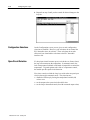
To copy configuration data from one loop to another:
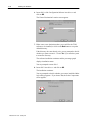
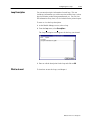
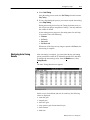
1. At the Module Manager screen, select the loop that has the
desired configuration (i.e. the source loop).
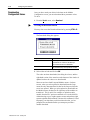
2. From the Edit menu, select Copy.
The values from the source loop will be placed on the Windows
clipboard.
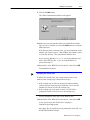
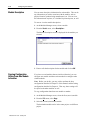
3. Select the second (i.e. destination) loop
The destination loop can be in the same module, a different
module, or a different project.
4. From the Edit menu, select Paste into selection.
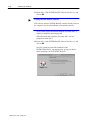
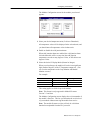
5. Go to each configuration screen for the destination loop, view the
pasted data, make any required changes, and then download to a
file, to the PLC processor, or both to save the pasted data.
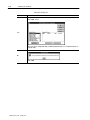
To save all configuration parameters, you must do this from the
Loop Configuration screen, Tuning Configuration screen, and the
Tuning Results screen, since each of these screens downloads (or
uploads) only those parameters shown on the screen.
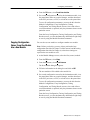
Note: When you open a screen that has pasted data, the
automatic upload from the PLC processor or the file is inhibited
to prevent overwriting the pasted data, and the status pane
displays the message “Values pasted from clipboard.”
When you paste into a loop, the name of the destination loop remains
the same, but all the configuration values are replaced with those
from the source loop. The values used from the source loop are
those that were last displayed on the configuration screens for that
loop. In other words, if you perform an upload from a file for the
source loop and then perform a copy command, the values that are
placed on the clipboard are those from the file, whereas if you
perform an upload from the PLC processor prior to performing the
copy, the PLC values are placed on the clipboard.
Publication 17716.4.5 - January 1997