1
NextSpeak - Mandarin TTS
2. Installation of NextSpeak - Mandarin TTS Player
Installation of NextSpeak - Mandarin TTS TTS Player requires administrator rights. During the installation,
an Arphic PinYin TrueType font will be copied to your system font directory, therefore, you need to have
the administrator right in order to modify your system directory. After installation, you will run NextSpeak Mandarin TTS with a normal (or limited) user account. Place your NextSpeak - Mandarin TTS CD in your
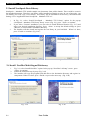
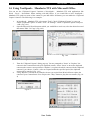
CD-ROM drive. The autorun program should start automatically, otherwise, click the "My Computer" icon.
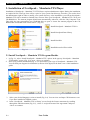
Then click the icon representing your CD-ROM drive to open it. Locate the autorun program in the CDROM folder and double click on it to start it. (Fig. 2-1)
Install NextSpeak - Mandarin TTS 2.0
Install NextSpeak Data Library
Install NextDict
Install Microsoft Office Add-in
Fig. 2-1
2.1 Install NextSpeak - Mandarin TTS Program Module
1.
2.
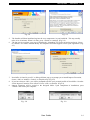
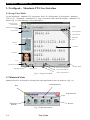
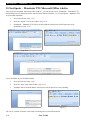
In Fig. 2-1, select “Install NextSpeak - Mandarin TTS” option. In the pop-up “NextSpeak - Mandarin
TTS Installer” screen (Fig. 2-2), press <Next> to continue.
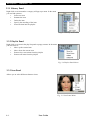
Enter your personal information (Fig. 2-3) to personalize your copy of NextSpeak - Mandarin TTS.
You can find your Support Serial Number (consists of 20 digits) on the back cover of this installation
guide.
Fig. 2-2
3.
4.
P.4
Fig. 2-3
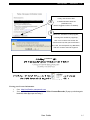
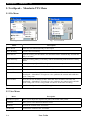
Select your desired language version to install (Fig. 2-4). You can view and input CJK characters even
if you have installed an English version.
In the “NextSpeak - Mandarin TTS 2.0 Setup” screen, Study the license statements by scrolling
through the whole document (Fig. 2-5) , select “I accept the terms of the Agreement” and press
<Next> to continue.
User Guide