1
BlueStep™ Technologies
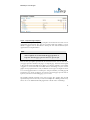
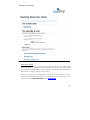
Custom Content – You may select text/HTML or leave it unchecked. If you select
text/HTML, you will be able to specific the content in the Customize Content tab.
The second field, Source Site, will allow you to select a location from which you may
want to pull content. This will be done from a drop down listing. The feature is designed
for those wishing to use ConnectTM as a dynamic data-publishing tool.
In most cases, you would use the default or the current site. You can select a different
site to draw content from for this pagelet, if you wish. Whether you choose another site
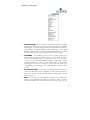
or use the existing site, there are five (5) other radio buttons with multiple selections
available for each content type via drop-down menus. You can select any one of the five
(5) types and any of those available within the selection to define the content source. For
any content source you select you will also be able to define this element for Customize
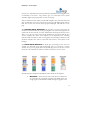
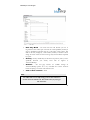
Content and the Borders and Colors. The five radio button selections are:
Page From Source Site – You will be able to select from a drop-down
menu displaying any page that had been previously created for the content site
you have selected. Selecting an existing page gives you the ability to create
pages with content that can now act as linked sub-pages. If you select one of
the “canned” pages, such as news, discussion or survey, topics will be displayed
in the pagelet in a listing format. You can determine how those listed formats
are displayed under Customize Content. An example of this would be to create
an “About Us” pagelet on your home page and then make that pagelet a link to
a text/HTML page with information about the organization. You can then use
one of the existing pages to create your “About Us” page. Anyone who clicked
on the heading for the pagelet would be taken to this page. You might also use
this as a method to allow users to quickly get to third or lower level pages in
your site since they will not be accessible to them from the site navigation bar
or its second level drop-down menu.
Media Library – Use this to post a picture to the pagelet. You can post
either static or motion graphics to the Media Library. Static graphic files posted
to the pagelet from here will be posted as the size it exists in the Media Library.
For example, if you post a GIF file that is 144 x 144 pixels, it will be
approximately 2” x 2”, dependant on the user’s graphics settings. If you wish to
resize the static graphic, you will need to do so with a graphic editor and repost
it to the Media Library. If the graphic is an animated file like QuickTime,
RealTime or a Flash file, you can set the size of the video display of that item
from the Customize Content screen.
33