1
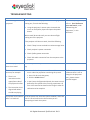
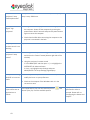
E TROUBLESHOOTING Issue There are no games projected Solution Look up and check if the projector has a beaming light coming out, if not do the following: Using the projector’s remote: point it towards the mirror on the EyePlay System and press the power button Comments To check lamp usage status, refer to: Error! Reference ource not found., under “Maintaining the Equipment”, in this document Wait around 30 seconds until you see a beam of light coming out of the projector If the projector still does not work, check the following: Check if lamp has not reached its maximum usage limits Check projector's power connection Check EyePlay power connection Check VGA cable connection from the computer to the projector Games are projected, but there is no sound The interaction is not accurate, for example: There is no interaction on the upper/lower side of the projected surface The interaction is not aligned with where the kids are playing Use the keyboard to adjust volume levels. Check the Mute key You need to let the system re-calibrate. Make sure no one is under the projection area during this process 1. Press Ctrl+Q to exit the games, 2. Click the Launch button In the Camera Configuration Wizard, the camera zone is defined by four yellow circles, forming a perimeter. All four circles need to be shown on the image in order for calibration to be complete The System turns itself off In the Projector Tab, check the system scheduler, and make sure it is set to be turned on the moment you are after it is launched. attempting to launch the system All Rights Reserved. EyeClick Ltd. 2013 If after the system recalibrates there is still no change in the projected area , please contact EyeClick Support