1
E
ONGOING OPERATIONS (USER MODE)
1.3. Configuring the Games and Playlists
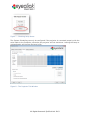
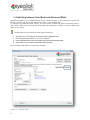
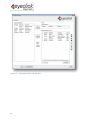
In the Applications tab, choose the games from the list of Installed Applications on left side.
The right side displays the two types of Playlist options: Single Application and Multiple
Applications.
For Single Application:
1. From the Installed Applications list, highlight one game, click the Set >> button. The game you chose will
be available for playing.
For Multiple Applications:
2. From the Installed Applications list, highlight a few games (hold down the ctrl button, same as in
Windows) to choose a few games at the same time. Click the Add>> button to move them to the Playlist.
a. Note – you can drag & drop instead of using the Add button
3. Set duration for controlling the play time of each game. The number represents seconds and comes with
default of 60 seconds per game.
4.
To change the order the games will appear, in the Playlist, click the
.
5.
Click the
icon to delete the game from the Playlist. You can choose another game from the Installed
Applications list.
6.
Click the
7.
8.
Click the
icon, enter a name and save the Playlist.
A new window opens, type the name of the Playlist and click Save.
9.
To choose another saved Playlist, click the
double click it.
icon to delete all games from the Playlist. This does not remove the games from the system.
icon. From the dialog window, pick a Playlist file and
In case you want to return to the original suggested playlist
1.
Choose the saved Playlist, click the
click it.
icon. From the dialog window, pick the Playlist file and double
All Rights Reserved. EyeClick Ltd. 2013