1
RESORCERER USER MANUAL
CREATING A NEW ANIMATED CURSOR
If you are viewing resources in Resorcerer’s File Window, click on the New
button or choose New Resource from the File menu. If the Types List is
the Active List, Resorcerer will ask you to specify the resource ID prior to
creating the resource; otherwise, it will use the next free resource ID
available for ‘acur’ resources. The resource ID at which the search begins is
specified in the Resource ID Preferences section of the Preferences
dialog (for more on this, see the “Preferences” chapter later in this manual).
Usually, the starting ID is 128.
If you are already viewing an open ‘acur’ resource, you can choose New
Resource from the Resource menu. The next free ID is assigned
automatically.
Once the new, empty list of cursor references has been created, the Editor
opens it for editing so that you can add frames to it.
OPENING AN ANIMATED CURSOR
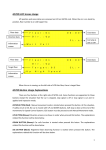
The File Window tries to
display all the cursors
whose resource IDs are
kept in the ‘acur’. If the
first resource ID belongs to
a color cursor (‘crsr’),
Resorcerer assumes that
all the rest of the cursors
are color ones, and tries to
display them in sequence.
If there is no color cursor
with the first frame ID, it looks for black & white ‘CURS’ resources to
display them. The Cursor Editor lets you explicitly say which cursor
resource type you want it to resolve and display. Any cursor resources that
are not in the same file get drawn as a gray square.
To open the animated cursor, select the ‘acur’ resource you want to open in
the Resources List of your File Window and click on the Open button. Or
double-click on the resource entry directly. If you need to get at some of the
hidden placeholder fields in the resource, open it with the Data button to get
at them with a template and the Data Editor.
82