1
THE ANIMATED CURSOR EDITOR
USING THE EDITOR
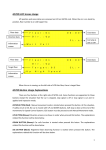
An ‘acur’ resource is essentially
just a list of resource IDs. The
Editor shows the resource ID and
the cursor with that ID, all in a
horizontal list. If there is no
cursor then the list draws a gray
square in its place.
Each cursor is labeled with its index, or frame number, from 1 up to the
number of frames in the list.
Animated cursors can be either black & white or color, depending on how the
code in the owning application is interpreting the ‘acur’ resource. However,
there is no place in the ‘acur’ data to specify whether the resource IDs are for
color (‘crsr’) or black & white (‘CURS’) cursor resources. When the Editor
opens the animated cursor, for each resource ID in the list it scans the file
the ‘acur’ is in, looking for either a ‘crsr’ or ‘CURS’ with that ID. When it
finds a match, it assumes that all the rest of the frame resource IDs refer to
resources of the same type as the match.
You can use the Show Color Cursors command in the
AnimatedCursor menu to tell the Editor to look for
and display ‘crsr’ resources, instead of ‘CURS’
resources. This should only be necessary if your file
contains both color and black&white animated cursors,
and you are using the same resource ID range for the
cursors in both animations.
The Try Out button is the same as the menu’s Try Out command. It builds
an animated cursor, either color or black&white depending on the Show
Color Cursors setting, using the frames in the list with resource IDs that
refer to actual cursors. It then attaches the series of cursors to the mouse
and animates them cyclically. The small up and down arrow click control
next to the Try Out button lets you change the wait time between frame
changes. The number to the control’s right is the number of ticks (60th’s of a
second) to wait. Lower numbers mean faster animation.
Note:
There may be a slight jerkiness to the animation, due to the
Editor periodically letting the System have some time.
83