1
AIM CrossChex User Manual
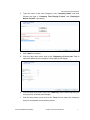
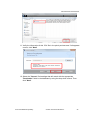
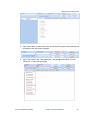
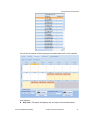
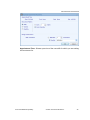
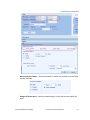
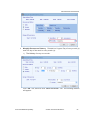
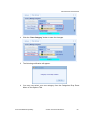
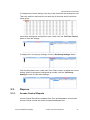
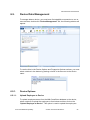
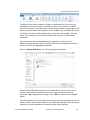
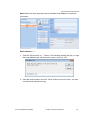
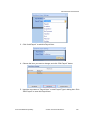
1 Select an employee or group of employees from the "Employee List" to
include in this report. If no employees are selected the report will include all
employees in the list starting from the head and working through to the bottom.
2
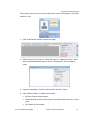
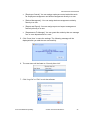
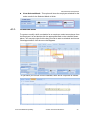
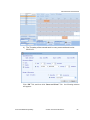
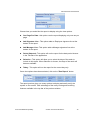
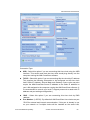
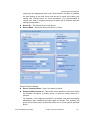
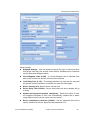
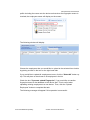
Choose how you would like the report to display using the view options.
3
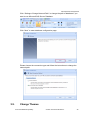
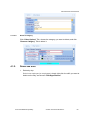
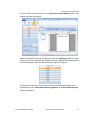
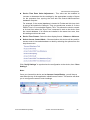
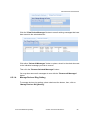
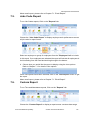
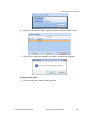
Once view options have been selected, click on the "Run Report" button.
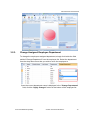
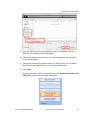
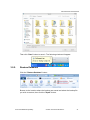
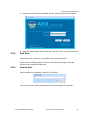
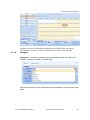
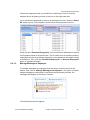
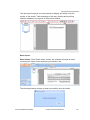
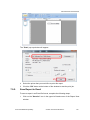
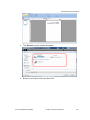
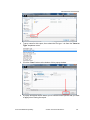
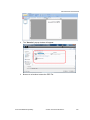
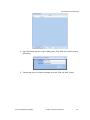
The report preview gives you many options to display and easily verify the
reports on the screen. Take advantage of the many viewing and archiving
features available in the top bar of the preview window.
About email report, please refer to Chapter 7.1 “Email Report”.
7.8.
Daily Attendance Statistic
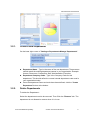
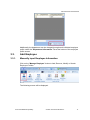
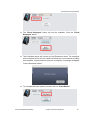
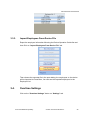
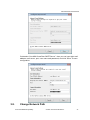
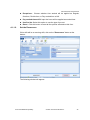
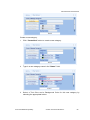
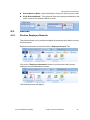
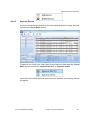
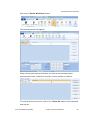
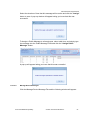
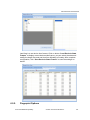
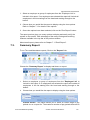
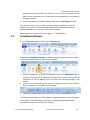
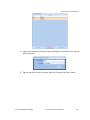
To run Time and Attendance reports, Click on the "Reports" tab.
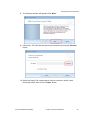
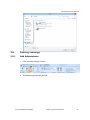
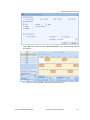
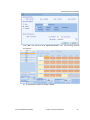
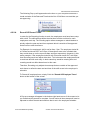
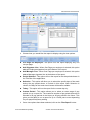
1. Choose the "Daily Attendance Statistic" to display a report across a custom
date range.
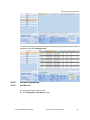
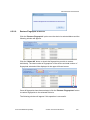
2. Select an employee or group of employees from the "Employee List" to
include in this report. If no employees are selected the report will include all
employees in the list starting from the head and working through to the
bottom.
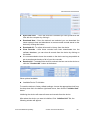
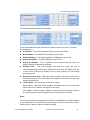
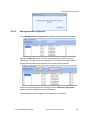
3. Choose how you would like the report to display using the view options.
Anviz Confidential Proprietary
© 2001-2013 Anviz Global Inc.
117