1
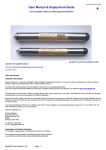
Digital Barometer Module
Water Services
User Manual Release 2
Part Numbers:
Barom-RS485 & Barom-SDI12 model
Last updated Sept 2015
Introduction
The digital barometer modules are low cost and power devices that have been designed to provide barometric values for data
recording applications.
The barometers are can be used in many different applications, and are ideally suited for use with PIEZO-RM range water level
sensors. The sensors provide barometric pressure values directly in the same engineering units as to the water level sensors
making analysis of ruselt a simple operation.
Table of Contents
Page No.
Description
1
Models
Warranty Provisions
Quick User Guide
2
4
5
6
7
How to connect the Barometer to a PC using the
SDI-12 network.
A Complete Water Level Recording Solution using the AquaLOG
Data Logger
Setting the network ID number (Address)
Measurement Operations with AquaLOG Data Logger
Model Part No: Barom-RS485
RS-485 -
8
Barom Sensor Maintenance Operations
Installation
Physical Dimensions
Technical Specifications
9
Connecting the Barom-SDI12 to a RS-485 network.
RS-485 +
+12V DC
Model Part No: Barom-SDI12
SDI-12
Data
Gnd
Gnd
Top View looking into Power Connector
+12V DC
Top View looking into Power Connector
W h a t W e Pr o v i d e
Warranty Provisions
Keynes Controls Ltd . warrants the Barom-SDI12 and Barom-RS485 model digital barometers for one year from date of purchase by the end user
against defects in materials and workmanship under normal operating conditions.
To exercise this warranty contact Technical Support at the phone or e-mail address listed below
for a return material authorization (RMA) and instructions. Complete warranty provisions are posted on our website at http://www.aquabat.net
The information in this document is subject to change without notice. Keynes Controls Ltd . has made a reasonable effort to be sure that the information
contained herein is current and accurate as of the date of publication.
Keynes Controls Ltd. makes no warranty of any kind with regard to this material, including, but not limited to, its fitness for a particular application. Keynes
Controls Ltd will not be liable for errors contained herein or for incidental or consequential damages in connection with the furnishing, performance, or
use of this material.
In no event shall Keynes Controls Ltd . be liable for any claim for direct, incidental, or consequential damages arising out of, or in connection with, the
sale, manufacture, delivery, or use of any product.
HOW TO CONTACT US:
Technical Support
Keynes Controls Ltd
Riseley Business Park
Riseley
Berkshire, RG7 1NW
Part Numbers used in this document
Part Number
Description
Further Details
Barom-SDI12
Digital barometer SDI-12 network
http://www.aquabat.net/Barometer/barometer-digital.html
Barom-485
Digital barometer RS485 network
Same as above
PIEZO-RM
Digital water level sensor
http://www.aquabat.net/PIEZOSummary/piezo-sensorsv1.html
http://www.aquabat.net/SDI12HBconv/sdi12hb-mediaconvert.html
SDI12-HB
Hand held SDI-12 USB media converter
USBS12v1
USB-SDI12 digital network media converter
http://www.aquabat.net/USBSDI/usbs12mediav1.html
USB-485v1
USB-RS485 digital network media converter
http://www.aquabat.net/USB485/USB-RS485mediav1.html
Q-LOG
Data Recording and Display Software
for SDI-12 and RS-485 intelligent sensors
http://www.aquabat.net/QLOGFree/qlogv2.html
Copyright © 2012 Keynes Controls Ltd. Keynes Controls withholds the right
to change the specification of this product without notice.
Barom-SDI12 SDI-12 Barometer Module
1
Quick User Guide
The following guide describes the basic operations needed to make a test reading under user control from the barometer
module. The easiest way to test and configure the ‘Barom’ range of sensors is by the Q-LOG application software.
It does not matter which model the procedure for testing the device and making configuration changes is the same when
using the Q-LOG software.
Download and install the free Q-LOG application from
http://www.aquabat.net/QLOGFree/qlogv2.html
Default factory set SDI-12 / RS-485 ID number = 0
For Users familiar with programming an SDI-12 / RS-485 device using the industry standard commands then for a factor new
sensor use: SDI-12 Command ‘0M!’
- Start measurement
and ‘0D0!’
- Read Data Value
RS-485 Command ‘%0M!’
‘%0D0!’
where 0 = number zero.
Return: 0+1034.45+103400+21.00 or similar - the sensor should show the current barometric setting.
Installation
1.
Ensure the media converter is installed and identified by the PC. The media converter drivers will automatically be installed
so long as an Internet connection is available on the PC. The driver software for the media converters is Microsoft Accredited.
The Comm port used by the media converter has to be Identified and noted before Q-LOG can be activated. Use the operating
system control panel to select ‘System Resources’. The Comm port is generally identified under ‘Port’ from within this menu.
2. Connect power to the Barometer using the USB-media converter. It does not matter which model of the sensor is to be used
All the media converts are identified by their Comm Port number within Q-LOG and the type of network used is transparent
to the User when using Q-LOG.
The handheld USB media contains a sensor power supply.
The power supply required for this sensor range is 12 V DC @ 10 mA.
3.
Start Q-LOG software.
Select ‘Q-LOG’ option from the main menu.
Select ‘Configuration Option’ and a new Logging Configuration
Window will appear.
Note. Comm Port 6 is the
port number for the USB-media
converter.
Setup the desired sample rate, USB Comm Port number, and log file name.
4.
Select ‘Scan for devices’ option. Q-LOG will scan the network for all supported sensors
automatically and will identify the barometer.
5.
Select ‘View’ menu option from the main menu and select ‘LCD’ from the list that appears. A Window with panel meters will
be displayed. Use the ‘Number of panels’ options to set 1 row x 2 items as highlighted below.
Set the number of panel meter
1 Row x 2 Data Items
For a single sensor set the panel
meter display to show
1 row of 2 x data items.
Q-LOG will display 2 panels on to the
screen and these will be configured
to show temperature and pressure.
Barom-SDI12 SDI-12 Barometer Module
2
Panel Meter Data Selection
Now that the barometer is installed and identified by Q-LOG then the temperature and pressure data has to identified and
displayed. The Q-LOG menu system. The table of commands on page 8 shows that the sensor returns the parameters:
a + Press-mbar, mH20 @ 4oC +Temp (Deg C)
when it is instructed to send data.
Note a = ID number.
The most common parameter displayed is barometric pressure in mbar. This example will display pressure in mbar and
temperature in Deg C and will only use a 1 row x 2 panel meter display. Factor default ID = 0
From the ‘View Data’ Window select ‘Link’ option - a list of Panel options appears. There are only 2 panels meters to be used.
Select ‘Panel 1’ menu option and the ‘Variable Window’ will appear.
‘View Data’ Window
mbar
Press the ‘Select’ button adjacent to the ‘D’
cell to make Q-LOG use this data item in the
Panel_1 display meter.
Deg C
Type ‘mbar’ into this cell to display the correct
pressure units on the panel meter display.
Type ‘Deg C’ into this cell to display the correct
pressure units on the panel meter display.
The Variable Window will appear very similar to the one above. The units displayed by
Q-LOG are set in this Window by simply typing them into the cell under the Units column.
Full details for Unit selection can be found the User manual.
Once all the parameters are set into the ‘Variable’ Window select the ‘OK’ button to store the parameters and settings.
The pressure data value from the Barometer has now been selected.
Temperature Value Selection
Repeat the operation above but select the ‘F’ parameter from within the ‘Set Variable’ Window and assign it to Panel_2 display.
Starting Data Display
Select the ‘Start Logging’ option from the ‘QLOG’ menu list to start receiving data from the barometer. The small USB media
converters use LED indicators to show that data is being transmitted across the network. These LED status indicators should now
flash at the data logging rate.
Viewing the Sensor Data
Select the ‘LCD’ option from the ‘View’ menu option.
The ‘View Data’ Window will appear and display the specified number
of panel meters to the main display.
‘View Data’ Window
Barom-SDI12 SDI-12 Barometer Module
3
How to connect the Barometer to a PC using the SDI-12 network.
The following page shows how the Barom-SDI12 sensor to a PC using the USB-SDI12 media converter and forms a very simple
data acquisition system. The sensor converts the barometric readings into engineering units directly.
The Barom-SDI12 sensor is supported by the Q-LOG applications software which can be freely downloaded from the
http://www.aquabat.net web site.
In order for the sensors to operate they require a unique network ID number. For the example below the Barom-SDI sensor has
ID = 0, and the PIEZO-RM sensor will have ID = 1.
The Barom range of sensor supports ID numbers 0..9 and the extension a..z. The extended ID range is available on demand.
Optional
External 12V
Power Supply
SDI-12
Data
SDI-12
Data
+12V DC
+12V DC
Gnd
Gnd
SDI-12 Data
N/A
3
+12V DC
2
4
G
1
SDI-12 Port on the
AquaLOG
SDI-12 Port on
Barom-SDI12
External Power
Supply
Laptop / PC Computer
AquaLOG / 3rd Part Logger
or
Part No. USB-SDI12-Pro
USB-SDI12-Pro
Isolated USB - SDI12 media
converter.
SDI-12 Port
ID = 0 (Factory default)
This device can power up to
10 single channel devices
from the USB-SDI12-Pro
media converter directly from
the PC USB port.
Cable Port
N/A
6
1 SDI-12 Data
N/A
5
2 N/A
Gnd
4
3 +12V DC
PIEZO-RM
Sensor Connection
water level sensor
The image above shows the handheld USB-SDI-12 media
converter with built in power supply unit.
ID = 1
This model can be supplied with a mains power supply for
continuous data acquisition systems.
Q-LOG software
The Q-LOG software gives the User the ability
to configure the supported sensors using a
pull down menu system, and without any prior
knowledge of any programming.
Laptop / PC Computer
Use the Q-LOG formulae to apply barometric
corrections to the water height data values.
Barom-SDI12 SDI-12 Barometer Module
4
Use the Q-LOG software to set the sensors to
the same engineering units. The BaromSDI12 and PIEZO-RM can both be set to
supply data values in units of metres (m).
A Complete Water Level Recording Solution using the AquaLOG Data Logger
The drawing below shows how the SDI-12 digital barometer module is connected with a PIEZO-RM range liquid level sensor to
create a complete water level recording system. The 6 port expansion hub has been shown in order to simplify the wiring installation.
The barometer and liquid level sensor have unique ID numbers in order that the logger can identify the results from the individual
sensors. The PIEZO-RM level sensor and the barometer provide data values in the same engineering units. The logger can be
configured to undertake the local barometric correction and/or store the individual data values.
SDI-12
Data
Top View looking into connector
+12 V DC
SDI-12 Port on
Barometer
Edge
+12V DC
Gnd
SDI-12 Port
on AquaLOG
SDI-12
Data
SDI-12
Data
Gnd
+12V DC
SDI-12 Port on the
AquaLOG
Gnd
SDI-12 Network
Expansion HUB
Third Party Sensors
AquaLOG
N/A
6
1 SDI-12 Data
N/A
5
2 N/A
Gnd
4
3 +12V DC
Pin-1
View looking into
cable port
PIEZO-RM Pin-outs
PIEZO-RM
http://www.aquabat.net/support/manual/piezo-rm-manualv105.pdf
Refer to the PIEZO-RM
User manual for connection details
ID = 1
water level sensor
Setting the network ID number (Address)
In order to operate with a data logger or acquisition system the sensor ID number often has to be changed from the factory
default ID = 0 to another free address.
Changing ID address - SDI-12 Command
The Barom-SDI12 ID address can be changed under software control
For example. To change the Barom-SDI12 address from ID = 0 to ID = 5 issue the command:
xAy!
Example:
0A5!
Where x = start ID number
y = New SDI-12 ID number
- Standard SDI-12 command
— the ID address of the barometer module initially set to ID =0 is changed to ID = 5.
Changing ID address - RS485 Command - ‘%’ Prefix
For example. To change the Barom-485 address from ID = 0 to ID = 5 issue the command:
%xAy!
Example:
%0A7!
Where x = start ID number
y = New SDI-12 ID number
- Standard RS-485 command
— the ID address of the barometer module initially set to ID =0 is changed to ID = 7.
Barom-SDI12 SDI-12 Barometer Module
5
Measurement Operations with AquaLOG Data Logger
The following section details the integration and measurement operations of the Barom-SDI12 barometer with the AquaLOG
data logger.
The Barom-SDI12 will operate with any 3rd party SDI-12 based data logger however the simplest way of making and storing
measurements is with the AquaLOG data logger unit.
1. Connect the Barom-SDI12 to the AquaLOG as shown iat the top of page 4.
For full instructions in the use of the AquaLOG see the product User Manual.
The AquaLOG is configured using a menu system in exactly the same way as described for the Barom-SDI12 and uses a terminal
program to display the in-built menu system. Details for the serial port connection and port settings are shown in page 2.
Upon connection of power and the terminal connection the following menu will be displayed:
Main Menu
1 Device Setup
2 Zigbee Mode Settings
3 GPRS Mode Settings
4 USB Memory Stick Settings
5 SDI12 Setup
6 Formulas
7 Alarms
8 Logging Operations
9 Diagnostics
A System Maintenance
U Up. T Top.
The Barom-SDI12 sensor can be configured using the ‘Transparent’ mode feature
of the AquaLOG menu system.
See the AquaLOG User manual page 10 for further details.
Terminal Port Setting
Configuring the AquaLOG to make a barometric measurement
Default settings for the AquaLOG terminal port are:
Selection option ‘5 - SDI-12 Setup’ from the AquaLOG Main Menu
The following menu similar to that below will appear:
SDI12 Setup
1 Powerup delay (ms)
2 Powerdown delay (ms)
3 Device 1 Command
4 Device 2 Command
5 Device 3 Command
6 Device 4 Command
7 Device 5 Command
8 Device 6 Command
9 Device 7 Command
A Device 8 Command
B Device 9 Command
C Device 10 Command
U Up. T Top.
9600 Baud
8 Data bits
1 stop bit
No parity
Note.
500
0
[D] 1M! 1D0!
In this example the Barom-SDI12 has ID = 1 and the results will be
written into the data table starting at cell ‘D’
Example
If the Barom-SDI12 has 3 x SDI-12 parameters configured for output
then the results for this example will be written into cells
DEF
Enter Device 1 Command
Within the AquaLOG data table.
Sample rate
The sample rate for the Barom-SDI12 data is set within the AquaLOG as the rate in which measurements are made.
From the AquaLOG main menu select option ‘8’ Logging Operations and the following menu will appear
Select option ‘1’ to assign the sample rate
Logging Operations
At the command prompt enter the new sample
Enter Sample Rate Period (seconds)
60
(1 reading / min)
For 1 min sample rate = 60
1 hour sample rate = 3600
To start readings at the new rate press the ‘Menu Activation Button’ on the AquaLog.
Barom-SDI12 SDI-12 Barometer Module
6
1 Sample Rate Period (seconds)
2 Logger Info
3 Download Data
4 Reset Logger
U Up. T Top.
Enter Sample Rate Period (seconds)
30
Barom Sensor Maintenance Operations
Both of the Barom-SDI12 and Barom-RS485 sensors are supplied in an encapsulated immersion proof / dust proof enclosure
as standard. The sensors will operate even after a short duration immersion in water.
Fig 8
For optimum performance
Pressure Port
After any immersion in water be that accidental under testing of if the instrument
becomes flooded as part of its routine operation.
1. Check that no dirt has collected or blocked the sensor vent tube. Any blockage
in the vent tube can corrupt the results.
Sensor
Vent tube
Clean out the vent tube using clear tap water.
5mm Silicon Tubing
2. Remove the power supply cable and check to see that there is no build of any
dirt on the connectors. Remove and unwanted material and re-connect the
supply.
Installation
1.
Drill 2 x 4 mm holes in-line but spaced 89 mm apart into the panel or wall to be used to
mount the Barometer.
In the case of enclosures supplied with a Barom version sensor, then locate the barometer
module onto the panel and secure with the plastic caps that will have been included with the
product. The caps offer fast installation and removal for servicing operations.
2.
Ensure that the Barometer vent tube port is clear of any obstruction. A blockage in the vent
port can cause errors the barometric measurement.
3.
When fitting the barometer make sure atmospheric vent into the enclosure being used. The
sensor wont respond accurately should the sensor cabinet have been made air tight.
The simplest solution for using the barometer is to drill 2 x small vent holes into the bottom
of the enclosure. Any condensation will also be vented away from the electronics. For long
term deployment rain filters should be fitted over any vent holes.
Fig 9
Atmospheric
Vent holes
Ground water
Vent Tube - 5 mm Silicon tube
Vent Tubing
4.
For applications where is is not feasible to mount the sensor away from the logger unit due
to space, wiring, power restrictions then a vent tube can be connected onto the pressure
port nipple. The vent tube outlet can be mounted at a more convenient location and the
barometric air supply piped to the pressure port.
It is a good idea to fit a filter over the vent tube outlet to the atmosphere to prevent the
ingress of water to the sensor element.
Physical Dimensions
Barom-SDI12 SDI-12 Barometer Module
7
Filter
Technical Specifications
The following table details the technical specifications for the barometer sensors.
Maximum error of pressure reading
over the pressure range.
Barometric Pressure
Min
Typical
Resolution
Max
Units
0.1
Range
750 - 1100
Absolute Pressure Accuracy
p =750 .. 1100 mbar at 25 oC
Pressure Long term stability
12 months
mbar
mbar
-1.5
1.5
mbar
1
mbar
Temperature
Resolution
0.1 Deg software limited
Accuracy
20 oC
-40 to 85
Operating Range
-40 to 85
-0.8
-2
0.8
2
Deg C
Deg C
Deg C
Power Supply
Idle mode
Active / measurement
10
12
SDI-12 = 0.5 RS-485 = 1.1
SDI-12 = 2.1 RS-485 = 2.6
Physical Dimensions
L = 50.80
W = 38.10
H = 19.05
All models
Vent Tube diameter
4 mm
All models
18
Volts
mA
mA
mm
Table of Commands
The following commands are used to take readings from the barometer sensors.
SDI-12 Command
Description
aM!
Start measurement
aD0!
Obtain data
a + Press-mbar, mH20 @ 4oC +Temp (Deg C)
RS-485 Command
%aM!
Start measurement
%aD0!
Obtain data
a + Press-mbar, mH20 @ 4oC +Temp (Deg C)
The Barom-SDI12 and Barom-485 models can be configured to supply data values in different engineering units.
SDI-12 Command
RS-485 Command
aXR!
%aXR!
Results string list - Default "A C E"
A = mbar
B = mH2O
C = Pascal
D = mbar
E = Temperature
aXI n!
%aXI n!
where n = integration period in milli-seconds
1000 mS = 1 second
Example. Using the Barom-SDI12 sensor change the ID number form 0 (factory default) to 7 and use an integration period for
½ second.
0A7!
– change ID = 7 further detail on page 5
7XI 500!
- integration period for sample measurement = 500 mS.
Barometer Connection to USB-SDI12-Pro and USB-485-Pro media converters
SDI-12
Data
+12V DC
Gnd
+12V DC
Gnd
Part No: Barom-SDI12
Part No: Barom-485
Barom-SDI12 SDI-12 Barometer Module
8
Connecting the Barom-SDI12 to a RS-485 network.
The drawing below shows how the RS-485 version digital barometer module is connected onto the digital network.
The barometer module is shown in use with a PIEZO-RM range intelligent sensor and a PC and this used to create a complete
water level recording and display system. The barometer and PIEZO-RM sensors are both fully encapsulated devices and
transmit data digitally across the network for data storage and presentation. Any local barometric correction of the water height
data values is undertaken in the data recorder or PC.
.A USB-RS485 media converter and the Q-LOG applications software can be used to record and plot data values onto the PC.
Main Q-LOG Window
Q-LOG Setup Window
Once the Barometer is connected to the to PC using the media
converter, then the Q-LOG software can scan the network and
identify the device.
The User can select from the menu system all of the configuration
properties of the chosen sensor and make adjustments without
any prior programming experience.
The Barom-485 will connect to any suitable
data logger or acquisition system that
supports the RS-485 network and industry
standard commands as shown in the Table
of Commands on page 8.
RS485 +
Range 0 .. 1 Km
Top View looking
into connector
Gnd
RS485 +
Laptop / PC Computer
RS485 -
+12V DC
RS-485 Port on the
Barometer
RS485 -
+12V DC
Gnd
Gnd/0V
1
2
3
4
+12V DC
G
RS-485 -
RS-485 +
+12V DC
RS485 RS485 +
External Power
RS-485 Network
Expansion HUB
Range 0 .. 1 Km
+12V DC
Power Supply
Refer to the PIEZO-RM
User manual for connection details
http://www.aquabat.net/support/manual/piezo-rm-manualv105.pdf
Additional RS-485 Network
Barom-SDI12 SDI-12 Barometer Module
9