1
6.19
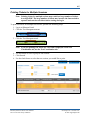
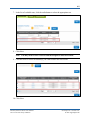
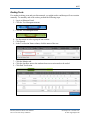
9. Click the box next to the student’s name whose test needs to be reactivated.
Note: The Reactivate button displays when a student is selected.
10. Click Reactivate.
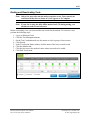
11. A message asks you to confirm the reactivation.
12. Click OK.
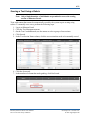
Hint: The student can log back in to the test using the same test ticket.
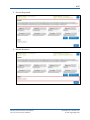
Note: When the student begins the reactivated test, they must first login to section
one, go the review page at the end of the section, and click Complete to reach
the next section. The student must repeat this process until they reach the
section that was reactivated.
KITE™ | Educator Portal User Manual
2015 © The University of Kansas
ATS Help Line: 785.864.3537
Or [email protected]