1
Editing User Codes
User code editing is a feature that is available exclusively to the Master code. To
maintain a high level of security, keep all user codes confidential.
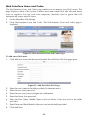
To edit a user code:
1.
From the main menu select, User Codes [4].
2.
Select the code you want to edit;
3.
From the code’s sub-menu, select Edit Code; the 4-digit code is
displayed with the cursor flashing on the first digit.
4.
Edit the code.
5.
Press √; the new code is stored in the memory.
If you enter a code that is identical to an existing user code, the Control System sounds
an error tone and the new code is not accepted. 0000 is not a valid user code as this
value is used to delete a user code.
Deleting User Codes
As an additional security measure, make certain that you delete any extra codes that are
no longer required.
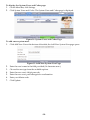
To delete a user code:
1.
From the main menu select, User Codes [4].
2.
Select the code you want to delete;
3.
From the code’s sub-menu, select Edit Code; the 4-digit code is displayed with
the cursor flashing on the first digit.
4.
Enter 0000.
5.
Press √; the code is deleted.
The Master code cannot be deleted.
User Code Descriptors
Using the alphanumeric keypad on the front panel, you can edit the 16-character user
code descriptors and enter the name or title of the users to whom the code is allocated.
To enter text, press a key repeatedly to scroll through the characters that appear on the
key. For example, press 6MNO to enter M, N, O, or 6 respectively. You can also use the 1
and 0 keys to enter symbols. After you enter text, the cursor automatically moves to the
next character. During descriptor editing, use the left SOS button
before the current character. Use the Right SOS button
character.
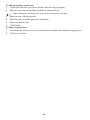
To edit a user code descriptor:
1.
From the main menu, select User Codes [4].
2.
Select a code.
3.
From the code’s sub-menu, select Descriptor.
4.
Edit the descriptor using the alphanumeric keypad.
-51-
to enter a space
button to delete the current