1
BrainMaster BrainAvatar User Manual
BMr Extras
BMr Contributed Games
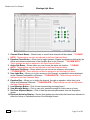
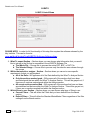
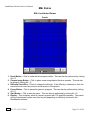
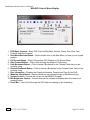
Puzzle
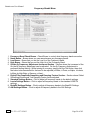
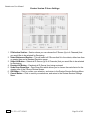
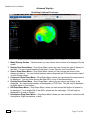
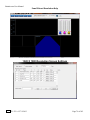
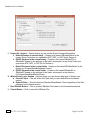
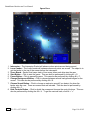
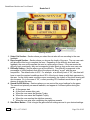
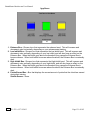
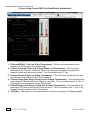
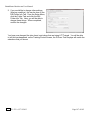
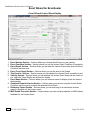
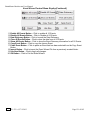
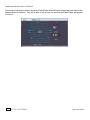
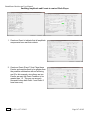
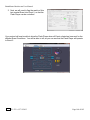
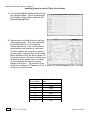
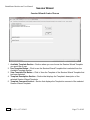
1. Reset Button – Click to make the blue squares visible. This can also be performed by clicking
Alt + R.
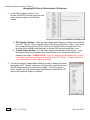
2. Choose Image Button – Click to place a new image behind the blue squares. This can also
be done by clicking Alt + C.
3. Difficulty Check Box – Check to change the difficulty. If the difficulty is checked on, then the
customer must score two points to reveal a piece of the picture.
4. Pause Button – Click to pause the game in progress. This can also be performed by clicking
Alt + P.
5. Start Button – Click to start the game. This can also be performed by clicking Alt + S.
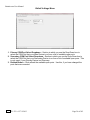
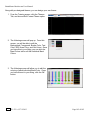
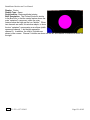
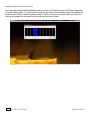
6. Display – This is display, which is a square covered with 130 small blue squares. The puzzle
will be revealed one square every time a point(depending on difficulty) is scored in the
BrainMaster software.
REF
531-322 v1.2 7/9/2013
Page 113 of 182