1
Managing Your System Security
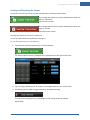
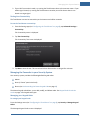
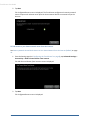
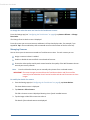
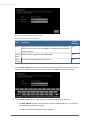
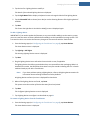
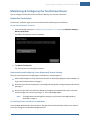
4. Tap Next to return to the Adjust Camera Video Quality screen.
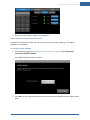
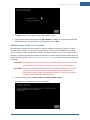
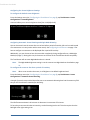
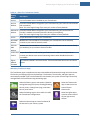
5. Tap the appropriate video quality based (High, Medium, or Low) on the measured speed of the
Wi-Fi between the camera and your security network, and tap Next.
Adding Cameras to the Security System
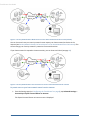
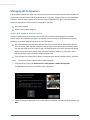
The TouchScreen supports up to six cameras. A camera is added to the security system by using an
Ethernet cable to connect it to the security router. After the camera has been added to the security
system, remove the cable, and place the camera in the desired location. If your home requires a Wi-Fi
repeater, the camera must be connected to the router first, and then moved to the desired location on
the far side of the repeater. See "Managing Wi-Fi Repeaters" on page 68 for more information about WiFi repeaters.
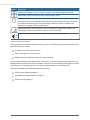
IMPORTANT: The camera images are accessible to the TouchScreen device, the Subscriber Portal,
and mobile apps. The Service Provider does not have access to these images.
IMPORTANT: If you need to update the firmware on any camera before adding it to the security
system, you must reset the camera to factory defaults before adding it to the
OpenHome Converge system. This is essential so that it can receive the necessary
changes to communicate with the TouchScreen.
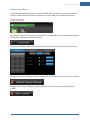
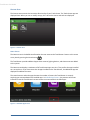
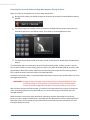
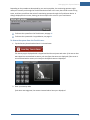
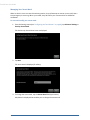
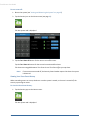
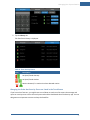
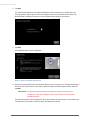
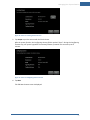
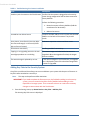
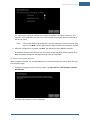
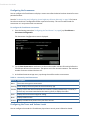
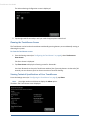
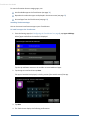
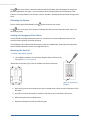
1. From the Settings menu, tap Home Devices >Cameras > Add a Camera.
The Add Camera – Network Test screen is displayed.
51