1
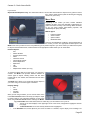
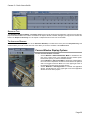
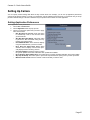
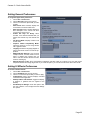
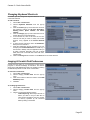
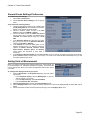
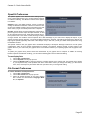
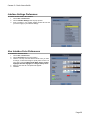
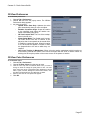
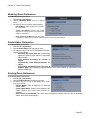
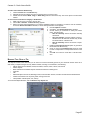
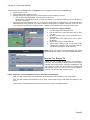
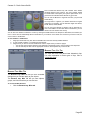
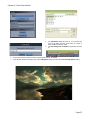
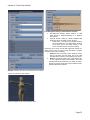
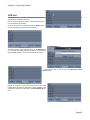
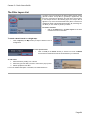
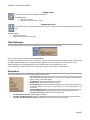
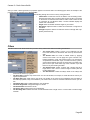
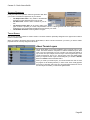
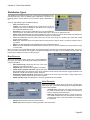
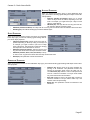
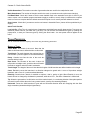
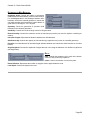
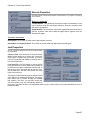
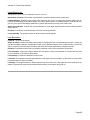
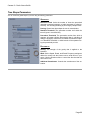
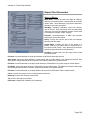
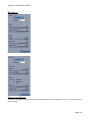
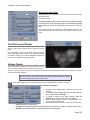
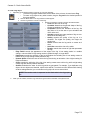
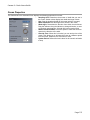
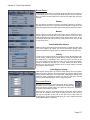
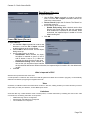
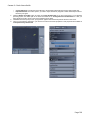
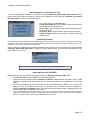
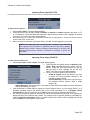
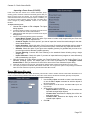
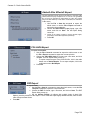
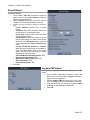
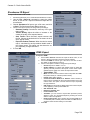
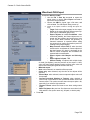
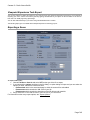
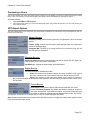
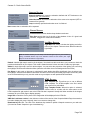
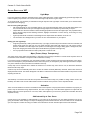
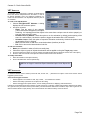
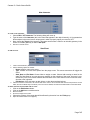
Carrara 8 – Basic Users Guide OpenGL Preferences Two options appear in the General Scene Settings prefer ences. These settings allow you to choose between OpenGL or Software rendering. The difference between these options is as follows: Software: This is the default renderer. It does not take ad vantage of hardware acceleration. However it is often the fast est and most reliable renderer. We recommend that you stick with it unless you get much better performance in OpenGL. OpenGL: Carrara offers an improved OpenGL engine that im proves support for texture maps with alpha channels, as well as an improved textured mode. These improvements also en hance performance in the Vertex modeler, allowing for editing of larger meshes. This renderer uses the OpenGL API to take advantage of your video card to display 3D objects. If your graphic card fully supports OpenGL, you should get better performance. However, it should be noted that many cards do not fully support OpenGL (especially older cards or the cheaper ones), in that case you will get a better redraw speed when using the Software renderer. The OpenGL renderer uses your graphic card to accelerate the display of 3D objects. Although it should run on most system configurations, there are some specific requirements for OpenGL. The OpenGL renderer requires a recent version of the graphic driver for your video card. (The graphic driver is the interface between your operating system and the graphic hard ware). To update your graphic driver, please contact the manufacturer of your graphic card or computer. In addition to choosing between OpenGL and software rendering, you can find the following option in the Preferences dialog: To use display lists: 1. 2. 3. Choose File > Preferences. Choose OpenGL from the pop-up menu. Check Use Display Lists to cache the geometry of existing objects on the graphic card. This speeds up the display of your objects but may cause problems with some video drivers. When you change this setting, you will need to save, close, and reopen any documents that were open at the time you changed the setting. File Format Preferences To choose default file format preferences: 1. Choose File > Preferences. 2. Choose File Format from the pop-up menu. 3. Select the default language to use when opening files. Choices are Use Carrara’s Language, West ern, or Japanese. Page 35