1
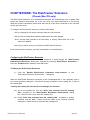
The Find dialog box
DiskTracker features a simple searching engine which most users will find sufficient for their
searches. Up to six criteria may be checked at a time and over twenty different kinds of criteria
are offered.
• Executing a single-criteria search:
1.)
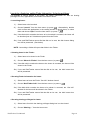
Select “Find…” from the Search menu (or press
will be presented:
). The Find dialog box
2.)
Select whether DiskTracker should search all disks, the current hierarchy,
within selected items, or selected items only from the “Search” menu within
the dialog.
3.)
Select the criteria to search on from the menu on the left.
criteria and what they do, see below.
4.)
Select the how the criteria should be matched (e.g., contains, is equal to, is
less than, and so forth) from the menu on the right.
5.)
Enter the search value or select it from the menu in the center (method
depends on the search criteria). Click the “Match Case” checkbox to ensure
case-sensitive searches. See below for more information.
For a list of the
5a.) To search on more than one criteria, click the “More Choices” button. This
will add a search term to the search. The button is grayed out if there are
already six search criteria visible. Complete steps 3 - 5 for the new search
criteria, and choose either “AND” or “OR” from the pop-up menu to indicate
how the criteria should be combined.
5b.) To remove the last criteria from the dialog box, click the “Fewer Choices”
button.
6.)
From the “Show:” menu, select how DiskTracker should display the found
items. Choose between having the first item selected, all of the items selected,
DiskTracker User Manual
Page 33